<!DOCTYPE html>
    <html lang="vi" xmlns="http://www.w3.org/1999/xhtml" prefix="og: http://ogp.me/ns#">
    <head>
<title>Cách loại bỏ thông báo &quot;System Requirements Not Met&quot; trên Windows 11</title>
<meta name="description" content="Cách loại bỏ thông báo &quot;System Requirements Not Met&quot; trên Windows 11 - Savefile - Tin Tức -...">
<meta name="author" content=".: Nguoicodonvn2008.info - Cõi lòng người cô đơn :.">
<meta name="copyright" content=".: Nguoicodonvn2008.info - Cõi lòng người cô đơn :. [admin@nguoicodonvn2008.info]">
<meta name="robots" content="index, archive, follow, noodp">
<meta name="googlebot" content="index,archive,follow,noodp">
<meta name="msnbot" content="all,index,follow">
<meta name="generator" content="NukeViet v4.5">
<meta http-equiv="Content-Type" content="text/html; charset=utf-8">
<meta property="og:title" content="Cách loại bỏ thông báo &quot;System Requirements Not Met&quot; trên Windows 11">
<meta property="og:type" content="website">
<meta property="og:description" content="Savefile - Tin Tức - https&#x3A;&#x002F;&#x002F;www.nguoicodonvn2008.info&#x002F;vi&#x002F;news&#x002F;savefile&#x002F;kien-thuc-may-tinh&#x002F;cach-loai-bo-thong-bao-system-requirements-not-met-tren-windows-11-5339.html">
<meta property="og:site_name" content=".&#x3A; Nguoicodonvn2008.info - Cõi lòng người cô đơn &#x3A;.">
<meta property="og:url" content="https://www.nguoicodonvn2008.info/vi/news/savefile/kien-thuc-may-tinh/cach-loai-bo-thong-bao-system-requirements-not-met-tren-windows-11-5339.html">
<link rel="shortcut icon" href="https://nguoicodonvn2008.info/favicon.ico">
<link rel="canonical" href="https://www.nguoicodonvn2008.info/vi/news/savefile/kien-thuc-may-tinh/cach-loai-bo-thong-bao-system-requirements-not-met-tren-windows-11-5339.html">
<link rel="alternate" href="https://nguoicodonvn2008.info/vi/news/rss/" title="Tin Tức" type="application/rss+xml">
<link rel="alternate" href="https://nguoicodonvn2008.info/vi/news/rss/karaoke-dual/" title="Tin Tức - Karaoke Dual" type="application/rss+xml">
<link rel="alternate" href="https://nguoicodonvn2008.info/vi/news/rss/nhac-tre/" title="Tin Tức - Nhạc trẻ" type="application/rss+xml">
<link rel="alternate" href="https://nguoicodonvn2008.info/vi/news/rss/tru-tinh/" title="Tin Tức - Trữ tình" type="application/rss+xml">
<link rel="alternate" href="https://nguoicodonvn2008.info/vi/news/rss/nuoc-ngoai/" title="Tin Tức - Nước ngoài" type="application/rss+xml">
<link rel="alternate" href="https://nguoicodonvn2008.info/vi/news/rss/remix/" title="Tin Tức - Remix" type="application/rss+xml">
<link rel="alternate" href="https://nguoicodonvn2008.info/vi/news/rss/tam-su-tinh-yeu/" title="Tin Tức - Tâm sự tình yêu" type="application/rss+xml">
<link rel="alternate" href="https://nguoicodonvn2008.info/vi/news/rss/tho-suu-tam/" title="Tin Tức - Thơ sưu tầm" type="application/rss+xml">
<link rel="alternate" href="https://nguoicodonvn2008.info/vi/news/rss/cuoc-song/" title="Tin Tức - Cuộc sống" type="application/rss+xml">
<link rel="alternate" href="https://nguoicodonvn2008.info/vi/news/rss/phan-mem/" title="Tin Tức - Phần mềm" type="application/rss+xml">
<link rel="alternate" href="https://nguoicodonvn2008.info/vi/news/rss/kien-thuc-may-tinh/" title="Tin Tức - Kiến thức máy tính" type="application/rss+xml">
<link rel="alternate" href="https://nguoicodonvn2008.info/vi/news/rss/hoc-tap/" title="Tin Tức - Học tập" type="application/rss+xml">
<link rel="alternate" href="https://nguoicodonvn2008.info/vi/news/rss/tai-lieu/" title="Tin Tức - Tài liệu" type="application/rss+xml">
<link rel="alternate" href="https://nguoicodonvn2008.info/vi/news/rss/de-thi/" title="Tin Tức - Đề thi" type="application/rss+xml">
<link rel="preload" as="style" href="https://nguoicodonvn2008.info/assets/css/font-awesome.min.css" type="text/css">
<link rel="preload" as="style" href="https://nguoicodonvn2008.info/themes/default/css/bootstrap.non-responsive.css" type="text/css">
<link rel="preload" as="style" href="https://nguoicodonvn2008.info/themes/default/css/style.css" type="text/css">
<link rel="preload" as="style" href="https://nguoicodonvn2008.info/themes/default/css/style.non-responsive.css" type="text/css">
<link rel="preload" as="style" href="https://nguoicodonvn2008.info/themes/default/css/news.css" type="text/css">
<link rel="preload" as="style" href="https://nguoicodonvn2008.info/themes/default/css/custom.css" type="text/css">
<link rel="preload" as="script" href="https://nguoicodonvn2008.info/assets/js/jquery/jquery.min.js" type="text/javascript">
<link rel="preload" as="script" href="https://nguoicodonvn2008.info/assets/js/language/vi.js" type="text/javascript">
<link rel="preload" as="script" href="https://nguoicodonvn2008.info/assets/js/DOMPurify/purify3.js" type="text/javascript">
<link rel="preload" as="script" href="https://nguoicodonvn2008.info/assets/js/global.js" type="text/javascript">
<link rel="preload" as="script" href="https://nguoicodonvn2008.info/assets/js/site.js" type="text/javascript">
<link rel="preload" as="script" href="https://nguoicodonvn2008.info/themes/default/js/news.js" type="text/javascript">
<link rel="preload" as="script" href="https://nguoicodonvn2008.info/themes/default/js/main.js" type="text/javascript">
<link rel="preload" as="script" href="https://nguoicodonvn2008.info/themes/default/js/custom.js" type="text/javascript">
<link rel="preload" as="script" href="https://nguoicodonvn2008.info/themes/default/js/bootstrap.min.js" type="text/javascript">
<link rel="stylesheet" href="https://nguoicodonvn2008.info/assets/css/font-awesome.min.css">
<link rel="stylesheet" href="https://nguoicodonvn2008.info/themes/default/css/bootstrap.non-responsive.css">
<link rel="stylesheet" href="https://nguoicodonvn2008.info/themes/default/css/style.css">
<link rel="stylesheet" href="https://nguoicodonvn2008.info/themes/default/css/style.non-responsive.css">
<link rel="StyleSheet" href="https://nguoicodonvn2008.info/themes/default/css/news.css">
<link rel="stylesheet" href="https://nguoicodonvn2008.info/themes/default/css/custom.css">
<style type="text/css">
	body{background: #fff;}
</style>
    </head>
    <body>
<div id="print">
	<div id="hd_print">
		<h2 class="pull-left">.&#x3A; Nguoicodonvn2008.info - Cõi lòng người cô đơn &#x3A;.</h2>
		<p class="pull-right"><a title=".&#x3A; Nguoicodonvn2008.info - Cõi lòng người cô đơn &#x3A;." href="https://nguoicodonvn2008.info/">https://nguoicodonvn2008.info</a></p>
	</div>
	<div class="clear"></div>
	<hr />
	<div id="content">
		<h1>Cách loại bỏ thông báo &quot;System Requirements Not Met&quot; trên Windows 11</h1>
		<ul class="list-inline">
			<li>Thứ bảy - 26/03/2022 00:04</li>
			<li class="hidden-print txtrequired"><em class="fa fa-print">&nbsp;</em><a title="In ra" href="javascript:;" onclick="window.print()">In ra</a></li>
			<li class="hidden-print txtrequired"><em class="fa fa-power-off">&nbsp;</em><a title="Đóng cửa sổ này" href="javascript:;" onclick="window.close()">Đóng cửa sổ này</a></li>
		</ul>
		<div class="clear"></div>
		<div id="hometext">
		</div>
				<div class="imghome">
			<img alt="Cách loại bỏ thông báo &quot;System Requirements Not Met&quot; trên Windows 11" src="https://st.quantrimang.com/photos/image/2022/03/23/loai-bo-thong-bao-system-requirements-not-met-tren-windows-11-2.jpg" width="460" class="img-thumbnail" />
		</div>
		<div class="clear"></div>
		<div id="bodytext" class="clearfix">
			<p style="text-align: justify;">Nếu bạn đang&nbsp;chạy Windows 11 trên phần cứng không được hỗ trợ, phiên bản mới này của hệ điều hành Windows sẽ hiển thị watermark &quot;System requirement not met&quot; ở góc dưới cùng bên trái của màn hình.</p>

<p style="text-align: justify;">Đây có thể không phải là vấn đề đáng lo ngại nếu bạn sử dụng hệ điều hành trên máy ảo. Nhưng đối với hầu hết mọi người, thông báo này gây cảm giác rất khó chịu. May mắn thay, bạn có thể loại bỏ thông báo phiền phức này bằng cách thực hiện thủ thuật với Registry. Quantrimang.com sẽ hướng dẫn bạn cách thực hiện qua bài viết sau đây!</p>

<h2 style="text-align: justify;">Tại sao Windows 11 lại hiển thị thông báo &quot;System requirement not met&quot;?</h2>

<p style="text-align: justify;">Windows 11 của Microsoft có yêu cầu phần cứng khắt khe hơn nhiều so với bất kỳ phiên bản nào trước đó. Nếu hệ thống của bạn không đáp ứng yêu cầu hệ thống tối thiểu, bao gồm cả&nbsp;TPM 2.0, quá trình cài đặt sẽ dừng đột ngột.</p>

<p style="text-align: justify;">Tuy nhiên, vấn đề này có rất nhiều cách giải quyết. Bạn có thể bỏ qua hạn chế và cài đặt Windows 11 trên phần cứng không được hỗ trợ.</p>

<p style="text-align: justify;">Mặc dù ban đầu Microsoft cho phép cài đặt trên phần cứng không được hỗ trợ với cảnh báo về các vấn đề bảo mật và thiếu những bản cập nhật trong tương lai, nhưng giờ đây Microsoft đã quyết định đặt một watermark vĩnh viễn để nhắc nhở người dùng rằng hệ thống của họ không được hỗ trợ. Một thông báo tương tự cũng có thể xuất hiện trong ứng dụng&nbsp;<strong>Settings.</strong></p>

<h2 style="text-align: justify;">Cách loại bỏ thông báo &quot;System requirement not met&quot;</h2>

<p style="text-align: justify;">Nếu thấy watermark &quot;System requirement not met&quot; trên PC của mình, bạn có thể xóa nó bằng cách sửa đổi giá trị DWORD trong Registry Editor.</p>

<p style="text-align: justify;">Hãy làm theo các bước sau để xóa thông báo &quot;System requirement not met&quot; trên Windows 11:</p>

<p style="text-align: justify;">1. Nhấn&nbsp;<strong>Win + R</strong>&nbsp;để&nbsp;mở hộp thoại Run.</p>

<p style="text-align: justify;">2. Gõ&nbsp;<strong>regedit</strong>&nbsp;và bấm&nbsp;<strong>OK</strong>&nbsp;để&nbsp;mở Registry Editor.</p>

<p style="text-align: justify;">3. Trong&nbsp;<strong>Registry Editor</strong>, điều hướng đến đường dẫn sau. Bạn cũng có thể sao chép và dán đường dẫn vào thanh địa chỉ Registry Editor để điều hướng nhanh chóng.</p>

<pre id="pre0">
<code>HKEY_CURRENT_USER\Control Panel\UnsupportedHardwareNotificationCache</code></pre>

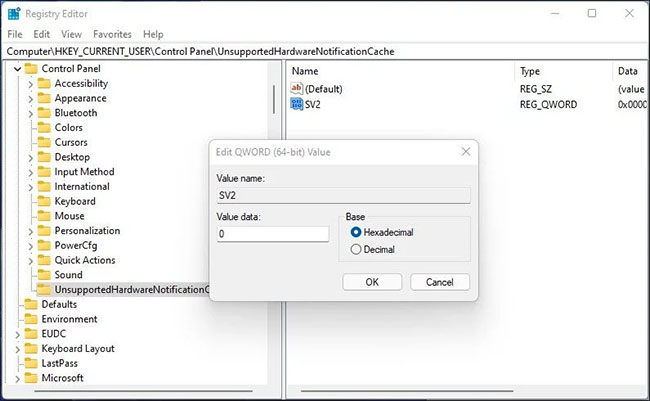
<p style="text-align: justify;">4. Trong ngăn bên phải, nhấp chuột phải vào giá trị&nbsp;<strong>SV2 DWORD</strong>&nbsp;và chọn&nbsp;<strong>Modify.</strong></p>

<p style="text-align: justify;">5. Nhập&nbsp;<strong>0</strong>&nbsp;vào trường dữ liệu giá trị.</p>

<figure>
<div style="text-align: justify;"><img alt="Nhập 0 vào trường Value data" data-i="0" data-src="https://st.quantrimang.com/photos/image/2022/03/23/loai-bo-thong-bao-system-requirements-not-met-tren-windows-11-1.jpg" data-was-processed="true" height="401" src="https://st.quantrimang.com/photos/image/2022/03/23/loai-bo-thong-bao-system-requirements-not-met-tren-windows-11-1.jpg" width="650" /></div>

<figcaption>
<div style="text-align: justify;">Nhập 0 vào trường Value data</div>
</figcaption>
</figure>

<p style="text-align: justify;">6. Bấm&nbsp;<strong>OK</strong>&nbsp;để lưu các thay đổi.</p>

<p style="text-align: justify;">7. Đóng Registry Editor và&nbsp;<a href="https://quantrimang.com/6-cach-khoi-dong-lai-windows-that-pro-116819" title="6 cách khởi động lại máy tính Windows từ đơn giản đến &#039;Pro&#039;">khởi động lại PC</a>&nbsp;để áp dụng các thay đổi. Sau khi khởi động lại, Windows 11 sẽ không hiển thị thông báo phần cứng không được hỗ trợ nữa.</p>

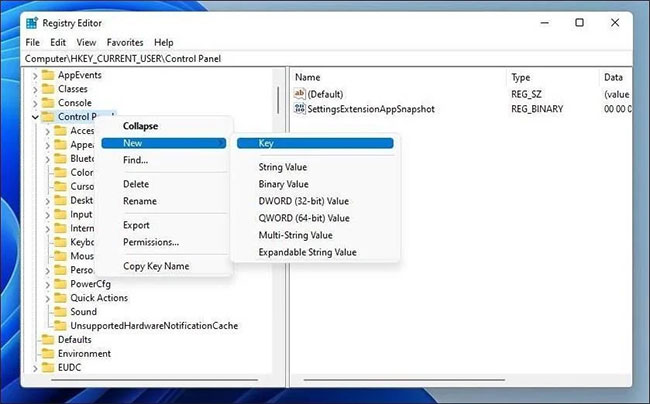
<p style="text-align: justify;">Nếu bạn không có key&nbsp;<strong>UnsupportedHardwareNotificationCache</strong>, bạn sẽ cần tạo một key mới và đặt giá trị cho key đó. Để làm điều này:</p>

<p style="text-align: justify;">1. Trong Registry Editor, nhấp chuột phải vào key&nbsp;<strong>Control</strong>&nbsp;(<strong>HKEY_CURRENT_USER\Control Panel</strong>) và chọn&nbsp;<strong>New &gt; Key</strong>.</p>

<p style="text-align: justify;">2. Tiếp theo, đổi tên key thành&nbsp;<strong>UnsupportedHardwareNotificationCache.</strong></p>

<figure>
<div style="text-align: justify;"><img alt="Tạo key UnsupportedHardwareNotificationCache mới" data-i="1" data-src="https://st.quantrimang.com/photos/image/2022/03/23/loai-bo-thong-bao-system-requirements-not-met-tren-windows-11-2.jpg" data-was-processed="true" height="404" src="https://st.quantrimang.com/photos/image/2022/03/23/loai-bo-thong-bao-system-requirements-not-met-tren-windows-11-2.jpg" width="650" /></div>

<figcaption>
<div style="text-align: justify;">Tạo key UnsupportedHardwareNotificationCache mới</div>
</figcaption>
</figure>

<p style="text-align: justify;">3. Tiếp theo, nhấp chuột phải vào key mới và chọn&nbsp;<strong>New &gt; DWORD (64-bit)</strong>.</p>

<p style="text-align: justify;">4. Đổi tên giá trị là&nbsp;<strong>SV2.</strong></p>

<p style="text-align: justify;">5. Tiếp theo, sửa đổi giá trị&nbsp;<strong>SV2 DWORD</strong>&nbsp;và đặt&nbsp;<strong>Value data</strong>&nbsp;của nó thành&nbsp;<strong>2</strong>.</p>

<p style="text-align: justify;">6. Bấm&nbsp;<strong>OK</strong>&nbsp;để lưu các thay đổi.</p>

<p style="text-align: justify;">Có thể thông báo này sẽ xuất hiện trở lại với các bản cập nhật mới. Vì vậy, bạn sẽ cần phải lặp lại các bước sau khi cài đặt bản cập nhật.</p>
		</div>
				<div id="author">
						<p>
				<strong>Nguồn tin:</strong>
				Quantrimang.com
			</p>
		</div>
	</div>
	<div id="footer" class="clearfix">
		<div id="url">
			<strong>URL của bản tin này: </strong><a href="https://www.nguoicodonvn2008.info/vi/news/savefile/kien-thuc-may-tinh/cach-loai-bo-thong-bao-system-requirements-not-met-tren-windows-11-5339.html" title="Cách loại bỏ thông báo &quot;System Requirements Not Met&quot; trên Windows 11">https://www.nguoicodonvn2008.info/vi/news/savefile/kien-thuc-may-tinh/cach-loai-bo-thong-bao-system-requirements-not-met-tren-windows-11-5339.html</a>

		</div>
		<div class="clear"></div>
		<div class="copyright">
			&copy; .&#x3A; Nguoicodonvn2008.info - Cõi lòng người cô đơn &#x3A;.
		</div>
		<div id="contact">
			<a href="mailto:admin@nguoicodonvn2008.info">admin@nguoicodonvn2008.info</a>
		</div>
	</div>
</div>
        <div id="timeoutsess" class="chromeframe">
            Bạn đã không sử dụng Site, <a onclick="timeoutsesscancel();" href="https://nguoicodonvn2008.info/#">Bấm vào đây để duy trì trạng thái đăng nhập</a>. Thời gian chờ: <span id="secField"> 60 </span> giây
        </div>
        <div id="openidResult" class="nv-alert" style="display:none"></div>
        <div id="openidBt" data-result="" data-redirect=""></div>
		</script>
		<div class="car-top">
  <span><img src="https://nguoicodonvn2008.info/themes/default/images/car.png" alt=""></span>
</div>
<div id="run_cronjobs" style="visibility:hidden;display:none;"><img alt="cron" src="/index.php?second=cronjobs&amp;p=t29v318L" width="1" height="1" /></div>
<script src="https://nguoicodonvn2008.info/assets/js/jquery/jquery.min.js"></script>
<script>var nv_base_siteurl="/",nv_lang_data="vi",nv_lang_interface="vi",nv_name_variable="nv",nv_fc_variable="op",nv_lang_variable="language",nv_module_name="news",nv_func_name="savefile",nv_is_user=0, nv_my_ofs=-4,nv_my_abbr="EDT",nv_cookie_prefix="nv4c_e856T",nv_check_pass_mstime=1738000,nv_area_admin=0,nv_safemode=0,theme_responsive=0,nv_recaptcha_ver=2,nv_recaptcha_sitekey="",nv_recaptcha_type="image",XSSsanitize=1;</script>
<script src="https://nguoicodonvn2008.info/assets/js/language/vi.js"></script>
<script src="https://nguoicodonvn2008.info/assets/js/DOMPurify/purify3.js"></script>
<script src="https://nguoicodonvn2008.info/assets/js/global.js"></script>
<script src="https://nguoicodonvn2008.info/assets/js/site.js"></script>
<script src="https://nguoicodonvn2008.info/themes/default/js/news.js"></script>
<script src="https://nguoicodonvn2008.info/themes/default/js/main.js"></script>
<script src="https://nguoicodonvn2008.info/themes/default/js/custom.js"></script>
<script type="application/ld+json">
        {
            "@context": "https://schema.org",
            "@type": "Organization",
            "url": "https://nguoicodonvn2008.info",
            "logo": "https://nguoicodonvn2008.info/uploads/angel.gif"
        }
        </script>
<script src="https://nguoicodonvn2008.info/themes/default/js/bootstrap.min.js"></script>
<script type="text/javascript">
var $scrolltop = $('.car-top');
$scrolltop.on('click', function () {
    $('html,body').animate({
        scrollTop: 0
    }, 800);
    $(this).addClass("car-run");
    setTimeout(function(){ $scrolltop.removeClass('car-run');}, 1000);
    return false;
});
$(window).on('scroll', function ()
{ 
    if($(window).scrollTop() >= 200)
    {
        $scrolltop.addClass("show");
        $scrolltop.addClass("car-down");
    }
    else
    {
       $scrolltop.removeClass("show");
       setTimeout(function(){ $scrolltop.removeClass('car-down');}, 300);
    }
});
</script>
</body>
</html>