<!DOCTYPE html>
    <html lang="vi" xmlns="http://www.w3.org/1999/xhtml" prefix="og: http://ogp.me/ns#">
    <head>
<title>Cách loại bỏ bảo vệ bằng mật khẩu khỏi PDF trong Ubuntu</title>
<meta name="description" content="Cách loại bỏ bảo vệ bằng mật khẩu khỏi PDF trong Ubuntu - Savefile - Tin Tức -...">
<meta name="author" content=".: Nguoicodonvn2008.info - Cõi lòng người cô đơn :.">
<meta name="copyright" content=".: Nguoicodonvn2008.info - Cõi lòng người cô đơn :. [admin@nguoicodonvn2008.info]">
<meta name="robots" content="index, archive, follow, noodp">
<meta name="googlebot" content="index,archive,follow,noodp">
<meta name="msnbot" content="all,index,follow">
<meta name="generator" content="NukeViet v4.5">
<meta http-equiv="Content-Type" content="text/html; charset=utf-8">
<meta property="og:title" content="Cách loại bỏ bảo vệ bằng mật khẩu khỏi PDF trong Ubuntu">
<meta property="og:type" content="website">
<meta property="og:description" content="Savefile - Tin Tức - https&#x3A;&#x002F;&#x002F;www.nguoicodonvn2008.info&#x002F;vi&#x002F;news&#x002F;savefile&#x002F;kien-thuc-may-tinh&#x002F;cach-loai-bo-bao-ve-bang-mat-khau-khoi-pdf-trong-ubuntu-8408.html">
<meta property="og:site_name" content=".&#x3A; Nguoicodonvn2008.info - Cõi lòng người cô đơn &#x3A;.">
<meta property="og:url" content="https://www.nguoicodonvn2008.info/vi/news/savefile/kien-thuc-may-tinh/cach-loai-bo-bao-ve-bang-mat-khau-khoi-pdf-trong-ubuntu-8408.html">
<link rel="shortcut icon" href="https://nguoicodonvn2008.info/favicon.ico">
<link rel="canonical" href="https://www.nguoicodonvn2008.info/vi/news/savefile/kien-thuc-may-tinh/cach-loai-bo-bao-ve-bang-mat-khau-khoi-pdf-trong-ubuntu-8408.html">
<link rel="alternate" href="https://nguoicodonvn2008.info/vi/news/rss/" title="Tin Tức" type="application/rss+xml">
<link rel="alternate" href="https://nguoicodonvn2008.info/vi/news/rss/karaoke-dual/" title="Tin Tức - Karaoke Dual" type="application/rss+xml">
<link rel="alternate" href="https://nguoicodonvn2008.info/vi/news/rss/nhac-tre/" title="Tin Tức - Nhạc trẻ" type="application/rss+xml">
<link rel="alternate" href="https://nguoicodonvn2008.info/vi/news/rss/tru-tinh/" title="Tin Tức - Trữ tình" type="application/rss+xml">
<link rel="alternate" href="https://nguoicodonvn2008.info/vi/news/rss/nuoc-ngoai/" title="Tin Tức - Nước ngoài" type="application/rss+xml">
<link rel="alternate" href="https://nguoicodonvn2008.info/vi/news/rss/remix/" title="Tin Tức - Remix" type="application/rss+xml">
<link rel="alternate" href="https://nguoicodonvn2008.info/vi/news/rss/tam-su-tinh-yeu/" title="Tin Tức - Tâm sự tình yêu" type="application/rss+xml">
<link rel="alternate" href="https://nguoicodonvn2008.info/vi/news/rss/tho-suu-tam/" title="Tin Tức - Thơ sưu tầm" type="application/rss+xml">
<link rel="alternate" href="https://nguoicodonvn2008.info/vi/news/rss/cuoc-song/" title="Tin Tức - Cuộc sống" type="application/rss+xml">
<link rel="alternate" href="https://nguoicodonvn2008.info/vi/news/rss/phan-mem/" title="Tin Tức - Phần mềm" type="application/rss+xml">
<link rel="alternate" href="https://nguoicodonvn2008.info/vi/news/rss/kien-thuc-may-tinh/" title="Tin Tức - Kiến thức máy tính" type="application/rss+xml">
<link rel="alternate" href="https://nguoicodonvn2008.info/vi/news/rss/hoc-tap/" title="Tin Tức - Học tập" type="application/rss+xml">
<link rel="alternate" href="https://nguoicodonvn2008.info/vi/news/rss/tai-lieu/" title="Tin Tức - Tài liệu" type="application/rss+xml">
<link rel="alternate" href="https://nguoicodonvn2008.info/vi/news/rss/de-thi/" title="Tin Tức - Đề thi" type="application/rss+xml">
<link rel="preload" as="style" href="https://nguoicodonvn2008.info/assets/css/font-awesome.min.css" type="text/css">
<link rel="preload" as="style" href="https://nguoicodonvn2008.info/themes/default/css/bootstrap.non-responsive.css" type="text/css">
<link rel="preload" as="style" href="https://nguoicodonvn2008.info/themes/default/css/style.css" type="text/css">
<link rel="preload" as="style" href="https://nguoicodonvn2008.info/themes/default/css/style.non-responsive.css" type="text/css">
<link rel="preload" as="style" href="https://nguoicodonvn2008.info/themes/default/css/news.css" type="text/css">
<link rel="preload" as="style" href="https://nguoicodonvn2008.info/themes/default/css/custom.css" type="text/css">
<link rel="preload" as="script" href="https://nguoicodonvn2008.info/assets/js/jquery/jquery.min.js" type="text/javascript">
<link rel="preload" as="script" href="https://nguoicodonvn2008.info/assets/js/language/vi.js" type="text/javascript">
<link rel="preload" as="script" href="https://nguoicodonvn2008.info/assets/js/DOMPurify/purify3.js" type="text/javascript">
<link rel="preload" as="script" href="https://nguoicodonvn2008.info/assets/js/global.js" type="text/javascript">
<link rel="preload" as="script" href="https://nguoicodonvn2008.info/assets/js/site.js" type="text/javascript">
<link rel="preload" as="script" href="https://nguoicodonvn2008.info/themes/default/js/news.js" type="text/javascript">
<link rel="preload" as="script" href="https://nguoicodonvn2008.info/themes/default/js/main.js" type="text/javascript">
<link rel="preload" as="script" href="https://nguoicodonvn2008.info/themes/default/js/custom.js" type="text/javascript">
<link rel="preload" as="script" href="https://nguoicodonvn2008.info/themes/default/js/bootstrap.min.js" type="text/javascript">
<link rel="stylesheet" href="https://nguoicodonvn2008.info/assets/css/font-awesome.min.css">
<link rel="stylesheet" href="https://nguoicodonvn2008.info/themes/default/css/bootstrap.non-responsive.css">
<link rel="stylesheet" href="https://nguoicodonvn2008.info/themes/default/css/style.css">
<link rel="stylesheet" href="https://nguoicodonvn2008.info/themes/default/css/style.non-responsive.css">
<link rel="StyleSheet" href="https://nguoicodonvn2008.info/themes/default/css/news.css">
<link rel="stylesheet" href="https://nguoicodonvn2008.info/themes/default/css/custom.css">
<style type="text/css">
	body{background: #fff;}
</style>
    </head>
    <body>
<div id="print">
	<div id="hd_print">
		<h2 class="pull-left">.&#x3A; Nguoicodonvn2008.info - Cõi lòng người cô đơn &#x3A;.</h2>
		<p class="pull-right"><a title=".&#x3A; Nguoicodonvn2008.info - Cõi lòng người cô đơn &#x3A;." href="https://nguoicodonvn2008.info/">https://nguoicodonvn2008.info</a></p>
	</div>
	<div class="clear"></div>
	<hr />
	<div id="content">
		<h1>Cách loại bỏ bảo vệ bằng mật khẩu khỏi PDF trong Ubuntu</h1>
		<ul class="list-inline">
			<li>Chủ nhật - 26/05/2024 21:58</li>
			<li class="hidden-print txtrequired"><em class="fa fa-print">&nbsp;</em><a title="In ra" href="javascript:;" onclick="window.print()">In ra</a></li>
			<li class="hidden-print txtrequired"><em class="fa fa-power-off">&nbsp;</em><a title="Đóng cửa sổ này" href="javascript:;" onclick="window.close()">Đóng cửa sổ này</a></li>
		</ul>
		<div class="clear"></div>
		<div id="hometext">
		</div>
				<div class="imghome">
			<img alt="Cách loại bỏ bảo vệ bằng mật khẩu khỏi PDF trong Ubuntu" src="https://st.quantrimang.com/photos/image/2024/05/17/bo-bao-ve-mat-khau-pdf-trong-ubuntu-5.jpg" width="460" class="img-thumbnail" />
		</div>
		<div class="clear"></div>
		<div id="bodytext" class="clearfix">
			<p style="text-align: justify;">Portable Document Format (PDF) là một trong những định dạng file được sử dụng thường xuyên nhất hiện nay. Mặc dù định dạng này cung cấp tính năng bảo vệ bằng mật khẩu nhưng đôi khi bạn có thể muốn tạo một bản sao không bảo mật của file .pdf, chẳng hạn như cho mục đích sử dụng cá nhân, để không phải nhập mật khẩu mỗi lần mở file. Bài viết hôm nay sẽ thảo luận về một số cách để đạt được điều này.</p>

<h2 style="text-align: justify;">Tạo một file PDF không bảo mật từ dòng lệnh</h2>

<p style="text-align: justify;">Phương pháp này yêu cầu phải cài đặt các tiện ích dòng lệnh&nbsp;<strong>pdftops</strong>&nbsp;và&nbsp;<strong>ps2pdf</strong>&nbsp;trên hệ thống&nbsp;Linux. Nếu đang chạy Ubuntu, những tiện ích này đã có sẵn, bằng không, có thể cài đặt chúng bằng cách chạy lệnh sau:</p>

<pre id="pre0">
<code>sudo apt-get install xpdf-utils context</code></pre>

<p style="text-align: justify;">Khi tất cả các yêu cầu đã sẵn sàng, trước tiên hãy thực thi lệnh pdftops (cú pháp bên dưới) để chuyển đổi file PDF được bảo vệ bằng mật khẩu thành file postscript (.ps):</p>

<pre id="pre1">
<code>pdftops -upw &#91;password&#93; &#91;complete-path-to-pdf-file&#93; &#91;complete-path-to-ps-file&#93;</code></pre>

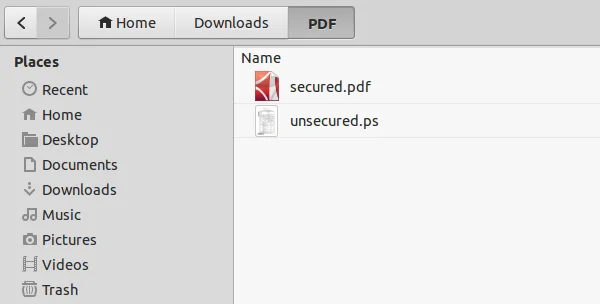
<p style="text-align: justify;">Trong mẫu lệnh hiển thị ở trên, tùy chọn&nbsp;<strong>-upw</strong>&nbsp;được sử dụng để chỉ định mật khẩu người dùng cho&nbsp;file PDF. Thay thế<em>&nbsp;&#91;password&#93;, &#91;complete-path-to-pdf-file&#93; và &#91;complete-path-to-ps-file&#93;</em>&nbsp;bằng mật khẩu thực tế sử dụng để mở file .pdf, đường dẫn của file pdf và vị trí để lưu file .ps. Trong trường hợp này, hai file này lần lượt là:&nbsp;<strong>“~/Downloads/PDF/secured.pdf”</strong>&nbsp;và&nbsp;<strong>“~/Downloads/PDF/unsecured.ps”.</strong></p>

<p style="text-align: justify;">Khi chạy lệnh này, file postscript (.ps) sẽ được tạo tại vị trí đã chỉ định trong lệnh.</p>

<figure>
<div style="text-align: justify;"><img alt="File PDF unsecured.ps" data-i="0" data-src="https://st.quantrimang.com/photos/image/2024/05/17/bo-bao-ve-mat-khau-pdf-trong-ubuntu-1.jpg" data-was-processed="true" height="304" src="https://st.quantrimang.com/photos/image/2024/05/17/bo-bao-ve-mat-khau-pdf-trong-ubuntu-1.jpg" width="600" /></div>

<figcaption>
<div style="text-align: justify;">File PDF unsecured.ps</div>
</figcaption>
</figure>

<div style="text-align: justify;"><iframe allow="autoplay" allowtransparency="true" aria-label="Advertisement" data-google-container-id="a!2" data-google-query-id="COPT_8XdrIYDFWQIewcdMlkHHw" data-load-complete="true" frameborder="0" height="0" hspace="0" id="aswift_1" marginheight="0" marginwidth="0" name="aswift_1" sandbox="allow-scripts allow-same-origin allow-forms allow-presentation" scrolling="no" tabindex="0" title="Advertisement" vspace="0" width="694"></iframe></div>

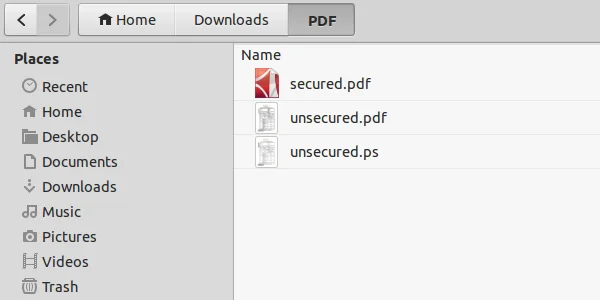
<p style="text-align: justify;">Bước tiếp theo là chuyển đổi file postscript này thành file .pdf, việc này có thể dễ dàng thực hiện được bằng cách sử dụng lệnh ps2pdf. Đây là lệnh được sử dụng trong trường hợp ví dụ:</p>

<pre id="pre2">
<code>ps2pdf ~/Downloads/PDF/unsecured.ps ~/Downloads/PDF/unsecured.pdf</code></pre>

<p style="text-align: justify;">và nó tạo ra “unsecured.pdf” trong cùng thư mục.</p>

<figure>
<div style="text-align: justify;"><img alt="" data-i="1" data-src="https://st.quantrimang.com/photos/image/2024/05/17/bo-bao-ve-mat-khau-pdf-trong-ubuntu-2.jpg" data-was-processed="true" height="300" src="https://st.quantrimang.com/photos/image/2024/05/17/bo-bao-ve-mat-khau-pdf-trong-ubuntu-2.jpg" width="600" /></div>
</figure>

<p style="text-align: justify;">Bây giờ, khi bạn mở file PDF mới được tạo này, nó sẽ không yêu cầu mật khẩu.</p>

<h2 style="text-align: justify;">Tạo file PDF không bảo mật bằng Document Viewer</h2>

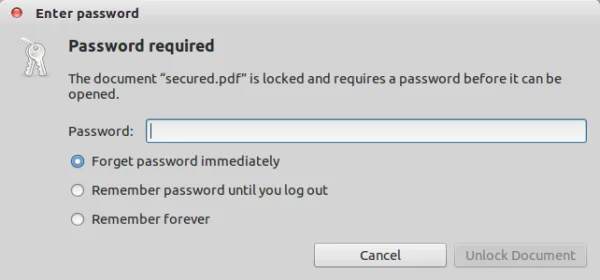
<p style="text-align: justify;">Phương pháp này tập trung vào việc đạt được điều tương tự bằng cách sử dụng Document Viewer, trình xem PDF mặc định trong Ubuntu. Trước tiên, hãy mở file PDF được bảo vệ bằng mật khẩu trong Document Viewer bằng cách nhập mật khẩu:</p>

<figure>
<div style="text-align: justify;"><img alt="File PDF được bảo vệ bằng mật khẩu" data-i="2" data-src="https://st.quantrimang.com/photos/image/2024/05/17/bo-bao-ve-mat-khau-pdf-trong-ubuntu-3.jpg" data-was-processed="true" height="280" src="https://st.quantrimang.com/photos/image/2024/05/17/bo-bao-ve-mat-khau-pdf-trong-ubuntu-3.jpg" width="600" /></div>

<figcaption>
<div style="text-align: justify;">File PDF được bảo vệ bằng mật khẩu</div>
</figcaption>
</figure>

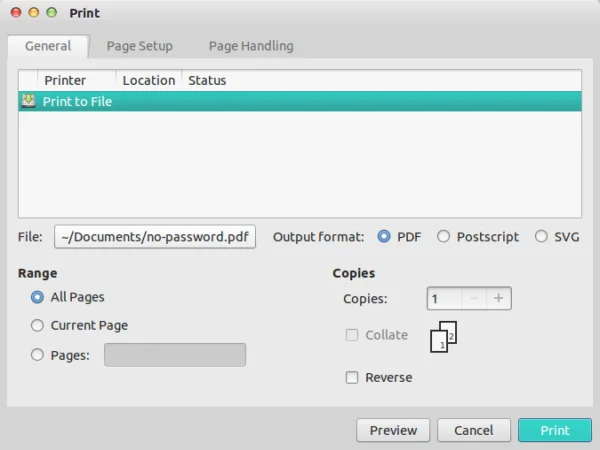
<p style="text-align: justify;">Sau khi file được mở, hãy chuyển đến&nbsp;<strong>File -&gt; Print</strong>&nbsp;và đảm bảo tùy chọn<strong>&nbsp;“Print to File”</strong>&nbsp;trong tab&nbsp;<strong>“General”</strong>&nbsp;được chọn.</p>

<figure>
<div style="text-align: justify;"><img alt="Print to file" data-adbro-processed="true" data-i="3" data-src="https://st.quantrimang.com/photos/image/2024/05/17/bo-bao-ve-mat-khau-pdf-trong-ubuntu-4.jpg" data-was-processed="true" height="450" src="https://st.quantrimang.com/photos/image/2024/05/17/bo-bao-ve-mat-khau-pdf-trong-ubuntu-4.jpg" width="600" /></div>

<figcaption>
<div style="text-align: justify;">Print to file</div>
</figcaption>
</figure>

<div style="text-align: justify;"><iframe allow="autoplay" allowtransparency="true" aria-label="Advertisement" data-google-container-id="a!3" data-google-query-id="CPD1gMbdrIYDFTLsTAId1pINOw" data-load-complete="true" frameborder="0" height="0" hspace="0" id="aswift_2" marginheight="0" marginwidth="0" name="aswift_2" sandbox="allow-scripts allow-same-origin allow-forms allow-presentation" scrolling="no" tabindex="0" title="Advertisement" vspace="0" width="694"></iframe></div>

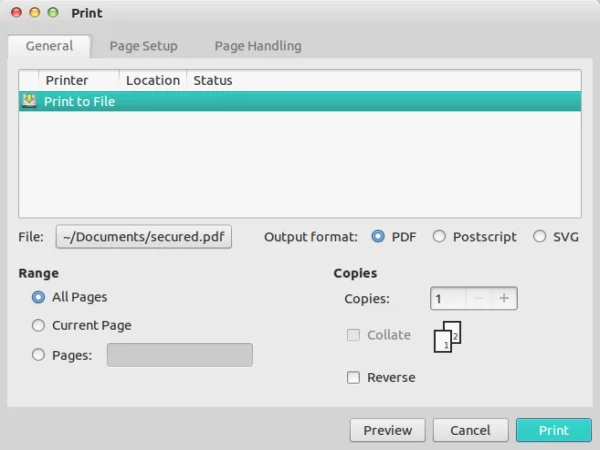
<p style="text-align: justify;">Sau đó, đảm bảo rằng tùy chọn file chứa tên và vị trí PDF đầu ra mà bạn chọn - có thể thay đổi thông tin này bằng cách nhấp vào nút nơi hiển thị thông tin. Ví dụ đã thay đổi tên file đầu ra từ&nbsp;<strong>“secured.pdf”</strong>&nbsp;thành&nbsp;<strong>“no-password.pdf”.</strong></p>

<figure>
<div style="text-align: justify;"><img alt="" data-i="4" data-src="https://st.quantrimang.com/photos/image/2024/05/17/bo-bao-ve-mat-khau-pdf-trong-ubuntu-5.jpg" data-was-processed="true" height="450" src="https://st.quantrimang.com/photos/image/2024/05/17/bo-bao-ve-mat-khau-pdf-trong-ubuntu-5.jpg" width="600" /></div>
</figure>

<p style="text-align: justify;">Bây giờ, chỉ cần nhấp vào nút&nbsp;<strong>“Print”</strong>&nbsp;và file PDF không bảo mật sẽ được lưu tại vị trí được chỉ định trong tùy chọn File, trong trường hợp này là&nbsp;<strong>“~/Documents”.</strong></p>

<p style="text-align: justify;">Hãy thử mở file mới ngay bây giờ và nó sẽ không yêu cầu bạn nhập bất kỳ mật khẩu nào.</p>

<p style="text-align: justify;">Tất nhiên, đây không phải là hai cách duy nhất để tạo file .pdf không bảo mật từ file được bảo vệ bằng mật khẩu, nhưng các phương pháp được thảo luận trong bài viết này sẽ cho bạn ý tưởng về cách đạt được điều tương tự bằng cách sử dụng dòng lệnh cũng như GUI .</p>

<p style="text-align: justify;">Bạn đã bao giờ thử bất kỳ phương pháp nào trong số này (hoặc phương pháp nào khác) để tạo file .pdf không bảo mật chưa? Trải nghiệm của bạn thế nào? Chia sẻ suy nghĩ trong phần bình luận bên dưới nhé!</p>
		</div>
				<div id="author">
						<p>
				<strong>Nguồn tin:</strong>
				Quantrimang.com:
			</p>
		</div>
	</div>
	<div id="footer" class="clearfix">
		<div id="url">
			<strong>URL của bản tin này: </strong><a href="https://www.nguoicodonvn2008.info/vi/news/savefile/kien-thuc-may-tinh/cach-loai-bo-bao-ve-bang-mat-khau-khoi-pdf-trong-ubuntu-8408.html" title="Cách loại bỏ bảo vệ bằng mật khẩu khỏi PDF trong Ubuntu">https://www.nguoicodonvn2008.info/vi/news/savefile/kien-thuc-may-tinh/cach-loai-bo-bao-ve-bang-mat-khau-khoi-pdf-trong-ubuntu-8408.html</a>

		</div>
		<div class="clear"></div>
		<div class="copyright">
			&copy; .&#x3A; Nguoicodonvn2008.info - Cõi lòng người cô đơn &#x3A;.
		</div>
		<div id="contact">
			<a href="mailto:admin@nguoicodonvn2008.info">admin@nguoicodonvn2008.info</a>
		</div>
	</div>
</div>
        <div id="timeoutsess" class="chromeframe">
            Bạn đã không sử dụng Site, <a onclick="timeoutsesscancel();" href="https://nguoicodonvn2008.info/#">Bấm vào đây để duy trì trạng thái đăng nhập</a>. Thời gian chờ: <span id="secField"> 60 </span> giây
        </div>
        <div id="openidResult" class="nv-alert" style="display:none"></div>
        <div id="openidBt" data-result="" data-redirect=""></div>
		</script>
		<div class="car-top">
  <span><img src="https://nguoicodonvn2008.info/themes/default/images/car.png" alt=""></span>
</div>
<script src="https://nguoicodonvn2008.info/assets/js/jquery/jquery.min.js"></script>
<script>var nv_base_siteurl="/",nv_lang_data="vi",nv_lang_interface="vi",nv_name_variable="nv",nv_fc_variable="op",nv_lang_variable="language",nv_module_name="news",nv_func_name="savefile",nv_is_user=0, nv_my_ofs=-4,nv_my_abbr="EDT",nv_cookie_prefix="nv4c_e856T",nv_check_pass_mstime=1738000,nv_area_admin=0,nv_safemode=0,theme_responsive=0,nv_recaptcha_ver=2,nv_recaptcha_sitekey="",nv_recaptcha_type="image",XSSsanitize=1;</script>
<script src="https://nguoicodonvn2008.info/assets/js/language/vi.js"></script>
<script src="https://nguoicodonvn2008.info/assets/js/DOMPurify/purify3.js"></script>
<script src="https://nguoicodonvn2008.info/assets/js/global.js"></script>
<script src="https://nguoicodonvn2008.info/assets/js/site.js"></script>
<script src="https://nguoicodonvn2008.info/themes/default/js/news.js"></script>
<script src="https://nguoicodonvn2008.info/themes/default/js/main.js"></script>
<script src="https://nguoicodonvn2008.info/themes/default/js/custom.js"></script>
<script type="application/ld+json">
        {
            "@context": "https://schema.org",
            "@type": "Organization",
            "url": "https://nguoicodonvn2008.info",
            "logo": "https://nguoicodonvn2008.info/uploads/angel.gif"
        }
        </script>
<script src="https://nguoicodonvn2008.info/themes/default/js/bootstrap.min.js"></script>
<script type="text/javascript">
var $scrolltop = $('.car-top');
$scrolltop.on('click', function () {
    $('html,body').animate({
        scrollTop: 0
    }, 800);
    $(this).addClass("car-run");
    setTimeout(function(){ $scrolltop.removeClass('car-run');}, 1000);
    return false;
});
$(window).on('scroll', function ()
{ 
    if($(window).scrollTop() >= 200)
    {
        $scrolltop.addClass("show");
        $scrolltop.addClass("car-down");
    }
    else
    {
       $scrolltop.removeClass("show");
       setTimeout(function(){ $scrolltop.removeClass('car-down');}, 300);
    }
});
</script>
</body>
</html>