<!DOCTYPE html>
    <html lang="vi" xmlns="http://www.w3.org/1999/xhtml" prefix="og: http://ogp.me/ns#">
    <head>
<title>Cách lấy dữ liệu từ ảnh vào Excel không lỗi font</title>
<meta name="description" content="Cách lấy dữ liệu từ ảnh vào Excel không lỗi font - Savefile - Tin Tức -...">
<meta name="author" content=".: Nguoicodonvn2008.info - Cõi lòng người cô đơn :.">
<meta name="copyright" content=".: Nguoicodonvn2008.info - Cõi lòng người cô đơn :. [admin@nguoicodonvn2008.info]">
<meta name="robots" content="index, archive, follow, noodp">
<meta name="googlebot" content="index,archive,follow,noodp">
<meta name="msnbot" content="all,index,follow">
<meta name="generator" content="NukeViet v4.5">
<meta http-equiv="Content-Type" content="text/html; charset=utf-8">
<meta property="og:title" content="Cách lấy dữ liệu từ ảnh vào Excel không lỗi font">
<meta property="og:type" content="website">
<meta property="og:description" content="Savefile - Tin Tức - https&#x3A;&#x002F;&#x002F;www.nguoicodonvn2008.info&#x002F;vi&#x002F;news&#x002F;savefile&#x002F;kien-thuc-may-tinh&#x002F;cach-lay-du-lieu-tu-anh-vao-excel-khong-loi-font-9241.html">
<meta property="og:site_name" content=".&#x3A; Nguoicodonvn2008.info - Cõi lòng người cô đơn &#x3A;.">
<meta property="og:url" content="https://www.nguoicodonvn2008.info/vi/news/savefile/kien-thuc-may-tinh/cach-lay-du-lieu-tu-anh-vao-excel-khong-loi-font-9241.html">
<link rel="shortcut icon" href="https://nguoicodonvn2008.info/favicon.ico">
<link rel="canonical" href="https://www.nguoicodonvn2008.info/vi/news/savefile/kien-thuc-may-tinh/cach-lay-du-lieu-tu-anh-vao-excel-khong-loi-font-9241.html">
<link rel="alternate" href="https://nguoicodonvn2008.info/vi/news/rss/" title="Tin Tức" type="application/rss+xml">
<link rel="alternate" href="https://nguoicodonvn2008.info/vi/news/rss/karaoke-dual/" title="Tin Tức - Karaoke Dual" type="application/rss+xml">
<link rel="alternate" href="https://nguoicodonvn2008.info/vi/news/rss/nhac-tre/" title="Tin Tức - Nhạc trẻ" type="application/rss+xml">
<link rel="alternate" href="https://nguoicodonvn2008.info/vi/news/rss/tru-tinh/" title="Tin Tức - Trữ tình" type="application/rss+xml">
<link rel="alternate" href="https://nguoicodonvn2008.info/vi/news/rss/nuoc-ngoai/" title="Tin Tức - Nước ngoài" type="application/rss+xml">
<link rel="alternate" href="https://nguoicodonvn2008.info/vi/news/rss/remix/" title="Tin Tức - Remix" type="application/rss+xml">
<link rel="alternate" href="https://nguoicodonvn2008.info/vi/news/rss/tam-su-tinh-yeu/" title="Tin Tức - Tâm sự tình yêu" type="application/rss+xml">
<link rel="alternate" href="https://nguoicodonvn2008.info/vi/news/rss/tho-suu-tam/" title="Tin Tức - Thơ sưu tầm" type="application/rss+xml">
<link rel="alternate" href="https://nguoicodonvn2008.info/vi/news/rss/cuoc-song/" title="Tin Tức - Cuộc sống" type="application/rss+xml">
<link rel="alternate" href="https://nguoicodonvn2008.info/vi/news/rss/phan-mem/" title="Tin Tức - Phần mềm" type="application/rss+xml">
<link rel="alternate" href="https://nguoicodonvn2008.info/vi/news/rss/kien-thuc-may-tinh/" title="Tin Tức - Kiến thức máy tính" type="application/rss+xml">
<link rel="alternate" href="https://nguoicodonvn2008.info/vi/news/rss/hoc-tap/" title="Tin Tức - Học tập" type="application/rss+xml">
<link rel="alternate" href="https://nguoicodonvn2008.info/vi/news/rss/tai-lieu/" title="Tin Tức - Tài liệu" type="application/rss+xml">
<link rel="alternate" href="https://nguoicodonvn2008.info/vi/news/rss/de-thi/" title="Tin Tức - Đề thi" type="application/rss+xml">
<link rel="preload" as="style" href="https://nguoicodonvn2008.info/assets/css/font-awesome.min.css" type="text/css">
<link rel="preload" as="style" href="https://nguoicodonvn2008.info/themes/default/css/bootstrap.non-responsive.css" type="text/css">
<link rel="preload" as="style" href="https://nguoicodonvn2008.info/themes/default/css/style.css" type="text/css">
<link rel="preload" as="style" href="https://nguoicodonvn2008.info/themes/default/css/style.non-responsive.css" type="text/css">
<link rel="preload" as="style" href="https://nguoicodonvn2008.info/themes/default/css/news.css" type="text/css">
<link rel="preload" as="style" href="https://nguoicodonvn2008.info/themes/default/css/custom.css" type="text/css">
<link rel="preload" as="script" href="https://nguoicodonvn2008.info/assets/js/jquery/jquery.min.js" type="text/javascript">
<link rel="preload" as="script" href="https://nguoicodonvn2008.info/assets/js/language/vi.js" type="text/javascript">
<link rel="preload" as="script" href="https://nguoicodonvn2008.info/assets/js/DOMPurify/purify3.js" type="text/javascript">
<link rel="preload" as="script" href="https://nguoicodonvn2008.info/assets/js/global.js" type="text/javascript">
<link rel="preload" as="script" href="https://nguoicodonvn2008.info/assets/js/site.js" type="text/javascript">
<link rel="preload" as="script" href="https://nguoicodonvn2008.info/themes/default/js/news.js" type="text/javascript">
<link rel="preload" as="script" href="https://nguoicodonvn2008.info/themes/default/js/main.js" type="text/javascript">
<link rel="preload" as="script" href="https://nguoicodonvn2008.info/themes/default/js/custom.js" type="text/javascript">
<link rel="preload" as="script" href="https://nguoicodonvn2008.info/themes/default/js/bootstrap.min.js" type="text/javascript">
<link rel="stylesheet" href="https://nguoicodonvn2008.info/assets/css/font-awesome.min.css">
<link rel="stylesheet" href="https://nguoicodonvn2008.info/themes/default/css/bootstrap.non-responsive.css">
<link rel="stylesheet" href="https://nguoicodonvn2008.info/themes/default/css/style.css">
<link rel="stylesheet" href="https://nguoicodonvn2008.info/themes/default/css/style.non-responsive.css">
<link rel="StyleSheet" href="https://nguoicodonvn2008.info/themes/default/css/news.css">
<link rel="stylesheet" href="https://nguoicodonvn2008.info/themes/default/css/custom.css">
<style type="text/css">
	body{background: #fff;}
</style>
    </head>
    <body>
<div id="print">
	<div id="hd_print">
		<h2 class="pull-left">.&#x3A; Nguoicodonvn2008.info - Cõi lòng người cô đơn &#x3A;.</h2>
		<p class="pull-right"><a title=".&#x3A; Nguoicodonvn2008.info - Cõi lòng người cô đơn &#x3A;." href="https://nguoicodonvn2008.info/">https://nguoicodonvn2008.info</a></p>
	</div>
	<div class="clear"></div>
	<hr />
	<div id="content">
		<h1>Cách lấy dữ liệu từ ảnh vào Excel không lỗi font</h1>
		<ul class="list-inline">
			<li>Thứ hai - 28/10/2024 00:19</li>
			<li class="hidden-print txtrequired"><em class="fa fa-print">&nbsp;</em><a title="In ra" href="javascript:;" onclick="window.print()">In ra</a></li>
			<li class="hidden-print txtrequired"><em class="fa fa-power-off">&nbsp;</em><a title="Đóng cửa sổ này" href="javascript:;" onclick="window.close()">Đóng cửa sổ này</a></li>
		</ul>
		<div class="clear"></div>
		<div id="hometext">
		</div>
				<div class="imghome">
			<img alt="Cách lấy dữ liệu từ ảnh vào Excel không lỗi font" src="https://st.quantrimang.com/photos/image/2024/10/24/lay-du-lieu-tu-anh-excel-1.jpg" width="460" class="img-thumbnail" />
		</div>
		<div class="clear"></div>
		<div id="bodytext" class="clearfix">
			<p style="text-align: justify;">Bản Office 365 có sẵn tính năng lấy dữ liệu từ ảnh vào Excel, nhưng không phải ai cũng sử dụng bản Office đó. Nếu vậy người dùng có thể sử dụng một số công cụ chuyển dữ liệu từ ảnh vào Excel trực tuyến, không bị lỗi font dù hình ảnh ở ngôn ngữ tiếng Việt. Dưới đây là hướng dẫn lấy dữ liệu từ ảnh vào Excel.</p>

<h2 style="text-align: justify;">Hướng dẫn lấy dữ liệu từ ảnh vào Excel trên Fileeagle</h2>

<p style="text-align: justify;"><strong>Bước 1:</strong></p>

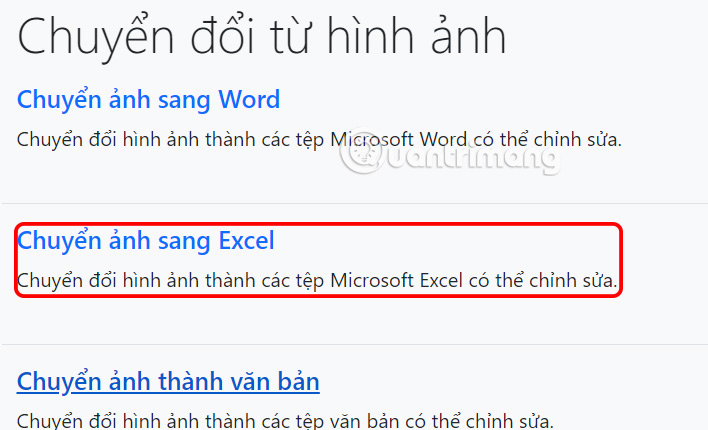
<p style="text-align: justify;">Trước hết bạn truy cập vào trang web Fileeagle theo link dưới đây. Sau đó, bạn kéo xuống bên dưới nhóm Chuyển đổi từ hình ảnh rồi&nbsp;<strong>nhấn chọn Chuyển ảnh sang Excel</strong>.</p>

<pre id="pre0">
<code>https://www.fileeagle.com/pdfeagle/vi/</code></pre>

<p style="text-align: justify;"><img alt="Lấy dữ liệu từ ảnh sang Excel trên Fileeagle" data-i="0" data-src="https://st.quantrimang.com/photos/image/2024/10/24/lay-du-lieu-tu-anh-excel-1.jpg" data-was-processed="true" height="334" src="https://st.quantrimang.com/photos/image/2024/10/24/lay-du-lieu-tu-anh-excel-1.jpg" width="550" /></p>

<p style="text-align: justify;"><strong>Bước 2:</strong></p>

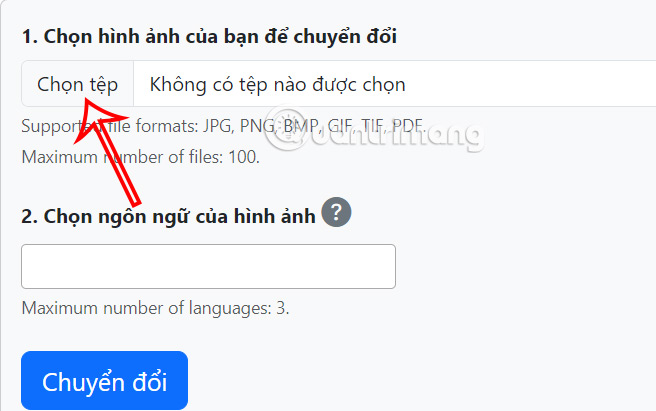
<p style="text-align: justify;">Chuyển sang giao diện mới người dùng<strong>&nbsp;nhấn vào Chọn tệp&nbsp;</strong>để tải hình ảnh lên trang web.</p>

<p style="text-align: justify;">&nbsp;</p>

<div style="text-align: justify;"><br />
<img alt="Tải ảnh lên Fileeagle" data-adbro-processed="true" data-i="1" data-src="https://st.quantrimang.com/photos/image/2024/10/24/lay-du-lieu-tu-anh-excel-2.jpg" data-was-processed="true" height="363" src="https://st.quantrimang.com/photos/image/2024/10/24/lay-du-lieu-tu-anh-excel-2.jpg" width="580" /></div>

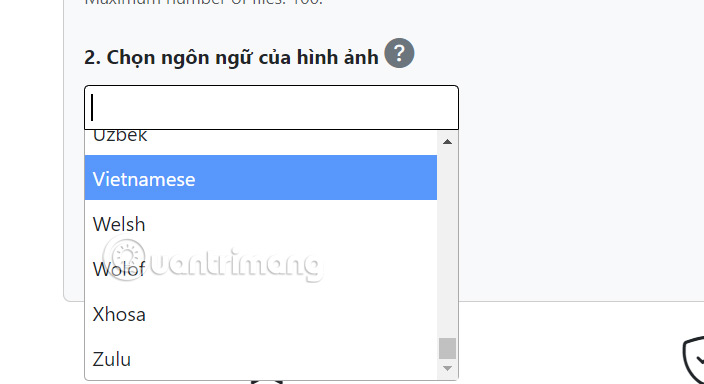
<p style="text-align: justify;">Tiếp đến bạn<strong>&nbsp;chọn ngôn ngữ trong hình ảnh&nbsp;</strong>muốn nhập dữ liệu vào Excel.</p>

<p style="text-align: justify;"><img alt="Ngôn ngữ trong hình ảnh" data-i="2" data-src="https://st.quantrimang.com/photos/image/2024/10/24/lay-du-lieu-tu-anh-excel-3.jpg" data-was-processed="true" height="327" src="https://st.quantrimang.com/photos/image/2024/10/24/lay-du-lieu-tu-anh-excel-3.jpg" width="600" /></p>

<p style="text-align: justify;"><strong>Bước 3:</strong></p>

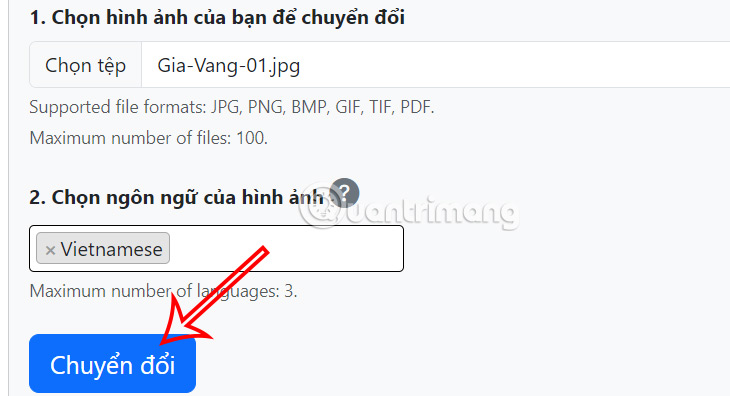
<p style="text-align: justify;">Sau khi đã thiết lập xong thì&nbsp;<strong>nhấn nút Chuyển đổi</strong>&nbsp;ở bên dưới.</p>

<p style="text-align: justify;"><img alt="Lấy dữ liệu từ ảnh sang Excel" data-i="3" data-src="https://st.quantrimang.com/photos/image/2024/10/24/lay-du-lieu-tu-anh-excel-4.jpg" data-was-processed="true" height="325" src="https://st.quantrimang.com/photos/image/2024/10/24/lay-du-lieu-tu-anh-excel-4.jpg" width="600" /></p>

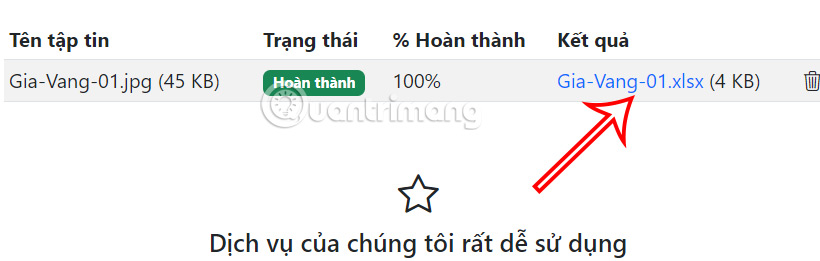
<p style="text-align: justify;">Bạn chờ trong giây lát để nội dung có trong hình ảnh được trích xuất sang file Excel. Chúng ta&nbsp;<strong>nhấn chọn vào file Excel để tải xuống</strong>.</p>

<p style="text-align: justify;"><img alt="Tải file Excel" data-i="4" data-src="https://st.quantrimang.com/photos/image/2024/10/24/lay-du-lieu-tu-anh-excel-5.jpg" data-was-processed="true" height="204" src="https://st.quantrimang.com/photos/image/2024/10/24/lay-du-lieu-tu-anh-excel-5.jpg" width="640" /></p>

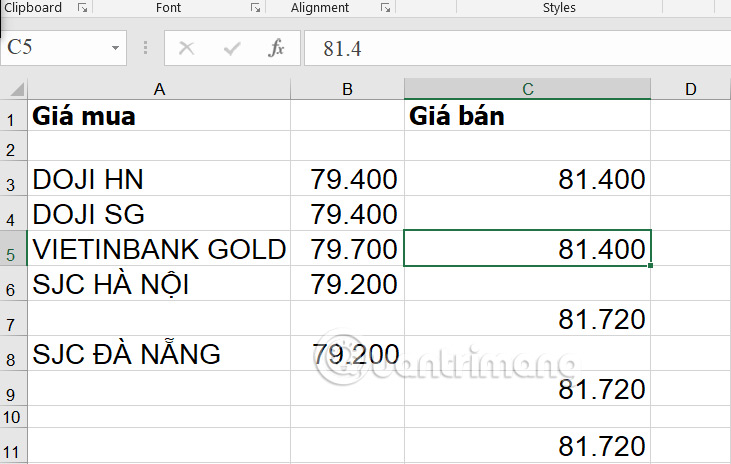
<p style="text-align: justify;">Kết quả chúng ta có được dữ liệu từ ảnh vào Excel như dưới đây. Bạn tiến hành chỉnh sửa lại theo ý mình để có được bảng dữ liệu ưng ý.</p>

<p style="text-align: justify;"><img alt="Bảng dữ liệu Excel" data-i="5" data-src="https://st.quantrimang.com/photos/image/2024/10/24/lay-du-lieu-tu-anh-excel-6.jpg" data-was-processed="true" height="381" src="https://st.quantrimang.com/photos/image/2024/10/24/lay-du-lieu-tu-anh-excel-6.jpg" width="600" /></p>

<div style="text-align: justify;">&nbsp;</div>

<h2 style="text-align: justify;">Cách lấy dữ liệu từ ảnh vào Excel bằng FastDoc</h2>

<p style="text-align: justify;"><strong>Bước 1:</strong></p>

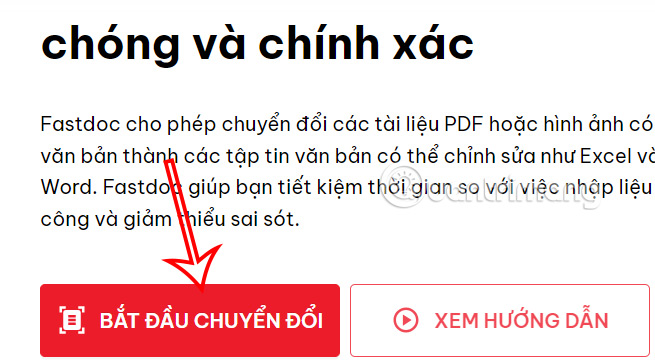
<p style="text-align: justify;">Chúng ta truy cập vào FastDoc theo link dưới đây, rồi<strong>&nbsp;nhấn Bắt đầu chuyển đổi</strong>.</p>

<pre id="pre1">
<code>https://fastdoc.vn/</code></pre>

<p style="text-align: justify;"><img alt="Chuyển đổi dữ liệu" data-i="6" data-src="https://st.quantrimang.com/photos/image/2024/10/24/lay-du-lieu-tu-anh-excel-7.jpg" data-was-processed="true" height="330" src="https://st.quantrimang.com/photos/image/2024/10/24/lay-du-lieu-tu-anh-excel-7.jpg" width="600" /></p>

<p style="text-align: justify;">Sau đó bạn cần dùng tài khoản cá nhân của mình&nbsp;<strong>đăng ký tài khoản</strong>&nbsp;sử dụng.</p>

<p style="text-align: justify;"><img alt="Đăng ký tài khoản FastDoc" data-i="7" data-src="https://st.quantrimang.com/photos/image/2024/10/24/lay-du-lieu-tu-anh-excel-8.jpg" data-was-processed="true" height="326" src="https://st.quantrimang.com/photos/image/2024/10/24/lay-du-lieu-tu-anh-excel-8.jpg" width="600" /></p>

<p style="text-align: justify;"><strong>Bước 2:</strong></p>

<p style="text-align: justify;">Trong giao diện như hình bạn<strong>&nbsp;nhấn vào Chuyển sang Excel&nbsp;</strong>để thực hiện chuyển đổi.</p>

<p style="text-align: justify;"><img alt="Lấy dữ liệu từ ảnh vào Excel qua FastDoc" data-i="8" data-src="https://st.quantrimang.com/photos/image/2024/10/24/lay-du-lieu-tu-anh-excel-9.jpg" data-was-processed="true" height="301" src="https://st.quantrimang.com/photos/image/2024/10/24/lay-du-lieu-tu-anh-excel-9.jpg" width="600" /></p>

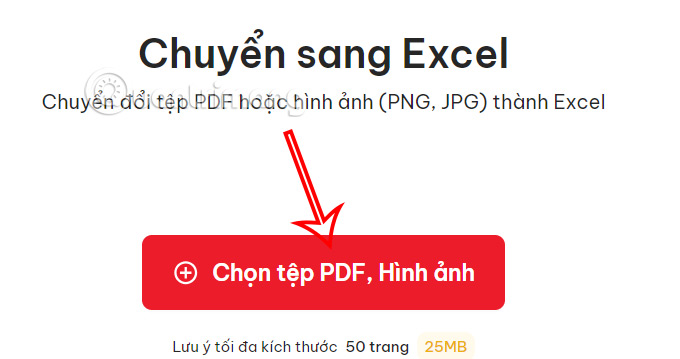
<p style="text-align: justify;">Ở giao diện mới bạn nhấn vào&nbsp;<strong>Chọn tệp PDF, Hình ảnh&nbsp;</strong>để tải file ảnh lên.</p>

<p style="text-align: justify;"><img alt="Tải ảnh lên FastDoc" data-i="9" data-src="https://st.quantrimang.com/photos/image/2024/10/24/lay-du-lieu-tu-anh-excel-10.jpg" data-was-processed="true" height="317" src="https://st.quantrimang.com/photos/image/2024/10/24/lay-du-lieu-tu-anh-excel-10.jpg" width="600" /></p>

<p style="text-align: justify;"><strong>Bước 3:</strong></p>

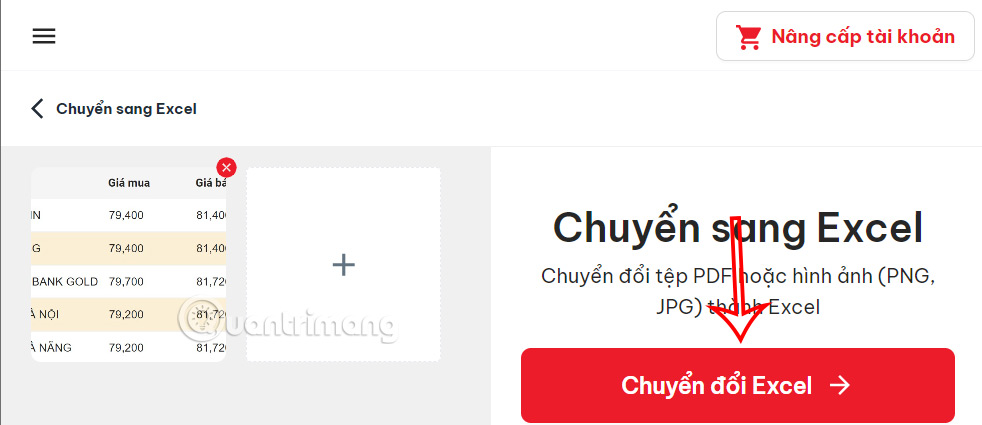
<p style="text-align: justify;">Chúng ta có thể tải nhiều ảnh cùng lúc để chuyển đổi sang Excel, bằng cách nhấn vào biểu tượng dấu cộng rồi&nbsp;<strong>nhấn Chuyển đổi Excel</strong>&nbsp;để thực hiện.</p>

<p style="text-align: justify;"><img alt="Chuyển ảnh sang Excel online" data-i="10" data-src="https://st.quantrimang.com/photos/image/2024/10/24/lay-du-lieu-tu-anh-excel-11.jpg" data-was-processed="true" height="260" src="https://st.quantrimang.com/photos/image/2024/10/24/lay-du-lieu-tu-anh-excel-11.jpg" width="600" /></p>

<div style="text-align: justify;">&nbsp;</div>

<p style="text-align: justify;"><strong>Bước 4:</strong></p>

<p style="text-align: justify;">Bạn cũng chờ trong giây lát và&nbsp;<strong>nhấn Tải xuống</strong>&nbsp;để tải file Excel hoàn chỉnh.</p>

<p style="text-align: justify;"><img alt="Tải file Excel " data-i="11" data-src="https://st.quantrimang.com/photos/image/2024/10/24/lay-du-lieu-tu-anh-excel-12.jpg" data-was-processed="true" height="328" src="https://st.quantrimang.com/photos/image/2024/10/24/lay-du-lieu-tu-anh-excel-12.jpg" width="623" /></p>

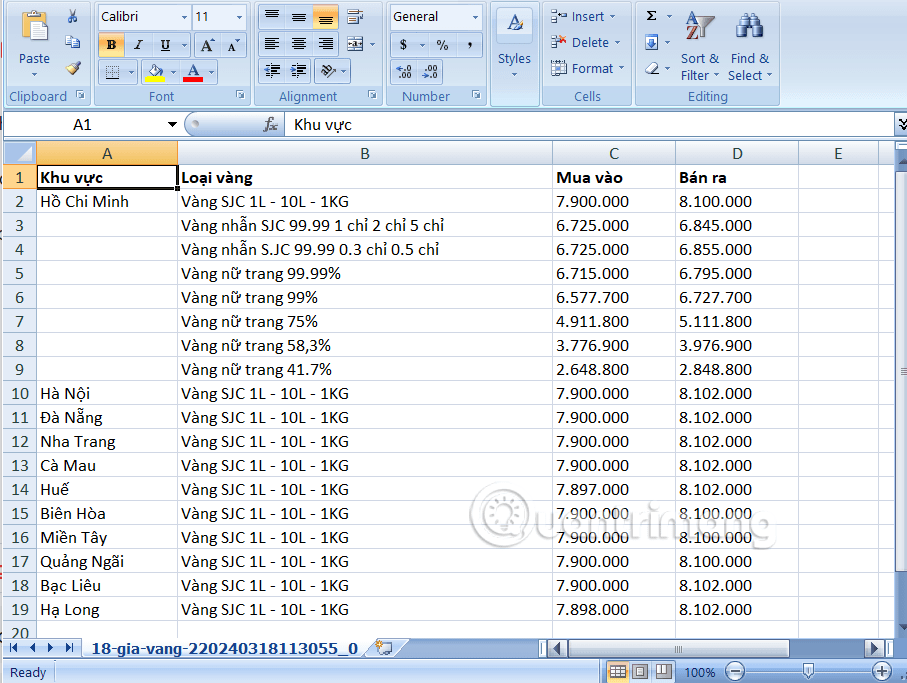
<p style="text-align: justify;">Kết quả chúng ta cũng có được dữ liệu Excel như hình dưới đây.</p>

<p style="text-align: justify;"><img alt="Bảng Excel" data-i="12" data-src="https://st.quantrimang.com/photos/image/2024/10/24/lay-du-lieu-tu-anh-excel-13.png" data-was-processed="true" height="414" src="https://st.quantrimang.com/photos/image/2024/10/24/lay-du-lieu-tu-anh-excel-13.png" width="550" /></p>

<h2 style="text-align: justify;">Hướng dẫn nhập dữ liệu từ ảnh vào Excel 365</h2>

<p style="text-align: justify;"><strong>Bước 1:</strong></p>

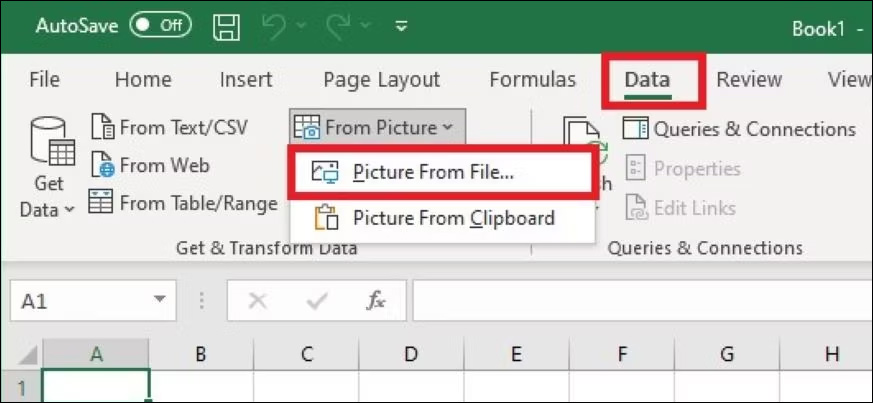
<p style="text-align: justify;">Với ảnh đã lưu vào máy tính, bạn nhấn vào<strong>&nbsp;tab Data rồi chọn From Picture</strong>&nbsp;rồi nhấn tiếp vào&nbsp;<strong>Picture from File</strong>&nbsp;để chọn ảnh có sẵn trong máy tính.</p>

<p style="text-align: justify;"><img alt="Chọn nhập dữ liệu từ hình ảnh" data-i="13" data-src="https://st.quantrimang.com/photos/image/2023/03/23/Excel-nhap-du-lieu-tu-anh-1.jpg" data-was-processed="true" height="295" src="https://st.quantrimang.com/photos/image/2023/03/23/Excel-nhap-du-lieu-tu-anh-1.jpg" width="640" /></p>

<p style="text-align: justify;"><strong>Bước 2:</strong></p>

<p style="text-align: justify;">Hiển thị thư mục trên máy tính. Người dùng tìm tới<strong>&nbsp;thư mục chứa hình ảnh</strong>&nbsp;bạn muốn nhập dữ liệu vào Excel rồi nhấn chọn.</p>

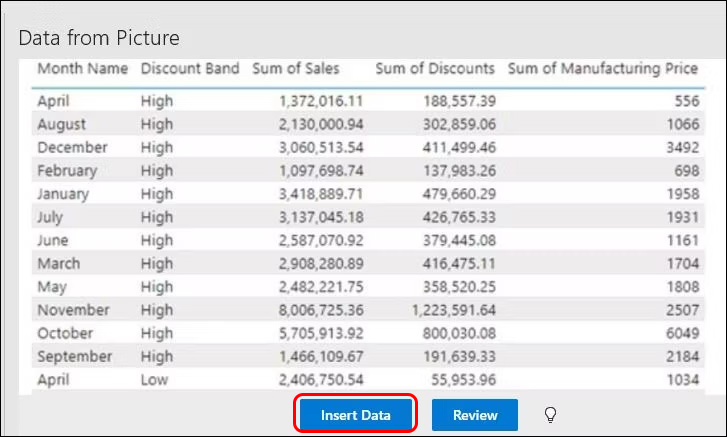
<p style="text-align: justify;">Ngay sau đó ở cạnh phải giao diện trên Excel người dùng sẽ nhìn thấy dữ liệu được trích xuất từ hình ảnh. Bạn có thể nhấn Review để xem trước dữ liệu hiển thị trong ảnh như nào. Hoặc chúng ta&nbsp;<strong>nhấn vào Insert Data</strong>&nbsp;để chèn vào Excel.</p>

<p style="text-align: justify;"><img alt="Chèn dữ liệu từ hình ảnh vào Excel" data-i="14" data-src="https://st.quantrimang.com/photos/image/2023/03/23/Excel-nhap-du-lieu-tu-anh-2.jpg" data-was-processed="true" height="361" src="https://st.quantrimang.com/photos/image/2023/03/23/Excel-nhap-du-lieu-tu-anh-2.jpg" width="600" /></p>

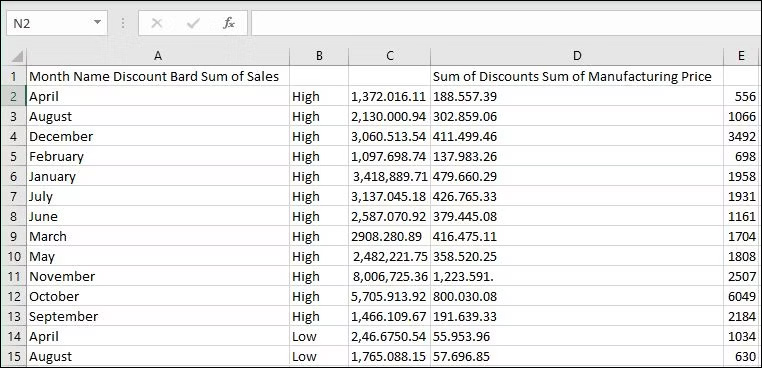
<p style="text-align: justify;">Kết quả chúng ta có được dữ liệu nhập từ hình ảnh trong Excel như hình dưới đây.</p>

<p style="text-align: justify;"><img alt="Dữ liệu từ hình ảnh vào Excel" data-i="15" data-src="https://st.quantrimang.com/photos/image/2023/03/23/Excel-nhap-du-lieu-tu-anh-3.jpg" data-was-processed="true" height="309" src="https://st.quantrimang.com/photos/image/2023/03/23/Excel-nhap-du-lieu-tu-anh-3.jpg" width="640" /></p>

<div style="text-align: justify;">&nbsp;</div>

<h2 style="text-align: justify;">Cách nhập dữ liệu từ screenshot vào Excel 365</h2>

<p style="text-align: justify;"><strong>Bước 1:</strong></p>

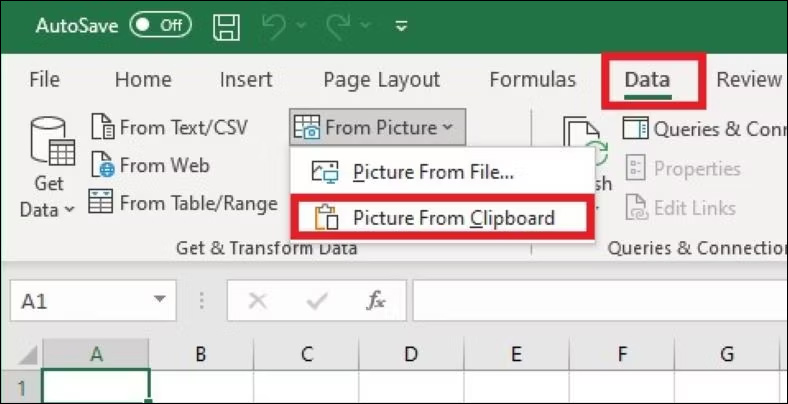
<p style="text-align: justify;">Bạn sẽ chụp ảnh màn hình dữ liệu mà người dùng muốn nhập vào dữ liệu rồi sao chép vào clipboard trên máy tính. Tiếp tục tại sao diện Excel, bạn nhấn chọn vào tab Data rồi nhấn tiếp vào From Picture, chọn Get and Transform Data.</p>

<p style="text-align: justify;">Sau đó bạn nhấn tiếp vào&nbsp;<strong>Picture From Clipboard</strong>.</p>

<p style="text-align: justify;"><img alt="Chọn ảnh screenshot lấy dữ liệu" data-i="16" data-src="https://st.quantrimang.com/photos/image/2023/03/23/Excel-nhap-du-lieu-tu-anh-4.jpg" data-was-processed="true" height="308" src="https://st.quantrimang.com/photos/image/2023/03/23/Excel-nhap-du-lieu-tu-anh-4.jpg" width="600" /></p>

<p style="text-align: justify;"><strong>Bước 2:</strong></p>

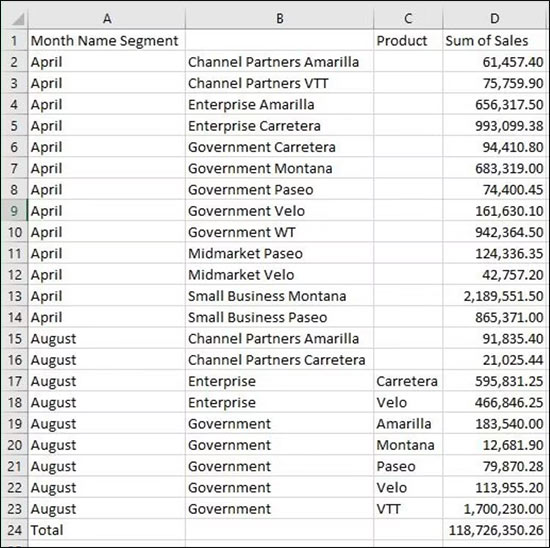
<p style="text-align: justify;">Sau đó nội dung trong hình ảnh cũng được trích xuất và bạn cũng nhấn Insert để chèn dữ liệu từ hình ảnh vào Excel.</p>

<p style="text-align: justify;"><img alt="Xuất dữ liệu từ ảnh vào Excel" data-i="17" data-src="https://st.quantrimang.com/photos/image/2023/03/23/Excel-nhap-du-lieu-tu-anh-5.jpg" data-was-processed="true" height="548" src="https://st.quantrimang.com/photos/image/2023/03/23/Excel-nhap-du-lieu-tu-anh-5.jpg" width="550" /></p>

<div style="text-align: justify;">&nbsp;</div>
		</div>
				<div id="author">
						<p>
				<strong>Nguồn tin:</strong>
				Quantrimang.com:
			</p>
		</div>
	</div>
	<div id="footer" class="clearfix">
		<div id="url">
			<strong>URL của bản tin này: </strong><a href="https://www.nguoicodonvn2008.info/vi/news/savefile/kien-thuc-may-tinh/cach-lay-du-lieu-tu-anh-vao-excel-khong-loi-font-9241.html" title="Cách lấy dữ liệu từ ảnh vào Excel không lỗi font">https://www.nguoicodonvn2008.info/vi/news/savefile/kien-thuc-may-tinh/cach-lay-du-lieu-tu-anh-vao-excel-khong-loi-font-9241.html</a>

		</div>
		<div class="clear"></div>
		<div class="copyright">
			&copy; .&#x3A; Nguoicodonvn2008.info - Cõi lòng người cô đơn &#x3A;.
		</div>
		<div id="contact">
			<a href="mailto:admin@nguoicodonvn2008.info">admin@nguoicodonvn2008.info</a>
		</div>
	</div>
</div>
        <div id="timeoutsess" class="chromeframe">
            Bạn đã không sử dụng Site, <a onclick="timeoutsesscancel();" href="https://nguoicodonvn2008.info/#">Bấm vào đây để duy trì trạng thái đăng nhập</a>. Thời gian chờ: <span id="secField"> 60 </span> giây
        </div>
        <div id="openidResult" class="nv-alert" style="display:none"></div>
        <div id="openidBt" data-result="" data-redirect=""></div>
		</script>
		<div class="car-top">
  <span><img src="https://nguoicodonvn2008.info/themes/default/images/car.png" alt=""></span>
</div>
<div id="run_cronjobs" style="visibility:hidden;display:none;"><img alt="cron" src="/index.php?second=cronjobs&amp;p=t3P9CLcN" width="1" height="1" /></div>
<script src="https://nguoicodonvn2008.info/assets/js/jquery/jquery.min.js"></script>
<script>var nv_base_siteurl="/",nv_lang_data="vi",nv_lang_interface="vi",nv_name_variable="nv",nv_fc_variable="op",nv_lang_variable="language",nv_module_name="news",nv_func_name="savefile",nv_is_user=0, nv_my_ofs=-4,nv_my_abbr="EDT",nv_cookie_prefix="nv4c_e856T",nv_check_pass_mstime=1738000,nv_area_admin=0,nv_safemode=0,theme_responsive=0,nv_recaptcha_ver=2,nv_recaptcha_sitekey="",nv_recaptcha_type="image",XSSsanitize=1;</script>
<script src="https://nguoicodonvn2008.info/assets/js/language/vi.js"></script>
<script src="https://nguoicodonvn2008.info/assets/js/DOMPurify/purify3.js"></script>
<script src="https://nguoicodonvn2008.info/assets/js/global.js"></script>
<script src="https://nguoicodonvn2008.info/assets/js/site.js"></script>
<script src="https://nguoicodonvn2008.info/themes/default/js/news.js"></script>
<script src="https://nguoicodonvn2008.info/themes/default/js/main.js"></script>
<script src="https://nguoicodonvn2008.info/themes/default/js/custom.js"></script>
<script type="application/ld+json">
        {
            "@context": "https://schema.org",
            "@type": "Organization",
            "url": "https://nguoicodonvn2008.info",
            "logo": "https://nguoicodonvn2008.info/uploads/angel.gif"
        }
        </script>
<script src="https://nguoicodonvn2008.info/themes/default/js/bootstrap.min.js"></script>
<script type="text/javascript">
var $scrolltop = $('.car-top');
$scrolltop.on('click', function () {
    $('html,body').animate({
        scrollTop: 0
    }, 800);
    $(this).addClass("car-run");
    setTimeout(function(){ $scrolltop.removeClass('car-run');}, 1000);
    return false;
});
$(window).on('scroll', function ()
{ 
    if($(window).scrollTop() >= 200)
    {
        $scrolltop.addClass("show");
        $scrolltop.addClass("car-down");
    }
    else
    {
       $scrolltop.removeClass("show");
       setTimeout(function(){ $scrolltop.removeClass('car-down');}, 300);
    }
});
</script>
</body>
</html>