<!DOCTYPE html>
    <html lang="vi" xmlns="http://www.w3.org/1999/xhtml" prefix="og: http://ogp.me/ns#">
    <head>
<title>Cách kiểm tra hiệu suất RAM trên PC Windows</title>
<meta name="description" content="Cách kiểm tra hiệu suất RAM trên PC Windows - Savefile - Tin Tức -...">
<meta name="author" content=".: Nguoicodonvn2008.info - Cõi lòng người cô đơn :.">
<meta name="copyright" content=".: Nguoicodonvn2008.info - Cõi lòng người cô đơn :. [admin@nguoicodonvn2008.info]">
<meta name="robots" content="index, archive, follow, noodp">
<meta name="googlebot" content="index,archive,follow,noodp">
<meta name="msnbot" content="all,index,follow">
<meta name="generator" content="NukeViet v4.5">
<meta http-equiv="Content-Type" content="text/html; charset=utf-8">
<meta property="og:title" content="Cách kiểm tra hiệu suất RAM trên PC Windows">
<meta property="og:type" content="website">
<meta property="og:description" content="Savefile - Tin Tức - https&#x3A;&#x002F;&#x002F;www.nguoicodonvn2008.info&#x002F;vi&#x002F;news&#x002F;savefile&#x002F;kien-thuc-may-tinh&#x002F;cach-kiem-tra-hieu-suat-ram-tren-pc-windows-8272.html">
<meta property="og:site_name" content=".&#x3A; Nguoicodonvn2008.info - Cõi lòng người cô đơn &#x3A;.">
<meta property="og:url" content="https://www.nguoicodonvn2008.info/vi/news/savefile/kien-thuc-may-tinh/cach-kiem-tra-hieu-suat-ram-tren-pc-windows-8272.html">
<link rel="shortcut icon" href="https://nguoicodonvn2008.info/favicon.ico">
<link rel="canonical" href="https://www.nguoicodonvn2008.info/vi/news/savefile/kien-thuc-may-tinh/cach-kiem-tra-hieu-suat-ram-tren-pc-windows-8272.html">
<link rel="alternate" href="https://nguoicodonvn2008.info/vi/news/rss/" title="Tin Tức" type="application/rss+xml">
<link rel="alternate" href="https://nguoicodonvn2008.info/vi/news/rss/karaoke-dual/" title="Tin Tức - Karaoke Dual" type="application/rss+xml">
<link rel="alternate" href="https://nguoicodonvn2008.info/vi/news/rss/nhac-tre/" title="Tin Tức - Nhạc trẻ" type="application/rss+xml">
<link rel="alternate" href="https://nguoicodonvn2008.info/vi/news/rss/tru-tinh/" title="Tin Tức - Trữ tình" type="application/rss+xml">
<link rel="alternate" href="https://nguoicodonvn2008.info/vi/news/rss/nuoc-ngoai/" title="Tin Tức - Nước ngoài" type="application/rss+xml">
<link rel="alternate" href="https://nguoicodonvn2008.info/vi/news/rss/remix/" title="Tin Tức - Remix" type="application/rss+xml">
<link rel="alternate" href="https://nguoicodonvn2008.info/vi/news/rss/tam-su-tinh-yeu/" title="Tin Tức - Tâm sự tình yêu" type="application/rss+xml">
<link rel="alternate" href="https://nguoicodonvn2008.info/vi/news/rss/tho-suu-tam/" title="Tin Tức - Thơ sưu tầm" type="application/rss+xml">
<link rel="alternate" href="https://nguoicodonvn2008.info/vi/news/rss/cuoc-song/" title="Tin Tức - Cuộc sống" type="application/rss+xml">
<link rel="alternate" href="https://nguoicodonvn2008.info/vi/news/rss/phan-mem/" title="Tin Tức - Phần mềm" type="application/rss+xml">
<link rel="alternate" href="https://nguoicodonvn2008.info/vi/news/rss/kien-thuc-may-tinh/" title="Tin Tức - Kiến thức máy tính" type="application/rss+xml">
<link rel="alternate" href="https://nguoicodonvn2008.info/vi/news/rss/hoc-tap/" title="Tin Tức - Học tập" type="application/rss+xml">
<link rel="alternate" href="https://nguoicodonvn2008.info/vi/news/rss/tai-lieu/" title="Tin Tức - Tài liệu" type="application/rss+xml">
<link rel="alternate" href="https://nguoicodonvn2008.info/vi/news/rss/de-thi/" title="Tin Tức - Đề thi" type="application/rss+xml">
<link rel="preload" as="style" href="https://nguoicodonvn2008.info/assets/css/font-awesome.min.css" type="text/css">
<link rel="preload" as="style" href="https://nguoicodonvn2008.info/themes/default/css/bootstrap.non-responsive.css" type="text/css">
<link rel="preload" as="style" href="https://nguoicodonvn2008.info/themes/default/css/style.css" type="text/css">
<link rel="preload" as="style" href="https://nguoicodonvn2008.info/themes/default/css/style.non-responsive.css" type="text/css">
<link rel="preload" as="style" href="https://nguoicodonvn2008.info/themes/default/css/news.css" type="text/css">
<link rel="preload" as="style" href="https://nguoicodonvn2008.info/themes/default/css/custom.css" type="text/css">
<link rel="preload" as="script" href="https://nguoicodonvn2008.info/assets/js/jquery/jquery.min.js" type="text/javascript">
<link rel="preload" as="script" href="https://nguoicodonvn2008.info/assets/js/language/vi.js" type="text/javascript">
<link rel="preload" as="script" href="https://nguoicodonvn2008.info/assets/js/DOMPurify/purify3.js" type="text/javascript">
<link rel="preload" as="script" href="https://nguoicodonvn2008.info/assets/js/global.js" type="text/javascript">
<link rel="preload" as="script" href="https://nguoicodonvn2008.info/assets/js/site.js" type="text/javascript">
<link rel="preload" as="script" href="https://nguoicodonvn2008.info/themes/default/js/news.js" type="text/javascript">
<link rel="preload" as="script" href="https://nguoicodonvn2008.info/themes/default/js/main.js" type="text/javascript">
<link rel="preload" as="script" href="https://nguoicodonvn2008.info/themes/default/js/custom.js" type="text/javascript">
<link rel="preload" as="script" href="https://nguoicodonvn2008.info/themes/default/js/bootstrap.min.js" type="text/javascript">
<link rel="stylesheet" href="https://nguoicodonvn2008.info/assets/css/font-awesome.min.css">
<link rel="stylesheet" href="https://nguoicodonvn2008.info/themes/default/css/bootstrap.non-responsive.css">
<link rel="stylesheet" href="https://nguoicodonvn2008.info/themes/default/css/style.css">
<link rel="stylesheet" href="https://nguoicodonvn2008.info/themes/default/css/style.non-responsive.css">
<link rel="StyleSheet" href="https://nguoicodonvn2008.info/themes/default/css/news.css">
<link rel="stylesheet" href="https://nguoicodonvn2008.info/themes/default/css/custom.css">
<style type="text/css">
	body{background: #fff;}
</style>
    </head>
    <body>
<div id="print">
	<div id="hd_print">
		<h2 class="pull-left">.&#x3A; Nguoicodonvn2008.info - Cõi lòng người cô đơn &#x3A;.</h2>
		<p class="pull-right"><a title=".&#x3A; Nguoicodonvn2008.info - Cõi lòng người cô đơn &#x3A;." href="https://nguoicodonvn2008.info/">https://nguoicodonvn2008.info</a></p>
	</div>
	<div class="clear"></div>
	<hr />
	<div id="content">
		<h1>Cách kiểm tra hiệu suất RAM trên PC Windows</h1>
		<ul class="list-inline">
			<li>Thứ năm - 04/04/2024 23:35</li>
			<li class="hidden-print txtrequired"><em class="fa fa-print">&nbsp;</em><a title="In ra" href="javascript:;" onclick="window.print()">In ra</a></li>
			<li class="hidden-print txtrequired"><em class="fa fa-power-off">&nbsp;</em><a title="Đóng cửa sổ này" href="javascript:;" onclick="window.close()">Đóng cửa sổ này</a></li>
		</ul>
		<div class="clear"></div>
		<div id="hometext">
		</div>
				<div class="imghome">
			<img alt="Cách kiểm tra hiệu suất RAM trên PC Windows" src="https://st.quantrimang.com/photos/image/2024/04/04/kiem-tra-hieu-suat-ram-pc-windows-7.jpg" width="460" class="img-thumbnail" />
		</div>
		<div class="clear"></div>
		<div id="bodytext" class="clearfix">
			<p style="text-align: justify;">Kiểm tra hiệu suất RAM trên máy tính liên quan đến hai khía cạnh của bộ nhớ hệ thống: Tốc độ và độ ổn định. Tốc độ cho bạn biết RAM của bạn có thể truy cập và truyền dữ liệu giữa&nbsp;<a data-type="internal" href="https://quantrimang.com/cong-nghe/cpu-la-gi-142876" title="CPU là gì?">CPU</a>&nbsp;và các thành phần khác nhanh như thế nào. Độ ổn định xác định mức độ đáng tin cậy của RAM có thể hoạt động mà không gặp lỗi, sự cố hoặc đóng băng. Hướng dẫn này sẽ khám phá cách kiểm tra hiệu suất RAM trên PC Windows của bạn bằng cả công cụ tích hợp và phương pháp bên ngoài.</p>

<h2 style="text-align: justify;">Kiểm tra mức sử dụng RAM trong Task Manager</h2>

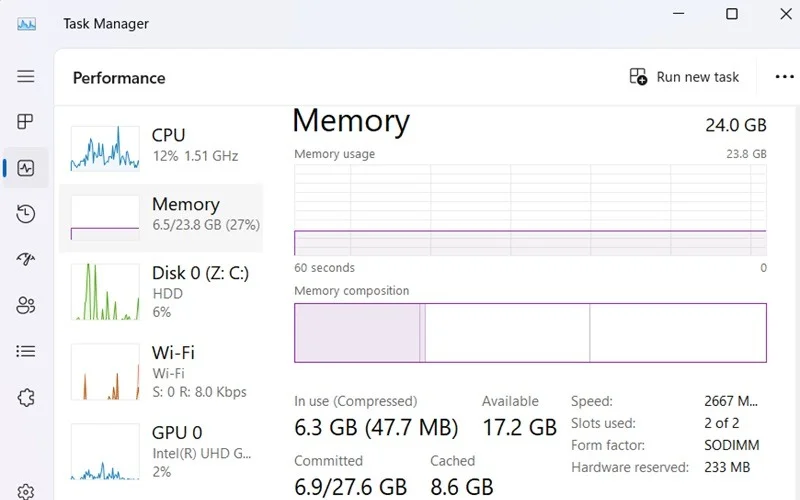
<p style="text-align: justify;">Rất dễ dàng để kiểm tra mức sử dụng RAM trong Windows bằng&nbsp;Task Manager. Mở nó từ Taskbar hoặc sử dụng&nbsp;<strong>Ctrl + Shift + Esc</strong>. Đi tới&nbsp;<strong>Performance</strong>&nbsp;&gt;&nbsp;<strong>Memory</strong>, nơi bạn có thể tìm thấy tất cả số liệu thống kê có liên quan đến hiệu suất RAM của mình. Kiểm tra lượt theo dõi:</p>

<ul>
	<li style="text-align: justify;">Tốc độ RAM, khoảng 2667 MHz</li>
	<li style="text-align: justify;">Bao nhiêu RAM đang được sử dụng so với có sẵn.</li>
	<li style="text-align: justify;">Mức sử dụng RAM được lưu trong cache tính bằng GB.</li>
</ul>

<figure>
<div style="text-align: justify;"><img alt="Kiểm tra chi tiết hiệu suất và mức sử dụng RAM trong Task Manager." data-i="0" data-src="https://st.quantrimang.com/photos/image/2024/04/04/kiem-tra-hieu-suat-ram-pc-windows-1.jpg" data-was-processed="true" height="500" src="https://st.quantrimang.com/photos/image/2024/04/04/kiem-tra-hieu-suat-ram-pc-windows-1.jpg" width="800" /></div>

<figcaption>
<div style="text-align: justify;">Kiểm tra chi tiết hiệu suất và mức sử dụng RAM trong Task Manager.</div>
</figcaption>
</figure>

<div style="text-align: justify;">&nbsp;</div>

<h2 style="text-align: justify;">Chạy kiểm tra chẩn đoán bộ nhớ</h2>

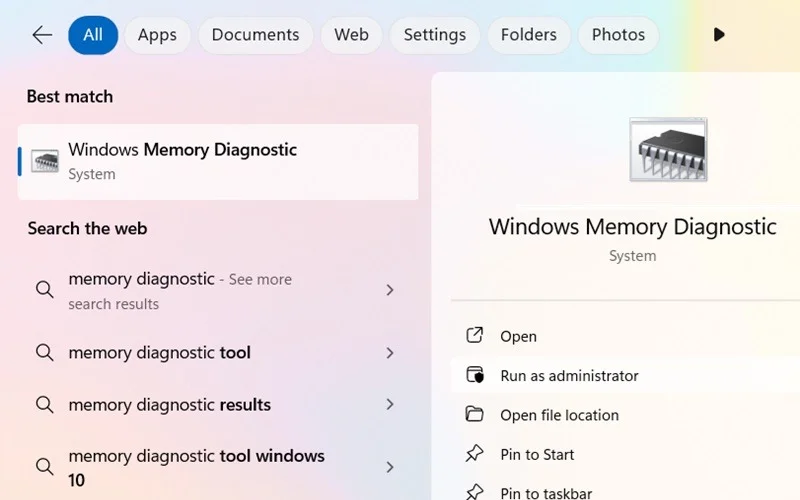
<p style="text-align: justify;">Windows cung cấp một công cụ tích hợp có tên là Windows Memory Diagnostic, nằm trong thư mục System32. Công cụ này có thể xác định các vấn đề về bộ nhớ và đánh giá hiệu suất RAM. Mở nó trực tiếp từ tìm kiếm Windows hoặc bằng cách gõ lệnh&nbsp;<strong>mdsched</strong>&nbsp;trong Cmd.</p>

<p style="text-align: justify;">Trong cả hai trường hợp, hệ thống sẽ ngay lập tức nhắc bạn&nbsp;khởi động lại máy tính. Nó đưa ra hai tùy chọn:&nbsp;<strong>Restart now</strong>&nbsp;và&nbsp;<strong>Check for problems the next time I start my computer</strong>.</p>

<figure>
<div style="text-align: justify;"><br />
<br />
<img alt="Mở Windows Memory Diagnostic từ menu tìm kiếm." data-adbro-processed="true" data-i="1" data-src="https://st.quantrimang.com/photos/image/2024/04/04/kiem-tra-hieu-suat-ram-pc-windows-2.jpg" data-was-processed="true" height="500" src="https://st.quantrimang.com/photos/image/2024/04/04/kiem-tra-hieu-suat-ram-pc-windows-2.jpg" width="800" /></div>

<figcaption>
<div style="text-align: justify;">Mở Windows Memory Diagnostic từ menu tìm kiếm.</div>
</figcaption>
</figure>

<p style="text-align: justify;">Khi PC khởi động lại, nó sẽ thực hiện các bài kiểm tra tốc độ và bộ nhớ ở chế độ nền, quá trình này sẽ mất vài phút.</p>

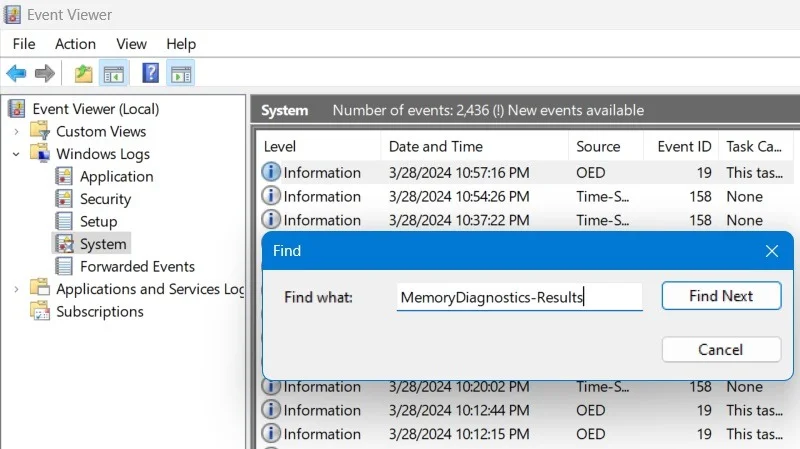
<p style="text-align: justify;">Sau khi PC của bạn khởi động lại, hãy&nbsp;mở ứng dụng Event Viewer&nbsp;và đi tới&nbsp;<strong>Event Viewer (local)</strong>&nbsp;&gt;&nbsp;<strong>Windows Logs</strong>&nbsp;&gt;&nbsp;<strong>System</strong>. Nhấp chuột phải để mở menu&nbsp;<strong>Find</strong>&nbsp;và nhập “MemoryDiagnostics-Results”. Đầu ra sẽ cho biết bất kỳ lỗi bộ nhớ nào và RAM của bạn hoạt động tốt hay kém.</p>

<figure>
<div style="text-align: justify;"><img alt="Chẩn đoán bộ nhớ Windows được thấy trong Event Viewer bằng cách sử dụng &#039;MemoryDiagnostics-Results&#039; trong tùy chọn Find." data-i="2" data-src="https://st.quantrimang.com/photos/image/2024/04/04/kiem-tra-hieu-suat-ram-pc-windows-3.jpg" data-was-processed="true" height="449" src="https://st.quantrimang.com/photos/image/2024/04/04/kiem-tra-hieu-suat-ram-pc-windows-3.jpg" width="800" /></div>

<figcaption>
<div style="text-align: justify;">Chẩn đoán bộ nhớ Windows được thấy trong Event Viewer bằng cách sử dụng &quot;MemoryDiagnostics-Results&quot; trong tùy chọn Find.</div>
</figcaption>
</figure>

<div style="text-align: justify;">&nbsp;</div>

<h2 style="text-align: justify;">Kiểm tra hiệu suất RAM bằng Windows Game Bar</h2>

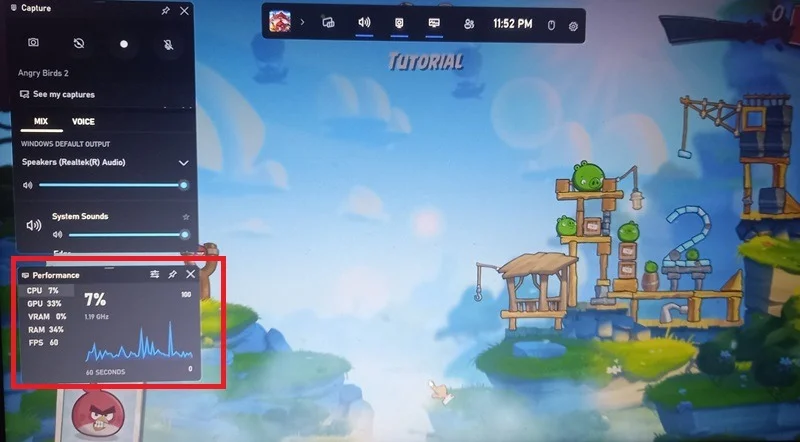
<p style="text-align: justify;">Windows Game Bar (trước đây là Xbox Game Bar) là một công cụ tiện dụng vượt xa khả năng chơi game. Nó cũng có thể giám sát việc sử dụng RAM của bạn trong khi duyệt web hoặc làm việc với các ứng dụng đòi hỏi khắt khe, như Adobe Premiere Pro. Đây là sự lựa chọn tuyệt vời nếu bạn muốn thực hiện kiểm tra hiệu năng RAM trực tuyến mà không cần tải xuống bất kỳ phần mềm nào hoặc trả tiền đánh giá RAM.</p>

<figure>
<div style="text-align: justify;"><img alt="Sử dụng Game Bar để kiểm tra hiệu suất RAM trực tiếp trong khi chơi game." data-i="3" data-src="https://st.quantrimang.com/photos/image/2024/04/04/kiem-tra-hieu-suat-ram-pc-windows-4.jpg" data-was-processed="true" height="442" src="https://st.quantrimang.com/photos/image/2024/04/04/kiem-tra-hieu-suat-ram-pc-windows-4.jpg" width="800" /></div>

<figcaption>
<div style="text-align: justify;">Sử dụng Game Bar để kiểm tra hiệu suất RAM trực tiếp trong khi chơi game.</div>
</figcaption>
</figure>

<p style="text-align: justify;">Mở Game Bar bằng cách sử dụng tìm kiếm Windows hoặc&nbsp;<strong>Win + G</strong>, bất kể bạn đang làm gì trên PC. Widget&nbsp;<strong>Performance</strong>&nbsp;hiển thị mức sử dụng&nbsp;<strong>RAM</strong>&nbsp;và&nbsp;<strong>VRAM</strong>&nbsp;dưới dạng phần trăm trên tổng bộ nhớ, cùng với dữ liệu&nbsp;<strong>CPU, GPU</strong>&nbsp;và&nbsp;<strong>FPS</strong>.</p>

<h2 style="text-align: justify;">Sử dụng Performance Monitor</h2>

<p style="text-align: justify;">Windows có một tiện ích tuyệt vời khác, Performance Monitor, đưa ra đánh giá rất chi tiết về hiệu suất RAM của bạn. Mở nó từ menu tìm kiếm hoặc bằng cách gõ&nbsp;<strong>perfmon</strong>&nbsp;vào lệnh Run,&nbsp;<strong>Win + R</strong>.</p>

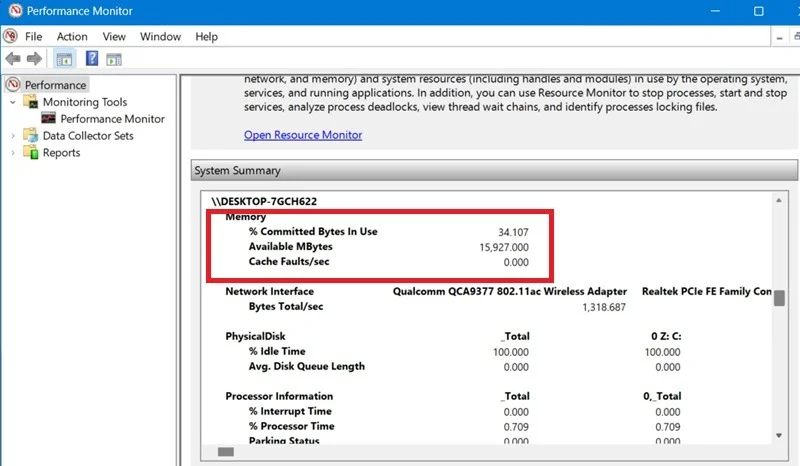
<p style="text-align: justify;">Trong&nbsp;<strong>Performance</strong>&nbsp;&gt;&nbsp;<strong>Memory</strong>, tìm&nbsp;<strong>% Committed Bytes in Use</strong>&nbsp;và&nbsp;<strong>Available MBytes</strong>.</p>

<figure>
<div style="text-align: justify;"><img alt="Tổng quan về bộ nhớ trong ứng dụng Performance Monitor." data-i="4" data-src="https://st.quantrimang.com/photos/image/2024/04/04/kiem-tra-hieu-suat-ram-pc-windows-5.jpg" data-was-processed="true" height="466" src="https://st.quantrimang.com/photos/image/2024/04/04/kiem-tra-hieu-suat-ram-pc-windows-5.jpg" width="800" /></div>

<figcaption>
<div style="text-align: justify;">Tổng quan về bộ nhớ trong ứng dụng Performance Monitor.</div>
</figcaption>
</figure>

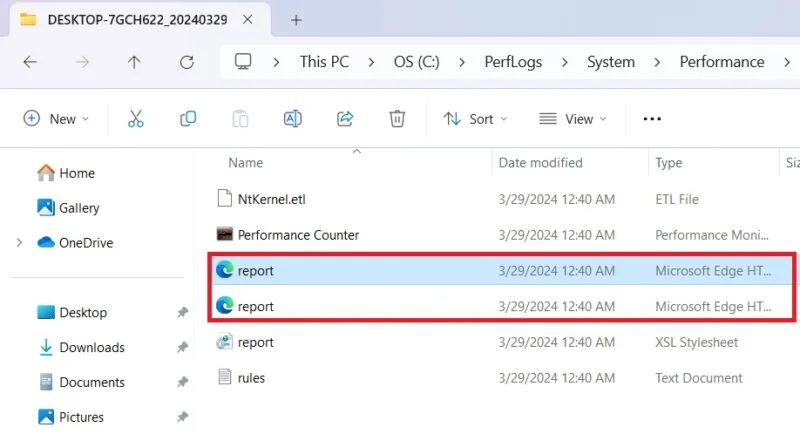
<p style="text-align: justify;">Để phân tích chính xác hơn, hãy đi sâu hơn vào&nbsp;<strong>Data Collector Sets</strong>&nbsp;&gt;&nbsp;<strong>System</strong>&nbsp;&gt;&nbsp;<strong>System Performance</strong>&nbsp;(ở bên phải) và nhấp chuột phải để bắt đầu. Nó sẽ lưu báo cáo trong&nbsp;<strong>C:\Perflogs</strong>&nbsp;và bạn có thể mở báo cáo từ thư mục Windows thông qua trình duyệt như Chrome, Firefox hoặc Edge.</p>

<figure>
<div style="text-align: justify;"><img alt="Báo cáo Perfmon có sẵn trong đường dẫn thư mục Windows." data-i="5" data-src="https://st.quantrimang.com/photos/image/2024/04/04/kiem-tra-hieu-suat-ram-pc-windows-6.jpg" data-was-processed="true" height="434" src="https://st.quantrimang.com/photos/image/2024/04/04/kiem-tra-hieu-suat-ram-pc-windows-6.jpg" width="800" /></div>

<figcaption>
<div style="text-align: justify;">Báo cáo Perfmon có sẵn trong đường dẫn thư mục Windows.</div>
</figcaption>
</figure>

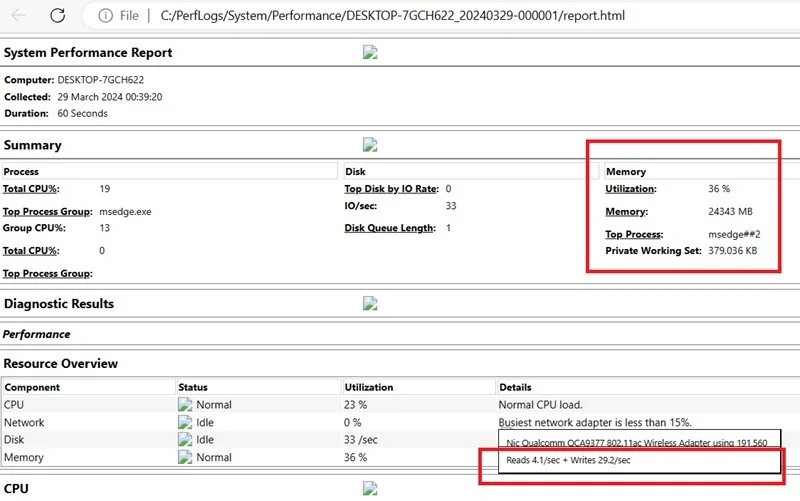
<p style="text-align: justify;">System Performance Report đi sâu vào việc sử dụng RAM và cho bạn biết quy trình hàng đầu cũng như các giá trị đọc/ghi. Nếu đi sâu hơn vào báo cáo, bạn có thể thấy các ứng dụng có sẵn và lượng RAM đang được tiêu thụ cho mỗi ứng dụng.</p>

<figure>
<div style="text-align: justify;"><img alt="Chi tiết báo cáo Perfmon trong trình duyệt có kiểm tra mức sử dụng bộ nhớ." data-i="6" data-src="https://st.quantrimang.com/photos/image/2024/04/04/kiem-tra-hieu-suat-ram-pc-windows-7.jpg" data-was-processed="true" height="501" src="https://st.quantrimang.com/photos/image/2024/04/04/kiem-tra-hieu-suat-ram-pc-windows-7.jpg" width="800" /></div>

<figcaption>
<div style="text-align: justify;">Chi tiết báo cáo Perfmon trong trình duyệt có kiểm tra mức sử dụng bộ nhớ.</div>
</figcaption>
</figure>

<h2 style="text-align: justify;">Kiểm tra hiệu suất RAM bằng công cụ đánh giá</h2>

<p style="text-align: justify;">Ngoài các phương pháp gốc trong Windows, bạn có thể sử dụng nhiều công cụ bên ngoài khác nhau để kiểm tra hiệu suất RAM.</p>

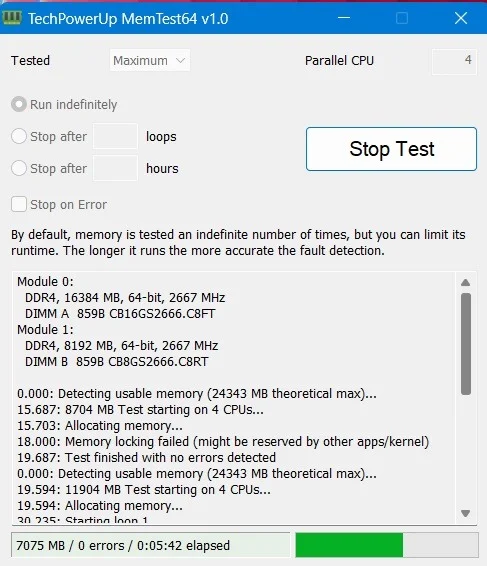
<p style="text-align: justify;">MemTest64&nbsp;là một trong những công cụ đánh giá RAM tốt nhất dành cho người dùng Windows trên hệ thống 64-bit. Thật dễ dàng để cài đặt và hoàn toàn miễn phí. Nhấp vào&nbsp;<strong>Begin Test</strong>. Bạn nên kiểm tra hiệu suất RAM của mình ở giá trị cao nhất, vì vậy bạn nên chọn giá trị&nbsp;<strong>Tested</strong>&nbsp;là&nbsp;<strong>Maximum</strong>, giá trị này sẽ chạy vô thời hạn (<strong>Run indefinitely</strong>).<br />
<span style="color:rgb(192, 57, 43);"><strong>https://www.techpowerup.com/memtest64/</strong></span></p>

<p style="text-align: justify;">Sau khi chạy thử nghiệm trong vài phút, hãy nhấp vào&nbsp;<strong>Stop Test</strong>.&nbsp; Bạn có thể thấy số giây trôi qua ở cột bên trái. Công cụ này thực hiện nhiều bài kiểm tra hiệu suất RAM bằng cách load các mẫu kiểm tra. Nếu có bất kỳ lỗi nào, chúng cũng sẽ được hiển thị.</p>

<p style="text-align: justify;"><strong>Lưu ý</strong>: Nếu bạn đang sử dụng máy 32 bit, hãy sử dụng&nbsp;MemTest86&nbsp;thay thế.<br />
<span style="color:rgb(192, 57, 43);"><strong>https://www.memtest86.com/download.htm</strong></span></p>

<figure>
<div style="text-align: justify;"><img alt="MemTest64 kiểm tra hiệu suất RAM." data-i="7" data-src="https://st.quantrimang.com/photos/image/2024/04/04/kiem-tra-hieu-suat-ram-pc-windows-8.jpg" data-was-processed="true" height="566" src="https://st.quantrimang.com/photos/image/2024/04/04/kiem-tra-hieu-suat-ram-pc-windows-8.jpg" width="487" /></div>

<figcaption>
<div style="text-align: justify;">MemTest64 kiểm tra hiệu suất RAM.</div>
</figcaption>
</figure>

<div style="text-align: justify;"><iframe allowtransparency="true" aria-label="Advertisement" data-google-container-id="a!5" data-google-query-id="CLz786-SqoUDFb3ITAIdKQ0MrQ" data-load-complete="true" frameborder="0" height="0" hspace="0" id="aswift_4" marginheight="0" marginwidth="0" name="aswift_4" sandbox="" scrolling="no" tabindex="0" title="Advertisement" vspace="0" width="694"></iframe></div>

<p style="text-align: justify;">Trong số các công cụ hiệu suất RAM cao cấp, nên sử dụng những công cụ sau:</p>

<ul>
	<li style="text-align: justify;"><strong>AIDA64 Extreme</strong>: Nó đưa ra một loạt các bài kiểm tra hiệu năng RAM, bao gồm cả benchmark bộ nhớ (đọc, ghi, sao chép).&nbsp;<a href="https://quantrimang.com/url?q=aHR0cHM6Ly93d3cuYWlkYTY0LmNvbS9wcm9kdWN0cy9haWRhNjQtZXh0cmVtZQ%3D%3D" rel="nofollow noopener" target="_blank" title="AIDA64 Extreme">AIDA64 Extreme</a>&nbsp;cho bạn biết RAM máy tính của bạn tốt như thế nào so với các thiết bị khác. (Giá: 59,95 USD/3 giấy phép vĩnh viễn)</li>
	<li style="text-align: justify;"><strong>PassMark Performance Test</strong>: Công cụ&nbsp;PassMark&nbsp;này đã trở thành tiêu chuẩn trong ngành kiểm tra hiệu suất máy tính kể từ những năm 90. Nó cũng đánh giá RAM của bạn so với RAM tốt nhất trên thế giới bằng điểm số cuối cùng. (Giá: 27,20 USD/1 giấy phép vĩnh viễn)</li>
</ul>

<div style="text-align: justify;"><span style="color:rgb(192, 57, 43);"><strong>https://www.passmark.com/products/performancetest/index.php</strong></span></div>

<p style="text-align: justify;"><strong>Cảnh báo</strong>: Việc sử dụng bất kỳ công cụ đánh giá RAM bên ngoài nào có thể làm máy tính của bạn nóng lên. Hãy tìm hiểu&nbsp;cách hạ nhiệt độ CPU cao!</p>

<div style="text-align: justify;">&nbsp;</div>
		</div>
				<div id="author">
						<p>
				<strong>Nguồn tin:</strong>
				Quantrimang.com
			</p>
		</div>
	</div>
	<div id="footer" class="clearfix">
		<div id="url">
			<strong>URL của bản tin này: </strong><a href="https://www.nguoicodonvn2008.info/vi/news/savefile/kien-thuc-may-tinh/cach-kiem-tra-hieu-suat-ram-tren-pc-windows-8272.html" title="Cách kiểm tra hiệu suất RAM trên PC Windows">https://www.nguoicodonvn2008.info/vi/news/savefile/kien-thuc-may-tinh/cach-kiem-tra-hieu-suat-ram-tren-pc-windows-8272.html</a>

		</div>
		<div class="clear"></div>
		<div class="copyright">
			&copy; .&#x3A; Nguoicodonvn2008.info - Cõi lòng người cô đơn &#x3A;.
		</div>
		<div id="contact">
			<a href="mailto:admin@nguoicodonvn2008.info">admin@nguoicodonvn2008.info</a>
		</div>
	</div>
</div>
        <div id="timeoutsess" class="chromeframe">
            Bạn đã không sử dụng Site, <a onclick="timeoutsesscancel();" href="https://nguoicodonvn2008.info/#">Bấm vào đây để duy trì trạng thái đăng nhập</a>. Thời gian chờ: <span id="secField"> 60 </span> giây
        </div>
        <div id="openidResult" class="nv-alert" style="display:none"></div>
        <div id="openidBt" data-result="" data-redirect=""></div>
		</script>
		<div class="car-top">
  <span><img src="https://nguoicodonvn2008.info/themes/default/images/car.png" alt=""></span>
</div>
<script src="https://nguoicodonvn2008.info/assets/js/jquery/jquery.min.js"></script>
<script>var nv_base_siteurl="/",nv_lang_data="vi",nv_lang_interface="vi",nv_name_variable="nv",nv_fc_variable="op",nv_lang_variable="language",nv_module_name="news",nv_func_name="savefile",nv_is_user=0, nv_my_ofs=-4,nv_my_abbr="EDT",nv_cookie_prefix="nv4c_e856T",nv_check_pass_mstime=1738000,nv_area_admin=0,nv_safemode=0,theme_responsive=0,nv_recaptcha_ver=2,nv_recaptcha_sitekey="",nv_recaptcha_type="image",XSSsanitize=1;</script>
<script src="https://nguoicodonvn2008.info/assets/js/language/vi.js"></script>
<script src="https://nguoicodonvn2008.info/assets/js/DOMPurify/purify3.js"></script>
<script src="https://nguoicodonvn2008.info/assets/js/global.js"></script>
<script src="https://nguoicodonvn2008.info/assets/js/site.js"></script>
<script src="https://nguoicodonvn2008.info/themes/default/js/news.js"></script>
<script src="https://nguoicodonvn2008.info/themes/default/js/main.js"></script>
<script src="https://nguoicodonvn2008.info/themes/default/js/custom.js"></script>
<script type="application/ld+json">
        {
            "@context": "https://schema.org",
            "@type": "Organization",
            "url": "https://nguoicodonvn2008.info",
            "logo": "https://nguoicodonvn2008.info/uploads/angel.gif"
        }
        </script>
<script src="https://nguoicodonvn2008.info/themes/default/js/bootstrap.min.js"></script>
<script type="text/javascript">
var $scrolltop = $('.car-top');
$scrolltop.on('click', function () {
    $('html,body').animate({
        scrollTop: 0
    }, 800);
    $(this).addClass("car-run");
    setTimeout(function(){ $scrolltop.removeClass('car-run');}, 1000);
    return false;
});
$(window).on('scroll', function ()
{ 
    if($(window).scrollTop() >= 200)
    {
        $scrolltop.addClass("show");
        $scrolltop.addClass("car-down");
    }
    else
    {
       $scrolltop.removeClass("show");
       setTimeout(function(){ $scrolltop.removeClass('car-down');}, 300);
    }
});
</script>
</body>
</html>