<!DOCTYPE html>
    <html lang="vi" xmlns="http://www.w3.org/1999/xhtml" prefix="og: http://ogp.me/ns#">
    <head>
<title>Cách kích hoạt Virtualization &#40;VT&#41; trên Windows 10 cho BlueStacks 5</title>
<meta name="description" content="Cách kích hoạt Virtualization &#40;VT&#41; trên Windows 10 cho BlueStacks 5 - Savefile - Tin Tức -...">
<meta name="author" content=".: Nguoicodonvn2008.info - Cõi lòng người cô đơn :.">
<meta name="copyright" content=".: Nguoicodonvn2008.info - Cõi lòng người cô đơn :. [admin@nguoicodonvn2008.info]">
<meta name="robots" content="index, archive, follow, noodp">
<meta name="googlebot" content="index,archive,follow,noodp">
<meta name="msnbot" content="all,index,follow">
<meta name="generator" content="NukeViet v4.5">
<meta http-equiv="Content-Type" content="text/html; charset=utf-8">
<meta property="og:title" content="Cách kích hoạt Virtualization &#40;VT&#41; trên Windows 10 cho BlueStacks 5">
<meta property="og:type" content="website">
<meta property="og:description" content="Savefile - Tin Tức - https&#x3A;&#x002F;&#x002F;www.nguoicodonvn2008.info&#x002F;vi&#x002F;news&#x002F;savefile&#x002F;kien-thuc-may-tinh&#x002F;cach-kich-hoat-virtualization-vt-tren-windows-10-cho-bluestacks-5-10594.html">
<meta property="og:site_name" content=".&#x3A; Nguoicodonvn2008.info - Cõi lòng người cô đơn &#x3A;.">
<meta property="og:url" content="https://www.nguoicodonvn2008.info/vi/news/savefile/kien-thuc-may-tinh/cach-kich-hoat-virtualization-vt-tren-windows-10-cho-bluestacks-5-10594.html">
<link rel="shortcut icon" href="https://nguoicodonvn2008.info/favicon.ico">
<link rel="canonical" href="https://www.nguoicodonvn2008.info/vi/news/savefile/kien-thuc-may-tinh/cach-kich-hoat-virtualization-vt-tren-windows-10-cho-bluestacks-5-10594.html">
<link rel="alternate" href="https://nguoicodonvn2008.info/vi/news/rss/" title="Tin Tức" type="application/rss+xml">
<link rel="alternate" href="https://nguoicodonvn2008.info/vi/news/rss/karaoke-dual/" title="Tin Tức - Karaoke Dual" type="application/rss+xml">
<link rel="alternate" href="https://nguoicodonvn2008.info/vi/news/rss/nhac-tre/" title="Tin Tức - Nhạc trẻ" type="application/rss+xml">
<link rel="alternate" href="https://nguoicodonvn2008.info/vi/news/rss/tru-tinh/" title="Tin Tức - Trữ tình" type="application/rss+xml">
<link rel="alternate" href="https://nguoicodonvn2008.info/vi/news/rss/nuoc-ngoai/" title="Tin Tức - Nước ngoài" type="application/rss+xml">
<link rel="alternate" href="https://nguoicodonvn2008.info/vi/news/rss/remix/" title="Tin Tức - Remix" type="application/rss+xml">
<link rel="alternate" href="https://nguoicodonvn2008.info/vi/news/rss/tam-su-tinh-yeu/" title="Tin Tức - Tâm sự tình yêu" type="application/rss+xml">
<link rel="alternate" href="https://nguoicodonvn2008.info/vi/news/rss/tho-suu-tam/" title="Tin Tức - Thơ sưu tầm" type="application/rss+xml">
<link rel="alternate" href="https://nguoicodonvn2008.info/vi/news/rss/cuoc-song/" title="Tin Tức - Cuộc sống" type="application/rss+xml">
<link rel="alternate" href="https://nguoicodonvn2008.info/vi/news/rss/phan-mem/" title="Tin Tức - Phần mềm" type="application/rss+xml">
<link rel="alternate" href="https://nguoicodonvn2008.info/vi/news/rss/kien-thuc-may-tinh/" title="Tin Tức - Kiến thức máy tính" type="application/rss+xml">
<link rel="alternate" href="https://nguoicodonvn2008.info/vi/news/rss/hoc-tap/" title="Tin Tức - Học tập" type="application/rss+xml">
<link rel="alternate" href="https://nguoicodonvn2008.info/vi/news/rss/tai-lieu/" title="Tin Tức - Tài liệu" type="application/rss+xml">
<link rel="alternate" href="https://nguoicodonvn2008.info/vi/news/rss/de-thi/" title="Tin Tức - Đề thi" type="application/rss+xml">
<link rel="preload" as="style" href="https://nguoicodonvn2008.info/assets/css/font-awesome.min.css" type="text/css">
<link rel="preload" as="style" href="https://nguoicodonvn2008.info/themes/default/css/bootstrap.non-responsive.css" type="text/css">
<link rel="preload" as="style" href="https://nguoicodonvn2008.info/themes/default/css/style.css" type="text/css">
<link rel="preload" as="style" href="https://nguoicodonvn2008.info/themes/default/css/style.non-responsive.css" type="text/css">
<link rel="preload" as="style" href="https://nguoicodonvn2008.info/themes/default/css/news.css" type="text/css">
<link rel="preload" as="style" href="https://nguoicodonvn2008.info/themes/default/css/custom.css" type="text/css">
<link rel="preload" as="script" href="https://nguoicodonvn2008.info/assets/js/jquery/jquery.min.js" type="text/javascript">
<link rel="preload" as="script" href="https://nguoicodonvn2008.info/assets/js/language/vi.js" type="text/javascript">
<link rel="preload" as="script" href="https://nguoicodonvn2008.info/assets/js/DOMPurify/purify3.js" type="text/javascript">
<link rel="preload" as="script" href="https://nguoicodonvn2008.info/assets/js/global.js" type="text/javascript">
<link rel="preload" as="script" href="https://nguoicodonvn2008.info/assets/js/site.js" type="text/javascript">
<link rel="preload" as="script" href="https://nguoicodonvn2008.info/themes/default/js/news.js" type="text/javascript">
<link rel="preload" as="script" href="https://nguoicodonvn2008.info/themes/default/js/main.js" type="text/javascript">
<link rel="preload" as="script" href="https://nguoicodonvn2008.info/themes/default/js/custom.js" type="text/javascript">
<link rel="preload" as="script" href="https://nguoicodonvn2008.info/themes/default/js/bootstrap.min.js" type="text/javascript">
<link rel="stylesheet" href="https://nguoicodonvn2008.info/assets/css/font-awesome.min.css">
<link rel="stylesheet" href="https://nguoicodonvn2008.info/themes/default/css/bootstrap.non-responsive.css">
<link rel="stylesheet" href="https://nguoicodonvn2008.info/themes/default/css/style.css">
<link rel="stylesheet" href="https://nguoicodonvn2008.info/themes/default/css/style.non-responsive.css">
<link rel="StyleSheet" href="https://nguoicodonvn2008.info/themes/default/css/news.css">
<link rel="stylesheet" href="https://nguoicodonvn2008.info/themes/default/css/custom.css">
<style type="text/css">
	body{background: #fff;}
</style>
    </head>
    <body>
<div id="print">
	<div id="hd_print">
		<h2 class="pull-left">.&#x3A; Nguoicodonvn2008.info - Cõi lòng người cô đơn &#x3A;.</h2>
		<p class="pull-right"><a title=".&#x3A; Nguoicodonvn2008.info - Cõi lòng người cô đơn &#x3A;." href="https://nguoicodonvn2008.info/">https://nguoicodonvn2008.info</a></p>
	</div>
	<div class="clear"></div>
	<hr />
	<div id="content">
		<h1>Cách kích hoạt Virtualization &#40;VT&#41; trên Windows 10 cho BlueStacks 5</h1>
		<ul class="list-inline">
			<li>Thứ năm - 19/06/2025 00:56</li>
			<li class="hidden-print txtrequired"><em class="fa fa-print">&nbsp;</em><a title="In ra" href="javascript:;" onclick="window.print()">In ra</a></li>
			<li class="hidden-print txtrequired"><em class="fa fa-power-off">&nbsp;</em><a title="Đóng cửa sổ này" href="javascript:;" onclick="window.close()">Đóng cửa sổ này</a></li>
		</ul>
		<div class="clear"></div>
		<div id="hometext">
		</div>
				<div class="imghome">
			<img alt="Cách kích hoạt Virtualization &#40;VT&#41; trên Windows 10 cho BlueStacks 5" src="https://st.quantrimang.com/photos/image/2022/04/26/kich-hoat-virtualization-vt-tren-windows-10-cho-bluestacks-1.jpg" width="460" class="img-thumbnail" />
		</div>
		<div class="clear"></div>
		<div id="bodytext" class="clearfix">
			<h2 style="text-align: justify;">Tại sao nên kích hoạt Ảo hóa (Virtualization)?</h2>

<p style="text-align: justify;">Bằng cách bật Virtualization, bạn sẽ nhận được những lợi ích sau đây giúp cải thiện đáng kể trải nghiệm tổng thể của bạn trên&nbsp;BlueStacks 5:</p>

<ul>
	<li style="text-align: justify;">Tăng gấp 5 lần hiệu suất</li>
	<li style="text-align: justify;">Cho phép BlueStacks 5 sử dụng nhiều hơn 1 lõi CPU</li>
	<li style="text-align: justify;">Loại bỏ tình trạng giật/lag FPS trong nhiều game khác nhau.</li>
	<li style="text-align: justify;">Game có thể được chơi ở cài đặt đồ họa cao nhất</li>
</ul>

<h2 style="text-align: justify;">Làm cách nào để kích hoạt Virtualization?</h2>

<p style="text-align: justify;">Để bật Virtualization, trước tiên bạn phải&nbsp;vào BIOS&nbsp;và kích hoạt Virtualization từ trong cài đặt BIOS. Các bước dưới đây sẽ hướng dẫn bạn cách bạn thực hiện việc này.</p>

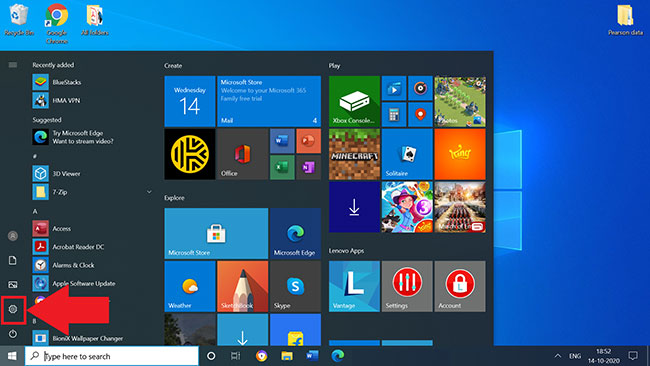
<p style="text-align: justify;">1. Nhấp vào menu Start và&nbsp;mở Windows Settings&nbsp;bằng cách nhấp vào biểu tượng bánh răng, như hình dưới đây.</p>

<figure>
<div style="text-align: justify;"><img alt="Mở Windows Settings" data-i="0" data-src="https://st.quantrimang.com/photos/image/2022/04/26/kich-hoat-virtualization-vt-tren-windows-10-cho-bluestacks-1.jpg" data-was-processed="true" height="366" src="https://st.quantrimang.com/photos/image/2022/04/26/kich-hoat-virtualization-vt-tren-windows-10-cho-bluestacks-1.jpg" width="650" /></div>

<figcaption>
<div style="text-align: justify;">Mở Windows Settings</div>
</figcaption>
</figure>

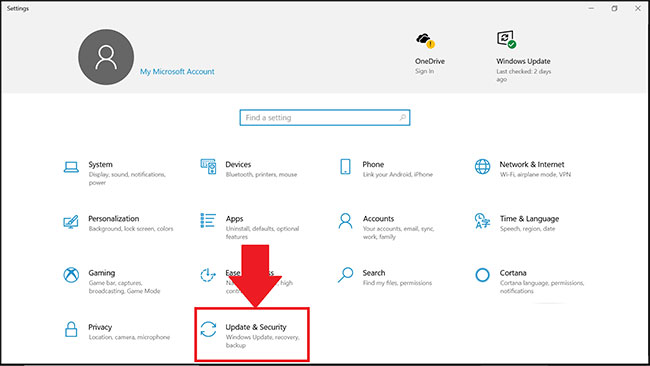
<p style="text-align: justify;">2. Nhấp vào&nbsp;<strong>Update &amp; Security</strong>.</p>

<figure>
<div style="text-align: justify;"><img alt="Nhấp vào Update &amp; Security" data-i="1" data-src="https://st.quantrimang.com/photos/image/2022/04/26/kich-hoat-virtualization-vt-tren-windows-10-cho-bluestacks-2.jpg" data-was-processed="true" height="366" src="https://st.quantrimang.com/photos/image/2022/04/26/kich-hoat-virtualization-vt-tren-windows-10-cho-bluestacks-2.jpg" width="650" /></div>

<figcaption>
<div style="text-align: justify;">Nhấp vào Update &amp; Security</div>
</figcaption>
</figure>

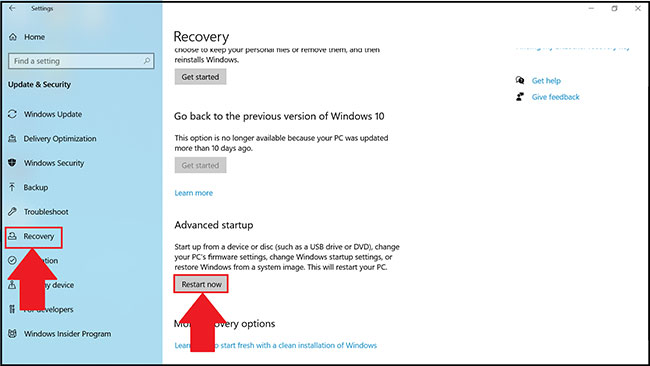
<p style="text-align: justify;">3. Trong tab&nbsp;<strong>Recovery</strong>, nhấp vào&nbsp;<strong>Restart now.</strong></p>

<figure>
<div style="text-align: justify;"><img alt="Nhấp vào Restart now" data-i="2" data-src="https://st.quantrimang.com/photos/image/2022/04/26/kich-hoat-virtualization-vt-tren-windows-10-cho-bluestacks-3.jpg" data-was-processed="true" height="366" src="https://st.quantrimang.com/photos/image/2022/04/26/kich-hoat-virtualization-vt-tren-windows-10-cho-bluestacks-3.jpg" width="650" /></div>

<figcaption>
<div style="text-align: justify;">Nhấp vào Restart now</div>
</figcaption>
</figure>

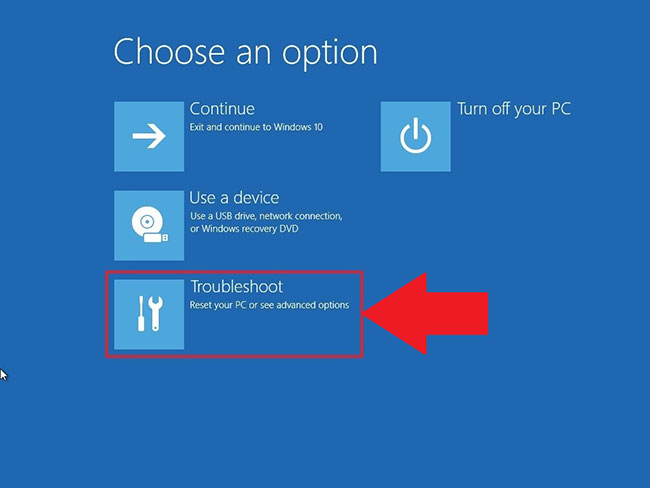
<p style="text-align: justify;">4. Bây giờ, bạn sẽ có 4 tùy chọn để lựa chọn. Nhấp vào&nbsp;<strong>Troubleshoot.</strong></p>

<figure>
<div style="text-align: justify;"><img alt="Nhấp vào Troubleshoot" data-i="3" data-src="https://st.quantrimang.com/photos/image/2022/04/26/kich-hoat-virtualization-vt-tren-windows-10-cho-bluestacks-4.jpg" data-was-processed="true" height="488" src="https://st.quantrimang.com/photos/image/2022/04/26/kich-hoat-virtualization-vt-tren-windows-10-cho-bluestacks-4.jpg" width="650" /></div>

<figcaption>
<div style="text-align: justify;">Nhấp vào Troubleshoot</div>
</figcaption>
</figure>

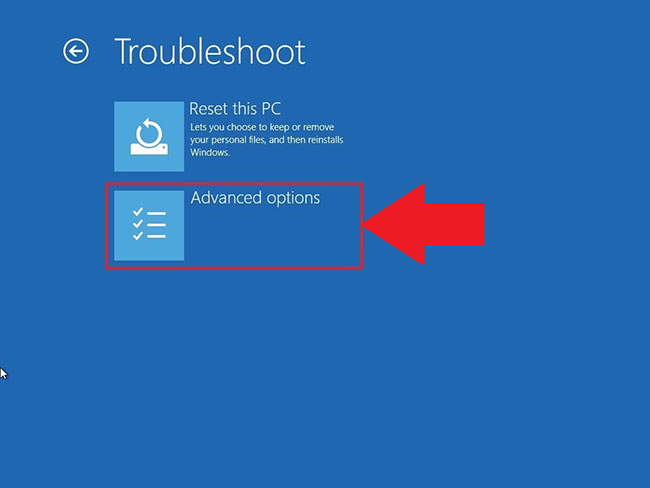
<p style="text-align: justify;">5. Tiếp theo, nhấp vào&nbsp;<strong>Advanced Options.</strong></p>

<figure>
<div style="text-align: justify;"><img alt="Nhấp vào Advanced Options" data-i="4" data-src="https://st.quantrimang.com/photos/image/2022/04/26/kich-hoat-virtualization-vt-tren-windows-10-cho-bluestacks-5.jpg" data-was-processed="true" height="488" src="https://st.quantrimang.com/photos/image/2022/04/26/kich-hoat-virtualization-vt-tren-windows-10-cho-bluestacks-5.jpg" width="650" /></div>

<figcaption>
<div style="text-align: justify;">Nhấp vào Advanced Options</div>
</figcaption>
</figure>

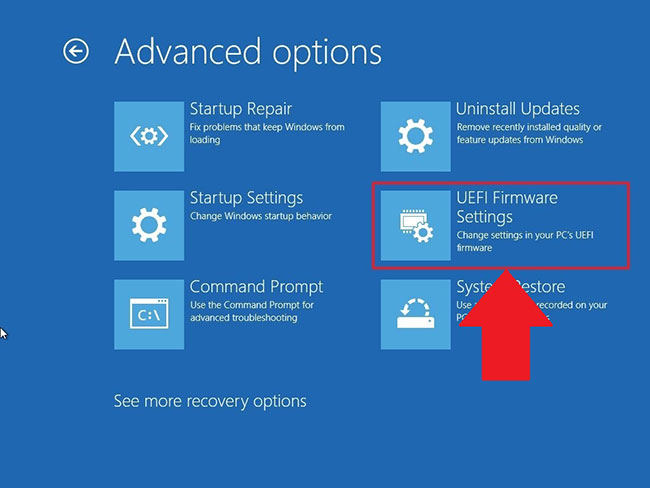
<p style="text-align: justify;">6. Trong&nbsp;<strong>Advanced options</strong>, hãy chọn&nbsp;<strong>UEFI Firmware Settings</strong>, như được hiển thị bên dưới.</p>

<figure>
<div style="text-align: justify;"><img alt="Chọn UEFI Firmware Settings" data-i="5" data-src="https://st.quantrimang.com/photos/image/2022/04/26/kich-hoat-virtualization-vt-tren-windows-10-cho-bluestacks-6.jpg" data-was-processed="true" height="488" src="https://st.quantrimang.com/photos/image/2022/04/26/kich-hoat-virtualization-vt-tren-windows-10-cho-bluestacks-6.jpg" width="650" /></div>

<figcaption>
<div style="text-align: justify;">Chọn UEFI Firmware Settings</div>
</figcaption>
</figure>

<p style="text-align: justify;"><strong>LƯU Ý</strong>: Nếu bạn không thấy&nbsp;<strong>UEFI Firmware Settings</strong>, hãy&nbsp;tắt Fast Startup&nbsp;hoặc tham khảo&nbsp;phương pháp thay thế này để truy cập BIOS.</p>

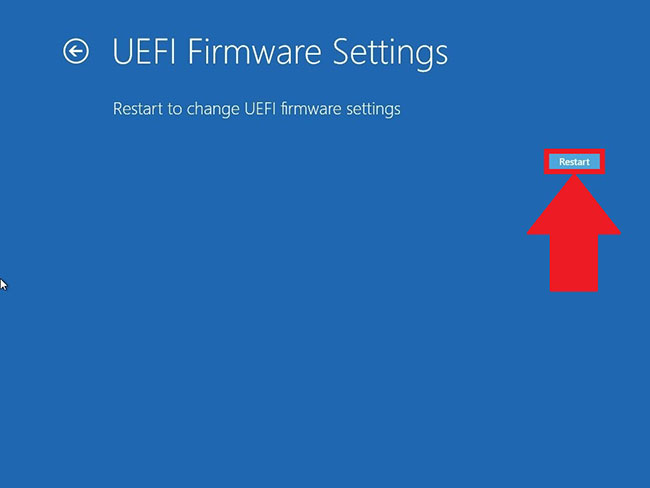
<p style="text-align: justify;">7. Bây giờ bạn sẽ được nhắc&nbsp;khởi động lại máy tính&nbsp;của mình. Nhấp vào&nbsp;<strong>Restart Now.</strong></p>

<figure>
<div style="text-align: justify;"><img alt="Khởi động lại máy tính" data-i="6" data-src="https://st.quantrimang.com/photos/image/2022/04/26/kich-hoat-virtualization-vt-tren-windows-10-cho-bluestacks-7.jpg" data-was-processed="true" height="488" src="https://st.quantrimang.com/photos/image/2022/04/26/kich-hoat-virtualization-vt-tren-windows-10-cho-bluestacks-7.jpg" width="650" /></div>

<figcaption>
<div style="text-align: justify;">Khởi động lại máy tính</div>
</figcaption>
</figure>

<p style="text-align: justify;">8. Khi bạn đã vào cài đặt BIOS trong PC, các bước để bật ảo hóa sẽ khác nhau tùy theo CPU bạn có. Dựa trên CPU bạn có trong PC, hãy làm theo một trong 2 phần bên dưới bên dưới.</p>

<h3 style="text-align: justify;">Bật ảo hóa trong BIOS cho CPU Intel</h3>

<p style="text-align: justify;"><strong>LƯU Ý</strong>: Bố cục của BIOS Settings cũng có thể thay đổi tùy theo nhiều yếu tố khác nhau như bo mạch chủ, chipset, model máy tính và OEM của bạn.</p>

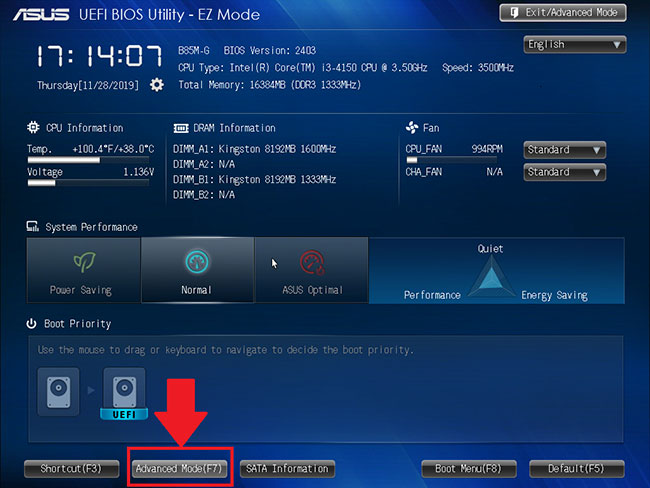
<p style="text-align: justify;">1. Sau khi vào cài đặt BIOS, nhấn phím&nbsp;<strong>F7</strong>&nbsp;hoặc nhấp vào nút&nbsp;<strong>Advanced Mode</strong>, như hình dưới đây.</p>

<figure>
<div style="text-align: justify;"><img alt="Vào cài đặt BIOS" data-i="7" data-src="https://st.quantrimang.com/photos/image/2022/04/26/kich-hoat-virtualization-vt-tren-windows-10-cho-bluestacks-8.jpg" data-was-processed="true" height="488" src="https://st.quantrimang.com/photos/image/2022/04/26/kich-hoat-virtualization-vt-tren-windows-10-cho-bluestacks-8.jpg" width="650" /></div>

<figcaption>
<div style="text-align: justify;">Vào cài đặt BIOS</div>
</figcaption>
</figure>

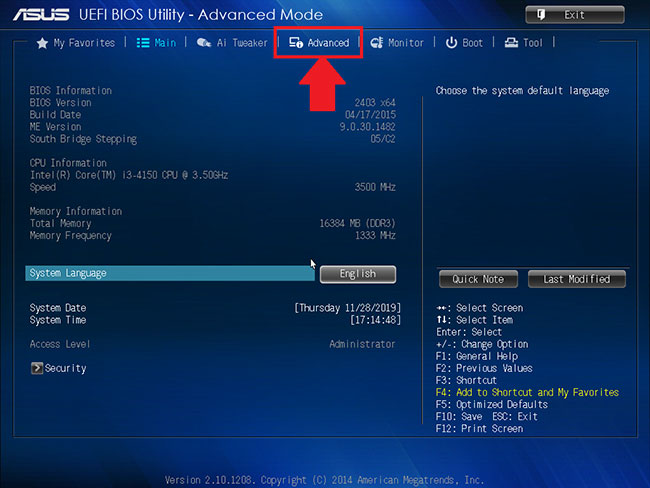
<p style="text-align: justify;">2. Bây giờ, hãy mở tab&nbsp;<strong>Advanced</strong>, như hình dưới đây.</p>

<figure>
<div style="text-align: justify;"><img alt="Mở tab Advanced" data-i="8" data-src="https://st.quantrimang.com/photos/image/2022/04/26/kich-hoat-virtualization-vt-tren-windows-10-cho-bluestacks-9.jpg" data-was-processed="true" height="488" src="https://st.quantrimang.com/photos/image/2022/04/26/kich-hoat-virtualization-vt-tren-windows-10-cho-bluestacks-9.jpg" width="650" /></div>

<figcaption>
<div style="text-align: justify;">Mở tab Advanced</div>
</figcaption>
</figure>

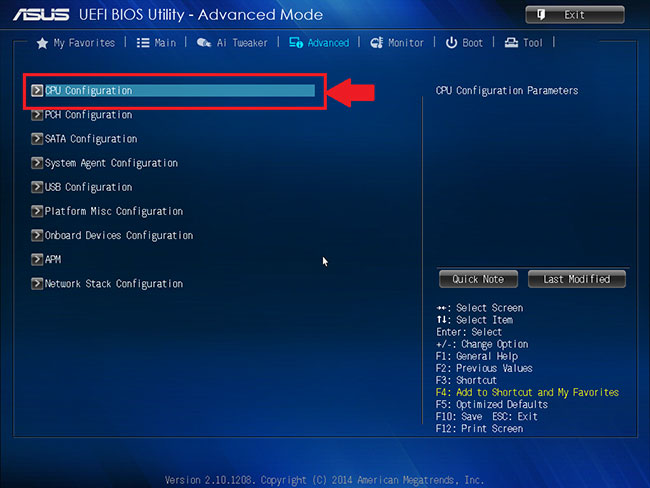
<p style="text-align: justify;">3. Tại đây, bạn sẽ được cung cấp các tùy chọn khác nhau. Chọn&nbsp;<strong>CPU Configuration.</strong></p>

<figure>
<div style="text-align: justify;"><img alt="Chọn CPU Configuration" data-i="9" data-src="https://st.quantrimang.com/photos/image/2022/04/26/kich-hoat-virtualization-vt-tren-windows-10-cho-bluestacks-10.jpg" data-was-processed="true" height="488" src="https://st.quantrimang.com/photos/image/2022/04/26/kich-hoat-virtualization-vt-tren-windows-10-cho-bluestacks-10.jpg" width="650" /></div>

<figcaption>
<div style="text-align: justify;">Chọn CPU Configuration</div>
</figcaption>
</figure>

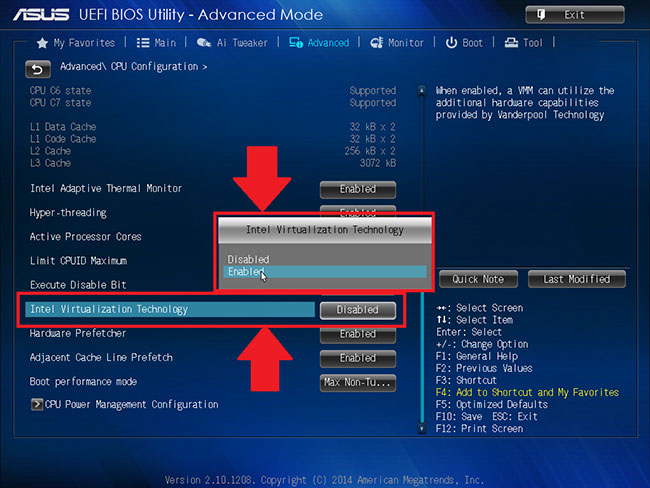
<p style="text-align: justify;">4. Để bật&nbsp;<strong>Virtualization</strong>, hãy nhấp vào&nbsp;<strong>Disabled</strong>&nbsp;bên cạnh&nbsp;<strong>Intel Virtualization Technology</strong>&nbsp;và thay đổi thành&nbsp;<strong>Enabled.</strong></p>

<figure>
<div style="text-align: justify;"><img alt="Kích hoạt Intel Virtualization Technology" data-i="10" data-src="https://st.quantrimang.com/photos/image/2022/04/26/kich-hoat-virtualization-vt-tren-windows-10-cho-bluestacks-11.jpg" data-was-processed="true" height="488" src="https://st.quantrimang.com/photos/image/2022/04/26/kich-hoat-virtualization-vt-tren-windows-10-cho-bluestacks-11.jpg" width="650" /></div>

<figcaption>
<div style="text-align: justify;">Kích hoạt Intel Virtualization Technology</div>
</figcaption>
</figure>

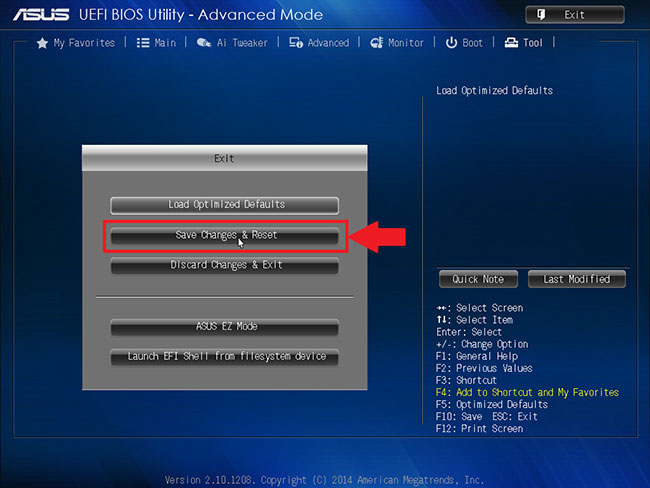
<p style="text-align: justify;">5. Cuối cùng, nhấp vào&nbsp;<strong>Exit</strong>&nbsp;và chọn&nbsp;<strong>Save changes &amp; reset</strong>.</p>

<figure>
<div style="text-align: justify;"><img alt="Chọn Save changes &amp; reset" data-i="11" data-src="https://st.quantrimang.com/photos/image/2022/04/26/kich-hoat-virtualization-vt-tren-windows-10-cho-bluestacks-12.jpg" data-was-processed="true" height="488" src="https://st.quantrimang.com/photos/image/2022/04/26/kich-hoat-virtualization-vt-tren-windows-10-cho-bluestacks-12.jpg" width="650" /></div>

<figcaption>
<div style="text-align: justify;">Chọn Save changes &amp; reset</div>
</figcaption>
</figure>

<p style="text-align: justify;"><strong>LƯU Ý</strong>: Tên các tùy chọn có thể khác nhau tùy thuộc vào model PC của bạn, nhưng trong mọi trường hợp, hãy nhớ lưu trước khi thoát.</p>

<h3 style="text-align: justify;">Bật ảo hóa trong BIOS cho CPU AMD</h3>

<p style="text-align: justify;"><strong>LƯU Ý</strong>: Bố cục của BIOS Settings cũng có thể thay đổi tùy theo nhiều yếu tố khác nhau như bo mạch chủ, chipset, model máy tính và OEM của bạn.</p>

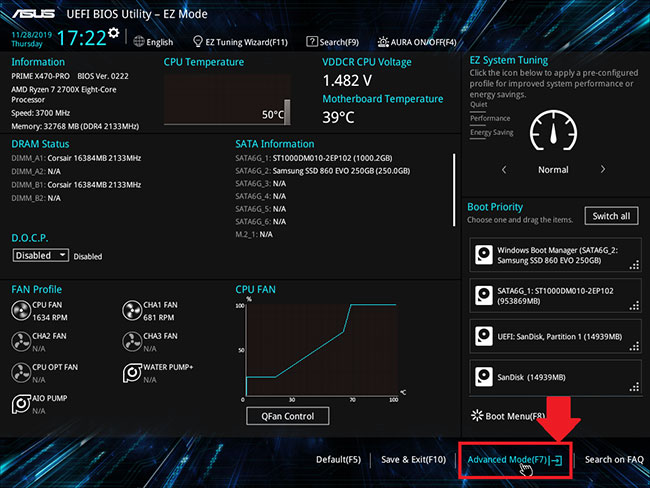
<p style="text-align: justify;">1. Trong cài đặt BIOS, nhấn phím&nbsp;<strong>F7</strong>&nbsp;hoặc nhấp vào tùy chọn&nbsp;<strong>Advanced Mode</strong>, như được hiển thị bên dưới.</p>

<figure>
<div style="text-align: justify;"><img alt="Nhấp vào tùy chọn Advanced Mode" data-i="12" data-src="https://st.quantrimang.com/photos/image/2022/04/26/kich-hoat-virtualization-vt-tren-windows-10-cho-bluestacks-13.jpg" data-was-processed="true" height="488" src="https://st.quantrimang.com/photos/image/2022/04/26/kich-hoat-virtualization-vt-tren-windows-10-cho-bluestacks-13.jpg" width="650" /></div>

<figcaption>
<div style="text-align: justify;">Nhấp vào tùy chọn Advanced Mode</div>
</figcaption>
</figure>

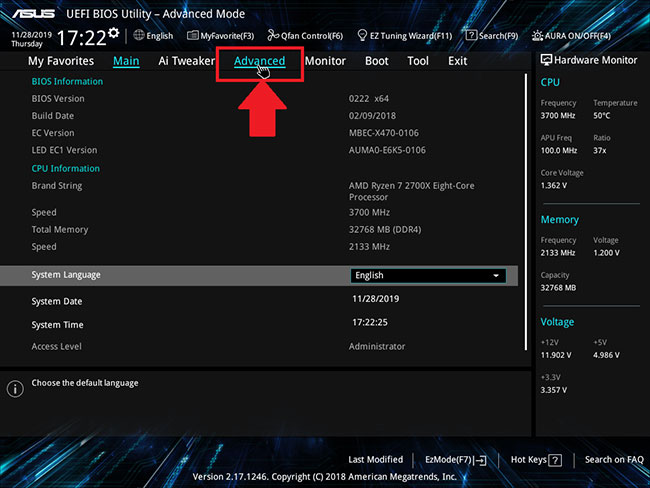
<p style="text-align: justify;">2. Bây giờ, điều hướng đến tab&nbsp;<strong>Advanced.</strong></p>

<figure>
<div style="text-align: justify;"><img alt="Truy cập tab Advanced" data-i="13" data-src="https://st.quantrimang.com/photos/image/2022/04/26/kich-hoat-virtualization-vt-tren-windows-10-cho-bluestacks-14.jpg" data-was-processed="true" height="488" src="https://st.quantrimang.com/photos/image/2022/04/26/kich-hoat-virtualization-vt-tren-windows-10-cho-bluestacks-14.jpg" width="650" /></div>

<figcaption>
<div style="text-align: justify;">Truy cập tab Advanced</div>
</figcaption>
</figure>

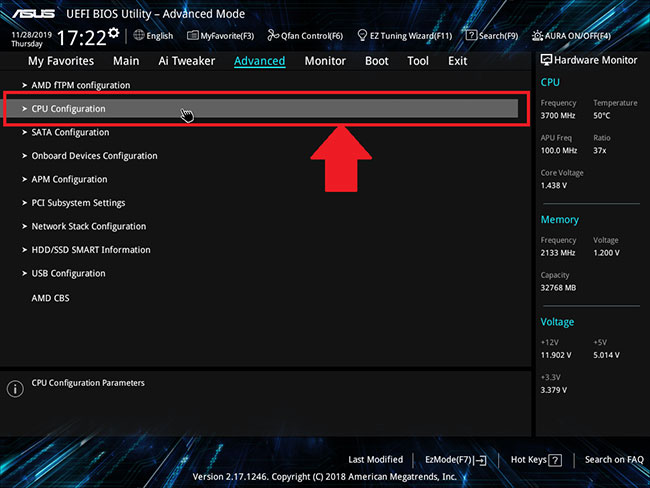
<p style="text-align: justify;">3. Tìm và chọn&nbsp;<strong>CPU configuration.</strong></p>

<figure>
<div style="text-align: justify;"><img alt="Chọn CPU configuration" data-i="14" data-src="https://st.quantrimang.com/photos/image/2022/04/26/kich-hoat-virtualization-vt-tren-windows-10-cho-bluestacks-15.jpg" data-was-processed="true" height="488" src="https://st.quantrimang.com/photos/image/2022/04/26/kich-hoat-virtualization-vt-tren-windows-10-cho-bluestacks-15.jpg" width="650" /></div>

<figcaption>
<div style="text-align: justify;">Chọn CPU configuration</div>
</figcaption>
</figure>

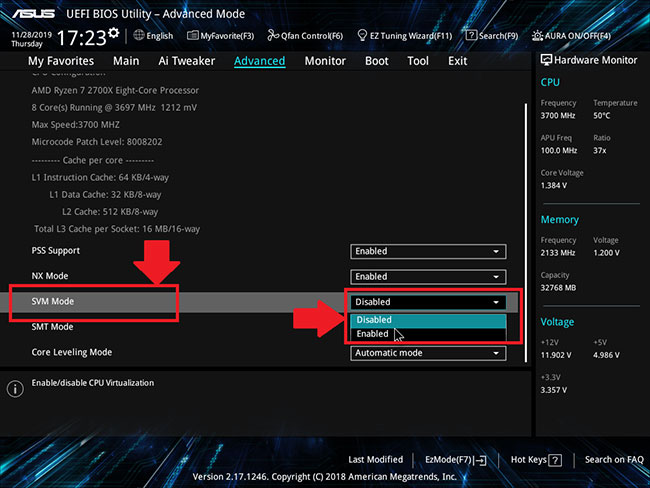
<p style="text-align: justify;">4. Để bật Virtualization, hãy mở menu drop-down bên cạnh&nbsp;<strong>SVM Mode</strong>&nbsp;và chọn&nbsp;<strong>Enabled.</strong></p>

<figure>
<div style="text-align: justify;"><img alt="Kích hoạt SVM Mode" data-i="15" data-src="https://st.quantrimang.com/photos/image/2022/04/26/kich-hoat-virtualization-vt-tren-windows-10-cho-bluestacks-16.jpg" data-was-processed="true" height="488" src="https://st.quantrimang.com/photos/image/2022/04/26/kich-hoat-virtualization-vt-tren-windows-10-cho-bluestacks-16.jpg" width="650" /></div>

<figcaption>
<div style="text-align: justify;">Kích hoạt SVM Mode</div>
</figcaption>
</figure>

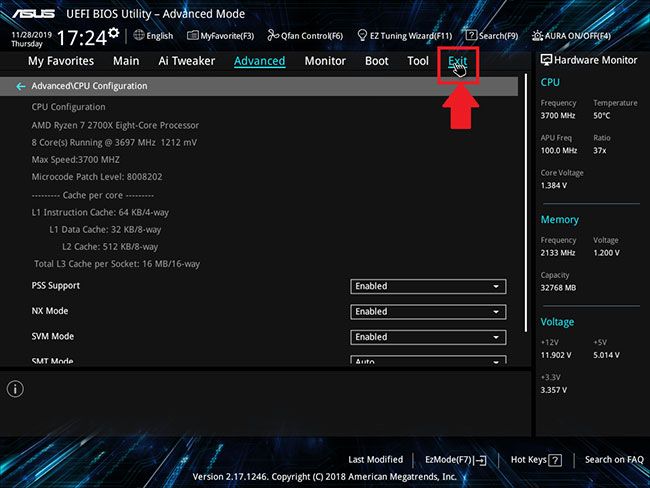
<p style="text-align: justify;">5. Tiếp theo, nhấp vào&nbsp;<strong>Exit.</strong></p>

<figure>
<div style="text-align: justify;"><img alt="Nhấp vào Exit" data-i="16" data-src="https://st.quantrimang.com/photos/image/2022/04/26/kich-hoat-virtualization-vt-tren-windows-10-cho-bluestacks-17.jpg" data-was-processed="true" height="488" src="https://st.quantrimang.com/photos/image/2022/04/26/kich-hoat-virtualization-vt-tren-windows-10-cho-bluestacks-17.jpg" width="650" /></div>

<figcaption>
<div style="text-align: justify;">Nhấp vào Exit</div>
</figcaption>
</figure>

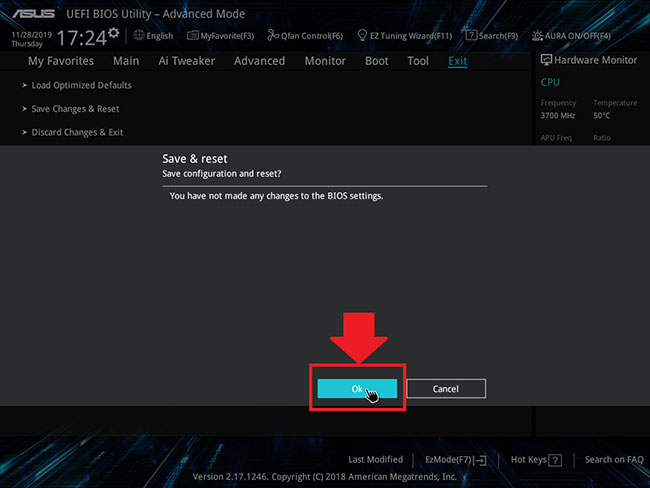
<p style="text-align: justify;">6. Bây giờ bạn sẽ được yêu cầu lưu các thay đổi của mình.</p>

<figure>
<div style="text-align: justify;"><img alt="Lưu lại các thay đổi" data-i="17" data-src="https://st.quantrimang.com/photos/image/2022/04/26/kich-hoat-virtualization-vt-tren-windows-10-cho-bluestacks-18.jpg" data-was-processed="true" height="488" src="https://st.quantrimang.com/photos/image/2022/04/26/kich-hoat-virtualization-vt-tren-windows-10-cho-bluestacks-18.jpg" width="650" /></div>

<figcaption>
<div style="text-align: justify;">Lưu lại các thay đổi</div>
</figcaption>
</figure>

<p style="text-align: justify;">Nhấp vào&nbsp;<strong>OK</strong>&nbsp;để áp dụng các thay đổi bạn đã thực hiện cho cài đặt BIOS.</p>
		</div>
				<div id="author">
						<p>
				<strong>Nguồn tin:</strong>
				Quantrimang.com:
			</p>
		</div>
	</div>
	<div id="footer" class="clearfix">
		<div id="url">
			<strong>URL của bản tin này: </strong><a href="https://www.nguoicodonvn2008.info/vi/news/savefile/kien-thuc-may-tinh/cach-kich-hoat-virtualization-vt-tren-windows-10-cho-bluestacks-5-10594.html" title="Cách kích hoạt Virtualization &#40;VT&#41; trên Windows 10 cho BlueStacks 5">https://www.nguoicodonvn2008.info/vi/news/savefile/kien-thuc-may-tinh/cach-kich-hoat-virtualization-vt-tren-windows-10-cho-bluestacks-5-10594.html</a>

		</div>
		<div class="clear"></div>
		<div class="copyright">
			&copy; .&#x3A; Nguoicodonvn2008.info - Cõi lòng người cô đơn &#x3A;.
		</div>
		<div id="contact">
			<a href="mailto:admin@nguoicodonvn2008.info">admin@nguoicodonvn2008.info</a>
		</div>
	</div>
</div>
        <div id="timeoutsess" class="chromeframe">
            Bạn đã không sử dụng Site, <a onclick="timeoutsesscancel();" href="https://nguoicodonvn2008.info/#">Bấm vào đây để duy trì trạng thái đăng nhập</a>. Thời gian chờ: <span id="secField"> 60 </span> giây
        </div>
        <div id="openidResult" class="nv-alert" style="display:none"></div>
        <div id="openidBt" data-result="" data-redirect=""></div>
		</script>
		<div class="car-top">
  <span><img src="https://nguoicodonvn2008.info/themes/default/images/car.png" alt=""></span>
</div>
<div id="run_cronjobs" style="visibility:hidden;display:none;"><img alt="cron" src="/index.php?second=cronjobs&amp;p=l9Y7BVJw" width="1" height="1" /></div>
<script src="https://nguoicodonvn2008.info/assets/js/jquery/jquery.min.js"></script>
<script>var nv_base_siteurl="/",nv_lang_data="vi",nv_lang_interface="vi",nv_name_variable="nv",nv_fc_variable="op",nv_lang_variable="language",nv_module_name="news",nv_func_name="savefile",nv_is_user=0, nv_my_ofs=-4,nv_my_abbr="EDT",nv_cookie_prefix="nv4c_e856T",nv_check_pass_mstime=1738000,nv_area_admin=0,nv_safemode=0,theme_responsive=0,nv_recaptcha_ver=2,nv_recaptcha_sitekey="",nv_recaptcha_type="image",XSSsanitize=1;</script>
<script src="https://nguoicodonvn2008.info/assets/js/language/vi.js"></script>
<script src="https://nguoicodonvn2008.info/assets/js/DOMPurify/purify3.js"></script>
<script src="https://nguoicodonvn2008.info/assets/js/global.js"></script>
<script src="https://nguoicodonvn2008.info/assets/js/site.js"></script>
<script src="https://nguoicodonvn2008.info/themes/default/js/news.js"></script>
<script src="https://nguoicodonvn2008.info/themes/default/js/main.js"></script>
<script src="https://nguoicodonvn2008.info/themes/default/js/custom.js"></script>
<script type="application/ld+json">
        {
            "@context": "https://schema.org",
            "@type": "Organization",
            "url": "https://nguoicodonvn2008.info",
            "logo": "https://nguoicodonvn2008.info/uploads/angel.gif"
        }
        </script>
<script src="https://nguoicodonvn2008.info/themes/default/js/bootstrap.min.js"></script>
<script type="text/javascript">
var $scrolltop = $('.car-top');
$scrolltop.on('click', function () {
    $('html,body').animate({
        scrollTop: 0
    }, 800);
    $(this).addClass("car-run");
    setTimeout(function(){ $scrolltop.removeClass('car-run');}, 1000);
    return false;
});
$(window).on('scroll', function ()
{ 
    if($(window).scrollTop() >= 200)
    {
        $scrolltop.addClass("show");
        $scrolltop.addClass("car-down");
    }
    else
    {
       $scrolltop.removeClass("show");
       setTimeout(function(){ $scrolltop.removeClass('car-down');}, 300);
    }
});
</script>
</body>
</html>