<!DOCTYPE html>
    <html lang="vi" xmlns="http://www.w3.org/1999/xhtml" prefix="og: http://ogp.me/ns#">
    <head>
<title>Cách kích hoạt hoặc thêm phông chữ bổ sung trong Command Prompt</title>
<meta name="description" content="Cách kích hoạt hoặc thêm phông chữ bổ sung trong Command Prompt - Savefile - Tin Tức -...">
<meta name="author" content=".: Nguoicodonvn2008.info - Cõi lòng người cô đơn :.">
<meta name="copyright" content=".: Nguoicodonvn2008.info - Cõi lòng người cô đơn :. [admin@nguoicodonvn2008.info]">
<meta name="robots" content="index, archive, follow, noodp">
<meta name="googlebot" content="index,archive,follow,noodp">
<meta name="msnbot" content="all,index,follow">
<meta name="generator" content="NukeViet v4.5">
<meta http-equiv="Content-Type" content="text/html; charset=utf-8">
<meta property="og:title" content="Cách kích hoạt hoặc thêm phông chữ bổ sung trong Command Prompt">
<meta property="og:type" content="website">
<meta property="og:description" content="Savefile - Tin Tức - https&#x3A;&#x002F;&#x002F;www.nguoicodonvn2008.info&#x002F;vi&#x002F;news&#x002F;savefile&#x002F;kien-thuc-may-tinh&#x002F;cach-kich-hoat-hoac-them-phong-chu-bo-sung-trong-command-prompt-1998.html">
<meta property="og:site_name" content=".&#x3A; Nguoicodonvn2008.info - Cõi lòng người cô đơn &#x3A;.">
<meta property="og:url" content="https://www.nguoicodonvn2008.info/vi/news/savefile/kien-thuc-may-tinh/cach-kich-hoat-hoac-them-phong-chu-bo-sung-trong-command-prompt-1998.html">
<link rel="shortcut icon" href="https://nguoicodonvn2008.info/favicon.ico">
<link rel="canonical" href="https://www.nguoicodonvn2008.info/vi/news/savefile/kien-thuc-may-tinh/cach-kich-hoat-hoac-them-phong-chu-bo-sung-trong-command-prompt-1998.html">
<link rel="alternate" href="https://nguoicodonvn2008.info/vi/news/rss/" title="Tin Tức" type="application/rss+xml">
<link rel="alternate" href="https://nguoicodonvn2008.info/vi/news/rss/karaoke-dual/" title="Tin Tức - Karaoke Dual" type="application/rss+xml">
<link rel="alternate" href="https://nguoicodonvn2008.info/vi/news/rss/nhac-tre/" title="Tin Tức - Nhạc trẻ" type="application/rss+xml">
<link rel="alternate" href="https://nguoicodonvn2008.info/vi/news/rss/tru-tinh/" title="Tin Tức - Trữ tình" type="application/rss+xml">
<link rel="alternate" href="https://nguoicodonvn2008.info/vi/news/rss/nuoc-ngoai/" title="Tin Tức - Nước ngoài" type="application/rss+xml">
<link rel="alternate" href="https://nguoicodonvn2008.info/vi/news/rss/remix/" title="Tin Tức - Remix" type="application/rss+xml">
<link rel="alternate" href="https://nguoicodonvn2008.info/vi/news/rss/tam-su-tinh-yeu/" title="Tin Tức - Tâm sự tình yêu" type="application/rss+xml">
<link rel="alternate" href="https://nguoicodonvn2008.info/vi/news/rss/tho-suu-tam/" title="Tin Tức - Thơ sưu tầm" type="application/rss+xml">
<link rel="alternate" href="https://nguoicodonvn2008.info/vi/news/rss/cuoc-song/" title="Tin Tức - Cuộc sống" type="application/rss+xml">
<link rel="alternate" href="https://nguoicodonvn2008.info/vi/news/rss/phan-mem/" title="Tin Tức - Phần mềm" type="application/rss+xml">
<link rel="alternate" href="https://nguoicodonvn2008.info/vi/news/rss/kien-thuc-may-tinh/" title="Tin Tức - Kiến thức máy tính" type="application/rss+xml">
<link rel="alternate" href="https://nguoicodonvn2008.info/vi/news/rss/hoc-tap/" title="Tin Tức - Học tập" type="application/rss+xml">
<link rel="alternate" href="https://nguoicodonvn2008.info/vi/news/rss/tai-lieu/" title="Tin Tức - Tài liệu" type="application/rss+xml">
<link rel="alternate" href="https://nguoicodonvn2008.info/vi/news/rss/de-thi/" title="Tin Tức - Đề thi" type="application/rss+xml">
<link rel="preload" as="style" href="https://nguoicodonvn2008.info/assets/css/font-awesome.min.css" type="text/css">
<link rel="preload" as="style" href="https://nguoicodonvn2008.info/themes/default/css/bootstrap.non-responsive.css" type="text/css">
<link rel="preload" as="style" href="https://nguoicodonvn2008.info/themes/default/css/style.css" type="text/css">
<link rel="preload" as="style" href="https://nguoicodonvn2008.info/themes/default/css/style.non-responsive.css" type="text/css">
<link rel="preload" as="style" href="https://nguoicodonvn2008.info/themes/default/css/news.css" type="text/css">
<link rel="preload" as="style" href="https://nguoicodonvn2008.info/themes/default/css/custom.css" type="text/css">
<link rel="preload" as="script" href="https://nguoicodonvn2008.info/assets/js/jquery/jquery.min.js" type="text/javascript">
<link rel="preload" as="script" href="https://nguoicodonvn2008.info/assets/js/language/vi.js" type="text/javascript">
<link rel="preload" as="script" href="https://nguoicodonvn2008.info/assets/js/DOMPurify/purify3.js" type="text/javascript">
<link rel="preload" as="script" href="https://nguoicodonvn2008.info/assets/js/global.js" type="text/javascript">
<link rel="preload" as="script" href="https://nguoicodonvn2008.info/assets/js/site.js" type="text/javascript">
<link rel="preload" as="script" href="https://nguoicodonvn2008.info/themes/default/js/news.js" type="text/javascript">
<link rel="preload" as="script" href="https://nguoicodonvn2008.info/themes/default/js/main.js" type="text/javascript">
<link rel="preload" as="script" href="https://nguoicodonvn2008.info/themes/default/js/custom.js" type="text/javascript">
<link rel="preload" as="script" href="https://nguoicodonvn2008.info/themes/default/js/bootstrap.min.js" type="text/javascript">
<link rel="stylesheet" href="https://nguoicodonvn2008.info/assets/css/font-awesome.min.css">
<link rel="stylesheet" href="https://nguoicodonvn2008.info/themes/default/css/bootstrap.non-responsive.css">
<link rel="stylesheet" href="https://nguoicodonvn2008.info/themes/default/css/style.css">
<link rel="stylesheet" href="https://nguoicodonvn2008.info/themes/default/css/style.non-responsive.css">
<link rel="StyleSheet" href="https://nguoicodonvn2008.info/themes/default/css/news.css">
<link rel="stylesheet" href="https://nguoicodonvn2008.info/themes/default/css/custom.css">
<style type="text/css">
	body{background: #fff;}
</style>
    </head>
    <body>
<div id="print">
	<div id="hd_print">
		<h2 class="pull-left">.&#x3A; Nguoicodonvn2008.info - Cõi lòng người cô đơn &#x3A;.</h2>
		<p class="pull-right"><a title=".&#x3A; Nguoicodonvn2008.info - Cõi lòng người cô đơn &#x3A;." href="https://nguoicodonvn2008.info/">https://nguoicodonvn2008.info</a></p>
	</div>
	<div class="clear"></div>
	<hr />
	<div id="content">
		<h1>Cách kích hoạt hoặc thêm phông chữ bổ sung trong Command Prompt</h1>
		<ul class="list-inline">
			<li>Thứ hai - 04/05/2020 09:48</li>
			<li class="hidden-print txtrequired"><em class="fa fa-print">&nbsp;</em><a title="In ra" href="javascript:;" onclick="window.print()">In ra</a></li>
			<li class="hidden-print txtrequired"><em class="fa fa-power-off">&nbsp;</em><a title="Đóng cửa sổ này" href="javascript:;" onclick="window.close()">Đóng cửa sổ này</a></li>
		</ul>
		<div class="clear"></div>
		<div id="hometext">
		</div>
				<div class="imghome">
			<img alt="Cách kích hoạt hoặc thêm phông chữ bổ sung trong Command Prompt" src="https://st.quantrimang.com/photos/image/2020/05/04/kich-hoat-hoac-them-phong-chu-bo-sung-3.jpg" width="460" class="img-thumbnail" />
		</div>
		<div class="clear"></div>
		<div id="bodytext" class="clearfix">
			<p style="text-align: justify;">Bạn muốn kích hoạt tùy chọn phông chữ bổ sung trong&nbsp;Command Prompt? Hãy thực hiện theo các bước sau để thêm phông chữ mới vào Command Prompt trong Windows 10.</p>

<h2 style="text-align: justify;">Những điều cần lưu ý</h2>

<p style="text-align: justify;">Trước khi có thể làm theo quy trình dưới đây, có một vài điều bạn nên biết và thực hiện.</p>

<ul>
	<li style="text-align: justify;">Phông chữ phải là phông chữ TrueType (.ttf).</li>
	<li style="text-align: justify;">Phông chữ phải là một phông chữ monospace (độ rộng của các con chữ bằng nhau).</li>
	<li style="text-align: justify;">Phông chữ bạn muốn thêm hoặc kích hoạt đã được cài đặt trong Windows.</li>
	<li style="text-align: justify;">Bạn nên biết tên của phông chữ. Bạn có thể tìm thấy từ trang&nbsp;<strong>Fonts</strong>&nbsp;trong ứng dụng&nbsp;<strong>Settings</strong>&nbsp;hoặc&nbsp;<strong>Control Panel</strong>.</li>
	<li style="text-align: justify;">Không phải tất cả các phông chữ monospace đều tương thích với Command Prompt. Điều này đúng ngay cả khi phông chữ đích đáp ứng tất cả các điều kiện ở trên.</li>
</ul>

<div style="text-align: justify;">&nbsp;</div>

<h2 style="text-align: justify;">Hướng dẫn thêm/kích hoạt phông chữ bổ sung trong Command Prompt</h2>

<p style="text-align: justify;">Giống như đã nói ở trên, để kích hoạt các phông chữ bổ sung trong Command Prompt, bài viết sẽ sử dụng Registry Editor. Vì vậy, trước tiên hãy tiến hành sao lưu Registry. Điều này giúp bạn khôi phục nó nếu có bất cứ điều gì sai sót và nếu bạn muốn khôi phục các cài đặt trước đó.</p>

<p style="text-align: justify;">1.&nbsp;Mở Registry Editor&nbsp;bằng cách tìm kiếm nó trong menu Start. Sau khi mở, sao chép đường dẫn bên dưới, dán vào thanh địa chỉ và nhấn&nbsp;<code>Enter</code>. Điều này sẽ đưa bạn đến danh sách phông chữ. Trong thực tế, bạn thấy tất cả các phông chữ mặc định ở bên phải.</p>

<pre id="pre0">
<code>HKEY_LOCAL_MACHINE\SOFTWARE\Microsoft\Windows NT\CurrentVersion\Console\TrueTypeFont</code></pre>

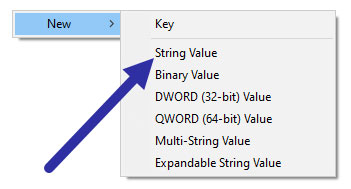
<p style="text-align: justify;">2. Ở bên phải, nhấp chuột phải vào khoảng trống và chọn giá trị&nbsp;<strong>New &gt; String</strong>.</p>

<figure>
<div style="text-align: justify;"><img alt="Chọn giá trị New &gt; String" data-i="0" data-src="https://st.quantrimang.com/photos/image/2020/05/04/kich-hoat-hoac-them-phong-chu-bo-sung-1.jpg" data-was-processed="true" height="189" src="https://st.quantrimang.com/photos/image/2020/05/04/kich-hoat-hoac-them-phong-chu-bo-sung-1.jpg" width="351" /></div>

<figcaption>
<div style="text-align: justify;">Chọn giá trị New &gt; String</div>
</figcaption>
</figure>

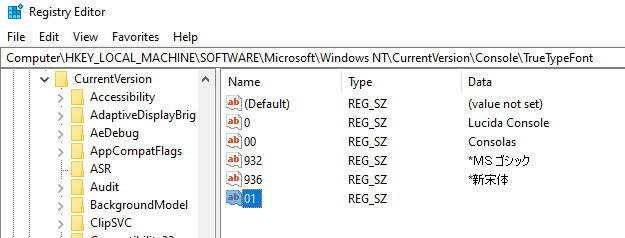
<p style="text-align: justify;">3. Đặt tên cho giá trị chuỗi là&nbsp;<strong>&quot;01&quot;</strong>&nbsp;và nhấn&nbsp;<code>Enter</code>. Nếu bạn đã có giá trị&nbsp;<strong>01</strong>, hãy đặt tên là&nbsp;<strong>02.</strong>&nbsp;Về cơ bản, bạn có thể đặt tên cho các giá trị mới lần lượt&nbsp;<strong>01, 02, 03,</strong>&nbsp;v.v...</p>

<figure>
<div style="text-align: justify;"><img alt="Đặt tên cho giá trị chuỗi là &#039;01&#039; và nhấn Enter" data-i="1" data-src="https://st.quantrimang.com/photos/image/2020/05/04/kich-hoat-hoac-them-phong-chu-bo-sung-2.jpg" data-was-processed="true" height="238" src="https://st.quantrimang.com/photos/image/2020/05/04/kich-hoat-hoac-them-phong-chu-bo-sung-2.jpg" width="625" /></div>

<figcaption>
<div style="text-align: justify;">Đặt tên cho giá trị chuỗi là &quot;01&quot; và nhấn Enter</div>
</figcaption>
</figure>

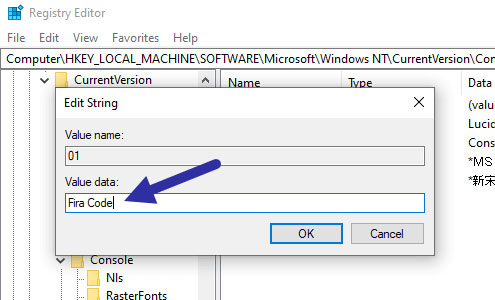
<p style="text-align: justify;">4. Sau khi tạo giá trị, nhấp đúp vào nó. Trong trường&nbsp;<strong>Value data</strong>, nhập tên của phông chữ monospace bạn muốn thêm vào Command Prompt. Nhấp vào nút&nbsp;<strong>OK</strong>&nbsp;để lưu các thay đổi.</p>

<figure>
<div style="text-align: justify;"><img alt="Trong trường Value data, nhập tên của phông chữ monospace bạn muốn thêm vào Command Prompt" data-i="2" data-src="https://st.quantrimang.com/photos/image/2020/05/04/kich-hoat-hoac-them-phong-chu-bo-sung-3.jpg" data-was-processed="true" height="300" src="https://st.quantrimang.com/photos/image/2020/05/04/kich-hoat-hoac-them-phong-chu-bo-sung-3.jpg" width="495" /></div>

<figcaption>
<div style="text-align: justify;">Trong trường Value data, nhập tên của phông chữ monospace bạn muốn thêm vào Command Prompt</div>
</figcaption>
</figure>

<p style="text-align: justify;">5. Đóng&nbsp;<strong>Registry Editor</strong>&nbsp;và khởi động lại Windows.</p>

<p style="text-align: justify;">Sau khi khởi động lại, hãy&nbsp;mở cửa sổ Command Prompt, nhấp chuột phải vào thanh tiêu đề và chọn&nbsp;<strong>Properties.</strong></p>

<p style="text-align: justify;">Trong cửa sổ&nbsp;<strong>Properties</strong>, đi đến tab&nbsp;<strong>Fonts</strong>&nbsp;và bạn sẽ thấy phông chữ mới trong danh sách phông chữ. Chọn phông chữ và nó sẽ được áp dụng cho Command Prompt.</p>

<p style="text-align: justify;">Nếu bạn không thể nhìn thấy phông chữ ngay cả sau khi làm theo quy trình trên, điều đó chỉ có nghĩa là Command Prompt không nhận ra phông chữ. Rất tiếc bạn không thể làm gì trong trường hợp đó.</p>
		</div>
				<div id="author">
						<p>
				<strong>Nguồn tin:</strong>
				Quantrimang.com
			</p>
		</div>
	</div>
	<div id="footer" class="clearfix">
		<div id="url">
			<strong>URL của bản tin này: </strong><a href="https://www.nguoicodonvn2008.info/vi/news/savefile/kien-thuc-may-tinh/cach-kich-hoat-hoac-them-phong-chu-bo-sung-trong-command-prompt-1998.html" title="Cách kích hoạt hoặc thêm phông chữ bổ sung trong Command Prompt">https://www.nguoicodonvn2008.info/vi/news/savefile/kien-thuc-may-tinh/cach-kich-hoat-hoac-them-phong-chu-bo-sung-trong-command-prompt-1998.html</a>

		</div>
		<div class="clear"></div>
		<div class="copyright">
			&copy; .&#x3A; Nguoicodonvn2008.info - Cõi lòng người cô đơn &#x3A;.
		</div>
		<div id="contact">
			<a href="mailto:admin@nguoicodonvn2008.info">admin@nguoicodonvn2008.info</a>
		</div>
	</div>
</div>
        <div id="timeoutsess" class="chromeframe">
            Bạn đã không sử dụng Site, <a onclick="timeoutsesscancel();" href="https://nguoicodonvn2008.info/#">Bấm vào đây để duy trì trạng thái đăng nhập</a>. Thời gian chờ: <span id="secField"> 60 </span> giây
        </div>
        <div id="openidResult" class="nv-alert" style="display:none"></div>
        <div id="openidBt" data-result="" data-redirect=""></div>
		</script>
		<div class="car-top">
  <span><img src="https://nguoicodonvn2008.info/themes/default/images/car.png" alt=""></span>
</div>
<script src="https://nguoicodonvn2008.info/assets/js/jquery/jquery.min.js"></script>
<script>var nv_base_siteurl="/",nv_lang_data="vi",nv_lang_interface="vi",nv_name_variable="nv",nv_fc_variable="op",nv_lang_variable="language",nv_module_name="news",nv_func_name="savefile",nv_is_user=0, nv_my_ofs=-4,nv_my_abbr="EDT",nv_cookie_prefix="nv4c_e856T",nv_check_pass_mstime=1738000,nv_area_admin=0,nv_safemode=0,theme_responsive=0,nv_recaptcha_ver=2,nv_recaptcha_sitekey="",nv_recaptcha_type="image",XSSsanitize=1;</script>
<script src="https://nguoicodonvn2008.info/assets/js/language/vi.js"></script>
<script src="https://nguoicodonvn2008.info/assets/js/DOMPurify/purify3.js"></script>
<script src="https://nguoicodonvn2008.info/assets/js/global.js"></script>
<script src="https://nguoicodonvn2008.info/assets/js/site.js"></script>
<script src="https://nguoicodonvn2008.info/themes/default/js/news.js"></script>
<script src="https://nguoicodonvn2008.info/themes/default/js/main.js"></script>
<script src="https://nguoicodonvn2008.info/themes/default/js/custom.js"></script>
<script type="application/ld+json">
        {
            "@context": "https://schema.org",
            "@type": "Organization",
            "url": "https://nguoicodonvn2008.info",
            "logo": "https://nguoicodonvn2008.info/uploads/angel.gif"
        }
        </script>
<script src="https://nguoicodonvn2008.info/themes/default/js/bootstrap.min.js"></script>
<script type="text/javascript">
var $scrolltop = $('.car-top');
$scrolltop.on('click', function () {
    $('html,body').animate({
        scrollTop: 0
    }, 800);
    $(this).addClass("car-run");
    setTimeout(function(){ $scrolltop.removeClass('car-run');}, 1000);
    return false;
});
$(window).on('scroll', function ()
{ 
    if($(window).scrollTop() >= 200)
    {
        $scrolltop.addClass("show");
        $scrolltop.addClass("car-down");
    }
    else
    {
       $scrolltop.removeClass("show");
       setTimeout(function(){ $scrolltop.removeClass('car-down');}, 300);
    }
});
</script>
</body>
</html>