<!DOCTYPE html>
    <html lang="vi" xmlns="http://www.w3.org/1999/xhtml" prefix="og: http://ogp.me/ns#">
    <head>
<title>Cách kích hoạt Google Assistant trên Chromebook</title>
<meta name="description" content="Cách kích hoạt Google Assistant trên Chromebook - Savefile - Tin Tức -...">
<meta name="author" content=".: Nguoicodonvn2008.info - Cõi lòng người cô đơn :.">
<meta name="copyright" content=".: Nguoicodonvn2008.info - Cõi lòng người cô đơn :. [admin@nguoicodonvn2008.info]">
<meta name="robots" content="index, archive, follow, noodp">
<meta name="googlebot" content="index,archive,follow,noodp">
<meta name="msnbot" content="all,index,follow">
<meta name="generator" content="NukeViet v4.5">
<meta http-equiv="Content-Type" content="text/html; charset=utf-8">
<meta property="og:title" content="Cách kích hoạt Google Assistant trên Chromebook">
<meta property="og:type" content="website">
<meta property="og:description" content="Savefile - Tin Tức - https&#x3A;&#x002F;&#x002F;www.nguoicodonvn2008.info&#x002F;vi&#x002F;news&#x002F;savefile&#x002F;kien-thuc-may-tinh&#x002F;cach-kich-hoat-google-assistant-tren-chromebook-718.html">
<meta property="og:site_name" content=".&#x3A; Nguoicodonvn2008.info - Cõi lòng người cô đơn &#x3A;.">
<meta property="og:url" content="https://www.nguoicodonvn2008.info/vi/news/savefile/kien-thuc-may-tinh/cach-kich-hoat-google-assistant-tren-chromebook-718.html">
<link rel="shortcut icon" href="https://nguoicodonvn2008.info/favicon.ico">
<link rel="canonical" href="https://www.nguoicodonvn2008.info/vi/news/savefile/kien-thuc-may-tinh/cach-kich-hoat-google-assistant-tren-chromebook-718.html">
<link rel="alternate" href="https://nguoicodonvn2008.info/vi/news/rss/" title="Tin Tức" type="application/rss+xml">
<link rel="alternate" href="https://nguoicodonvn2008.info/vi/news/rss/karaoke-dual/" title="Tin Tức - Karaoke Dual" type="application/rss+xml">
<link rel="alternate" href="https://nguoicodonvn2008.info/vi/news/rss/nhac-tre/" title="Tin Tức - Nhạc trẻ" type="application/rss+xml">
<link rel="alternate" href="https://nguoicodonvn2008.info/vi/news/rss/tru-tinh/" title="Tin Tức - Trữ tình" type="application/rss+xml">
<link rel="alternate" href="https://nguoicodonvn2008.info/vi/news/rss/nuoc-ngoai/" title="Tin Tức - Nước ngoài" type="application/rss+xml">
<link rel="alternate" href="https://nguoicodonvn2008.info/vi/news/rss/remix/" title="Tin Tức - Remix" type="application/rss+xml">
<link rel="alternate" href="https://nguoicodonvn2008.info/vi/news/rss/tam-su-tinh-yeu/" title="Tin Tức - Tâm sự tình yêu" type="application/rss+xml">
<link rel="alternate" href="https://nguoicodonvn2008.info/vi/news/rss/tho-suu-tam/" title="Tin Tức - Thơ sưu tầm" type="application/rss+xml">
<link rel="alternate" href="https://nguoicodonvn2008.info/vi/news/rss/cuoc-song/" title="Tin Tức - Cuộc sống" type="application/rss+xml">
<link rel="alternate" href="https://nguoicodonvn2008.info/vi/news/rss/phan-mem/" title="Tin Tức - Phần mềm" type="application/rss+xml">
<link rel="alternate" href="https://nguoicodonvn2008.info/vi/news/rss/kien-thuc-may-tinh/" title="Tin Tức - Kiến thức máy tính" type="application/rss+xml">
<link rel="alternate" href="https://nguoicodonvn2008.info/vi/news/rss/hoc-tap/" title="Tin Tức - Học tập" type="application/rss+xml">
<link rel="alternate" href="https://nguoicodonvn2008.info/vi/news/rss/tai-lieu/" title="Tin Tức - Tài liệu" type="application/rss+xml">
<link rel="alternate" href="https://nguoicodonvn2008.info/vi/news/rss/de-thi/" title="Tin Tức - Đề thi" type="application/rss+xml">
<link rel="preload" as="style" href="https://nguoicodonvn2008.info/assets/css/font-awesome.min.css" type="text/css">
<link rel="preload" as="style" href="https://nguoicodonvn2008.info/themes/default/css/bootstrap.non-responsive.css" type="text/css">
<link rel="preload" as="style" href="https://nguoicodonvn2008.info/themes/default/css/style.css" type="text/css">
<link rel="preload" as="style" href="https://nguoicodonvn2008.info/themes/default/css/style.non-responsive.css" type="text/css">
<link rel="preload" as="style" href="https://nguoicodonvn2008.info/themes/default/css/news.css" type="text/css">
<link rel="preload" as="style" href="https://nguoicodonvn2008.info/themes/default/css/custom.css" type="text/css">
<link rel="preload" as="script" href="https://nguoicodonvn2008.info/assets/js/jquery/jquery.min.js" type="text/javascript">
<link rel="preload" as="script" href="https://nguoicodonvn2008.info/assets/js/language/vi.js" type="text/javascript">
<link rel="preload" as="script" href="https://nguoicodonvn2008.info/assets/js/DOMPurify/purify3.js" type="text/javascript">
<link rel="preload" as="script" href="https://nguoicodonvn2008.info/assets/js/global.js" type="text/javascript">
<link rel="preload" as="script" href="https://nguoicodonvn2008.info/assets/js/site.js" type="text/javascript">
<link rel="preload" as="script" href="https://nguoicodonvn2008.info/themes/default/js/news.js" type="text/javascript">
<link rel="preload" as="script" href="https://nguoicodonvn2008.info/themes/default/js/main.js" type="text/javascript">
<link rel="preload" as="script" href="https://nguoicodonvn2008.info/themes/default/js/custom.js" type="text/javascript">
<link rel="preload" as="script" href="https://nguoicodonvn2008.info/themes/default/js/bootstrap.min.js" type="text/javascript">
<link rel="stylesheet" href="https://nguoicodonvn2008.info/assets/css/font-awesome.min.css">
<link rel="stylesheet" href="https://nguoicodonvn2008.info/themes/default/css/bootstrap.non-responsive.css">
<link rel="stylesheet" href="https://nguoicodonvn2008.info/themes/default/css/style.css">
<link rel="stylesheet" href="https://nguoicodonvn2008.info/themes/default/css/style.non-responsive.css">
<link rel="StyleSheet" href="https://nguoicodonvn2008.info/themes/default/css/news.css">
<link rel="stylesheet" href="https://nguoicodonvn2008.info/themes/default/css/custom.css">
<style type="text/css">
	body{background: #fff;}
</style>
    </head>
    <body>
<div id="print">
	<div id="hd_print">
		<h2 class="pull-left">.&#x3A; Nguoicodonvn2008.info - Cõi lòng người cô đơn &#x3A;.</h2>
		<p class="pull-right"><a title=".&#x3A; Nguoicodonvn2008.info - Cõi lòng người cô đơn &#x3A;." href="https://nguoicodonvn2008.info/">https://nguoicodonvn2008.info</a></p>
	</div>
	<div class="clear"></div>
	<hr />
	<div id="content">
		<h1>Cách kích hoạt Google Assistant trên Chromebook</h1>
		<ul class="list-inline">
			<li>Thứ bảy - 10/08/2019 01:44</li>
			<li class="hidden-print txtrequired"><em class="fa fa-print">&nbsp;</em><a title="In ra" href="javascript:;" onclick="window.print()">In ra</a></li>
			<li class="hidden-print txtrequired"><em class="fa fa-power-off">&nbsp;</em><a title="Đóng cửa sổ này" href="javascript:;" onclick="window.close()">Đóng cửa sổ này</a></li>
		</ul>
		<div class="clear"></div>
		<div id="hometext">
		</div>
				<div class="imghome">
			<img alt="Cách kích hoạt Google Assistant trên Chromebook" src="https://st.quantrimang.com/photos/image/2019/08/09/bat-google-assistant-tren-chromebook-2.jpg" width="460" class="img-thumbnail" />
		</div>
		<div class="clear"></div>
		<div id="bodytext" class="clearfix">
			<p style="text-align: justify;">Google&nbsp;bao gồm trợ lý kỹ thuật số được kích hoạt bằng giọng nói,&nbsp;Google Assistant, trên các sản phẩm như điện thoại và máy tính bảng Android và dòng loa thông minh Google Home. Nhưng Google Assistant vẫn chưa có trên&nbsp;Chromebook. Tuy nhiên, Google đang thiết lập để đưa nó vào bản phát hành Chrome OS trong tương lai. Điều thú vị là bạn có thể kích hoạt tính năng thử nghiệm ngay bây giờ trên Chromebook của mình. Và đây là cách thực hiện!</p>

<h2 style="text-align: justify;">Kích hoạt Google Assistant trên Chromebook</h2>

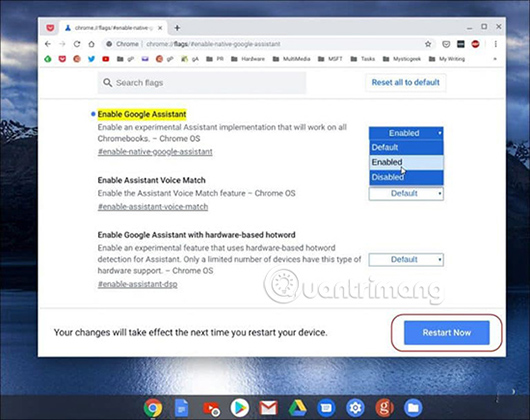
<p style="text-align: justify;">Để bắt đầu mọi thứ, bạn sẽ cần phải kích hoạt một flag. Khởi chạy trình duyệt Chrome và nhập đường dẫn sau vào hộp tìm kiếm, rồi nhấn&nbsp;<code>Enter</code>.</p>

<pre id="pre0">
<code>chrome://flags/#enable-native-google-assistant</code></pre>

<p style="text-align: justify;">Thao tác này highlight flag&nbsp;<strong>“Enable Google Assistant”</strong>. Nhấp vào menu drop-down và chọn&nbsp;<strong>Enabled.</strong>&nbsp;Sau đó cuộn xuống cuối trang và nhấp vào nút&nbsp;<strong>Restart Now</strong>&nbsp;để khởi động lại hệ thống, giúp các thay đổi có hiệu lực.</p>

<p style="text-align: justify;"><img alt="Nhấp vào nút Restart Now" data-i="0" data-src="https://st.quantrimang.com/photos/image/2019/08/09/bat-google-assistant-tren-chromebook-1.jpg" data-was-processed="true" height="420" src="https://st.quantrimang.com/photos/image/2019/08/09/bat-google-assistant-tren-chromebook-1.jpg" width="530" /></p>

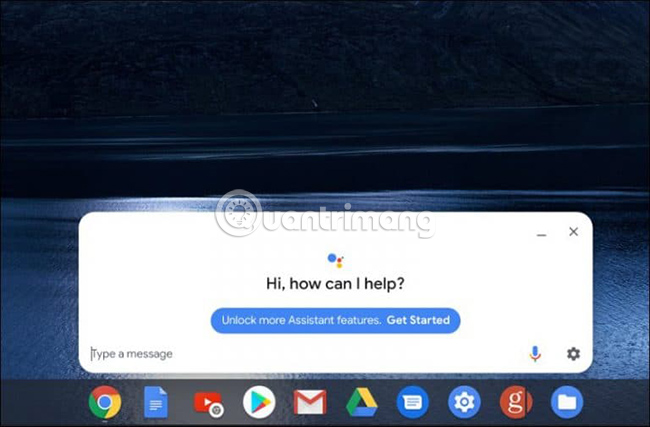
<p style="text-align: justify;">Sau khi Chromebook khởi động lại, bạn có thể bắt đầu sử dụng Google Assistant. Nhấn phím tắt&nbsp;<code>Search</code>+<code>A</code>&nbsp;để hiển thị màn hình Google Assistant và nhập các truy vấn của bạn. Hoặc, nếu bạn muốn nó được kích hoạt bằng giọng nói và bật nhiều tính năng hơn, hãy nhấp vào liên kết&nbsp;<strong>“Get Started”.</strong></p>

<p style="text-align: justify;"><strong><img alt="Nhấp vào liên kết “Get Started”" data-i="1" data-src="https://st.quantrimang.com/photos/image/2019/08/09/bat-google-assistant-tren-chromebook-2.jpg" data-was-processed="true" height="427" src="https://st.quantrimang.com/photos/image/2019/08/09/bat-google-assistant-tren-chromebook-2.jpg" width="650" /></strong></p>

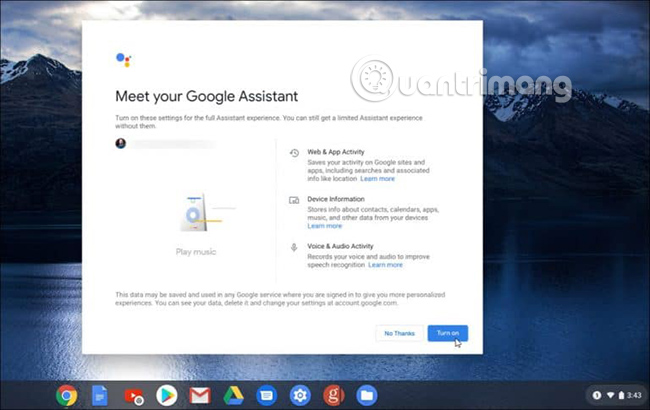
<p style="text-align: justify;">Bây giờ, bạn chỉ cần làm theo các hướng dẫn trên màn hình. Bạn sẽ cần hoàn tất việc thiết lập Google Assistant bằng tài khoản của mình, kích hoạt các quyền, &quot;luyện&quot; giọng nói với công cụ, v.v...</p>

<p style="text-align: justify;"><img alt="Làm theo hướng dẫn trên màn hình" data-i="2" data-src="https://st.quantrimang.com/photos/image/2019/08/09/bat-google-assistant-tren-chromebook-3.jpg" data-was-processed="true" height="410" src="https://st.quantrimang.com/photos/image/2019/08/09/bat-google-assistant-tren-chromebook-3.jpg" width="650" /></p>

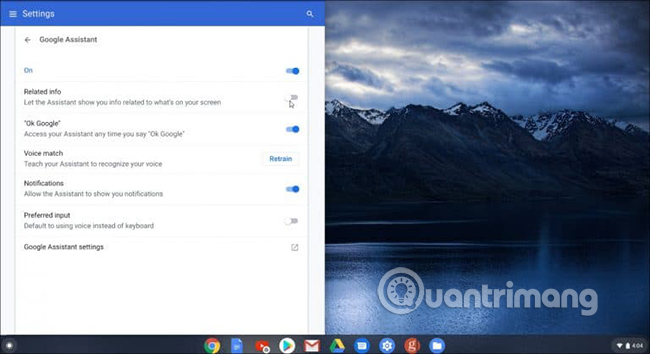
<p style="text-align: justify;">Nếu bạn muốn điều chỉnh thêm tính năng của Google Assistant, hãy nhấn&nbsp;<code>Search</code>+<code>A</code>&nbsp;hoặc chỉ cần nói&nbsp;<strong>“OK Google”</strong>&nbsp;hay&nbsp;<strong>“Hey Google”</strong>&nbsp;và sau đó nhấp vào&nbsp;<strong>Settings &gt; Assistant &gt; Chromebook</strong>. Ở đó, bạn có thể làm những việc như &quot;luyện&quot; lại giọng nói của mình với Google Assistant, cho phép thông báo, nhập đầu vào bằng giọng nói hoặc bàn phím, v.v...</p>

<p style="text-align: justify;"><img alt="Điều chỉnh thêm tính năng của Google Assistant" data-i="3" data-src="https://st.quantrimang.com/photos/image/2019/08/09/bat-google-assistant-tren-chromebook-4.jpg" data-was-processed="true" height="354" src="https://st.quantrimang.com/photos/image/2019/08/09/bat-google-assistant-tren-chromebook-4.jpg" width="650" /></p>

<p style="text-align: justify;">Đó là tất cả những gì cần thực hiện! Giờ đây, bạn có thể bắt đầu sử dụng Google Assistant theo cách bạn muốn, tương tự như khi thực hiện trên điện thoại hoặc máy tính bảng Android, loa thông minh Google Home, v.v... Nếu bạn chưa quen với trợ lý kỹ thuật số của Google và không chắc về những gì công cụ này có thể làm được, hãy xem bài viết của&nbsp;<strong>Quantrimang.com</strong>&nbsp;về&nbsp;những câu lệnh Google Assistant tiếng Việt hữu ích mà bạn có thể sử dụng&nbsp;để bắt đầu.</p>

<p style="text-align: justify;">Một lần nữa, Google vẫn chưa được thiết lập để chính thức việc kích hoạt Google Assistant trên tất cả các Chromebook cho đến khi phát hành Chrome OS 77. Có thể nó sẽ được tích hợp tốt hơn, ổn định hơn và bao gồm nhiều tính năng hơn trong tương lai. Tuy nhiên, vẫn rất tuyệt khi kích hoạt Google Assistant và dùng thử ngay hôm nay.</p>

<p style="text-align: justify;">Chúc bạn thực hiện thành công!</p>
		</div>
				<div id="author">
						<p>
				<strong>Nguồn tin:</strong>
				Quantrimang.com
			</p>
		</div>
	</div>
	<div id="footer" class="clearfix">
		<div id="url">
			<strong>URL của bản tin này: </strong><a href="https://www.nguoicodonvn2008.info/vi/news/savefile/kien-thuc-may-tinh/cach-kich-hoat-google-assistant-tren-chromebook-718.html" title="Cách kích hoạt Google Assistant trên Chromebook">https://www.nguoicodonvn2008.info/vi/news/savefile/kien-thuc-may-tinh/cach-kich-hoat-google-assistant-tren-chromebook-718.html</a>

		</div>
		<div class="clear"></div>
		<div class="copyright">
			&copy; .&#x3A; Nguoicodonvn2008.info - Cõi lòng người cô đơn &#x3A;.
		</div>
		<div id="contact">
			<a href="mailto:admin@nguoicodonvn2008.info">admin@nguoicodonvn2008.info</a>
		</div>
	</div>
</div>
        <div id="timeoutsess" class="chromeframe">
            Bạn đã không sử dụng Site, <a onclick="timeoutsesscancel();" href="https://nguoicodonvn2008.info/#">Bấm vào đây để duy trì trạng thái đăng nhập</a>. Thời gian chờ: <span id="secField"> 60 </span> giây
        </div>
        <div id="openidResult" class="nv-alert" style="display:none"></div>
        <div id="openidBt" data-result="" data-redirect=""></div>
		</script>
		<div class="car-top">
  <span><img src="https://nguoicodonvn2008.info/themes/default/images/car.png" alt=""></span>
</div>
<script src="https://nguoicodonvn2008.info/assets/js/jquery/jquery.min.js"></script>
<script>var nv_base_siteurl="/",nv_lang_data="vi",nv_lang_interface="vi",nv_name_variable="nv",nv_fc_variable="op",nv_lang_variable="language",nv_module_name="news",nv_func_name="savefile",nv_is_user=0, nv_my_ofs=-4,nv_my_abbr="EDT",nv_cookie_prefix="nv4c_e856T",nv_check_pass_mstime=1738000,nv_area_admin=0,nv_safemode=0,theme_responsive=0,nv_recaptcha_ver=2,nv_recaptcha_sitekey="",nv_recaptcha_type="image",XSSsanitize=1;</script>
<script src="https://nguoicodonvn2008.info/assets/js/language/vi.js"></script>
<script src="https://nguoicodonvn2008.info/assets/js/DOMPurify/purify3.js"></script>
<script src="https://nguoicodonvn2008.info/assets/js/global.js"></script>
<script src="https://nguoicodonvn2008.info/assets/js/site.js"></script>
<script src="https://nguoicodonvn2008.info/themes/default/js/news.js"></script>
<script src="https://nguoicodonvn2008.info/themes/default/js/main.js"></script>
<script src="https://nguoicodonvn2008.info/themes/default/js/custom.js"></script>
<script type="application/ld+json">
        {
            "@context": "https://schema.org",
            "@type": "Organization",
            "url": "https://nguoicodonvn2008.info",
            "logo": "https://nguoicodonvn2008.info/uploads/angel.gif"
        }
        </script>
<script src="https://nguoicodonvn2008.info/themes/default/js/bootstrap.min.js"></script>
<script type="text/javascript">
var $scrolltop = $('.car-top');
$scrolltop.on('click', function () {
    $('html,body').animate({
        scrollTop: 0
    }, 800);
    $(this).addClass("car-run");
    setTimeout(function(){ $scrolltop.removeClass('car-run');}, 1000);
    return false;
});
$(window).on('scroll', function ()
{ 
    if($(window).scrollTop() >= 200)
    {
        $scrolltop.addClass("show");
        $scrolltop.addClass("car-down");
    }
    else
    {
       $scrolltop.removeClass("show");
       setTimeout(function(){ $scrolltop.removeClass('car-down');}, 300);
    }
});
</script>
</body>
</html>