<!DOCTYPE html>
    <html lang="vi" xmlns="http://www.w3.org/1999/xhtml" prefix="og: http://ogp.me/ns#">
    <head>
<title>Cách kích hoạt Dynamic Lighting trên Windows 11</title>
<meta name="description" content="Cách kích hoạt Dynamic Lighting trên Windows 11 - Savefile - Tin Tức -...">
<meta name="author" content=".: Nguoicodonvn2008.info - Cõi lòng người cô đơn :.">
<meta name="copyright" content=".: Nguoicodonvn2008.info - Cõi lòng người cô đơn :. [admin@nguoicodonvn2008.info]">
<meta name="robots" content="index, archive, follow, noodp">
<meta name="googlebot" content="index,archive,follow,noodp">
<meta name="msnbot" content="all,index,follow">
<meta name="generator" content="NukeViet v4.5">
<meta http-equiv="Content-Type" content="text/html; charset=utf-8">
<meta property="og:title" content="Cách kích hoạt Dynamic Lighting trên Windows 11">
<meta property="og:type" content="website">
<meta property="og:description" content="Savefile - Tin Tức - https&#x3A;&#x002F;&#x002F;www.nguoicodonvn2008.info&#x002F;vi&#x002F;news&#x002F;savefile&#x002F;kien-thuc-may-tinh&#x002F;cach-kich-hoat-dynamic-lighting-tren-windows-11-7329.html">
<meta property="og:site_name" content=".&#x3A; Nguoicodonvn2008.info - Cõi lòng người cô đơn &#x3A;.">
<meta property="og:url" content="https://www.nguoicodonvn2008.info/vi/news/savefile/kien-thuc-may-tinh/cach-kich-hoat-dynamic-lighting-tren-windows-11-7329.html">
<link rel="shortcut icon" href="https://nguoicodonvn2008.info/favicon.ico">
<link rel="canonical" href="https://www.nguoicodonvn2008.info/vi/news/savefile/kien-thuc-may-tinh/cach-kich-hoat-dynamic-lighting-tren-windows-11-7329.html">
<link rel="alternate" href="https://nguoicodonvn2008.info/vi/news/rss/" title="Tin Tức" type="application/rss+xml">
<link rel="alternate" href="https://nguoicodonvn2008.info/vi/news/rss/karaoke-dual/" title="Tin Tức - Karaoke Dual" type="application/rss+xml">
<link rel="alternate" href="https://nguoicodonvn2008.info/vi/news/rss/nhac-tre/" title="Tin Tức - Nhạc trẻ" type="application/rss+xml">
<link rel="alternate" href="https://nguoicodonvn2008.info/vi/news/rss/tru-tinh/" title="Tin Tức - Trữ tình" type="application/rss+xml">
<link rel="alternate" href="https://nguoicodonvn2008.info/vi/news/rss/nuoc-ngoai/" title="Tin Tức - Nước ngoài" type="application/rss+xml">
<link rel="alternate" href="https://nguoicodonvn2008.info/vi/news/rss/remix/" title="Tin Tức - Remix" type="application/rss+xml">
<link rel="alternate" href="https://nguoicodonvn2008.info/vi/news/rss/tam-su-tinh-yeu/" title="Tin Tức - Tâm sự tình yêu" type="application/rss+xml">
<link rel="alternate" href="https://nguoicodonvn2008.info/vi/news/rss/tho-suu-tam/" title="Tin Tức - Thơ sưu tầm" type="application/rss+xml">
<link rel="alternate" href="https://nguoicodonvn2008.info/vi/news/rss/cuoc-song/" title="Tin Tức - Cuộc sống" type="application/rss+xml">
<link rel="alternate" href="https://nguoicodonvn2008.info/vi/news/rss/phan-mem/" title="Tin Tức - Phần mềm" type="application/rss+xml">
<link rel="alternate" href="https://nguoicodonvn2008.info/vi/news/rss/kien-thuc-may-tinh/" title="Tin Tức - Kiến thức máy tính" type="application/rss+xml">
<link rel="alternate" href="https://nguoicodonvn2008.info/vi/news/rss/hoc-tap/" title="Tin Tức - Học tập" type="application/rss+xml">
<link rel="alternate" href="https://nguoicodonvn2008.info/vi/news/rss/tai-lieu/" title="Tin Tức - Tài liệu" type="application/rss+xml">
<link rel="alternate" href="https://nguoicodonvn2008.info/vi/news/rss/de-thi/" title="Tin Tức - Đề thi" type="application/rss+xml">
<link rel="preload" as="style" href="https://nguoicodonvn2008.info/assets/css/font-awesome.min.css" type="text/css">
<link rel="preload" as="style" href="https://nguoicodonvn2008.info/themes/default/css/bootstrap.non-responsive.css" type="text/css">
<link rel="preload" as="style" href="https://nguoicodonvn2008.info/themes/default/css/style.css" type="text/css">
<link rel="preload" as="style" href="https://nguoicodonvn2008.info/themes/default/css/style.non-responsive.css" type="text/css">
<link rel="preload" as="style" href="https://nguoicodonvn2008.info/themes/default/css/news.css" type="text/css">
<link rel="preload" as="style" href="https://nguoicodonvn2008.info/themes/default/css/custom.css" type="text/css">
<link rel="preload" as="script" href="https://nguoicodonvn2008.info/assets/js/jquery/jquery.min.js" type="text/javascript">
<link rel="preload" as="script" href="https://nguoicodonvn2008.info/assets/js/language/vi.js" type="text/javascript">
<link rel="preload" as="script" href="https://nguoicodonvn2008.info/assets/js/DOMPurify/purify3.js" type="text/javascript">
<link rel="preload" as="script" href="https://nguoicodonvn2008.info/assets/js/global.js" type="text/javascript">
<link rel="preload" as="script" href="https://nguoicodonvn2008.info/assets/js/site.js" type="text/javascript">
<link rel="preload" as="script" href="https://nguoicodonvn2008.info/themes/default/js/news.js" type="text/javascript">
<link rel="preload" as="script" href="https://nguoicodonvn2008.info/themes/default/js/main.js" type="text/javascript">
<link rel="preload" as="script" href="https://nguoicodonvn2008.info/themes/default/js/custom.js" type="text/javascript">
<link rel="preload" as="script" href="https://nguoicodonvn2008.info/themes/default/js/bootstrap.min.js" type="text/javascript">
<link rel="stylesheet" href="https://nguoicodonvn2008.info/assets/css/font-awesome.min.css">
<link rel="stylesheet" href="https://nguoicodonvn2008.info/themes/default/css/bootstrap.non-responsive.css">
<link rel="stylesheet" href="https://nguoicodonvn2008.info/themes/default/css/style.css">
<link rel="stylesheet" href="https://nguoicodonvn2008.info/themes/default/css/style.non-responsive.css">
<link rel="StyleSheet" href="https://nguoicodonvn2008.info/themes/default/css/news.css">
<link rel="stylesheet" href="https://nguoicodonvn2008.info/themes/default/css/custom.css">
<style type="text/css">
	body{background: #fff;}
</style>
    </head>
    <body>
<div id="print">
	<div id="hd_print">
		<h2 class="pull-left">.&#x3A; Nguoicodonvn2008.info - Cõi lòng người cô đơn &#x3A;.</h2>
		<p class="pull-right"><a title=".&#x3A; Nguoicodonvn2008.info - Cõi lòng người cô đơn &#x3A;." href="https://nguoicodonvn2008.info/">https://nguoicodonvn2008.info</a></p>
	</div>
	<div class="clear"></div>
	<hr />
	<div id="content">
		<h1>Cách kích hoạt Dynamic Lighting trên Windows 11</h1>
		<ul class="list-inline">
			<li>Thứ ba - 25/07/2023 09:51</li>
			<li class="hidden-print txtrequired"><em class="fa fa-print">&nbsp;</em><a title="In ra" href="javascript:;" onclick="window.print()">In ra</a></li>
			<li class="hidden-print txtrequired"><em class="fa fa-power-off">&nbsp;</em><a title="Đóng cửa sổ này" href="javascript:;" onclick="window.close()">Đóng cửa sổ này</a></li>
		</ul>
		<div class="clear"></div>
		<div id="hometext">
		</div>
				<div class="imghome">
			<img alt="Cách kích hoạt Dynamic Lighting trên Windows 11" src="https://st.quantrimang.com/photos/image/2023/07/08/dynamic-lighting-windows-11-3.jpg" width="460" class="img-thumbnail" />
		</div>
		<div class="clear"></div>
		<div id="bodytext" class="clearfix">
			<p style="text-align: justify;">Bản build 23466 của&nbsp;Windows 11&nbsp;bao gồm cài đặt Dynamic Lighting được cập nhật. Trước đó, Microsoft đã thử nghiệm phần quản lý ánh sáng RGB bên trong ứng dụng Settings. Đó là một động thái tuyệt vời để loại bỏ nhu cầu sử dụng các ứng dụng của bên thứ ba để điều khiển riêng chế độ chiếu sáng của từng thiết bị.</p>

<p style="text-align: justify;">Nhưng cài đặt Dynamic Light mới là gì và chúng hoạt động như thế nào? Chúng ta sẽ thảo luận về tất cả các điểm chính trong bài đăng này và chia sẻ cách bật tính năng này trên PC chạy Windows 11.</p>

<h2 style="text-align: justify;">Dynamic Lighting trên Windows 11 là gì?</h2>

<p style="text-align: justify;">Microsoft đang thử nghiệm một phần mới cung cấp tùy chọn bật ánh sáng xung quanh cho tất cả các thiết bị được kết nối có ánh sáng&nbsp;RGB. Nhưng trong bản build 23466 trở lên, một tính năng thử nghiệm mới đã thay thế phần kiểm soát ánh sáng cũ. Microsoft đã đổi tên nó thành &quot;Dynamic Lighting&quot;, cung cấp các cài đặt chi tiết để điều chỉnh ánh sáng của các thiết bị được kết nối.</p>

<p style="text-align: justify;">Trước đó, chỉ có một tùy chọn duy nhất để bật chế độ ánh sáng xung quanh. Bạn có thể điều chỉnh hiệu ứng và độ sáng của từng thiết bị được kết nối ở một mức độ nào đó. Giờ đây, bạn có một cách đồng nhất để điều chỉnh ánh sáng theo các ứng dụng trong phần Dynamic Lighting. Nó cũng sẽ cho phép các ứng dụng điều khiển ánh sáng khi ứng dụng hoặc game khác không được sử dụng.</p>

<p style="text-align: justify;">Không phải tất cả các thiết bị đều hỗ trợ Dynamic Lighting, nhưng mọi thứ sẽ sớm thay đổi. Hiện tại, một số bàn phím và chuột Razer được hỗ trợ. Acer, ASUS, Logitech, HP và nhiều thương hiệu khác sẽ sớm tham gia thị trường và xây dựng cũng như cung cấp hỗ trợ cho các thiết bị của họ.</p>

<h2 style="text-align: justify;">Cách bật Dynamic Lighting mới trong Windows 11</h2>

<p style="text-align: justify;">Tại thời điểm viết bài, Dynamic Lighting chỉ là một phần của kênh Windows Dev Insider. Nếu không phải là người dùng Insider, bạn có thể sử dụng UUP Dump để tải xuống bản build Insider rồi cài đặt nó trên PC của mình.</p>

<p style="text-align: justify;">Bạn sẽ cần sự trợ giúp của ViveTool để bật Dynamic Lighting trên PC của mình. Đầu tiên, hãy cập nhật PC của bạn lên bản build Dev Insider 23466 trở lên. Sau đó,&nbsp;tải xuống ViveTool&nbsp;từ GitHub:&nbsp;<span style="color:rgb(231, 76, 60);"><strong>https://github.com/thebookisclosed/ViVe/releases</strong></span> và giải nén nó vào thư mục có tên “Vive” trong ổ C:.</p>

<p style="text-align: justify;">Làm theo các bước sau để bật Dynamic Lighting:</p>

<p style="text-align: justify;">1. Nhấn&nbsp;<strong>Win + R</strong>&nbsp;để&nbsp;khởi chạy hộp thoại Run. Nhập&nbsp;<strong>cmd</strong>&nbsp;vào hộp văn bản và nhấn đồng thời các phím&nbsp;<strong>Ctrl + Shift + Enter</strong>.</p>

<p style="text-align: justify;">2. UAC sẽ khởi chạy. Nhấp vào nút&nbsp;<strong>Yes</strong>&nbsp;để&nbsp;mở Command Prompt với quyền admin.</p>

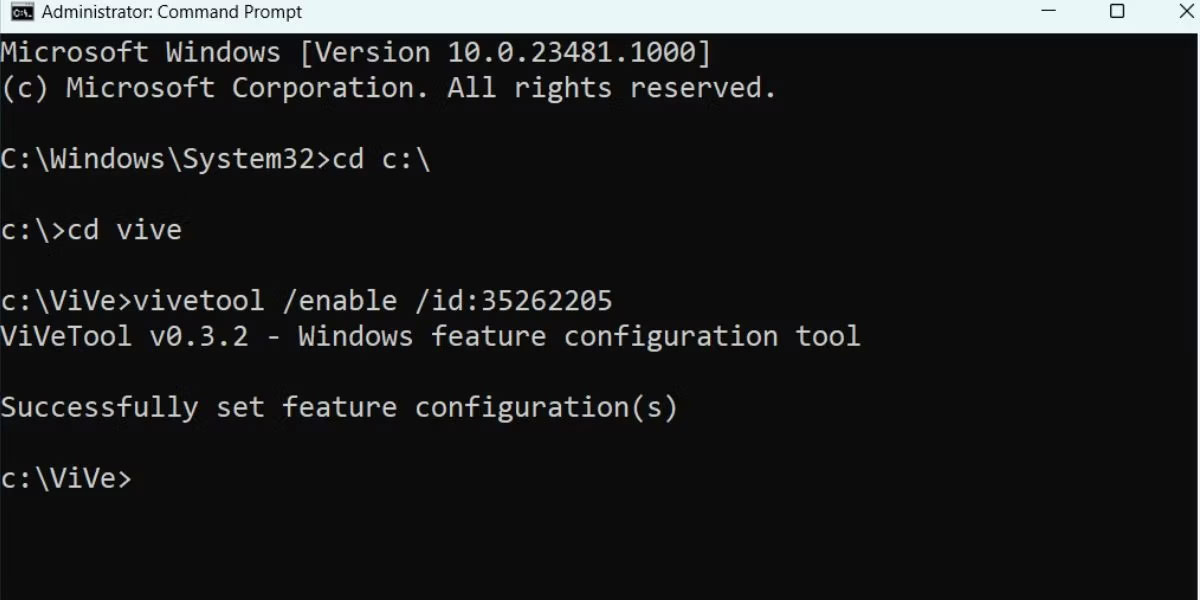
<p style="text-align: justify;">3. Bây giờ, bạn phải điều hướng đến thư mục trong ổ C có ViveTool. Nếu bạn làm theo lời khuyên và giải nén công cụ vào một thư mục, bạn sẽ rất dễ dàng truy cập nó. Nhập&nbsp;<strong>cd c:\</strong>&nbsp;vào Command Prompt và nhấn phím&nbsp;<strong>Enter</strong>.</p>

<p style="text-align: justify;">4. Sau đó, nhập&nbsp;<strong>cd &#91;tên thư mục&#93;.</strong>&nbsp;Trong trường hợp ví dụ, lệnh là&nbsp;<strong>cd vive</strong>.</p>

<p style="text-align: justify;">5. Bây giờ, bạn đang ở trong thư mục ViveTool. Nhập lệnh sau và nhấn phím&nbsp;<strong>Enter</strong>:</p>

<pre id="pre0">
<code>vivetool /enable /id:35262205</code></pre>

<figure>
<div style="text-align: justify;"><img alt="Kích hoạt Dynamic Lighting mới trong Windows 11" data-i="0" data-src="https://st.quantrimang.com/photos/image/2023/07/08/dynamic-lighting-windows-11-1.jpg" data-was-processed="true" height="600" src="https://st.quantrimang.com/photos/image/2023/07/08/dynamic-lighting-windows-11-1.jpg" width="1200" /></div>

<figcaption>
<div style="text-align: justify;">Kích hoạt Dynamic Lighting mới trong Windows 11</div>
</figcaption>
</figure>

<p style="text-align: justify;">6. Sau khi thực thi lệnh thành công, hãy đóng cửa sổ Command Prompt.</p>

<p style="text-align: justify;">7.&nbsp;<a data-type="internal" href="https://quantrimang.com/cong-nghe/6-cach-khoi-dong-lai-windows-that-pro-116819" title="6 cách khởi động lại máy tính Windows từ đơn giản đến &#039;Pro&#039;">Khởi động lại PC</a>&nbsp;của bạn để áp dụng các thay đổi.</p>

<p style="text-align: justify;">Sau khi PC của bạn khởi động vào desktop, hãy lặp lại các bước sau để cấu hình tính năng:</p>

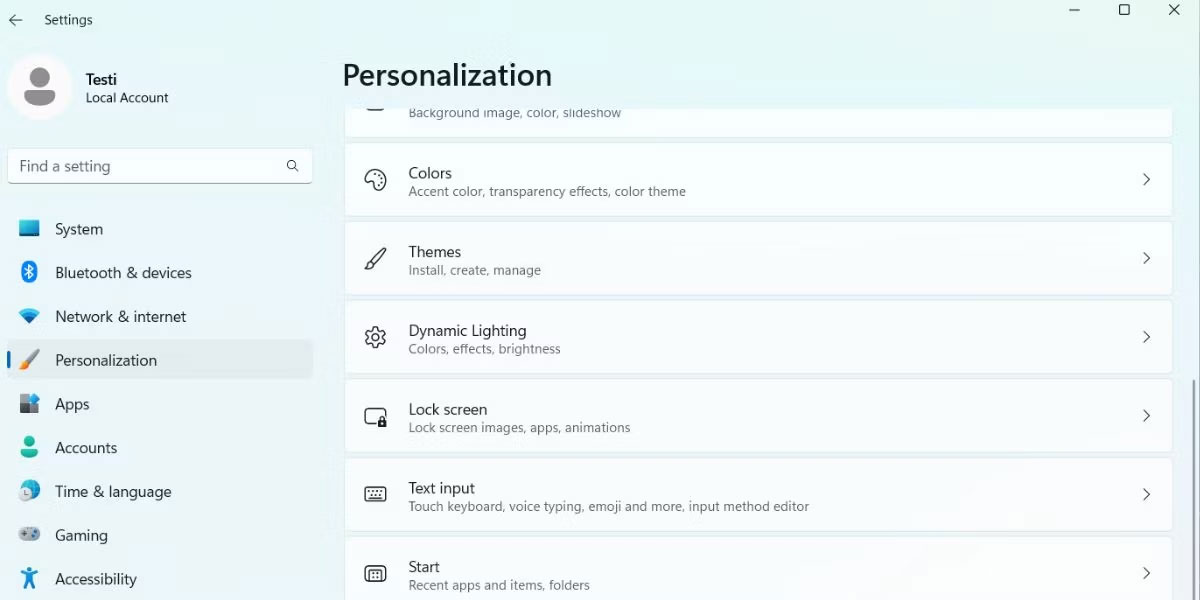
<p style="text-align: justify;">1. Nhấn&nbsp;<strong>Win + I</strong>&nbsp;để&nbsp;<a data-type="internal" href="https://quantrimang.com/cong-nghe/6-cach-truy-cap-nhanh-settings-tren-windows-10-130106" title="Tổng hợp 12 cách truy cập nhanh ứng dụng Settings trên Windows 10">mở ứng dụng Settings</a>. Nhấp vào tùy chọn&nbsp;<strong>Personalization</strong>&nbsp;trong menu bên trái.</p>

<p style="text-align: justify;">2. Cuộn xuống và nhấp vào tùy chọn&nbsp;<strong>Dynamic Lighting.</strong></p>

<figure>
<div style="text-align: justify;"><img alt="Nhấp vào tùy chọn Dynamic Lighting" data-i="1" data-src="https://st.quantrimang.com/photos/image/2023/07/08/dynamic-lighting-windows-11-2.jpg" data-was-processed="true" height="600" src="https://st.quantrimang.com/photos/image/2023/07/08/dynamic-lighting-windows-11-2.jpg" width="1200" /></div>

<figcaption>
<div style="text-align: justify;">Nhấp vào tùy chọn Dynamic Lighting</div>
</figcaption>
</figure>

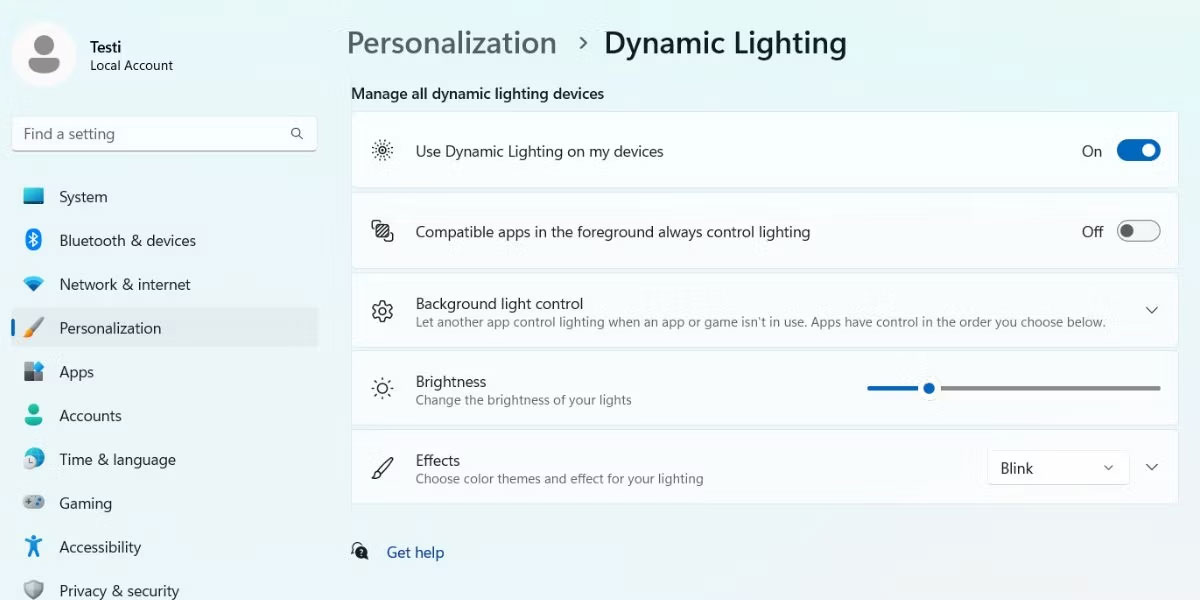
<p style="text-align: justify;">3. Nhấp vào công tắc chuyển đổi bên cạnh tùy chọn&nbsp;<strong>Use Dynamic Lighting on my devices</strong>&nbsp;để kích hoạt tính năng này.</p>

<figure>
<div style="text-align: justify;"><img alt="Bật tùy chọn Use Dynamic Lighting on my devices" data-i="2" data-src="https://st.quantrimang.com/photos/image/2023/07/08/dynamic-lighting-windows-11-3.jpg" data-was-processed="true" height="600" src="https://st.quantrimang.com/photos/image/2023/07/08/dynamic-lighting-windows-11-3.jpg" width="1200" /></div>

<figcaption>
<div style="text-align: justify;">Bật tùy chọn Use Dynamic Lighting on my devices</div>
</figcaption>
</figure>

<p style="text-align: justify;">4. Di chuyển đến tùy chọn&nbsp;<strong>Compatible apps in the foreground always control lighting</strong>&nbsp;và nhấp vào nút chuyển đổi để bật tùy chọn này.</p>

<p style="text-align: justify;">5. Sử dụng tùy chọn&nbsp;<strong>Brightness</strong>&nbsp;để điều chỉnh độ sáng màu của ánh sáng trên các thiết bị được kết nối.</p>

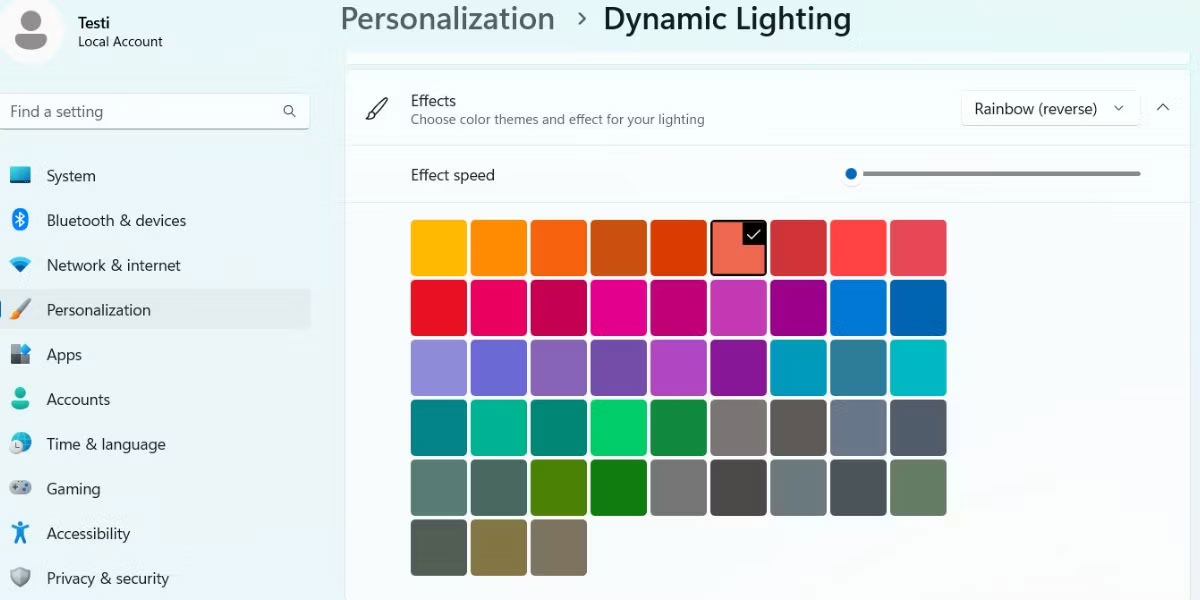
<p style="text-align: justify;">6. Cuối cùng, cuộn xuống tùy chọn&nbsp;<strong>Effect</strong>&nbsp;để áp dụng hiệu ứng và thay đổi tốc độ cũng như màu sắc của hiệu ứng đó.</p>

<figure>
<div style="text-align: justify;"><img alt="Cấu hình Dynamic Lighting trong Windows 11" data-i="3" data-src="https://st.quantrimang.com/photos/image/2023/07/08/dynamic-lighting-windows-11-4.jpg" data-was-processed="true" height="600" src="https://st.quantrimang.com/photos/image/2023/07/08/dynamic-lighting-windows-11-4.jpg" width="1200" /></div>

<figcaption>
<div style="text-align: justify;">Cấu hình Dynamic Lighting trong Windows 11</div>
</figcaption>
</figure>

<div style="text-align: justify;">&nbsp;</div>
		</div>
				<div id="author">
						<p>
				<strong>Nguồn tin:</strong>
				Quantrimang.com
			</p>
		</div>
	</div>
	<div id="footer" class="clearfix">
		<div id="url">
			<strong>URL của bản tin này: </strong><a href="https://www.nguoicodonvn2008.info/vi/news/savefile/kien-thuc-may-tinh/cach-kich-hoat-dynamic-lighting-tren-windows-11-7329.html" title="Cách kích hoạt Dynamic Lighting trên Windows 11">https://www.nguoicodonvn2008.info/vi/news/savefile/kien-thuc-may-tinh/cach-kich-hoat-dynamic-lighting-tren-windows-11-7329.html</a>

		</div>
		<div class="clear"></div>
		<div class="copyright">
			&copy; .&#x3A; Nguoicodonvn2008.info - Cõi lòng người cô đơn &#x3A;.
		</div>
		<div id="contact">
			<a href="mailto:admin@nguoicodonvn2008.info">admin@nguoicodonvn2008.info</a>
		</div>
	</div>
</div>
        <div id="timeoutsess" class="chromeframe">
            Bạn đã không sử dụng Site, <a onclick="timeoutsesscancel();" href="https://nguoicodonvn2008.info/#">Bấm vào đây để duy trì trạng thái đăng nhập</a>. Thời gian chờ: <span id="secField"> 60 </span> giây
        </div>
        <div id="openidResult" class="nv-alert" style="display:none"></div>
        <div id="openidBt" data-result="" data-redirect=""></div>
		</script>
		<div class="car-top">
  <span><img src="https://nguoicodonvn2008.info/themes/default/images/car.png" alt=""></span>
</div>
<script src="https://nguoicodonvn2008.info/assets/js/jquery/jquery.min.js"></script>
<script>var nv_base_siteurl="/",nv_lang_data="vi",nv_lang_interface="vi",nv_name_variable="nv",nv_fc_variable="op",nv_lang_variable="language",nv_module_name="news",nv_func_name="savefile",nv_is_user=0, nv_my_ofs=-4,nv_my_abbr="EDT",nv_cookie_prefix="nv4c_e856T",nv_check_pass_mstime=1738000,nv_area_admin=0,nv_safemode=0,theme_responsive=0,nv_recaptcha_ver=2,nv_recaptcha_sitekey="",nv_recaptcha_type="image",XSSsanitize=1;</script>
<script src="https://nguoicodonvn2008.info/assets/js/language/vi.js"></script>
<script src="https://nguoicodonvn2008.info/assets/js/DOMPurify/purify3.js"></script>
<script src="https://nguoicodonvn2008.info/assets/js/global.js"></script>
<script src="https://nguoicodonvn2008.info/assets/js/site.js"></script>
<script src="https://nguoicodonvn2008.info/themes/default/js/news.js"></script>
<script src="https://nguoicodonvn2008.info/themes/default/js/main.js"></script>
<script src="https://nguoicodonvn2008.info/themes/default/js/custom.js"></script>
<script type="application/ld+json">
        {
            "@context": "https://schema.org",
            "@type": "Organization",
            "url": "https://nguoicodonvn2008.info",
            "logo": "https://nguoicodonvn2008.info/uploads/angel.gif"
        }
        </script>
<script src="https://nguoicodonvn2008.info/themes/default/js/bootstrap.min.js"></script>
<script type="text/javascript">
var $scrolltop = $('.car-top');
$scrolltop.on('click', function () {
    $('html,body').animate({
        scrollTop: 0
    }, 800);
    $(this).addClass("car-run");
    setTimeout(function(){ $scrolltop.removeClass('car-run');}, 1000);
    return false;
});
$(window).on('scroll', function ()
{ 
    if($(window).scrollTop() >= 200)
    {
        $scrolltop.addClass("show");
        $scrolltop.addClass("car-down");
    }
    else
    {
       $scrolltop.removeClass("show");
       setTimeout(function(){ $scrolltop.removeClass('car-down');}, 300);
    }
});
</script>
</body>
</html>