<!DOCTYPE html>
    <html lang="vi" xmlns="http://www.w3.org/1999/xhtml" prefix="og: http://ogp.me/ns#">
    <head>
<title>Cách khôi phục menu ngữ cảnh cũ trong Windows 11</title>
<meta name="description" content="Cách khôi phục menu ngữ cảnh cũ trong Windows 11 - Savefile - Tin Tức -...">
<meta name="author" content=".: Nguoicodonvn2008.info - Cõi lòng người cô đơn :.">
<meta name="copyright" content=".: Nguoicodonvn2008.info - Cõi lòng người cô đơn :. [admin@nguoicodonvn2008.info]">
<meta name="robots" content="index, archive, follow, noodp">
<meta name="googlebot" content="index,archive,follow,noodp">
<meta name="msnbot" content="all,index,follow">
<meta name="generator" content="NukeViet v4.5">
<meta http-equiv="Content-Type" content="text/html; charset=utf-8">
<meta property="og:title" content="Cách khôi phục menu ngữ cảnh cũ trong Windows 11">
<meta property="og:type" content="website">
<meta property="og:description" content="Savefile - Tin Tức - https&#x3A;&#x002F;&#x002F;www.nguoicodonvn2008.info&#x002F;vi&#x002F;news&#x002F;savefile&#x002F;kien-thuc-may-tinh&#x002F;cach-khoi-phuc-menu-ngu-canh-cu-trong-windows-11-9233.html">
<meta property="og:site_name" content=".&#x3A; Nguoicodonvn2008.info - Cõi lòng người cô đơn &#x3A;.">
<meta property="og:url" content="https://www.nguoicodonvn2008.info/vi/news/savefile/kien-thuc-may-tinh/cach-khoi-phuc-menu-ngu-canh-cu-trong-windows-11-9233.html">
<link rel="shortcut icon" href="https://nguoicodonvn2008.info/favicon.ico">
<link rel="canonical" href="https://www.nguoicodonvn2008.info/vi/news/savefile/kien-thuc-may-tinh/cach-khoi-phuc-menu-ngu-canh-cu-trong-windows-11-9233.html">
<link rel="alternate" href="https://nguoicodonvn2008.info/vi/news/rss/" title="Tin Tức" type="application/rss+xml">
<link rel="alternate" href="https://nguoicodonvn2008.info/vi/news/rss/karaoke-dual/" title="Tin Tức - Karaoke Dual" type="application/rss+xml">
<link rel="alternate" href="https://nguoicodonvn2008.info/vi/news/rss/nhac-tre/" title="Tin Tức - Nhạc trẻ" type="application/rss+xml">
<link rel="alternate" href="https://nguoicodonvn2008.info/vi/news/rss/tru-tinh/" title="Tin Tức - Trữ tình" type="application/rss+xml">
<link rel="alternate" href="https://nguoicodonvn2008.info/vi/news/rss/nuoc-ngoai/" title="Tin Tức - Nước ngoài" type="application/rss+xml">
<link rel="alternate" href="https://nguoicodonvn2008.info/vi/news/rss/remix/" title="Tin Tức - Remix" type="application/rss+xml">
<link rel="alternate" href="https://nguoicodonvn2008.info/vi/news/rss/tam-su-tinh-yeu/" title="Tin Tức - Tâm sự tình yêu" type="application/rss+xml">
<link rel="alternate" href="https://nguoicodonvn2008.info/vi/news/rss/tho-suu-tam/" title="Tin Tức - Thơ sưu tầm" type="application/rss+xml">
<link rel="alternate" href="https://nguoicodonvn2008.info/vi/news/rss/cuoc-song/" title="Tin Tức - Cuộc sống" type="application/rss+xml">
<link rel="alternate" href="https://nguoicodonvn2008.info/vi/news/rss/phan-mem/" title="Tin Tức - Phần mềm" type="application/rss+xml">
<link rel="alternate" href="https://nguoicodonvn2008.info/vi/news/rss/kien-thuc-may-tinh/" title="Tin Tức - Kiến thức máy tính" type="application/rss+xml">
<link rel="alternate" href="https://nguoicodonvn2008.info/vi/news/rss/hoc-tap/" title="Tin Tức - Học tập" type="application/rss+xml">
<link rel="alternate" href="https://nguoicodonvn2008.info/vi/news/rss/tai-lieu/" title="Tin Tức - Tài liệu" type="application/rss+xml">
<link rel="alternate" href="https://nguoicodonvn2008.info/vi/news/rss/de-thi/" title="Tin Tức - Đề thi" type="application/rss+xml">
<link rel="preload" as="style" href="https://nguoicodonvn2008.info/assets/css/font-awesome.min.css" type="text/css">
<link rel="preload" as="style" href="https://nguoicodonvn2008.info/themes/default/css/bootstrap.non-responsive.css" type="text/css">
<link rel="preload" as="style" href="https://nguoicodonvn2008.info/themes/default/css/style.css" type="text/css">
<link rel="preload" as="style" href="https://nguoicodonvn2008.info/themes/default/css/style.non-responsive.css" type="text/css">
<link rel="preload" as="style" href="https://nguoicodonvn2008.info/themes/default/css/news.css" type="text/css">
<link rel="preload" as="style" href="https://nguoicodonvn2008.info/themes/default/css/custom.css" type="text/css">
<link rel="preload" as="script" href="https://nguoicodonvn2008.info/assets/js/jquery/jquery.min.js" type="text/javascript">
<link rel="preload" as="script" href="https://nguoicodonvn2008.info/assets/js/language/vi.js" type="text/javascript">
<link rel="preload" as="script" href="https://nguoicodonvn2008.info/assets/js/DOMPurify/purify3.js" type="text/javascript">
<link rel="preload" as="script" href="https://nguoicodonvn2008.info/assets/js/global.js" type="text/javascript">
<link rel="preload" as="script" href="https://nguoicodonvn2008.info/assets/js/site.js" type="text/javascript">
<link rel="preload" as="script" href="https://nguoicodonvn2008.info/themes/default/js/news.js" type="text/javascript">
<link rel="preload" as="script" href="https://nguoicodonvn2008.info/themes/default/js/main.js" type="text/javascript">
<link rel="preload" as="script" href="https://nguoicodonvn2008.info/themes/default/js/custom.js" type="text/javascript">
<link rel="preload" as="script" href="https://nguoicodonvn2008.info/themes/default/js/bootstrap.min.js" type="text/javascript">
<link rel="stylesheet" href="https://nguoicodonvn2008.info/assets/css/font-awesome.min.css">
<link rel="stylesheet" href="https://nguoicodonvn2008.info/themes/default/css/bootstrap.non-responsive.css">
<link rel="stylesheet" href="https://nguoicodonvn2008.info/themes/default/css/style.css">
<link rel="stylesheet" href="https://nguoicodonvn2008.info/themes/default/css/style.non-responsive.css">
<link rel="StyleSheet" href="https://nguoicodonvn2008.info/themes/default/css/news.css">
<link rel="stylesheet" href="https://nguoicodonvn2008.info/themes/default/css/custom.css">
<style type="text/css">
	body{background: #fff;}
</style>
    </head>
    <body>
<div id="print">
	<div id="hd_print">
		<h2 class="pull-left">.&#x3A; Nguoicodonvn2008.info - Cõi lòng người cô đơn &#x3A;.</h2>
		<p class="pull-right"><a title=".&#x3A; Nguoicodonvn2008.info - Cõi lòng người cô đơn &#x3A;." href="https://nguoicodonvn2008.info/">https://nguoicodonvn2008.info</a></p>
	</div>
	<div class="clear"></div>
	<hr />
	<div id="content">
		<h1>Cách khôi phục menu ngữ cảnh cũ trong Windows 11</h1>
		<ul class="list-inline">
			<li>Thứ sáu - 25/10/2024 03:25</li>
			<li class="hidden-print txtrequired"><em class="fa fa-print">&nbsp;</em><a title="In ra" href="javascript:;" onclick="window.print()">In ra</a></li>
			<li class="hidden-print txtrequired"><em class="fa fa-power-off">&nbsp;</em><a title="Đóng cửa sổ này" href="javascript:;" onclick="window.close()">Đóng cửa sổ này</a></li>
		</ul>
		<div class="clear"></div>
		<div id="hometext">
		</div>
				<div class="imghome">
			<img alt="Cách khôi phục menu ngữ cảnh cũ trong Windows 11" src="https://st.quantrimang.com/photos/image/2024/10/25/menu-ngu-canh-tren-windows-11-2.png" width="460" class="img-thumbnail" />
		</div>
		<div class="clear"></div>
		<div id="bodytext" class="clearfix">
			<p style="text-align: justify;">Menu ngữ cảnh (menu chuột phải) trong Windows 11 là nguồn gây khó chịu lớn cho nhiều người dùng. Menu này chậm hơn, cần phải nhấp thêm để truy cập các tùy chọn quen thuộc và kém trực quan hơn menu cổ điển. Nếu nhớ sự đơn giản và tốc độ của menu nhấp chuột phải cũ, bạn có thể khôi phục lại menu này.</p>

<h2 style="text-align: justify;">Tại sao menu ngữ cảnh của Windows 11 lại tệ như vậy?</h2>

<p style="text-align: justify;">Windows 11&nbsp;được cho là một bước tiến so với&nbsp;Windows 10, nhưng đối với nhiều người dùng, Windows 11 giống như một giao diện mới trên cùng một giao diện cũ. Trên thực tế, với trọng tâm là sự tối giản, những thay đổi của Windows 11 thường có vẻ được thiết kế nhiều hơn cho trải nghiệm trên thiết bị di động hơn là cải thiện khả năng sử dụng trên desktop.</p>

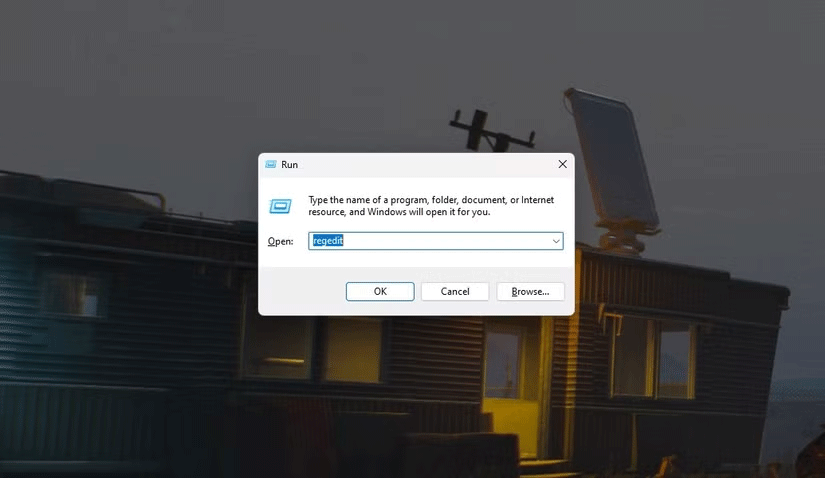
<p style="text-align: justify;">Một trong những điểm khó chịu lớn nhất trong Windows 11 là menu ngữ cảnh. Thay vì menu chức năng quen thuộc từ Windows 10, bạn sẽ thấy một phiên bản quá đơn giản. Nó chỉ cung cấp các hành động cơ bản, hầu hết có thể thực hiện nhanh hơn bằng phím tắt. Thêm vào sự nhầm lẫn, các tùy chọn thiết yếu như cắt, sao chép, dán và đổi tên đã được thay thế bằng những biểu tượng khó hiểu.</p>

<figure>
<div style="text-align: justify;"><img alt="Menu ngữ cảnh Windows 11 và menu ngữ cảnh cổ điển" data-i="0" data-src="https://st.quantrimang.com/photos/image/2024/10/25/menu-ngu-canh-tren-windows-11-1.png" data-was-processed="true" height="969" src="https://st.quantrimang.com/photos/image/2024/10/25/menu-ngu-canh-tren-windows-11-1.png" width="1650" /></div>

<figcaption>
<div style="text-align: justify;">Menu ngữ cảnh Windows 11 và menu ngữ cảnh cổ điển</div>
</figcaption>
</figure>

<div style="text-align: justify;">&nbsp;</div>

<p style="text-align: justify;">Nếu muốn truy cập đầy đủ các tùy chọn, bạn phải nhấp vào&nbsp;<strong>Show more options</strong>, để khôi phục menu cổ điển - nhưng phải trả giá bằng một cú nhấp chuột bổ sung. Sự thay đổi về kiểu dáng giữa menu mới và cũ khiến quá trình chuyển đổi này thậm chí còn khó chịu hơn. Menu cổ điển không biến mất; nó chỉ bị ẩn sau một bước không cần thiết.</p>

<p style="text-align: justify;">Thực tế là Windows 11 vẫn giữ nguyên menu ngữ cảnh cổ điển đằng sau lớp mặt nạ này, cho phép nó có thể được khôi phục làm menu mặc định. Mặc dù Microsoft không cung cấp nút chuyển đổi tích hợp để chuyển đổi giữa hai menu, nhưng có một cách để thực hiện việc này bằng Registry Editor.</p>

<h2 style="text-align: justify;">Cách khôi phục menu ngữ cảnh cũ trong Windows 11</h2>

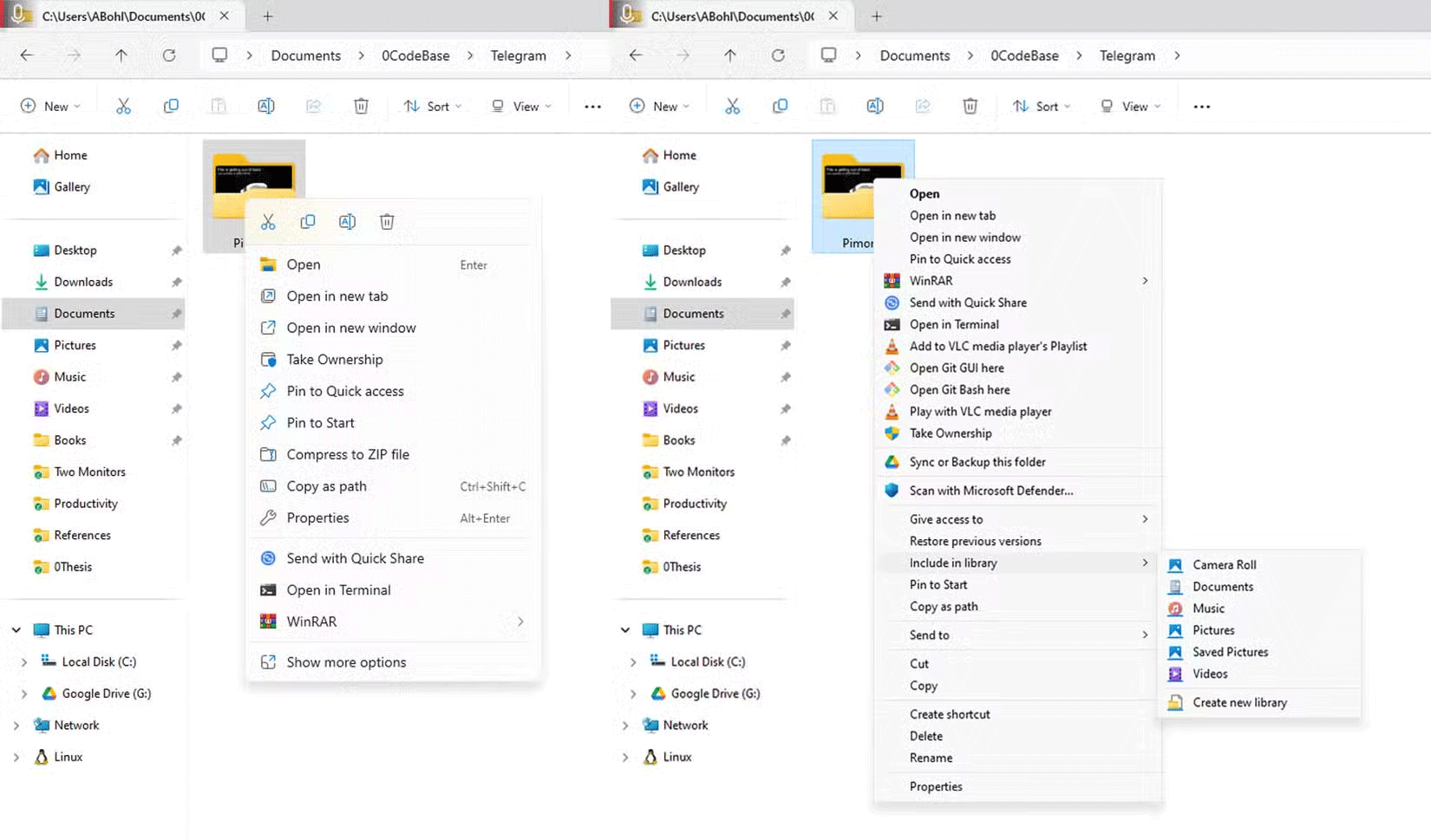
<p style="text-align: justify;">Khôi phục menu nhấp chuột phải cổ điển trong Windows 11 rất đơn giản với một tinh chỉnh Registry nhanh chóng. Để bắt đầu, hãy nhấn&nbsp;<strong>Win + R</strong>&nbsp;trên bàn phím, nhập&nbsp;<strong>regedit</strong>&nbsp;và nhấn&nbsp;<strong>Enter</strong>&nbsp;để&nbsp;mở Registry Editor.</p>

<figure>
<div style="text-align: justify;"><img alt="Hộp thoại Windows Run với regedit được nhập vào đó" data-adbro-processed="true" data-i="1" data-src="https://st.quantrimang.com/photos/image/2024/10/25/menu-ngu-canh-tren-windows-11-2.png" data-was-processed="true" height="478" src="https://st.quantrimang.com/photos/image/2024/10/25/menu-ngu-canh-tren-windows-11-2.png" width="825" /></div>

<figcaption>
<div style="text-align: justify;">Hộp thoại Windows Run với regedit được nhập vào đó</div>
</figcaption>
</figure>

<p style="text-align: justify;"><strong>Cảnh báo</strong>: Việc sửa đổi Registry có khả năng gây ra sự cố cho hệ thống của bạn, vì vậy chỉ tiến hành nếu bạn tự tin có thể làm theo hướng dẫn chính xác và biết mình đang làm gì.</p>

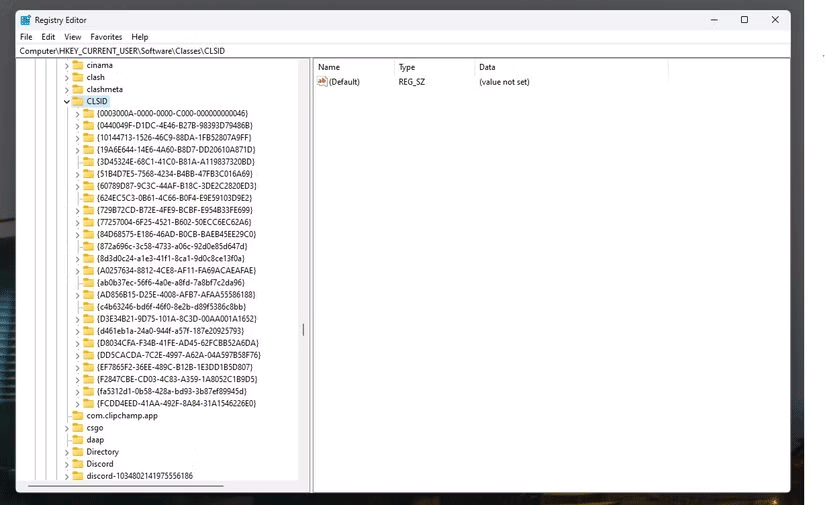
<p style="text-align: justify;">Trong Registry Editor, điều hướng đến&nbsp;<strong>HKEY_CURRENT_USER &gt; Software &gt; Classes &gt; CLSID</strong>&nbsp;ở ngăn bên trái. Đảm bảo tránh nhầm lẫn điều này với thư mục .cls - chúng hoàn toàn khác nhau.</p>

<figure>
<div style="text-align: justify;"><img alt="Windows Regsitry Editor hiển thị thư mục CLSID" data-i="2" data-src="https://st.quantrimang.com/photos/image/2024/10/25/menu-ngu-canh-tren-windows-11-3.png" data-was-processed="true" height="505" src="https://st.quantrimang.com/photos/image/2024/10/25/menu-ngu-canh-tren-windows-11-3.png" width="825" /></div>

<figcaption>
<div style="text-align: justify;">Windows Regsitry Editor hiển thị thư mục CLSID</div>
</figcaption>
</figure>

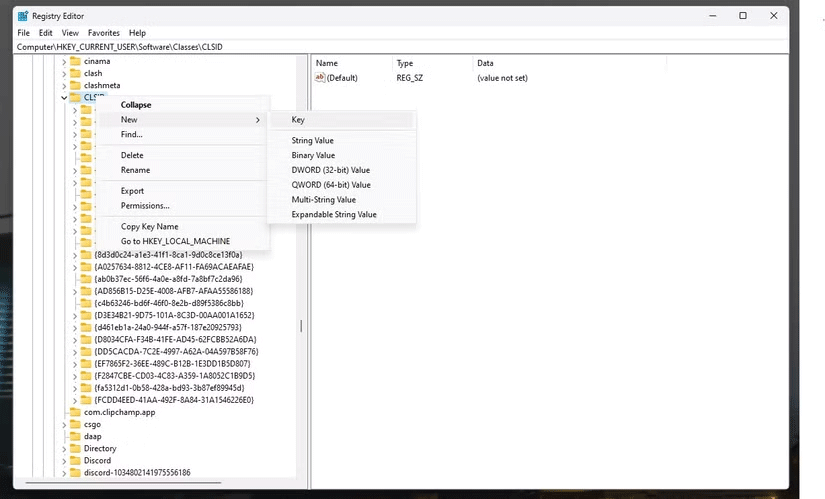
<p style="text-align: justify;">Nhấp chuột phải vào&nbsp;<strong>CLSID</strong>, đi tới&nbsp;<strong>New</strong>&nbsp;và chọn&nbsp;<strong>Key.</strong>&nbsp;Đặt tên cho subkey mới này là&nbsp;<strong>{86ca1aa0-34aa-4e8b-a509-50c905bae2a2}.</strong></p>

<figure>
<div style="text-align: justify;"><img alt="Windows Registry Editor với menu ngữ cảnh trên một subkey" data-i="3" data-src="https://st.quantrimang.com/photos/image/2024/10/25/menu-ngu-canh-tren-windows-11-4.png" data-was-processed="true" height="499" src="https://st.quantrimang.com/photos/image/2024/10/25/menu-ngu-canh-tren-windows-11-4.png" width="825" /></div>

<figcaption>
<div style="text-align: justify;">Windows Registry Editor với menu ngữ cảnh trên một subkey</div>
</figcaption>
</figure>

<p style="text-align: justify;">Tiếp theo, bạn sẽ cần thêm một subkey trong key này. Nhấp chuột phải vào key mới, chọn&nbsp;<strong>New &gt; Key</strong>&nbsp;và đặt tên là&nbsp;<strong>InprocServer32.</strong></p>

<figure>
<div style="text-align: justify;"><img alt="Windows Registry Editor với subkey mới có tên là InprocServer32" data-i="4" data-src="https://st.quantrimang.com/photos/image/2024/10/25/menu-ngu-canh-tren-windows-11-5.png" data-was-processed="true" height="497" src="https://st.quantrimang.com/photos/image/2024/10/25/menu-ngu-canh-tren-windows-11-5.png" width="825" /></div>

<figcaption>
<div style="text-align: justify;">Windows Registry Editor với subkey mới có tên là InprocServer32</div>
</figcaption>
</figure>

<div style="text-align: justify;">&nbsp;</div>

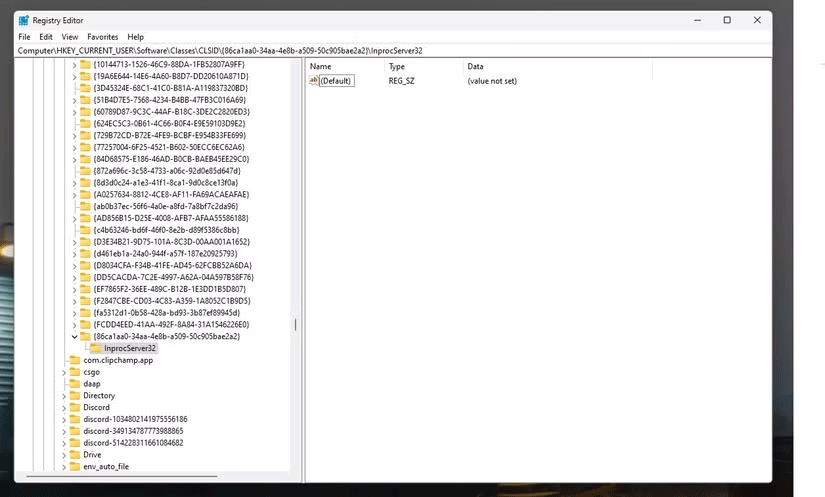
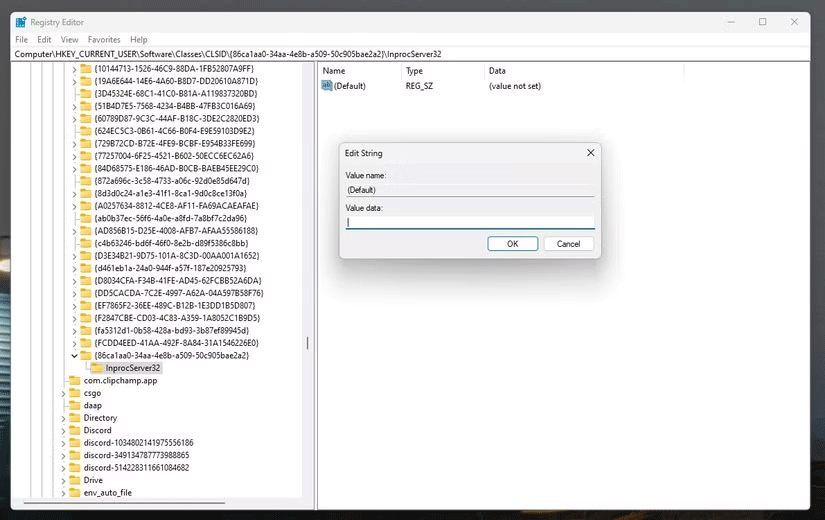
<p style="text-align: justify;">Bây giờ, hãy chọn&nbsp;<strong>InprocServer32</strong>&nbsp;trong ngăn bên trái. Bạn sẽ thấy một giá trị mặc định có tiêu đề&nbsp;<strong>(Default)</strong>&nbsp;ở bên phải. Nhấp đúp vào đó và nhấn&nbsp;<strong>OK</strong>&nbsp;mà không nhập bất kỳ văn bản nào. Thao tác này sẽ khởi tạo subkey với một giá trị trống.</p>

<figure>
<div style="text-align: justify;"><img alt="Windows Registry Editor với giá trị subkey được chọn" data-i="5" data-src="https://st.quantrimang.com/photos/image/2024/10/25/menu-ngu-canh-tren-windows-11-6.png" data-was-processed="true" height="520" src="https://st.quantrimang.com/photos/image/2024/10/25/menu-ngu-canh-tren-windows-11-6.png" width="825" /></div>

<figcaption>
<div style="text-align: justify;">Windows Registry Editor với giá trị subkey được chọn</div>
</figcaption>
</figure>

<p style="text-align: justify;">Vậy là xong! Để áp dụng những thay đổi này, bạn sẽ cần&nbsp;khởi động lại Windows Explorer.&nbsp;Mở Task Manager&nbsp;bằng cách nhấn&nbsp;<strong>Ctrl + Shift + Esc</strong>, định vị&nbsp;<strong>Windows Explorer</strong>, nhấp chuột phải vào đó và chọn&nbsp;<strong>Restart</strong>.</p>

<p style="text-align: justify;">Bây giờ, khi nhấp chuột phải vào Windows Explorer, bạn sẽ thấy menu ngữ cảnh cổ điển cũ.</p>

<div style="text-align: justify;">&nbsp;</div>
		</div>
				<div id="author">
						<p>
				<strong>Nguồn tin:</strong>
				Quantrimang.com:
			</p>
		</div>
	</div>
	<div id="footer" class="clearfix">
		<div id="url">
			<strong>URL của bản tin này: </strong><a href="https://www.nguoicodonvn2008.info/vi/news/savefile/kien-thuc-may-tinh/cach-khoi-phuc-menu-ngu-canh-cu-trong-windows-11-9233.html" title="Cách khôi phục menu ngữ cảnh cũ trong Windows 11">https://www.nguoicodonvn2008.info/vi/news/savefile/kien-thuc-may-tinh/cach-khoi-phuc-menu-ngu-canh-cu-trong-windows-11-9233.html</a>

		</div>
		<div class="clear"></div>
		<div class="copyright">
			&copy; .&#x3A; Nguoicodonvn2008.info - Cõi lòng người cô đơn &#x3A;.
		</div>
		<div id="contact">
			<a href="mailto:admin@nguoicodonvn2008.info">admin@nguoicodonvn2008.info</a>
		</div>
	</div>
</div>
        <div id="timeoutsess" class="chromeframe">
            Bạn đã không sử dụng Site, <a onclick="timeoutsesscancel();" href="https://nguoicodonvn2008.info/#">Bấm vào đây để duy trì trạng thái đăng nhập</a>. Thời gian chờ: <span id="secField"> 60 </span> giây
        </div>
        <div id="openidResult" class="nv-alert" style="display:none"></div>
        <div id="openidBt" data-result="" data-redirect=""></div>
		</script>
		<div class="car-top">
  <span><img src="https://nguoicodonvn2008.info/themes/default/images/car.png" alt=""></span>
</div>
<div id="run_cronjobs" style="visibility:hidden;display:none;"><img alt="cron" src="/index.php?second=cronjobs&amp;p=v6zK5FDg" width="1" height="1" /></div>
<script src="https://nguoicodonvn2008.info/assets/js/jquery/jquery.min.js"></script>
<script>var nv_base_siteurl="/",nv_lang_data="vi",nv_lang_interface="vi",nv_name_variable="nv",nv_fc_variable="op",nv_lang_variable="language",nv_module_name="news",nv_func_name="savefile",nv_is_user=0, nv_my_ofs=-4,nv_my_abbr="EDT",nv_cookie_prefix="nv4c_e856T",nv_check_pass_mstime=1738000,nv_area_admin=0,nv_safemode=0,theme_responsive=0,nv_recaptcha_ver=2,nv_recaptcha_sitekey="",nv_recaptcha_type="image",XSSsanitize=1;</script>
<script src="https://nguoicodonvn2008.info/assets/js/language/vi.js"></script>
<script src="https://nguoicodonvn2008.info/assets/js/DOMPurify/purify3.js"></script>
<script src="https://nguoicodonvn2008.info/assets/js/global.js"></script>
<script src="https://nguoicodonvn2008.info/assets/js/site.js"></script>
<script src="https://nguoicodonvn2008.info/themes/default/js/news.js"></script>
<script src="https://nguoicodonvn2008.info/themes/default/js/main.js"></script>
<script src="https://nguoicodonvn2008.info/themes/default/js/custom.js"></script>
<script type="application/ld+json">
        {
            "@context": "https://schema.org",
            "@type": "Organization",
            "url": "https://nguoicodonvn2008.info",
            "logo": "https://nguoicodonvn2008.info/uploads/angel.gif"
        }
        </script>
<script src="https://nguoicodonvn2008.info/themes/default/js/bootstrap.min.js"></script>
<script type="text/javascript">
var $scrolltop = $('.car-top');
$scrolltop.on('click', function () {
    $('html,body').animate({
        scrollTop: 0
    }, 800);
    $(this).addClass("car-run");
    setTimeout(function(){ $scrolltop.removeClass('car-run');}, 1000);
    return false;
});
$(window).on('scroll', function ()
{ 
    if($(window).scrollTop() >= 200)
    {
        $scrolltop.addClass("show");
        $scrolltop.addClass("car-down");
    }
    else
    {
       $scrolltop.removeClass("show");
       setTimeout(function(){ $scrolltop.removeClass('car-down');}, 300);
    }
});
</script>
</body>
</html>