<!DOCTYPE html>
    <html lang="vi" xmlns="http://www.w3.org/1999/xhtml" prefix="og: http://ogp.me/ns#">
    <head>
<title>Cách khôi phục Display Settings trên Windows 11</title>
<meta name="description" content="Cách khôi phục Display Settings trên Windows 11 - Savefile - Tin Tức -...">
<meta name="author" content=".: Nguoicodonvn2008.info - Cõi lòng người cô đơn :.">
<meta name="copyright" content=".: Nguoicodonvn2008.info - Cõi lòng người cô đơn :. [admin@nguoicodonvn2008.info]">
<meta name="robots" content="index, archive, follow, noodp">
<meta name="googlebot" content="index,archive,follow,noodp">
<meta name="msnbot" content="all,index,follow">
<meta name="generator" content="NukeViet v4.5">
<meta http-equiv="Content-Type" content="text/html; charset=utf-8">
<meta property="og:title" content="Cách khôi phục Display Settings trên Windows 11">
<meta property="og:type" content="website">
<meta property="og:description" content="Savefile - Tin Tức - https&#x3A;&#x002F;&#x002F;www.nguoicodonvn2008.info&#x002F;vi&#x002F;news&#x002F;savefile&#x002F;kien-thuc-may-tinh&#x002F;cach-khoi-phuc-display-settings-tren-windows-11-10139.html">
<meta property="og:site_name" content=".&#x3A; Nguoicodonvn2008.info - Cõi lòng người cô đơn &#x3A;.">
<meta property="og:url" content="https://www.nguoicodonvn2008.info/vi/news/savefile/kien-thuc-may-tinh/cach-khoi-phuc-display-settings-tren-windows-11-10139.html">
<link rel="shortcut icon" href="https://nguoicodonvn2008.info/favicon.ico">
<link rel="canonical" href="https://www.nguoicodonvn2008.info/vi/news/savefile/kien-thuc-may-tinh/cach-khoi-phuc-display-settings-tren-windows-11-10139.html">
<link rel="alternate" href="https://nguoicodonvn2008.info/vi/news/rss/" title="Tin Tức" type="application/rss+xml">
<link rel="alternate" href="https://nguoicodonvn2008.info/vi/news/rss/karaoke-dual/" title="Tin Tức - Karaoke Dual" type="application/rss+xml">
<link rel="alternate" href="https://nguoicodonvn2008.info/vi/news/rss/nhac-tre/" title="Tin Tức - Nhạc trẻ" type="application/rss+xml">
<link rel="alternate" href="https://nguoicodonvn2008.info/vi/news/rss/tru-tinh/" title="Tin Tức - Trữ tình" type="application/rss+xml">
<link rel="alternate" href="https://nguoicodonvn2008.info/vi/news/rss/nuoc-ngoai/" title="Tin Tức - Nước ngoài" type="application/rss+xml">
<link rel="alternate" href="https://nguoicodonvn2008.info/vi/news/rss/remix/" title="Tin Tức - Remix" type="application/rss+xml">
<link rel="alternate" href="https://nguoicodonvn2008.info/vi/news/rss/tam-su-tinh-yeu/" title="Tin Tức - Tâm sự tình yêu" type="application/rss+xml">
<link rel="alternate" href="https://nguoicodonvn2008.info/vi/news/rss/tho-suu-tam/" title="Tin Tức - Thơ sưu tầm" type="application/rss+xml">
<link rel="alternate" href="https://nguoicodonvn2008.info/vi/news/rss/cuoc-song/" title="Tin Tức - Cuộc sống" type="application/rss+xml">
<link rel="alternate" href="https://nguoicodonvn2008.info/vi/news/rss/phan-mem/" title="Tin Tức - Phần mềm" type="application/rss+xml">
<link rel="alternate" href="https://nguoicodonvn2008.info/vi/news/rss/kien-thuc-may-tinh/" title="Tin Tức - Kiến thức máy tính" type="application/rss+xml">
<link rel="alternate" href="https://nguoicodonvn2008.info/vi/news/rss/hoc-tap/" title="Tin Tức - Học tập" type="application/rss+xml">
<link rel="alternate" href="https://nguoicodonvn2008.info/vi/news/rss/tai-lieu/" title="Tin Tức - Tài liệu" type="application/rss+xml">
<link rel="alternate" href="https://nguoicodonvn2008.info/vi/news/rss/de-thi/" title="Tin Tức - Đề thi" type="application/rss+xml">
<link rel="preload" as="style" href="https://nguoicodonvn2008.info/assets/css/font-awesome.min.css" type="text/css">
<link rel="preload" as="style" href="https://nguoicodonvn2008.info/themes/default/css/bootstrap.non-responsive.css" type="text/css">
<link rel="preload" as="style" href="https://nguoicodonvn2008.info/themes/default/css/style.css" type="text/css">
<link rel="preload" as="style" href="https://nguoicodonvn2008.info/themes/default/css/style.non-responsive.css" type="text/css">
<link rel="preload" as="style" href="https://nguoicodonvn2008.info/themes/default/css/news.css" type="text/css">
<link rel="preload" as="style" href="https://nguoicodonvn2008.info/themes/default/css/custom.css" type="text/css">
<link rel="preload" as="script" href="https://nguoicodonvn2008.info/assets/js/jquery/jquery.min.js" type="text/javascript">
<link rel="preload" as="script" href="https://nguoicodonvn2008.info/assets/js/language/vi.js" type="text/javascript">
<link rel="preload" as="script" href="https://nguoicodonvn2008.info/assets/js/DOMPurify/purify3.js" type="text/javascript">
<link rel="preload" as="script" href="https://nguoicodonvn2008.info/assets/js/global.js" type="text/javascript">
<link rel="preload" as="script" href="https://nguoicodonvn2008.info/assets/js/site.js" type="text/javascript">
<link rel="preload" as="script" href="https://nguoicodonvn2008.info/themes/default/js/news.js" type="text/javascript">
<link rel="preload" as="script" href="https://nguoicodonvn2008.info/themes/default/js/main.js" type="text/javascript">
<link rel="preload" as="script" href="https://nguoicodonvn2008.info/themes/default/js/custom.js" type="text/javascript">
<link rel="preload" as="script" href="https://nguoicodonvn2008.info/themes/default/js/bootstrap.min.js" type="text/javascript">
<link rel="stylesheet" href="https://nguoicodonvn2008.info/assets/css/font-awesome.min.css">
<link rel="stylesheet" href="https://nguoicodonvn2008.info/themes/default/css/bootstrap.non-responsive.css">
<link rel="stylesheet" href="https://nguoicodonvn2008.info/themes/default/css/style.css">
<link rel="stylesheet" href="https://nguoicodonvn2008.info/themes/default/css/style.non-responsive.css">
<link rel="StyleSheet" href="https://nguoicodonvn2008.info/themes/default/css/news.css">
<link rel="stylesheet" href="https://nguoicodonvn2008.info/themes/default/css/custom.css">
<style type="text/css">
	body{background: #fff;}
</style>
    </head>
    <body>
<div id="print">
	<div id="hd_print">
		<h2 class="pull-left">.&#x3A; Nguoicodonvn2008.info - Cõi lòng người cô đơn &#x3A;.</h2>
		<p class="pull-right"><a title=".&#x3A; Nguoicodonvn2008.info - Cõi lòng người cô đơn &#x3A;." href="https://nguoicodonvn2008.info/">https://nguoicodonvn2008.info</a></p>
	</div>
	<div class="clear"></div>
	<hr />
	<div id="content">
		<h1>Cách khôi phục Display Settings trên Windows 11</h1>
		<ul class="list-inline">
			<li>Thứ tư - 09/04/2025 00:21</li>
			<li class="hidden-print txtrequired"><em class="fa fa-print">&nbsp;</em><a title="In ra" href="javascript:;" onclick="window.print()">In ra</a></li>
			<li class="hidden-print txtrequired"><em class="fa fa-power-off">&nbsp;</em><a title="Đóng cửa sổ này" href="javascript:;" onclick="window.close()">Đóng cửa sổ này</a></li>
		</ul>
		<div class="clear"></div>
		<div id="hometext">
		</div>
				<div class="imghome">
			<img alt="Cách khôi phục Display Settings trên Windows 11" src="https://st.quantrimang.com/photos/image/2025/04/04/restore-Display-Settings-windows-11-7.jpg" width="460" class="img-thumbnail" />
		</div>
		<div class="clear"></div>
		<div id="bodytext" class="clearfix">
			<p style="text-align: justify;">Display Settings không chính xác hoặc thay đổi chưa đúng trong&nbsp;&nbsp;Windows&nbsp;11 có thể gây ra các sự cố như hình ảnh bị méo, độ phân giải bất thường hoặc cấu hình màu không khớp. Khi gặp tình huống như này thì bạn có thể thực hiện khôi phục Display Settings trên Windows 11. Dưới đây là khôi phục Display Settings trên Windows 11.</p>

<h2 style="text-align: justify;">Khôi phục Display Settings Windows 11 qua Settings</h2>

<p style="text-align: justify;"><strong>Bước 1:</strong></p>

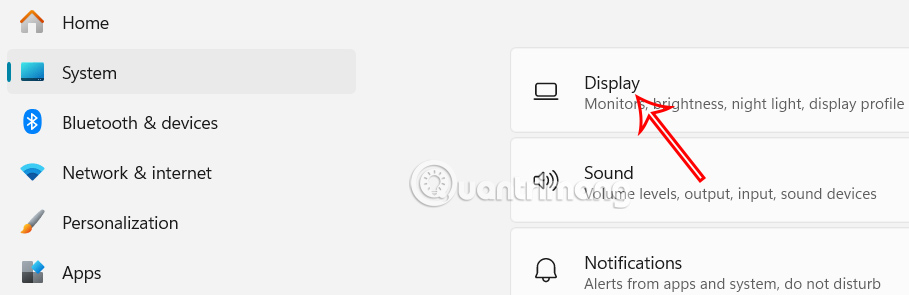
<p style="text-align: justify;">Bạn nhấn&nbsp;<strong>tổ hợp Windows + I để mở Settings</strong>, sau đó nhấn vào&nbsp;<strong>mục System rồi chọn Display</strong>&nbsp;ở nội dung bên cạnh.</p>

<p style="text-align: justify;"><img alt="Display Settings" data-i="0" data-src="https://st.quantrimang.com/photos/image/2025/04/04/restore-Display-Settings-windows-11-1.jpg" data-was-processed="true" height="208" src="https://st.quantrimang.com/photos/image/2025/04/04/restore-Display-Settings-windows-11-1.jpg" width="640" /></p>

<p style="text-align: justify;"><strong>Bước 2:</strong></p>

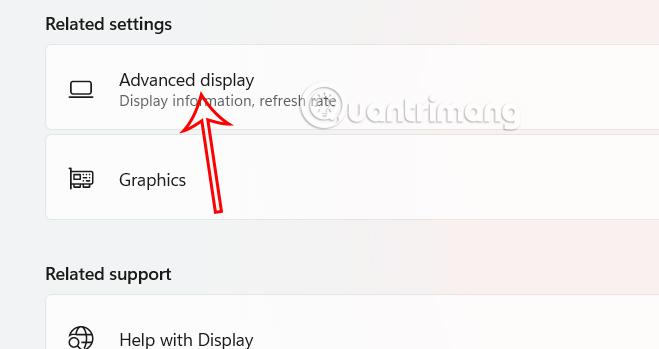
<p style="text-align: justify;">Hiển thị thiết lập mới, bạn kéo xuống bên dưới rồi nhấn chọn vào&nbsp;<strong>Advanced display.</strong></p>

<p style="text-align: justify;"><strong><img alt=" Advanced display Windows 11" data-i="1" data-src="https://st.quantrimang.com/photos/image/2025/04/04/restore-Display-Settings-windows-11-2.jpg" data-was-processed="true" height="318" src="https://st.quantrimang.com/photos/image/2025/04/04/restore-Display-Settings-windows-11-2.jpg" width="600" /></strong></p>

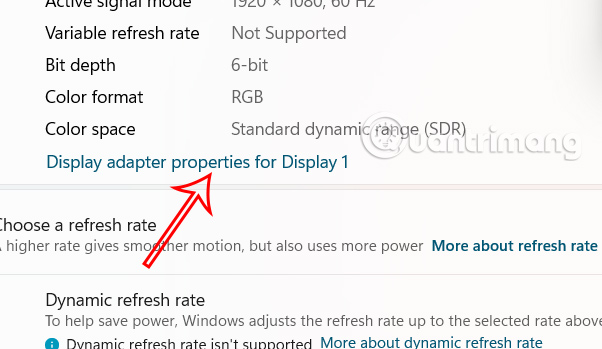
<p style="text-align: justify;">Ở đây bạn nhấn chọn&nbsp;<strong>Display adapter properties for Display 1</strong>&nbsp;hoặc số phù hợp nếu bạn có nhiều màn hình.</p>

<p style="text-align: justify;"><strong><img alt="Display adapter properties for Display 1" data-i="2" data-src="https://st.quantrimang.com/photos/image/2025/04/04/restore-Display-Settings-windows-11-3.jpg" data-was-processed="true" height="349" src="https://st.quantrimang.com/photos/image/2025/04/04/restore-Display-Settings-windows-11-3.jpg" width="602" /></strong></p>

<p style="text-align: justify;"><strong>Bước 3:</strong></p>

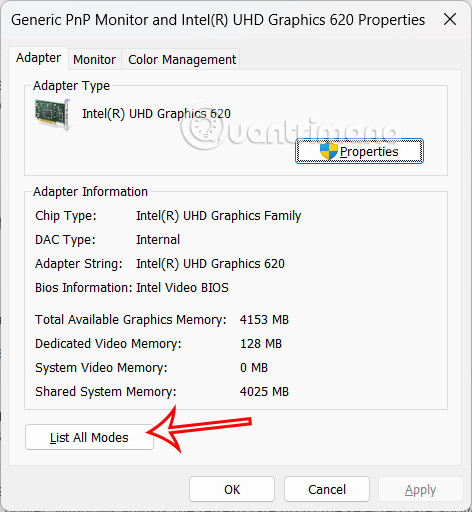
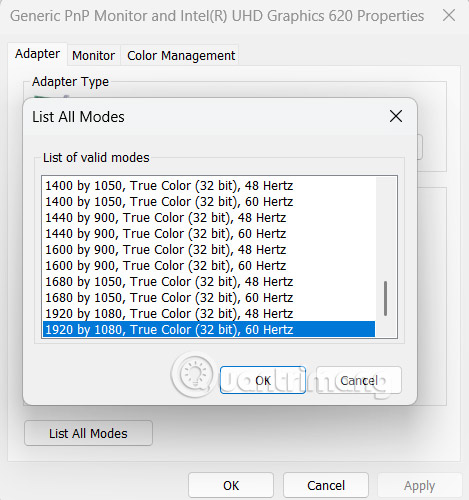
<p style="text-align: justify;">Trong cửa sổ mới này&nbsp;<strong>tại tab Adapter&nbsp;</strong>bạn nhấn vào<strong>&nbsp;nút List All Modes</strong>. Bạn sẽ thấy danh sách tất cả các độ phân giải màn hình và tốc độ làm mới có sẵn được màn hình và bộ điều hợp đồ họa của bạn hỗ trợ.</p>

<p style="text-align: justify;"><strong><img alt="Khôi phục Display Settings Windows 11 qua Settings" data-i="3" data-src="https://st.quantrimang.com/photos/image/2025/04/04/restore-Display-Settings-windows-11-4.jpg" data-was-processed="true" height="488" src="https://st.quantrimang.com/photos/image/2025/04/04/restore-Display-Settings-windows-11-4.jpg" width="450" /></strong></p>

<p style="text-align: justify;"><strong>Chọn độ phân giải và tốc độ làm mới được đề xuất&nbsp;</strong>hiển thị ngay khi bạn click, rồi nhấn OK để lưu lại thiết lập.</p>

<p style="text-align: justify;"><strong><img alt="Restore Display Settings Windows 11 qua Settings" data-i="4" data-src="https://st.quantrimang.com/photos/image/2025/04/04/restore-Display-Settings-windows-11-8.jpg" data-was-processed="true" height="426" src="https://st.quantrimang.com/photos/image/2025/04/04/restore-Display-Settings-windows-11-8.jpg" width="400" /></strong></p>

<h2 style="text-align: justify;">Restore Default Settings Windows 11 qua Device Manager</h2>

<p style="text-align: justify;"><strong>Bước 1:</strong></p>

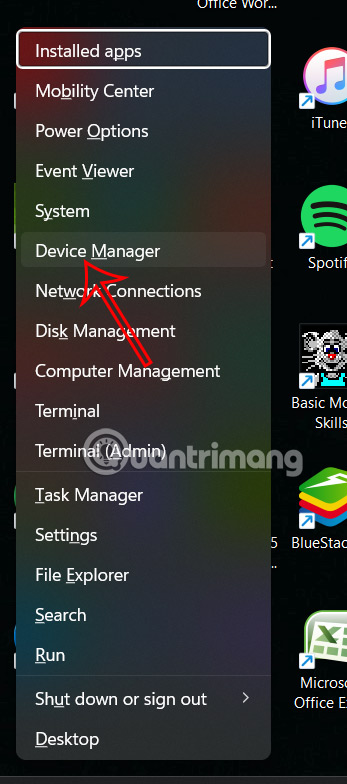
<p style="text-align: justify;">Người dùng nhấn tổ hợp phím Windows + X rồi chọn&nbsp;<strong>Device Manager</strong>&nbsp;trong danh sách hiển thị.</p>

<p style="text-align: justify;"><strong><img alt="Device Manager" data-i="5" data-src="https://st.quantrimang.com/photos/image/2025/04/04/restore-Display-Settings-windows-11-5.jpg" data-was-processed="true" height="678" src="https://st.quantrimang.com/photos/image/2025/04/04/restore-Display-Settings-windows-11-5.jpg" width="300" /></strong></p>

<p style="text-align: justify;"><strong>Bước 2:</strong></p>

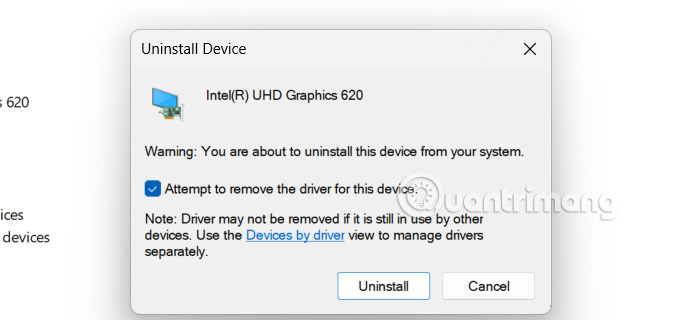
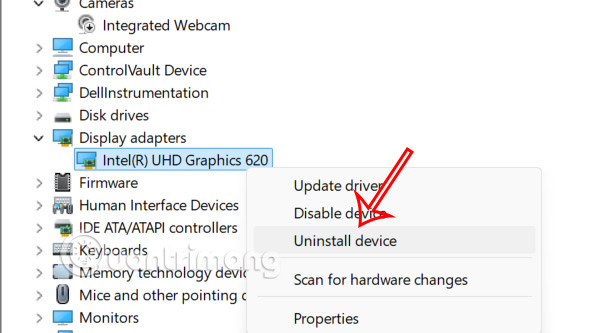
<p style="text-align: justify;">Bạn nhấn vào mục Display adapters, rồi nhấn<strong>&nbsp;chuột phải vào phần đồ họa&nbsp;</strong>rồi chọn&nbsp;<strong>Uninstall device</strong>&nbsp;để gỡ.</p>

<p style="text-align: justify;"><strong><img alt="Gỡ cài đặt đồ họa" data-i="6" data-src="https://st.quantrimang.com/photos/image/2025/04/04/restore-Display-Settings-windows-11-6.jpg" data-was-processed="true" height="310" src="https://st.quantrimang.com/photos/image/2025/04/04/restore-Display-Settings-windows-11-6.jpg" width="550" /></strong></p>

<p style="text-align: justify;">Tích chọn vào<strong>&nbsp;Attempt to remove the driver for this device</strong>, rồi&nbsp;<strong>nhấn Uninstall&nbsp;</strong>để gỡ cài đặt. Sau khi hoàn tất, hãy khởi động lại&nbsp;<a data-google-interstitial="false" data-google-vignette="false" href="https://quantrimang.com/cong-nghe/cach-khoi-phuc-display-settings-windows-11-208383#">&nbsp;máy tính</a>&nbsp;của bạn. Windows sẽ tự động cài đặt lại trình điều khiển hiển thị mặc định, khôi phục cài đặt hiển thị của bạn về trạng thái ban đầu.</p>

<div style="text-align: justify;">Linh kiện máy tính</div>

<p style="text-align: justify;"><strong><img alt="Restore Default Settings Windows 11 qua Device Manager" data-i="7" data-src="https://st.quantrimang.com/photos/image/2025/04/04/restore-Display-Settings-windows-11-7.jpg" data-was-processed="true" height="282" src="https://st.quantrimang.com/photos/image/2025/04/04/restore-Display-Settings-windows-11-7.jpg" width="600" /></strong></p>

<h2 style="text-align: justify;">Cài đặt lại Display Settings qua Graphics Control Panel</h2>

<p style="text-align: justify;">Chúng ta mở Graphics Control Panel, nếu dùng đồ họa Intel, nhấp chuột phải vào màn hình rồi chọn Intel Graphics Settings. Nếu dùng đồ họa NVIDIA hoặc AMD thì nhấn chuột phải vào hình nền và chọn NVIDIA Control Panel hoặc AMD Radeon Settings.</p>

<p style="text-align: justify;">Trong giao diện bảng điều khiển đồ họa, bạn tìm tới tab Preferences, Settings hoặc System rồi nhấn Restore Defaults để khôi phục cài đặt,</p>

<div style="text-align: justify;">&nbsp;</div>
		</div>
				<div id="author">
						<p>
				<strong>Nguồn tin:</strong>
				Quantrimang.com:
			</p>
		</div>
	</div>
	<div id="footer" class="clearfix">
		<div id="url">
			<strong>URL của bản tin này: </strong><a href="https://www.nguoicodonvn2008.info/vi/news/savefile/kien-thuc-may-tinh/cach-khoi-phuc-display-settings-tren-windows-11-10139.html" title="Cách khôi phục Display Settings trên Windows 11">https://www.nguoicodonvn2008.info/vi/news/savefile/kien-thuc-may-tinh/cach-khoi-phuc-display-settings-tren-windows-11-10139.html</a>

		</div>
		<div class="clear"></div>
		<div class="copyright">
			&copy; .&#x3A; Nguoicodonvn2008.info - Cõi lòng người cô đơn &#x3A;.
		</div>
		<div id="contact">
			<a href="mailto:admin@nguoicodonvn2008.info">admin@nguoicodonvn2008.info</a>
		</div>
	</div>
</div>
        <div id="timeoutsess" class="chromeframe">
            Bạn đã không sử dụng Site, <a onclick="timeoutsesscancel();" href="https://nguoicodonvn2008.info/#">Bấm vào đây để duy trì trạng thái đăng nhập</a>. Thời gian chờ: <span id="secField"> 60 </span> giây
        </div>
        <div id="openidResult" class="nv-alert" style="display:none"></div>
        <div id="openidBt" data-result="" data-redirect=""></div>
		</script>
		<div class="car-top">
  <span><img src="https://nguoicodonvn2008.info/themes/default/images/car.png" alt=""></span>
</div>
<script src="https://nguoicodonvn2008.info/assets/js/jquery/jquery.min.js"></script>
<script>var nv_base_siteurl="/",nv_lang_data="vi",nv_lang_interface="vi",nv_name_variable="nv",nv_fc_variable="op",nv_lang_variable="language",nv_module_name="news",nv_func_name="savefile",nv_is_user=0, nv_my_ofs=-4,nv_my_abbr="EDT",nv_cookie_prefix="nv4c_e856T",nv_check_pass_mstime=1738000,nv_area_admin=0,nv_safemode=0,theme_responsive=0,nv_recaptcha_ver=2,nv_recaptcha_sitekey="",nv_recaptcha_type="image",XSSsanitize=1;</script>
<script src="https://nguoicodonvn2008.info/assets/js/language/vi.js"></script>
<script src="https://nguoicodonvn2008.info/assets/js/DOMPurify/purify3.js"></script>
<script src="https://nguoicodonvn2008.info/assets/js/global.js"></script>
<script src="https://nguoicodonvn2008.info/assets/js/site.js"></script>
<script src="https://nguoicodonvn2008.info/themes/default/js/news.js"></script>
<script src="https://nguoicodonvn2008.info/themes/default/js/main.js"></script>
<script src="https://nguoicodonvn2008.info/themes/default/js/custom.js"></script>
<script type="application/ld+json">
        {
            "@context": "https://schema.org",
            "@type": "Organization",
            "url": "https://nguoicodonvn2008.info",
            "logo": "https://nguoicodonvn2008.info/uploads/angel.gif"
        }
        </script>
<script src="https://nguoicodonvn2008.info/themes/default/js/bootstrap.min.js"></script>
<script type="text/javascript">
var $scrolltop = $('.car-top');
$scrolltop.on('click', function () {
    $('html,body').animate({
        scrollTop: 0
    }, 800);
    $(this).addClass("car-run");
    setTimeout(function(){ $scrolltop.removeClass('car-run');}, 1000);
    return false;
});
$(window).on('scroll', function ()
{ 
    if($(window).scrollTop() >= 200)
    {
        $scrolltop.addClass("show");
        $scrolltop.addClass("car-down");
    }
    else
    {
       $scrolltop.removeClass("show");
       setTimeout(function(){ $scrolltop.removeClass('car-down');}, 300);
    }
});
</script>
</body>
</html>