<!DOCTYPE html>
    <html lang="vi" xmlns="http://www.w3.org/1999/xhtml" prefix="og: http://ogp.me/ns#">
    <head>
<title>Cách khóa vị trí của một đối tượng trong Microsoft PowerPoint</title>
<meta name="description" content="Cách khóa vị trí của một đối tượng trong Microsoft PowerPoint - Savefile - Tin Tức -...">
<meta name="author" content=".: Nguoicodonvn2008.info - Cõi lòng người cô đơn :.">
<meta name="copyright" content=".: Nguoicodonvn2008.info - Cõi lòng người cô đơn :. [admin@nguoicodonvn2008.info]">
<meta name="robots" content="index, archive, follow, noodp">
<meta name="googlebot" content="index,archive,follow,noodp">
<meta name="msnbot" content="all,index,follow">
<meta name="generator" content="NukeViet v4.5">
<meta http-equiv="Content-Type" content="text/html; charset=utf-8">
<meta property="og:title" content="Cách khóa vị trí của một đối tượng trong Microsoft PowerPoint">
<meta property="og:type" content="website">
<meta property="og:description" content="Savefile - Tin Tức - https&#x3A;&#x002F;&#x002F;www.nguoicodonvn2008.info&#x002F;vi&#x002F;news&#x002F;savefile&#x002F;kien-thuc-may-tinh&#x002F;cach-khoa-vi-tri-cua-mot-doi-tuong-trong-microsoft-powerpoint-5125.html">
<meta property="og:site_name" content=".&#x3A; Nguoicodonvn2008.info - Cõi lòng người cô đơn &#x3A;.">
<meta property="og:url" content="https://www.nguoicodonvn2008.info/vi/news/savefile/kien-thuc-may-tinh/cach-khoa-vi-tri-cua-mot-doi-tuong-trong-microsoft-powerpoint-5125.html">
<link rel="shortcut icon" href="https://nguoicodonvn2008.info/favicon.ico">
<link rel="canonical" href="https://www.nguoicodonvn2008.info/vi/news/savefile/kien-thuc-may-tinh/cach-khoa-vi-tri-cua-mot-doi-tuong-trong-microsoft-powerpoint-5125.html">
<link rel="alternate" href="https://nguoicodonvn2008.info/vi/news/rss/" title="Tin Tức" type="application/rss+xml">
<link rel="alternate" href="https://nguoicodonvn2008.info/vi/news/rss/karaoke-dual/" title="Tin Tức - Karaoke Dual" type="application/rss+xml">
<link rel="alternate" href="https://nguoicodonvn2008.info/vi/news/rss/nhac-tre/" title="Tin Tức - Nhạc trẻ" type="application/rss+xml">
<link rel="alternate" href="https://nguoicodonvn2008.info/vi/news/rss/tru-tinh/" title="Tin Tức - Trữ tình" type="application/rss+xml">
<link rel="alternate" href="https://nguoicodonvn2008.info/vi/news/rss/nuoc-ngoai/" title="Tin Tức - Nước ngoài" type="application/rss+xml">
<link rel="alternate" href="https://nguoicodonvn2008.info/vi/news/rss/remix/" title="Tin Tức - Remix" type="application/rss+xml">
<link rel="alternate" href="https://nguoicodonvn2008.info/vi/news/rss/tam-su-tinh-yeu/" title="Tin Tức - Tâm sự tình yêu" type="application/rss+xml">
<link rel="alternate" href="https://nguoicodonvn2008.info/vi/news/rss/tho-suu-tam/" title="Tin Tức - Thơ sưu tầm" type="application/rss+xml">
<link rel="alternate" href="https://nguoicodonvn2008.info/vi/news/rss/cuoc-song/" title="Tin Tức - Cuộc sống" type="application/rss+xml">
<link rel="alternate" href="https://nguoicodonvn2008.info/vi/news/rss/phan-mem/" title="Tin Tức - Phần mềm" type="application/rss+xml">
<link rel="alternate" href="https://nguoicodonvn2008.info/vi/news/rss/kien-thuc-may-tinh/" title="Tin Tức - Kiến thức máy tính" type="application/rss+xml">
<link rel="alternate" href="https://nguoicodonvn2008.info/vi/news/rss/hoc-tap/" title="Tin Tức - Học tập" type="application/rss+xml">
<link rel="alternate" href="https://nguoicodonvn2008.info/vi/news/rss/tai-lieu/" title="Tin Tức - Tài liệu" type="application/rss+xml">
<link rel="alternate" href="https://nguoicodonvn2008.info/vi/news/rss/de-thi/" title="Tin Tức - Đề thi" type="application/rss+xml">
<link rel="preload" as="style" href="https://nguoicodonvn2008.info/assets/css/font-awesome.min.css" type="text/css">
<link rel="preload" as="style" href="https://nguoicodonvn2008.info/themes/default/css/bootstrap.non-responsive.css" type="text/css">
<link rel="preload" as="style" href="https://nguoicodonvn2008.info/themes/default/css/style.css" type="text/css">
<link rel="preload" as="style" href="https://nguoicodonvn2008.info/themes/default/css/style.non-responsive.css" type="text/css">
<link rel="preload" as="style" href="https://nguoicodonvn2008.info/themes/default/css/news.css" type="text/css">
<link rel="preload" as="style" href="https://nguoicodonvn2008.info/themes/default/css/custom.css" type="text/css">
<link rel="preload" as="script" href="https://nguoicodonvn2008.info/assets/js/jquery/jquery.min.js" type="text/javascript">
<link rel="preload" as="script" href="https://nguoicodonvn2008.info/assets/js/language/vi.js" type="text/javascript">
<link rel="preload" as="script" href="https://nguoicodonvn2008.info/assets/js/DOMPurify/purify3.js" type="text/javascript">
<link rel="preload" as="script" href="https://nguoicodonvn2008.info/assets/js/global.js" type="text/javascript">
<link rel="preload" as="script" href="https://nguoicodonvn2008.info/assets/js/site.js" type="text/javascript">
<link rel="preload" as="script" href="https://nguoicodonvn2008.info/themes/default/js/news.js" type="text/javascript">
<link rel="preload" as="script" href="https://nguoicodonvn2008.info/themes/default/js/main.js" type="text/javascript">
<link rel="preload" as="script" href="https://nguoicodonvn2008.info/themes/default/js/custom.js" type="text/javascript">
<link rel="preload" as="script" href="https://nguoicodonvn2008.info/themes/default/js/bootstrap.min.js" type="text/javascript">
<link rel="stylesheet" href="https://nguoicodonvn2008.info/assets/css/font-awesome.min.css">
<link rel="stylesheet" href="https://nguoicodonvn2008.info/themes/default/css/bootstrap.non-responsive.css">
<link rel="stylesheet" href="https://nguoicodonvn2008.info/themes/default/css/style.css">
<link rel="stylesheet" href="https://nguoicodonvn2008.info/themes/default/css/style.non-responsive.css">
<link rel="StyleSheet" href="https://nguoicodonvn2008.info/themes/default/css/news.css">
<link rel="stylesheet" href="https://nguoicodonvn2008.info/themes/default/css/custom.css">
<style type="text/css">
	body{background: #fff;}
</style>
    </head>
    <body>
<div id="print">
	<div id="hd_print">
		<h2 class="pull-left">.&#x3A; Nguoicodonvn2008.info - Cõi lòng người cô đơn &#x3A;.</h2>
		<p class="pull-right"><a title=".&#x3A; Nguoicodonvn2008.info - Cõi lòng người cô đơn &#x3A;." href="https://nguoicodonvn2008.info/">https://nguoicodonvn2008.info</a></p>
	</div>
	<div class="clear"></div>
	<hr />
	<div id="content">
		<h1>Cách khóa vị trí của một đối tượng trong Microsoft PowerPoint</h1>
		<ul class="list-inline">
			<li>Thứ bảy - 12/02/2022 07:29</li>
			<li class="hidden-print txtrequired"><em class="fa fa-print">&nbsp;</em><a title="In ra" href="javascript:;" onclick="window.print()">In ra</a></li>
			<li class="hidden-print txtrequired"><em class="fa fa-power-off">&nbsp;</em><a title="Đóng cửa sổ này" href="javascript:;" onclick="window.close()">Đóng cửa sổ này</a></li>
		</ul>
		<div class="clear"></div>
		<div id="hometext">
		</div>
				<div class="imghome">
			<img alt="Cách khóa vị trí của một đối tượng trong Microsoft PowerPoint" src="https://st.quantrimang.com/photos/image/2022/02/07/khoa-vi-tri-doi-tuong-trong-microsoft-powerpoint3.jpg" width="460" class="img-thumbnail" />
		</div>
		<div class="clear"></div>
		<div id="bodytext" class="clearfix">
			<p>Bạn đã bao giờ vô tình di chuyển một mục trong trang trình chiếu của mình và sau đó phải mất cả tá thời gian để di chuyển nó về đúng vị trí? Trong Microsoft PowerPoint, bạn có thể khóa một đối tượng ở vị trí cố định khi cần, tránh những sự lộn xộn và dịch chuyển không chủ ý. Cùng tìm hiểu cách thực hiện nay sau đây.</p>

<p>(<strong>Lưu ý:</strong> Tính đến hết tháng 1 năm 2022, tính năng khóa đối tượng này hiện mới chỉ khả dụng trong PowerPoint cho Windows).</p>

<h2>Khóa vị trí của đối tượng trong Microsoft PowerPoint</h2>

<p>Bạn có 2 cách dễ dàng để khóa một đối tượng trên trang chiếu PowerPoint của mình. Cách thứ nhất rất hữu ích nếu bạn chỉ có một số lượng nhỏ các mục trên trang chiếu, trong khi phương pháp thứ hai sẽ phù hợp nếu bạn muốn khoá nhiều mục.</p>

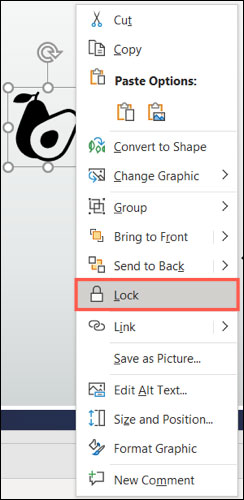
<p>Để nhanh chóng khóa vị trí một đối tượng, bạn chỉ cần nhấp chuột phải vào đối tượng đó và chọn tùy chọn “<strong>Lock</strong>” từ menu hiện ra.</p>

<p><img alt="Chọn tùy chọn “Lock” " class="lazy lightbox loaded" data-i="0" data-src="https://st.quantrimang.com/photos/image/2022/02/07/khoa-vi-tri-doi-tuong-trong-microsoft-powerpoint1.jpg" data-was-processed="true" height="500" src="https://st.quantrimang.com/photos/image/2022/02/07/khoa-vi-tri-doi-tuong-trong-microsoft-powerpoint1.jpg" style="display: block; margin-left: auto; margin-right: auto; height: 500px; width: 244px;" width="244" /></p>

<p>Nếu bạn có nhiều đối tượng cần khoá, có thể sử dụng <strong>Selection Pane</strong>. Điều này cho phép bạn xem, khóa và mở khóa các đối tượng cụ thể từ danh sách.</p>

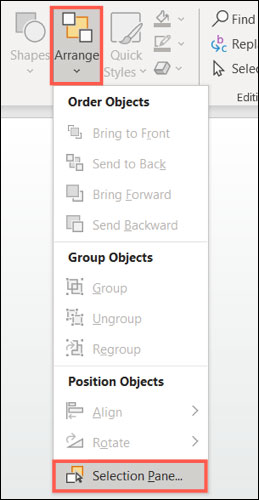
<p>Mở Selection Pane bằng cách điều hướng đến tab Home và Drawing trên thanh ribbon. Nhấp vào mũi tên thả xuống có tiêu đề Arrange và chọn “<strong>Selection Pane</strong>” ở cuối danh sách.</p>

<p><img alt="Selection Pane" class="lazy lightbox loaded" data-i="1" data-src="https://st.quantrimang.com/photos/image/2022/02/07/khoa-vi-tri-doi-tuong-trong-microsoft-powerpoint2.jpg" data-was-processed="true" height="500" src="https://st.quantrimang.com/photos/image/2022/02/07/khoa-vi-tri-doi-tuong-trong-microsoft-powerpoint2.jpg" style="display: block; margin-left: auto; margin-right: auto; height: 500px; width: 259px;" width="259" /></p>

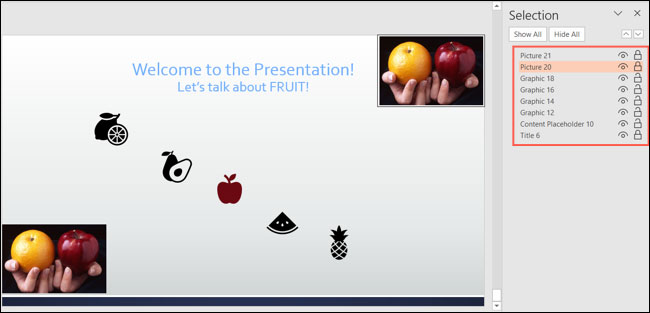
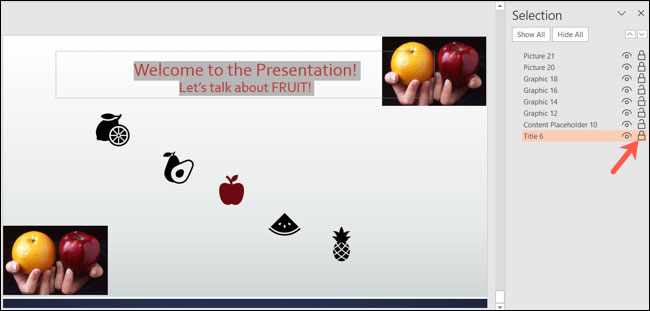
<p>Khi Selection Pane mở ra, bạn sẽ thấy tất cả các đối tượng hiện có trong trang trình chiếu của mình được liệt kê đầy đủ. Để khóa một mục cụ thể, chỉ cần nhấp vào biểu tượng ổ khóa ở bên phải tương ứng. Có thể khóa nhiều mục đồng thời nếu bạn muốn đảm bảo không có gì xáo trộn trong khi làm việc trên một đối tượng cụ thể.</p>

<p>Bạn sẽ nhận thấy mỗi mục đều có tùy chọn khóa tương ứng, từ hình ảnh và video đến biểu tượng và hộp tiêu đề.</p>

<p>&nbsp;</p>
<img alt="Mỗi mục đều có tùy chọn khóa tương ứng" class="lazy lightbox loaded" data-i="3" data-inimage-loaded="true" data-src="https://st.quantrimang.com/photos/image/2022/02/07/khoa-vi-tri-doi-tuong-trong-microsoft-powerpoint3.jpg" data-was-processed="true" height="313" src="https://st.quantrimang.com/photos/image/2022/02/07/khoa-vi-tri-doi-tuong-trong-microsoft-powerpoint3.jpg" style="display: block; margin-left: auto; margin-right: auto; height: 313px; width: 650px;" width="650" />
<p>&nbsp;</p>

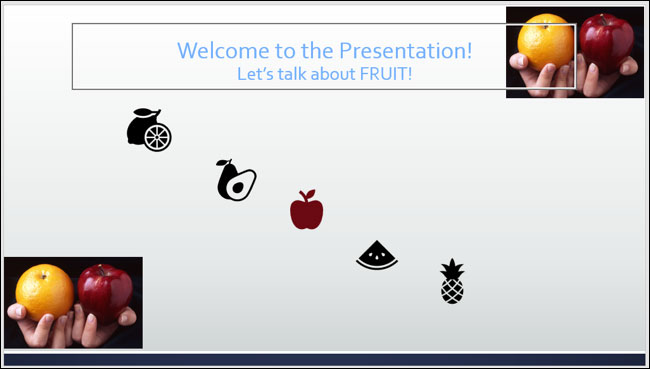
<p>Tùy thuộc vào loại đối tượng, bạn có thể thấy một đường viền đặc biệt xuất hiện xung quanh đối tượng đó đó sau khi nó bị khóa. Ví dụ, bạn có thể thấy bên dưới hộp văn bản tiêu đề có một đường viền nổi bật khi bạn khóa và chọn nó.</p>

<p><img alt="Đường viền xuất hiện xung quanh đối tượng" class="lazy lightbox loaded" data-i="4" data-src="https://st.quantrimang.com/photos/image/2022/02/07/khoa-vi-tri-doi-tuong-trong-microsoft-powerpoint4.jpg" data-was-processed="true" height="369" src="https://st.quantrimang.com/photos/image/2022/02/07/khoa-vi-tri-doi-tuong-trong-microsoft-powerpoint4.jpg" style="display: block; margin-left: auto; margin-right: auto; height: 369px; width: 650px;" width="650" /></p>

<p>Tất nhiên sẽ không thể di chuyển một đối tượng bị khóa, nhưng vẫn có thể thực hiện những thay đổi cần thiết với nó như bình thường bằng cách sử dụng các tùy chọn trên thanh ribbon, menu shortcut, hoặc format sidebar. Dưới đây, bạn thấy tiêu đề đã bị khóa, nhưng vẫn có thể thay đổi màu phông chữ.</p>

<p><img alt="Vẫn có thể thay đổi màu phông chữ" class="lazy lightbox loaded" data-i="5" data-src="https://st.quantrimang.com/photos/image/2022/02/07/khoa-vi-tri-doi-tuong-trong-microsoft-powerpoint6.jpg" data-was-processed="true" height="311" src="https://st.quantrimang.com/photos/image/2022/02/07/khoa-vi-tri-doi-tuong-trong-microsoft-powerpoint6.jpg" style="display: block; margin-left: auto; margin-right: auto; height: 311px; width: 650px;" width="650" /></p>

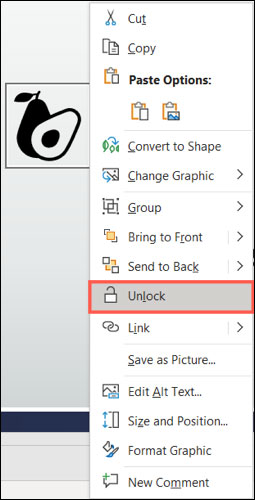
<p>Để mở khóa một đối tượng, bạn chỉ cần nhấp chuột phải vào đối tượng và chọn “<strong>Unlock</strong>”, hoặc nhấp vào biểu tượng chiếc ổ khoá bên cạnh tên đối tượng trong Selection Pane.</p>

<p><img alt="Chọn “Unlock”" class="lazy lightbox loaded" data-i="6" data-src="https://st.quantrimang.com/photos/image/2022/02/07/khoa-vi-tri-doi-tuong-trong-microsoft-powerpoint5.jpg" data-was-processed="true" height="500" src="https://st.quantrimang.com/photos/image/2022/02/07/khoa-vi-tri-doi-tuong-trong-microsoft-powerpoint5.jpg" style="display: block; margin-left: auto; margin-right: auto; height: 500px; width: 255px;" width="255" /></p>

<p>Chúc bạn luôn có được trải nghiệm tốt với PowerPoint.</p>
		</div>
				<div id="author">
						<p>
				<strong>Nguồn tin:</strong>
				Quantrimang.com
			</p>
		</div>
	</div>
	<div id="footer" class="clearfix">
		<div id="url">
			<strong>URL của bản tin này: </strong><a href="https://www.nguoicodonvn2008.info/vi/news/savefile/kien-thuc-may-tinh/cach-khoa-vi-tri-cua-mot-doi-tuong-trong-microsoft-powerpoint-5125.html" title="Cách khóa vị trí của một đối tượng trong Microsoft PowerPoint">https://www.nguoicodonvn2008.info/vi/news/savefile/kien-thuc-may-tinh/cach-khoa-vi-tri-cua-mot-doi-tuong-trong-microsoft-powerpoint-5125.html</a>

		</div>
		<div class="clear"></div>
		<div class="copyright">
			&copy; .&#x3A; Nguoicodonvn2008.info - Cõi lòng người cô đơn &#x3A;.
		</div>
		<div id="contact">
			<a href="mailto:admin@nguoicodonvn2008.info">admin@nguoicodonvn2008.info</a>
		</div>
	</div>
</div>
        <div id="timeoutsess" class="chromeframe">
            Bạn đã không sử dụng Site, <a onclick="timeoutsesscancel();" href="https://nguoicodonvn2008.info/#">Bấm vào đây để duy trì trạng thái đăng nhập</a>. Thời gian chờ: <span id="secField"> 60 </span> giây
        </div>
        <div id="openidResult" class="nv-alert" style="display:none"></div>
        <div id="openidBt" data-result="" data-redirect=""></div>
		</script>
		<div class="car-top">
  <span><img src="https://nguoicodonvn2008.info/themes/default/images/car.png" alt=""></span>
</div>
<div id="run_cronjobs" style="visibility:hidden;display:none;"><img alt="cron" src="/index.php?second=cronjobs&amp;p=x7FOZfoH" width="1" height="1" /></div>
<script src="https://nguoicodonvn2008.info/assets/js/jquery/jquery.min.js"></script>
<script>var nv_base_siteurl="/",nv_lang_data="vi",nv_lang_interface="vi",nv_name_variable="nv",nv_fc_variable="op",nv_lang_variable="language",nv_module_name="news",nv_func_name="savefile",nv_is_user=0, nv_my_ofs=-4,nv_my_abbr="EDT",nv_cookie_prefix="nv4c_e856T",nv_check_pass_mstime=1738000,nv_area_admin=0,nv_safemode=0,theme_responsive=0,nv_recaptcha_ver=2,nv_recaptcha_sitekey="",nv_recaptcha_type="image",XSSsanitize=1;</script>
<script src="https://nguoicodonvn2008.info/assets/js/language/vi.js"></script>
<script src="https://nguoicodonvn2008.info/assets/js/DOMPurify/purify3.js"></script>
<script src="https://nguoicodonvn2008.info/assets/js/global.js"></script>
<script src="https://nguoicodonvn2008.info/assets/js/site.js"></script>
<script src="https://nguoicodonvn2008.info/themes/default/js/news.js"></script>
<script src="https://nguoicodonvn2008.info/themes/default/js/main.js"></script>
<script src="https://nguoicodonvn2008.info/themes/default/js/custom.js"></script>
<script type="application/ld+json">
        {
            "@context": "https://schema.org",
            "@type": "Organization",
            "url": "https://nguoicodonvn2008.info",
            "logo": "https://nguoicodonvn2008.info/uploads/angel.gif"
        }
        </script>
<script src="https://nguoicodonvn2008.info/themes/default/js/bootstrap.min.js"></script>
<script type="text/javascript">
var $scrolltop = $('.car-top');
$scrolltop.on('click', function () {
    $('html,body').animate({
        scrollTop: 0
    }, 800);
    $(this).addClass("car-run");
    setTimeout(function(){ $scrolltop.removeClass('car-run');}, 1000);
    return false;
});
$(window).on('scroll', function ()
{ 
    if($(window).scrollTop() >= 200)
    {
        $scrolltop.addClass("show");
        $scrolltop.addClass("car-down");
    }
    else
    {
       $scrolltop.removeClass("show");
       setTimeout(function(){ $scrolltop.removeClass('car-down');}, 300);
    }
});
</script>
</body>
</html>