<!DOCTYPE html>
    <html lang="vi" xmlns="http://www.w3.org/1999/xhtml" prefix="og: http://ogp.me/ns#">
    <head>
<title>Cách khắc phục menu ngữ cảnh chậm trong File Explorer của Windows 10</title>
<meta name="description" content="Cách khắc phục menu ngữ cảnh chậm trong File Explorer của Windows 10 - Savefile - Tin Tức -...">
<meta name="author" content=".: Nguoicodonvn2008.info - Cõi lòng người cô đơn :.">
<meta name="copyright" content=".: Nguoicodonvn2008.info - Cõi lòng người cô đơn :. [admin@nguoicodonvn2008.info]">
<meta name="robots" content="index, archive, follow, noodp">
<meta name="googlebot" content="index,archive,follow,noodp">
<meta name="msnbot" content="all,index,follow">
<meta name="generator" content="NukeViet v4.5">
<meta http-equiv="Content-Type" content="text/html; charset=utf-8">
<meta property="og:title" content="Cách khắc phục menu ngữ cảnh chậm trong File Explorer của Windows 10">
<meta property="og:type" content="website">
<meta property="og:description" content="Savefile - Tin Tức - https&#x3A;&#x002F;&#x002F;www.nguoicodonvn2008.info&#x002F;vi&#x002F;news&#x002F;savefile&#x002F;kien-thuc-may-tinh&#x002F;cach-khac-phuc-menu-ngu-canh-cham-trong-file-explorer-cua-windows-10-2486.html">
<meta property="og:site_name" content=".&#x3A; Nguoicodonvn2008.info - Cõi lòng người cô đơn &#x3A;.">
<meta property="og:url" content="https://www.nguoicodonvn2008.info/vi/news/savefile/kien-thuc-may-tinh/cach-khac-phuc-menu-ngu-canh-cham-trong-file-explorer-cua-windows-10-2486.html">
<link rel="shortcut icon" href="https://nguoicodonvn2008.info/favicon.ico">
<link rel="canonical" href="https://www.nguoicodonvn2008.info/vi/news/savefile/kien-thuc-may-tinh/cach-khac-phuc-menu-ngu-canh-cham-trong-file-explorer-cua-windows-10-2486.html">
<link rel="alternate" href="https://nguoicodonvn2008.info/vi/news/rss/" title="Tin Tức" type="application/rss+xml">
<link rel="alternate" href="https://nguoicodonvn2008.info/vi/news/rss/karaoke-dual/" title="Tin Tức - Karaoke Dual" type="application/rss+xml">
<link rel="alternate" href="https://nguoicodonvn2008.info/vi/news/rss/nhac-tre/" title="Tin Tức - Nhạc trẻ" type="application/rss+xml">
<link rel="alternate" href="https://nguoicodonvn2008.info/vi/news/rss/tru-tinh/" title="Tin Tức - Trữ tình" type="application/rss+xml">
<link rel="alternate" href="https://nguoicodonvn2008.info/vi/news/rss/nuoc-ngoai/" title="Tin Tức - Nước ngoài" type="application/rss+xml">
<link rel="alternate" href="https://nguoicodonvn2008.info/vi/news/rss/remix/" title="Tin Tức - Remix" type="application/rss+xml">
<link rel="alternate" href="https://nguoicodonvn2008.info/vi/news/rss/tam-su-tinh-yeu/" title="Tin Tức - Tâm sự tình yêu" type="application/rss+xml">
<link rel="alternate" href="https://nguoicodonvn2008.info/vi/news/rss/tho-suu-tam/" title="Tin Tức - Thơ sưu tầm" type="application/rss+xml">
<link rel="alternate" href="https://nguoicodonvn2008.info/vi/news/rss/cuoc-song/" title="Tin Tức - Cuộc sống" type="application/rss+xml">
<link rel="alternate" href="https://nguoicodonvn2008.info/vi/news/rss/phan-mem/" title="Tin Tức - Phần mềm" type="application/rss+xml">
<link rel="alternate" href="https://nguoicodonvn2008.info/vi/news/rss/kien-thuc-may-tinh/" title="Tin Tức - Kiến thức máy tính" type="application/rss+xml">
<link rel="alternate" href="https://nguoicodonvn2008.info/vi/news/rss/hoc-tap/" title="Tin Tức - Học tập" type="application/rss+xml">
<link rel="alternate" href="https://nguoicodonvn2008.info/vi/news/rss/tai-lieu/" title="Tin Tức - Tài liệu" type="application/rss+xml">
<link rel="alternate" href="https://nguoicodonvn2008.info/vi/news/rss/de-thi/" title="Tin Tức - Đề thi" type="application/rss+xml">
<link rel="preload" as="style" href="https://nguoicodonvn2008.info/assets/css/font-awesome.min.css" type="text/css">
<link rel="preload" as="style" href="https://nguoicodonvn2008.info/themes/default/css/bootstrap.non-responsive.css" type="text/css">
<link rel="preload" as="style" href="https://nguoicodonvn2008.info/themes/default/css/style.css" type="text/css">
<link rel="preload" as="style" href="https://nguoicodonvn2008.info/themes/default/css/style.non-responsive.css" type="text/css">
<link rel="preload" as="style" href="https://nguoicodonvn2008.info/themes/default/css/news.css" type="text/css">
<link rel="preload" as="style" href="https://nguoicodonvn2008.info/themes/default/css/custom.css" type="text/css">
<link rel="preload" as="script" href="https://nguoicodonvn2008.info/assets/js/jquery/jquery.min.js" type="text/javascript">
<link rel="preload" as="script" href="https://nguoicodonvn2008.info/assets/js/language/vi.js" type="text/javascript">
<link rel="preload" as="script" href="https://nguoicodonvn2008.info/assets/js/DOMPurify/purify3.js" type="text/javascript">
<link rel="preload" as="script" href="https://nguoicodonvn2008.info/assets/js/global.js" type="text/javascript">
<link rel="preload" as="script" href="https://nguoicodonvn2008.info/assets/js/site.js" type="text/javascript">
<link rel="preload" as="script" href="https://nguoicodonvn2008.info/themes/default/js/news.js" type="text/javascript">
<link rel="preload" as="script" href="https://nguoicodonvn2008.info/themes/default/js/main.js" type="text/javascript">
<link rel="preload" as="script" href="https://nguoicodonvn2008.info/themes/default/js/custom.js" type="text/javascript">
<link rel="preload" as="script" href="https://nguoicodonvn2008.info/themes/default/js/bootstrap.min.js" type="text/javascript">
<link rel="stylesheet" href="https://nguoicodonvn2008.info/assets/css/font-awesome.min.css">
<link rel="stylesheet" href="https://nguoicodonvn2008.info/themes/default/css/bootstrap.non-responsive.css">
<link rel="stylesheet" href="https://nguoicodonvn2008.info/themes/default/css/style.css">
<link rel="stylesheet" href="https://nguoicodonvn2008.info/themes/default/css/style.non-responsive.css">
<link rel="StyleSheet" href="https://nguoicodonvn2008.info/themes/default/css/news.css">
<link rel="stylesheet" href="https://nguoicodonvn2008.info/themes/default/css/custom.css">
<style type="text/css">
	body{background: #fff;}
</style>
    </head>
    <body>
<div id="print">
	<div id="hd_print">
		<h2 class="pull-left">.&#x3A; Nguoicodonvn2008.info - Cõi lòng người cô đơn &#x3A;.</h2>
		<p class="pull-right"><a title=".&#x3A; Nguoicodonvn2008.info - Cõi lòng người cô đơn &#x3A;." href="https://nguoicodonvn2008.info/">https://nguoicodonvn2008.info</a></p>
	</div>
	<div class="clear"></div>
	<hr />
	<div id="content">
		<h1>Cách khắc phục menu ngữ cảnh chậm trong File Explorer của Windows 10</h1>
		<ul class="list-inline">
			<li>Thứ bảy - 08/08/2020 00:56</li>
			<li class="hidden-print txtrequired"><em class="fa fa-print">&nbsp;</em><a title="In ra" href="javascript:;" onclick="window.print()">In ra</a></li>
			<li class="hidden-print txtrequired"><em class="fa fa-power-off">&nbsp;</em><a title="Đóng cửa sổ này" href="javascript:;" onclick="window.close()">Đóng cửa sổ này</a></li>
		</ul>
		<div class="clear"></div>
		<div id="hometext">
		</div>
				<div class="imghome">
			<img alt="Cách khắc phục menu ngữ cảnh chậm trong File Explorer của Windows 10" src="https://st.quantrimang.com/photos/image/2020/08/07/menu-ngu-canh-cham-trong-file-explorer-7.png" width="460" class="img-thumbnail" />
		</div>
		<div class="clear"></div>
		<div id="bodytext" class="clearfix">
			<p style="text-align: justify;">Menu ngữ cảnh của Windows 10 có thể chậm dần theo thời gian. Nhiều chương trình của bên thứ ba thường cài đặt những tiện ích mở rộng menu ngữ cảnh và các tùy chọn được lập trình không tốt có thể làm chậm mọi thứ. Dưới đây là cách khắc phục hiện tượng menu ngữ cảnh mở chậm, đóng băng hoặc treo khi bạn nhấp chuột phải.</p>

<h2 style="text-align: justify;">Sử dụng ShellExView để xem các tiện ích mở rộng của bên thứ ba</h2>

<p style="text-align: justify;">Bạn có thể loại bỏ trực tiếp các mục menu ngữ cảnh khỏi Windows registry. Tuy nhiên, đó là một quá trình khá mất thời gian và bài viết sẽ chỉ cho bạn cách nhanh chóng khắc phục sự cố thay thế.</p>

<p style="text-align: justify;">Với ý nghĩ đó, bài viết đề xuất ShellExView, một trong những tiện ích miễn phí tuyệt vời của NirSoft. Nó cũng chạy trên Windows 10 và các phiên bản Windows cũ hơn. Hãy tải xuống và khởi chạy&nbsp;ShellExView&nbsp;để bắt đầu.</p>

<div style="text-align: justify;">&nbsp;</div>

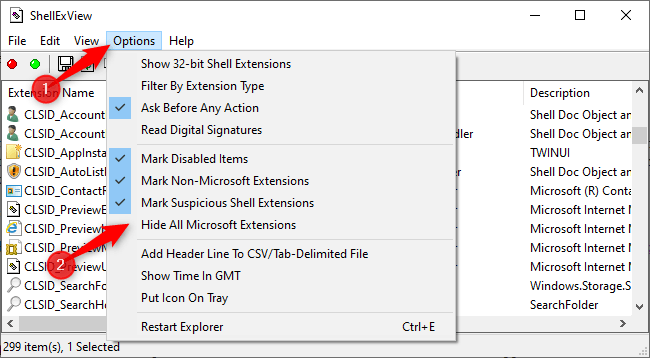
<p style="text-align: justify;">Bạn sẽ thấy một danh sách dài các tiện ích mở rộng Windows shell. Tuy nhiên, rất nhiều trong số chúng được tạo ra bởi Microsoft và đi kèm với Windows. Những thứ đó sẽ không làm chậm hệ thống của bạn. Để ẩn tất cả các tiện ích mở rộng của Microsoft, hãy nhấp vào&nbsp;<strong>Options &gt; Hide All Microsoft Extensions</strong>.</p>

<figure>
<div style="text-align: justify;"><img alt="Nhấp vào Options &gt; Hide All Microsoft Extensions" data-i="0" data-src="https://st.quantrimang.com/photos/image/2020/08/07/menu-ngu-canh-cham-trong-file-explorer-1.png" data-was-processed="true" height="358" src="https://st.quantrimang.com/photos/image/2020/08/07/menu-ngu-canh-cham-trong-file-explorer-1.png" width="650" /></div>

<figcaption>
<div style="text-align: justify;">Nhấp vào Options &gt; Hide All Microsoft Extensions</div>
</figcaption>
</figure>

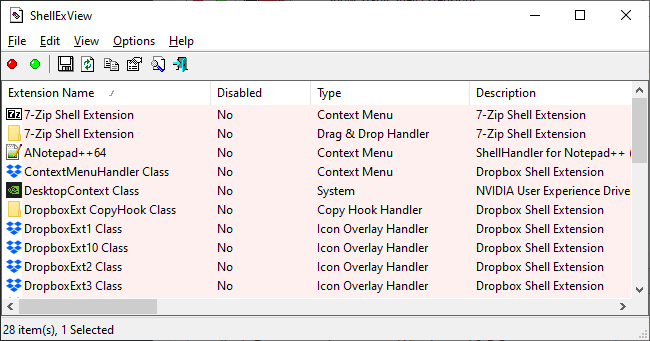
<p style="text-align: justify;">Bây giờ, bạn sẽ thấy một danh sách dễ quản lý hơn chứa các tiện ích mở rộng shell của bên thứ ba từ những chương trình bạn đã cài đặt. Ví dụ, trên PC chạy Windows 10 này, bạn có thể thấy các tiện ích mở rộng từ những chương trình như 7-Zip, Notepad++, driver đồ họa của NVIDIA, Dropbox, Google Drive, Malwarebytes và Paint.NET.</p>

<figure>
<div style="text-align: justify;"><img alt="Danh sách các tiện ích mở rộng của bên thứ 3" data-i="1" data-src="https://st.quantrimang.com/photos/image/2020/08/07/menu-ngu-canh-cham-trong-file-explorer-2.png" data-was-processed="true" height="341" src="https://st.quantrimang.com/photos/image/2020/08/07/menu-ngu-canh-cham-trong-file-explorer-2.png" width="650" /></div>

<figcaption>
<div style="text-align: justify;">Danh sách các tiện ích mở rộng của bên thứ 3</div>
</figcaption>
</figure>

<div style="text-align: justify;">&nbsp;</div>

<h2 style="text-align: justify;">Vô hiệu hóa tiện ích mở rộng trong ShellExView để khắc phục sự cố</h2>

<p style="text-align: justify;">Bạn sẽ muốn tìm ra tiện ích mở rộng shell nào đang gây ra sự cố. Điều này liên quan đến việc vô hiệu hóa một hoặc nhiều tiện ích mở rộng shell, khởi động lại Explorer và sau đó xem liệu sự cố của bạn có được giải quyết hay không.</p>

<p style="text-align: justify;">Ví dụ, bạn có thể làm điều này theo một số cách:</p>

<p style="text-align: justify;">- Vô hiệu hóa tắt tất cả các tiện ích mở rộng của bên thứ ba và thêm lại từng tiện ích mở rộng cho đến khi sự cố xuất hiện.</p>

<p style="text-align: justify;">- Vô hiệu hóa từng tiện ích mở rộng shell cho đến khi sự cố được khắc phục.</p>

<p style="text-align: justify;">- Vô hiệu hóa tiện ích mở rộng theo nhóm. Ví dụ, bạn có thể tắt một nửa tiện ích mở rộng cùng một lúc. Nếu sự cố của bạn được giải quyết, bạn biết rằng một trong những tiện ích mở rộng đã tắt là nguyên nhân gây ra sự cố và bạn có thể bắt đầu từ đó. Đây là phương pháp nhanh nhất.</p>

<p style="text-align: justify;">Dưới đây là cách vô hiệu hóa tiện ích mở rộng:</p>

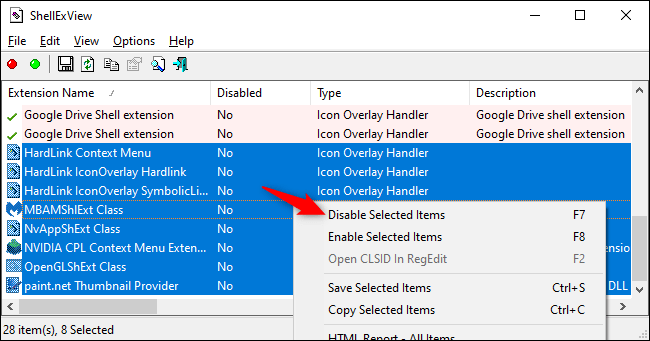
<p style="text-align: justify;">Trước tiên, hãy chọn các tiện ích mở rộng bạn muốn tắt. Bạn có thể nhấp vào từng cái một để chọn, nhấn&nbsp;<code>Ctrl</code>+<code>A</code>&nbsp;hoặc nhấp vào&nbsp;<strong>Edit &gt; Select All</strong>&nbsp;để chọn tất cả, nhấn và giữ phím&nbsp;<code>Shift</code>&nbsp;trong khi nhấp để chọn một phạm vi hoặc nhấn và giữ phím&nbsp;<code>Ctrl</code>&nbsp;trong khi nhấp để chọn nhiều tiện ích mở rộng.</p>

<p style="text-align: justify;">Để vô hiệu hóa một hoặc nhiều tiện ích mở rộng shell đã chọn, hãy nhấp chuột phải vào chúng và chọn&nbsp;<strong>Disable Selected Items</strong>&nbsp;hoặc nhấp vào&nbsp;<strong>File &gt; Disable Selected Items</strong>. (Để bật lại chúng sau đó, hãy chọn&nbsp;<strong>Enable Selected Items</strong>&nbsp;ở đây.</p>

<figure>
<div style="text-align: justify;"><img alt="Vô hiệu hóa tiện ích mở rộng" data-i="2" data-src="https://st.quantrimang.com/photos/image/2020/08/07/menu-ngu-canh-cham-trong-file-explorer-3.png" data-was-processed="true" height="341" src="https://st.quantrimang.com/photos/image/2020/08/07/menu-ngu-canh-cham-trong-file-explorer-3.png" width="650" /></div>

<figcaption>
<div style="text-align: justify;">Vô hiệu hóa tiện ích mở rộng</div>
</figcaption>
</figure>

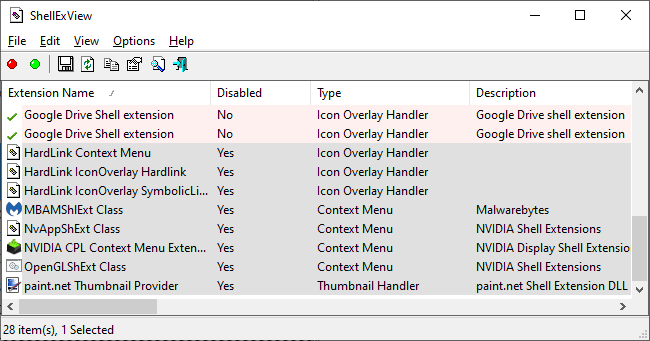
<p style="text-align: justify;">Tiện ích mở rộng shell bị vô hiệu hóa sẽ hiển thị&nbsp;<strong>Yes</strong>&nbsp;trong cột&nbsp;<strong>Disabled.</strong></p>

<figure>
<div style="text-align: justify;"><img alt="Tiện ích mở rộng shell bị vô hiệu hóa sẽ hiển thị Yes trong cột Disabled" data-i="3" data-src="https://st.quantrimang.com/photos/image/2020/08/07/menu-ngu-canh-cham-trong-file-explorer-4.png" data-was-processed="true" height="341" src="https://st.quantrimang.com/photos/image/2020/08/07/menu-ngu-canh-cham-trong-file-explorer-4.png" width="650" /></div>

<figcaption>
<div style="text-align: justify;">Tiện ích mở rộng shell bị vô hiệu hóa sẽ hiển thị Yes trong cột Disabled</div>
</figcaption>
</figure>

<p style="text-align: justify;">Thay đổi sẽ không có hiệu lực cho đến khi bạn khởi động lại Windows Explorer. Bạn sẽ thấy một tùy chọn cho việc này trong menu&nbsp;<strong>Options</strong>&nbsp;của&nbsp;<strong>ShellExView</strong>, nhưng bạn không nên làm điều đó. Nó khiến Explorer và thanh tác vụ Windows tải đi tải lại cho đến khi đăng xuất.</p>

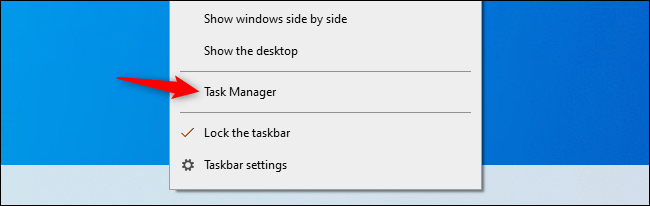
<p style="text-align: justify;">Thay vào đó, bạn nên&nbsp;sử dụng Task Manager. Để&nbsp;mở Task Manager, nhấn&nbsp;<code>Ctrl</code>+<code>Shift</code>+<code>Esc</code>&nbsp;hoặc nhấp chuột phải vào thanh tác vụ và chọn&nbsp;<strong>Task Manager.</strong></p>

<figure>
<div style="text-align: justify;"><img alt="Mở Task Manager" data-i="4" data-src="https://st.quantrimang.com/photos/image/2020/08/07/menu-ngu-canh-cham-trong-file-explorer-5.png" data-was-processed="true" height="206" src="https://st.quantrimang.com/photos/image/2020/08/07/menu-ngu-canh-cham-trong-file-explorer-5.png" width="650" /></div>

<figcaption>
<div style="text-align: justify;">Mở Task Manager</div>
</figcaption>
</figure>

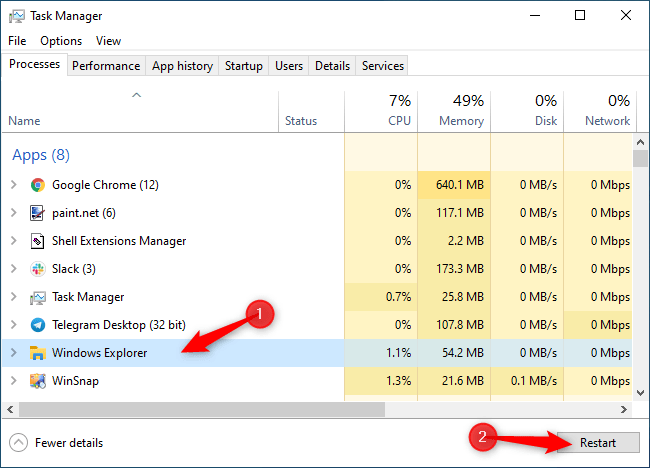
<p style="text-align: justify;">Nhấp vào&nbsp;<strong>Windows Explorer</strong>&nbsp;trong&nbsp;<strong>Apps</strong>&nbsp;trên tab&nbsp;<strong>Processes.</strong>&nbsp;(Nếu bạn không thấy tab này, hãy nhấp vào&nbsp;<strong>More Details</strong>) Sau đó, nhấp vào nút&nbsp;<strong>Restart</strong>&nbsp;ở góc dưới bên phải của cửa sổ&nbsp;<strong>Task Manager.</strong></p>

<figure>
<div style="text-align: justify;"><img alt="Nhấp vào nút Restart" data-i="5" data-src="https://st.quantrimang.com/photos/image/2020/08/07/menu-ngu-canh-cham-trong-file-explorer-6.png" data-was-processed="true" height="468" src="https://st.quantrimang.com/photos/image/2020/08/07/menu-ngu-canh-cham-trong-file-explorer-6.png" width="650" /></div>

<figcaption>
<div style="text-align: justify;">Nhấp vào nút Restart</div>
</figcaption>
</figure>

<p style="text-align: justify;">Explorer sẽ khởi động lại. Bây giờ, hãy thử nhấp chuột phải vào thư mục, file hoặc màn hình của bạn - bất kỳ thứ gì chậm chạp trước đây. Nếu nó vẫn còn chậm, bạn cần thử tắt các tiện ích mở rộng shell khác. Nếu nó nhanh hơn trước đây, nghĩa là bạn đã tắt một tiện ích mở rộng shell đang làm chậm nó.</p>

<h2 style="text-align: justify;">Lặp lại cho đến khi bạn giải quyết được vấn đề</h2>

<p style="text-align: justify;">Lặp lại quy trình này để bật và tắt các tiện ích mở rộng và xác định điều gì đang gây ra sự cố của bạn. Bằng cách kiểm tra các menu ngữ cảnh sau mỗi lần bạn thực hiện thay đổi (trước tiên, hãy nhớ khởi động lại Explorer), bạn có thể xác định cái nào đang gây ra sự cố.</p>

<p style="text-align: justify;">Hãy tắt mọi tiện ích mở rộng bạn không muốn sử dụng. Bạn luôn có thể mở lại ShellExView và bật lại chúng trong tương lai.</p>

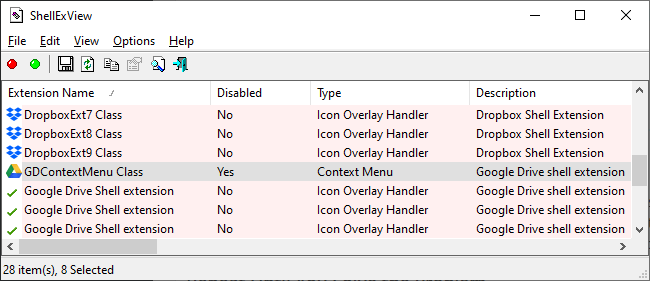
<p style="text-align: justify;">Với PC trong ví dụ, thủ phạm làm chậm các menu ngữ cảnh thư mục là tiện ích mở rộng&nbsp;<strong>GDContextMenu Class</strong>&nbsp;của Google Drive. Rõ ràng đây là một vấn đề đã biết. Tuy nhiên, với việc tiện ích mở rộng bị vô hiệu hóa trong ShellExView, các menu ngữ cảnh của PC đã trở lại tốc độ bình thường.</p>

<figure>
<div style="text-align: justify;"><img alt="GDContextMenu Class của Google Drive là &#039;thủ phạm&#039; trong ví dụ này" data-i="6" data-src="https://st.quantrimang.com/photos/image/2020/08/07/menu-ngu-canh-cham-trong-file-explorer-7.png" data-was-processed="true" height="281" src="https://st.quantrimang.com/photos/image/2020/08/07/menu-ngu-canh-cham-trong-file-explorer-7.png" width="650" /></div>

<figcaption>
<div style="text-align: justify;">GDContextMenu Class của Google Drive là &quot;thủ phạm&quot; trong ví dụ này</div>
</figcaption>
</figure>

<p style="text-align: justify;">Và, nếu muốn tốc độ nhanh hơn nữa, bạn có thể&nbsp;tắt hoạt ảnh trong Windows 10. Các menu ngữ cảnh sẽ nhanh chóng bật lên mà không mất nhiều thời gian sau khi bạn thực hiện điều đó. Đó chỉ là một trong nhiều cách để&nbsp;tăng tốc PC chạy Windows 10.</p>
		</div>
				<div id="author">
						<p>
				<strong>Nguồn tin:</strong>
				Quantrimang.com
			</p>
		</div>
	</div>
	<div id="footer" class="clearfix">
		<div id="url">
			<strong>URL của bản tin này: </strong><a href="https://www.nguoicodonvn2008.info/vi/news/savefile/kien-thuc-may-tinh/cach-khac-phuc-menu-ngu-canh-cham-trong-file-explorer-cua-windows-10-2486.html" title="Cách khắc phục menu ngữ cảnh chậm trong File Explorer của Windows 10">https://www.nguoicodonvn2008.info/vi/news/savefile/kien-thuc-may-tinh/cach-khac-phuc-menu-ngu-canh-cham-trong-file-explorer-cua-windows-10-2486.html</a>

		</div>
		<div class="clear"></div>
		<div class="copyright">
			&copy; .&#x3A; Nguoicodonvn2008.info - Cõi lòng người cô đơn &#x3A;.
		</div>
		<div id="contact">
			<a href="mailto:admin@nguoicodonvn2008.info">admin@nguoicodonvn2008.info</a>
		</div>
	</div>
</div>
        <div id="timeoutsess" class="chromeframe">
            Bạn đã không sử dụng Site, <a onclick="timeoutsesscancel();" href="https://nguoicodonvn2008.info/#">Bấm vào đây để duy trì trạng thái đăng nhập</a>. Thời gian chờ: <span id="secField"> 60 </span> giây
        </div>
        <div id="openidResult" class="nv-alert" style="display:none"></div>
        <div id="openidBt" data-result="" data-redirect=""></div>
		</script>
		<div class="car-top">
  <span><img src="https://nguoicodonvn2008.info/themes/default/images/car.png" alt=""></span>
</div>
<script src="https://nguoicodonvn2008.info/assets/js/jquery/jquery.min.js"></script>
<script>var nv_base_siteurl="/",nv_lang_data="vi",nv_lang_interface="vi",nv_name_variable="nv",nv_fc_variable="op",nv_lang_variable="language",nv_module_name="news",nv_func_name="savefile",nv_is_user=0, nv_my_ofs=-4,nv_my_abbr="EDT",nv_cookie_prefix="nv4c_e856T",nv_check_pass_mstime=1738000,nv_area_admin=0,nv_safemode=0,theme_responsive=0,nv_recaptcha_ver=2,nv_recaptcha_sitekey="",nv_recaptcha_type="image",XSSsanitize=1;</script>
<script src="https://nguoicodonvn2008.info/assets/js/language/vi.js"></script>
<script src="https://nguoicodonvn2008.info/assets/js/DOMPurify/purify3.js"></script>
<script src="https://nguoicodonvn2008.info/assets/js/global.js"></script>
<script src="https://nguoicodonvn2008.info/assets/js/site.js"></script>
<script src="https://nguoicodonvn2008.info/themes/default/js/news.js"></script>
<script src="https://nguoicodonvn2008.info/themes/default/js/main.js"></script>
<script src="https://nguoicodonvn2008.info/themes/default/js/custom.js"></script>
<script type="application/ld+json">
        {
            "@context": "https://schema.org",
            "@type": "Organization",
            "url": "https://nguoicodonvn2008.info",
            "logo": "https://nguoicodonvn2008.info/uploads/angel.gif"
        }
        </script>
<script src="https://nguoicodonvn2008.info/themes/default/js/bootstrap.min.js"></script>
<script type="text/javascript">
var $scrolltop = $('.car-top');
$scrolltop.on('click', function () {
    $('html,body').animate({
        scrollTop: 0
    }, 800);
    $(this).addClass("car-run");
    setTimeout(function(){ $scrolltop.removeClass('car-run');}, 1000);
    return false;
});
$(window).on('scroll', function ()
{ 
    if($(window).scrollTop() >= 200)
    {
        $scrolltop.addClass("show");
        $scrolltop.addClass("car-down");
    }
    else
    {
       $scrolltop.removeClass("show");
       setTimeout(function(){ $scrolltop.removeClass('car-down');}, 300);
    }
});
</script>
</body>
</html>