<!DOCTYPE html>
    <html lang="vi" xmlns="http://www.w3.org/1999/xhtml" prefix="og: http://ogp.me/ns#">
    <head>
<title>Cách khắc phục lỗi tải Windows 11 22H2 bị kẹt ở 0 hoặc 100&#x25;</title>
<meta name="description" content="Cách khắc phục lỗi tải Windows 11 22H2 bị kẹt ở 0 hoặc 100&#x25; - Savefile - Tin Tức -...">
<meta name="author" content=".: Nguoicodonvn2008.info - Cõi lòng người cô đơn :.">
<meta name="copyright" content=".: Nguoicodonvn2008.info - Cõi lòng người cô đơn :. [admin@nguoicodonvn2008.info]">
<meta name="robots" content="index, archive, follow, noodp">
<meta name="googlebot" content="index,archive,follow,noodp">
<meta name="msnbot" content="all,index,follow">
<meta name="generator" content="NukeViet v4.5">
<meta http-equiv="Content-Type" content="text/html; charset=utf-8">
<meta property="og:title" content="Cách khắc phục lỗi tải Windows 11 22H2 bị kẹt ở 0 hoặc 100&#x25;">
<meta property="og:type" content="website">
<meta property="og:description" content="Savefile - Tin Tức - https&#x3A;&#x002F;&#x002F;www.nguoicodonvn2008.info&#x002F;vi&#x002F;news&#x002F;savefile&#x002F;kien-thuc-may-tinh&#x002F;cach-khac-phuc-loi-tai-windows-11-22h2-bi-ket-o-0-hoac-100-6306.html">
<meta property="og:site_name" content=".&#x3A; Nguoicodonvn2008.info - Cõi lòng người cô đơn &#x3A;.">
<meta property="og:url" content="https://www.nguoicodonvn2008.info/vi/news/savefile/kien-thuc-may-tinh/cach-khac-phuc-loi-tai-windows-11-22h2-bi-ket-o-0-hoac-100-6306.html">
<link rel="shortcut icon" href="https://nguoicodonvn2008.info/favicon.ico">
<link rel="canonical" href="https://www.nguoicodonvn2008.info/vi/news/savefile/kien-thuc-may-tinh/cach-khac-phuc-loi-tai-windows-11-22h2-bi-ket-o-0-hoac-100-6306.html">
<link rel="alternate" href="https://nguoicodonvn2008.info/vi/news/rss/" title="Tin Tức" type="application/rss+xml">
<link rel="alternate" href="https://nguoicodonvn2008.info/vi/news/rss/karaoke-dual/" title="Tin Tức - Karaoke Dual" type="application/rss+xml">
<link rel="alternate" href="https://nguoicodonvn2008.info/vi/news/rss/nhac-tre/" title="Tin Tức - Nhạc trẻ" type="application/rss+xml">
<link rel="alternate" href="https://nguoicodonvn2008.info/vi/news/rss/tru-tinh/" title="Tin Tức - Trữ tình" type="application/rss+xml">
<link rel="alternate" href="https://nguoicodonvn2008.info/vi/news/rss/nuoc-ngoai/" title="Tin Tức - Nước ngoài" type="application/rss+xml">
<link rel="alternate" href="https://nguoicodonvn2008.info/vi/news/rss/remix/" title="Tin Tức - Remix" type="application/rss+xml">
<link rel="alternate" href="https://nguoicodonvn2008.info/vi/news/rss/tam-su-tinh-yeu/" title="Tin Tức - Tâm sự tình yêu" type="application/rss+xml">
<link rel="alternate" href="https://nguoicodonvn2008.info/vi/news/rss/tho-suu-tam/" title="Tin Tức - Thơ sưu tầm" type="application/rss+xml">
<link rel="alternate" href="https://nguoicodonvn2008.info/vi/news/rss/cuoc-song/" title="Tin Tức - Cuộc sống" type="application/rss+xml">
<link rel="alternate" href="https://nguoicodonvn2008.info/vi/news/rss/phan-mem/" title="Tin Tức - Phần mềm" type="application/rss+xml">
<link rel="alternate" href="https://nguoicodonvn2008.info/vi/news/rss/kien-thuc-may-tinh/" title="Tin Tức - Kiến thức máy tính" type="application/rss+xml">
<link rel="alternate" href="https://nguoicodonvn2008.info/vi/news/rss/hoc-tap/" title="Tin Tức - Học tập" type="application/rss+xml">
<link rel="alternate" href="https://nguoicodonvn2008.info/vi/news/rss/tai-lieu/" title="Tin Tức - Tài liệu" type="application/rss+xml">
<link rel="alternate" href="https://nguoicodonvn2008.info/vi/news/rss/de-thi/" title="Tin Tức - Đề thi" type="application/rss+xml">
<link rel="preload" as="style" href="https://nguoicodonvn2008.info/assets/css/font-awesome.min.css" type="text/css">
<link rel="preload" as="style" href="https://nguoicodonvn2008.info/themes/default/css/bootstrap.non-responsive.css" type="text/css">
<link rel="preload" as="style" href="https://nguoicodonvn2008.info/themes/default/css/style.css" type="text/css">
<link rel="preload" as="style" href="https://nguoicodonvn2008.info/themes/default/css/style.non-responsive.css" type="text/css">
<link rel="preload" as="style" href="https://nguoicodonvn2008.info/themes/default/css/news.css" type="text/css">
<link rel="preload" as="style" href="https://nguoicodonvn2008.info/themes/default/css/custom.css" type="text/css">
<link rel="preload" as="script" href="https://nguoicodonvn2008.info/assets/js/jquery/jquery.min.js" type="text/javascript">
<link rel="preload" as="script" href="https://nguoicodonvn2008.info/assets/js/language/vi.js" type="text/javascript">
<link rel="preload" as="script" href="https://nguoicodonvn2008.info/assets/js/DOMPurify/purify3.js" type="text/javascript">
<link rel="preload" as="script" href="https://nguoicodonvn2008.info/assets/js/global.js" type="text/javascript">
<link rel="preload" as="script" href="https://nguoicodonvn2008.info/assets/js/site.js" type="text/javascript">
<link rel="preload" as="script" href="https://nguoicodonvn2008.info/themes/default/js/news.js" type="text/javascript">
<link rel="preload" as="script" href="https://nguoicodonvn2008.info/themes/default/js/main.js" type="text/javascript">
<link rel="preload" as="script" href="https://nguoicodonvn2008.info/themes/default/js/custom.js" type="text/javascript">
<link rel="preload" as="script" href="https://nguoicodonvn2008.info/themes/default/js/bootstrap.min.js" type="text/javascript">
<link rel="stylesheet" href="https://nguoicodonvn2008.info/assets/css/font-awesome.min.css">
<link rel="stylesheet" href="https://nguoicodonvn2008.info/themes/default/css/bootstrap.non-responsive.css">
<link rel="stylesheet" href="https://nguoicodonvn2008.info/themes/default/css/style.css">
<link rel="stylesheet" href="https://nguoicodonvn2008.info/themes/default/css/style.non-responsive.css">
<link rel="StyleSheet" href="https://nguoicodonvn2008.info/themes/default/css/news.css">
<link rel="stylesheet" href="https://nguoicodonvn2008.info/themes/default/css/custom.css">
<style type="text/css">
	body{background: #fff;}
</style>
    </head>
    <body>
<div id="print">
	<div id="hd_print">
		<h2 class="pull-left">.&#x3A; Nguoicodonvn2008.info - Cõi lòng người cô đơn &#x3A;.</h2>
		<p class="pull-right"><a title=".&#x3A; Nguoicodonvn2008.info - Cõi lòng người cô đơn &#x3A;." href="https://nguoicodonvn2008.info/">https://nguoicodonvn2008.info</a></p>
	</div>
	<div class="clear"></div>
	<hr />
	<div id="content">
		<h1>Cách khắc phục lỗi tải Windows 11 22H2 bị kẹt ở 0 hoặc 100&#x25;</h1>
		<ul class="list-inline">
			<li>Thứ sáu - 11/11/2022 23:49</li>
			<li class="hidden-print txtrequired"><em class="fa fa-print">&nbsp;</em><a title="In ra" href="javascript:;" onclick="window.print()">In ra</a></li>
			<li class="hidden-print txtrequired"><em class="fa fa-power-off">&nbsp;</em><a title="Đóng cửa sổ này" href="javascript:;" onclick="window.close()">Đóng cửa sổ này</a></li>
		</ul>
		<div class="clear"></div>
		<div id="hometext">
		</div>
				<div class="imghome">
			<img alt="Cách khắc phục lỗi tải Windows 11 22H2 bị kẹt ở 0 hoặc 100&#x25;" src="https://st.quantrimang.com/photos/image/2022/11/12/cach-khac-phuc-loi-tai-windows-11-22h2-bi-ket-o-0-hoac-100.jpg" width="460" class="img-thumbnail" />
		</div>
		<div class="clear"></div>
		<div id="bodytext" class="clearfix">
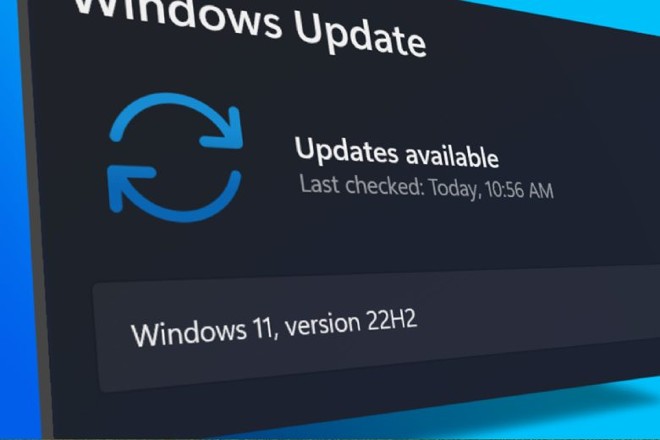
			<p>Nếu bạn bị kẹt khi tải bản cập nhật&nbsp;Windows 11 22H2&nbsp;thì bài viết này của Quản Trị Mạng sẽ giúp bạn giải quyết vấn đề.</p>

<p>Rất hiếm khi bạn thấy quá trình tải hoặc cài đặt bản cập nhật Windows bị kẹt, không có tiến triển gì. Thường thì bạn sẽ bị kẹt ở mức 40%, 70% hoặc tệ nhất là 99%. Đây là một vấn đề khá phiền nhiễu và để khắc phục bạn có thể tham khảo các giải pháp dưới đây.</p>

<p>Có một vài yếu tố khiến Windows 11 22H2 bị kẹt ở 0 hoặc 100% trong khi tải. Vấn đề có thể nằm ở kết nối internet, hết dung lượng lưu trữ hoặc bị ảnh hưởng bởi các phần mềm firewall...</p>

<p><img alt="Cách khắc phục lỗi tải Windows 11 22H2 bị kẹt ở 0 hoặc 100%" data-i="0" data-src="https://st.quantrimang.com/photos/image/2022/11/12/cach-khac-phuc-loi-tai-windows-11-22h2-bi-ket-o-0-hoac-100.jpg" data-was-processed="true" height="440" src="https://st.quantrimang.com/photos/image/2022/11/12/cach-khac-phuc-loi-tai-windows-11-22h2-bi-ket-o-0-hoac-100.jpg" width="660" /></p>

<h2>Cách khắc phục lỗi tải Windows 11 22H2 bị kẹt ở 0 hoặc 100%</h2>

<h3>1. Chạy Windows Update Troubleshooter</h3>

<p>Cách đầu tiên mà bạn có thể thử đó là chạy trình gỡ lỗi Windows Update Troubleshooter được tích hợp sẵn. Nó có thể giúp bạn tìm ra vấn đề trong khi tải và cài đặt Windows.</p>

<p>Để chạy công cụ này, bạn cần truy cập&nbsp;<strong>Settings &gt; System &gt; Troubleshoot &gt; Other Troubleshooters</strong>&nbsp;và nhấn vào nút&nbsp;<strong>Run</strong>&nbsp;bên cạnh tùy chọn&nbsp;<strong>Windows Update.</strong>&nbsp;Windows Update Troubleshooter sẽ bắt đầu chẩn đoán hệ điều hành của bạn để tìm các vấn đề liên quan tới cập nhật. Trong trường hợp tìm ra vấn đề, nó sẽ tự khắc phục luôn.</p>

<h3>2. Xóa cache Windows Update</h3>

<p><img alt="Xóa cache Windows Update" data-i="1" data-src="https://st.quantrimang.com/photos/image/2022/11/12/cach-khac-phuc-loi-tai-windows-11-22h2-bi-ket-o-0-hoac-100-1.jpg" data-was-processed="true" height="304" src="https://st.quantrimang.com/photos/image/2022/11/12/cach-khac-phuc-loi-tai-windows-11-22h2-bi-ket-o-0-hoac-100-1.jpg" width="660" /></p>

<p>Xóa bộ nhớ cache Windows Update cũng có thể giúp khắc phục lỗi cập nhật của Windows 11/10, khi mà Windows Update bị kẹt lúc tải bản cập nhật.</p>

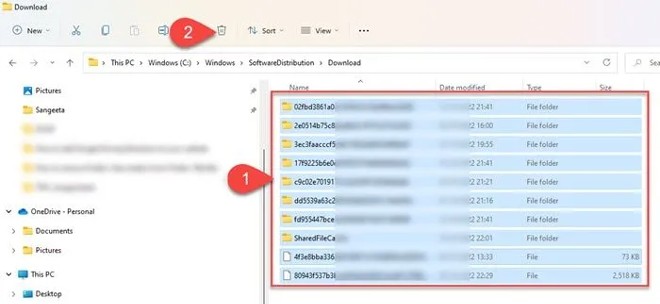
<p>Để xóa cache Windows Update thì trước hết bạn cần phải dừng dịch vụ Windows Update sau đó xóa toàn bộ nội dung trong thư mục Software Distribution và khởi động lại dịch vụ.</p>

<ul>
	<li>Nhấn&nbsp;<strong>Win + R</strong>, nhập&nbsp;<strong>services.msc</strong>&nbsp;rồi nhấn&nbsp;<strong>Enter.</strong></li>
	<li>Trong cửa sổ&nbsp;<strong>Services,</strong>&nbsp;tìm và nhấn chuột phải vào dịch vụ&nbsp;<strong>Windows Update</strong>&nbsp;để chọn&nbsp;<strong>Stop.</strong></li>
	<li>Tiếp theo, mở&nbsp;<strong>File Explorer</strong>&nbsp;(phím tắt&nbsp;<strong>Win + E</strong>) rồi truy cập&nbsp;<strong>C:\Windows\SoftwareDistribution\Download,</strong>&nbsp;nhấn&nbsp;<strong>Ctrl + A</strong>&nbsp;để chọn tất cả các file và thư mục.</li>
	<li>Nhấn vào biểu tượng thùng rác để xóa tất cả file và thư mục đã chọn.</li>
	<li>Bây giờ bạn truy cập lại services.msc để khởi động lại dịch vụ Windows Update, nhấn chuột phải vào&nbsp;<strong>Windows Update</strong>&nbsp;rồi chọn&nbsp;<strong>Start.</strong></li>
</ul>

<h3>3. Kích hoạt dịch vụ Windows Modules Installer</h3>

<p><img alt="Kích hoạt dịch vụ Windows Modules Installer" data-i="2" data-src="https://st.quantrimang.com/photos/image/2022/11/12/cach-khac-phuc-loi-tai-windows-11-22h2-bi-ket-o-0-hoac-100-2.jpg" data-was-processed="true" height="468" src="https://st.quantrimang.com/photos/image/2022/11/12/cach-khac-phuc-loi-tai-windows-11-22h2-bi-ket-o-0-hoac-100-2.jpg" width="400" /></p>

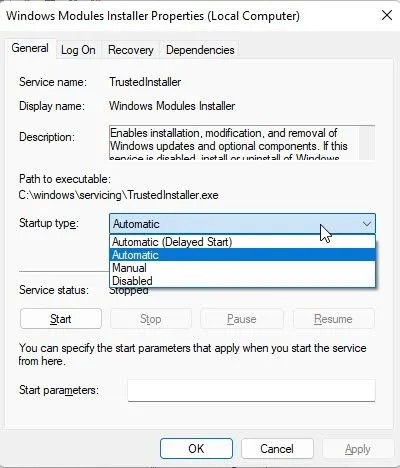
<p>Windows Modules Installer, còn được biết đến với tên gọi Windows Modules Installer Worker (WMIW), là một thành phần cốt lỗi của Microsoft với khả năng tự động kiểm tra các bản cập nhật cần thiết và cài đặt chúng trên máy tính Windows 11/10 của bạn. Nếu Windows Modules Installer bị vô hiệu hóa, bạn sẽ gặp vấn đề khi cài đặt các bản cập nhật.</p>

<ul>
	<li>Để xem dịch vụ này có bị tắt hay không bạn mở&nbsp;<strong>Task Manager</strong>&nbsp;sau đó chuyển sang thẻ&nbsp;<strong>Services.</strong></li>
	<li>Nhấn chuột phải vào&nbsp;<strong>Windows Modules Installer</strong>&nbsp;và chọn&nbsp;<strong>Open Services</strong>.</li>
	<li>Trong cửa sổ&nbsp;<strong>Services,</strong>&nbsp;tìm và nhấn chuột phải vào&nbsp;<strong>Windows Modules Installer</strong>&nbsp;và chọn&nbsp;<strong>Properties.</strong></li>
	<li>Bạn hãy nhìn ở phần&nbsp;<strong>Startup type</strong>&nbsp;xem nó đang ở trạng thái nào. Nếu nó đang ở&nbsp;<strong>Disabled</strong>&nbsp;thì bạn cần chuyển nó sang&nbsp;<strong>Manual,</strong>&nbsp;trạng thái mặc định của Windows và sau đó nhấn vào nút&nbsp;<strong>Start</strong>&nbsp;để chạy dịch vụ này.</li>
	<li>Bây giờ, bạn hãy thử thực hiện lại việc tải và cài đặt bản cập nhật.</li>
</ul>

<h3>4. Tải bản cập nhật bằng Windows 11 Installation Assistant</h3>

<p>Windows 11 Installation Assistant là một trong nhiều cách mà bạn có thể dùng để cài đặt bản cập nhật tính năng Windows. Nếu như hệ thống của bạn không nhận được bản cập nhật hoặc bị kẹt khi tải bản cập nhật, bạn có thể dùng Installation Assistant để khắc phục vấn đề.</p>

<p>Bạn phải tải Installation Assistant từ trang tải phần mềm của Microsoft. Tải về xong, bạn nhấn đúp vào file thực thi để chạy chương trình. Bạn nhấn vào nút&nbsp;<strong>Accept and Install</strong>&nbsp;và đồng ý cho Installation Assistant cài đặt bản cập nhật tính năng trên máy của bạn. Nhấn vào nút&nbsp;<strong>Restart Now</strong>&nbsp;để hoàn thành cài đặt bản cập nhật.</p>

<h3>5. Sử dụng Media Creation Tool để tải file ISO</h3>

<p>Cuối cùng, bạn có thể sử dụng&nbsp;Media Creation Tool&nbsp;để tải về file cài đặt bản cập nhật Windows định dạng ISO rồi tiến hành cài đặt.</p>

<h2>Tại sao quá trình tải Windows 11 của tôi lại bị kẹt ở 100%?</h2>

<p>Bị kẹt ở 100% là vấn đề phổ biến khi cập nhật Windows, không có gì xảy ra cho dù bạn đã chờ vài tiếng. Trong hầu hết trường hợp, lý do có thể là nguồn điện có trục trặc hoặc kết nối internet gặp vấn đề. Lý do khác có thể là do lỗi RAM, file download bị hỏng hoặc phần mềm tường lửa chặn cài đặt bản cập nhật...</p>

<h2>Tôi có thể làm gì nếu quá trình cập nhật Windows 11 bị kẹt?</h2>

<p>Nếu bạn bị kẹt khi đang tải về bản cập nhật tính năng của Windows 11, bạn có thể thử kết nối với mạng internet khác hoặc tạm thời vô hiệu hóa tường lửa xem có khắc phục được lỗi hay không. Nếu không, bạn có thể thử chạy Windows Update Troubleshooter, kích hoạt Windows Modules Installer và xóa cache Windows Update... Bạn cũng có thể thử chạy công cụ DISM để khắc phục file hệ thống cập nhật bị lỗi.</p>
		</div>
				<div id="author">
						<p>
				<strong>Nguồn tin:</strong>
				Quantrimang.com
			</p>
		</div>
	</div>
	<div id="footer" class="clearfix">
		<div id="url">
			<strong>URL của bản tin này: </strong><a href="https://www.nguoicodonvn2008.info/vi/news/savefile/kien-thuc-may-tinh/cach-khac-phuc-loi-tai-windows-11-22h2-bi-ket-o-0-hoac-100-6306.html" title="Cách khắc phục lỗi tải Windows 11 22H2 bị kẹt ở 0 hoặc 100&#x25;">https://www.nguoicodonvn2008.info/vi/news/savefile/kien-thuc-may-tinh/cach-khac-phuc-loi-tai-windows-11-22h2-bi-ket-o-0-hoac-100-6306.html</a>

		</div>
		<div class="clear"></div>
		<div class="copyright">
			&copy; .&#x3A; Nguoicodonvn2008.info - Cõi lòng người cô đơn &#x3A;.
		</div>
		<div id="contact">
			<a href="mailto:admin@nguoicodonvn2008.info">admin@nguoicodonvn2008.info</a>
		</div>
	</div>
</div>
        <div id="timeoutsess" class="chromeframe">
            Bạn đã không sử dụng Site, <a onclick="timeoutsesscancel();" href="https://nguoicodonvn2008.info/#">Bấm vào đây để duy trì trạng thái đăng nhập</a>. Thời gian chờ: <span id="secField"> 60 </span> giây
        </div>
        <div id="openidResult" class="nv-alert" style="display:none"></div>
        <div id="openidBt" data-result="" data-redirect=""></div>
		</script>
		<div class="car-top">
  <span><img src="https://nguoicodonvn2008.info/themes/default/images/car.png" alt=""></span>
</div>
<div id="run_cronjobs" style="visibility:hidden;display:none;"><img alt="cron" src="/index.php?second=cronjobs&amp;p=g522q2eU" width="1" height="1" /></div>
<script src="https://nguoicodonvn2008.info/assets/js/jquery/jquery.min.js"></script>
<script>var nv_base_siteurl="/",nv_lang_data="vi",nv_lang_interface="vi",nv_name_variable="nv",nv_fc_variable="op",nv_lang_variable="language",nv_module_name="news",nv_func_name="savefile",nv_is_user=0, nv_my_ofs=-4,nv_my_abbr="EDT",nv_cookie_prefix="nv4c_e856T",nv_check_pass_mstime=1738000,nv_area_admin=0,nv_safemode=0,theme_responsive=0,nv_recaptcha_ver=2,nv_recaptcha_sitekey="",nv_recaptcha_type="image",XSSsanitize=1;</script>
<script src="https://nguoicodonvn2008.info/assets/js/language/vi.js"></script>
<script src="https://nguoicodonvn2008.info/assets/js/DOMPurify/purify3.js"></script>
<script src="https://nguoicodonvn2008.info/assets/js/global.js"></script>
<script src="https://nguoicodonvn2008.info/assets/js/site.js"></script>
<script src="https://nguoicodonvn2008.info/themes/default/js/news.js"></script>
<script src="https://nguoicodonvn2008.info/themes/default/js/main.js"></script>
<script src="https://nguoicodonvn2008.info/themes/default/js/custom.js"></script>
<script type="application/ld+json">
        {
            "@context": "https://schema.org",
            "@type": "Organization",
            "url": "https://nguoicodonvn2008.info",
            "logo": "https://nguoicodonvn2008.info/uploads/angel.gif"
        }
        </script>
<script src="https://nguoicodonvn2008.info/themes/default/js/bootstrap.min.js"></script>
<script type="text/javascript">
var $scrolltop = $('.car-top');
$scrolltop.on('click', function () {
    $('html,body').animate({
        scrollTop: 0
    }, 800);
    $(this).addClass("car-run");
    setTimeout(function(){ $scrolltop.removeClass('car-run');}, 1000);
    return false;
});
$(window).on('scroll', function ()
{ 
    if($(window).scrollTop() >= 200)
    {
        $scrolltop.addClass("show");
        $scrolltop.addClass("car-down");
    }
    else
    {
       $scrolltop.removeClass("show");
       setTimeout(function(){ $scrolltop.removeClass('car-down');}, 300);
    }
});
</script>
</body>
</html>