<!DOCTYPE html>
    <html lang="vi" xmlns="http://www.w3.org/1999/xhtml" prefix="og: http://ogp.me/ns#">
    <head>
<title>Cách khắc phục lỗi &quot;No Internet Access&quot; trên kết nối Ethernet trong Windows</title>
<meta name="description" content="Cách khắc phục lỗi &quot;No Internet Access&quot; trên kết nối Ethernet trong Windows - Savefile - Tin Tức -...">
<meta name="author" content=".: Nguoicodonvn2008.info - Cõi lòng người cô đơn :.">
<meta name="copyright" content=".: Nguoicodonvn2008.info - Cõi lòng người cô đơn :. [admin@nguoicodonvn2008.info]">
<meta name="robots" content="index, archive, follow, noodp">
<meta name="googlebot" content="index,archive,follow,noodp">
<meta name="msnbot" content="all,index,follow">
<meta name="generator" content="NukeViet v4.5">
<meta http-equiv="Content-Type" content="text/html; charset=utf-8">
<meta property="og:title" content="Cách khắc phục lỗi &quot;No Internet Access&quot; trên kết nối Ethernet trong Windows">
<meta property="og:type" content="website">
<meta property="og:description" content="Savefile - Tin Tức -...">
<meta property="og:site_name" content=".&#x3A; Nguoicodonvn2008.info - Cõi lòng người cô đơn &#x3A;.">
<meta property="og:url" content="https://www.nguoicodonvn2008.info/vi/news/savefile/kien-thuc-may-tinh/cach-khac-phuc-loi-no-internet-access-tren-ket-noi-ethernet-trong-windows-8796.html">
<link rel="shortcut icon" href="https://nguoicodonvn2008.info/favicon.ico">
<link rel="canonical" href="https://www.nguoicodonvn2008.info/vi/news/savefile/kien-thuc-may-tinh/cach-khac-phuc-loi-no-internet-access-tren-ket-noi-ethernet-trong-windows-8796.html">
<link rel="alternate" href="https://nguoicodonvn2008.info/vi/news/rss/" title="Tin Tức" type="application/rss+xml">
<link rel="alternate" href="https://nguoicodonvn2008.info/vi/news/rss/karaoke-dual/" title="Tin Tức - Karaoke Dual" type="application/rss+xml">
<link rel="alternate" href="https://nguoicodonvn2008.info/vi/news/rss/nhac-tre/" title="Tin Tức - Nhạc trẻ" type="application/rss+xml">
<link rel="alternate" href="https://nguoicodonvn2008.info/vi/news/rss/tru-tinh/" title="Tin Tức - Trữ tình" type="application/rss+xml">
<link rel="alternate" href="https://nguoicodonvn2008.info/vi/news/rss/nuoc-ngoai/" title="Tin Tức - Nước ngoài" type="application/rss+xml">
<link rel="alternate" href="https://nguoicodonvn2008.info/vi/news/rss/remix/" title="Tin Tức - Remix" type="application/rss+xml">
<link rel="alternate" href="https://nguoicodonvn2008.info/vi/news/rss/tam-su-tinh-yeu/" title="Tin Tức - Tâm sự tình yêu" type="application/rss+xml">
<link rel="alternate" href="https://nguoicodonvn2008.info/vi/news/rss/tho-suu-tam/" title="Tin Tức - Thơ sưu tầm" type="application/rss+xml">
<link rel="alternate" href="https://nguoicodonvn2008.info/vi/news/rss/cuoc-song/" title="Tin Tức - Cuộc sống" type="application/rss+xml">
<link rel="alternate" href="https://nguoicodonvn2008.info/vi/news/rss/phan-mem/" title="Tin Tức - Phần mềm" type="application/rss+xml">
<link rel="alternate" href="https://nguoicodonvn2008.info/vi/news/rss/kien-thuc-may-tinh/" title="Tin Tức - Kiến thức máy tính" type="application/rss+xml">
<link rel="alternate" href="https://nguoicodonvn2008.info/vi/news/rss/hoc-tap/" title="Tin Tức - Học tập" type="application/rss+xml">
<link rel="alternate" href="https://nguoicodonvn2008.info/vi/news/rss/tai-lieu/" title="Tin Tức - Tài liệu" type="application/rss+xml">
<link rel="alternate" href="https://nguoicodonvn2008.info/vi/news/rss/de-thi/" title="Tin Tức - Đề thi" type="application/rss+xml">
<link rel="preload" as="style" href="https://nguoicodonvn2008.info/assets/css/font-awesome.min.css" type="text/css">
<link rel="preload" as="style" href="https://nguoicodonvn2008.info/themes/default/css/bootstrap.non-responsive.css" type="text/css">
<link rel="preload" as="style" href="https://nguoicodonvn2008.info/themes/default/css/style.css" type="text/css">
<link rel="preload" as="style" href="https://nguoicodonvn2008.info/themes/default/css/style.non-responsive.css" type="text/css">
<link rel="preload" as="style" href="https://nguoicodonvn2008.info/themes/default/css/news.css" type="text/css">
<link rel="preload" as="style" href="https://nguoicodonvn2008.info/themes/default/css/custom.css" type="text/css">
<link rel="preload" as="script" href="https://nguoicodonvn2008.info/assets/js/jquery/jquery.min.js" type="text/javascript">
<link rel="preload" as="script" href="https://nguoicodonvn2008.info/assets/js/language/vi.js" type="text/javascript">
<link rel="preload" as="script" href="https://nguoicodonvn2008.info/assets/js/DOMPurify/purify3.js" type="text/javascript">
<link rel="preload" as="script" href="https://nguoicodonvn2008.info/assets/js/global.js" type="text/javascript">
<link rel="preload" as="script" href="https://nguoicodonvn2008.info/assets/js/site.js" type="text/javascript">
<link rel="preload" as="script" href="https://nguoicodonvn2008.info/themes/default/js/news.js" type="text/javascript">
<link rel="preload" as="script" href="https://nguoicodonvn2008.info/themes/default/js/main.js" type="text/javascript">
<link rel="preload" as="script" href="https://nguoicodonvn2008.info/themes/default/js/custom.js" type="text/javascript">
<link rel="preload" as="script" href="https://nguoicodonvn2008.info/themes/default/js/bootstrap.min.js" type="text/javascript">
<link rel="stylesheet" href="https://nguoicodonvn2008.info/assets/css/font-awesome.min.css">
<link rel="stylesheet" href="https://nguoicodonvn2008.info/themes/default/css/bootstrap.non-responsive.css">
<link rel="stylesheet" href="https://nguoicodonvn2008.info/themes/default/css/style.css">
<link rel="stylesheet" href="https://nguoicodonvn2008.info/themes/default/css/style.non-responsive.css">
<link rel="StyleSheet" href="https://nguoicodonvn2008.info/themes/default/css/news.css">
<link rel="stylesheet" href="https://nguoicodonvn2008.info/themes/default/css/custom.css">
<style type="text/css">
	body{background: #fff;}
</style>
    </head>
    <body>
<div id="print">
	<div id="hd_print">
		<h2 class="pull-left">.&#x3A; Nguoicodonvn2008.info - Cõi lòng người cô đơn &#x3A;.</h2>
		<p class="pull-right"><a title=".&#x3A; Nguoicodonvn2008.info - Cõi lòng người cô đơn &#x3A;." href="https://nguoicodonvn2008.info/">https://nguoicodonvn2008.info</a></p>
	</div>
	<div class="clear"></div>
	<hr />
	<div id="content">
		<h1>Cách khắc phục lỗi &quot;No Internet Access&quot; trên kết nối Ethernet trong Windows</h1>
		<ul class="list-inline">
			<li>Thứ sáu - 02/08/2024 00:06</li>
			<li class="hidden-print txtrequired"><em class="fa fa-print">&nbsp;</em><a title="In ra" href="javascript:;" onclick="window.print()">In ra</a></li>
			<li class="hidden-print txtrequired"><em class="fa fa-power-off">&nbsp;</em><a title="Đóng cửa sổ này" href="javascript:;" onclick="window.close()">Đóng cửa sổ này</a></li>
		</ul>
		<div class="clear"></div>
		<div id="hometext">
		</div>
				<div class="imghome">
			<img alt="Cách khắc phục lỗi &quot;No Internet Access&quot; trên kết nối Ethernet trong Windows" src="https://st.quantrimang.com/photos/image/2024/08/01/sua-loi-no-internet-access-tren-ket-noi-ethernet-windows-5.jpg" width="460" class="img-thumbnail" />
		</div>
		<div class="clear"></div>
		<div id="bodytext" class="clearfix">
			<p style="text-align: justify;">Bạn có thấy thông báo &quot;No Internet Access&quot; đáng sợ mặc dù PC hiển thị kết nối Ethernet không? Đôi khi, việc thiết lập và chạy kết nối Internet không hề dễ dàng. Hãy thử các mẹo sau để kết nối Ethernet hoạt động trên PC chạy Windows!</p>

<h2 style="text-align: justify;">1. Loại trừ sự cố router</h2>

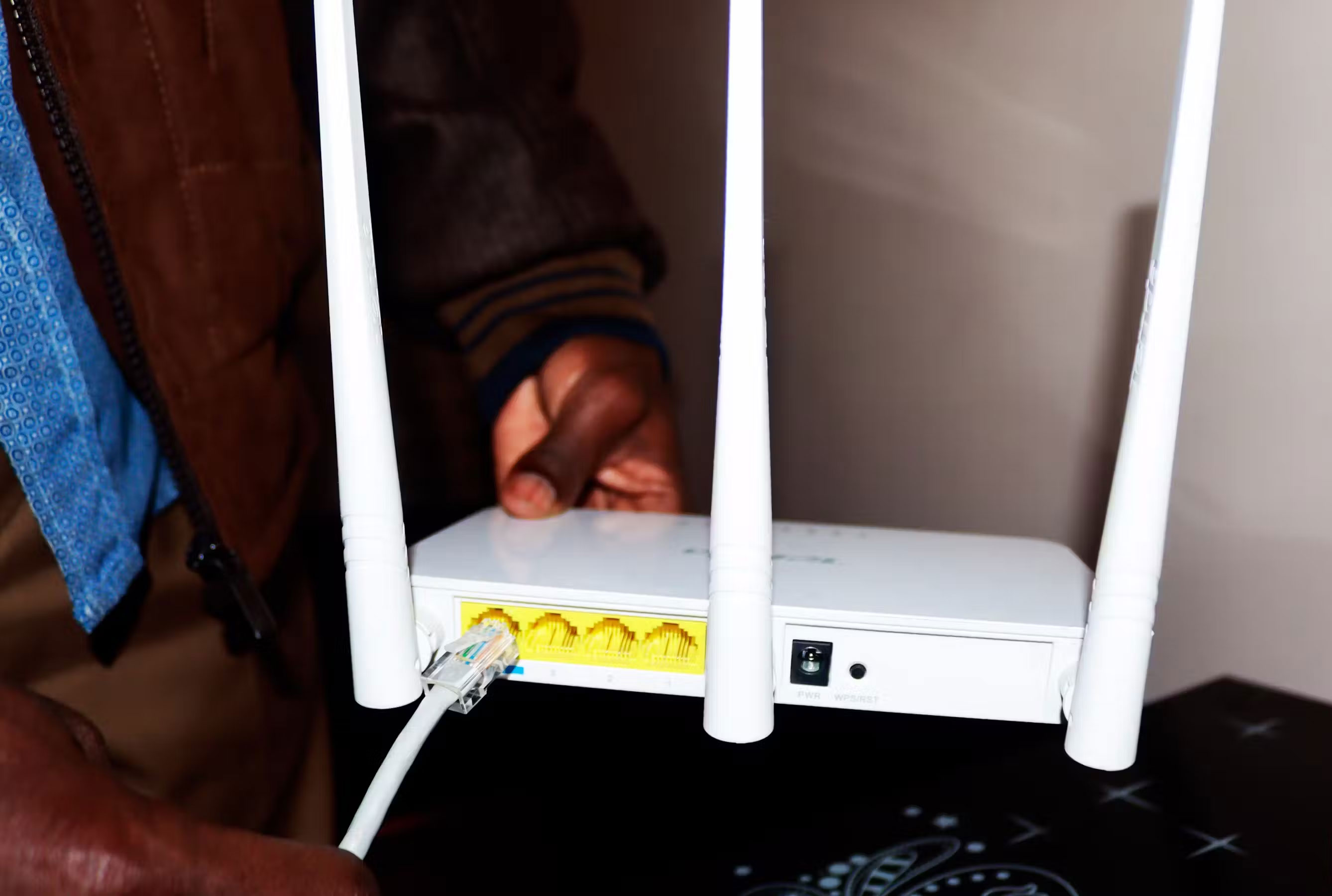
<p style="text-align: justify;">Trước khi khắc phục sự cố cho PC, bạn nên loại trừ mọi sự cố với&nbsp;router. Để kiểm tra, hãy ngắt kết nối&nbsp;cáp Ethernet&nbsp;khỏi máy tính và kết nối với thiết bị khác nếu có thể.</p>

<p style="text-align: justify;">Nếu bạn gặp sự cố tương tự với các thiết bị khác hoặc gặp lỗi với kết nối Wi-Fi, router có thể là thủ phạm. Trong hầu hết các trường hợp, chỉ cần&nbsp;khởi động lại router&nbsp;là có thể khắc phục sự cố. Nếu không, bạn có thể phải cập nhật firmware của router hoặc liên hệ với ISP (Nhà cung cấp dịch vụ Internet) để được trợ giúp.</p>

<figure>
<div style="text-align: justify;"><img alt="" data-i="0" data-src="https://st.quantrimang.com/photos/image/2024/08/01/sua-loi-no-internet-access-tren-ket-noi-ethernet-windows-1.jpg" data-was-processed="true" height="1800" src="https://st.quantrimang.com/photos/image/2024/08/01/sua-loi-no-internet-access-tren-ket-noi-ethernet-windows-1.jpg" width="2676" /></div>
</figure>

<h2 style="text-align: justify;">2. Chạy trình khắc phục sự cố Network and Internet</h2>

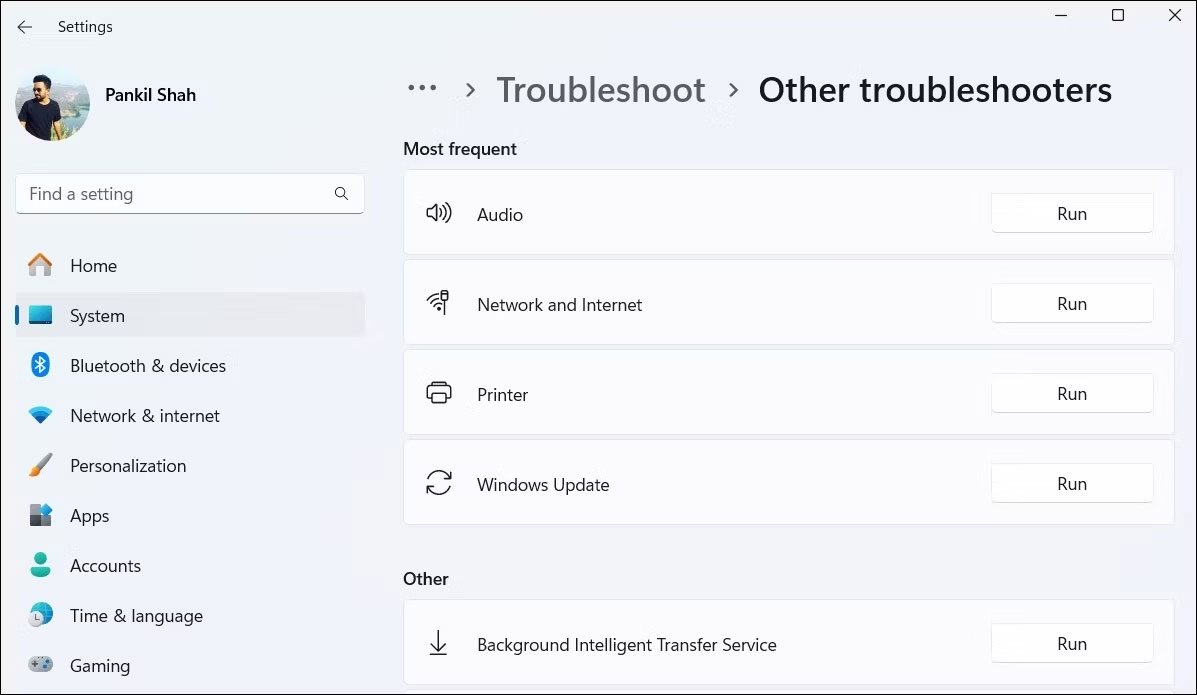
<p style="text-align: justify;">Nếu router không gặp sự cố, bạn có thể thử chạy trình khắc phục sự cố &quot;Network and Internet&quot; trên Windows. Công cụ này sẽ quét hệ thống để tìm các sự cố liên quan đến Internet phổ biến và cố gắng khắc phục chúng.</p>

<p style="text-align: justify;">Để chạy trình khắc phục sự cố Network and Internet, hãy làm theo các bước sau:</p>

<ul>
	<li style="text-align: justify;">Nhấn&nbsp;<strong>Win + I</strong>&nbsp;để&nbsp;mở ứng dụng Settings&nbsp;và đi tới&nbsp;<strong>System &gt; Troubleshoot</strong>.</li>
	<li style="text-align: justify;">Chọn&nbsp;<strong>Other troubleshooters</strong>.</li>
	<li style="text-align: justify;">Nhấp vào nút&nbsp;<strong>Run</strong>&nbsp;bên cạnh&nbsp;<strong>Network and Internet&nbsp;</strong>và làm theo lời nhắc trên màn hình để chạy trình khắc phục sự cố.</li>
</ul>

<figure>
<div style="text-align: justify;"><img alt="Chạy trình khắc phục sự cố Network and Internet trong cài đặt hệ thống Windows" data-adbro-processed="true" data-i="1" data-src="https://st.quantrimang.com/photos/image/2024/08/01/sua-loi-no-internet-access-tren-ket-noi-ethernet-windows-2.jpg" data-was-processed="true" height="695" src="https://st.quantrimang.com/photos/image/2024/08/01/sua-loi-no-internet-access-tren-ket-noi-ethernet-windows-2.jpg" width="1197" /></div>

<figcaption>
<div style="text-align: justify;">Chạy trình khắc phục sự cố Network and Internet trong cài đặt hệ thống Windows</div>
</figcaption>
</figure>

<h2 style="text-align: justify;">3. Khởi động lại hoặc cập nhật driver Ethernet</h2>

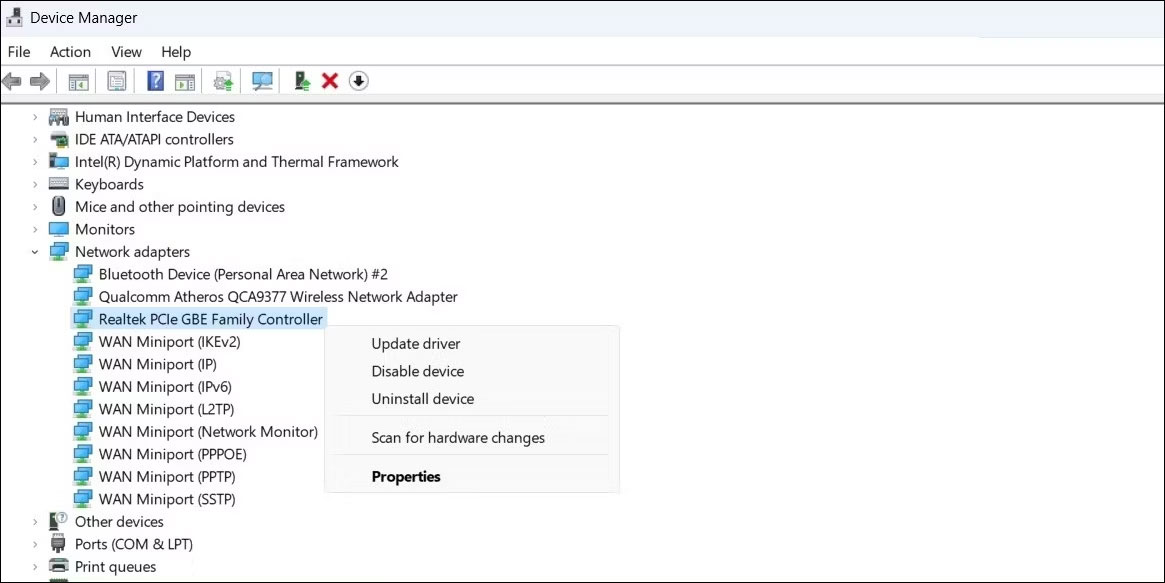
<p style="text-align: justify;">Tắt và bật lại Ethernet adapter là một cách hiệu quả để khắc phục mọi trục trặc tạm thời có thể gây ra sự cố. Sau đây là cách thực hiện:</p>

<ul>
	<li style="text-align: justify;">Nhấn&nbsp;<strong>Win + R</strong>&nbsp;để&nbsp;mở hộp thoại Run.</li>
	<li style="text-align: justify;">Nhập&nbsp;<strong>devmgmt.msc</strong>&nbsp;vào hộp và nhấn&nbsp;<strong>Enter</strong>.</li>
	<li style="text-align: justify;">Mở rộng&nbsp;<strong>Network adapters</strong>, nhấp chuột phải vào driver có vấn đề và chọn&nbsp;<strong>Disable device</strong>.</li>
	<li style="text-align: justify;">Đợi vài giây, nhấp chuột phải vào driver Ethernet một lần nữa và chọn&nbsp;<strong>Enable device</strong>.</li>
</ul>

<figure>
<div style="text-align: justify;"><img alt="Cập nhật driver Ethernet trên Windows" data-i="2" data-src="https://st.quantrimang.com/photos/image/2024/08/01/sua-loi-no-internet-access-tren-ket-noi-ethernet-windows-3.jpg" data-was-processed="true" height="583" src="https://st.quantrimang.com/photos/image/2024/08/01/sua-loi-no-internet-access-tren-ket-noi-ethernet-windows-3.jpg" width="1165" /></div>

<figcaption>
<div style="text-align: justify;">Cập nhật driver Ethernet trên Windows</div>
</figcaption>
</figure>

<p style="text-align: justify;">Nếu sự cố vẫn tiếp diễn, bạn có thể thử cập nhật driver Ethernet bằng Device Manager. Thao tác này sẽ khắc phục sự cố do driver lỗi thời hoặc lỗi thời gây ra.</p>

<p style="text-align: justify;">Nếu vẫn không có tác dụng, driver Ethernet có thể bị hỏng. Để khắc phục, hãy gỡ cài đặt driver Ethernet rồi&nbsp;khởi động lại PC. Windows sẽ tự động cài đặt driver bị thiếu trong quá trình khởi động và Ethernet sẽ bắt đầu hoạt động trở lại.</p>

<h2 style="text-align: justify;">4. Thay đổi&nbsp;Network Profile và tắt&nbsp;Metered Connection</h2>

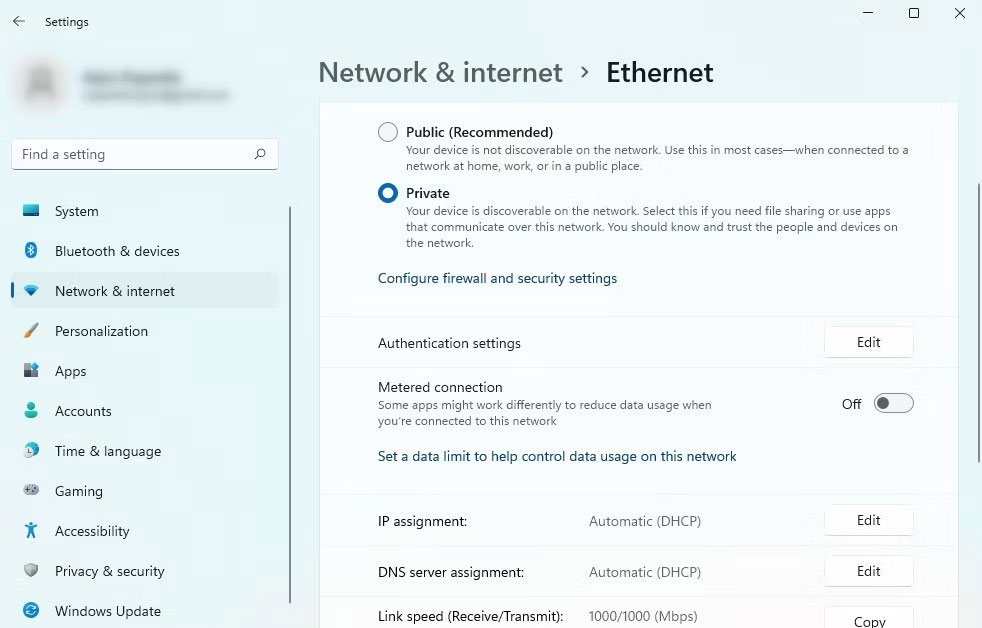
<p style="text-align: justify;">Việc thay đổi cấu hình mạng trên Windows và tắt tùy chọn Metered Connection cũng có thể giúp giải quyết các sự cố hạn chế quyền truy cập Internet trên kết nối Ethernet.</p>

<p style="text-align: justify;">Để thực hiện việc này, hãy mở ứng dụng Settings và đi tới&nbsp;<strong>Network and Internet &gt; Ethernet</strong>. Sau đó, tắt nút chuyển đổi&nbsp;<strong>Metered Connection</strong>&nbsp;và thay đổi&nbsp;<strong>Network profile</strong>&nbsp;từ&nbsp;<strong>Public</strong>&nbsp;thành&nbsp;<strong>Private</strong>.</p>

<figure>
<div style="text-align: justify;"><img alt="Phần Network and Internet trong cài đặt Windows" data-i="3" data-src="https://st.quantrimang.com/photos/image/2024/08/01/sua-loi-no-internet-access-tren-ket-noi-ethernet-windows-4.jpg" data-was-processed="true" height="628" src="https://st.quantrimang.com/photos/image/2024/08/01/sua-loi-no-internet-access-tren-ket-noi-ethernet-windows-4.jpg" width="982" /></div>

<figcaption>
<div style="text-align: justify;">Phần Network and Internet trong cài đặt Windows</div>
</figcaption>
</figure>

<p style="text-align: justify;">Sau đó, hãy khởi động lại PC, ngắt kết nối và kết nối lại cáp Ethernet đúng cách và kiểm tra xem điều đó có khắc phục được sự cố không.</p>

<h2 style="text-align: justify;">5. Thay đổi DNS Server và xóa DNS Cache</h2>

<p style="text-align: justify;">Theo mặc định, Windows sử dụng DNS Server do ISP cung cấp. Sự cố với DNS Server mặc định đôi khi có thể dẫn đến kết nối Internet chậm hoặc không có kết nối. Bạn có thể thử chuyển sang DNS Server đáng tin cậy hơn, chẳng hạn như Cloudflare hoặc Google DNS, để khắc phục sự cố này.</p>

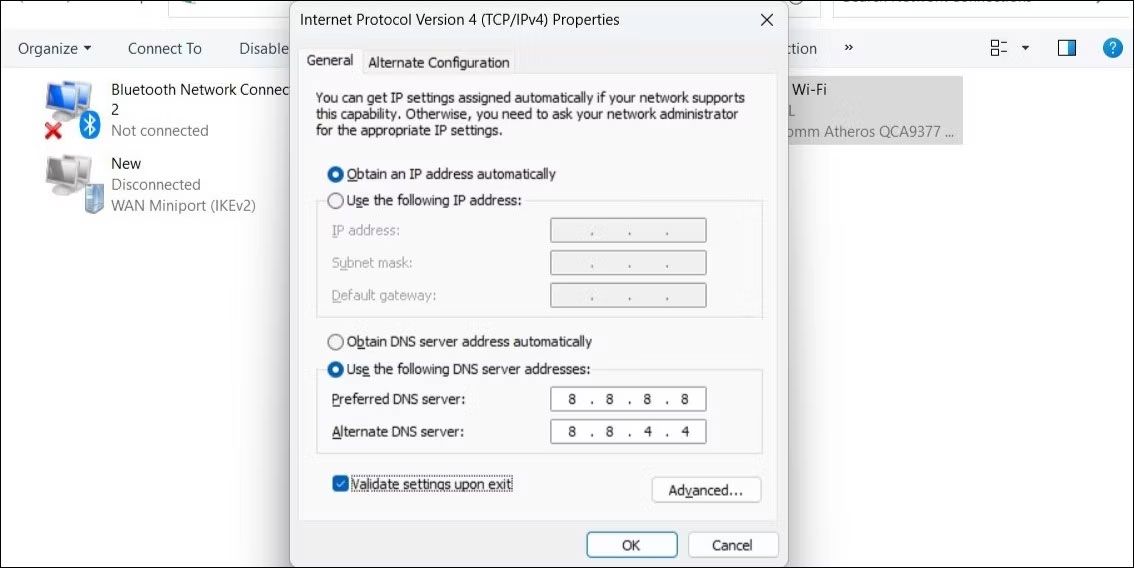
<p style="text-align: justify;">Để thay đổi DNS Server, hãy nhập&nbsp;<strong>ncpa.cpl</strong>&nbsp;vào hộp tìm kiếm và nhấn&nbsp;<strong>Enter.</strong>&nbsp;Trong cửa sổ&nbsp;<strong>Network Connections</strong>, nhấp chuột phải vào Ethernet adapter và chọn&nbsp;<strong>Properties.</strong>&nbsp;Sau đó, nhấp đúp vào&nbsp;<strong>Internet Protocol Version 4 (TCP/IPv4)</strong>, chọn tùy chọn&nbsp;<strong>Use the following DNS server addresses</strong>&nbsp;và nhập địa chỉ DNS vào các trường có liên quan.</p>

<figure>
<div style="text-align: justify;"><img alt="Cửa sổ Internet Protocol Version 4 Properties trong Windows" data-i="4" data-src="https://st.quantrimang.com/photos/image/2024/08/01/sua-loi-no-internet-access-tren-ket-noi-ethernet-windows-5.jpg" data-was-processed="true" height="568" src="https://st.quantrimang.com/photos/image/2024/08/01/sua-loi-no-internet-access-tren-ket-noi-ethernet-windows-5.jpg" width="1134" /></div>

<figcaption>
<div style="text-align: justify;">Cửa sổ Internet Protocol Version 4 Properties trong Windows</div>
</figcaption>
</figure>

<p style="text-align: justify;">Ví dụ, nếu bạn muốn sử dụng Google DNS, hãy nhập 8.8.8.8 làm DNS Server chính và 8.8.4.4 làm DNS server phụ.</p>

<p style="text-align: justify;">Sau khi thay đổi máy chủ mặc định, hãy đảm bảo&nbsp;xóa DNS cache&nbsp;để loại bỏ các mục cũ và không hợp lệ. Windows hiện có thể kết nối với Internet mà không gặp bất kỳ sự cố nào.</p>

<h2 style="text-align: justify;">6. Reset cài đặt mạng</h2>

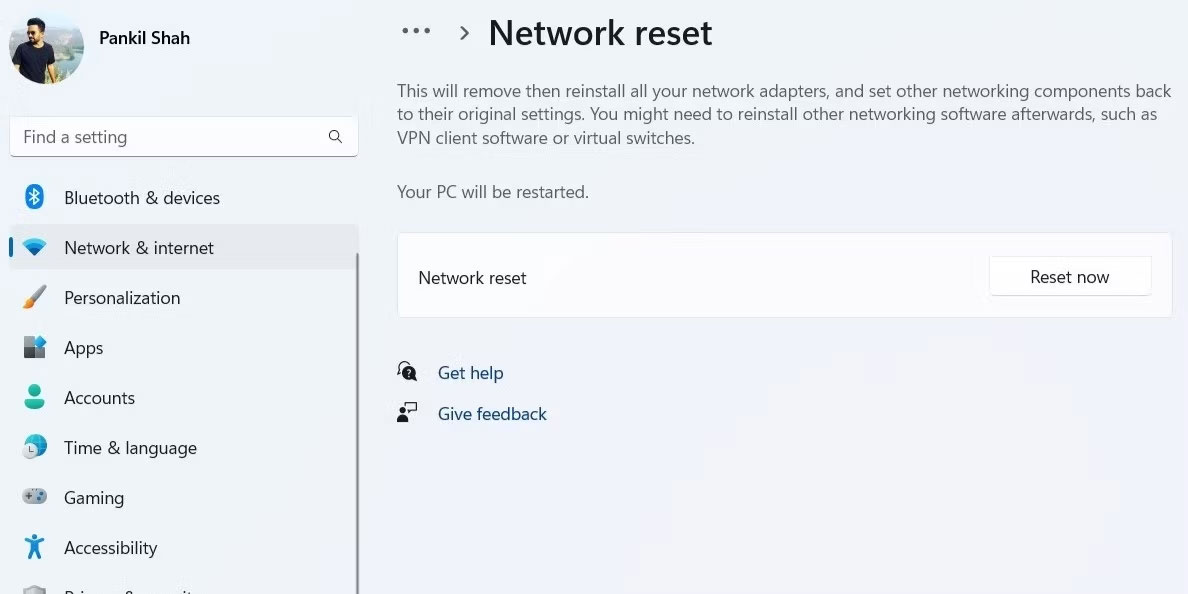
<p style="text-align: justify;">Nếu không có cách khắc phục nào ở trên hiệu quả và bạn vẫn thấy lỗi &quot;No Internet Access&quot;, hãy cân nhắc&nbsp;reset cài đặt mạng. Làm như vậy sẽ khôi phục tất cả cài đặt mạng trên PC về mặc định, giải quyết mọi sự cố bạn đang gặp phải.</p>

<p style="text-align: justify;">Để reset cài đặt mạng trên Windows, hãy mở ứng dụng&nbsp;<strong>Settings</strong>&nbsp;và đi tới&nbsp;<strong>Network &amp; internet &gt; Advanced network settings &gt; Network reset</strong>&nbsp;và nhấp vào&nbsp;<strong>Reset now</strong>.</p>

<figure>
<div style="text-align: justify;"><img alt="Menu reset mạng trong Windows" data-i="5" data-src="https://st.quantrimang.com/photos/image/2024/08/01/sua-loi-no-internet-access-tren-ket-noi-ethernet-windows-6.jpg" data-was-processed="true" height="594" src="https://st.quantrimang.com/photos/image/2024/08/01/sua-loi-no-internet-access-tren-ket-noi-ethernet-windows-6.jpg" width="1188" /></div>

<figcaption>
<div style="text-align: justify;">Menu reset mạng trong Windows</div>
</figcaption>
</figure>

<p style="text-align: justify;">Mặc dù kết nối Ethernet thường đáng tin cậy hơn&nbsp;Wi-Fi, nhưng chúng vẫn có thể gặp sự cố theo thời gian. Hy vọng rằng, các mẹo mà bài viết liệt kê ở trên đã giúp khắc phục sự cố bạn đang gặp phải và bạn đã có thể thiết lập lại kết nối Internet của mình.</p>

<div style="text-align: justify;">&nbsp;</div>
		</div>
				<div id="author">
						<p>
				<strong>Nguồn tin:</strong>
				Quantrimang.com:
			</p>
		</div>
	</div>
	<div id="footer" class="clearfix">
		<div id="url">
			<strong>URL của bản tin này: </strong><a href="https://www.nguoicodonvn2008.info/vi/news/savefile/kien-thuc-may-tinh/cach-khac-phuc-loi-no-internet-access-tren-ket-noi-ethernet-trong-windows-8796.html" title="Cách khắc phục lỗi &quot;No Internet Access&quot; trên kết nối Ethernet trong Windows">https://www.nguoicodonvn2008.info/vi/news/savefile/kien-thuc-may-tinh/cach-khac-phuc-loi-no-internet-access-tren-ket-noi-ethernet-trong-windows-8796.html</a>

		</div>
		<div class="clear"></div>
		<div class="copyright">
			&copy; .&#x3A; Nguoicodonvn2008.info - Cõi lòng người cô đơn &#x3A;.
		</div>
		<div id="contact">
			<a href="mailto:admin@nguoicodonvn2008.info">admin@nguoicodonvn2008.info</a>
		</div>
	</div>
</div>
        <div id="timeoutsess" class="chromeframe">
            Bạn đã không sử dụng Site, <a onclick="timeoutsesscancel();" href="https://nguoicodonvn2008.info/#">Bấm vào đây để duy trì trạng thái đăng nhập</a>. Thời gian chờ: <span id="secField"> 60 </span> giây
        </div>
        <div id="openidResult" class="nv-alert" style="display:none"></div>
        <div id="openidBt" data-result="" data-redirect=""></div>
		</script>
		<div class="car-top">
  <span><img src="https://nguoicodonvn2008.info/themes/default/images/car.png" alt=""></span>
</div>
<script src="https://nguoicodonvn2008.info/assets/js/jquery/jquery.min.js"></script>
<script>var nv_base_siteurl="/",nv_lang_data="vi",nv_lang_interface="vi",nv_name_variable="nv",nv_fc_variable="op",nv_lang_variable="language",nv_module_name="news",nv_func_name="savefile",nv_is_user=0, nv_my_ofs=-4,nv_my_abbr="EDT",nv_cookie_prefix="nv4c_e856T",nv_check_pass_mstime=1738000,nv_area_admin=0,nv_safemode=0,theme_responsive=0,nv_recaptcha_ver=2,nv_recaptcha_sitekey="",nv_recaptcha_type="image",XSSsanitize=1;</script>
<script src="https://nguoicodonvn2008.info/assets/js/language/vi.js"></script>
<script src="https://nguoicodonvn2008.info/assets/js/DOMPurify/purify3.js"></script>
<script src="https://nguoicodonvn2008.info/assets/js/global.js"></script>
<script src="https://nguoicodonvn2008.info/assets/js/site.js"></script>
<script src="https://nguoicodonvn2008.info/themes/default/js/news.js"></script>
<script src="https://nguoicodonvn2008.info/themes/default/js/main.js"></script>
<script src="https://nguoicodonvn2008.info/themes/default/js/custom.js"></script>
<script type="application/ld+json">
        {
            "@context": "https://schema.org",
            "@type": "Organization",
            "url": "https://nguoicodonvn2008.info",
            "logo": "https://nguoicodonvn2008.info/uploads/angel.gif"
        }
        </script>
<script src="https://nguoicodonvn2008.info/themes/default/js/bootstrap.min.js"></script>
<script type="text/javascript">
var $scrolltop = $('.car-top');
$scrolltop.on('click', function () {
    $('html,body').animate({
        scrollTop: 0
    }, 800);
    $(this).addClass("car-run");
    setTimeout(function(){ $scrolltop.removeClass('car-run');}, 1000);
    return false;
});
$(window).on('scroll', function ()
{ 
    if($(window).scrollTop() >= 200)
    {
        $scrolltop.addClass("show");
        $scrolltop.addClass("car-down");
    }
    else
    {
       $scrolltop.removeClass("show");
       setTimeout(function(){ $scrolltop.removeClass('car-down');}, 300);
    }
});
</script>
</body>
</html>