<!DOCTYPE html>
    <html lang="vi" xmlns="http://www.w3.org/1999/xhtml" prefix="og: http://ogp.me/ns#">
    <head>
<title>Cách khắc phục lỗi không mở được file JPG trong Windows</title>
<meta name="description" content="Cách khắc phục lỗi không mở được file JPG trong Windows - Savefile - Tin Tức -...">
<meta name="author" content=".: Nguoicodonvn2008.info - Cõi lòng người cô đơn :.">
<meta name="copyright" content=".: Nguoicodonvn2008.info - Cõi lòng người cô đơn :. [admin@nguoicodonvn2008.info]">
<meta name="robots" content="index, archive, follow, noodp">
<meta name="googlebot" content="index,archive,follow,noodp">
<meta name="msnbot" content="all,index,follow">
<meta name="generator" content="NukeViet v4.5">
<meta http-equiv="Content-Type" content="text/html; charset=utf-8">
<meta property="og:title" content="Cách khắc phục lỗi không mở được file JPG trong Windows">
<meta property="og:type" content="website">
<meta property="og:description" content="Savefile - Tin Tức - https&#x3A;&#x002F;&#x002F;www.nguoicodonvn2008.info&#x002F;vi&#x002F;news&#x002F;savefile&#x002F;kien-thuc-may-tinh&#x002F;cach-khac-phuc-loi-khong-mo-duoc-file-jpg-trong-windows-11806.html">
<meta property="og:site_name" content=".&#x3A; Nguoicodonvn2008.info - Cõi lòng người cô đơn &#x3A;.">
<meta property="og:url" content="https://www.nguoicodonvn2008.info/vi/news/savefile/kien-thuc-may-tinh/cach-khac-phuc-loi-khong-mo-duoc-file-jpg-trong-windows-11806.html">
<link rel="shortcut icon" href="https://nguoicodonvn2008.info/favicon.ico">
<link rel="canonical" href="https://www.nguoicodonvn2008.info/vi/news/savefile/kien-thuc-may-tinh/cach-khac-phuc-loi-khong-mo-duoc-file-jpg-trong-windows-11806.html">
<link rel="alternate" href="https://nguoicodonvn2008.info/vi/news/rss/" title="Tin Tức" type="application/rss+xml">
<link rel="alternate" href="https://nguoicodonvn2008.info/vi/news/rss/karaoke-dual/" title="Tin Tức - Karaoke Dual" type="application/rss+xml">
<link rel="alternate" href="https://nguoicodonvn2008.info/vi/news/rss/nhac-tre/" title="Tin Tức - Nhạc trẻ" type="application/rss+xml">
<link rel="alternate" href="https://nguoicodonvn2008.info/vi/news/rss/tru-tinh/" title="Tin Tức - Trữ tình" type="application/rss+xml">
<link rel="alternate" href="https://nguoicodonvn2008.info/vi/news/rss/nuoc-ngoai/" title="Tin Tức - Nước ngoài" type="application/rss+xml">
<link rel="alternate" href="https://nguoicodonvn2008.info/vi/news/rss/remix/" title="Tin Tức - Remix" type="application/rss+xml">
<link rel="alternate" href="https://nguoicodonvn2008.info/vi/news/rss/tam-su-tinh-yeu/" title="Tin Tức - Tâm sự tình yêu" type="application/rss+xml">
<link rel="alternate" href="https://nguoicodonvn2008.info/vi/news/rss/tho-suu-tam/" title="Tin Tức - Thơ sưu tầm" type="application/rss+xml">
<link rel="alternate" href="https://nguoicodonvn2008.info/vi/news/rss/cuoc-song/" title="Tin Tức - Cuộc sống" type="application/rss+xml">
<link rel="alternate" href="https://nguoicodonvn2008.info/vi/news/rss/phan-mem/" title="Tin Tức - Phần mềm" type="application/rss+xml">
<link rel="alternate" href="https://nguoicodonvn2008.info/vi/news/rss/kien-thuc-may-tinh/" title="Tin Tức - Kiến thức máy tính" type="application/rss+xml">
<link rel="alternate" href="https://nguoicodonvn2008.info/vi/news/rss/hoc-tap/" title="Tin Tức - Học tập" type="application/rss+xml">
<link rel="alternate" href="https://nguoicodonvn2008.info/vi/news/rss/tai-lieu/" title="Tin Tức - Tài liệu" type="application/rss+xml">
<link rel="alternate" href="https://nguoicodonvn2008.info/vi/news/rss/de-thi/" title="Tin Tức - Đề thi" type="application/rss+xml">
<link rel="preload" as="style" href="https://nguoicodonvn2008.info/assets/css/font-awesome.min.css" type="text/css">
<link rel="preload" as="style" href="https://nguoicodonvn2008.info/themes/default/css/bootstrap.non-responsive.css" type="text/css">
<link rel="preload" as="style" href="https://nguoicodonvn2008.info/themes/default/css/style.css" type="text/css">
<link rel="preload" as="style" href="https://nguoicodonvn2008.info/themes/default/css/style.non-responsive.css" type="text/css">
<link rel="preload" as="style" href="https://nguoicodonvn2008.info/themes/default/css/news.css" type="text/css">
<link rel="preload" as="style" href="https://nguoicodonvn2008.info/themes/default/css/custom.css" type="text/css">
<link rel="preload" as="script" href="https://nguoicodonvn2008.info/assets/js/jquery/jquery.min.js" type="text/javascript">
<link rel="preload" as="script" href="https://nguoicodonvn2008.info/assets/js/language/vi.js" type="text/javascript">
<link rel="preload" as="script" href="https://nguoicodonvn2008.info/assets/js/DOMPurify/purify3.js" type="text/javascript">
<link rel="preload" as="script" href="https://nguoicodonvn2008.info/assets/js/global.js" type="text/javascript">
<link rel="preload" as="script" href="https://nguoicodonvn2008.info/assets/js/site.js" type="text/javascript">
<link rel="preload" as="script" href="https://nguoicodonvn2008.info/themes/default/js/news.js" type="text/javascript">
<link rel="preload" as="script" href="https://nguoicodonvn2008.info/themes/default/js/main.js" type="text/javascript">
<link rel="preload" as="script" href="https://nguoicodonvn2008.info/themes/default/js/custom.js" type="text/javascript">
<link rel="preload" as="script" href="https://nguoicodonvn2008.info/themes/default/js/bootstrap.min.js" type="text/javascript">
<link rel="stylesheet" href="https://nguoicodonvn2008.info/assets/css/font-awesome.min.css">
<link rel="stylesheet" href="https://nguoicodonvn2008.info/themes/default/css/bootstrap.non-responsive.css">
<link rel="stylesheet" href="https://nguoicodonvn2008.info/themes/default/css/style.css">
<link rel="stylesheet" href="https://nguoicodonvn2008.info/themes/default/css/style.non-responsive.css">
<link rel="StyleSheet" href="https://nguoicodonvn2008.info/themes/default/css/news.css">
<link rel="stylesheet" href="https://nguoicodonvn2008.info/themes/default/css/custom.css">
<style type="text/css">
	body{background: #fff;}
</style>
    </head>
    <body>
<div id="print">
	<div id="hd_print">
		<h2 class="pull-left">.&#x3A; Nguoicodonvn2008.info - Cõi lòng người cô đơn &#x3A;.</h2>
		<p class="pull-right"><a title=".&#x3A; Nguoicodonvn2008.info - Cõi lòng người cô đơn &#x3A;." href="https://nguoicodonvn2008.info/">https://nguoicodonvn2008.info</a></p>
	</div>
	<div class="clear"></div>
	<hr />
	<div id="content">
		<h1>Cách khắc phục lỗi không mở được file JPG trong Windows</h1>
		<ul class="list-inline">
			<li>Chủ nhật - 07/12/2025 23:39</li>
			<li class="hidden-print txtrequired"><em class="fa fa-print">&nbsp;</em><a title="In ra" href="javascript:;" onclick="window.print()">In ra</a></li>
			<li class="hidden-print txtrequired"><em class="fa fa-power-off">&nbsp;</em><a title="Đóng cửa sổ này" href="javascript:;" onclick="window.close()">Đóng cửa sổ này</a></li>
		</ul>
		<div class="clear"></div>
		<div id="hometext">
		</div>
				<div class="imghome">
			<img alt="Cách khắc phục lỗi không mở được file JPG trong Windows" src="https://st.quantrimang.com/photos/image/2025/12/08/khong-the-mo-file-jpg-trong-windows-11.jpg" width="460" class="img-thumbnail" />
		</div>
		<div class="clear"></div>
		<div id="bodytext" class="clearfix">
			<p style="text-align: justify;">Nhiều người thường không thể mở file JPG do sự cố hệ thống hoặc file bị hỏng. Đây có thể là một vấn đề lớn vì&nbsp;JPEG&nbsp;là một trong những định dạng ảnh được sử dụng phổ biến nhất trên toàn thế giới. Đây là lý do tại sao bạn nên tìm kiếm các mẹo và giải pháp nếu không thể mở file JPG.</p>

<p style="text-align: justify;">Nếu đang thắc mắc tại sao file JPG của mình không mở được, bạn không phải là người duy nhất. May mắn thay, có một số giải pháp cho vấn đề này cực kỳ hữu ích, nếu bạn gặp phải những sự cố. Nếu bạn không thể mở file JPEG, hãy đọc tiếp để hiểu rõ hơn các phương pháp và bước có thể thực hiện để mở file JPEG và khôi phục chúng về trạng thái ban đầu.</p>

<h2 style="text-align: justify;">Phần 1: Tại sao file JPG không mở được trên Windows 10/11</h2>

<p style="text-align: justify;">Do một số vấn đề, bạn có thể gặp sự cố khi sử dụng file JPEG. Điều này có thể do nhiều nguyên nhân như định dạng không đúng, tên file bị hỏng, v.v... Việc file JPG không mở được khá phổ biến.</p>

<p style="text-align: justify;">Những vấn đề như vậy có thể gây ra rất nhiều phiền toái do tính phổ biến của định dạng JPEG. Ngoài ra, vì hầu hết camera điện thoại thông minh đều mặc định chụp ảnh JPEG, các công việc như chỉnh sửa và xử lý ảnh sẽ trở nên khó khăn nếu file JPEG không mở được trên hệ thống của bạn. Đôi khi,&nbsp;Windows Photo Viewer&nbsp;cũng không thể mở file JPG.</p>

<p style="text-align: justify;">Nếu bạn không thể mở file JPG trong Windows, hãy xem các nguyên nhân bên dưới để hiểu rõ hơn về các lỗi trong Windows có thể gây ra sự cố như vậy.</p>

<h3 style="text-align: justify;">Nguyên nhân 1: File JPEG bị hỏng</h3>

<ul>
	<li style="text-align: justify;">Nếu không được lưu đúng cách hoặc do một số lỗi hoặc sự cố xuất hiện trong khi lưu ảnh, file JPEG có thể bị hỏng.</li>
	<li style="text-align: justify;">Nguyên nhân cũng có thể do virus trong hệ thống, làm hỏng các file và khiến chúng không sử dụng được.</li>
	<li style="text-align: justify;">Nếu bạn đang download hình ảnh và vì lý do nào đó, quá trình tải xuống bị kẹt hoặc gián đoạn, thì file&nbsp;cũng có thể bị hỏng hoặc lỗi, dẫn đến việc file JPG không mở được trong Windows.</li>
</ul>

<h3 style="text-align: justify;">Nguyên nhân 2: Lỗi khi lưu file</h3>

<p style="text-align: justify;">Tên file là danh tính của file và điều quan trọng là phải đảm bảo bạn không làm sai khi lưu tên file. Hệ thống Windows tự động áp dụng phần mở rộng hình ảnh ở cuối tên file và bạn không cần phải nhập thủ công định dạng và phần mở rộng vào ô của file. Ví dụ:</p>

<ul>
	<li style="text-align: justify;">Zyz.jpeg.jpeg, 2 định dạng ở đây sẽ khiến file không sử dụng được.</li>
	<li style="text-align: justify;">Nếu bị mất điện trong quá trình lưu file, file cũng có thể bị lỗi.</li>
</ul>

<h3 style="text-align: justify;">Nguyên nhân 3: Thiếu tiêu đề</h3>

<p style="text-align: justify;">Do file bị hỏng hoặc có vấn đề với tiêu đề trong ảnh, bạn có thể không truy cập được. Đây là một sự cố rất phổ biến có thể khiến ảnh của bạn trở nên vô dụng. Mỗi khi nhấp vào những ảnh như vậy, bạn sẽ thấy lỗi &quot;không có bản xem trước&quot;.</p>

<p style="text-align: justify;">Dưới đây là video hướng dẫn bạn cách khắc phục sự cố không thể mở file JPG trên Windows:</p>

<p style="text-align: justify;"><iframe allow="autoplay" allowfullscreen="" data-src="https://www.youtube.com/embed/kMt-6JH7MkE" data-was-processed="true" frameborder="0" height="366" sandbox="allow-scripts allow-same-origin allow-forms allow-presentation allow-popups" scrolling="no" src="https://www.youtube.com/embed/kMt-6JH7MkE" title="How to Fix Can&#039;t Open JPG Files Issues on Windows 10/11?" width="650"></iframe></p>

<h2 style="text-align: justify;">Phần 2: Cách khắc phục sự cố không thể mở file JPG trên Windows</h2>

<p style="text-align: justify;">Có rất nhiều cách để bạn có thể dễ dàng giải quyết những sự cố này. Điều cực kỳ quan trọng là phải đảm bảo sửa chữa các file này kịp thời để có thể dễ dàng sử dụng khi cần. File JPG là một trong những phần mở rộng hình ảnh phổ biến nhất, do đó mọi người nên biết các phương pháp khắc phục sự cố như không thể mở file JPG trong Windows để bạn có thể bắt tay vào làm việc mà không lãng phí một giây nào.</p>

<h3 style="text-align: justify;">Khắc phục file ảnh JPG bị hỏng</h3>

<p style="text-align: justify;">Một trong những vấn đề đầu tiên và phổ biến nhất mà mọi người gặp phải khi xử lý file JPEG là do file bị hỏng. Điều này có thể xảy ra do sự cố khi lưu file, mất thông tin, virus, v.v... và do đó, bạn sẽ không thể mở file JPG trong Windows 10/11. Đây là một vấn đề khó chịu, nhưng may mắn thay, với sự trợ giúp của các công cụ sửa chữa ảnh, việc sửa chữa và khôi phục các file này cũng như sử dụng chúng đúng cách trở nên cực kỳ dễ dàng.</p>

<p style="text-align: justify;">Đây là một công cụ rất mạnh mẽ có thể giúp bạn khôi phục bất kỳ loại file bị hỏng nào chỉ trong vài giây. Nó có thể sửa lỗi định dạng, thông tin bị thiếu và giúp file trở nên dễ dàng sử dụng. Sau đây là hướng dẫn từng bước giúp bạn khôi phục file.</p>

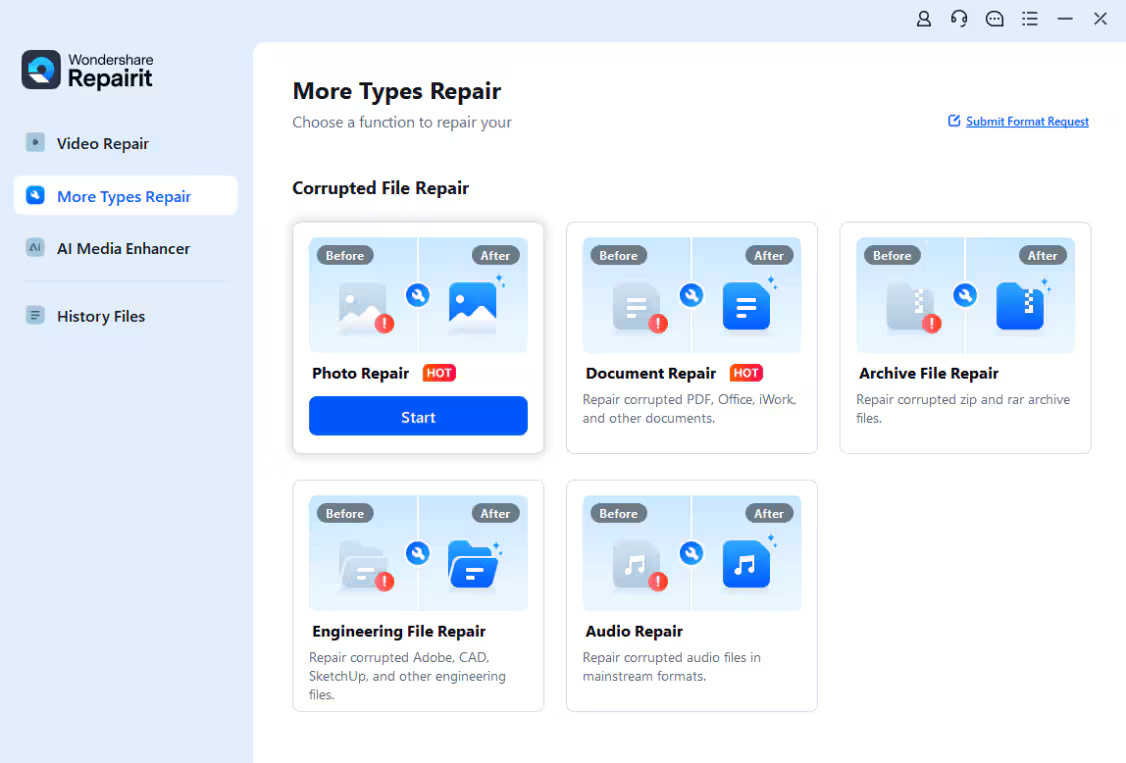
<p style="text-align: justify;"><strong>Bước 1: Thêm ảnh bị hỏng hoặc lỗi</strong></p>

<p style="text-align: justify;">Khởi chạy&nbsp;Wondershare Repairit&nbsp;trên máy tính Windows và vào tính năng&nbsp;<strong>More Types Repair</strong>&nbsp;từ thanh bên, sau đó chọn&nbsp;<strong>Photo Repair</strong>.</p>

<figure>
<div style="text-align: justify;"><img alt="" data-adbro-processed="true" data-i="0" data-src="https://st.quantrimang.com/photos/image/2025/12/08/khong-the-mo-file-jpg-trong-windows-1.jpg" data-was-processed="true" height="763" src="https://st.quantrimang.com/photos/image/2025/12/08/khong-the-mo-file-jpg-trong-windows-1.jpg" width="1126" /></div>
</figure>

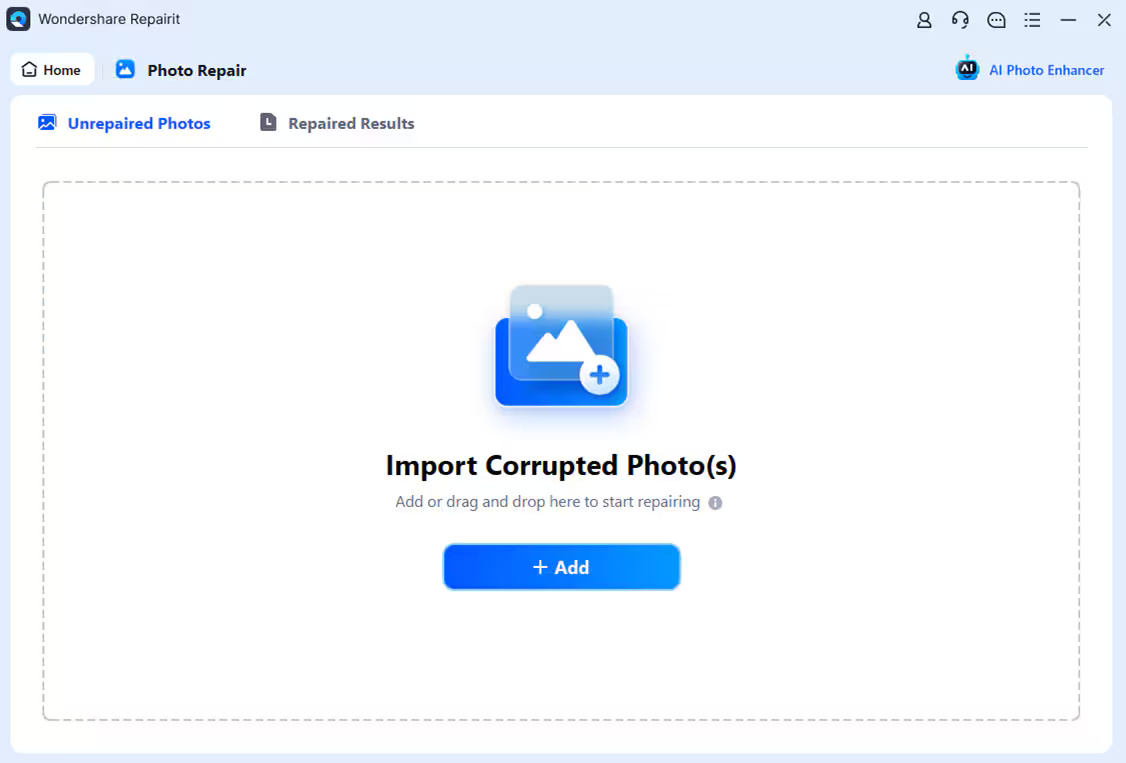
<p style="text-align: justify;">Bây giờ, hãy nhấp vào nút&nbsp;<strong>Add</strong>&nbsp;để mở cửa sổ trình duyệt. Bây giờ, bạn có thể đến vị trí lưu ảnh bị hỏng và upload chúng lên ứng dụng.</p>

<figure>
<div style="text-align: justify;"><img alt="" data-i="1" data-src="https://st.quantrimang.com/photos/image/2025/12/08/khong-the-mo-file-jpg-trong-windows-2.jpg" data-was-processed="true" height="763" src="https://st.quantrimang.com/photos/image/2025/12/08/khong-the-mo-file-jpg-trong-windows-2.jpg" width="1126" /></div>
</figure>

<p style="text-align: justify;"><strong>Bước 2: Sửa chữa và xem trước ảnh</strong></p>

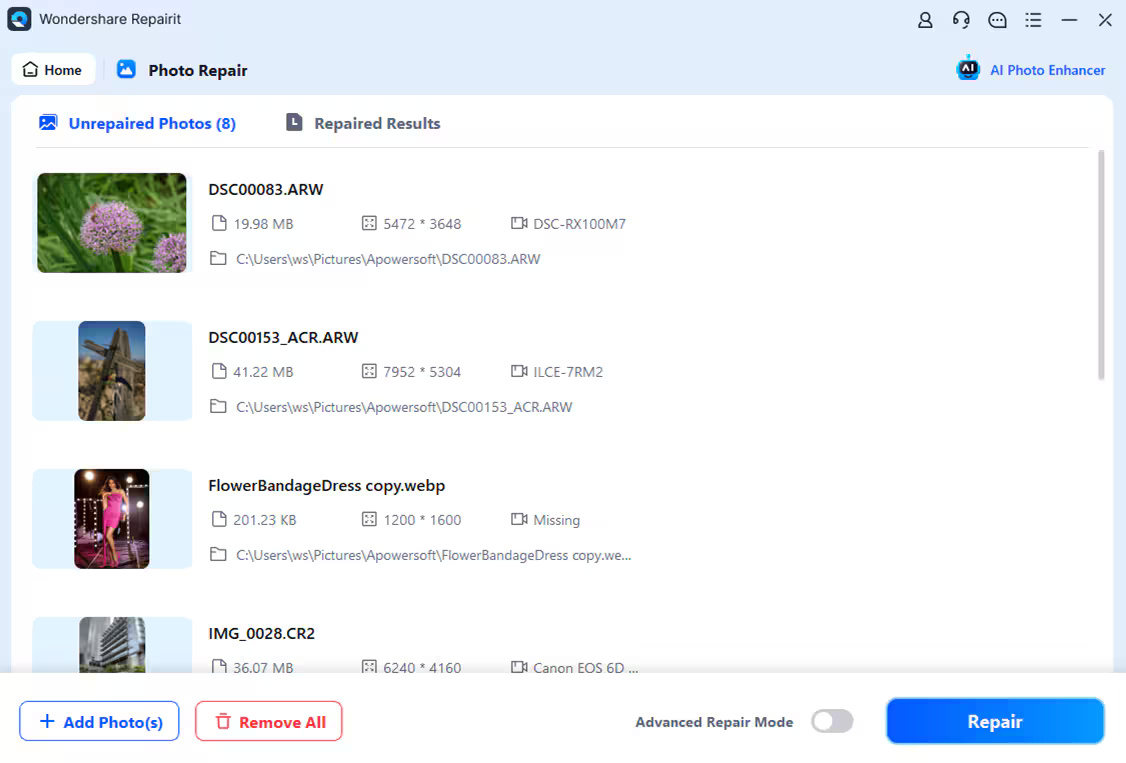
<p style="text-align: justify;">Nhấp vào nút&nbsp;<strong>Repair</strong>&nbsp;và chờ ứng dụng triển khai thuật toán độc đáo để sửa ảnh đã load. Khi quá trình sửa chữa hoàn tất, ứng dụng sẽ thông báo cho bạn về kết quả.</p>

<figure>
<div style="text-align: justify;"><img alt="" data-i="2" data-src="https://st.quantrimang.com/photos/image/2025/12/08/khong-the-mo-file-jpg-trong-windows-3.jpg" data-was-processed="true" height="763" src="https://st.quantrimang.com/photos/image/2025/12/08/khong-the-mo-file-jpg-trong-windows-3.jpg" width="1126" /></div>
</figure>

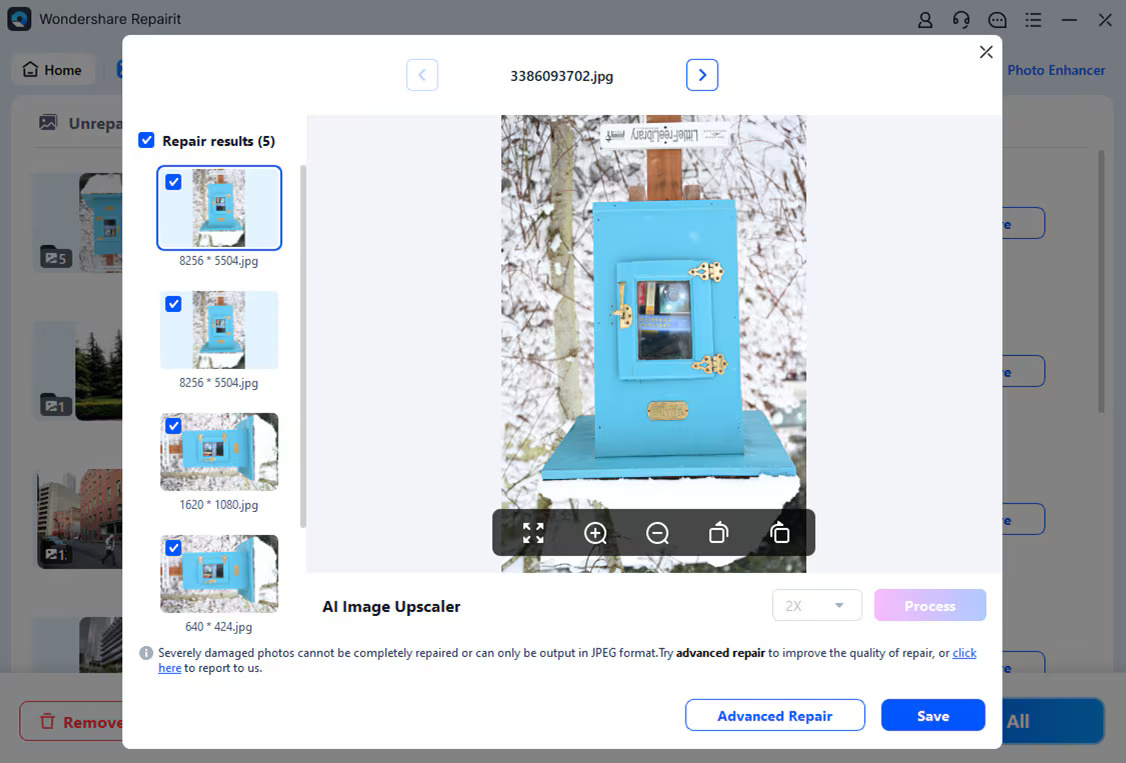
<p style="text-align: justify;">Bạn cũng có thể chỉ cần nhấp vào hình thu nhỏ của ảnh để mở cửa sổ xem trước. Thao tác này sẽ cho phép bạn xem kết quả và kiểm tra xem quy trình sửa chữa tiêu chuẩn đã thành công hay chưa.</p>

<figure>
<div style="text-align: justify;"><img alt="" data-i="3" data-src="https://st.quantrimang.com/photos/image/2025/12/08/khong-the-mo-file-jpg-trong-windows-4.jpg" data-was-processed="true" height="763" src="https://st.quantrimang.com/photos/image/2025/12/08/khong-the-mo-file-jpg-trong-windows-4.jpg" width="1126" /></div>
</figure>

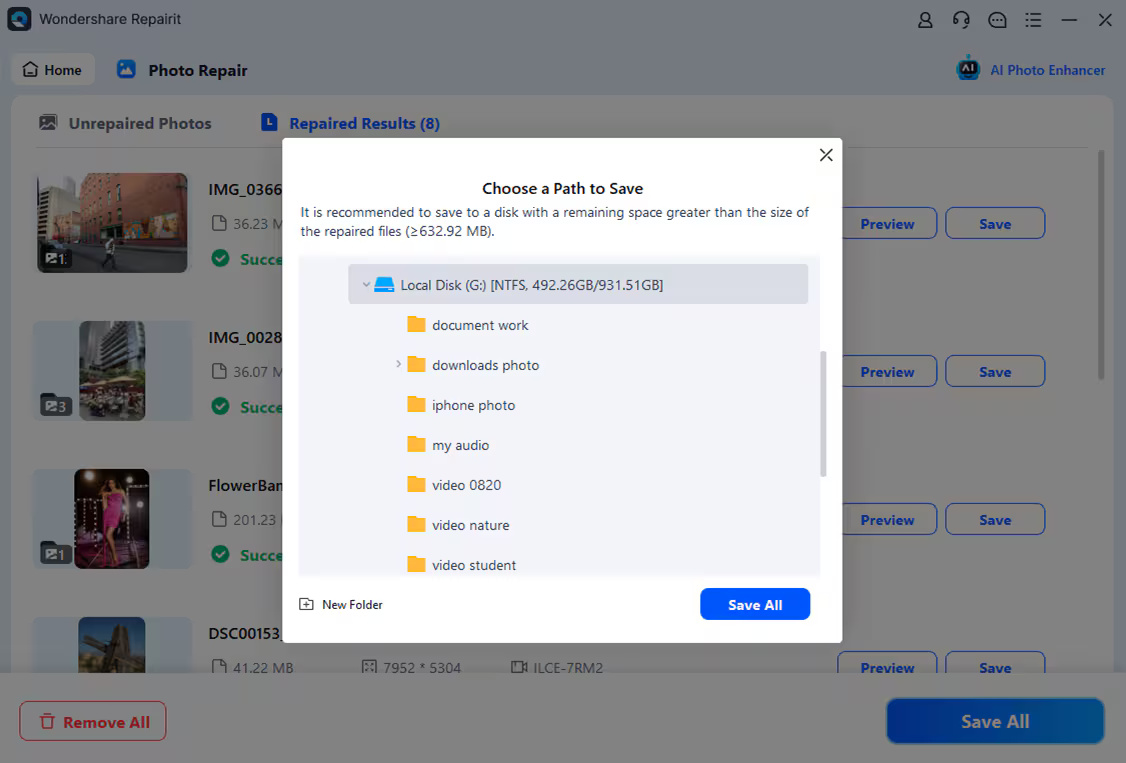
<p style="text-align: justify;"><strong>Bước 3: Lưu ảnh đã sửa</strong></p>

<p style="text-align: justify;">Cuối cùng, bạn chỉ cần nhấp vào nút&nbsp;<strong>Save</strong>&nbsp;trên bảng xem trước để xuất ảnh. Bạn cũng có thể quay lại, chọn nhiều ảnh và nhấp vào nút&nbsp;<strong>Save All</strong>.</p>

<figure>
<div style="text-align: justify;"><img alt="Lưu ảnh đã sửa" data-i="4" data-src="https://st.quantrimang.com/photos/image/2025/12/08/khong-the-mo-file-jpg-trong-windows-5.jpg" data-was-processed="true" height="763" src="https://st.quantrimang.com/photos/image/2025/12/08/khong-the-mo-file-jpg-trong-windows-5.jpg" width="1126" /></div>

<figcaption>
<div style="text-align: justify;">Lưu ảnh đã sửa</div>
</figcaption>
</figure>

<h3 style="text-align: justify;">Khắc phần mở rộng file bị ẩn</h3>

<p style="text-align: justify;">Một trong những nguyên nhân phổ biến nhất khiến file JPG không mở được trên Windows là do phần mở rộng của file bị ẩn đi. Do đó, hệ thống sẽ không thể đọc được file và do đó trình xem ảnh của bạn sẽ không thể mở hoặc hiển thị file. Đây là một vấn đề nhỏ và bạn có thể dễ dàng tự khắc phục mà không cần sự trợ giúp của bất kỳ công cụ nào. Hướng dẫn từng bước sau đây sẽ giúp bạn hiểu rõ hơn cách thực hiện.</p>

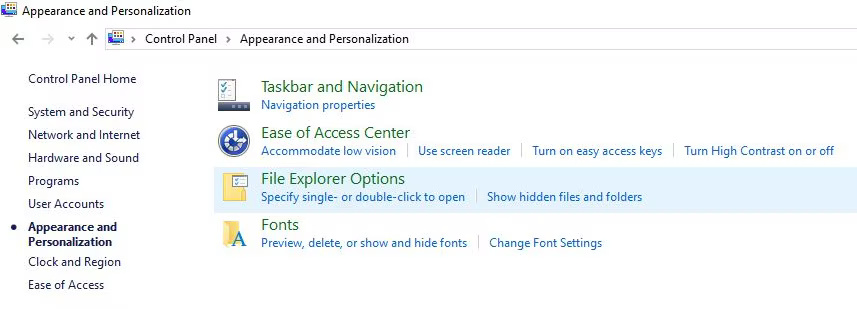
<p style="text-align: justify;">1. Trước tiên, hãy&nbsp;vào Control Panel, sau đó nhấp vào giao diện và chọn&nbsp;<strong>Appearance and Personalization</strong>. Bây giờ, hãy nhấp vào tùy chọn File Explorer.</p>

<figure>
<div style="text-align: justify;"><img alt="" data-i="5" data-src="https://st.quantrimang.com/photos/image/2025/12/08/khong-the-mo-file-jpg-trong-windows-6.jpg" data-was-processed="true" height="309" src="https://st.quantrimang.com/photos/image/2025/12/08/khong-the-mo-file-jpg-trong-windows-6.jpg" width="857" /></div>
</figure>

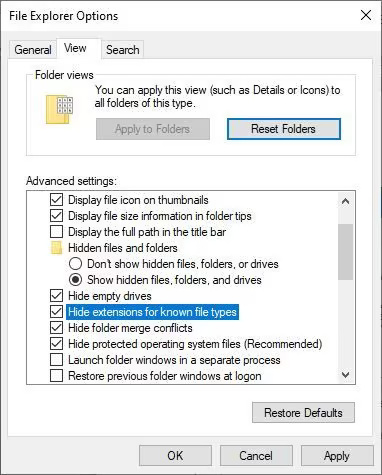
<p style="text-align: justify;">2. Bây giờ, hãy chuyển đến tab có nhãn&nbsp;<strong>View</strong>&nbsp;và chọn tùy chọn hiển thị phần mở rộng ẩn. Ngoài ra, hãy bỏ chọn tùy chọn ẩn phần mở rộng cho các loại file đã biết. Bây giờ, hãy nhấp vào tùy chọn&nbsp;<strong>Apply</strong>&nbsp;và bây giờ, bạn có thể sử dụng file.</p>

<figure>
<div style="text-align: justify;"><img alt="" data-i="6" data-src="https://st.quantrimang.com/photos/image/2025/12/08/khong-the-mo-file-jpg-trong-windows-7.jpg" data-was-processed="true" height="475" src="https://st.quantrimang.com/photos/image/2025/12/08/khong-the-mo-file-jpg-trong-windows-7.jpg" width="382" /></div>
</figure>

<h3 style="text-align: justify;">Sửa lỗi định dạng</h3>

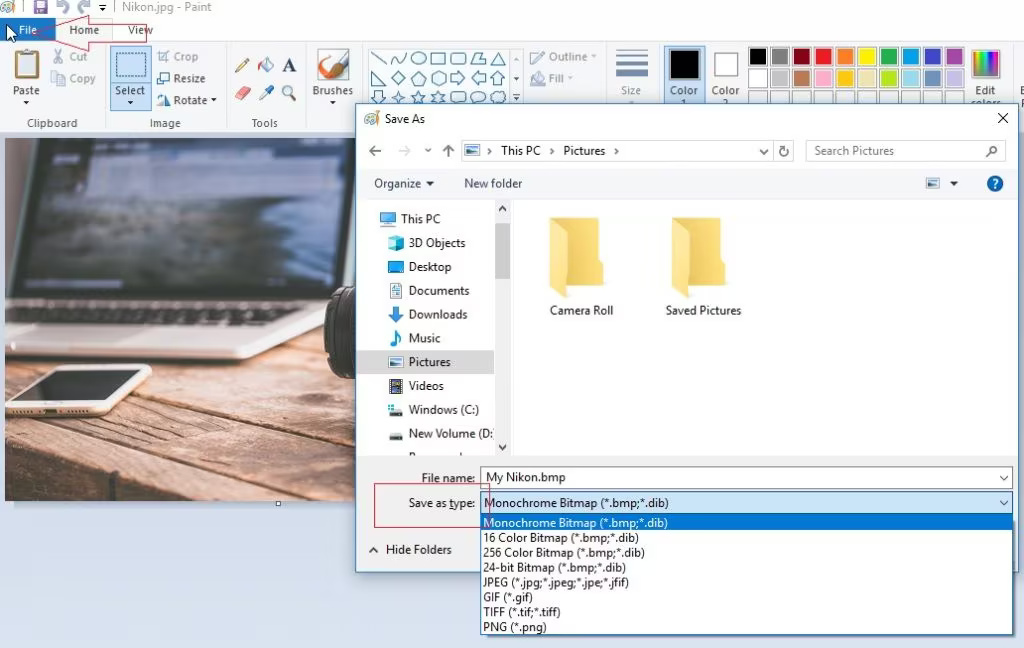
<p style="text-align: justify;">Lỗi định dạng là các sự cố khi mở file phát sinh do lỗi định dạng hoặc định dạng không được hỗ trợ. Đây là một sự cố rất thường gặp, có thể phát sinh do hệ thống không tương thích hoặc lỗi khi chọn định dạng file JPEG. Việc khắc phục cũng rất dễ dàng vì bạn chỉ cần chuyển đổi file JPEG sang định dạng được hỗ trợ trên máy tính cá nhân của mình. Có rất nhiều cách để thực hiện, nhưng các bước dưới đây là cách dễ nhất.</p>

<p style="text-align: justify;"><strong>Giải pháp:</strong></p>

<p style="text-align: justify;">1. Sao chép hình ảnh từ vị trí hiện tại và mở Paint trên máy tính. Nhấn&nbsp;<strong>CTRL + V</strong>&nbsp;trên bàn phím, hình ảnh sẽ được đăng lên đó.</p>

<p style="text-align: justify;">2. Nhấn&nbsp;<strong>CTRL + S</strong>&nbsp;và lưu file ở định dạng được thiết bị của bạn hỗ trợ.</p>

<figure>
<div style="text-align: justify;"><img alt="Giải quyết lỗi định dạng" data-i="7" data-src="https://st.quantrimang.com/photos/image/2025/12/08/khong-the-mo-file-jpg-trong-windows-8.jpg" data-was-processed="true" height="648" src="https://st.quantrimang.com/photos/image/2025/12/08/khong-the-mo-file-jpg-trong-windows-8.jpg" width="1024" /></div>

<figcaption>
<div style="text-align: justify;">Giải quyết lỗi định dạng</div>
</figcaption>
</figure>

<h3 style="text-align: justify;">Khắc phục sự cố tương thích</h3>

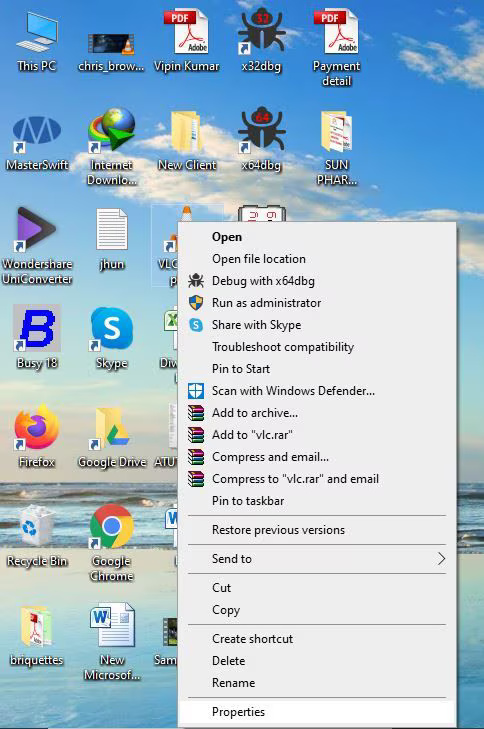
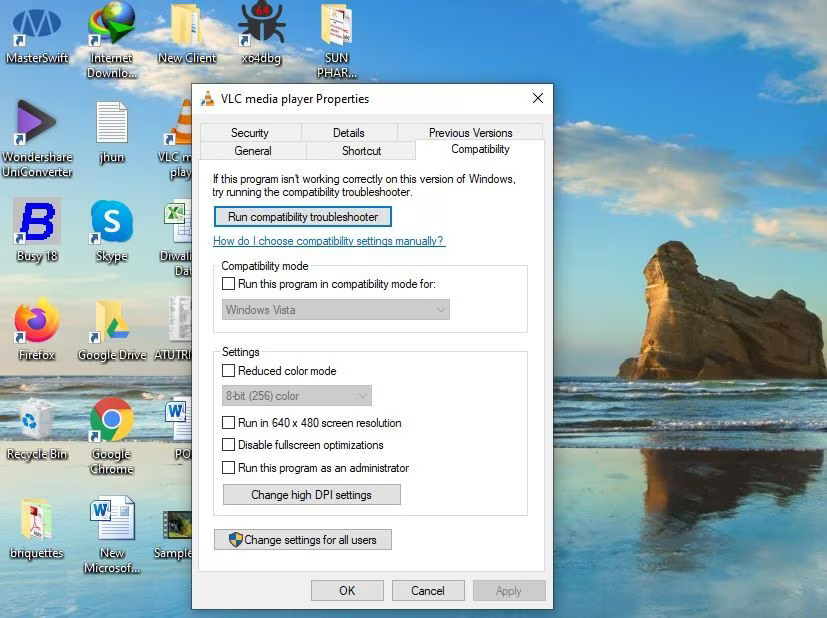
<p style="text-align: justify;">Do sự cố tương thích, bạn có thể không sử dụng được file JPEG. Có thể ứng dụng xem ảnh của bạn không tương thích với định dạng file bạn đang sử dụng. Bạn có thể kiểm tra điều này trong tùy chọn tương thích và mở ứng dụng ở chế độ tương thích. Để giải quyết sự cố này, bạn có thể thực hiện các bước sau.</p>

<p style="text-align: justify;">1. Mở máy tính và tìm đến thư mục chứa phần mềm bạn đang sử dụng để mở ảnh. Nhấp chuột phải vào đó và chọn tùy chọn&nbsp;<strong>Properties.</strong></p>

<figure>
<div style="text-align: justify;"><img alt="" data-i="8" data-src="https://st.quantrimang.com/photos/image/2025/12/08/khong-the-mo-file-jpg-trong-windows-9.jpg" data-was-processed="true" height="729" src="https://st.quantrimang.com/photos/image/2025/12/08/khong-the-mo-file-jpg-trong-windows-9.jpg" width="484" /></div>
</figure>

<p style="text-align: justify;">2. Nhấp vào tùy chọn&nbsp;<strong>Run in Compatibility Mode</strong>&nbsp;và bạn sẽ có thể sử dụng file mà không gặp bất kỳ sự cố nào.</p>

<figure>
<div style="text-align: justify;"><img alt="" data-i="9" data-src="https://st.quantrimang.com/photos/image/2025/12/08/khong-the-mo-file-jpg-trong-windows-10.jpg" data-was-processed="true" height="618" src="https://st.quantrimang.com/photos/image/2025/12/08/khong-the-mo-file-jpg-trong-windows-10.jpg" width="827" /></div>
</figure>

<h3 style="text-align: justify;">Khắc phục sự cố đổi tên</h3>

<p style="text-align: justify;">Thông thường, mọi người thường thêm phần mở rộng khi đổi tên file JPG hoặc thậm chí khi lưu chúng. Vì hệ thống tự động thêm phần mở rộng vào file, nên sẽ có 2 phần mở rộng trong 1 file nếu bạn làm như vậy. Do đó, tốt hơn hết bạn nên thử thêm phần mở rộng khi đổi tên hoặc lưu ảnh. Các bước sau đây sẽ giúp bạn khắc phục những lỗi này.</p>

<ul>
	<li style="text-align: justify;">Mở thư mục chứa file mà bạn không thể mở.</li>
	<li style="text-align: justify;">Nhấp chuột phải vào biểu tượng file và nhấn vào&nbsp;<strong>Rename.</strong></li>
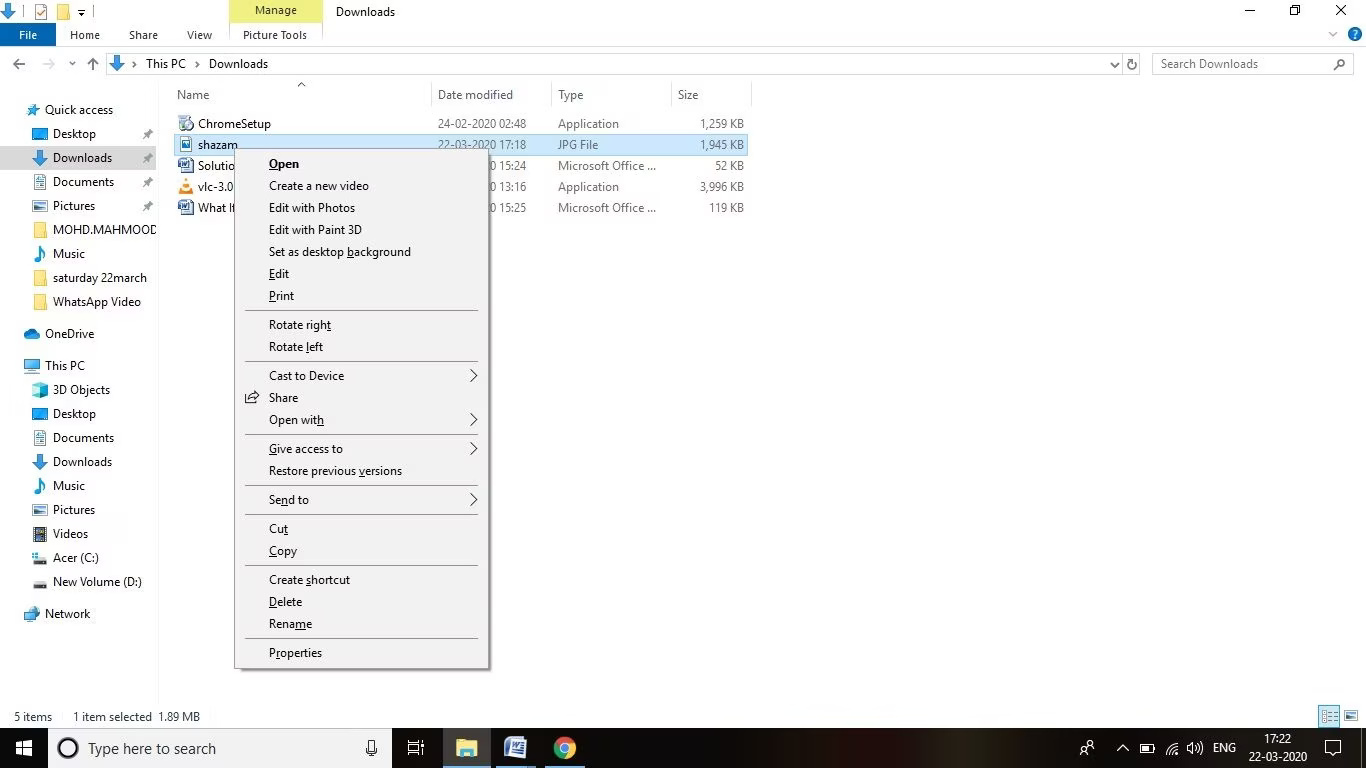
	<li style="text-align: justify;">Bây giờ, hãy xóa phần JPG thừa khỏi tên của file và nhấn&nbsp;<strong>Enter.</strong>&nbsp;Công việc của bạn sẽ hoàn tất.</li>
</ul>

<figure>
<div style="text-align: justify;"><img alt="" data-i="10" data-src="https://st.quantrimang.com/photos/image/2025/12/08/khong-the-mo-file-jpg-trong-windows-11.jpg" data-was-processed="true" height="768" src="https://st.quantrimang.com/photos/image/2025/12/08/khong-the-mo-file-jpg-trong-windows-11.jpg" width="1366" /></div>
</figure>

<div style="text-align: justify;">&nbsp;</div>
		</div>
				<div id="author">
						<p>
				<strong>Nguồn tin:</strong>
				Quantrimang.com:
			</p>
		</div>
	</div>
	<div id="footer" class="clearfix">
		<div id="url">
			<strong>URL của bản tin này: </strong><a href="https://www.nguoicodonvn2008.info/vi/news/savefile/kien-thuc-may-tinh/cach-khac-phuc-loi-khong-mo-duoc-file-jpg-trong-windows-11806.html" title="Cách khắc phục lỗi không mở được file JPG trong Windows">https://www.nguoicodonvn2008.info/vi/news/savefile/kien-thuc-may-tinh/cach-khac-phuc-loi-khong-mo-duoc-file-jpg-trong-windows-11806.html</a>

		</div>
		<div class="clear"></div>
		<div class="copyright">
			&copy; .&#x3A; Nguoicodonvn2008.info - Cõi lòng người cô đơn &#x3A;.
		</div>
		<div id="contact">
			<a href="mailto:admin@nguoicodonvn2008.info">admin@nguoicodonvn2008.info</a>
		</div>
	</div>
</div>
        <div id="timeoutsess" class="chromeframe">
            Bạn đã không sử dụng Site, <a onclick="timeoutsesscancel();" href="https://nguoicodonvn2008.info/#">Bấm vào đây để duy trì trạng thái đăng nhập</a>. Thời gian chờ: <span id="secField"> 60 </span> giây
        </div>
        <div id="openidResult" class="nv-alert" style="display:none"></div>
        <div id="openidBt" data-result="" data-redirect=""></div>
		</script>
		<div class="car-top">
  <span><img src="https://nguoicodonvn2008.info/themes/default/images/car.png" alt=""></span>
</div>
<script src="https://nguoicodonvn2008.info/assets/js/jquery/jquery.min.js"></script>
<script>var nv_base_siteurl="/",nv_lang_data="vi",nv_lang_interface="vi",nv_name_variable="nv",nv_fc_variable="op",nv_lang_variable="language",nv_module_name="news",nv_func_name="savefile",nv_is_user=0, nv_my_ofs=-4,nv_my_abbr="EDT",nv_cookie_prefix="nv4c_e856T",nv_check_pass_mstime=1738000,nv_area_admin=0,nv_safemode=0,theme_responsive=0,nv_recaptcha_ver=2,nv_recaptcha_sitekey="",nv_recaptcha_type="image",XSSsanitize=1;</script>
<script src="https://nguoicodonvn2008.info/assets/js/language/vi.js"></script>
<script src="https://nguoicodonvn2008.info/assets/js/DOMPurify/purify3.js"></script>
<script src="https://nguoicodonvn2008.info/assets/js/global.js"></script>
<script src="https://nguoicodonvn2008.info/assets/js/site.js"></script>
<script src="https://nguoicodonvn2008.info/themes/default/js/news.js"></script>
<script src="https://nguoicodonvn2008.info/themes/default/js/main.js"></script>
<script src="https://nguoicodonvn2008.info/themes/default/js/custom.js"></script>
<script type="application/ld+json">
        {
            "@context": "https://schema.org",
            "@type": "Organization",
            "url": "https://nguoicodonvn2008.info",
            "logo": "https://nguoicodonvn2008.info/uploads/angel.gif"
        }
        </script>
<script src="https://nguoicodonvn2008.info/themes/default/js/bootstrap.min.js"></script>
<script type="text/javascript">
var $scrolltop = $('.car-top');
$scrolltop.on('click', function () {
    $('html,body').animate({
        scrollTop: 0
    }, 800);
    $(this).addClass("car-run");
    setTimeout(function(){ $scrolltop.removeClass('car-run');}, 1000);
    return false;
});
$(window).on('scroll', function ()
{ 
    if($(window).scrollTop() >= 200)
    {
        $scrolltop.addClass("show");
        $scrolltop.addClass("car-down");
    }
    else
    {
       $scrolltop.removeClass("show");
       setTimeout(function(){ $scrolltop.removeClass('car-down');}, 300);
    }
});
</script>
</body>
</html>