<!DOCTYPE html>
    <html lang="vi" xmlns="http://www.w3.org/1999/xhtml" prefix="og: http://ogp.me/ns#">
    <head>
<title>Cách kết nối và sử dụng PostgreSQL trong Python</title>
<meta name="description" content="Cách kết nối và sử dụng PostgreSQL trong Python - Savefile - Tin Tức -...">
<meta name="author" content=".: Nguoicodonvn2008.info - Cõi lòng người cô đơn :.">
<meta name="copyright" content=".: Nguoicodonvn2008.info - Cõi lòng người cô đơn :. [admin@nguoicodonvn2008.info]">
<meta name="robots" content="index, archive, follow, noodp">
<meta name="googlebot" content="index,archive,follow,noodp">
<meta name="msnbot" content="all,index,follow">
<meta name="generator" content="NukeViet v4.5">
<meta http-equiv="Content-Type" content="text/html; charset=utf-8">
<meta property="og:title" content="Cách kết nối và sử dụng PostgreSQL trong Python">
<meta property="og:type" content="website">
<meta property="og:description" content="Savefile - Tin Tức - https&#x3A;&#x002F;&#x002F;www.nguoicodonvn2008.info&#x002F;vi&#x002F;news&#x002F;savefile&#x002F;kien-thuc-may-tinh&#x002F;cach-ket-noi-va-su-dung-postgresql-trong-python-7918.html">
<meta property="og:site_name" content=".&#x3A; Nguoicodonvn2008.info - Cõi lòng người cô đơn &#x3A;.">
<meta property="og:url" content="https://www.nguoicodonvn2008.info/vi/news/savefile/kien-thuc-may-tinh/cach-ket-noi-va-su-dung-postgresql-trong-python-7918.html">
<link rel="shortcut icon" href="https://nguoicodonvn2008.info/favicon.ico">
<link rel="canonical" href="https://www.nguoicodonvn2008.info/vi/news/savefile/kien-thuc-may-tinh/cach-ket-noi-va-su-dung-postgresql-trong-python-7918.html">
<link rel="alternate" href="https://nguoicodonvn2008.info/vi/news/rss/" title="Tin Tức" type="application/rss+xml">
<link rel="alternate" href="https://nguoicodonvn2008.info/vi/news/rss/karaoke-dual/" title="Tin Tức - Karaoke Dual" type="application/rss+xml">
<link rel="alternate" href="https://nguoicodonvn2008.info/vi/news/rss/nhac-tre/" title="Tin Tức - Nhạc trẻ" type="application/rss+xml">
<link rel="alternate" href="https://nguoicodonvn2008.info/vi/news/rss/tru-tinh/" title="Tin Tức - Trữ tình" type="application/rss+xml">
<link rel="alternate" href="https://nguoicodonvn2008.info/vi/news/rss/nuoc-ngoai/" title="Tin Tức - Nước ngoài" type="application/rss+xml">
<link rel="alternate" href="https://nguoicodonvn2008.info/vi/news/rss/remix/" title="Tin Tức - Remix" type="application/rss+xml">
<link rel="alternate" href="https://nguoicodonvn2008.info/vi/news/rss/tam-su-tinh-yeu/" title="Tin Tức - Tâm sự tình yêu" type="application/rss+xml">
<link rel="alternate" href="https://nguoicodonvn2008.info/vi/news/rss/tho-suu-tam/" title="Tin Tức - Thơ sưu tầm" type="application/rss+xml">
<link rel="alternate" href="https://nguoicodonvn2008.info/vi/news/rss/cuoc-song/" title="Tin Tức - Cuộc sống" type="application/rss+xml">
<link rel="alternate" href="https://nguoicodonvn2008.info/vi/news/rss/phan-mem/" title="Tin Tức - Phần mềm" type="application/rss+xml">
<link rel="alternate" href="https://nguoicodonvn2008.info/vi/news/rss/kien-thuc-may-tinh/" title="Tin Tức - Kiến thức máy tính" type="application/rss+xml">
<link rel="alternate" href="https://nguoicodonvn2008.info/vi/news/rss/hoc-tap/" title="Tin Tức - Học tập" type="application/rss+xml">
<link rel="alternate" href="https://nguoicodonvn2008.info/vi/news/rss/tai-lieu/" title="Tin Tức - Tài liệu" type="application/rss+xml">
<link rel="alternate" href="https://nguoicodonvn2008.info/vi/news/rss/de-thi/" title="Tin Tức - Đề thi" type="application/rss+xml">
<link rel="preload" as="style" href="https://nguoicodonvn2008.info/assets/css/font-awesome.min.css" type="text/css">
<link rel="preload" as="style" href="https://nguoicodonvn2008.info/themes/default/css/bootstrap.non-responsive.css" type="text/css">
<link rel="preload" as="style" href="https://nguoicodonvn2008.info/themes/default/css/style.css" type="text/css">
<link rel="preload" as="style" href="https://nguoicodonvn2008.info/themes/default/css/style.non-responsive.css" type="text/css">
<link rel="preload" as="style" href="https://nguoicodonvn2008.info/themes/default/css/news.css" type="text/css">
<link rel="preload" as="style" href="https://nguoicodonvn2008.info/themes/default/css/custom.css" type="text/css">
<link rel="preload" as="script" href="https://nguoicodonvn2008.info/assets/js/jquery/jquery.min.js" type="text/javascript">
<link rel="preload" as="script" href="https://nguoicodonvn2008.info/assets/js/language/vi.js" type="text/javascript">
<link rel="preload" as="script" href="https://nguoicodonvn2008.info/assets/js/DOMPurify/purify3.js" type="text/javascript">
<link rel="preload" as="script" href="https://nguoicodonvn2008.info/assets/js/global.js" type="text/javascript">
<link rel="preload" as="script" href="https://nguoicodonvn2008.info/assets/js/site.js" type="text/javascript">
<link rel="preload" as="script" href="https://nguoicodonvn2008.info/themes/default/js/news.js" type="text/javascript">
<link rel="preload" as="script" href="https://nguoicodonvn2008.info/themes/default/js/main.js" type="text/javascript">
<link rel="preload" as="script" href="https://nguoicodonvn2008.info/themes/default/js/custom.js" type="text/javascript">
<link rel="preload" as="script" href="https://nguoicodonvn2008.info/themes/default/js/bootstrap.min.js" type="text/javascript">
<link rel="stylesheet" href="https://nguoicodonvn2008.info/assets/css/font-awesome.min.css">
<link rel="stylesheet" href="https://nguoicodonvn2008.info/themes/default/css/bootstrap.non-responsive.css">
<link rel="stylesheet" href="https://nguoicodonvn2008.info/themes/default/css/style.css">
<link rel="stylesheet" href="https://nguoicodonvn2008.info/themes/default/css/style.non-responsive.css">
<link rel="StyleSheet" href="https://nguoicodonvn2008.info/themes/default/css/news.css">
<link rel="stylesheet" href="https://nguoicodonvn2008.info/themes/default/css/custom.css">
<style type="text/css">
	body{background: #fff;}
</style>
    </head>
    <body>
<div id="print">
	<div id="hd_print">
		<h2 class="pull-left">.&#x3A; Nguoicodonvn2008.info - Cõi lòng người cô đơn &#x3A;.</h2>
		<p class="pull-right"><a title=".&#x3A; Nguoicodonvn2008.info - Cõi lòng người cô đơn &#x3A;." href="https://nguoicodonvn2008.info/">https://nguoicodonvn2008.info</a></p>
	</div>
	<div class="clear"></div>
	<hr />
	<div id="content">
		<h1>Cách kết nối và sử dụng PostgreSQL trong Python</h1>
		<ul class="list-inline">
			<li>Thứ sáu - 05/01/2024 09:50</li>
			<li class="hidden-print txtrequired"><em class="fa fa-print">&nbsp;</em><a title="In ra" href="javascript:;" onclick="window.print()">In ra</a></li>
			<li class="hidden-print txtrequired"><em class="fa fa-power-off">&nbsp;</em><a title="Đóng cửa sổ này" href="javascript:;" onclick="window.close()">Đóng cửa sổ này</a></li>
		</ul>
		<div class="clear"></div>
		<div id="hometext">
		</div>
				<div class="imghome">
			<img alt="Cách kết nối và sử dụng PostgreSQL trong Python" src="https://st.quantrimang.com/photos/image/2023/12/26/su-dung-postgresql-trong-python-1.jpg" width="460" class="img-thumbnail" />
		</div>
		<div class="clear"></div>
		<div id="bodytext" class="clearfix">
			<p style="text-align: justify;">Nếu bạn đang viết chương trình&nbsp;Python&nbsp;cần truy cập dữ liệu từ cơ sở dữ liệu Postgres, bạn sẽ cần biết cách kết nối cả hai. Sau khi thiết lập kết nối, bạn có thể sử dụng kết nối đó để chạy truy vấn và tìm nạp hoặc lưu dữ liệu.</p>

<h2 style="text-align: justify;">Tải và cài đặt PostgreSQL</h2>

<p style="text-align: justify;">PostgreSQL là sự lựa chọn tuyệt vời cho các dự án lập trình của bạn. Bạn có thể tải xuống và cài đặt phiên bản PostgreSQL cần thiết tùy theo hệ điều hành của bạn. Postgres có sẵn để tải xuống trên các hệ điều hành tiêu chuẩn như Windows, macOS và Linux Ubuntu.</p>

<p style="text-align: justify;">Quá trình cài đặt sẽ khác nhau giữa các hệ điều hành, vì vậy bạn nên làm theo các bước cài đặt để đảm bảo trải nghiệm thiết lập suôn sẻ.</p>

<h2 style="text-align: justify;">Cài đặt thư viện cần thiết</h2>

<p style="text-align: justify;">Bạn có thể sử dụng thư viện&nbsp;<strong>psycopg2</strong>&nbsp;để kết nối với cơ sở dữ liệu PostgreSQL từ Python. Chạy lệnh này trong trình thông dịch Python để kiểm tra xem thư viện đã được cài đặt chưa:</p>

<pre id="pre0">
<code>import psycopg2</code></pre>

<p style="text-align: justify;">Nếu bạn nhận được thông báo lỗi (ví dụ:&nbsp;<em>&quot;No module named &#039;psycopg2&#039;&quot;</em>), hãy cài đặt thư viện bằng lệnh này:</p>

<pre id="pre1">
<code>pip install psycopg2</code></pre>

<p style="text-align: justify;">PIP là trình quản lý gói Python mà bạn có thể cài đặt trên Windows, Mac hoặc Linux. Nó giúp giảm bớt sự phức tạp của việc cài đặt các gói Python.</p>

<h2 style="text-align: justify;">Tìm nạp thông tin xác thực bằng pgAdmin4</h2>

<p style="text-align: justify;">Bạn có thể sử dụng ứng dụng pgAdmin4 để quản lý cơ sở dữ liệu Postgres của mình trong môi trường GUI. Bạn có thể đã cài đặt nó cùng lúc với cài đặt Postgres, nhưng bạn có thể tải xuống pgAdmin4 và cài đặt riêng nếu cần.</p>

<p style="text-align: justify;">Đây là cách bạn có thể sử dụng pgAdmin4 để lấy thông tin xác thực máy chủ của mình:</p>

<p style="text-align: justify;">1. Từ menu ứng dụng, mở&nbsp;<strong>pgAdmin4.</strong></p>

<div style="text-align: justify;"><iframe allowtransparency="true" data-google-container-id="a!2" data-google-query-id="CPPb_sK_xoMDFbamSwUd3mcCow" data-load-complete="true" frameborder="0" height="0" hspace="0" id="aswift_1" marginheight="0" marginwidth="0" name="aswift_1" sandbox="" scrolling="no" vspace="0" width="694"></iframe></div>

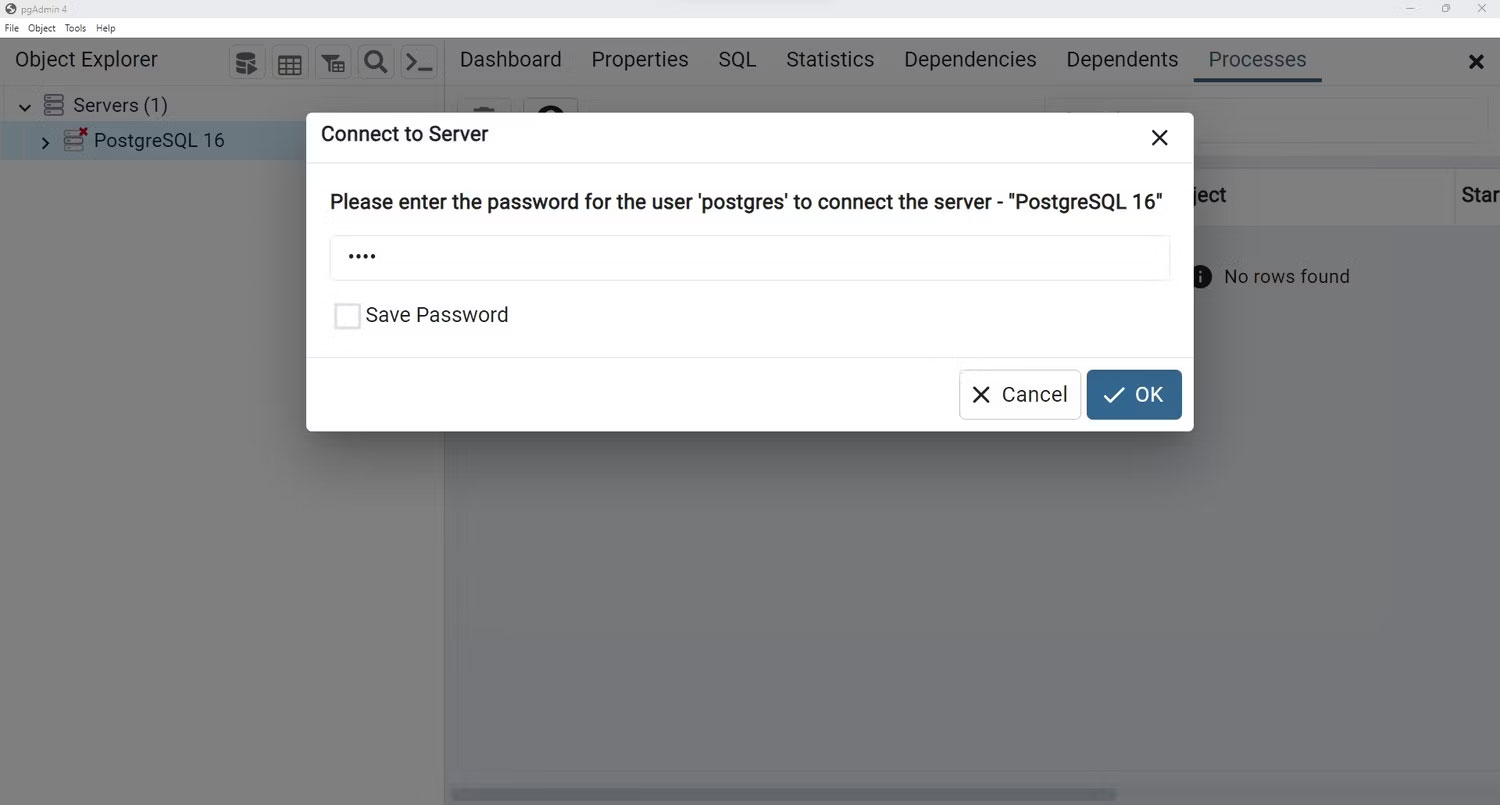
<p style="text-align: justify;">2. Nhấp vào menu&nbsp;<strong>Servers</strong>&nbsp;ở bên trái màn hình ứng dụng.</p>

<p style="text-align: justify;">3. Nhập mật khẩu Postgres bạn đã nhập trong quá trình thiết lập.</p>

<figure>
<div style="text-align: justify;"><img alt="Nhập mật khẩu để kết nối với máy chủ Postgres" data-i="0" data-src="https://st.quantrimang.com/photos/image/2023/12/26/su-dung-postgresql-trong-python-1.jpg" data-was-processed="true" height="805" src="https://st.quantrimang.com/photos/image/2023/12/26/su-dung-postgresql-trong-python-1.jpg" width="1500" /></div>

<figcaption>
<div style="text-align: justify;">Nhập mật khẩu để kết nối với máy chủ Postgres</div>
</figcaption>
</figure>

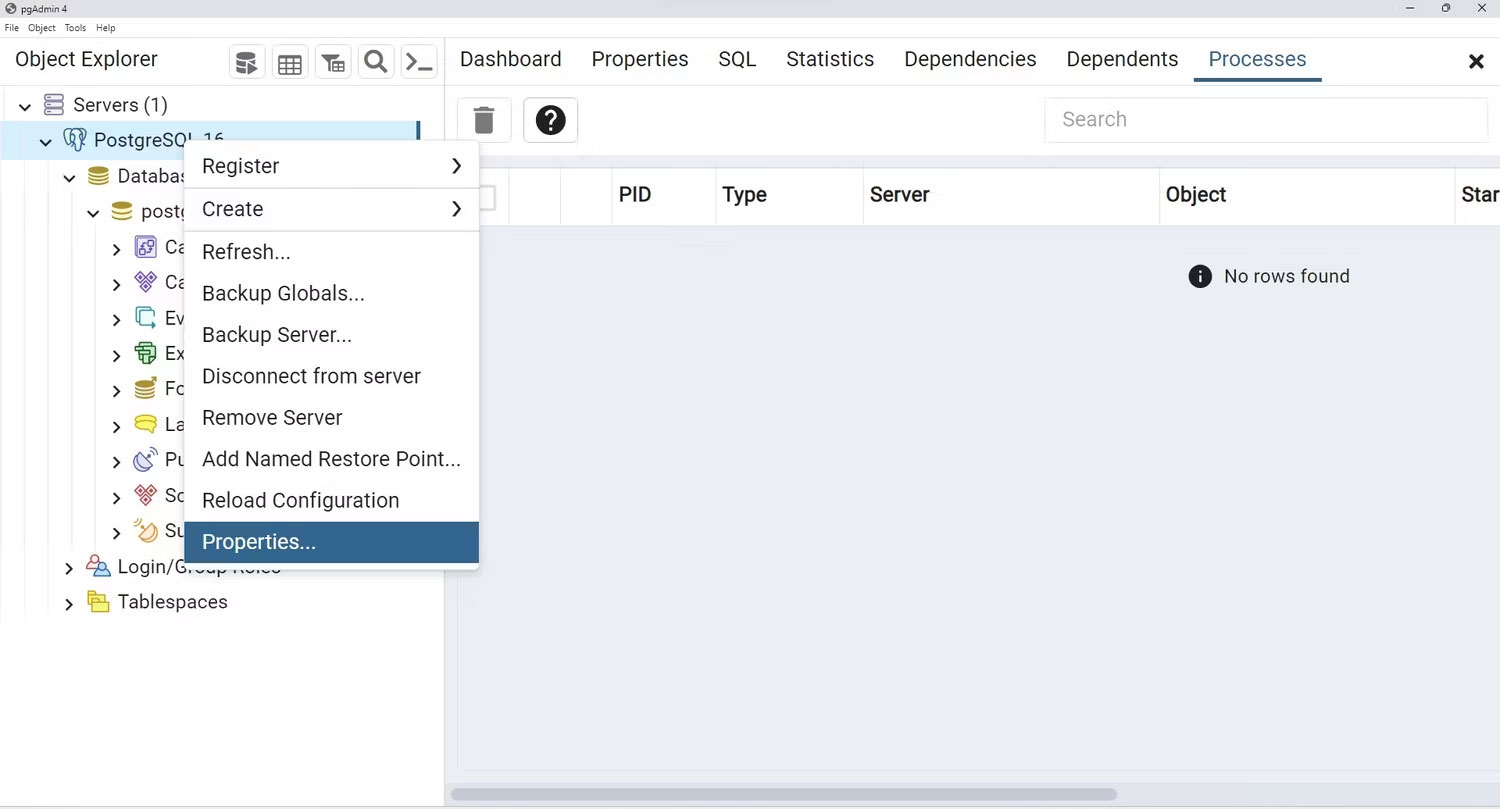
<p style="text-align: justify;">4. Sau khi bạn kết nối với máy chủ, hãy nhấp chuột phải vào mục PostgreSQL 16, sau đó chọn&nbsp;<strong>Properties</strong>.</p>

<figure>
<div style="text-align: justify;"><img alt="Menu drop-down máy chủ Postgres hiển thị tùy chọn thuộc tính" data-adbro-processed="true" data-i="1" data-src="https://st.quantrimang.com/photos/image/2023/12/26/su-dung-postgresql-trong-python-2.jpg" data-was-processed="true" height="809" src="https://st.quantrimang.com/photos/image/2023/12/26/su-dung-postgresql-trong-python-2.jpg" width="1500" /></div>

<figcaption>
<div style="text-align: justify;">Menu drop-down máy chủ Postgres hiển thị tùy chọn thuộc tính</div>
</figcaption>
</figure>

<div style="text-align: justify;"><iframe allowtransparency="true" data-google-container-id="a!3" data-google-query-id="COCy9Ne_xoMDFfcugwMdzDgK9w" data-load-complete="true" frameborder="0" height="0" hspace="0" id="aswift_2" marginheight="0" marginwidth="0" name="aswift_2" sandbox="" scrolling="no" vspace="0" width="694"></iframe></div>

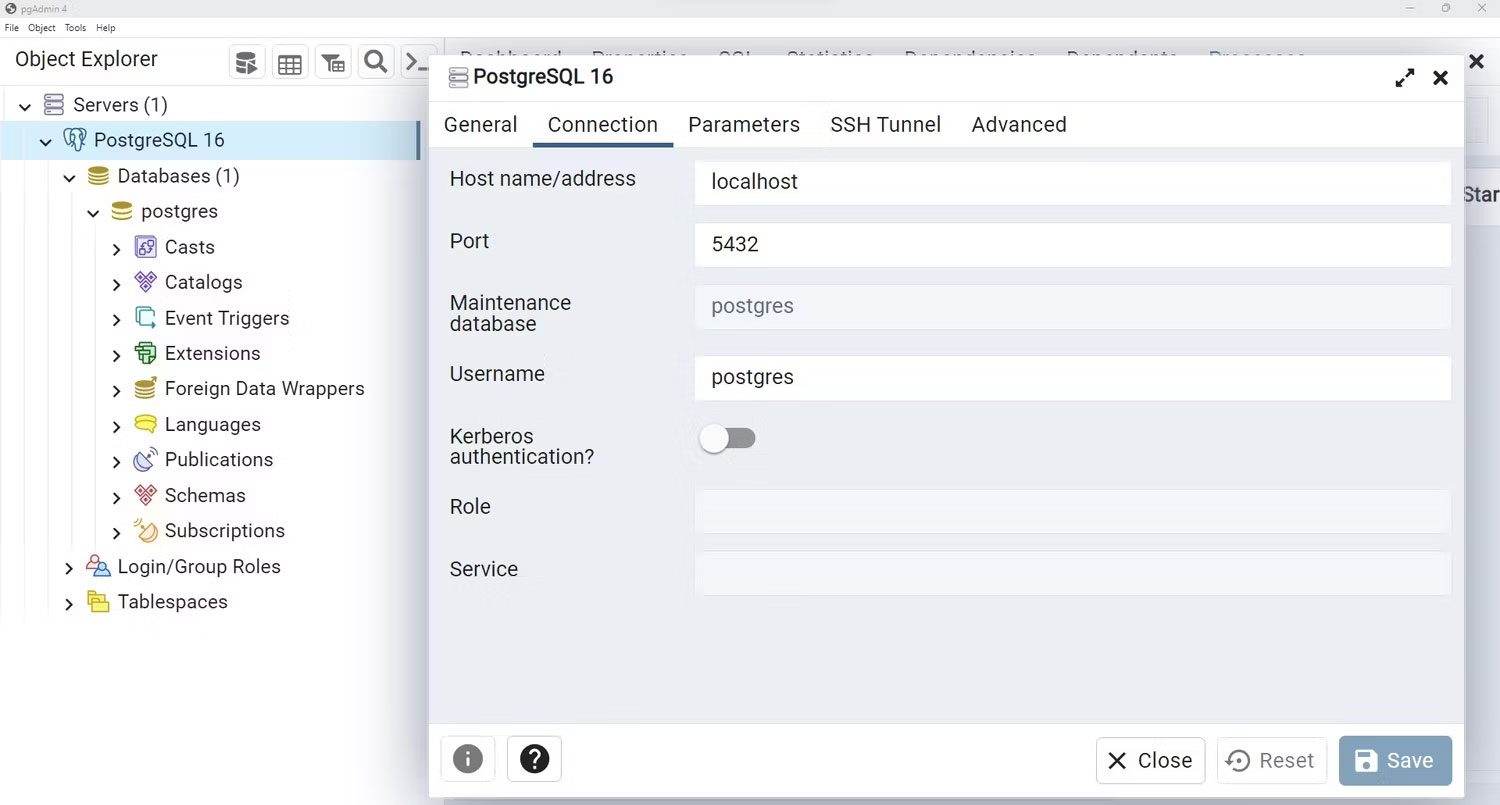
<p style="text-align: justify;">5. Trong hộp thoại&nbsp;<strong>Properties</strong>, nhấp vào&nbsp;<strong>Connection</strong>.</p>

<p style="text-align: justify;">6. Ghi lại&nbsp;<strong>Host name</strong>, số&nbsp;<strong>Port</strong>&nbsp;và&nbsp;<strong>Username</strong>.</p>

<figure>
<div style="text-align: justify;"><img alt="Cửa sổ chi tiết kết nối trong máy chủ Postgres" data-i="2" data-src="https://st.quantrimang.com/photos/image/2023/12/26/su-dung-postgresql-trong-python-3.jpg" data-was-processed="true" height="805" src="https://st.quantrimang.com/photos/image/2023/12/26/su-dung-postgresql-trong-python-3.jpg" width="1500" /></div>

<figcaption>
<div style="text-align: justify;">Cửa sổ chi tiết kết nối trong máy chủ Postgres</div>
</figcaption>
</figure>

<h2 style="text-align: justify;">Kết nối với máy chủ Postgres</h2>

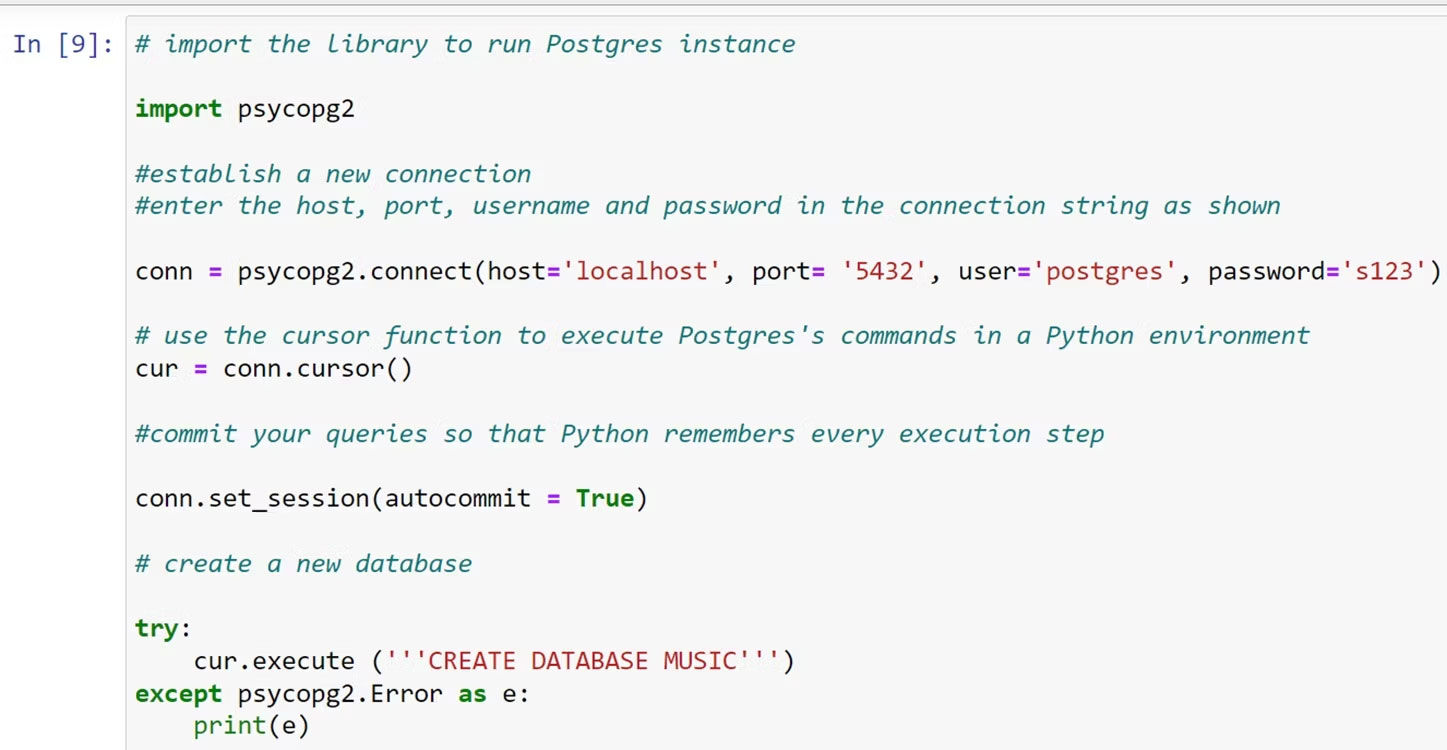
<p style="text-align: justify;">Với thông tin xác thực trong tay, bạn có thể sử dụng thư viện psycopg2 để thiết lập kết nối với máy chủ Postgres của mình. Để làm như vậy, bạn cần sử dụng chức năng kết nối như sau:</p>

<pre id="pre2">
<code>conn = psycopg2.connect(host=&#039;localhost&#039;, port= &#039;5432&#039;, user=&#039;postgres&#039;, password=&#039;your password here&#039;)</code></pre>

<p style="text-align: justify;">Tiếp theo, bạn phải sử dụng hàm con trỏ để thực thi các lệnh Postgres trong môi trường Python:</p>

<pre id="pre3">
<code>cur = conn.cursor()</code></pre>

<p style="text-align: justify;">Cuối cùng, bạn có thể thiết lập flag auto-commit để đảm bảo Python thực thi và xác nhận từng câu lệnh code. Bằng cách này, bạn không cần phải chuyển các câu lệnh cam kết riêng biệt sau mỗi dòng code.</p>

<pre id="pre4">
<code>conn.set_session(autocommit = True)</code></pre>

<p style="text-align: justify;">Bạn có thể chạy các câu lệnh này cùng một lúc để kết nối với phiên bản cục bộ của máy chủ Postgres.</p>

<h2 style="text-align: justify;">Cách tạo cơ sở dữ liệu Postgres</h2>

<p style="text-align: justify;">Cơ sở dữ liệu Postgres đóng vai trò then chốt trong việc lưu trữ tập hợp các bảng có liên quan. Tạo một lệnh mới bằng lệnh SQL&nbsp;<strong>CREATE DATABASE</strong>&nbsp;mà bạn có thể chuyển sang phương thức&nbsp;<strong>execute&nbsp;</strong>của đối tượng con trỏ:</p>

<pre id="pre5">
<code>try:
    cur.execute(&#039;&#039;&#039;CREATE DATABASE DB_NAME&#039;&#039;&#039;)
except psycopg2.Error as e:
    print(e)</code></pre>

<p style="text-align: justify;">Bạn phải luôn cẩn thận để xử lý mọi trường hợp ngoại lệ có thể phát sinh. Ví dụ này chỉ in ra bất kỳ lỗi nào xảy ra nhưng trong code sản xuất, bạn sẽ muốn thực hiện hành động thích hợp.</p>

<div style="text-align: justify;"><iframe allowtransparency="true" data-google-container-id="a!4" data-google-query-id="CK2A2Nq_xoMDFVOUSwUdFa8OdA" data-load-complete="true" frameborder="0" height="0" hspace="0" id="aswift_3" marginheight="0" marginwidth="0" name="aswift_3" sandbox="" scrolling="no" vspace="0" width="694"></iframe></div>

<figure>
<div style="text-align: justify;"><img alt="Code Python trong Notebook Jupyter" data-i="3" data-src="https://st.quantrimang.com/photos/image/2023/12/26/su-dung-postgresql-trong-python-4.jpg" data-was-processed="true" height="750" src="https://st.quantrimang.com/photos/image/2023/12/26/su-dung-postgresql-trong-python-4.jpg" width="1447" /></div>

<figcaption>
<div style="text-align: justify;">Code Python trong Notebook Jupyter</div>
</figcaption>
</figure>

<h3 style="text-align: justify;">Kiểm tra cơ sở dữ liệu trong pgAdmin4</h3>

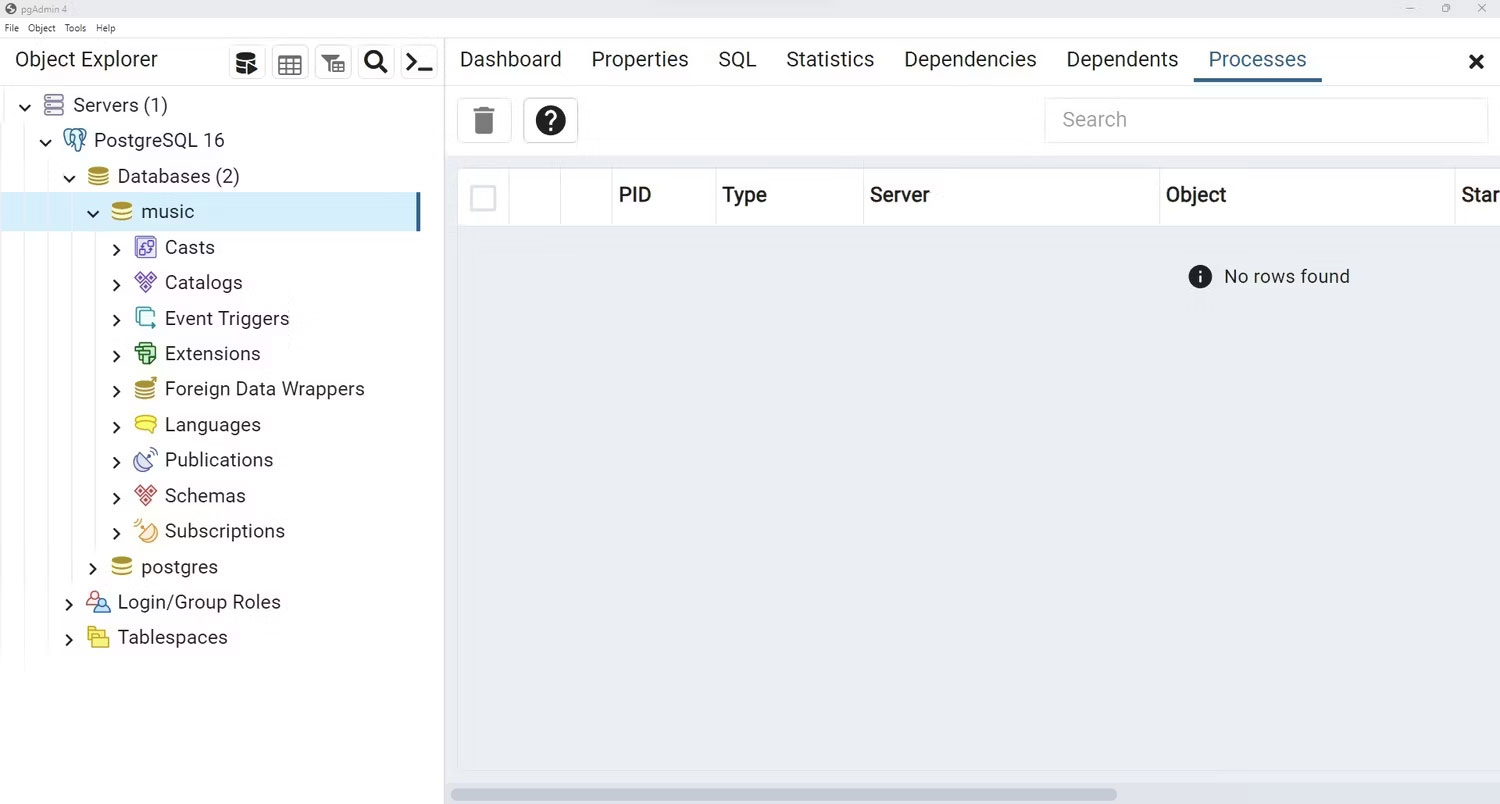
<p style="text-align: justify;">Khi chạy truy vấn trên, bạn có thể kiểm tra xem cơ sở dữ liệu bằng pgAdmin4 đã được tạo thành công chưa. Đi tới giao diện ứng dụng, refresh danh sách cơ sở dữ liệu hiện có và tìm cơ sở dữ liệu mới.</p>

<p style="text-align: justify;">Ví dụ, nếu bạn tạo một cơ sở dữ liệu mẫu có tên&nbsp;<strong>music</strong>&nbsp;bằng truy vấn trên, nó sẽ hiển thị trong danh sách cơ sở dữ liệu bên dưới danh mục&nbsp;<strong>Postgres16 &gt; Databases</strong>.</p>

<figure>
<div style="text-align: justify;"><img alt="Danh sách cơ sở dữ liệu pgAdmin4 trong giao diện ứng dụng" data-i="4" data-src="https://st.quantrimang.com/photos/image/2023/12/26/su-dung-postgresql-trong-python-5.jpg" data-was-processed="true" height="804" src="https://st.quantrimang.com/photos/image/2023/12/26/su-dung-postgresql-trong-python-5.jpg" width="1500" /></div>

<figcaption>
<div style="text-align: justify;">Danh sách cơ sở dữ liệu pgAdmin4 trong giao diện ứng dụng</div>
</figcaption>
</figure>

<h2 style="text-align: justify;">Cách xóa cơ sở dữ liệu Postgres</h2>

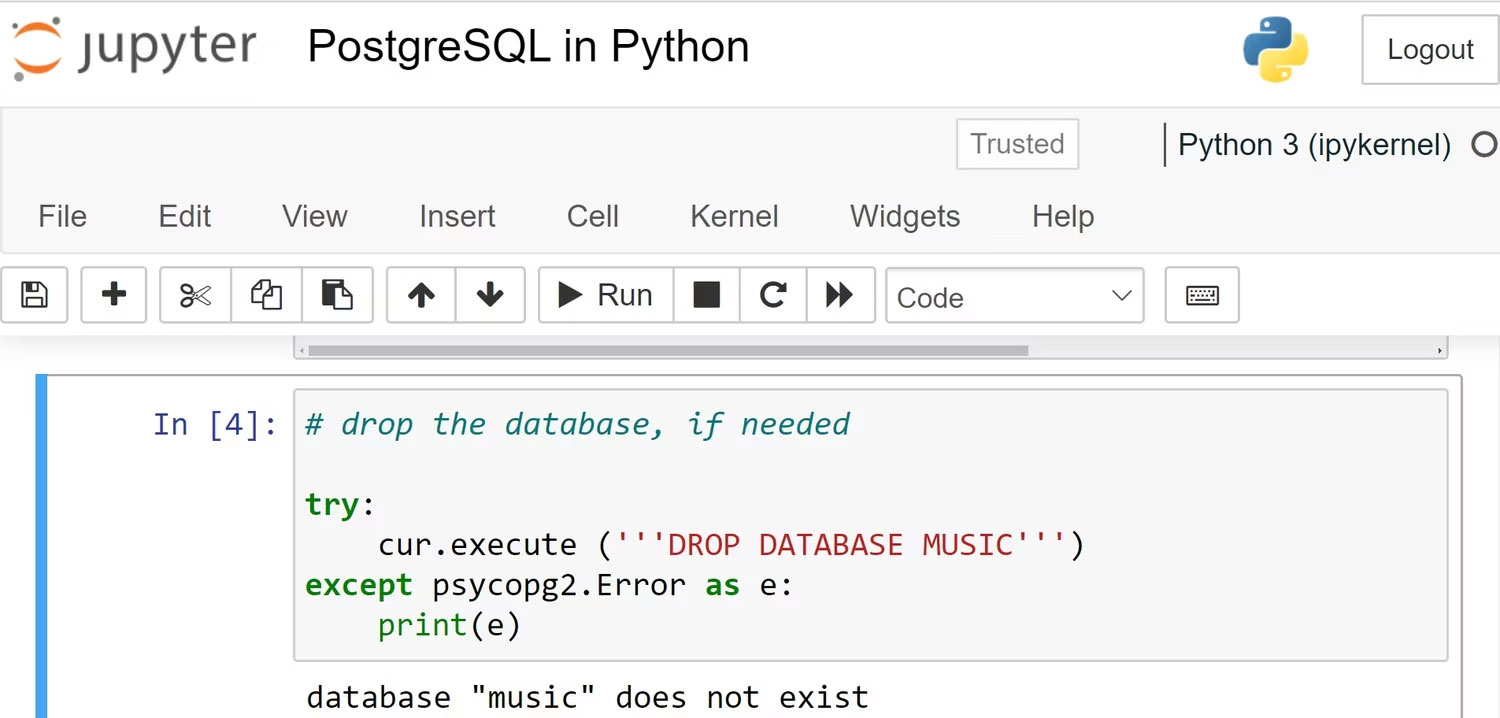
<p style="text-align: justify;">Nếu không muốn giữ lại một cơ sở dữ liệu cụ thể, bạn có thể sử dụng lệnh sau để xóa nó:</p>

<pre id="pre6">
<code>try:
    cur.execute(&#039;&#039;&#039;DROP DATABASE MUSIC&#039;&#039;&#039;)
except psycopg2.Error as e:
    print(e)</code></pre>

<figure>
<div style="text-align: justify;"><img alt="Code Python để loại bỏ cơ sở dữ liệu trong Postgres" data-i="5" data-src="https://st.quantrimang.com/photos/image/2023/12/26/su-dung-postgresql-trong-python-6.jpg" data-was-processed="true" height="718" src="https://st.quantrimang.com/photos/image/2023/12/26/su-dung-postgresql-trong-python-6.jpg" width="1500" /></div>

<figcaption>
<div style="text-align: justify;">Code Python để loại bỏ cơ sở dữ liệu trong Postgres</div>
</figcaption>
</figure>

<div style="text-align: justify;"><iframe allowtransparency="true" data-google-container-id="a!5" data-google-query-id="CK_Kq9u_xoMDFQIDcgodjugBoA" data-load-complete="true" frameborder="0" height="0" hspace="0" id="aswift_4" marginheight="0" marginwidth="0" name="aswift_4" sandbox="" scrolling="no" vspace="0" width="694"></iframe></div>

<p style="text-align: justify;">Thay vì lệnh tạo, bạn cần sử dụng lệnh drop. Sau khi thực thi, bạn sẽ không thấy cơ sở dữ liệu được đề cập.</p>
		</div>
				<div id="author">
						<p>
				<strong>Nguồn tin:</strong>
				Quantrimang.com
			</p>
		</div>
	</div>
	<div id="footer" class="clearfix">
		<div id="url">
			<strong>URL của bản tin này: </strong><a href="https://www.nguoicodonvn2008.info/vi/news/savefile/kien-thuc-may-tinh/cach-ket-noi-va-su-dung-postgresql-trong-python-7918.html" title="Cách kết nối và sử dụng PostgreSQL trong Python">https://www.nguoicodonvn2008.info/vi/news/savefile/kien-thuc-may-tinh/cach-ket-noi-va-su-dung-postgresql-trong-python-7918.html</a>

		</div>
		<div class="clear"></div>
		<div class="copyright">
			&copy; .&#x3A; Nguoicodonvn2008.info - Cõi lòng người cô đơn &#x3A;.
		</div>
		<div id="contact">
			<a href="mailto:admin@nguoicodonvn2008.info">admin@nguoicodonvn2008.info</a>
		</div>
	</div>
</div>
        <div id="timeoutsess" class="chromeframe">
            Bạn đã không sử dụng Site, <a onclick="timeoutsesscancel();" href="https://nguoicodonvn2008.info/#">Bấm vào đây để duy trì trạng thái đăng nhập</a>. Thời gian chờ: <span id="secField"> 60 </span> giây
        </div>
        <div id="openidResult" class="nv-alert" style="display:none"></div>
        <div id="openidBt" data-result="" data-redirect=""></div>
		</script>
		<div class="car-top">
  <span><img src="https://nguoicodonvn2008.info/themes/default/images/car.png" alt=""></span>
</div>
<script src="https://nguoicodonvn2008.info/assets/js/jquery/jquery.min.js"></script>
<script>var nv_base_siteurl="/",nv_lang_data="vi",nv_lang_interface="vi",nv_name_variable="nv",nv_fc_variable="op",nv_lang_variable="language",nv_module_name="news",nv_func_name="savefile",nv_is_user=0, nv_my_ofs=-4,nv_my_abbr="EDT",nv_cookie_prefix="nv4c_e856T",nv_check_pass_mstime=1738000,nv_area_admin=0,nv_safemode=0,theme_responsive=0,nv_recaptcha_ver=2,nv_recaptcha_sitekey="",nv_recaptcha_type="image",XSSsanitize=1;</script>
<script src="https://nguoicodonvn2008.info/assets/js/language/vi.js"></script>
<script src="https://nguoicodonvn2008.info/assets/js/DOMPurify/purify3.js"></script>
<script src="https://nguoicodonvn2008.info/assets/js/global.js"></script>
<script src="https://nguoicodonvn2008.info/assets/js/site.js"></script>
<script src="https://nguoicodonvn2008.info/themes/default/js/news.js"></script>
<script src="https://nguoicodonvn2008.info/themes/default/js/main.js"></script>
<script src="https://nguoicodonvn2008.info/themes/default/js/custom.js"></script>
<script type="application/ld+json">
        {
            "@context": "https://schema.org",
            "@type": "Organization",
            "url": "https://nguoicodonvn2008.info",
            "logo": "https://nguoicodonvn2008.info/uploads/angel.gif"
        }
        </script>
<script src="https://nguoicodonvn2008.info/themes/default/js/bootstrap.min.js"></script>
<script type="text/javascript">
var $scrolltop = $('.car-top');
$scrolltop.on('click', function () {
    $('html,body').animate({
        scrollTop: 0
    }, 800);
    $(this).addClass("car-run");
    setTimeout(function(){ $scrolltop.removeClass('car-run');}, 1000);
    return false;
});
$(window).on('scroll', function ()
{ 
    if($(window).scrollTop() >= 200)
    {
        $scrolltop.addClass("show");
        $scrolltop.addClass("car-down");
    }
    else
    {
       $scrolltop.removeClass("show");
       setTimeout(function(){ $scrolltop.removeClass('car-down');}, 300);
    }
});
</script>
</body>
</html>