<!DOCTYPE html>
    <html lang="vi" xmlns="http://www.w3.org/1999/xhtml" prefix="og: http://ogp.me/ns#">
    <head>
<title>Cách kéo công thức trong Excel</title>
<meta name="description" content="Cách kéo công thức trong Excel - Savefile - Tin Tức - https&#x3A;&#x002F;&#x002F;www.nguoicodonvn2008.info&#x002F;vi&#x002F;news&#x002F;savefile&#x002F;kien-thuc-may-tinh&#x002F;cach-keo-cong-thuc-trong-excel-5009.html">
<meta name="author" content=".: Nguoicodonvn2008.info - Cõi lòng người cô đơn :.">
<meta name="copyright" content=".: Nguoicodonvn2008.info - Cõi lòng người cô đơn :. [admin@nguoicodonvn2008.info]">
<meta name="robots" content="index, archive, follow, noodp">
<meta name="googlebot" content="index,archive,follow,noodp">
<meta name="msnbot" content="all,index,follow">
<meta name="generator" content="NukeViet v4.5">
<meta http-equiv="Content-Type" content="text/html; charset=utf-8">
<meta property="og:title" content="Cách kéo công thức trong Excel">
<meta property="og:type" content="website">
<meta property="og:description" content="Savefile - Tin Tức - https&#x3A;&#x002F;&#x002F;www.nguoicodonvn2008.info&#x002F;vi&#x002F;news&#x002F;savefile&#x002F;kien-thuc-may-tinh&#x002F;cach-keo-cong-thuc-trong-excel-5009.html">
<meta property="og:site_name" content=".&#x3A; Nguoicodonvn2008.info - Cõi lòng người cô đơn &#x3A;.">
<meta property="og:url" content="https://www.nguoicodonvn2008.info/vi/news/savefile/kien-thuc-may-tinh/cach-keo-cong-thuc-trong-excel-5009.html">
<link rel="shortcut icon" href="https://nguoicodonvn2008.info/favicon.ico">
<link rel="canonical" href="https://www.nguoicodonvn2008.info/vi/news/savefile/kien-thuc-may-tinh/cach-keo-cong-thuc-trong-excel-5009.html">
<link rel="alternate" href="https://nguoicodonvn2008.info/vi/news/rss/" title="Tin Tức" type="application/rss+xml">
<link rel="alternate" href="https://nguoicodonvn2008.info/vi/news/rss/karaoke-dual/" title="Tin Tức - Karaoke Dual" type="application/rss+xml">
<link rel="alternate" href="https://nguoicodonvn2008.info/vi/news/rss/nhac-tre/" title="Tin Tức - Nhạc trẻ" type="application/rss+xml">
<link rel="alternate" href="https://nguoicodonvn2008.info/vi/news/rss/tru-tinh/" title="Tin Tức - Trữ tình" type="application/rss+xml">
<link rel="alternate" href="https://nguoicodonvn2008.info/vi/news/rss/nuoc-ngoai/" title="Tin Tức - Nước ngoài" type="application/rss+xml">
<link rel="alternate" href="https://nguoicodonvn2008.info/vi/news/rss/remix/" title="Tin Tức - Remix" type="application/rss+xml">
<link rel="alternate" href="https://nguoicodonvn2008.info/vi/news/rss/tam-su-tinh-yeu/" title="Tin Tức - Tâm sự tình yêu" type="application/rss+xml">
<link rel="alternate" href="https://nguoicodonvn2008.info/vi/news/rss/tho-suu-tam/" title="Tin Tức - Thơ sưu tầm" type="application/rss+xml">
<link rel="alternate" href="https://nguoicodonvn2008.info/vi/news/rss/cuoc-song/" title="Tin Tức - Cuộc sống" type="application/rss+xml">
<link rel="alternate" href="https://nguoicodonvn2008.info/vi/news/rss/phan-mem/" title="Tin Tức - Phần mềm" type="application/rss+xml">
<link rel="alternate" href="https://nguoicodonvn2008.info/vi/news/rss/kien-thuc-may-tinh/" title="Tin Tức - Kiến thức máy tính" type="application/rss+xml">
<link rel="alternate" href="https://nguoicodonvn2008.info/vi/news/rss/hoc-tap/" title="Tin Tức - Học tập" type="application/rss+xml">
<link rel="alternate" href="https://nguoicodonvn2008.info/vi/news/rss/tai-lieu/" title="Tin Tức - Tài liệu" type="application/rss+xml">
<link rel="alternate" href="https://nguoicodonvn2008.info/vi/news/rss/de-thi/" title="Tin Tức - Đề thi" type="application/rss+xml">
<link rel="preload" as="style" href="https://nguoicodonvn2008.info/assets/css/font-awesome.min.css" type="text/css">
<link rel="preload" as="style" href="https://nguoicodonvn2008.info/themes/default/css/bootstrap.non-responsive.css" type="text/css">
<link rel="preload" as="style" href="https://nguoicodonvn2008.info/themes/default/css/style.css" type="text/css">
<link rel="preload" as="style" href="https://nguoicodonvn2008.info/themes/default/css/style.non-responsive.css" type="text/css">
<link rel="preload" as="style" href="https://nguoicodonvn2008.info/themes/default/css/news.css" type="text/css">
<link rel="preload" as="style" href="https://nguoicodonvn2008.info/themes/default/css/custom.css" type="text/css">
<link rel="preload" as="script" href="https://nguoicodonvn2008.info/assets/js/jquery/jquery.min.js" type="text/javascript">
<link rel="preload" as="script" href="https://nguoicodonvn2008.info/assets/js/language/vi.js" type="text/javascript">
<link rel="preload" as="script" href="https://nguoicodonvn2008.info/assets/js/DOMPurify/purify3.js" type="text/javascript">
<link rel="preload" as="script" href="https://nguoicodonvn2008.info/assets/js/global.js" type="text/javascript">
<link rel="preload" as="script" href="https://nguoicodonvn2008.info/assets/js/site.js" type="text/javascript">
<link rel="preload" as="script" href="https://nguoicodonvn2008.info/themes/default/js/news.js" type="text/javascript">
<link rel="preload" as="script" href="https://nguoicodonvn2008.info/themes/default/js/main.js" type="text/javascript">
<link rel="preload" as="script" href="https://nguoicodonvn2008.info/themes/default/js/custom.js" type="text/javascript">
<link rel="preload" as="script" href="https://nguoicodonvn2008.info/themes/default/js/bootstrap.min.js" type="text/javascript">
<link rel="stylesheet" href="https://nguoicodonvn2008.info/assets/css/font-awesome.min.css">
<link rel="stylesheet" href="https://nguoicodonvn2008.info/themes/default/css/bootstrap.non-responsive.css">
<link rel="stylesheet" href="https://nguoicodonvn2008.info/themes/default/css/style.css">
<link rel="stylesheet" href="https://nguoicodonvn2008.info/themes/default/css/style.non-responsive.css">
<link rel="StyleSheet" href="https://nguoicodonvn2008.info/themes/default/css/news.css">
<link rel="stylesheet" href="https://nguoicodonvn2008.info/themes/default/css/custom.css">
<style type="text/css">
	body{background: #fff;}
</style>
    </head>
    <body>
<div id="print">
	<div id="hd_print">
		<h2 class="pull-left">.&#x3A; Nguoicodonvn2008.info - Cõi lòng người cô đơn &#x3A;.</h2>
		<p class="pull-right"><a title=".&#x3A; Nguoicodonvn2008.info - Cõi lòng người cô đơn &#x3A;." href="https://nguoicodonvn2008.info/">https://nguoicodonvn2008.info</a></p>
	</div>
	<div class="clear"></div>
	<hr />
	<div id="content">
		<h1>Cách kéo công thức trong Excel</h1>
		<ul class="list-inline">
			<li>Thứ ba - 11/01/2022 23:55</li>
			<li class="hidden-print txtrequired"><em class="fa fa-print">&nbsp;</em><a title="In ra" href="javascript:;" onclick="window.print()">In ra</a></li>
			<li class="hidden-print txtrequired"><em class="fa fa-power-off">&nbsp;</em><a title="Đóng cửa sổ này" href="javascript:;" onclick="window.close()">Đóng cửa sổ này</a></li>
		</ul>
		<div class="clear"></div>
		<div id="hometext">
		</div>
				<div class="imghome">
			<img alt="Cách kéo công thức trong Excel" src="https://st.quantrimang.com/photos/image/2022/01/10/Excel-keo-cong-thuc-1.jpg" width="460" class="img-thumbnail" />
		</div>
		<div class="clear"></div>
		<div id="bodytext" class="clearfix">
			<p style="text-align: justify;">Kéo công thức trong Excel chính là thao tác Fill down quen thuộc khi chúng ta xử lý bảng dữ liệu có sử dụng công thức hay&nbsp;hàm trong Excel. Thao tác kéo công thức này sẽ giúp công thức Excel được áp dụng cho tất cả các ô dữ liệu và hiển thị kết quả chính xác, thay vì thực hiện thủ công lần lượt. Bài viết dưới đây sẽ hướng dẫn bạn kéo công thức trong Excel.</p>

<h2 style="text-align: justify;">Hướng dẫn kéo công thức trong Excel</h2>

<p style="text-align: justify;"><strong>Bước 1:</strong></p>

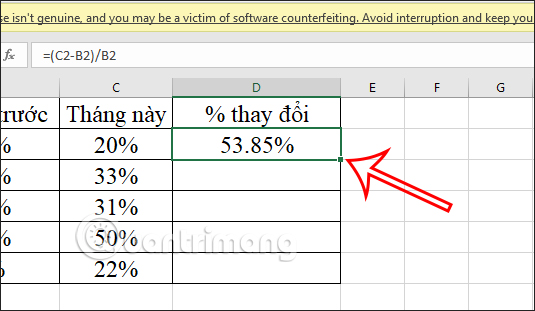
<p style="text-align: justify;">Trước hết bạn tạo bảng dữ liệu Excel như bình thường rồi tại ô kết quả đầu tiên, chúng ta sử dụng hàm hay công thức để cho ra kết quả.</p>

<p style="text-align: justify;">Sau đó&nbsp;<strong>click chuột vào ô kết quả</strong>&nbsp;này rồi&nbsp;<strong>di chuột xuống cạnh cuối cùng bên phải của ô</strong>&nbsp;như hình dưới đây.</p>

<p style="text-align: justify;"><img alt="Tính năng kéo công thức Excel" data-i="0" data-src="https://st.quantrimang.com/photos/image/2022/01/10/Excel-keo-cong-thuc-1.jpg" data-was-processed="true" height="311" src="https://st.quantrimang.com/photos/image/2022/01/10/Excel-keo-cong-thuc-1.jpg" width="535" /></p>

<p style="text-align: justify;"><strong>Bước 2:</strong></p>

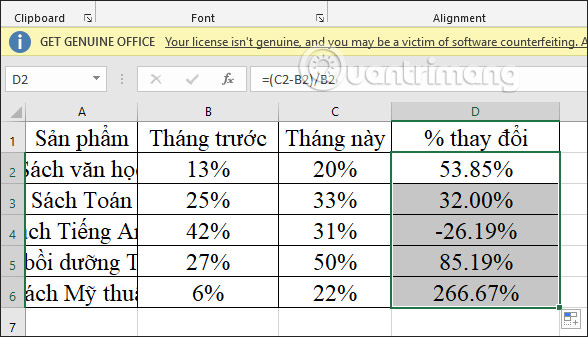
<p style="text-align: justify;">Sau đó bạn&nbsp;<strong>click chuột trái rồi kéo xuống những ô còn lại</strong>&nbsp;và kết quả sẽ hiển thị ngay lập tức với cùng công thức sử dụng.</p>

<p style="text-align: justify;"><img alt="Kéo công thức Excel" data-i="1" data-src="https://st.quantrimang.com/photos/image/2022/01/10/Excel-keo-cong-thuc-2.jpg" data-was-processed="true" height="337" src="https://st.quantrimang.com/photos/image/2022/01/10/Excel-keo-cong-thuc-2.jpg" width="588" /></p>

<h2 style="text-align: justify;">Cách dùng phím tắt kéo công thức Excel</h2>

<p style="text-align: justify;">Ngoài cách dùng chuột thì bạn cũng có thể dùng phím tắt trong Excel để kéo công thức.</p>

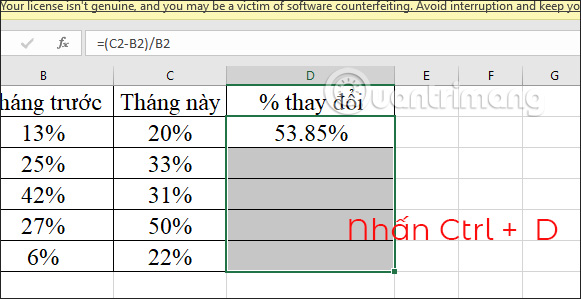
<p style="text-align: justify;">Đầu tiên chúng ta cũng cần có ô kết quả để fill những ô còn lại.<strong>&nbsp;Nhấn phím Shift&nbsp;</strong>rồi chọn tới vị trí ô cuối cùng trong vùng chứa công thức cần kéo. Khi đó cả vùng sẽ được lựa chọn như hình dưới đây.</p>

<p style="text-align: justify;">Sau đó chúng ta&nbsp;<strong>nhấn Ctrl + D</strong>&nbsp;để kéo công thức. Ngay sau đó cũng hiển thị kết quả như hình dưới đây.</p>

<p style="text-align: justify;"><img alt="Phím tắt kéo công thức Excel" data-i="2" data-src="https://st.quantrimang.com/photos/image/2022/01/10/Excel-keo-cong-thuc-7.jpg" data-was-processed="true" height="299" src="https://st.quantrimang.com/photos/image/2022/01/10/Excel-keo-cong-thuc-7.jpg" width="581" /></p>

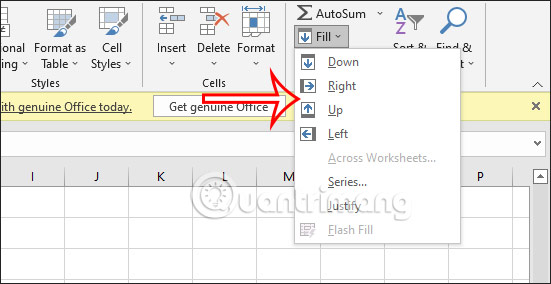
<p style="text-align: justify;">Chiều kéo công thức trong Excel không chỉ kéo từ trên xuống dưới mà bạn có thể kéo với tất cả các chiều khác nhau gồm:</p>

<ul>
	<li style="text-align: justify;">Fill Down: từ trên xuống dưới</li>
	<li style="text-align: justify;">Fill Up: từ dưới lên trên</li>
	<li style="text-align: justify;">Fill Right: từ trái qua phải</li>
	<li style="text-align: justify;">Fill Left: từ phải qua trái</li>
</ul>

<p style="text-align: justify;">Phím tắt cho kéo công thức gồm Ctrl + R để kéo công thức từ trái sang phải và Ctrl + D để kéo công thức từ trên xuống.</p>

<p style="text-align: justify;">Ngoài ra chúng ta cũng có thể sử dụng tùy chọn kéo công thức có ngay trên Excel. Tại nhóm Editing bạn sẽ nhìn thấy công cụ Fill với các tùy chọn kéo công thức như hình dưới đây.</p>

<p style="text-align: justify;"><img alt="Các hướng kéo công thức Excel" data-i="3" data-src="https://st.quantrimang.com/photos/image/2022/01/10/Excel-keo-cong-thuc-4.jpg" data-was-processed="true" height="284" src="https://st.quantrimang.com/photos/image/2022/01/10/Excel-keo-cong-thuc-4.jpg" width="551" /></p>

<h2 style="text-align: justify;">Cách sửa lỗi không thể kéo công thức Excel</h2>

<p style="text-align: justify;">Kéo công thức là thao tác và công cụ có sẵn trong Excel, rất dễ thực hiện. Trong trường hợp bạn không thể kéo công thức được thì nguyên nhân cơ bản đến từ thiết lập mặc định Excel.</p>

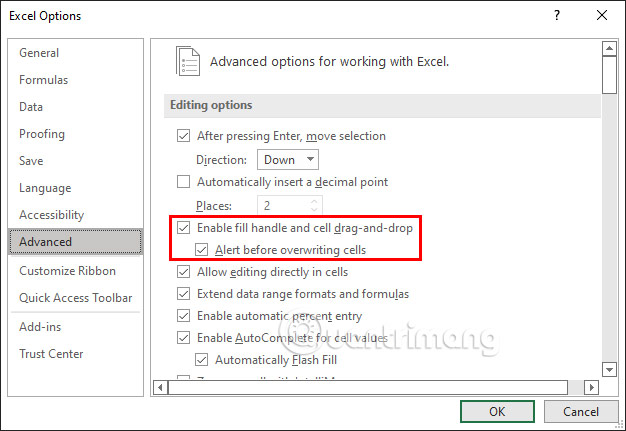
<p style="text-align: justify;">Trên Windows thì bạn truy cập vào&nbsp;<strong>mục File &gt; Options</strong>&nbsp;để vào giao diện tùy chỉnh lại cài đặt cho Excel. Tiếp đến chúng ta&nbsp;<strong>nhấn vào Advanced</strong>&nbsp;rồi nhìn sang nội dung bên cạnh, bạn&nbsp;<strong>tích chọn vào Enable fill handle and cell drag-and-drop</strong>&nbsp;và&nbsp;<strong>tích chọn vào Alert before overwriting cells (cảnh báo khi ghi đè lên ô có sẵn)</strong>.</p>

<p style="text-align: justify;"><img alt="Sửa lỗi kéo công thức Excel Windows" data-i="4" data-src="https://st.quantrimang.com/photos/image/2022/01/10/Excel-keo-cong-thuc-5.jpg" data-was-processed="true" height="431" src="https://st.quantrimang.com/photos/image/2022/01/10/Excel-keo-cong-thuc-5.jpg" width="626" /></p>

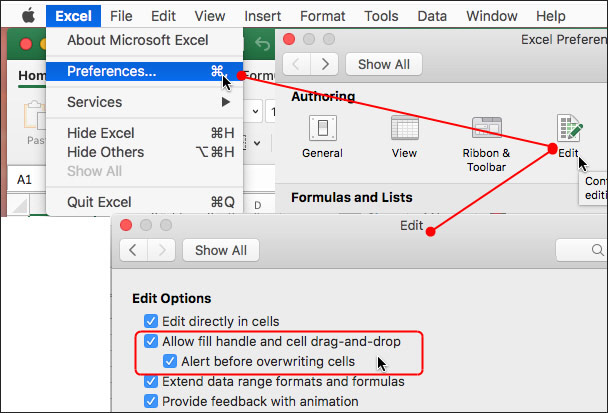
<p style="text-align: justify;">Với bản Excel máy Mac, bạn nhấn vào vào Excel chọn Preferences… Lúc này bạn nhấn tiếp vào Exit rồi chọn tích chọn Enable fill handle and cell drag-and-drop và tích chọn Alert before overwriting cells.</p>

<p style="text-align: justify;"><img alt="Sửa lỗi kéo công thức Excel Mac" data-i="5" data-src="https://st.quantrimang.com/photos/image/2022/01/10/Excel-keo-cong-thuc-6.jpg" data-was-processed="true" height="413" src="https://st.quantrimang.com/photos/image/2022/01/10/Excel-keo-cong-thuc-6.jpg" width="608" /></p>
		</div>
				<div id="author">
						<p>
				<strong>Nguồn tin:</strong>
				Quantrimang.com
			</p>
		</div>
	</div>
	<div id="footer" class="clearfix">
		<div id="url">
			<strong>URL của bản tin này: </strong><a href="https://www.nguoicodonvn2008.info/vi/news/savefile/kien-thuc-may-tinh/cach-keo-cong-thuc-trong-excel-5009.html" title="Cách kéo công thức trong Excel">https://www.nguoicodonvn2008.info/vi/news/savefile/kien-thuc-may-tinh/cach-keo-cong-thuc-trong-excel-5009.html</a>

		</div>
		<div class="clear"></div>
		<div class="copyright">
			&copy; .&#x3A; Nguoicodonvn2008.info - Cõi lòng người cô đơn &#x3A;.
		</div>
		<div id="contact">
			<a href="mailto:admin@nguoicodonvn2008.info">admin@nguoicodonvn2008.info</a>
		</div>
	</div>
</div>
        <div id="timeoutsess" class="chromeframe">
            Bạn đã không sử dụng Site, <a onclick="timeoutsesscancel();" href="https://nguoicodonvn2008.info/#">Bấm vào đây để duy trì trạng thái đăng nhập</a>. Thời gian chờ: <span id="secField"> 60 </span> giây
        </div>
        <div id="openidResult" class="nv-alert" style="display:none"></div>
        <div id="openidBt" data-result="" data-redirect=""></div>
		</script>
		<div class="car-top">
  <span><img src="https://nguoicodonvn2008.info/themes/default/images/car.png" alt=""></span>
</div>
<script src="https://nguoicodonvn2008.info/assets/js/jquery/jquery.min.js"></script>
<script>var nv_base_siteurl="/",nv_lang_data="vi",nv_lang_interface="vi",nv_name_variable="nv",nv_fc_variable="op",nv_lang_variable="language",nv_module_name="news",nv_func_name="savefile",nv_is_user=0, nv_my_ofs=-4,nv_my_abbr="EDT",nv_cookie_prefix="nv4c_e856T",nv_check_pass_mstime=1738000,nv_area_admin=0,nv_safemode=0,theme_responsive=0,nv_recaptcha_ver=2,nv_recaptcha_sitekey="",nv_recaptcha_type="image",XSSsanitize=1;</script>
<script src="https://nguoicodonvn2008.info/assets/js/language/vi.js"></script>
<script src="https://nguoicodonvn2008.info/assets/js/DOMPurify/purify3.js"></script>
<script src="https://nguoicodonvn2008.info/assets/js/global.js"></script>
<script src="https://nguoicodonvn2008.info/assets/js/site.js"></script>
<script src="https://nguoicodonvn2008.info/themes/default/js/news.js"></script>
<script src="https://nguoicodonvn2008.info/themes/default/js/main.js"></script>
<script src="https://nguoicodonvn2008.info/themes/default/js/custom.js"></script>
<script type="application/ld+json">
        {
            "@context": "https://schema.org",
            "@type": "Organization",
            "url": "https://nguoicodonvn2008.info",
            "logo": "https://nguoicodonvn2008.info/uploads/angel.gif"
        }
        </script>
<script src="https://nguoicodonvn2008.info/themes/default/js/bootstrap.min.js"></script>
<script type="text/javascript">
var $scrolltop = $('.car-top');
$scrolltop.on('click', function () {
    $('html,body').animate({
        scrollTop: 0
    }, 800);
    $(this).addClass("car-run");
    setTimeout(function(){ $scrolltop.removeClass('car-run');}, 1000);
    return false;
});
$(window).on('scroll', function ()
{ 
    if($(window).scrollTop() >= 200)
    {
        $scrolltop.addClass("show");
        $scrolltop.addClass("car-down");
    }
    else
    {
       $scrolltop.removeClass("show");
       setTimeout(function(){ $scrolltop.removeClass('car-down');}, 300);
    }
});
</script>
</body>
</html>