<!DOCTYPE html>
    <html lang="vi" xmlns="http://www.w3.org/1999/xhtml" prefix="og: http://ogp.me/ns#">
    <head>
<title>Cách hiển thị tốc độ Internet trên Windows Taskbar</title>
<meta name="description" content="Cách hiển thị tốc độ Internet trên Windows Taskbar - Savefile - Tin Tức -...">
<meta name="author" content=".: Nguoicodonvn2008.info - Cõi lòng người cô đơn :.">
<meta name="copyright" content=".: Nguoicodonvn2008.info - Cõi lòng người cô đơn :. [admin@nguoicodonvn2008.info]">
<meta name="robots" content="index, archive, follow, noodp">
<meta name="googlebot" content="index,archive,follow,noodp">
<meta name="msnbot" content="all,index,follow">
<meta name="generator" content="NukeViet v4.5">
<meta http-equiv="Content-Type" content="text/html; charset=utf-8">
<meta property="og:title" content="Cách hiển thị tốc độ Internet trên Windows Taskbar">
<meta property="og:type" content="website">
<meta property="og:description" content="Savefile - Tin Tức - https&#x3A;&#x002F;&#x002F;www.nguoicodonvn2008.info&#x002F;vi&#x002F;news&#x002F;savefile&#x002F;kien-thuc-may-tinh&#x002F;cach-hien-thi-toc-do-internet-tren-windows-taskbar-7260.html">
<meta property="og:site_name" content=".&#x3A; Nguoicodonvn2008.info - Cõi lòng người cô đơn &#x3A;.">
<meta property="og:url" content="https://www.nguoicodonvn2008.info/vi/news/savefile/kien-thuc-may-tinh/cach-hien-thi-toc-do-internet-tren-windows-taskbar-7260.html">
<link rel="shortcut icon" href="https://nguoicodonvn2008.info/favicon.ico">
<link rel="canonical" href="https://www.nguoicodonvn2008.info/vi/news/savefile/kien-thuc-may-tinh/cach-hien-thi-toc-do-internet-tren-windows-taskbar-7260.html">
<link rel="alternate" href="https://nguoicodonvn2008.info/vi/news/rss/" title="Tin Tức" type="application/rss+xml">
<link rel="alternate" href="https://nguoicodonvn2008.info/vi/news/rss/karaoke-dual/" title="Tin Tức - Karaoke Dual" type="application/rss+xml">
<link rel="alternate" href="https://nguoicodonvn2008.info/vi/news/rss/nhac-tre/" title="Tin Tức - Nhạc trẻ" type="application/rss+xml">
<link rel="alternate" href="https://nguoicodonvn2008.info/vi/news/rss/tru-tinh/" title="Tin Tức - Trữ tình" type="application/rss+xml">
<link rel="alternate" href="https://nguoicodonvn2008.info/vi/news/rss/nuoc-ngoai/" title="Tin Tức - Nước ngoài" type="application/rss+xml">
<link rel="alternate" href="https://nguoicodonvn2008.info/vi/news/rss/remix/" title="Tin Tức - Remix" type="application/rss+xml">
<link rel="alternate" href="https://nguoicodonvn2008.info/vi/news/rss/tam-su-tinh-yeu/" title="Tin Tức - Tâm sự tình yêu" type="application/rss+xml">
<link rel="alternate" href="https://nguoicodonvn2008.info/vi/news/rss/tho-suu-tam/" title="Tin Tức - Thơ sưu tầm" type="application/rss+xml">
<link rel="alternate" href="https://nguoicodonvn2008.info/vi/news/rss/cuoc-song/" title="Tin Tức - Cuộc sống" type="application/rss+xml">
<link rel="alternate" href="https://nguoicodonvn2008.info/vi/news/rss/phan-mem/" title="Tin Tức - Phần mềm" type="application/rss+xml">
<link rel="alternate" href="https://nguoicodonvn2008.info/vi/news/rss/kien-thuc-may-tinh/" title="Tin Tức - Kiến thức máy tính" type="application/rss+xml">
<link rel="alternate" href="https://nguoicodonvn2008.info/vi/news/rss/hoc-tap/" title="Tin Tức - Học tập" type="application/rss+xml">
<link rel="alternate" href="https://nguoicodonvn2008.info/vi/news/rss/tai-lieu/" title="Tin Tức - Tài liệu" type="application/rss+xml">
<link rel="alternate" href="https://nguoicodonvn2008.info/vi/news/rss/de-thi/" title="Tin Tức - Đề thi" type="application/rss+xml">
<link rel="preload" as="style" href="https://nguoicodonvn2008.info/assets/css/font-awesome.min.css" type="text/css">
<link rel="preload" as="style" href="https://nguoicodonvn2008.info/themes/default/css/bootstrap.non-responsive.css" type="text/css">
<link rel="preload" as="style" href="https://nguoicodonvn2008.info/themes/default/css/style.css" type="text/css">
<link rel="preload" as="style" href="https://nguoicodonvn2008.info/themes/default/css/style.non-responsive.css" type="text/css">
<link rel="preload" as="style" href="https://nguoicodonvn2008.info/themes/default/css/news.css" type="text/css">
<link rel="preload" as="style" href="https://nguoicodonvn2008.info/themes/default/css/custom.css" type="text/css">
<link rel="preload" as="script" href="https://nguoicodonvn2008.info/assets/js/jquery/jquery.min.js" type="text/javascript">
<link rel="preload" as="script" href="https://nguoicodonvn2008.info/assets/js/language/vi.js" type="text/javascript">
<link rel="preload" as="script" href="https://nguoicodonvn2008.info/assets/js/DOMPurify/purify3.js" type="text/javascript">
<link rel="preload" as="script" href="https://nguoicodonvn2008.info/assets/js/global.js" type="text/javascript">
<link rel="preload" as="script" href="https://nguoicodonvn2008.info/assets/js/site.js" type="text/javascript">
<link rel="preload" as="script" href="https://nguoicodonvn2008.info/themes/default/js/news.js" type="text/javascript">
<link rel="preload" as="script" href="https://nguoicodonvn2008.info/themes/default/js/main.js" type="text/javascript">
<link rel="preload" as="script" href="https://nguoicodonvn2008.info/themes/default/js/custom.js" type="text/javascript">
<link rel="preload" as="script" href="https://nguoicodonvn2008.info/themes/default/js/bootstrap.min.js" type="text/javascript">
<link rel="stylesheet" href="https://nguoicodonvn2008.info/assets/css/font-awesome.min.css">
<link rel="stylesheet" href="https://nguoicodonvn2008.info/themes/default/css/bootstrap.non-responsive.css">
<link rel="stylesheet" href="https://nguoicodonvn2008.info/themes/default/css/style.css">
<link rel="stylesheet" href="https://nguoicodonvn2008.info/themes/default/css/style.non-responsive.css">
<link rel="StyleSheet" href="https://nguoicodonvn2008.info/themes/default/css/news.css">
<link rel="stylesheet" href="https://nguoicodonvn2008.info/themes/default/css/custom.css">
<style type="text/css">
	body{background: #fff;}
</style>
    </head>
    <body>
<div id="print">
	<div id="hd_print">
		<h2 class="pull-left">.&#x3A; Nguoicodonvn2008.info - Cõi lòng người cô đơn &#x3A;.</h2>
		<p class="pull-right"><a title=".&#x3A; Nguoicodonvn2008.info - Cõi lòng người cô đơn &#x3A;." href="https://nguoicodonvn2008.info/">https://nguoicodonvn2008.info</a></p>
	</div>
	<div class="clear"></div>
	<hr />
	<div id="content">
		<h1>Cách hiển thị tốc độ Internet trên Windows Taskbar</h1>
		<ul class="list-inline">
			<li>Thứ tư - 05/07/2023 09:25</li>
			<li class="hidden-print txtrequired"><em class="fa fa-print">&nbsp;</em><a title="In ra" href="javascript:;" onclick="window.print()">In ra</a></li>
			<li class="hidden-print txtrequired"><em class="fa fa-power-off">&nbsp;</em><a title="Đóng cửa sổ này" href="javascript:;" onclick="window.close()">Đóng cửa sổ này</a></li>
		</ul>
		<div class="clear"></div>
		<div id="hometext">
		</div>
				<div class="imghome">
			<img alt="Cách hiển thị tốc độ Internet trên Windows Taskbar" src="https://st.quantrimang.com/photos/image/2019/09/27/theo-doi-toc-do-internet-tren-taskbar-3.png" width="460" class="img-thumbnail" />
		</div>
		<div class="clear"></div>
		<div id="bodytext" class="clearfix">
			<p style="text-align: justify;">Máy tính chạy chậm? Bạn muốn biết đó là sự cố Internet hay vấn đề máy tính? Các chương trình đang chạy nền làm chậm mọi thứ hoặc tốc độ Internet chậm? Bạn muốn kiểm tra tốc độ Internet một cách nhanh chóng nhưng Windows không cung cấp ứng dụng gốc để theo dõi tốc độ. May thay có một số giải pháp giúp bạn thực hiện điều này.</p>

<div style="text-align: justify;">&nbsp;</div>

<p style="text-align: justify;"><img alt="Kiểm tra tốc độ Internet" data-i="0" data-src="https://st.quantrimang.com/photos/image/2019/09/27/theo-doi-toc-do-internet-tren-taskbar-1.jpg" data-was-processed="true" height="380" src="https://st.quantrimang.com/photos/image/2019/09/27/theo-doi-toc-do-internet-tren-taskbar-1.jpg" width="640" /></p>

<h2 style="text-align: justify;">Hiển thị tốc độ Internet trên Windows Taskbar bằng TrafficMonitor</h2>

<p style="text-align: justify;">Để hiển thị tốc độ Internet trên Windows Taskbar, hãy làm theo các bước sau:</p>

<p style="text-align: justify;">1. Truy cập trang web chính thức của MajorGeek để&nbsp;tải xuống TrafficMonitor:<br />
<span style="color:rgb(192, 57, 43);"><strong>https://www.majorgeeks.com/files/details/trafficmonitor.html</strong></span></p>

<p style="text-align: justify;">2. Giải nén thư mục đã tải xuống (xem các cách khác nhau để&nbsp;giải nén file ZIP trên Windows) và bạn sẽ thấy một file thực thi để chạy công cụ, vì vậy bạn không cần phải cài đặt công cụ.</p>

<p style="text-align: justify;">3. Nhấp vào nút&nbsp;<strong>Yes</strong>&nbsp;trong cửa sổ UAC.</p>

<p style="text-align: justify;">4. Ban đầu, cửa sổ chính của ứng dụng sẽ hiển thị tốc độ download và upload trên Internet của bạn.</p>

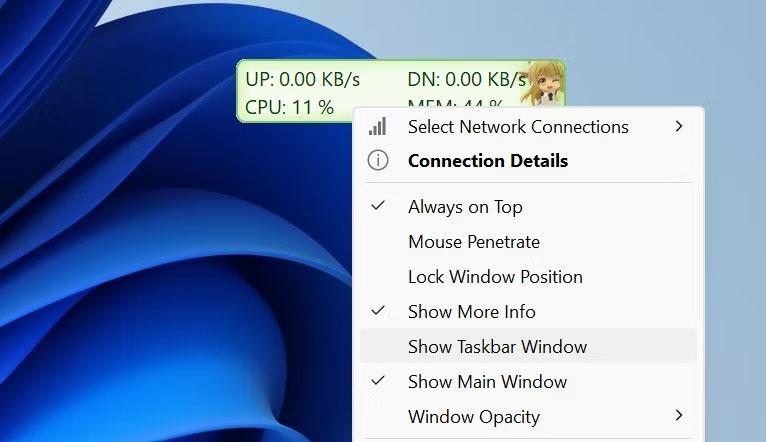
<p style="text-align: justify;">5. Để hiển thị những con số này trên thanh tác vụ, nhấp chuột phải vào cửa sổ chính của công cụ và chọn&nbsp;<strong>Show Taskbar Window</strong>.</p>

<figure>
<div style="text-align: justify;"><img alt="Nhấp vào tùy chọn Show Taskbar Window để hiển thị tốc độ Internet trên thanh tác vụ trong Windows" data-i="1" data-src="https://st.quantrimang.com/photos/image/2023/07/03/hien-thi-toc-do-internet-tu-taskbar-1.jpg" data-was-processed="true" height="442" src="https://st.quantrimang.com/photos/image/2023/07/03/hien-thi-toc-do-internet-tu-taskbar-1.jpg" width="766" /></div>

<figcaption>
<div style="text-align: justify;">Nhấp vào tùy chọn Show Taskbar Window để hiển thị tốc độ Internet trên thanh tác vụ trong Windows</div>
</figcaption>
</figure>

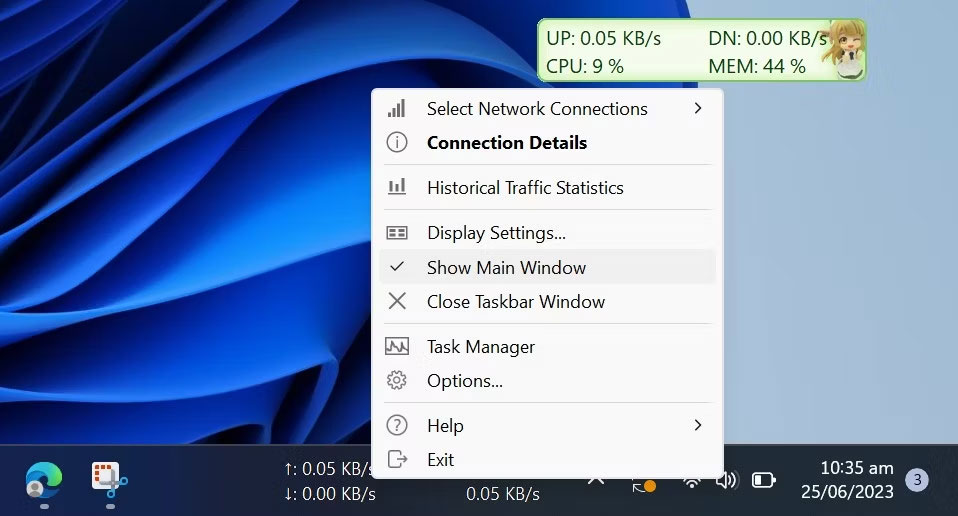
<p style="text-align: justify;">6. Khi tốc độ Internet xuất hiện trên thanh tác vụ, nhấp chuột phải vào cửa sổ chính hoặc thanh tác vụ và bỏ chọn&nbsp;<strong>Show Main Window</strong>. Thao tác này sẽ ẩn cửa sổ chính của công cụ.</p>

<figure>
<div style="text-align: justify;"><img alt="Bỏ chọn tùy chọn Show Main Window trong Internet Speed Display của TrafficMonitor trên Taskbar" data-i="2" data-src="https://st.quantrimang.com/photos/image/2023/07/03/hien-thi-toc-do-internet-tu-taskbar-2.jpg" data-was-processed="true" height="516" src="https://st.quantrimang.com/photos/image/2023/07/03/hien-thi-toc-do-internet-tu-taskbar-2.jpg" width="958" /></div>

<figcaption>
<div style="text-align: justify;">Bỏ chọn tùy chọn Show Main Window trong Internet Speed Display của TrafficMonitor trên Taskbar</div>
</figcaption>
</figure>

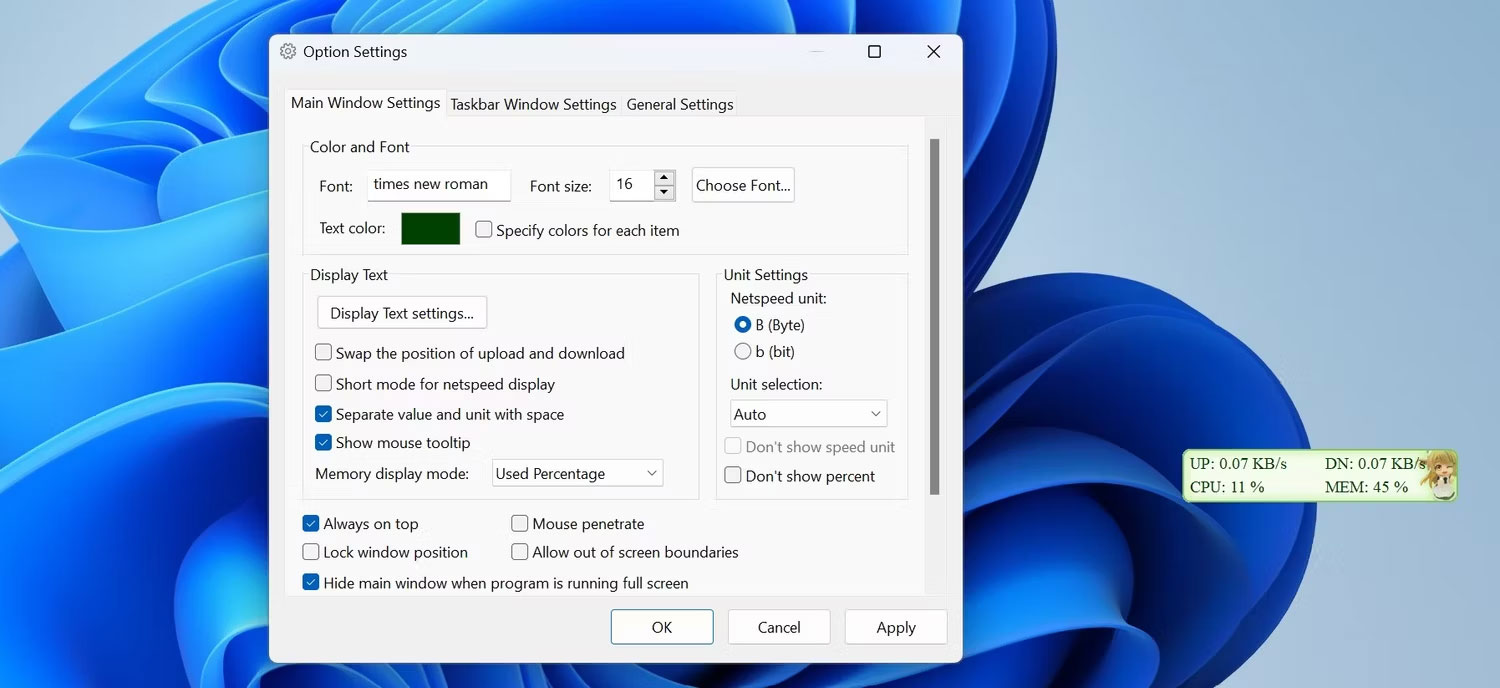
<p style="text-align: justify;">Đó là cách TrafficMonitor hiển thị tốc độ Internet trên thanh tác vụ. Công cụ này cho phép bạn chọn kết nối mạng mà bạn muốn theo dõi và thay đổi phông chữ, cỡ chữ, màu nền và đơn vị hiển thị của màn hình, cùng nhiều tùy chọn khác. Tùy thuộc vào sở thích của bạn, bạn có thể thay đổi cài đặt hiển thị trong cửa sổ&nbsp;<strong>Option Settings</strong>.</p>

<figure>
<div style="text-align: justify;"><img alt="Thay đổi Display Settings của TrafficMonitor trong Option Settings" data-i="3" data-src="https://st.quantrimang.com/photos/image/2023/07/03/hien-thi-toc-do-internet-tu-taskbar-3.jpg" data-was-processed="true" height="688" src="https://st.quantrimang.com/photos/image/2023/07/03/hien-thi-toc-do-internet-tu-taskbar-3.jpg" width="1500" /></div>

<figcaption>
<div style="text-align: justify;">Thay đổi Display Settings của TrafficMonitor trong Option Settings</div>
</figcaption>
</figure>

<p style="text-align: justify;">Công cụ TrafficMonitor giúp theo dõi và hiển thị tốc độ Internet trên thanh tác vụ cực kỳ dễ dàng. Đến bây giờ, bạn đã hiểu rõ hơn về cách thiết lập công cụ và tùy chỉnh màn hình của nó. Với TrafficMonitor, bạn có thể nhanh chóng kiểm tra xem Internet của mình có ổn định hay không hoặc cần chú ý ngay lập tức.</p>

<h2 style="text-align: justify;">Hiển thị tốc độ Internet trên Windows Taskbar bằng NetSpeedMonitor</h2>

<p style="text-align: justify;">Bạn có thể thể theo dõi tốc độ upload và download trên thanh Taskbar bằng cách cài đặt một công cụ nhỏ, đơn giản có tên là NetSpeedMonitor. Đây là một chương trình cũ nhưng vẫn hiệu quả và hoàn toàn miễn phí.</p>

<h3 style="text-align: justify;">Tính năng của NetSpeedMonitor</h3>

<p style="text-align: justify;">Để sử dụng NetSpeedMonitor, bạn cần chạy Windows XP trở lên. Chương trình được phát triển cho phiên bản Windows trước đó nhưng nếu sử dụng Windows 10, bạn có thể chạy chương trình ở chế độ tương thích nếu không cài đặt.</p>

<ul>
	<li style="text-align: justify;"><a href="https://quantrimang.com/cong-nghe/cach-chay-cac-phan-mem-cu-tren-windows-10-bang-compatibility-mode-120183" title="Cách chạy các phần mềm cũ trên Windows 10 bằng Compatibility Mode">Cách chạy các phần mềm cũ trên Windows 10 bằng Compatibility Mode</a></li>
</ul>

<p style="text-align: justify;">Bạn phải đảm bảo tải đúng chương trình. Tên file sẽ kết thúc bằng x64_setup. Nếu sử dụng file kết thúc bằng x86_setup, nó sẽ không chạy trên Windows 10 ngay cả khi bạn đã sử dụng chế độ tương thích.</p>

<p style="text-align: justify;">NetSpeedMonitor không có nhiều tính năng bổ sung nên rất dễ sử dụng. Nó cũng không có quảng cáo.</p>

<h3 style="text-align: justify;">Cài đặt NetSpeedMonitor</h3>

<p style="text-align: justify;"><strong>Bước 1</strong>. Tải và cài đặt&nbsp;<a href="https://quantrimang.com/url?q=aHR0cHM6Ly9kb3dubG9hZC5jb20udm4vbmV0c3BlZWRtb25pdG9yLTE0MzgyNw%3D%3D" rel="nofollow" target="_blank" title="NetSpeedMonitor">NetSpeedMonitor</a>. Nếu cài đặt chính xác, bạn có thể bỏ qua và chuyển đến Bước 8.</p>

<p style="text-align: justify;"><strong>Bước 2</strong>. Nếu thấy thông báo&nbsp;<strong>Operating system not supported error</strong>, bạn cần chạy ứng dụng ở chế độ tương thích.</p>

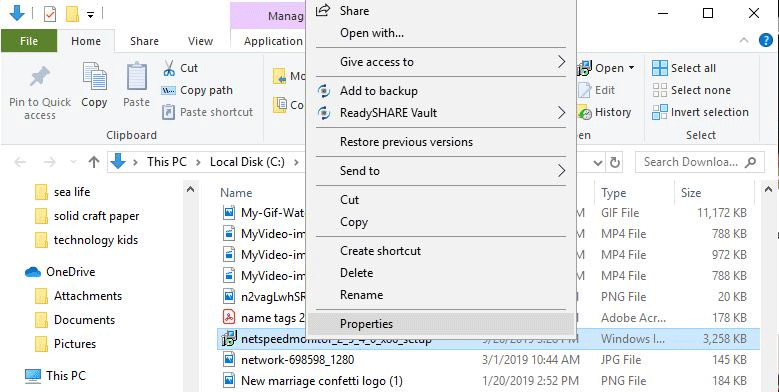
<p style="text-align: justify;"><strong>Bước 3</strong>. Để chạy nó ở chế độ tương thích, tìm file tải xuống trong File Explorer và click chuột phải, chọn&nbsp;<strong>Properties</strong>.</p>

<p style="text-align: justify;"><img alt="Chọn Properties" data-i="4" data-src="https://st.quantrimang.com/photos/image/2019/09/27/theo-doi-toc-do-internet-tren-taskbar-2.png" data-was-processed="true" height="322" src="https://st.quantrimang.com/photos/image/2019/09/27/theo-doi-toc-do-internet-tren-taskbar-2.png" width="640" /></p>

<p style="text-align: justify;"><strong>Bước 4</strong>. Click vào tab&nbsp;<strong>Compatibility</strong>.</p>

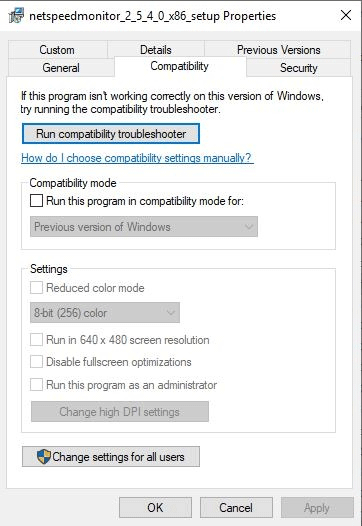
<p style="text-align: justify;"><img alt="Chọn hộp Run this program in compatibility mode for" data-i="5" data-src="https://st.quantrimang.com/photos/image/2019/09/27/theo-doi-toc-do-internet-tren-taskbar-3.png" data-was-processed="true" height="526" src="https://st.quantrimang.com/photos/image/2019/09/27/theo-doi-toc-do-internet-tren-taskbar-3.png" width="362" /></p>

<p style="text-align: justify;"><strong>Bước 5.</strong>&nbsp;Chọn hộp&nbsp;<strong>Run this program in compatibility mode for</strong>&nbsp;và đảm bảo tùy chọn bên dưới là&nbsp;<strong>Previous Versions of Windows</strong>.</p>

<p style="text-align: justify;"><strong>Bước 6</strong>. Click vào&nbsp;<strong>Apply</strong>&nbsp;và&nbsp;<strong>OK</strong>&nbsp;để lưu thay đổi.</p>

<p style="text-align: justify;"><strong>Bước 7</strong>. Cài đặt lại chương trình.</p>

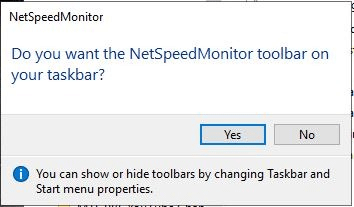
<p style="text-align: justify;"><strong>Bước 8.</strong>&nbsp;Khi cài đặt chương trình, một thông báo hiện ra hỏi bạn có muốn thêm thanh công cụ giám sát băng thông vào Taskbar không. Click vào&nbsp;<strong>Yes</strong>.</p>

<p style="text-align: justify;"><img alt="Click vào Yes" data-i="6" data-src="https://st.quantrimang.com/photos/image/2019/09/27/theo-doi-toc-do-internet-tren-taskbar-4.png" data-was-processed="true" height="207" src="https://st.quantrimang.com/photos/image/2019/09/27/theo-doi-toc-do-internet-tren-taskbar-4.png" width="354" /></p>

<p style="text-align: justify;"><strong>Bước 9</strong>. Cửa sổ cấu hình hiện ra để bạn có thể thay đổi ngôn ngữ, bộ điều hợp mạng. Nếu đã thiết lập đúng, click vào&nbsp;<strong>Save</strong>.</p>

<p style="text-align: justify;"><strong>Bước 10</strong>. Khi nhấn nút&nbsp;<strong>Save</strong>, thanh tốc độ upload và download sẽ xuất hiện ở bên phải Taskbar.</p>

<p style="text-align: justify;"><img alt="Hiển thị tốc độ Internet từ Taskbar" data-i="7" data-src="https://st.quantrimang.com/photos/image/2022/09/27/speed-internet.png" data-was-processed="true" height="54" src="https://st.quantrimang.com/photos/image/2022/09/27/speed-internet.png" width="342" /></p>

<h3 style="text-align: justify;">Sử dụng NetSpeedMonitor</h3>

<p style="text-align: justify;">Theo mặc định, NetSpeedMonitor đo tốc độ Internet sử dụng Kbit (Kilobit). Bạn có thể thay đổi nó thành Mbit (Megabit) vì hầu hết các nhà cung cấp dịch vụ Internet đều thông báo tốc độ được tính bằng Megabit/giây. Để thay đổi cài đặt này, click chuột phải vào màn hình tốc độ, chọn&nbsp;<strong>Configuration</strong>, sau đó click vào menu thả xuống cạnh&nbsp;<strong>Bitrate</strong>&nbsp;và chọn&nbsp;<strong>Mbit/s</strong>. Nhấn&nbsp;<strong>Apply</strong>&nbsp;để áp dụng thay đổi.</p>

<p style="text-align: justify;">Khi mở cửa sổ cấu hình, bạn có thể điều chỉnh các thứ khác như font chữ, kích thước và căn chỉnh thanh công cụ.</p>

<p style="text-align: justify;">NetSpeedMonitor rất đơn giản và dễ sử dụng để theo dõi tốc độ upload và download ngay trên thanh Taskbar. Bạn có thể kiểm tra chúng bất cứ khi nào để đảm bảo Internet hoạt động chính xác.</p>

<p style="text-align: justify;">Chúc các bạn thực hiện thành công!</p>
		</div>
				<div id="author">
						<p>
				<strong>Nguồn tin:</strong>
				Quantrimang.com
			</p>
		</div>
	</div>
	<div id="footer" class="clearfix">
		<div id="url">
			<strong>URL của bản tin này: </strong><a href="https://www.nguoicodonvn2008.info/vi/news/savefile/kien-thuc-may-tinh/cach-hien-thi-toc-do-internet-tren-windows-taskbar-7260.html" title="Cách hiển thị tốc độ Internet trên Windows Taskbar">https://www.nguoicodonvn2008.info/vi/news/savefile/kien-thuc-may-tinh/cach-hien-thi-toc-do-internet-tren-windows-taskbar-7260.html</a>

		</div>
		<div class="clear"></div>
		<div class="copyright">
			&copy; .&#x3A; Nguoicodonvn2008.info - Cõi lòng người cô đơn &#x3A;.
		</div>
		<div id="contact">
			<a href="mailto:admin@nguoicodonvn2008.info">admin@nguoicodonvn2008.info</a>
		</div>
	</div>
</div>
        <div id="timeoutsess" class="chromeframe">
            Bạn đã không sử dụng Site, <a onclick="timeoutsesscancel();" href="https://nguoicodonvn2008.info/#">Bấm vào đây để duy trì trạng thái đăng nhập</a>. Thời gian chờ: <span id="secField"> 60 </span> giây
        </div>
        <div id="openidResult" class="nv-alert" style="display:none"></div>
        <div id="openidBt" data-result="" data-redirect=""></div>
		</script>
		<div class="car-top">
  <span><img src="https://nguoicodonvn2008.info/themes/default/images/car.png" alt=""></span>
</div>
<script src="https://nguoicodonvn2008.info/assets/js/jquery/jquery.min.js"></script>
<script>var nv_base_siteurl="/",nv_lang_data="vi",nv_lang_interface="vi",nv_name_variable="nv",nv_fc_variable="op",nv_lang_variable="language",nv_module_name="news",nv_func_name="savefile",nv_is_user=0, nv_my_ofs=-4,nv_my_abbr="EDT",nv_cookie_prefix="nv4c_e856T",nv_check_pass_mstime=1738000,nv_area_admin=0,nv_safemode=0,theme_responsive=0,nv_recaptcha_ver=2,nv_recaptcha_sitekey="",nv_recaptcha_type="image",XSSsanitize=1;</script>
<script src="https://nguoicodonvn2008.info/assets/js/language/vi.js"></script>
<script src="https://nguoicodonvn2008.info/assets/js/DOMPurify/purify3.js"></script>
<script src="https://nguoicodonvn2008.info/assets/js/global.js"></script>
<script src="https://nguoicodonvn2008.info/assets/js/site.js"></script>
<script src="https://nguoicodonvn2008.info/themes/default/js/news.js"></script>
<script src="https://nguoicodonvn2008.info/themes/default/js/main.js"></script>
<script src="https://nguoicodonvn2008.info/themes/default/js/custom.js"></script>
<script type="application/ld+json">
        {
            "@context": "https://schema.org",
            "@type": "Organization",
            "url": "https://nguoicodonvn2008.info",
            "logo": "https://nguoicodonvn2008.info/uploads/angel.gif"
        }
        </script>
<script src="https://nguoicodonvn2008.info/themes/default/js/bootstrap.min.js"></script>
<script type="text/javascript">
var $scrolltop = $('.car-top');
$scrolltop.on('click', function () {
    $('html,body').animate({
        scrollTop: 0
    }, 800);
    $(this).addClass("car-run");
    setTimeout(function(){ $scrolltop.removeClass('car-run');}, 1000);
    return false;
});
$(window).on('scroll', function ()
{ 
    if($(window).scrollTop() >= 200)
    {
        $scrolltop.addClass("show");
        $scrolltop.addClass("car-down");
    }
    else
    {
       $scrolltop.removeClass("show");
       setTimeout(function(){ $scrolltop.removeClass('car-down');}, 300);
    }
});
</script>
</body>
</html>