<!DOCTYPE html>
    <html lang="vi" xmlns="http://www.w3.org/1999/xhtml" prefix="og: http://ogp.me/ns#">
    <head>
<title>Cách hiển thị số lượng thông báo chưa đọc trên các biểu tượng ứng dụng trong taskbar Windows 11</title>
<meta name="description" content="Cách hiển thị số lượng thông báo chưa đọc trên các biểu tượng ứng dụng trong taskbar Windows 11 - Savefile - Tin Tức -...">
<meta name="author" content=".: Nguoicodonvn2008.info - Cõi lòng người cô đơn :.">
<meta name="copyright" content=".: Nguoicodonvn2008.info - Cõi lòng người cô đơn :. [admin@nguoicodonvn2008.info]">
<meta name="robots" content="index, archive, follow, noodp">
<meta name="googlebot" content="index,archive,follow,noodp">
<meta name="msnbot" content="all,index,follow">
<meta name="generator" content="NukeViet v4.5">
<meta http-equiv="Content-Type" content="text/html; charset=utf-8">
<meta property="og:title" content="Cách hiển thị số lượng thông báo chưa đọc trên các biểu tượng ứng dụng trong taskbar Windows 11">
<meta property="og:type" content="website">
<meta property="og:description" content="Savefile - Tin Tức -...">
<meta property="og:site_name" content=".&#x3A; Nguoicodonvn2008.info - Cõi lòng người cô đơn &#x3A;.">
<meta property="og:url" content="https://www.nguoicodonvn2008.info/vi/news/savefile/kien-thuc-may-tinh/cach-hien-thi-so-luong-thong-bao-chua-doc-tren-cac-bieu-tuong-ung-dung-trong-taskbar-windows-11-4463.html">
<link rel="shortcut icon" href="https://nguoicodonvn2008.info/favicon.ico">
<link rel="canonical" href="https://www.nguoicodonvn2008.info/vi/news/savefile/kien-thuc-may-tinh/cach-hien-thi-so-luong-thong-bao-chua-doc-tren-cac-bieu-tuong-ung-dung-trong-taskbar-windows-11-4463.html">
<link rel="alternate" href="https://nguoicodonvn2008.info/vi/news/rss/" title="Tin Tức" type="application/rss+xml">
<link rel="alternate" href="https://nguoicodonvn2008.info/vi/news/rss/karaoke-dual/" title="Tin Tức - Karaoke Dual" type="application/rss+xml">
<link rel="alternate" href="https://nguoicodonvn2008.info/vi/news/rss/nhac-tre/" title="Tin Tức - Nhạc trẻ" type="application/rss+xml">
<link rel="alternate" href="https://nguoicodonvn2008.info/vi/news/rss/tru-tinh/" title="Tin Tức - Trữ tình" type="application/rss+xml">
<link rel="alternate" href="https://nguoicodonvn2008.info/vi/news/rss/nuoc-ngoai/" title="Tin Tức - Nước ngoài" type="application/rss+xml">
<link rel="alternate" href="https://nguoicodonvn2008.info/vi/news/rss/remix/" title="Tin Tức - Remix" type="application/rss+xml">
<link rel="alternate" href="https://nguoicodonvn2008.info/vi/news/rss/tam-su-tinh-yeu/" title="Tin Tức - Tâm sự tình yêu" type="application/rss+xml">
<link rel="alternate" href="https://nguoicodonvn2008.info/vi/news/rss/tho-suu-tam/" title="Tin Tức - Thơ sưu tầm" type="application/rss+xml">
<link rel="alternate" href="https://nguoicodonvn2008.info/vi/news/rss/cuoc-song/" title="Tin Tức - Cuộc sống" type="application/rss+xml">
<link rel="alternate" href="https://nguoicodonvn2008.info/vi/news/rss/phan-mem/" title="Tin Tức - Phần mềm" type="application/rss+xml">
<link rel="alternate" href="https://nguoicodonvn2008.info/vi/news/rss/kien-thuc-may-tinh/" title="Tin Tức - Kiến thức máy tính" type="application/rss+xml">
<link rel="alternate" href="https://nguoicodonvn2008.info/vi/news/rss/hoc-tap/" title="Tin Tức - Học tập" type="application/rss+xml">
<link rel="alternate" href="https://nguoicodonvn2008.info/vi/news/rss/tai-lieu/" title="Tin Tức - Tài liệu" type="application/rss+xml">
<link rel="alternate" href="https://nguoicodonvn2008.info/vi/news/rss/de-thi/" title="Tin Tức - Đề thi" type="application/rss+xml">
<link rel="preload" as="style" href="https://nguoicodonvn2008.info/assets/css/font-awesome.min.css" type="text/css">
<link rel="preload" as="style" href="https://nguoicodonvn2008.info/themes/default/css/bootstrap.non-responsive.css" type="text/css">
<link rel="preload" as="style" href="https://nguoicodonvn2008.info/themes/default/css/style.css" type="text/css">
<link rel="preload" as="style" href="https://nguoicodonvn2008.info/themes/default/css/style.non-responsive.css" type="text/css">
<link rel="preload" as="style" href="https://nguoicodonvn2008.info/themes/default/css/news.css" type="text/css">
<link rel="preload" as="style" href="https://nguoicodonvn2008.info/themes/default/css/custom.css" type="text/css">
<link rel="preload" as="script" href="https://nguoicodonvn2008.info/assets/js/jquery/jquery.min.js" type="text/javascript">
<link rel="preload" as="script" href="https://nguoicodonvn2008.info/assets/js/language/vi.js" type="text/javascript">
<link rel="preload" as="script" href="https://nguoicodonvn2008.info/assets/js/DOMPurify/purify3.js" type="text/javascript">
<link rel="preload" as="script" href="https://nguoicodonvn2008.info/assets/js/global.js" type="text/javascript">
<link rel="preload" as="script" href="https://nguoicodonvn2008.info/assets/js/site.js" type="text/javascript">
<link rel="preload" as="script" href="https://nguoicodonvn2008.info/themes/default/js/news.js" type="text/javascript">
<link rel="preload" as="script" href="https://nguoicodonvn2008.info/themes/default/js/main.js" type="text/javascript">
<link rel="preload" as="script" href="https://nguoicodonvn2008.info/themes/default/js/custom.js" type="text/javascript">
<link rel="preload" as="script" href="https://nguoicodonvn2008.info/themes/default/js/bootstrap.min.js" type="text/javascript">
<link rel="stylesheet" href="https://nguoicodonvn2008.info/assets/css/font-awesome.min.css">
<link rel="stylesheet" href="https://nguoicodonvn2008.info/themes/default/css/bootstrap.non-responsive.css">
<link rel="stylesheet" href="https://nguoicodonvn2008.info/themes/default/css/style.css">
<link rel="stylesheet" href="https://nguoicodonvn2008.info/themes/default/css/style.non-responsive.css">
<link rel="StyleSheet" href="https://nguoicodonvn2008.info/themes/default/css/news.css">
<link rel="stylesheet" href="https://nguoicodonvn2008.info/themes/default/css/custom.css">
<style type="text/css">
	body{background: #fff;}
</style>
    </head>
    <body>
<div id="print">
	<div id="hd_print">
		<h2 class="pull-left">.&#x3A; Nguoicodonvn2008.info - Cõi lòng người cô đơn &#x3A;.</h2>
		<p class="pull-right"><a title=".&#x3A; Nguoicodonvn2008.info - Cõi lòng người cô đơn &#x3A;." href="https://nguoicodonvn2008.info/">https://nguoicodonvn2008.info</a></p>
	</div>
	<div class="clear"></div>
	<hr />
	<div id="content">
		<h1>Cách hiển thị số lượng thông báo chưa đọc trên các biểu tượng ứng dụng trong taskbar Windows 11</h1>
		<ul class="list-inline">
			<li>Thứ ba - 20/07/2021 00:28</li>
			<li class="hidden-print txtrequired"><em class="fa fa-print">&nbsp;</em><a title="In ra" href="javascript:;" onclick="window.print()">In ra</a></li>
			<li class="hidden-print txtrequired"><em class="fa fa-power-off">&nbsp;</em><a title="Đóng cửa sổ này" href="javascript:;" onclick="window.close()">Đóng cửa sổ này</a></li>
		</ul>
		<div class="clear"></div>
		<div id="hometext">
		</div>
				<div class="imghome">
			<img alt="Cách hiển thị số lượng thông báo chưa đọc trên các biểu tượng ứng dụng trong taskbar Windows 11" src="https://st.quantrimang.com/photos/image/2021/07/10/hien-thi-bieu-tuong-thong-bao-chua-doc-tren-taskbar-windows-111.jpg" width="460" class="img-thumbnail" />
		</div>
		<div class="clear"></div>
		<div id="bodytext" class="clearfix">
			<p style="text-align: justify;">Trong Windows 11, biểu tượng ứng dụng trên thanh tác vụ (taskbar) có thể bao gồm cả các huy hiệu thông báo nhỏ màu đỏ, hiển thị số lượng tin nhắn, thông báo chưa đọc trong một ứng dụng cụ thể. Tính năng khá hữu ích này có thể bị vô hiệu hóa theo mặc định, dưới đây là cách kích hoạt mà bạn có thể tham khảo.</p>

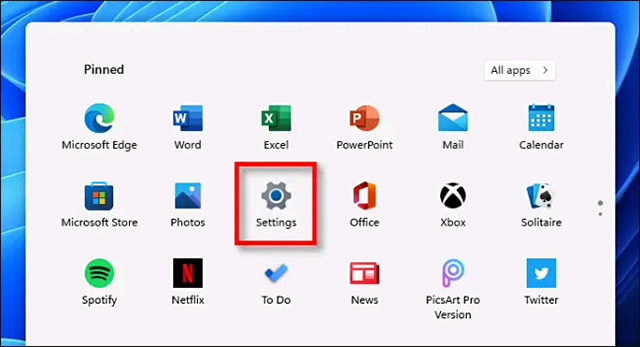
<p style="text-align: justify;">Đầu tiên, hãy mở ứng dụng Settings của Windows. Bạn có thể sử dụng liên kết trong menu Quick Settings hoặc nhấn&nbsp;<strong>Windows + i&nbsp;</strong>trên bàn phím.</p>

<p style="text-align: justify;"><img alt="Mở ứng dụng Settings" data-i="0" data-src="https://st.quantrimang.com/photos/image/2021/07/10/hien-thi-bieu-tuong-thong-bao-chua-doc-tren-taskbar-windows-111.jpg" data-was-processed="true" height="347" src="https://st.quantrimang.com/photos/image/2021/07/10/hien-thi-bieu-tuong-thong-bao-chua-doc-tren-taskbar-windows-111.jpg" width="640" /></p>

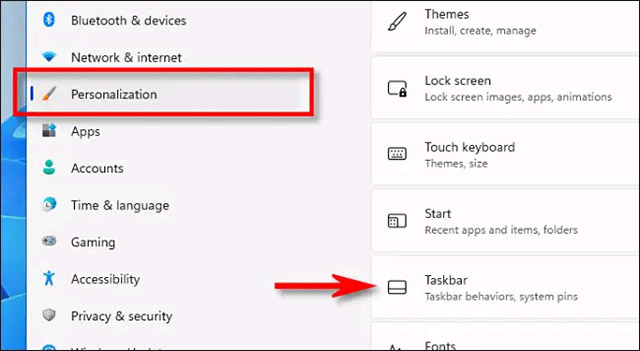
<p style="text-align: justify;">Khi menu Settings mở ra, bạn bấm chọn mục “<strong>Personalization</strong>” trong danh sách bên phải, sau đó nhấp vào “<strong>Taskbar</strong>”.</p>

<p style="text-align: justify;"><img alt="Nhấp vào “Taskbar”" data-i="1" data-src="https://st.quantrimang.com/photos/image/2021/07/10/hien-thi-bieu-tuong-thong-bao-chua-doc-tren-taskbar-windows-112.jpg" data-was-processed="true" height="351" src="https://st.quantrimang.com/photos/image/2021/07/10/hien-thi-bieu-tuong-thong-bao-chua-doc-tren-taskbar-windows-112.jpg" width="640" /></p>

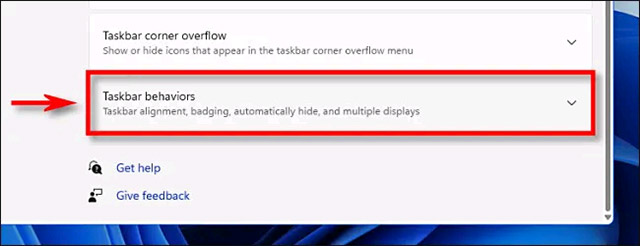
<p style="text-align: justify;">Trên màn hình cài đặt Taskbar, bấm vào “<strong>Taskbar Behaviors</strong>”.</p>

<p style="text-align: justify;"><img alt="Bấm vào “Taskbar Behaviors”" data-i="2" data-src="https://st.quantrimang.com/photos/image/2021/07/10/hien-thi-bieu-tuong-thong-bao-chua-doc-tren-taskbar-windows-113.jpg" data-was-processed="true" height="246" src="https://st.quantrimang.com/photos/image/2021/07/10/hien-thi-bieu-tuong-thong-bao-chua-doc-tren-taskbar-windows-113.jpg" width="640" /></p>

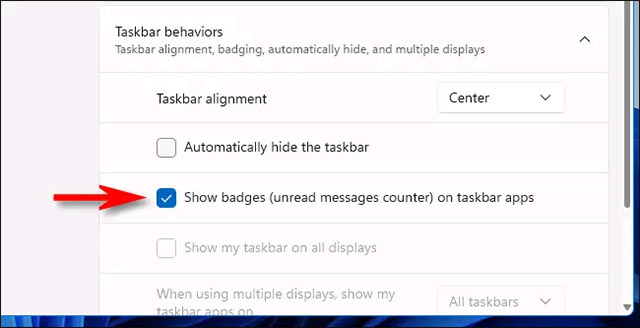
<p style="text-align: justify;">Khi danh sách các tùy chọn xuất hiện, bạn hãy tích vào ô vuông bên cạnh tùy chọn “<strong>Show badges (unread messages counter) on taskbar apps</strong>”.</p>

<p style="text-align: justify;"><img alt="Tích vào “Show badges (unread messages counter) on taskbar apps”" data-i="3" data-src="https://st.quantrimang.com/photos/image/2021/07/10/hien-thi-bieu-tuong-thong-bao-chua-doc-tren-taskbar-windows-114.jpg" data-was-processed="true" height="328" src="https://st.quantrimang.com/photos/image/2021/07/10/hien-thi-bieu-tuong-thong-bao-chua-doc-tren-taskbar-windows-114.jpg" width="640" /></p>

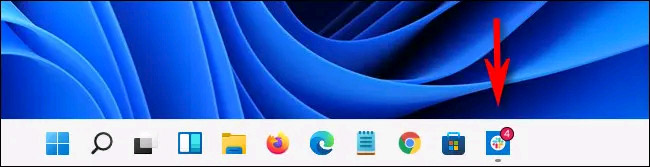
<p style="text-align: justify;">Bây giờ, hãy đóng menu Settings. Lần tiếp theo khi bạn mở một ứng dụng nhắn tin hoặc mạng xã hội có tin nhắn hoặc thông báo chưa đọc, bạn sẽ thấy một huy hiệu được đánh số màu đỏ ngay phía trên biểu tượng của nó trong thanh tác vụ. Con số trong huy hiệu hiển thị số lượng các thông báo trong ứng dụng mà bạn chưa đọc.</p>

<p style="text-align: justify;"><img alt="Số lượng thông báo trong ứng dụng mà bạn chưa đọc" data-i="4" data-src="https://st.quantrimang.com/photos/image/2021/07/10/hien-thi-bieu-tuong-thong-bao-chua-doc-tren-taskbar-windows-115.jpg" data-was-processed="true" height="167" src="https://st.quantrimang.com/photos/image/2021/07/10/hien-thi-bieu-tuong-thong-bao-chua-doc-tren-taskbar-windows-115.jpg" width="650" /></p>

<p style="text-align: justify;">Trong trường hợp bạn muốn vô hiệu hóa tính năng này, chỉ cần truy cập lại vào&nbsp;<strong>Settings &gt; Personalization &gt; Taskbar &gt; Taskbar Behaviors</strong>&nbsp;và bỏ tích tùy chọn “<strong>Show badges (unread messages counter) on taskbar apps</strong>” để tắt nó đi.</p>
		</div>
				<div id="author">
						<p>
				<strong>Nguồn tin:</strong>
				Quantrimang.com
			</p>
		</div>
	</div>
	<div id="footer" class="clearfix">
		<div id="url">
			<strong>URL của bản tin này: </strong><a href="https://www.nguoicodonvn2008.info/vi/news/savefile/kien-thuc-may-tinh/cach-hien-thi-so-luong-thong-bao-chua-doc-tren-cac-bieu-tuong-ung-dung-trong-taskbar-windows-11-4463.html" title="Cách hiển thị số lượng thông báo chưa đọc trên các biểu tượng ứng dụng trong taskbar Windows 11">https://www.nguoicodonvn2008.info/vi/news/savefile/kien-thuc-may-tinh/cach-hien-thi-so-luong-thong-bao-chua-doc-tren-cac-bieu-tuong-ung-dung-trong-taskbar-windows-11-4463.html</a>

		</div>
		<div class="clear"></div>
		<div class="copyright">
			&copy; .&#x3A; Nguoicodonvn2008.info - Cõi lòng người cô đơn &#x3A;.
		</div>
		<div id="contact">
			<a href="mailto:admin@nguoicodonvn2008.info">admin@nguoicodonvn2008.info</a>
		</div>
	</div>
</div>
        <div id="timeoutsess" class="chromeframe">
            Bạn đã không sử dụng Site, <a onclick="timeoutsesscancel();" href="https://nguoicodonvn2008.info/#">Bấm vào đây để duy trì trạng thái đăng nhập</a>. Thời gian chờ: <span id="secField"> 60 </span> giây
        </div>
        <div id="openidResult" class="nv-alert" style="display:none"></div>
        <div id="openidBt" data-result="" data-redirect=""></div>
		</script>
		<div class="car-top">
  <span><img src="https://nguoicodonvn2008.info/themes/default/images/car.png" alt=""></span>
</div>
<script src="https://nguoicodonvn2008.info/assets/js/jquery/jquery.min.js"></script>
<script>var nv_base_siteurl="/",nv_lang_data="vi",nv_lang_interface="vi",nv_name_variable="nv",nv_fc_variable="op",nv_lang_variable="language",nv_module_name="news",nv_func_name="savefile",nv_is_user=0, nv_my_ofs=-4,nv_my_abbr="EDT",nv_cookie_prefix="nv4c_e856T",nv_check_pass_mstime=1738000,nv_area_admin=0,nv_safemode=0,theme_responsive=0,nv_recaptcha_ver=2,nv_recaptcha_sitekey="",nv_recaptcha_type="image",XSSsanitize=1;</script>
<script src="https://nguoicodonvn2008.info/assets/js/language/vi.js"></script>
<script src="https://nguoicodonvn2008.info/assets/js/DOMPurify/purify3.js"></script>
<script src="https://nguoicodonvn2008.info/assets/js/global.js"></script>
<script src="https://nguoicodonvn2008.info/assets/js/site.js"></script>
<script src="https://nguoicodonvn2008.info/themes/default/js/news.js"></script>
<script src="https://nguoicodonvn2008.info/themes/default/js/main.js"></script>
<script src="https://nguoicodonvn2008.info/themes/default/js/custom.js"></script>
<script type="application/ld+json">
        {
            "@context": "https://schema.org",
            "@type": "Organization",
            "url": "https://nguoicodonvn2008.info",
            "logo": "https://nguoicodonvn2008.info/uploads/angel.gif"
        }
        </script>
<script src="https://nguoicodonvn2008.info/themes/default/js/bootstrap.min.js"></script>
<script type="text/javascript">
var $scrolltop = $('.car-top');
$scrolltop.on('click', function () {
    $('html,body').animate({
        scrollTop: 0
    }, 800);
    $(this).addClass("car-run");
    setTimeout(function(){ $scrolltop.removeClass('car-run');}, 1000);
    return false;
});
$(window).on('scroll', function ()
{ 
    if($(window).scrollTop() >= 200)
    {
        $scrolltop.addClass("show");
        $scrolltop.addClass("car-down");
    }
    else
    {
       $scrolltop.removeClass("show");
       setTimeout(function(){ $scrolltop.removeClass('car-down');}, 300);
    }
});
</script>
</body>
</html>