<!DOCTYPE html>
    <html lang="vi" xmlns="http://www.w3.org/1999/xhtml" prefix="og: http://ogp.me/ns#">
    <head>
<title>Cách hiển thị nhiệt độ bằng °C hoặc °F trong ứng dụng Weather trên Windows 10</title>
<meta name="description" content="Cách hiển thị nhiệt độ bằng °C hoặc °F trong ứng dụng Weather trên Windows 10 - Savefile - Tin Tức -...">
<meta name="author" content=".: Nguoicodonvn2008.info - Cõi lòng người cô đơn :.">
<meta name="copyright" content=".: Nguoicodonvn2008.info - Cõi lòng người cô đơn :. [admin@nguoicodonvn2008.info]">
<meta name="robots" content="index, archive, follow, noodp">
<meta name="googlebot" content="index,archive,follow,noodp">
<meta name="msnbot" content="all,index,follow">
<meta name="generator" content="NukeViet v4.5">
<meta http-equiv="Content-Type" content="text/html; charset=utf-8">
<meta property="og:title" content="Cách hiển thị nhiệt độ bằng °C hoặc °F trong ứng dụng Weather trên Windows 10">
<meta property="og:type" content="website">
<meta property="og:description" content="Savefile - Tin Tức -...">
<meta property="og:site_name" content=".&#x3A; Nguoicodonvn2008.info - Cõi lòng người cô đơn &#x3A;.">
<meta property="og:url" content="https://www.nguoicodonvn2008.info/vi/news/savefile/kien-thuc-may-tinh/cach-hien-thi-nhiet-do-bang-c-hoac-f-trong-ung-dung-weather-tren-windows-10-4373.html">
<link rel="shortcut icon" href="https://nguoicodonvn2008.info/favicon.ico">
<link rel="canonical" href="https://www.nguoicodonvn2008.info/vi/news/savefile/kien-thuc-may-tinh/cach-hien-thi-nhiet-do-bang-c-hoac-f-trong-ung-dung-weather-tren-windows-10-4373.html">
<link rel="alternate" href="https://nguoicodonvn2008.info/vi/news/rss/" title="Tin Tức" type="application/rss+xml">
<link rel="alternate" href="https://nguoicodonvn2008.info/vi/news/rss/karaoke-dual/" title="Tin Tức - Karaoke Dual" type="application/rss+xml">
<link rel="alternate" href="https://nguoicodonvn2008.info/vi/news/rss/nhac-tre/" title="Tin Tức - Nhạc trẻ" type="application/rss+xml">
<link rel="alternate" href="https://nguoicodonvn2008.info/vi/news/rss/tru-tinh/" title="Tin Tức - Trữ tình" type="application/rss+xml">
<link rel="alternate" href="https://nguoicodonvn2008.info/vi/news/rss/nuoc-ngoai/" title="Tin Tức - Nước ngoài" type="application/rss+xml">
<link rel="alternate" href="https://nguoicodonvn2008.info/vi/news/rss/remix/" title="Tin Tức - Remix" type="application/rss+xml">
<link rel="alternate" href="https://nguoicodonvn2008.info/vi/news/rss/tam-su-tinh-yeu/" title="Tin Tức - Tâm sự tình yêu" type="application/rss+xml">
<link rel="alternate" href="https://nguoicodonvn2008.info/vi/news/rss/tho-suu-tam/" title="Tin Tức - Thơ sưu tầm" type="application/rss+xml">
<link rel="alternate" href="https://nguoicodonvn2008.info/vi/news/rss/cuoc-song/" title="Tin Tức - Cuộc sống" type="application/rss+xml">
<link rel="alternate" href="https://nguoicodonvn2008.info/vi/news/rss/phan-mem/" title="Tin Tức - Phần mềm" type="application/rss+xml">
<link rel="alternate" href="https://nguoicodonvn2008.info/vi/news/rss/kien-thuc-may-tinh/" title="Tin Tức - Kiến thức máy tính" type="application/rss+xml">
<link rel="alternate" href="https://nguoicodonvn2008.info/vi/news/rss/hoc-tap/" title="Tin Tức - Học tập" type="application/rss+xml">
<link rel="alternate" href="https://nguoicodonvn2008.info/vi/news/rss/tai-lieu/" title="Tin Tức - Tài liệu" type="application/rss+xml">
<link rel="alternate" href="https://nguoicodonvn2008.info/vi/news/rss/de-thi/" title="Tin Tức - Đề thi" type="application/rss+xml">
<link rel="preload" as="style" href="https://nguoicodonvn2008.info/assets/css/font-awesome.min.css" type="text/css">
<link rel="preload" as="style" href="https://nguoicodonvn2008.info/themes/default/css/bootstrap.non-responsive.css" type="text/css">
<link rel="preload" as="style" href="https://nguoicodonvn2008.info/themes/default/css/style.css" type="text/css">
<link rel="preload" as="style" href="https://nguoicodonvn2008.info/themes/default/css/style.non-responsive.css" type="text/css">
<link rel="preload" as="style" href="https://nguoicodonvn2008.info/themes/default/css/news.css" type="text/css">
<link rel="preload" as="style" href="https://nguoicodonvn2008.info/themes/default/css/custom.css" type="text/css">
<link rel="preload" as="script" href="https://nguoicodonvn2008.info/assets/js/jquery/jquery.min.js" type="text/javascript">
<link rel="preload" as="script" href="https://nguoicodonvn2008.info/assets/js/language/vi.js" type="text/javascript">
<link rel="preload" as="script" href="https://nguoicodonvn2008.info/assets/js/DOMPurify/purify3.js" type="text/javascript">
<link rel="preload" as="script" href="https://nguoicodonvn2008.info/assets/js/global.js" type="text/javascript">
<link rel="preload" as="script" href="https://nguoicodonvn2008.info/assets/js/site.js" type="text/javascript">
<link rel="preload" as="script" href="https://nguoicodonvn2008.info/themes/default/js/news.js" type="text/javascript">
<link rel="preload" as="script" href="https://nguoicodonvn2008.info/themes/default/js/main.js" type="text/javascript">
<link rel="preload" as="script" href="https://nguoicodonvn2008.info/themes/default/js/custom.js" type="text/javascript">
<link rel="preload" as="script" href="https://nguoicodonvn2008.info/themes/default/js/bootstrap.min.js" type="text/javascript">
<link rel="stylesheet" href="https://nguoicodonvn2008.info/assets/css/font-awesome.min.css">
<link rel="stylesheet" href="https://nguoicodonvn2008.info/themes/default/css/bootstrap.non-responsive.css">
<link rel="stylesheet" href="https://nguoicodonvn2008.info/themes/default/css/style.css">
<link rel="stylesheet" href="https://nguoicodonvn2008.info/themes/default/css/style.non-responsive.css">
<link rel="StyleSheet" href="https://nguoicodonvn2008.info/themes/default/css/news.css">
<link rel="stylesheet" href="https://nguoicodonvn2008.info/themes/default/css/custom.css">
<style type="text/css">
	body{background: #fff;}
</style>
    </head>
    <body>
<div id="print">
	<div id="hd_print">
		<h2 class="pull-left">.&#x3A; Nguoicodonvn2008.info - Cõi lòng người cô đơn &#x3A;.</h2>
		<p class="pull-right"><a title=".&#x3A; Nguoicodonvn2008.info - Cõi lòng người cô đơn &#x3A;." href="https://nguoicodonvn2008.info/">https://nguoicodonvn2008.info</a></p>
	</div>
	<div class="clear"></div>
	<hr />
	<div id="content">
		<h1>Cách hiển thị nhiệt độ bằng °C hoặc °F trong ứng dụng Weather trên Windows 10</h1>
		<ul class="list-inline">
			<li>Thứ hai - 05/07/2021 00:48</li>
			<li class="hidden-print txtrequired"><em class="fa fa-print">&nbsp;</em><a title="In ra" href="javascript:;" onclick="window.print()">In ra</a></li>
			<li class="hidden-print txtrequired"><em class="fa fa-power-off">&nbsp;</em><a title="Đóng cửa sổ này" href="javascript:;" onclick="window.close()">Đóng cửa sổ này</a></li>
		</ul>
		<div class="clear"></div>
		<div id="hometext">
		</div>
				<div class="imghome">
			<img alt="Cách hiển thị nhiệt độ bằng °C hoặc °F trong ứng dụng Weather trên Windows 10" src="https://st.quantrimang.com/photos/image/2021/07/03/hien-thi-nhiet-do-bang-do-c-hoac-do-f-trong-ung-dung-weather-4.jpg" width="460" class="img-thumbnail" />
		</div>
		<div class="clear"></div>
		<div id="bodytext" class="clearfix">
			<p style="text-align: justify;">Windows 10&nbsp;hiển thị dự báo thời tiết cho Washington DC theo độ F (°F) nếu bạn không cấu hình ứng dụng Weather. Tuy nhiên, có thể dễ dàng cài đặt hiển thị dự báo cho bất kỳ thành phố hoặc vị trí nào bạn muốn, từ mọi nơi trên thế giới và hiển thị nhiệt độ bằng độ C (°C). Cài đặt này có thể điều chỉnh trong ứng dụng Weather trên Windows 10 và widget “News and interests” trên thanh tác vụ. Đây là cách thực hiện.</p>

<h2 style="text-align: justify;">Bạn thấy dự báo thời tiết trong Windows 10 ở đâu?</h2>

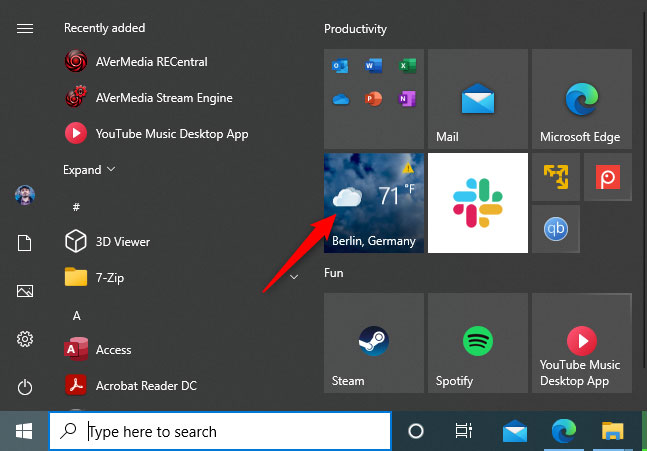
<p style="text-align: justify;">Sau bản cập nhật tháng 5 năm 2021, Windows 10 hiển thị dự báo thời tiết ở một số nơi. Đầu tiên, đó là ứng dụng Weather có một tile trên menu Start. Thứ hai, nếu ứng dụng không được cấu hình, tile sẽ hiển thị dự báo cho Washington DC theo độ F (°F). Tuy nhiên, bạn có thể cá nhân hóa cả vị trí mặc định và độ được sử dụng để hiển thị dự báo.</p>

<figure>
<div style="text-align: justify;"><img alt="Ứng dụng Weather trong Windows 10" data-i="0" data-src="https://st.quantrimang.com/photos/image/2021/07/03/hien-thi-nhiet-do-bang-do-c-hoac-do-f-trong-ung-dung-weather-1.jpg" data-was-processed="true" height="451" src="https://st.quantrimang.com/photos/image/2021/07/03/hien-thi-nhiet-do-bang-do-c-hoac-do-f-trong-ung-dung-weather-1.jpg" width="647" /></div>

<figcaption>
<div style="text-align: justify;">Ứng dụng Weather trong Windows 10</div>
</figcaption>
</figure>

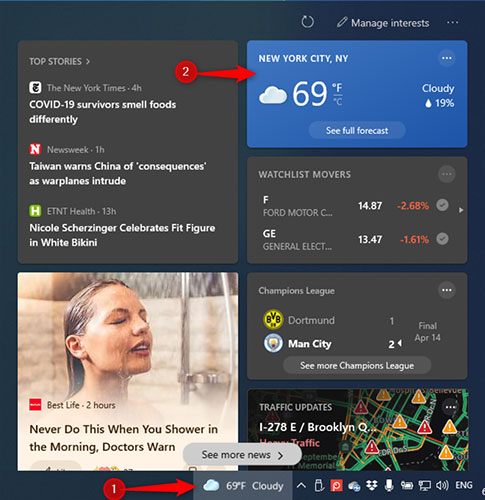
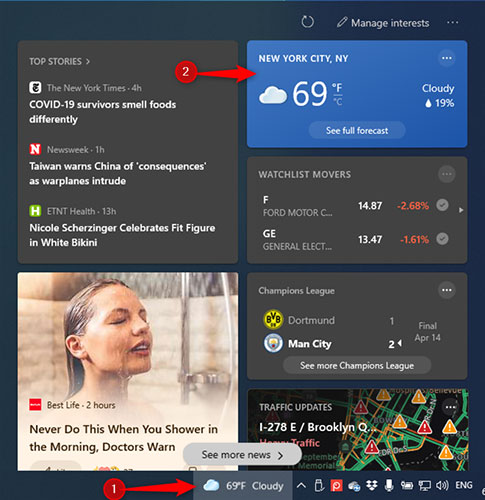
<p style="text-align: justify;">Một nơi khác mà bạn có thể xem thời tiết là trên thanh tác vụ Windows 10, trong widget&nbsp;<strong>“News and interests”</strong>&nbsp;mới được thêm vào và triển khai từ từ cho người dùng trên toàn thế giới kể từ ngày 22 tháng 4 năm 2021.</p>

<figure>
<div style="text-align: justify;"><img alt="Dự báo thời tiết trong News and interests" data-i="1" data-src="https://st.quantrimang.com/photos/image/2021/07/03/hien-thi-nhiet-do-bang-do-c-hoac-do-f-trong-ung-dung-weather-2.jpg" data-was-processed="true" height="500" src="https://st.quantrimang.com/photos/image/2021/07/03/hien-thi-nhiet-do-bang-do-c-hoac-do-f-trong-ung-dung-weather-2.jpg" width="485" /></div>

<figcaption>
<div style="text-align: justify;">Dự báo thời tiết trong News and interests</div>
</figcaption>
</figure>

<p style="text-align: justify;">Rất ít người biết rằng, khi sử dụng tài khoản Microsoft trong Windows 10, tiện ích &quot;News and interests&quot; sẽ lấy dữ liệu mặc định từ ứng dụng Weather. Điều này có nghĩa là nếu bạn cấu hình ứng dụng Weather từ Windows 10 để hiển thị dự báo cho vị trí bạn muốn, sử dụng độ F (°F) hoặc độ C (°C), tiện ích News and interests sẽ tự động sử dụng các cài đặt tương tự.</p>

<h2 style="text-align: justify;">Đặt ứng dụng Weather hiển thị dự báo cho vị trí bạn muốn và nhiệt độ tính bằng °C hoặc °F</h2>

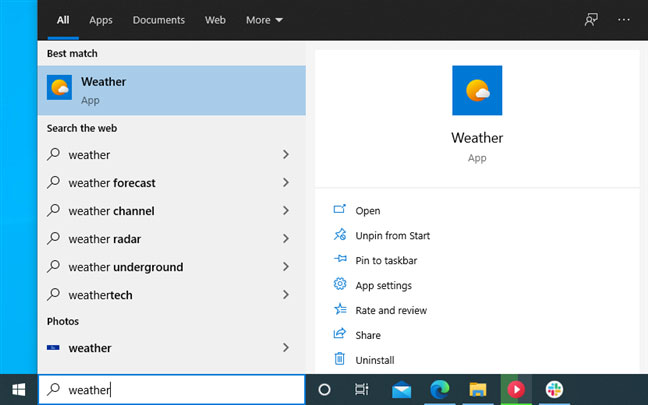
<p style="text-align: justify;">Nếu sử dụng tài khoản Microsoft trong Windows 10, bạn có thể &quot;một mũi tên trúng hai con chim&quot; bằng cách cấu hình ứng dụng Weather. Trong hộp tìm kiếm của Windows 10, nhập&nbsp;<strong>weather</strong>, mở ứng dụng Weather hoặc nhấp vào shortcut&nbsp;<strong>Weather</strong>&nbsp;từ menu Start.</p>

<figure>
<div style="text-align: justify;"><img alt="Tìm kiếm weather" data-i="2" data-src="https://st.quantrimang.com/photos/image/2021/07/03/hien-thi-nhiet-do-bang-do-c-hoac-do-f-trong-ung-dung-weather-3.jpg" data-was-processed="true" height="405" src="https://st.quantrimang.com/photos/image/2021/07/03/hien-thi-nhiet-do-bang-do-c-hoac-do-f-trong-ung-dung-weather-3.jpg" width="648" /></div>

<figcaption>
<div style="text-align: justify;">Tìm kiếm weather</div>
</figcaption>
</figure>

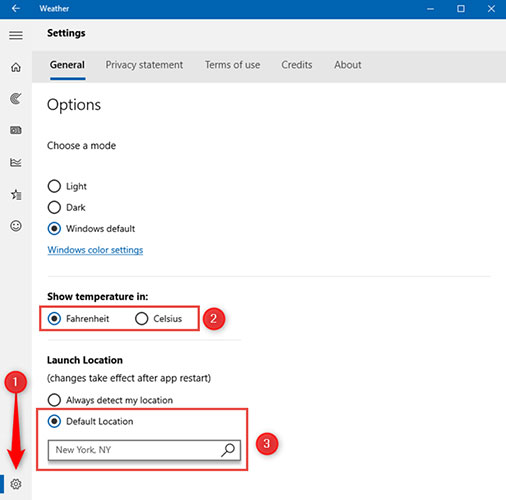
<p style="text-align: justify;">Trong ứng dụng&nbsp;<strong>Weather</strong>, nhấp vào biểu tượng bánh răng&nbsp;<strong>Settings</strong>&nbsp;ở góc dưới cùng bên trái. Trong tab&nbsp;<strong>General</strong>, chọn xem bạn muốn dự báo theo độ F (°F) hay độ C (°C) và chọn vị trí dự báo. Đối với điều này, bạn có thể cho phép ứng dụng Weather phát hiện vị trí của bạn hoặc chọn&nbsp;<strong>“Detect Location”</strong>, nhập vị trí theo cách thủ công và chọn từ danh sách.</p>

<figure>
<div style="text-align: justify;"><img alt="Đặt độ và vị trí trong ứng dụng Weather" data-i="3" data-src="https://st.quantrimang.com/photos/image/2021/07/03/hien-thi-nhiet-do-bang-do-c-hoac-do-f-trong-ung-dung-weather-4.jpg" data-was-processed="true" height="500" src="https://st.quantrimang.com/photos/image/2021/07/03/hien-thi-nhiet-do-bang-do-c-hoac-do-f-trong-ung-dung-weather-4.jpg" width="506" /></div>

<figcaption>
<div style="text-align: justify;">Đặt độ và vị trí trong ứng dụng Weather</div>
</figcaption>
</figure>

<p style="text-align: justify;">Đóng ứng dụng&nbsp;<strong>Weather</strong>&nbsp;và lần sau khi mở ứng dụng, bạn sẽ thấy ứng dụng tự động hiển thị dự báo bạn muốn trên trang chủ. Ngoài ra, hãy nhấp vào biểu tượng&nbsp;<strong>“News and interests”</strong>&nbsp;trên thanh tác vụ để xem dự báo được cập nhật, hiển thị vị trí bạn đã chọn trong ứng dụng Weather và tùy chọn độ bạn đã chọn trước đó.</p>

<figure>
<div style="text-align: justify;"><img alt="Dự báo thời tiết đã được cập nhật trong News and interests" data-i="4" data-src="https://st.quantrimang.com/photos/image/2021/07/03/hien-thi-nhiet-do-bang-do-c-hoac-do-f-trong-ung-dung-weather-5.jpg" data-was-processed="true" height="500" src="https://st.quantrimang.com/photos/image/2021/07/03/hien-thi-nhiet-do-bang-do-c-hoac-do-f-trong-ung-dung-weather-5.jpg" width="485" /></div>

<figcaption>
<div style="text-align: justify;">Dự báo thời tiết đã được cập nhật trong News and interests</div>
</figcaption>
</figure>

<p style="text-align: justify;">Nếu thay đổi này không diễn ra ngay lập tức, hãy nhấp vào nút&nbsp;<strong>Refresh</strong>&nbsp;ở góc trên bên phải của&nbsp;<strong>“News and interests”</strong>. Bạn sẽ thấy nó được cập nhật với các cài đặt mới.</p>

<div style="text-align: justify;">&nbsp;</div>

<h2 style="text-align: justify;">Đặt News and interests hiển thị dự báo cho vị trí bạn muốn và nhiệt độ tính bằng °C hoặc °F</h2>

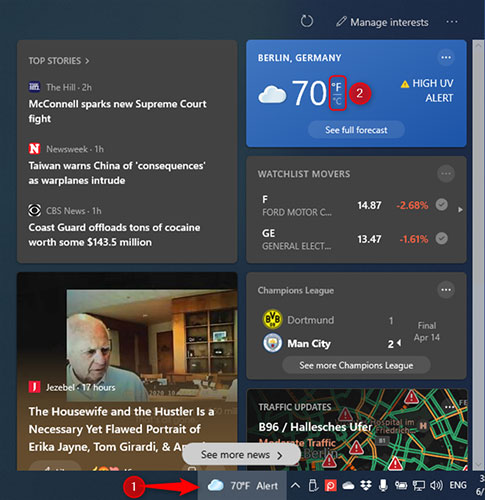
<p style="text-align: justify;">Nếu bạn sử dụng tài khoản cục bộ trong Windows 10 hoặc không muốn sử dụng ứng dụng Weather và cấu hình News and interests độc lập, bạn cũng có thể làm điều đó. Để thay đổi nhiệt độ từ độ F (°F) sang độ C (°C) hoặc ngược lại, hãy nhấp vào biểu tượng&nbsp;<strong>News and interests</strong>&nbsp;trên thanh tác vụ. Sau đó, nhấp vào °F hoặc °C để xem nhiệt độ theo cách bạn muốn trong card dự báo.</p>

<figure>
<div style="text-align: justify;"><img alt="Chuyển đổi thủ công giữa °F hoặc °C" data-i="5" data-src="https://st.quantrimang.com/photos/image/2021/07/03/hien-thi-nhiet-do-bang-do-c-hoac-do-f-trong-ung-dung-weather-6.jpg" data-was-processed="true" height="500" src="https://st.quantrimang.com/photos/image/2021/07/03/hien-thi-nhiet-do-bang-do-c-hoac-do-f-trong-ung-dung-weather-6.jpg" width="485" /></div>

<figcaption>
<div style="text-align: justify;">Chuyển đổi thủ công giữa °F hoặc °C</div>
</figcaption>
</figure>

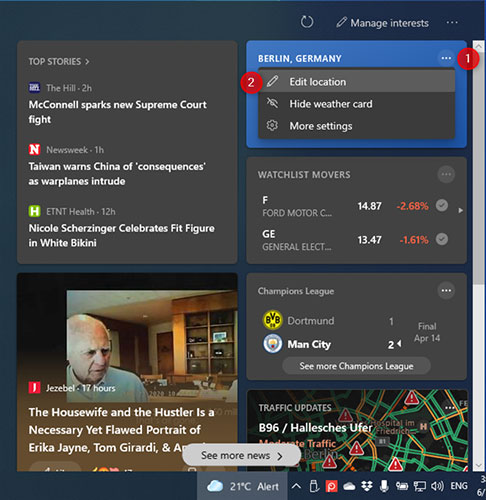
<p style="text-align: justify;">Bạn cũng có thể thay đổi vị trí mà bạn xem dự báo thời tiết. Để làm điều đó, hãy nhấp vào nút ba chấm ở góc trên cùng bên phải của card dự báo và trong menu mở ra, hãy chọn&nbsp;<strong>Edit location</strong>.</p>

<figure>
<div style="text-align: justify;"><img alt="Chỉnh sửa vị trí cho dự báo thời tiết" data-i="6" data-src="https://st.quantrimang.com/photos/image/2021/07/03/hien-thi-nhiet-do-bang-do-c-hoac-do-f-trong-ung-dung-weather-7.jpg" data-was-processed="true" height="500" src="https://st.quantrimang.com/photos/image/2021/07/03/hien-thi-nhiet-do-bang-do-c-hoac-do-f-trong-ung-dung-weather-7.jpg" width="486" /></div>

<figcaption>
<div style="text-align: justify;">Chỉnh sửa vị trí cho dự báo thời tiết</div>
</figcaption>
</figure>

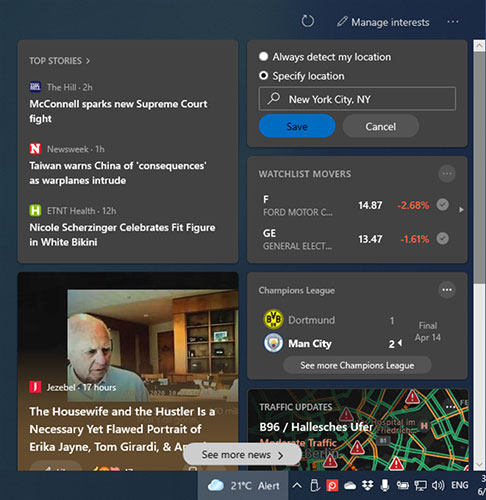
<p style="text-align: justify;">Chọn giữa:</p>

<ul>
	<li style="text-align: justify;"><strong>Always detect my location</strong>&nbsp;- Windows 10 sử dụng dữ liệu vị trí từ PC, laptop hoặc máy tính bảng của bạn để hiển thị dự báo thời tiết.</li>
	<li style="text-align: justify;"><strong>Specify location</strong>&nbsp;- rồi nhập tên của thành phố hoặc vị trí mà bạn muốn xem dự báo và xác nhận nó từ danh sách kết quả được hiển thị.</li>
</ul>

<p style="text-align: justify;">Khi bạn thiết lập xong mọi thứ, hãy nhấp hoặc nhấn vào&nbsp;<strong>Save.</strong></p>

<figure>
<div style="text-align: justify;"><img alt="Chỉ định vị trí mà bạn muốn dự báo thời tiết" data-i="7" data-src="https://st.quantrimang.com/photos/image/2021/07/03/hien-thi-nhiet-do-bang-do-c-hoac-do-f-trong-ung-dung-weather-8.jpg" data-was-processed="true" height="500" src="https://st.quantrimang.com/photos/image/2021/07/03/hien-thi-nhiet-do-bang-do-c-hoac-do-f-trong-ung-dung-weather-8.jpg" width="486" /></div>

<figcaption>
<div style="text-align: justify;">Chỉ định vị trí mà bạn muốn dự báo thời tiết</div>
</figcaption>
</figure>

<p style="text-align: justify;">Dự báo hiện chỉ được cập nhật cho widget News and interests mà không ảnh hưởng đến ứng dụng Weather.</p>
		</div>
				<div id="author">
						<p>
				<strong>Nguồn tin:</strong>
				Quantrimang.com
			</p>
		</div>
	</div>
	<div id="footer" class="clearfix">
		<div id="url">
			<strong>URL của bản tin này: </strong><a href="https://www.nguoicodonvn2008.info/vi/news/savefile/kien-thuc-may-tinh/cach-hien-thi-nhiet-do-bang-c-hoac-f-trong-ung-dung-weather-tren-windows-10-4373.html" title="Cách hiển thị nhiệt độ bằng °C hoặc °F trong ứng dụng Weather trên Windows 10">https://www.nguoicodonvn2008.info/vi/news/savefile/kien-thuc-may-tinh/cach-hien-thi-nhiet-do-bang-c-hoac-f-trong-ung-dung-weather-tren-windows-10-4373.html</a>

		</div>
		<div class="clear"></div>
		<div class="copyright">
			&copy; .&#x3A; Nguoicodonvn2008.info - Cõi lòng người cô đơn &#x3A;.
		</div>
		<div id="contact">
			<a href="mailto:admin@nguoicodonvn2008.info">admin@nguoicodonvn2008.info</a>
		</div>
	</div>
</div>
        <div id="timeoutsess" class="chromeframe">
            Bạn đã không sử dụng Site, <a onclick="timeoutsesscancel();" href="https://nguoicodonvn2008.info/#">Bấm vào đây để duy trì trạng thái đăng nhập</a>. Thời gian chờ: <span id="secField"> 60 </span> giây
        </div>
        <div id="openidResult" class="nv-alert" style="display:none"></div>
        <div id="openidBt" data-result="" data-redirect=""></div>
		</script>
		<div class="car-top">
  <span><img src="https://nguoicodonvn2008.info/themes/default/images/car.png" alt=""></span>
</div>
<div id="run_cronjobs" style="visibility:hidden;display:none;"><img alt="cron" src="/index.php?second=cronjobs&amp;p=d588bKgs" width="1" height="1" /></div>
<script src="https://nguoicodonvn2008.info/assets/js/jquery/jquery.min.js"></script>
<script>var nv_base_siteurl="/",nv_lang_data="vi",nv_lang_interface="vi",nv_name_variable="nv",nv_fc_variable="op",nv_lang_variable="language",nv_module_name="news",nv_func_name="savefile",nv_is_user=0, nv_my_ofs=-4,nv_my_abbr="EDT",nv_cookie_prefix="nv4c_e856T",nv_check_pass_mstime=1738000,nv_area_admin=0,nv_safemode=0,theme_responsive=0,nv_recaptcha_ver=2,nv_recaptcha_sitekey="",nv_recaptcha_type="image",XSSsanitize=1;</script>
<script src="https://nguoicodonvn2008.info/assets/js/language/vi.js"></script>
<script src="https://nguoicodonvn2008.info/assets/js/DOMPurify/purify3.js"></script>
<script src="https://nguoicodonvn2008.info/assets/js/global.js"></script>
<script src="https://nguoicodonvn2008.info/assets/js/site.js"></script>
<script src="https://nguoicodonvn2008.info/themes/default/js/news.js"></script>
<script src="https://nguoicodonvn2008.info/themes/default/js/main.js"></script>
<script src="https://nguoicodonvn2008.info/themes/default/js/custom.js"></script>
<script type="application/ld+json">
        {
            "@context": "https://schema.org",
            "@type": "Organization",
            "url": "https://nguoicodonvn2008.info",
            "logo": "https://nguoicodonvn2008.info/uploads/angel.gif"
        }
        </script>
<script src="https://nguoicodonvn2008.info/themes/default/js/bootstrap.min.js"></script>
<script type="text/javascript">
var $scrolltop = $('.car-top');
$scrolltop.on('click', function () {
    $('html,body').animate({
        scrollTop: 0
    }, 800);
    $(this).addClass("car-run");
    setTimeout(function(){ $scrolltop.removeClass('car-run');}, 1000);
    return false;
});
$(window).on('scroll', function ()
{ 
    if($(window).scrollTop() >= 200)
    {
        $scrolltop.addClass("show");
        $scrolltop.addClass("car-down");
    }
    else
    {
       $scrolltop.removeClass("show");
       setTimeout(function(){ $scrolltop.removeClass('car-down');}, 300);
    }
});
</script>
</body>
</html>