<!DOCTYPE html>
    <html lang="vi" xmlns="http://www.w3.org/1999/xhtml" prefix="og: http://ogp.me/ns#">
    <head>
<title>Cách hiển thị biểu tượng Bluetooth bị thiếu trên Taskbar Windows 10</title>
<meta name="description" content="Cách hiển thị biểu tượng Bluetooth bị thiếu trên Taskbar Windows 10 - Savefile - Tin Tức -...">
<meta name="author" content=".: Nguoicodonvn2008.info - Cõi lòng người cô đơn :.">
<meta name="copyright" content=".: Nguoicodonvn2008.info - Cõi lòng người cô đơn :. [admin@nguoicodonvn2008.info]">
<meta name="robots" content="index, archive, follow, noodp">
<meta name="googlebot" content="index,archive,follow,noodp">
<meta name="msnbot" content="all,index,follow">
<meta name="generator" content="NukeViet v4.5">
<meta http-equiv="Content-Type" content="text/html; charset=utf-8">
<meta property="og:title" content="Cách hiển thị biểu tượng Bluetooth bị thiếu trên Taskbar Windows 10">
<meta property="og:type" content="website">
<meta property="og:description" content="Savefile - Tin Tức - https&#x3A;&#x002F;&#x002F;www.nguoicodonvn2008.info&#x002F;vi&#x002F;news&#x002F;savefile&#x002F;kien-thuc-may-tinh&#x002F;cach-hien-thi-bieu-tuong-bluetooth-bi-thieu-tren-taskbar-windows-10-2883.html">
<meta property="og:site_name" content=".&#x3A; Nguoicodonvn2008.info - Cõi lòng người cô đơn &#x3A;.">
<meta property="og:url" content="https://www.nguoicodonvn2008.info/vi/news/savefile/kien-thuc-may-tinh/cach-hien-thi-bieu-tuong-bluetooth-bi-thieu-tren-taskbar-windows-10-2883.html">
<link rel="shortcut icon" href="https://nguoicodonvn2008.info/favicon.ico">
<link rel="canonical" href="https://www.nguoicodonvn2008.info/vi/news/savefile/kien-thuc-may-tinh/cach-hien-thi-bieu-tuong-bluetooth-bi-thieu-tren-taskbar-windows-10-2883.html">
<link rel="alternate" href="https://nguoicodonvn2008.info/vi/news/rss/" title="Tin Tức" type="application/rss+xml">
<link rel="alternate" href="https://nguoicodonvn2008.info/vi/news/rss/karaoke-dual/" title="Tin Tức - Karaoke Dual" type="application/rss+xml">
<link rel="alternate" href="https://nguoicodonvn2008.info/vi/news/rss/nhac-tre/" title="Tin Tức - Nhạc trẻ" type="application/rss+xml">
<link rel="alternate" href="https://nguoicodonvn2008.info/vi/news/rss/tru-tinh/" title="Tin Tức - Trữ tình" type="application/rss+xml">
<link rel="alternate" href="https://nguoicodonvn2008.info/vi/news/rss/nuoc-ngoai/" title="Tin Tức - Nước ngoài" type="application/rss+xml">
<link rel="alternate" href="https://nguoicodonvn2008.info/vi/news/rss/remix/" title="Tin Tức - Remix" type="application/rss+xml">
<link rel="alternate" href="https://nguoicodonvn2008.info/vi/news/rss/tam-su-tinh-yeu/" title="Tin Tức - Tâm sự tình yêu" type="application/rss+xml">
<link rel="alternate" href="https://nguoicodonvn2008.info/vi/news/rss/tho-suu-tam/" title="Tin Tức - Thơ sưu tầm" type="application/rss+xml">
<link rel="alternate" href="https://nguoicodonvn2008.info/vi/news/rss/cuoc-song/" title="Tin Tức - Cuộc sống" type="application/rss+xml">
<link rel="alternate" href="https://nguoicodonvn2008.info/vi/news/rss/phan-mem/" title="Tin Tức - Phần mềm" type="application/rss+xml">
<link rel="alternate" href="https://nguoicodonvn2008.info/vi/news/rss/kien-thuc-may-tinh/" title="Tin Tức - Kiến thức máy tính" type="application/rss+xml">
<link rel="alternate" href="https://nguoicodonvn2008.info/vi/news/rss/hoc-tap/" title="Tin Tức - Học tập" type="application/rss+xml">
<link rel="alternate" href="https://nguoicodonvn2008.info/vi/news/rss/tai-lieu/" title="Tin Tức - Tài liệu" type="application/rss+xml">
<link rel="alternate" href="https://nguoicodonvn2008.info/vi/news/rss/de-thi/" title="Tin Tức - Đề thi" type="application/rss+xml">
<link rel="preload" as="style" href="https://nguoicodonvn2008.info/assets/css/font-awesome.min.css" type="text/css">
<link rel="preload" as="style" href="https://nguoicodonvn2008.info/themes/default/css/bootstrap.non-responsive.css" type="text/css">
<link rel="preload" as="style" href="https://nguoicodonvn2008.info/themes/default/css/style.css" type="text/css">
<link rel="preload" as="style" href="https://nguoicodonvn2008.info/themes/default/css/style.non-responsive.css" type="text/css">
<link rel="preload" as="style" href="https://nguoicodonvn2008.info/themes/default/css/news.css" type="text/css">
<link rel="preload" as="style" href="https://nguoicodonvn2008.info/themes/default/css/custom.css" type="text/css">
<link rel="preload" as="script" href="https://nguoicodonvn2008.info/assets/js/jquery/jquery.min.js" type="text/javascript">
<link rel="preload" as="script" href="https://nguoicodonvn2008.info/assets/js/language/vi.js" type="text/javascript">
<link rel="preload" as="script" href="https://nguoicodonvn2008.info/assets/js/DOMPurify/purify3.js" type="text/javascript">
<link rel="preload" as="script" href="https://nguoicodonvn2008.info/assets/js/global.js" type="text/javascript">
<link rel="preload" as="script" href="https://nguoicodonvn2008.info/assets/js/site.js" type="text/javascript">
<link rel="preload" as="script" href="https://nguoicodonvn2008.info/themes/default/js/news.js" type="text/javascript">
<link rel="preload" as="script" href="https://nguoicodonvn2008.info/themes/default/js/main.js" type="text/javascript">
<link rel="preload" as="script" href="https://nguoicodonvn2008.info/themes/default/js/custom.js" type="text/javascript">
<link rel="preload" as="script" href="https://nguoicodonvn2008.info/themes/default/js/bootstrap.min.js" type="text/javascript">
<link rel="stylesheet" href="https://nguoicodonvn2008.info/assets/css/font-awesome.min.css">
<link rel="stylesheet" href="https://nguoicodonvn2008.info/themes/default/css/bootstrap.non-responsive.css">
<link rel="stylesheet" href="https://nguoicodonvn2008.info/themes/default/css/style.css">
<link rel="stylesheet" href="https://nguoicodonvn2008.info/themes/default/css/style.non-responsive.css">
<link rel="StyleSheet" href="https://nguoicodonvn2008.info/themes/default/css/news.css">
<link rel="stylesheet" href="https://nguoicodonvn2008.info/themes/default/css/custom.css">
<style type="text/css">
	body{background: #fff;}
</style>
    </head>
    <body>
<div id="print">
	<div id="hd_print">
		<h2 class="pull-left">.&#x3A; Nguoicodonvn2008.info - Cõi lòng người cô đơn &#x3A;.</h2>
		<p class="pull-right"><a title=".&#x3A; Nguoicodonvn2008.info - Cõi lòng người cô đơn &#x3A;." href="https://nguoicodonvn2008.info/">https://nguoicodonvn2008.info</a></p>
	</div>
	<div class="clear"></div>
	<hr />
	<div id="content">
		<h1>Cách hiển thị biểu tượng Bluetooth bị thiếu trên Taskbar Windows 10</h1>
		<ul class="list-inline">
			<li>Chủ nhật - 11/10/2020 22:14</li>
			<li class="hidden-print txtrequired"><em class="fa fa-print">&nbsp;</em><a title="In ra" href="javascript:;" onclick="window.print()">In ra</a></li>
			<li class="hidden-print txtrequired"><em class="fa fa-power-off">&nbsp;</em><a title="Đóng cửa sổ này" href="javascript:;" onclick="window.close()">Đóng cửa sổ này</a></li>
		</ul>
		<div class="clear"></div>
		<div id="hometext">
		</div>
				<div class="imghome">
			<img alt="Cách hiển thị biểu tượng Bluetooth bị thiếu trên Taskbar Windows 10" src="https://st.quantrimang.com/photos/image/2020/10/10/hien-thi-bieu-tuong-bluetooth-bi-thieu-3.jpg" width="460" class="img-thumbnail" />
		</div>
		<div class="clear"></div>
		<div id="bodytext" class="clearfix">
			<p style="text-align: justify;">Nếu bạn không thể tìm thấy biểu tượng Bluetooth trên thanh tác vụ, hãy làm theo các bước bên dưới để hiển thị biểu tượng Bluetooth bị thiếu trên Taskbar trong Windows 10.</p>

<h2 style="text-align: justify;">Hiển thị biểu tượng Bluetooth trên Taskbar</h2>

<p style="text-align: justify;">Để hiển thị biểu tượng Bluetooth trên thanh tác vụ, bạn cần bật tùy chọn&nbsp;<strong>&quot;Show Bluetooth icon in the notification area&quot;</strong>&nbsp;trong cài đặt Bluetooth. Đây là các bước để làm như vậy.</p>

<p style="text-align: justify;">1.&nbsp;Mở ứng dụng Settings. Bạn có thể làm điều đó bằng cách nhấn phím tắt&nbsp;<strong>Win + I</strong>.</p>

<p style="text-align: justify;">2. Sau khi mở Settings Windows 10, hãy truy cập trang&nbsp;<strong>Devices.</strong></p>

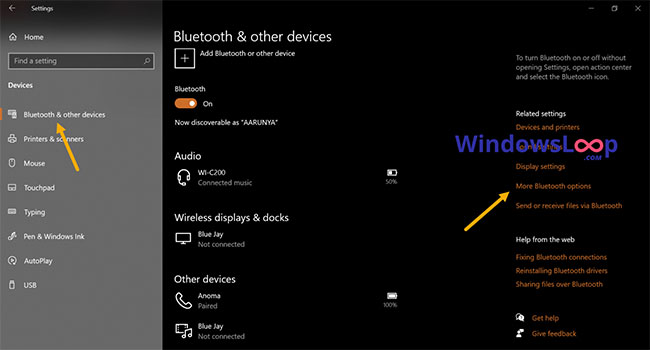
<p style="text-align: justify;">3. Chọn tab&nbsp;<strong>Bluetooth &amp; other devices</strong>&nbsp;trên bảng điều khiển bên trái.</p>

<p style="text-align: justify;">4. Trên trang bên phải, nhấp vào liên kết&nbsp;<strong>More Bluetooth options</strong>. Bạn sẽ tìm thấy nó dưới tiêu đề&nbsp;<strong>Related Settings.</strong></p>

<figure>
<div style="text-align: justify;"><img alt="Nhấp vào liên kết More Bluetooth options" data-i="0" data-src="https://st.quantrimang.com/photos/image/2020/10/10/hien-thi-bieu-tuong-bluetooth-bi-thieu-1.jpg" data-was-processed="true" height="350" src="https://st.quantrimang.com/photos/image/2020/10/10/hien-thi-bieu-tuong-bluetooth-bi-thieu-1.jpg" width="650" /></div>

<figcaption>
<div style="text-align: justify;">Nhấp vào liên kết More Bluetooth options</div>
</figcaption>
</figure>

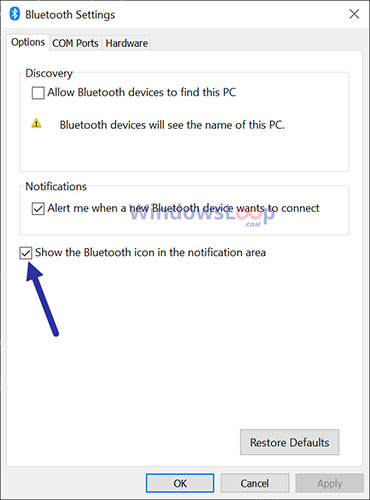
<p style="text-align: justify;">5. Chọn tab&nbsp;<strong>Options</strong>&nbsp;trong cửa sổ cài đặt Bluetooth.</p>

<p style="text-align: justify;">6. Chọn hộp kiểm&nbsp;<strong>Show Bluetooth icon in the notification area</strong>.</p>

<p style="text-align: justify;">7. Nhấp vào&nbsp;<strong>Apply.</strong></p>

<p style="text-align: justify;">8. Nhấn&nbsp;<strong>OK</strong>&nbsp;để lưu các thay đổi.</p>

<figure>
<div style="text-align: justify;"><img alt="Nhấn OK để lưu các thay đổi" data-i="1" data-src="https://st.quantrimang.com/photos/image/2020/10/10/hien-thi-bieu-tuong-bluetooth-bi-thieu-2.jpg" data-was-processed="true" height="500" src="https://st.quantrimang.com/photos/image/2020/10/10/hien-thi-bieu-tuong-bluetooth-bi-thieu-2.jpg" width="370" /></div>

<figcaption>
<div style="text-align: justify;">Nhấn OK để lưu các thay đổi</div>
</figcaption>
</figure>

<p style="text-align: justify;">9. Đóng ứng dụng&nbsp;<strong>Settings.</strong></p>

<p style="text-align: justify;">Khi bạn chọn hộp kiểm và lưu các thay đổi, biểu tượng Bluetooth sẽ xuất hiện trên thanh tác vụ. Như đã nói trước đây, biểu tượng Bluetooth sẽ chỉ xuất hiện khi&nbsp;<a href="https://quantrimang.com/tim-hieu-ve-cong-nghe-bluetooth-35105" title="Tìm hiểu về công nghệ Bluetooth">Bluetooth</a>&nbsp;được bật. Nếu bạn không thấy biểu tượng, hãy đảm bảo rằng&nbsp;<a href="https://quantrimang.com/bat-bluetooth-tren-win-10-173208" title="Cách bật Bluetooth trên Win 10">Bluetooth đã được bật trong Windows 10</a>.</p>

<div style="text-align: justify;">&nbsp;</div>

<h2 style="text-align: justify;">Bật service hỗ trợ Bluetooth</h2>

<p style="text-align: justify;">Nếu service hỗ trợ Bluetooth bị tắt, chức năng Bluetooth không thể được bật. Kết quả là bạn sẽ không thấy biểu tượng Bluetooth. Nếu đúng như vậy, bạn nên bật service hỗ trợ Bluetooth từ Windows Services Manager. Đây là cách thực hiện.</p>

<p style="text-align: justify;">1. Nhấn phím tắt&nbsp;<strong>Win + R</strong>&nbsp;để mở hộp&nbsp;<strong>Run.</strong></p>

<p style="text-align: justify;">2. Nhập&nbsp;<strong>services.msc</strong>&nbsp;và nhấn&nbsp;<strong>Enter</strong>&nbsp;trong cửa sổ&nbsp;<strong>Run.</strong></p>

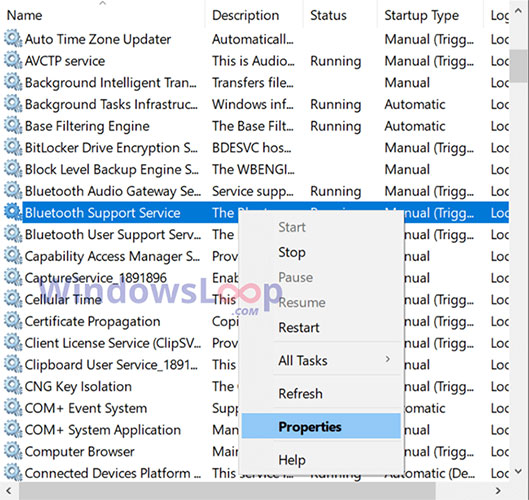
<p style="text-align: justify;">3. Sau khi mở cửa sổ&nbsp;<strong>Services</strong>, hãy tìm và nhấp chuột phải vào service&nbsp;<strong>Bluetooth Support Service</strong>.</p>

<p style="text-align: justify;">4. Chọn&nbsp;<strong>Properties</strong>&nbsp;từ menu chuột phải.</p>

<figure>
<div style="text-align: justify;"><img alt="Chọn Properties từ menu chuột phải" data-i="2" data-src="https://st.quantrimang.com/photos/image/2020/10/10/hien-thi-bieu-tuong-bluetooth-bi-thieu-3.jpg" data-was-processed="true" height="500" src="https://st.quantrimang.com/photos/image/2020/10/10/hien-thi-bieu-tuong-bluetooth-bi-thieu-3.jpg" width="529" /></div>

<figcaption>
<div style="text-align: justify;">Chọn Properties từ menu chuột phải</div>
</figcaption>
</figure>

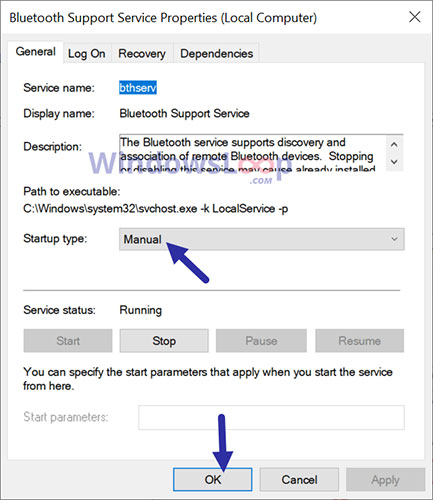
<p style="text-align: justify;">5. Chọn&nbsp;<strong>Manual</strong>&nbsp;từ menu drop-down&nbsp;<strong>Startup type</strong>.</p>

<p style="text-align: justify;">6. Nhấp vào&nbsp;<strong>Apply &gt; OK</strong>.</p>

<figure>
<div style="text-align: justify;"><img alt="Chọn Manual từ menu drop-down Startup type" data-i="3" data-src="https://st.quantrimang.com/photos/image/2020/10/10/hien-thi-bieu-tuong-bluetooth-bi-thieu-4.jpg" data-was-processed="true" height="500" src="https://st.quantrimang.com/photos/image/2020/10/10/hien-thi-bieu-tuong-bluetooth-bi-thieu-4.jpg" width="433" /></div>

<figcaption>
<div style="text-align: justify;">Chọn Manual từ menu drop-down Startup type</div>
</figcaption>
</figure>

<p style="text-align: justify;">7. Đóng cửa sổ&nbsp;<strong>Services.</strong></p>

<p style="text-align: justify;">8.&nbsp;Khởi động lại Windows 10.</p>

<p style="text-align: justify;">Sau khi khởi động lại, hãy bật Bluetooth từ Notification center (Trung tâm thông báo). Ngay sau khi Bluetooth được bật, bạn sẽ thấy biểu tượng Bluetooth trên thanh tác vụ.</p>

<h2 style="text-align: justify;">Cài đặt lại driver Bluetooth</h2>

<p style="text-align: justify;">Nếu hai phương pháp trên không hoạt động thì có thể là do driver Bluetooth đã cài đặt. Trong những trường hợp đó, bạn phải cài đặt lại driver Bluetooth. Sau khi cài đặt lại, hãy bật Bluetooth trên Windows 10 và bạn sẽ thấy biểu tượng Bluetooth xuất hiện trên thanh tác vụ.</p>
		</div>
				<div id="author">
						<p>
				<strong>Nguồn tin:</strong>
				Quantrimang.com
			</p>
		</div>
	</div>
	<div id="footer" class="clearfix">
		<div id="url">
			<strong>URL của bản tin này: </strong><a href="https://www.nguoicodonvn2008.info/vi/news/savefile/kien-thuc-may-tinh/cach-hien-thi-bieu-tuong-bluetooth-bi-thieu-tren-taskbar-windows-10-2883.html" title="Cách hiển thị biểu tượng Bluetooth bị thiếu trên Taskbar Windows 10">https://www.nguoicodonvn2008.info/vi/news/savefile/kien-thuc-may-tinh/cach-hien-thi-bieu-tuong-bluetooth-bi-thieu-tren-taskbar-windows-10-2883.html</a>

		</div>
		<div class="clear"></div>
		<div class="copyright">
			&copy; .&#x3A; Nguoicodonvn2008.info - Cõi lòng người cô đơn &#x3A;.
		</div>
		<div id="contact">
			<a href="mailto:admin@nguoicodonvn2008.info">admin@nguoicodonvn2008.info</a>
		</div>
	</div>
</div>
        <div id="timeoutsess" class="chromeframe">
            Bạn đã không sử dụng Site, <a onclick="timeoutsesscancel();" href="https://nguoicodonvn2008.info/#">Bấm vào đây để duy trì trạng thái đăng nhập</a>. Thời gian chờ: <span id="secField"> 60 </span> giây
        </div>
        <div id="openidResult" class="nv-alert" style="display:none"></div>
        <div id="openidBt" data-result="" data-redirect=""></div>
		</script>
		<div class="car-top">
  <span><img src="https://nguoicodonvn2008.info/themes/default/images/car.png" alt=""></span>
</div>
<script src="https://nguoicodonvn2008.info/assets/js/jquery/jquery.min.js"></script>
<script>var nv_base_siteurl="/",nv_lang_data="vi",nv_lang_interface="vi",nv_name_variable="nv",nv_fc_variable="op",nv_lang_variable="language",nv_module_name="news",nv_func_name="savefile",nv_is_user=0, nv_my_ofs=-4,nv_my_abbr="EDT",nv_cookie_prefix="nv4c_e856T",nv_check_pass_mstime=1738000,nv_area_admin=0,nv_safemode=0,theme_responsive=0,nv_recaptcha_ver=2,nv_recaptcha_sitekey="",nv_recaptcha_type="image",XSSsanitize=1;</script>
<script src="https://nguoicodonvn2008.info/assets/js/language/vi.js"></script>
<script src="https://nguoicodonvn2008.info/assets/js/DOMPurify/purify3.js"></script>
<script src="https://nguoicodonvn2008.info/assets/js/global.js"></script>
<script src="https://nguoicodonvn2008.info/assets/js/site.js"></script>
<script src="https://nguoicodonvn2008.info/themes/default/js/news.js"></script>
<script src="https://nguoicodonvn2008.info/themes/default/js/main.js"></script>
<script src="https://nguoicodonvn2008.info/themes/default/js/custom.js"></script>
<script type="application/ld+json">
        {
            "@context": "https://schema.org",
            "@type": "Organization",
            "url": "https://nguoicodonvn2008.info",
            "logo": "https://nguoicodonvn2008.info/uploads/angel.gif"
        }
        </script>
<script src="https://nguoicodonvn2008.info/themes/default/js/bootstrap.min.js"></script>
<script type="text/javascript">
var $scrolltop = $('.car-top');
$scrolltop.on('click', function () {
    $('html,body').animate({
        scrollTop: 0
    }, 800);
    $(this).addClass("car-run");
    setTimeout(function(){ $scrolltop.removeClass('car-run');}, 1000);
    return false;
});
$(window).on('scroll', function ()
{ 
    if($(window).scrollTop() >= 200)
    {
        $scrolltop.addClass("show");
        $scrolltop.addClass("car-down");
    }
    else
    {
       $scrolltop.removeClass("show");
       setTimeout(function(){ $scrolltop.removeClass('car-down');}, 300);
    }
});
</script>
</body>
</html>