<!DOCTYPE html>
    <html lang="vi" xmlns="http://www.w3.org/1999/xhtml" prefix="og: http://ogp.me/ns#">
    <head>
<title>Cách giám sát việc sử dụng mạng cho các tiến trình Linux</title>
<meta name="description" content="Cách giám sát việc sử dụng mạng cho các tiến trình Linux - Savefile - Tin Tức -...">
<meta name="author" content=".: Nguoicodonvn2008.info - Cõi lòng người cô đơn :.">
<meta name="copyright" content=".: Nguoicodonvn2008.info - Cõi lòng người cô đơn :. [admin@nguoicodonvn2008.info]">
<meta name="robots" content="index, archive, follow, noodp">
<meta name="googlebot" content="index,archive,follow,noodp">
<meta name="msnbot" content="all,index,follow">
<meta name="generator" content="NukeViet v4.5">
<meta http-equiv="Content-Type" content="text/html; charset=utf-8">
<meta property="og:title" content="Cách giám sát việc sử dụng mạng cho các tiến trình Linux">
<meta property="og:type" content="website">
<meta property="og:description" content="Savefile - Tin Tức - https&#x3A;&#x002F;&#x002F;www.nguoicodonvn2008.info&#x002F;vi&#x002F;news&#x002F;savefile&#x002F;kien-thuc-may-tinh&#x002F;cach-giam-sat-viec-su-dung-mang-cho-cac-tien-trinh-linux-7428.html">
<meta property="og:site_name" content=".&#x3A; Nguoicodonvn2008.info - Cõi lòng người cô đơn &#x3A;.">
<meta property="og:url" content="https://www.nguoicodonvn2008.info/vi/news/savefile/kien-thuc-may-tinh/cach-giam-sat-viec-su-dung-mang-cho-cac-tien-trinh-linux-7428.html">
<link rel="shortcut icon" href="https://nguoicodonvn2008.info/favicon.ico">
<link rel="canonical" href="https://www.nguoicodonvn2008.info/vi/news/savefile/kien-thuc-may-tinh/cach-giam-sat-viec-su-dung-mang-cho-cac-tien-trinh-linux-7428.html">
<link rel="alternate" href="https://nguoicodonvn2008.info/vi/news/rss/" title="Tin Tức" type="application/rss+xml">
<link rel="alternate" href="https://nguoicodonvn2008.info/vi/news/rss/karaoke-dual/" title="Tin Tức - Karaoke Dual" type="application/rss+xml">
<link rel="alternate" href="https://nguoicodonvn2008.info/vi/news/rss/nhac-tre/" title="Tin Tức - Nhạc trẻ" type="application/rss+xml">
<link rel="alternate" href="https://nguoicodonvn2008.info/vi/news/rss/tru-tinh/" title="Tin Tức - Trữ tình" type="application/rss+xml">
<link rel="alternate" href="https://nguoicodonvn2008.info/vi/news/rss/nuoc-ngoai/" title="Tin Tức - Nước ngoài" type="application/rss+xml">
<link rel="alternate" href="https://nguoicodonvn2008.info/vi/news/rss/remix/" title="Tin Tức - Remix" type="application/rss+xml">
<link rel="alternate" href="https://nguoicodonvn2008.info/vi/news/rss/tam-su-tinh-yeu/" title="Tin Tức - Tâm sự tình yêu" type="application/rss+xml">
<link rel="alternate" href="https://nguoicodonvn2008.info/vi/news/rss/tho-suu-tam/" title="Tin Tức - Thơ sưu tầm" type="application/rss+xml">
<link rel="alternate" href="https://nguoicodonvn2008.info/vi/news/rss/cuoc-song/" title="Tin Tức - Cuộc sống" type="application/rss+xml">
<link rel="alternate" href="https://nguoicodonvn2008.info/vi/news/rss/phan-mem/" title="Tin Tức - Phần mềm" type="application/rss+xml">
<link rel="alternate" href="https://nguoicodonvn2008.info/vi/news/rss/kien-thuc-may-tinh/" title="Tin Tức - Kiến thức máy tính" type="application/rss+xml">
<link rel="alternate" href="https://nguoicodonvn2008.info/vi/news/rss/hoc-tap/" title="Tin Tức - Học tập" type="application/rss+xml">
<link rel="alternate" href="https://nguoicodonvn2008.info/vi/news/rss/tai-lieu/" title="Tin Tức - Tài liệu" type="application/rss+xml">
<link rel="alternate" href="https://nguoicodonvn2008.info/vi/news/rss/de-thi/" title="Tin Tức - Đề thi" type="application/rss+xml">
<link rel="preload" as="style" href="https://nguoicodonvn2008.info/assets/css/font-awesome.min.css" type="text/css">
<link rel="preload" as="style" href="https://nguoicodonvn2008.info/themes/default/css/bootstrap.non-responsive.css" type="text/css">
<link rel="preload" as="style" href="https://nguoicodonvn2008.info/themes/default/css/style.css" type="text/css">
<link rel="preload" as="style" href="https://nguoicodonvn2008.info/themes/default/css/style.non-responsive.css" type="text/css">
<link rel="preload" as="style" href="https://nguoicodonvn2008.info/themes/default/css/news.css" type="text/css">
<link rel="preload" as="style" href="https://nguoicodonvn2008.info/themes/default/css/custom.css" type="text/css">
<link rel="preload" as="script" href="https://nguoicodonvn2008.info/assets/js/jquery/jquery.min.js" type="text/javascript">
<link rel="preload" as="script" href="https://nguoicodonvn2008.info/assets/js/language/vi.js" type="text/javascript">
<link rel="preload" as="script" href="https://nguoicodonvn2008.info/assets/js/DOMPurify/purify3.js" type="text/javascript">
<link rel="preload" as="script" href="https://nguoicodonvn2008.info/assets/js/global.js" type="text/javascript">
<link rel="preload" as="script" href="https://nguoicodonvn2008.info/assets/js/site.js" type="text/javascript">
<link rel="preload" as="script" href="https://nguoicodonvn2008.info/themes/default/js/news.js" type="text/javascript">
<link rel="preload" as="script" href="https://nguoicodonvn2008.info/themes/default/js/main.js" type="text/javascript">
<link rel="preload" as="script" href="https://nguoicodonvn2008.info/themes/default/js/custom.js" type="text/javascript">
<link rel="preload" as="script" href="https://nguoicodonvn2008.info/themes/default/js/bootstrap.min.js" type="text/javascript">
<link rel="stylesheet" href="https://nguoicodonvn2008.info/assets/css/font-awesome.min.css">
<link rel="stylesheet" href="https://nguoicodonvn2008.info/themes/default/css/bootstrap.non-responsive.css">
<link rel="stylesheet" href="https://nguoicodonvn2008.info/themes/default/css/style.css">
<link rel="stylesheet" href="https://nguoicodonvn2008.info/themes/default/css/style.non-responsive.css">
<link rel="StyleSheet" href="https://nguoicodonvn2008.info/themes/default/css/news.css">
<link rel="stylesheet" href="https://nguoicodonvn2008.info/themes/default/css/custom.css">
<style type="text/css">
	body{background: #fff;}
</style>
    </head>
    <body>
<div id="print">
	<div id="hd_print">
		<h2 class="pull-left">.&#x3A; Nguoicodonvn2008.info - Cõi lòng người cô đơn &#x3A;.</h2>
		<p class="pull-right"><a title=".&#x3A; Nguoicodonvn2008.info - Cõi lòng người cô đơn &#x3A;." href="https://nguoicodonvn2008.info/">https://nguoicodonvn2008.info</a></p>
	</div>
	<div class="clear"></div>
	<hr />
	<div id="content">
		<h1>Cách giám sát việc sử dụng mạng cho các tiến trình Linux</h1>
		<ul class="list-inline">
			<li>Thứ sáu - 18/08/2023 10:10</li>
			<li class="hidden-print txtrequired"><em class="fa fa-print">&nbsp;</em><a title="In ra" href="javascript:;" onclick="window.print()">In ra</a></li>
			<li class="hidden-print txtrequired"><em class="fa fa-power-off">&nbsp;</em><a title="Đóng cửa sổ này" href="javascript:;" onclick="window.close()">Đóng cửa sổ này</a></li>
		</ul>
		<div class="clear"></div>
		<div id="hometext">
		</div>
				<div class="imghome">
			<img alt="Cách giám sát việc sử dụng mạng cho các tiến trình Linux" src="https://st.quantrimang.com/photos/image/2023/08/18/giam-sat-viec-su-dung-mang-cho-cac-tien-trinh-linux-2.jpg" width="460" class="img-thumbnail" />
		</div>
		<div class="clear"></div>
		<div id="bodytext" class="clearfix">
			<p style="text-align: justify;">Truy cập Internet là điều cần thiết, nhưng bạn có thể thắc mắc các tiến trình Linux nào sử dụng kết nối của bạn nhiều nhất trên máy tính. May mắn thay, với một số tiện ích phổ biến của Linux, việc giám sát quá trình nào sử dụng băng thông của bạn thật dễ dàng. Dưới đây là một số công cụ trong số đó.</p>

<h2 style="text-align: justify;">1. nethogs</h2>

<figure>
<div style="text-align: justify;"><img alt="nethogs trong terminal và Transmission chạy trên Linux" data-i="0" data-src="https://st.quantrimang.com/photos/image/2023/08/18/giam-sat-viec-su-dung-mang-cho-cac-tien-trinh-linux-1.jpg" data-was-processed="true" height="946" src="https://st.quantrimang.com/photos/image/2023/08/18/giam-sat-viec-su-dung-mang-cho-cac-tien-trinh-linux-1.jpg" width="1280" /></div>

<figcaption>
<div style="text-align: justify;">nethogs trong terminal và Transmission chạy trên Linux</div>
</figcaption>
</figure>

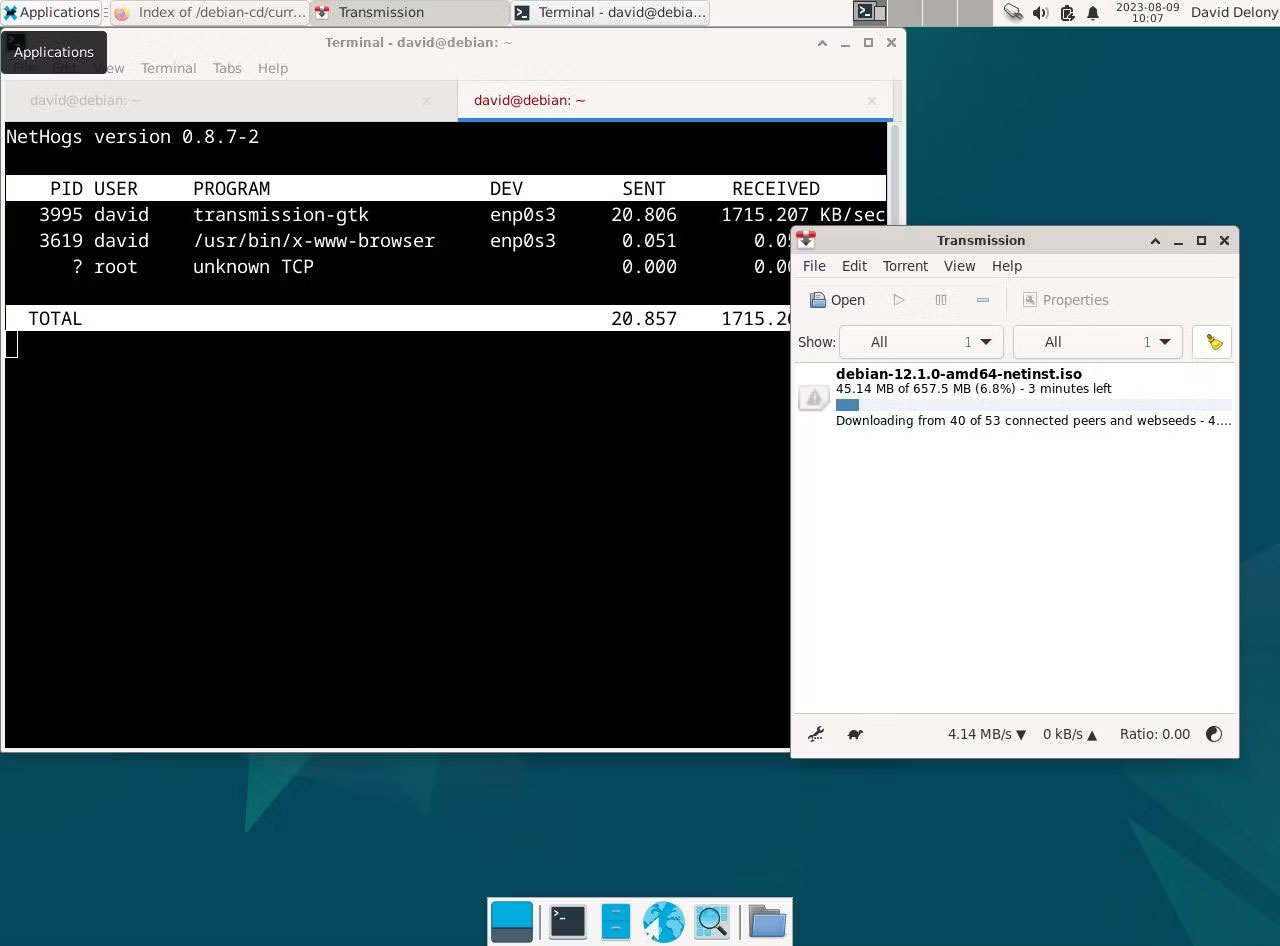
<p style="text-align: justify;">nethogs là một chương trình thực hiện các kết nối Internet giống như&nbsp;htop&nbsp;hoặc&nbsp;top&nbsp;thực hiện đối với việc sử dụng&nbsp;CPU&nbsp;và bộ nhớ. Nó hiển thị cho bạn cái nhìn nhanh chóng về tiến trình nào đang truy cập mạng.</p>

<p style="text-align: justify;">Giống như top, htop hoặc atop, nethogs là chương trình toàn màn hình cập nhật sau vài giây để hiển thị cho bạn các kết nối mạng hiện tại theo tiến trình.</p>

<p style="text-align: justify;">Cài đặt nethogs rất đơn giản. Bạn chỉ cần đi qua trình quản lý gói của mình.</p>

<p style="text-align: justify;">Ví dụ, trên Debian và&nbsp;Ubuntu:</p>

<pre id="pre0">
<code>sudo apt install nethogs</code></pre>

<p style="text-align: justify;">Và trên&nbsp;Arch Linux:</p>

<pre id="pre1">
<code>sudo pacman -S nethogs</code></pre>

<p style="text-align: justify;">Trên họ Red Hat:</p>

<pre id="pre2">
<code>sudo dnf install nethogs</code></pre>

<p style="text-align: justify;">Để chạy nethogs, bạn cần phải root:</p>

<pre id="pre3">
<code>sudo nethogs</code></pre>

<p style="text-align: justify;">Có thể thiết lập nó để bạn có thể chạy nethogs như một người dùng thông thường bằng cách sử dụng lệnh này:</p>

<pre id="pre4">
<code>sudo setcap &quot;cap_net_admin,cap_net_raw+pe&quot; /path/to/nethogs</code></pre>

<p style="text-align: justify;">Bạn nên thay thế&nbsp;<strong>&quot;/path/to/nethogs&quot;</strong>&nbsp;bằng tên đường dẫn tuyệt đối của nethogs. Bạn có thể tìm thấy điều này bằng lệnh which:</p>

<pre id="pre5">
<code>which nethogs</code></pre>

<h2 style="text-align: justify;">2. lsof</h2>

<figure>
<div style="text-align: justify;"><img alt="Đầu ra lsof -i trong Linux terminal " data-i="1" data-src="https://st.quantrimang.com/photos/image/2023/08/18/giam-sat-viec-su-dung-mang-cho-cac-tien-trinh-linux-2.jpg" data-was-processed="true" height="946" src="https://st.quantrimang.com/photos/image/2023/08/18/giam-sat-viec-su-dung-mang-cho-cac-tien-trinh-linux-2.jpg" width="1280" /></div>

<figcaption>
<div style="text-align: justify;">Đầu ra lsof -i trong Linux terminal</div>
</figcaption>
</figure>

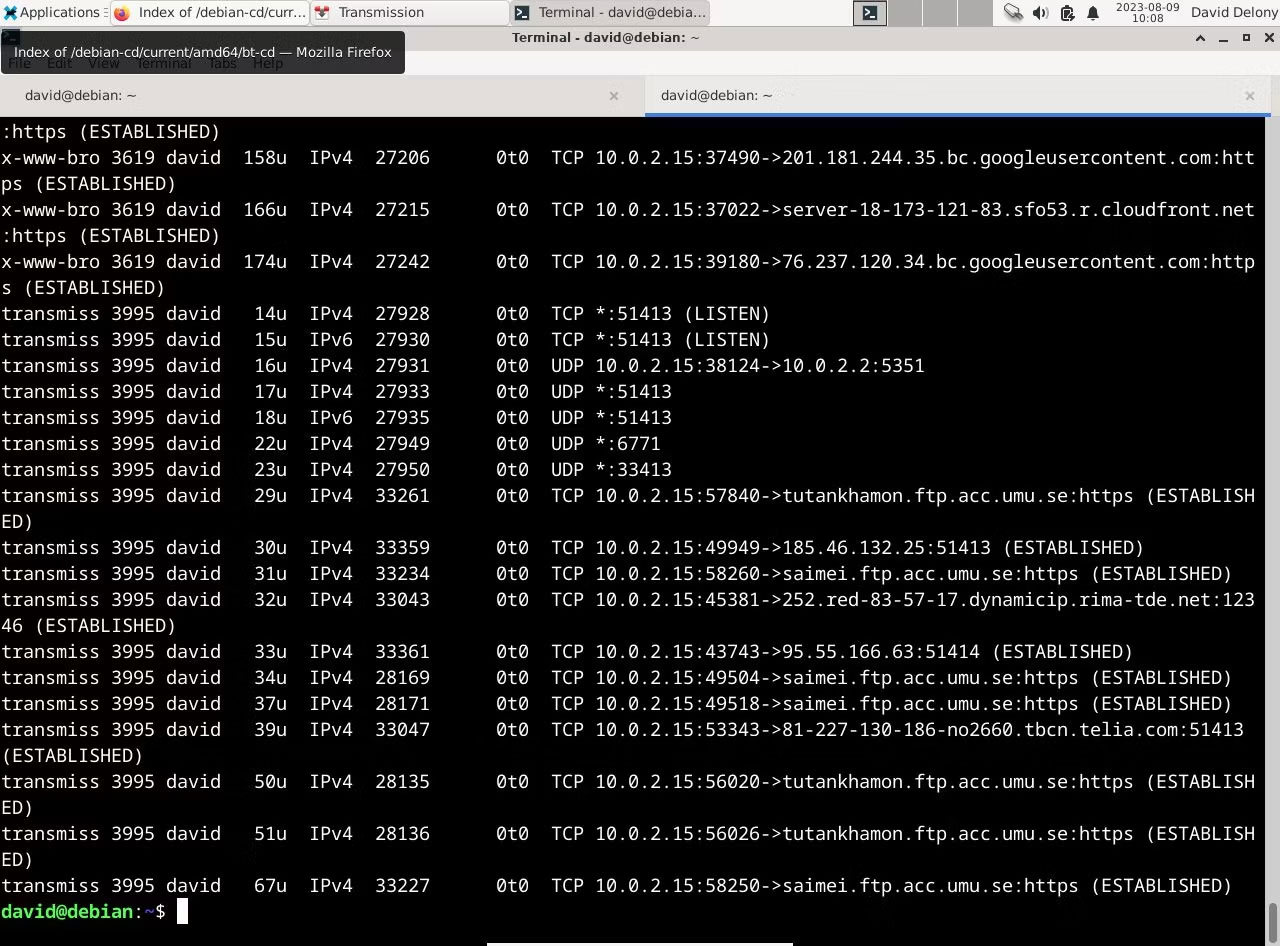
<p style="text-align: justify;">Mặc dù lsof là một tiện ích để liệt kê các file đang mở, nhưng nó cũng có thể liệt kê các kết nối mạng đang mở. Tùy chọn -i liệt kê các kết nối Internet được gắn với những tiến trình đang chạy trên hệ thống. Rốt cuộc, trên Linux, mọi thứ đều là một file.</p>

<p style="text-align: justify;">Để xem các kết nối Internet hiện tại, hãy sử dụng lệnh này:</p>

<pre id="pre6">
<code>lsof -i</code></pre>

<p style="text-align: justify;">lsof sẽ hiển thị cho bạn tên của bất kỳ lệnh nào có kết nối Internet đang mở, PID, trình mô tả file, loại kết nối Internet, kích thước, giao thức và tên file chính thức của kết nối.</p>

<p style="text-align: justify;">Sử dụng các tùy chọn -i4 và -i6 cho phép bạn xem các kết nối sử dụng IPv4 hoặc IPv6.</p>

<p style="text-align: justify;">Rất có thể bạn đã cài đặt lsof rồi. Nó cũng dễ dàng cài đặt trên các bản phân phối Linux chính nếu bạn chưa thực hiện.</p>

<p style="text-align: justify;">Trên Debian và Ubuntu, gõ:</p>

<pre id="pre7">
<code>sudo apt install lsof</code></pre>

<p style="text-align: justify;">Và trên Arch:</p>

<pre id="pre8">
<code>sudo pacman -S lsof</code></pre>

<p style="text-align: justify;">Trên dòng distro Red Hat:</p>

<pre id="pre9">
<code>sudo dnf install lsof</code></pre>

<h2 style="text-align: justify;">3. netstat</h2>

<figure>
<div style="text-align: justify;"><img alt="Đầu ra netstat -p trong Linux terminal " data-i="2" data-src="https://st.quantrimang.com/photos/image/2023/08/18/giam-sat-viec-su-dung-mang-cho-cac-tien-trinh-linux-3.jpg" data-was-processed="true" height="946" src="https://st.quantrimang.com/photos/image/2023/08/18/giam-sat-viec-su-dung-mang-cho-cac-tien-trinh-linux-3.jpg" width="1280" /></div>

<figcaption>
<div style="text-align: justify;">Đầu ra netstat -p trong Linux terminal</div>
</figcaption>
</figure>

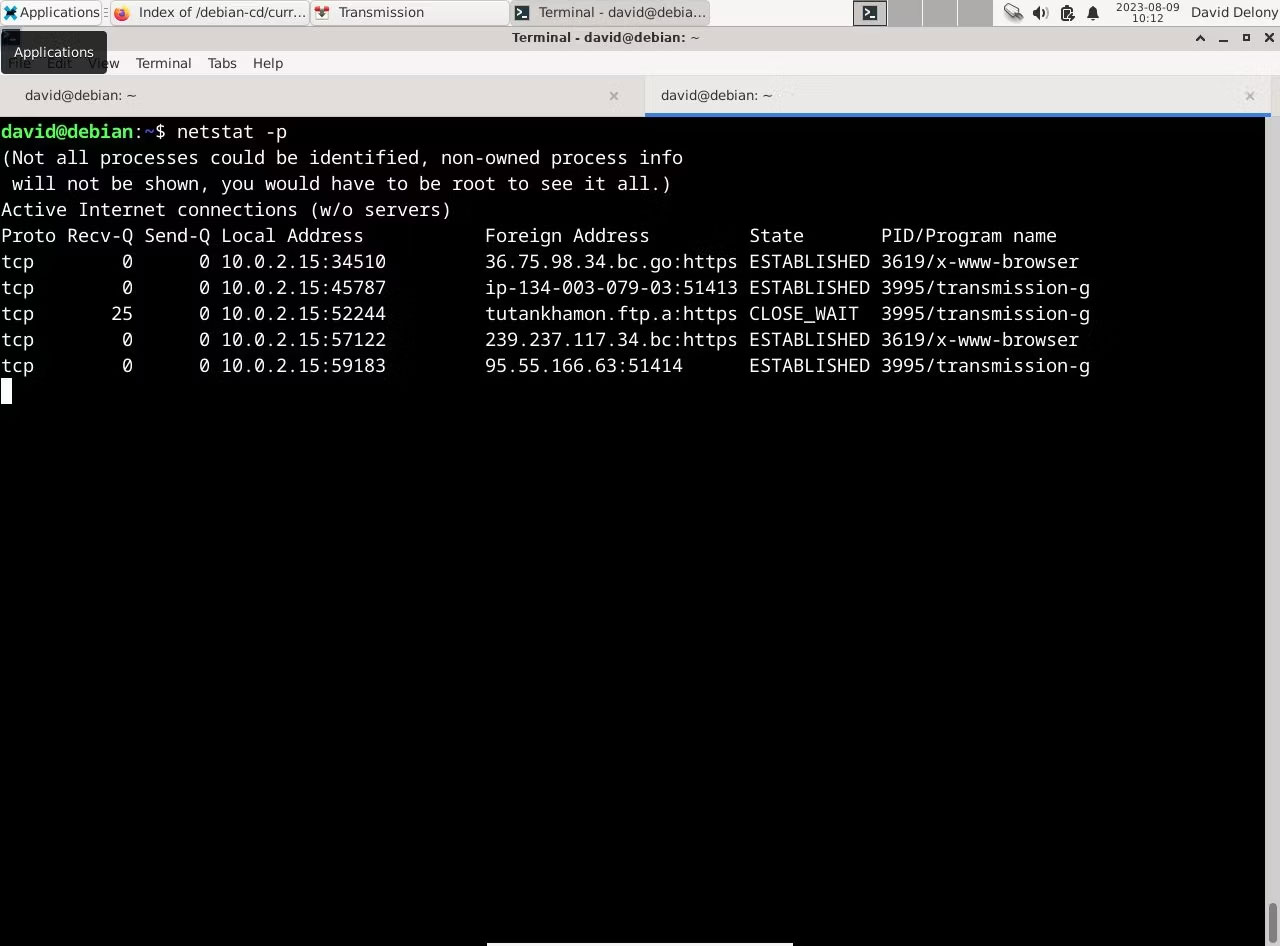
<p style="text-align: justify;">netstat là một chương trình mạnh mẽ, cho phép bạn xem các kết nối mạng trên hệ thống của mình. Nó không hiển thị cho bạn quá trình kết nối mạng nào được đính kèm. Như với lsof, bạn có thể thấy điều này bằng tùy chọn dòng lệnh.</p>

<p style="text-align: justify;">netstat là một phần của gói công cụ mạng. Bạn có thể cài đặt nó trên hầu hết các bản phân phối Linux bằng trình quản lý gói mặc định.</p>

<p style="text-align: justify;">Ví dụ, trên Debian hoặc Ubuntu:</p>

<pre id="pre10">
<code>sudo apt install net-tools</code></pre>

<p style="text-align: justify;">Trên Arch Linux:</p>

<pre id="pre11">
<code>sudo pacman -S net-tools</code></pre>

<p style="text-align: justify;">Để cài đặt netstat trên Fedora, CentOS và RHEL, hãy chạy:</p>

<pre id="pre12">
<code>sudo dnf install net-tools</code></pre>

<p style="text-align: justify;">Bạn có thể chạy netstat tại dòng lệnh. Theo mặc định, nó sẽ hiển thị cho bạn thông tin như giao thức, địa chỉ và trạng thái của kết nối, nhưng tùy chọn -p thêm một cột hiển thị ID tiến trình và tên lệnh.</p>

<pre id="pre13">
<code>netstat -p</code></pre>

<p style="text-align: justify;">Khi bạn chạy nó, netstat sẽ chỉ liệt kê tất cả các kết nối mạng và sau đó thoát ra. Với tùy chọn&nbsp;<strong>-c</strong>, bạn có thể thấy danh sách các kết nối được cập nhật liên tục:</p>

<pre id="pre14">
<code>netstat -pc</code></pre>

<p style="text-align: justify;">Điều này sẽ tương tự như việc sử dụng một chương trình định hướng màn hình như nethogs, nhưng lợi thế của việc thực hiện theo cách này là bạn có thể chuyển kết quả đầu ra sang một chương trình khác như grep hoặc máy nhắn tin để kiểm tra nó:</p>

<pre id="pre15">
<code>netstat -p | grep &#039;systemd&#039;</code></pre>

<p style="text-align: justify;">Để xem tất cả các tiến trình có kết nối mạng trên hệ thống của bạn, bạn có thể phải chạy netstat với quyền root:</p>

<pre id="pre16">
<code>sudo netstat</code></pre>

<div style="text-align: justify;">&nbsp;</div>
		</div>
				<div id="author">
						<p>
				<strong>Nguồn tin:</strong>
				Quantrimang.com
			</p>
		</div>
	</div>
	<div id="footer" class="clearfix">
		<div id="url">
			<strong>URL của bản tin này: </strong><a href="https://www.nguoicodonvn2008.info/vi/news/savefile/kien-thuc-may-tinh/cach-giam-sat-viec-su-dung-mang-cho-cac-tien-trinh-linux-7428.html" title="Cách giám sát việc sử dụng mạng cho các tiến trình Linux">https://www.nguoicodonvn2008.info/vi/news/savefile/kien-thuc-may-tinh/cach-giam-sat-viec-su-dung-mang-cho-cac-tien-trinh-linux-7428.html</a>

		</div>
		<div class="clear"></div>
		<div class="copyright">
			&copy; .&#x3A; Nguoicodonvn2008.info - Cõi lòng người cô đơn &#x3A;.
		</div>
		<div id="contact">
			<a href="mailto:admin@nguoicodonvn2008.info">admin@nguoicodonvn2008.info</a>
		</div>
	</div>
</div>
        <div id="timeoutsess" class="chromeframe">
            Bạn đã không sử dụng Site, <a onclick="timeoutsesscancel();" href="https://nguoicodonvn2008.info/#">Bấm vào đây để duy trì trạng thái đăng nhập</a>. Thời gian chờ: <span id="secField"> 60 </span> giây
        </div>
        <div id="openidResult" class="nv-alert" style="display:none"></div>
        <div id="openidBt" data-result="" data-redirect=""></div>
		</script>
		<div class="car-top">
  <span><img src="https://nguoicodonvn2008.info/themes/default/images/car.png" alt=""></span>
</div>
<div id="run_cronjobs" style="visibility:hidden;display:none;"><img alt="cron" src="/index.php?second=cronjobs&amp;p=q36CH4S1" width="1" height="1" /></div>
<script src="https://nguoicodonvn2008.info/assets/js/jquery/jquery.min.js"></script>
<script>var nv_base_siteurl="/",nv_lang_data="vi",nv_lang_interface="vi",nv_name_variable="nv",nv_fc_variable="op",nv_lang_variable="language",nv_module_name="news",nv_func_name="savefile",nv_is_user=0, nv_my_ofs=-4,nv_my_abbr="EDT",nv_cookie_prefix="nv4c_e856T",nv_check_pass_mstime=1738000,nv_area_admin=0,nv_safemode=0,theme_responsive=0,nv_recaptcha_ver=2,nv_recaptcha_sitekey="",nv_recaptcha_type="image",XSSsanitize=1;</script>
<script src="https://nguoicodonvn2008.info/assets/js/language/vi.js"></script>
<script src="https://nguoicodonvn2008.info/assets/js/DOMPurify/purify3.js"></script>
<script src="https://nguoicodonvn2008.info/assets/js/global.js"></script>
<script src="https://nguoicodonvn2008.info/assets/js/site.js"></script>
<script src="https://nguoicodonvn2008.info/themes/default/js/news.js"></script>
<script src="https://nguoicodonvn2008.info/themes/default/js/main.js"></script>
<script src="https://nguoicodonvn2008.info/themes/default/js/custom.js"></script>
<script type="application/ld+json">
        {
            "@context": "https://schema.org",
            "@type": "Organization",
            "url": "https://nguoicodonvn2008.info",
            "logo": "https://nguoicodonvn2008.info/uploads/angel.gif"
        }
        </script>
<script src="https://nguoicodonvn2008.info/themes/default/js/bootstrap.min.js"></script>
<script type="text/javascript">
var $scrolltop = $('.car-top');
$scrolltop.on('click', function () {
    $('html,body').animate({
        scrollTop: 0
    }, 800);
    $(this).addClass("car-run");
    setTimeout(function(){ $scrolltop.removeClass('car-run');}, 1000);
    return false;
});
$(window).on('scroll', function ()
{ 
    if($(window).scrollTop() >= 200)
    {
        $scrolltop.addClass("show");
        $scrolltop.addClass("car-down");
    }
    else
    {
       $scrolltop.removeClass("show");
       setTimeout(function(){ $scrolltop.removeClass('car-down');}, 300);
    }
});
</script>
</body>
</html>