<!DOCTYPE html>
    <html lang="vi" xmlns="http://www.w3.org/1999/xhtml" prefix="og: http://ogp.me/ns#">
    <head>
<title>Cách giải nén đồng thời nhiều file ZIP trong Windows</title>
<meta name="description" content="Cách giải nén đồng thời nhiều file ZIP trong Windows - Savefile - Tin Tức -...">
<meta name="author" content=".: Nguoicodonvn2008.info - Cõi lòng người cô đơn :.">
<meta name="copyright" content=".: Nguoicodonvn2008.info - Cõi lòng người cô đơn :. [admin@nguoicodonvn2008.info]">
<meta name="robots" content="index, archive, follow, noodp">
<meta name="googlebot" content="index,archive,follow,noodp">
<meta name="msnbot" content="all,index,follow">
<meta name="generator" content="NukeViet v4.5">
<meta http-equiv="Content-Type" content="text/html; charset=utf-8">
<meta property="og:title" content="Cách giải nén đồng thời nhiều file ZIP trong Windows">
<meta property="og:type" content="website">
<meta property="og:description" content="Savefile - Tin Tức - https&#x3A;&#x002F;&#x002F;www.nguoicodonvn2008.info&#x002F;vi&#x002F;news&#x002F;savefile&#x002F;kien-thuc-may-tinh&#x002F;cach-giai-nen-dong-thoi-nhieu-file-zip-trong-windows-7603.html">
<meta property="og:site_name" content=".&#x3A; Nguoicodonvn2008.info - Cõi lòng người cô đơn &#x3A;.">
<meta property="og:url" content="https://www.nguoicodonvn2008.info/vi/news/savefile/kien-thuc-may-tinh/cach-giai-nen-dong-thoi-nhieu-file-zip-trong-windows-7603.html">
<link rel="shortcut icon" href="https://nguoicodonvn2008.info/favicon.ico">
<link rel="canonical" href="https://www.nguoicodonvn2008.info/vi/news/savefile/kien-thuc-may-tinh/cach-giai-nen-dong-thoi-nhieu-file-zip-trong-windows-7603.html">
<link rel="alternate" href="https://nguoicodonvn2008.info/vi/news/rss/" title="Tin Tức" type="application/rss+xml">
<link rel="alternate" href="https://nguoicodonvn2008.info/vi/news/rss/karaoke-dual/" title="Tin Tức - Karaoke Dual" type="application/rss+xml">
<link rel="alternate" href="https://nguoicodonvn2008.info/vi/news/rss/nhac-tre/" title="Tin Tức - Nhạc trẻ" type="application/rss+xml">
<link rel="alternate" href="https://nguoicodonvn2008.info/vi/news/rss/tru-tinh/" title="Tin Tức - Trữ tình" type="application/rss+xml">
<link rel="alternate" href="https://nguoicodonvn2008.info/vi/news/rss/nuoc-ngoai/" title="Tin Tức - Nước ngoài" type="application/rss+xml">
<link rel="alternate" href="https://nguoicodonvn2008.info/vi/news/rss/remix/" title="Tin Tức - Remix" type="application/rss+xml">
<link rel="alternate" href="https://nguoicodonvn2008.info/vi/news/rss/tam-su-tinh-yeu/" title="Tin Tức - Tâm sự tình yêu" type="application/rss+xml">
<link rel="alternate" href="https://nguoicodonvn2008.info/vi/news/rss/tho-suu-tam/" title="Tin Tức - Thơ sưu tầm" type="application/rss+xml">
<link rel="alternate" href="https://nguoicodonvn2008.info/vi/news/rss/cuoc-song/" title="Tin Tức - Cuộc sống" type="application/rss+xml">
<link rel="alternate" href="https://nguoicodonvn2008.info/vi/news/rss/phan-mem/" title="Tin Tức - Phần mềm" type="application/rss+xml">
<link rel="alternate" href="https://nguoicodonvn2008.info/vi/news/rss/kien-thuc-may-tinh/" title="Tin Tức - Kiến thức máy tính" type="application/rss+xml">
<link rel="alternate" href="https://nguoicodonvn2008.info/vi/news/rss/hoc-tap/" title="Tin Tức - Học tập" type="application/rss+xml">
<link rel="alternate" href="https://nguoicodonvn2008.info/vi/news/rss/tai-lieu/" title="Tin Tức - Tài liệu" type="application/rss+xml">
<link rel="alternate" href="https://nguoicodonvn2008.info/vi/news/rss/de-thi/" title="Tin Tức - Đề thi" type="application/rss+xml">
<link rel="preload" as="style" href="https://nguoicodonvn2008.info/assets/css/font-awesome.min.css" type="text/css">
<link rel="preload" as="style" href="https://nguoicodonvn2008.info/themes/default/css/bootstrap.non-responsive.css" type="text/css">
<link rel="preload" as="style" href="https://nguoicodonvn2008.info/themes/default/css/style.css" type="text/css">
<link rel="preload" as="style" href="https://nguoicodonvn2008.info/themes/default/css/style.non-responsive.css" type="text/css">
<link rel="preload" as="style" href="https://nguoicodonvn2008.info/themes/default/css/news.css" type="text/css">
<link rel="preload" as="style" href="https://nguoicodonvn2008.info/themes/default/css/custom.css" type="text/css">
<link rel="preload" as="script" href="https://nguoicodonvn2008.info/assets/js/jquery/jquery.min.js" type="text/javascript">
<link rel="preload" as="script" href="https://nguoicodonvn2008.info/assets/js/language/vi.js" type="text/javascript">
<link rel="preload" as="script" href="https://nguoicodonvn2008.info/assets/js/DOMPurify/purify3.js" type="text/javascript">
<link rel="preload" as="script" href="https://nguoicodonvn2008.info/assets/js/global.js" type="text/javascript">
<link rel="preload" as="script" href="https://nguoicodonvn2008.info/assets/js/site.js" type="text/javascript">
<link rel="preload" as="script" href="https://nguoicodonvn2008.info/themes/default/js/news.js" type="text/javascript">
<link rel="preload" as="script" href="https://nguoicodonvn2008.info/themes/default/js/main.js" type="text/javascript">
<link rel="preload" as="script" href="https://nguoicodonvn2008.info/themes/default/js/custom.js" type="text/javascript">
<link rel="preload" as="script" href="https://nguoicodonvn2008.info/themes/default/js/bootstrap.min.js" type="text/javascript">
<link rel="stylesheet" href="https://nguoicodonvn2008.info/assets/css/font-awesome.min.css">
<link rel="stylesheet" href="https://nguoicodonvn2008.info/themes/default/css/bootstrap.non-responsive.css">
<link rel="stylesheet" href="https://nguoicodonvn2008.info/themes/default/css/style.css">
<link rel="stylesheet" href="https://nguoicodonvn2008.info/themes/default/css/style.non-responsive.css">
<link rel="StyleSheet" href="https://nguoicodonvn2008.info/themes/default/css/news.css">
<link rel="stylesheet" href="https://nguoicodonvn2008.info/themes/default/css/custom.css">
<style type="text/css">
	body{background: #fff;}
</style>
    </head>
    <body>
<div id="print">
	<div id="hd_print">
		<h2 class="pull-left">.&#x3A; Nguoicodonvn2008.info - Cõi lòng người cô đơn &#x3A;.</h2>
		<p class="pull-right"><a title=".&#x3A; Nguoicodonvn2008.info - Cõi lòng người cô đơn &#x3A;." href="https://nguoicodonvn2008.info/">https://nguoicodonvn2008.info</a></p>
	</div>
	<div class="clear"></div>
	<hr />
	<div id="content">
		<h1>Cách giải nén đồng thời nhiều file ZIP trong Windows</h1>
		<ul class="list-inline">
			<li>Thứ năm - 05/10/2023 09:54</li>
			<li class="hidden-print txtrequired"><em class="fa fa-print">&nbsp;</em><a title="In ra" href="javascript:;" onclick="window.print()">In ra</a></li>
			<li class="hidden-print txtrequired"><em class="fa fa-power-off">&nbsp;</em><a title="Đóng cửa sổ này" href="javascript:;" onclick="window.close()">Đóng cửa sổ này</a></li>
		</ul>
		<div class="clear"></div>
		<div id="hometext">
		</div>
				<div class="imghome">
			<img alt="Cách giải nén đồng thời nhiều file ZIP trong Windows" src="https://st.quantrimang.com/photos/image/2023/10/05/giai-nen-dong-thoi-nhieu-file-zip-windows-8.jpg" width="460" class="img-thumbnail" />
		</div>
		<div class="clear"></div>
		<div id="bodytext" class="clearfix">
			<p style="text-align: justify;">Nhiều người dùng cần giải nén các kho lưu trữ ZIP trên PC Windows 11/10. Công cụ giải nén kho lưu trữ tích hợp trong Windows rất phù hợp để giải nén các&nbsp;file ZIP&nbsp;đơn lẻ. Tuy nhiên, công cụ đó không có tùy chọn giải nén hàng loạt nhiều file ZIP. Điều này có nghĩa là bạn phải giải nén từng kho lưu trữ ZIP một khi sử dụng tiện ích giải nén đó.</p>

<p style="text-align: justify;">Vì vậy, công cụ giải nén tích hợp của Windows không lý tưởng khi bạn cần giải nén nhiều file ZIP. Tốt hơn hết bạn nên sử dụng ứng dụng của bên thứ ba như 7-Zip hoặc ExtractNow để cho phép bạn trích xuất nhiều kho lưu trữ ZIP. Đây là cách bạn có thể giải nén đồng thời nhiều file ZIP bằng các gói phần mềm đó.</p>

<h2 style="text-align: justify;">Cách giải nén đồng thời nhiều kho lưu trữ ZIP bằng 7-Zip</h2>

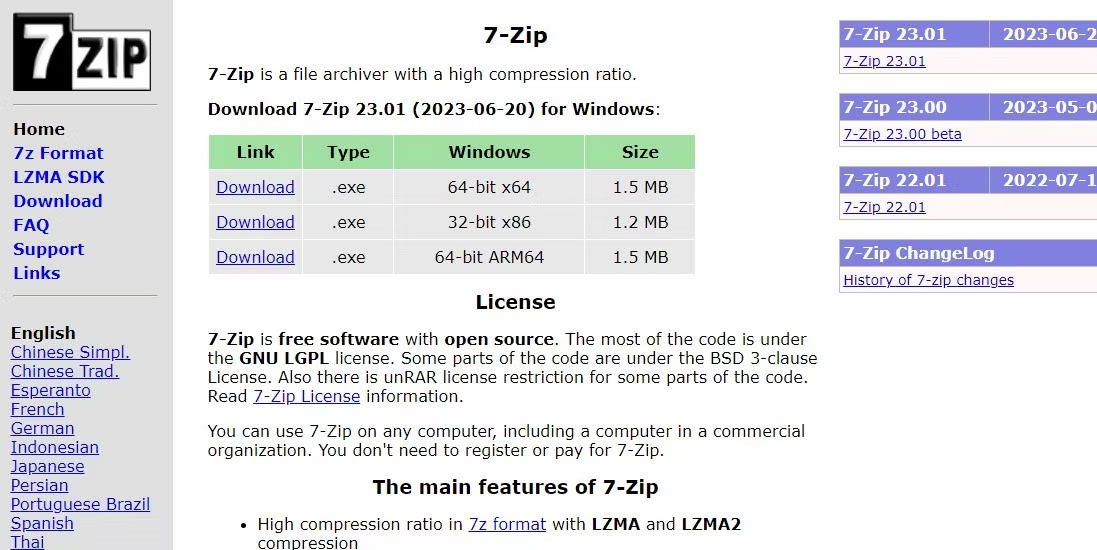
<p style="text-align: justify;">7-Zip là một trong&nbsp;những công cụ nén và giải nén file tốt nhất dành cho Windows. Phần mềm đó được cung cấp miễn phí và tương thích rộng rãi với các nền tảng Windows có từ năm 2000. Bạn có thể trích xuất hàng loạt nhiều kho lưu trữ vào các thư mục khác nhau bằng phần mềm đó như sau.</p>

<p style="text-align: justify;">1. Tải phần mềm 7-Zip.</p>

<p style="text-align: justify;">&nbsp;</p>

<figure>
<div style="text-align: justify;"><img alt="Tải phần mềm 7-Zip" data-i="0" data-src="https://st.quantrimang.com/photos/image/2023/10/05/giai-nen-dong-thoi-nhieu-file-zip-windows-1.jpg" data-was-processed="true" height="550" src="https://st.quantrimang.com/photos/image/2023/10/05/giai-nen-dong-thoi-nhieu-file-zip-windows-1.jpg" width="1097" /></div>

<figcaption>
<div style="text-align: justify;">Tải phần mềm 7-Zip</div>
</figcaption>
</figure>

<p style="text-align: justify;">2. Nhấp vào shortcut trên thanh tác vụ được ghim để&nbsp;<a data-type="internal" href="https://quantrimang.com/cong-nghe/9-cach-kich-hoat-file-explorer-trong-windows-10-118256" title="9 cách kích hoạt File Explorer trong Windows 10">mở Windows File Explorer</a>&nbsp;và đi tới thư mục mà trình duyệt của bạn đã tải xuống 7-Zip.</p>

<p style="text-align: justify;">3. Nhấp đúp vào file&nbsp;<strong>7z2301-x64.</strong></p>

<p style="text-align: justify;">4. Nhấp vào&nbsp;<strong>Install</strong>&nbsp;để cài đặt 7-Zip trong thư mục được chỉ định trong hộp&nbsp;<strong>Destination folder</strong>.</p>

<p style="text-align: justify;">5. Chọn&nbsp;<strong>Close</strong>&nbsp;để thoát trình cài đặt.</p>

<p style="text-align: justify;">Bây giờ là lúc đưa ứng dụng vào sử dụng:</p>

<p style="text-align: justify;">1. Mở menu Start và nhấp vào thư mục&nbsp;<strong>7-Zip</strong>&nbsp;ở đầu danh sách ứng dụng. Sau đó nhấn&nbsp;<strong>7-Zip File Manager</strong>&nbsp;để chạy phần mềm.</p>

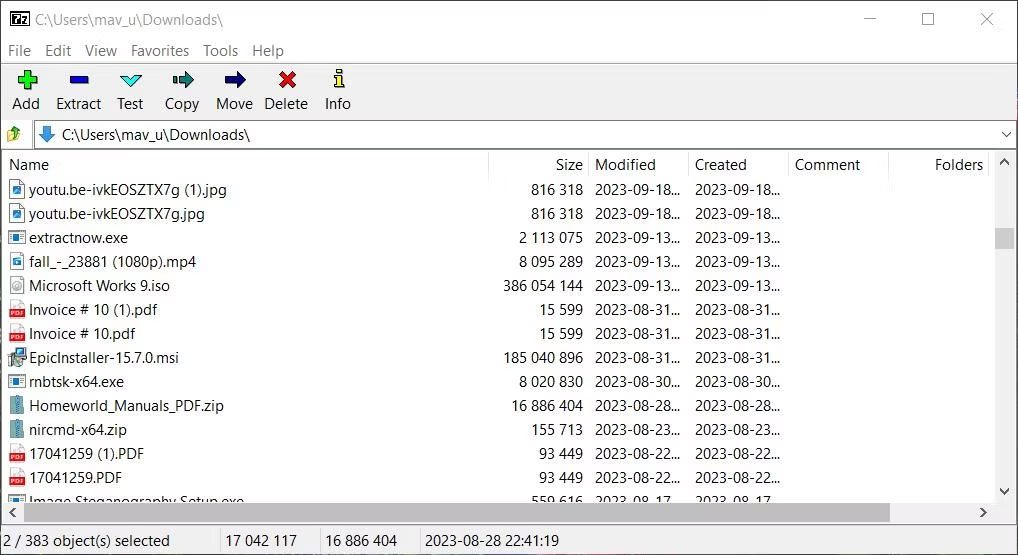
<p style="text-align: justify;">2. Điều hướng đến thư mục chứa một số kho lưu trữ ZIP trong cửa sổ 7-Zip.</p>

<p style="text-align: justify;">3. Chọn nhiều file ZIP để giải nén bằng cách giữ phím&nbsp;<strong>Ctrl</strong>&nbsp;và nhấp vào chúng trong 7-Zip.</p>

<p style="text-align: justify;">4. Nhấp vào&nbsp;<strong>Extract</strong>&nbsp;để xuất hiện cửa sổ giải nén.</p>

<figure>
<div style="text-align: justify;"><img alt="Nút Extract trong 7-Zip" data-i="1" data-src="https://st.quantrimang.com/photos/image/2023/10/05/giai-nen-dong-thoi-nhieu-file-zip-windows-2.jpg" data-was-processed="true" height="555" src="https://st.quantrimang.com/photos/image/2023/10/05/giai-nen-dong-thoi-nhieu-file-zip-windows-2.jpg" width="1018" /></div>

<figcaption>
<div style="text-align: justify;">Nút Extract trong 7-Zip</div>
</figcaption>
</figure>

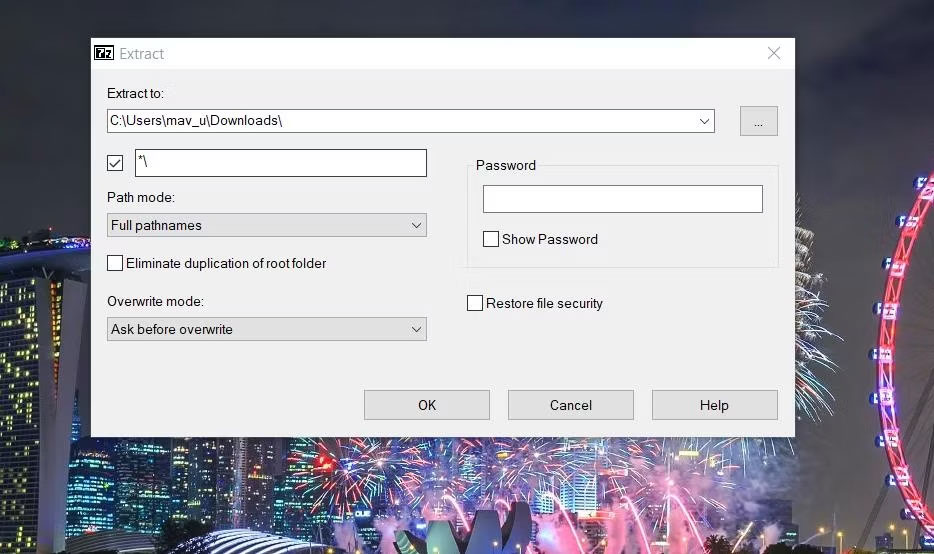
<p style="text-align: justify;">5. Nếu bạn muốn thay đổi thư mục bao gồm các thư mục con được trích xuất, hãy nhấp vào nút dấu chấm lửng. Sau đó chọn một thư mục khác và nhấn&nbsp;<strong>OK.</strong></p>

<figure>
<div style="text-align: justify;"><img alt="Cửa sổ trích xuất" data-i="2" data-src="https://st.quantrimang.com/photos/image/2023/10/05/giai-nen-dong-thoi-nhieu-file-zip-windows-3.jpg" data-was-processed="true" height="554" src="https://st.quantrimang.com/photos/image/2023/10/05/giai-nen-dong-thoi-nhieu-file-zip-windows-3.jpg" width="934" /></div>

<figcaption>
<div style="text-align: justify;">Cửa sổ trích xuất</div>
</figcaption>
</figure>

<p style="text-align: justify;">6. Chọn&nbsp;<strong>OK</strong>&nbsp;để giải nén các kho lưu trữ ZIP đã chọn.</p>

<p style="text-align: justify;">Thao tác này sẽ trích xuất tất cả các kho lưu trữ ZIP đã chọn vào các thư mục con khác nhau. Những thư mục con được giải nén đó sẽ có cùng tên với các file ZIP mà bạn đã giải nén. Đóng 7-Zip rồi mở thư mục bạn đã chọn để giải nén các kho lưu trữ để mở những thư mục được giải nén từ đó.</p>

<p style="text-align: justify;"><strong>&quot;*\&quot;</strong>&nbsp;trong cửa sổ&nbsp;<strong>Extract</strong>&nbsp;của 7-Zip có nghĩa là các kho lưu trữ sẽ được giải nén sang các thư mục mới. Nếu bạn muốn trích xuất tất cả các kho lưu trữ đã chọn vào cùng một thư mục con, hãy xóa&nbsp;<strong>&quot;*\&quot;</strong>&nbsp;khỏi hộp văn bản. Nhập tên thư mục mới vào cuối đường dẫn đã chọn. Sau đó 7-Zip sẽ giải nén hàng loạt tất cả các file ZIP vào thư mục mới được thêm vào hộp&nbsp;<strong>Extract to.</strong></p>

<h2 style="text-align: justify;">Cách giải nén đồng thời nhiều kho lưu trữ ZIP bằng ExtractNow</h2>

<p style="text-align: justify;">ExtractNow là phần mềm miễn phí được thiết kế đặc biệt hơn để giải nén nhiều kho lưu trữ cùng một lúc. Bạn có thể trích xuất hàng loạt các kho lưu trữ ZIP và RAR, cùng với các kho lưu trữ khác, trên nền tảng Windows có từ năm 1995 bằng phần mềm này. Đây là cách bạn có thể giải nén hàng loạt file ZIP của mình bằng ExtractNow:</p>

<p style="text-align: justify;">1.&nbsp;<a href="https://quantrimang.com/url?q=aHR0cHM6Ly9leHRyYWN0bm93LmNvbS8jL2hvbWU%3D" rel="nofollow noopener" target="_blank" title="Mở trang tải xuống ExtractNow">Mở trang tải xuống ExtractNow</a>.</p>

<p style="text-align: justify;">2. Nhấn&nbsp;<strong>Download Now</strong>&nbsp;để lưu file cài đặt ExtractNow.</p>

<p style="text-align: justify;">3. Nhấp đúp vào file&nbsp;<strong>extractnow.exe</strong>&nbsp;để bắt đầu trình hướng dẫn thiết lập.</p>

<p style="text-align: justify;">4. Nhấp vào&nbsp;<strong>I Agree</strong>&nbsp;để biết các điều khoản cấp phép của phần mềm.</p>

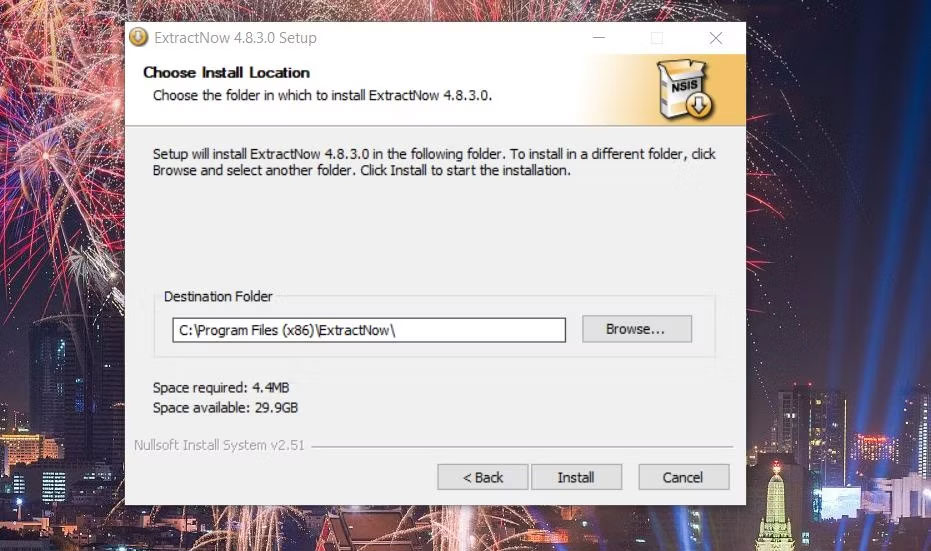
<p style="text-align: justify;">5. Chọn&nbsp;<strong>Next</strong>&nbsp;hai lần nữa rồi nhấn&nbsp;<strong>Install</strong>&nbsp;để hoàn tất.</p>

<figure>
<div style="text-align: justify;"><img alt="Cửa sổ cài đặt ExtractNow" data-i="3" data-src="https://st.quantrimang.com/photos/image/2023/10/05/giai-nen-dong-thoi-nhieu-file-zip-windows-4.jpg" data-was-processed="true" height="551" src="https://st.quantrimang.com/photos/image/2023/10/05/giai-nen-dong-thoi-nhieu-file-zip-windows-4.jpg" width="931" /></div>

<figcaption>
<div style="text-align: justify;">Cửa sổ cài đặt ExtractNow</div>
</figcaption>
</figure>

<p style="text-align: justify;">6. Nhấp&nbsp;<strong>Close</strong>&nbsp;để mở ExtractNow.</p>

<p style="text-align: justify;">Bây giờ là lúc sử dụng ứng dụng:</p>

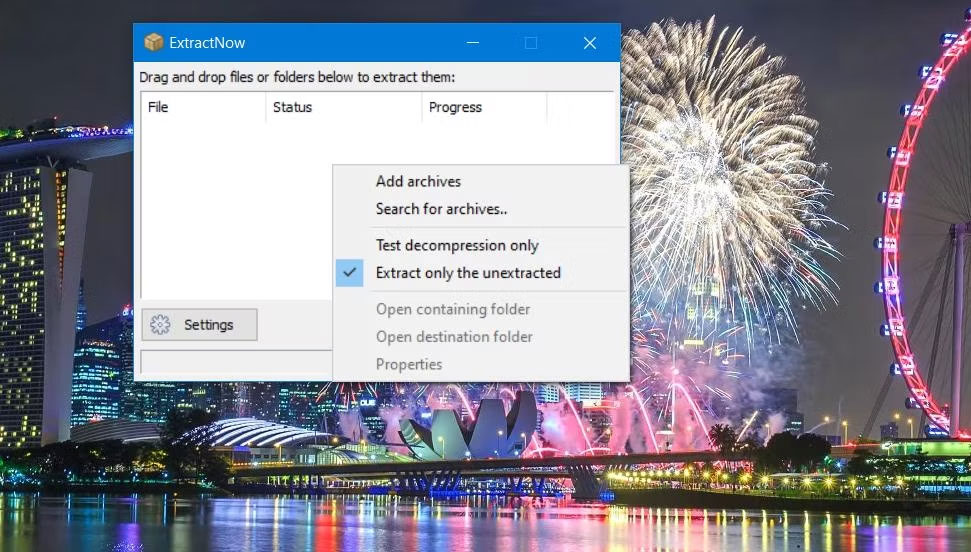
<p style="text-align: justify;">1. Nhấp chuột phải vào bên trong cửa sổ ExtractNow và chọn&nbsp;<strong>Add archives</strong>.</p>

<figure>
<div style="text-align: justify;"><img alt="Tùy chọn Add archives" data-i="4" data-src="https://st.quantrimang.com/photos/image/2023/10/05/giai-nen-dong-thoi-nhieu-file-zip-windows-5.jpg" data-was-processed="true" height="552" src="https://st.quantrimang.com/photos/image/2023/10/05/giai-nen-dong-thoi-nhieu-file-zip-windows-5.jpg" width="971" /></div>

<figcaption>
<div style="text-align: justify;">Tùy chọn Add archives</div>
</figcaption>
</figure>

<p style="text-align: justify;">2. Chọn nhiều kho lưu trữ ZIP bằng cách giữ phím&nbsp;<strong>Ctrl</strong>&nbsp;và nhấp vào&nbsp;<strong>Open</strong>.</p>

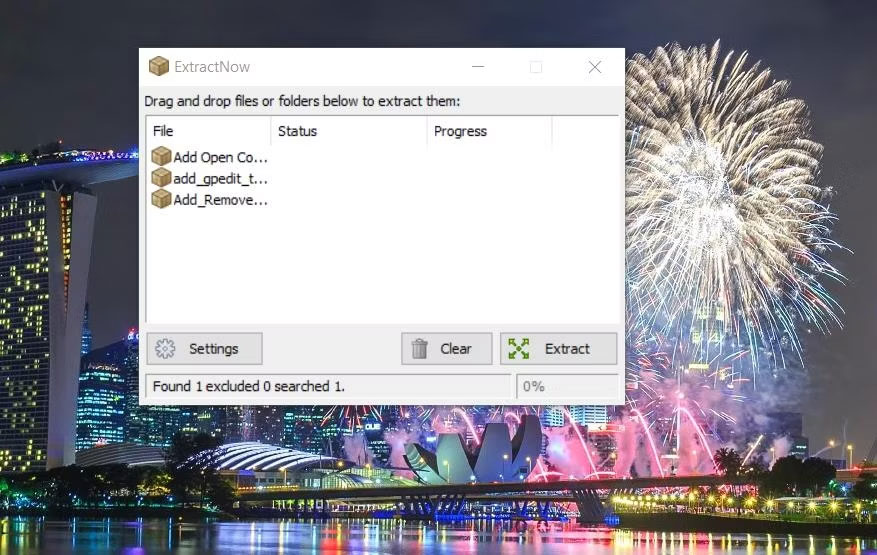
<p style="text-align: justify;">3. Nhấp vào&nbsp;<strong>Extract</strong>&nbsp;để giải nén các file ZIP.</p>

<figure>
<div style="text-align: justify;"><img alt="Tùy chọn Extract trong ExtractNow" data-i="5" data-src="https://st.quantrimang.com/photos/image/2023/10/05/giai-nen-dong-thoi-nhieu-file-zip-windows-6.jpg" data-was-processed="true" height="555" src="https://st.quantrimang.com/photos/image/2023/10/05/giai-nen-dong-thoi-nhieu-file-zip-windows-6.jpg" width="877" /></div>

<figcaption>
<div style="text-align: justify;">Tùy chọn Extract trong ExtractNow</div>
</figcaption>
</figure>

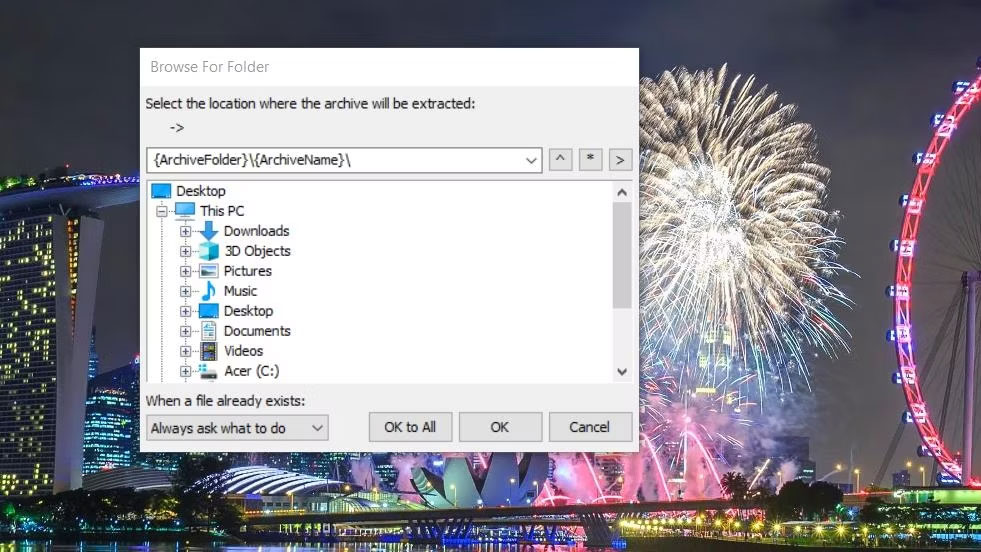
<p style="text-align: justify;">4. Sau đó nhấp vào&nbsp;<strong>OK to All</strong>&nbsp;để giải nén các kho lưu trữ đã chọn vào các thư mục con có tiêu đề khớp với những file ZIP trong cùng thư mục. Ngoài ra, bạn có thể chọn thủ công một đích khác để giải nén từng file trong cửa sổ&nbsp;<strong>Browse for Folder</strong>&nbsp;và nhấp vào&nbsp;<strong>OK.</strong></p>

<figure>
<div style="text-align: justify;"><img alt="Cửa sổ Browse for Folder " data-i="6" data-src="https://st.quantrimang.com/photos/image/2023/10/05/giai-nen-dong-thoi-nhieu-file-zip-windows-7.jpg" data-was-processed="true" height="552" src="https://st.quantrimang.com/photos/image/2023/10/05/giai-nen-dong-thoi-nhieu-file-zip-windows-7.jpg" width="981" /></div>

<figcaption>
<div style="text-align: justify;">Cửa sổ Browse for Folder</div>
</figcaption>
</figure>

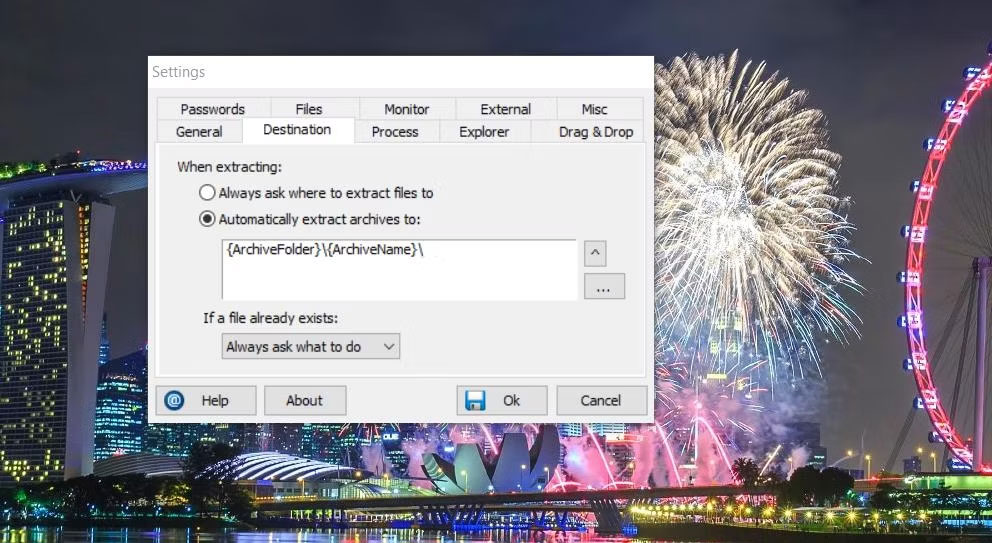
<p style="text-align: justify;">Theo mặc định, phần mềm này sẽ luôn hỏi bạn nơi giải nén file. Tuy nhiên, bạn có thể thay đổi ExtractNow để tự động giải nén các file ZIP mà không cần hỏi qua cài đặt của nó. Để làm như vậy, hãy nhấp vào nút&nbsp;<strong>Settings</strong>&nbsp;và chọn tab&nbsp;<strong>Destination</strong>. Sau đó chọn nút&nbsp;<strong>Automatically extract archives to</strong>.</p>

<figure>
<div style="text-align: justify;"><img alt="Tab Destination" data-i="7" data-src="https://st.quantrimang.com/photos/image/2023/10/05/giai-nen-dong-thoi-nhieu-file-zip-windows-8.jpg" data-was-processed="true" height="543" src="https://st.quantrimang.com/photos/image/2023/10/05/giai-nen-dong-thoi-nhieu-file-zip-windows-8.jpg" width="992" /></div>

<figcaption>
<div style="text-align: justify;">Tab Destination</div>
</figcaption>
</figure>

<p style="text-align: justify;">Nếu bạn muốn đặt một vị trí để luôn giải nén các ZIP đã chọn, hãy nhấp vào nút&nbsp;<strong>Browse for Folder</strong>; chọn một thư mục trong cửa sổ&nbsp;<strong>Browse for Folder</strong>&nbsp;và nhấp vào&nbsp;<strong>OK</strong>. Sau đó chọn&nbsp;<strong>OK</strong>&nbsp;trên cửa sổ&nbsp;<strong>Settings</strong>&nbsp;để lưu tùy chọn.</p>

<p style="text-align: justify;">Ngoài ra, ExtractNow cũng có rất nhiều cài đặt khác mà bạn có thể cấu hình.</p>
		</div>
				<div id="author">
						<p>
				<strong>Nguồn tin:</strong>
				Quantrimang.com
			</p>
		</div>
	</div>
	<div id="footer" class="clearfix">
		<div id="url">
			<strong>URL của bản tin này: </strong><a href="https://www.nguoicodonvn2008.info/vi/news/savefile/kien-thuc-may-tinh/cach-giai-nen-dong-thoi-nhieu-file-zip-trong-windows-7603.html" title="Cách giải nén đồng thời nhiều file ZIP trong Windows">https://www.nguoicodonvn2008.info/vi/news/savefile/kien-thuc-may-tinh/cach-giai-nen-dong-thoi-nhieu-file-zip-trong-windows-7603.html</a>

		</div>
		<div class="clear"></div>
		<div class="copyright">
			&copy; .&#x3A; Nguoicodonvn2008.info - Cõi lòng người cô đơn &#x3A;.
		</div>
		<div id="contact">
			<a href="mailto:admin@nguoicodonvn2008.info">admin@nguoicodonvn2008.info</a>
		</div>
	</div>
</div>
        <div id="timeoutsess" class="chromeframe">
            Bạn đã không sử dụng Site, <a onclick="timeoutsesscancel();" href="https://nguoicodonvn2008.info/#">Bấm vào đây để duy trì trạng thái đăng nhập</a>. Thời gian chờ: <span id="secField"> 60 </span> giây
        </div>
        <div id="openidResult" class="nv-alert" style="display:none"></div>
        <div id="openidBt" data-result="" data-redirect=""></div>
		</script>
		<div class="car-top">
  <span><img src="https://nguoicodonvn2008.info/themes/default/images/car.png" alt=""></span>
</div>
<div id="run_cronjobs" style="visibility:hidden;display:none;"><img alt="cron" src="/index.php?second=cronjobs&amp;p=k24Y99rK" width="1" height="1" /></div>
<script src="https://nguoicodonvn2008.info/assets/js/jquery/jquery.min.js"></script>
<script>var nv_base_siteurl="/",nv_lang_data="vi",nv_lang_interface="vi",nv_name_variable="nv",nv_fc_variable="op",nv_lang_variable="language",nv_module_name="news",nv_func_name="savefile",nv_is_user=0, nv_my_ofs=-4,nv_my_abbr="EDT",nv_cookie_prefix="nv4c_e856T",nv_check_pass_mstime=1738000,nv_area_admin=0,nv_safemode=0,theme_responsive=0,nv_recaptcha_ver=2,nv_recaptcha_sitekey="",nv_recaptcha_type="image",XSSsanitize=1;</script>
<script src="https://nguoicodonvn2008.info/assets/js/language/vi.js"></script>
<script src="https://nguoicodonvn2008.info/assets/js/DOMPurify/purify3.js"></script>
<script src="https://nguoicodonvn2008.info/assets/js/global.js"></script>
<script src="https://nguoicodonvn2008.info/assets/js/site.js"></script>
<script src="https://nguoicodonvn2008.info/themes/default/js/news.js"></script>
<script src="https://nguoicodonvn2008.info/themes/default/js/main.js"></script>
<script src="https://nguoicodonvn2008.info/themes/default/js/custom.js"></script>
<script type="application/ld+json">
        {
            "@context": "https://schema.org",
            "@type": "Organization",
            "url": "https://nguoicodonvn2008.info",
            "logo": "https://nguoicodonvn2008.info/uploads/angel.gif"
        }
        </script>
<script src="https://nguoicodonvn2008.info/themes/default/js/bootstrap.min.js"></script>
<script type="text/javascript">
var $scrolltop = $('.car-top');
$scrolltop.on('click', function () {
    $('html,body').animate({
        scrollTop: 0
    }, 800);
    $(this).addClass("car-run");
    setTimeout(function(){ $scrolltop.removeClass('car-run');}, 1000);
    return false;
});
$(window).on('scroll', function ()
{ 
    if($(window).scrollTop() >= 200)
    {
        $scrolltop.addClass("show");
        $scrolltop.addClass("car-down");
    }
    else
    {
       $scrolltop.removeClass("show");
       setTimeout(function(){ $scrolltop.removeClass('car-down');}, 300);
    }
});
</script>
</body>
</html>