<!DOCTYPE html>
    <html lang="vi" xmlns="http://www.w3.org/1999/xhtml" prefix="og: http://ogp.me/ns#">
    <head>
<title>Cách ghost máy tính bằng file &#42;.tib chuẩn UEFI</title>
<meta name="description" content="Cách ghost máy tính bằng file &#42;.tib chuẩn UEFI - Savefile - Tin Tức -...">
<meta name="author" content=".: Nguoicodonvn2008.info - Cõi lòng người cô đơn :.">
<meta name="copyright" content=".: Nguoicodonvn2008.info - Cõi lòng người cô đơn :. [admin@nguoicodonvn2008.info]">
<meta name="robots" content="index, archive, follow, noodp">
<meta name="googlebot" content="index,archive,follow,noodp">
<meta name="msnbot" content="all,index,follow">
<meta name="generator" content="NukeViet v4.5">
<meta http-equiv="Content-Type" content="text/html; charset=utf-8">
<meta property="og:title" content="Cách ghost máy tính bằng file &#42;.tib chuẩn UEFI">
<meta property="og:type" content="website">
<meta property="og:description" content="Savefile - Tin Tức - https&#x3A;&#x002F;&#x002F;www.nguoicodonvn2008.info&#x002F;vi&#x002F;news&#x002F;savefile&#x002F;kien-thuc-may-tinh&#x002F;cach-ghost-may-tinh-bang-file-tib-chuan-uefi-11147.html">
<meta property="og:site_name" content=".&#x3A; Nguoicodonvn2008.info - Cõi lòng người cô đơn &#x3A;.">
<meta property="og:url" content="https://www.nguoicodonvn2008.info/vi/news/savefile/kien-thuc-may-tinh/cach-ghost-may-tinh-bang-file-tib-chuan-uefi-11147.html">
<link rel="shortcut icon" href="https://nguoicodonvn2008.info/favicon.ico">
<link rel="canonical" href="https://www.nguoicodonvn2008.info/vi/news/savefile/kien-thuc-may-tinh/cach-ghost-may-tinh-bang-file-tib-chuan-uefi-11147.html">
<link rel="alternate" href="https://nguoicodonvn2008.info/vi/news/rss/" title="Tin Tức" type="application/rss+xml">
<link rel="alternate" href="https://nguoicodonvn2008.info/vi/news/rss/karaoke-dual/" title="Tin Tức - Karaoke Dual" type="application/rss+xml">
<link rel="alternate" href="https://nguoicodonvn2008.info/vi/news/rss/nhac-tre/" title="Tin Tức - Nhạc trẻ" type="application/rss+xml">
<link rel="alternate" href="https://nguoicodonvn2008.info/vi/news/rss/tru-tinh/" title="Tin Tức - Trữ tình" type="application/rss+xml">
<link rel="alternate" href="https://nguoicodonvn2008.info/vi/news/rss/nuoc-ngoai/" title="Tin Tức - Nước ngoài" type="application/rss+xml">
<link rel="alternate" href="https://nguoicodonvn2008.info/vi/news/rss/remix/" title="Tin Tức - Remix" type="application/rss+xml">
<link rel="alternate" href="https://nguoicodonvn2008.info/vi/news/rss/tam-su-tinh-yeu/" title="Tin Tức - Tâm sự tình yêu" type="application/rss+xml">
<link rel="alternate" href="https://nguoicodonvn2008.info/vi/news/rss/tho-suu-tam/" title="Tin Tức - Thơ sưu tầm" type="application/rss+xml">
<link rel="alternate" href="https://nguoicodonvn2008.info/vi/news/rss/cuoc-song/" title="Tin Tức - Cuộc sống" type="application/rss+xml">
<link rel="alternate" href="https://nguoicodonvn2008.info/vi/news/rss/phan-mem/" title="Tin Tức - Phần mềm" type="application/rss+xml">
<link rel="alternate" href="https://nguoicodonvn2008.info/vi/news/rss/kien-thuc-may-tinh/" title="Tin Tức - Kiến thức máy tính" type="application/rss+xml">
<link rel="alternate" href="https://nguoicodonvn2008.info/vi/news/rss/hoc-tap/" title="Tin Tức - Học tập" type="application/rss+xml">
<link rel="alternate" href="https://nguoicodonvn2008.info/vi/news/rss/tai-lieu/" title="Tin Tức - Tài liệu" type="application/rss+xml">
<link rel="alternate" href="https://nguoicodonvn2008.info/vi/news/rss/de-thi/" title="Tin Tức - Đề thi" type="application/rss+xml">
<link rel="preload" as="style" href="https://nguoicodonvn2008.info/assets/css/font-awesome.min.css" type="text/css">
<link rel="preload" as="style" href="https://nguoicodonvn2008.info/themes/default/css/bootstrap.non-responsive.css" type="text/css">
<link rel="preload" as="style" href="https://nguoicodonvn2008.info/themes/default/css/style.css" type="text/css">
<link rel="preload" as="style" href="https://nguoicodonvn2008.info/themes/default/css/style.non-responsive.css" type="text/css">
<link rel="preload" as="style" href="https://nguoicodonvn2008.info/themes/default/css/news.css" type="text/css">
<link rel="preload" as="style" href="https://nguoicodonvn2008.info/themes/default/css/custom.css" type="text/css">
<link rel="preload" as="script" href="https://nguoicodonvn2008.info/assets/js/jquery/jquery.min.js" type="text/javascript">
<link rel="preload" as="script" href="https://nguoicodonvn2008.info/assets/js/language/vi.js" type="text/javascript">
<link rel="preload" as="script" href="https://nguoicodonvn2008.info/assets/js/DOMPurify/purify3.js" type="text/javascript">
<link rel="preload" as="script" href="https://nguoicodonvn2008.info/assets/js/global.js" type="text/javascript">
<link rel="preload" as="script" href="https://nguoicodonvn2008.info/assets/js/site.js" type="text/javascript">
<link rel="preload" as="script" href="https://nguoicodonvn2008.info/themes/default/js/news.js" type="text/javascript">
<link rel="preload" as="script" href="https://nguoicodonvn2008.info/themes/default/js/main.js" type="text/javascript">
<link rel="preload" as="script" href="https://nguoicodonvn2008.info/themes/default/js/custom.js" type="text/javascript">
<link rel="preload" as="script" href="https://nguoicodonvn2008.info/themes/default/js/bootstrap.min.js" type="text/javascript">
<link rel="stylesheet" href="https://nguoicodonvn2008.info/assets/css/font-awesome.min.css">
<link rel="stylesheet" href="https://nguoicodonvn2008.info/themes/default/css/bootstrap.non-responsive.css">
<link rel="stylesheet" href="https://nguoicodonvn2008.info/themes/default/css/style.css">
<link rel="stylesheet" href="https://nguoicodonvn2008.info/themes/default/css/style.non-responsive.css">
<link rel="StyleSheet" href="https://nguoicodonvn2008.info/themes/default/css/news.css">
<link rel="stylesheet" href="https://nguoicodonvn2008.info/themes/default/css/custom.css">
<style type="text/css">
	body{background: #fff;}
</style>
    </head>
    <body>
<div id="print">
	<div id="hd_print">
		<h2 class="pull-left">.&#x3A; Nguoicodonvn2008.info - Cõi lòng người cô đơn &#x3A;.</h2>
		<p class="pull-right"><a title=".&#x3A; Nguoicodonvn2008.info - Cõi lòng người cô đơn &#x3A;." href="https://nguoicodonvn2008.info/">https://nguoicodonvn2008.info</a></p>
	</div>
	<div class="clear"></div>
	<hr />
	<div id="content">
		<h1>Cách ghost máy tính bằng file &#42;.tib chuẩn UEFI</h1>
		<ul class="list-inline">
			<li>Chủ nhật - 14/09/2025 22:55</li>
			<li class="hidden-print txtrequired"><em class="fa fa-print">&nbsp;</em><a title="In ra" href="javascript:;" onclick="window.print()">In ra</a></li>
			<li class="hidden-print txtrequired"><em class="fa fa-power-off">&nbsp;</em><a title="Đóng cửa sổ này" href="javascript:;" onclick="window.close()">Đóng cửa sổ này</a></li>
		</ul>
		<div class="clear"></div>
		<div id="hometext">
		</div>
				<div class="imghome">
			<img alt="Cách ghost máy tính bằng file &#42;.tib chuẩn UEFI" src="https://st.quantrimang.com/photos/image/2018/01/11/Acronis-True-Image-ghost-win-file-tib-Disk.jpg" width="460" class="img-thumbnail" />
		</div>
		<div class="clear"></div>
		<div id="bodytext" class="clearfix">
			<p style="text-align: justify;">Khái niệm&nbsp;ghost máy tính&nbsp;chắc chắn không còn xa lạ với dân công nghệ. Với cách ghost Win này, chúng ta sẽ không cần mất thời gian cài lại Win mà chỉ cần bung file ghost để có được hệ điều hành hoàn chỉnh như ban đầu mà thôi.</p>

<div style="text-align: justify;">&nbsp;</div>

<p style="text-align: justify;">Hiện nay có rất nhiều phần mềm, cũng như phương pháp để ghost&nbsp;&nbsp;máy tính&nbsp;như dùng&nbsp;OneKey Ghost ghost Win, hoặc&nbsp;ghost Win từ USB,.. Trong bài viết này, chúng tôi giới thiệu tới bạn thêm cách ghost&nbsp;&nbsp;máy tính bằng&nbsp;bằng file *.tib chuẩn UEFI, thông qua phần mềm Acronis True Image. Đây là phần mềm có tính năng chính là sao lưu và phục hồi dữ liệu. Nhưng chúng ta có thể sử dụng Acronis True Image để ghost máy tính bằng file *.tib. Bài viết dưới đây sẽ hướng dẫn bạn đọc cách ghost ghost máy tính bằng file *.tib.</p>

<h2 style="text-align: justify;">Hướng dẫn ghost máy tính bằng file *.tib (chuẩn UEFI)</h2>

<p style="text-align: justify;"><strong>Bước 1:</strong></p>

<p style="text-align: justify;">Trước hết bạn tải phần mềm Acronis True Image theo link dưới đây sau đó tiến hành cài đặt trên máy tính.</p>

<ul>
	<li style="text-align: justify;">Tải phần mềm Acronis True Image:&nbsp;<span style="color:rgb(231, 76, 60);"><strong>quantrimang.com/download/acronis-true-image-185027</strong></span></li>
</ul>

<p style="text-align: justify;"><strong>Bước 2:</strong></p>

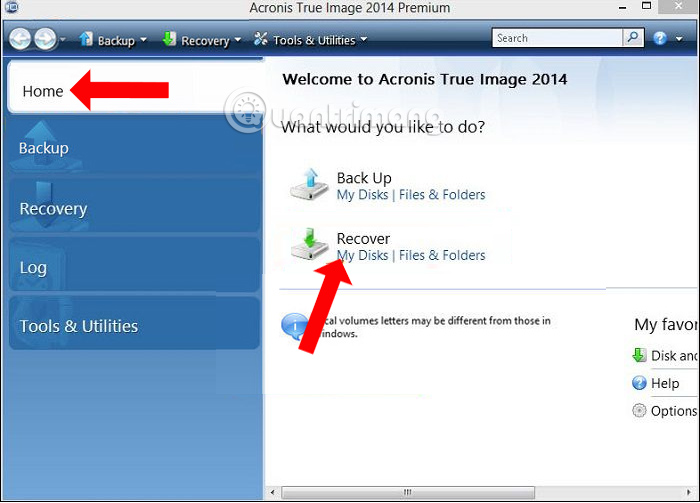
<p style="text-align: justify;">Khởi động phần mềm rồi truy cập giao diện chính của Acronis True Image. Tại đây, click vào&nbsp;<strong>tab Home</strong>&nbsp;ở bên trái giao diện. Sau đó nhìn sang bên phải&nbsp;<strong>phần Recover</strong>&nbsp;bạn nhấn vào&nbsp;<strong>My Disks</strong>.</p>

<div style="text-align: justify;">Virtual reality game development<br />
Ổ cứng</div>

<p style="text-align: justify;"><img alt="Giao diện ổ đĩa máy tính " data-adbro-processed="true" data-i="0" data-src="https://st.quantrimang.com/photos/image/2018/01/11/Acronis-True-Image-ghost-win-file-tib-Disk.jpg" data-was-processed="true" height="395" src="https://st.quantrimang.com/photos/image/2018/01/11/Acronis-True-Image-ghost-win-file-tib-Disk.jpg" width="550" /></p>

<p style="text-align: justify;"><strong>Bước 3:</strong></p>

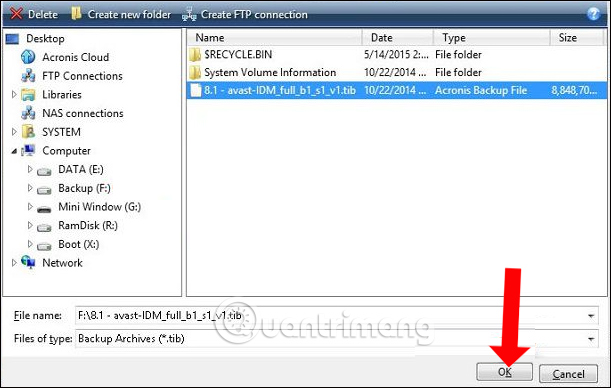
<p style="text-align: justify;">Xuất hiện giao diện trên máy tính. Nhấn vào&nbsp;<strong>nút Browse</strong>&nbsp;rồi tìm tới phân vùng chứa file ghost với&nbsp;<strong>định dạng .tib</strong>. Sau đó&nbsp;<strong>nhấn OK</strong>&nbsp;để xác nhận.</p>

<p style="text-align: justify;"><img alt="Tìm file ghost .tib " data-i="1" data-src="https://st.quantrimang.com/photos/image/2018/01/11/Acronis-True-Image-ghost-win-file-tib-file-ghost.jpg" data-was-processed="true" height="355" src="https://st.quantrimang.com/photos/image/2018/01/11/Acronis-True-Image-ghost-win-file-tib-file-ghost.jpg" width="560" /></p>

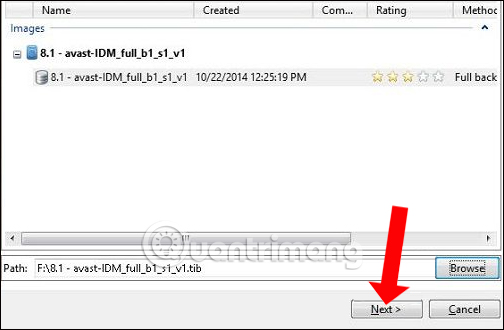
<p style="text-align: justify;">Sau đó nhấn tiếp&nbsp;<strong>nút Next</strong>&nbsp;để tiếp tục.</p>

<p style="text-align: justify;"><img alt="Nhấn Next" data-i="2" data-src="https://st.quantrimang.com/photos/image/2018/01/11/Acronis-True-Image-ghost-win-file-tib-tib.jpg" data-was-processed="true" height="330" src="https://st.quantrimang.com/photos/image/2018/01/11/Acronis-True-Image-ghost-win-file-tib-tib.jpg" width="504" /></p>

<p style="text-align: justify;"><strong>Bước 4:</strong></p>

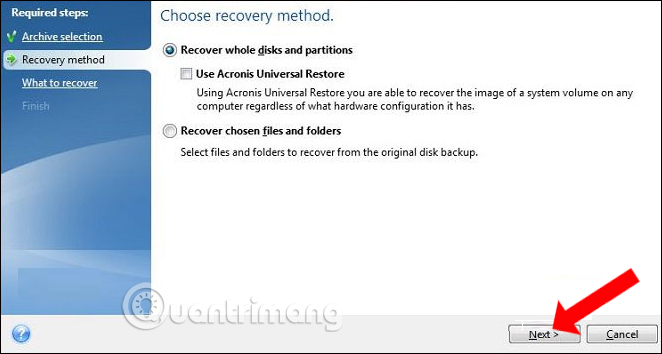
<p style="text-align: justify;">Trong&nbsp;<strong>phần Recover Method</strong>&nbsp;nhấn chọn&nbsp;<strong>Recover whole disk and partition</strong>, rồi nhấn tiếp&nbsp;<strong>Next</strong>&nbsp;ở bên dưới.</p>

<p style="text-align: justify;"><img alt="Khôi phục phân vùng " data-i="3" data-src="https://st.quantrimang.com/photos/image/2018/01/11/Acronis-True-Image-ghost-win-file-tib-khoi-phuc.jpg" data-was-processed="true" height="343" src="https://st.quantrimang.com/photos/image/2018/01/11/Acronis-True-Image-ghost-win-file-tib-khoi-phuc.jpg" width="640" /></p>

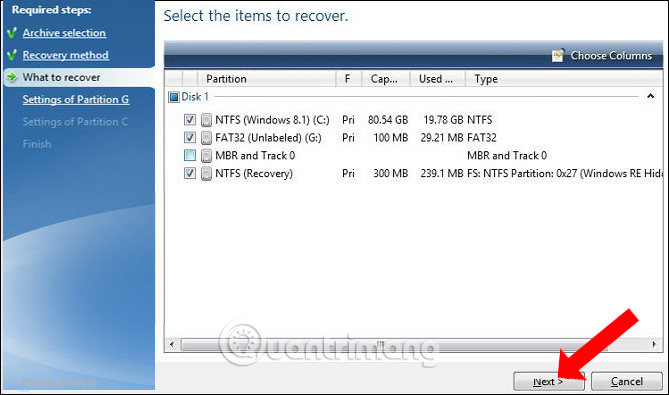
<p style="text-align: justify;"><strong>Bước 5:</strong></p>

<p style="text-align: justify;">Sau đó nhấn&nbsp;<strong>tích vào các phân vùng</strong>&nbsp;và không tích chọn vào MBR and Track 0, để đảm bảo toàn bộ dữ liệu trên&nbsp;&nbsp;ổ cứng&nbsp;được giữ lại.</p>

<p style="text-align: justify;"><img alt="Tích chọn vào các phân vùng " data-i="4" data-src="https://st.quantrimang.com/photos/image/2018/01/11/Acronis-True-Image-ghost-win-file-tib-phan-vung.jpg" data-was-processed="true" height="354" src="https://st.quantrimang.com/photos/image/2018/01/11/Acronis-True-Image-ghost-win-file-tib-phan-vung.jpg" width="600" /></p>

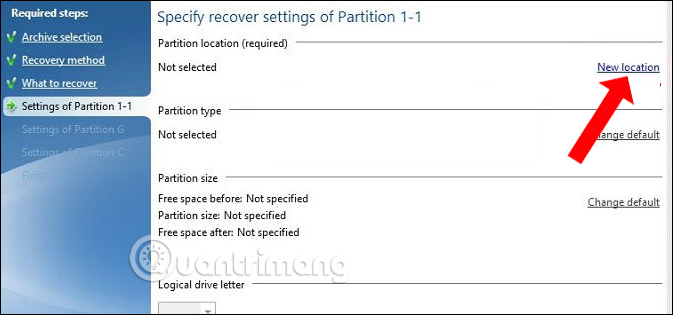
<p style="text-align: justify;"><strong>Bước 6:</strong></p>

<p style="text-align: justify;">Trong phần&nbsp;<strong>Settings of Partition 1-1</strong>&nbsp;bạn hãy nhấn vào&nbsp;<strong>New location</strong>&nbsp;để chọn phân vùng bung file ghost.</p>

<p style="text-align: justify;"><img alt="Chọn phân vùng bung file ghost " data-i="5" data-src="https://st.quantrimang.com/photos/image/2018/01/11/Acronis-True-Image-ghost-win-file-tib-phan-vung-1.jpg" data-was-processed="true" height="281" src="https://st.quantrimang.com/photos/image/2018/01/11/Acronis-True-Image-ghost-win-file-tib-phan-vung-1.jpg" width="600" /></p>

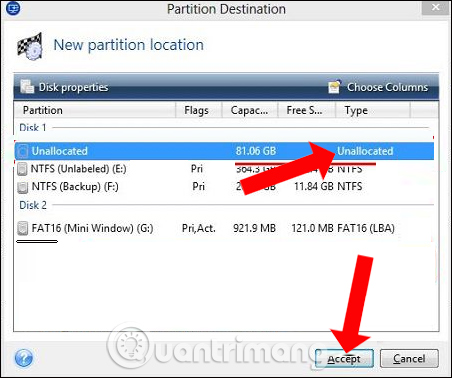
<p style="text-align: justify;"><strong>Bước 7:</strong></p>

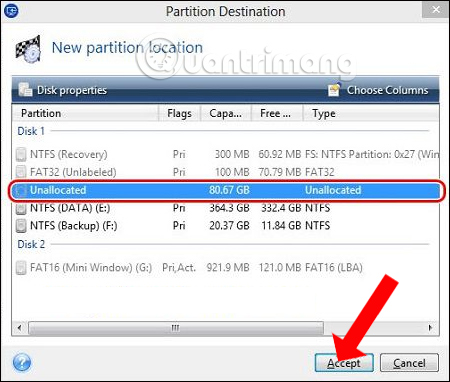
<p style="text-align: justify;">Xuất hiện giao diện mới nhấn vào&nbsp;<strong>phân vùng Unallocated</strong>&nbsp;mà bạn đã chuẩn bị trước đó, sau đó&nbsp;<strong>nhấn Accept</strong>&nbsp;để thực hiện.</p>

<p style="text-align: justify;"><img alt="Chọn phân vùng đã chuẩn bị" data-i="6" data-src="https://st.quantrimang.com/photos/image/2018/01/11/Acronis-True-Image-ghost-win-file-tib-phan-vung-1-chon.jpg" data-was-processed="true" height="378" src="https://st.quantrimang.com/photos/image/2018/01/11/Acronis-True-Image-ghost-win-file-tib-phan-vung-1-chon.jpg" width="452" /></p>

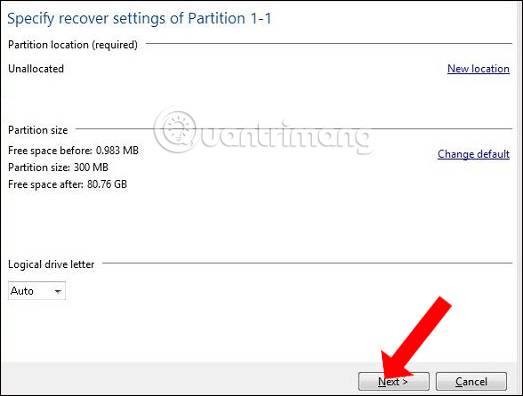
<p style="text-align: justify;">Tiếp tục&nbsp;<strong>nhấn Next</strong>&nbsp;ở giao diện bên dưới.</p>

<p style="text-align: justify;"><img alt="Nhấn nút Next" data-i="7" data-src="https://st.quantrimang.com/photos/image/2018/01/11/Acronis-True-Image-ghost-win-file-tib-phan-vung-1-next.jpg" data-was-processed="true" height="396" src="https://st.quantrimang.com/photos/image/2018/01/11/Acronis-True-Image-ghost-win-file-tib-phan-vung-1-next.jpg" width="523" /></p>

<p style="text-align: justify;"><strong>Bước 8:</strong></p>

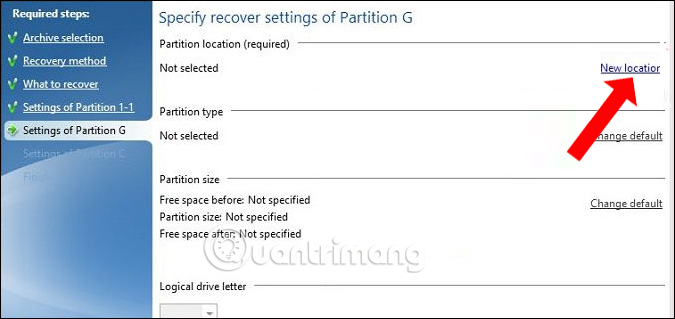
<p style="text-align: justify;">Tiếp tục nhấn chọn vào mục&nbsp;<strong>Settings of Partition G</strong>, chúng ta nhấn chọn vào&nbsp;<strong>New lacation</strong>&nbsp;như hình bên dưới.</p>

<p style="text-align: justify;"><img alt="Thiết lập phân vùng G" data-i="8" data-src="https://st.quantrimang.com/photos/image/2018/01/11/Acronis-True-Image-ghost-win-file-tib-phan-vung-G.jpg" data-was-processed="true" height="284" src="https://st.quantrimang.com/photos/image/2018/01/11/Acronis-True-Image-ghost-win-file-tib-phan-vung-G.jpg" width="600" /></p>

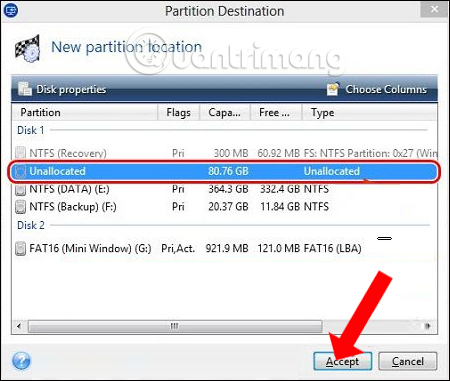
<p style="text-align: justify;">Xuất hiện giao diện mới, người dùng cũng nhấn vào&nbsp;<strong>phân vùng Unallocated</strong>&nbsp;sau đó&nbsp;<strong>nhấn Accept</strong>&nbsp;để chấp nhận.</p>

<p style="text-align: justify;"><img alt="Chọn phần vùng cho ổ G " data-i="9" data-src="https://st.quantrimang.com/photos/image/2018/01/11/Acronis-True-Image-ghost-win-file-tib-phan-vung-chon.jpg" data-was-processed="true" height="381" src="https://st.quantrimang.com/photos/image/2018/01/11/Acronis-True-Image-ghost-win-file-tib-phan-vung-chon.jpg" width="450" /></p>

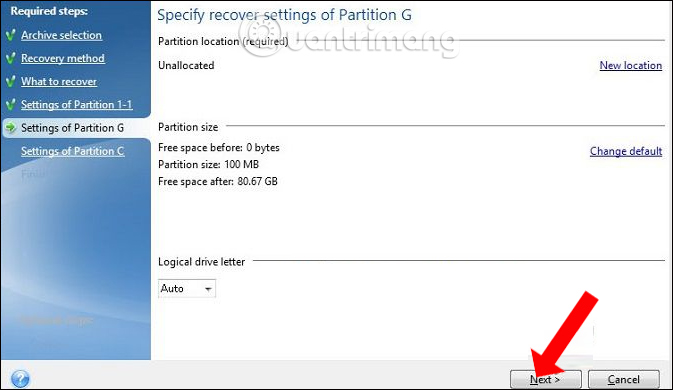
<p style="text-align: justify;">Cũng nhấn&nbsp;<strong>Next</strong>&nbsp;để tiếp tục.</p>

<p style="text-align: justify;"><img alt="Phân vùng cho ổ G" data-i="10" data-src="https://st.quantrimang.com/photos/image/2018/01/11/Acronis-True-Image-ghost-win-file-tib-phan-vung-G-tiep.jpg" data-was-processed="true" height="348" src="https://st.quantrimang.com/photos/image/2018/01/11/Acronis-True-Image-ghost-win-file-tib-phan-vung-G-tiep.jpg" width="600" /></p>

<p style="text-align: justify;"><strong>Bước 9:</strong></p>

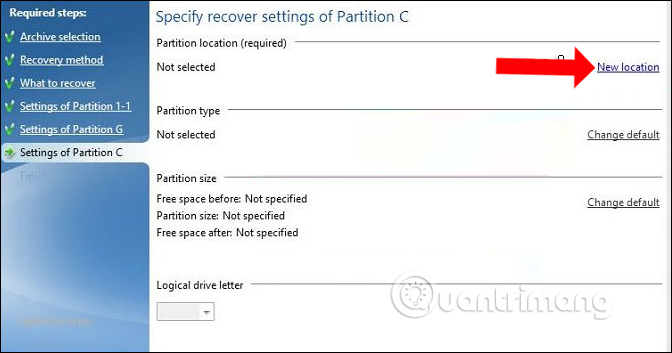
<p style="text-align: justify;">Chuyển sang mục&nbsp;<strong>Settings of Partition C</strong>&nbsp;và cũng chọn&nbsp;<strong>New location</strong>.</p>

<p style="text-align: justify;"><img alt="Thiết lập phân vùng " data-i="11" data-src="https://st.quantrimang.com/photos/image/2018/01/11/Acronis-True-Image-ghost-win-file-tib-phan-vung-C.jpg" data-was-processed="true" height="315" src="https://st.quantrimang.com/photos/image/2018/01/11/Acronis-True-Image-ghost-win-file-tib-phan-vung-C.jpg" width="600" /></p>

<p style="text-align: justify;">Nhấn chọn tiếp vào&nbsp;<strong>Unallocated</strong>&nbsp;và&nbsp;<strong>nhấn Accept</strong>.</p>

<p style="text-align: justify;"><img alt="Chọn phân vùng Unallocated" data-i="12" data-src="https://st.quantrimang.com/photos/image/2018/01/11/Acronis-True-Image-ghost-win-file-tib-phan-vung-C-chon.jpg" data-was-processed="true" height="382" src="https://st.quantrimang.com/photos/image/2018/01/11/Acronis-True-Image-ghost-win-file-tib-phan-vung-C-chon.jpg" width="450" /></p>

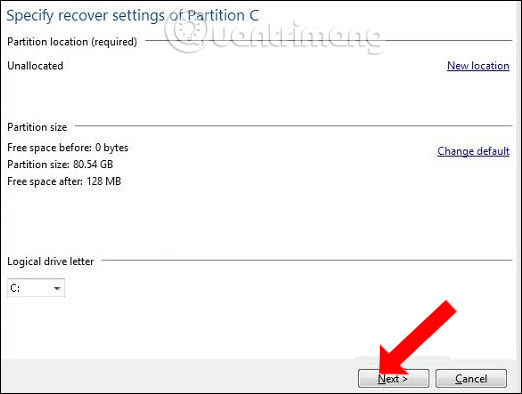
<p style="text-align: justify;">Sau đó chúng ta cũng&nbsp;<strong>nhấn Next</strong>&nbsp;ở bên dưới để tiếp tục.</p>

<p style="text-align: justify;"><img alt="Đồng ý phân vùng đã chọn" data-i="13" data-src="https://st.quantrimang.com/photos/image/2018/01/11/Acronis-True-Image-ghost-win-file-tib-phan-vung-C-accept.jpg" data-was-processed="true" height="394" src="https://st.quantrimang.com/photos/image/2018/01/11/Acronis-True-Image-ghost-win-file-tib-phan-vung-C-accept.jpg" width="522" /></p>

<p style="text-align: justify;"><strong>Bước 10:</strong></p>

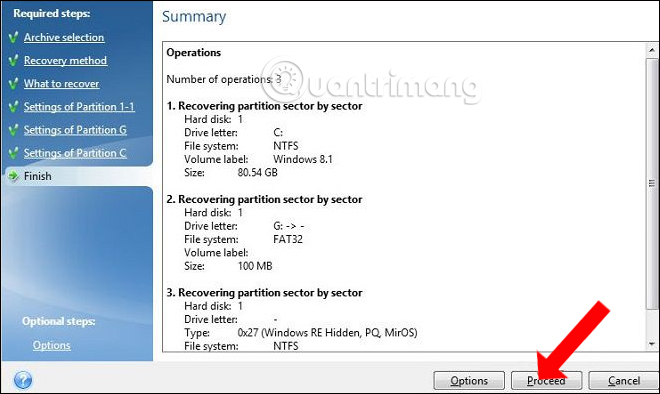
<p style="text-align: justify;">Sau khi đã thực hiện xong những bước trên, nhấn vào&nbsp;<strong>Proceed</strong>&nbsp;để bắt đầu bung file ghost ra phân vùng đã chọn.</p>

<p style="text-align: justify;"><img alt="Bung file ghost " data-i="14" data-src="https://st.quantrimang.com/photos/image/2018/01/11/Acronis-True-Image-ghost-win-file-tib-proceed.jpg" data-was-processed="true" height="358" src="https://st.quantrimang.com/photos/image/2018/01/11/Acronis-True-Image-ghost-win-file-tib-proceed.jpg" width="600" /></p>

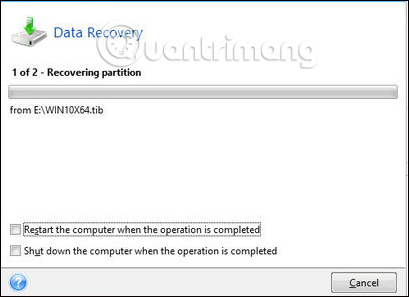
<p style="text-align: justify;">Quá trình bung file ghost sẽ có 2 tùy chọn khởi động lại máy hoặc tắt máy sau khi đã ghost xong. Chúng ta nhấn chọn vào 1 trong 2 lựa chọn rồi ngồi chờ quá trình bên trên hoàn thành là xong.</p>

<p style="text-align: justify;"><img alt="Khởi động lại máy tính" data-i="15" data-src="https://st.quantrimang.com/photos/image/2018/01/11/Acronis-True-Image-ghost-win-file-tib-restart.jpg" data-was-processed="true" height="297" src="https://st.quantrimang.com/photos/image/2018/01/11/Acronis-True-Image-ghost-win-file-tib-restart.jpg" width="409" /></p>

<p style="text-align: justify;">Như vậy chúng ta có thể ghost Windows với file ghost định dạng *.tib, bằng phần mềm Acronis True Image. Nếu bạn gặp vấn đề khi ghost Win bằng file *.gho truyền thống, thì có thể sử dụng file tib để ghost máy tính theo cách làm bên trên.</p>

<div style="text-align: justify;">&nbsp;</div>
		</div>
				<div id="author">
						<p>
				<strong>Nguồn tin:</strong>
				Quantrimang.com:
			</p>
		</div>
	</div>
	<div id="footer" class="clearfix">
		<div id="url">
			<strong>URL của bản tin này: </strong><a href="https://www.nguoicodonvn2008.info/vi/news/savefile/kien-thuc-may-tinh/cach-ghost-may-tinh-bang-file-tib-chuan-uefi-11147.html" title="Cách ghost máy tính bằng file &#42;.tib chuẩn UEFI">https://www.nguoicodonvn2008.info/vi/news/savefile/kien-thuc-may-tinh/cach-ghost-may-tinh-bang-file-tib-chuan-uefi-11147.html</a>

		</div>
		<div class="clear"></div>
		<div class="copyright">
			&copy; .&#x3A; Nguoicodonvn2008.info - Cõi lòng người cô đơn &#x3A;.
		</div>
		<div id="contact">
			<a href="mailto:admin@nguoicodonvn2008.info">admin@nguoicodonvn2008.info</a>
		</div>
	</div>
</div>
        <div id="timeoutsess" class="chromeframe">
            Bạn đã không sử dụng Site, <a onclick="timeoutsesscancel();" href="https://nguoicodonvn2008.info/#">Bấm vào đây để duy trì trạng thái đăng nhập</a>. Thời gian chờ: <span id="secField"> 60 </span> giây
        </div>
        <div id="openidResult" class="nv-alert" style="display:none"></div>
        <div id="openidBt" data-result="" data-redirect=""></div>
		</script>
		<div class="car-top">
  <span><img src="https://nguoicodonvn2008.info/themes/default/images/car.png" alt=""></span>
</div>
<script src="https://nguoicodonvn2008.info/assets/js/jquery/jquery.min.js"></script>
<script>var nv_base_siteurl="/",nv_lang_data="vi",nv_lang_interface="vi",nv_name_variable="nv",nv_fc_variable="op",nv_lang_variable="language",nv_module_name="news",nv_func_name="savefile",nv_is_user=0, nv_my_ofs=-4,nv_my_abbr="EDT",nv_cookie_prefix="nv4c_e856T",nv_check_pass_mstime=1738000,nv_area_admin=0,nv_safemode=0,theme_responsive=0,nv_recaptcha_ver=2,nv_recaptcha_sitekey="",nv_recaptcha_type="image",XSSsanitize=1;</script>
<script src="https://nguoicodonvn2008.info/assets/js/language/vi.js"></script>
<script src="https://nguoicodonvn2008.info/assets/js/DOMPurify/purify3.js"></script>
<script src="https://nguoicodonvn2008.info/assets/js/global.js"></script>
<script src="https://nguoicodonvn2008.info/assets/js/site.js"></script>
<script src="https://nguoicodonvn2008.info/themes/default/js/news.js"></script>
<script src="https://nguoicodonvn2008.info/themes/default/js/main.js"></script>
<script src="https://nguoicodonvn2008.info/themes/default/js/custom.js"></script>
<script type="application/ld+json">
        {
            "@context": "https://schema.org",
            "@type": "Organization",
            "url": "https://nguoicodonvn2008.info",
            "logo": "https://nguoicodonvn2008.info/uploads/angel.gif"
        }
        </script>
<script src="https://nguoicodonvn2008.info/themes/default/js/bootstrap.min.js"></script>
<script type="text/javascript">
var $scrolltop = $('.car-top');
$scrolltop.on('click', function () {
    $('html,body').animate({
        scrollTop: 0
    }, 800);
    $(this).addClass("car-run");
    setTimeout(function(){ $scrolltop.removeClass('car-run');}, 1000);
    return false;
});
$(window).on('scroll', function ()
{ 
    if($(window).scrollTop() >= 200)
    {
        $scrolltop.addClass("show");
        $scrolltop.addClass("car-down");
    }
    else
    {
       $scrolltop.removeClass("show");
       setTimeout(function(){ $scrolltop.removeClass('car-down');}, 300);
    }
});
</script>
</body>
</html>