<!DOCTYPE html>
    <html lang="vi" xmlns="http://www.w3.org/1999/xhtml" prefix="og: http://ogp.me/ns#">
    <head>
<title>Cách ghi slide thuyết trình ra đĩa CD</title>
<meta name="description" content="Cách ghi slide thuyết trình ra đĩa CD - Savefile - Tin Tức -...">
<meta name="author" content=".: Nguoicodonvn2008.info - Cõi lòng người cô đơn :.">
<meta name="copyright" content=".: Nguoicodonvn2008.info - Cõi lòng người cô đơn :. [admin@nguoicodonvn2008.info]">
<meta name="robots" content="index, archive, follow, noodp">
<meta name="googlebot" content="index,archive,follow,noodp">
<meta name="msnbot" content="all,index,follow">
<meta name="generator" content="NukeViet v4.5">
<meta http-equiv="Content-Type" content="text/html; charset=utf-8">
<meta property="og:title" content="Cách ghi slide thuyết trình ra đĩa CD">
<meta property="og:type" content="website">
<meta property="og:description" content="Savefile - Tin Tức - https&#x3A;&#x002F;&#x002F;www.nguoicodonvn2008.info&#x002F;vi&#x002F;news&#x002F;savefile&#x002F;kien-thuc-may-tinh&#x002F;cach-ghi-slide-thuyet-trinh-ra-dia-cd-5721.html">
<meta property="og:site_name" content=".&#x3A; Nguoicodonvn2008.info - Cõi lòng người cô đơn &#x3A;.">
<meta property="og:url" content="https://www.nguoicodonvn2008.info/vi/news/savefile/kien-thuc-may-tinh/cach-ghi-slide-thuyet-trinh-ra-dia-cd-5721.html">
<link rel="shortcut icon" href="https://nguoicodonvn2008.info/favicon.ico">
<link rel="canonical" href="https://www.nguoicodonvn2008.info/vi/news/savefile/kien-thuc-may-tinh/cach-ghi-slide-thuyet-trinh-ra-dia-cd-5721.html">
<link rel="alternate" href="https://nguoicodonvn2008.info/vi/news/rss/" title="Tin Tức" type="application/rss+xml">
<link rel="alternate" href="https://nguoicodonvn2008.info/vi/news/rss/karaoke-dual/" title="Tin Tức - Karaoke Dual" type="application/rss+xml">
<link rel="alternate" href="https://nguoicodonvn2008.info/vi/news/rss/nhac-tre/" title="Tin Tức - Nhạc trẻ" type="application/rss+xml">
<link rel="alternate" href="https://nguoicodonvn2008.info/vi/news/rss/tru-tinh/" title="Tin Tức - Trữ tình" type="application/rss+xml">
<link rel="alternate" href="https://nguoicodonvn2008.info/vi/news/rss/nuoc-ngoai/" title="Tin Tức - Nước ngoài" type="application/rss+xml">
<link rel="alternate" href="https://nguoicodonvn2008.info/vi/news/rss/remix/" title="Tin Tức - Remix" type="application/rss+xml">
<link rel="alternate" href="https://nguoicodonvn2008.info/vi/news/rss/tam-su-tinh-yeu/" title="Tin Tức - Tâm sự tình yêu" type="application/rss+xml">
<link rel="alternate" href="https://nguoicodonvn2008.info/vi/news/rss/tho-suu-tam/" title="Tin Tức - Thơ sưu tầm" type="application/rss+xml">
<link rel="alternate" href="https://nguoicodonvn2008.info/vi/news/rss/cuoc-song/" title="Tin Tức - Cuộc sống" type="application/rss+xml">
<link rel="alternate" href="https://nguoicodonvn2008.info/vi/news/rss/phan-mem/" title="Tin Tức - Phần mềm" type="application/rss+xml">
<link rel="alternate" href="https://nguoicodonvn2008.info/vi/news/rss/kien-thuc-may-tinh/" title="Tin Tức - Kiến thức máy tính" type="application/rss+xml">
<link rel="alternate" href="https://nguoicodonvn2008.info/vi/news/rss/hoc-tap/" title="Tin Tức - Học tập" type="application/rss+xml">
<link rel="alternate" href="https://nguoicodonvn2008.info/vi/news/rss/tai-lieu/" title="Tin Tức - Tài liệu" type="application/rss+xml">
<link rel="alternate" href="https://nguoicodonvn2008.info/vi/news/rss/de-thi/" title="Tin Tức - Đề thi" type="application/rss+xml">
<link rel="preload" as="style" href="https://nguoicodonvn2008.info/assets/css/font-awesome.min.css" type="text/css">
<link rel="preload" as="style" href="https://nguoicodonvn2008.info/themes/default/css/bootstrap.non-responsive.css" type="text/css">
<link rel="preload" as="style" href="https://nguoicodonvn2008.info/themes/default/css/style.css" type="text/css">
<link rel="preload" as="style" href="https://nguoicodonvn2008.info/themes/default/css/style.non-responsive.css" type="text/css">
<link rel="preload" as="style" href="https://nguoicodonvn2008.info/themes/default/css/news.css" type="text/css">
<link rel="preload" as="style" href="https://nguoicodonvn2008.info/themes/default/css/custom.css" type="text/css">
<link rel="preload" as="script" href="https://nguoicodonvn2008.info/assets/js/jquery/jquery.min.js" type="text/javascript">
<link rel="preload" as="script" href="https://nguoicodonvn2008.info/assets/js/language/vi.js" type="text/javascript">
<link rel="preload" as="script" href="https://nguoicodonvn2008.info/assets/js/DOMPurify/purify3.js" type="text/javascript">
<link rel="preload" as="script" href="https://nguoicodonvn2008.info/assets/js/global.js" type="text/javascript">
<link rel="preload" as="script" href="https://nguoicodonvn2008.info/assets/js/site.js" type="text/javascript">
<link rel="preload" as="script" href="https://nguoicodonvn2008.info/themes/default/js/news.js" type="text/javascript">
<link rel="preload" as="script" href="https://nguoicodonvn2008.info/themes/default/js/main.js" type="text/javascript">
<link rel="preload" as="script" href="https://nguoicodonvn2008.info/themes/default/js/custom.js" type="text/javascript">
<link rel="preload" as="script" href="https://nguoicodonvn2008.info/themes/default/js/bootstrap.min.js" type="text/javascript">
<link rel="stylesheet" href="https://nguoicodonvn2008.info/assets/css/font-awesome.min.css">
<link rel="stylesheet" href="https://nguoicodonvn2008.info/themes/default/css/bootstrap.non-responsive.css">
<link rel="stylesheet" href="https://nguoicodonvn2008.info/themes/default/css/style.css">
<link rel="stylesheet" href="https://nguoicodonvn2008.info/themes/default/css/style.non-responsive.css">
<link rel="StyleSheet" href="https://nguoicodonvn2008.info/themes/default/css/news.css">
<link rel="stylesheet" href="https://nguoicodonvn2008.info/themes/default/css/custom.css">
<style type="text/css">
	body{background: #fff;}
</style>
    </head>
    <body>
<div id="print">
	<div id="hd_print">
		<h2 class="pull-left">.&#x3A; Nguoicodonvn2008.info - Cõi lòng người cô đơn &#x3A;.</h2>
		<p class="pull-right"><a title=".&#x3A; Nguoicodonvn2008.info - Cõi lòng người cô đơn &#x3A;." href="https://nguoicodonvn2008.info/">https://nguoicodonvn2008.info</a></p>
	</div>
	<div class="clear"></div>
	<hr />
	<div id="content">
		<h1>Cách ghi slide thuyết trình ra đĩa CD</h1>
		<ul class="list-inline">
			<li>Thứ tư - 08/06/2022 00:23</li>
			<li class="hidden-print txtrequired"><em class="fa fa-print">&nbsp;</em><a title="In ra" href="javascript:;" onclick="window.print()">In ra</a></li>
			<li class="hidden-print txtrequired"><em class="fa fa-power-off">&nbsp;</em><a title="Đóng cửa sổ này" href="javascript:;" onclick="window.close()">Đóng cửa sổ này</a></li>
		</ul>
		<div class="clear"></div>
		<div id="hometext">
		</div>
				<div class="imghome">
			<img alt="Cách ghi slide thuyết trình ra đĩa CD" src="https://st.quantrimang.com/photos/image/2019/01/23/PowerPoint-ghi-slide-ra-dia-CD-13.jpg" width="460" class="img-thumbnail" />
		</div>
		<div class="clear"></div>
		<div id="bodytext" class="clearfix">
			<p style="text-align: justify;">Nếu bạn thường xuyên làm việc với slide thuyết trình PowerPoint thì chắc hẳn sẽ có nhu cầu ghi bài thuyết trình vào đĩa. Slide PowerPoint sẽ được burn vào đĩa và trình chiếu trên những máy tính khác nhau. Tuy nhiên vấn đề đặt ra ở đây đó là làm sao để giữ nguyên định dạng slide tài liệu cũng như font chữ đã sử dụng, khi chuyển sang máy tính khác để trình chiếu. Việc burn file video hay file âm thanh ra đĩa CD đơn giản hơn rất nhiều, nhưng với những slide tài liệu PowerPoint thì người dùng cần phải tiến hành tùy chỉnh lại thiết lập. Bài viết dưới đây sẽ hướng dẫn bạn đọc cách ghi slide PowerPoint ra đĩa CD. Bạn cần chuẩn bị đĩa trắng CD trước khi thực hiện.</p>

<div style="text-align: justify;">&nbsp;</div>

<h2 style="text-align: justify;">1. Hướng dẫn ghi slide ra CD trên PowerPoint 2007</h2>

<p style="text-align: justify;"><strong>Bước 1:</strong></p>

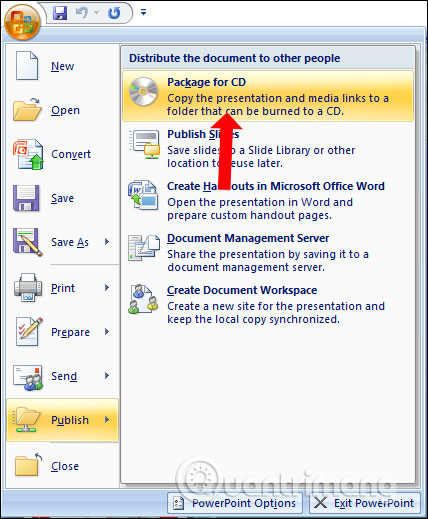
<p style="text-align: justify;">Tại giao diện bài thuyết trình người dùng nhấn chọn vào&nbsp;<strong>biểu tượng Office</strong>&nbsp;rồi chọn<strong>&nbsp;Publish</strong>, chọn tiếp vào&nbsp;<strong>Package for CD</strong>.</p>

<p style="text-align: justify;"><img alt="Nhấn Publish" data-i="0" data-src="https://st.quantrimang.com/photos/image/2019/01/23/PowerPoint-ghi-slide-ra-dia-CD-1.jpg" data-was-processed="true" height="519" src="https://st.quantrimang.com/photos/image/2019/01/23/PowerPoint-ghi-slide-ra-dia-CD-1.jpg" width="428" /></p>

<p style="text-align: justify;"><strong>Bước 2:</strong></p>

<p style="text-align: justify;">Hiển thị giao diện mới, nhấn vào Add Files nếu muốn thêm file PowerPoint khác vào đĩa. Tiếp tục nhấn chọn vào&nbsp;<strong>Options</strong>&nbsp;để tủy chỉnh lại chế độ ghi slide ra đĩa CD.</p>

<p style="text-align: justify;"><img alt="Nhấn Options" data-i="1" data-src="https://st.quantrimang.com/photos/image/2019/01/23/PowerPoint-ghi-slide-ra-dia-CD-2.jpg" data-was-processed="true" height="373" src="https://st.quantrimang.com/photos/image/2019/01/23/PowerPoint-ghi-slide-ra-dia-CD-2.jpg" width="515" /></p>

<p style="text-align: justify;"><strong>Bước 3:</strong></p>

<p style="text-align: justify;">Trong giao diện này phần Viewer Package sẽ có những mục lựa chọn như dưới đây.</p>

<ul>
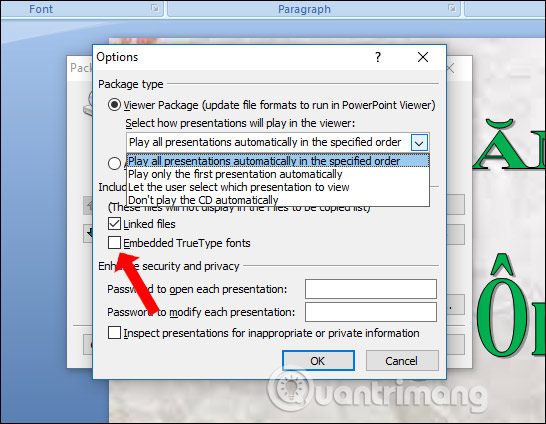
	<li style="text-align: justify;">Play all presentations automatically in specified order: tự động trình diễn các slide show theo thứ tự như khi soạn thảo.</li>
	<li style="text-align: justify;">Play only the first presentation automatically: chỉ tự động trình diễn slide show đầu tiên, còn các slide show khác sau đó bạn có thể thay đổi.</li>
	<li style="text-align: justify;">Let the user select which presentation to view: tự thao tác chọn file khi trình diễn.</li>
	<li style="text-align: justify;">Don’t play the CD automatically: không tự động phát slide khi bỏ CD vào máy tính.</li>
</ul>

<p style="text-align: justify;">Chúng ta để nguyên như PowerPoint đã thiết lập. Sau đó tích chọn tiếp vào&nbsp;<strong>Embedded TrueType Fonts</strong>&nbsp;để giữ nguyên định dạng slide. Cuối cùng nhấn OK.</p>

<p style="text-align: justify;"><img alt="Nhúng font chữ " data-i="2" data-src="https://st.quantrimang.com/photos/image/2019/01/23/PowerPoint-ghi-slide-ra-dia-CD-3.jpg" data-was-processed="true" height="424" src="https://st.quantrimang.com/photos/image/2019/01/23/PowerPoint-ghi-slide-ra-dia-CD-3.jpg" width="546" /></p>

<p style="text-align: justify;"><strong>Bước 4:</strong></p>

<p style="text-align: justify;">Quay lại giao diện Package for CD nhấn vào&nbsp;<strong>Copy to Folder</strong>&nbsp;để tạo thư mục riêng cho file sử dụng sau này, hoặc nhấn vào Copy to CD để ghi luôn vào ổ đĩa. Tốt nhất người dùng nên chọn Copy to Folder.</p>

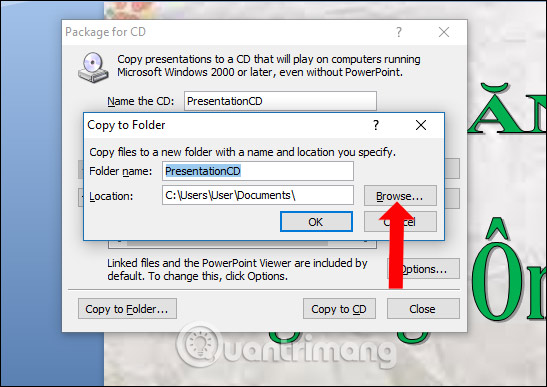
<p style="text-align: justify;">Hiển thị giao diện để tạo thư mục. Nhập tên vào phần&nbsp;<strong>Folder name</strong>&nbsp;và nhấn vào&nbsp;<strong>nút Browse</strong>&nbsp;để tìm tới thư mục lưu file PowerPoint. Nhấn OK để tiếp tục.</p>

<p style="text-align: justify;"><img alt="Tìm thư mục lưu" data-i="3" data-src="https://st.quantrimang.com/photos/image/2019/01/23/PowerPoint-ghi-slide-ra-dia-CD-4.jpg" data-was-processed="true" height="387" src="https://st.quantrimang.com/photos/image/2019/01/23/PowerPoint-ghi-slide-ra-dia-CD-4.jpg" width="547" /></p>

<p style="text-align: justify;"><strong>Bước 6:</strong></p>

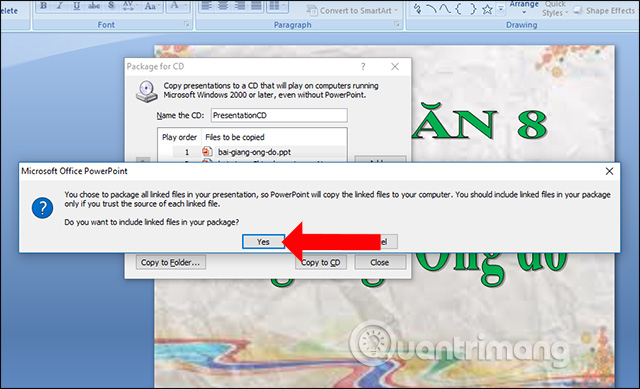
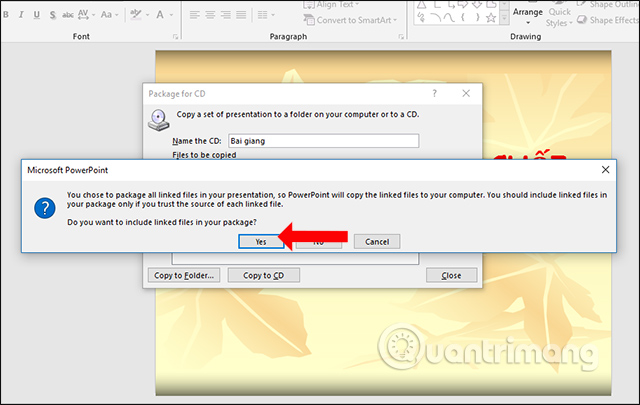
<p style="text-align: justify;">Hiển thị giao diện thông báo như hình nhấn&nbsp;<strong>Yes</strong>.</p>

<p style="text-align: justify;"><img alt="Thông báo" data-i="4" data-src="https://st.quantrimang.com/photos/image/2019/01/23/PowerPoint-ghi-slide-ra-dia-CD-5.jpg" data-was-processed="true" height="389" src="https://st.quantrimang.com/photos/image/2019/01/23/PowerPoint-ghi-slide-ra-dia-CD-5.jpg" width="640" /></p>

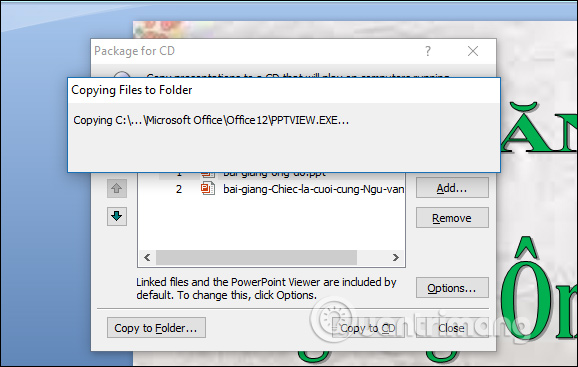
<p style="text-align: justify;">Quá trình đóng gói file sẽ tiến hành ngay sau đó.</p>

<p style="text-align: justify;"><img alt="Đóng gói file" data-i="5" data-src="https://st.quantrimang.com/photos/image/2019/01/23/PowerPoint-ghi-slide-ra-dia-CD-6.jpg" data-was-processed="true" height="367" src="https://st.quantrimang.com/photos/image/2019/01/23/PowerPoint-ghi-slide-ra-dia-CD-6.jpg" width="578" /></p>

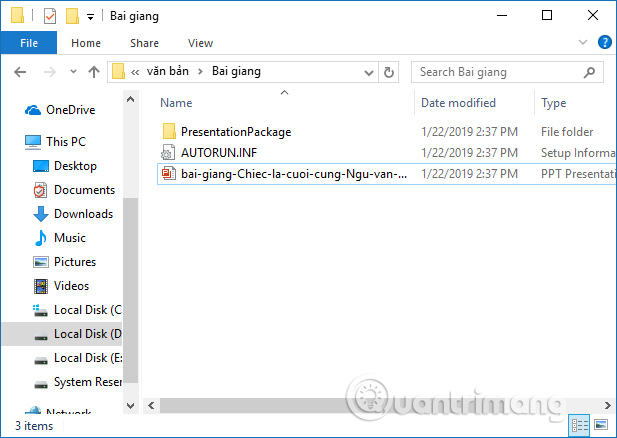
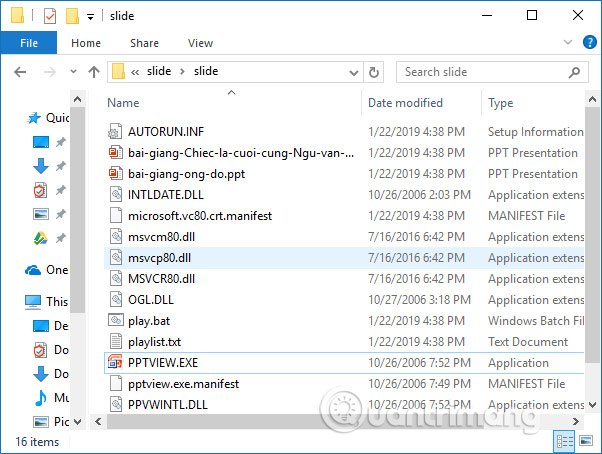
<p style="text-align: justify;">Tìm tới thư mục đã tạo để đóng gói file và sẽ thấy toàn bộ dữ liệu cần thiết để chúng ta burn ra đĩa để trình chiếu trên máy tính khác.</p>

<p style="text-align: justify;"><img alt="Thư mục slide" data-i="6" data-src="https://st.quantrimang.com/photos/image/2019/01/23/PowerPoint-ghi-slide-ra-dia-CD-7.jpg" data-was-processed="true" height="454" src="https://st.quantrimang.com/photos/image/2019/01/23/PowerPoint-ghi-slide-ra-dia-CD-7.jpg" width="602" /></p>

<h2 style="text-align: justify;">2. Hướng dẫn ghi đĩa CD slide PowerPoint 2010 trở lên</h2>

<p style="text-align: justify;"><strong>Bước 1:</strong></p>

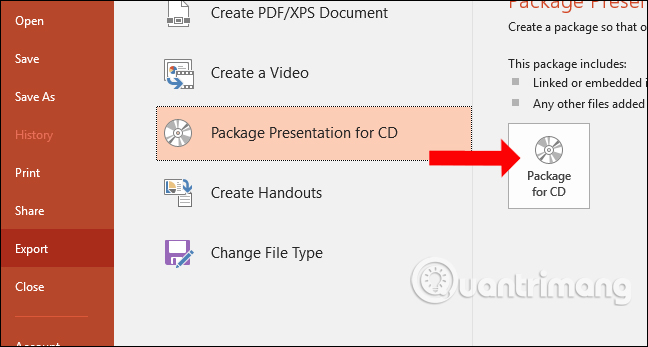
<p style="text-align: justify;">Tại slide thuyết trình nhấn vào mục File rồi nhấn tiếp vào<strong>&nbsp;Export</strong>. Nhấn tiếp vào&nbsp;<strong>Package Presentation for CD</strong>&nbsp;và chọn&nbsp;<strong>Package for CD</strong>&nbsp;ở bên cạnh.</p>

<p style="text-align: justify;"><img alt="Nhấn Export" data-i="7" data-src="https://st.quantrimang.com/photos/image/2019/01/23/PowerPoint-ghi-slide-ra-dia-CD-8.jpg" data-was-processed="true" height="343" src="https://st.quantrimang.com/photos/image/2019/01/23/PowerPoint-ghi-slide-ra-dia-CD-8.jpg" width="640" /></p>

<p style="text-align: justify;"><strong>Bước 2:</strong></p>

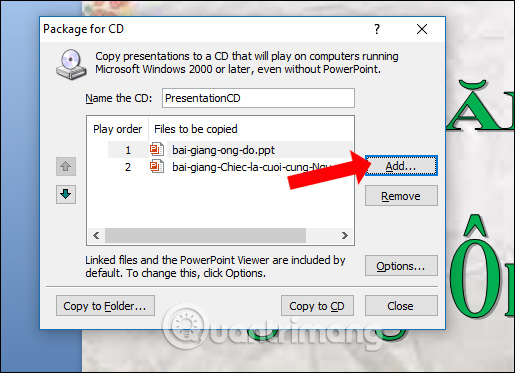
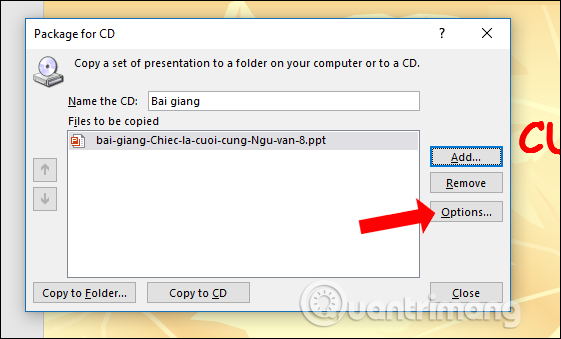
<p style="text-align: justify;">Cũng tại giao diện Package for CD, chúng ta nhập&nbsp;<strong>tên cho file tại Name the CD</strong>. Nếu như cần thêm nhiều file PowerPoint muốn ghi ra đĩa thì nhấn vào nút Add…</p>

<p style="text-align: justify;">Nếu không thì nhấn chọn vào&nbsp;<strong>mục Options</strong>&nbsp;để thiết lập.</p>

<p style="text-align: justify;"><img alt="Tùy chọn lưu slide" data-i="8" data-src="https://st.quantrimang.com/photos/image/2019/01/23/PowerPoint-ghi-slide-ra-dia-CD-9.jpg" data-was-processed="true" height="339" src="https://st.quantrimang.com/photos/image/2019/01/23/PowerPoint-ghi-slide-ra-dia-CD-9.jpg" width="561" /></p>

<p style="text-align: justify;"><strong>Bước 3:</strong></p>

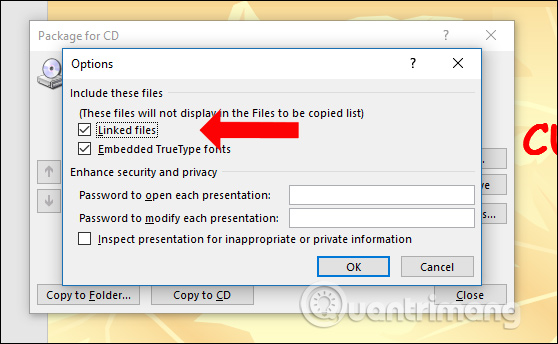
<p style="text-align: justify;">Trong giao diện này người dùng cần tích chọn vào 2 tùy chọn gồm:</p>

<ul>
	<li style="text-align: justify;">Linked files: Tập tin liên kết.</li>
	<li style="text-align: justify;">Embedded TrueType Fonts: Nhúng Font chữ.</li>
</ul>

<p style="text-align: justify;">Nếu muốn có mật khẩu thì nhập vào khung Password. Nhấn Ok để thiết lập.</p>

<p style="text-align: justify;"><img alt="Các tùy chọn" data-i="9" data-src="https://st.quantrimang.com/photos/image/2019/01/23/PowerPoint-ghi-slide-ra-dia-CD-10.jpg" data-was-processed="true" height="344" src="https://st.quantrimang.com/photos/image/2019/01/23/PowerPoint-ghi-slide-ra-dia-CD-10.jpg" width="558" /></p>

<p style="text-align: justify;"><strong>Bước 4:</strong></p>

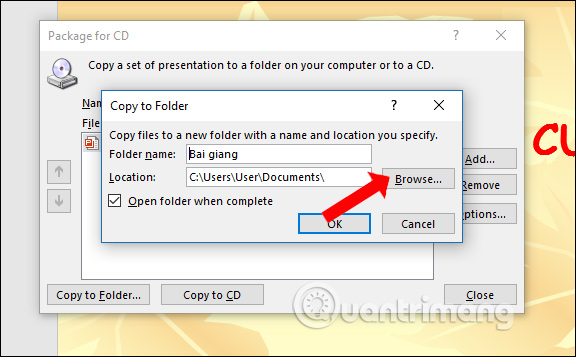
<p style="text-align: justify;">Quay lại giao diện ban đầu cũng có 2 lựa chọn là Copy to Folder và Copy to CD, nhấn vào&nbsp;<strong>Copy to Folder</strong>. Hiển thị giao diện mới, nhấn vào&nbsp;<strong>nút Browse</strong>&nbsp;để chọn vị trí xuất file và nhấn OK để tiến hành đóng gói file.</p>

<p style="text-align: justify;"><img alt="Nhấn Copy to Folder" data-i="10" data-src="https://st.quantrimang.com/photos/image/2019/01/23/PowerPoint-ghi-slide-ra-dia-CD-11.jpg" data-was-processed="true" height="357" src="https://st.quantrimang.com/photos/image/2019/01/23/PowerPoint-ghi-slide-ra-dia-CD-11.jpg" width="576" /></p>

<p style="text-align: justify;"><strong>Bước 5:</strong></p>

<p style="text-align: justify;">Khi hiển thị thông báo như dưới đây nhấn&nbsp;<strong>nút Yes</strong>&nbsp;để xác nhận.</p>

<p style="text-align: justify;"><img alt="Xác nhận đóng slide" data-i="11" data-src="https://st.quantrimang.com/photos/image/2019/01/23/PowerPoint-ghi-slide-ra-dia-CD-12.jpg" data-was-processed="true" height="405" src="https://st.quantrimang.com/photos/image/2019/01/23/PowerPoint-ghi-slide-ra-dia-CD-12.jpg" width="640" /></p>

<p style="text-align: justify;">Cuối cùng cũng mở thư mục đã lưu file đóng gói và thấy toàn bộ dữ liệu dùng để đóng gói slide PowerPoint.</p>

<p style="text-align: justify;"><img alt="Thư mục slide" data-i="12" data-src="https://st.quantrimang.com/photos/image/2019/01/23/PowerPoint-ghi-slide-ra-dia-CD-13.jpg" data-was-processed="true" height="438" src="https://st.quantrimang.com/photos/image/2019/01/23/PowerPoint-ghi-slide-ra-dia-CD-13.jpg" width="617" /></p>

<p style="text-align: justify;">Trên đây là các bước để đóng gói slide PowerPoint trước khi ghi ra đĩa CD hoặc tạo riêng một thư mục trên máy tính. Những thiết lập cho slide sẽ hạn chế được tình trạng lỗi font chữ, xung đột font chữ khi trình chiếu trên các máy tính khác.</p>
		</div>
				<div id="author">
						<p>
				<strong>Nguồn tin:</strong>
				Quantrimang.com
			</p>
		</div>
	</div>
	<div id="footer" class="clearfix">
		<div id="url">
			<strong>URL của bản tin này: </strong><a href="https://www.nguoicodonvn2008.info/vi/news/savefile/kien-thuc-may-tinh/cach-ghi-slide-thuyet-trinh-ra-dia-cd-5721.html" title="Cách ghi slide thuyết trình ra đĩa CD">https://www.nguoicodonvn2008.info/vi/news/savefile/kien-thuc-may-tinh/cach-ghi-slide-thuyet-trinh-ra-dia-cd-5721.html</a>

		</div>
		<div class="clear"></div>
		<div class="copyright">
			&copy; .&#x3A; Nguoicodonvn2008.info - Cõi lòng người cô đơn &#x3A;.
		</div>
		<div id="contact">
			<a href="mailto:admin@nguoicodonvn2008.info">admin@nguoicodonvn2008.info</a>
		</div>
	</div>
</div>
        <div id="timeoutsess" class="chromeframe">
            Bạn đã không sử dụng Site, <a onclick="timeoutsesscancel();" href="https://nguoicodonvn2008.info/#">Bấm vào đây để duy trì trạng thái đăng nhập</a>. Thời gian chờ: <span id="secField"> 60 </span> giây
        </div>
        <div id="openidResult" class="nv-alert" style="display:none"></div>
        <div id="openidBt" data-result="" data-redirect=""></div>
		</script>
		<div class="car-top">
  <span><img src="https://nguoicodonvn2008.info/themes/default/images/car.png" alt=""></span>
</div>
<div id="run_cronjobs" style="visibility:hidden;display:none;"><img alt="cron" src="/index.php?second=cronjobs&amp;p=i5c9GTnv" width="1" height="1" /></div>
<script src="https://nguoicodonvn2008.info/assets/js/jquery/jquery.min.js"></script>
<script>var nv_base_siteurl="/",nv_lang_data="vi",nv_lang_interface="vi",nv_name_variable="nv",nv_fc_variable="op",nv_lang_variable="language",nv_module_name="news",nv_func_name="savefile",nv_is_user=0, nv_my_ofs=-4,nv_my_abbr="EDT",nv_cookie_prefix="nv4c_e856T",nv_check_pass_mstime=1738000,nv_area_admin=0,nv_safemode=0,theme_responsive=0,nv_recaptcha_ver=2,nv_recaptcha_sitekey="",nv_recaptcha_type="image",XSSsanitize=1;</script>
<script src="https://nguoicodonvn2008.info/assets/js/language/vi.js"></script>
<script src="https://nguoicodonvn2008.info/assets/js/DOMPurify/purify3.js"></script>
<script src="https://nguoicodonvn2008.info/assets/js/global.js"></script>
<script src="https://nguoicodonvn2008.info/assets/js/site.js"></script>
<script src="https://nguoicodonvn2008.info/themes/default/js/news.js"></script>
<script src="https://nguoicodonvn2008.info/themes/default/js/main.js"></script>
<script src="https://nguoicodonvn2008.info/themes/default/js/custom.js"></script>
<script type="application/ld+json">
        {
            "@context": "https://schema.org",
            "@type": "Organization",
            "url": "https://nguoicodonvn2008.info",
            "logo": "https://nguoicodonvn2008.info/uploads/angel.gif"
        }
        </script>
<script src="https://nguoicodonvn2008.info/themes/default/js/bootstrap.min.js"></script>
<script type="text/javascript">
var $scrolltop = $('.car-top');
$scrolltop.on('click', function () {
    $('html,body').animate({
        scrollTop: 0
    }, 800);
    $(this).addClass("car-run");
    setTimeout(function(){ $scrolltop.removeClass('car-run');}, 1000);
    return false;
});
$(window).on('scroll', function ()
{ 
    if($(window).scrollTop() >= 200)
    {
        $scrolltop.addClass("show");
        $scrolltop.addClass("car-down");
    }
    else
    {
       $scrolltop.removeClass("show");
       setTimeout(function(){ $scrolltop.removeClass('car-down');}, 300);
    }
});
</script>
</body>
</html>