<!DOCTYPE html>
    <html lang="vi" xmlns="http://www.w3.org/1999/xhtml" prefix="og: http://ogp.me/ns#">
    <head>
<title>Cách ghi âm trên máy Mac</title>
<meta name="description" content="Cách ghi âm trên máy Mac - Savefile - Tin Tức - https&#x3A;&#x002F;&#x002F;www.nguoicodonvn2008.info&#x002F;vi&#x002F;news&#x002F;savefile&#x002F;kien-thuc-may-tinh&#x002F;cach-ghi-am-tren-may-mac-4418.html">
<meta name="author" content=".: Nguoicodonvn2008.info - Cõi lòng người cô đơn :.">
<meta name="copyright" content=".: Nguoicodonvn2008.info - Cõi lòng người cô đơn :. [admin@nguoicodonvn2008.info]">
<meta name="robots" content="index, archive, follow, noodp">
<meta name="googlebot" content="index,archive,follow,noodp">
<meta name="msnbot" content="all,index,follow">
<meta name="generator" content="NukeViet v4.5">
<meta http-equiv="Content-Type" content="text/html; charset=utf-8">
<meta property="og:title" content="Cách ghi âm trên máy Mac">
<meta property="og:type" content="website">
<meta property="og:description" content="Savefile - Tin Tức - https&#x3A;&#x002F;&#x002F;www.nguoicodonvn2008.info&#x002F;vi&#x002F;news&#x002F;savefile&#x002F;kien-thuc-may-tinh&#x002F;cach-ghi-am-tren-may-mac-4418.html">
<meta property="og:site_name" content=".&#x3A; Nguoicodonvn2008.info - Cõi lòng người cô đơn &#x3A;.">
<meta property="og:url" content="https://www.nguoicodonvn2008.info/vi/news/savefile/kien-thuc-may-tinh/cach-ghi-am-tren-may-mac-4418.html">
<link rel="shortcut icon" href="https://nguoicodonvn2008.info/favicon.ico">
<link rel="canonical" href="https://www.nguoicodonvn2008.info/vi/news/savefile/kien-thuc-may-tinh/cach-ghi-am-tren-may-mac-4418.html">
<link rel="alternate" href="https://nguoicodonvn2008.info/vi/news/rss/" title="Tin Tức" type="application/rss+xml">
<link rel="alternate" href="https://nguoicodonvn2008.info/vi/news/rss/karaoke-dual/" title="Tin Tức - Karaoke Dual" type="application/rss+xml">
<link rel="alternate" href="https://nguoicodonvn2008.info/vi/news/rss/nhac-tre/" title="Tin Tức - Nhạc trẻ" type="application/rss+xml">
<link rel="alternate" href="https://nguoicodonvn2008.info/vi/news/rss/tru-tinh/" title="Tin Tức - Trữ tình" type="application/rss+xml">
<link rel="alternate" href="https://nguoicodonvn2008.info/vi/news/rss/nuoc-ngoai/" title="Tin Tức - Nước ngoài" type="application/rss+xml">
<link rel="alternate" href="https://nguoicodonvn2008.info/vi/news/rss/remix/" title="Tin Tức - Remix" type="application/rss+xml">
<link rel="alternate" href="https://nguoicodonvn2008.info/vi/news/rss/tam-su-tinh-yeu/" title="Tin Tức - Tâm sự tình yêu" type="application/rss+xml">
<link rel="alternate" href="https://nguoicodonvn2008.info/vi/news/rss/tho-suu-tam/" title="Tin Tức - Thơ sưu tầm" type="application/rss+xml">
<link rel="alternate" href="https://nguoicodonvn2008.info/vi/news/rss/cuoc-song/" title="Tin Tức - Cuộc sống" type="application/rss+xml">
<link rel="alternate" href="https://nguoicodonvn2008.info/vi/news/rss/phan-mem/" title="Tin Tức - Phần mềm" type="application/rss+xml">
<link rel="alternate" href="https://nguoicodonvn2008.info/vi/news/rss/kien-thuc-may-tinh/" title="Tin Tức - Kiến thức máy tính" type="application/rss+xml">
<link rel="alternate" href="https://nguoicodonvn2008.info/vi/news/rss/hoc-tap/" title="Tin Tức - Học tập" type="application/rss+xml">
<link rel="alternate" href="https://nguoicodonvn2008.info/vi/news/rss/tai-lieu/" title="Tin Tức - Tài liệu" type="application/rss+xml">
<link rel="alternate" href="https://nguoicodonvn2008.info/vi/news/rss/de-thi/" title="Tin Tức - Đề thi" type="application/rss+xml">
<link rel="preload" as="style" href="https://nguoicodonvn2008.info/assets/css/font-awesome.min.css" type="text/css">
<link rel="preload" as="style" href="https://nguoicodonvn2008.info/themes/default/css/bootstrap.non-responsive.css" type="text/css">
<link rel="preload" as="style" href="https://nguoicodonvn2008.info/themes/default/css/style.css" type="text/css">
<link rel="preload" as="style" href="https://nguoicodonvn2008.info/themes/default/css/style.non-responsive.css" type="text/css">
<link rel="preload" as="style" href="https://nguoicodonvn2008.info/themes/default/css/news.css" type="text/css">
<link rel="preload" as="style" href="https://nguoicodonvn2008.info/themes/default/css/custom.css" type="text/css">
<link rel="preload" as="script" href="https://nguoicodonvn2008.info/assets/js/jquery/jquery.min.js" type="text/javascript">
<link rel="preload" as="script" href="https://nguoicodonvn2008.info/assets/js/language/vi.js" type="text/javascript">
<link rel="preload" as="script" href="https://nguoicodonvn2008.info/assets/js/DOMPurify/purify3.js" type="text/javascript">
<link rel="preload" as="script" href="https://nguoicodonvn2008.info/assets/js/global.js" type="text/javascript">
<link rel="preload" as="script" href="https://nguoicodonvn2008.info/assets/js/site.js" type="text/javascript">
<link rel="preload" as="script" href="https://nguoicodonvn2008.info/themes/default/js/news.js" type="text/javascript">
<link rel="preload" as="script" href="https://nguoicodonvn2008.info/themes/default/js/main.js" type="text/javascript">
<link rel="preload" as="script" href="https://nguoicodonvn2008.info/themes/default/js/custom.js" type="text/javascript">
<link rel="preload" as="script" href="https://nguoicodonvn2008.info/themes/default/js/bootstrap.min.js" type="text/javascript">
<link rel="stylesheet" href="https://nguoicodonvn2008.info/assets/css/font-awesome.min.css">
<link rel="stylesheet" href="https://nguoicodonvn2008.info/themes/default/css/bootstrap.non-responsive.css">
<link rel="stylesheet" href="https://nguoicodonvn2008.info/themes/default/css/style.css">
<link rel="stylesheet" href="https://nguoicodonvn2008.info/themes/default/css/style.non-responsive.css">
<link rel="StyleSheet" href="https://nguoicodonvn2008.info/themes/default/css/news.css">
<link rel="stylesheet" href="https://nguoicodonvn2008.info/themes/default/css/custom.css">
<style type="text/css">
	body{background: #fff;}
</style>
    </head>
    <body>
<div id="print">
	<div id="hd_print">
		<h2 class="pull-left">.&#x3A; Nguoicodonvn2008.info - Cõi lòng người cô đơn &#x3A;.</h2>
		<p class="pull-right"><a title=".&#x3A; Nguoicodonvn2008.info - Cõi lòng người cô đơn &#x3A;." href="https://nguoicodonvn2008.info/">https://nguoicodonvn2008.info</a></p>
	</div>
	<div class="clear"></div>
	<hr />
	<div id="content">
		<h1>Cách ghi âm trên máy Mac</h1>
		<ul class="list-inline">
			<li>Thứ hai - 12/07/2021 05:21</li>
			<li class="hidden-print txtrequired"><em class="fa fa-print">&nbsp;</em><a title="In ra" href="javascript:;" onclick="window.print()">In ra</a></li>
			<li class="hidden-print txtrequired"><em class="fa fa-power-off">&nbsp;</em><a title="Đóng cửa sổ này" href="javascript:;" onclick="window.close()">Đóng cửa sổ này</a></li>
		</ul>
		<div class="clear"></div>
		<div id="hometext">
		</div>
				<div class="imghome">
			<img alt="Cách ghi âm trên máy Mac" src="https://st.quantrimang.com/photos/image/2021/07/03/cach-ghi-am-tren-may-mac11.jpg" width="460" class="img-thumbnail" />
		</div>
		<div class="clear"></div>
		<div id="bodytext" class="clearfix">
			<p style="text-align: justify;">Bài viết này sẽ hướng dẫn bạn cách ghi âm trên máy Mac thông qua các công cụ Voice Memos, QuickTime và GarageBand.</p>

<h2 style="text-align: justify;">Cách ghi âm trên máy Mac bằng Voice Memos</h2>

<p style="text-align: justify;">Bạn đang tìm kiếm một ứng dụng ghi âm đơn giản, dễ sử dụng trên macOS? Khó có cái tên nào phù hợp hơn Voice Memos. Voice Memos rất đơn giản và cơ bản, nhưng hoàn hảo nếu bạn chỉ có nhu cầu ghi âm lời thoại của mình. Đây là cách sử dụng:</p>

<p style="text-align: justify;">1. Khởi chạy ứng dụng Voice Memos qua Launchpad, Finder hoặc Spotlight.</p>

<div style="text-align: justify;">&nbsp;</div>

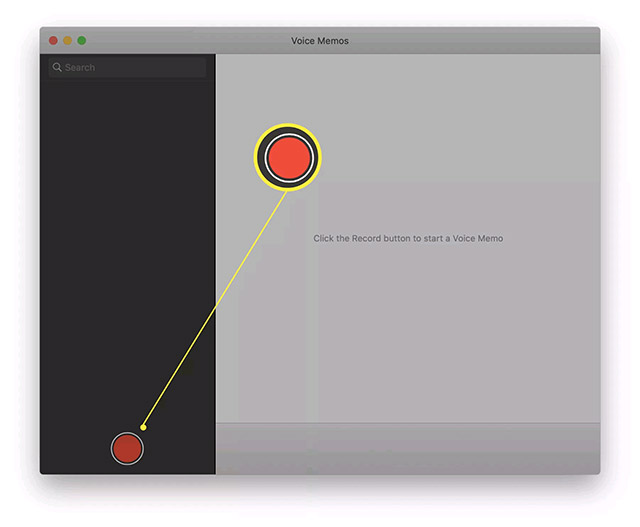
<p style="text-align: justify;">2. Nhấp vào vòng tròn màu đỏ trên giao diện ứng dụng để bắt đầu ghi âm giọng nói của mình.</p>

<p style="text-align: justify;"><img alt="Nhấp vào vòng tròn màu đỏ" data-i="0" data-src="https://st.quantrimang.com/photos/image/2021/07/03/cach-ghi-am-tren-may-mac1.jpg" data-was-processed="true" height="527" src="https://st.quantrimang.com/photos/image/2021/07/03/cach-ghi-am-tren-may-mac1.jpg" width="640" /></p>

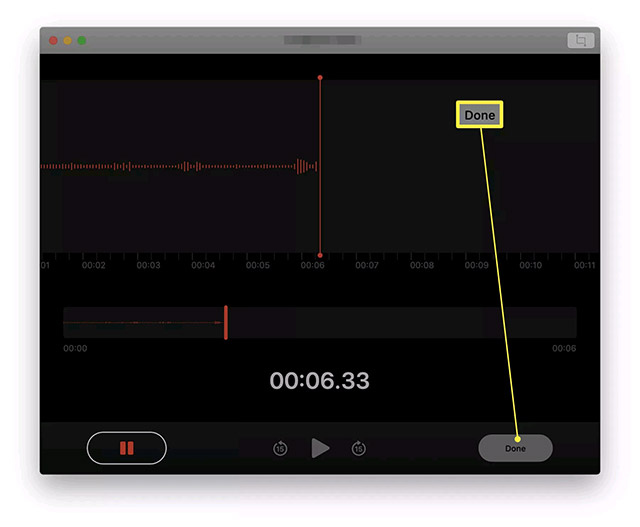
<p style="text-align: justify;">3. Nhấp vào&nbsp;<strong>Done</strong>&nbsp;khi bạn đã ghi âm xong.</p>

<p style="text-align: justify;"><img alt="Nhấp vào Done" data-i="1" data-src="https://st.quantrimang.com/photos/image/2021/07/03/cach-ghi-am-tren-may-mac2.jpg" data-was-processed="true" height="527" src="https://st.quantrimang.com/photos/image/2021/07/03/cach-ghi-am-tren-may-mac2.jpg" width="640" /></p>

<p style="text-align: justify;">(<strong>Mẹo:</strong>&nbsp;Bạn có thể nhấp vào biểu tượng tạm dừng ở bên trái để tạm hoãn quá trình ghi âm cũng như bắt đầu lại khi cần).</p>

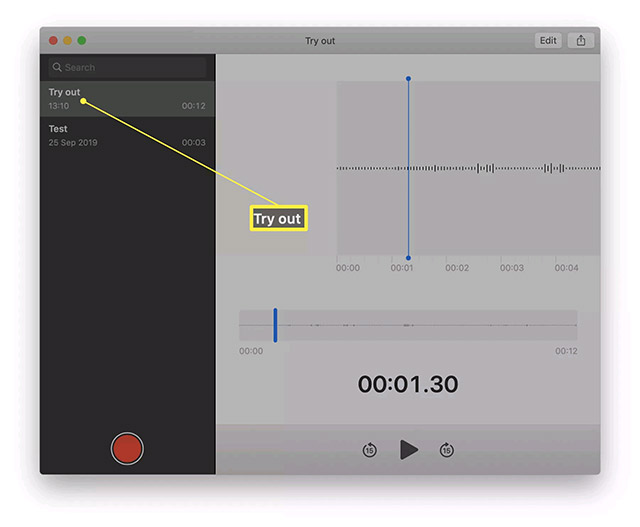
<p style="text-align: justify;">4. Bạn cũng có thể nhấp đúp vào file ghi âm vừa tạo để đổi tên cho nó.</p>

<p style="text-align: justify;"><img alt="Đổi tên file" data-i="2" data-src="https://st.quantrimang.com/photos/image/2021/07/03/cach-ghi-am-tren-may-mac3.jpg" data-was-processed="true" height="527" src="https://st.quantrimang.com/photos/image/2021/07/03/cach-ghi-am-tren-may-mac3.jpg" width="640" /></p>

<p style="text-align: justify;">File ghi âm của bạn sẽ tự động được chia sẻ qua iCloud tới các thiết bị Apple khác cùng liên kết. Để chia sẻ file ghi âm này đến một vị trí khác, hãy nhấp vào biểu tượng Share ở góc trên cùng bên phải màn hình.</p>

<h2 style="text-align: justify;">Cách ghi âm trên máy Mac với QuickTime</h2>

<p style="text-align: justify;">Nếu bạn muốn tìm một phương pháp nâng cao hơn một chút để ghi lại âm thanh với máy Mac của mình, QuickTime là giải pháp tích hợp tốt nhất hiện có. Ứng dụng này mang đến cho bạn nhiều quyền kiểm soát hơn đối với vị trí lưu tệp âm thanh, vì vậy nó sẽ hữu ích đối với bản ghi có thời lượng lớn. Đây là cách sử dụng.</p>

<p style="text-align: justify;">1. Mở ứng dụng QuickTime qua Launchpad, Finder hoặc Spotlight.</p>

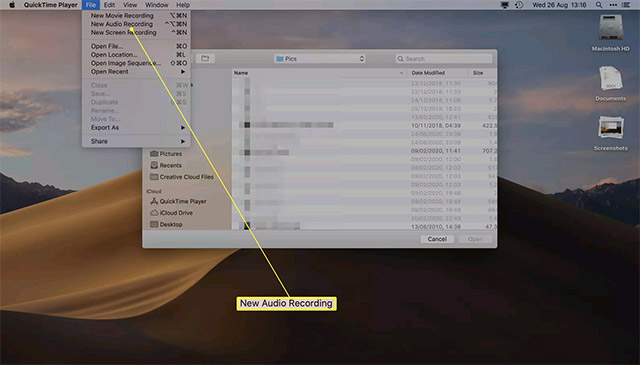
<p style="text-align: justify;">2. Nhấp vào<strong>&nbsp;File &gt; New Audio Recording</strong>.</p>

<p style="text-align: justify;"><img alt="Nhấp vào File &gt; New Audio Recording" data-i="3" data-src="https://st.quantrimang.com/photos/image/2021/07/03/cach-ghi-am-tren-may-mac4.jpg" data-was-processed="true" height="365" src="https://st.quantrimang.com/photos/image/2021/07/03/cach-ghi-am-tren-may-mac4.jpg" width="640" /></p>

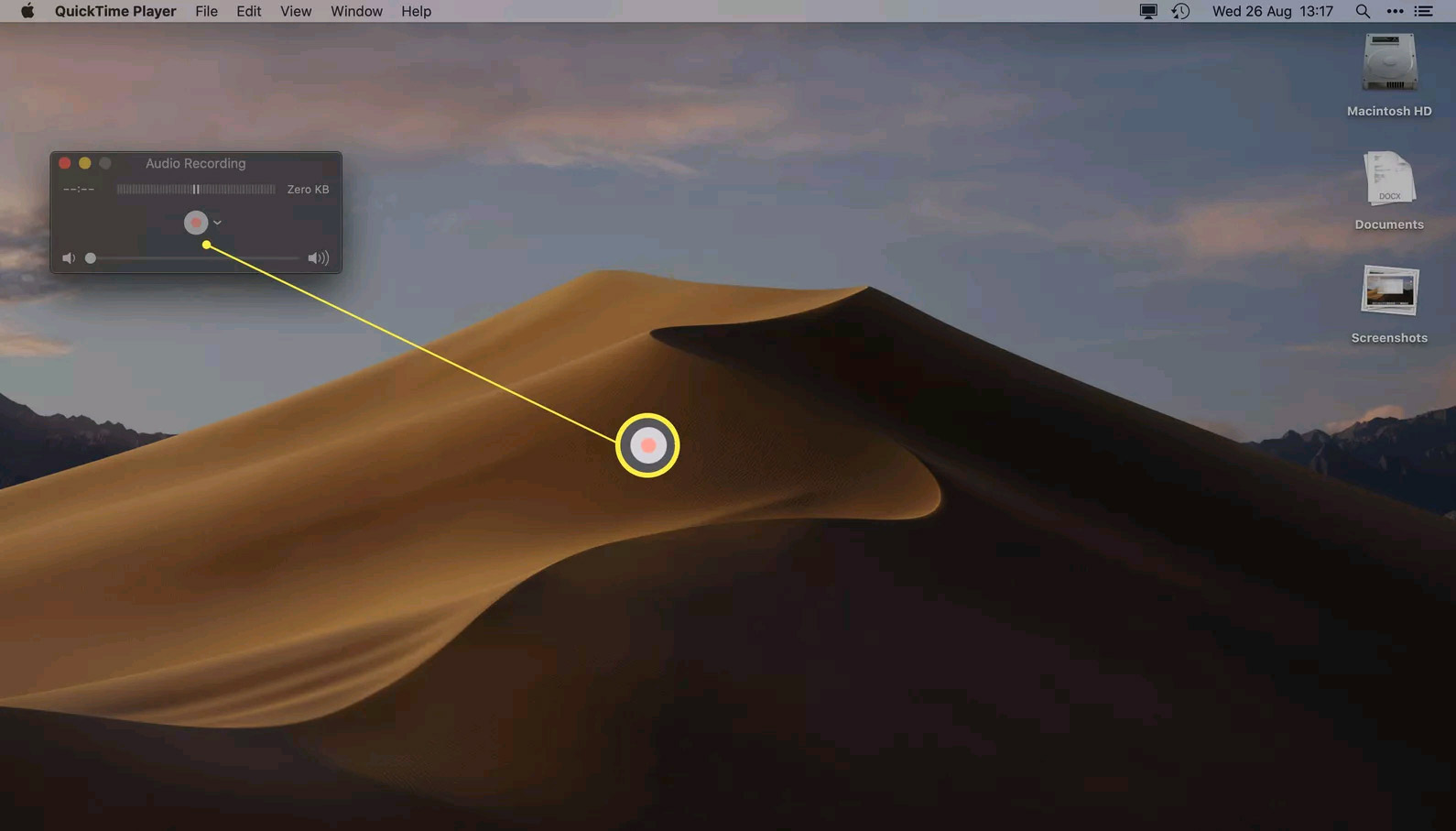
<p style="text-align: justify;">3. Nhấp vào vòng tròn màu đỏ ở giữa cửa sổ QuickTime để bắt đầu quá trình ghi âm.</p>

<p style="text-align: justify;"><img alt="Nhấp vào vòng tròn màu đỏ" data-i="4" data-src="https://st.quantrimang.com/photos/image/2021/07/03/cach-ghi-am-tren-may-mac5.jpg" data-was-processed="true" height="365" src="https://st.quantrimang.com/photos/image/2021/07/03/cach-ghi-am-tren-may-mac5.jpg" width="640" /></p>

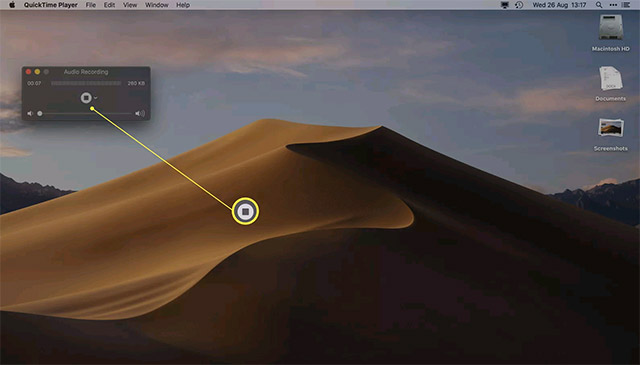
<p style="text-align: justify;">4. Nhấp vào hình vuông màu xám để dừng quá trình ghi.</p>

<p style="text-align: justify;"><img alt="Nhấp vào hình vuông màu xám" data-i="5" data-src="https://st.quantrimang.com/photos/image/2021/07/03/cach-ghi-am-tren-may-mac6.jpg" data-was-processed="true" height="365" src="https://st.quantrimang.com/photos/image/2021/07/03/cach-ghi-am-tren-may-mac6.jpg" width="640" /></p>

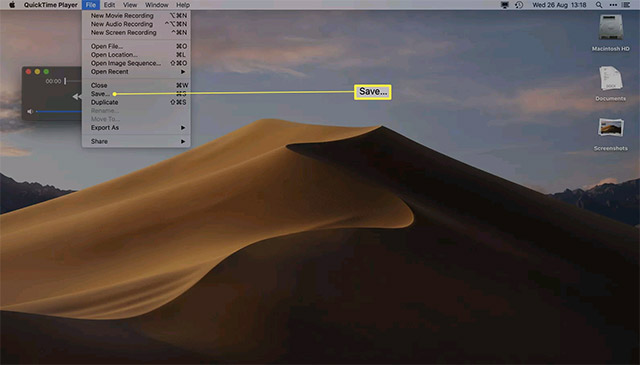
<p style="text-align: justify;">5. Bấm<strong>&nbsp;File &gt; Save</strong>&nbsp;để chọn tên cho bản ghi cũng như vị trí bạn muốn lưu.</p>

<p style="text-align: justify;"><img alt="Bấm File &gt; Save" data-i="6" data-src="https://st.quantrimang.com/photos/image/2021/07/03/cach-ghi-am-tren-may-mac7.jpg" data-was-processed="true" height="365" src="https://st.quantrimang.com/photos/image/2021/07/03/cach-ghi-am-tren-may-mac7.jpg" width="640" /></p>

<p style="text-align: justify;">Bản ghi hiện đã được lưu vào thư mục mà bạn chọn, và có thể được chia sẻ bằng các phương pháp thông thường.</p>

<h2 style="text-align: justify;">Cách ghi âm trên máy Mac với GarageBand</h2>

<p style="text-align: justify;">Tùy chọn có sẵn cuối cùng để ghi âm thanh trên Mac là sử dụng GarageBand. Công cụ này thường được cài đặt sẵn trên tất cả các hệ thống macOS, hoặc bạn cũng có thể tìm thấy nó miễn phí trên App Store. GarageBand cung cấp nhiều tính năng tiên tiến hơn 2 cái tên nêu trên vì nó là một ứng dụng ghi âm nhạc. Đây là cách ghi âm với GarageBand.</p>

<p style="text-align: justify;">1. Mở ứng dụng GarageBand qua Launchpad, Finder hoặc Spotlight.</p>

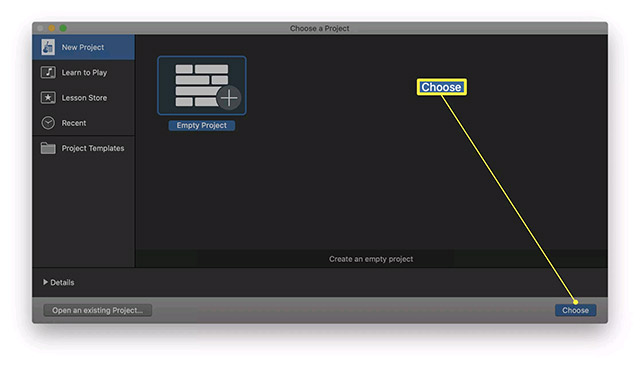
<p style="text-align: justify;">2. Nhấp vào&nbsp;<strong>Choose</strong>&nbsp;để mở một dự án mới.</p>

<p style="text-align: justify;"><img alt="Nhấp vào Choose" data-i="7" data-src="https://st.quantrimang.com/photos/image/2021/07/03/cach-ghi-am-tren-may-mac8.jpg" data-was-processed="true" height="366" src="https://st.quantrimang.com/photos/image/2021/07/03/cach-ghi-am-tren-may-mac8.jpg" width="640" /></p>

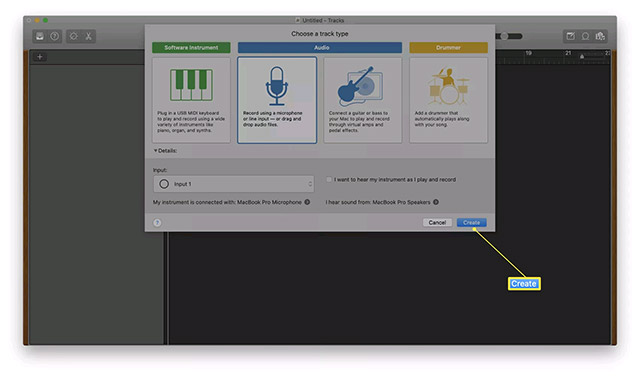
<p style="text-align: justify;">3. Nhấp vào&nbsp;<strong>Audio &gt; Record</strong>.</p>

<p style="text-align: justify;">4. Nhấp vào&nbsp;<strong>Create</strong>.</p>

<p style="text-align: justify;"><img alt="Nhấp vào Create" data-i="8" data-src="https://st.quantrimang.com/photos/image/2021/07/03/cach-ghi-am-tren-may-mac9.jpg" data-was-processed="true" height="376" src="https://st.quantrimang.com/photos/image/2021/07/03/cach-ghi-am-tren-may-mac9.jpg" width="640" /></p>

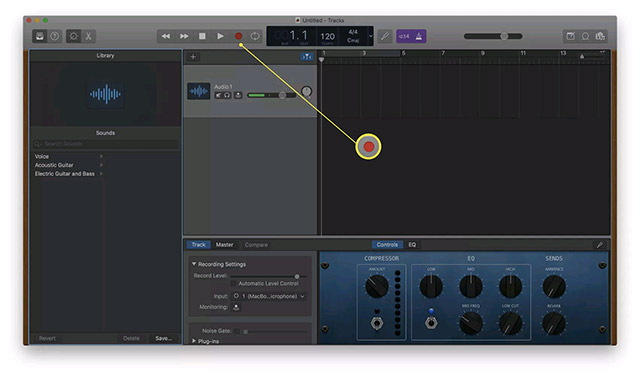
<p style="text-align: justify;">5. Nhấp vào&nbsp;<strong>Record</strong>.</p>

<p style="text-align: justify;"><img alt="Nhấp vào Record" data-i="9" data-src="https://st.quantrimang.com/photos/image/2021/07/03/cach-ghi-am-tren-may-mac10.jpg" data-was-processed="true" height="376" src="https://st.quantrimang.com/photos/image/2021/07/03/cach-ghi-am-tren-may-mac10.jpg" width="640" /></p>

<p style="text-align: justify;">(<strong>Mẹo:</strong>&nbsp;Nếu bạn muốn thay đổi nguồn đầu vào của mình, chẳng hạn như trường hợp có nhiều micro, có thể nhấp vào Input ở cuối màn hình và chọn thiết bị phù hợp).</p>

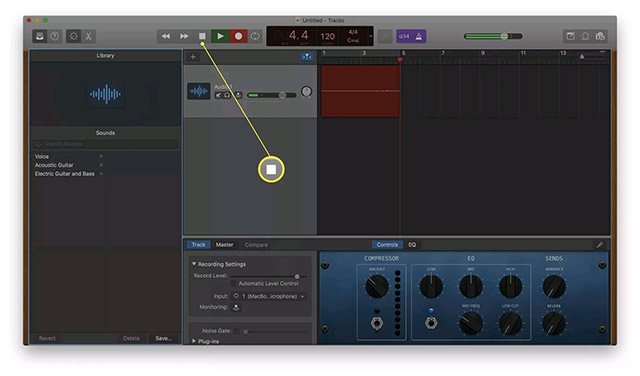
<p style="text-align: justify;">6. Nhấp vào&nbsp;<strong>Stop</strong>&nbsp;để dừng quá trình ghi.</p>

<p style="text-align: justify;"><img alt="Nhấp vào Stop để dừng quá trình ghi" data-i="10" data-src="https://st.quantrimang.com/photos/image/2021/07/03/cach-ghi-am-tren-may-mac11.jpg" data-was-processed="true" height="376" src="https://st.quantrimang.com/photos/image/2021/07/03/cach-ghi-am-tren-may-mac11.jpg" width="640" /></p>

<p style="text-align: justify;">7. Nhấp vào&nbsp;<strong>File &gt; Save</strong>&nbsp;để lưu tệp, hoặc nhấp vào Share để chia sẻ trực tiếp.</p>
		</div>
				<div id="author">
						<p>
				<strong>Nguồn tin:</strong>
				Quantrimang.com
			</p>
		</div>
	</div>
	<div id="footer" class="clearfix">
		<div id="url">
			<strong>URL của bản tin này: </strong><a href="https://www.nguoicodonvn2008.info/vi/news/savefile/kien-thuc-may-tinh/cach-ghi-am-tren-may-mac-4418.html" title="Cách ghi âm trên máy Mac">https://www.nguoicodonvn2008.info/vi/news/savefile/kien-thuc-may-tinh/cach-ghi-am-tren-may-mac-4418.html</a>

		</div>
		<div class="clear"></div>
		<div class="copyright">
			&copy; .&#x3A; Nguoicodonvn2008.info - Cõi lòng người cô đơn &#x3A;.
		</div>
		<div id="contact">
			<a href="mailto:admin@nguoicodonvn2008.info">admin@nguoicodonvn2008.info</a>
		</div>
	</div>
</div>
        <div id="timeoutsess" class="chromeframe">
            Bạn đã không sử dụng Site, <a onclick="timeoutsesscancel();" href="https://nguoicodonvn2008.info/#">Bấm vào đây để duy trì trạng thái đăng nhập</a>. Thời gian chờ: <span id="secField"> 60 </span> giây
        </div>
        <div id="openidResult" class="nv-alert" style="display:none"></div>
        <div id="openidBt" data-result="" data-redirect=""></div>
		</script>
		<div class="car-top">
  <span><img src="https://nguoicodonvn2008.info/themes/default/images/car.png" alt=""></span>
</div>
<script src="https://nguoicodonvn2008.info/assets/js/jquery/jquery.min.js"></script>
<script>var nv_base_siteurl="/",nv_lang_data="vi",nv_lang_interface="vi",nv_name_variable="nv",nv_fc_variable="op",nv_lang_variable="language",nv_module_name="news",nv_func_name="savefile",nv_is_user=0, nv_my_ofs=-4,nv_my_abbr="EDT",nv_cookie_prefix="nv4c_e856T",nv_check_pass_mstime=1738000,nv_area_admin=0,nv_safemode=0,theme_responsive=0,nv_recaptcha_ver=2,nv_recaptcha_sitekey="",nv_recaptcha_type="image",XSSsanitize=1;</script>
<script src="https://nguoicodonvn2008.info/assets/js/language/vi.js"></script>
<script src="https://nguoicodonvn2008.info/assets/js/DOMPurify/purify3.js"></script>
<script src="https://nguoicodonvn2008.info/assets/js/global.js"></script>
<script src="https://nguoicodonvn2008.info/assets/js/site.js"></script>
<script src="https://nguoicodonvn2008.info/themes/default/js/news.js"></script>
<script src="https://nguoicodonvn2008.info/themes/default/js/main.js"></script>
<script src="https://nguoicodonvn2008.info/themes/default/js/custom.js"></script>
<script type="application/ld+json">
        {
            "@context": "https://schema.org",
            "@type": "Organization",
            "url": "https://nguoicodonvn2008.info",
            "logo": "https://nguoicodonvn2008.info/uploads/angel.gif"
        }
        </script>
<script src="https://nguoicodonvn2008.info/themes/default/js/bootstrap.min.js"></script>
<script type="text/javascript">
var $scrolltop = $('.car-top');
$scrolltop.on('click', function () {
    $('html,body').animate({
        scrollTop: 0
    }, 800);
    $(this).addClass("car-run");
    setTimeout(function(){ $scrolltop.removeClass('car-run');}, 1000);
    return false;
});
$(window).on('scroll', function ()
{ 
    if($(window).scrollTop() >= 200)
    {
        $scrolltop.addClass("show");
        $scrolltop.addClass("car-down");
    }
    else
    {
       $scrolltop.removeClass("show");
       setTimeout(function(){ $scrolltop.removeClass('car-down');}, 300);
    }
});
</script>
</body>
</html>