<!DOCTYPE html>
    <html lang="vi" xmlns="http://www.w3.org/1999/xhtml" prefix="og: http://ogp.me/ns#">
    <head>
<title>Cách fix lỗi menu thả xuống File Explorer Windows 11</title>
<meta name="description" content="Cách fix lỗi menu thả xuống File Explorer Windows 11 - Savefile - Tin Tức -...">
<meta name="author" content=".: Nguoicodonvn2008.info - Cõi lòng người cô đơn :.">
<meta name="copyright" content=".: Nguoicodonvn2008.info - Cõi lòng người cô đơn :. [admin@nguoicodonvn2008.info]">
<meta name="robots" content="index, archive, follow, noodp">
<meta name="googlebot" content="index,archive,follow,noodp">
<meta name="msnbot" content="all,index,follow">
<meta name="generator" content="NukeViet v4.5">
<meta http-equiv="Content-Type" content="text/html; charset=utf-8">
<meta property="og:title" content="Cách fix lỗi menu thả xuống File Explorer Windows 11">
<meta property="og:type" content="website">
<meta property="og:description" content="Savefile - Tin Tức - https&#x3A;&#x002F;&#x002F;www.nguoicodonvn2008.info&#x002F;vi&#x002F;news&#x002F;savefile&#x002F;kien-thuc-may-tinh&#x002F;cach-fix-loi-menu-tha-xuong-file-explorer-windows-11-10038.html">
<meta property="og:site_name" content=".&#x3A; Nguoicodonvn2008.info - Cõi lòng người cô đơn &#x3A;.">
<meta property="og:url" content="https://www.nguoicodonvn2008.info/vi/news/savefile/kien-thuc-may-tinh/cach-fix-loi-menu-tha-xuong-file-explorer-windows-11-10038.html">
<link rel="shortcut icon" href="https://nguoicodonvn2008.info/favicon.ico">
<link rel="canonical" href="https://www.nguoicodonvn2008.info/vi/news/savefile/kien-thuc-may-tinh/cach-fix-loi-menu-tha-xuong-file-explorer-windows-11-10038.html">
<link rel="alternate" href="https://nguoicodonvn2008.info/vi/news/rss/" title="Tin Tức" type="application/rss+xml">
<link rel="alternate" href="https://nguoicodonvn2008.info/vi/news/rss/karaoke-dual/" title="Tin Tức - Karaoke Dual" type="application/rss+xml">
<link rel="alternate" href="https://nguoicodonvn2008.info/vi/news/rss/nhac-tre/" title="Tin Tức - Nhạc trẻ" type="application/rss+xml">
<link rel="alternate" href="https://nguoicodonvn2008.info/vi/news/rss/tru-tinh/" title="Tin Tức - Trữ tình" type="application/rss+xml">
<link rel="alternate" href="https://nguoicodonvn2008.info/vi/news/rss/nuoc-ngoai/" title="Tin Tức - Nước ngoài" type="application/rss+xml">
<link rel="alternate" href="https://nguoicodonvn2008.info/vi/news/rss/remix/" title="Tin Tức - Remix" type="application/rss+xml">
<link rel="alternate" href="https://nguoicodonvn2008.info/vi/news/rss/tam-su-tinh-yeu/" title="Tin Tức - Tâm sự tình yêu" type="application/rss+xml">
<link rel="alternate" href="https://nguoicodonvn2008.info/vi/news/rss/tho-suu-tam/" title="Tin Tức - Thơ sưu tầm" type="application/rss+xml">
<link rel="alternate" href="https://nguoicodonvn2008.info/vi/news/rss/cuoc-song/" title="Tin Tức - Cuộc sống" type="application/rss+xml">
<link rel="alternate" href="https://nguoicodonvn2008.info/vi/news/rss/phan-mem/" title="Tin Tức - Phần mềm" type="application/rss+xml">
<link rel="alternate" href="https://nguoicodonvn2008.info/vi/news/rss/kien-thuc-may-tinh/" title="Tin Tức - Kiến thức máy tính" type="application/rss+xml">
<link rel="alternate" href="https://nguoicodonvn2008.info/vi/news/rss/hoc-tap/" title="Tin Tức - Học tập" type="application/rss+xml">
<link rel="alternate" href="https://nguoicodonvn2008.info/vi/news/rss/tai-lieu/" title="Tin Tức - Tài liệu" type="application/rss+xml">
<link rel="alternate" href="https://nguoicodonvn2008.info/vi/news/rss/de-thi/" title="Tin Tức - Đề thi" type="application/rss+xml">
<link rel="preload" as="style" href="https://nguoicodonvn2008.info/assets/css/font-awesome.min.css" type="text/css">
<link rel="preload" as="style" href="https://nguoicodonvn2008.info/themes/default/css/bootstrap.non-responsive.css" type="text/css">
<link rel="preload" as="style" href="https://nguoicodonvn2008.info/themes/default/css/style.css" type="text/css">
<link rel="preload" as="style" href="https://nguoicodonvn2008.info/themes/default/css/style.non-responsive.css" type="text/css">
<link rel="preload" as="style" href="https://nguoicodonvn2008.info/themes/default/css/news.css" type="text/css">
<link rel="preload" as="style" href="https://nguoicodonvn2008.info/themes/default/css/custom.css" type="text/css">
<link rel="preload" as="script" href="https://nguoicodonvn2008.info/assets/js/jquery/jquery.min.js" type="text/javascript">
<link rel="preload" as="script" href="https://nguoicodonvn2008.info/assets/js/language/vi.js" type="text/javascript">
<link rel="preload" as="script" href="https://nguoicodonvn2008.info/assets/js/DOMPurify/purify3.js" type="text/javascript">
<link rel="preload" as="script" href="https://nguoicodonvn2008.info/assets/js/global.js" type="text/javascript">
<link rel="preload" as="script" href="https://nguoicodonvn2008.info/assets/js/site.js" type="text/javascript">
<link rel="preload" as="script" href="https://nguoicodonvn2008.info/themes/default/js/news.js" type="text/javascript">
<link rel="preload" as="script" href="https://nguoicodonvn2008.info/themes/default/js/main.js" type="text/javascript">
<link rel="preload" as="script" href="https://nguoicodonvn2008.info/themes/default/js/custom.js" type="text/javascript">
<link rel="preload" as="script" href="https://nguoicodonvn2008.info/themes/default/js/bootstrap.min.js" type="text/javascript">
<link rel="stylesheet" href="https://nguoicodonvn2008.info/assets/css/font-awesome.min.css">
<link rel="stylesheet" href="https://nguoicodonvn2008.info/themes/default/css/bootstrap.non-responsive.css">
<link rel="stylesheet" href="https://nguoicodonvn2008.info/themes/default/css/style.css">
<link rel="stylesheet" href="https://nguoicodonvn2008.info/themes/default/css/style.non-responsive.css">
<link rel="StyleSheet" href="https://nguoicodonvn2008.info/themes/default/css/news.css">
<link rel="stylesheet" href="https://nguoicodonvn2008.info/themes/default/css/custom.css">
<style type="text/css">
	body{background: #fff;}
</style>
    </head>
    <body>
<div id="print">
	<div id="hd_print">
		<h2 class="pull-left">.&#x3A; Nguoicodonvn2008.info - Cõi lòng người cô đơn &#x3A;.</h2>
		<p class="pull-right"><a title=".&#x3A; Nguoicodonvn2008.info - Cõi lòng người cô đơn &#x3A;." href="https://nguoicodonvn2008.info/">https://nguoicodonvn2008.info</a></p>
	</div>
	<div class="clear"></div>
	<hr />
	<div id="content">
		<h1>Cách fix lỗi menu thả xuống File Explorer Windows 11</h1>
		<ul class="list-inline">
			<li>Thứ sáu - 21/03/2025 23:13</li>
			<li class="hidden-print txtrequired"><em class="fa fa-print">&nbsp;</em><a title="In ra" href="javascript:;" onclick="window.print()">In ra</a></li>
			<li class="hidden-print txtrequired"><em class="fa fa-power-off">&nbsp;</em><a title="Đóng cửa sổ này" href="javascript:;" onclick="window.close()">Đóng cửa sổ này</a></li>
		</ul>
		<div class="clear"></div>
		<div id="hometext">
		</div>
				<div class="imghome">
			<img alt="Cách fix lỗi menu thả xuống File Explorer Windows 11" src="https://st.quantrimang.com/photos/image/2025/03/20/fix-menu-tha-xuong-File-Explorer-8.jpg" width="460" class="img-thumbnail" />
		</div>
		<div class="clear"></div>
		<div id="bodytext" class="clearfix">
			<p style="text-align: justify;">File Explorer có menu thả xuống để bạn tùy chỉnh File Explorer khi cần. Việc lỗi menu thả xuống tuy không phổ biến nhưng khi gặp phải sẽ ảnh hưởng tới việc tùy chỉnh File Explorer. Có rất nhiều nguyên nhân gây ra lỗi menu thả xuống trên File Explorer&nbsp;&nbsp;Windows&nbsp;11. Dưới đây là hướng dẫn fix lỗi menu thả xuống File Explorer Windows 11.</p>

<h2 style="text-align: justify;">Hướng dẫn fix lỗi menu thả xuống File Explorer</h2>

<h3 style="text-align: justify;">Gỡ bản cập nhật trên Windows</h3>

<p style="text-align: justify;">Các bản cập nhật Windows gần đây (đặc biệt là bản phát hành 24H2) gây ra lỗi giao diện người dùng, từ đó có thể là nguyên nhân dẫn tới việc lỗi menu thả xuống trên File Explorer.</p>

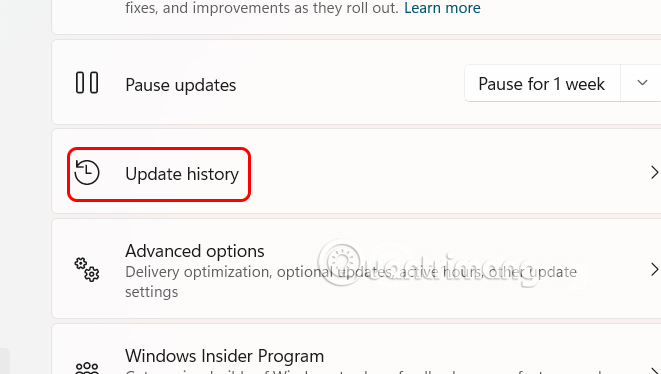
<p style="text-align: justify;">Bạn nhấn tổ hợp phím&nbsp;<strong>Windows + I</strong>, sau đó nhấn vào&nbsp;<strong>mục Windows Update</strong>&nbsp;ở cạnh trái. Nhìn sang giao diện bên cạnh&nbsp;<strong>nhấn Update history</strong>.</p>

<p style="text-align: justify;"><img alt="Update history Windows 11" data-i="0" data-src="https://st.quantrimang.com/photos/image/2025/03/20/fix-menu-tha-xuong-File-Explorer-1.jpg" data-was-processed="true" height="339" src="https://st.quantrimang.com/photos/image/2025/03/20/fix-menu-tha-xuong-File-Explorer-1.jpg" width="600" /></p>

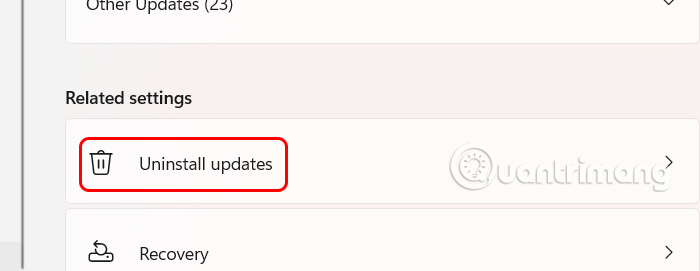
<p style="text-align: justify;">Hiển thị giao diện mới chúng ta<strong>&nbsp;nhấn chọn Uninstall updates</strong>&nbsp;để xóa bản cập nhật. Chuyển sang giao diện Control Panel, chúng ta nhấp chuột phải vào bản cập nhật và chọn Uninstall.</p>

<p style="text-align: justify;"><img alt="Uninstall updates Windows 11" data-i="1" data-src="https://st.quantrimang.com/photos/image/2025/03/20/fix-menu-tha-xuong-File-Explorer-2.jpg" data-was-processed="true" height="248" src="https://st.quantrimang.com/photos/image/2025/03/20/fix-menu-tha-xuong-File-Explorer-2.jpg" width="640" /></p>

<h3 style="text-align: justify;">Khôi phục lại bản update trước đó</h3>

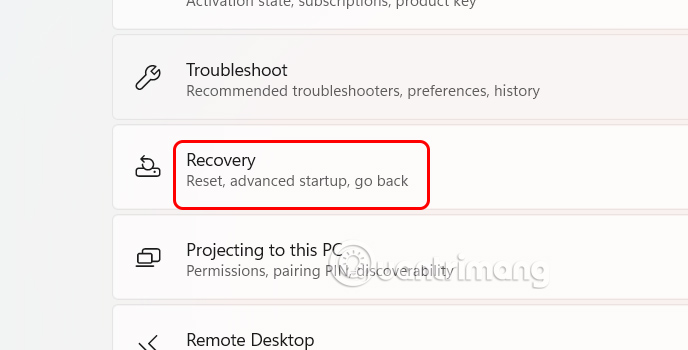
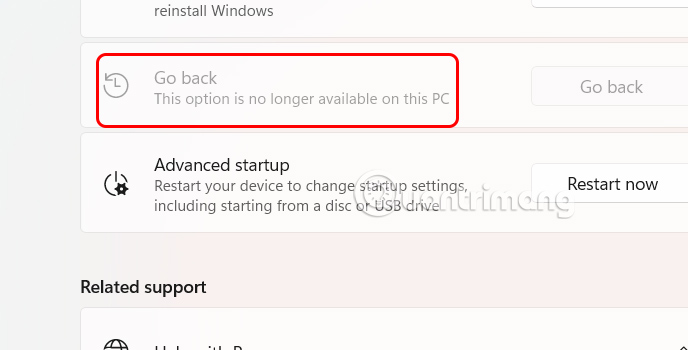
<p style="text-align: justify;">Chúng ta cũng cần truy cập vào Settings trên Windows, sau đó nhấn<strong>&nbsp;Windows Update &gt; Update History &gt; Recovery</strong>.</p>

<p style="text-align: justify;"><img alt="Recovery updates Windows 11" data-adbro-processed="true" data-i="2" data-src="https://st.quantrimang.com/photos/image/2025/03/20/fix-menu-tha-xuong-File-Explorer-3.jpg" data-was-processed="true" height="305" src="https://st.quantrimang.com/photos/image/2025/03/20/fix-menu-tha-xuong-File-Explorer-3.jpg" width="600" /></p>

<p style="text-align: justify;">Nhấn tiếp vào<strong>&nbsp;Go back</strong>&nbsp;để quay lại bản update trước đó trên&nbsp;<a data-google-interstitial="false" data-google-vignette="false" href="https://quantrimang.com/cong-nghe/cach-fix-loi-menu-tha-xuong-file-explorer-windows-11-208099#">&nbsp;máy tính</a>.</p>

<p style="text-align: justify;"><img alt="Quay lại bản update trên Windows 11" data-i="3" data-src="https://st.quantrimang.com/photos/image/2025/03/20/fix-menu-tha-xuong-File-Explorer-4.jpg" data-was-processed="true" height="305" src="https://st.quantrimang.com/photos/image/2025/03/20/fix-menu-tha-xuong-File-Explorer-4.jpg" width="600" /></p>

<h3 style="text-align: justify;">Điều chỉnh tỷ lệ hiển thị</h3>

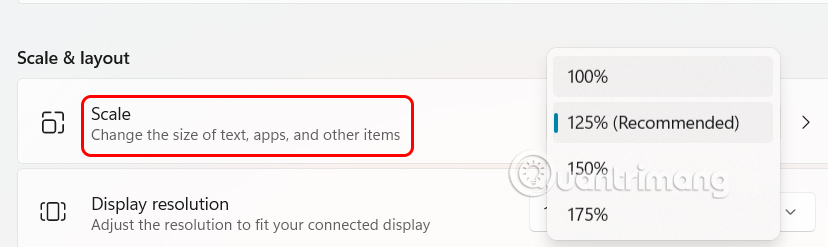
<p style="text-align: justify;">Cài đặt tỷ lệ không chính xác có thể khiến menu mở không đúng cách hoặc mở ngoài màn hình.</p>

<p style="text-align: justify;">Bạn nhấn chuột phải vào màn hình rồi chọn&nbsp;<strong>Display settings</strong>. Sau đó trong&nbsp;<strong>mục Scale &amp; layout</strong>&nbsp;bạn&nbsp;<strong>chọn 100%</strong>.</p>

<p style="text-align: justify;"><img alt="Điều chỉnh tỷ lệ hiển thị Windows 11" data-i="4" data-src="https://st.quantrimang.com/photos/image/2025/03/20/fix-menu-tha-xuong-File-Explorer-5.jpg" data-was-processed="true" height="191" src="https://st.quantrimang.com/photos/image/2025/03/20/fix-menu-tha-xuong-File-Explorer-5.jpg" width="640" /></p>

<h3 style="text-align: justify;">Xóa lịch sử File Explorer</h3>

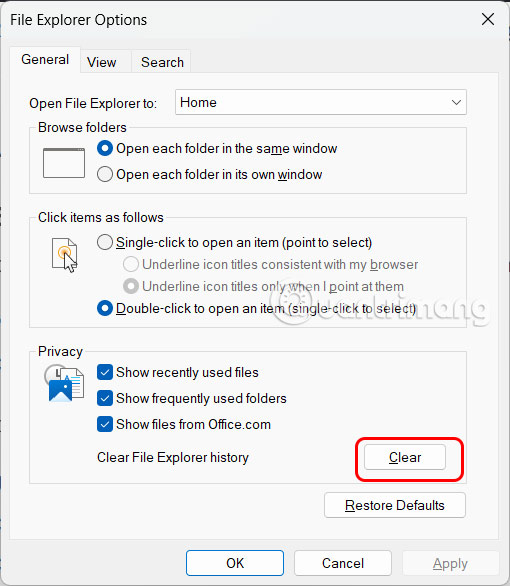
<p style="text-align: justify;">Chúng ta&nbsp;<strong>nhập từ khóa File Options trong thanh tìm kiếm</strong>&nbsp;trên Windows, sau đó ở&nbsp;<strong>tab General</strong>&nbsp;bạn nhấn vào&nbsp;<strong>mục Privacy</strong>&nbsp;rồi&nbsp;<strong>nhấn nút Clear tại Clear File Explorer</strong>.</p>

<p style="text-align: justify;"><img alt="Xóa lịch sử File Explorer Windows 11" data-i="5" data-src="https://st.quantrimang.com/photos/image/2025/03/20/fix-menu-tha-xuong-File-Explorer-6.jpg" data-was-processed="true" height="552" src="https://st.quantrimang.com/photos/image/2025/03/20/fix-menu-tha-xuong-File-Explorer-6.jpg" width="480" /></p>

<h3 style="text-align: justify;">Đặt lại cài đặt File Explorer</h3>

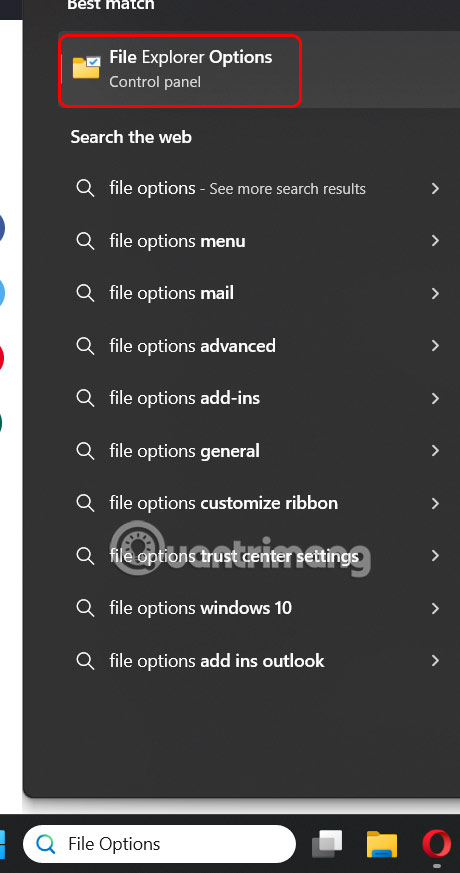
<p style="text-align: justify;">Cài đặt lại File Explorer cũng hỗ trợ sửa một số lỗi hiện có. Bạn cũng<strong>&nbsp;nhập từ khóa File Options trong thanh tìm kiếm</strong>.</p>

<p style="text-align: justify;"><img alt="File Options File Explorer Windows 11" data-i="6" data-src="https://st.quantrimang.com/photos/image/2025/03/20/fix-menu-tha-xuong-File-Explorer-7.jpg" data-was-processed="true" height="721" src="https://st.quantrimang.com/photos/image/2025/03/20/fix-menu-tha-xuong-File-Explorer-7.jpg" width="380" /></p>

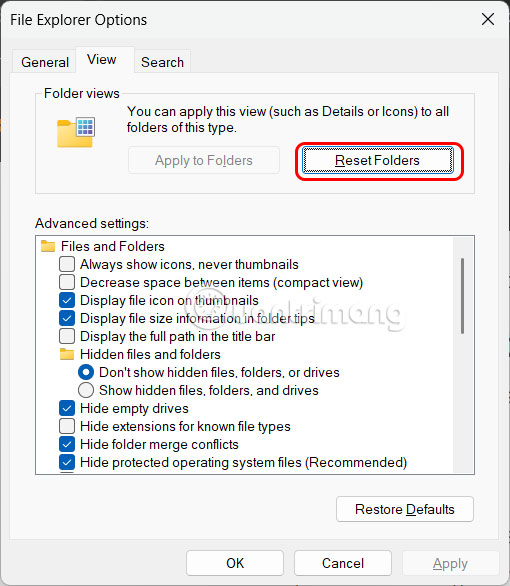
<p style="text-align: justify;">Tiếp tục chúng ta&nbsp;<strong>nhấn chọn vào tab View&nbsp;</strong>rồi&nbsp;<strong>nhấn vào Reset Folders&nbsp;</strong>để thực hiện cài đặt lại File Explorer.</p>

<p style="text-align: justify;"><img alt="Reset Folders Windows 11" data-i="7" data-src="https://st.quantrimang.com/photos/image/2025/03/20/fix-menu-tha-xuong-File-Explorer-8.jpg" data-was-processed="true" height="517" src="https://st.quantrimang.com/photos/image/2025/03/20/fix-menu-tha-xuong-File-Explorer-8.jpg" width="450" /></p>

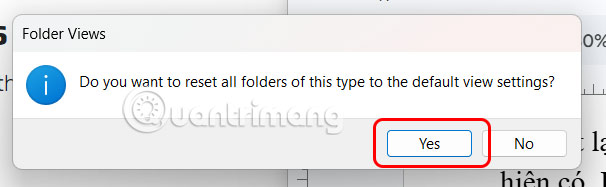
<p style="text-align: justify;">Hiển thị pop-up thông báo, bạn nhấn Yes để thực hiện.</p>

<p style="text-align: justify;"><img alt="Chọn cài đặt lại File Explorer Windows 11" data-i="8" data-src="https://st.quantrimang.com/photos/image/2025/03/20/fix-menu-tha-xuong-File-Explorer-9.jpg" data-was-processed="true" height="187" src="https://st.quantrimang.com/photos/image/2025/03/20/fix-menu-tha-xuong-File-Explorer-9.jpg" width="606" /></p>

<div style="text-align: justify;">&nbsp;</div>
		</div>
				<div id="author">
						<p>
				<strong>Nguồn tin:</strong>
				Quantrimang.com:
			</p>
		</div>
	</div>
	<div id="footer" class="clearfix">
		<div id="url">
			<strong>URL của bản tin này: </strong><a href="https://www.nguoicodonvn2008.info/vi/news/savefile/kien-thuc-may-tinh/cach-fix-loi-menu-tha-xuong-file-explorer-windows-11-10038.html" title="Cách fix lỗi menu thả xuống File Explorer Windows 11">https://www.nguoicodonvn2008.info/vi/news/savefile/kien-thuc-may-tinh/cach-fix-loi-menu-tha-xuong-file-explorer-windows-11-10038.html</a>

		</div>
		<div class="clear"></div>
		<div class="copyright">
			&copy; .&#x3A; Nguoicodonvn2008.info - Cõi lòng người cô đơn &#x3A;.
		</div>
		<div id="contact">
			<a href="mailto:admin@nguoicodonvn2008.info">admin@nguoicodonvn2008.info</a>
		</div>
	</div>
</div>
        <div id="timeoutsess" class="chromeframe">
            Bạn đã không sử dụng Site, <a onclick="timeoutsesscancel();" href="https://nguoicodonvn2008.info/#">Bấm vào đây để duy trì trạng thái đăng nhập</a>. Thời gian chờ: <span id="secField"> 60 </span> giây
        </div>
        <div id="openidResult" class="nv-alert" style="display:none"></div>
        <div id="openidBt" data-result="" data-redirect=""></div>
		</script>
		<div class="car-top">
  <span><img src="https://nguoicodonvn2008.info/themes/default/images/car.png" alt=""></span>
</div>
<script src="https://nguoicodonvn2008.info/assets/js/jquery/jquery.min.js"></script>
<script>var nv_base_siteurl="/",nv_lang_data="vi",nv_lang_interface="vi",nv_name_variable="nv",nv_fc_variable="op",nv_lang_variable="language",nv_module_name="news",nv_func_name="savefile",nv_is_user=0, nv_my_ofs=-4,nv_my_abbr="EDT",nv_cookie_prefix="nv4c_e856T",nv_check_pass_mstime=1738000,nv_area_admin=0,nv_safemode=0,theme_responsive=0,nv_recaptcha_ver=2,nv_recaptcha_sitekey="",nv_recaptcha_type="image",XSSsanitize=1;</script>
<script src="https://nguoicodonvn2008.info/assets/js/language/vi.js"></script>
<script src="https://nguoicodonvn2008.info/assets/js/DOMPurify/purify3.js"></script>
<script src="https://nguoicodonvn2008.info/assets/js/global.js"></script>
<script src="https://nguoicodonvn2008.info/assets/js/site.js"></script>
<script src="https://nguoicodonvn2008.info/themes/default/js/news.js"></script>
<script src="https://nguoicodonvn2008.info/themes/default/js/main.js"></script>
<script src="https://nguoicodonvn2008.info/themes/default/js/custom.js"></script>
<script type="application/ld+json">
        {
            "@context": "https://schema.org",
            "@type": "Organization",
            "url": "https://nguoicodonvn2008.info",
            "logo": "https://nguoicodonvn2008.info/uploads/angel.gif"
        }
        </script>
<script src="https://nguoicodonvn2008.info/themes/default/js/bootstrap.min.js"></script>
<script type="text/javascript">
var $scrolltop = $('.car-top');
$scrolltop.on('click', function () {
    $('html,body').animate({
        scrollTop: 0
    }, 800);
    $(this).addClass("car-run");
    setTimeout(function(){ $scrolltop.removeClass('car-run');}, 1000);
    return false;
});
$(window).on('scroll', function ()
{ 
    if($(window).scrollTop() >= 200)
    {
        $scrolltop.addClass("show");
        $scrolltop.addClass("car-down");
    }
    else
    {
       $scrolltop.removeClass("show");
       setTimeout(function(){ $scrolltop.removeClass('car-down');}, 300);
    }
});
</script>
</body>
</html>