<!DOCTYPE html>
    <html lang="vi" xmlns="http://www.w3.org/1999/xhtml" prefix="og: http://ogp.me/ns#">
    <head>
<title>Cách dùng My Files-X Free quản lý file Windows 10</title>
<meta name="description" content="Cách dùng My Files-X Free quản lý file Windows 10 - Savefile - Tin Tức -...">
<meta name="author" content=".: Nguoicodonvn2008.info - Cõi lòng người cô đơn :.">
<meta name="copyright" content=".: Nguoicodonvn2008.info - Cõi lòng người cô đơn :. [admin@nguoicodonvn2008.info]">
<meta name="robots" content="index, archive, follow, noodp">
<meta name="googlebot" content="index,archive,follow,noodp">
<meta name="msnbot" content="all,index,follow">
<meta name="generator" content="NukeViet v4.5">
<meta http-equiv="Content-Type" content="text/html; charset=utf-8">
<meta property="og:title" content="Cách dùng My Files-X Free quản lý file Windows 10">
<meta property="og:type" content="website">
<meta property="og:description" content="Savefile - Tin Tức - https&#x3A;&#x002F;&#x002F;www.nguoicodonvn2008.info&#x002F;vi&#x002F;news&#x002F;savefile&#x002F;kien-thuc-may-tinh&#x002F;cach-dung-my-files-x-free-quan-ly-file-windows-10-1175.html">
<meta property="og:site_name" content=".&#x3A; Nguoicodonvn2008.info - Cõi lòng người cô đơn &#x3A;.">
<meta property="og:url" content="https://www.nguoicodonvn2008.info/vi/news/savefile/kien-thuc-may-tinh/cach-dung-my-files-x-free-quan-ly-file-windows-10-1175.html">
<link rel="shortcut icon" href="https://nguoicodonvn2008.info/favicon.ico">
<link rel="canonical" href="https://www.nguoicodonvn2008.info/vi/news/savefile/kien-thuc-may-tinh/cach-dung-my-files-x-free-quan-ly-file-windows-10-1175.html">
<link rel="alternate" href="https://nguoicodonvn2008.info/vi/news/rss/" title="Tin Tức" type="application/rss+xml">
<link rel="alternate" href="https://nguoicodonvn2008.info/vi/news/rss/karaoke-dual/" title="Tin Tức - Karaoke Dual" type="application/rss+xml">
<link rel="alternate" href="https://nguoicodonvn2008.info/vi/news/rss/nhac-tre/" title="Tin Tức - Nhạc trẻ" type="application/rss+xml">
<link rel="alternate" href="https://nguoicodonvn2008.info/vi/news/rss/tru-tinh/" title="Tin Tức - Trữ tình" type="application/rss+xml">
<link rel="alternate" href="https://nguoicodonvn2008.info/vi/news/rss/nuoc-ngoai/" title="Tin Tức - Nước ngoài" type="application/rss+xml">
<link rel="alternate" href="https://nguoicodonvn2008.info/vi/news/rss/remix/" title="Tin Tức - Remix" type="application/rss+xml">
<link rel="alternate" href="https://nguoicodonvn2008.info/vi/news/rss/tam-su-tinh-yeu/" title="Tin Tức - Tâm sự tình yêu" type="application/rss+xml">
<link rel="alternate" href="https://nguoicodonvn2008.info/vi/news/rss/tho-suu-tam/" title="Tin Tức - Thơ sưu tầm" type="application/rss+xml">
<link rel="alternate" href="https://nguoicodonvn2008.info/vi/news/rss/cuoc-song/" title="Tin Tức - Cuộc sống" type="application/rss+xml">
<link rel="alternate" href="https://nguoicodonvn2008.info/vi/news/rss/phan-mem/" title="Tin Tức - Phần mềm" type="application/rss+xml">
<link rel="alternate" href="https://nguoicodonvn2008.info/vi/news/rss/kien-thuc-may-tinh/" title="Tin Tức - Kiến thức máy tính" type="application/rss+xml">
<link rel="alternate" href="https://nguoicodonvn2008.info/vi/news/rss/hoc-tap/" title="Tin Tức - Học tập" type="application/rss+xml">
<link rel="alternate" href="https://nguoicodonvn2008.info/vi/news/rss/tai-lieu/" title="Tin Tức - Tài liệu" type="application/rss+xml">
<link rel="alternate" href="https://nguoicodonvn2008.info/vi/news/rss/de-thi/" title="Tin Tức - Đề thi" type="application/rss+xml">
<link rel="preload" as="style" href="https://nguoicodonvn2008.info/assets/css/font-awesome.min.css" type="text/css">
<link rel="preload" as="style" href="https://nguoicodonvn2008.info/themes/default/css/bootstrap.non-responsive.css" type="text/css">
<link rel="preload" as="style" href="https://nguoicodonvn2008.info/themes/default/css/style.css" type="text/css">
<link rel="preload" as="style" href="https://nguoicodonvn2008.info/themes/default/css/style.non-responsive.css" type="text/css">
<link rel="preload" as="style" href="https://nguoicodonvn2008.info/themes/default/css/news.css" type="text/css">
<link rel="preload" as="style" href="https://nguoicodonvn2008.info/themes/default/css/custom.css" type="text/css">
<link rel="preload" as="script" href="https://nguoicodonvn2008.info/assets/js/jquery/jquery.min.js" type="text/javascript">
<link rel="preload" as="script" href="https://nguoicodonvn2008.info/assets/js/language/vi.js" type="text/javascript">
<link rel="preload" as="script" href="https://nguoicodonvn2008.info/assets/js/DOMPurify/purify3.js" type="text/javascript">
<link rel="preload" as="script" href="https://nguoicodonvn2008.info/assets/js/global.js" type="text/javascript">
<link rel="preload" as="script" href="https://nguoicodonvn2008.info/assets/js/site.js" type="text/javascript">
<link rel="preload" as="script" href="https://nguoicodonvn2008.info/themes/default/js/news.js" type="text/javascript">
<link rel="preload" as="script" href="https://nguoicodonvn2008.info/themes/default/js/main.js" type="text/javascript">
<link rel="preload" as="script" href="https://nguoicodonvn2008.info/themes/default/js/custom.js" type="text/javascript">
<link rel="preload" as="script" href="https://nguoicodonvn2008.info/themes/default/js/bootstrap.min.js" type="text/javascript">
<link rel="stylesheet" href="https://nguoicodonvn2008.info/assets/css/font-awesome.min.css">
<link rel="stylesheet" href="https://nguoicodonvn2008.info/themes/default/css/bootstrap.non-responsive.css">
<link rel="stylesheet" href="https://nguoicodonvn2008.info/themes/default/css/style.css">
<link rel="stylesheet" href="https://nguoicodonvn2008.info/themes/default/css/style.non-responsive.css">
<link rel="StyleSheet" href="https://nguoicodonvn2008.info/themes/default/css/news.css">
<link rel="stylesheet" href="https://nguoicodonvn2008.info/themes/default/css/custom.css">
<style type="text/css">
	body{background: #fff;}
</style>
    </head>
    <body>
<div id="print">
	<div id="hd_print">
		<h2 class="pull-left">.&#x3A; Nguoicodonvn2008.info - Cõi lòng người cô đơn &#x3A;.</h2>
		<p class="pull-right"><a title=".&#x3A; Nguoicodonvn2008.info - Cõi lòng người cô đơn &#x3A;." href="https://nguoicodonvn2008.info/">https://nguoicodonvn2008.info</a></p>
	</div>
	<div class="clear"></div>
	<hr />
	<div id="content">
		<h1>Cách dùng My Files-X Free quản lý file Windows 10</h1>
		<ul class="list-inline">
			<li>Thứ tư - 16/10/2019 07:08</li>
			<li class="hidden-print txtrequired"><em class="fa fa-print">&nbsp;</em><a title="In ra" href="javascript:;" onclick="window.print()">In ra</a></li>
			<li class="hidden-print txtrequired"><em class="fa fa-power-off">&nbsp;</em><a title="Đóng cửa sổ này" href="javascript:;" onclick="window.close()">Đóng cửa sổ này</a></li>
		</ul>
		<div class="clear"></div>
		<div id="hometext">
		</div>
				<div class="imghome">
			<img alt="Cách dùng My Files-X Free quản lý file Windows 10" src="https://st.quantrimang.com/photos/image/2019/10/14/My-Files-X-quan-ly-file-Win-10-11.jpg" width="460" class="img-thumbnail" />
		</div>
		<div class="clear"></div>
		<div id="bodytext" class="clearfix">
			<p style="text-align: justify;">Trình quản lý dữ liệu mặc định File Explorer trên Windows đôi khi chư thực sự đáp ứng đủ nhủ cầu người dùng. Vì thế có rất nhiều ứng dụng hỗ trợ người dùng trong việc quản lý toàn bộ dữ liệu trên máy tính hiệu quả hơn như My Files-X Free chẳng hạn. Ứng dụng sở hữu giao diện nền đen hoặc trắng tùy người dùng, quản lý toàn bộ dữ liệu theo tab rất dễ sử dụng. Giao diện của ứng dụng được phân thành 3 cột rõ ràng để bạn dễ dàng xem và duyệt file khi nhấn chọn. Ngoài ra My Files-X Free còn có thêm các tùy chọn cho USB như đổi tên ổ USB, xem thuộc tính của USB,… Bài viết dưới đây sẽ hướng dẫn bạn đọc cách dùng My Files-X Free trên Windows 10.</p>

<div style="text-align: justify;">&nbsp;</div>

<h2 style="text-align: justify;">Hướng dẫn dùng My Files-X Free Windwows 10</h2>

<p style="text-align: justify;"><strong>Bước 1:</strong></p>

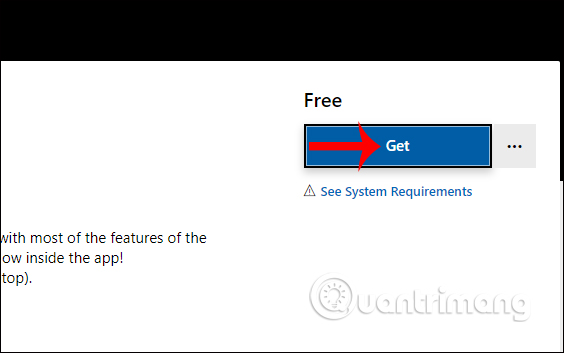
<p style="text-align: justify;">Người dùng nhấn vào link dưới đây để tải ứng dụng My Files-X Free trên máy tính.</p>

<ul>
	<li style="text-align: justify;">Tải&nbsp;ứng dụng My Files-X Free:</li>
</ul>

<div style="text-align: justify;"><span style="color:rgb(192, 57, 43);"><strong>https://www.microsoft.com/en-us/p/my-files-x-free/9pmr0wkvhjfb</strong></span></div>

<p style="text-align: justify;"><img alt="Tải ứng dụng" data-i="0" data-src="https://st.quantrimang.com/photos/image/2019/10/14/My-Files-X-quan-ly-file-Win-10-1.jpg" data-was-processed="true" height="353" src="https://st.quantrimang.com/photos/image/2019/10/14/My-Files-X-quan-ly-file-Win-10-1.jpg" width="564" /></p>

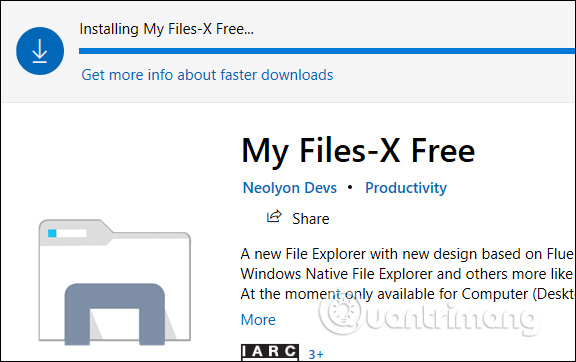
<p style="text-align: justify;">Chúng ta chờ quá trình cài đặt ứng dụng hoàn thành trên máy tính.</p>

<p style="text-align: justify;"><img alt="Cài đặt ứng dụng" data-i="1" data-src="https://st.quantrimang.com/photos/image/2019/10/14/My-Files-X-quan-ly-file-Win-10-2.jpg" data-was-processed="true" height="362" src="https://st.quantrimang.com/photos/image/2019/10/14/My-Files-X-quan-ly-file-Win-10-2.jpg" width="576" /></p>

<p style="text-align: justify;"><strong>Bước 2:</strong></p>

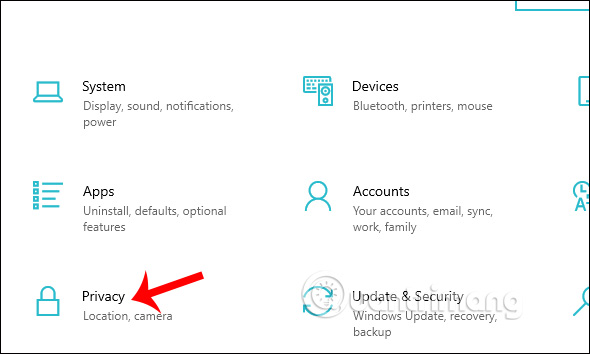
<p style="text-align: justify;">Để ứng dụng hoạt động được trên máy tính thì người dùng&nbsp;<strong>cần cho phép ứng dụng truy cập vào File System hệ thống</strong>. Bạn nhấn tổ hợp phím&nbsp;<strong>Windows + I</strong>&nbsp;để mở giao diện&nbsp;<strong>Settings</strong>&nbsp;trên máy tính. Sau đó nhấn tiếp vào mục&nbsp;<strong>Privacy</strong>.</p>

<p style="text-align: justify;"><img alt="Mục Privacy" data-i="2" data-src="https://st.quantrimang.com/photos/image/2019/10/14/My-Files-X-quan-ly-file-Win-10-3.jpg" data-was-processed="true" height="354" src="https://st.quantrimang.com/photos/image/2019/10/14/My-Files-X-quan-ly-file-Win-10-3.jpg" width="590" /></p>

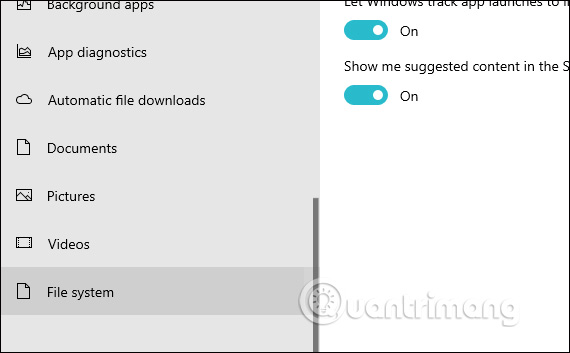
<p style="text-align: justify;">Trong giao diện mới người dùng nhấn vào mục quản lý&nbsp;<strong>File System</strong>&nbsp;ở cột danh sách bên trái ứng dụng.</p>

<p style="text-align: justify;"><img alt="File System " data-i="3" data-src="https://st.quantrimang.com/photos/image/2019/10/14/My-Files-X-quan-ly-file-Win-10-4.jpg" data-was-processed="true" height="353" src="https://st.quantrimang.com/photos/image/2019/10/14/My-Files-X-quan-ly-file-Win-10-4.jpg" width="570" /></p>

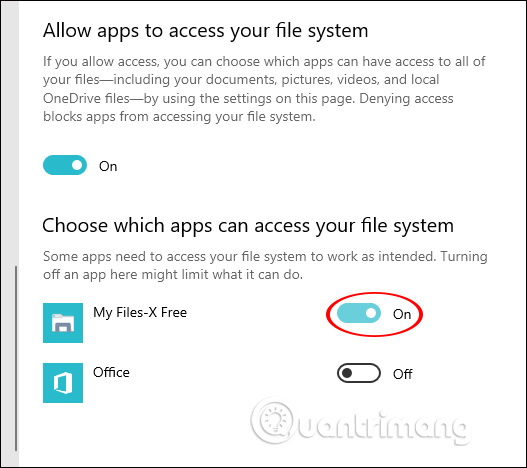
<p style="text-align: justify;">Nhìn tiếp sang bên phải tìm phần&nbsp;<strong>Choose which apps can access your file system</strong>&nbsp;tìm tới&nbsp;<strong>ứng dụng My Files-X Free</strong>&nbsp;rồi chuyển sang&nbsp;<strong>chế độ On</strong>.</p>

<p style="text-align: justify;"><img alt="Cho phép ứng dung truy cập" data-i="4" data-src="https://st.quantrimang.com/photos/image/2019/10/14/My-Files-X-quan-ly-file-Win-10-5.jpg" data-was-processed="true" height="468" src="https://st.quantrimang.com/photos/image/2019/10/14/My-Files-X-quan-ly-file-Win-10-5.jpg" width="527" /></p>

<p style="text-align: justify;"><strong>Bước 3:</strong></p>

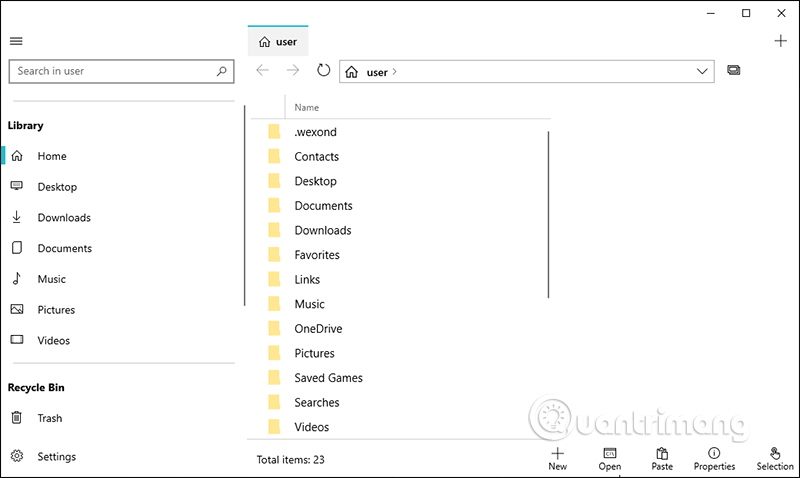
<p style="text-align: justify;">Khởi động lại ứng dụng và hiển thị giao diện của My Files-X Free. Ở cột bên trái là danh sách các mục trên máy tính, nội dung chính giữa là các thư mục và tập tin. Bên dưới là những tùy chọn riêng cho tập tin.</p>

<p style="text-align: justify;">Danh sách bên trái gồm khung tìm kiếm dữ liệu, Library với thu mục của hộ thống, Recycle Bin để tìm kiếm dữ liệu đã xóa, Storage là các phân vùng ổ đĩa và Settings là cài đặt cho ứng dụng.</p>

<p style="text-align: justify;"><img alt="Giao diện ứng dụng" data-i="5" data-src="https://st.quantrimang.com/photos/image/2019/10/14/My-Files-X-quan-ly-file-Win-10-6.jpg" data-was-processed="true" height="359" src="https://st.quantrimang.com/photos/image/2019/10/14/My-Files-X-quan-ly-file-Win-10-6.jpg" width="600" /></p>

<p style="text-align: justify;"><strong>Bước 4:</strong></p>

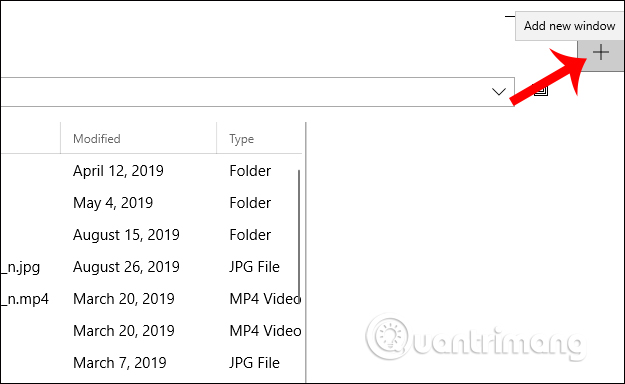
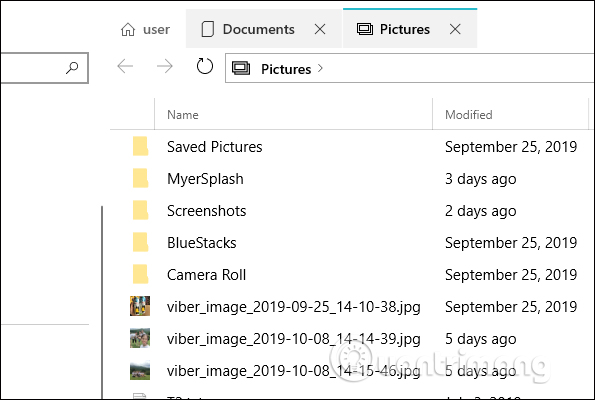
<p style="text-align: justify;">Nếu muốn duyệt hoặc xem thư mục nào chỉ cần nhấn chọn vào thư mục đó là xong. Ứng dụng có chế độ&nbsp;<strong>duyệt dữ liệu theo tab</strong>&nbsp;bằng cách click vào&nbsp;<strong>biểu tượng dấu cộng Add a new window</strong>&nbsp;ở góc phải trên cùng.</p>

<p style="text-align: justify;"><img alt="Duyệt dữ liệu theo tab " data-i="6" data-src="https://st.quantrimang.com/photos/image/2019/10/14/My-Files-X-quan-ly-file-Win-10-7.jpg" data-was-processed="true" height="369" src="https://st.quantrimang.com/photos/image/2019/10/14/My-Files-X-quan-ly-file-Win-10-7.jpg" width="600" /></p>

<p style="text-align: justify;">Hiển thị tab mặc định là thư mục tài khoản của bạn. Những mục khác khi mở đều được phân thành các tab khác nhau.</p>

<p style="text-align: justify;"><img alt="Duyệt dữ liệu theo tab " data-i="7" data-src="https://st.quantrimang.com/photos/image/2019/10/14/My-Files-X-quan-ly-file-Win-10-8.jpg" data-was-processed="true" height="400" src="https://st.quantrimang.com/photos/image/2019/10/14/My-Files-X-quan-ly-file-Win-10-8.jpg" width="595" /></p>

<p style="text-align: justify;"><strong>Bước 5:</strong></p>

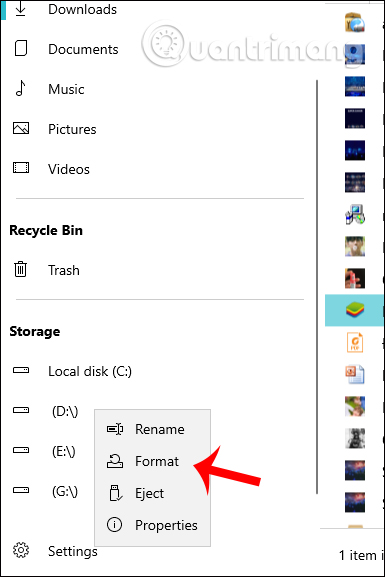
<p style="text-align: justify;">Nếu nhấn&nbsp;<strong>chuột phải vào mỗi ổ đĩa</strong>&nbsp;ở danh sách bên trái chúng ta có meun chuột phải với những tùy chọn như hình dưới đây.</p>

<p style="text-align: justify;"><img alt="Tùy chọn cho từng ổ đĩa" data-i="8" data-src="https://st.quantrimang.com/photos/image/2019/10/14/My-Files-X-quan-ly-file-Win-10-9.jpg" data-was-processed="true" height="577" src="https://st.quantrimang.com/photos/image/2019/10/14/My-Files-X-quan-ly-file-Win-10-9.jpg" width="385" /></p>

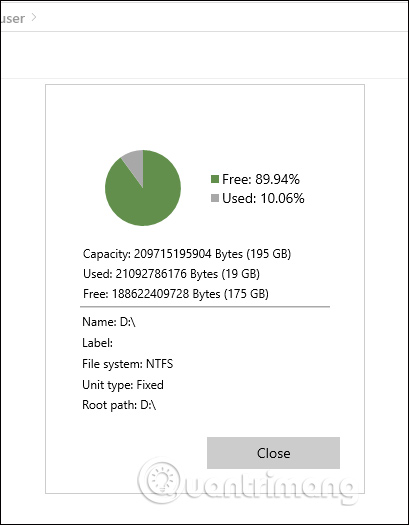
<p style="text-align: justify;">Nếu muốn xem thuộc tính của ổ đĩa hay bấy kỳ thư mục, file nào thì chọn Properties.&nbsp;</p>

<p style="text-align: justify;"><img alt="Xem thuộc tính dữ liệu" data-i="9" data-src="https://st.quantrimang.com/photos/image/2019/10/14/My-Files-X-quan-ly-file-Win-10-12.jpg" data-was-processed="true" height="525" src="https://st.quantrimang.com/photos/image/2019/10/14/My-Files-X-quan-ly-file-Win-10-12.jpg" width="409" /></p>

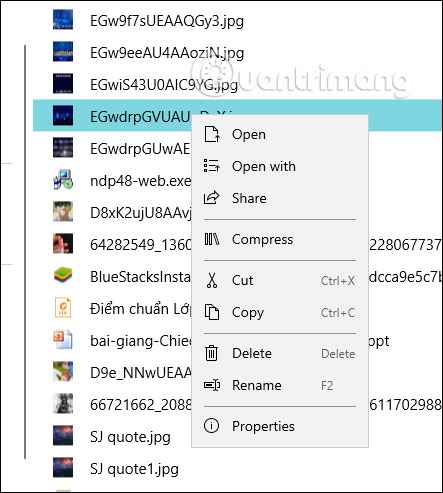
<p style="text-align: justify;">Khi nhấn chuột phải vào 1 file cụ thể sẽ hiển thị menu tùy chọn như mở file với các phần mềm trên máy tính, đổi tên, xóa file, nén file zip,…</p>

<p style="text-align: justify;"><img alt="Tùy chọn từng file" data-i="10" data-src="https://st.quantrimang.com/photos/image/2019/10/14/My-Files-X-quan-ly-file-Win-10-10.jpg" data-was-processed="true" height="493" src="https://st.quantrimang.com/photos/image/2019/10/14/My-Files-X-quan-ly-file-Win-10-10.jpg" width="443" /></p>

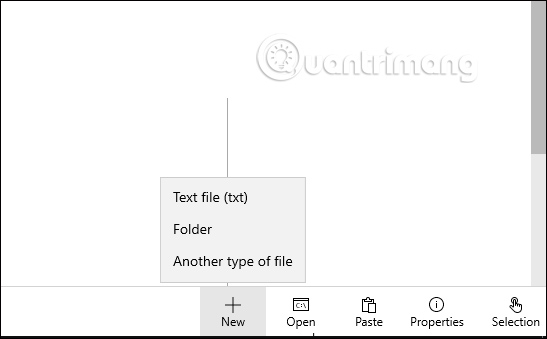
<p style="text-align: justify;">Nếu quay trở lại giao diện mục Home thì ở bên dưới cùng bạn sẽ có mục New để mở file txt, thư mục, file khác, hoặc nhấn Open để mở nhanh cửa sổ Command Prompt.</p>

<p style="text-align: justify;"><img alt="Tùy chọn tại mục Home" data-i="11" data-src="https://st.quantrimang.com/photos/image/2019/10/14/My-Files-X-quan-ly-file-Win-10-11.jpg" data-was-processed="true" height="339" src="https://st.quantrimang.com/photos/image/2019/10/14/My-Files-X-quan-ly-file-Win-10-11.jpg" width="547" /></p>

<p style="text-align: justify;"><strong>Bước 6:</strong></p>

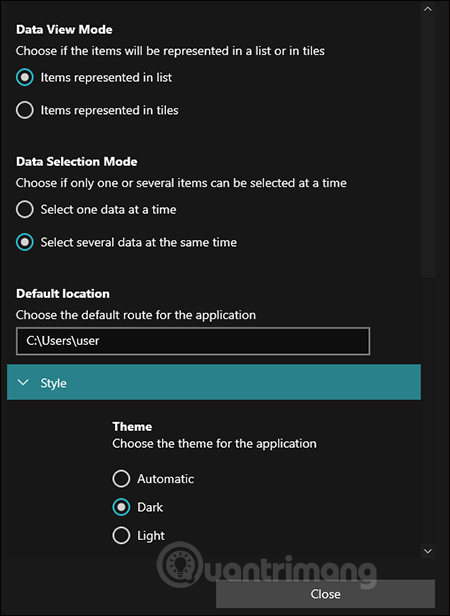
<p style="text-align: justify;">Truy cập vào&nbsp;<strong>mục Settings</strong>&nbsp;sẽ hiển thị các tùy chọn thiết lập cho ứng dụng, trong đó có việc đổi theme của ứng dụng. Phần Default Location để thay đổi vị trí hiển thị mặc định khi nhấn mở tab mới. Chỉ cần thay đường dẫn để đổi vị trị là được.</p>

<p style="text-align: justify;"><img alt="Cài đặt ứng dụng" data-i="12" data-src="https://st.quantrimang.com/photos/image/2019/10/14/My-Files-X-quan-ly-file-Win-10-13.jpg" data-was-processed="true" height="616" src="https://st.quantrimang.com/photos/image/2019/10/14/My-Files-X-quan-ly-file-Win-10-13.jpg" width="450" /></p>

<p style="text-align: justify;">Nhìn chung My Files-X Free quản lý các dữ liệu trên Windows 10 rất khoa học và dễ kiểm soát. Mỗi ổ đĩa, thư mục hay file cụ thể đều có thêm menu tùy chọn bên cạnh để bạn thay đổi và xử lý khi cần.</p>

<p style="text-align: justify;">Chúc các bạn thực hiện thành công!</p>
		</div>
				<div id="author">
						<p>
				<strong>Nguồn tin:</strong>
				Quantrimang.com
			</p>
		</div>
	</div>
	<div id="footer" class="clearfix">
		<div id="url">
			<strong>URL của bản tin này: </strong><a href="https://www.nguoicodonvn2008.info/vi/news/savefile/kien-thuc-may-tinh/cach-dung-my-files-x-free-quan-ly-file-windows-10-1175.html" title="Cách dùng My Files-X Free quản lý file Windows 10">https://www.nguoicodonvn2008.info/vi/news/savefile/kien-thuc-may-tinh/cach-dung-my-files-x-free-quan-ly-file-windows-10-1175.html</a>

		</div>
		<div class="clear"></div>
		<div class="copyright">
			&copy; .&#x3A; Nguoicodonvn2008.info - Cõi lòng người cô đơn &#x3A;.
		</div>
		<div id="contact">
			<a href="mailto:admin@nguoicodonvn2008.info">admin@nguoicodonvn2008.info</a>
		</div>
	</div>
</div>
        <div id="timeoutsess" class="chromeframe">
            Bạn đã không sử dụng Site, <a onclick="timeoutsesscancel();" href="https://nguoicodonvn2008.info/#">Bấm vào đây để duy trì trạng thái đăng nhập</a>. Thời gian chờ: <span id="secField"> 60 </span> giây
        </div>
        <div id="openidResult" class="nv-alert" style="display:none"></div>
        <div id="openidBt" data-result="" data-redirect=""></div>
		</script>
		<div class="car-top">
  <span><img src="https://nguoicodonvn2008.info/themes/default/images/car.png" alt=""></span>
</div>
<script src="https://nguoicodonvn2008.info/assets/js/jquery/jquery.min.js"></script>
<script>var nv_base_siteurl="/",nv_lang_data="vi",nv_lang_interface="vi",nv_name_variable="nv",nv_fc_variable="op",nv_lang_variable="language",nv_module_name="news",nv_func_name="savefile",nv_is_user=0, nv_my_ofs=-4,nv_my_abbr="EDT",nv_cookie_prefix="nv4c_e856T",nv_check_pass_mstime=1738000,nv_area_admin=0,nv_safemode=0,theme_responsive=0,nv_recaptcha_ver=2,nv_recaptcha_sitekey="",nv_recaptcha_type="image",XSSsanitize=1;</script>
<script src="https://nguoicodonvn2008.info/assets/js/language/vi.js"></script>
<script src="https://nguoicodonvn2008.info/assets/js/DOMPurify/purify3.js"></script>
<script src="https://nguoicodonvn2008.info/assets/js/global.js"></script>
<script src="https://nguoicodonvn2008.info/assets/js/site.js"></script>
<script src="https://nguoicodonvn2008.info/themes/default/js/news.js"></script>
<script src="https://nguoicodonvn2008.info/themes/default/js/main.js"></script>
<script src="https://nguoicodonvn2008.info/themes/default/js/custom.js"></script>
<script type="application/ld+json">
        {
            "@context": "https://schema.org",
            "@type": "Organization",
            "url": "https://nguoicodonvn2008.info",
            "logo": "https://nguoicodonvn2008.info/uploads/angel.gif"
        }
        </script>
<script src="https://nguoicodonvn2008.info/themes/default/js/bootstrap.min.js"></script>
<script type="text/javascript">
var $scrolltop = $('.car-top');
$scrolltop.on('click', function () {
    $('html,body').animate({
        scrollTop: 0
    }, 800);
    $(this).addClass("car-run");
    setTimeout(function(){ $scrolltop.removeClass('car-run');}, 1000);
    return false;
});
$(window).on('scroll', function ()
{ 
    if($(window).scrollTop() >= 200)
    {
        $scrolltop.addClass("show");
        $scrolltop.addClass("car-down");
    }
    else
    {
       $scrolltop.removeClass("show");
       setTimeout(function(){ $scrolltop.removeClass('car-down');}, 300);
    }
});
</script>
</body>
</html>