<!DOCTYPE html>
    <html lang="vi" xmlns="http://www.w3.org/1999/xhtml" prefix="og: http://ogp.me/ns#">
    <head>
<title>Cách đồng bộ Microsoft Forms với Excel</title>
<meta name="description" content="Cách đồng bộ Microsoft Forms với Excel - Savefile - Tin Tức -...">
<meta name="author" content=".: Nguoicodonvn2008.info - Cõi lòng người cô đơn :.">
<meta name="copyright" content=".: Nguoicodonvn2008.info - Cõi lòng người cô đơn :. [admin@nguoicodonvn2008.info]">
<meta name="robots" content="index, archive, follow, noodp">
<meta name="googlebot" content="index,archive,follow,noodp">
<meta name="msnbot" content="all,index,follow">
<meta name="generator" content="NukeViet v4.5">
<meta http-equiv="Content-Type" content="text/html; charset=utf-8">
<meta property="og:title" content="Cách đồng bộ Microsoft Forms với Excel">
<meta property="og:type" content="website">
<meta property="og:description" content="Savefile - Tin Tức - https&#x3A;&#x002F;&#x002F;www.nguoicodonvn2008.info&#x002F;vi&#x002F;news&#x002F;savefile&#x002F;kien-thuc-may-tinh&#x002F;cach-dong-bo-microsoft-forms-voi-excel-10700.html">
<meta property="og:site_name" content=".&#x3A; Nguoicodonvn2008.info - Cõi lòng người cô đơn &#x3A;.">
<meta property="og:url" content="https://www.nguoicodonvn2008.info/vi/news/savefile/kien-thuc-may-tinh/cach-dong-bo-microsoft-forms-voi-excel-10700.html">
<link rel="shortcut icon" href="https://nguoicodonvn2008.info/favicon.ico">
<link rel="canonical" href="https://www.nguoicodonvn2008.info/vi/news/savefile/kien-thuc-may-tinh/cach-dong-bo-microsoft-forms-voi-excel-10700.html">
<link rel="alternate" href="https://nguoicodonvn2008.info/vi/news/rss/" title="Tin Tức" type="application/rss+xml">
<link rel="alternate" href="https://nguoicodonvn2008.info/vi/news/rss/karaoke-dual/" title="Tin Tức - Karaoke Dual" type="application/rss+xml">
<link rel="alternate" href="https://nguoicodonvn2008.info/vi/news/rss/nhac-tre/" title="Tin Tức - Nhạc trẻ" type="application/rss+xml">
<link rel="alternate" href="https://nguoicodonvn2008.info/vi/news/rss/tru-tinh/" title="Tin Tức - Trữ tình" type="application/rss+xml">
<link rel="alternate" href="https://nguoicodonvn2008.info/vi/news/rss/nuoc-ngoai/" title="Tin Tức - Nước ngoài" type="application/rss+xml">
<link rel="alternate" href="https://nguoicodonvn2008.info/vi/news/rss/remix/" title="Tin Tức - Remix" type="application/rss+xml">
<link rel="alternate" href="https://nguoicodonvn2008.info/vi/news/rss/tam-su-tinh-yeu/" title="Tin Tức - Tâm sự tình yêu" type="application/rss+xml">
<link rel="alternate" href="https://nguoicodonvn2008.info/vi/news/rss/tho-suu-tam/" title="Tin Tức - Thơ sưu tầm" type="application/rss+xml">
<link rel="alternate" href="https://nguoicodonvn2008.info/vi/news/rss/cuoc-song/" title="Tin Tức - Cuộc sống" type="application/rss+xml">
<link rel="alternate" href="https://nguoicodonvn2008.info/vi/news/rss/phan-mem/" title="Tin Tức - Phần mềm" type="application/rss+xml">
<link rel="alternate" href="https://nguoicodonvn2008.info/vi/news/rss/kien-thuc-may-tinh/" title="Tin Tức - Kiến thức máy tính" type="application/rss+xml">
<link rel="alternate" href="https://nguoicodonvn2008.info/vi/news/rss/hoc-tap/" title="Tin Tức - Học tập" type="application/rss+xml">
<link rel="alternate" href="https://nguoicodonvn2008.info/vi/news/rss/tai-lieu/" title="Tin Tức - Tài liệu" type="application/rss+xml">
<link rel="alternate" href="https://nguoicodonvn2008.info/vi/news/rss/de-thi/" title="Tin Tức - Đề thi" type="application/rss+xml">
<link rel="preload" as="style" href="https://nguoicodonvn2008.info/assets/css/font-awesome.min.css" type="text/css">
<link rel="preload" as="style" href="https://nguoicodonvn2008.info/themes/default/css/bootstrap.non-responsive.css" type="text/css">
<link rel="preload" as="style" href="https://nguoicodonvn2008.info/themes/default/css/style.css" type="text/css">
<link rel="preload" as="style" href="https://nguoicodonvn2008.info/themes/default/css/style.non-responsive.css" type="text/css">
<link rel="preload" as="style" href="https://nguoicodonvn2008.info/themes/default/css/news.css" type="text/css">
<link rel="preload" as="style" href="https://nguoicodonvn2008.info/themes/default/css/custom.css" type="text/css">
<link rel="preload" as="script" href="https://nguoicodonvn2008.info/assets/js/jquery/jquery.min.js" type="text/javascript">
<link rel="preload" as="script" href="https://nguoicodonvn2008.info/assets/js/language/vi.js" type="text/javascript">
<link rel="preload" as="script" href="https://nguoicodonvn2008.info/assets/js/DOMPurify/purify3.js" type="text/javascript">
<link rel="preload" as="script" href="https://nguoicodonvn2008.info/assets/js/global.js" type="text/javascript">
<link rel="preload" as="script" href="https://nguoicodonvn2008.info/assets/js/site.js" type="text/javascript">
<link rel="preload" as="script" href="https://nguoicodonvn2008.info/themes/default/js/news.js" type="text/javascript">
<link rel="preload" as="script" href="https://nguoicodonvn2008.info/themes/default/js/main.js" type="text/javascript">
<link rel="preload" as="script" href="https://nguoicodonvn2008.info/themes/default/js/custom.js" type="text/javascript">
<link rel="preload" as="script" href="https://nguoicodonvn2008.info/themes/default/js/bootstrap.min.js" type="text/javascript">
<link rel="stylesheet" href="https://nguoicodonvn2008.info/assets/css/font-awesome.min.css">
<link rel="stylesheet" href="https://nguoicodonvn2008.info/themes/default/css/bootstrap.non-responsive.css">
<link rel="stylesheet" href="https://nguoicodonvn2008.info/themes/default/css/style.css">
<link rel="stylesheet" href="https://nguoicodonvn2008.info/themes/default/css/style.non-responsive.css">
<link rel="StyleSheet" href="https://nguoicodonvn2008.info/themes/default/css/news.css">
<link rel="stylesheet" href="https://nguoicodonvn2008.info/themes/default/css/custom.css">
<style type="text/css">
	body{background: #fff;}
</style>
    </head>
    <body>
<div id="print">
	<div id="hd_print">
		<h2 class="pull-left">.&#x3A; Nguoicodonvn2008.info - Cõi lòng người cô đơn &#x3A;.</h2>
		<p class="pull-right"><a title=".&#x3A; Nguoicodonvn2008.info - Cõi lòng người cô đơn &#x3A;." href="https://nguoicodonvn2008.info/">https://nguoicodonvn2008.info</a></p>
	</div>
	<div class="clear"></div>
	<hr />
	<div id="content">
		<h1>Cách đồng bộ Microsoft Forms với Excel</h1>
		<ul class="list-inline">
			<li>Thứ năm - 03/07/2025 05:49</li>
			<li class="hidden-print txtrequired"><em class="fa fa-print">&nbsp;</em><a title="In ra" href="javascript:;" onclick="window.print()">In ra</a></li>
			<li class="hidden-print txtrequired"><em class="fa fa-power-off">&nbsp;</em><a title="Đóng cửa sổ này" href="javascript:;" onclick="window.close()">Đóng cửa sổ này</a></li>
		</ul>
		<div class="clear"></div>
		<div id="hometext">
		</div>
				<div class="imghome">
			<img alt="Cách đồng bộ Microsoft Forms với Excel" src="https://st.quantrimang.com/photos/image/2025/07/02/dong-bo-Microsoft-Forms-voi-excel-8.jpg" width="460" class="img-thumbnail" />
		</div>
		<div class="clear"></div>
		<div id="bodytext" class="clearfix">
			<p style="text-align: justify;">Nếu bạn đang sử dụng Excel 365 thì bạn có thể tự động đồng bộ hóa Microsoft Forms thông qua OneDrive. Hoặc để tự động quá trình này thì người dùng hoàn toàn có thể sử dụng công cụ Power Automate. Với sự hỗ trợ của những công cụ này, việc đồng bộ nội dung Forms sang Excel sẽ nhanh chóng, đơn giản hơn so với cách làm thủ công.</p>

<h2 style="text-align: justify;">Hướng dẫn đồng bộ Microsoft Forms sang Excel trên web</h2>

<p style="text-align: justify;"><strong>Bước 1:</strong></p>

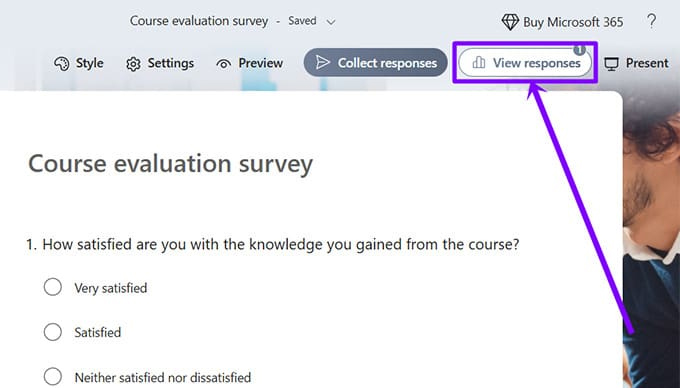
<p style="text-align: justify;">Chúng ta&nbsp;<strong>tạo form trong Microsoft Forms</strong>&nbsp;như bình thường. Tiếp đến bạn&nbsp;<strong>nhấn View Responses</strong>&nbsp;ở góc bên trên.</p>

<p style="text-align: justify;"><img alt="Xem phản hồi Microsoft Forms" data-i="0" data-src="https://st.quantrimang.com/photos/image/2025/07/02/dong-bo-Microsoft-Forms-voi-excel-1.jpg" data-was-processed="true" height="342" src="https://st.quantrimang.com/photos/image/2025/07/02/dong-bo-Microsoft-Forms-voi-excel-1.jpg" width="600" /></p>

<p style="text-align: justify;"><strong>Bước 2:</strong></p>

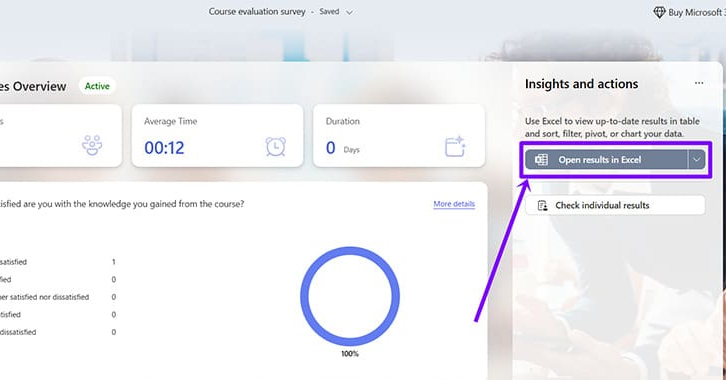
<p style="text-align: justify;">Nếu có ít nhất 1 phản hồi thì&nbsp;<strong>nhấn vào Open Results in Excel</strong>&nbsp;ở phần Insights ở bên phải.</p>

<p style="text-align: justify;"><img alt="Open Results in Excel" data-i="1" data-src="https://st.quantrimang.com/photos/image/2025/07/02/dong-bo-Microsoft-Forms-voi-excel-2.jpg" data-was-processed="true" height="314" src="https://st.quantrimang.com/photos/image/2025/07/02/dong-bo-Microsoft-Forms-voi-excel-2.jpg" width="600" /></p>

<p style="text-align: justify;">Nếu bạn đã thiết lập ứng dụng Excel tự động lưu vào OneDrive thì sẽ nhận được một tệp mới trên OneDrive. Khi mở tệp đó, bạn sẽ được chuyển hướng đến Excel for the Web (hoặc Excel 365).</p>

<p style="text-align: justify;">Thao tác này cũng tự động đồng bộ hóa Microsoft Forms với Excel 365. Bất cứ khi nào bạn nhận được phản hồi mới, khi tệp vẫn nằm trong cùng thư mục trên OneDrive thì tệp đó sẽ được cập nhật.</p>

<p style="text-align: justify;">Cách này cũng hiệu quả nếu bạn đã mua bất kỳ phiên bản&nbsp;<a data-google-interstitial="false" data-google-vignette="false" href="https://quantrimang.com/cong-nghe/cach-dong-bo-phan-hoi-tren-microsoft-forms-voi-excel-197936#">&nbsp;Office</a>&nbsp;nào và kết nối phiên bản đó với cùng một tài khoản Microsoft mà đã tạo Forms.</p>

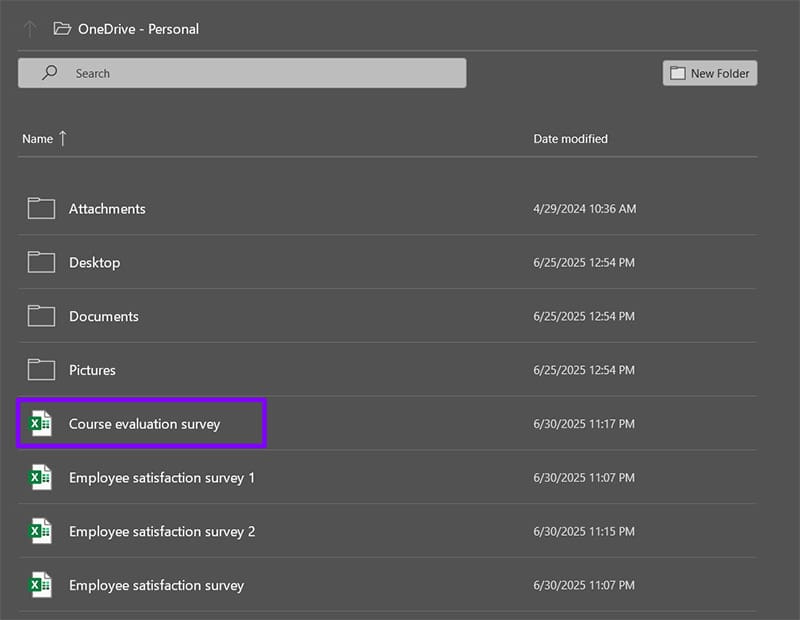
<p style="text-align: justify;"><strong>Bước 3:</strong></p>

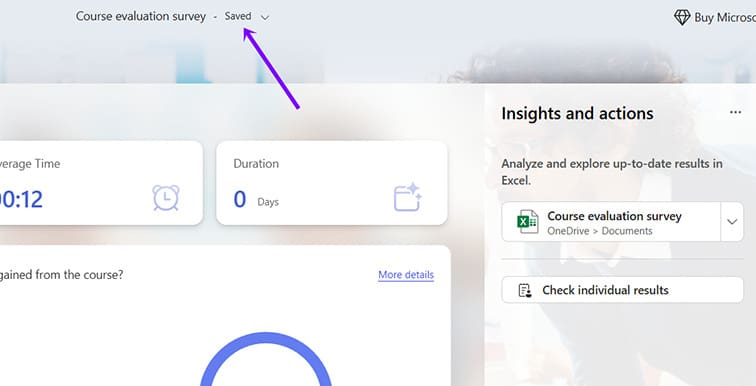
<p style="text-align: justify;">Chúng ta cần đợi quá trình đồng bộ hóa hoàn thành và hiển thị Saved trên giao diện.</p>

<p style="text-align: justify;"><img alt="Lưu Microsoft Forms trong Excel" data-i="2" data-src="https://st.quantrimang.com/photos/image/2025/07/02/dong-bo-Microsoft-Forms-voi-excel-3.jpg" data-was-processed="true" height="306" src="https://st.quantrimang.com/photos/image/2025/07/02/dong-bo-Microsoft-Forms-voi-excel-3.jpg" width="600" /></p>

<p style="text-align: justify;"><strong>Bước 4:</strong></p>

<p style="text-align: justify;">Mở ứng dụng Excel trên&nbsp;<a data-google-interstitial="false" data-google-vignette="false" href="https://quantrimang.com/cong-nghe/cach-dong-bo-phan-hoi-tren-microsoft-forms-voi-excel-197936#">&nbsp;máy tính</a>&nbsp;rồi vào&nbsp;<strong>File &gt; Open</strong>&nbsp;sau đó&nbsp;<strong>chọn thư mục OneDrive đã lưu biểu mẫu</strong>. Chỉ cần&nbsp;<strong>nhấn vào file Excel để mở</strong>&nbsp;xem nội dung là xong.</p>

<p style="text-align: justify;"><img alt="Xem Microsoft Forms đồng bộ với Excel" data-i="3" data-src="https://st.quantrimang.com/photos/image/2025/07/02/dong-bo-Microsoft-Forms-voi-excel-4.jpg" data-was-processed="true" height="388" src="https://st.quantrimang.com/photos/image/2025/07/02/dong-bo-Microsoft-Forms-voi-excel-4.jpg" width="500" /></p>

<h2 style="text-align: justify;">Cách đồng bộ Microsoft Forms với Excel bằng Power Automate</h2>

<p style="text-align: justify;">Nếu có đăng ký Business Excel 365, bạn có thể để Forms tự động lưu và chỉnh sửa tệp bất cứ khi nào người khác phản hồi. Khi đó bạn không phải mở Forms theo cách thủ công để buộc đồng bộ lại với Excel và OneDrive.</p>

<div style="text-align: justify;">&nbsp;</div>

<p style="text-align: justify;"><strong>Bước 1:</strong></p>

<p style="text-align: justify;">Chúng ta cũng tạo biểu mẫu như bình thường, sau đó<strong>&nbsp;mở Power Automate&nbsp;</strong>theo liên kết dưới đây.</p>

<pre id="pre0">
<code>https://www.microsoft.com/en-us/power-platform/products/power-automate</code></pre>

<p style="text-align: justify;"><strong>Bước 2:</strong></p>

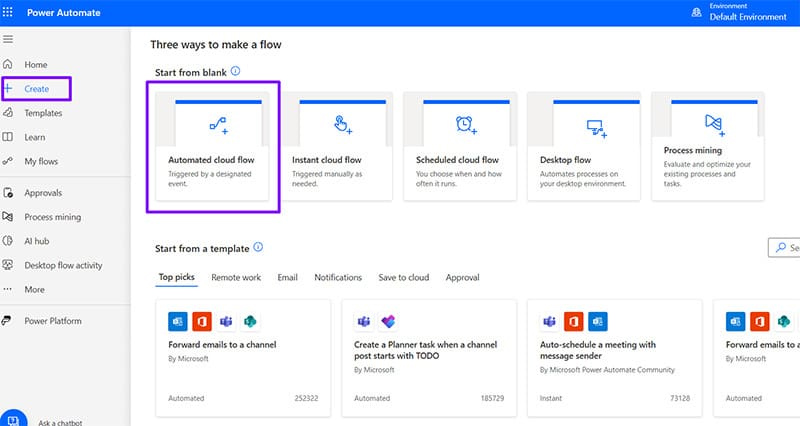
<p style="text-align: justify;">Nhấp vào&nbsp;<strong>Create</strong>&nbsp;ở bên trái và&nbsp;<strong>chọn Automated cloud flow</strong>&nbsp;ở giao diện bên cạnh.</p>

<p style="text-align: justify;"><img alt="Power Automate" data-i="4" data-src="https://st.quantrimang.com/photos/image/2025/07/02/dong-bo-Microsoft-Forms-voi-excel-5.jpg" data-was-processed="true" height="320" src="https://st.quantrimang.com/photos/image/2025/07/02/dong-bo-Microsoft-Forms-voi-excel-5.jpg" width="600" /></p>

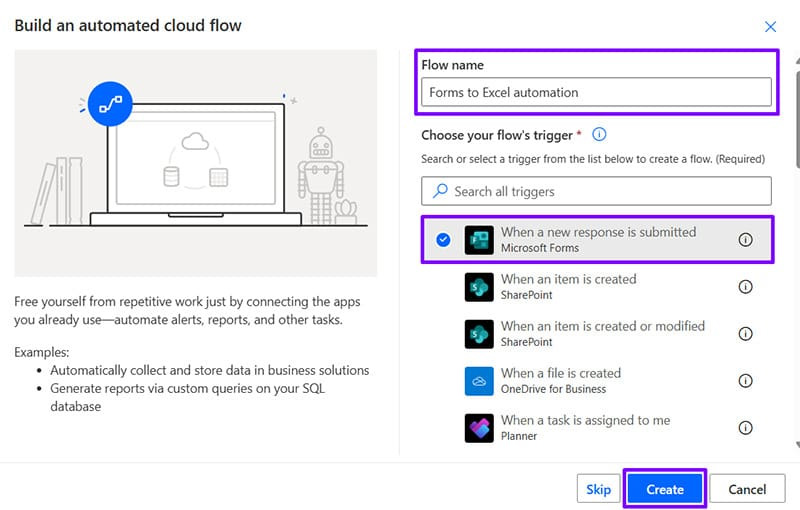
<p style="text-align: justify;">Nhấn vào&nbsp;<strong>When a new response is submitted với Microsoft Forms</strong>. Thêm tên vào luồng tự động hóa trong hộp văn bản ở trên cùng và&nbsp;<strong>nhấp vào Create</strong>&nbsp;để tiếp tục.</p>

<p style="text-align: justify;"><img alt="Tạo tác vụ đồng bộ tự động Microsoft Forms với Excel" data-i="5" data-src="https://st.quantrimang.com/photos/image/2025/07/02/dong-bo-Microsoft-Forms-voi-excel-6.jpg" data-was-processed="true" height="287" src="https://st.quantrimang.com/photos/image/2025/07/02/dong-bo-Microsoft-Forms-voi-excel-6.jpg" width="450" /></p>

<p style="text-align: justify;"><strong>Bước 3:</strong></p>

<p style="text-align: justify;">Đăng nhập vào tài khoản Microsoft Business 365 rồi&nbsp;<strong>nhấn Pick a form</strong>&nbsp;và&nbsp;<strong>chọn biểu mẫu bạn đã tạo muốn đồng bộ hóa</strong>.</p>

<p style="text-align: justify;"><strong>Bước 4:</strong></p>

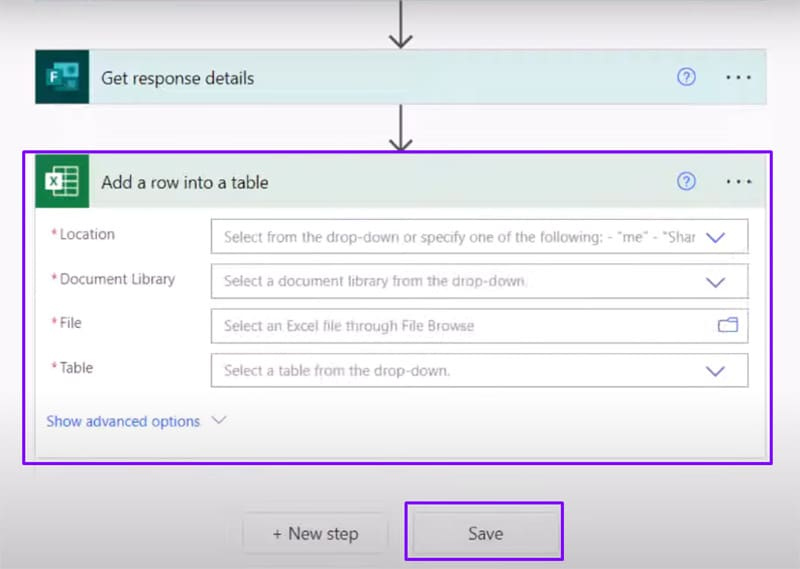
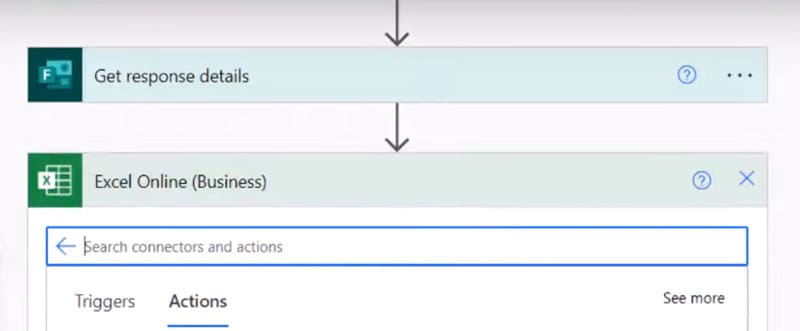
<p style="text-align: justify;">Chọn&nbsp;<strong>New step</strong>&nbsp;và sử dụng thanh tìm kiếm để tìm biểu mẫu, sau đó<strong>&nbsp;chọn Microsoft Forms&nbsp;</strong>từ danh sách. Chọn tiếp<strong>&nbsp;Actions</strong>&nbsp;rồi chọn tiếp&nbsp;<strong>Get response details</strong>.</p>

<p style="text-align: justify;">Click tiếp&nbsp;<strong>Form Id</strong>&nbsp;trong bước tiếp theo rồi nhấn chọn biểu mẫu bạn đã tạo muốn đồng bộ hóa. Trong trường&nbsp;<strong>Response Id chọn Response Id</strong>. Nhấn vào<strong>&nbsp;New Step&nbsp;</strong>và&nbsp;<strong>chọn Excel Online (Business)</strong>, sau đó nhấn&nbsp;<strong>Add a row into a table</strong>.</p>

<p style="text-align: justify;"><img alt="Excel Online" data-i="6" data-src="https://st.quantrimang.com/photos/image/2025/07/02/dong-bo-Microsoft-Forms-voi-excel-7.jpg" data-was-processed="true" height="265" src="https://st.quantrimang.com/photos/image/2025/07/02/dong-bo-Microsoft-Forms-voi-excel-7.jpg" width="640" /></p>

<p style="text-align: justify;">Tìm tệp Excel từ OneDrive của bạn và chọn tệp đó, sau đó chọn tên bảng từ trang tính. Bạn sẽ nhận được danh sách các trường trên bảng. Đối với mỗi trường trong danh sách Dynamic content, hãy kiểm tra trường thích hợp từ phản hồi để chúng có mối tương quan.</p>

<p style="text-align: justify;">Cuối cùng nhấn Save.</p>

<p style="text-align: justify;"><img alt="Đồng bộ Microsoft Forms với Excel bằng Power Automate" data-i="7" data-src="https://st.quantrimang.com/photos/image/2025/07/02/dong-bo-Microsoft-Forms-voi-excel-8.jpg" data-was-processed="true" height="427" src="https://st.quantrimang.com/photos/image/2025/07/02/dong-bo-Microsoft-Forms-voi-excel-8.jpg" width="600" /></p>

<div style="text-align: justify;">&nbsp;</div>
		</div>
				<div id="author">
						<p>
				<strong>Nguồn tin:</strong>
				Quantrimang.com:
			</p>
		</div>
	</div>
	<div id="footer" class="clearfix">
		<div id="url">
			<strong>URL của bản tin này: </strong><a href="https://www.nguoicodonvn2008.info/vi/news/savefile/kien-thuc-may-tinh/cach-dong-bo-microsoft-forms-voi-excel-10700.html" title="Cách đồng bộ Microsoft Forms với Excel">https://www.nguoicodonvn2008.info/vi/news/savefile/kien-thuc-may-tinh/cach-dong-bo-microsoft-forms-voi-excel-10700.html</a>

		</div>
		<div class="clear"></div>
		<div class="copyright">
			&copy; .&#x3A; Nguoicodonvn2008.info - Cõi lòng người cô đơn &#x3A;.
		</div>
		<div id="contact">
			<a href="mailto:admin@nguoicodonvn2008.info">admin@nguoicodonvn2008.info</a>
		</div>
	</div>
</div>
        <div id="timeoutsess" class="chromeframe">
            Bạn đã không sử dụng Site, <a onclick="timeoutsesscancel();" href="https://nguoicodonvn2008.info/#">Bấm vào đây để duy trì trạng thái đăng nhập</a>. Thời gian chờ: <span id="secField"> 60 </span> giây
        </div>
        <div id="openidResult" class="nv-alert" style="display:none"></div>
        <div id="openidBt" data-result="" data-redirect=""></div>
		</script>
		<div class="car-top">
  <span><img src="https://nguoicodonvn2008.info/themes/default/images/car.png" alt=""></span>
</div>
<script src="https://nguoicodonvn2008.info/assets/js/jquery/jquery.min.js"></script>
<script>var nv_base_siteurl="/",nv_lang_data="vi",nv_lang_interface="vi",nv_name_variable="nv",nv_fc_variable="op",nv_lang_variable="language",nv_module_name="news",nv_func_name="savefile",nv_is_user=0, nv_my_ofs=-4,nv_my_abbr="EDT",nv_cookie_prefix="nv4c_e856T",nv_check_pass_mstime=1738000,nv_area_admin=0,nv_safemode=0,theme_responsive=0,nv_recaptcha_ver=2,nv_recaptcha_sitekey="",nv_recaptcha_type="image",XSSsanitize=1;</script>
<script src="https://nguoicodonvn2008.info/assets/js/language/vi.js"></script>
<script src="https://nguoicodonvn2008.info/assets/js/DOMPurify/purify3.js"></script>
<script src="https://nguoicodonvn2008.info/assets/js/global.js"></script>
<script src="https://nguoicodonvn2008.info/assets/js/site.js"></script>
<script src="https://nguoicodonvn2008.info/themes/default/js/news.js"></script>
<script src="https://nguoicodonvn2008.info/themes/default/js/main.js"></script>
<script src="https://nguoicodonvn2008.info/themes/default/js/custom.js"></script>
<script type="application/ld+json">
        {
            "@context": "https://schema.org",
            "@type": "Organization",
            "url": "https://nguoicodonvn2008.info",
            "logo": "https://nguoicodonvn2008.info/uploads/angel.gif"
        }
        </script>
<script src="https://nguoicodonvn2008.info/themes/default/js/bootstrap.min.js"></script>
<script type="text/javascript">
var $scrolltop = $('.car-top');
$scrolltop.on('click', function () {
    $('html,body').animate({
        scrollTop: 0
    }, 800);
    $(this).addClass("car-run");
    setTimeout(function(){ $scrolltop.removeClass('car-run');}, 1000);
    return false;
});
$(window).on('scroll', function ()
{ 
    if($(window).scrollTop() >= 200)
    {
        $scrolltop.addClass("show");
        $scrolltop.addClass("car-down");
    }
    else
    {
       $scrolltop.removeClass("show");
       setTimeout(function(){ $scrolltop.removeClass('car-down');}, 300);
    }
});
</script>
</body>
</html>