<!DOCTYPE html>
    <html lang="vi" xmlns="http://www.w3.org/1999/xhtml" prefix="og: http://ogp.me/ns#">
    <head>
<title>Cách điều khiển và truy cập máy tính bằng điện thoại với Microsoft Remote Desktop</title>
<meta name="description" content="Cách điều khiển và truy cập máy tính bằng điện thoại với Microsoft Remote Desktop - Savefile - Tin Tức -...">
<meta name="author" content=".: Nguoicodonvn2008.info - Cõi lòng người cô đơn :.">
<meta name="copyright" content=".: Nguoicodonvn2008.info - Cõi lòng người cô đơn :. [admin@nguoicodonvn2008.info]">
<meta name="robots" content="index, archive, follow, noodp">
<meta name="googlebot" content="index,archive,follow,noodp">
<meta name="msnbot" content="all,index,follow">
<meta name="generator" content="NukeViet v4.5">
<meta http-equiv="Content-Type" content="text/html; charset=utf-8">
<meta property="og:title" content="Cách điều khiển và truy cập máy tính bằng điện thoại với Microsoft Remote Desktop">
<meta property="og:type" content="website">
<meta property="og:description" content="Savefile - Tin Tức -...">
<meta property="og:site_name" content=".&#x3A; Nguoicodonvn2008.info - Cõi lòng người cô đơn &#x3A;.">
<meta property="og:url" content="https://www.nguoicodonvn2008.info/vi/news/savefile/kien-thuc-may-tinh/cach-dieu-khien-va-truy-cap-may-tinh-bang-dien-thoai-voi-microsoft-remote-desktop-980.html">
<link rel="shortcut icon" href="https://nguoicodonvn2008.info/favicon.ico">
<link rel="canonical" href="https://www.nguoicodonvn2008.info/vi/news/savefile/kien-thuc-may-tinh/cach-dieu-khien-va-truy-cap-may-tinh-bang-dien-thoai-voi-microsoft-remote-desktop-980.html">
<link rel="alternate" href="https://nguoicodonvn2008.info/vi/news/rss/" title="Tin Tức" type="application/rss+xml">
<link rel="alternate" href="https://nguoicodonvn2008.info/vi/news/rss/karaoke-dual/" title="Tin Tức - Karaoke Dual" type="application/rss+xml">
<link rel="alternate" href="https://nguoicodonvn2008.info/vi/news/rss/nhac-tre/" title="Tin Tức - Nhạc trẻ" type="application/rss+xml">
<link rel="alternate" href="https://nguoicodonvn2008.info/vi/news/rss/tru-tinh/" title="Tin Tức - Trữ tình" type="application/rss+xml">
<link rel="alternate" href="https://nguoicodonvn2008.info/vi/news/rss/nuoc-ngoai/" title="Tin Tức - Nước ngoài" type="application/rss+xml">
<link rel="alternate" href="https://nguoicodonvn2008.info/vi/news/rss/remix/" title="Tin Tức - Remix" type="application/rss+xml">
<link rel="alternate" href="https://nguoicodonvn2008.info/vi/news/rss/tam-su-tinh-yeu/" title="Tin Tức - Tâm sự tình yêu" type="application/rss+xml">
<link rel="alternate" href="https://nguoicodonvn2008.info/vi/news/rss/tho-suu-tam/" title="Tin Tức - Thơ sưu tầm" type="application/rss+xml">
<link rel="alternate" href="https://nguoicodonvn2008.info/vi/news/rss/cuoc-song/" title="Tin Tức - Cuộc sống" type="application/rss+xml">
<link rel="alternate" href="https://nguoicodonvn2008.info/vi/news/rss/phan-mem/" title="Tin Tức - Phần mềm" type="application/rss+xml">
<link rel="alternate" href="https://nguoicodonvn2008.info/vi/news/rss/kien-thuc-may-tinh/" title="Tin Tức - Kiến thức máy tính" type="application/rss+xml">
<link rel="alternate" href="https://nguoicodonvn2008.info/vi/news/rss/hoc-tap/" title="Tin Tức - Học tập" type="application/rss+xml">
<link rel="alternate" href="https://nguoicodonvn2008.info/vi/news/rss/tai-lieu/" title="Tin Tức - Tài liệu" type="application/rss+xml">
<link rel="alternate" href="https://nguoicodonvn2008.info/vi/news/rss/de-thi/" title="Tin Tức - Đề thi" type="application/rss+xml">
<link rel="preload" as="style" href="https://nguoicodonvn2008.info/assets/css/font-awesome.min.css" type="text/css">
<link rel="preload" as="style" href="https://nguoicodonvn2008.info/themes/default/css/bootstrap.non-responsive.css" type="text/css">
<link rel="preload" as="style" href="https://nguoicodonvn2008.info/themes/default/css/style.css" type="text/css">
<link rel="preload" as="style" href="https://nguoicodonvn2008.info/themes/default/css/style.non-responsive.css" type="text/css">
<link rel="preload" as="style" href="https://nguoicodonvn2008.info/themes/default/css/news.css" type="text/css">
<link rel="preload" as="style" href="https://nguoicodonvn2008.info/themes/default/css/custom.css" type="text/css">
<link rel="preload" as="script" href="https://nguoicodonvn2008.info/assets/js/jquery/jquery.min.js" type="text/javascript">
<link rel="preload" as="script" href="https://nguoicodonvn2008.info/assets/js/language/vi.js" type="text/javascript">
<link rel="preload" as="script" href="https://nguoicodonvn2008.info/assets/js/DOMPurify/purify3.js" type="text/javascript">
<link rel="preload" as="script" href="https://nguoicodonvn2008.info/assets/js/global.js" type="text/javascript">
<link rel="preload" as="script" href="https://nguoicodonvn2008.info/assets/js/site.js" type="text/javascript">
<link rel="preload" as="script" href="https://nguoicodonvn2008.info/themes/default/js/news.js" type="text/javascript">
<link rel="preload" as="script" href="https://nguoicodonvn2008.info/themes/default/js/main.js" type="text/javascript">
<link rel="preload" as="script" href="https://nguoicodonvn2008.info/themes/default/js/custom.js" type="text/javascript">
<link rel="preload" as="script" href="https://nguoicodonvn2008.info/themes/default/js/bootstrap.min.js" type="text/javascript">
<link rel="stylesheet" href="https://nguoicodonvn2008.info/assets/css/font-awesome.min.css">
<link rel="stylesheet" href="https://nguoicodonvn2008.info/themes/default/css/bootstrap.non-responsive.css">
<link rel="stylesheet" href="https://nguoicodonvn2008.info/themes/default/css/style.css">
<link rel="stylesheet" href="https://nguoicodonvn2008.info/themes/default/css/style.non-responsive.css">
<link rel="StyleSheet" href="https://nguoicodonvn2008.info/themes/default/css/news.css">
<link rel="stylesheet" href="https://nguoicodonvn2008.info/themes/default/css/custom.css">
<style type="text/css">
	body{background: #fff;}
</style>
    </head>
    <body>
<div id="print">
	<div id="hd_print">
		<h2 class="pull-left">.&#x3A; Nguoicodonvn2008.info - Cõi lòng người cô đơn &#x3A;.</h2>
		<p class="pull-right"><a title=".&#x3A; Nguoicodonvn2008.info - Cõi lòng người cô đơn &#x3A;." href="https://nguoicodonvn2008.info/">https://nguoicodonvn2008.info</a></p>
	</div>
	<div class="clear"></div>
	<hr />
	<div id="content">
		<h1>Cách điều khiển và truy cập máy tính bằng điện thoại với Microsoft Remote Desktop</h1>
		<ul class="list-inline">
			<li>Thứ ba - 17/09/2019 01:46</li>
			<li class="hidden-print txtrequired"><em class="fa fa-print">&nbsp;</em><a title="In ra" href="javascript:;" onclick="window.print()">In ra</a></li>
			<li class="hidden-print txtrequired"><em class="fa fa-power-off">&nbsp;</em><a title="Đóng cửa sổ này" href="javascript:;" onclick="window.close()">Đóng cửa sổ này</a></li>
		</ul>
		<div class="clear"></div>
		<div id="hometext">
		</div>
				<div class="imghome">
			<img alt="Cách điều khiển và truy cập máy tính bằng điện thoại với Microsoft Remote Desktop" src="https://st.quantrimang.com/photos/image/2018/11/22/Remote-Desktop-2.jpg" width="460" class="img-thumbnail" />
		</div>
		<div class="clear"></div>
		<div id="bodytext" class="clearfix">
			<p style="text-align: justify;">Việc điều khiển máy tính qua smartphone tưởng chừng không có ích mấy nhưng bạn cứ thử tưởng tượng đang nằm trên giường mà có thể truy cập và chỉnh sửa một file văn bản trên máy tính mà trước đó quên không chỉnh sửa lại, hoặc sử dụng các tác vụ khác trên máy tính.</p>

<p style="text-align: justify;">Bạn chỉ cần chuẩn bị một chiếc Smartphone có cấu hình tầm trung trở lên thì bạn đã có thể nắm trọn trong tay hệ thống máy tính của mình rồi, từ những việc sử dụng phần mềm máy tính, hỗ trợ bạn bè và chuyển file trên máy tính cho bạn bè của mình... Cách điều khiển máy tính và truy cập máy tính bằng điện thoại qua phần mềm&nbsp;<strong>Microsoft Remote Desktop.</strong></p>

<ul>
	<li style="text-align: justify;">&nbsp;</li>
</ul>

<div style="text-align: justify;">&nbsp;</div>

<h2 id="mcetoc_1dkk74gco0" style="text-align: justify;"><strong>1. Bật tính năng cho phép điều khiển máy tính&nbsp;</strong></h2>

<ul>
	<li style="text-align: justify;"><strong>Tải Microsoft Remote Desktop cho iOS:</strong></li>
</ul>

<div style="text-align: justify;"><span style="color:rgb(192, 57, 43);"><strong>download.com.vn/ios/microsoft-remote-desktop-cho-ios/download</strong></span></div>

<ul>
	<li style="text-align: justify;"><strong>Tải Microsoft Remote Desktop cho Android:</strong></li>
</ul>

<div style="text-align: justify;"><span style="color:rgb(192, 57, 43);"><strong>​​​​​​​download.com.vn/android/microsoft-remote-desktop-for-android/download</strong></span></div>

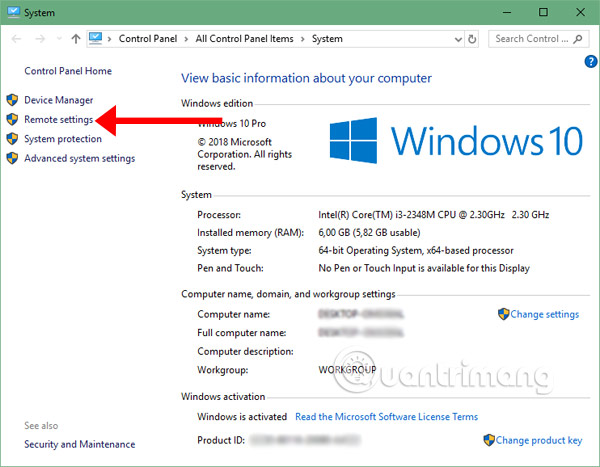
<p style="text-align: justify;"><strong>Bước 1:&nbsp;</strong>Tải về ứng dụng&nbsp;<strong>Remote Desktop</strong>&nbsp;cho iOS ở trên, sau đó thì bấm vào biểu tượng<strong>&nbsp;My Computer/This PC</strong>&nbsp;và chọn<strong>&nbsp;Properties.</strong></p>

<p style="text-align: justify;"><strong><img alt="Vào Properties My Computer" data-i="0" data-src="https://st.quantrimang.com/photos/image/2018/11/22/Remote-Desktop-1.jpg" data-was-processed="true" height="435" src="https://st.quantrimang.com/photos/image/2018/11/22/Remote-Desktop-1.jpg" width="600" /></strong></p>

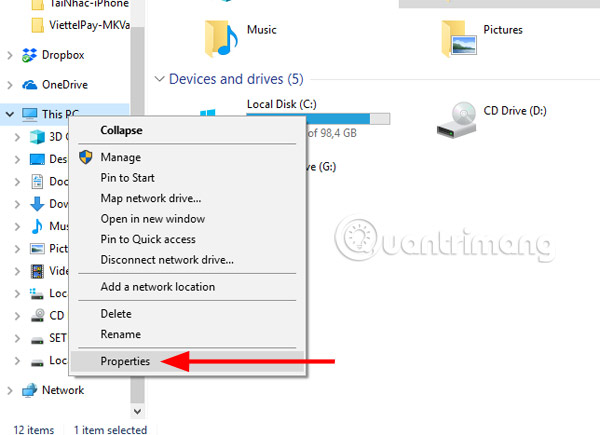
<p style="text-align: justify;"><strong>Bước 2:</strong>&nbsp;Trong menu System, bạn hãy chọn&nbsp;<strong>Remote Settings.</strong></p>

<p style="text-align: justify;"><strong><img alt="Menu System My Computer" data-i="1" data-src="https://st.quantrimang.com/photos/image/2018/11/22/Remote-Desktop-2.jpg" data-was-processed="true" height="467" src="https://st.quantrimang.com/photos/image/2018/11/22/Remote-Desktop-2.jpg" width="600" /></strong></p>

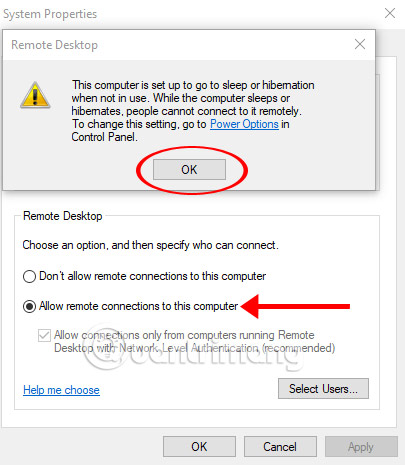
<p style="text-align: justify;">Trong bảng&nbsp;<strong>System Properties</strong>, bạn hãy tích chọn&nbsp;<strong>Allow remote connections to this computer</strong>, và sẽ có một bảng thông báo rằng là:</p>

<p style="text-align: justify;"><em>&quot;Máy tính này của bạn được thiết lập để tự động chuyển chế độ sleep khi không sử dụng. Trong khi máy tính ở chế độ Sleep, mọi người không thể kết nối với nó từ xa. Để thay đổi cài đặt này bạn hãy vào Control Panel &gt; Power Options để điều chỉnh lại chế độ này&quot;.</em></p>

<p style="text-align: justify;"><strong><img alt="Bật chế độ cho phép điều khiển từ xa trên máy tính" data-i="2" data-src="https://st.quantrimang.com/photos/image/2018/11/22/Remote-Desktop-3.jpg" data-was-processed="true" height="465" src="https://st.quantrimang.com/photos/image/2018/11/22/Remote-Desktop-3.jpg" width="405" /></strong></p>

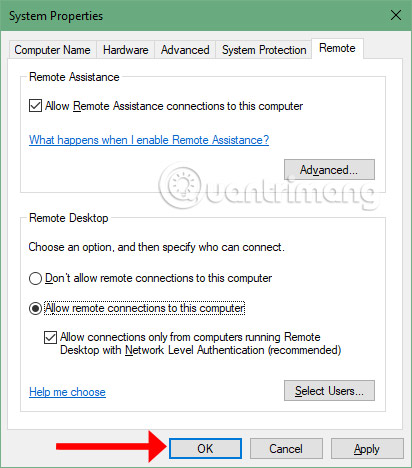
<p style="text-align: justify;">Tiếp theo bấm OK để hoàn tất.</p>

<p style="text-align: justify;"><strong><img alt="Bấm OK để đồng ý với cài đặt cho phép điều khiển từ xa" data-i="3" data-src="https://st.quantrimang.com/photos/image/2018/11/22/Remote-Desktop-4.jpg" data-was-processed="true" height="468" src="https://st.quantrimang.com/photos/image/2018/11/22/Remote-Desktop-4.jpg" width="412" /></strong></p>

<h2 id="mcetoc_1dkk74gco1" style="text-align: justify;"><strong>2.&nbsp;Điều khiển máy tính trong mạng LAN bằng Microsoft Remote Desktop</strong></h2>

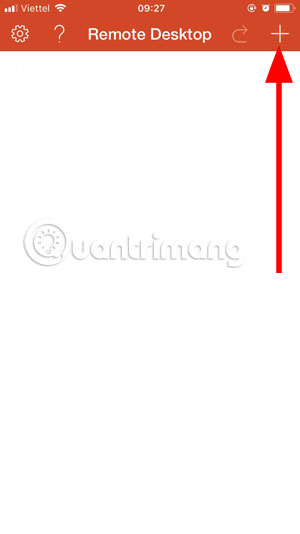
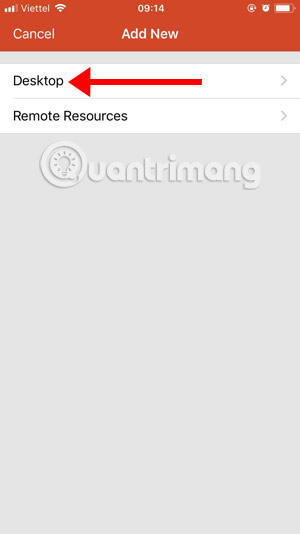
<p style="text-align: justify;"><strong>Bước 3:&nbsp;</strong>Giờ hãy chuyển sang điện thoại của bạn, khởi động ứng dụng&nbsp;<strong>Microsoft Remote Desktop</strong>&nbsp;lên, bấm vào dấu cộng ở góc trên bên phải và bấm&nbsp;<strong>Desktop</strong>&nbsp;để thêm máy tính muốn điều khiển.</p>

<p style="text-align: justify;"><strong><img alt="Giao diện chính Remote Desktop " data-i="4" data-src="https://st.quantrimang.com/photos/image/2018/11/22/Remote-Desktop-4-4.jpg" data-was-processed="true" height="auto" src="https://st.quantrimang.com/photos/image/2018/11/22/Remote-Desktop-4-4.jpg" /><img alt="Thêm máy tính để điều khiển" data-i="5" data-src="https://st.quantrimang.com/photos/image/2018/11/22/Remote-Desktop-4-5.jpg" data-was-processed="true" height="auto" src="https://st.quantrimang.com/photos/image/2018/11/22/Remote-Desktop-4-5.jpg" /></strong></p>

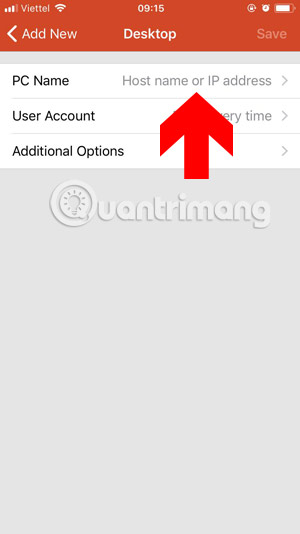
<p style="text-align: justify;">Có hai điều mà bạn cần phải chú ý để kết nối điện thoại với máy tính, đó là&nbsp;<strong>PC Name</strong>&nbsp;và&nbsp;<strong>User Account</strong>. Ở phần PC Name thì bạn cần cung cấp cho mục này địa chỉ IP máy tính của bạn. Nếu chưa biết cách&nbsp;xem địa chỉ IP máy tính&nbsp;bạn có thể xem hướng dẫn ở dưới đây.</p>

<p style="text-align: justify;"><strong><img alt="Chọn PC Name ứng dụng Microsoft Remote Desktop" data-i="6" data-src="https://st.quantrimang.com/photos/image/2018/11/22/Remote-Desktop-4-6.jpg" data-was-processed="true" height="auto" src="https://st.quantrimang.com/photos/image/2018/11/22/Remote-Desktop-4-6.jpg" /></strong></p>

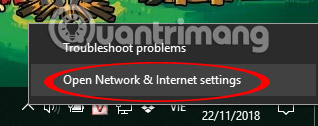
<p style="text-align: justify;">Bấm vào biểu tượng mạng của bạn, chọn&nbsp;<strong>Open Network &amp; Internet Settings.</strong></p>

<p style="text-align: justify;"><strong><img alt="Biểu tượng mạng trên PC" data-i="7" data-src="https://st.quantrimang.com/photos/image/2018/11/22/Remote-Desktop-5.jpg" data-was-processed="true" height="126" src="https://st.quantrimang.com/photos/image/2018/11/22/Remote-Desktop-5.jpg" width="318" /></strong></p>

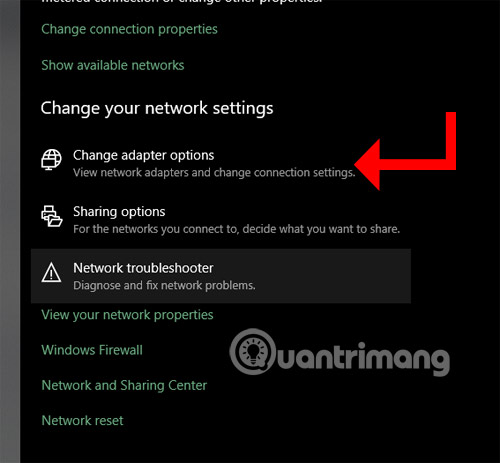
<p style="text-align: justify;">Trong menu&nbsp;<strong>Network &amp; Internet Settings</strong>&nbsp;hãy chọn&nbsp;<strong>Change Adapter options</strong>&nbsp;trong mục&nbsp;<strong>Change your network settings.</strong></p>

<p style="text-align: justify;"><strong><img alt="Menu Network settings" data-i="8" data-src="https://st.quantrimang.com/photos/image/2018/11/22/Remote-Desktop-6.jpg" data-was-processed="true" height="463" src="https://st.quantrimang.com/photos/image/2018/11/22/Remote-Desktop-6.jpg" width="500" /></strong></p>

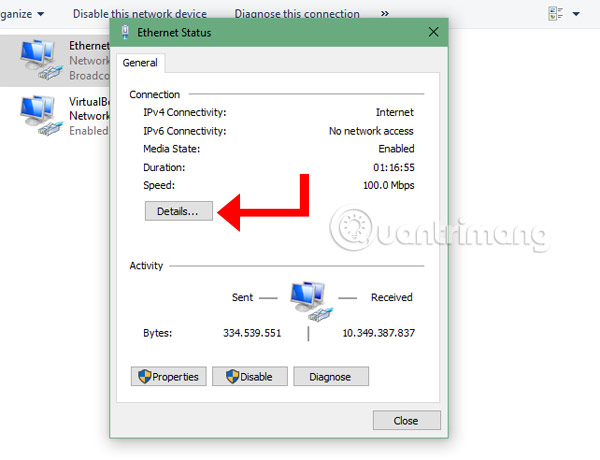
<p style="text-align: justify;">Bấm&nbsp;<strong>Details</strong>&nbsp;để lấy thông tin địa chỉ IP của máy tính.</p>

<p style="text-align: justify;"><strong><img alt="Cửa sổ Ethernet Status" data-i="9" data-src="https://st.quantrimang.com/photos/image/2018/11/22/Remote-Desktop-7.jpg" data-was-processed="true" height="460" src="https://st.quantrimang.com/photos/image/2018/11/22/Remote-Desktop-7.jpg" width="600" /></strong></p>

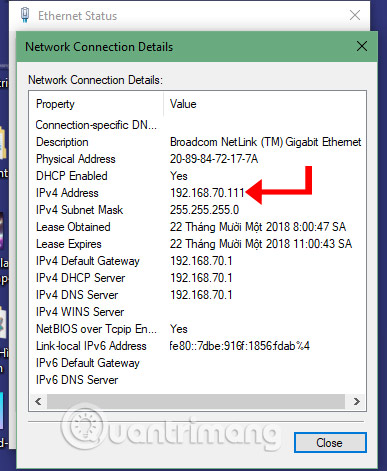
<p style="text-align: justify;">Tiếp đó là bảng&nbsp;<strong>Network Connection Details</strong>&nbsp;sẽ hiện ra, trong cửa sổ này bạn hãy xem địa chỉ IP của mình ở mục&nbsp;<strong>IPv4 Address.&nbsp;</strong>Lấy địa chỉ đó và ghi vào mục&nbsp;<strong>PC Name</strong>&nbsp;ở trên ứng dụng Microsoft Remote Desktop.</p>

<p style="text-align: justify;"><strong><img alt="Cửa sổ Network Connection Details" data-i="10" data-src="https://st.quantrimang.com/photos/image/2018/11/22/Remote-Desktop-8.jpg" data-was-processed="true" height="471" src="https://st.quantrimang.com/photos/image/2018/11/22/Remote-Desktop-8.jpg" width="387" /></strong></p>

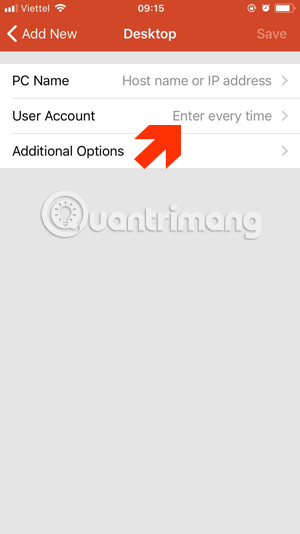
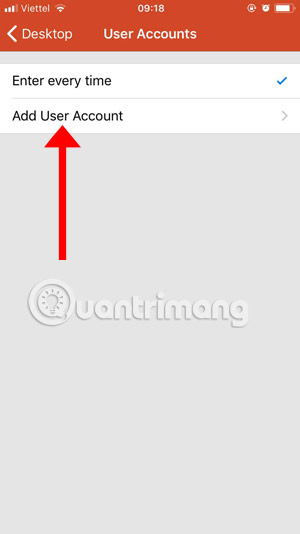
<p style="text-align: justify;"><strong>Bước 4:&nbsp;</strong>Sau mục PC Name sẽ đến mục&nbsp;<strong>User Account</strong>,&nbsp;<strong>User Account</strong>&nbsp;ở đây là tên người dùng trên máy tính, nếu bạn có sử dụng&nbsp;<strong>Account</strong>&nbsp;của Microsoft như&nbsp;<strong>hotmail</strong>&nbsp;hay<strong>outlook</strong>&nbsp;thì bạn phải ghi tên tài khoản của bạn vào mục User Account này. Bấm vào&nbsp;<strong>User Account</strong>&nbsp;trong mục&nbsp;<strong>Desktop</strong>, trong này bạn sẽ có hai lựa chọn là&nbsp;<strong>Enter Every Time</strong>&nbsp;và&nbsp;<strong>Add User Account</strong>.</p>

<p style="text-align: justify;">Nếu chọn&nbsp;<strong>Enter Every time</strong>&nbsp;thì mỗi lần kết nối điện thoại với máy tính, bạn sẽ phải nhập tên người dùng và mật khẩu đang sử dụng trên máy tính vào, còn chọn&nbsp;<strong>Add User Account</strong>&nbsp;thì bạn sẽ thêm tài khoản vào luôn và không cần phải nhập tài khoản mỗi lần truy cập vào máy tính để điều khiển nữa.</p>

<p style="text-align: justify;"><strong><img alt="Thêm User Account trên Microsoft Remote Desktop" data-i="11" data-src="https://st.quantrimang.com/photos/image/2018/11/22/Remote-Desktop-8-5.jpg" data-was-processed="true" height="534" src="https://st.quantrimang.com/photos/image/2018/11/22/Remote-Desktop-8-5.jpg" width="300" /><img alt="Add User Account" data-i="12" data-src="https://st.quantrimang.com/photos/image/2018/11/22/Remote-Desktop-8-6.jpg" data-was-processed="true" height="534" src="https://st.quantrimang.com/photos/image/2018/11/22/Remote-Desktop-8-6.jpg" width="300" /></strong></p>

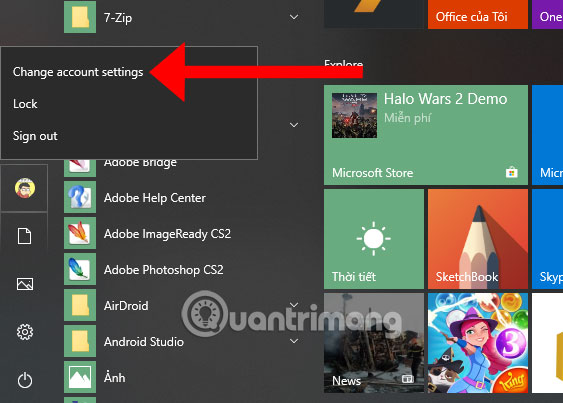
<p style="text-align: justify;">Nếu bạn không biết cách lấy thông tin tài khoản User trên máy tính của bạn, hãy bấm vào biểu tượng&nbsp;<strong>Start</strong>&nbsp;&gt; chọn biểu tượng ảnh đại diện &gt; chọn&nbsp;<strong>Change account Settings.</strong></p>

<p style="text-align: justify;"><strong><img alt="Menu Start " data-i="13" data-src="https://st.quantrimang.com/photos/image/2018/11/22/Remote-Desktop-8-10.jpg" data-was-processed="true" height="403" src="https://st.quantrimang.com/photos/image/2018/11/22/Remote-Desktop-8-10.jpg" width="563" /></strong></p>

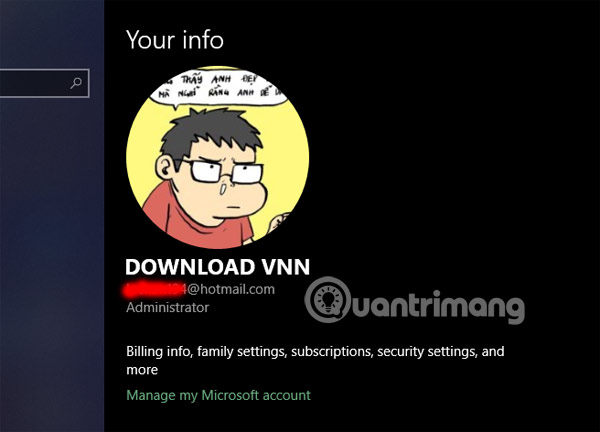
<p style="text-align: justify;">Trong bảng&nbsp;<strong>Your Info</strong>, bạn sẽ thấy thông tin tài khoản User, nếu có tài khoản hotmail hoặc outlook thì hãy ghi nó vào mục Add User Account kèm theo mật khẩu đặt trên máy. Còn không đặt mật khẩu hay thêm tài khoản thì bạn chỉ cần thêm tên User vào thôi.</p>

<p style="text-align: justify;"><strong><img alt="Thông tin User Account trên máy" data-i="14" data-src="https://st.quantrimang.com/photos/image/2018/11/22/Remote-Desktop-9.jpg" data-was-processed="true" height="432" src="https://st.quantrimang.com/photos/image/2018/11/22/Remote-Desktop-9.jpg" width="600" /></strong></p>

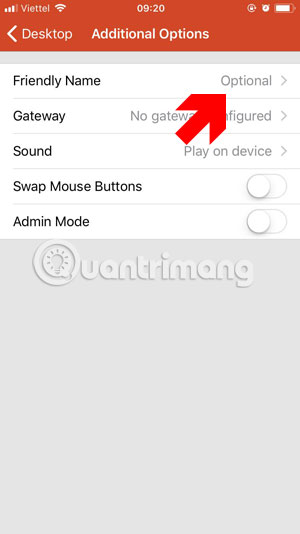
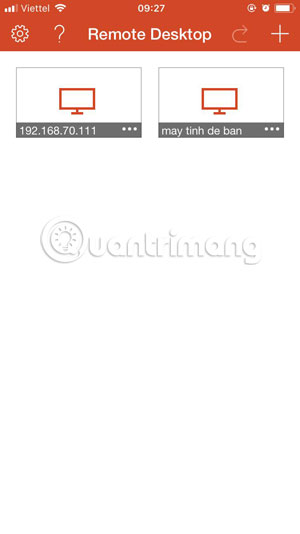
<p style="text-align: justify;">Tiếp theo là phần&nbsp;<strong>Friendly Name</strong>, đây là tên bạn đặt cho mỗi PC được kết nối, nếu mục này bạn để trống thì nó sẽ được thay thế bằng địa chỉ IP của máy đó. Sau khi nhập thông tin bạn sẽ thấy mục&nbsp;<strong>Remote Desktop</strong>&nbsp;sẽ hiện ra PC vừa được thêm vào.</p>

<p style="text-align: justify;"><strong><img alt="Thêm tên PC vào mục Friendly Name" data-i="15" data-src="https://st.quantrimang.com/photos/image/2018/11/22/Remote-Desktop-8-7.jpg" data-was-processed="true" height="534" src="https://st.quantrimang.com/photos/image/2018/11/22/Remote-Desktop-8-7.jpg" width="300" /><img alt="Danh sách máy tính được kết nối" data-i="16" data-src="https://st.quantrimang.com/photos/image/2018/11/22/Remote-Desktop-8-8.jpg" data-was-processed="true" height="534" src="https://st.quantrimang.com/photos/image/2018/11/22/Remote-Desktop-8-8.jpg" width="300" /></strong></p>

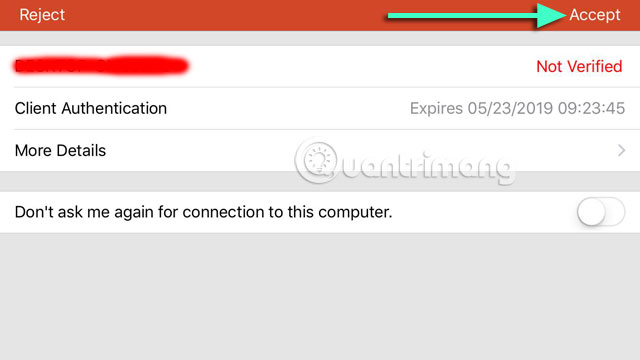
<p style="text-align: justify;">Bấm vào PC muốn kết nối và điểu khiển, tiếp theo sẽ là tên máy tính của bạn hiện ra và thông tin ở dưới, chọn&nbsp;<strong>Accepts</strong>&nbsp;để đồng ý kết nối.</p>

<p style="text-align: justify;"><strong><img alt="Bảng tên PC đang kết nối" data-i="17" data-src="https://st.quantrimang.com/photos/image/2018/11/22/Remote-Desktop-10.jpg" data-was-processed="true" height="360" src="https://st.quantrimang.com/photos/image/2018/11/22/Remote-Desktop-10.jpg" width="640" /></strong></p>

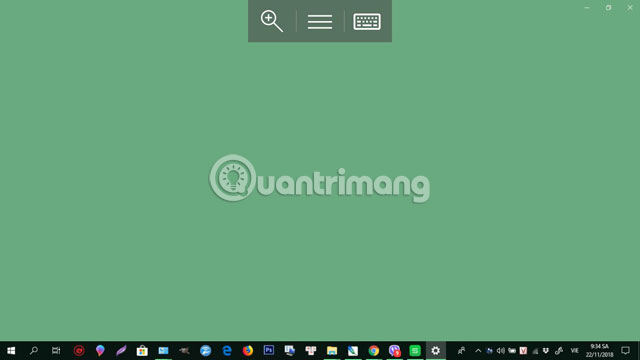
<p style="text-align: justify;">Tiếp theo, giao diện máy tính của bạn sẽ được hiển thị trên điện thoại, cùng lúc này màn hình máy tính của bạn sẽ chuyển sang chế độ Sleep.</p>

<p style="text-align: justify;"><strong><img alt="Giao diện PC đang kết nối" data-i="18" data-src="https://st.quantrimang.com/photos/image/2018/11/22/Remote-Desktop-11.jpg" data-was-processed="true" height="360" src="https://st.quantrimang.com/photos/image/2018/11/22/Remote-Desktop-11.jpg" width="640" /></strong></p>

<p style="text-align: justify;">Ở cạnh trên màn hình, bạn sẽ thấy ba phím chức năng dùng để sử dụng cho việc điều khiển máy tính trên điện thoại.</p>

<p style="text-align: justify;"><strong><img alt="Sử dụng Menu Settings trên máy tính bằng điện thoại" data-i="19" data-src="https://st.quantrimang.com/photos/image/2018/11/22/Remote-Desktop-12.jpg" data-was-processed="true" height="360" src="https://st.quantrimang.com/photos/image/2018/11/22/Remote-Desktop-12.jpg" width="640" /></strong></p>

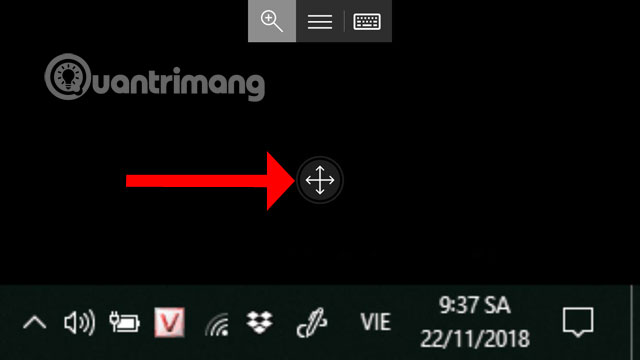
<p style="text-align: justify;">Đầu tiên là chức năng phóng to màn hình, bấm vào biểu tượng ngoài cùng bên trái. Sau đó bấm vào biểu tượng mũi tên ở giữa màn hình và di chuyển chúng đến nơi bạn cần nhìn rõ hơn.</p>

<p style="text-align: justify;"><strong><img alt="Tính năng phóng to PC" data-i="20" data-src="https://st.quantrimang.com/photos/image/2018/11/22/Remote-Desktop-13.jpg" data-was-processed="true" height="360" src="https://st.quantrimang.com/photos/image/2018/11/22/Remote-Desktop-13.jpg" width="640" /></strong></p>

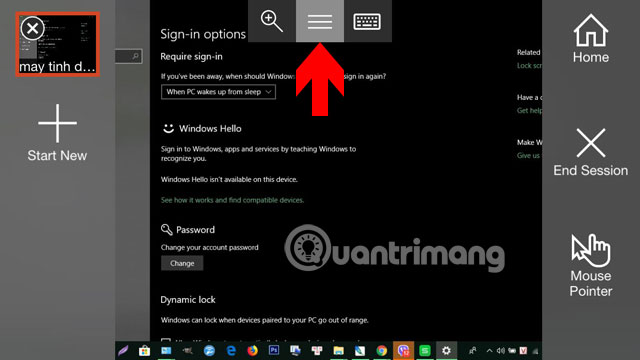
<p style="text-align: justify;">Biểu tượng ở giữa là danh sách chức năng tùy chỉnh con trỏ chuột&nbsp;<strong>(Mouse Pointer)</strong>, tắt điều khiển máy tính&nbsp;<strong>(End Session)</strong>, chuyển về màn hình chính&nbsp;<strong>(Home)</strong>.&nbsp;</p>

<p style="text-align: justify;"><strong><img alt="Danh sách chức năng Remote Desktop" data-i="21" data-src="https://st.quantrimang.com/photos/image/2018/11/22/Remote-Desktop-14.jpg" data-was-processed="true" height="360" src="https://st.quantrimang.com/photos/image/2018/11/22/Remote-Desktop-14.jpg" width="640" /></strong></p>

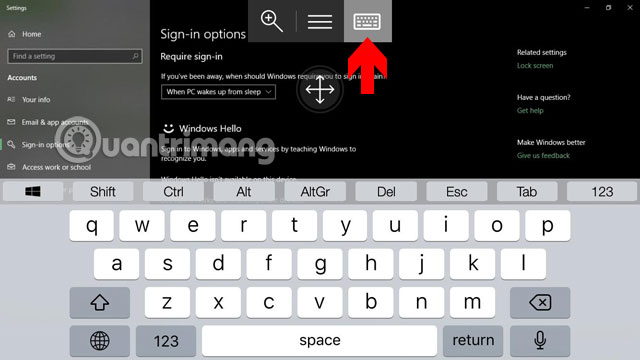
<p style="text-align: justify;">Và biểu tượng cuối cùng bên phải là bàn phím ảo để nhập thông tin.</p>

<p style="text-align: justify;"><strong><img alt="Bàn phím ảo Remote Desktop" data-i="22" data-src="https://st.quantrimang.com/photos/image/2018/11/22/Remote-Desktop-15.jpg" data-was-processed="true" height="360" src="https://st.quantrimang.com/photos/image/2018/11/22/Remote-Desktop-15.jpg" width="640" /></strong></p>

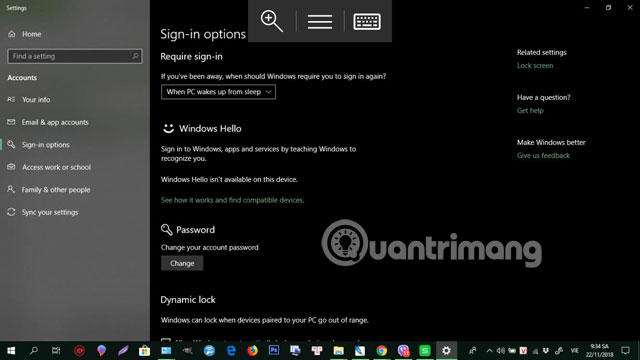
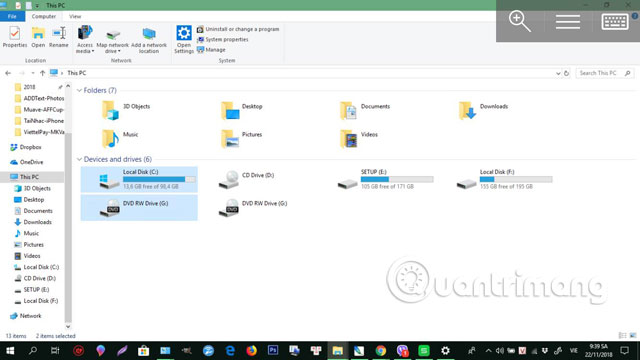
<p style="text-align: justify;">Bạn có thể vào trực tiếp&nbsp;<strong>My Computer</strong>, xóa hoặc phục hồi những file đã xóa trên máy tính bằng Remote Desktop.</p>

<p style="text-align: justify;"><strong><img alt="My Computer " data-i="23" data-src="https://st.quantrimang.com/photos/image/2018/11/22/Remote-Desktop-16.jpg" data-was-processed="true" height="360" src="https://st.quantrimang.com/photos/image/2018/11/22/Remote-Desktop-16.jpg" width="640" /></strong></p>

<p style="text-align: justify;">Hay chỉnh sửa những file văn bản, file thông tin có trong máy tính của mình.</p>

<p style="text-align: justify;"><strong><img alt="Chỉnh sửa file phần mềm văn phòng Remote Desktop" data-i="24" data-src="https://st.quantrimang.com/photos/image/2018/11/22/Remote-Desktop-17.jpg" data-was-processed="true" height="360" src="https://st.quantrimang.com/photos/image/2018/11/22/Remote-Desktop-17.jpg" width="640" /></strong></p>

<h2 id="mcetoc_1dkk74gco2" style="text-align: justify;">3. Cách điều khiển máy tính từ xa qua Internet bằng Microsoft Remote Desktop</h2>

<p style="text-align: justify;">Nếu bạn muốn điều khiển máy tính của mình từ xa thông qua Internet, thì ngoài việc cấu hình các thuộc tính hệ thống, bạn sẽ cần thiết lập cả bộ router cục bộ để cho phép các kết nối từ xa đi qua. Nghiễm nhiên là bạn sẽ cần biết cả địa chỉ IP public của mình để kết nối với thiết bị qua internet nữa nhé. Sẽ rắc rối hơn điều khiển máy tính trong mạng LAN một chút.</p>

<div style="text-align: justify;">&nbsp;</div>

<h3 id="mcetoc_1dkk74gco3" style="text-align: justify;">3.1. Thiết lập địa chỉ IP tĩnh cho PC</h3>

<p style="text-align: justify;">Hầu hết các máy tính trong private network đều được gán địa chỉ IP động, có thể thay đổi bất cứ lúc nào. Nếu bạn thường xuyên sử dụng điều khiển máy tính từ xa thông qua internet chứ không phải trong cùng mạng LAN, bạn nên thiết lập cấu hình máy tính của mình bằng địa chỉ IP tĩnh để không phải cấu hình lại cài đặt chuyển tiếp cổng (Port Forwarding), phục vụ cho sử dụng ứng dụng Remote Desktop.</p>

<p style="text-align: justify;"><strong>Bước 1</strong>:&nbsp;Mở&nbsp;<strong>Control Panel</strong>.</p>

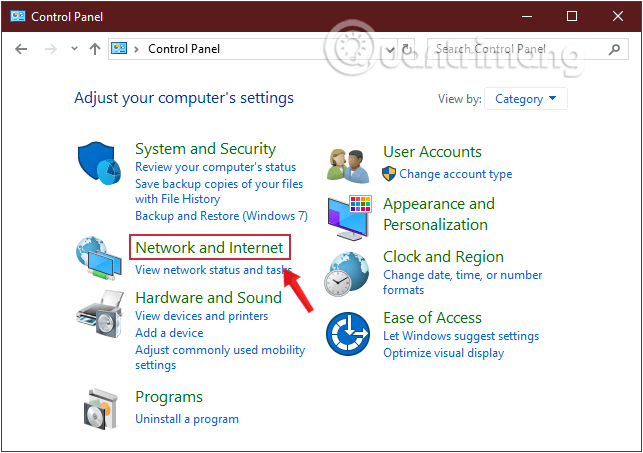
<p style="text-align: justify;"><strong>Bước 2:</strong>&nbsp;Tìm và nhấp chọn&nbsp;<strong>Network and Internet.</strong></p>

<figure>
<div style="text-align: justify;"><img alt="Tìm Network and Internet trong Control Panel" data-i="25" data-src="https://st.quantrimang.com/photos/image/2019/09/12/su-dung-Microsoft-Remote-Desktop-1.png" data-was-processed="true" height="453" src="https://st.quantrimang.com/photos/image/2019/09/12/su-dung-Microsoft-Remote-Desktop-1.png" width="643" /></div>

<figcaption>
<div style="text-align: justify;">Tìm Network and Internet trong Control Panel</div>
</figcaption>
</figure>

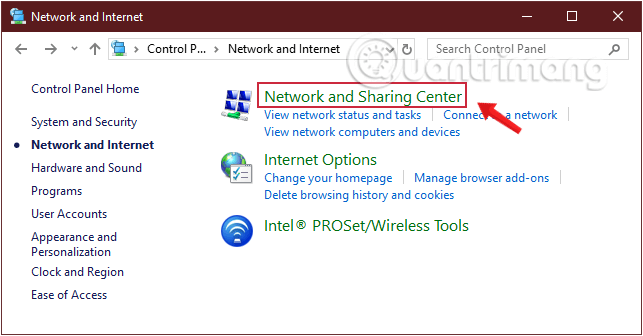
<p style="text-align: justify;"><strong>Bước 3:</strong>&nbsp;Tìm và nhấp chọn&nbsp;<strong>Network and Sharing Center.</strong></p>

<figure>
<div style="text-align: justify;"><img alt="Chọn Network and Sharing Center trong Network and Internet " data-i="26" data-src="https://st.quantrimang.com/photos/image/2019/09/12/su-dung-Microsoft-Remote-Desktop-2.png" data-was-processed="true" height="336" src="https://st.quantrimang.com/photos/image/2019/09/12/su-dung-Microsoft-Remote-Desktop-2.png" width="643" /></div>

<figcaption>
<div style="text-align: justify;">Chọn Network and Sharing Center trong Network and Internet&nbsp;</div>
</figcaption>
</figure>

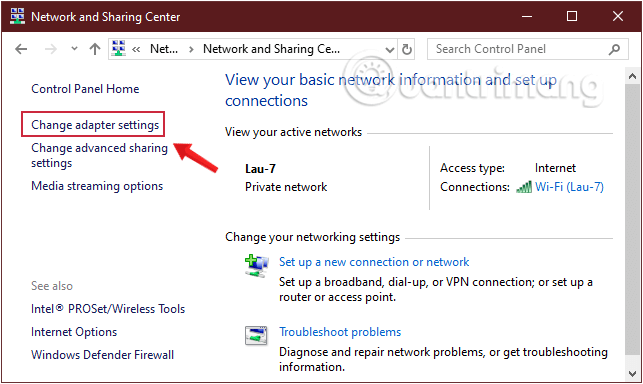
<p style="text-align: justify;"><strong>Bước 4:</strong>&nbsp;Lúc này trên màn hình xuất hiện một cửa sổ mới, tại cửa sổ này nhìn sang khung bên trái click chọn&nbsp;<strong>Change adapter settings.</strong></p>

<figure>
<div style="text-align: justify;"><img alt="Click chọn Change adapter settings" data-i="27" data-src="https://st.quantrimang.com/photos/image/2019/09/12/su-dung-Microsoft-Remote-Desktop-3.png" data-was-processed="true" height="384" src="https://st.quantrimang.com/photos/image/2019/09/12/su-dung-Microsoft-Remote-Desktop-3.png" width="643" /></div>

<figcaption>
<div style="text-align: justify;">Click chọn Change adapter settings</div>
</figcaption>
</figure>

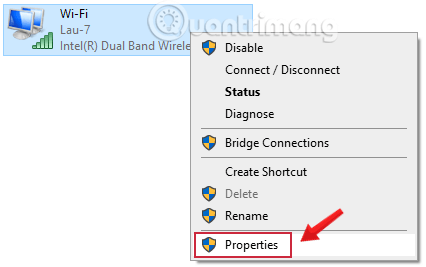
<p style="text-align: justify;"><strong>Bước 5:</strong>&nbsp;Kích chuột phải vào mạng bạn đang kết nối, click chọn&nbsp;<strong>Properties.</strong></p>

<figure>
<div style="text-align: justify;"><img alt="Click chọn Properties" data-i="28" data-src="https://st.quantrimang.com/photos/image/2019/09/12/su-dung-Microsoft-Remote-Desktop-4.png" data-was-processed="true" height="267" src="https://st.quantrimang.com/photos/image/2019/09/12/su-dung-Microsoft-Remote-Desktop-4.png" width="426" /></div>

<figcaption>
<div style="text-align: justify;">Click chọn Properties</div>
</figcaption>
</figure>

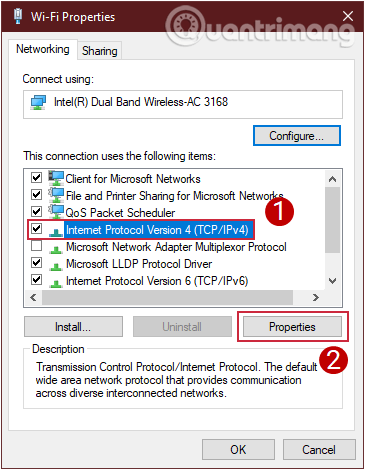
<p style="text-align: justify;"><strong>Bước 6:</strong>&nbsp;Lúc này trên màn hình xuất hiện một cửa sổ popup mới, tại đây bạn click chọn&nbsp;<strong>Internet Protocol Version 4 (TCP/IPv4)</strong>, sau đó chọn&nbsp;<strong>Properties.</strong></p>

<figure>
<div style="text-align: justify;"><img alt="Chọn Internet Protocol Version 4 (TCP/IPv4)" data-i="29" data-src="https://st.quantrimang.com/photos/image/2019/09/12/su-dung-Microsoft-Remote-Desktop-5.png" data-was-processed="true" height="470" src="https://st.quantrimang.com/photos/image/2019/09/12/su-dung-Microsoft-Remote-Desktop-5.png" width="365" /></div>

<figcaption>
<div style="text-align: justify;">Chọn Internet Protocol Version 4 (TCP/IPv4)</div>
</figcaption>
</figure>

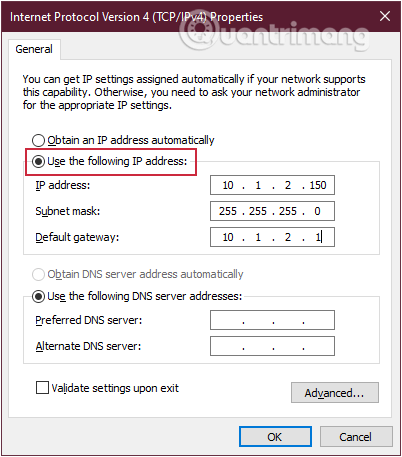
<p style="text-align: justify;"><strong>Bước 7:</strong>&nbsp;Tiếp theo, ở tab&nbsp;<strong>General,</strong>&nbsp;bạn bỏ tích mục&nbsp;<strong>Obtain an IP address automatically</strong>, đánh tích chọn mục<strong>&nbsp;Use the following IP address</strong>&nbsp;và thiết lập các mục sau:</p>

<ul>
	<li style="text-align: justify;"><strong>IP address</strong>: địa chỉ IP cục bộ hợp lệ nằm ngoài phạm vi DHCP để ngăn xung đột địa chỉ IP trong mạng.

	<ul>
		<li><em>Ví dụ:&nbsp;<strong>10.1.2.150</strong></em><strong>.</strong>&nbsp;(Bạn có thể tìm thấy thông tin này trong phần cài đặt DHCP trên bộ router của mình).</li>
	</ul>
	</li>
	<li style="text-align: justify;"><strong>Subnet mask</strong>: điền subnet mask cho mạng.&nbsp;
	<ul>
		<li>Đối với home network, subnet mask thường là&nbsp;<em><strong>255.255.255.0.</strong></em></li>
	</ul>
	</li>
	<li style="text-align: justify;"><strong>Default gateway:</strong>&nbsp;điền thông tin cổng mặc định, là địa chỉ IP bộ router của bạn.&nbsp;
	<ul>
		<li>Ví dụ:&nbsp;<em><strong>10.1.2.1.</strong></em></li>
	</ul>
	</li>
</ul>

<figure>
<div style="text-align: justify;"><img alt="Thay đổi địa chỉ IP" data-i="30" data-src="https://st.quantrimang.com/photos/image/2019/09/12/su-dung-Microsoft-Remote-Desktop-6.png" data-was-processed="true" height="457" src="https://st.quantrimang.com/photos/image/2019/09/12/su-dung-Microsoft-Remote-Desktop-6.png" width="402" /></div>

<figcaption>
<div style="text-align: justify;">Thay đổi địa chỉ IP</div>
</figcaption>
</figure>

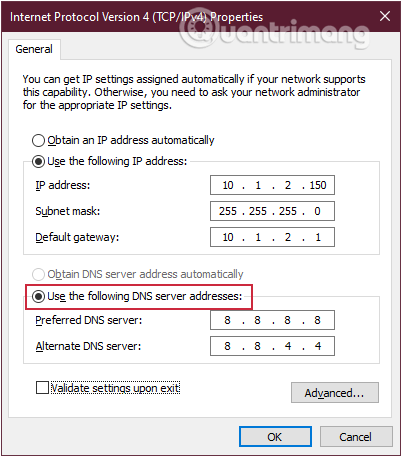
<p style="text-align: justify;"><strong>Bước 8:</strong>&nbsp;Phía dưới&nbsp;<strong>Use the following DNS server addresses</strong>, nhớ nhập địa chỉ IP máy chủ DNS của bạn, thường chính là địa chỉ IP bộ router.</p>

<p style="text-align: justify;">Nếu không thể kết nối với internet, hãy sử dụng các địa chỉ DNS public của Google:</p>

<pre id="pre0">
<code>Preferred DNS Server: 8.8.8.8
 Alternate DNS Server: 8.8.4.4</code></pre>

<figure>
<div style="text-align: justify;"><img alt="Thay đổi địa chỉ DNS" data-i="31" data-src="https://st.quantrimang.com/photos/image/2019/09/12/su-dung-Microsoft-Remote-Desktop-7.png" data-was-processed="true" height="457" src="https://st.quantrimang.com/photos/image/2019/09/12/su-dung-Microsoft-Remote-Desktop-7.png" width="402" /></div>

<figcaption>
<div style="text-align: justify;">Thay đổi địa chỉ DNS</div>
</figcaption>
</figure>

<p style="text-align: justify;"><strong>Bước 9:</strong>&nbsp;Cuối cùng click chọn&nbsp;<strong>OK</strong>&nbsp;rồi Close các cửa sổ lại.</p>

<h3 id="mcetoc_1dkk74gco4" style="text-align: justify;">3.2. Cách tìm địa chỉ IP public của bạn</h3>

<p style="text-align: justify;">Cách dễ dàng nhất để tìm địa chỉ IP công cộng là “hỏi” một website, do website đó nhìn máy tính dưới địa chỉ IP công cộng và có thể nói cho người dùng.</p>

<p style="text-align: justify;">&nbsp;</p>

<p style="text-align: justify;">Hãy lưu ý rằng, các địa chỉ IP public không cố định. Nhà cung cấp dịch vụ Internet có thể định kỳ gán cho bạn một địa chỉ IP.</p>

<h3 id="mcetoc_1dkk74gco5" style="text-align: justify;">3.3. Cấu hình router để chuyển tiếp cổng máy tính từ xa</h3>

<p style="text-align: justify;">Để có thể điều khiển máy tính từ xa thông qua internet đến một máy tính cụ thể trong một private network, bạn sẽ cần chuyển tiếp cổng TCP 3389 trên bộ định tuyến (router) của mình.&nbsp;</p>

<p style="text-align: justify;">Cách làm như sau:</p>

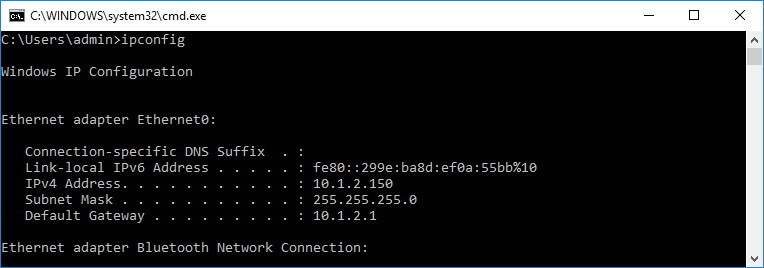
<p style="text-align: justify;"><strong>Bước 1:</strong>&nbsp;Mở&nbsp;<strong>Command Prompt.</strong></p>

<p style="text-align: justify;"><strong>Bước 2:</strong>&nbsp;Nhập lệnh sau và nhấn Enter:</p>

<pre id="pre1">
<code>ipconfig</code></pre>

<figure>
<div style="text-align: justify;"><img alt="Nhập ipconfig vào Command Prompt" data-i="32" data-src="https://st.quantrimang.com/photos/image/2019/09/12/su-dung-Microsoft-Remote-Desktop-8.jpg" data-was-processed="true" height="268" src="https://st.quantrimang.com/photos/image/2019/09/12/su-dung-Microsoft-Remote-Desktop-8.jpg" width="764" /></div>

<figcaption>
<div style="text-align: justify;">Nhập ipconfig vào Command Prompt</div>
</figcaption>
</figure>

<p style="text-align: justify;"><strong>Lưu ý:</strong></p>

<ul>
	<li style="text-align: justify;"><strong>IPv4 Address</strong>&nbsp;là địa chỉ nhận dạng máy tính của bạn trên mạng cục bộ.</li>
	<li style="text-align: justify;"><strong>Default Gateway</strong>&nbsp;là địa chỉ IPv4 của bộ định tuyến của bạn.</li>
</ul>

<p style="text-align: justify;"><strong>Bước 3:</strong>&nbsp;Mở trình duyệt web của bạn.</p>

<p style="text-align: justify;"><strong>Bước 4:</strong>&nbsp;Nhập địa chỉ IPv4 của router và nhấn Enter.</p>

<p style="text-align: justify;"><strong>Bước 5:</strong>&nbsp;Đăng nhập vào router của bạn với tên người dùng và mật khẩu.</p>

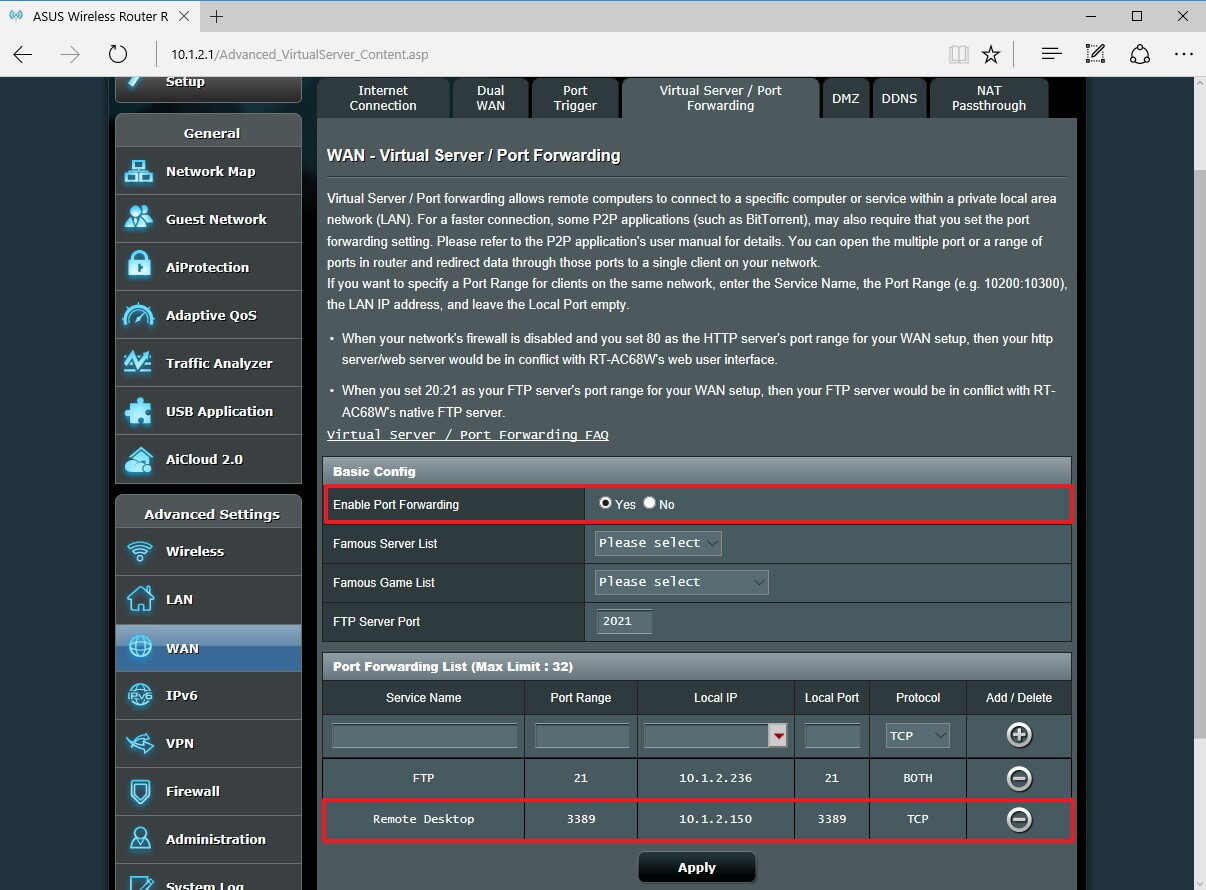
<p style="text-align: justify;"><strong>Bước 6:</strong>&nbsp;Ở giao diện hiển thị, tìm phần&nbsp;<strong>Port Forwarding</strong>&nbsp;và đảm bảo nó đang được bật.</p>

<p style="text-align: justify;"><strong>Bước 7:</strong>&nbsp;Trong nội dung phần port forwarding, thêm thông tin cần thiết, bao gồm:</p>

<ul>
	<li style="text-align: justify;"><strong>Service name:</strong>&nbsp;Tên này chỉ mang tính tham khảo, bạn có thể sử dụng bất kỳ tên nào bạn muốn.</li>
	<li style="text-align: justify;"><strong>Port Range:</strong>&nbsp;Nhập số cổng TCP&nbsp;<strong>3389.</strong></li>
	<li style="text-align: justify;"><strong>Local IP:</strong>&nbsp;Nhập địa chỉ IPv4 máy tính của bạn (IP tĩnh bạn đã thiết lập ở trên).&nbsp;<br  />
	Ví dụ:&nbsp;<strong><em>10.1.2.150.</em></strong></li>
	<li style="text-align: justify;"><strong>Local Port</strong>: Nhập số cổng TCP&nbsp;<strong>3389.</strong></li>
	<li style="text-align: justify;"><strong>Protocol:</strong>&nbsp;Chọn&nbsp;<strong>TCP.</strong></li>
</ul>

<figure>
<div style="text-align: justify;"><img alt="Thêm thông tin vào phần port forwarding" data-i="33" data-src="https://st.quantrimang.com/photos/image/2019/09/12/su-dung-Microsoft-Remote-Desktop-9.jpg" data-was-processed="true" height="447" src="https://st.quantrimang.com/photos/image/2019/09/12/su-dung-Microsoft-Remote-Desktop-9.jpg" width="606" /></div>

<figcaption>
<div style="text-align: justify;">Thêm thông tin vào phần port forwarding</div>
</figcaption>
</figure>

<p style="text-align: justify;"><strong>Bước 8:</strong>&nbsp;Lưu cấu hình để áp dụng các cài đặt mới vừa thiết lập.</p>

<p style="text-align: justify;">Điều quan trọng cần lưu ý là hầu hết mỗi router có giao diện riêng không giống nhau, hãy tìm hiểu hướng dẫn sử dụng bộ định tuyến của bạn để tìm nơi thay đổi cài đặt&nbsp;<strong>Port Forwarding.</strong></p>

<h3 id="mcetoc_1dkk74gco6" style="text-align: justify;">Điều khiển máy tính từ xa qua internet bằng Microsoft Remote Desktop</h3>

<p style="text-align: justify;">Khi máy tính và mạng của bạn được cấu hình đúng cách để cho phép điều khiển từ xa thì việc còn lại vô cùng dễ dàng.</p>

<p style="text-align: justify;"><strong>Bước 1:</strong>&nbsp;Khởi động ứng dụng&nbsp;<strong>Microsoft Remote Desktop</strong>&nbsp;trên điện thoại của bạn lên, bấm vào dấu cộng ở góc trên bên phải và bấm Desktop để thêm máy tính muốn điều khiển.</p>

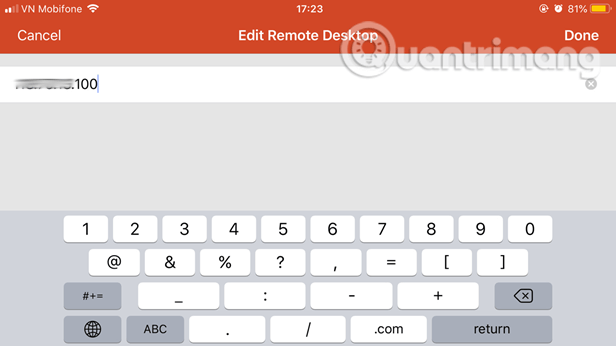
<p style="text-align: justify;"><strong>Bước 2:</strong>&nbsp;Bước này bạn làm tương tự như cách kết nối trong mạng LAN ở phía trên. Điểm khác biệt là ở&nbsp;<strong>PC Name</strong>&nbsp;thì bạn cần cung cấp cho mục này địa chỉ&nbsp;<strong>IP public.</strong></p>

<figure>
<div style="text-align: justify;"><img alt="Thêm địa chỉ IP public" data-i="34" data-src="https://st.quantrimang.com/photos/image/2019/09/12/su-dung-Microsoft-Remote-Desktop-10.png" data-was-processed="true" height="346" src="https://st.quantrimang.com/photos/image/2019/09/12/su-dung-Microsoft-Remote-Desktop-10.png" width="616" /></div>

<figcaption>
<div style="text-align: justify;">Thêm địa chỉ IP public</div>
</figcaption>
</figure>

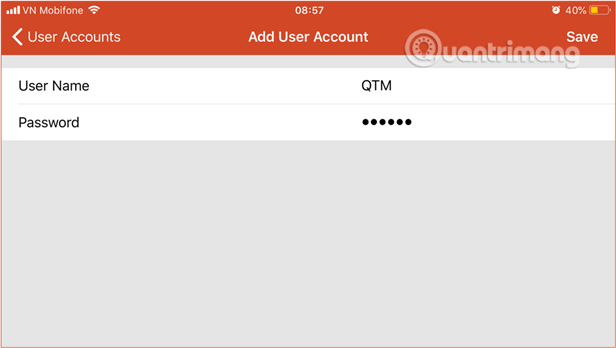
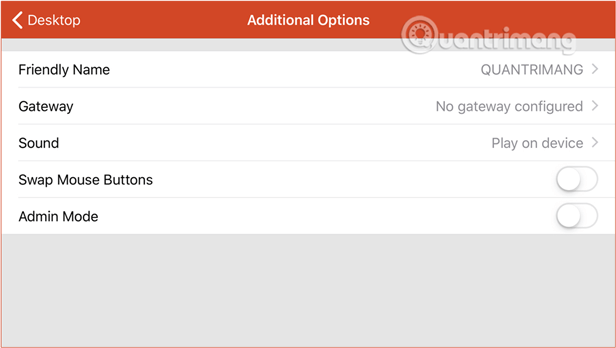
<p style="text-align: justify;"><strong>Bước 3:</strong>&nbsp;Tiếp đó điền&nbsp;<strong>User Account</strong>,&nbsp;<strong>User Account</strong>&nbsp;ở đây là tên người dùng và mật khẩu trên máy tính, đặt<strong>&nbsp;Friendly Name</strong>&nbsp;cho dễ nhớ, cách làm tương tự như hướng dẫn ở mục 2.</p>

<figure>
<div style="text-align: justify;"><img alt="Điền tên người dùng và mật khẩu trên máy tính" data-i="35" data-src="https://st.quantrimang.com/photos/image/2019/09/13/su-dung-Microsoft-Remote-Desktop-11-1.png" data-was-processed="true" height="348" src="https://st.quantrimang.com/photos/image/2019/09/13/su-dung-Microsoft-Remote-Desktop-11-1.png" width="616" /></div>

<figcaption>
<div style="text-align: justify;">Điền tên người dùng và mật khẩu trên máy tính</div>
</figcaption>
</figure>

<figure>
<div style="text-align: justify;"><img alt="Điền tên gợi nhớ cho thiết bị thường sử dụng" data-i="36" data-src="https://st.quantrimang.com/photos/image/2019/09/13/su-dung-Microsoft-Remote-Desktop-12-1.png" data-was-processed="true" height="348" src="https://st.quantrimang.com/photos/image/2019/09/13/su-dung-Microsoft-Remote-Desktop-12-1.png" width="616" /></div>

<figcaption>
<div style="text-align: justify;">Điền tên gợi nhớ cho thiết bị thường sử dụng</div>
</figcaption>
</figure>

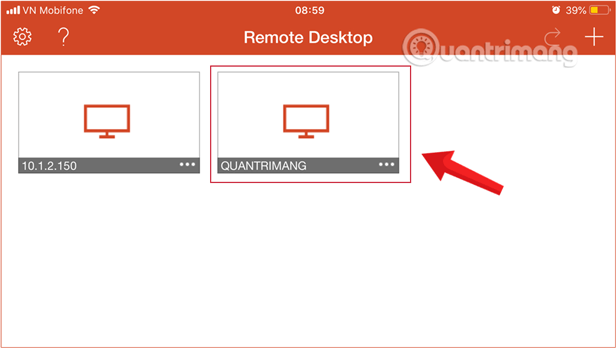
<p style="text-align: justify;"><strong>Bước 4:</strong>&nbsp;Từ màn hình chính&nbsp;<strong>Remote Desktop</strong>, bạn kích vào thiết bị muốn kết nối và điểu khiển.</p>

<figure>
<div style="text-align: justify;"><img alt="Lựa chọn và nhấn vào thiết bị muốn kết nối và điểu khiển" data-i="37" data-src="https://st.quantrimang.com/photos/image/2019/09/13/su-dung-Microsoft-Remote-Desktop-13-1.png" data-was-processed="true" height="348" src="https://st.quantrimang.com/photos/image/2019/09/13/su-dung-Microsoft-Remote-Desktop-13-1.png" width="616" /></div>

<figcaption>
<div style="text-align: justify;">Lựa chọn và nhấn vào thiết bị muốn kết nối và điểu khiển</div>
</figcaption>
</figure>

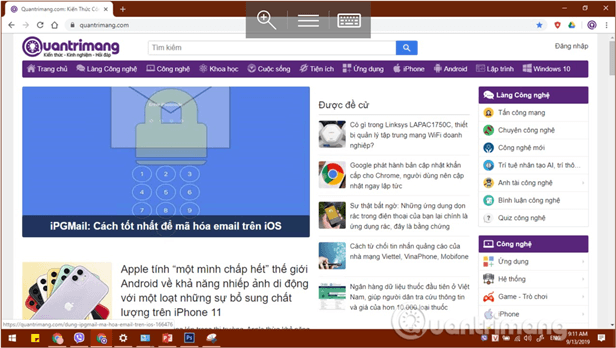
<p style="text-align: justify;">Bây giờ bạn đã hoàn toàn có thể điều khiển máy tính của mình từ xa qua Internet rồi.</p>

<figure>
<div style="text-align: justify;"><img alt="Giao diện PC đang được kết nối từ xa qua internet bằng Microsoft Remote Desktop" data-i="38" data-src="https://st.quantrimang.com/photos/image/2019/09/13/su-dung-Microsoft-Remote-Desktop-14-1.png" data-was-processed="true" height="348" src="https://st.quantrimang.com/photos/image/2019/09/13/su-dung-Microsoft-Remote-Desktop-14-1.png" width="616" /></div>

<figcaption>
<div style="text-align: justify;">Giao diện PC đang được kết nối từ xa qua internet bằng Microsoft Remote Desktop</div>
</figcaption>
</figure>

<p style="text-align: justify;">Như vậy, với hướng dẫn truy cập và điều khiển máy tính bằng điện thoại trên đây bạn sẽ được điều khiển máy tính bằng chiếc Smartphone của mình. Sau khi truy cập và điều khiển được Desktop trên điện thoại, bạn có thể tùy chỉnh, thay đổi những dữ liệu và cài đặt trên máy tính.</p>
		</div>
				<div id="author">
						<p>
				<strong>Nguồn tin:</strong>
				Quantrimang.com
			</p>
		</div>
	</div>
	<div id="footer" class="clearfix">
		<div id="url">
			<strong>URL của bản tin này: </strong><a href="https://www.nguoicodonvn2008.info/vi/news/savefile/kien-thuc-may-tinh/cach-dieu-khien-va-truy-cap-may-tinh-bang-dien-thoai-voi-microsoft-remote-desktop-980.html" title="Cách điều khiển và truy cập máy tính bằng điện thoại với Microsoft Remote Desktop">https://www.nguoicodonvn2008.info/vi/news/savefile/kien-thuc-may-tinh/cach-dieu-khien-va-truy-cap-may-tinh-bang-dien-thoai-voi-microsoft-remote-desktop-980.html</a>

		</div>
		<div class="clear"></div>
		<div class="copyright">
			&copy; .&#x3A; Nguoicodonvn2008.info - Cõi lòng người cô đơn &#x3A;.
		</div>
		<div id="contact">
			<a href="mailto:admin@nguoicodonvn2008.info">admin@nguoicodonvn2008.info</a>
		</div>
	</div>
</div>
        <div id="timeoutsess" class="chromeframe">
            Bạn đã không sử dụng Site, <a onclick="timeoutsesscancel();" href="https://nguoicodonvn2008.info/#">Bấm vào đây để duy trì trạng thái đăng nhập</a>. Thời gian chờ: <span id="secField"> 60 </span> giây
        </div>
        <div id="openidResult" class="nv-alert" style="display:none"></div>
        <div id="openidBt" data-result="" data-redirect=""></div>
		</script>
		<div class="car-top">
  <span><img src="https://nguoicodonvn2008.info/themes/default/images/car.png" alt=""></span>
</div>
<script src="https://nguoicodonvn2008.info/assets/js/jquery/jquery.min.js"></script>
<script>var nv_base_siteurl="/",nv_lang_data="vi",nv_lang_interface="vi",nv_name_variable="nv",nv_fc_variable="op",nv_lang_variable="language",nv_module_name="news",nv_func_name="savefile",nv_is_user=0, nv_my_ofs=-4,nv_my_abbr="EDT",nv_cookie_prefix="nv4c_e856T",nv_check_pass_mstime=1738000,nv_area_admin=0,nv_safemode=0,theme_responsive=0,nv_recaptcha_ver=2,nv_recaptcha_sitekey="",nv_recaptcha_type="image",XSSsanitize=1;</script>
<script src="https://nguoicodonvn2008.info/assets/js/language/vi.js"></script>
<script src="https://nguoicodonvn2008.info/assets/js/DOMPurify/purify3.js"></script>
<script src="https://nguoicodonvn2008.info/assets/js/global.js"></script>
<script src="https://nguoicodonvn2008.info/assets/js/site.js"></script>
<script src="https://nguoicodonvn2008.info/themes/default/js/news.js"></script>
<script src="https://nguoicodonvn2008.info/themes/default/js/main.js"></script>
<script src="https://nguoicodonvn2008.info/themes/default/js/custom.js"></script>
<script type="application/ld+json">
        {
            "@context": "https://schema.org",
            "@type": "Organization",
            "url": "https://nguoicodonvn2008.info",
            "logo": "https://nguoicodonvn2008.info/uploads/angel.gif"
        }
        </script>
<script src="https://nguoicodonvn2008.info/themes/default/js/bootstrap.min.js"></script>
<script type="text/javascript">
var $scrolltop = $('.car-top');
$scrolltop.on('click', function () {
    $('html,body').animate({
        scrollTop: 0
    }, 800);
    $(this).addClass("car-run");
    setTimeout(function(){ $scrolltop.removeClass('car-run');}, 1000);
    return false;
});
$(window).on('scroll', function ()
{ 
    if($(window).scrollTop() >= 200)
    {
        $scrolltop.addClass("show");
        $scrolltop.addClass("car-down");
    }
    else
    {
       $scrolltop.removeClass("show");
       setTimeout(function(){ $scrolltop.removeClass('car-down');}, 300);
    }
});
</script>
</body>
</html>