<!DOCTYPE html>
    <html lang="vi" xmlns="http://www.w3.org/1999/xhtml" prefix="og: http://ogp.me/ns#">
    <head>
<title>Cách điều hướng thư mục trong Windows Command Prompt</title>
<meta name="description" content="Cách điều hướng thư mục trong Windows Command Prompt - Savefile - Tin Tức -...">
<meta name="author" content=".: Nguoicodonvn2008.info - Cõi lòng người cô đơn :.">
<meta name="copyright" content=".: Nguoicodonvn2008.info - Cõi lòng người cô đơn :. [admin@nguoicodonvn2008.info]">
<meta name="robots" content="index, archive, follow, noodp">
<meta name="googlebot" content="index,archive,follow,noodp">
<meta name="msnbot" content="all,index,follow">
<meta name="generator" content="NukeViet v4.5">
<meta http-equiv="Content-Type" content="text/html; charset=utf-8">
<meta property="og:title" content="Cách điều hướng thư mục trong Windows Command Prompt">
<meta property="og:type" content="website">
<meta property="og:description" content="Savefile - Tin Tức - https&#x3A;&#x002F;&#x002F;www.nguoicodonvn2008.info&#x002F;vi&#x002F;news&#x002F;savefile&#x002F;kien-thuc-may-tinh&#x002F;cach-dieu-huong-thu-muc-trong-windows-command-prompt-8077.html">
<meta property="og:site_name" content=".&#x3A; Nguoicodonvn2008.info - Cõi lòng người cô đơn &#x3A;.">
<meta property="og:url" content="https://www.nguoicodonvn2008.info/vi/news/savefile/kien-thuc-may-tinh/cach-dieu-huong-thu-muc-trong-windows-command-prompt-8077.html">
<link rel="shortcut icon" href="https://nguoicodonvn2008.info/favicon.ico">
<link rel="canonical" href="https://www.nguoicodonvn2008.info/vi/news/savefile/kien-thuc-may-tinh/cach-dieu-huong-thu-muc-trong-windows-command-prompt-8077.html">
<link rel="alternate" href="https://nguoicodonvn2008.info/vi/news/rss/" title="Tin Tức" type="application/rss+xml">
<link rel="alternate" href="https://nguoicodonvn2008.info/vi/news/rss/karaoke-dual/" title="Tin Tức - Karaoke Dual" type="application/rss+xml">
<link rel="alternate" href="https://nguoicodonvn2008.info/vi/news/rss/nhac-tre/" title="Tin Tức - Nhạc trẻ" type="application/rss+xml">
<link rel="alternate" href="https://nguoicodonvn2008.info/vi/news/rss/tru-tinh/" title="Tin Tức - Trữ tình" type="application/rss+xml">
<link rel="alternate" href="https://nguoicodonvn2008.info/vi/news/rss/nuoc-ngoai/" title="Tin Tức - Nước ngoài" type="application/rss+xml">
<link rel="alternate" href="https://nguoicodonvn2008.info/vi/news/rss/remix/" title="Tin Tức - Remix" type="application/rss+xml">
<link rel="alternate" href="https://nguoicodonvn2008.info/vi/news/rss/tam-su-tinh-yeu/" title="Tin Tức - Tâm sự tình yêu" type="application/rss+xml">
<link rel="alternate" href="https://nguoicodonvn2008.info/vi/news/rss/tho-suu-tam/" title="Tin Tức - Thơ sưu tầm" type="application/rss+xml">
<link rel="alternate" href="https://nguoicodonvn2008.info/vi/news/rss/cuoc-song/" title="Tin Tức - Cuộc sống" type="application/rss+xml">
<link rel="alternate" href="https://nguoicodonvn2008.info/vi/news/rss/phan-mem/" title="Tin Tức - Phần mềm" type="application/rss+xml">
<link rel="alternate" href="https://nguoicodonvn2008.info/vi/news/rss/kien-thuc-may-tinh/" title="Tin Tức - Kiến thức máy tính" type="application/rss+xml">
<link rel="alternate" href="https://nguoicodonvn2008.info/vi/news/rss/hoc-tap/" title="Tin Tức - Học tập" type="application/rss+xml">
<link rel="alternate" href="https://nguoicodonvn2008.info/vi/news/rss/tai-lieu/" title="Tin Tức - Tài liệu" type="application/rss+xml">
<link rel="alternate" href="https://nguoicodonvn2008.info/vi/news/rss/de-thi/" title="Tin Tức - Đề thi" type="application/rss+xml">
<link rel="preload" as="style" href="https://nguoicodonvn2008.info/assets/css/font-awesome.min.css" type="text/css">
<link rel="preload" as="style" href="https://nguoicodonvn2008.info/themes/default/css/bootstrap.non-responsive.css" type="text/css">
<link rel="preload" as="style" href="https://nguoicodonvn2008.info/themes/default/css/style.css" type="text/css">
<link rel="preload" as="style" href="https://nguoicodonvn2008.info/themes/default/css/style.non-responsive.css" type="text/css">
<link rel="preload" as="style" href="https://nguoicodonvn2008.info/themes/default/css/news.css" type="text/css">
<link rel="preload" as="style" href="https://nguoicodonvn2008.info/themes/default/css/custom.css" type="text/css">
<link rel="preload" as="script" href="https://nguoicodonvn2008.info/assets/js/jquery/jquery.min.js" type="text/javascript">
<link rel="preload" as="script" href="https://nguoicodonvn2008.info/assets/js/language/vi.js" type="text/javascript">
<link rel="preload" as="script" href="https://nguoicodonvn2008.info/assets/js/DOMPurify/purify3.js" type="text/javascript">
<link rel="preload" as="script" href="https://nguoicodonvn2008.info/assets/js/global.js" type="text/javascript">
<link rel="preload" as="script" href="https://nguoicodonvn2008.info/assets/js/site.js" type="text/javascript">
<link rel="preload" as="script" href="https://nguoicodonvn2008.info/themes/default/js/news.js" type="text/javascript">
<link rel="preload" as="script" href="https://nguoicodonvn2008.info/themes/default/js/main.js" type="text/javascript">
<link rel="preload" as="script" href="https://nguoicodonvn2008.info/themes/default/js/custom.js" type="text/javascript">
<link rel="preload" as="script" href="https://nguoicodonvn2008.info/themes/default/js/bootstrap.min.js" type="text/javascript">
<link rel="stylesheet" href="https://nguoicodonvn2008.info/assets/css/font-awesome.min.css">
<link rel="stylesheet" href="https://nguoicodonvn2008.info/themes/default/css/bootstrap.non-responsive.css">
<link rel="stylesheet" href="https://nguoicodonvn2008.info/themes/default/css/style.css">
<link rel="stylesheet" href="https://nguoicodonvn2008.info/themes/default/css/style.non-responsive.css">
<link rel="StyleSheet" href="https://nguoicodonvn2008.info/themes/default/css/news.css">
<link rel="stylesheet" href="https://nguoicodonvn2008.info/themes/default/css/custom.css">
<style type="text/css">
	body{background: #fff;}
</style>
    </head>
    <body>
<div id="print">
	<div id="hd_print">
		<h2 class="pull-left">.&#x3A; Nguoicodonvn2008.info - Cõi lòng người cô đơn &#x3A;.</h2>
		<p class="pull-right"><a title=".&#x3A; Nguoicodonvn2008.info - Cõi lòng người cô đơn &#x3A;." href="https://nguoicodonvn2008.info/">https://nguoicodonvn2008.info</a></p>
	</div>
	<div class="clear"></div>
	<hr />
	<div id="content">
		<h1>Cách điều hướng thư mục trong Windows Command Prompt</h1>
		<ul class="list-inline">
			<li>Thứ sáu - 16/02/2024 01:15</li>
			<li class="hidden-print txtrequired"><em class="fa fa-print">&nbsp;</em><a title="In ra" href="javascript:;" onclick="window.print()">In ra</a></li>
			<li class="hidden-print txtrequired"><em class="fa fa-power-off">&nbsp;</em><a title="Đóng cửa sổ này" href="javascript:;" onclick="window.close()">Đóng cửa sổ này</a></li>
		</ul>
		<div class="clear"></div>
		<div id="hometext">
		</div>
				<div class="imghome">
			<img alt="Cách điều hướng thư mục trong Windows Command Prompt" src="https://st.quantrimang.com/photos/image/2024/02/15/dieu-huong-thu-muc-trong-command-prompt-7.jpg" width="460" class="img-thumbnail" />
		</div>
		<div class="clear"></div>
		<div id="bodytext" class="clearfix">
			<p style="text-align: justify;">Khi bạn muốn sửa đổi các thuộc tính của một file cụ thể, quét một thư mục cụ thể hoặc thực hiện bất kỳ hành động nào khác trong Command Prompt, trước tiên bạn phải điều hướng đến thư mục đó. May mắn thay, việc điều hướng qua các thư mục trong Command Prompt của Windows rất đơn giản khi bạn có sẵn một vài lệnh.</p>

<h2 style="text-align: justify;">Mở Command Prompt với quyền admin</h2>

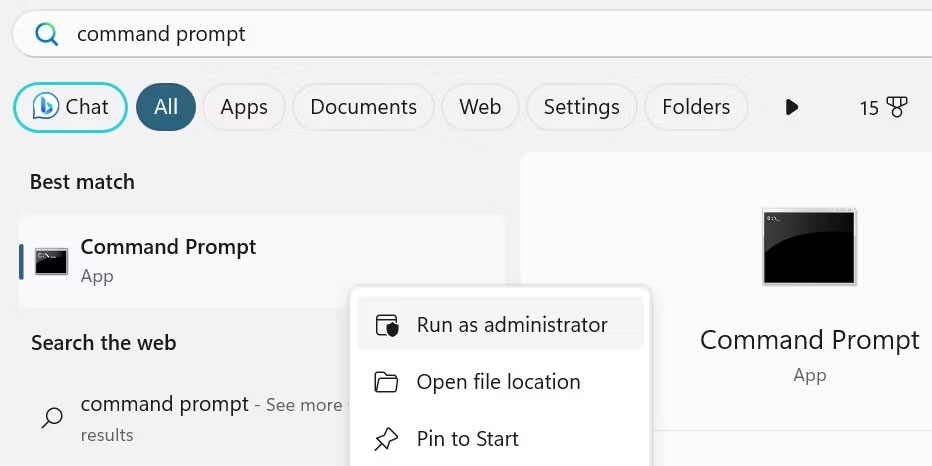
<p style="text-align: justify;">Đầu tiên,&nbsp;mở Command Promt với quyền admin. Bước này rất quan trọng; nếu không, Windows có thể không cho phép bạn chuyển đổi thư mục trong một số trường hợp. Để thực hiện việc này, hãy nhập &quot;Command Prompt&quot; trong Windows Search, nhấp chuột phải vào&nbsp;<strong>Command Prompt</strong>&nbsp;và chọn&nbsp;<strong>Run as administrator</strong>. Nếu được cửa sổ UAC nhắc, hãy nhấp vào&nbsp;<strong>Yes</strong>.</p>

<figure>
<div style="text-align: justify;"><img alt="Chạy Command Prompt với quyền admin trên Windows." data-i="0" data-src="https://st.quantrimang.com/photos/image/2024/02/15/dieu-huong-thu-muc-trong-command-prompt-1.jpg" data-was-processed="true" height="466" src="https://st.quantrimang.com/photos/image/2024/02/15/dieu-huong-thu-muc-trong-command-prompt-1.jpg" width="932" /></div>

<figcaption>
<div style="text-align: justify;">Chạy Command Prompt với quyền admin trên Windows.</div>
</figcaption>
</figure>

<p style="text-align: justify;">Hành động này sẽ khởi chạy cửa sổ Command Prompt với quyền admin, cấp cho bạn quyền truy cập để thực thi các tác vụ quản trị mà không bị hạn chế. Hãy cẩn thận với quyền admin, vì bạn sẽ dễ gây ra sự cố hơn nếu mắc lỗi.</p>

<div style="text-align: justify;"><iframe allowtransparency="true" data-google-container-id="a!2" data-google-query-id="CLrLtt-ar4QDFd1QwgUdab4JLA" data-load-complete="true" frameborder="0" height="0" hspace="0" id="aswift_1" marginheight="0" marginwidth="0" name="aswift_1" sandbox="" scrolling="no" vspace="0" width="694"></iframe></div>

<h2 style="text-align: justify;">Các lệnh điều hướng qua những thư mục trong Command Prompt</h2>

<p style="text-align: justify;">Để di chuyển qua lại giữa các thư mục trong&nbsp;Command Prompt, bạn cần làm quen với hai lệnh chính:</p>

<ul>
	<li style="text-align: justify;">Thay đổi thư mục:&nbsp;<strong>cd</strong></li>
	<li style="text-align: justify;">Danh sách thư mục:&nbsp;<strong>dir</strong></li>
</ul>

<p style="text-align: justify;">Lệnh dir sẽ cung cấp cho bạn danh sách các thư mục có sẵn mà bạn có thể nhập, trong khi lệnh cd sẽ đưa bạn đến thư mục bạn muốn. Nếu bạn biết tên thư mục mình muốn điều hướng đến, hãy nhập tên đó sau &quot;cd&quot; để di chuyển đến đó (chẳng hạn như&nbsp;<strong>&quot;cd downloads&quot;</strong>). Nếu bạn muốn quay lại thư mục trước đó, hãy thêm hai dấu chấm bên cạnh lệnh &quot;cd&quot;. Như thế này:&nbsp;<strong>&quot;cd..&quot;</strong></p>

<p style="text-align: justify;"><strong>Mẹo</strong>: Bạn chỉ cần liệt kê các thư mục khi không chắc chắn về nơi cần điều hướng. Nếu bạn đã biết tên thư mục thì không cần sử dụng lệnh &quot;dir&quot;.</p>

<h2 style="text-align: justify;">Cách sử dụng lệnh &quot;cd&quot; và &quot;dir&quot; trong Command Prompt</h2>

<p style="text-align: justify;">Hãy xem xét kỹ hơn cách bạn có thể điều hướng các thư mục trong Command Prompt bằng cách sử dụng lệnh &quot;cd&quot; và &quot;dir&quot; thông qua một ví dụ.</p>

<p style="text-align: justify;">Giả sử bạn muốn điều hướng từ điểm bắt đầu (<strong>C:\Windows\system32</strong>) tới thư mục Downloads (<strong>C:\Users\&lt;username&gt;\Downloads</strong>).</p>

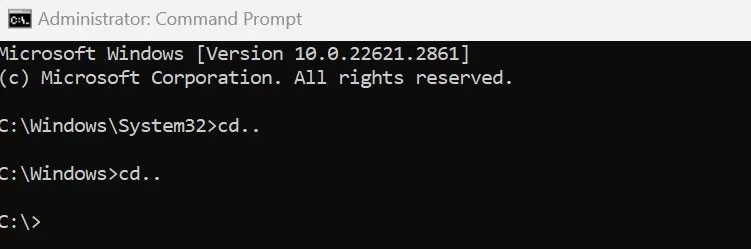
<p style="text-align: justify;">Đầu tiên bạn cần quay lại ổ&nbsp;<strong>C:</strong>. Để làm điều đó, hãy sử dụng lệnh &quot;cd..&quot; hai lần để điều hướng ra khỏi thư mục&nbsp;<strong>System32</strong>&nbsp;và&nbsp;<strong>Windows</strong>, đưa bạn trở lại thư mục gốc.</p>

<figure>
<div style="text-align: justify;"><img alt="Sử dụng lệnh &#039;cd..&#039; hai lần để điều hướng trở lại hai thư mục trong Command Prompt của Windows." data-i="1" data-src="https://st.quantrimang.com/photos/image/2024/02/15/dieu-huong-thu-muc-trong-command-prompt-2.jpg" data-was-processed="true" height="249" src="https://st.quantrimang.com/photos/image/2024/02/15/dieu-huong-thu-muc-trong-command-prompt-2.jpg" width="751" /></div>

<figcaption>
<div style="text-align: justify;">Sử dụng lệnh &#039;cd..&#039; hai lần để điều hướng trở lại hai thư mục trong Command Prompt của Windows.</div>
</figcaption>
</figure>

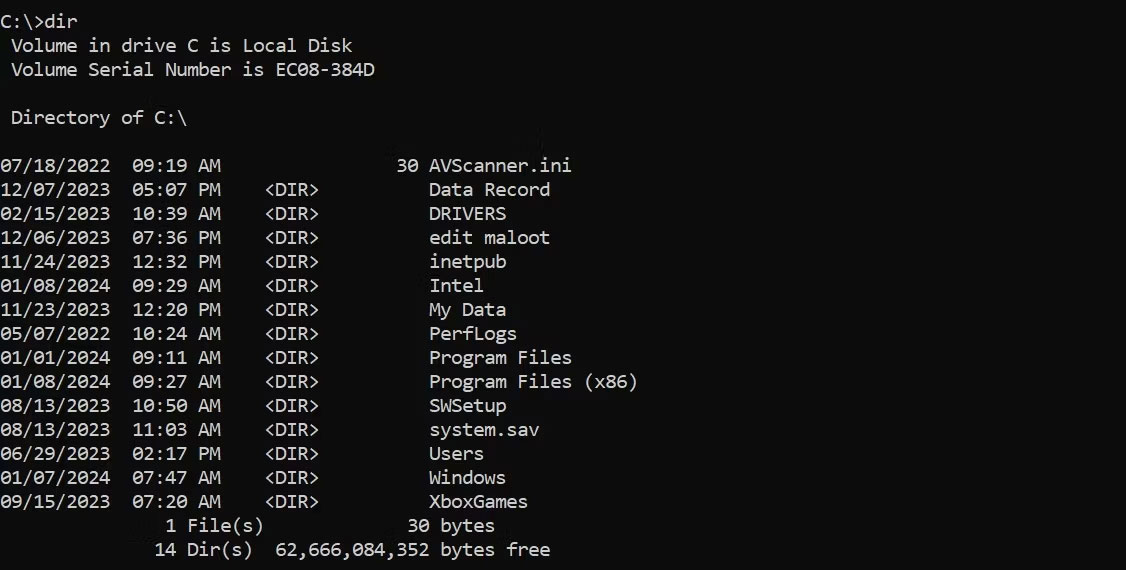
<p style="text-align: justify;">Bây giờ, nếu bạn không chắc chắn về tên chính xác của thư mục đầu tiên cần điều hướng tới, bạn có thể liệt kê các thư mục có sẵn để tìm đúng thư mục - nhập &quot;dir&quot; để hiển thị danh sách.</p>

<figure>
<div style="text-align: justify;"><img alt="Sử dụng lệnh &#039;dir&#039; trong Command Prompt của Windows để liệt kê các thư mục có sẵn trong ổ C." data-adbro-processed="true" data-i="2" data-src="https://st.quantrimang.com/photos/image/2024/02/15/dieu-huong-thu-muc-trong-command-prompt-3.jpg" data-was-processed="true" height="570" src="https://st.quantrimang.com/photos/image/2024/02/15/dieu-huong-thu-muc-trong-command-prompt-3.jpg" width="1126" /></div>

<figcaption>
<div style="text-align: justify;">Sử dụng lệnh &#039;dir&#039; trong Command Prompt của Windows để liệt kê các thư mục có sẵn trong ổ C.</div>
</figcaption>
</figure>

<div style="text-align: justify;"><iframe allowtransparency="true" data-google-container-id="a!3" data-google-query-id="CKKHt9-ar4QDFbtAwgUd8JAOvQ" data-load-complete="true" frameborder="0" height="0" hspace="0" id="aswift_2" marginheight="0" marginwidth="0" name="aswift_2" sandbox="" scrolling="no" vspace="0" width="694"></iframe></div>

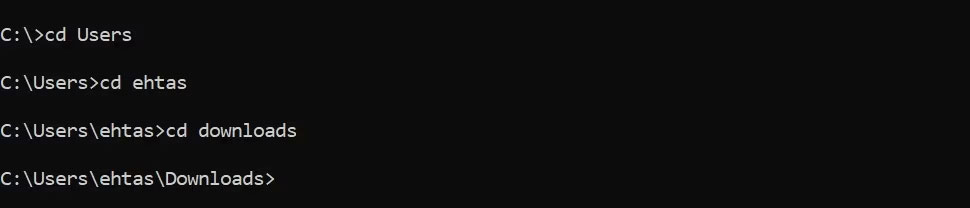
<p style="text-align: justify;">Biết rằng bạn cần đi tới thư mục&nbsp;<strong>Users</strong>, nhập &quot;cd Users&quot; và bạn sẽ được chuyển hướng đến&nbsp;<strong>C:\Users</strong>. Từ đó, bạn có thể tiếp tục tới hai thư mục tiếp theo bằng lệnh &quot;cd&quot; như thế này:</p>

<pre id="pre0">
<code>cd &lt;username&gt;
cd Downloads</code></pre>

<figure>
<div style="text-align: justify;"><img alt="Sử dụng lệnh &#039;cd&#039; hai lần trong Command Prompt của Windows để truy cập thư mục mong muốn." data-i="3" data-src="https://st.quantrimang.com/photos/image/2024/02/15/dieu-huong-thu-muc-trong-command-prompt-4.jpg" data-was-processed="true" height="208" src="https://st.quantrimang.com/photos/image/2024/02/15/dieu-huong-thu-muc-trong-command-prompt-4.jpg" width="970" /></div>

<figcaption>
<div style="text-align: justify;">Sử dụng lệnh &#039;cd&#039; hai lần trong Command Prompt của Windows để truy cập thư mục mong muốn.</div>
</figcaption>
</figure>

<p style="text-align: justify;">Lưu ý rằng hệ thống của bạn sẽ không có thư mục&nbsp;<strong>ehtas</strong>&nbsp;hiển thị ở trên; tên người dùng đó là duy nhất cho hệ thống ví dụ. Bạn sẽ nhập tên người dùng của bạn ở đó.</p>

<h2 style="text-align: justify;">2 lệnh để điều hướng thư mục dễ dàng trong Command Prompt</h2>

<p style="text-align: justify;">Ngoài các lệnh đã xem xét, một số lệnh bổ sung sẽ giúp việc điều hướng những thư mục trong Command Prompt dễ dàng hơn:</p>

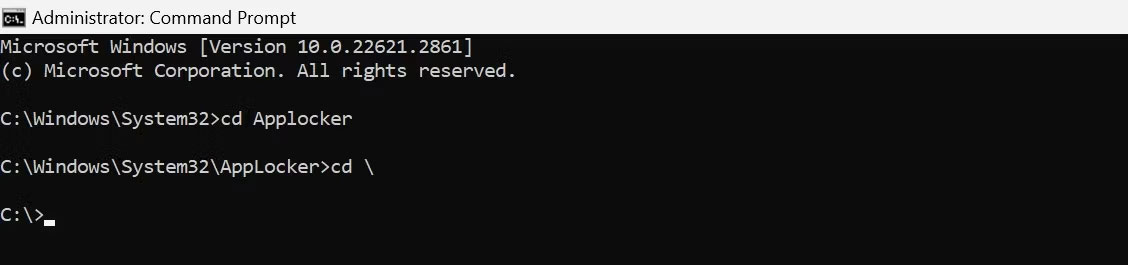
<p style="text-align: justify;">1. Bạn có thể sử dụng lệnh &quot;cd \&quot; để quay lại thư mục root của ổ đĩa hiện tại. Ví dụ, nếu bạn đang ở trong thư mục&nbsp;<strong>C:\Windows\System32\AppLocker</strong>&nbsp;và muốn quay lại trực tiếp ổ chính&nbsp;<strong>C:</strong>, hãy nhập lệnh này và nhấn&nbsp;<strong>Enter</strong>.</p>

<figure>
<div style="text-align: justify;"><img alt="Sử dụng lệnh để quay lại thư mục gốc của ổ “C” trong Windows Command Prompt." data-i="4" data-src="https://st.quantrimang.com/photos/image/2024/02/15/dieu-huong-thu-muc-trong-command-prompt-5.jpg" data-was-processed="true" height="265" src="https://st.quantrimang.com/photos/image/2024/02/15/dieu-huong-thu-muc-trong-command-prompt-5.jpg" width="1128" /></div>

<figcaption>
<div style="text-align: justify;">Sử dụng lệnh để quay lại thư mục gốc của ổ “C” trong Windows Command Prompt.</div>
</figcaption>
</figure>

<p style="text-align: justify;">2. Tương tự, để chuyển đổi ổ từ thư mục root (hoặc bất kỳ thư mục nào khác), hãy nhập ký tự ổ theo sau là dấu hai chấm, chẳng hạn như &quot;S:&quot;.</p>

<figure>
<div style="text-align: justify;"><img alt="Chuyển đổi ổ trong Command Prompt của Windows." data-i="5" data-src="https://st.quantrimang.com/photos/image/2024/02/15/dieu-huong-thu-muc-trong-command-prompt-6.jpg" data-was-processed="true" height="93" src="https://st.quantrimang.com/photos/image/2024/02/15/dieu-huong-thu-muc-trong-command-prompt-6.jpg" width="853" /></div>

<figcaption>
<div style="text-align: justify;">Chuyển đổi ổ trong Command Prompt của Windows.</div>
</figcaption>
</figure>

<h2 style="text-align: justify;">Cách mở Command Prompt trong một thư mục cụ thể từ File Explorer</h2>

<p style="text-align: justify;">Việc mở cửa sổ CMD từ File Explorer giúp loại bỏ nhu cầu điều hướng qua lại giữa các thư mục bằng nhiều lệnh khác nhau trong Command Prompt.</p>

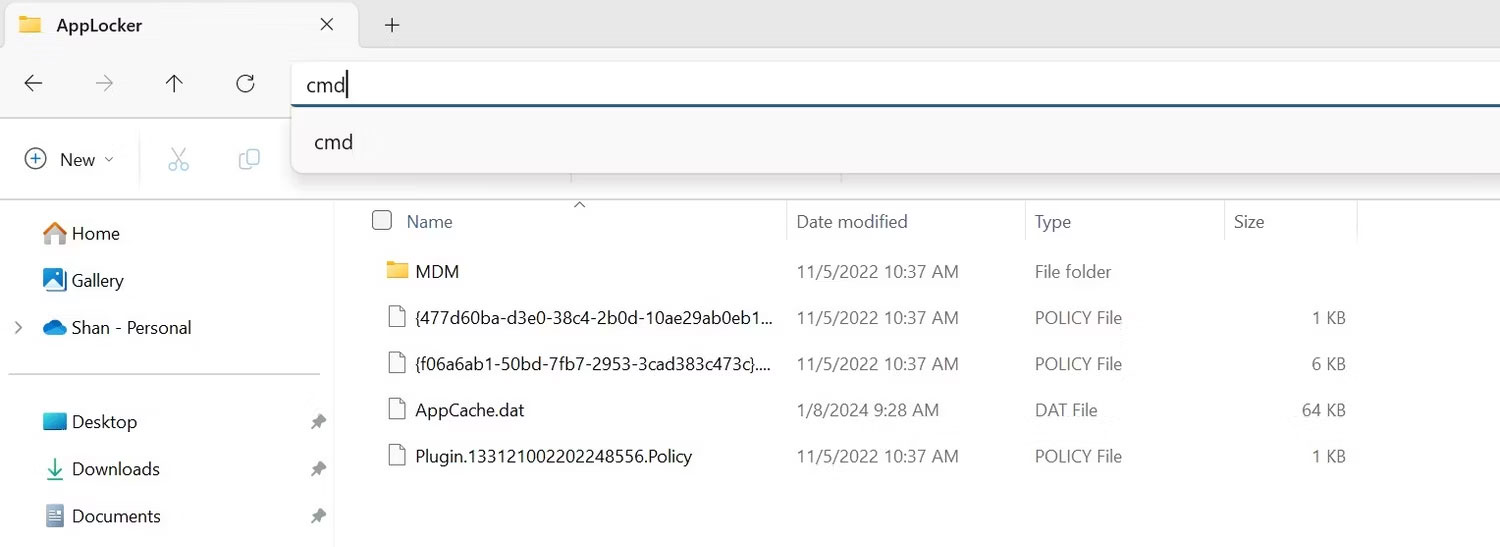
<p style="text-align: justify;">Mở File Explorer&nbsp;bằng cách nhấp vào biểu tượng thư mục trên thanh tác vụ. Điều hướng đến thư mục bạn muốn truy cập trong Command Prompt. Nhập&nbsp;<strong>&quot;cmd&quot;</strong>&nbsp;vào thanh địa chỉ và nhấn&nbsp;<strong>Enter</strong>. Hành động này sẽ mở Command Prompt trong thư mục hiện tại.</p>

<figure>
<div style="text-align: justify;"><img alt="Sử dụng lệnh &#039;cmd&#039; trong thanh địa chỉ của File Explorer để mở Command Promt trong thư mục đó." data-i="6" data-src="https://st.quantrimang.com/photos/image/2024/02/15/dieu-huong-thu-muc-trong-command-prompt-7.jpg" data-was-processed="true" height="547" src="https://st.quantrimang.com/photos/image/2024/02/15/dieu-huong-thu-muc-trong-command-prompt-7.jpg" width="1500" /></div>

<figcaption>
<div style="text-align: justify;">Sử dụng lệnh &#039;cmd&#039; trong thanh địa chỉ của File Explorer để mở Command Promt trong thư mục đó.</div>
</figcaption>
</figure>

<div style="text-align: justify;"><iframe allowtransparency="true" data-google-container-id="a!4" data-google-query-id="CNmP_t-ar4QDFZRPwgUdPN8GIw" data-load-complete="true" frameborder="0" height="0" hspace="0" id="aswift_3" marginheight="0" marginwidth="0" name="aswift_3" sandbox="" scrolling="no" vspace="0" width="694"></iframe></div>

<p style="text-align: justify;">Điều hướng Command Prompt có thể không mấy đẽ dàng và chắc chắn phải mất một chút thời gian để làm quen. Nhưng một khi đã nắm vững những lệnh điều hướng, bạn sẽ có thể duyệt nhanh các thư mục trên máy tính của mình một cách dễ dàng.</p>

<div style="text-align: justify;">&nbsp;</div>
		</div>
				<div id="author">
						<p>
				<strong>Nguồn tin:</strong>
				Quantrimang.com
			</p>
		</div>
	</div>
	<div id="footer" class="clearfix">
		<div id="url">
			<strong>URL của bản tin này: </strong><a href="https://www.nguoicodonvn2008.info/vi/news/savefile/kien-thuc-may-tinh/cach-dieu-huong-thu-muc-trong-windows-command-prompt-8077.html" title="Cách điều hướng thư mục trong Windows Command Prompt">https://www.nguoicodonvn2008.info/vi/news/savefile/kien-thuc-may-tinh/cach-dieu-huong-thu-muc-trong-windows-command-prompt-8077.html</a>

		</div>
		<div class="clear"></div>
		<div class="copyright">
			&copy; .&#x3A; Nguoicodonvn2008.info - Cõi lòng người cô đơn &#x3A;.
		</div>
		<div id="contact">
			<a href="mailto:admin@nguoicodonvn2008.info">admin@nguoicodonvn2008.info</a>
		</div>
	</div>
</div>
        <div id="timeoutsess" class="chromeframe">
            Bạn đã không sử dụng Site, <a onclick="timeoutsesscancel();" href="https://nguoicodonvn2008.info/#">Bấm vào đây để duy trì trạng thái đăng nhập</a>. Thời gian chờ: <span id="secField"> 60 </span> giây
        </div>
        <div id="openidResult" class="nv-alert" style="display:none"></div>
        <div id="openidBt" data-result="" data-redirect=""></div>
		</script>
		<div class="car-top">
  <span><img src="https://nguoicodonvn2008.info/themes/default/images/car.png" alt=""></span>
</div>
<script src="https://nguoicodonvn2008.info/assets/js/jquery/jquery.min.js"></script>
<script>var nv_base_siteurl="/",nv_lang_data="vi",nv_lang_interface="vi",nv_name_variable="nv",nv_fc_variable="op",nv_lang_variable="language",nv_module_name="news",nv_func_name="savefile",nv_is_user=0, nv_my_ofs=-4,nv_my_abbr="EDT",nv_cookie_prefix="nv4c_e856T",nv_check_pass_mstime=1738000,nv_area_admin=0,nv_safemode=0,theme_responsive=0,nv_recaptcha_ver=2,nv_recaptcha_sitekey="",nv_recaptcha_type="image",XSSsanitize=1;</script>
<script src="https://nguoicodonvn2008.info/assets/js/language/vi.js"></script>
<script src="https://nguoicodonvn2008.info/assets/js/DOMPurify/purify3.js"></script>
<script src="https://nguoicodonvn2008.info/assets/js/global.js"></script>
<script src="https://nguoicodonvn2008.info/assets/js/site.js"></script>
<script src="https://nguoicodonvn2008.info/themes/default/js/news.js"></script>
<script src="https://nguoicodonvn2008.info/themes/default/js/main.js"></script>
<script src="https://nguoicodonvn2008.info/themes/default/js/custom.js"></script>
<script type="application/ld+json">
        {
            "@context": "https://schema.org",
            "@type": "Organization",
            "url": "https://nguoicodonvn2008.info",
            "logo": "https://nguoicodonvn2008.info/uploads/angel.gif"
        }
        </script>
<script src="https://nguoicodonvn2008.info/themes/default/js/bootstrap.min.js"></script>
<script type="text/javascript">
var $scrolltop = $('.car-top');
$scrolltop.on('click', function () {
    $('html,body').animate({
        scrollTop: 0
    }, 800);
    $(this).addClass("car-run");
    setTimeout(function(){ $scrolltop.removeClass('car-run');}, 1000);
    return false;
});
$(window).on('scroll', function ()
{ 
    if($(window).scrollTop() >= 200)
    {
        $scrolltop.addClass("show");
        $scrolltop.addClass("car-down");
    }
    else
    {
       $scrolltop.removeClass("show");
       setTimeout(function(){ $scrolltop.removeClass('car-down');}, 300);
    }
});
</script>
</body>
</html>