<!DOCTYPE html>
    <html lang="vi" xmlns="http://www.w3.org/1999/xhtml" prefix="og: http://ogp.me/ns#">
    <head>
<title>Cách đặt mật khẩu bảo vệ file ZIP trên Windows</title>
<meta name="description" content="Cách đặt mật khẩu bảo vệ file ZIP trên Windows - Savefile - Tin Tức -...">
<meta name="author" content=".: Nguoicodonvn2008.info - Cõi lòng người cô đơn :.">
<meta name="copyright" content=".: Nguoicodonvn2008.info - Cõi lòng người cô đơn :. [admin@nguoicodonvn2008.info]">
<meta name="robots" content="index, archive, follow, noodp">
<meta name="googlebot" content="index,archive,follow,noodp">
<meta name="msnbot" content="all,index,follow">
<meta name="generator" content="NukeViet v4.5">
<meta http-equiv="Content-Type" content="text/html; charset=utf-8">
<meta property="og:title" content="Cách đặt mật khẩu bảo vệ file ZIP trên Windows">
<meta property="og:type" content="website">
<meta property="og:description" content="Savefile - Tin Tức - https&#x3A;&#x002F;&#x002F;www.nguoicodonvn2008.info&#x002F;vi&#x002F;news&#x002F;savefile&#x002F;kien-thuc-may-tinh&#x002F;cach-dat-mat-khau-bao-ve-file-zip-tren-windows-5972.html">
<meta property="og:site_name" content=".&#x3A; Nguoicodonvn2008.info - Cõi lòng người cô đơn &#x3A;.">
<meta property="og:url" content="https://www.nguoicodonvn2008.info/vi/news/savefile/kien-thuc-may-tinh/cach-dat-mat-khau-bao-ve-file-zip-tren-windows-5972.html">
<link rel="shortcut icon" href="https://nguoicodonvn2008.info/favicon.ico">
<link rel="canonical" href="https://www.nguoicodonvn2008.info/vi/news/savefile/kien-thuc-may-tinh/cach-dat-mat-khau-bao-ve-file-zip-tren-windows-5972.html">
<link rel="alternate" href="https://nguoicodonvn2008.info/vi/news/rss/" title="Tin Tức" type="application/rss+xml">
<link rel="alternate" href="https://nguoicodonvn2008.info/vi/news/rss/karaoke-dual/" title="Tin Tức - Karaoke Dual" type="application/rss+xml">
<link rel="alternate" href="https://nguoicodonvn2008.info/vi/news/rss/nhac-tre/" title="Tin Tức - Nhạc trẻ" type="application/rss+xml">
<link rel="alternate" href="https://nguoicodonvn2008.info/vi/news/rss/tru-tinh/" title="Tin Tức - Trữ tình" type="application/rss+xml">
<link rel="alternate" href="https://nguoicodonvn2008.info/vi/news/rss/nuoc-ngoai/" title="Tin Tức - Nước ngoài" type="application/rss+xml">
<link rel="alternate" href="https://nguoicodonvn2008.info/vi/news/rss/remix/" title="Tin Tức - Remix" type="application/rss+xml">
<link rel="alternate" href="https://nguoicodonvn2008.info/vi/news/rss/tam-su-tinh-yeu/" title="Tin Tức - Tâm sự tình yêu" type="application/rss+xml">
<link rel="alternate" href="https://nguoicodonvn2008.info/vi/news/rss/tho-suu-tam/" title="Tin Tức - Thơ sưu tầm" type="application/rss+xml">
<link rel="alternate" href="https://nguoicodonvn2008.info/vi/news/rss/cuoc-song/" title="Tin Tức - Cuộc sống" type="application/rss+xml">
<link rel="alternate" href="https://nguoicodonvn2008.info/vi/news/rss/phan-mem/" title="Tin Tức - Phần mềm" type="application/rss+xml">
<link rel="alternate" href="https://nguoicodonvn2008.info/vi/news/rss/kien-thuc-may-tinh/" title="Tin Tức - Kiến thức máy tính" type="application/rss+xml">
<link rel="alternate" href="https://nguoicodonvn2008.info/vi/news/rss/hoc-tap/" title="Tin Tức - Học tập" type="application/rss+xml">
<link rel="alternate" href="https://nguoicodonvn2008.info/vi/news/rss/tai-lieu/" title="Tin Tức - Tài liệu" type="application/rss+xml">
<link rel="alternate" href="https://nguoicodonvn2008.info/vi/news/rss/de-thi/" title="Tin Tức - Đề thi" type="application/rss+xml">
<link rel="preload" as="style" href="https://nguoicodonvn2008.info/assets/css/font-awesome.min.css" type="text/css">
<link rel="preload" as="style" href="https://nguoicodonvn2008.info/themes/default/css/bootstrap.non-responsive.css" type="text/css">
<link rel="preload" as="style" href="https://nguoicodonvn2008.info/themes/default/css/style.css" type="text/css">
<link rel="preload" as="style" href="https://nguoicodonvn2008.info/themes/default/css/style.non-responsive.css" type="text/css">
<link rel="preload" as="style" href="https://nguoicodonvn2008.info/themes/default/css/news.css" type="text/css">
<link rel="preload" as="style" href="https://nguoicodonvn2008.info/themes/default/css/custom.css" type="text/css">
<link rel="preload" as="script" href="https://nguoicodonvn2008.info/assets/js/jquery/jquery.min.js" type="text/javascript">
<link rel="preload" as="script" href="https://nguoicodonvn2008.info/assets/js/language/vi.js" type="text/javascript">
<link rel="preload" as="script" href="https://nguoicodonvn2008.info/assets/js/DOMPurify/purify3.js" type="text/javascript">
<link rel="preload" as="script" href="https://nguoicodonvn2008.info/assets/js/global.js" type="text/javascript">
<link rel="preload" as="script" href="https://nguoicodonvn2008.info/assets/js/site.js" type="text/javascript">
<link rel="preload" as="script" href="https://nguoicodonvn2008.info/themes/default/js/news.js" type="text/javascript">
<link rel="preload" as="script" href="https://nguoicodonvn2008.info/themes/default/js/main.js" type="text/javascript">
<link rel="preload" as="script" href="https://nguoicodonvn2008.info/themes/default/js/custom.js" type="text/javascript">
<link rel="preload" as="script" href="https://nguoicodonvn2008.info/themes/default/js/bootstrap.min.js" type="text/javascript">
<link rel="stylesheet" href="https://nguoicodonvn2008.info/assets/css/font-awesome.min.css">
<link rel="stylesheet" href="https://nguoicodonvn2008.info/themes/default/css/bootstrap.non-responsive.css">
<link rel="stylesheet" href="https://nguoicodonvn2008.info/themes/default/css/style.css">
<link rel="stylesheet" href="https://nguoicodonvn2008.info/themes/default/css/style.non-responsive.css">
<link rel="StyleSheet" href="https://nguoicodonvn2008.info/themes/default/css/news.css">
<link rel="stylesheet" href="https://nguoicodonvn2008.info/themes/default/css/custom.css">
<style type="text/css">
	body{background: #fff;}
</style>
    </head>
    <body>
<div id="print">
	<div id="hd_print">
		<h2 class="pull-left">.&#x3A; Nguoicodonvn2008.info - Cõi lòng người cô đơn &#x3A;.</h2>
		<p class="pull-right"><a title=".&#x3A; Nguoicodonvn2008.info - Cõi lòng người cô đơn &#x3A;." href="https://nguoicodonvn2008.info/">https://nguoicodonvn2008.info</a></p>
	</div>
	<div class="clear"></div>
	<hr />
	<div id="content">
		<h1>Cách đặt mật khẩu bảo vệ file ZIP trên Windows</h1>
		<ul class="list-inline">
			<li>Thứ hai - 15/08/2022 01:06</li>
			<li class="hidden-print txtrequired"><em class="fa fa-print">&nbsp;</em><a title="In ra" href="javascript:;" onclick="window.print()">In ra</a></li>
			<li class="hidden-print txtrequired"><em class="fa fa-power-off">&nbsp;</em><a title="Đóng cửa sổ này" href="javascript:;" onclick="window.close()">Đóng cửa sổ này</a></li>
		</ul>
		<div class="clear"></div>
		<div id="hometext">
		</div>
				<div class="imghome">
			<img alt="Cách đặt mật khẩu bảo vệ file ZIP trên Windows" src="https://st.quantrimang.com/photos/image/2022/08/09/dat-mat-khau-bao-ve-file-zip-tren-windows6.jpg" width="460" class="img-thumbnail" />
		</div>
		<div class="clear"></div>
		<div id="bodytext" class="clearfix">
			<p style="text-align: justify;">Bạn muốn bảo vệ tập tin lưu trữ ZIP của mình bằng mật khẩu? Đây là yêu cầu hoàn toàn chính đáng. Mặc dù Windows không có tùy chọn tích hợp để cho phép làm điều đó, nhưng bạn hoàn toàn có thể chọn cách sử dụng các ứng dụng miễn phí như 7-Zip và WinRAR tạo thêm mật khẩu cho tệp nén. Cùng tìm hiểu ngay sau đây.</p>

<p style="text-align: justify;">(Đảm bảo ghi lại mật khẩu của bạn ở nơi an toàn, chẳng hạn như trong trình quản lý mật khẩu, vì bạn sẽ cần đến mật khẩu mỗi khi muốn trích xuất dữ liệu từ các file ZIP đã được bảo vệ).</p>

<h2 style="text-align: justify;">Đặt mật khẩu bảo vệ file ZIP trên Windows bằng 7-Zip</h2>

<p style="text-align: justify;">7-Zip là một ứng dụng mã nguồn mở, miễn phí mà bạn có thể sử dụng để tạo và trích xuất dữ liệu từ các định dạng lưu trữ (file nén) khác nhau, bao gồm cả ZIP. Với ứng dụng này, bạn có thể chọn tệp để thêm vào file lưu trữ, cũng như đặt mật khẩu để bảo mật nội dung trong đó.</p>

<p style="text-align: justify;">Để bắt đầu, hãy download và cài đặt ứng dụng&nbsp;7-Zip&nbsp;miễn phí trên PC Windows của bạn.</p>

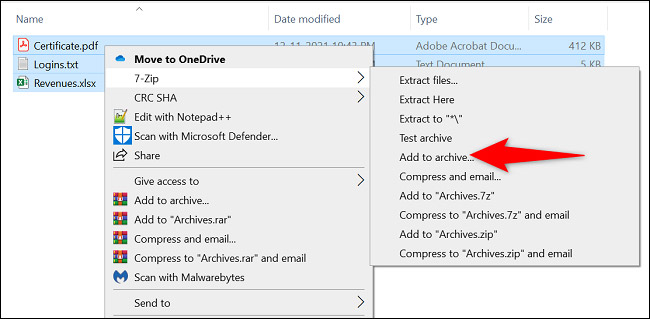
<p style="text-align: justify;">Tiếp theo, mở cửa sổ File Explorer và tìm các tệp mà bạn muốn nén dưới dạng file lưu trữ ZIP. Chọn cùng lúc tất cả các tệp này, nhấp chuột phải vào chúng và chọn&nbsp;<strong>7-Zip &gt; Add to Archive</strong>.</p>

<p style="text-align: justify;"><img alt="Chọn 7-Zip &gt; Add to Archive" data-i="0" data-src="https://st.quantrimang.com/photos/image/2022/08/09/dat-mat-khau-bao-ve-file-zip-tren-windows1.jpg" data-was-processed="true" height="319" src="https://st.quantrimang.com/photos/image/2022/08/09/dat-mat-khau-bao-ve-file-zip-tren-windows1.jpg" width="650" /></p>

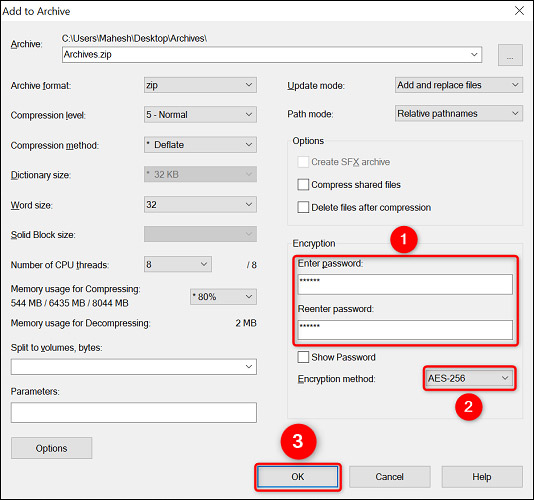
<p style="text-align: justify;">Bạn sẽ thấy cửa sổ “<strong>Add to Archive</strong>” hiện ra. Tại đây, trong phần “<strong>Encryption</strong>” ở bên phải, hãy nhấp vào trường “<strong>Enter Password</strong>” và nhập mật khẩu bạn muốn sử dụng. Nhập cùng một mật khẩu tương tự vào trường “<strong>Reenter Password</strong>”.</p>

<p style="text-align: justify;"><img alt="" data-i="1" data-src="https://st.quantrimang.com/photos/image/2022/08/09/dat-mat-khau-bao-ve-file-zip-tren-windows2.jpg" data-was-processed="true" height="500" src="https://st.quantrimang.com/photos/image/2022/08/09/dat-mat-khau-bao-ve-file-zip-tren-windows2.jpg" width="534" /></p>

<p style="text-align: justify;">Sau đó, nhấp vào menu thả xuống “<strong>Encryption Method</strong>” và chọn “<strong>AES-256</strong>”, một loại mã hóa phổ biến được các ngân hàng và quân đội sử dụng. Nếu muốn, bạn có thể điều chỉnh bất kỳ tùy chọn nào khác theo nhu cầu của mình.</p>

<p style="text-align: justify;"><img alt="Nhập mật khẩu" data-i="2" data-src="https://st.quantrimang.com/photos/image/2022/08/09/dat-mat-khau-bao-ve-file-zip-tren-windows3.jpg" data-was-processed="true" height="258" src="https://st.quantrimang.com/photos/image/2022/08/09/dat-mat-khau-bao-ve-file-zip-tren-windows3.jpg" width="353" /></p>

<p style="text-align: justify;">Cuối cùng, bắt đầu tạo file lưu trữ bằng cách nhấp vào “<strong>OK</strong>”.</p>

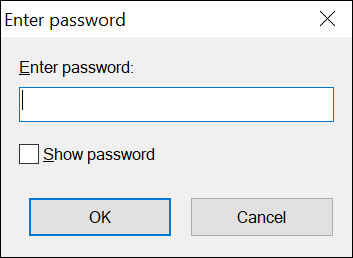
<p style="text-align: justify;">7-Zip sẽ lập tức tạo file lưu trữ ZIP được bảo vệ bằng mật khẩu với các tệp bạn đã chọn. Khi mở file lưu trữ này, bạn sẽ được yêu cầu nhập mật khẩu để giải nén dữ liệu bên trong.</p>

<h2 style="text-align: justify;">Đặt mật khẩu bảo vệ file ZIP trên Windows bằng WinRAR</h2>

<p style="text-align: justify;">Nếu đã từng sử dụng PC Windows, WinRAR có lẽ đã không còn xa lạ với bạn. Ứng dụng nén file này cho phép bạn tạo và trích xuất tệp từ nhiều loại lưu trữ khác nhau, bao gồm ZIP. Bạn cũng có thể sử dụng WinRAR để bảo mật các file lưu trữ của mình bằng mật khẩu.</p>

<p style="text-align: justify;">Để thực hiện điều này, trước tiên, hãy download và cài đặt phiên bản&nbsp;<a href="https://quantrimang.com/url?q=aHR0cHM6Ly93d3cud2luLXJhci5jb20vc3RhcnQuaHRtbD8mTD0xMA%3D%3D" rel="nofollow noopener" target="_blank" title="WinRAR">WinRAR</a>&nbsp;miễn phí trên PC Windows của bạn.</p>

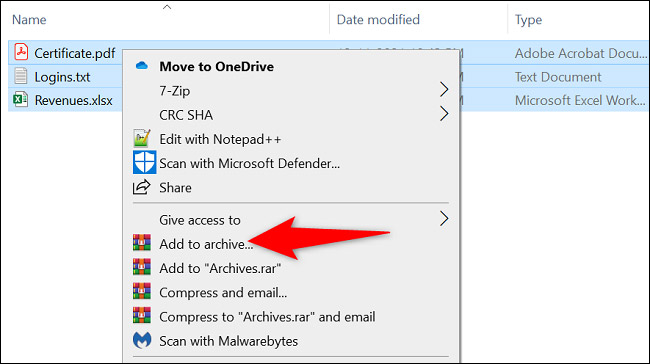
<p style="text-align: justify;">Sau đó, mở cửa sổ File Explorer và tìm các tệp để thêm vào file lưu trữ. Chọn cùng lúc tất cả các tệp này, nhấp chuột phải vào chúng và chọn “<strong>Add to Archive</strong>” trong menu hiện ra.</p>

<p style="text-align: justify;"><img alt="Chọn “Add to Archive” " data-i="3" data-src="https://st.quantrimang.com/photos/image/2022/08/09/dat-mat-khau-bao-ve-file-zip-tren-windows4.jpg" data-was-processed="true" height="364" src="https://st.quantrimang.com/photos/image/2022/08/09/dat-mat-khau-bao-ve-file-zip-tren-windows4.jpg" width="650" /></p>

<p style="text-align: justify;">(Nếu không thấy tùy chọn “<strong>Add to Archive</strong>” của WinRAR, hãy khởi động lại PC Windows 10 hoặc Windows 11 của bạn).</p>

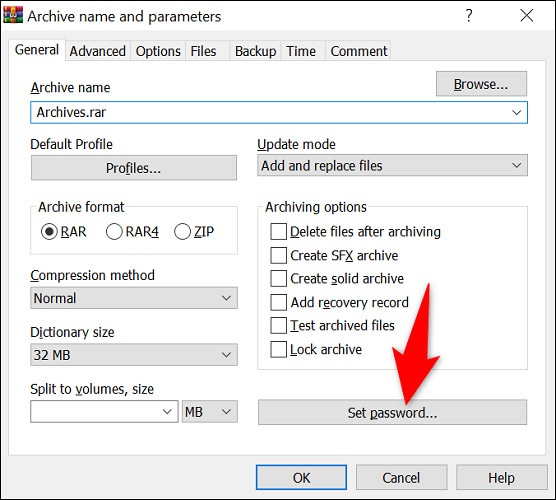
<p style="text-align: justify;">Trên cửa sổ “<strong>Archive Name and Parameters</strong>”, nhấp vào nút “<strong>Set Password</strong>”.</p>

<p style="text-align: justify;"><img alt="Nhấp vào nút “Set Password”" data-i="4" data-src="https://st.quantrimang.com/photos/image/2022/08/09/dat-mat-khau-bao-ve-file-zip-tren-windows5.jpg" data-was-processed="true" height="500" src="https://st.quantrimang.com/photos/image/2022/08/09/dat-mat-khau-bao-ve-file-zip-tren-windows5.jpg" width="556" /></p>

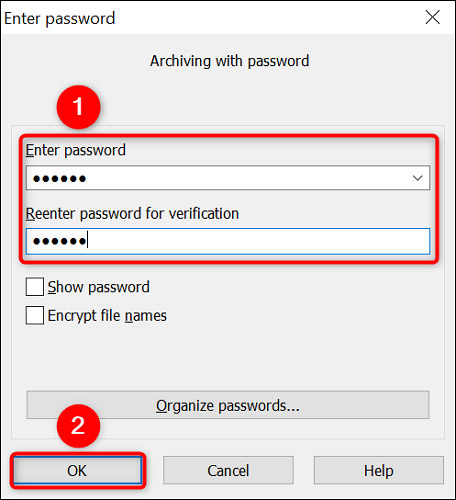
<p style="text-align: justify;">Trên cửa sổ “<strong>Enter Password</strong>”, bấm vào trường “<strong>Enter Password</strong>” và nhập mật khẩu của bạn. Nhập lại mật khẩu đó trong trường “<strong>Reenter Password for Verification</strong>”.</p>

<p style="text-align: justify;">Sau đó, nhấn vào “<strong>OK</strong>” ở dưới cùng.</p>

<p style="text-align: justify;"><img alt="Đặt mật khẩu" data-i="5" data-src="https://st.quantrimang.com/photos/image/2022/08/09/dat-mat-khau-bao-ve-file-zip-tren-windows6.jpg" data-was-processed="true" height="500" src="https://st.quantrimang.com/photos/image/2022/08/09/dat-mat-khau-bao-ve-file-zip-tren-windows6.jpg" width="456" /></p>

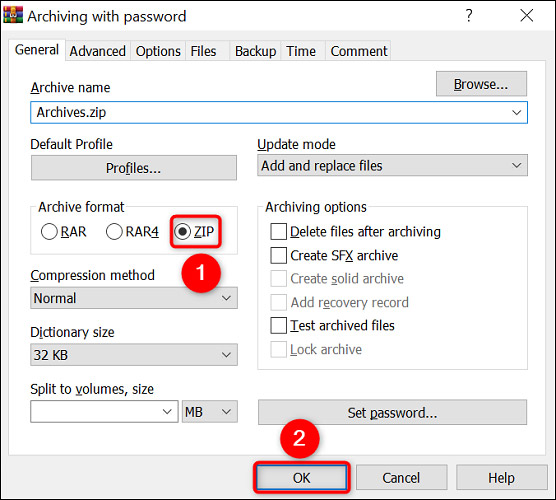
<p style="text-align: justify;">Trong phần “<strong>Archive Format</strong>”, hãy chọn “<strong>ZIP</strong>” để ứng dụng tạo một bản lưu trữ ZIP. Sau đó, hãy thoải mái thay đổi bất kỳ tùy chọn nào khác nếu bạn muốn.</p>

<p style="text-align: justify;">Cuối cùng, khi bạn đã sẵn sàng tạo bản lưu trữ, hãy nhấp vào “<strong>OK</strong>”.</p>

<p style="text-align: justify;"><img alt="Nhấp vào “OK" data-i="6" data-src="https://st.quantrimang.com/photos/image/2022/08/09/dat-mat-khau-bao-ve-file-zip-tren-windows7.jpg" data-was-processed="true" height="500" src="https://st.quantrimang.com/photos/image/2022/08/09/dat-mat-khau-bao-ve-file-zip-tren-windows7.jpg" width="556" /></p>

<p style="text-align: justify;">WinRAR sẽ tạo một file lưu trữ ZIP mới được bảo vệ bằng mật khẩu mà bạn đã đặt. Giờ đây, bạn có thể chia sẻ tệp ZIP này với bất kỳ ai mình muốn, và họ sẽ phải nhập mật khẩu chính xác để giải nén tệp.</p>

<p style="text-align: justify;">Chúc bạn thực hiện thành công!</p>
		</div>
				<div id="author">
						<p>
				<strong>Nguồn tin:</strong>
				Quantrimang.com
			</p>
		</div>
	</div>
	<div id="footer" class="clearfix">
		<div id="url">
			<strong>URL của bản tin này: </strong><a href="https://www.nguoicodonvn2008.info/vi/news/savefile/kien-thuc-may-tinh/cach-dat-mat-khau-bao-ve-file-zip-tren-windows-5972.html" title="Cách đặt mật khẩu bảo vệ file ZIP trên Windows">https://www.nguoicodonvn2008.info/vi/news/savefile/kien-thuc-may-tinh/cach-dat-mat-khau-bao-ve-file-zip-tren-windows-5972.html</a>

		</div>
		<div class="clear"></div>
		<div class="copyright">
			&copy; .&#x3A; Nguoicodonvn2008.info - Cõi lòng người cô đơn &#x3A;.
		</div>
		<div id="contact">
			<a href="mailto:admin@nguoicodonvn2008.info">admin@nguoicodonvn2008.info</a>
		</div>
	</div>
</div>
        <div id="timeoutsess" class="chromeframe">
            Bạn đã không sử dụng Site, <a onclick="timeoutsesscancel();" href="https://nguoicodonvn2008.info/#">Bấm vào đây để duy trì trạng thái đăng nhập</a>. Thời gian chờ: <span id="secField"> 60 </span> giây
        </div>
        <div id="openidResult" class="nv-alert" style="display:none"></div>
        <div id="openidBt" data-result="" data-redirect=""></div>
		</script>
		<div class="car-top">
  <span><img src="https://nguoicodonvn2008.info/themes/default/images/car.png" alt=""></span>
</div>
<script src="https://nguoicodonvn2008.info/assets/js/jquery/jquery.min.js"></script>
<script>var nv_base_siteurl="/",nv_lang_data="vi",nv_lang_interface="vi",nv_name_variable="nv",nv_fc_variable="op",nv_lang_variable="language",nv_module_name="news",nv_func_name="savefile",nv_is_user=0, nv_my_ofs=-4,nv_my_abbr="EDT",nv_cookie_prefix="nv4c_e856T",nv_check_pass_mstime=1738000,nv_area_admin=0,nv_safemode=0,theme_responsive=0,nv_recaptcha_ver=2,nv_recaptcha_sitekey="",nv_recaptcha_type="image",XSSsanitize=1;</script>
<script src="https://nguoicodonvn2008.info/assets/js/language/vi.js"></script>
<script src="https://nguoicodonvn2008.info/assets/js/DOMPurify/purify3.js"></script>
<script src="https://nguoicodonvn2008.info/assets/js/global.js"></script>
<script src="https://nguoicodonvn2008.info/assets/js/site.js"></script>
<script src="https://nguoicodonvn2008.info/themes/default/js/news.js"></script>
<script src="https://nguoicodonvn2008.info/themes/default/js/main.js"></script>
<script src="https://nguoicodonvn2008.info/themes/default/js/custom.js"></script>
<script type="application/ld+json">
        {
            "@context": "https://schema.org",
            "@type": "Organization",
            "url": "https://nguoicodonvn2008.info",
            "logo": "https://nguoicodonvn2008.info/uploads/angel.gif"
        }
        </script>
<script src="https://nguoicodonvn2008.info/themes/default/js/bootstrap.min.js"></script>
<script type="text/javascript">
var $scrolltop = $('.car-top');
$scrolltop.on('click', function () {
    $('html,body').animate({
        scrollTop: 0
    }, 800);
    $(this).addClass("car-run");
    setTimeout(function(){ $scrolltop.removeClass('car-run');}, 1000);
    return false;
});
$(window).on('scroll', function ()
{ 
    if($(window).scrollTop() >= 200)
    {
        $scrolltop.addClass("show");
        $scrolltop.addClass("car-down");
    }
    else
    {
       $scrolltop.removeClass("show");
       setTimeout(function(){ $scrolltop.removeClass('car-down');}, 300);
    }
});
</script>
</body>
</html>