<!DOCTYPE html>
    <html lang="vi" xmlns="http://www.w3.org/1999/xhtml" prefix="og: http://ogp.me/ns#">
    <head>
<title>Cách chuyển Windows sang ổ khác bằng Macrium Reflect</title>
<meta name="description" content="Cách chuyển Windows sang ổ khác bằng Macrium Reflect - Savefile - Tin Tức -...">
<meta name="author" content=".: Nguoicodonvn2008.info - Cõi lòng người cô đơn :.">
<meta name="copyright" content=".: Nguoicodonvn2008.info - Cõi lòng người cô đơn :. [admin@nguoicodonvn2008.info]">
<meta name="robots" content="index, archive, follow, noodp">
<meta name="googlebot" content="index,archive,follow,noodp">
<meta name="msnbot" content="all,index,follow">
<meta name="generator" content="NukeViet v4.5">
<meta http-equiv="Content-Type" content="text/html; charset=utf-8">
<meta property="og:title" content="Cách chuyển Windows sang ổ khác bằng Macrium Reflect">
<meta property="og:type" content="website">
<meta property="og:description" content="Savefile - Tin Tức - https&#x3A;&#x002F;&#x002F;www.nguoicodonvn2008.info&#x002F;vi&#x002F;news&#x002F;savefile&#x002F;kien-thuc-may-tinh&#x002F;cach-chuyen-windows-sang-o-khac-bang-macrium-reflect-8627.html">
<meta property="og:site_name" content=".&#x3A; Nguoicodonvn2008.info - Cõi lòng người cô đơn &#x3A;.">
<meta property="og:url" content="https://www.nguoicodonvn2008.info/vi/news/savefile/kien-thuc-may-tinh/cach-chuyen-windows-sang-o-khac-bang-macrium-reflect-8627.html">
<link rel="shortcut icon" href="https://nguoicodonvn2008.info/favicon.ico">
<link rel="canonical" href="https://www.nguoicodonvn2008.info/vi/news/savefile/kien-thuc-may-tinh/cach-chuyen-windows-sang-o-khac-bang-macrium-reflect-8627.html">
<link rel="alternate" href="https://nguoicodonvn2008.info/vi/news/rss/" title="Tin Tức" type="application/rss+xml">
<link rel="alternate" href="https://nguoicodonvn2008.info/vi/news/rss/karaoke-dual/" title="Tin Tức - Karaoke Dual" type="application/rss+xml">
<link rel="alternate" href="https://nguoicodonvn2008.info/vi/news/rss/nhac-tre/" title="Tin Tức - Nhạc trẻ" type="application/rss+xml">
<link rel="alternate" href="https://nguoicodonvn2008.info/vi/news/rss/tru-tinh/" title="Tin Tức - Trữ tình" type="application/rss+xml">
<link rel="alternate" href="https://nguoicodonvn2008.info/vi/news/rss/nuoc-ngoai/" title="Tin Tức - Nước ngoài" type="application/rss+xml">
<link rel="alternate" href="https://nguoicodonvn2008.info/vi/news/rss/remix/" title="Tin Tức - Remix" type="application/rss+xml">
<link rel="alternate" href="https://nguoicodonvn2008.info/vi/news/rss/tam-su-tinh-yeu/" title="Tin Tức - Tâm sự tình yêu" type="application/rss+xml">
<link rel="alternate" href="https://nguoicodonvn2008.info/vi/news/rss/tho-suu-tam/" title="Tin Tức - Thơ sưu tầm" type="application/rss+xml">
<link rel="alternate" href="https://nguoicodonvn2008.info/vi/news/rss/cuoc-song/" title="Tin Tức - Cuộc sống" type="application/rss+xml">
<link rel="alternate" href="https://nguoicodonvn2008.info/vi/news/rss/phan-mem/" title="Tin Tức - Phần mềm" type="application/rss+xml">
<link rel="alternate" href="https://nguoicodonvn2008.info/vi/news/rss/kien-thuc-may-tinh/" title="Tin Tức - Kiến thức máy tính" type="application/rss+xml">
<link rel="alternate" href="https://nguoicodonvn2008.info/vi/news/rss/hoc-tap/" title="Tin Tức - Học tập" type="application/rss+xml">
<link rel="alternate" href="https://nguoicodonvn2008.info/vi/news/rss/tai-lieu/" title="Tin Tức - Tài liệu" type="application/rss+xml">
<link rel="alternate" href="https://nguoicodonvn2008.info/vi/news/rss/de-thi/" title="Tin Tức - Đề thi" type="application/rss+xml">
<link rel="preload" as="style" href="https://nguoicodonvn2008.info/assets/css/font-awesome.min.css" type="text/css">
<link rel="preload" as="style" href="https://nguoicodonvn2008.info/themes/default/css/bootstrap.non-responsive.css" type="text/css">
<link rel="preload" as="style" href="https://nguoicodonvn2008.info/themes/default/css/style.css" type="text/css">
<link rel="preload" as="style" href="https://nguoicodonvn2008.info/themes/default/css/style.non-responsive.css" type="text/css">
<link rel="preload" as="style" href="https://nguoicodonvn2008.info/themes/default/css/news.css" type="text/css">
<link rel="preload" as="style" href="https://nguoicodonvn2008.info/themes/default/css/custom.css" type="text/css">
<link rel="preload" as="script" href="https://nguoicodonvn2008.info/assets/js/jquery/jquery.min.js" type="text/javascript">
<link rel="preload" as="script" href="https://nguoicodonvn2008.info/assets/js/language/vi.js" type="text/javascript">
<link rel="preload" as="script" href="https://nguoicodonvn2008.info/assets/js/DOMPurify/purify3.js" type="text/javascript">
<link rel="preload" as="script" href="https://nguoicodonvn2008.info/assets/js/global.js" type="text/javascript">
<link rel="preload" as="script" href="https://nguoicodonvn2008.info/assets/js/site.js" type="text/javascript">
<link rel="preload" as="script" href="https://nguoicodonvn2008.info/themes/default/js/news.js" type="text/javascript">
<link rel="preload" as="script" href="https://nguoicodonvn2008.info/themes/default/js/main.js" type="text/javascript">
<link rel="preload" as="script" href="https://nguoicodonvn2008.info/themes/default/js/custom.js" type="text/javascript">
<link rel="preload" as="script" href="https://nguoicodonvn2008.info/themes/default/js/bootstrap.min.js" type="text/javascript">
<link rel="stylesheet" href="https://nguoicodonvn2008.info/assets/css/font-awesome.min.css">
<link rel="stylesheet" href="https://nguoicodonvn2008.info/themes/default/css/bootstrap.non-responsive.css">
<link rel="stylesheet" href="https://nguoicodonvn2008.info/themes/default/css/style.css">
<link rel="stylesheet" href="https://nguoicodonvn2008.info/themes/default/css/style.non-responsive.css">
<link rel="StyleSheet" href="https://nguoicodonvn2008.info/themes/default/css/news.css">
<link rel="stylesheet" href="https://nguoicodonvn2008.info/themes/default/css/custom.css">
<style type="text/css">
	body{background: #fff;}
</style>
    </head>
    <body>
<div id="print">
	<div id="hd_print">
		<h2 class="pull-left">.&#x3A; Nguoicodonvn2008.info - Cõi lòng người cô đơn &#x3A;.</h2>
		<p class="pull-right"><a title=".&#x3A; Nguoicodonvn2008.info - Cõi lòng người cô đơn &#x3A;." href="https://nguoicodonvn2008.info/">https://nguoicodonvn2008.info</a></p>
	</div>
	<div class="clear"></div>
	<hr />
	<div id="content">
		<h1>Cách chuyển Windows sang ổ khác bằng Macrium Reflect</h1>
		<ul class="list-inline">
			<li>Chủ nhật - 07/07/2024 23:51</li>
			<li class="hidden-print txtrequired"><em class="fa fa-print">&nbsp;</em><a title="In ra" href="javascript:;" onclick="window.print()">In ra</a></li>
			<li class="hidden-print txtrequired"><em class="fa fa-power-off">&nbsp;</em><a title="Đóng cửa sổ này" href="javascript:;" onclick="window.close()">Đóng cửa sổ này</a></li>
		</ul>
		<div class="clear"></div>
		<div id="hometext">
		</div>
				<div class="imghome">
			<img alt="Cách chuyển Windows sang ổ khác bằng Macrium Reflect" src="https://st.quantrimang.com/photos/image/2024/07/08/chuyen-windows-sang-o-khac-bang-macrium-reflect-9.jpg" width="460" class="img-thumbnail" />
		</div>
		<div class="clear"></div>
		<div id="bodytext" class="clearfix">
			<h1>&nbsp;</h1>

<p style="text-align: justify;">Cho dù bạn đang&nbsp;nâng cấp từ HDD lên SSD&nbsp;hay cài đặt ổ đĩa có dung lượng lớn hơn, đây là cách dễ nhất để di chuyển cài đặt hệ điều hành Windows hiện tại và tất cả dữ liệu sang ổ khác.</p>

<h2 style="text-align: justify;">Cách di chuyển Windows sang ổ khác bằng Macrium Reflect</h2>

<p style="text-align: justify;">Macrium Reflect là công cụ sao lưu và clone cao cấp dành cho Windows. Hãy&nbsp;truy cập trang web Macrium Reflect:<span style="color:rgb(192, 57, 43);"><strong>&nbsp;https://www.macrium.com/products/home</strong></span>&nbsp;và tải xuống phiên bản&nbsp;<strong>Home</strong>&nbsp;của công cụ. Bạn có thể mua giấy phép hoặc chọn dùng thử miễn phí. Sau khi nhập thông tin chi tiết, bạn sẽ nhận được liên kết tải xuống trong email. Sử dụng liên kết này để tải xuống trình cài đặt và chạy nó trên máy tính. Làm theo hướng dẫn trên màn hình để cài đặt ứng dụng.</p>

<p style="text-align: justify;">Để ngăn chặn bất kỳ sự cố nào, hãy đảm bảo ổ mới có dung lượng bằng hoặc nhiều hơn ổ hiện tại. Tất cả dữ liệu trên ổ đích sẽ bị xóa, vì vậy đừng quên sao lưu mọi thứ quan trọng.</p>

<p style="text-align: justify;">Sau khi hoàn tất, hãy làm theo các bước sau để di chuyển Windows sang ổ khác:</p>

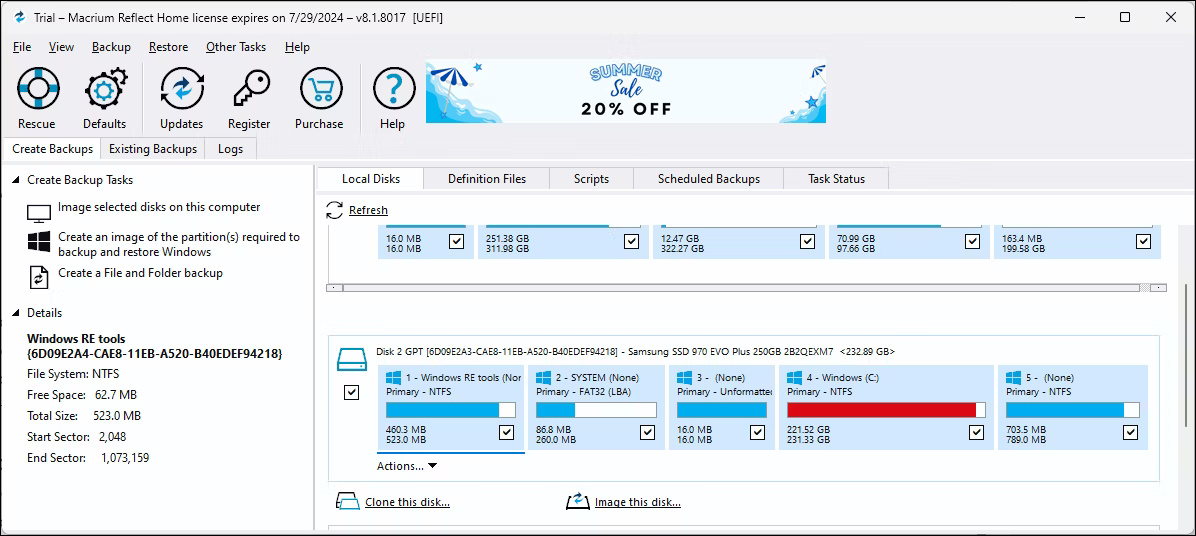
<p style="text-align: justify;">1. Khởi chạy Macrium Reflect để bắt đầu quá trình clone. Trong tab&nbsp;<strong>Local Disks</strong>, định vị và chọn ổ cài đặt Windows. Sau đó bấm vào tùy chọn&nbsp;<strong>Clone this disk</strong>.</p>

<figure>
<div style="text-align: justify;"><img alt="Phần mềm Macrium Reflect khi mở tab Local Disks" data-i="0" data-src="https://st.quantrimang.com/photos/image/2024/07/08/chuyen-windows-sang-o-khac-bang-macrium-reflect-1.jpg" data-was-processed="true" height="536" src="https://st.quantrimang.com/photos/image/2024/07/08/chuyen-windows-sang-o-khac-bang-macrium-reflect-1.jpg" width="1196" /></div>

<figcaption>
<div style="text-align: justify;">Phần mềm Macrium Reflect khi mở tab Local Disks</div>
</figcaption>
</figure>

<div style="text-align: justify;">&nbsp;</div>

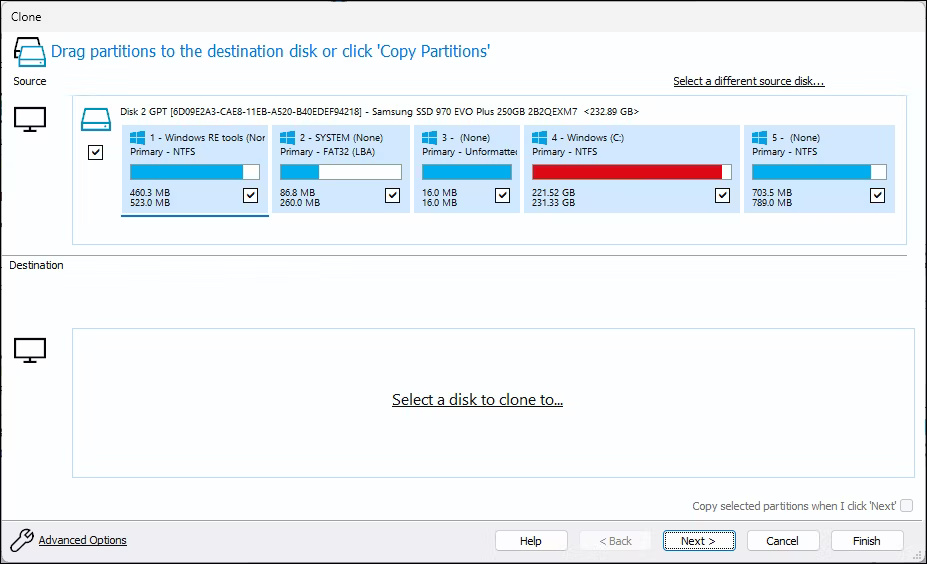
<p style="text-align: justify;">2. Hộp thoại&nbsp;<strong>Clone</strong>&nbsp;mới sẽ mở ra, hiển thị ổ cài đặt Windows được chọn làm nguồn. Đảm bảo tất cả các phân vùng của ổ nguồn đều được chọn.</p>

<figure>
<div style="text-align: justify;"><img alt="Tab Clone của Macrium Reflect Software hiển thị tùy chọn nguồn và đích" data-adbro-processed="true" data-i="1" data-src="https://st.quantrimang.com/photos/image/2024/07/08/chuyen-windows-sang-o-khac-bang-macrium-reflect-2.jpg" data-was-processed="true" height="564" src="https://st.quantrimang.com/photos/image/2024/07/08/chuyen-windows-sang-o-khac-bang-macrium-reflect-2.jpg" width="927" /></div>

<figcaption>
<div style="text-align: justify;">Tab Clone của Macrium Reflect Software hiển thị tùy chọn nguồn và đích</div>
</figcaption>
</figure>

<p style="text-align: justify;">3. Bây giờ, cần chọn ổ đích (mới) mà các file Windows sẽ được di chuyển đến. Nhấp vào&nbsp;<strong>Select a disk to clone to</strong>&nbsp;và chọn ổ đích từ danh sách.</p>

<figure>
<div style="text-align: justify;"><img alt="Tab Clone hiển thị tùy chọn nguồn và đích" data-i="2" data-src="https://st.quantrimang.com/photos/image/2024/07/08/chuyen-windows-sang-o-khac-bang-macrium-reflect-3.jpg" data-was-processed="true" height="564" src="https://st.quantrimang.com/photos/image/2024/07/08/chuyen-windows-sang-o-khac-bang-macrium-reflect-3.jpg" width="927" /></div>

<figcaption>
<div style="text-align: justify;">Tab Clone hiển thị tùy chọn nguồn và đích</div>
</figcaption>
</figure>

<div style="text-align: justify;">&nbsp;</div>

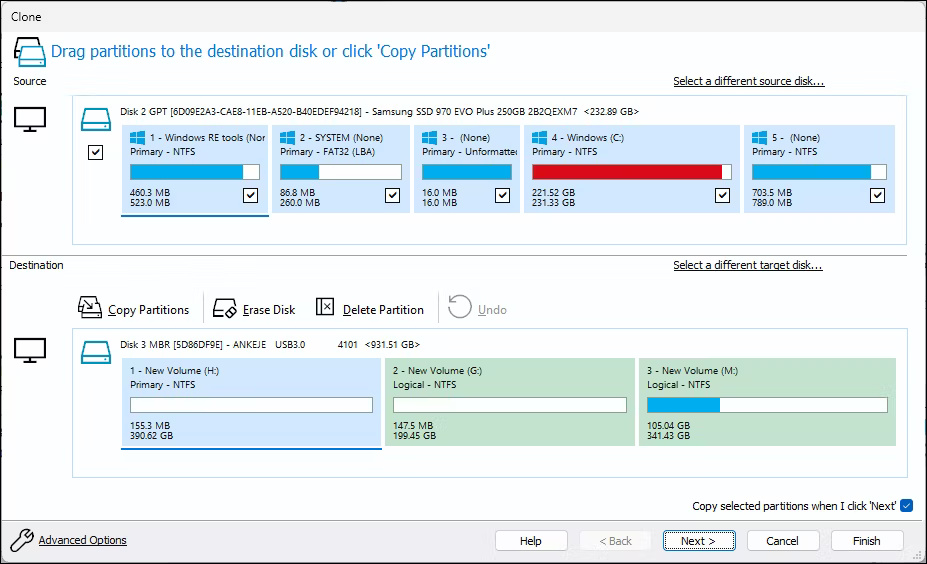
<p style="text-align: justify;">4. Sau đó nhấp vào tùy chọn&nbsp;<strong>Erase Disk</strong>&nbsp;để xóa tất cả dữ liệu khỏi ổ đích.</p>

<p style="text-align: justify;">5. Để di chuyển cài đặt, hãy chọn tùy chọn&nbsp;<strong>Copy selected partitions when I click ‘Next’</strong>&nbsp;ở góc dưới bên phải. Sau đó nhấn&nbsp;<strong>Next</strong>&nbsp;để tiếp tục.</p>

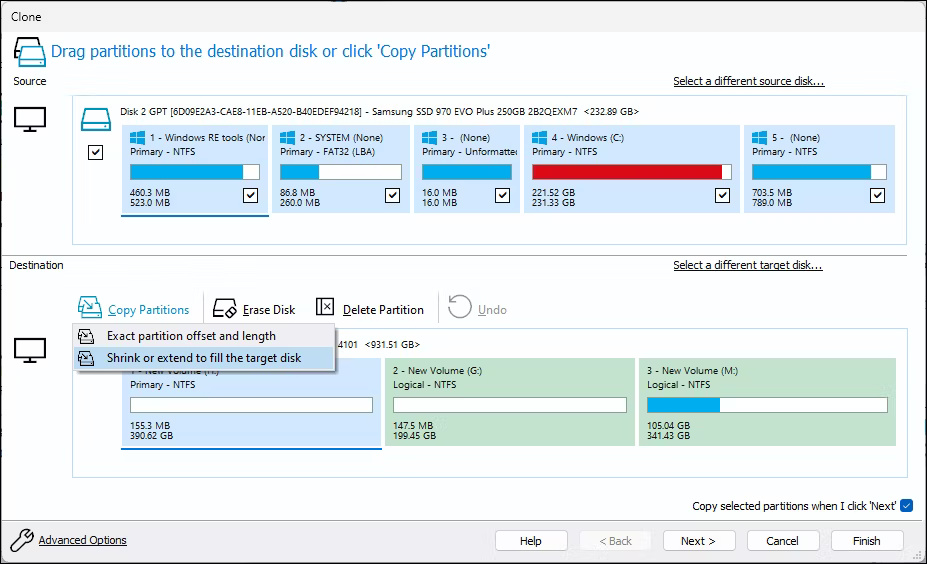
<p style="text-align: justify;">6. Nếu gặp lỗi &nbsp;“<strong>too many primary partitions, nothing copied</strong>” , hãy nhấp vào tùy chọn&nbsp;<strong>Copy Partitions</strong>&nbsp;và chọn tùy chọn&nbsp;<strong>Shrink or extend to fill the target disk</strong>. Nhấn&nbsp;<strong>Next</strong>&nbsp;để tiếp tục.</p>

<figure>
<div style="text-align: justify;"><img alt="Tab Clone hiển thị tùy chọn clone phân vùng" data-i="3" data-src="https://st.quantrimang.com/photos/image/2024/07/08/chuyen-windows-sang-o-khac-bang-macrium-reflect-4.jpg" data-was-processed="true" height="564" src="https://st.quantrimang.com/photos/image/2024/07/08/chuyen-windows-sang-o-khac-bang-macrium-reflect-4.jpg" width="927" /></div>

<figcaption>
<div style="text-align: justify;">Tab Clone hiển thị tùy chọn clone phân vùng</div>
</figcaption>
</figure>

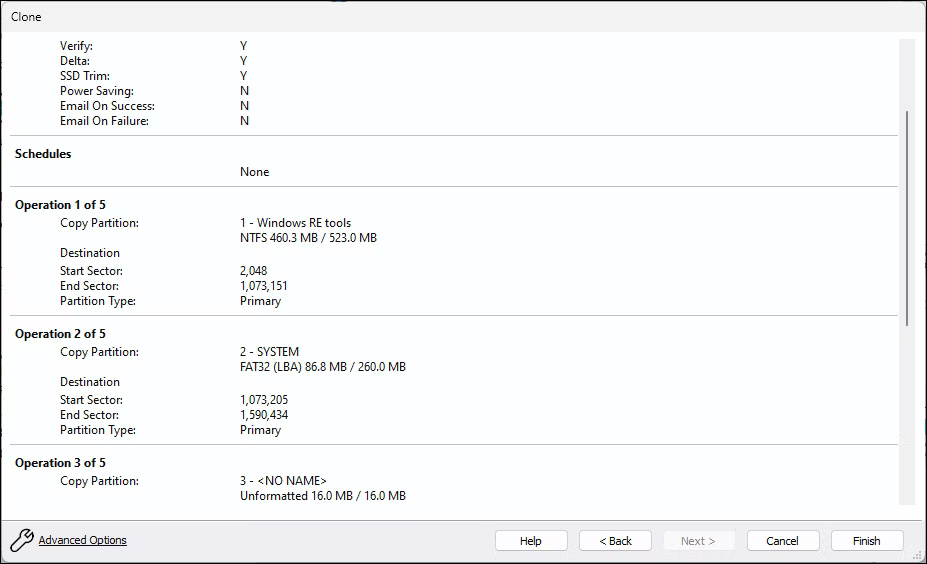
<p style="text-align: justify;">7. Trên màn hình tiếp theo, bạn có thể lên lịch clone. Để clone ngay lập tức, nhấp vào&nbsp;<strong>Next</strong>. Đọc tóm tắt về quá trình clone ổ và nhấp vào&nbsp;<strong>Finish</strong>.</p>

<figure>
<div style="text-align: justify;"><img alt="Tùy chọn tóm tắt và hoàn thiện bản sao" data-i="4" data-src="https://st.quantrimang.com/photos/image/2024/07/08/chuyen-windows-sang-o-khac-bang-macrium-reflect-5.jpg" data-was-processed="true" height="564" src="https://st.quantrimang.com/photos/image/2024/07/08/chuyen-windows-sang-o-khac-bang-macrium-reflect-5.jpg" width="927" /></div>

<figcaption>
<div style="text-align: justify;">Tùy chọn tóm tắt và hoàn thiện bản sao</div>
</figcaption>
</figure>

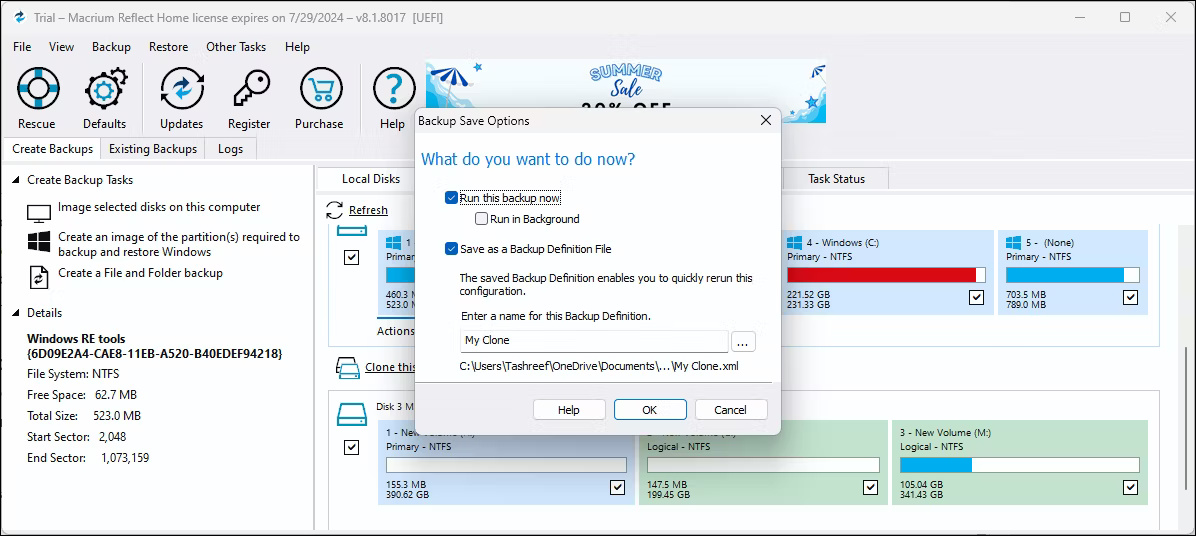
<p style="text-align: justify;">8. Trong menu pop-up, chọn hộp&nbsp;<strong>Run this backup now</strong>&nbsp;và&nbsp;<strong>Save as a backup definition</strong><strong>file</strong>. Đồng ý với bất kỳ cảnh báo nào và nhấp vào&nbsp;<strong>OK</strong>.</p>

<figure>
<div style="text-align: justify;"><img alt="" data-i="5" data-src="https://st.quantrimang.com/photos/image/2024/07/08/chuyen-windows-sang-o-khac-bang-macrium-reflect-6.jpg" data-was-processed="true" height="536" src="https://st.quantrimang.com/photos/image/2024/07/08/chuyen-windows-sang-o-khac-bang-macrium-reflect-6.jpg" width="1196" /></div>
</figure>

<p style="text-align: justify;">9. Tùy thuộc vào kích thước ổ đĩa, quá trình này có thể mất một chút thời gian để hoàn thành. Sau khi clone hoàn tất, cả hai ổ sẽ trông giống nhau trong Macrium Reflect.</p>

<h2 style="text-align: justify;">Đặt ổ mới làm ổ boot</h2>

<p style="text-align: justify;">Để khởi động từ ổ mới được clone, bạn có thể cần phải thay thế ổ SATA hiện có bằng ổ đó, ngoại trừ khi chuyển Windows từ SSD SATA sang M.2. Bất chấp điều đó, bạn sẽ cần đặt ổ đĩa mới của mình làm ổ boot chính trong cài đặt BIOS hoặc UEFI.</p>

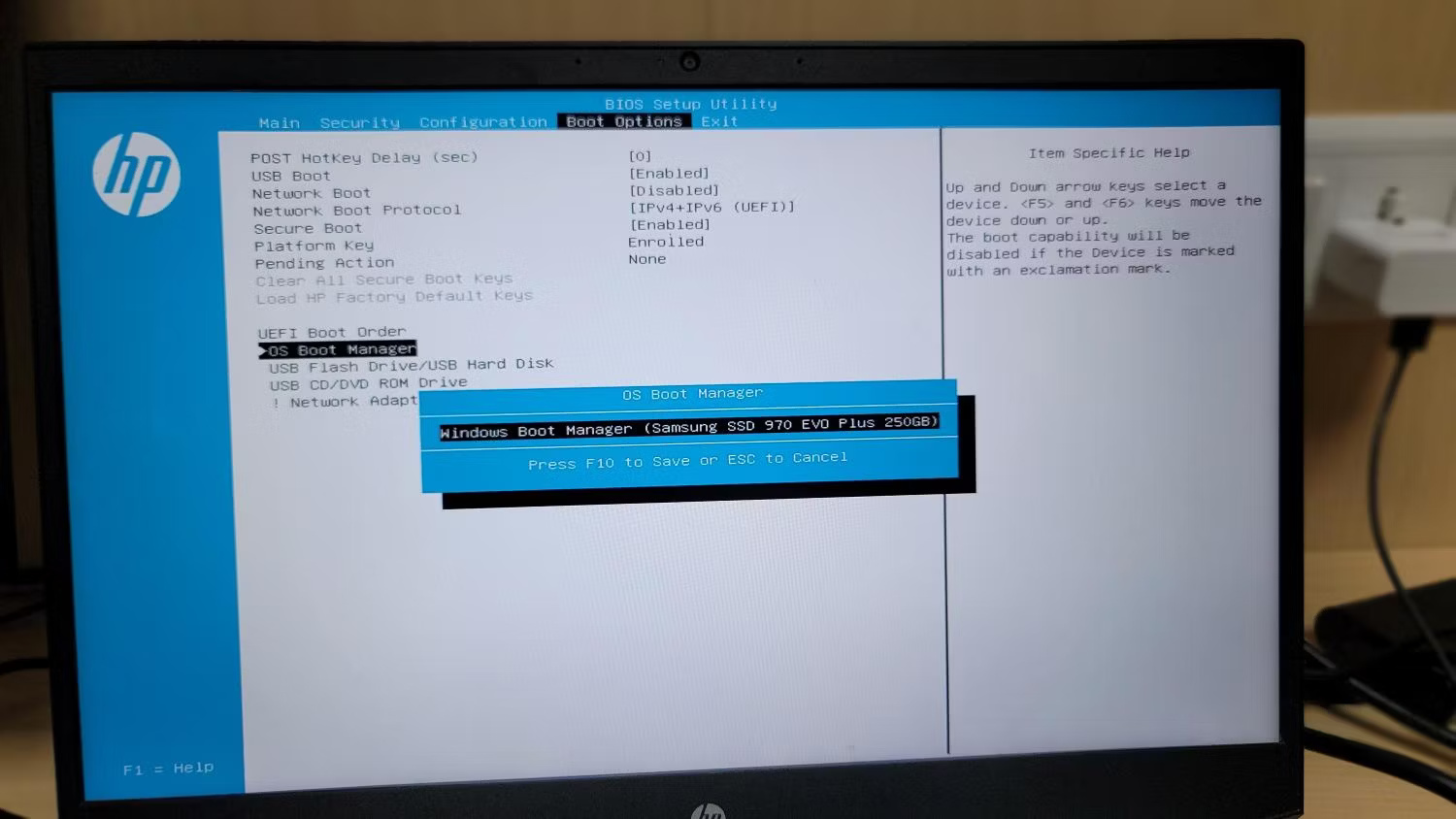
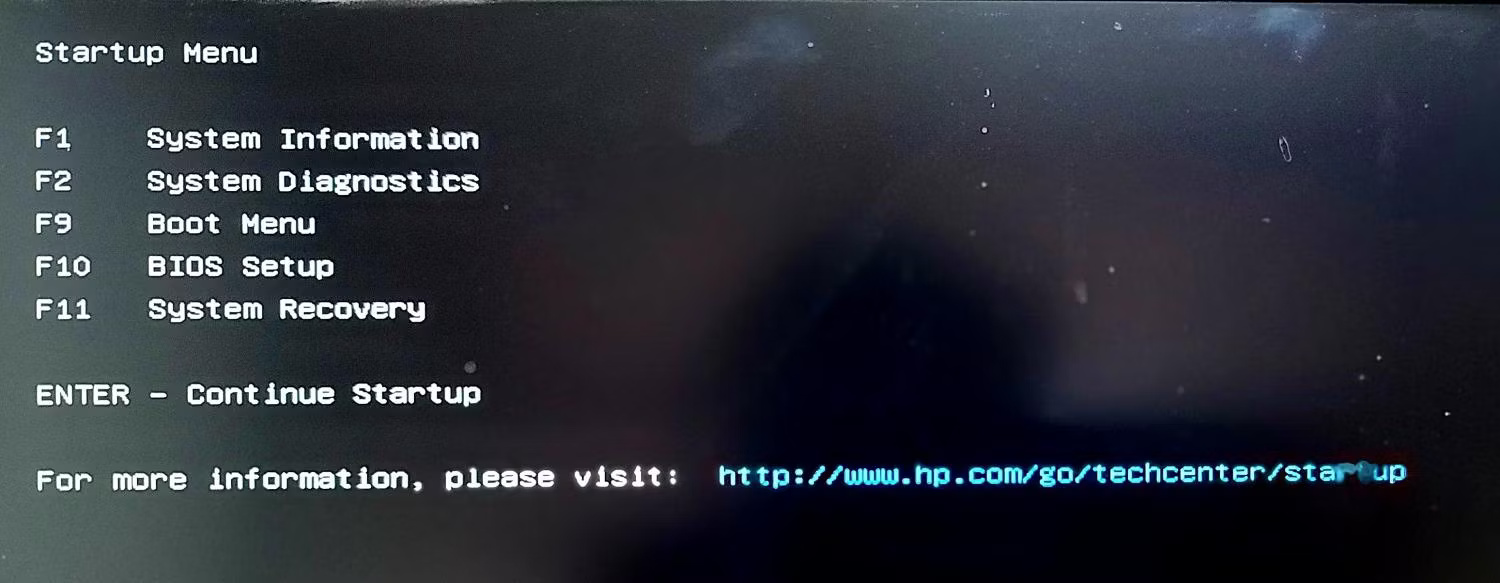
<p style="text-align: justify;">Bạn có thể&nbsp;vào BIOS trên Windows 10&nbsp;và 11 bằng cách nhấn phím&nbsp;<strong>F10</strong>&nbsp;trong khi khởi động lại. Tuy nhiên, phím nóng có thể khác nhau tùy theo nhà sản xuất. Thay vào đó, chúng ta sẽ sử dụng phím&nbsp;<strong>Esc</strong>&nbsp;để truy cập menu Start và tiếp tục từ đó.</p>

<p style="text-align: justify;">1. Tắt máy tính. Sau đó nhấn nút nguồn để bật và nhấn phím&nbsp;<strong>Esc</strong>&nbsp;liên tục để xem&nbsp;<strong>Startup menu</strong>. Trong menu khởi động, nhấn phím tương ứng để vào tiện ích BIOS hoặc UEFI. Trong trường hợp này, đó là&nbsp;<strong>F10</strong>&nbsp;cho máy tính xách tay HP.</p>

<figure>
<div style="text-align: justify;"><img alt="Tiện ích Startup menu" data-i="6" data-src="https://st.quantrimang.com/photos/image/2024/07/08/chuyen-windows-sang-o-khac-bang-macrium-reflect-7.jpg" data-was-processed="true" height="583" src="https://st.quantrimang.com/photos/image/2024/07/08/chuyen-windows-sang-o-khac-bang-macrium-reflect-7.jpg" width="1500" /></div>

<figcaption>
<div style="text-align: justify;">Tiện ích Startup menu</div>
</figcaption>
</figure>

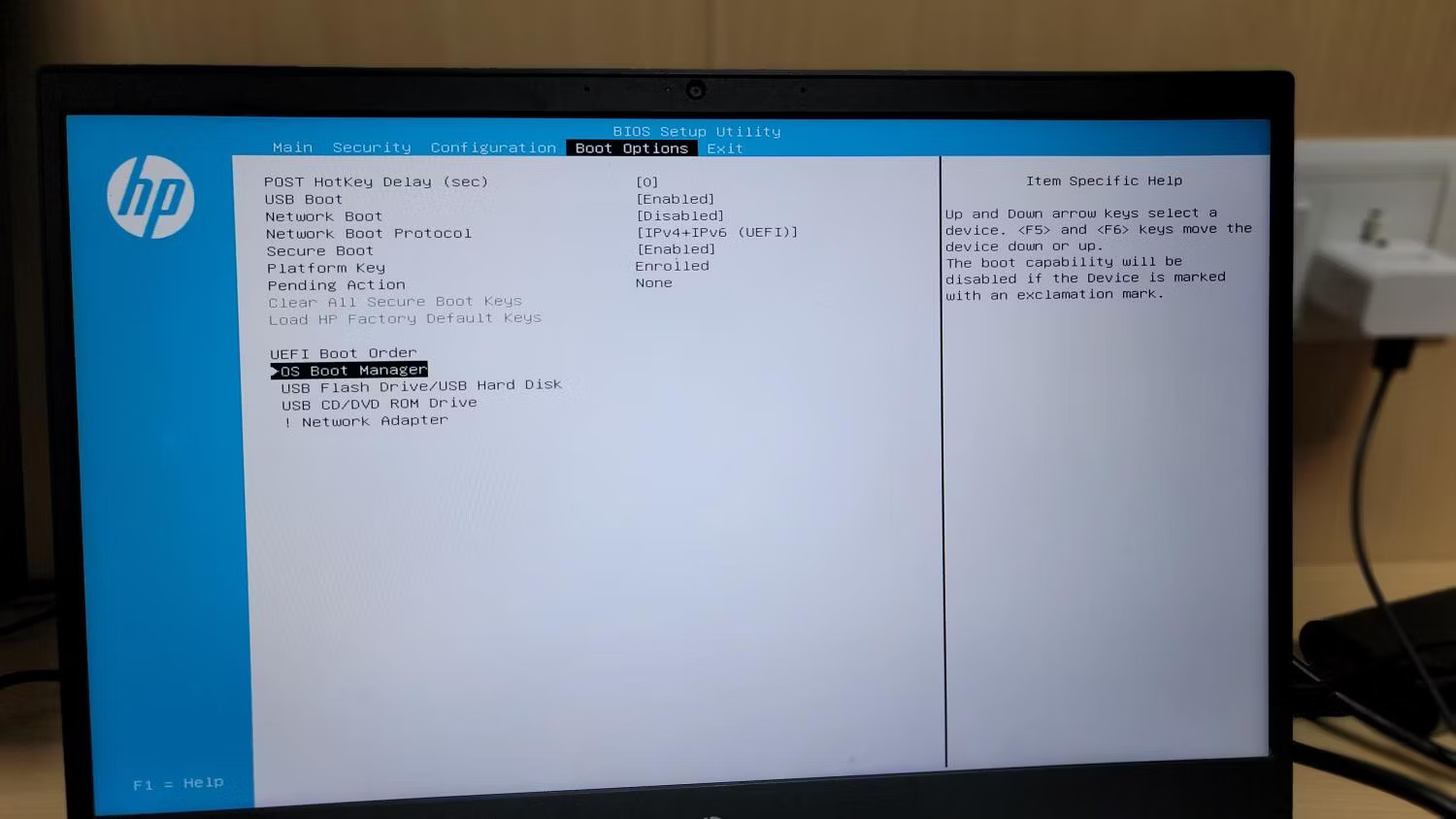
<p style="text-align: justify;">2. Khi ở trong tiện ích BIOS, hãy đi tới&nbsp;<strong>Boot Options</strong>. Một lần nữa, có thể có một số khác biệt tùy thuộc vào nhà sản xuất (bất kỳ điều gì liên quan đến &#039;<strong>Boot</strong>&#039;).</p>

<figure>
<div style="text-align: justify;"><img alt="Tiện ích HP BIOS hiển thị tab Boot Options" data-i="7" data-src="https://st.quantrimang.com/photos/image/2024/07/08/chuyen-windows-sang-o-khac-bang-macrium-reflect-8.jpg" data-was-processed="true" height="844" src="https://st.quantrimang.com/photos/image/2024/07/08/chuyen-windows-sang-o-khac-bang-macrium-reflect-8.jpg" width="1500" /></div>

<figcaption>
<div style="text-align: justify;">Tiện ích HP BIOS hiển thị tab Boot Options</div>
</figcaption>
</figure>

<p style="text-align: justify;">3. Sử dụng các phím mũi tên để highlight OS Boot Manager, sau đó nhấn&nbsp;<strong>Enter</strong>&nbsp;để chọn nó. Trong hộp thoại OS Boot Manager, chọn ổ mới được clone và nhấn&nbsp;<strong>F10</strong>&nbsp;để lưu nó làm ổ boot.</p>

<figure>
<div style="text-align: justify;"><img alt="Tiện ích BIOS HP với ổ OS Boot Manager được chọn" data-i="8" data-src="https://st.quantrimang.com/photos/image/2024/07/08/chuyen-windows-sang-o-khac-bang-macrium-reflect-9.jpg" data-was-processed="true" height="844" src="https://st.quantrimang.com/photos/image/2024/07/08/chuyen-windows-sang-o-khac-bang-macrium-reflect-9.jpg" width="1500" /></div>

<figcaption>
<div style="text-align: justify;">Tiện ích BIOS HP với ổ OS Boot Manager được chọn</div>
</figcaption>
</figure>

<p style="text-align: justify;">4. Cuối cùng, điều hướng đến tab&nbsp;<strong>Exit</strong>&nbsp;và chọn&nbsp;<strong>Save Changes and Exit</strong>. Nếu thành công, máy tính sẽ khởi động lại và khởi động từ ổ mới.</p>

<p style="text-align: justify;">Clone ổ là cách dễ nhất để di chuyển Windows 10 hoặc 11 sang ổ khác. Trong một số ít trường hợp, bạn có thể gặp phải sự cố kích hoạt Windows nhưng sự cố này sẽ tự giải quyết trong vòng 24 giờ. Tuy nhiên, hãy nhớ rằng việc cài đặt ổ được clone trên một máy tính khác và khởi động từ nó sẽ không kích hoạt Windows vì giấy phép kỹ thuật số được gắn với bo mạch chủ hệ thống.</p>

<p style="text-align: justify;">Nếu định cài đặt ổ được clone trên một máy tính khác hoặc phần cứng mới, trước tiên hãy đảm bảo liên kết product key Windows với tài khoản Microsoft của bạn. Sau đó, bạn có thể đăng nhập vào Windows bằng tài khoản Microsoft của mình và nó sẽ tự động kích hoạt giấy phép.</p>
		</div>
				<div id="author">
						<p>
				<strong>Nguồn tin:</strong>
				Quantrimang.com:
			</p>
		</div>
	</div>
	<div id="footer" class="clearfix">
		<div id="url">
			<strong>URL của bản tin này: </strong><a href="https://www.nguoicodonvn2008.info/vi/news/savefile/kien-thuc-may-tinh/cach-chuyen-windows-sang-o-khac-bang-macrium-reflect-8627.html" title="Cách chuyển Windows sang ổ khác bằng Macrium Reflect">https://www.nguoicodonvn2008.info/vi/news/savefile/kien-thuc-may-tinh/cach-chuyen-windows-sang-o-khac-bang-macrium-reflect-8627.html</a>

		</div>
		<div class="clear"></div>
		<div class="copyright">
			&copy; .&#x3A; Nguoicodonvn2008.info - Cõi lòng người cô đơn &#x3A;.
		</div>
		<div id="contact">
			<a href="mailto:admin@nguoicodonvn2008.info">admin@nguoicodonvn2008.info</a>
		</div>
	</div>
</div>
        <div id="timeoutsess" class="chromeframe">
            Bạn đã không sử dụng Site, <a onclick="timeoutsesscancel();" href="https://nguoicodonvn2008.info/#">Bấm vào đây để duy trì trạng thái đăng nhập</a>. Thời gian chờ: <span id="secField"> 60 </span> giây
        </div>
        <div id="openidResult" class="nv-alert" style="display:none"></div>
        <div id="openidBt" data-result="" data-redirect=""></div>
		</script>
		<div class="car-top">
  <span><img src="https://nguoicodonvn2008.info/themes/default/images/car.png" alt=""></span>
</div>
<script src="https://nguoicodonvn2008.info/assets/js/jquery/jquery.min.js"></script>
<script>var nv_base_siteurl="/",nv_lang_data="vi",nv_lang_interface="vi",nv_name_variable="nv",nv_fc_variable="op",nv_lang_variable="language",nv_module_name="news",nv_func_name="savefile",nv_is_user=0, nv_my_ofs=-4,nv_my_abbr="EDT",nv_cookie_prefix="nv4c_e856T",nv_check_pass_mstime=1738000,nv_area_admin=0,nv_safemode=0,theme_responsive=0,nv_recaptcha_ver=2,nv_recaptcha_sitekey="",nv_recaptcha_type="image",XSSsanitize=1;</script>
<script src="https://nguoicodonvn2008.info/assets/js/language/vi.js"></script>
<script src="https://nguoicodonvn2008.info/assets/js/DOMPurify/purify3.js"></script>
<script src="https://nguoicodonvn2008.info/assets/js/global.js"></script>
<script src="https://nguoicodonvn2008.info/assets/js/site.js"></script>
<script src="https://nguoicodonvn2008.info/themes/default/js/news.js"></script>
<script src="https://nguoicodonvn2008.info/themes/default/js/main.js"></script>
<script src="https://nguoicodonvn2008.info/themes/default/js/custom.js"></script>
<script type="application/ld+json">
        {
            "@context": "https://schema.org",
            "@type": "Organization",
            "url": "https://nguoicodonvn2008.info",
            "logo": "https://nguoicodonvn2008.info/uploads/angel.gif"
        }
        </script>
<script src="https://nguoicodonvn2008.info/themes/default/js/bootstrap.min.js"></script>
<script type="text/javascript">
var $scrolltop = $('.car-top');
$scrolltop.on('click', function () {
    $('html,body').animate({
        scrollTop: 0
    }, 800);
    $(this).addClass("car-run");
    setTimeout(function(){ $scrolltop.removeClass('car-run');}, 1000);
    return false;
});
$(window).on('scroll', function ()
{ 
    if($(window).scrollTop() >= 200)
    {
        $scrolltop.addClass("show");
        $scrolltop.addClass("car-down");
    }
    else
    {
       $scrolltop.removeClass("show");
       setTimeout(function(){ $scrolltop.removeClass('car-down');}, 300);
    }
});
</script>
</body>
</html>