<!DOCTYPE html>
    <html lang="vi" xmlns="http://www.w3.org/1999/xhtml" prefix="og: http://ogp.me/ns#">
    <head>
<title>Cách chia nhỏ file, cắt file dung lượng lớn thành nhiều file nhỏ</title>
<meta name="description" content="Cách chia nhỏ file, cắt file dung lượng lớn thành nhiều file nhỏ - Savefile - Tin Tức -...">
<meta name="author" content=".: Nguoicodonvn2008.info - Cõi lòng người cô đơn :.">
<meta name="copyright" content=".: Nguoicodonvn2008.info - Cõi lòng người cô đơn :. [admin@nguoicodonvn2008.info]">
<meta name="robots" content="index, archive, follow, noodp">
<meta name="googlebot" content="index,archive,follow,noodp">
<meta name="msnbot" content="all,index,follow">
<meta name="generator" content="NukeViet v4.5">
<meta http-equiv="Content-Type" content="text/html; charset=utf-8">
<meta property="og:title" content="Cách chia nhỏ file, cắt file dung lượng lớn thành nhiều file nhỏ">
<meta property="og:type" content="website">
<meta property="og:description" content="Savefile - Tin Tức - https&#x3A;&#x002F;&#x002F;www.nguoicodonvn2008.info&#x002F;vi&#x002F;news&#x002F;savefile&#x002F;kien-thuc-may-tinh&#x002F;cach-chia-nho-file-cat-file-dung-luong-lon-thanh-nhieu-file-nho-9687.html">
<meta property="og:site_name" content=".&#x3A; Nguoicodonvn2008.info - Cõi lòng người cô đơn &#x3A;.">
<meta property="og:url" content="https://www.nguoicodonvn2008.info/vi/news/savefile/kien-thuc-may-tinh/cach-chia-nho-file-cat-file-dung-luong-lon-thanh-nhieu-file-nho-9687.html">
<link rel="shortcut icon" href="https://nguoicodonvn2008.info/favicon.ico">
<link rel="canonical" href="https://www.nguoicodonvn2008.info/vi/news/savefile/kien-thuc-may-tinh/cach-chia-nho-file-cat-file-dung-luong-lon-thanh-nhieu-file-nho-9687.html">
<link rel="alternate" href="https://nguoicodonvn2008.info/vi/news/rss/" title="Tin Tức" type="application/rss+xml">
<link rel="alternate" href="https://nguoicodonvn2008.info/vi/news/rss/karaoke-dual/" title="Tin Tức - Karaoke Dual" type="application/rss+xml">
<link rel="alternate" href="https://nguoicodonvn2008.info/vi/news/rss/nhac-tre/" title="Tin Tức - Nhạc trẻ" type="application/rss+xml">
<link rel="alternate" href="https://nguoicodonvn2008.info/vi/news/rss/tru-tinh/" title="Tin Tức - Trữ tình" type="application/rss+xml">
<link rel="alternate" href="https://nguoicodonvn2008.info/vi/news/rss/nuoc-ngoai/" title="Tin Tức - Nước ngoài" type="application/rss+xml">
<link rel="alternate" href="https://nguoicodonvn2008.info/vi/news/rss/remix/" title="Tin Tức - Remix" type="application/rss+xml">
<link rel="alternate" href="https://nguoicodonvn2008.info/vi/news/rss/tam-su-tinh-yeu/" title="Tin Tức - Tâm sự tình yêu" type="application/rss+xml">
<link rel="alternate" href="https://nguoicodonvn2008.info/vi/news/rss/tho-suu-tam/" title="Tin Tức - Thơ sưu tầm" type="application/rss+xml">
<link rel="alternate" href="https://nguoicodonvn2008.info/vi/news/rss/cuoc-song/" title="Tin Tức - Cuộc sống" type="application/rss+xml">
<link rel="alternate" href="https://nguoicodonvn2008.info/vi/news/rss/phan-mem/" title="Tin Tức - Phần mềm" type="application/rss+xml">
<link rel="alternate" href="https://nguoicodonvn2008.info/vi/news/rss/kien-thuc-may-tinh/" title="Tin Tức - Kiến thức máy tính" type="application/rss+xml">
<link rel="alternate" href="https://nguoicodonvn2008.info/vi/news/rss/hoc-tap/" title="Tin Tức - Học tập" type="application/rss+xml">
<link rel="alternate" href="https://nguoicodonvn2008.info/vi/news/rss/tai-lieu/" title="Tin Tức - Tài liệu" type="application/rss+xml">
<link rel="alternate" href="https://nguoicodonvn2008.info/vi/news/rss/de-thi/" title="Tin Tức - Đề thi" type="application/rss+xml">
<link rel="preload" as="style" href="https://nguoicodonvn2008.info/assets/css/font-awesome.min.css" type="text/css">
<link rel="preload" as="style" href="https://nguoicodonvn2008.info/themes/default/css/bootstrap.non-responsive.css" type="text/css">
<link rel="preload" as="style" href="https://nguoicodonvn2008.info/themes/default/css/style.css" type="text/css">
<link rel="preload" as="style" href="https://nguoicodonvn2008.info/themes/default/css/style.non-responsive.css" type="text/css">
<link rel="preload" as="style" href="https://nguoicodonvn2008.info/themes/default/css/news.css" type="text/css">
<link rel="preload" as="style" href="https://nguoicodonvn2008.info/themes/default/css/custom.css" type="text/css">
<link rel="preload" as="script" href="https://nguoicodonvn2008.info/assets/js/jquery/jquery.min.js" type="text/javascript">
<link rel="preload" as="script" href="https://nguoicodonvn2008.info/assets/js/language/vi.js" type="text/javascript">
<link rel="preload" as="script" href="https://nguoicodonvn2008.info/assets/js/DOMPurify/purify3.js" type="text/javascript">
<link rel="preload" as="script" href="https://nguoicodonvn2008.info/assets/js/global.js" type="text/javascript">
<link rel="preload" as="script" href="https://nguoicodonvn2008.info/assets/js/site.js" type="text/javascript">
<link rel="preload" as="script" href="https://nguoicodonvn2008.info/themes/default/js/news.js" type="text/javascript">
<link rel="preload" as="script" href="https://nguoicodonvn2008.info/themes/default/js/main.js" type="text/javascript">
<link rel="preload" as="script" href="https://nguoicodonvn2008.info/themes/default/js/custom.js" type="text/javascript">
<link rel="preload" as="script" href="https://nguoicodonvn2008.info/themes/default/js/bootstrap.min.js" type="text/javascript">
<link rel="stylesheet" href="https://nguoicodonvn2008.info/assets/css/font-awesome.min.css">
<link rel="stylesheet" href="https://nguoicodonvn2008.info/themes/default/css/bootstrap.non-responsive.css">
<link rel="stylesheet" href="https://nguoicodonvn2008.info/themes/default/css/style.css">
<link rel="stylesheet" href="https://nguoicodonvn2008.info/themes/default/css/style.non-responsive.css">
<link rel="StyleSheet" href="https://nguoicodonvn2008.info/themes/default/css/news.css">
<link rel="stylesheet" href="https://nguoicodonvn2008.info/themes/default/css/custom.css">
<style type="text/css">
	body{background: #fff;}
</style>
    </head>
    <body>
<div id="print">
	<div id="hd_print">
		<h2 class="pull-left">.&#x3A; Nguoicodonvn2008.info - Cõi lòng người cô đơn &#x3A;.</h2>
		<p class="pull-right"><a title=".&#x3A; Nguoicodonvn2008.info - Cõi lòng người cô đơn &#x3A;." href="https://nguoicodonvn2008.info/">https://nguoicodonvn2008.info</a></p>
	</div>
	<div class="clear"></div>
	<hr />
	<div id="content">
		<h1>Cách chia nhỏ file, cắt file dung lượng lớn thành nhiều file nhỏ</h1>
		<ul class="list-inline">
			<li>Thứ năm - 16/01/2025 22:16</li>
			<li class="hidden-print txtrequired"><em class="fa fa-print">&nbsp;</em><a title="In ra" href="javascript:;" onclick="window.print()">In ra</a></li>
			<li class="hidden-print txtrequired"><em class="fa fa-power-off">&nbsp;</em><a title="Đóng cửa sổ này" href="javascript:;" onclick="window.close()">Đóng cửa sổ này</a></li>
		</ul>
		<div class="clear"></div>
		<div id="hometext">
		</div>
				<div class="imghome">
			<img alt="Cách chia nhỏ file, cắt file dung lượng lớn thành nhiều file nhỏ" src="https://st.quantrimang.com/photos/image/2024/12/26/cach-chia-nho-cac-file-lon-6.png" width="460" class="img-thumbnail" />
		</div>
		<div class="clear"></div>
		<div id="bodytext" class="clearfix">
			<p style="text-align: justify;">Cho dù bạn đang cố gắng vượt giảm dung lượng email để không vượt quá kích thước yêu cầu, bị hạn chế dung lượng khi lưu trữ, hay cần gửi qua email, gửi tệp tới nhiều thiết bị khác nhau thì việc chia nhỏ file trên Windows là điều không thể thiếu. Có rất nhiều cách khác nhau để chia nhỏ file, giúp người dùng chọn lựa phương thức phù hợp với mình hơn. Dưới đây là hướng dẫn chia nhỏ file trên Windows.</p>

<h2 style="text-align: justify;">Hướng dẫn chia nhỏ file trên Windows trực tuyến</h2>

<p style="text-align: justify;"><strong>Bước 1:</strong></p>

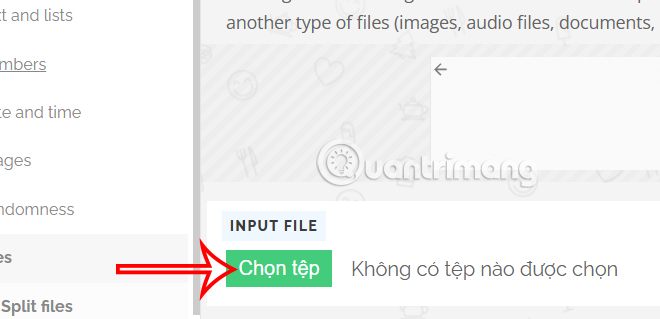
<p style="text-align: justify;">Bạn truy cập vào trang web PineTool theo link dưới đây.</p>

<pre id="pre0">
<code>https://pinetools.com/split-files</code></pre>

<p style="text-align: justify;"><strong>Bước 2:</strong></p>

<p style="text-align: justify;">Tại giao diện trang web chúng ta nhấn vào&nbsp;<strong>nút Chọn Tệp&nbsp;</strong>để tải tệp cần chia nhỏ.</p>

<p style="text-align: justify;"><img alt="Tải tệp lên PineTool" data-i="0" data-src="https://st.quantrimang.com/photos/image/2025/01/15/chia-nho-file-tren-windows-1.jpg" data-was-processed="true" height="290" src="https://st.quantrimang.com/photos/image/2025/01/15/chia-nho-file-tren-windows-1.jpg" width="600" /></p>

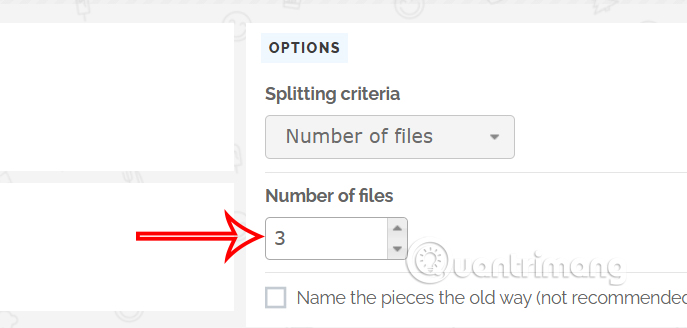
<p style="text-align: justify;">Sau khi tải tệp lên bạn<strong>&nbsp;lựa chọn số lượng tệp muốn chia nhỏ</strong>&nbsp;theo ý mình.</p>

<p style="text-align: justify;"><img alt="Số lượng tệp cần chia nhỏ" data-i="1" data-src="https://st.quantrimang.com/photos/image/2025/01/15/chia-nho-file-tren-windows-2.jpg" data-was-processed="true" height="286" src="https://st.quantrimang.com/photos/image/2025/01/15/chia-nho-file-tren-windows-2.jpg" width="600" /></p>

<p style="text-align: justify;"><strong>Bước 3:</strong></p>

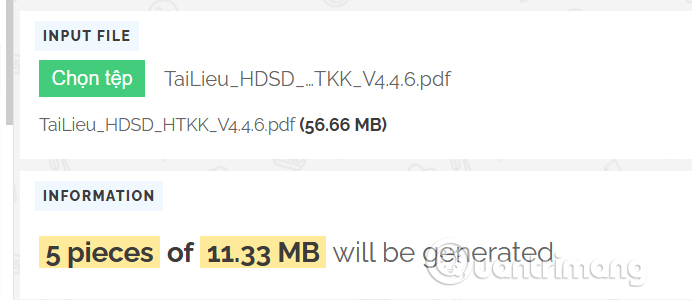
<p style="text-align: justify;">Khi bạn chọn số lượng file sẽ chia nhỏ thì đều sẽ hiển thị dung lượng cho từng file nhỏ đó để người dùng được biết và điều chỉnh sao cho hợp lý.</p>

<p style="text-align: justify;"><img alt="Dung lượng tệp chia nhỏ " data-i="2" data-src="https://st.quantrimang.com/photos/image/2025/01/15/chia-nho-file-tren-windows-3.jpg" data-was-processed="true" height="260" src="https://st.quantrimang.com/photos/image/2025/01/15/chia-nho-file-tren-windows-3.jpg" width="600" /></p>

<p style="text-align: justify;"><strong>Bước 4:</strong></p>

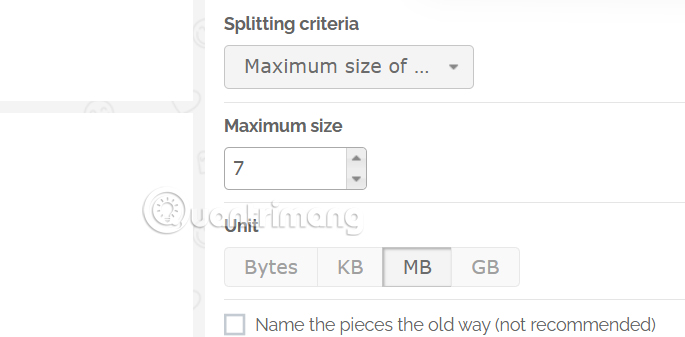
<p style="text-align: justify;">Nếu bạn muốn&nbsp;<strong>chọn kiểu chia tập tin tối đa&nbsp;</strong>thì có thể chọn&nbsp;<strong>kiểu chia Maximum size of&nbsp;</strong>và&nbsp;<strong>chọn dung lượng tối đa</strong>&nbsp;cho các tập tin để tiến hành chia nhỏ file.</p>

<p style="text-align: justify;"><img alt="Chia nhỏ tập tin tối đa " data-i="3" data-src="https://st.quantrimang.com/photos/image/2025/01/15/chia-nho-file-tren-windows-4.jpg" data-was-processed="true" height="295" src="https://st.quantrimang.com/photos/image/2025/01/15/chia-nho-file-tren-windows-4.jpg" width="600" /></p>

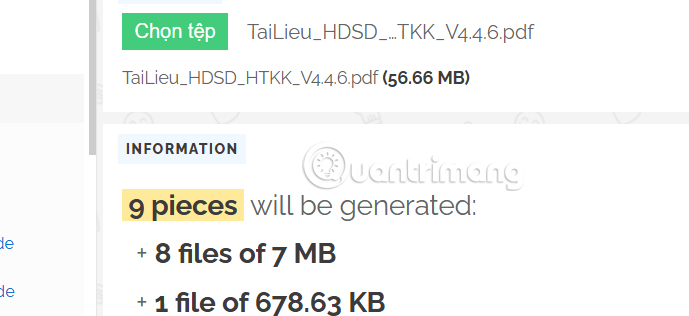
<p style="text-align: justify;">Khi đó người dùng cũng nhìn thấy số lượng tập tin được chia nhỏ như hình dưới đây.</p>

<p style="text-align: justify;"><img alt="Số lượng tập tin đã chia nhỏ" data-i="4" data-src="https://st.quantrimang.com/photos/image/2025/01/15/chia-nho-file-tren-windows-5.jpg" data-was-processed="true" height="275" src="https://st.quantrimang.com/photos/image/2025/01/15/chia-nho-file-tren-windows-5.jpg" width="600" /></p>

<p style="text-align: justify;"><strong>Bước 5:</strong></p>

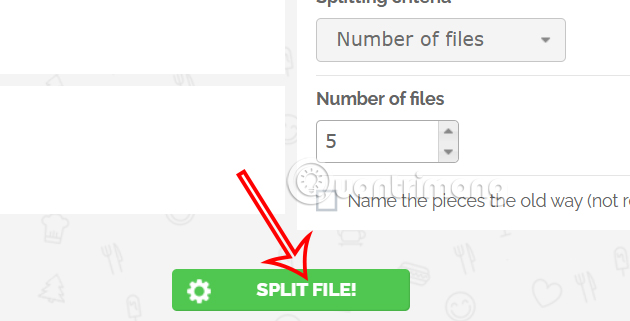
<p style="text-align: justify;">Cuối cùng&nbsp;<strong>nhấn Split File</strong>&nbsp;để thực hiện chia nhỏ file trên Windows.</p>

<p style="text-align: justify;"><img alt="Chia nhỏ tập tin trên Windows" data-i="5" data-src="https://st.quantrimang.com/photos/image/2025/01/15/chia-nho-file-tren-windows-6.jpg" data-was-processed="true" height="306" src="https://st.quantrimang.com/photos/image/2025/01/15/chia-nho-file-tren-windows-6.jpg" width="600" /></p>

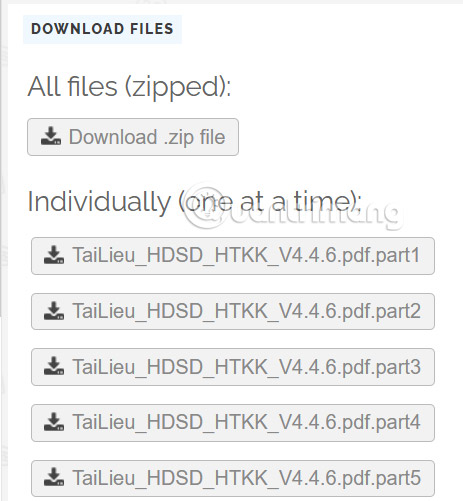
<p style="text-align: justify;">Kết quả chúng ta có được file chia nhỏ như hình dưới đây.</p>

<p style="text-align: justify;"><img alt="Tải tập tin trên Windows" data-adbro-processed="true" data-i="6" data-src="https://st.quantrimang.com/photos/image/2025/01/15/chia-nho-file-tren-windows-7.jpg" data-was-processed="true" height="487" src="https://st.quantrimang.com/photos/image/2025/01/15/chia-nho-file-tren-windows-7.jpg" width="450" /></p>

<h2 style="text-align: justify;">Chia nhỏ các file lớn bằng WinRAR để dễ dàng chia sẻ và lưu trữ</h2>

<p style="text-align: justify;"><a data-type="internal" href="https://quantrimang.com/cong-nghe/winrar" title="WinRAR">WinRAR</a>&nbsp;là một trong những công cụ nén và lưu trữ file phổ biến nhất có khả năng chia nhỏ file thành nhiều file có kích thước bạn chỉ định. Tải xuống WinRAR và cài đặt vào máy tính.</p>

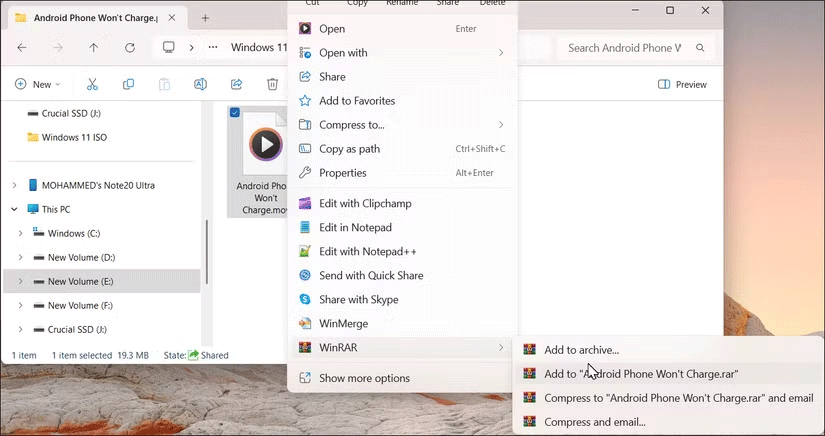
<p style="text-align: justify;">Sau khi cài đặt, hãy&nbsp;<a data-type="internal" href="https://quantrimang.com/cong-nghe/9-cach-kich-hoat-file-explorer-trong-windows-10-118256" title="9 cách kích hoạt File Explorer trong Windows 10">mở File Explorer</a>&nbsp;và nhấp chuột phải vào file bạn muốn chia nhỏ. Sau đó, chọn&nbsp;<strong>WinRAR &gt; Add to archive</strong>.</p>

<figure>
<div style="text-align: justify;"><img alt="Menu ngữ cảnh File Explorer với tùy chọn lưu trữ WinRAR" data-i="7" data-src="https://st.quantrimang.com/photos/image/2024/12/26/cach-chia-nho-cac-file-lon-1.png" data-was-processed="true" height="436" src="https://st.quantrimang.com/photos/image/2024/12/26/cach-chia-nho-cac-file-lon-1.png" width="825" /></div>

<figcaption>
<div style="text-align: justify;">Menu ngữ cảnh File Explorer với tùy chọn lưu trữ WinRAR</div>
</figcaption>
</figure>

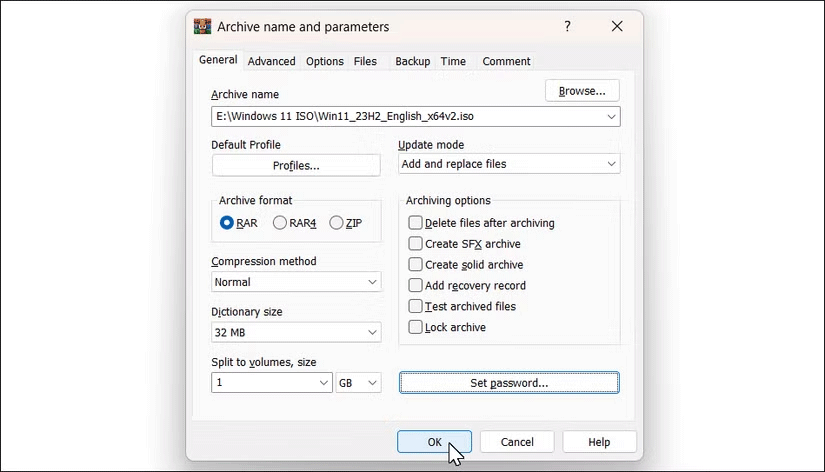
<p style="text-align: justify;">Định dạng lưu trữ được đặt thành&nbsp;RAR&nbsp;theo mặc định, nhưng bạn có thể chọn&nbsp;ZIP&nbsp;hoặc RAR4 nếu muốn. Để nguyên phương pháp nén thành Bình thường và kích thước Từ điển ở cài đặt mặc định vì bạn đang chia nhỏ file.</p>

<p style="text-align: justify;">Trong trường&nbsp;<strong>Split to Volume, size</strong>, hãy chỉ định kích thước file mong muốn cho từng phần. Giả sử bạn có file 6,34GB muốn chia thành các file 1GB. Bạn cũng có thể thêm mật khẩu để bảo vệ kho lưu trữ của mình.</p>

<figure>
<div style="text-align: justify;"><img alt="" data-i="8" data-src="https://st.quantrimang.com/photos/image/2024/12/26/cach-chia-nho-cac-file-lon-2.png" data-was-processed="true" height="472" src="https://st.quantrimang.com/photos/image/2024/12/26/cach-chia-nho-cac-file-lon-2.png" width="825" /></div>
</figure>

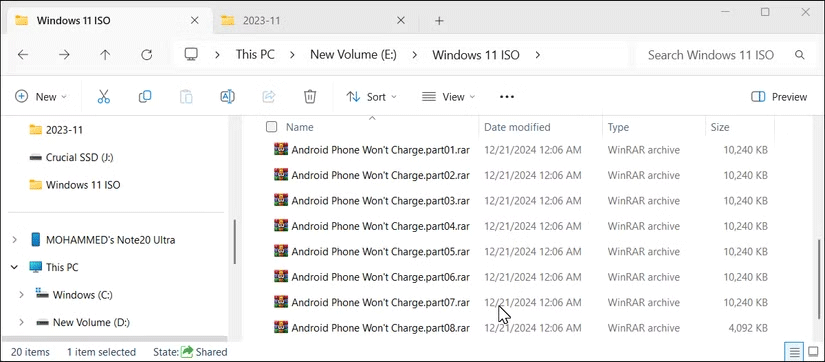
<p style="text-align: justify;">Sau khi hoàn tất, hãy nhấp vào&nbsp;<strong>OK.</strong>&nbsp;WinRAR sẽ bắt đầu chia các file thành kích thước đã chỉ định và lưu chúng vào thư mục nguồn. Quá trình này có thể mất một thời gian, tùy thuộc vào kích thước file, vì vậy hãy đợi cho đến khi hoàn tất. Các kho lưu trữ đã chia sẽ được đặt tên là part1, part2, part3, v.v...</p>

<figure>
<div style="text-align: justify;"><img alt="WinRAR chia file trong Windows File Explorer" data-i="9" data-src="https://st.quantrimang.com/photos/image/2024/12/26/cach-chia-nho-cac-file-lon-3.png" data-was-processed="true" height="362" src="https://st.quantrimang.com/photos/image/2024/12/26/cach-chia-nho-cac-file-lon-3.png" width="825" /></div>

<figcaption>
<div style="text-align: justify;">WinRAR chia file trong Windows File Explorer</div>
</figcaption>
</figure>

<p style="text-align: justify;">Bạn sẽ cần mọi phần trong cùng một thư mục để kết hợp lại các file. Nhấp chuột phải vào phần đầu tiên của file và chọn&nbsp;<strong>WinRAR &gt; Extract files</strong>. Chọn đích và nhấp vào&nbsp;<strong>OK</strong>.</p>

<p style="text-align: justify;">Người nhận phải cài đặt WinRAR trên máy tính Windows, vì các công cụ lưu trữ khác hoặc tùy chọn trích xuất tích hợp của&nbsp;<a data-type="internal" href="https://quantrimang.com/cong-nghe/windows-11-tips" title="Windows 11">Windows 11</a>&nbsp;sẽ không thể kết hợp lại các file.</p>

<h2 style="text-align: justify;">Sử dụng 7-Zip để chia các file lớn thành những file nhỏ hơn</h2>

<p style="text-align: justify;"><a data-type="internal" href="https://quantrimang.com/download/7-zip-183466" title="7-Zip">7-Zip</a>&nbsp;là một công cụ lưu trữ và nén khác có thể chia các file lớn thành những phần nhỏ hơn. Miễn phí sử dụng, mã nguồn mở và được biết đến với tỷ lệ nén cao.</p>

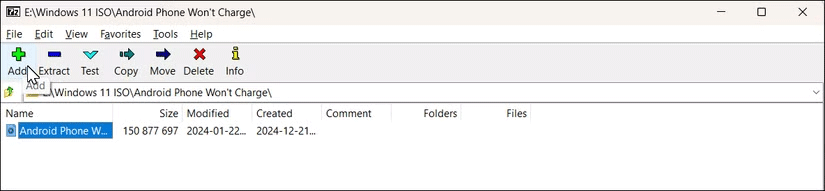
<p style="text-align: justify;">Tải xuống 7-Zip và cài đặt. Sau khi cài đặt, hãy khởi chạy 7-ZIP, nhấp đúp vào&nbsp;<strong>Computer</strong>&nbsp;và chọn file bạn muốn chia nhỏ. Cuối cùng, nhấp vào&nbsp;<strong>Add</strong>&nbsp;(biểu tượng dấu cộng màu xanh lá cây).</p>

<figure>
<div style="text-align: justify;"><img alt="" data-i="10" data-src="https://st.quantrimang.com/photos/image/2024/12/26/cach-chia-nho-cac-file-lon-4.png" data-was-processed="true" height="191" src="https://st.quantrimang.com/photos/image/2024/12/26/cach-chia-nho-cac-file-lon-4.png" width="825" /></div>
</figure>

<p style="text-align: justify;">Ngoài ra, hãy chọn và nhấp chuột phải vào file trong&nbsp;<strong>File Explorer</strong>&nbsp;rồi chọn&nbsp;<strong>Add to Archive</strong>.</p>

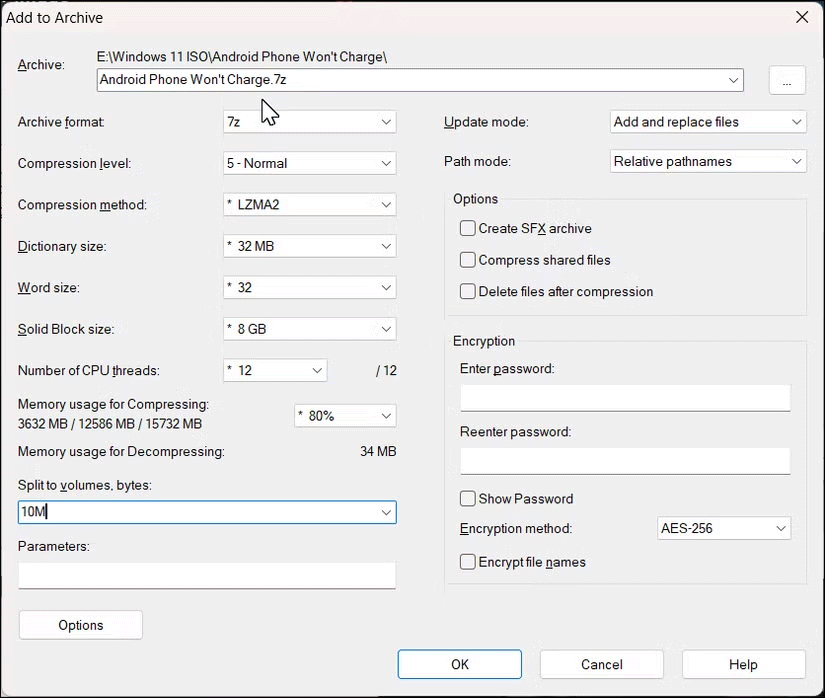
<p style="text-align: justify;">Trong cửa sổ&nbsp;<strong>Add to Archive</strong>, nhấp vào&nbsp;<strong>Split to volumes, bytes</strong>, sau đó nhập kích thước file. Ví dụ, nhập&nbsp;<strong>20M</strong>&nbsp;sẽ tạo các file có kích thước&nbsp;<strong>20MB</strong>&nbsp;mỗi file.</p>

<figure>
<div style="text-align: justify;"><img alt="" data-i="11" data-src="https://st.quantrimang.com/photos/image/2024/12/26/cach-chia-nho-cac-file-lon-5.png" data-was-processed="true" height="698" src="https://st.quantrimang.com/photos/image/2024/12/26/cach-chia-nho-cac-file-lon-5.png" width="825" /></div>
</figure>

<p style="text-align: justify;">Ngoài ra, hãy sử dụng tùy chọn mã hóa để thêm mật khẩu vào kho lưu trữ của bạn. Giữ nguyên các tùy chọn khác ở cài đặt mặc định và nhấp vào&nbsp;<strong>OK</strong>.</p>

<figure>
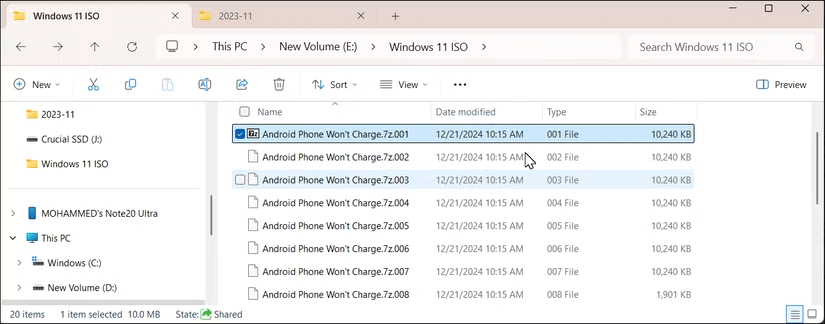
<div style="text-align: justify;"><img alt="Windows File Explorer với các file chia nhỏ 7-Zip" data-i="12" data-src="https://st.quantrimang.com/photos/image/2024/12/26/cach-chia-nho-cac-file-lon-6.png" data-was-processed="true" height="324" src="https://st.quantrimang.com/photos/image/2024/12/26/cach-chia-nho-cac-file-lon-6.png" width="825" /></div>

<figcaption>
<div style="text-align: justify;">Windows File Explorer với các file chia nhỏ 7-Zip</div>
</figcaption>
</figure>

<p style="text-align: justify;">Giống như WinRAR, bạn phải sử dụng 7-Zip để kết hợp lại các phần. Để thực hiện việc này, hãy nhấp chuột phải vào phần đầu tiên của file, sau đó chọn&nbsp;<strong>Show More &gt; 7-Zip &gt; Extract Files</strong>. Chọn thư mục đích và nhấp vào&nbsp;<strong>OK</strong>&nbsp;để trích xuất file.</p>

<p style="text-align: justify;">Bằng cách làm theo các phương pháp này, bạn có thể chia nhỏ những file lớn để khắc phục giới hạn kích thước file thông qua các thiết bị lưu trữ, ứng dụng nhắn tin tức thời và dịch vụ email. Các hướng dẫn này sẽ hoạt động với bất kỳ loại file nào, bao gồm video, âm thanh, file lưu trữ nén, bản sao lưu và disk image.</p>
		</div>
				<div id="author">
						<p>
				<strong>Nguồn tin:</strong>
				Quantrimang.com:
			</p>
		</div>
	</div>
	<div id="footer" class="clearfix">
		<div id="url">
			<strong>URL của bản tin này: </strong><a href="https://www.nguoicodonvn2008.info/vi/news/savefile/kien-thuc-may-tinh/cach-chia-nho-file-cat-file-dung-luong-lon-thanh-nhieu-file-nho-9687.html" title="Cách chia nhỏ file, cắt file dung lượng lớn thành nhiều file nhỏ">https://www.nguoicodonvn2008.info/vi/news/savefile/kien-thuc-may-tinh/cach-chia-nho-file-cat-file-dung-luong-lon-thanh-nhieu-file-nho-9687.html</a>

		</div>
		<div class="clear"></div>
		<div class="copyright">
			&copy; .&#x3A; Nguoicodonvn2008.info - Cõi lòng người cô đơn &#x3A;.
		</div>
		<div id="contact">
			<a href="mailto:admin@nguoicodonvn2008.info">admin@nguoicodonvn2008.info</a>
		</div>
	</div>
</div>
        <div id="timeoutsess" class="chromeframe">
            Bạn đã không sử dụng Site, <a onclick="timeoutsesscancel();" href="https://nguoicodonvn2008.info/#">Bấm vào đây để duy trì trạng thái đăng nhập</a>. Thời gian chờ: <span id="secField"> 60 </span> giây
        </div>
        <div id="openidResult" class="nv-alert" style="display:none"></div>
        <div id="openidBt" data-result="" data-redirect=""></div>
		</script>
		<div class="car-top">
  <span><img src="https://nguoicodonvn2008.info/themes/default/images/car.png" alt=""></span>
</div>
<div id="run_cronjobs" style="visibility:hidden;display:none;"><img alt="cron" src="/index.php?second=cronjobs&amp;p=z323T6p7" width="1" height="1" /></div>
<script src="https://nguoicodonvn2008.info/assets/js/jquery/jquery.min.js"></script>
<script>var nv_base_siteurl="/",nv_lang_data="vi",nv_lang_interface="vi",nv_name_variable="nv",nv_fc_variable="op",nv_lang_variable="language",nv_module_name="news",nv_func_name="savefile",nv_is_user=0, nv_my_ofs=-4,nv_my_abbr="EDT",nv_cookie_prefix="nv4c_e856T",nv_check_pass_mstime=1738000,nv_area_admin=0,nv_safemode=0,theme_responsive=0,nv_recaptcha_ver=2,nv_recaptcha_sitekey="",nv_recaptcha_type="image",XSSsanitize=1;</script>
<script src="https://nguoicodonvn2008.info/assets/js/language/vi.js"></script>
<script src="https://nguoicodonvn2008.info/assets/js/DOMPurify/purify3.js"></script>
<script src="https://nguoicodonvn2008.info/assets/js/global.js"></script>
<script src="https://nguoicodonvn2008.info/assets/js/site.js"></script>
<script src="https://nguoicodonvn2008.info/themes/default/js/news.js"></script>
<script src="https://nguoicodonvn2008.info/themes/default/js/main.js"></script>
<script src="https://nguoicodonvn2008.info/themes/default/js/custom.js"></script>
<script type="application/ld+json">
        {
            "@context": "https://schema.org",
            "@type": "Organization",
            "url": "https://nguoicodonvn2008.info",
            "logo": "https://nguoicodonvn2008.info/uploads/angel.gif"
        }
        </script>
<script src="https://nguoicodonvn2008.info/themes/default/js/bootstrap.min.js"></script>
<script type="text/javascript">
var $scrolltop = $('.car-top');
$scrolltop.on('click', function () {
    $('html,body').animate({
        scrollTop: 0
    }, 800);
    $(this).addClass("car-run");
    setTimeout(function(){ $scrolltop.removeClass('car-run');}, 1000);
    return false;
});
$(window).on('scroll', function ()
{ 
    if($(window).scrollTop() >= 200)
    {
        $scrolltop.addClass("show");
        $scrolltop.addClass("car-down");
    }
    else
    {
       $scrolltop.removeClass("show");
       setTimeout(function(){ $scrolltop.removeClass('car-down');}, 300);
    }
});
</script>
</body>
</html>