<!DOCTYPE html>
    <html lang="vi" xmlns="http://www.w3.org/1999/xhtml" prefix="og: http://ogp.me/ns#">
    <head>
<title>Cách chặn Internet Explorer truy cập Internet</title>
<meta name="description" content="Cách chặn Internet Explorer truy cập Internet - Savefile - Tin Tức -...">
<meta name="author" content=".: Nguoicodonvn2008.info - Cõi lòng người cô đơn :.">
<meta name="copyright" content=".: Nguoicodonvn2008.info - Cõi lòng người cô đơn :. [admin@nguoicodonvn2008.info]">
<meta name="robots" content="index, archive, follow, noodp">
<meta name="googlebot" content="index,archive,follow,noodp">
<meta name="msnbot" content="all,index,follow">
<meta name="generator" content="NukeViet v4.5">
<meta http-equiv="Content-Type" content="text/html; charset=utf-8">
<meta property="og:title" content="Cách chặn Internet Explorer truy cập Internet">
<meta property="og:type" content="website">
<meta property="og:description" content="Savefile - Tin Tức - https&#x3A;&#x002F;&#x002F;www.nguoicodonvn2008.info&#x002F;vi&#x002F;news&#x002F;savefile&#x002F;kien-thuc-may-tinh&#x002F;cach-chan-internet-explorer-truy-cap-internet-1138.html">
<meta property="og:site_name" content=".&#x3A; Nguoicodonvn2008.info - Cõi lòng người cô đơn &#x3A;.">
<meta property="og:url" content="https://www.nguoicodonvn2008.info/vi/news/savefile/kien-thuc-may-tinh/cach-chan-internet-explorer-truy-cap-internet-1138.html">
<link rel="shortcut icon" href="https://nguoicodonvn2008.info/favicon.ico">
<link rel="canonical" href="https://www.nguoicodonvn2008.info/vi/news/savefile/kien-thuc-may-tinh/cach-chan-internet-explorer-truy-cap-internet-1138.html">
<link rel="alternate" href="https://nguoicodonvn2008.info/vi/news/rss/" title="Tin Tức" type="application/rss+xml">
<link rel="alternate" href="https://nguoicodonvn2008.info/vi/news/rss/karaoke-dual/" title="Tin Tức - Karaoke Dual" type="application/rss+xml">
<link rel="alternate" href="https://nguoicodonvn2008.info/vi/news/rss/nhac-tre/" title="Tin Tức - Nhạc trẻ" type="application/rss+xml">
<link rel="alternate" href="https://nguoicodonvn2008.info/vi/news/rss/tru-tinh/" title="Tin Tức - Trữ tình" type="application/rss+xml">
<link rel="alternate" href="https://nguoicodonvn2008.info/vi/news/rss/nuoc-ngoai/" title="Tin Tức - Nước ngoài" type="application/rss+xml">
<link rel="alternate" href="https://nguoicodonvn2008.info/vi/news/rss/remix/" title="Tin Tức - Remix" type="application/rss+xml">
<link rel="alternate" href="https://nguoicodonvn2008.info/vi/news/rss/tam-su-tinh-yeu/" title="Tin Tức - Tâm sự tình yêu" type="application/rss+xml">
<link rel="alternate" href="https://nguoicodonvn2008.info/vi/news/rss/tho-suu-tam/" title="Tin Tức - Thơ sưu tầm" type="application/rss+xml">
<link rel="alternate" href="https://nguoicodonvn2008.info/vi/news/rss/cuoc-song/" title="Tin Tức - Cuộc sống" type="application/rss+xml">
<link rel="alternate" href="https://nguoicodonvn2008.info/vi/news/rss/phan-mem/" title="Tin Tức - Phần mềm" type="application/rss+xml">
<link rel="alternate" href="https://nguoicodonvn2008.info/vi/news/rss/kien-thuc-may-tinh/" title="Tin Tức - Kiến thức máy tính" type="application/rss+xml">
<link rel="alternate" href="https://nguoicodonvn2008.info/vi/news/rss/hoc-tap/" title="Tin Tức - Học tập" type="application/rss+xml">
<link rel="alternate" href="https://nguoicodonvn2008.info/vi/news/rss/tai-lieu/" title="Tin Tức - Tài liệu" type="application/rss+xml">
<link rel="alternate" href="https://nguoicodonvn2008.info/vi/news/rss/de-thi/" title="Tin Tức - Đề thi" type="application/rss+xml">
<link rel="preload" as="style" href="https://nguoicodonvn2008.info/assets/css/font-awesome.min.css" type="text/css">
<link rel="preload" as="style" href="https://nguoicodonvn2008.info/themes/default/css/bootstrap.non-responsive.css" type="text/css">
<link rel="preload" as="style" href="https://nguoicodonvn2008.info/themes/default/css/style.css" type="text/css">
<link rel="preload" as="style" href="https://nguoicodonvn2008.info/themes/default/css/style.non-responsive.css" type="text/css">
<link rel="preload" as="style" href="https://nguoicodonvn2008.info/themes/default/css/news.css" type="text/css">
<link rel="preload" as="style" href="https://nguoicodonvn2008.info/themes/default/css/custom.css" type="text/css">
<link rel="preload" as="script" href="https://nguoicodonvn2008.info/assets/js/jquery/jquery.min.js" type="text/javascript">
<link rel="preload" as="script" href="https://nguoicodonvn2008.info/assets/js/language/vi.js" type="text/javascript">
<link rel="preload" as="script" href="https://nguoicodonvn2008.info/assets/js/DOMPurify/purify3.js" type="text/javascript">
<link rel="preload" as="script" href="https://nguoicodonvn2008.info/assets/js/global.js" type="text/javascript">
<link rel="preload" as="script" href="https://nguoicodonvn2008.info/assets/js/site.js" type="text/javascript">
<link rel="preload" as="script" href="https://nguoicodonvn2008.info/themes/default/js/news.js" type="text/javascript">
<link rel="preload" as="script" href="https://nguoicodonvn2008.info/themes/default/js/main.js" type="text/javascript">
<link rel="preload" as="script" href="https://nguoicodonvn2008.info/themes/default/js/custom.js" type="text/javascript">
<link rel="preload" as="script" href="https://nguoicodonvn2008.info/themes/default/js/bootstrap.min.js" type="text/javascript">
<link rel="stylesheet" href="https://nguoicodonvn2008.info/assets/css/font-awesome.min.css">
<link rel="stylesheet" href="https://nguoicodonvn2008.info/themes/default/css/bootstrap.non-responsive.css">
<link rel="stylesheet" href="https://nguoicodonvn2008.info/themes/default/css/style.css">
<link rel="stylesheet" href="https://nguoicodonvn2008.info/themes/default/css/style.non-responsive.css">
<link rel="StyleSheet" href="https://nguoicodonvn2008.info/themes/default/css/news.css">
<link rel="stylesheet" href="https://nguoicodonvn2008.info/themes/default/css/custom.css">
<style type="text/css">
	body{background: #fff;}
</style>
    </head>
    <body>
<div id="print">
	<div id="hd_print">
		<h2 class="pull-left">.&#x3A; Nguoicodonvn2008.info - Cõi lòng người cô đơn &#x3A;.</h2>
		<p class="pull-right"><a title=".&#x3A; Nguoicodonvn2008.info - Cõi lòng người cô đơn &#x3A;." href="https://nguoicodonvn2008.info/">https://nguoicodonvn2008.info</a></p>
	</div>
	<div class="clear"></div>
	<hr />
	<div id="content">
		<h1>Cách chặn Internet Explorer truy cập Internet</h1>
		<ul class="list-inline">
			<li>Thứ tư - 09/10/2019 08:06</li>
			<li class="hidden-print txtrequired"><em class="fa fa-print">&nbsp;</em><a title="In ra" href="javascript:;" onclick="window.print()">In ra</a></li>
			<li class="hidden-print txtrequired"><em class="fa fa-power-off">&nbsp;</em><a title="Đóng cửa sổ này" href="javascript:;" onclick="window.close()">Đóng cửa sổ này</a></li>
		</ul>
		<div class="clear"></div>
		<div id="hometext">
		</div>
				<div class="imghome">
			<img alt="Cách chặn Internet Explorer truy cập Internet" src="https://st.quantrimang.com/photos/image/2019/10/09/chan-internet-explorer-truy-cap-internet-7.png" width="460" class="img-thumbnail" />
		</div>
		<div class="clear"></div>
		<div id="bodytext" class="clearfix">
			<p style="text-align: justify;">Giờ đây ít người sử dụng Internet Explorer để duyệt web nhưng nó vẫn có trong Windows 10 cho mục đích doanh nghiệp cũ. Mặc dù vậy, bạn vẫn có thể băn khoăn về cách vô hiệu hóa Internet Explorer (IE) thì đây là cách thực hiện.</p>

<h2 style="text-align: justify;">&nbsp;</h2>

<h2 id="mcetoc_1dmn9e2fv0" style="text-align: justify;">1. Chặn Internet Explorer truy cập Internet từ Windows Firewall</h2>

<p style="text-align: justify;">Windows có&nbsp;tường lửa&nbsp;tích hợp cho phép kiểm soát cách các chương trình giao tiếp với Internet. Bạn có thể thiết lập quy tắc mới để chặn tất cả các kết nối qua Internet Explorer.</p>

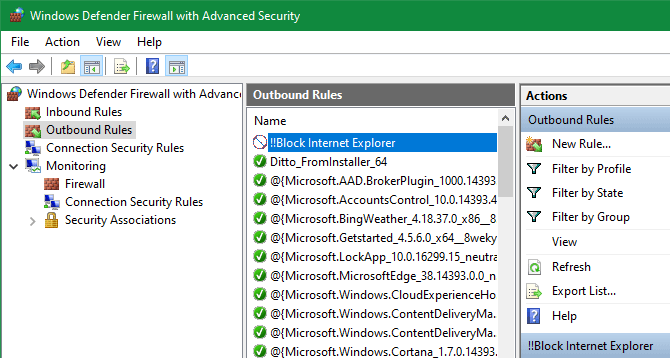
<p style="text-align: justify;">Để bắt đầu, tìm kiếm&nbsp;<strong>Windows firewall</strong>&nbsp;và mở&nbsp;<strong>Windows Defender Firewall with Advanced Security</strong>. Click vào&nbsp;<strong>Outbound rules</strong>&nbsp;ở khung bên trái và sau đó chọn&nbsp;<strong>New Rule</strong>&nbsp;từ bên phải.</p>

<p style="text-align: justify;"><img alt="Chọn New Rule" data-i="0" data-src="https://st.quantrimang.com/photos/image/2019/10/09/chan-internet-explorer-truy-cap-internet-1.png" data-was-processed="true" height="342" src="https://st.quantrimang.com/photos/image/2019/10/09/chan-internet-explorer-truy-cap-internet-1.png" width="640" /></p>

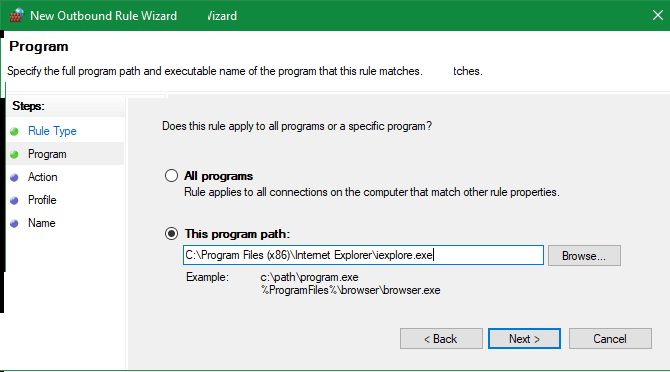
<p style="text-align: justify;">Trong cửa sổ&nbsp;<strong>Rule Type</strong>, chọn&nbsp;<strong>Program</strong>&nbsp;và nhấn&nbsp;<strong>Next</strong>. Bạn sẽ cần duyệt đến file thực thi của Internet Explorer.</p>

<p style="text-align: justify;">Trên cài đặt 64-bit của Windows 10, bạn sẽ tìm thấy thư mục cho Internet Explorer trong cả hai thư mục&nbsp;<strong>Program Files</strong>&nbsp;và&nbsp;<strong>Program Files (x86)</strong>. Một số người báo cáo, chặn phiên bản IE trong&nbsp;<strong>Program Files</strong>&nbsp;không hiệu quả, nhưng chặn file bên trong Program Files (x86) có thể ngăn cả hai file thực thi.</p>

<p style="text-align: justify;">Do đó, bạn nên chặn file sau nếu sử dụng Windows 64-bit:</p>

<pre id="pre0">
<code>C:\Program Files (x86)\Internet Explorer\iexplore.exe</code></pre>

<p style="text-align: justify;">Nếu sử dụng Windows 32-bit, tìm vị trí sau:</p>

<pre id="pre1">
<code>C:\Program Files\Internet Explorer\iexplore.exe</code></pre>

<div style="text-align: justify;">&nbsp;</div>

<p style="text-align: justify;"><img alt="Tìm file thực thi Internet Explorer" data-i="1" data-src="https://st.quantrimang.com/photos/image/2019/10/09/chan-internet-explorer-truy-cap-internet-2.png" data-was-processed="true" height="355" src="https://st.quantrimang.com/photos/image/2019/10/09/chan-internet-explorer-truy-cap-internet-2.png" width="640" /></p>

<p style="text-align: justify;">Tiếp tục chọn&nbsp;<strong>Block the connection</strong>&nbsp;và thiết lập nó để áp dụng cho cả ba loại vị trí khả dụng. Cuối cùng, đặt tên chẳng hạn như&nbsp;<strong>Block Internet Explorer</strong>.</p>

<p style="text-align: justify;">Khi xác nhận, Internet Explorer sẽ không thể truy cập bất cứ thứ gì trên Internet.</p>

<h2 id="mcetoc_1dmn9e2g01" style="text-align: justify;">2. Cách vô hiệu hóa hoàn toàn Internet Explorer</h2>

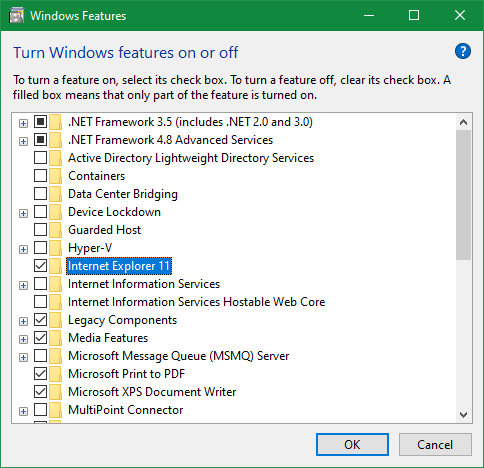
<p style="text-align: justify;">Trong trường hợp chặn Internet Explorer truy cập Internet vẫn không đủ, hãy vô hiệu hóa nó hoàn toàn trên hệ thống, ngăn người khác sử dụng trình duyệt này.</p>

<p style="text-align: justify;">Bạn không thể gỡ cài đặt Windows Internet Explorer như các chương trình bình thường vì nó là một phần của Windows. Thay vào đó bạn phải tắt nó từ menu Windows Features.</p>

<p style="text-align: justify;">&nbsp;</p>

<p style="text-align: justify;"><img alt="Cách vô hiệu hóa hoàn toàn Internet Explorer" data-i="2" data-src="https://st.quantrimang.com/photos/image/2019/10/09/chan-internet-explorer-truy-cap-internet-3.png" data-was-processed="true" height="468" src="https://st.quantrimang.com/photos/image/2019/10/09/chan-internet-explorer-truy-cap-internet-3.png" width="484" /></p>

<h2 id="mcetoc_1dmn9e2g02" style="text-align: justify;">3. Chặn Internet Explorer bằng Proxy giả</h2>

<p style="text-align: justify;">Đây là phương pháp cổ điển để chặn Internet Explorer truy cập Internet. Windows hỗ trợ sử dụng&nbsp;máy chủ proxy&nbsp;để kết nối với Internet. Bạn có thể tận dụng điều này để chặn tất tất cả lưu lượng truy cập mạng bằng cách trỏ máy tính để máy chủ proxy giả.</p>

<p style="text-align: justify;">Thật không may, thủ thuật này có một nhược điểm lớn. Gần như tất cả các trình duyệt khác bao gồm Chrome và Firefox sử dụng cài đặt proxy bạn chọn cho Internet Explorer, do đó khi thực hiện điều này có nghĩa là các trình duyệt khác cũng không thể truy cập được Internet. Vì vậy, bạn cần xóa cài đặt khi muốn online.</p>

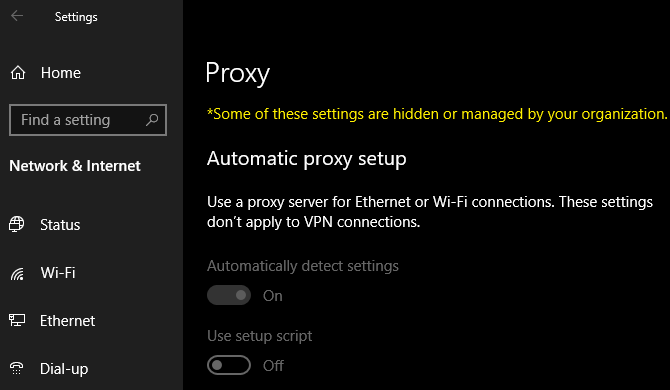
<p style="text-align: justify;">Để thay đổi cài đặt proxy trong Windows 10, truy cập S<strong>ettings &gt; Network &amp; Internet &gt; Proxy</strong>, vô hiệu hóa&nbsp;<strong>Automatically detect settings</strong>&nbsp;ở trên đầu trang.</p>

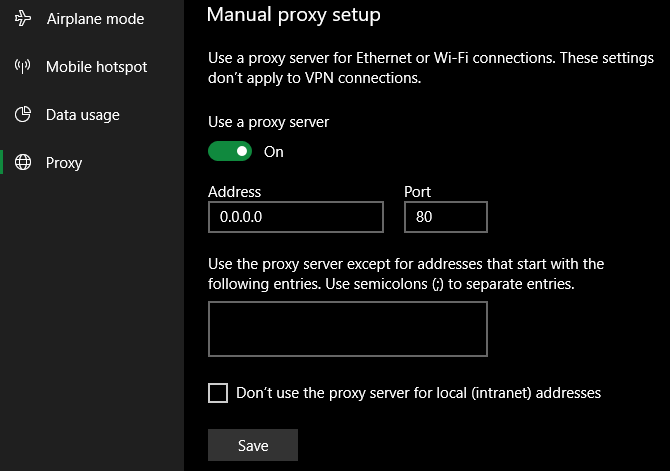
<p style="text-align: justify;">Tiếp theo, cuộn xuống phần cuối và bật&nbsp;<strong>Use a proxy server</strong>. Thiết lập&nbsp;<strong>Address</strong>&nbsp;thành giá trị giả chẳng hạn như&nbsp;<strong>0.0.0.0</strong>. Để&nbsp;<strong>Port</strong>&nbsp;là&nbsp;<strong>80</strong>&nbsp;và click vào&nbsp;<strong>Save</strong>.</p>

<p style="text-align: justify;"><img alt="Thiết lập proxy giả" data-i="3" data-src="https://st.quantrimang.com/photos/image/2019/10/09/chan-internet-explorer-truy-cap-internet-4.png" data-was-processed="true" height="450" src="https://st.quantrimang.com/photos/image/2019/10/09/chan-internet-explorer-truy-cap-internet-4.png" width="640" /></p>

<p style="text-align: justify;">Sau khi lưu, các cài đặt này sẽ có hiệu lực ngay lập tức. Để có thể online trở lại, chỉ cần vô hiệu hóa&nbsp;<strong>Use a proxy server</strong>.</p>

<div style="text-align: justify;">&nbsp;</div>

<h3 id="mcetoc_1dmn9e2g03" style="text-align: justify;">Ngăn người khác thay đổi proxy</h3>

<p style="text-align: justify;">Sẽ là vấn đề nếu ai đó truy cập vào ứng dụng Settings và vô hiệu hóa tùy chọn proxy bạn thiết lập. Để ngăn điều này, bạn có thể chặn truy cập vào cài đặt này.</p>

<p style="text-align: justify;">Nếu sử dụng Windows 10 Pro, thực hiện điều này qua&nbsp;Group Policy Editor. Gõ&nbsp;<strong>gpedit.msc</strong>&nbsp;vào menu Start để mở nó, sau đó duyệt đến vị trí sau:</p>

<p style="text-align: justify;"><strong>User Configuration &gt; Administrative Templates &gt; Windows Components &gt; Internet Explorer &gt; Prevent changing proxy settings</strong></p>

<p style="text-align: justify;">Thiết lập thành&nbsp;<strong>Enable</strong>&nbsp;và chặn truy cập vào trang Settings sử dụng ở trên cũng như là cài đặt proxy trong phần&nbsp;<strong>Internet Options</strong>&nbsp;của&nbsp;Control Panel.</p>

<p style="text-align: justify;"><img alt="Ngăn người khác thay đổi cài đặt proxy" data-i="4" data-src="https://st.quantrimang.com/photos/image/2019/10/09/chan-internet-explorer-truy-cap-internet-5.png" data-was-processed="true" height="373" src="https://st.quantrimang.com/photos/image/2019/10/09/chan-internet-explorer-truy-cap-internet-5.png" width="640" /></p>

<p style="text-align: justify;">Với những ai không sử dụng Windows 10 Pro, có thể tham khảo bài viết&nbsp;Cách cài đặt Group Policy Editor (GPEdit.Msc) trên Windows 10 Home Edition. Mặc dù bạn có thể thay đổi tương tự thông qua Registry nhưng hơi rắc rối vì cài đặt proxy có sẵn trong cả ứng dụng Control Panel và Settings.</p>

<h2 id="mcetoc_1dmn9e2g04" style="text-align: justify;">4. Sử dụng kiểm soát phụ huynh của Windows 10</h2>

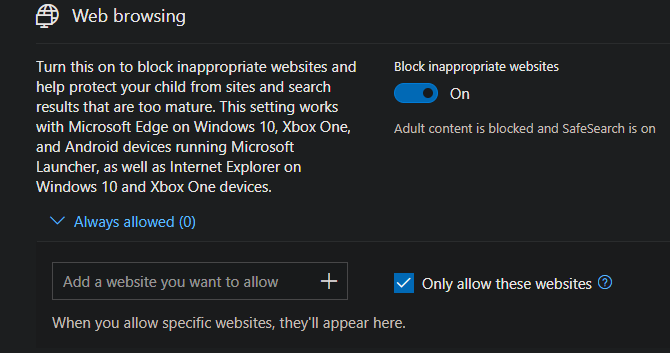
<p style="text-align: justify;">Windows 10 bao gồm các tùy chọn kiểm soát của phụ huynh, cho phép hạn chế những việc làm của trẻ em trên máy tính. Một trong những công cụ nó cung cấp là đưa các trang web sử dụng Internet Explorer và Edge vào danh sách trắng hoặc danh sách đen.</p>

<p style="text-align: justify;"><img alt="Sử dụng kiểm soát phụ huynh của Windows 10" data-i="5" data-src="https://st.quantrimang.com/photos/image/2019/10/09/chan-internet-explorer-truy-cap-internet-6.png" data-was-processed="true" height="337" src="https://st.quantrimang.com/photos/image/2019/10/09/chan-internet-explorer-truy-cap-internet-6.png" width="640" /></p>

<p style="text-align: justify;">Nếu chọn&nbsp;<strong>Only allows these websites</strong>, bạn có thể hạn chế trẻ chỉ duyệt những trang đó. Kết hợp với một danh sách trống, bạn có thể chặn Internet Explorer truy cập Internet một cách hiệu quả. Tất nhiên, điều này chỉ hoạt động cho tài khoản trẻ em nhưng vẫn hữu ích.</p>

<h2 id="mcetoc_1dmn9e2g05" style="text-align: justify;">Thiết lập đúng tài khoản người dùng</h2>

<p style="text-align: justify;">Các phương pháp trên là những cách chính để vô hiệu hóa Internet Explorer và ngăn không cho nó truy cập Internet. Khi đã thiết lập xong, điều quan trọng là đảm bảo ngăn người dùng bạn không muốn cho truy cập Internet Explorer thay đổi những cài đặt này.</p>

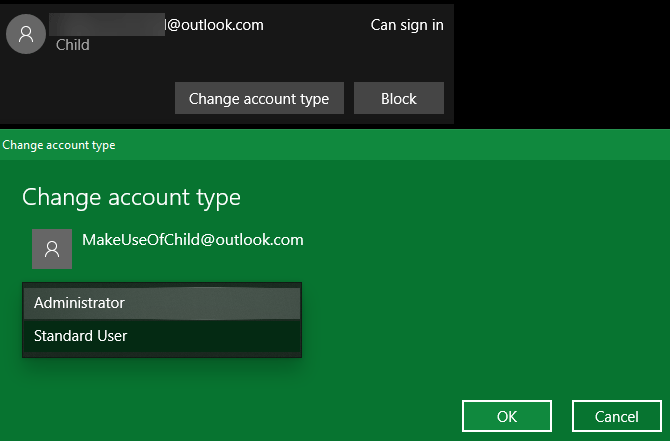
<p style="text-align: justify;">Để làm điều đó, bạn sẽ cần thiết lập tài khoản người dùng đó thành tài khoản người dùng tiêu chuẩn, không phải tài khoản quản trị viên. Truy cập vào&nbsp;<strong>Settings &gt; Accounts &gt; Family &amp; other users</strong>&nbsp;để xem tài khoản người dùng trên hệ thống và đảm bảo bạn thiết lập là tài khoản&nbsp;<strong>Standard</strong>.</p>

<div style="text-align: justify;">&nbsp;</div>

<p style="text-align: justify;"><img alt="Chọn tài khoản Standard" data-i="6" data-src="https://st.quantrimang.com/photos/image/2019/10/09/chan-internet-explorer-truy-cap-internet-7.png" data-was-processed="true" height="421" src="https://st.quantrimang.com/photos/image/2019/10/09/chan-internet-explorer-truy-cap-internet-7.png" width="640" /></p>

<p style="text-align: justify;">Bạn cũng cần biết về&nbsp;User Account Control&nbsp;trên Windows. Với UAC, tài khoản admin chỉ chạy các chương trình với tư cách quản trị viên khi cần thiết. Tài khoản người dùng không thể thực hiện thay đổi cấp hệ thống (chẳng hạn điều chỉnh quy tắc tường lửa) mà không cung cấp thông tin đăng nhập quản trị viên.</p>

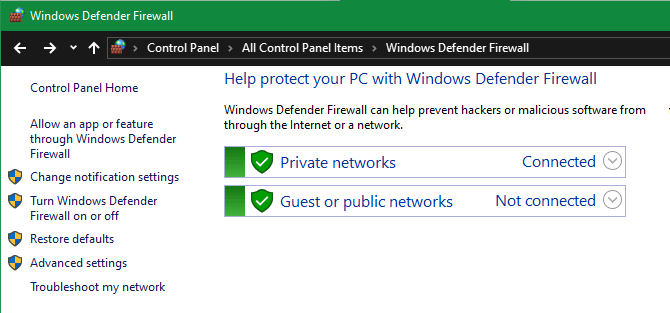
<p style="text-align: justify;">Bạn sẽ biết một tính năng bị UAC hạn chế khi thấy biểu tượng khiên màu xanh và vàng cạnh nó. Tuy nhiên, những biểu tượng này không có trong ứng dụng Settings vì chúng xuất hiện trong Control Panel cũ.</p>

<p style="text-align: justify;"><img alt="Tính năng bị UAC hạn chế " data-i="7" data-src="https://st.quantrimang.com/photos/image/2019/10/09/chan-internet-explorer-truy-cap-internet-8.png" data-was-processed="true" height="299" src="https://st.quantrimang.com/photos/image/2019/10/09/chan-internet-explorer-truy-cap-internet-8.png" width="640" /></p>

<p style="text-align: justify;">Với phương pháp thiết lập phù hợp và hạn chế quyền trên tài khoản người dùng, bạn sẽ chặn hoàn toàn Internet Explorer. Và không dễ để người khác có thể hoàn tác những thay đổi của bạn.</p>

<p style="text-align: justify;">Trên đây là các cách chặn Internet Explorer truy cập Internet. Phương pháp tường lửa là lựa chọn tốt nhất cho hầu hết mọi người, trong khi loại bỏ hoàn toàn nó khỏi Windows cũng hoạt động. Dù bằng cách nào, hãy đảm bảo rằng bạn đã khóa tài khoản không muốn truy cập IE ngay từ đầu.</p>

<p style="text-align: justify;">Chúc các bạn thực hiện thành công!</p>
		</div>
				<div id="author">
						<p>
				<strong>Nguồn tin:</strong>
				Quantrimang.com
			</p>
		</div>
	</div>
	<div id="footer" class="clearfix">
		<div id="url">
			<strong>URL của bản tin này: </strong><a href="https://www.nguoicodonvn2008.info/vi/news/savefile/kien-thuc-may-tinh/cach-chan-internet-explorer-truy-cap-internet-1138.html" title="Cách chặn Internet Explorer truy cập Internet">https://www.nguoicodonvn2008.info/vi/news/savefile/kien-thuc-may-tinh/cach-chan-internet-explorer-truy-cap-internet-1138.html</a>

		</div>
		<div class="clear"></div>
		<div class="copyright">
			&copy; .&#x3A; Nguoicodonvn2008.info - Cõi lòng người cô đơn &#x3A;.
		</div>
		<div id="contact">
			<a href="mailto:admin@nguoicodonvn2008.info">admin@nguoicodonvn2008.info</a>
		</div>
	</div>
</div>
        <div id="timeoutsess" class="chromeframe">
            Bạn đã không sử dụng Site, <a onclick="timeoutsesscancel();" href="https://nguoicodonvn2008.info/#">Bấm vào đây để duy trì trạng thái đăng nhập</a>. Thời gian chờ: <span id="secField"> 60 </span> giây
        </div>
        <div id="openidResult" class="nv-alert" style="display:none"></div>
        <div id="openidBt" data-result="" data-redirect=""></div>
		</script>
		<div class="car-top">
  <span><img src="https://nguoicodonvn2008.info/themes/default/images/car.png" alt=""></span>
</div>
<script src="https://nguoicodonvn2008.info/assets/js/jquery/jquery.min.js"></script>
<script>var nv_base_siteurl="/",nv_lang_data="vi",nv_lang_interface="vi",nv_name_variable="nv",nv_fc_variable="op",nv_lang_variable="language",nv_module_name="news",nv_func_name="savefile",nv_is_user=0, nv_my_ofs=-4,nv_my_abbr="EDT",nv_cookie_prefix="nv4c_e856T",nv_check_pass_mstime=1738000,nv_area_admin=0,nv_safemode=0,theme_responsive=0,nv_recaptcha_ver=2,nv_recaptcha_sitekey="",nv_recaptcha_type="image",XSSsanitize=1;</script>
<script src="https://nguoicodonvn2008.info/assets/js/language/vi.js"></script>
<script src="https://nguoicodonvn2008.info/assets/js/DOMPurify/purify3.js"></script>
<script src="https://nguoicodonvn2008.info/assets/js/global.js"></script>
<script src="https://nguoicodonvn2008.info/assets/js/site.js"></script>
<script src="https://nguoicodonvn2008.info/themes/default/js/news.js"></script>
<script src="https://nguoicodonvn2008.info/themes/default/js/main.js"></script>
<script src="https://nguoicodonvn2008.info/themes/default/js/custom.js"></script>
<script type="application/ld+json">
        {
            "@context": "https://schema.org",
            "@type": "Organization",
            "url": "https://nguoicodonvn2008.info",
            "logo": "https://nguoicodonvn2008.info/uploads/angel.gif"
        }
        </script>
<script src="https://nguoicodonvn2008.info/themes/default/js/bootstrap.min.js"></script>
<script type="text/javascript">
var $scrolltop = $('.car-top');
$scrolltop.on('click', function () {
    $('html,body').animate({
        scrollTop: 0
    }, 800);
    $(this).addClass("car-run");
    setTimeout(function(){ $scrolltop.removeClass('car-run');}, 1000);
    return false;
});
$(window).on('scroll', function ()
{ 
    if($(window).scrollTop() >= 200)
    {
        $scrolltop.addClass("show");
        $scrolltop.addClass("car-down");
    }
    else
    {
       $scrolltop.removeClass("show");
       setTimeout(function(){ $scrolltop.removeClass('car-down');}, 300);
    }
});
</script>
</body>
</html>