<!DOCTYPE html>
    <html lang="vi" xmlns="http://www.w3.org/1999/xhtml" prefix="og: http://ogp.me/ns#">
    <head>
<title>Cách cài WiFi trên máy in Brother DCP-B7535DW</title>
<meta name="description" content="Cách cài WiFi trên máy in Brother DCP-B7535DW - Savefile - Tin Tức -...">
<meta name="author" content=".: Nguoicodonvn2008.info - Cõi lòng người cô đơn :.">
<meta name="copyright" content=".: Nguoicodonvn2008.info - Cõi lòng người cô đơn :. [admin@nguoicodonvn2008.info]">
<meta name="robots" content="index, archive, follow, noodp">
<meta name="googlebot" content="index,archive,follow,noodp">
<meta name="msnbot" content="all,index,follow">
<meta name="generator" content="NukeViet v4.5">
<meta http-equiv="Content-Type" content="text/html; charset=utf-8">
<meta property="og:title" content="Cách cài WiFi trên máy in Brother DCP-B7535DW">
<meta property="og:type" content="website">
<meta property="og:description" content="Savefile - Tin Tức - https&#x3A;&#x002F;&#x002F;www.nguoicodonvn2008.info&#x002F;vi&#x002F;news&#x002F;savefile&#x002F;kien-thuc-may-tinh&#x002F;cach-cai-wifi-tren-may-in-brother-dcp-b7535dw-4425.html">
<meta property="og:site_name" content=".&#x3A; Nguoicodonvn2008.info - Cõi lòng người cô đơn &#x3A;.">
<meta property="og:url" content="https://www.nguoicodonvn2008.info/vi/news/savefile/kien-thuc-may-tinh/cach-cai-wifi-tren-may-in-brother-dcp-b7535dw-4425.html">
<link rel="shortcut icon" href="https://nguoicodonvn2008.info/favicon.ico">
<link rel="canonical" href="https://www.nguoicodonvn2008.info/vi/news/savefile/kien-thuc-may-tinh/cach-cai-wifi-tren-may-in-brother-dcp-b7535dw-4425.html">
<link rel="alternate" href="https://nguoicodonvn2008.info/vi/news/rss/" title="Tin Tức" type="application/rss+xml">
<link rel="alternate" href="https://nguoicodonvn2008.info/vi/news/rss/karaoke-dual/" title="Tin Tức - Karaoke Dual" type="application/rss+xml">
<link rel="alternate" href="https://nguoicodonvn2008.info/vi/news/rss/nhac-tre/" title="Tin Tức - Nhạc trẻ" type="application/rss+xml">
<link rel="alternate" href="https://nguoicodonvn2008.info/vi/news/rss/tru-tinh/" title="Tin Tức - Trữ tình" type="application/rss+xml">
<link rel="alternate" href="https://nguoicodonvn2008.info/vi/news/rss/nuoc-ngoai/" title="Tin Tức - Nước ngoài" type="application/rss+xml">
<link rel="alternate" href="https://nguoicodonvn2008.info/vi/news/rss/remix/" title="Tin Tức - Remix" type="application/rss+xml">
<link rel="alternate" href="https://nguoicodonvn2008.info/vi/news/rss/tam-su-tinh-yeu/" title="Tin Tức - Tâm sự tình yêu" type="application/rss+xml">
<link rel="alternate" href="https://nguoicodonvn2008.info/vi/news/rss/tho-suu-tam/" title="Tin Tức - Thơ sưu tầm" type="application/rss+xml">
<link rel="alternate" href="https://nguoicodonvn2008.info/vi/news/rss/cuoc-song/" title="Tin Tức - Cuộc sống" type="application/rss+xml">
<link rel="alternate" href="https://nguoicodonvn2008.info/vi/news/rss/phan-mem/" title="Tin Tức - Phần mềm" type="application/rss+xml">
<link rel="alternate" href="https://nguoicodonvn2008.info/vi/news/rss/kien-thuc-may-tinh/" title="Tin Tức - Kiến thức máy tính" type="application/rss+xml">
<link rel="alternate" href="https://nguoicodonvn2008.info/vi/news/rss/hoc-tap/" title="Tin Tức - Học tập" type="application/rss+xml">
<link rel="alternate" href="https://nguoicodonvn2008.info/vi/news/rss/tai-lieu/" title="Tin Tức - Tài liệu" type="application/rss+xml">
<link rel="alternate" href="https://nguoicodonvn2008.info/vi/news/rss/de-thi/" title="Tin Tức - Đề thi" type="application/rss+xml">
<link rel="preload" as="style" href="https://nguoicodonvn2008.info/assets/css/font-awesome.min.css" type="text/css">
<link rel="preload" as="style" href="https://nguoicodonvn2008.info/themes/default/css/bootstrap.non-responsive.css" type="text/css">
<link rel="preload" as="style" href="https://nguoicodonvn2008.info/themes/default/css/style.css" type="text/css">
<link rel="preload" as="style" href="https://nguoicodonvn2008.info/themes/default/css/style.non-responsive.css" type="text/css">
<link rel="preload" as="style" href="https://nguoicodonvn2008.info/themes/default/css/news.css" type="text/css">
<link rel="preload" as="style" href="https://nguoicodonvn2008.info/themes/default/css/custom.css" type="text/css">
<link rel="preload" as="script" href="https://nguoicodonvn2008.info/assets/js/jquery/jquery.min.js" type="text/javascript">
<link rel="preload" as="script" href="https://nguoicodonvn2008.info/assets/js/language/vi.js" type="text/javascript">
<link rel="preload" as="script" href="https://nguoicodonvn2008.info/assets/js/DOMPurify/purify3.js" type="text/javascript">
<link rel="preload" as="script" href="https://nguoicodonvn2008.info/assets/js/global.js" type="text/javascript">
<link rel="preload" as="script" href="https://nguoicodonvn2008.info/assets/js/site.js" type="text/javascript">
<link rel="preload" as="script" href="https://nguoicodonvn2008.info/themes/default/js/news.js" type="text/javascript">
<link rel="preload" as="script" href="https://nguoicodonvn2008.info/themes/default/js/main.js" type="text/javascript">
<link rel="preload" as="script" href="https://nguoicodonvn2008.info/themes/default/js/custom.js" type="text/javascript">
<link rel="preload" as="script" href="https://nguoicodonvn2008.info/themes/default/js/bootstrap.min.js" type="text/javascript">
<link rel="stylesheet" href="https://nguoicodonvn2008.info/assets/css/font-awesome.min.css">
<link rel="stylesheet" href="https://nguoicodonvn2008.info/themes/default/css/bootstrap.non-responsive.css">
<link rel="stylesheet" href="https://nguoicodonvn2008.info/themes/default/css/style.css">
<link rel="stylesheet" href="https://nguoicodonvn2008.info/themes/default/css/style.non-responsive.css">
<link rel="StyleSheet" href="https://nguoicodonvn2008.info/themes/default/css/news.css">
<link rel="stylesheet" href="https://nguoicodonvn2008.info/themes/default/css/custom.css">
<style type="text/css">
	body{background: #fff;}
</style>
    </head>
    <body>
<div id="print">
	<div id="hd_print">
		<h2 class="pull-left">.&#x3A; Nguoicodonvn2008.info - Cõi lòng người cô đơn &#x3A;.</h2>
		<p class="pull-right"><a title=".&#x3A; Nguoicodonvn2008.info - Cõi lòng người cô đơn &#x3A;." href="https://nguoicodonvn2008.info/">https://nguoicodonvn2008.info</a></p>
	</div>
	<div class="clear"></div>
	<hr />
	<div id="content">
		<h1>Cách cài WiFi trên máy in Brother DCP-B7535DW</h1>
		<ul class="list-inline">
			<li>Thứ ba - 13/07/2021 00:57</li>
			<li class="hidden-print txtrequired"><em class="fa fa-print">&nbsp;</em><a title="In ra" href="javascript:;" onclick="window.print()">In ra</a></li>
			<li class="hidden-print txtrequired"><em class="fa fa-power-off">&nbsp;</em><a title="Đóng cửa sổ này" href="javascript:;" onclick="window.close()">Đóng cửa sổ này</a></li>
		</ul>
		<div class="clear"></div>
		<div id="hometext">
		</div>
				<div class="imghome">
			<img alt="Cách cài WiFi trên máy in Brother DCP-B7535DW" src="https://st.quantrimang.com/photos/image/2021/07/09/cai-wifi-may-in-Brother-10.jpg" width="460" class="img-thumbnail" />
		</div>
		<div class="clear"></div>
		<div id="bodytext" class="clearfix">
			<p style="text-align: justify;">Nhiều dòng máy in hiện nay đều hỗ trợ tính năng in tài liệu từ xa để có thể in trên điện thoại, máy tính bảng hay laptop, giúp việc in ấn thuận tiện hơn rất nhiều mà không cần phụ thuộc vào dây nối như trước đây. Và để có thể in từ xa như vậy thì chúng ta sẽ cần phải&nbsp;cài WiFi trên máy in&nbsp;để kết nối với các thiết bị. Bài viết dưới đây sẽ hướng dẫn bạn đọc cách cài WiFi trên máy in Brother DCP-B7535DW.</p>

<h2 style="text-align: justify;">Hướng dẫn cài WiFi máy in Brother DCP-B7535DW</h2>

<p style="text-align: justify;"><strong>Bước 1:</strong></p>

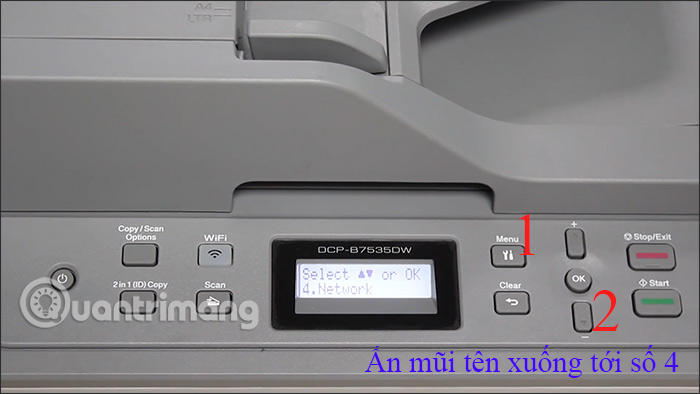
<p style="text-align: justify;">Tại bàn phím trên máy in bạn nhấn vào&nbsp;<strong>phím Menu</strong>&nbsp;rồi nhìn vào màn hình. Lúc này hiển thị giao diện các thiết lập trên máy in. Nhấn vào&nbsp;<strong>nút mũi tên xuống</strong>&nbsp;để tìm&nbsp;<strong>tới mục số 4. Network</strong>. Sau đó&nbsp;<strong>nhấn nút OK</strong>&nbsp;để chọn mục này</p>

<p style="text-align: justify;"><img alt="Chọn menu " data-i="0" data-src="https://st.quantrimang.com/photos/image/2021/07/09/cai-wifi-may-in-Brother-1.jpg" data-was-processed="true" height="360" src="https://st.quantrimang.com/photos/image/2021/07/09/cai-wifi-may-in-Brother-1.jpg" width="640" /></p>

<p style="text-align: justify;"><strong>Bước 2:</strong></p>

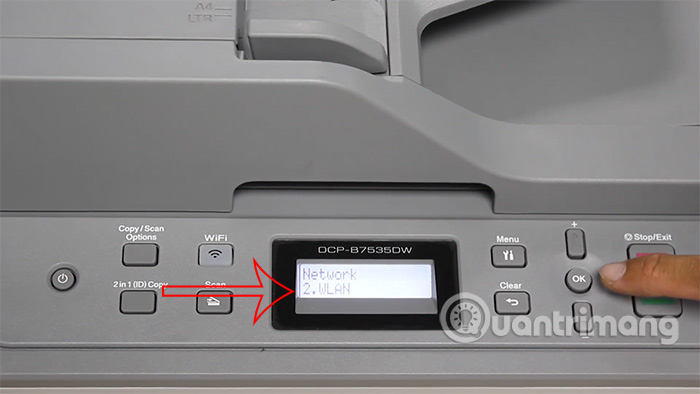
<p style="text-align: justify;">Tại màn hình máy in mục Network tiếp tục&nbsp;<strong>nhấn mũi tên xuống để chọn mục số 2. WLAN</strong>&nbsp;rồi&nbsp;<strong>nhấn nút OK</strong>&nbsp;để chọn.</p>

<p style="text-align: justify;"><img alt="Chọn 2. WLAN" data-i="1" data-src="https://st.quantrimang.com/photos/image/2021/07/09/cai-wifi-may-in-Brother-2.jpg" data-was-processed="true" height="360" src="https://st.quantrimang.com/photos/image/2021/07/09/cai-wifi-may-in-Brother-2.jpg" width="640" /></p>

<p style="text-align: justify;"><strong>Bước 3:</strong></p>

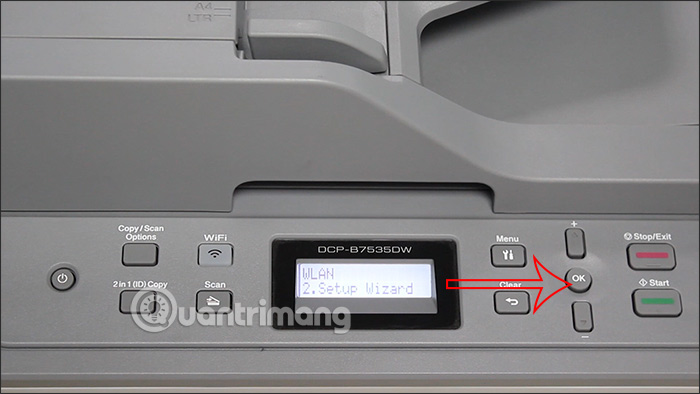
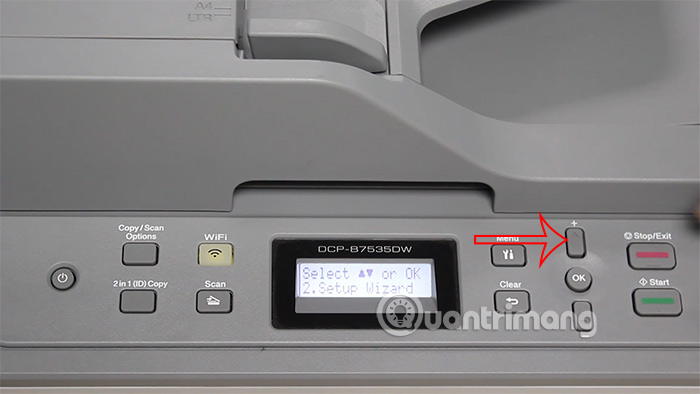
<p style="text-align: justify;">Tiếp tục trong mục WLAN này chúng ta&nbsp;<strong>nhấn mũi tên xuống</strong>&nbsp;để chọn&nbsp;<strong>mục 2. Setup Wizard</strong>&nbsp;rồi&nbsp;<strong>nhấn OK</strong>&nbsp;để lựa chọn mục này.</p>

<p style="text-align: justify;"><img alt="Chọn 2. Setup Wizard " data-i="2" data-src="https://st.quantrimang.com/photos/image/2021/07/09/cai-wifi-may-in-Brother-3.jpg" data-was-processed="true" height="360" src="https://st.quantrimang.com/photos/image/2021/07/09/cai-wifi-may-in-Brother-3.jpg" width="640" /></p>

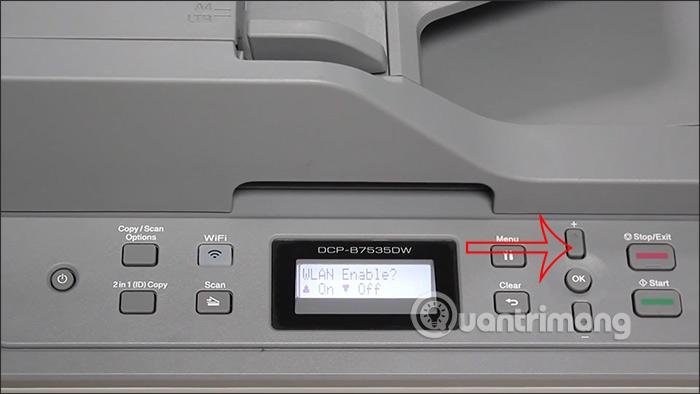
<p style="text-align: justify;">Khi đó máy in sẽ hỏi bạn có muốn&nbsp;<strong>thiết lập chế độ WiFi trên máy in</strong>&nbsp;hay không, chúng ta nhấn&nbsp;<strong>mũi tên lên trên để bật chế độ On</strong>.</p>

<p style="text-align: justify;"><img alt="Nhấn chọn On" data-i="3" data-src="https://st.quantrimang.com/photos/image/2021/07/09/cai-wifi-may-in-Brother-4.jpg" data-was-processed="true" height="360" src="https://st.quantrimang.com/photos/image/2021/07/09/cai-wifi-may-in-Brother-4.jpg" width="640" /></p>

<p style="text-align: justify;"><strong>Bước 4:</strong></p>

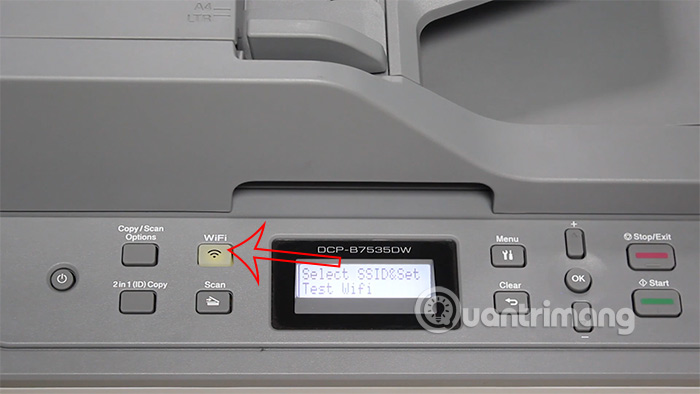
<p style="text-align: justify;">Lúc này màn hình máy in hiển thị&nbsp;<strong>thông báo Searching SSID</strong>&nbsp;và<strong>&nbsp;đèn nút bấm WiFi sẽ nhấp nháy màu vàng</strong>.</p>

<p style="text-align: justify;"><img alt="Tìm WiFi" data-i="4" data-src="https://st.quantrimang.com/photos/image/2021/07/09/cai-wifi-may-in-Brother-5.jpg" data-was-processed="true" height="360" src="https://st.quantrimang.com/photos/image/2021/07/09/cai-wifi-may-in-Brother-5.jpg" width="640" /></p>

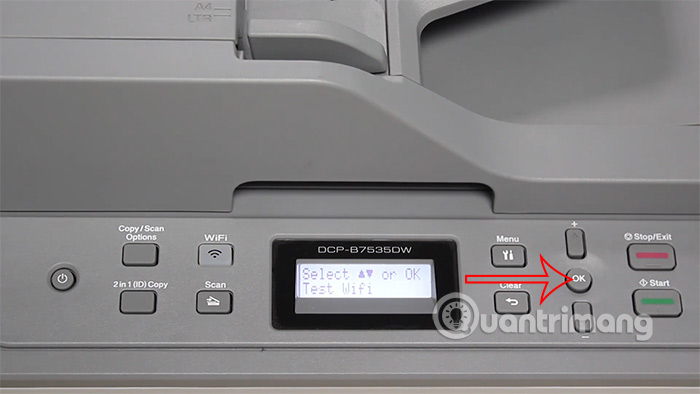
<p style="text-align: justify;">Màn hình sẽ&nbsp;<strong>hiển thị tên WiFi</strong>,&nbsp;<strong>nhấn mũi tên lên xuống</strong>&nbsp;để&nbsp;<strong>chọn tên WiFi&nbsp;</strong>rồi&nbsp;<strong>nhấn OK</strong>&nbsp;để chọn.</p>

<p style="text-align: justify;"><img alt="Chọn tên WiFi " data-i="5" data-src="https://st.quantrimang.com/photos/image/2021/07/09/cai-wifi-may-in-Brother-6.jpg" data-was-processed="true" height="360" src="https://st.quantrimang.com/photos/image/2021/07/09/cai-wifi-may-in-Brother-6.jpg" width="640" /></p>

<p style="text-align: justify;"><strong>Bước 5:</strong></p>

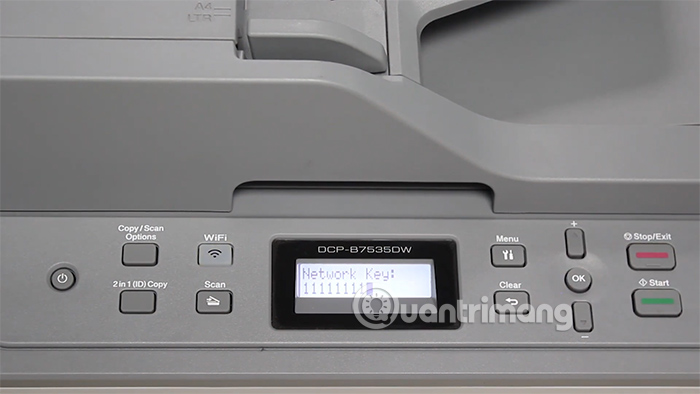
<p style="text-align: justify;">Tiếp đến chúng ta<strong>&nbsp;nhập mật khẩu WiFi</strong>. Bạn&nbsp;<strong>nhấn mũi tên lên hoặc xuống để nhập số</strong>, rồi đến chữ cái thường và phím in hoa. Sau mỗi lần<strong>&nbsp;ấn một ký tự thì bạn phải nhấn phím OK</strong>&nbsp;thì mới tiếp tục được.</p>

<p style="text-align: justify;">Khi&nbsp;<strong>nhập xong mật khẩu thì nhấn OK</strong>. Lúc này màn hình hỏi&nbsp;<strong>Apply Settings&nbsp;</strong>rồi nhấn<strong>&nbsp;mũi tên lên chọn Yes</strong>&nbsp;để<strong>&nbsp;kết nối WiFi</strong>&nbsp;cho máy in.</p>

<p style="text-align: justify;"><img alt="Nhập mật khẩu WiFi" data-i="6" data-src="https://st.quantrimang.com/photos/image/2021/07/09/cai-wifi-may-in-Brother-11.jpg" data-was-processed="true" height="360" src="https://st.quantrimang.com/photos/image/2021/07/09/cai-wifi-may-in-Brother-11.jpg" width="640" /></p>

<p style="text-align: justify;"><strong>Bước 6:</strong></p>

<p style="text-align: justify;">Chờ WiFi kết nối với máy in và nút đèn WiFi sẽ sáng lên. Nhấn OK để lưu lại. Lúc này màn hình trở lại giao diện&nbsp;<strong>Setup Wizard</strong>&nbsp;để&nbsp;<strong>tiến hành cố định IP tĩnh</strong>. Nhấn&nbsp;<strong>mũi tên lên</strong>.</p>

<p style="text-align: justify;"><img alt="Nhập mật khẩu " data-i="7" data-src="https://st.quantrimang.com/photos/image/2021/07/09/cai-wifi-may-in-Brother-7.jpg" data-was-processed="true" height="360" src="https://st.quantrimang.com/photos/image/2021/07/09/cai-wifi-may-in-Brother-7.jpg" width="640" /></p>

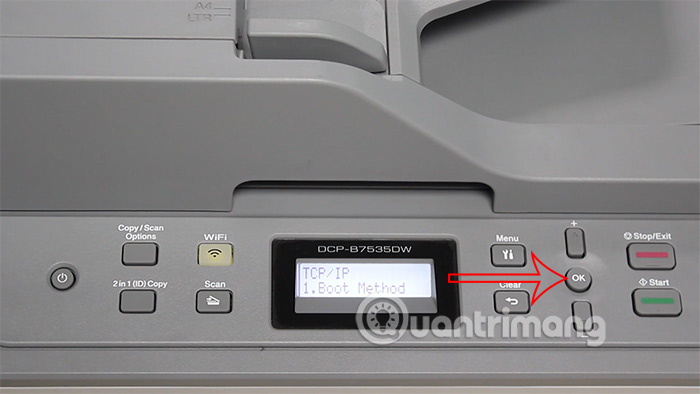
<p style="text-align: justify;">Hiển thị&nbsp;<strong>mục 1.TCP/IP trên màn hình máy in</strong>, nhấn OK để chọn. Hiện tiếp mục&nbsp;<strong>1.Boot Method</strong>, nhấn&nbsp;<strong>nút OK</strong>&nbsp;để chọn.</p>

<p style="text-align: justify;"><img alt="Nhập mật khẩu " data-i="8" data-src="https://st.quantrimang.com/photos/image/2021/07/09/cai-wifi-may-in-Brother-8.jpg" data-was-processed="true" height="360" src="https://st.quantrimang.com/photos/image/2021/07/09/cai-wifi-may-in-Brother-8.jpg" width="640" /></p>

<p style="text-align: justify;"><strong>Bước 7:</strong></p>

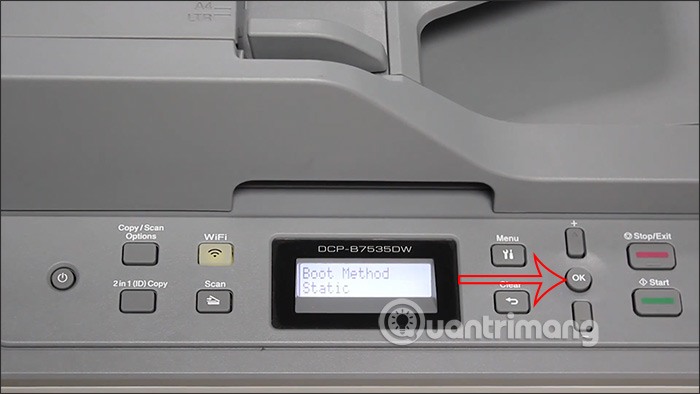
<p style="text-align: justify;">Lúc này tại mục&nbsp;<strong>Boot Method hiện Auto và dấu</strong>&nbsp;* thể hiện máy in đang chọn IP động. Nhấn&nbsp;<strong>mũi tên xuống</strong>&nbsp;để&nbsp;<strong>chọn Static để dùng IP tĩnh</strong>. Nhấn&nbsp;<strong>OK</strong>&nbsp;để lựa chọn.</p>

<p style="text-align: justify;"><img alt="Chọn IP tĩnh " data-i="9" data-src="https://st.quantrimang.com/photos/image/2021/07/09/cai-wifi-may-in-Brother-9.jpg" data-was-processed="true" height="360" src="https://st.quantrimang.com/photos/image/2021/07/09/cai-wifi-may-in-Brother-9.jpg" width="640" /></p>

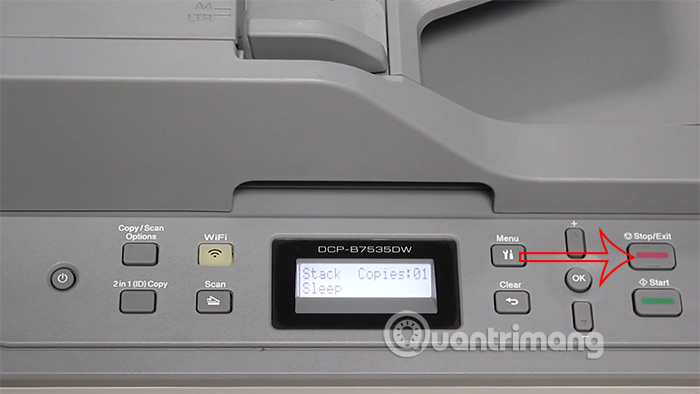
<p style="text-align: justify;">Khi đó máy hiện&nbsp;<strong>thông báo Accept</strong>&nbsp;đã lựa chọn IP tĩnh. Cuối cùng nhấn&nbsp;<strong>nút Stop/Exit để thoát</strong>&nbsp;giao diện cài đặt là hoàn thành.</p>

<p style="text-align: justify;"><img alt="Thiết lập thành công" data-i="10" data-src="https://st.quantrimang.com/photos/image/2021/07/09/cai-wifi-may-in-Brother-10.jpg" data-was-processed="true" height="360" src="https://st.quantrimang.com/photos/image/2021/07/09/cai-wifi-may-in-Brother-10.jpg" width="640" /></p>
		</div>
				<div id="author">
						<p>
				<strong>Nguồn tin:</strong>
				Quantrimang.com
			</p>
		</div>
	</div>
	<div id="footer" class="clearfix">
		<div id="url">
			<strong>URL của bản tin này: </strong><a href="https://www.nguoicodonvn2008.info/vi/news/savefile/kien-thuc-may-tinh/cach-cai-wifi-tren-may-in-brother-dcp-b7535dw-4425.html" title="Cách cài WiFi trên máy in Brother DCP-B7535DW">https://www.nguoicodonvn2008.info/vi/news/savefile/kien-thuc-may-tinh/cach-cai-wifi-tren-may-in-brother-dcp-b7535dw-4425.html</a>

		</div>
		<div class="clear"></div>
		<div class="copyright">
			&copy; .&#x3A; Nguoicodonvn2008.info - Cõi lòng người cô đơn &#x3A;.
		</div>
		<div id="contact">
			<a href="mailto:admin@nguoicodonvn2008.info">admin@nguoicodonvn2008.info</a>
		</div>
	</div>
</div>
        <div id="timeoutsess" class="chromeframe">
            Bạn đã không sử dụng Site, <a onclick="timeoutsesscancel();" href="https://nguoicodonvn2008.info/#">Bấm vào đây để duy trì trạng thái đăng nhập</a>. Thời gian chờ: <span id="secField"> 60 </span> giây
        </div>
        <div id="openidResult" class="nv-alert" style="display:none"></div>
        <div id="openidBt" data-result="" data-redirect=""></div>
		</script>
		<div class="car-top">
  <span><img src="https://nguoicodonvn2008.info/themes/default/images/car.png" alt=""></span>
</div>
<div id="run_cronjobs" style="visibility:hidden;display:none;"><img alt="cron" src="/index.php?second=cronjobs&amp;p=h3lrbzXQ" width="1" height="1" /></div>
<script src="https://nguoicodonvn2008.info/assets/js/jquery/jquery.min.js"></script>
<script>var nv_base_siteurl="/",nv_lang_data="vi",nv_lang_interface="vi",nv_name_variable="nv",nv_fc_variable="op",nv_lang_variable="language",nv_module_name="news",nv_func_name="savefile",nv_is_user=0, nv_my_ofs=-4,nv_my_abbr="EDT",nv_cookie_prefix="nv4c_e856T",nv_check_pass_mstime=1738000,nv_area_admin=0,nv_safemode=0,theme_responsive=0,nv_recaptcha_ver=2,nv_recaptcha_sitekey="",nv_recaptcha_type="image",XSSsanitize=1;</script>
<script src="https://nguoicodonvn2008.info/assets/js/language/vi.js"></script>
<script src="https://nguoicodonvn2008.info/assets/js/DOMPurify/purify3.js"></script>
<script src="https://nguoicodonvn2008.info/assets/js/global.js"></script>
<script src="https://nguoicodonvn2008.info/assets/js/site.js"></script>
<script src="https://nguoicodonvn2008.info/themes/default/js/news.js"></script>
<script src="https://nguoicodonvn2008.info/themes/default/js/main.js"></script>
<script src="https://nguoicodonvn2008.info/themes/default/js/custom.js"></script>
<script type="application/ld+json">
        {
            "@context": "https://schema.org",
            "@type": "Organization",
            "url": "https://nguoicodonvn2008.info",
            "logo": "https://nguoicodonvn2008.info/uploads/angel.gif"
        }
        </script>
<script src="https://nguoicodonvn2008.info/themes/default/js/bootstrap.min.js"></script>
<script type="text/javascript">
var $scrolltop = $('.car-top');
$scrolltop.on('click', function () {
    $('html,body').animate({
        scrollTop: 0
    }, 800);
    $(this).addClass("car-run");
    setTimeout(function(){ $scrolltop.removeClass('car-run');}, 1000);
    return false;
});
$(window).on('scroll', function ()
{ 
    if($(window).scrollTop() >= 200)
    {
        $scrolltop.addClass("show");
        $scrolltop.addClass("car-down");
    }
    else
    {
       $scrolltop.removeClass("show");
       setTimeout(function(){ $scrolltop.removeClass('car-down');}, 300);
    }
});
</script>
</body>
</html>