<!DOCTYPE html>
    <html lang="vi" xmlns="http://www.w3.org/1999/xhtml" prefix="og: http://ogp.me/ns#">
    <head>
<title>Cách cài&#x002F;gỡ cài đặt ứng dụng Notepad trong Windows 10</title>
<meta name="description" content="Cách cài&#x002F;gỡ cài đặt ứng dụng Notepad trong Windows 10 - Savefile - Tin Tức -...">
<meta name="author" content=".: Nguoicodonvn2008.info - Cõi lòng người cô đơn :.">
<meta name="copyright" content=".: Nguoicodonvn2008.info - Cõi lòng người cô đơn :. [admin@nguoicodonvn2008.info]">
<meta name="robots" content="index, archive, follow, noodp">
<meta name="googlebot" content="index,archive,follow,noodp">
<meta name="msnbot" content="all,index,follow">
<meta name="generator" content="NukeViet v4.5">
<meta http-equiv="Content-Type" content="text/html; charset=utf-8">
<meta property="og:title" content="Cách cài&#x002F;gỡ cài đặt ứng dụng Notepad trong Windows 10">
<meta property="og:type" content="website">
<meta property="og:description" content="Savefile - Tin Tức - https&#x3A;&#x002F;&#x002F;www.nguoicodonvn2008.info&#x002F;vi&#x002F;news&#x002F;savefile&#x002F;kien-thuc-may-tinh&#x002F;cach-cai-go-cai-dat-ung-dung-notepad-trong-windows-10-1972.html">
<meta property="og:site_name" content=".&#x3A; Nguoicodonvn2008.info - Cõi lòng người cô đơn &#x3A;.">
<meta property="og:url" content="https://www.nguoicodonvn2008.info/vi/news/savefile/kien-thuc-may-tinh/cach-cai-go-cai-dat-ung-dung-notepad-trong-windows-10-1972.html">
<link rel="shortcut icon" href="https://nguoicodonvn2008.info/favicon.ico">
<link rel="canonical" href="https://www.nguoicodonvn2008.info/vi/news/savefile/kien-thuc-may-tinh/cach-cai-go-cai-dat-ung-dung-notepad-trong-windows-10-1972.html">
<link rel="alternate" href="https://nguoicodonvn2008.info/vi/news/rss/" title="Tin Tức" type="application/rss+xml">
<link rel="alternate" href="https://nguoicodonvn2008.info/vi/news/rss/karaoke-dual/" title="Tin Tức - Karaoke Dual" type="application/rss+xml">
<link rel="alternate" href="https://nguoicodonvn2008.info/vi/news/rss/nhac-tre/" title="Tin Tức - Nhạc trẻ" type="application/rss+xml">
<link rel="alternate" href="https://nguoicodonvn2008.info/vi/news/rss/tru-tinh/" title="Tin Tức - Trữ tình" type="application/rss+xml">
<link rel="alternate" href="https://nguoicodonvn2008.info/vi/news/rss/nuoc-ngoai/" title="Tin Tức - Nước ngoài" type="application/rss+xml">
<link rel="alternate" href="https://nguoicodonvn2008.info/vi/news/rss/remix/" title="Tin Tức - Remix" type="application/rss+xml">
<link rel="alternate" href="https://nguoicodonvn2008.info/vi/news/rss/tam-su-tinh-yeu/" title="Tin Tức - Tâm sự tình yêu" type="application/rss+xml">
<link rel="alternate" href="https://nguoicodonvn2008.info/vi/news/rss/tho-suu-tam/" title="Tin Tức - Thơ sưu tầm" type="application/rss+xml">
<link rel="alternate" href="https://nguoicodonvn2008.info/vi/news/rss/cuoc-song/" title="Tin Tức - Cuộc sống" type="application/rss+xml">
<link rel="alternate" href="https://nguoicodonvn2008.info/vi/news/rss/phan-mem/" title="Tin Tức - Phần mềm" type="application/rss+xml">
<link rel="alternate" href="https://nguoicodonvn2008.info/vi/news/rss/kien-thuc-may-tinh/" title="Tin Tức - Kiến thức máy tính" type="application/rss+xml">
<link rel="alternate" href="https://nguoicodonvn2008.info/vi/news/rss/hoc-tap/" title="Tin Tức - Học tập" type="application/rss+xml">
<link rel="alternate" href="https://nguoicodonvn2008.info/vi/news/rss/tai-lieu/" title="Tin Tức - Tài liệu" type="application/rss+xml">
<link rel="alternate" href="https://nguoicodonvn2008.info/vi/news/rss/de-thi/" title="Tin Tức - Đề thi" type="application/rss+xml">
<link rel="preload" as="style" href="https://nguoicodonvn2008.info/assets/css/font-awesome.min.css" type="text/css">
<link rel="preload" as="style" href="https://nguoicodonvn2008.info/themes/default/css/bootstrap.non-responsive.css" type="text/css">
<link rel="preload" as="style" href="https://nguoicodonvn2008.info/themes/default/css/style.css" type="text/css">
<link rel="preload" as="style" href="https://nguoicodonvn2008.info/themes/default/css/style.non-responsive.css" type="text/css">
<link rel="preload" as="style" href="https://nguoicodonvn2008.info/themes/default/css/news.css" type="text/css">
<link rel="preload" as="style" href="https://nguoicodonvn2008.info/themes/default/css/custom.css" type="text/css">
<link rel="preload" as="script" href="https://nguoicodonvn2008.info/assets/js/jquery/jquery.min.js" type="text/javascript">
<link rel="preload" as="script" href="https://nguoicodonvn2008.info/assets/js/language/vi.js" type="text/javascript">
<link rel="preload" as="script" href="https://nguoicodonvn2008.info/assets/js/DOMPurify/purify3.js" type="text/javascript">
<link rel="preload" as="script" href="https://nguoicodonvn2008.info/assets/js/global.js" type="text/javascript">
<link rel="preload" as="script" href="https://nguoicodonvn2008.info/assets/js/site.js" type="text/javascript">
<link rel="preload" as="script" href="https://nguoicodonvn2008.info/themes/default/js/news.js" type="text/javascript">
<link rel="preload" as="script" href="https://nguoicodonvn2008.info/themes/default/js/main.js" type="text/javascript">
<link rel="preload" as="script" href="https://nguoicodonvn2008.info/themes/default/js/custom.js" type="text/javascript">
<link rel="preload" as="script" href="https://nguoicodonvn2008.info/themes/default/js/bootstrap.min.js" type="text/javascript">
<link rel="stylesheet" href="https://nguoicodonvn2008.info/assets/css/font-awesome.min.css">
<link rel="stylesheet" href="https://nguoicodonvn2008.info/themes/default/css/bootstrap.non-responsive.css">
<link rel="stylesheet" href="https://nguoicodonvn2008.info/themes/default/css/style.css">
<link rel="stylesheet" href="https://nguoicodonvn2008.info/themes/default/css/style.non-responsive.css">
<link rel="StyleSheet" href="https://nguoicodonvn2008.info/themes/default/css/news.css">
<link rel="stylesheet" href="https://nguoicodonvn2008.info/themes/default/css/custom.css">
<style type="text/css">
	body{background: #fff;}
</style>
    </head>
    <body>
<div id="print">
	<div id="hd_print">
		<h2 class="pull-left">.&#x3A; Nguoicodonvn2008.info - Cõi lòng người cô đơn &#x3A;.</h2>
		<p class="pull-right"><a title=".&#x3A; Nguoicodonvn2008.info - Cõi lòng người cô đơn &#x3A;." href="https://nguoicodonvn2008.info/">https://nguoicodonvn2008.info</a></p>
	</div>
	<div class="clear"></div>
	<hr />
	<div id="content">
		<h1>Cách cài&#x002F;gỡ cài đặt ứng dụng Notepad trong Windows 10</h1>
		<ul class="list-inline">
			<li>Thứ tư - 22/04/2020 07:04</li>
			<li class="hidden-print txtrequired"><em class="fa fa-print">&nbsp;</em><a title="In ra" href="javascript:;" onclick="window.print()">In ra</a></li>
			<li class="hidden-print txtrequired"><em class="fa fa-power-off">&nbsp;</em><a title="Đóng cửa sổ này" href="javascript:;" onclick="window.close()">Đóng cửa sổ này</a></li>
		</ul>
		<div class="clear"></div>
		<div id="hometext">
		</div>
				<div class="imghome">
			<img alt="Cách cài&#x002F;gỡ cài đặt ứng dụng Notepad trong Windows 10" src="https://st.quantrimang.com/photos/image/2020/04/22/notepad-trong-windows-10-2.jpg" width="460" class="img-thumbnail" />
		</div>
		<div class="clear"></div>
		<div id="bodytext" class="clearfix">
			<p style="text-align: justify;">Notepad là trình soạn thảo văn bản nhanh chóng và đơn giản trên Windows trong hơn 30 năm và giờ đây, nó đã có sẵn trong Microsoft Store. Xem, chỉnh sửa và tìm kiếm thông qua các tài liệu plain text và những file mã nguồn có thể thực hiện ngay lập tức.</p>

<p style="text-align: justify;">Bạn có thể cài đặt ứng dụng Windows Notepad từ Microsoft Store lên Windows 10 phiên bản 19541.0 trở lên. Hướng dẫn này sẽ chỉ cho bạn cách cài đặt và gỡ cài đặt ứng dụng Notepad từ Microsoft Store trong Windows 10.</p>

<h2 style="text-align: justify;">Cài đặt Notepad từ Microsoft Store</h2>

<p style="text-align: justify;">1. Chuyển đến trang&nbsp;tải xuống Windows Notepad&nbsp;trong ứng dụng Microsoft Store.:<br  />
<span style="color:rgb(192, 57, 43);"><strong>https://www.microsoft.com/vi-vn/p/windows-notepad/9msmlrh6lzf3?activetab=pivot:overviewtab</strong></span></p>

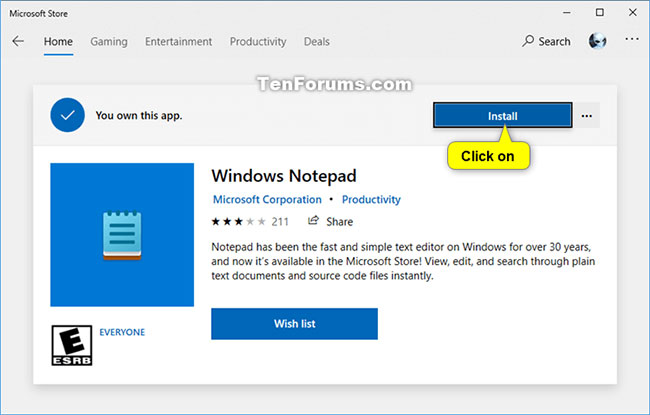
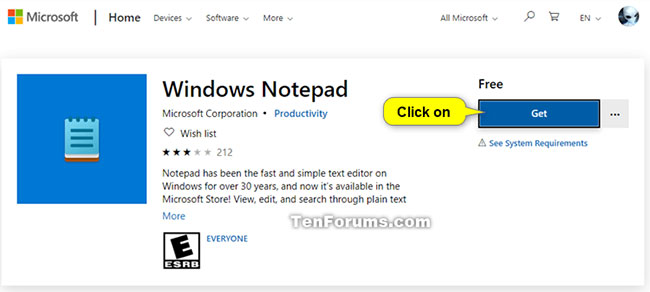
<p style="text-align: justify;">2. Nhấp vào&nbsp;<strong>Get</strong>&nbsp;hoặc&nbsp;<strong>Install.</strong></p>

<figure>
<div style="text-align: justify;"><img alt="Nhấp vào Get để cài đặt Notepad" data-i="0" data-src="https://st.quantrimang.com/photos/image/2020/04/22/notepad-trong-windows-10-1.jpg" data-was-processed="true" height="292" src="https://st.quantrimang.com/photos/image/2020/04/22/notepad-trong-windows-10-1.jpg" width="650" /></div>

<figcaption>
<div style="text-align: justify;">Nhấp vào Get để cài đặt Notepad</div>
</figcaption>
</figure>

<figure>
<div style="text-align: justify;"><img alt="Chọn Install cũng sẽ cài đặt Notepad" data-i="1" data-src="https://st.quantrimang.com/photos/image/2020/04/22/notepad-trong-windows-10-2.jpg" data-was-processed="true" height="415" src="https://st.quantrimang.com/photos/image/2020/04/22/notepad-trong-windows-10-2.jpg" width="650" /></div>

<figcaption>
<div style="text-align: justify;">Chọn Install cũng sẽ cài đặt Notepad</div>
</figcaption>
</figure>

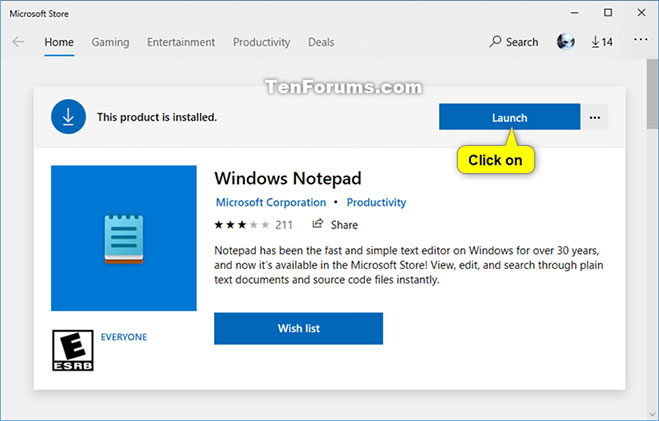
<p style="text-align: justify;">3. Khi Notepad cài đặt xong, bạn có thể chọn&nbsp;<strong>Launch</strong>&nbsp;(để mở) nếu muốn.</p>

<figure>
<div style="text-align: justify;"><img alt="Chọn Launch để mở" data-i="2" data-src="https://st.quantrimang.com/photos/image/2020/04/22/notepad-trong-windows-10-3.jpg" data-was-processed="true" height="421" src="https://st.quantrimang.com/photos/image/2020/04/22/notepad-trong-windows-10-3.jpg" width="659" /></div>

<figcaption>
<div style="text-align: justify;">Chọn Launch để mở</div>
</figcaption>
</figure>

<p style="text-align: justify;">4. Bây giờ, bạn có thể đóng ứng dụng Microsoft Store nếu muốn.</p>

<h2 style="text-align: justify;">Gỡ cài đặt Notepad trong Settings</h2>

<p style="text-align: justify;">1. Mở&nbsp;<strong>Settings</strong>&nbsp;và nhấp vào biểu tượng&nbsp;<strong>Apps.</strong></p>

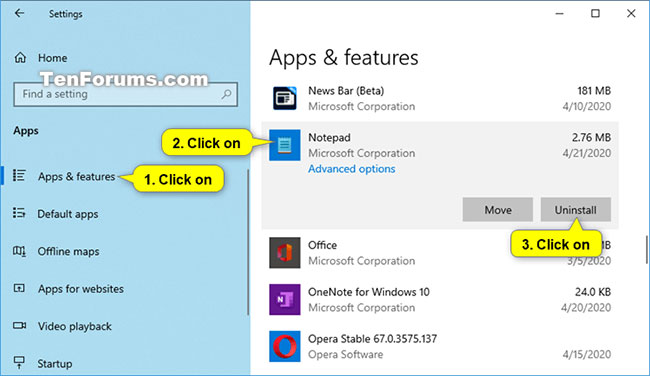
<p style="text-align: justify;">2. Nhấp vào&nbsp;<strong>App &amp; features</strong>&nbsp;ở bên trái, nhấn vào&nbsp;<strong>Notepad</strong>&nbsp;ở bên phải và kích vào nút&nbsp;<strong>Uninstall.</strong></p>

<figure>
<div style="text-align: justify;"><img alt="Nhấn vào Notepad ở bên phải và kích vào nút Uninstall" data-i="3" data-src="https://st.quantrimang.com/photos/image/2020/04/22/notepad-trong-windows-10-4.jpg" data-was-processed="true" height="376" src="https://st.quantrimang.com/photos/image/2020/04/22/notepad-trong-windows-10-4.jpg" width="650" /></div>

<figcaption>
<div style="text-align: justify;">Nhấn vào Notepad ở bên phải và kích vào nút Uninstall</div>
</figcaption>
</figure>

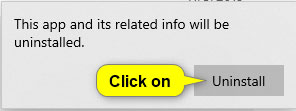
<p style="text-align: justify;">3. Nhấn vào&nbsp;<strong>Uninstall</strong>&nbsp;để xác nhận.</p>

<figure>
<div style="text-align: justify;"><img alt="Nhấn vào Uninstall để xác nhận" data-i="4" data-src="https://st.quantrimang.com/photos/image/2020/04/22/notepad-trong-windows-10-5.jpg" data-was-processed="true" height="111" src="https://st.quantrimang.com/photos/image/2020/04/22/notepad-trong-windows-10-5.jpg" width="296" /></div>

<figcaption>
<div style="text-align: justify;">Nhấn vào Uninstall để xác nhận</div>
</figcaption>
</figure>

<p style="text-align: justify;">4. Bây giờ, bạn có thể đóng&nbsp;<strong>Settings</strong>&nbsp;nếu muốn.</p>

<div style="text-align: justify;">&nbsp;</div>

<h2 style="text-align: justify;">Gỡ cài đặt Notepad trong Command Prompt</h2>

<p style="text-align: justify;">1.&nbsp;Mở Command Prompt.</p>

<p style="text-align: justify;">2. Sao chép và dán lệnh bên dưới vào&nbsp;Command Prompt&nbsp;và nhấn&nbsp;<code>Enter</code>.</p>

<pre id="pre0">
<code>powershell -command &quot;Get-AppxPackage *Microsoft.WindowsNotepad* | Remove-AppxPackage&quot;</code></pre>

<p style="text-align: justify;">3. Bây giờ, bạn có thể đóng Command Prompt nếu muốn.</p>

<figure>
<div style="text-align: justify;"><img alt="Gỡ cài đặt Notepad trong Command Prompt" data-i="5" data-src="https://st.quantrimang.com/photos/image/2020/04/22/notepad-trong-windows-10-6.jpg" data-was-processed="true" height="129" src="https://st.quantrimang.com/photos/image/2020/04/22/notepad-trong-windows-10-6.jpg" width="650" /></div>

<figcaption>
<div style="text-align: justify;">Gỡ cài đặt Notepad trong Command Prompt</div>
</figcaption>
</figure>

<h2 style="text-align: justify;">Gỡ cài đặt Notepad trong PowerShell</h2>

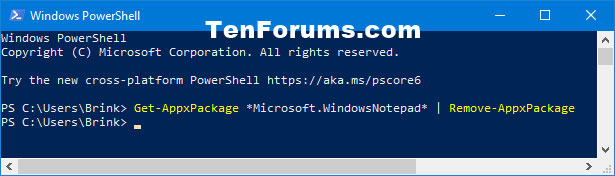
<p style="text-align: justify;">1. Mở&nbsp;<strong>PowerShell.</strong></p>

<p style="text-align: justify;">2. Sao chép và dán lệnh bên dưới vào&nbsp;PowerShell, rồi nhấn&nbsp;<code>Enter</code>.</p>

<pre id="pre1">
<code>Get-AppxPackage *Microsoft.WindowsNotepad* | Remove-AppxPackage</code></pre>

<p style="text-align: justify;">3. Bây giờ, bạn có thể đóng PowerShell nếu muốn.</p>

<figure>
<div style="text-align: justify;"><img alt="Gỡ cài đặt Notepad trong PowerShell" data-i="6" data-src="https://st.quantrimang.com/photos/image/2020/04/22/notepad-trong-windows-10-7.jpg" data-was-processed="true" height="176" src="https://st.quantrimang.com/photos/image/2020/04/22/notepad-trong-windows-10-7.jpg" width="615" /></div>

<figcaption>
<div style="text-align: justify;">Gỡ cài đặt Notepad trong PowerShell</div>
</figcaption>
</figure>
		</div>
				<div id="author">
						<p>
				<strong>Nguồn tin:</strong>
				Quantrimang.com
			</p>
		</div>
	</div>
	<div id="footer" class="clearfix">
		<div id="url">
			<strong>URL của bản tin này: </strong><a href="https://www.nguoicodonvn2008.info/vi/news/savefile/kien-thuc-may-tinh/cach-cai-go-cai-dat-ung-dung-notepad-trong-windows-10-1972.html" title="Cách cài&#x002F;gỡ cài đặt ứng dụng Notepad trong Windows 10">https://www.nguoicodonvn2008.info/vi/news/savefile/kien-thuc-may-tinh/cach-cai-go-cai-dat-ung-dung-notepad-trong-windows-10-1972.html</a>

		</div>
		<div class="clear"></div>
		<div class="copyright">
			&copy; .&#x3A; Nguoicodonvn2008.info - Cõi lòng người cô đơn &#x3A;.
		</div>
		<div id="contact">
			<a href="mailto:admin@nguoicodonvn2008.info">admin@nguoicodonvn2008.info</a>
		</div>
	</div>
</div>
        <div id="timeoutsess" class="chromeframe">
            Bạn đã không sử dụng Site, <a onclick="timeoutsesscancel();" href="https://nguoicodonvn2008.info/#">Bấm vào đây để duy trì trạng thái đăng nhập</a>. Thời gian chờ: <span id="secField"> 60 </span> giây
        </div>
        <div id="openidResult" class="nv-alert" style="display:none"></div>
        <div id="openidBt" data-result="" data-redirect=""></div>
		</script>
		<div class="car-top">
  <span><img src="https://nguoicodonvn2008.info/themes/default/images/car.png" alt=""></span>
</div>
<script src="https://nguoicodonvn2008.info/assets/js/jquery/jquery.min.js"></script>
<script>var nv_base_siteurl="/",nv_lang_data="vi",nv_lang_interface="vi",nv_name_variable="nv",nv_fc_variable="op",nv_lang_variable="language",nv_module_name="news",nv_func_name="savefile",nv_is_user=0, nv_my_ofs=-4,nv_my_abbr="EDT",nv_cookie_prefix="nv4c_e856T",nv_check_pass_mstime=1738000,nv_area_admin=0,nv_safemode=0,theme_responsive=0,nv_recaptcha_ver=2,nv_recaptcha_sitekey="",nv_recaptcha_type="image",XSSsanitize=1;</script>
<script src="https://nguoicodonvn2008.info/assets/js/language/vi.js"></script>
<script src="https://nguoicodonvn2008.info/assets/js/DOMPurify/purify3.js"></script>
<script src="https://nguoicodonvn2008.info/assets/js/global.js"></script>
<script src="https://nguoicodonvn2008.info/assets/js/site.js"></script>
<script src="https://nguoicodonvn2008.info/themes/default/js/news.js"></script>
<script src="https://nguoicodonvn2008.info/themes/default/js/main.js"></script>
<script src="https://nguoicodonvn2008.info/themes/default/js/custom.js"></script>
<script type="application/ld+json">
        {
            "@context": "https://schema.org",
            "@type": "Organization",
            "url": "https://nguoicodonvn2008.info",
            "logo": "https://nguoicodonvn2008.info/uploads/angel.gif"
        }
        </script>
<script src="https://nguoicodonvn2008.info/themes/default/js/bootstrap.min.js"></script>
<script type="text/javascript">
var $scrolltop = $('.car-top');
$scrolltop.on('click', function () {
    $('html,body').animate({
        scrollTop: 0
    }, 800);
    $(this).addClass("car-run");
    setTimeout(function(){ $scrolltop.removeClass('car-run');}, 1000);
    return false;
});
$(window).on('scroll', function ()
{ 
    if($(window).scrollTop() >= 200)
    {
        $scrolltop.addClass("show");
        $scrolltop.addClass("car-down");
    }
    else
    {
       $scrolltop.removeClass("show");
       setTimeout(function(){ $scrolltop.removeClass('car-down');}, 300);
    }
});
</script>
</body>
</html>