<!DOCTYPE html>
    <html lang="vi" xmlns="http://www.w3.org/1999/xhtml" prefix="og: http://ogp.me/ns#">
    <head>
<title>Cách cài đặt VLC Media Player trên Linux Mint 20</title>
<meta name="description" content="Cách cài đặt VLC Media Player trên Linux Mint 20 - Savefile - Tin Tức -...">
<meta name="author" content=".: Nguoicodonvn2008.info - Cõi lòng người cô đơn :.">
<meta name="copyright" content=".: Nguoicodonvn2008.info - Cõi lòng người cô đơn :. [admin@nguoicodonvn2008.info]">
<meta name="robots" content="index, archive, follow, noodp">
<meta name="googlebot" content="index,archive,follow,noodp">
<meta name="msnbot" content="all,index,follow">
<meta name="generator" content="NukeViet v4.5">
<meta http-equiv="Content-Type" content="text/html; charset=utf-8">
<meta property="og:title" content="Cách cài đặt VLC Media Player trên Linux Mint 20">
<meta property="og:type" content="website">
<meta property="og:description" content="Savefile - Tin Tức - https&#x3A;&#x002F;&#x002F;www.nguoicodonvn2008.info&#x002F;vi&#x002F;news&#x002F;savefile&#x002F;kien-thuc-may-tinh&#x002F;cach-cai-dat-vlc-media-player-tren-linux-mint-20-3492.html">
<meta property="og:site_name" content=".&#x3A; Nguoicodonvn2008.info - Cõi lòng người cô đơn &#x3A;.">
<meta property="og:url" content="https://www.nguoicodonvn2008.info/vi/news/savefile/kien-thuc-may-tinh/cach-cai-dat-vlc-media-player-tren-linux-mint-20-3492.html">
<link rel="shortcut icon" href="https://nguoicodonvn2008.info/favicon.ico">
<link rel="canonical" href="https://www.nguoicodonvn2008.info/vi/news/savefile/kien-thuc-may-tinh/cach-cai-dat-vlc-media-player-tren-linux-mint-20-3492.html">
<link rel="alternate" href="https://nguoicodonvn2008.info/vi/news/rss/" title="Tin Tức" type="application/rss+xml">
<link rel="alternate" href="https://nguoicodonvn2008.info/vi/news/rss/karaoke-dual/" title="Tin Tức - Karaoke Dual" type="application/rss+xml">
<link rel="alternate" href="https://nguoicodonvn2008.info/vi/news/rss/nhac-tre/" title="Tin Tức - Nhạc trẻ" type="application/rss+xml">
<link rel="alternate" href="https://nguoicodonvn2008.info/vi/news/rss/tru-tinh/" title="Tin Tức - Trữ tình" type="application/rss+xml">
<link rel="alternate" href="https://nguoicodonvn2008.info/vi/news/rss/nuoc-ngoai/" title="Tin Tức - Nước ngoài" type="application/rss+xml">
<link rel="alternate" href="https://nguoicodonvn2008.info/vi/news/rss/remix/" title="Tin Tức - Remix" type="application/rss+xml">
<link rel="alternate" href="https://nguoicodonvn2008.info/vi/news/rss/tam-su-tinh-yeu/" title="Tin Tức - Tâm sự tình yêu" type="application/rss+xml">
<link rel="alternate" href="https://nguoicodonvn2008.info/vi/news/rss/tho-suu-tam/" title="Tin Tức - Thơ sưu tầm" type="application/rss+xml">
<link rel="alternate" href="https://nguoicodonvn2008.info/vi/news/rss/cuoc-song/" title="Tin Tức - Cuộc sống" type="application/rss+xml">
<link rel="alternate" href="https://nguoicodonvn2008.info/vi/news/rss/phan-mem/" title="Tin Tức - Phần mềm" type="application/rss+xml">
<link rel="alternate" href="https://nguoicodonvn2008.info/vi/news/rss/kien-thuc-may-tinh/" title="Tin Tức - Kiến thức máy tính" type="application/rss+xml">
<link rel="alternate" href="https://nguoicodonvn2008.info/vi/news/rss/hoc-tap/" title="Tin Tức - Học tập" type="application/rss+xml">
<link rel="alternate" href="https://nguoicodonvn2008.info/vi/news/rss/tai-lieu/" title="Tin Tức - Tài liệu" type="application/rss+xml">
<link rel="alternate" href="https://nguoicodonvn2008.info/vi/news/rss/de-thi/" title="Tin Tức - Đề thi" type="application/rss+xml">
<link rel="preload" as="style" href="https://nguoicodonvn2008.info/assets/css/font-awesome.min.css" type="text/css">
<link rel="preload" as="style" href="https://nguoicodonvn2008.info/themes/default/css/bootstrap.non-responsive.css" type="text/css">
<link rel="preload" as="style" href="https://nguoicodonvn2008.info/themes/default/css/style.css" type="text/css">
<link rel="preload" as="style" href="https://nguoicodonvn2008.info/themes/default/css/style.non-responsive.css" type="text/css">
<link rel="preload" as="style" href="https://nguoicodonvn2008.info/themes/default/css/news.css" type="text/css">
<link rel="preload" as="style" href="https://nguoicodonvn2008.info/themes/default/css/custom.css" type="text/css">
<link rel="preload" as="script" href="https://nguoicodonvn2008.info/assets/js/jquery/jquery.min.js" type="text/javascript">
<link rel="preload" as="script" href="https://nguoicodonvn2008.info/assets/js/language/vi.js" type="text/javascript">
<link rel="preload" as="script" href="https://nguoicodonvn2008.info/assets/js/DOMPurify/purify3.js" type="text/javascript">
<link rel="preload" as="script" href="https://nguoicodonvn2008.info/assets/js/global.js" type="text/javascript">
<link rel="preload" as="script" href="https://nguoicodonvn2008.info/assets/js/site.js" type="text/javascript">
<link rel="preload" as="script" href="https://nguoicodonvn2008.info/themes/default/js/news.js" type="text/javascript">
<link rel="preload" as="script" href="https://nguoicodonvn2008.info/themes/default/js/main.js" type="text/javascript">
<link rel="preload" as="script" href="https://nguoicodonvn2008.info/themes/default/js/custom.js" type="text/javascript">
<link rel="preload" as="script" href="https://nguoicodonvn2008.info/themes/default/js/bootstrap.min.js" type="text/javascript">
<link rel="stylesheet" href="https://nguoicodonvn2008.info/assets/css/font-awesome.min.css">
<link rel="stylesheet" href="https://nguoicodonvn2008.info/themes/default/css/bootstrap.non-responsive.css">
<link rel="stylesheet" href="https://nguoicodonvn2008.info/themes/default/css/style.css">
<link rel="stylesheet" href="https://nguoicodonvn2008.info/themes/default/css/style.non-responsive.css">
<link rel="StyleSheet" href="https://nguoicodonvn2008.info/themes/default/css/news.css">
<link rel="stylesheet" href="https://nguoicodonvn2008.info/themes/default/css/custom.css">
<style type="text/css">
	body{background: #fff;}
</style>
    </head>
    <body>
<div id="print">
	<div id="hd_print">
		<h2 class="pull-left">.&#x3A; Nguoicodonvn2008.info - Cõi lòng người cô đơn &#x3A;.</h2>
		<p class="pull-right"><a title=".&#x3A; Nguoicodonvn2008.info - Cõi lòng người cô đơn &#x3A;." href="https://nguoicodonvn2008.info/">https://nguoicodonvn2008.info</a></p>
	</div>
	<div class="clear"></div>
	<hr />
	<div id="content">
		<h1>Cách cài đặt VLC Media Player trên Linux Mint 20</h1>
		<ul class="list-inline">
			<li>Chủ nhật - 17/01/2021 23:55</li>
			<li class="hidden-print txtrequired"><em class="fa fa-print">&nbsp;</em><a title="In ra" href="javascript:;" onclick="window.print()">In ra</a></li>
			<li class="hidden-print txtrequired"><em class="fa fa-power-off">&nbsp;</em><a title="Đóng cửa sổ này" href="javascript:;" onclick="window.close()">Đóng cửa sổ này</a></li>
		</ul>
		<div class="clear"></div>
		<div id="hometext">
		</div>
				<div class="imghome">
			<img alt="Cách cài đặt VLC Media Player trên Linux Mint 20" src="https://st.quantrimang.com/photos/image/2021/01/11/cai-vlc-media-player-tren-linux-mint-6.jpg" width="460" class="img-thumbnail" />
		</div>
		<div class="clear"></div>
		<div id="bodytext" class="clearfix">
			<p style="text-align: justify;">VLC Media Player&nbsp;là một phần mềm mã nguồn mở nổi tiếng được sử dụng để phát trực tuyến video trên toàn thế giới. Phần mềm được hỗ trợ trên nhiều hệ điều hành bao gồm nền tảng Linux, Windows, macOS… VLC giúp người dùng chạy nhiều loại định dạng video như&nbsp;MP4,&nbsp;MOV, MPEG,&nbsp;WMV.</p>

<p style="text-align: justify;">Người dùng có thể thêm nhiều hiệu ứng video với VLC Media Player, bao gồm watermark và bộ lọc. Tất cả những tính năng này làm cho VLC Media Player trở thành một công cụ dễ sử dụng và ngày càng trở nên phổ biến hơn.</p>

<div style="text-align: justify;">&nbsp;</div>

<p style="text-align: justify;">Trong hướng dẫn này,&nbsp;<strong>Quantrimang</strong>&nbsp;sẽ chỉ cho bạn cách cài đặt VLC Media Player trên hệ thống Linux Mint 20.</p>

<h2 style="text-align: justify;">Điều kiện tiên quyết</h2>

<ul>
	<li style="text-align: justify;">Hệ điều hành được đề xuất: Hệ thống Linux Mint 20</li>
	<li style="text-align: justify;">Tài khoản người dùng: Tài khoản người dùng có quyền sudo</li>
</ul>

<h2 style="text-align: justify;">Cài đặt VLC Media Player</h2>

<h3 style="text-align: justify;">Cập nhật kho hệ thống</h3>

<p style="text-align: justify;">Trước khi bắt đầu quá trình cài đặt, người dùng cần cập nhật kho lưu trữ hiện có của hệ thống Linux Mint.&nbsp;Mở cửa sổ Terminal&nbsp;từ&nbsp;<strong>ApplicationsTerminal</strong>&nbsp;hoặc chỉ cần sử dụng phím tắt&nbsp;<strong>Ctrl + AlT + T</strong>.</p>

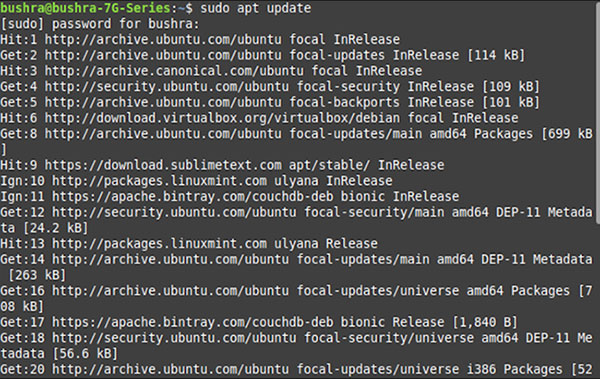
<p style="text-align: justify;">Khi cửa sổ Terminal được mở, hãy cập nhật kho lưu trữ của hệ thống bằng cách sử dụng lệnh sau:</p>

<pre id="pre0">
<code>$ sudo apt update</code></pre>

<p style="text-align: justify;">Cung cấp mật khẩu cho người dùng sudo, sau đó nhấn phím&nbsp;<strong>&lt;enter&gt;.</strong>&nbsp;Các bản cập nhật sẽ bắt đầu như được thể hiện trong hình bên dưới:</p>

<figure>
<div style="text-align: justify;"><img alt="Các bản cập nhật sẽ bắt đầu" data-i="0" data-src="https://st.quantrimang.com/photos/image/2021/01/11/cai-vlc-media-player-tren-linux-mint-1.jpg" data-was-processed="true" height="379" src="https://st.quantrimang.com/photos/image/2021/01/11/cai-vlc-media-player-tren-linux-mint-1.jpg" width="600" /></div>

<figcaption>
<div style="text-align: justify;">Các bản cập nhật sẽ bắt đầu</div>
</figcaption>
</figure>

<h3 style="text-align: justify;">Phương pháp #01: Cài đặt VLC Media Player bằng gói apt</h3>

<p style="text-align: justify;">Phương pháp đầu tiên được sử dụng để cài đặt VLC Media Player trong hệ thống&nbsp;Linux Mint&nbsp;sẽ liên quan đến dòng lệnh/cửa sổ Terminal. Nhập lệnh sau trên Terminal.</p>

<figure>
<div style="text-align: justify;"><img alt="Cài đặt VLC Media Player bằng gói apt" data-i="1" data-src="https://st.quantrimang.com/photos/image/2021/01/11/cai-vlc-media-player-tren-linux-mint-2.jpg" data-was-processed="true" height="25" src="https://st.quantrimang.com/photos/image/2021/01/11/cai-vlc-media-player-tren-linux-mint-2.jpg" width="650" /></div>

<figcaption>
<div style="text-align: justify;">Cài đặt VLC Media Player bằng gói apt</div>
</figcaption>
</figure>

<p style="text-align: justify;">Quá trình cài đặt sẽ bắt đầu, sau một thời gian, lời nhắc sẽ xuất hiện. Gõ<strong>&nbsp;Y</strong>&nbsp;rồi nhấn phím&nbsp;<strong>&lt;enter&gt;</strong>&nbsp;trước khi tiếp tục cài đặt.</p>

<p style="text-align: justify;">Quá trình cài đặt sẽ mất thời gian vì vậy đừng thoát khỏi Terminal, nếu không, nó sẽ dừng lại.</p>

<div style="text-align: justify;">&nbsp;</div>

<h3 style="text-align: justify;">Phương pháp #02: Cài đặt VLC Media Player bằng trình quản lý phần mềm Linux Mint</h3>

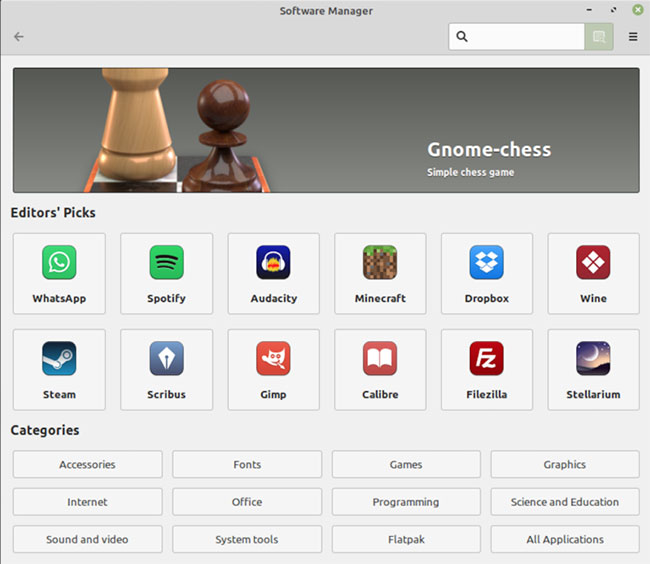
<p style="text-align: justify;">Trong phương pháp thứ hai, bạn sẽ sử dụng GUI của hệ thống Linux Mint. Chuyển đến&nbsp;<strong>Applications</strong>, sau đó tìm&nbsp;<strong>Software Manager</strong>&nbsp;trong thanh tìm kiếm.</p>

<p style="text-align: justify;">Nhấp đúp vào tùy chọn&nbsp;<strong>Software Manager</strong>, cửa sổ&nbsp;<strong>Software Manager</strong>&nbsp;sẽ xuất hiện liệt kê tất cả các phần mềm có sẵn trong gói Linux.</p>

<figure>
<div style="text-align: justify;"><img alt="Software Manager sẽ xuất hiện liệt kê tất cả các phần mềm có sẵn trong gói Linux" data-i="2" data-src="https://st.quantrimang.com/photos/image/2021/01/11/cai-vlc-media-player-tren-linux-mint-3.jpg" data-was-processed="true" height="564" src="https://st.quantrimang.com/photos/image/2021/01/11/cai-vlc-media-player-tren-linux-mint-3.jpg" width="650" /></div>

<figcaption>
<div style="text-align: justify;">Software Manager sẽ xuất hiện liệt kê tất cả các phần mềm có sẵn trong gói Linux</div>
</figcaption>
</figure>

<p style="text-align: justify;">Bạn cần tìm kiếm VLC Media Player trên thanh tìm kiếm. Trình phát media mong muốn sẽ xuất hiện trong các tùy chọn có sẵn.</p>

<p style="text-align: justify;">Tùy chọn cài đặt sẽ xuất hiện. Nhấp vào nút&nbsp;<strong>Install</strong>&nbsp;để bắt đầu cài đặt phần mềm VLC.</p>

<figure>
<div style="text-align: justify;"><img alt="Nhấp vào nút Install" data-i="3" data-src="https://st.quantrimang.com/photos/image/2021/01/11/cai-vlc-media-player-tren-linux-mint-4.jpg" data-was-processed="true" height="121" src="https://st.quantrimang.com/photos/image/2021/01/11/cai-vlc-media-player-tren-linux-mint-4.jpg" width="650" /></div>

<figcaption>
<div style="text-align: justify;">Nhấp vào nút Install</div>
</figcaption>
</figure>

<p style="text-align: justify;">Ngay sau khi bạn nhấp vào nút&nbsp;<strong>Install</strong>, màn hình sẽ liệt kê các phần mềm bổ sung cần được cài đặt. Nhấn nút&nbsp;<strong>Continue</strong>&nbsp;trong cửa sổ để tiến hành cài đặt tất cả các phần mềm bổ sung cần thiết.</p>

<p style="text-align: justify;">Quá trình cài đặt VLC sẽ bắt đầu như trong hình bên dưới:</p>

<figure>
<div style="text-align: justify;"><img alt="Quá trình cài đặt VLC sẽ bắt đầu" data-i="4" data-src="https://st.quantrimang.com/photos/image/2021/01/11/cai-vlc-media-player-tren-linux-mint-5.jpg" data-was-processed="true" height="118" src="https://st.quantrimang.com/photos/image/2021/01/11/cai-vlc-media-player-tren-linux-mint-5.jpg" width="650" /></div>

<figcaption>
<div style="text-align: justify;">Quá trình cài đặt VLC sẽ bắt đầu</div>
</figcaption>
</figure>

<p style="text-align: justify;">Quá trình cài đặt sẽ mất một chút thời gian, vì vậy hãy đảm bảo rằng bạn không thoát khỏi Software Manager, nếu không quá trình sẽ dừng lại.</p>

<div style="text-align: justify;">&nbsp;</div>

<h3 style="text-align: justify;">Xác minh cài đặt VLC Media Player</h3>

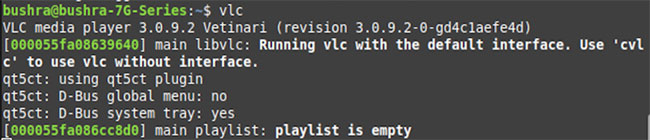
<p style="text-align: justify;">Một tùy chọn để xác minh quá trình cài đặt này là tìm kiếm phần mềm trong&nbsp;<strong>Applications.</strong>&nbsp;Người dùng cũng có thể truy cập ứng dụng thông qua dòng lệnh, bằng cách gõ:</p>

<pre id="pre1">
<code>$ vlc</code></pre>

<p style="text-align: justify;">Ứng dụng VLC sẽ bắt đầu chạy và Terminal sẽ hiển thị đầu ra giống như hiển thị bên dưới:</p>

<figure>
<div style="text-align: justify;"><img alt="Ứng dụng VLC sẽ bắt đầu chạy" data-i="5" data-src="https://st.quantrimang.com/photos/image/2021/01/11/cai-vlc-media-player-tren-linux-mint-6.jpg" data-was-processed="true" height="140" src="https://st.quantrimang.com/photos/image/2021/01/11/cai-vlc-media-player-tren-linux-mint-6.jpg" width="650" /></div>

<figcaption>
<div style="text-align: justify;">Ứng dụng VLC sẽ bắt đầu chạy</div>
</figcaption>
</figure>

<p style="text-align: justify;">Thoát khỏi Terminal, để xem ứng dụng VLC đang chạy trong nền. Lần đầu tiên, ứng dụng VLC mới được cài đặt sẽ yêu cầu người dùng cấp quyền. Đánh dấu vào hộp kiểm&nbsp;<strong>Allow metadata network access</strong>, sau đó nhấn nút&nbsp;<strong>Continue</strong>&nbsp;để truy cập phần mềm.</p>

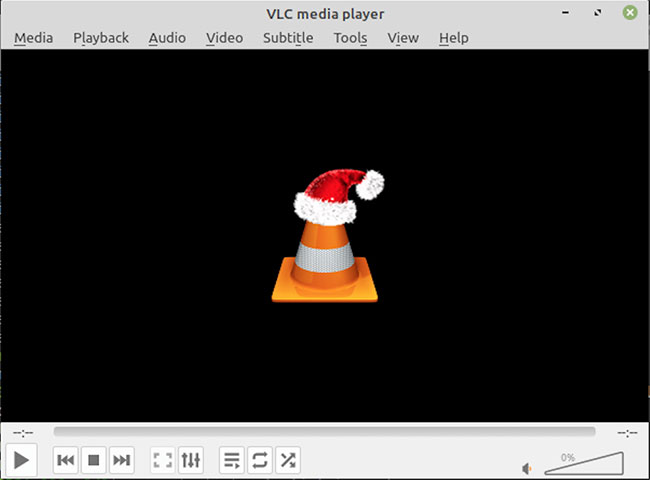
<p style="text-align: justify;">Ngay sau khi bạn nhấn nút&nbsp;<strong>Continue</strong>, bạn sẽ có thể xem ứng dụng đã cài đặt tương tự như ứng dụng hiển thị bên dưới:</p>

<figure>
<div style="text-align: justify;"><img alt="Bạn sẽ có thể xem ứng dụng đã cài đặt" data-i="6" data-src="https://st.quantrimang.com/photos/image/2021/01/11/cai-vlc-media-player-tren-linux-mint-7.jpg" data-was-processed="true" height="480" src="https://st.quantrimang.com/photos/image/2021/01/11/cai-vlc-media-player-tren-linux-mint-7.jpg" width="650" /></div>

<figcaption>
<div style="text-align: justify;">Bạn sẽ có thể xem ứng dụng đã cài đặt</div>
</figcaption>
</figure>

<h2 style="text-align: justify;">Gỡ cài đặt VLC khỏi Linux Mint 20</h2>

<p style="text-align: justify;">Để gỡ cài đặt trình phát phương tiện VLC khỏi hệ thống Linux Mint, hãy nhập lệnh sau vào cửa sổ Terminal:</p>

<pre id="pre2">
<code>$ sudo apt-get remove vlc</code></pre>

<p style="text-align: justify;">Nhấn phím&nbsp;<strong>&lt;enter&gt;</strong>&nbsp;để bắt đầu quá trình gỡ cài đặt VLC. Sau một lúc, một lời nhắc sẽ xuất hiện, gõ Y rồi nhấn&nbsp;<strong>Enter.</strong></p>

<p style="text-align: justify;">VLC Media Player sẽ dễ dàng bị xóa khỏi hệ thống Linux Mint 20 của bạn bằng cách sử dụng phương pháp được thảo luận ở trên.</p>
		</div>
				<div id="author">
						<p>
				<strong>Nguồn tin:</strong>
				Quantrimang.com
			</p>
		</div>
	</div>
	<div id="footer" class="clearfix">
		<div id="url">
			<strong>URL của bản tin này: </strong><a href="https://www.nguoicodonvn2008.info/vi/news/savefile/kien-thuc-may-tinh/cach-cai-dat-vlc-media-player-tren-linux-mint-20-3492.html" title="Cách cài đặt VLC Media Player trên Linux Mint 20">https://www.nguoicodonvn2008.info/vi/news/savefile/kien-thuc-may-tinh/cach-cai-dat-vlc-media-player-tren-linux-mint-20-3492.html</a>

		</div>
		<div class="clear"></div>
		<div class="copyright">
			&copy; .&#x3A; Nguoicodonvn2008.info - Cõi lòng người cô đơn &#x3A;.
		</div>
		<div id="contact">
			<a href="mailto:admin@nguoicodonvn2008.info">admin@nguoicodonvn2008.info</a>
		</div>
	</div>
</div>
        <div id="timeoutsess" class="chromeframe">
            Bạn đã không sử dụng Site, <a onclick="timeoutsesscancel();" href="https://nguoicodonvn2008.info/#">Bấm vào đây để duy trì trạng thái đăng nhập</a>. Thời gian chờ: <span id="secField"> 60 </span> giây
        </div>
        <div id="openidResult" class="nv-alert" style="display:none"></div>
        <div id="openidBt" data-result="" data-redirect=""></div>
		</script>
		<div class="car-top">
  <span><img src="https://nguoicodonvn2008.info/themes/default/images/car.png" alt=""></span>
</div>
<div id="run_cronjobs" style="visibility:hidden;display:none;"><img alt="cron" src="/index.php?second=cronjobs&amp;p=j2XVrn97" width="1" height="1" /></div>
<script src="https://nguoicodonvn2008.info/assets/js/jquery/jquery.min.js"></script>
<script>var nv_base_siteurl="/",nv_lang_data="vi",nv_lang_interface="vi",nv_name_variable="nv",nv_fc_variable="op",nv_lang_variable="language",nv_module_name="news",nv_func_name="savefile",nv_is_user=0, nv_my_ofs=-4,nv_my_abbr="EDT",nv_cookie_prefix="nv4c_e856T",nv_check_pass_mstime=1738000,nv_area_admin=0,nv_safemode=0,theme_responsive=0,nv_recaptcha_ver=2,nv_recaptcha_sitekey="",nv_recaptcha_type="image",XSSsanitize=1;</script>
<script src="https://nguoicodonvn2008.info/assets/js/language/vi.js"></script>
<script src="https://nguoicodonvn2008.info/assets/js/DOMPurify/purify3.js"></script>
<script src="https://nguoicodonvn2008.info/assets/js/global.js"></script>
<script src="https://nguoicodonvn2008.info/assets/js/site.js"></script>
<script src="https://nguoicodonvn2008.info/themes/default/js/news.js"></script>
<script src="https://nguoicodonvn2008.info/themes/default/js/main.js"></script>
<script src="https://nguoicodonvn2008.info/themes/default/js/custom.js"></script>
<script type="application/ld+json">
        {
            "@context": "https://schema.org",
            "@type": "Organization",
            "url": "https://nguoicodonvn2008.info",
            "logo": "https://nguoicodonvn2008.info/uploads/angel.gif"
        }
        </script>
<script src="https://nguoicodonvn2008.info/themes/default/js/bootstrap.min.js"></script>
<script type="text/javascript">
var $scrolltop = $('.car-top');
$scrolltop.on('click', function () {
    $('html,body').animate({
        scrollTop: 0
    }, 800);
    $(this).addClass("car-run");
    setTimeout(function(){ $scrolltop.removeClass('car-run');}, 1000);
    return false;
});
$(window).on('scroll', function ()
{ 
    if($(window).scrollTop() >= 200)
    {
        $scrolltop.addClass("show");
        $scrolltop.addClass("car-down");
    }
    else
    {
       $scrolltop.removeClass("show");
       setTimeout(function(){ $scrolltop.removeClass('car-down');}, 300);
    }
});
</script>
</body>
</html>