<!DOCTYPE html>
    <html lang="vi" xmlns="http://www.w3.org/1999/xhtml" prefix="og: http://ogp.me/ns#">
    <head>
<title>Cách cài đặt template Microsoft Edge Group Policy trên Windows 10</title>
<meta name="description" content="Cách cài đặt template Microsoft Edge Group Policy trên Windows 10 - Savefile - Tin Tức -...">
<meta name="author" content=".: Nguoicodonvn2008.info - Cõi lòng người cô đơn :.">
<meta name="copyright" content=".: Nguoicodonvn2008.info - Cõi lòng người cô đơn :. [admin@nguoicodonvn2008.info]">
<meta name="robots" content="index, archive, follow, noodp">
<meta name="googlebot" content="index,archive,follow,noodp">
<meta name="msnbot" content="all,index,follow">
<meta name="generator" content="NukeViet v4.5">
<meta http-equiv="Content-Type" content="text/html; charset=utf-8">
<meta property="og:title" content="Cách cài đặt template Microsoft Edge Group Policy trên Windows 10">
<meta property="og:type" content="website">
<meta property="og:description" content="Savefile - Tin Tức - https&#x3A;&#x002F;&#x002F;www.nguoicodonvn2008.info&#x002F;vi&#x002F;news&#x002F;savefile&#x002F;kien-thuc-may-tinh&#x002F;cach-cai-dat-template-microsoft-edge-group-policy-tren-windows-10-3103.html">
<meta property="og:site_name" content=".&#x3A; Nguoicodonvn2008.info - Cõi lòng người cô đơn &#x3A;.">
<meta property="og:url" content="https://www.nguoicodonvn2008.info/vi/news/savefile/kien-thuc-may-tinh/cach-cai-dat-template-microsoft-edge-group-policy-tren-windows-10-3103.html">
<link rel="shortcut icon" href="https://nguoicodonvn2008.info/favicon.ico">
<link rel="canonical" href="https://www.nguoicodonvn2008.info/vi/news/savefile/kien-thuc-may-tinh/cach-cai-dat-template-microsoft-edge-group-policy-tren-windows-10-3103.html">
<link rel="alternate" href="https://nguoicodonvn2008.info/vi/news/rss/" title="Tin Tức" type="application/rss+xml">
<link rel="alternate" href="https://nguoicodonvn2008.info/vi/news/rss/karaoke-dual/" title="Tin Tức - Karaoke Dual" type="application/rss+xml">
<link rel="alternate" href="https://nguoicodonvn2008.info/vi/news/rss/nhac-tre/" title="Tin Tức - Nhạc trẻ" type="application/rss+xml">
<link rel="alternate" href="https://nguoicodonvn2008.info/vi/news/rss/tru-tinh/" title="Tin Tức - Trữ tình" type="application/rss+xml">
<link rel="alternate" href="https://nguoicodonvn2008.info/vi/news/rss/nuoc-ngoai/" title="Tin Tức - Nước ngoài" type="application/rss+xml">
<link rel="alternate" href="https://nguoicodonvn2008.info/vi/news/rss/remix/" title="Tin Tức - Remix" type="application/rss+xml">
<link rel="alternate" href="https://nguoicodonvn2008.info/vi/news/rss/tam-su-tinh-yeu/" title="Tin Tức - Tâm sự tình yêu" type="application/rss+xml">
<link rel="alternate" href="https://nguoicodonvn2008.info/vi/news/rss/tho-suu-tam/" title="Tin Tức - Thơ sưu tầm" type="application/rss+xml">
<link rel="alternate" href="https://nguoicodonvn2008.info/vi/news/rss/cuoc-song/" title="Tin Tức - Cuộc sống" type="application/rss+xml">
<link rel="alternate" href="https://nguoicodonvn2008.info/vi/news/rss/phan-mem/" title="Tin Tức - Phần mềm" type="application/rss+xml">
<link rel="alternate" href="https://nguoicodonvn2008.info/vi/news/rss/kien-thuc-may-tinh/" title="Tin Tức - Kiến thức máy tính" type="application/rss+xml">
<link rel="alternate" href="https://nguoicodonvn2008.info/vi/news/rss/hoc-tap/" title="Tin Tức - Học tập" type="application/rss+xml">
<link rel="alternate" href="https://nguoicodonvn2008.info/vi/news/rss/tai-lieu/" title="Tin Tức - Tài liệu" type="application/rss+xml">
<link rel="alternate" href="https://nguoicodonvn2008.info/vi/news/rss/de-thi/" title="Tin Tức - Đề thi" type="application/rss+xml">
<link rel="preload" as="style" href="https://nguoicodonvn2008.info/assets/css/font-awesome.min.css" type="text/css">
<link rel="preload" as="style" href="https://nguoicodonvn2008.info/themes/default/css/bootstrap.non-responsive.css" type="text/css">
<link rel="preload" as="style" href="https://nguoicodonvn2008.info/themes/default/css/style.css" type="text/css">
<link rel="preload" as="style" href="https://nguoicodonvn2008.info/themes/default/css/style.non-responsive.css" type="text/css">
<link rel="preload" as="style" href="https://nguoicodonvn2008.info/themes/default/css/news.css" type="text/css">
<link rel="preload" as="style" href="https://nguoicodonvn2008.info/themes/default/css/custom.css" type="text/css">
<link rel="preload" as="script" href="https://nguoicodonvn2008.info/assets/js/jquery/jquery.min.js" type="text/javascript">
<link rel="preload" as="script" href="https://nguoicodonvn2008.info/assets/js/language/vi.js" type="text/javascript">
<link rel="preload" as="script" href="https://nguoicodonvn2008.info/assets/js/DOMPurify/purify3.js" type="text/javascript">
<link rel="preload" as="script" href="https://nguoicodonvn2008.info/assets/js/global.js" type="text/javascript">
<link rel="preload" as="script" href="https://nguoicodonvn2008.info/assets/js/site.js" type="text/javascript">
<link rel="preload" as="script" href="https://nguoicodonvn2008.info/themes/default/js/news.js" type="text/javascript">
<link rel="preload" as="script" href="https://nguoicodonvn2008.info/themes/default/js/main.js" type="text/javascript">
<link rel="preload" as="script" href="https://nguoicodonvn2008.info/themes/default/js/custom.js" type="text/javascript">
<link rel="preload" as="script" href="https://nguoicodonvn2008.info/themes/default/js/bootstrap.min.js" type="text/javascript">
<link rel="stylesheet" href="https://nguoicodonvn2008.info/assets/css/font-awesome.min.css">
<link rel="stylesheet" href="https://nguoicodonvn2008.info/themes/default/css/bootstrap.non-responsive.css">
<link rel="stylesheet" href="https://nguoicodonvn2008.info/themes/default/css/style.css">
<link rel="stylesheet" href="https://nguoicodonvn2008.info/themes/default/css/style.non-responsive.css">
<link rel="StyleSheet" href="https://nguoicodonvn2008.info/themes/default/css/news.css">
<link rel="stylesheet" href="https://nguoicodonvn2008.info/themes/default/css/custom.css">
<style type="text/css">
	body{background: #fff;}
</style>
    </head>
    <body>
<div id="print">
	<div id="hd_print">
		<h2 class="pull-left">.&#x3A; Nguoicodonvn2008.info - Cõi lòng người cô đơn &#x3A;.</h2>
		<p class="pull-right"><a title=".&#x3A; Nguoicodonvn2008.info - Cõi lòng người cô đơn &#x3A;." href="https://nguoicodonvn2008.info/">https://nguoicodonvn2008.info</a></p>
	</div>
	<div class="clear"></div>
	<hr />
	<div id="content">
		<h1>Cách cài đặt template Microsoft Edge Group Policy trên Windows 10</h1>
		<ul class="list-inline">
			<li>Thứ năm - 19/11/2020 23:29</li>
			<li class="hidden-print txtrequired"><em class="fa fa-print">&nbsp;</em><a title="In ra" href="javascript:;" onclick="window.print()">In ra</a></li>
			<li class="hidden-print txtrequired"><em class="fa fa-power-off">&nbsp;</em><a title="Đóng cửa sổ này" href="javascript:;" onclick="window.close()">Đóng cửa sổ này</a></li>
		</ul>
		<div class="clear"></div>
		<div id="hometext">
		</div>
				<div class="imghome">
			<img alt="Cách cài đặt template Microsoft Edge Group Policy trên Windows 10" src="https://st.quantrimang.com/photos/image/2020/11/19/cai-dat-template-microsoft-edge-group-policy-7.jpg" width="460" class="img-thumbnail" />
		</div>
		<div class="clear"></div>
		<div id="bodytext" class="clearfix">
			<p style="text-align: justify;">Trên Windows 10, bạn có thể tải xuống và cài đặt các template group policy để quản lý cài đặt Microsoft Edge và hướng dẫn này sẽ chỉ cho bạn quy trình thực hiện.</p>

<p style="text-align: justify;">Các template quản trị, đúng như tên của nó, là những template chứa các Group Policy Object (GPO), cho phép bạn thay đổi cài đặt hệ thống chi tiết hơn bằng cách sử dụng Local Group Policy Editor. Mặc dù hầu hết các đối tượng group policy đã có sẵn trên Windows 10, nhưng đối với phiên bản Chromium của Microsoft Edge, bạn phải tải xuống và cài đặt các template theo cách thủ công.</p>

<p style="text-align: justify;">Trong hướng dẫn này, bạn sẽ tìm hiểu các bước tải xuống và cài đặt các template policy để quản lý phiên bản Chromium của Microsoft Edge với Local Group Policy Editor trên Windows 10.</p>

<h2 style="text-align: justify;">Cài đặt các template group policy cho Microsoft Edge</h2>

<p style="text-align: justify;">Để cài đặt các template policy nhằm quản lý Microsoft Edge thông qua Local Group Policy Editor, hãy làm theo các bước sau:</p>

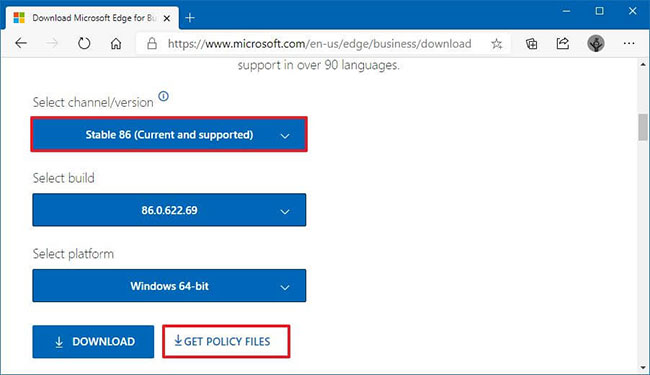
<p style="text-align: justify;">1. Mở Microsoft Edge cho trang web doanh nghiệp.</p>

<p style="text-align: justify;">2. Trong phần&nbsp;<strong>“Policy File”</strong>, hãy nhấp vào nút&nbsp;<strong>Download.</strong></p>

<p style="text-align: justify;">3. Chọn phiên bản Microsoft Edge. (Thông thường, bạn muốn sử dụng phiên bản ổn định mới nhất có sẵn).</p>

<p style="text-align: justify;">4. Chọn bản build (phiên bản mới nhất có sẵn).</p>

<p style="text-align: justify;">5. Chọn nền tảng. Ví dụ: Windows 64-bit.</p>

<p style="text-align: justify;">6. Nhấp vào tùy chọn&nbsp;<strong>Get policy files</strong>.</p>

<figure>
<div style="text-align: justify;"><img alt="Nhấp vào tùy chọn Get policy files" data-i="0" data-src="https://st.quantrimang.com/photos/image/2020/11/19/cai-dat-template-microsoft-edge-group-policy-1.jpg" data-was-processed="true" height="375" src="https://st.quantrimang.com/photos/image/2020/11/19/cai-dat-template-microsoft-edge-group-policy-1.jpg" width="650" /></div>

<figcaption>
<div style="text-align: justify;">Nhấp vào tùy chọn Get policy files</div>
</figcaption>
</figure>

<p style="text-align: justify;">7. Nhấp vào nút&nbsp;<strong>Accept &amp; download</strong>.</p>

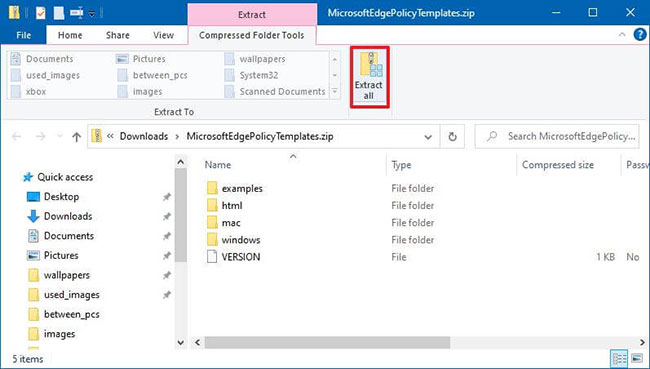
<p style="text-align: justify;">8. Nhấp đúp để mở file&nbsp;<strong>MicrosoftEdgePolicyTemplates.zip.</strong></p>

<p style="text-align: justify;">9. Nhấp vào nút&nbsp;<strong>Extract all</strong>&nbsp;từ tab&nbsp;<strong>“Compressed Folder Tools”.</strong></p>

<figure>
<div style="text-align: justify;"><img alt="Nhấp vào nút Extract all từ tab “Compressed Folder Tools”" data-i="1" data-src="https://st.quantrimang.com/photos/image/2020/11/19/cai-dat-template-microsoft-edge-group-policy-2.jpg" data-was-processed="true" height="369" src="https://st.quantrimang.com/photos/image/2020/11/19/cai-dat-template-microsoft-edge-group-policy-2.jpg" width="650" /></div>

<figcaption>
<div style="text-align: justify;">Nhấp vào nút Extract all từ tab “Compressed Folder Tools”</div>
</figcaption>
</figure>

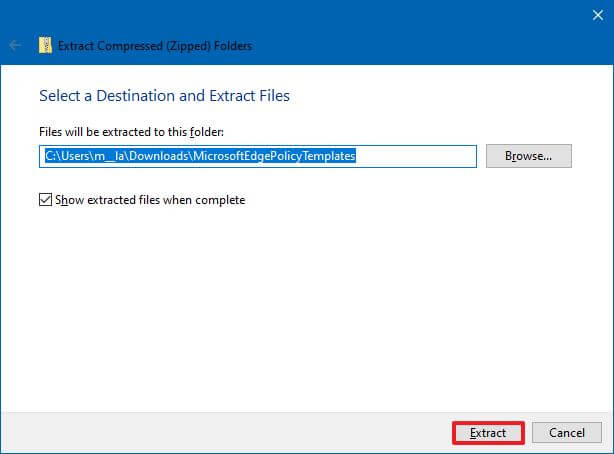
<p style="text-align: justify;">10. (Tùy chọn) Chọn vị trí để giải nén file..</p>

<p style="text-align: justify;">11. Chọn tùy chọn&nbsp;<strong>Show extracted files when complete</strong>.</p>

<p style="text-align: justify;">12. Nhấp vào nút&nbsp;<strong>Extract.</strong></p>

<figure>
<div style="text-align: justify;"><img alt="Nhấp vào nút Extract" data-i="2" data-src="https://st.quantrimang.com/photos/image/2020/11/19/cai-dat-template-microsoft-edge-group-policy-3.jpg" data-was-processed="true" height="454" src="https://st.quantrimang.com/photos/image/2020/11/19/cai-dat-template-microsoft-edge-group-policy-3.jpg" width="614" /></div>

<figcaption>
<div style="text-align: justify;">Nhấp vào nút Extract</div>
</figcaption>
</figure>

<p style="text-align: justify;">13. Duyệt qua đường dẫn sau bên trong thư mục&nbsp;<strong>“MicrosoftEdgePolicyTemplates”</strong>&nbsp;(đã giải nén):</p>

<pre id="pre0">
<code>windows\admx</code></pre>

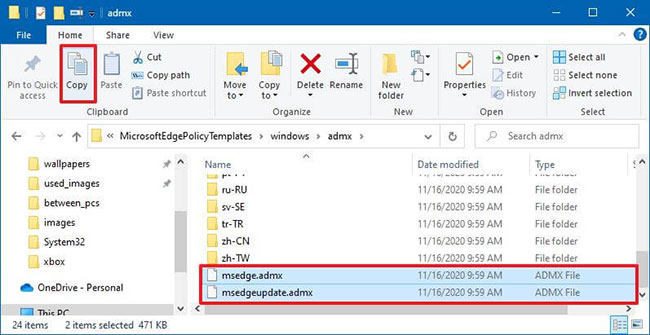
<p style="text-align: justify;">14. Chọn các file&nbsp;<strong>msedge.admx</strong>&nbsp;và&nbsp;<strong>msedgeupdate.admx</strong>, rồi nhấp vào tùy chọn&nbsp;<strong>Copy</strong>&nbsp;từ tab&nbsp;<strong>“Home”.</strong></p>

<figure>
<div style="text-align: justify;"><img alt="Chọn các file msedge.admx và msedgeupdate.admx" data-i="3" data-src="https://st.quantrimang.com/photos/image/2020/11/19/cai-dat-template-microsoft-edge-group-policy-4.jpg" data-was-processed="true" height="335" src="https://st.quantrimang.com/photos/image/2020/11/19/cai-dat-template-microsoft-edge-group-policy-4.jpg" width="650" /></div>

<figcaption>
<div style="text-align: justify;">Chọn các file msedge.admx và msedgeupdate.admx</div>
</figcaption>
</figure>

<p style="text-align: justify;"><strong>Mẹo nhanh</strong>: Bạn chỉ cần sao chép file&nbsp;<strong>“msedgeupdate.admx”</strong>, nếu muốn kiểm soát cài đặt cập nhật của Microsoft Edge.</p>

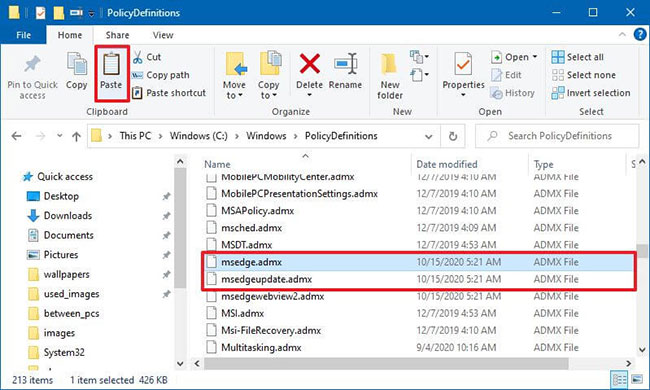
<p style="text-align: justify;">15. Duyệt đến đường dẫn sau:</p>

<pre id="pre1">
<code>C:\Windows\PolicyDefinitions</code></pre>

<p style="text-align: justify;">16. Nhấp vào nút&nbsp;<strong>Paste</strong>&nbsp;từ tab&nbsp;<strong>“Home”.</strong></p>

<figure>
<div style="text-align: justify;"><img alt="Nhấp vào nút Paste từ tab “Home”" data-i="4" data-src="https://st.quantrimang.com/photos/image/2020/11/19/cai-dat-template-microsoft-edge-group-policy-5.jpg" data-was-processed="true" height="390" src="https://st.quantrimang.com/photos/image/2020/11/19/cai-dat-template-microsoft-edge-group-policy-5.jpg" width="650" /></div>

<figcaption>
<div style="text-align: justify;">Nhấp vào nút Paste từ tab “Home”</div>
</figcaption>
</figure>

<p style="text-align: justify;">17. Trong thư mục&nbsp;<strong>“admx”</strong>, bên trong thư mục&nbsp;<strong>“MicrosoftEdgePolicyTemplates”</strong>, hãy mở thư mục ngôn ngữ đại diện cho ngôn ngữ của bạn. Ví dụ:&nbsp;<strong>en-US.</strong></p>

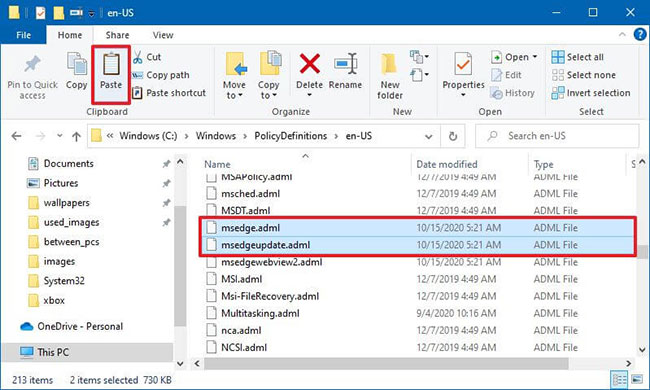
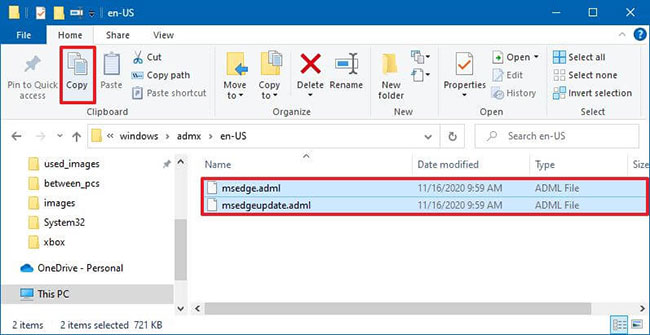
<p style="text-align: justify;">18. Chọn các file&nbsp;<strong>msedge.adml</strong>&nbsp;và&nbsp;<strong>msedgeupdate.adml</strong>, rồi nhấp vào tùy chọn&nbsp;<strong>Copy</strong>&nbsp;từ tab&nbsp;<strong>“Home”.</strong></p>

<figure>
<div style="text-align: justify;"><img alt="Chọn các file msedge.adml và msedgeupdate.adml" data-i="5" data-src="https://st.quantrimang.com/photos/image/2020/11/19/cai-dat-template-microsoft-edge-group-policy-6.jpg" data-was-processed="true" height="335" src="https://st.quantrimang.com/photos/image/2020/11/19/cai-dat-template-microsoft-edge-group-policy-6.jpg" width="650" /></div>

<figcaption>
<div style="text-align: justify;">Chọn các file msedge.adml và msedgeupdate.adml</div>
</figcaption>
</figure>

<p style="text-align: justify;"><strong>Mẹo nhanh</strong>: Bạn chỉ cần sao chép file&nbsp;<strong>“msedgeupdate.adml”</strong>&nbsp;nếu bạn cũng sao chép file ở bước số 12.</p>

<p style="text-align: justify;">19. Duyệt đến đường dẫn phù hợp với ngôn ngữ của bạn:</p>

<pre id="pre2">
<code>C:\Windows\PolicyDefinitions\en-US</code></pre>

<p style="text-align: justify;">Trong lệnh trên, hãy đảm bảo thay đổi&nbsp;<strong>en-US</strong>&nbsp;thành thư mục phù hợp với ngôn ngữ của bạn.</p>

<p style="text-align: justify;">20. Nhấp vào nút&nbsp;<strong>Paste</strong>&nbsp;từ tab&nbsp;<strong>“Home”.</strong></p>

<figure>
<div style="text-align: justify;"><img alt="Nhấp vào nút Paste" data-i="6" data-src="https://st.quantrimang.com/photos/image/2020/11/19/cai-dat-template-microsoft-edge-group-policy-7.jpg" data-was-processed="true" height="390" src="https://st.quantrimang.com/photos/image/2020/11/19/cai-dat-template-microsoft-edge-group-policy-7.jpg" width="650" /></div>

<figcaption>
<div style="text-align: justify;">Nhấp vào nút Paste</div>
</figcaption>
</figure>

<div style="text-align: justify;">&nbsp;</div>

<h2 style="text-align: justify;">Xem các policy kiểm soát Microsoft Edge</h2>

<p style="text-align: justify;">Sau khi bạn hoàn tất các bước, các policy mới để kiểm soát Microsoft Edge sẽ có sẵn trong Local Group Policy Editor bên trong đường dẫn&nbsp;<strong>Computer Configuration &gt; Administrative Templates and User Configuration &gt; Administrative Templates</strong>. Và bạn có thể quản lý nhiều khía cạnh của trình duyệt, bao gồm chế độ IE, khôi phục về phiên bản trước, quản lý cài đặt cập nhật và kiểm soát quyền truy cập vào rất nhiều tính năng.</p>

<p style="text-align: justify;">Thông thường, bạn sẽ thấy 3 phần khác nhau sau khi cài đặt template, bao gồm Microsoft Edge, Microsoft Edge – Default Settings và Microsoft Edge Update.</p>

<ul>
	<li style="text-align: justify;">Thư mục&nbsp;<strong>Microsoft Edge</strong>&nbsp;bao gồm các policy bắt buộc mà người dùng không thể sửa đổi.</li>
	<li style="text-align: justify;">Thư mục&nbsp;<strong>Microsoft Edge - Default Settings</strong>&nbsp;chứa các cài đặt được đề xuất mà bạn có thể đặt làm mặc định và người dùng có thể thay đổi thành cài đặt khác.</li>
	<li style="text-align: justify;">Thư mục&nbsp;<strong>Microsoft Edge Update</strong>&nbsp;có tất cả các cài đặt để quản lý những bản cập nhật cho trình duyệt, bao gồm cả khả năng tắt cập nhật hoàn toàn.</li>
</ul>

<p style="text-align: justify;">Sau khi thực hiện thay đổi policy, bạn có thể xác nhận bằng cách duyệt đến trang&nbsp;<strong>edge://policy</strong>&nbsp;để xem tất cả các policy đã được áp dụng cho trình duyệt.</p>

<p style="text-align: justify;">Hướng dẫn này tập trung vào Windows 10, nhưng bạn có thể tham khảo các bước này cho tất cả các phiên bản Windows được hỗ trợ. Ngoài ra, những hướng dẫn này nhằm mục đích thêm các template quản trị trên một máy tính riêng lẻ, nhưng nếu bạn đang sử dụng&nbsp;Active Directory&nbsp;và cần cấu hình một nhóm thiết bị, có lẽ việc thêm các template thông qua Active Directory là một cách tiếp cận hiệu quả hơn.</p>
		</div>
				<div id="author">
						<p>
				<strong>Nguồn tin:</strong>
				Quantrimang.com
			</p>
		</div>
	</div>
	<div id="footer" class="clearfix">
		<div id="url">
			<strong>URL của bản tin này: </strong><a href="https://www.nguoicodonvn2008.info/vi/news/savefile/kien-thuc-may-tinh/cach-cai-dat-template-microsoft-edge-group-policy-tren-windows-10-3103.html" title="Cách cài đặt template Microsoft Edge Group Policy trên Windows 10">https://www.nguoicodonvn2008.info/vi/news/savefile/kien-thuc-may-tinh/cach-cai-dat-template-microsoft-edge-group-policy-tren-windows-10-3103.html</a>

		</div>
		<div class="clear"></div>
		<div class="copyright">
			&copy; .&#x3A; Nguoicodonvn2008.info - Cõi lòng người cô đơn &#x3A;.
		</div>
		<div id="contact">
			<a href="mailto:admin@nguoicodonvn2008.info">admin@nguoicodonvn2008.info</a>
		</div>
	</div>
</div>
        <div id="timeoutsess" class="chromeframe">
            Bạn đã không sử dụng Site, <a onclick="timeoutsesscancel();" href="https://nguoicodonvn2008.info/#">Bấm vào đây để duy trì trạng thái đăng nhập</a>. Thời gian chờ: <span id="secField"> 60 </span> giây
        </div>
        <div id="openidResult" class="nv-alert" style="display:none"></div>
        <div id="openidBt" data-result="" data-redirect=""></div>
		</script>
		<div class="car-top">
  <span><img src="https://nguoicodonvn2008.info/themes/default/images/car.png" alt=""></span>
</div>
<div id="run_cronjobs" style="visibility:hidden;display:none;"><img alt="cron" src="/index.php?second=cronjobs&amp;p=f0Fyc0B7" width="1" height="1" /></div>
<script src="https://nguoicodonvn2008.info/assets/js/jquery/jquery.min.js"></script>
<script>var nv_base_siteurl="/",nv_lang_data="vi",nv_lang_interface="vi",nv_name_variable="nv",nv_fc_variable="op",nv_lang_variable="language",nv_module_name="news",nv_func_name="savefile",nv_is_user=0, nv_my_ofs=-4,nv_my_abbr="EDT",nv_cookie_prefix="nv4c_e856T",nv_check_pass_mstime=1738000,nv_area_admin=0,nv_safemode=0,theme_responsive=0,nv_recaptcha_ver=2,nv_recaptcha_sitekey="",nv_recaptcha_type="image",XSSsanitize=1;</script>
<script src="https://nguoicodonvn2008.info/assets/js/language/vi.js"></script>
<script src="https://nguoicodonvn2008.info/assets/js/DOMPurify/purify3.js"></script>
<script src="https://nguoicodonvn2008.info/assets/js/global.js"></script>
<script src="https://nguoicodonvn2008.info/assets/js/site.js"></script>
<script src="https://nguoicodonvn2008.info/themes/default/js/news.js"></script>
<script src="https://nguoicodonvn2008.info/themes/default/js/main.js"></script>
<script src="https://nguoicodonvn2008.info/themes/default/js/custom.js"></script>
<script type="application/ld+json">
        {
            "@context": "https://schema.org",
            "@type": "Organization",
            "url": "https://nguoicodonvn2008.info",
            "logo": "https://nguoicodonvn2008.info/uploads/angel.gif"
        }
        </script>
<script src="https://nguoicodonvn2008.info/themes/default/js/bootstrap.min.js"></script>
<script type="text/javascript">
var $scrolltop = $('.car-top');
$scrolltop.on('click', function () {
    $('html,body').animate({
        scrollTop: 0
    }, 800);
    $(this).addClass("car-run");
    setTimeout(function(){ $scrolltop.removeClass('car-run');}, 1000);
    return false;
});
$(window).on('scroll', function ()
{ 
    if($(window).scrollTop() >= 200)
    {
        $scrolltop.addClass("show");
        $scrolltop.addClass("car-down");
    }
    else
    {
       $scrolltop.removeClass("show");
       setTimeout(function(){ $scrolltop.removeClass('car-down');}, 300);
    }
});
</script>
</body>
</html>