<!DOCTYPE html>
    <html lang="vi" xmlns="http://www.w3.org/1999/xhtml" prefix="og: http://ogp.me/ns#">
    <head>
<title>Cách cài đặt Proxmox trên Intel NUC hoặc PC x86</title>
<meta name="description" content="Cách cài đặt Proxmox trên Intel NUC hoặc PC x86 - Savefile - Tin Tức -...">
<meta name="author" content=".: Nguoicodonvn2008.info - Cõi lòng người cô đơn :.">
<meta name="copyright" content=".: Nguoicodonvn2008.info - Cõi lòng người cô đơn :. [admin@nguoicodonvn2008.info]">
<meta name="robots" content="index, archive, follow, noodp">
<meta name="googlebot" content="index,archive,follow,noodp">
<meta name="msnbot" content="all,index,follow">
<meta name="generator" content="NukeViet v4.5">
<meta http-equiv="Content-Type" content="text/html; charset=utf-8">
<meta property="og:title" content="Cách cài đặt Proxmox trên Intel NUC hoặc PC x86">
<meta property="og:type" content="website">
<meta property="og:description" content="Savefile - Tin Tức - https&#x3A;&#x002F;&#x002F;www.nguoicodonvn2008.info&#x002F;vi&#x002F;news&#x002F;savefile&#x002F;kien-thuc-may-tinh&#x002F;cach-cai-dat-proxmox-tren-intel-nuc-hoac-pc-x86-7671.html">
<meta property="og:site_name" content=".&#x3A; Nguoicodonvn2008.info - Cõi lòng người cô đơn &#x3A;.">
<meta property="og:url" content="https://www.nguoicodonvn2008.info/vi/news/savefile/kien-thuc-may-tinh/cach-cai-dat-proxmox-tren-intel-nuc-hoac-pc-x86-7671.html">
<link rel="shortcut icon" href="https://nguoicodonvn2008.info/favicon.ico">
<link rel="canonical" href="https://www.nguoicodonvn2008.info/vi/news/savefile/kien-thuc-may-tinh/cach-cai-dat-proxmox-tren-intel-nuc-hoac-pc-x86-7671.html">
<link rel="alternate" href="https://nguoicodonvn2008.info/vi/news/rss/" title="Tin Tức" type="application/rss+xml">
<link rel="alternate" href="https://nguoicodonvn2008.info/vi/news/rss/karaoke-dual/" title="Tin Tức - Karaoke Dual" type="application/rss+xml">
<link rel="alternate" href="https://nguoicodonvn2008.info/vi/news/rss/nhac-tre/" title="Tin Tức - Nhạc trẻ" type="application/rss+xml">
<link rel="alternate" href="https://nguoicodonvn2008.info/vi/news/rss/tru-tinh/" title="Tin Tức - Trữ tình" type="application/rss+xml">
<link rel="alternate" href="https://nguoicodonvn2008.info/vi/news/rss/nuoc-ngoai/" title="Tin Tức - Nước ngoài" type="application/rss+xml">
<link rel="alternate" href="https://nguoicodonvn2008.info/vi/news/rss/remix/" title="Tin Tức - Remix" type="application/rss+xml">
<link rel="alternate" href="https://nguoicodonvn2008.info/vi/news/rss/tam-su-tinh-yeu/" title="Tin Tức - Tâm sự tình yêu" type="application/rss+xml">
<link rel="alternate" href="https://nguoicodonvn2008.info/vi/news/rss/tho-suu-tam/" title="Tin Tức - Thơ sưu tầm" type="application/rss+xml">
<link rel="alternate" href="https://nguoicodonvn2008.info/vi/news/rss/cuoc-song/" title="Tin Tức - Cuộc sống" type="application/rss+xml">
<link rel="alternate" href="https://nguoicodonvn2008.info/vi/news/rss/phan-mem/" title="Tin Tức - Phần mềm" type="application/rss+xml">
<link rel="alternate" href="https://nguoicodonvn2008.info/vi/news/rss/kien-thuc-may-tinh/" title="Tin Tức - Kiến thức máy tính" type="application/rss+xml">
<link rel="alternate" href="https://nguoicodonvn2008.info/vi/news/rss/hoc-tap/" title="Tin Tức - Học tập" type="application/rss+xml">
<link rel="alternate" href="https://nguoicodonvn2008.info/vi/news/rss/tai-lieu/" title="Tin Tức - Tài liệu" type="application/rss+xml">
<link rel="alternate" href="https://nguoicodonvn2008.info/vi/news/rss/de-thi/" title="Tin Tức - Đề thi" type="application/rss+xml">
<link rel="preload" as="style" href="https://nguoicodonvn2008.info/assets/css/font-awesome.min.css" type="text/css">
<link rel="preload" as="style" href="https://nguoicodonvn2008.info/themes/default/css/bootstrap.non-responsive.css" type="text/css">
<link rel="preload" as="style" href="https://nguoicodonvn2008.info/themes/default/css/style.css" type="text/css">
<link rel="preload" as="style" href="https://nguoicodonvn2008.info/themes/default/css/style.non-responsive.css" type="text/css">
<link rel="preload" as="style" href="https://nguoicodonvn2008.info/themes/default/css/news.css" type="text/css">
<link rel="preload" as="style" href="https://nguoicodonvn2008.info/themes/default/css/custom.css" type="text/css">
<link rel="preload" as="script" href="https://nguoicodonvn2008.info/assets/js/jquery/jquery.min.js" type="text/javascript">
<link rel="preload" as="script" href="https://nguoicodonvn2008.info/assets/js/language/vi.js" type="text/javascript">
<link rel="preload" as="script" href="https://nguoicodonvn2008.info/assets/js/DOMPurify/purify3.js" type="text/javascript">
<link rel="preload" as="script" href="https://nguoicodonvn2008.info/assets/js/global.js" type="text/javascript">
<link rel="preload" as="script" href="https://nguoicodonvn2008.info/assets/js/site.js" type="text/javascript">
<link rel="preload" as="script" href="https://nguoicodonvn2008.info/themes/default/js/news.js" type="text/javascript">
<link rel="preload" as="script" href="https://nguoicodonvn2008.info/themes/default/js/main.js" type="text/javascript">
<link rel="preload" as="script" href="https://nguoicodonvn2008.info/themes/default/js/custom.js" type="text/javascript">
<link rel="preload" as="script" href="https://nguoicodonvn2008.info/themes/default/js/bootstrap.min.js" type="text/javascript">
<link rel="stylesheet" href="https://nguoicodonvn2008.info/assets/css/font-awesome.min.css">
<link rel="stylesheet" href="https://nguoicodonvn2008.info/themes/default/css/bootstrap.non-responsive.css">
<link rel="stylesheet" href="https://nguoicodonvn2008.info/themes/default/css/style.css">
<link rel="stylesheet" href="https://nguoicodonvn2008.info/themes/default/css/style.non-responsive.css">
<link rel="StyleSheet" href="https://nguoicodonvn2008.info/themes/default/css/news.css">
<link rel="stylesheet" href="https://nguoicodonvn2008.info/themes/default/css/custom.css">
<style type="text/css">
	body{background: #fff;}
</style>
    </head>
    <body>
<div id="print">
	<div id="hd_print">
		<h2 class="pull-left">.&#x3A; Nguoicodonvn2008.info - Cõi lòng người cô đơn &#x3A;.</h2>
		<p class="pull-right"><a title=".&#x3A; Nguoicodonvn2008.info - Cõi lòng người cô đơn &#x3A;." href="https://nguoicodonvn2008.info/">https://nguoicodonvn2008.info</a></p>
	</div>
	<div class="clear"></div>
	<hr />
	<div id="content">
		<h1>Cách cài đặt Proxmox trên Intel NUC hoặc PC x86</h1>
		<ul class="list-inline">
			<li>Thứ hai - 23/10/2023 09:29</li>
			<li class="hidden-print txtrequired"><em class="fa fa-print">&nbsp;</em><a title="In ra" href="javascript:;" onclick="window.print()">In ra</a></li>
			<li class="hidden-print txtrequired"><em class="fa fa-power-off">&nbsp;</em><a title="Đóng cửa sổ này" href="javascript:;" onclick="window.close()">Đóng cửa sổ này</a></li>
		</ul>
		<div class="clear"></div>
		<div id="hometext">
		</div>
				<div class="imghome">
			<img alt="Cách cài đặt Proxmox trên Intel NUC hoặc PC x86" src="https://st.quantrimang.com/photos/image/2023/10/23/cai-proxmox-tren-pc-intel-nuc-hoac-x86-5.jpg" width="460" class="img-thumbnail" />
		</div>
		<div class="clear"></div>
		<div id="bodytext" class="clearfix">
			<p>Proxmox là một nền tảng quản lý máy chủ nguồn mở cho phép bạn triển khai, quản lý và giám sát các máy ảo. Với Proxmox, bạn có thể chạy nhiều hệ điều hành hoặc dịch vụ trên giao diện web bằng bất kỳ trình duyệt web nào.</p>

<p>Vì vậy, cho dù bạn là sinh viên, người đam mê công nghệ hay chủ doanh nghiệp, bạn đều có thể cài đặt Proxmox trên phần cứng Intel NUC hoặc PC mini dựa trên x86 để tạo phòng thí nghiệm tự làm tại nhà và quản lý các dịch vụ khác nhau, bao gồm phần mềm tự động hóa gia đình, media server, NAS lưu trữ, v.v... từ giao diện web Proxmox.</p>

<h2>Điều kiện tiên quyết để cài đặt Proxmox</h2>

<p>Để cài đặt và chạy Proxmox trên Intel NUC hoặc x86 thay thế cho PC mini Intel NUC, bạn sẽ cần Intel NUC đáp ứng các yêu cầu hệ thống sau:</p>

<ul>
	<li>Ít nhất 4 lõi CPU</li>
	<li>RAM tối thiểu 4GB (khuyến nghị 8GB trở lên)</li>
	<li>Dung lượng ổ đĩa trống 64GB trở lên, tốt nhất là&nbsp;<a data-type="internal" href="https://quantrimang.com/cong-nghe/o-ssd-la-gi-co-nhung-loai-ssd-nao-177746" title="Ổ SSD là gì? Có những loại SSD nào?">SSD</a></li>
</ul>

<p>Ví dụ đang sử dụng Intel NUC10I3FNHN. Đó là một chiếc PC mini đơn giản được trang bị bộ xử lý Intel i3 thế hệ thứ 10. Ngoài ra, ví dụ đã lắp đặt:</p>

<ul>
	<li>RAM DDR4 16GB (2 thanh 8GB)</li>
	<li>Ổ SSD M.2 PCIe4 1TB</li>
	<li>Ổ SSD SATA3 1TB</li>
</ul>

<p>Bạn cũng sẽ cần:</p>

<ul>
	<li>PC Windows, macOS hoặc Linux để tạo phương tiện cài đặt USB boot</li>
	<li>USB (8GB hoặc lớn hơn)</li>
</ul>

<p>Khi bạn có PC mini đáp ứng các yêu cầu phần cứng này và những thứ bắt buộc khác, hãy làm theo các bước dưới đây để cài đặt Proxmox.</p>

<h2>Cách cài đặt Proxmox trên Intel NUC hoặc PC x86</h2>

<h3>Bước 1: Tạo phương tiện cài đặt USB Proxmox</h3>

<p>Để tạo công cụ cài đặt USB Proxmox:</p>

<ol>
	<li>Truy cập phần Proxmox Downloads chính thức và chọn phiên bản Proxmox cho Intel NUC hoặc PC x86 của bạn.</li>
	<li>Nhấp vào nút&nbsp;<strong>Download.</strong>&nbsp;Điều này sẽ tải xuống image ISO trên hệ thống của bạn.</li>
	<li>Sau khi quá trình tải xuống hoàn tất, hãy khởi chạy&nbsp;<a data-type="internal" href="https://quantrimang.com/download/rufus-179712" title="Rufus">Rufus</a>&nbsp;và chọn phương tiện USB được kết nối. Duyệt và chọn file&nbsp;<strong>Proxmox ISO</strong>&nbsp;rồi nhấp vào&nbsp;<strong>Start.</strong></li>
	<li>Đảm bảo không có dữ liệu quan trọng trong phương tiện USB, sau đó nhấp vào&nbsp;<strong>Yes</strong>&nbsp;để xác nhận.</li>
</ol>

<p><a href="https://quantrimang.com/url?q=aHR0cHM6Ly93d3cucHJveG1veC5jb20vZW4vZG93bmxvYWRzL3Byb3htb3gtdmlydHVhbC1lbnZpcm9ubWVudC9pc28%3D" rel="nofollow noopener" target="_blank" title="Tải Proxmox">Tải Proxmox</a></p>

<p>Thao tác này sẽ tạo công cụ cài đặt USB Proxmox mà bạn có thể sử dụng để cài đặt Proxmox trên Intel NUC hoặc bất kỳ PC x86 nào. Bạn cũng có thể sử dụng balenaEtcher để ghi file image ISO Proxmox vào USB.</p>

<h3>Bước 2: Chuẩn bị Intel NUC hoặc PC mini x86 để cài đặt Proxmox</h3>

<p>Để chuẩn bị Intel NUC hoặc PC x86 để cài đặt Proxmox, bạn cần bật nguồn Intel NUC và mở BIOS. Thông thường, bạn cần nhấn liên tục phím&nbsp;<strong>Del</strong>&nbsp;hoặc&nbsp;<strong>F10</strong>&nbsp;để vào&nbsp;<a data-type="internal" href="https://quantrimang.com/cong-nghe/bios-thong-tin-co-ban-cho-nguoi-moi-bat-dau-11430" title="BIOS - Thông tin cơ bản cho người mới bắt đầu">BIOS</a>.</p>

<p>Khi bạn đã vào BIOS, hãy thực hiện các thay đổi sau:</p>

<ol>
	<li>Đảm bảo BIOS được cập nhật.</li>
	<li>Tắt&nbsp;<strong>Secure Boot</strong>&nbsp;và bật&nbsp;<strong>Legacy Boot</strong>.</li>
	<li>Kích hoạt&nbsp;<strong>Virtualization Technology</strong>, chẳng hạn như<strong>&nbsp;Intel VT-x</strong>&nbsp;hoặc&nbsp;<strong>AMD-V</strong>&nbsp;(trong PC mini x86 khác).</li>
	<li>Lưu những thay đổi này và sau đó tắt/tắt nguồn.</li>
</ol>

<p>Sau khi cập nhật BIOS và kích hoạt công nghệ ảo hóa, bạn có thể tiến hành cài đặt Proxmox trên Intel NUC hoặc PC x86 của mình.</p>

<h3>Bước 3: Cài đặt Proxmox trên Intel NUC hoặc PC mini x86</h3>

<p>Sau khi tạo USB boot, hãy cắm nó vào Intel NUC hoặc PC x86 của bạn và khởi động lại hệ thống.</p>

<p>1. Ngay lập tức bắt đầu nhấn phím menu tùy chọn/thứ tự boot (thường là&nbsp;<strong>F8</strong>) để xem ổ USB.</p>

<p>2. Sử dụng các phím mũi tên để chọn USB và nhấn&nbsp;<strong>Enter.</strong></p>

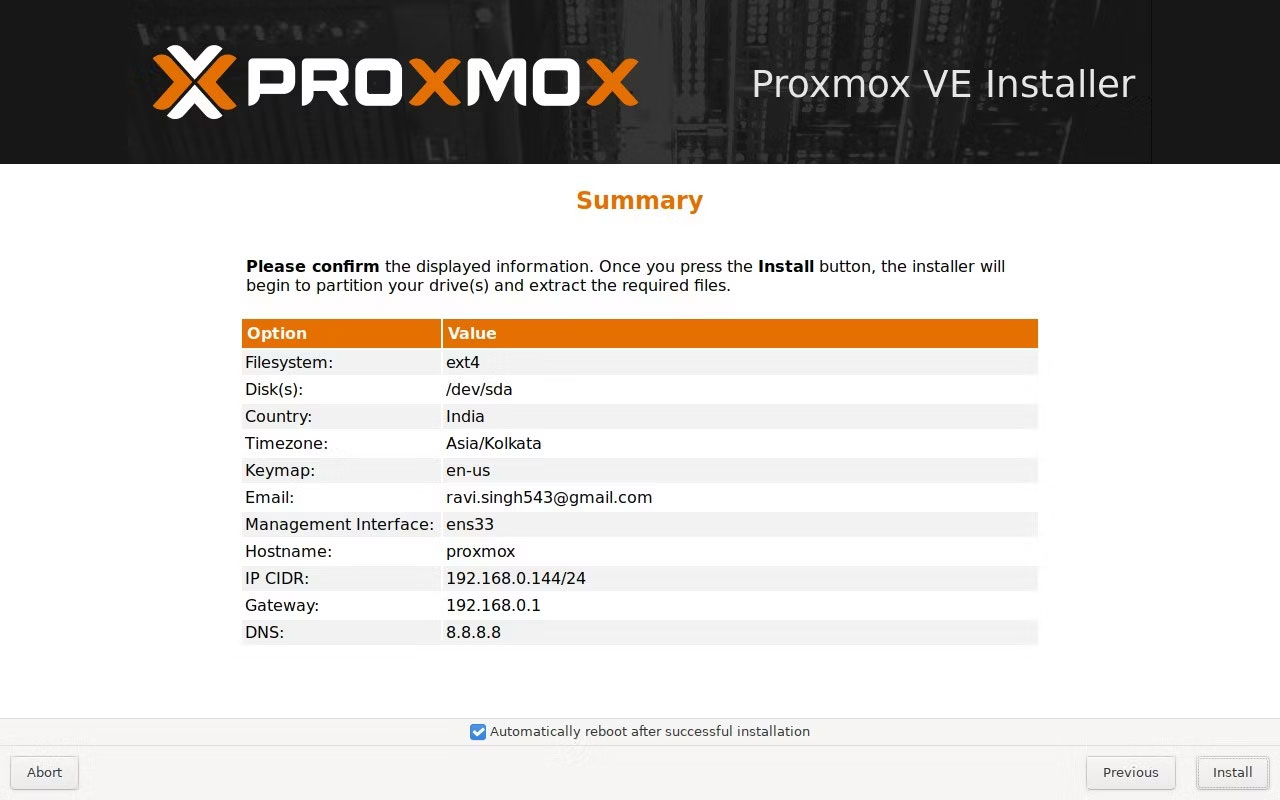
<p>3. Bạn sẽ thấy màn hình chào mừng Proxmox. Ở đây chọn&nbsp;<strong>Install Proxmox VE (Graphical)&nbsp;</strong>rồi nhấn&nbsp;<strong>Enter.</strong></p>

<figure><img alt="Chọn Install Proxmox VE (Graphical)" data-i="0" data-src="https://st.quantrimang.com/photos/image/2023/10/23/cai-proxmox-tren-pc-intel-nuc-hoac-x86-1.jpg" data-was-processed="true" height="768" src="https://st.quantrimang.com/photos/image/2023/10/23/cai-proxmox-tren-pc-intel-nuc-hoac-x86-1.jpg" width="1024" />
<figcaption>Chọn Install Proxmox VE (Graphical)</figcaption>
</figure>

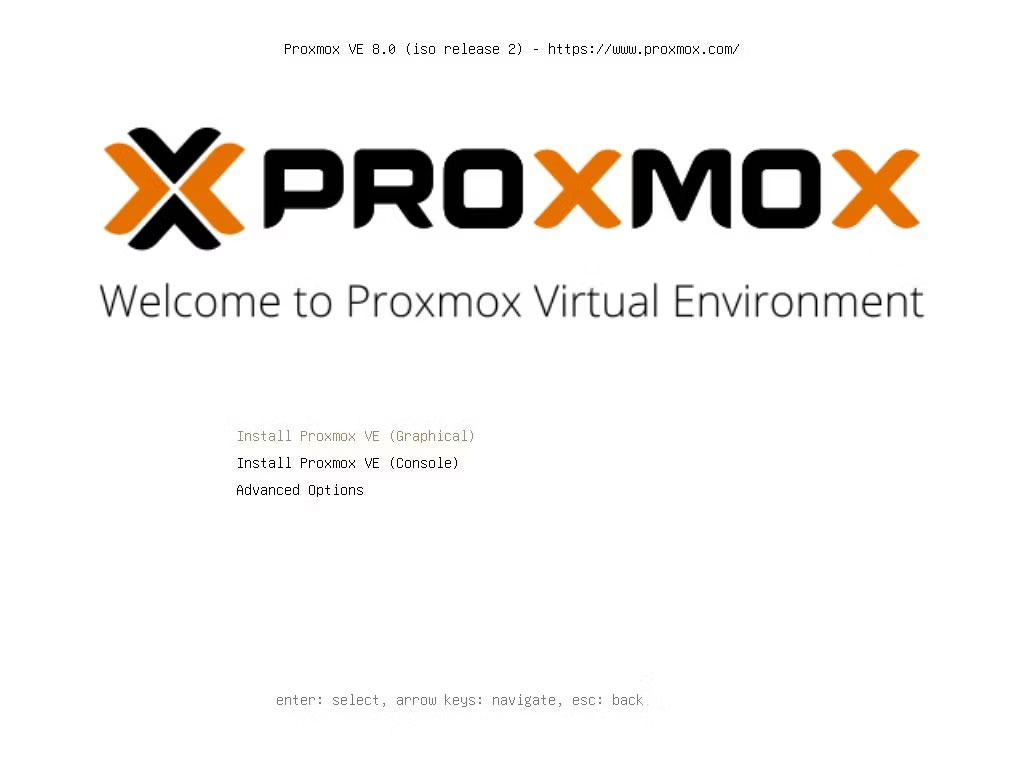
<p>4. Nhấp vào&nbsp;<strong>I agree</strong>&nbsp;và chọn ổ đĩa đích. Sau đó nhấp vào&nbsp;<strong>Next</strong>.</p>

<figure><img alt="Chọn ổ lưu trữ nơi cài đặt Proxmox" data-i="1" data-src="https://st.quantrimang.com/photos/image/2023/10/23/cai-proxmox-tren-pc-intel-nuc-hoac-x86-2.jpg" data-was-processed="true" height="800" src="https://st.quantrimang.com/photos/image/2023/10/23/cai-proxmox-tren-pc-intel-nuc-hoac-x86-2.jpg" width="1280" />
<figcaption>Chọn ổ lưu trữ nơi cài đặt Proxmox</figcaption>
</figure>

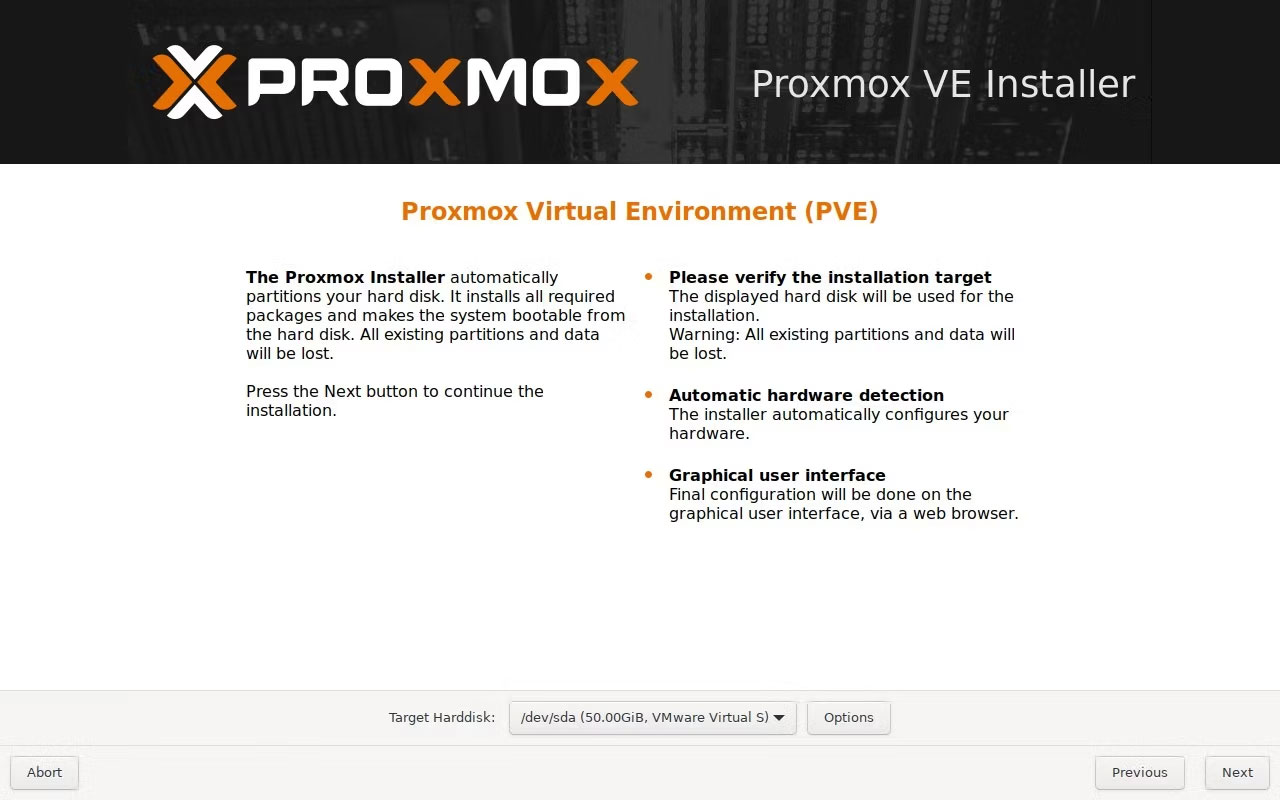
<p>5. Chọn vị trí, múi giờ và bố trí bàn phím. Sau đó bấm vào&nbsp;<strong>Next</strong>.</p>

<figure><img alt="Chọn múi giờ, vị trí địa lý và bố trí bàn phím" data-i="2" data-src="https://st.quantrimang.com/photos/image/2023/10/23/cai-proxmox-tren-pc-intel-nuc-hoac-x86-3.jpg" data-was-processed="true" height="800" src="https://st.quantrimang.com/photos/image/2023/10/23/cai-proxmox-tren-pc-intel-nuc-hoac-x86-3.jpg" width="1280" />
<figcaption>Chọn múi giờ, vị trí địa lý và bố trí bàn phím</figcaption>
</figure>

<p>6. Thiết lập mật khẩu (ghi lại hoặc ghi nhớ) rồi nhập ID email của bạn. Tiếp tục bằng cách nhấp vào&nbsp;<strong>Next</strong>.</p>

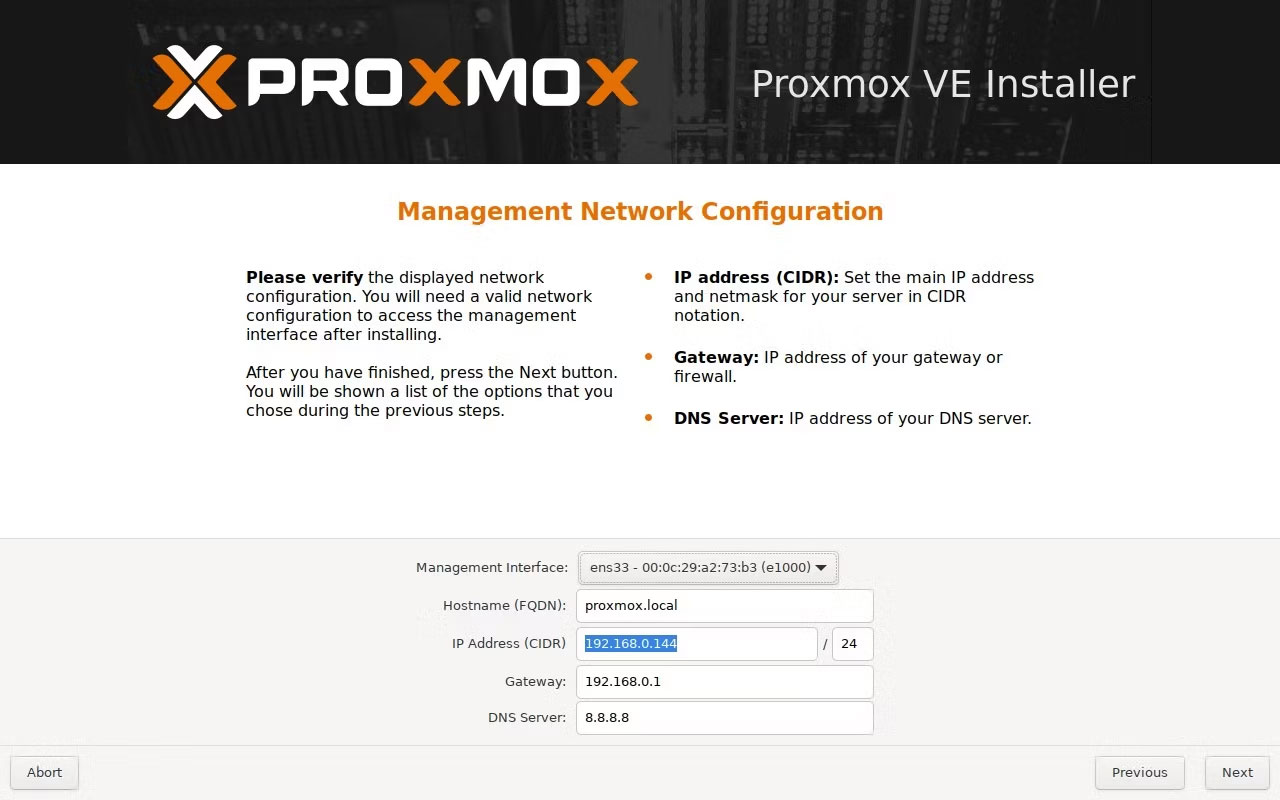
<p>7. Sau đó thiết lập tên FQDN và để mọi thứ khác mặc định. Nhấn&nbsp;<strong>Next</strong>.</p>

<figure><img alt="Thiết lập cổng địa chỉ IP FQDN cục bộ và máy chủ DNS" data-i="3" data-src="https://st.quantrimang.com/photos/image/2023/10/23/cai-proxmox-tren-pc-intel-nuc-hoac-x86-4.jpg" data-was-processed="true" height="800" src="https://st.quantrimang.com/photos/image/2023/10/23/cai-proxmox-tren-pc-intel-nuc-hoac-x86-4.jpg" width="1280" />
<figcaption>Thiết lập cổng địa chỉ IP FQDN cục bộ và máy chủ DNS</figcaption>
</figure>

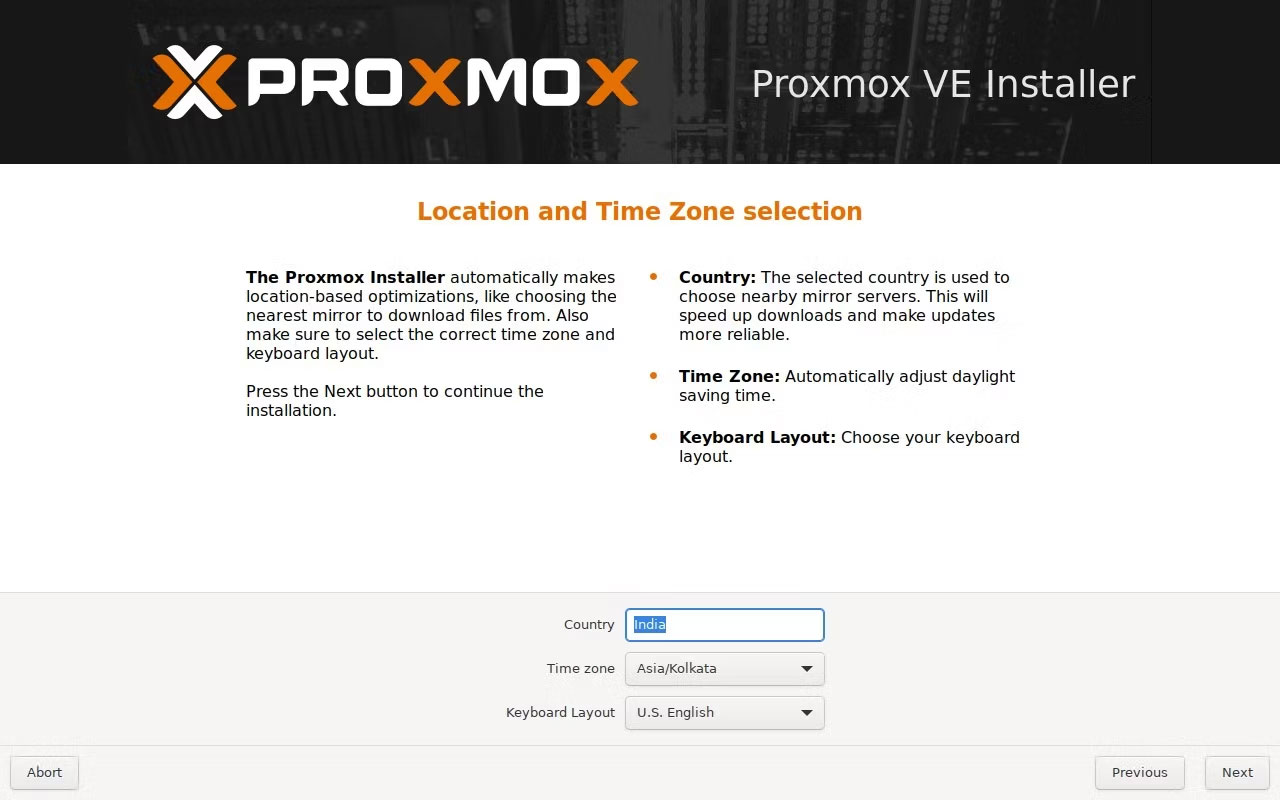
<p>8. Cuối cùng, nhấp vào&nbsp;<strong>Install</strong>.</p>

<figure><img alt="Xác nhận tất cả các cài đặt và nhấp vào Install để cài đặt Proxmox trên Intel NUC" data-i="4" data-src="https://st.quantrimang.com/photos/image/2023/10/23/cai-proxmox-tren-pc-intel-nuc-hoac-x86-5.jpg" data-was-processed="true" height="800" src="https://st.quantrimang.com/photos/image/2023/10/23/cai-proxmox-tren-pc-intel-nuc-hoac-x86-5.jpg" width="1280" />
<figcaption>Xác nhận tất cả các cài đặt và nhấp vào Install để cài đặt Proxmox trên Intel NUC</figcaption>
</figure>

<h3>Bước 4: Các bước cấu hình sau cài đặt Proxmox</h3>

<p>Sau khi cài đặt thành công Proxmox trên Intel NUC hoặc PC x86, bạn có thể truy cập giao diện web Proxmox bằng trình duyệt web ưa thích của mình bằng cách nhập địa chỉ IP của máy chủ Proxmox tại cổng 8006. Ví dụ:&nbsp;<strong>https://192.168.0.144:8006.</strong></p>

<p>1. Bạn sẽ thấy cảnh báo SSL. Nhấp vào&nbsp;<strong>Advanced &gt; Proceed</strong>.</p>

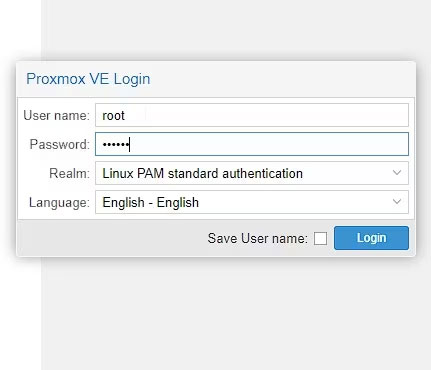
<p>2. Nhập&nbsp;<strong>root</strong>&nbsp;làm tên người dùng và mật khẩu mà bạn đã đặt trong quá trình cài đặt. Nhấp vào&nbsp;<strong>Login</strong>.</p>

<figure><img alt="Đăng nhập vào giao diện web Proxmox bằng mật khẩu bạn đã thiết lập" data-i="5" data-src="https://st.quantrimang.com/photos/image/2023/10/23/cai-proxmox-tren-pc-intel-nuc-hoac-x86-6.jpg" data-was-processed="true" height="370" src="https://st.quantrimang.com/photos/image/2023/10/23/cai-proxmox-tren-pc-intel-nuc-hoac-x86-6.jpg" width="431" />
<figcaption>Đăng nhập vào giao diện web Proxmox bằng mật khẩu bạn đã thiết lập</figcaption>
</figure>

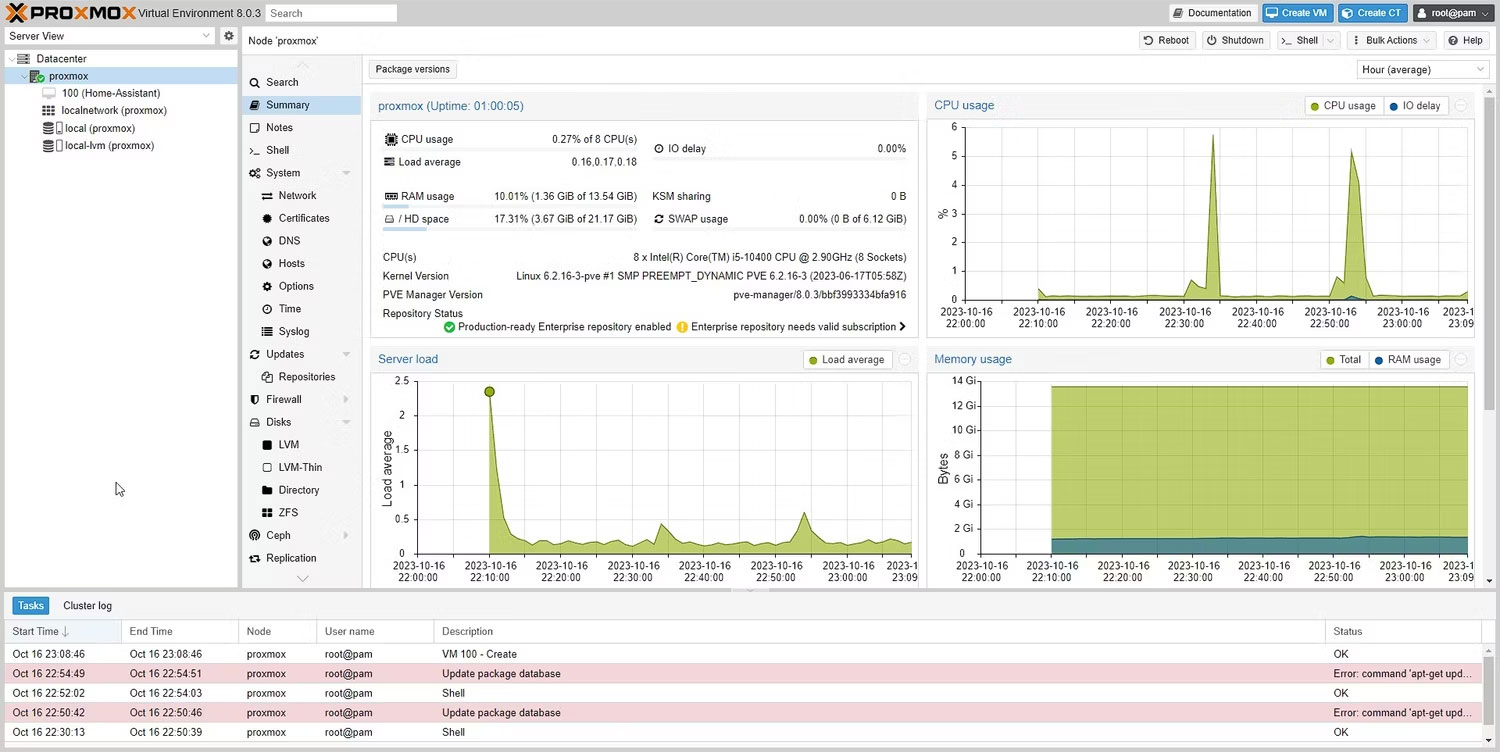
<p>3. Sau khi đăng nhập, bạn sẽ nhận được một thông báo cảnh báo. Nhấp vào&nbsp;<strong>OK</strong>&nbsp;và bỏ qua nó vì bạn không có giấy phép doanh nghiệp.</p>

<figure><img alt="Bảng điều khiển Proxmox hiển thị trạng thái hệ thống trên Intel NUC" data-i="6" data-src="https://st.quantrimang.com/photos/image/2023/10/23/cai-proxmox-tren-pc-intel-nuc-hoac-x86-7.jpg" data-was-processed="true" height="752" src="https://st.quantrimang.com/photos/image/2023/10/23/cai-proxmox-tren-pc-intel-nuc-hoac-x86-7.jpg" width="1500" />
<figcaption>Bảng điều khiển Proxmox hiển thị trạng thái hệ thống trên Intel NUC</figcaption>
</figure>

<p>4. Nhấp vào node mặc định Proxmox. Trong trường hợp ví dụ, nó được đặt tên là&nbsp;<strong>Proxmox</strong>&nbsp;trong quá trình cài đặt.</p>

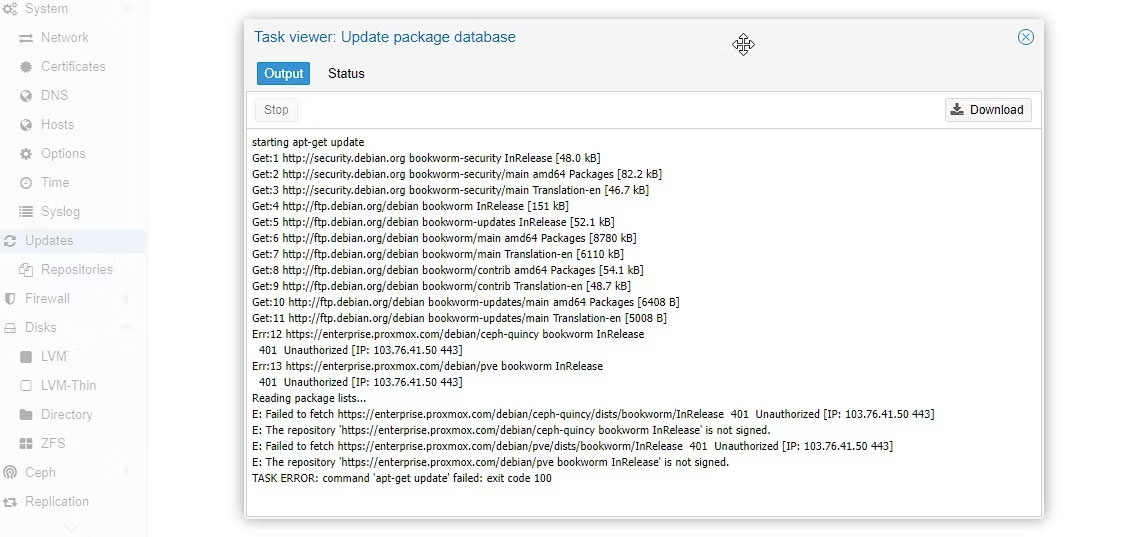
<p>5. Nhấp vào nút&nbsp;<strong>Updates</strong>&nbsp;ở khung bên trái rồi nhấp vào&nbsp;<strong>Refresh</strong>.</p>

<p>6. Tiếp theo nhấn vào biểu tượng chữ thập để đóng cửa sổ.</p>

<figure><img alt="Nâng cấp các gói trên Proxmox" data-i="7" data-src="https://st.quantrimang.com/photos/image/2023/10/23/cai-proxmox-tren-pc-intel-nuc-hoac-x86-8.jpg" data-was-processed="true" height="537" src="https://st.quantrimang.com/photos/image/2023/10/23/cai-proxmox-tren-pc-intel-nuc-hoac-x86-8.jpg" width="1144" />
<figcaption>Nâng cấp các gói trên Proxmox</figcaption>
</figure>

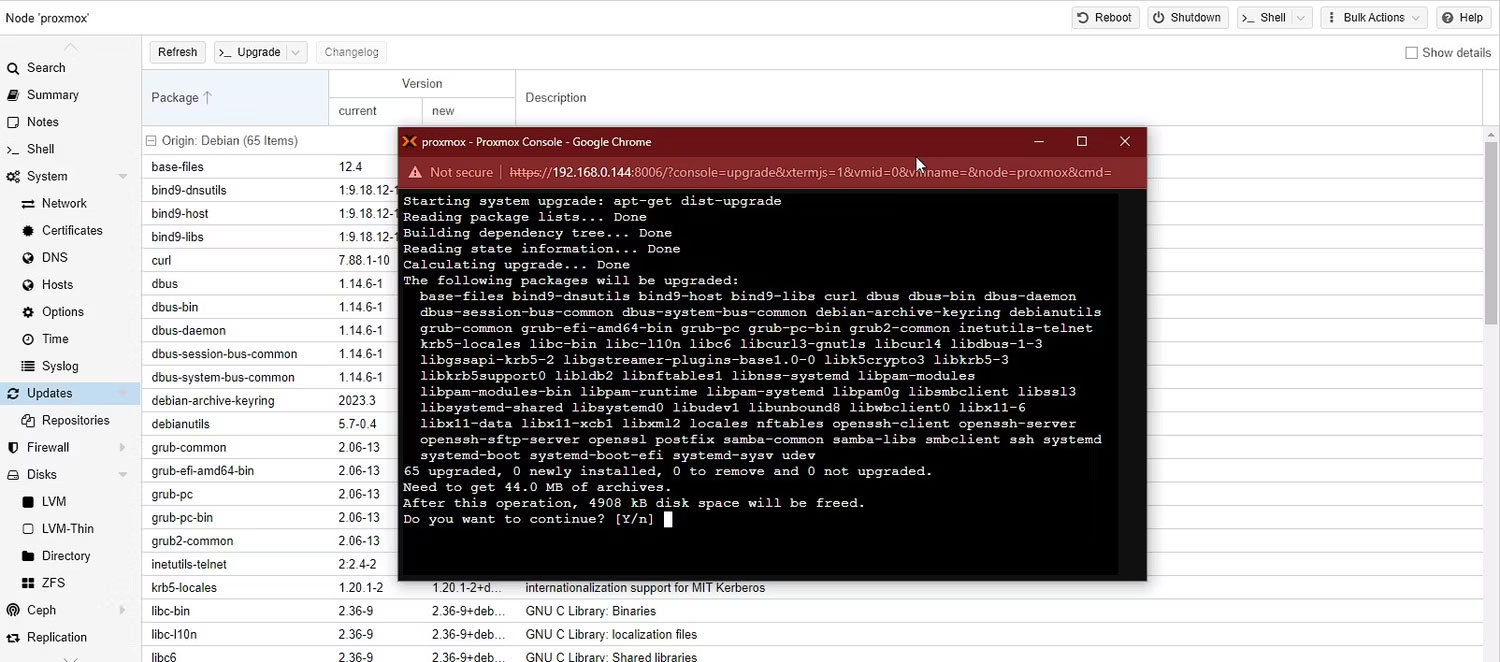
<p>7. Nhấp vào nút&nbsp;<strong>Upgrade</strong>&nbsp;ở trên cùng (bên cạnh nút&nbsp;<strong>Refresh</strong>). Điều này sẽ mở ra một cửa sổ terminal mới.</p>

<figure><img alt="Xác nhận bằng phím y để nâng cấp Proxmox" data-i="8" data-src="https://st.quantrimang.com/photos/image/2023/10/23/cai-proxmox-tren-pc-intel-nuc-hoac-x86-9.jpg" data-was-processed="true" height="662" src="https://st.quantrimang.com/photos/image/2023/10/23/cai-proxmox-tren-pc-intel-nuc-hoac-x86-9.jpg" width="1500" />
<figcaption>Xác nhận bằng phím y để nâng cấp Proxmox</figcaption>
</figure>

<p>8. Khi được nhắc, hãy nhập&nbsp;<strong>Y&nbsp;</strong>và nhấn phím&nbsp;<strong>Enter</strong>&nbsp;để xác nhận và tiếp tục nâng cấp. Việc này có thể mất một lúc để hoàn thành, vì vậy hãy kiên nhẫn.</p>

<h3>Bước 5: Tạo VM và cài đặt hệ điều hành trong Proxmox</h3>

<p>Với Proxmox, bạn có thể tạo và quản lý máy ảo từ trình duyệt web bằng giao diện web Proxmox. Bạn có thể cài đặt và quản lý nhiều loại hệ điều hành trên các máy ảo này, bao gồm Linux, Windows và FreeBSD.</p>

<p>Để tạo VM và cài đặt hệ điều hành bằng giao diện web Proxmox, hãy làm theo các bước sau:</p>

<p>1. Sau khi nâng cấp xong, hãy đóng cửa sổ terminal. Sau đó, nhấp vào&nbsp;<strong>Shell.</strong></p>

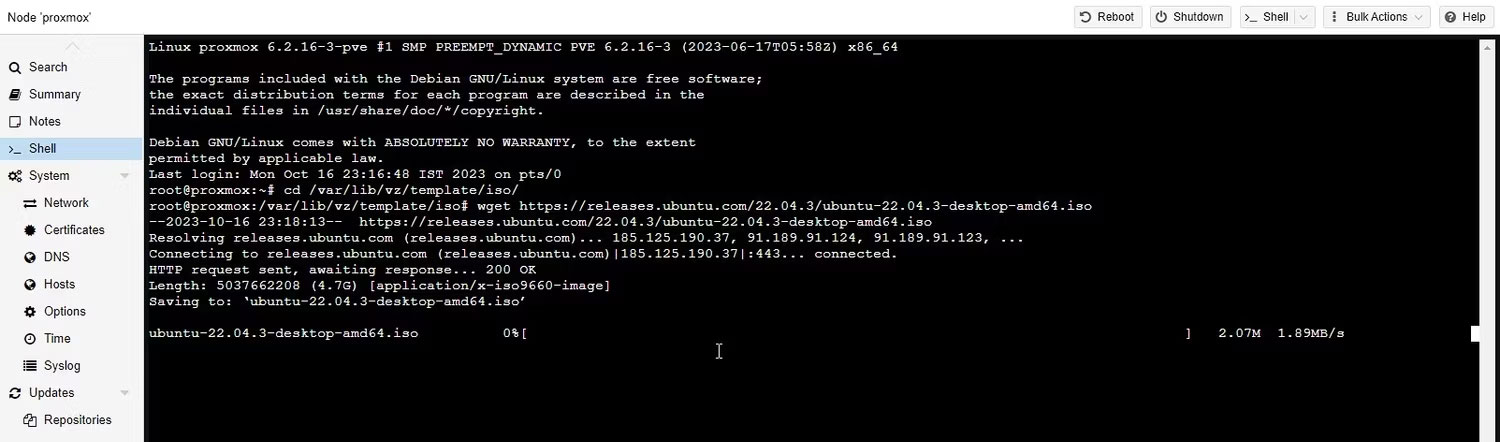
<p>2. Điều hướng đến vị trí sau. Bạn có thể tải xuống và lưu trữ các file ISO/IMG của hệ điều hành tại vị trí này để thiết lập và cài đặt VM trong Proxmox. Đối với hướng dẫn này, hãy cài đặt&nbsp;<strong>Home Assistant</strong>&nbsp;trên&nbsp;<strong>Intel NUC Proxmox Server</strong>.</p>

<pre id="pre0">
<code>cd /var/lib/vz/template/iso/
wget https://releases.ubuntu.com/22.04.3/ubuntu-22.04.3-desktop-amd64.iso</code></pre>

<figure><img alt="Tải xuống hệ điều hành mong muốn bằng Shell trong Proxmox" data-i="9" data-src="https://st.quantrimang.com/photos/image/2023/10/23/cai-proxmox-tren-pc-intel-nuc-hoac-x86-10.jpg" data-was-processed="true" height="442" src="https://st.quantrimang.com/photos/image/2023/10/23/cai-proxmox-tren-pc-intel-nuc-hoac-x86-10.jpg" width="1500" />
<figcaption>Tải xuống hệ điều hành mong muốn bằng Shell trong Proxmox</figcaption>
</figure>

<p>3. Nhấp vào nút&nbsp;<strong>Create VM</strong>&nbsp;ở góc trên bên phải.</p>

<p>4. Trong phần&nbsp;<strong>General</strong>, nhập tên cho máy ảo của bạn.</p>

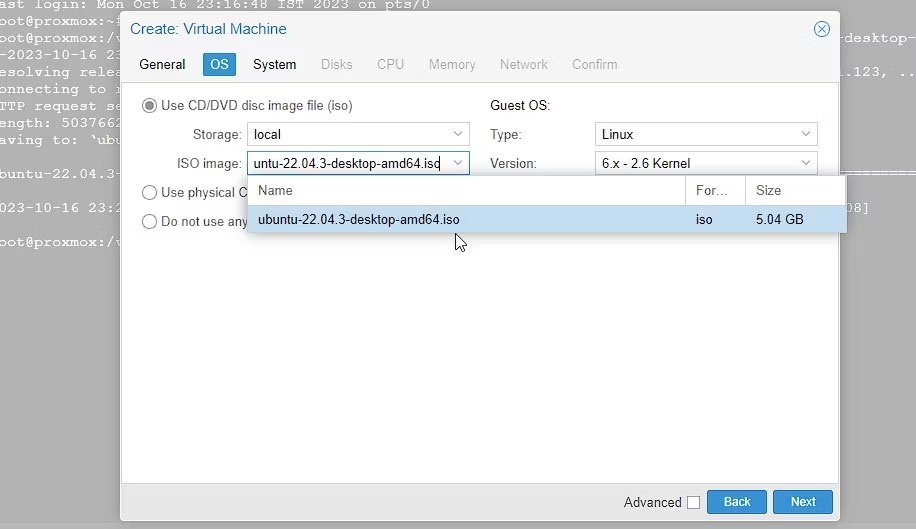
<p>5. Sau đó nhấp vào&nbsp;<strong>Next</strong>, chọn file ISO Ubuntu trong tùy chọn&nbsp;<strong>ISO image</strong>&nbsp;và nhấp vào&nbsp;<strong>Next</strong>&nbsp;lần nữa.</p>

<figure><img alt="Chọn image ISO của hệ điều hành để thiết lập VM trong Proxmox trên Intel NUC" data-i="10" data-src="https://st.quantrimang.com/photos/image/2023/10/23/cai-proxmox-tren-pc-intel-nuc-hoac-x86-11.jpg" data-was-processed="true" height="529" src="https://st.quantrimang.com/photos/image/2023/10/23/cai-proxmox-tren-pc-intel-nuc-hoac-x86-11.jpg" width="916" />
<figcaption>Chọn image ISO của hệ điều hành để thiết lập VM trong Proxmox trên Intel NUC</figcaption>
</figure>

<p>6. Để mọi thứ mặc định trong phần&nbsp;<strong>System</strong>. Trong&nbsp;<strong>Disks</strong>, điều chỉnh kích thước ổ đĩa (nếu cần) và nhấp vào&nbsp;<strong>Next</strong>.</p>

<p>7. Trong phần&nbsp;<strong>CPU</strong>, chọn lõi xử lý để gán rồi nhấn&nbsp;<strong>Next.</strong>&nbsp;Tăng bộ nhớ lên kích thước mong muốn hoặc được yêu cầu và nhấn&nbsp;<strong>Next</strong>.</p>

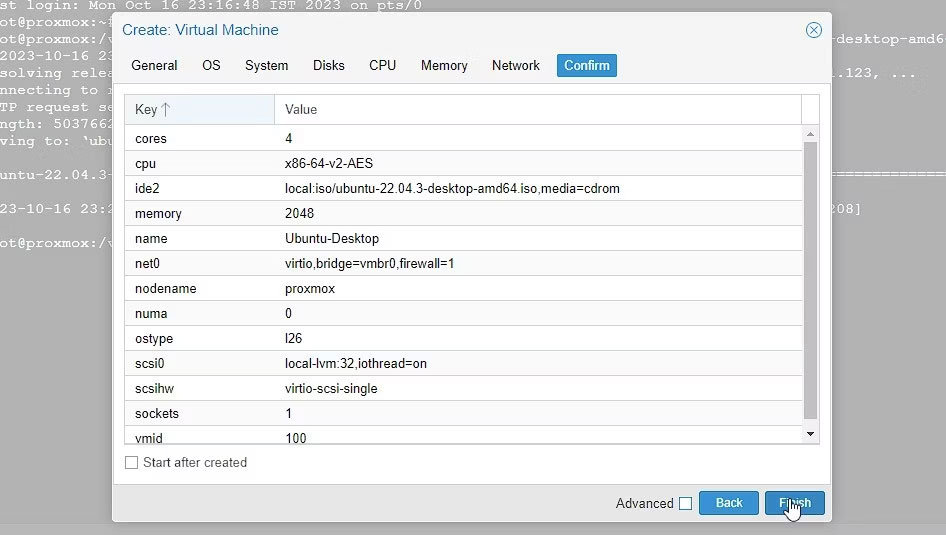
<p>8. Chọn network adapter. Bạn cũng có thể giữ cài đặt mặc định bằng cách nhấp vào&nbsp;<strong>Next &gt; Finish</strong>.</p>

<figure><img alt="Xác nhận cài đặt Proxmox VM trên Intel NUC" data-i="11" data-src="https://st.quantrimang.com/photos/image/2023/10/23/cai-proxmox-tren-pc-intel-nuc-hoac-x86-12.jpg" data-was-processed="true" height="535" src="https://st.quantrimang.com/photos/image/2023/10/23/cai-proxmox-tren-pc-intel-nuc-hoac-x86-12.jpg" width="946" />
<figcaption>Xác nhận cài đặt Proxmox VM trên Intel NUC</figcaption>
</figure>

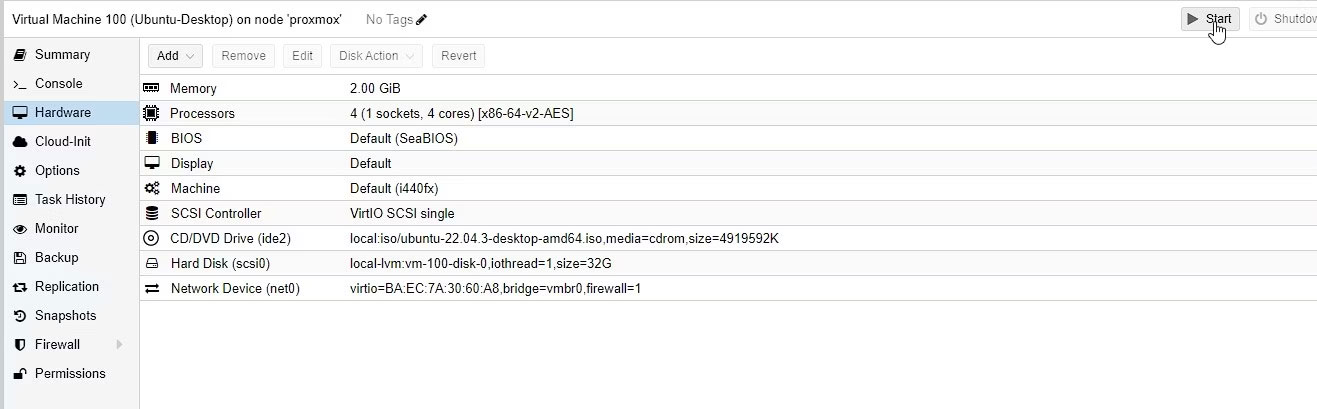
<p>9. Sau khi cấu hình, chọn VM mới và nhấp vào&nbsp;<strong>Start</strong>.</p>

<figure><img alt="Bắt đầu thiết lập VM mới trong Proxmox chạy trên Intel NUC" data-i="12" data-src="https://st.quantrimang.com/photos/image/2023/10/23/cai-proxmox-tren-pc-intel-nuc-hoac-x86-13.jpg" data-was-processed="true" height="409" src="https://st.quantrimang.com/photos/image/2023/10/23/cai-proxmox-tren-pc-intel-nuc-hoac-x86-13.jpg" width="1317" />
<figcaption>Bắt đầu thiết lập VM mới trong Proxmox chạy trên Intel NUC</figcaption>
</figure>

<p>10. Nhấp vào&nbsp;<strong>Console</strong>&nbsp;để xem, cài đặt và quản lý cài đặt hệ điều hành. Sau khi cài đặt, bạn có thể khởi động Ubuntu VM và sử dụng hệ điều hành trên trình duyệt web từ bất kỳ thiết bị nào trên mạng.</p>

<p>Khi bạn đã tạo một máy ảo, bạn có thể khởi động, dừng hoặc di chuyển nó sang máy chủ Proxmox khác.</p>

<p>Proxmox cung cấp khả năng di chuyển trực tiếp cho phép bạn di chuyển các máy ảo giữa những máy chủ mà không có thời gian ngừng hoạt động. Tính năng này rất hữu ích cho mục đích cân bằng tải hoặc bảo trì phần cứng.</p>
		</div>
				<div id="author">
						<p>
				<strong>Nguồn tin:</strong>
				Quantrimang.com
			</p>
		</div>
	</div>
	<div id="footer" class="clearfix">
		<div id="url">
			<strong>URL của bản tin này: </strong><a href="https://www.nguoicodonvn2008.info/vi/news/savefile/kien-thuc-may-tinh/cach-cai-dat-proxmox-tren-intel-nuc-hoac-pc-x86-7671.html" title="Cách cài đặt Proxmox trên Intel NUC hoặc PC x86">https://www.nguoicodonvn2008.info/vi/news/savefile/kien-thuc-may-tinh/cach-cai-dat-proxmox-tren-intel-nuc-hoac-pc-x86-7671.html</a>

		</div>
		<div class="clear"></div>
		<div class="copyright">
			&copy; .&#x3A; Nguoicodonvn2008.info - Cõi lòng người cô đơn &#x3A;.
		</div>
		<div id="contact">
			<a href="mailto:admin@nguoicodonvn2008.info">admin@nguoicodonvn2008.info</a>
		</div>
	</div>
</div>
        <div id="timeoutsess" class="chromeframe">
            Bạn đã không sử dụng Site, <a onclick="timeoutsesscancel();" href="https://nguoicodonvn2008.info/#">Bấm vào đây để duy trì trạng thái đăng nhập</a>. Thời gian chờ: <span id="secField"> 60 </span> giây
        </div>
        <div id="openidResult" class="nv-alert" style="display:none"></div>
        <div id="openidBt" data-result="" data-redirect=""></div>
		</script>
		<div class="car-top">
  <span><img src="https://nguoicodonvn2008.info/themes/default/images/car.png" alt=""></span>
</div>
<script src="https://nguoicodonvn2008.info/assets/js/jquery/jquery.min.js"></script>
<script>var nv_base_siteurl="/",nv_lang_data="vi",nv_lang_interface="vi",nv_name_variable="nv",nv_fc_variable="op",nv_lang_variable="language",nv_module_name="news",nv_func_name="savefile",nv_is_user=0, nv_my_ofs=-4,nv_my_abbr="EDT",nv_cookie_prefix="nv4c_e856T",nv_check_pass_mstime=1738000,nv_area_admin=0,nv_safemode=0,theme_responsive=0,nv_recaptcha_ver=2,nv_recaptcha_sitekey="",nv_recaptcha_type="image",XSSsanitize=1;</script>
<script src="https://nguoicodonvn2008.info/assets/js/language/vi.js"></script>
<script src="https://nguoicodonvn2008.info/assets/js/DOMPurify/purify3.js"></script>
<script src="https://nguoicodonvn2008.info/assets/js/global.js"></script>
<script src="https://nguoicodonvn2008.info/assets/js/site.js"></script>
<script src="https://nguoicodonvn2008.info/themes/default/js/news.js"></script>
<script src="https://nguoicodonvn2008.info/themes/default/js/main.js"></script>
<script src="https://nguoicodonvn2008.info/themes/default/js/custom.js"></script>
<script type="application/ld+json">
        {
            "@context": "https://schema.org",
            "@type": "Organization",
            "url": "https://nguoicodonvn2008.info",
            "logo": "https://nguoicodonvn2008.info/uploads/angel.gif"
        }
        </script>
<script src="https://nguoicodonvn2008.info/themes/default/js/bootstrap.min.js"></script>
<script type="text/javascript">
var $scrolltop = $('.car-top');
$scrolltop.on('click', function () {
    $('html,body').animate({
        scrollTop: 0
    }, 800);
    $(this).addClass("car-run");
    setTimeout(function(){ $scrolltop.removeClass('car-run');}, 1000);
    return false;
});
$(window).on('scroll', function ()
{ 
    if($(window).scrollTop() >= 200)
    {
        $scrolltop.addClass("show");
        $scrolltop.addClass("car-down");
    }
    else
    {
       $scrolltop.removeClass("show");
       setTimeout(function(){ $scrolltop.removeClass('car-down');}, 300);
    }
});
</script>
</body>
</html>