<!DOCTYPE html>
    <html lang="vi" xmlns="http://www.w3.org/1999/xhtml" prefix="og: http://ogp.me/ns#">
    <head>
<title>Cách cài đặt ownCloud trên Windows</title>
<meta name="description" content="Cách cài đặt ownCloud trên Windows - Savefile - Tin Tức -...">
<meta name="author" content=".: Nguoicodonvn2008.info - Cõi lòng người cô đơn :.">
<meta name="copyright" content=".: Nguoicodonvn2008.info - Cõi lòng người cô đơn :. [admin@nguoicodonvn2008.info]">
<meta name="robots" content="index, archive, follow, noodp">
<meta name="googlebot" content="index,archive,follow,noodp">
<meta name="msnbot" content="all,index,follow">
<meta name="generator" content="NukeViet v4.5">
<meta http-equiv="Content-Type" content="text/html; charset=utf-8">
<meta property="og:title" content="Cách cài đặt ownCloud trên Windows">
<meta property="og:type" content="website">
<meta property="og:description" content="Savefile - Tin Tức - https&#x3A;&#x002F;&#x002F;www.nguoicodonvn2008.info&#x002F;vi&#x002F;news&#x002F;savefile&#x002F;kien-thuc-may-tinh&#x002F;cach-cai-dat-owncloud-tren-windows-7611.html">
<meta property="og:site_name" content=".&#x3A; Nguoicodonvn2008.info - Cõi lòng người cô đơn &#x3A;.">
<meta property="og:url" content="https://www.nguoicodonvn2008.info/vi/news/savefile/kien-thuc-may-tinh/cach-cai-dat-owncloud-tren-windows-7611.html">
<link rel="shortcut icon" href="https://nguoicodonvn2008.info/favicon.ico">
<link rel="canonical" href="https://www.nguoicodonvn2008.info/vi/news/savefile/kien-thuc-may-tinh/cach-cai-dat-owncloud-tren-windows-7611.html">
<link rel="alternate" href="https://nguoicodonvn2008.info/vi/news/rss/" title="Tin Tức" type="application/rss+xml">
<link rel="alternate" href="https://nguoicodonvn2008.info/vi/news/rss/karaoke-dual/" title="Tin Tức - Karaoke Dual" type="application/rss+xml">
<link rel="alternate" href="https://nguoicodonvn2008.info/vi/news/rss/nhac-tre/" title="Tin Tức - Nhạc trẻ" type="application/rss+xml">
<link rel="alternate" href="https://nguoicodonvn2008.info/vi/news/rss/tru-tinh/" title="Tin Tức - Trữ tình" type="application/rss+xml">
<link rel="alternate" href="https://nguoicodonvn2008.info/vi/news/rss/nuoc-ngoai/" title="Tin Tức - Nước ngoài" type="application/rss+xml">
<link rel="alternate" href="https://nguoicodonvn2008.info/vi/news/rss/remix/" title="Tin Tức - Remix" type="application/rss+xml">
<link rel="alternate" href="https://nguoicodonvn2008.info/vi/news/rss/tam-su-tinh-yeu/" title="Tin Tức - Tâm sự tình yêu" type="application/rss+xml">
<link rel="alternate" href="https://nguoicodonvn2008.info/vi/news/rss/tho-suu-tam/" title="Tin Tức - Thơ sưu tầm" type="application/rss+xml">
<link rel="alternate" href="https://nguoicodonvn2008.info/vi/news/rss/cuoc-song/" title="Tin Tức - Cuộc sống" type="application/rss+xml">
<link rel="alternate" href="https://nguoicodonvn2008.info/vi/news/rss/phan-mem/" title="Tin Tức - Phần mềm" type="application/rss+xml">
<link rel="alternate" href="https://nguoicodonvn2008.info/vi/news/rss/kien-thuc-may-tinh/" title="Tin Tức - Kiến thức máy tính" type="application/rss+xml">
<link rel="alternate" href="https://nguoicodonvn2008.info/vi/news/rss/hoc-tap/" title="Tin Tức - Học tập" type="application/rss+xml">
<link rel="alternate" href="https://nguoicodonvn2008.info/vi/news/rss/tai-lieu/" title="Tin Tức - Tài liệu" type="application/rss+xml">
<link rel="alternate" href="https://nguoicodonvn2008.info/vi/news/rss/de-thi/" title="Tin Tức - Đề thi" type="application/rss+xml">
<link rel="preload" as="style" href="https://nguoicodonvn2008.info/assets/css/font-awesome.min.css" type="text/css">
<link rel="preload" as="style" href="https://nguoicodonvn2008.info/themes/default/css/bootstrap.non-responsive.css" type="text/css">
<link rel="preload" as="style" href="https://nguoicodonvn2008.info/themes/default/css/style.css" type="text/css">
<link rel="preload" as="style" href="https://nguoicodonvn2008.info/themes/default/css/style.non-responsive.css" type="text/css">
<link rel="preload" as="style" href="https://nguoicodonvn2008.info/themes/default/css/news.css" type="text/css">
<link rel="preload" as="style" href="https://nguoicodonvn2008.info/themes/default/css/custom.css" type="text/css">
<link rel="preload" as="script" href="https://nguoicodonvn2008.info/assets/js/jquery/jquery.min.js" type="text/javascript">
<link rel="preload" as="script" href="https://nguoicodonvn2008.info/assets/js/language/vi.js" type="text/javascript">
<link rel="preload" as="script" href="https://nguoicodonvn2008.info/assets/js/DOMPurify/purify3.js" type="text/javascript">
<link rel="preload" as="script" href="https://nguoicodonvn2008.info/assets/js/global.js" type="text/javascript">
<link rel="preload" as="script" href="https://nguoicodonvn2008.info/assets/js/site.js" type="text/javascript">
<link rel="preload" as="script" href="https://nguoicodonvn2008.info/themes/default/js/news.js" type="text/javascript">
<link rel="preload" as="script" href="https://nguoicodonvn2008.info/themes/default/js/main.js" type="text/javascript">
<link rel="preload" as="script" href="https://nguoicodonvn2008.info/themes/default/js/custom.js" type="text/javascript">
<link rel="preload" as="script" href="https://nguoicodonvn2008.info/themes/default/js/bootstrap.min.js" type="text/javascript">
<link rel="stylesheet" href="https://nguoicodonvn2008.info/assets/css/font-awesome.min.css">
<link rel="stylesheet" href="https://nguoicodonvn2008.info/themes/default/css/bootstrap.non-responsive.css">
<link rel="stylesheet" href="https://nguoicodonvn2008.info/themes/default/css/style.css">
<link rel="stylesheet" href="https://nguoicodonvn2008.info/themes/default/css/style.non-responsive.css">
<link rel="StyleSheet" href="https://nguoicodonvn2008.info/themes/default/css/news.css">
<link rel="stylesheet" href="https://nguoicodonvn2008.info/themes/default/css/custom.css">
<style type="text/css">
	body{background: #fff;}
</style>
    </head>
    <body>
<div id="print">
	<div id="hd_print">
		<h2 class="pull-left">.&#x3A; Nguoicodonvn2008.info - Cõi lòng người cô đơn &#x3A;.</h2>
		<p class="pull-right"><a title=".&#x3A; Nguoicodonvn2008.info - Cõi lòng người cô đơn &#x3A;." href="https://nguoicodonvn2008.info/">https://nguoicodonvn2008.info</a></p>
	</div>
	<div class="clear"></div>
	<hr />
	<div id="content">
		<h1>Cách cài đặt ownCloud trên Windows</h1>
		<ul class="list-inline">
			<li>Thứ sáu - 06/10/2023 09:51</li>
			<li class="hidden-print txtrequired"><em class="fa fa-print">&nbsp;</em><a title="In ra" href="javascript:;" onclick="window.print()">In ra</a></li>
			<li class="hidden-print txtrequired"><em class="fa fa-power-off">&nbsp;</em><a title="Đóng cửa sổ này" href="javascript:;" onclick="window.close()">Đóng cửa sổ này</a></li>
		</ul>
		<div class="clear"></div>
		<div id="hometext">
		</div>
				<div class="imghome">
			<img alt="Cách cài đặt ownCloud trên Windows" src="https://st.quantrimang.com/photos/image/2023/10/05/cai-dat-owncloud-tren-windows-13.jpg" width="460" class="img-thumbnail" />
		</div>
		<div class="clear"></div>
		<div id="bodytext" class="clearfix">
			<p style="text-align: justify;">Có rất nhiều&nbsp;giải pháp lưu trữ đám mây&nbsp;trên Internet, tuy nhiên bài viết hôm nay sẽ hướng dẫn các bạn cách tạo một giải pháp lưu trữ đám mây của riêng mình, được lưu trữ tại máy chủ Windows, máy tính, từ xa hoặc qua Internet.<br />
<br />
OwnCloud là một phần mềm mã nguồn mở và miễn phí, được sử dụng để tạo giải pháp lưu trữ đám mây riêng. OwnCloud server có thể được tạo trên Windows cũng như các nền tảng Linux, máy khách hỗ trợ từ&nbsp;Windows&nbsp;đến&nbsp;Mac OSX,&nbsp;Android&nbsp;và&nbsp;iPhone.</p>

<div style="text-align: justify;">&nbsp;</div>

<h2 style="text-align: justify;">Cài đặt ownCloud Server trong Windows</h2>

<p style="text-align: justify;">Để bắt đầu sử dụng dịch vụ, bạn cần host Cloud server của riêng mình trong Windows. Có nhiều giao thức khác nhau hỗ trợ điều này: XAMMP, WAMP và Internet Information Services (IIS). Bài viết sẽ chọn Internet Information Services (IIS) để minh họa.</p>

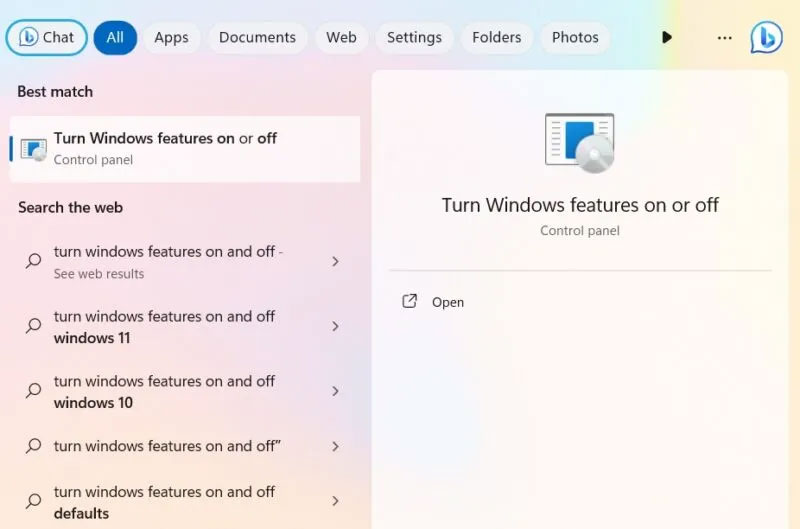
<p style="text-align: justify;">Để bắt đầu, hãy nhập&nbsp;<strong>&quot;Turn Windows features on&quot;</strong>&nbsp;trong Windows Search và chọn kết quả phù hợp nhất bên dưới. Hoặc đi tới&nbsp;<strong>Control Panel -&gt; Programs and Features -&gt; Turn Windows Features On or Off</strong>.</p>

<figure>
<div style="text-align: justify;"><img alt="Mở &#039;Turn Windows features on&#039; từ Windows Search." data-i="0" data-src="https://st.quantrimang.com/photos/image/2023/10/05/cai-dat-owncloud-tren-windows-1.jpg" data-was-processed="true" height="529" src="https://st.quantrimang.com/photos/image/2023/10/05/cai-dat-owncloud-tren-windows-1.jpg" width="800" /></div>

<figcaption>
<div style="text-align: justify;">Mở &quot;Turn Windows features on&quot; từ Windows Search.</div>
</figcaption>
</figure>

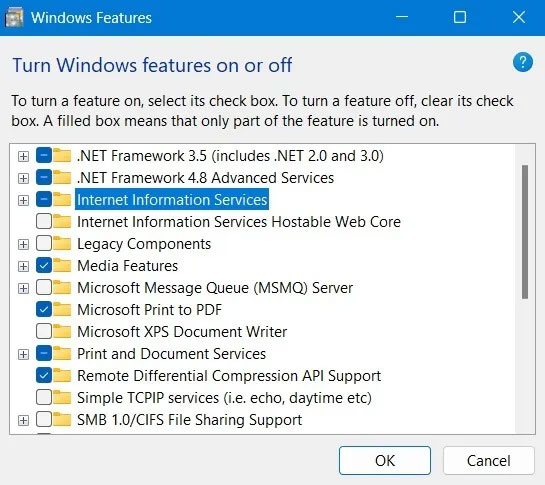
<p style="text-align: justify;">ownCloud yêu cầu bạn cài đặt Internet Information Services (IIS) trên Windows. Trước tiên, bạn cần kích hoạt nó từ cửa sổ Windows Features. Chọn hộp bên cạnh&nbsp;<strong>Internet Information Services</strong>.</p>

<figure>
<div style="text-align: justify;"><img alt="Kích hoạt IIS thông qua Windows Features" data-i="1" data-src="https://st.quantrimang.com/photos/image/2023/10/05/cai-dat-owncloud-tren-windows-2.jpg" data-was-processed="true" height="485" src="https://st.quantrimang.com/photos/image/2023/10/05/cai-dat-owncloud-tren-windows-2.jpg" width="545" /></div>

<figcaption>
<div style="text-align: justify;">Kích hoạt IIS thông qua Windows Features</div>
</figcaption>
</figure>

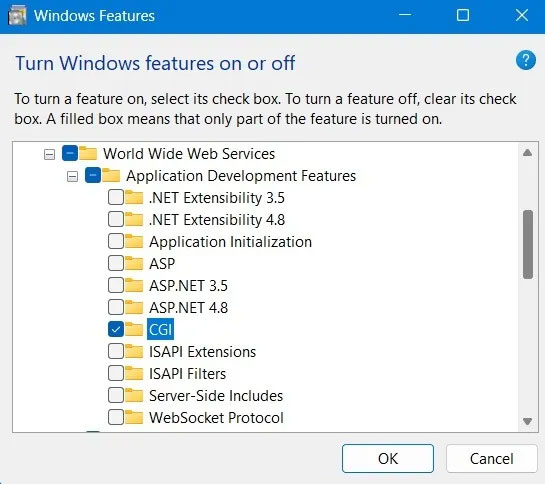
<p style="text-align: justify;">Bạn cũng nên đảm bảo kiểm tra&nbsp;<strong>CGI</strong>&nbsp;trong&nbsp;<strong>Application Development Features</strong>&nbsp;của&nbsp;<strong>World Wide Web services</strong>.</p>

<figure>
<div style="text-align: justify;"><img alt="Kích hoạt CGI và các tính năng phát triển ứng dụng trong cửa sổ Windows Features." data-i="2" data-src="https://st.quantrimang.com/photos/image/2023/10/05/cai-dat-owncloud-tren-windows-3.jpg" data-was-processed="true" height="484" src="https://st.quantrimang.com/photos/image/2023/10/05/cai-dat-owncloud-tren-windows-3.jpg" width="545" /></div>

<figcaption>
<div style="text-align: justify;">Kích hoạt CGI và các tính năng phát triển ứng dụng trong cửa sổ Windows Features.</div>
</figcaption>
</figure>

<p style="text-align: justify;">Tải PHP&nbsp;và&nbsp;MySQL Server&nbsp;cho Windows.</p>

<p style="text-align: justify;"><strong>Lưu ý</strong>: Bạn cũng có thể tải xuống WAMP Server và sử dụng PHP và MySQL Server từ nguồn đó, nhưng hãy đảm bảo IIS và Apache không được cấu hình để chạy trên cùng một cổng; nếu không chúng sẽ xung đột với nhau và không chạy đúng cách.</p>

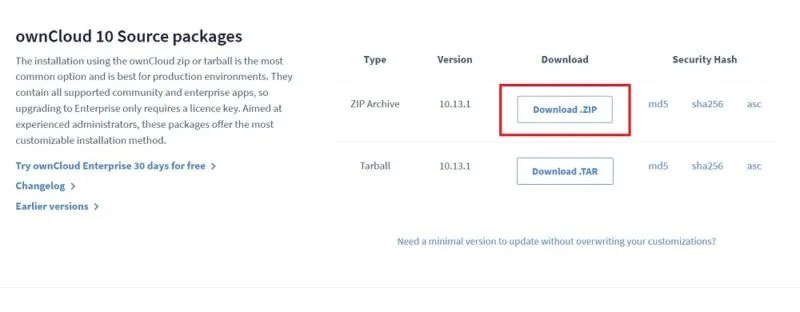
<p style="text-align: justify;">Nếu bạn là người dùng cá nhân hoặc doanh nghiệp vừa và nhỏ (SME), ownCloud cho phép bạn dùng thử phiên bản cộng đồng miễn phí. Hãy&nbsp;tải xuống file ZIP này:<br />
<span style="color:rgb(192, 57, 43);"><strong>https://owncloud.com/download-server/</strong></span></p>

<figure>
<div style="text-align: justify;"><img alt="Tải xuống gói Zip cho OwnCloud server trên Windows." data-i="3" data-src="https://st.quantrimang.com/photos/image/2023/10/05/cai-dat-owncloud-tren-windows-4.jpg" data-was-processed="true" height="312" src="https://st.quantrimang.com/photos/image/2023/10/05/cai-dat-owncloud-tren-windows-4.jpg" width="800" /></div>

<figcaption>
<div style="text-align: justify;">Tải xuống gói Zip cho OwnCloud server trên Windows.</div>
</figcaption>
</figure>

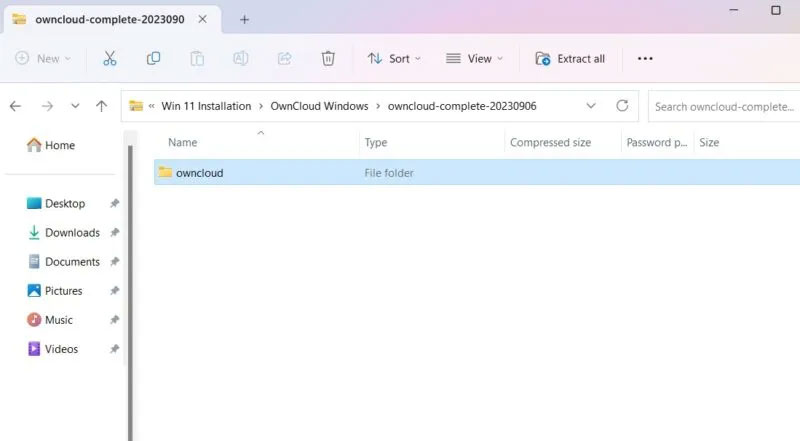
<p style="text-align: justify;">Sau khi bạn giải nén thư mục, hãy sao chép toàn bộ thư mục ownCloud và dán nó vào thư mục&nbsp;<strong>C:\inetpub\wwwroot.</strong>&nbsp;Thư mục này sẽ chỉ xuất hiện sau khi bạn bật IIS, như minh họa trong hướng dẫn trước đó.</p>

<p style="text-align: justify;">Xin lưu ý rằng bạn có thể cần cấp quyền quản trị để sao chép mọi thứ vào thư mục&nbsp;<strong>wwwroot.</strong>&nbsp;Khi bạn bắt đầu sao chép, Windows sẽ yêu cầu quyền admin.</p>

<figure>
<div style="text-align: justify;"><img alt="Gói OwnCloud Server đã được giải nén sẵn sàng để sao chép." data-i="4" data-src="https://st.quantrimang.com/photos/image/2023/10/05/cai-dat-owncloud-tren-windows-5.jpg" data-was-processed="true" height="441" src="https://st.quantrimang.com/photos/image/2023/10/05/cai-dat-owncloud-tren-windows-5.jpg" width="800" /></div>

<figcaption>
<div style="text-align: justify;">Gói OwnCloud Server đã được giải nén sẵn sàng để sao chép.</div>
</figcaption>
</figure>

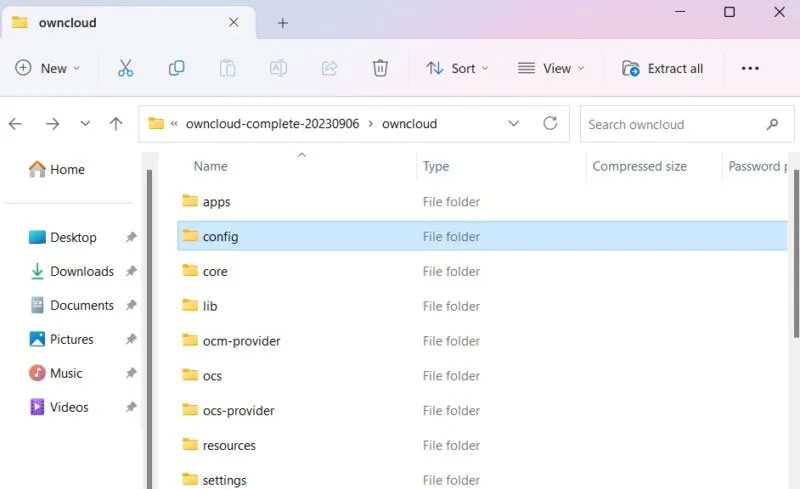
<p style="text-align: justify;">Sau khi copy xong thì vào thư mục config bên dưới owncloud.</p>

<figure>
<div style="text-align: justify;"><img alt="Xem thư mục cấu hình trong File Explorer." data-i="5" data-src="https://st.quantrimang.com/photos/image/2023/10/05/cai-dat-owncloud-tren-windows-6.jpg" data-was-processed="true" height="489" src="https://st.quantrimang.com/photos/image/2023/10/05/cai-dat-owncloud-tren-windows-6.jpg" width="800" /></div>

<figcaption>
<div style="text-align: justify;">Xem thư mục cấu hình trong File Explorer.</div>
</figcaption>
</figure>

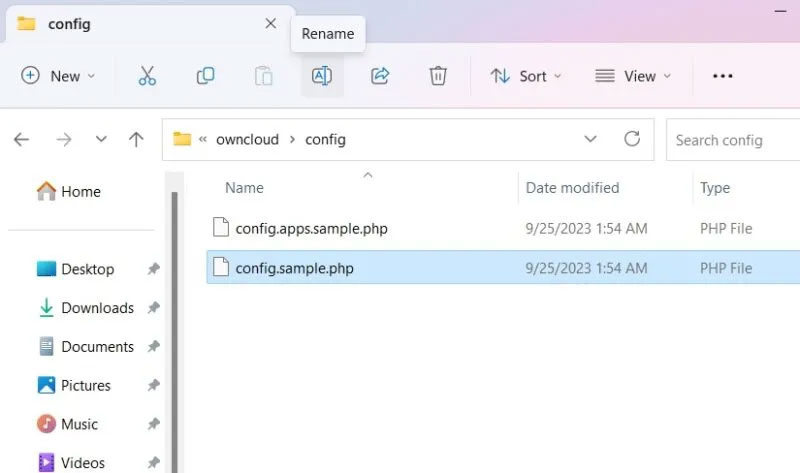
<p style="text-align: justify;">Tiếp theo, đổi tên&nbsp;<strong>config.sample.php</strong>&nbsp;thành&nbsp;<strong>config.php.</strong></p>

<figure>
<div style="text-align: justify;"><img alt="Đổi tên file cấu hình trong thư mục cấu hình OwnCloud." data-i="6" data-src="https://st.quantrimang.com/photos/image/2023/10/05/cai-dat-owncloud-tren-windows-7.jpg" data-was-processed="true" height="473" src="https://st.quantrimang.com/photos/image/2023/10/05/cai-dat-owncloud-tren-windows-7.jpg" width="800" /></div>

<figcaption>
<div style="text-align: justify;">Đổi tên file cấu hình trong thư mục cấu hình OwnCloud.</div>
</figcaption>
</figure>

<p style="text-align: justify;">Sau khi đổi tên file PHP như trên, bạn sẽ cần mở file đó bằng ứng dụng desktop. Bài viết đang sử dụng Notepad.</p>

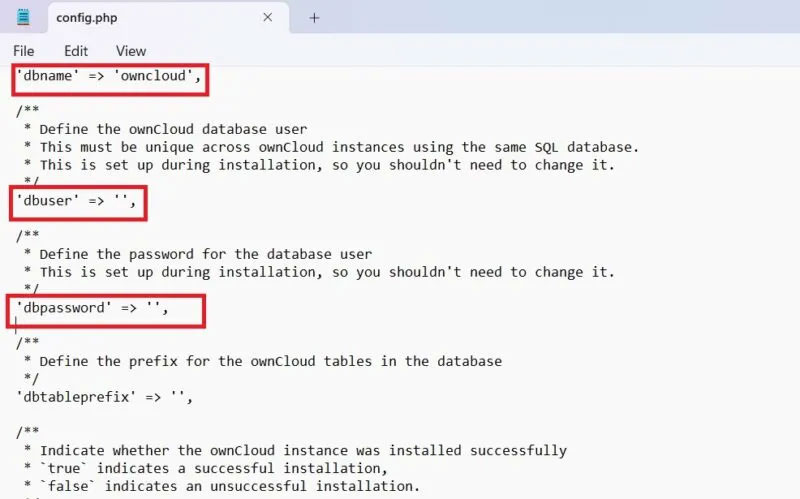
<p style="text-align: justify;">Mở&nbsp;<strong>config.php</strong>&nbsp;mới được đổi tên và chỉnh sửa các giá trị của&nbsp;<strong>dbname, dbuser</strong>&nbsp;và&nbsp;<strong>dbpassword</strong>, như minh họa trong ảnh chụp màn hình bên dưới.&nbsp;<strong>&quot;dbname&quot;</strong>&nbsp;đề cập đến bộ cơ sở dữ liệu ownCloud trong quá trình cài đặt, có thể không cần thay đổi. Tuy nhiên,&nbsp;<strong>&quot;dbuser&quot;</strong>&nbsp;và&nbsp;<strong>&quot;dbpassword&quot;</strong>&nbsp;có thể được chỉnh sửa nếu muốn.</p>

<p style="text-align: justify;">Các tùy chọn khác có thể để nguyên giá trị mặc định.</p>

<figure>
<div style="text-align: justify;"><img alt="Các giá trị DbName, DbUser, DbPassword thiết lập cho OwnCloud trong file Config." data-i="7" data-src="https://st.quantrimang.com/photos/image/2023/10/05/cai-dat-owncloud-tren-windows-8.jpg" data-was-processed="true" height="499" src="https://st.quantrimang.com/photos/image/2023/10/05/cai-dat-owncloud-tren-windows-8.jpg" width="800" /></div>

<figcaption>
<div style="text-align: justify;">Các giá trị DbName, DbUser, DbPassword thiết lập cho OwnCloud trong file Config.</div>
</figcaption>
</figure>

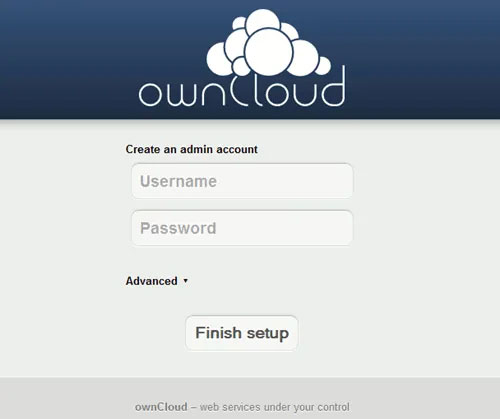
<p style="text-align: justify;">Mở trình duyệt của bạn và truy cập&nbsp;<em>&quot;http://localhost/owncloud&quot;.</em>&nbsp;Xin lưu ý rằng nếu bạn đã sao chép tất cả các file trực tiếp vào thư mục&nbsp;<strong>&quot;wwwroot&quot;</strong>, bạn sẽ chỉ cần gõ&nbsp;<em>&quot;http://localhost/&quot;.</em></p>

<p style="text-align: justify;">Điền vào các trường và nhấp vào nút&nbsp;<strong>Create account</strong>&nbsp;để tạo trang tài khoản Admin.</p>

<figure>
<div style="text-align: justify;"><img alt="Tạo tài khoản admin ownCloud." data-i="8" data-src="https://st.quantrimang.com/photos/image/2023/10/05/cai-dat-owncloud-tren-windows-9.jpg" data-was-processed="true" height="419" src="https://st.quantrimang.com/photos/image/2023/10/05/cai-dat-owncloud-tren-windows-9.jpg" width="500" /></div>

<figcaption>
<div style="text-align: justify;">Tạo tài khoản admin ownCloud.</div>
</figcaption>
</figure>

<h2 style="text-align: justify;">2. Cài đặt ứng dụng ownCloud Desktop trong Windows</h2>

<p style="text-align: justify;">Sau khi thiết lập OwnCloud server, bạn sẽ cần cài đặt ứng dụng desktop của OwnCloud, ứng dụng này cho phép bạn đồng bộ hóa các file với tài khoản OwnCloud của mình và truy cập các file từ xa, như thể chúng được lưu trữ ngay trên PC của bạn.</p>

<p style="text-align: justify;">Có nhiều cách để cài đặt ứng dụng ownCloud Desktop.</p>

<h3 style="text-align: justify;">Tải ứng dụng</h3>

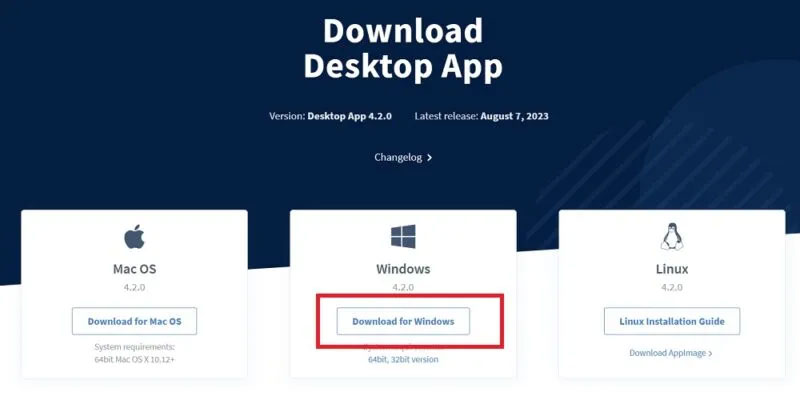
<p style="text-align: justify;">Đi tới trang&nbsp;tải xuống ứng dụng Desktop&nbsp;và tải xuống client cho Windows:<br />
<span style="color:rgb(192, 57, 43);"><strong>https://owncloud.com/desktop-app</strong></span></p>

<figure>
<div style="text-align: justify;"><img alt="Tải xuống ứng dụng desktop của OwnCloud cho Windows trên trang web download của nó." data-i="9" data-src="https://st.quantrimang.com/photos/image/2023/10/05/cai-dat-owncloud-tren-windows-10.jpg" data-was-processed="true" height="404" src="https://st.quantrimang.com/photos/image/2023/10/05/cai-dat-owncloud-tren-windows-10.jpg" width="800" /></div>

<figcaption>
<div style="text-align: justify;">Tải xuống ứng dụng desktop của OwnCloud cho Windows trên trang web download của nó.</div>
</figcaption>
</figure>

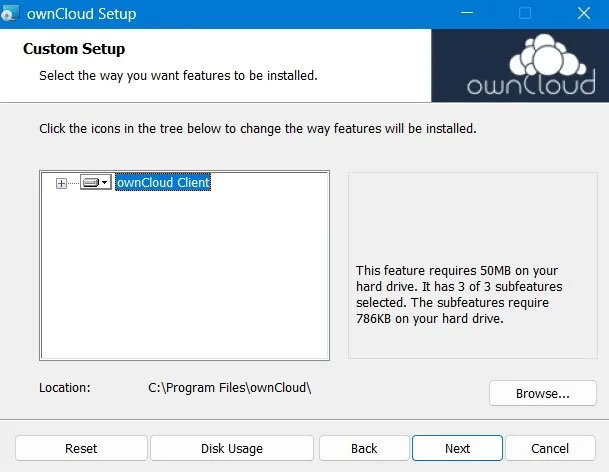
<p style="text-align: justify;">Tiếp theo là một quá trình cài đặt đơn giản. Bạn nên sử dụng Windows 8 trở lên. Đảm bảo cài đặt ownCloud client trên PC mà bạn sẽ sử dụng để đồng bộ.</p>

<figure>
<div style="text-align: justify;"><img alt="OwnCloud client đang được cài đặt trên thiết bị Windows." data-i="10" data-src="https://st.quantrimang.com/photos/image/2023/10/05/cai-dat-owncloud-tren-windows-11.jpg" data-was-processed="true" height="472" src="https://st.quantrimang.com/photos/image/2023/10/05/cai-dat-owncloud-tren-windows-11.jpg" width="609" /></div>

<figcaption>
<div style="text-align: justify;">OwnCloud client đang được cài đặt trên thiết bị Windows.</div>
</figcaption>
</figure>

<p style="text-align: justify;">Sau khi quá trình cài đặt hoàn tất, hãy&nbsp;khởi động lại máy tính&nbsp;của bạn để thiết lập các file cấu hình.</p>

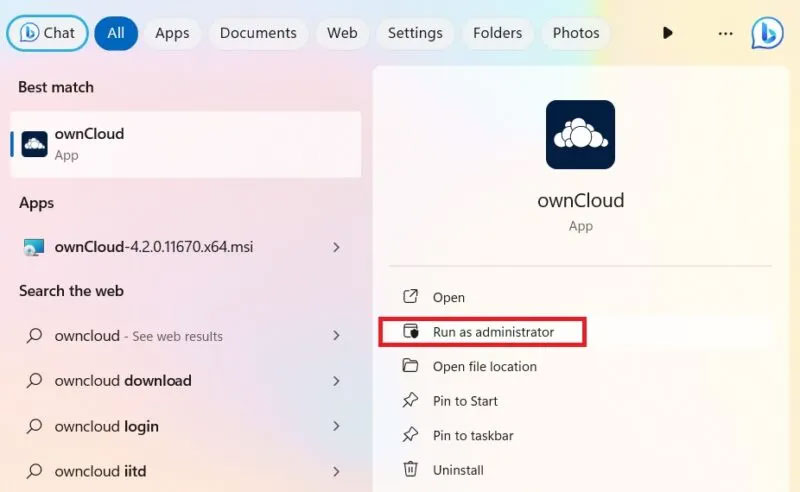
<p style="text-align: justify;">Sau khi khởi động lại, bạn có thể truy cập ứng dụng ownCloud từ menu Search.</p>

<figure>
<div style="text-align: justify;"><img alt="Chạy ứng dụng OwnCloud đã cài đặt với quyền admin trong Windows." data-i="11" data-src="https://st.quantrimang.com/photos/image/2023/10/05/cai-dat-owncloud-tren-windows-12.jpg" data-was-processed="true" height="492" src="https://st.quantrimang.com/photos/image/2023/10/05/cai-dat-owncloud-tren-windows-12.jpg" width="800" /></div>

<figcaption>
<div style="text-align: justify;">Chạy ứng dụng OwnCloud đã cài đặt với quyền admin trong Windows.</div>
</figcaption>
</figure>

<p style="text-align: justify;">Ngoài ra, ownCloud cũng có thể được cài đặt từ Microsoft Store. Đây là phiên bản nhẹ của ứng dụng desktop.</p>

<h3 style="text-align: justify;">Sử dụng trình cài đặt MSI</h3>

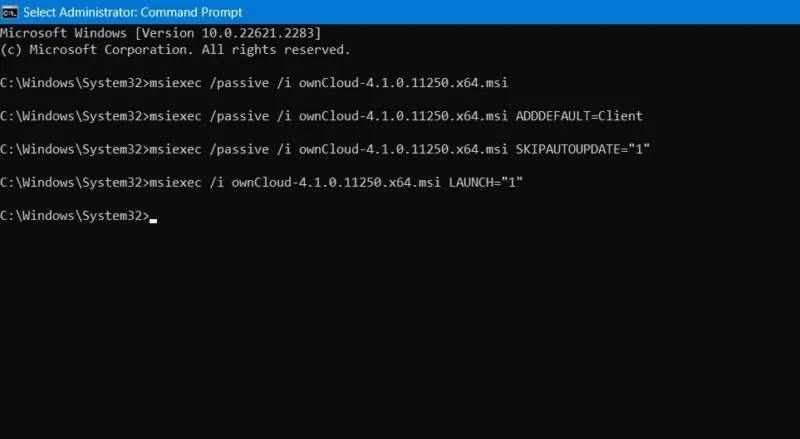
<p style="text-align: justify;">Để cài đặt tùy chỉnh ownCloud, hãy sử dụng phương pháp Command Prompt trong chế độ Admin. Điều này giúp bạn cài đặt hoặc gỡ bỏ các tính năng bạn mong muốn.</p>

<p style="text-align: justify;">Để cài đặt tự động, hãy sử dụng lệnh sau:</p>

<pre id="pre0">
<code>msiexec /passive /i ownCloud-4.1.0.11250.x64.msi</code></pre>

<p style="text-align: justify;">Để thêm ứng dụng desktop theo mặc định, hãy sử dụng lệnh bên dưới. Để xóa nó, chỉ cần thay thế &quot;ADDDEFAULT&quot; bằng &quot;REMOVE&quot;.</p>

<pre id="pre1">
<code>msiexec /passive /i ownCloud-4.1.0.11250.x64.msi ADDDEFAULT=Client</code></pre>

<p style="text-align: justify;">Nếu bạn muốn bỏ qua cập nhật tự động cho chương trình ownCloud, hãy nhập:</p>

<pre id="pre2">
<code>msiexec /passive /i ownCloud-4.1.0.11250.x64.msi SKIPAUTOUPDATE=&quot;1&quot;</code></pre>

<p style="text-align: justify;">Để trực tiếp khởi chạy chương trình, hãy sử dụng lệnh sau:</p>

<pre id="pre3">
<code>msiexec /i ownCloud-4.1.0.11250.x64.msi LAUNCH=&quot;1&quot;</code></pre>

<figure>
<div style="text-align: justify;"><img alt="Cài đặt ownCloud thông qua Command Prompt." data-i="12" data-src="https://st.quantrimang.com/photos/image/2023/10/05/cai-dat-owncloud-tren-windows-13.jpg" data-was-processed="true" height="439" src="https://st.quantrimang.com/photos/image/2023/10/05/cai-dat-owncloud-tren-windows-13.jpg" width="800" /></div>

<figcaption>
<div style="text-align: justify;">Cài đặt ownCloud thông qua Command Prompt.</div>
</figcaption>
</figure>

<p style="text-align: justify;">Chúc các bạn thực hiện thành công!</p>

<div style="text-align: justify;">&nbsp;</div>
		</div>
				<div id="author">
						<p>
				<strong>Nguồn tin:</strong>
				Quantrimang.com
			</p>
		</div>
	</div>
	<div id="footer" class="clearfix">
		<div id="url">
			<strong>URL của bản tin này: </strong><a href="https://www.nguoicodonvn2008.info/vi/news/savefile/kien-thuc-may-tinh/cach-cai-dat-owncloud-tren-windows-7611.html" title="Cách cài đặt ownCloud trên Windows">https://www.nguoicodonvn2008.info/vi/news/savefile/kien-thuc-may-tinh/cach-cai-dat-owncloud-tren-windows-7611.html</a>

		</div>
		<div class="clear"></div>
		<div class="copyright">
			&copy; .&#x3A; Nguoicodonvn2008.info - Cõi lòng người cô đơn &#x3A;.
		</div>
		<div id="contact">
			<a href="mailto:admin@nguoicodonvn2008.info">admin@nguoicodonvn2008.info</a>
		</div>
	</div>
</div>
        <div id="timeoutsess" class="chromeframe">
            Bạn đã không sử dụng Site, <a onclick="timeoutsesscancel();" href="https://nguoicodonvn2008.info/#">Bấm vào đây để duy trì trạng thái đăng nhập</a>. Thời gian chờ: <span id="secField"> 60 </span> giây
        </div>
        <div id="openidResult" class="nv-alert" style="display:none"></div>
        <div id="openidBt" data-result="" data-redirect=""></div>
		</script>
		<div class="car-top">
  <span><img src="https://nguoicodonvn2008.info/themes/default/images/car.png" alt=""></span>
</div>
<script src="https://nguoicodonvn2008.info/assets/js/jquery/jquery.min.js"></script>
<script>var nv_base_siteurl="/",nv_lang_data="vi",nv_lang_interface="vi",nv_name_variable="nv",nv_fc_variable="op",nv_lang_variable="language",nv_module_name="news",nv_func_name="savefile",nv_is_user=0, nv_my_ofs=-4,nv_my_abbr="EDT",nv_cookie_prefix="nv4c_e856T",nv_check_pass_mstime=1738000,nv_area_admin=0,nv_safemode=0,theme_responsive=0,nv_recaptcha_ver=2,nv_recaptcha_sitekey="",nv_recaptcha_type="image",XSSsanitize=1;</script>
<script src="https://nguoicodonvn2008.info/assets/js/language/vi.js"></script>
<script src="https://nguoicodonvn2008.info/assets/js/DOMPurify/purify3.js"></script>
<script src="https://nguoicodonvn2008.info/assets/js/global.js"></script>
<script src="https://nguoicodonvn2008.info/assets/js/site.js"></script>
<script src="https://nguoicodonvn2008.info/themes/default/js/news.js"></script>
<script src="https://nguoicodonvn2008.info/themes/default/js/main.js"></script>
<script src="https://nguoicodonvn2008.info/themes/default/js/custom.js"></script>
<script type="application/ld+json">
        {
            "@context": "https://schema.org",
            "@type": "Organization",
            "url": "https://nguoicodonvn2008.info",
            "logo": "https://nguoicodonvn2008.info/uploads/angel.gif"
        }
        </script>
<script src="https://nguoicodonvn2008.info/themes/default/js/bootstrap.min.js"></script>
<script type="text/javascript">
var $scrolltop = $('.car-top');
$scrolltop.on('click', function () {
    $('html,body').animate({
        scrollTop: 0
    }, 800);
    $(this).addClass("car-run");
    setTimeout(function(){ $scrolltop.removeClass('car-run');}, 1000);
    return false;
});
$(window).on('scroll', function ()
{ 
    if($(window).scrollTop() >= 200)
    {
        $scrolltop.addClass("show");
        $scrolltop.addClass("car-down");
    }
    else
    {
       $scrolltop.removeClass("show");
       setTimeout(function(){ $scrolltop.removeClass('car-down');}, 300);
    }
});
</script>
</body>
</html>