<!DOCTYPE html>
    <html lang="vi" xmlns="http://www.w3.org/1999/xhtml" prefix="og: http://ogp.me/ns#">
    <head>
<title>Cách cài đặt Exchange Server 2019</title>
<meta name="description" content="Cách cài đặt Exchange Server 2019 - Savefile - Tin Tức - https&#x3A;&#x002F;&#x002F;www.nguoicodonvn2008.info&#x002F;vi&#x002F;news&#x002F;savefile&#x002F;kien-thuc-may-tinh&#x002F;cach-cai-dat-exchange-server-2019-3837.html">
<meta name="author" content=".: Nguoicodonvn2008.info - Cõi lòng người cô đơn :.">
<meta name="copyright" content=".: Nguoicodonvn2008.info - Cõi lòng người cô đơn :. [admin@nguoicodonvn2008.info]">
<meta name="robots" content="index, archive, follow, noodp">
<meta name="googlebot" content="index,archive,follow,noodp">
<meta name="msnbot" content="all,index,follow">
<meta name="generator" content="NukeViet v4.5">
<meta http-equiv="Content-Type" content="text/html; charset=utf-8">
<meta property="og:title" content="Cách cài đặt Exchange Server 2019">
<meta property="og:type" content="website">
<meta property="og:description" content="Savefile - Tin Tức - https&#x3A;&#x002F;&#x002F;www.nguoicodonvn2008.info&#x002F;vi&#x002F;news&#x002F;savefile&#x002F;kien-thuc-may-tinh&#x002F;cach-cai-dat-exchange-server-2019-3837.html">
<meta property="og:site_name" content=".&#x3A; Nguoicodonvn2008.info - Cõi lòng người cô đơn &#x3A;.">
<meta property="og:url" content="https://www.nguoicodonvn2008.info/vi/news/savefile/kien-thuc-may-tinh/cach-cai-dat-exchange-server-2019-3837.html">
<link rel="shortcut icon" href="https://nguoicodonvn2008.info/favicon.ico">
<link rel="canonical" href="https://www.nguoicodonvn2008.info/vi/news/savefile/kien-thuc-may-tinh/cach-cai-dat-exchange-server-2019-3837.html">
<link rel="alternate" href="https://nguoicodonvn2008.info/vi/news/rss/" title="Tin Tức" type="application/rss+xml">
<link rel="alternate" href="https://nguoicodonvn2008.info/vi/news/rss/karaoke-dual/" title="Tin Tức - Karaoke Dual" type="application/rss+xml">
<link rel="alternate" href="https://nguoicodonvn2008.info/vi/news/rss/nhac-tre/" title="Tin Tức - Nhạc trẻ" type="application/rss+xml">
<link rel="alternate" href="https://nguoicodonvn2008.info/vi/news/rss/tru-tinh/" title="Tin Tức - Trữ tình" type="application/rss+xml">
<link rel="alternate" href="https://nguoicodonvn2008.info/vi/news/rss/nuoc-ngoai/" title="Tin Tức - Nước ngoài" type="application/rss+xml">
<link rel="alternate" href="https://nguoicodonvn2008.info/vi/news/rss/remix/" title="Tin Tức - Remix" type="application/rss+xml">
<link rel="alternate" href="https://nguoicodonvn2008.info/vi/news/rss/tam-su-tinh-yeu/" title="Tin Tức - Tâm sự tình yêu" type="application/rss+xml">
<link rel="alternate" href="https://nguoicodonvn2008.info/vi/news/rss/tho-suu-tam/" title="Tin Tức - Thơ sưu tầm" type="application/rss+xml">
<link rel="alternate" href="https://nguoicodonvn2008.info/vi/news/rss/cuoc-song/" title="Tin Tức - Cuộc sống" type="application/rss+xml">
<link rel="alternate" href="https://nguoicodonvn2008.info/vi/news/rss/phan-mem/" title="Tin Tức - Phần mềm" type="application/rss+xml">
<link rel="alternate" href="https://nguoicodonvn2008.info/vi/news/rss/kien-thuc-may-tinh/" title="Tin Tức - Kiến thức máy tính" type="application/rss+xml">
<link rel="alternate" href="https://nguoicodonvn2008.info/vi/news/rss/hoc-tap/" title="Tin Tức - Học tập" type="application/rss+xml">
<link rel="alternate" href="https://nguoicodonvn2008.info/vi/news/rss/tai-lieu/" title="Tin Tức - Tài liệu" type="application/rss+xml">
<link rel="alternate" href="https://nguoicodonvn2008.info/vi/news/rss/de-thi/" title="Tin Tức - Đề thi" type="application/rss+xml">
<link rel="preload" as="style" href="https://nguoicodonvn2008.info/assets/css/font-awesome.min.css" type="text/css">
<link rel="preload" as="style" href="https://nguoicodonvn2008.info/themes/default/css/bootstrap.non-responsive.css" type="text/css">
<link rel="preload" as="style" href="https://nguoicodonvn2008.info/themes/default/css/style.css" type="text/css">
<link rel="preload" as="style" href="https://nguoicodonvn2008.info/themes/default/css/style.non-responsive.css" type="text/css">
<link rel="preload" as="style" href="https://nguoicodonvn2008.info/themes/default/css/news.css" type="text/css">
<link rel="preload" as="style" href="https://nguoicodonvn2008.info/themes/default/css/custom.css" type="text/css">
<link rel="preload" as="script" href="https://nguoicodonvn2008.info/assets/js/jquery/jquery.min.js" type="text/javascript">
<link rel="preload" as="script" href="https://nguoicodonvn2008.info/assets/js/language/vi.js" type="text/javascript">
<link rel="preload" as="script" href="https://nguoicodonvn2008.info/assets/js/DOMPurify/purify3.js" type="text/javascript">
<link rel="preload" as="script" href="https://nguoicodonvn2008.info/assets/js/global.js" type="text/javascript">
<link rel="preload" as="script" href="https://nguoicodonvn2008.info/assets/js/site.js" type="text/javascript">
<link rel="preload" as="script" href="https://nguoicodonvn2008.info/themes/default/js/news.js" type="text/javascript">
<link rel="preload" as="script" href="https://nguoicodonvn2008.info/themes/default/js/main.js" type="text/javascript">
<link rel="preload" as="script" href="https://nguoicodonvn2008.info/themes/default/js/custom.js" type="text/javascript">
<link rel="preload" as="script" href="https://nguoicodonvn2008.info/themes/default/js/bootstrap.min.js" type="text/javascript">
<link rel="stylesheet" href="https://nguoicodonvn2008.info/assets/css/font-awesome.min.css">
<link rel="stylesheet" href="https://nguoicodonvn2008.info/themes/default/css/bootstrap.non-responsive.css">
<link rel="stylesheet" href="https://nguoicodonvn2008.info/themes/default/css/style.css">
<link rel="stylesheet" href="https://nguoicodonvn2008.info/themes/default/css/style.non-responsive.css">
<link rel="StyleSheet" href="https://nguoicodonvn2008.info/themes/default/css/news.css">
<link rel="stylesheet" href="https://nguoicodonvn2008.info/themes/default/css/custom.css">
<style type="text/css">
	body{background: #fff;}
</style>
    </head>
    <body>
<div id="print">
	<div id="hd_print">
		<h2 class="pull-left">.&#x3A; Nguoicodonvn2008.info - Cõi lòng người cô đơn &#x3A;.</h2>
		<p class="pull-right"><a title=".&#x3A; Nguoicodonvn2008.info - Cõi lòng người cô đơn &#x3A;." href="https://nguoicodonvn2008.info/">https://nguoicodonvn2008.info</a></p>
	</div>
	<div class="clear"></div>
	<hr />
	<div id="content">
		<h1>Cách cài đặt Exchange Server 2019</h1>
		<ul class="list-inline">
			<li>Thứ bảy - 27/03/2021 00:49</li>
			<li class="hidden-print txtrequired"><em class="fa fa-print">&nbsp;</em><a title="In ra" href="javascript:;" onclick="window.print()">In ra</a></li>
			<li class="hidden-print txtrequired"><em class="fa fa-power-off">&nbsp;</em><a title="Đóng cửa sổ này" href="javascript:;" onclick="window.close()">Đóng cửa sổ này</a></li>
		</ul>
		<div class="clear"></div>
		<div id="hometext">
		</div>
				<div class="imghome">
			<img alt="Cách cài đặt Exchange Server 2019" src="https://st.quantrimang.com/photos/image/2021/03/23/cai-exchange-server-2019-6.jpg" width="460" class="img-thumbnail" />
		</div>
		<div class="clear"></div>
		<div id="bodytext" class="clearfix">
			<p style="text-align: justify;">Tất cả những người ngưỡng mộ Exchange Server và những ai quan tâm đều biết về phiên bản Exchange Server mới nhất, tức là Exchange 2019. Các tính năng nâng cao và những biện pháp bảo mật của nó đang thu hút người dùng Exchange muốn tìm kiếm sự thay đổi. Bài viết này sẽ hướng dẫn bạn quy trình thủ công để cài đặt&nbsp;Exchange Server 2019.</p>

<h2 style="text-align: justify;">Quy trình cài đặt thủ công Exchange Server 2019</h2>

<p style="text-align: justify;">Người dùng hoặc quản trị viên Exchange cần đáp ứng một số yêu cầu trước khi bắt đầu quy trình cài đặt Exchange Server 2019. Các điều kiện tiên quyết chính bao gồm:</p>

<h3 style="text-align: justify;">Yêu cầu phần cứng</h3>

<ul>
	<li style="text-align: justify;">Bộ xử lý Intel 64-bit (EM64T), bộ xử lý AMD 64-bit</li>
	<li style="text-align: justify;">Dung lượng ổ đĩa trống tối thiểu 30GB</li>
	<li style="text-align: justify;">Bộ nhớ tối thiểu 128GB (cho Mailbox), 64GB (cho Edge Transport)</li>
	<li style="text-align: justify;">Hệ thống file NTFS</li>
	<li style="text-align: justify;">Độ phân giải màn hình 1024 x 768</li>
</ul>

<h3 style="text-align: justify;">Yêu cầu phần mềm</h3>

<p style="text-align: justify;"><strong>Yêu cầu hệ điều hành</strong></p>

<ul>
	<li style="text-align: justify;">Mailbox và Exchange Transport: Windows Server 2019 Standard/Data Center</li>
	<li style="text-align: justify;">Công cụ quản lý: Windows 10 (64-bit) hoặc Windows Server 2019 Standard/Data Center</li>
</ul>

<p style="text-align: justify;"><strong>Yêu cầu Outlook Client</strong></p>

<ul>
	<li style="text-align: justify;">Outlook 2013/Outlook 2016/Outlook 2016 cho Mac/Outlook 2019/Outlook (Mac) cho Office 365</li>
</ul>

<p style="text-align: justify;"><strong>Yêu cầu về mạng &amp; máy chủ thư mục</strong></p>

<ul>
	<li style="text-align: justify;">Active Directory Forests: Windows Server 2012 R2 hoặc các phiên bản mới hơn</li>
	<li style="text-align: justify;">Active Directory Site với Domain Controller có thể ghi, không thể xóa</li>
	<li style="text-align: justify;">Domain Controller: Windows Server 2019 Standard/Windows Server 2016</li>
	<li style="text-align: justify;">Standard/Windows Server 2012 R2 Standard</li>
	<li style="text-align: justify;">DNS Namespace: Contiguous/ Non-Contiguous/Disjoint/ Single label domain</li>
	<li style="text-align: justify;">Hỗ trợ IPv6: Yêu cầu cả IPv4 và&nbsp;IPv6</li>
</ul>

<p style="text-align: justify;">Khi tất cả các yêu cầu ở trên được đáp ứng, quản trị viên Exchange có thể tiếp tục để chuẩn bị&nbsp;Active Directory.</p>

<p style="text-align: justify;">Đối với các tổ chức nhỏ, chỉ cần tài khoản là thành viên của Schema Admin cũng như các nhóm bảo mật Enterprise Admin để chuyển sang giai đoạn thiết lập Exchange là đủ.</p>

<div style="text-align: justify;">&nbsp;</div>

<p style="text-align: justify;">Nhưng đối với các tổ chức lớn hơn có nhiều hộp thư, cần phải chuẩn bị một môi trường Active Directory trước khi thực hiện quá trình thiết lập Exchange.</p>

<h2 style="text-align: justify;">Chuẩn bị môi trường Active Directory cho Exchange 2019</h2>

<p style="text-align: justify;">1. Trước tiên hãy cài đặt .NET framework (4.7.2 hoặc 4.7.1), Visual C++ Redistributable Packages for Visual Studio và Unified Communications Managed API trên hệ thống Exchange của bạn.</p>

<p style="text-align: justify;">2. Sau khi tất cả các yêu cầu phần mềm trên được cài đặt, hãy&nbsp;<a href="https://quantrimang.com/6-cach-khoi-dong-lai-windows-that-pro-116819" title="6 cách khởi động lại máy tính Windows từ đơn giản đến &#039;Pro&#039;">khởi động lại hệ thống</a>.</p>

<p style="text-align: justify;">3.&nbsp;<a href="https://quantrimang.com/cach-mo-powershell-voi-quyen-admin-tren-windows-10-154498" title="Cách mở PowerShell với quyền Admin trên Windows 10">Khởi chạy Windows PowerShell (với quyền admin)</a>. Tại đây, hãy chạy lệnh như bên dưới.</p>

<pre id="pre0">
<code>Install-WindowsFeature RSAT-ADDS</code></pre>

<p style="text-align: justify;">4. Bước tiếp theo là chạy một lệnh khác trong&nbsp;<a href="https://quantrimang.com/gioi-thieu-ve-powershell-37928" title="PowerShell và mọi điều bạn cần biết về tiện ích này">Windows PowerShell</a>&nbsp;để cài đặt các yêu cầu Server.</p>

<pre id="pre1">
<code>Install-WindowsFeature NET-Framework-45-Features, RPC-over-HTTP-proxy, RSAT-Clustering, RSAT-Clustering-CmdInterface, RSAT-Clustering-Mgmt, RSAT-Clustering-PowerShell, Web-Mgmt-Console, WAS-Process-Model, Web-Asp-Net45, Web-Basic-Auth, Web-Client-Auth, Web-Digest-Auth, Web-Dir-Browsing, Web-Dyn-Compression, Web-Http-Errors, Web-Http-Logging, Web-Http-Redirect, Web-Http-Tracing, Web-ISAPI-Ext, Web-ISAPI-Filter, Web-Lgcy-Mgmt-Console, Web-Metabase, Web-Mgmt-Console, Web-Mgmt-Service, Web-Net-Ext45, Web-Request-Monitor, Web-Server, Web-Stat-Compression, Web-Static-Content, Web-Windows-Auth, Web-WMI, Windows-Identity-Foundation, RSAT-ADDS</code></pre>

<p style="text-align: justify;">5. Bây giờ, hãy mount Exchange Server 2019 Preview Installation Media trên hệ thống.</p>

<p style="text-align: justify;">6. Nhập&nbsp;<strong>cmd</strong>&nbsp;vào hộp&nbsp;<strong>Search</strong>, nhấp chuột phải vào&nbsp;<strong>Command Prompt</strong>&nbsp;và chọn tùy chọn&nbsp;<strong>Run as administrator</strong>. Trên cửa sổ&nbsp;<strong>Command Prompt</strong>&nbsp;đã mở, hãy chạy lệnh sau:</p>

<pre id="pre2">
<code>Setup.exe /PrepareSchema /IAcceptExchangeServerLicenseTerms</code></pre>

<p style="text-align: justify;">7. Tiếp theo, chạy lệnh cuối cùng này để chuẩn bị domain:</p>

<pre id="pre3">
<code>Setup.exe /PrepareAllDomains /IAcceptExchangeServerLicenseTerms</code></pre>

<p style="text-align: justify;">8. Bạn đã chuẩn bị thành công môi trường Active Directory (Schema và Domain) để cài đặt Exchange Server 2019.</p>

<p style="text-align: justify;">Bây giờ, bạn cần chuyển sang thiết lập cài đặt Exchange Server với ứng dụng đã thiết lập trên hệ thống Exchange.</p>

<div style="text-align: justify;">&nbsp;</div>

<h2 style="text-align: justify;">Quy trình cài đặt và thiết lập Exchange Server 2019</h2>

<div style="text-align: justify;">&nbsp;</div>

<p style="text-align: justify;">Thực hiện các bước sau để hoàn tất cài đặt thiết lập Exchange 2019.</p>

<p style="text-align: justify;">1. Vào&nbsp;<strong>Setup.exe</strong>, nhấp đúp vào nó để bắt đầu quá trình cài đặt.</p>

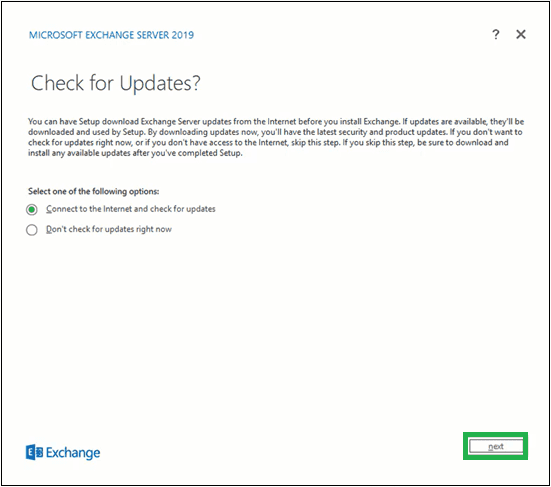
<p style="text-align: justify;">2. Vào cửa sổ&nbsp;<strong>Check for updates?</strong>&nbsp;tiếp theo, chọn một trong các tùy chọn -&nbsp;<strong>Connect to the Internet and check for updates</strong>&nbsp;và<strong>&nbsp;Don’t check for updates right now</strong>&nbsp;tùy theo nhu cầu và nhấp vào&nbsp;<strong>Next.</strong></p>

<figure>
<div style="text-align: justify;"><img alt="Chọn Connect to the Internet and check for updates hoặc Don’t check for updates right now" data-i="0" data-src="https://st.quantrimang.com/photos/image/2021/03/23/cai-exchange-server-2019-1.png" data-was-processed="true" height="487" src="https://st.quantrimang.com/photos/image/2021/03/23/cai-exchange-server-2019-1.png" width="551" /></div>

<figcaption>
<div style="text-align: justify;">Chọn Connect to the Internet and check for updates hoặc Don’t check for updates right now</div>
</figcaption>
</figure>

<p style="text-align: justify;">3. Tiếp theo, quá trình sao chép các file Exchange cần thiết để cài đặt Exchange Server sẽ bắt đầu. Hãy xem quá trình!</p>

<p style="text-align: justify;">4. Màn hình&nbsp;<strong>Initializing Setup</strong>&nbsp;sẽ được hiển thị tiếp theo.</p>

<div style="text-align: justify;">&nbsp;</div>

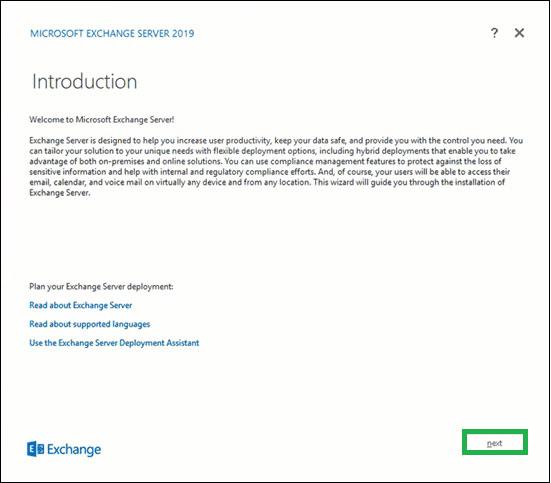
<p style="text-align: justify;">5. Bây giờ, bạn sẽ thấy trang giới thiệu về Exchange Server 2019. Hãy đọc phần giới thiệu ngắn gọn này. Bạn có thể nhấp vào các liên kết được cung cấp để biết thêm thông tin. Nhấn&nbsp;<strong>Next</strong>&nbsp;để tiếp tục.</p>

<figure>
<div style="text-align: justify;"><img alt="Trang giới thiệu về Exchange Server 2019" data-i="1" data-src="https://st.quantrimang.com/photos/image/2021/03/23/cai-exchange-server-2019-2.jpg" data-was-processed="true" height="483" src="https://st.quantrimang.com/photos/image/2021/03/23/cai-exchange-server-2019-2.jpg" width="551" /></div>

<figcaption>
<div style="text-align: justify;">Trang giới thiệu về Exchange Server 2019</div>
</figcaption>
</figure>

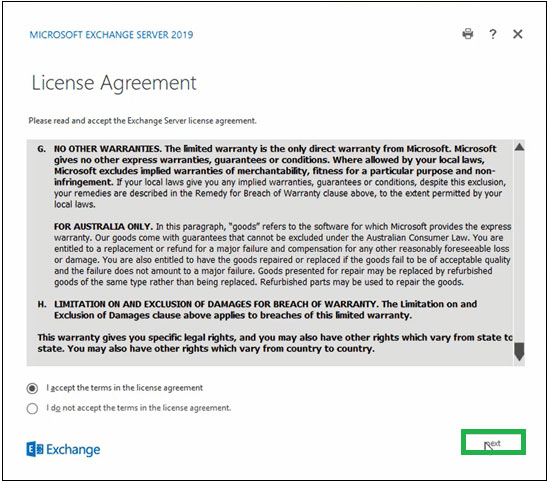
<p style="text-align: justify;">6. Trên trang&nbsp;<strong>License Agreement</strong>, đọc tất cả các hướng dẫn, chọn tùy chọn chấp nhận những điều khoản trong thỏa thuận cấp phép và nhấp vào&nbsp;<strong>Next.</strong></p>

<figure>
<div style="text-align: justify;"><img alt="Chấp nhận những điều khoản trong thỏa thuận cấp phép" data-i="2" data-src="https://st.quantrimang.com/photos/image/2021/03/23/cai-exchange-server-2019-3.jpg" data-was-processed="true" height="483" src="https://st.quantrimang.com/photos/image/2021/03/23/cai-exchange-server-2019-3.jpg" width="549" /></div>

<figcaption>
<div style="text-align: justify;">Chấp nhận những điều khoản trong thỏa thuận cấp phép</div>
</figcaption>
</figure>

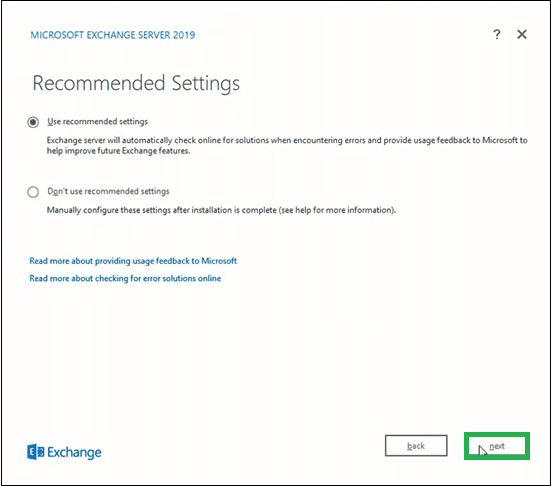
<p style="text-align: justify;">7. Trên trang&nbsp;<strong>Recommendation Settings</strong>, chọn tùy chọn&nbsp;<strong>Use recommendation settings</strong>&nbsp;và nhấp vào&nbsp;<strong>Next.</strong></p>

<figure>
<div style="text-align: justify;"><img alt="Chọn tùy chọn Use recommendation settings" data-i="3" data-src="https://st.quantrimang.com/photos/image/2021/03/23/cai-exchange-server-2019-4.png" data-was-processed="true" height="486" src="https://st.quantrimang.com/photos/image/2021/03/23/cai-exchange-server-2019-4.png" width="553" /></div>

<figcaption>
<div style="text-align: justify;">Chọn tùy chọn Use recommendation settings</div>
</figcaption>
</figure>

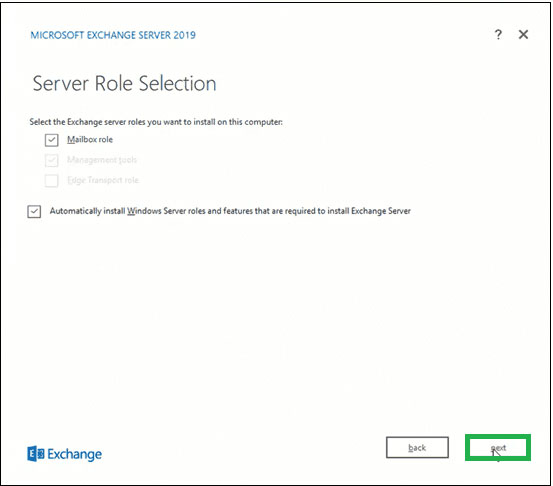
<p style="text-align: justify;">8. Tại đây, chọn tùy chọn&nbsp;<strong>Mailbox role</strong>&nbsp;trong phần&nbsp;<strong>Exchange Server roles</strong>&nbsp;và chọn hộp kiểm&nbsp;<strong>Automatically install Windows Server roles and features that are required to install Exchange Server</strong>. Nhấn&nbsp;<strong>Next.</strong></p>

<figure>
<div style="text-align: justify;"><img alt="Chọn Mailbox role trong phần Exchange Server roles" data-i="4" data-src="https://st.quantrimang.com/photos/image/2021/03/23/cai-exchange-server-2019-5.jpg" data-was-processed="true" height="486" src="https://st.quantrimang.com/photos/image/2021/03/23/cai-exchange-server-2019-5.jpg" width="553" /></div>

<figcaption>
<div style="text-align: justify;">Chọn Mailbox role trong phần Exchange Server roles</div>
</figcaption>
</figure>

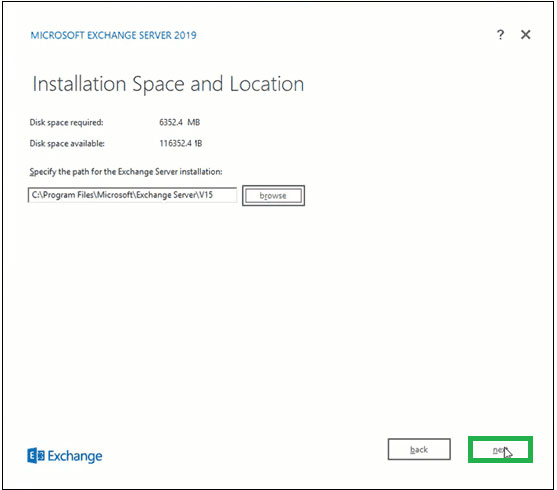
<p style="text-align: justify;">9. Bấm duyệt để chỉ định đường dẫn cho cài đặt Exchange Server hoặc để nó ở đường dẫn đã chọn mặc định. Nhấn&nbsp;<strong>Next.</strong></p>

<figure>
<div style="text-align: justify;"><img alt="Chỉ định đường dẫn cho cài đặt Exchange Server" data-i="5" data-src="https://st.quantrimang.com/photos/image/2021/03/23/cai-exchange-server-2019-6.jpg" data-was-processed="true" height="490" src="https://st.quantrimang.com/photos/image/2021/03/23/cai-exchange-server-2019-6.jpg" width="557" /></div>

<figcaption>
<div style="text-align: justify;">Chỉ định đường dẫn cho cài đặt Exchange Server</div>
</figcaption>
</figure>

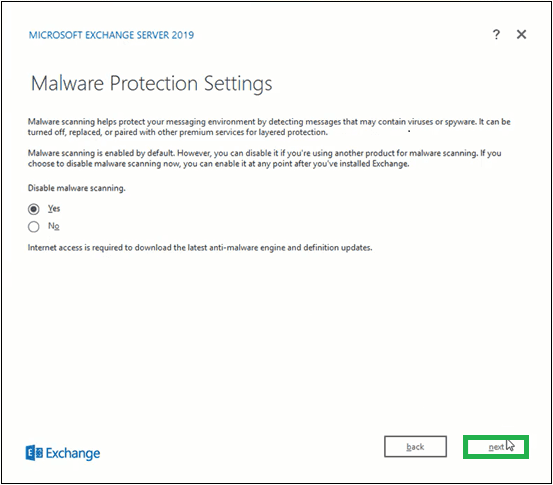
<p style="text-align: justify;">10. Đối với&nbsp;<strong>Malware Protection Settings</strong>, hãy chọn tùy chọn&nbsp;<strong>Yes</strong>&nbsp;hoặc&nbsp;<strong>No</strong>&nbsp;(để tắt tính năng quét phần mềm độc hại) và nhấp vào&nbsp;<strong>Next.</strong></p>

<figure>
<div style="text-align: justify;"><img alt="Bật/tắt tính năng quét phần mềm độc hại" data-i="6" data-src="https://st.quantrimang.com/photos/image/2021/03/23/cai-exchange-server-2019-7.png" data-was-processed="true" height="485" src="https://st.quantrimang.com/photos/image/2021/03/23/cai-exchange-server-2019-7.png" width="553" /></div>

<figcaption>
<div style="text-align: justify;">Bật/tắt tính năng quét phần mềm độc hại</div>
</figcaption>
</figure>

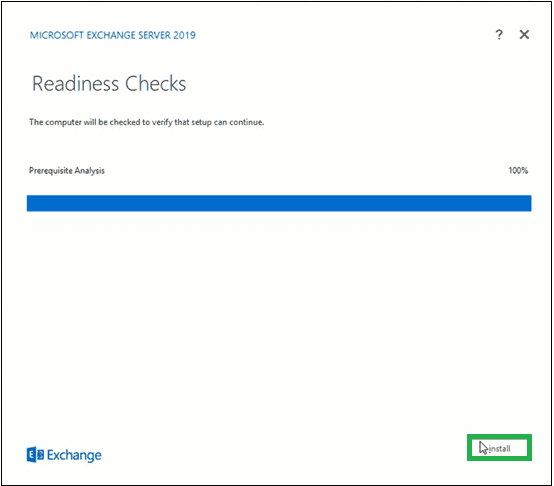
<p style="text-align: justify;">11. Chờ quá trình&nbsp;<strong>Readiness Checks</strong>&nbsp;hoàn thành để xác minh thiết lập và sau đó nhấp vào&nbsp;<strong>Install.</strong></p>

<figure>
<div style="text-align: justify;"><img alt="Chờ xác minh thiết lập" data-i="7" data-src="https://st.quantrimang.com/photos/image/2021/03/23/cai-exchange-server-2019-8.png" data-was-processed="true" height="486" src="https://st.quantrimang.com/photos/image/2021/03/23/cai-exchange-server-2019-8.png" width="554" /></div>

<figcaption>
<div style="text-align: justify;">Chờ xác minh thiết lập</div>
</figcaption>
</figure>

<p style="text-align: justify;">12.&nbsp;<strong>Setup Progress</strong>&nbsp;sẽ bắt đầu sao chép các file Exchange.</p>

<p style="text-align: justify;">13. Sau khi thiết lập hoàn tất, nó sẽ hiển thị trang&nbsp;<strong>Setup Completed.</strong></p>

<div style="text-align: justify;">&nbsp;</div>

<p style="text-align: justify;">Để khởi chạy Exchange Server ngay lập tức, hãy chọn hộp kiểm&nbsp;<strong>Launch Exchange Administration Center after Finishing Exchange setup</strong>. Nhấp vào&nbsp;<strong>Finish.</strong></p>

<p style="text-align: justify;">Exchange Server 2019 đã được cài đặt thành công trên hệ thống của bạn. Bằng cách chạy hai lệnh này trong Exchange Management Shell, bạn sẽ nhận được thông tin đầy đủ về Exchange Server mới được cài đặt của mình.</p>

<pre id="pre4">
<code>Get-ExchangeServer
Get-ExchangeServer -Identity MailboxName | Format-List</code></pre>

<p style="text-align: justify;">Quản trị viên Exchange 2019 cũng có thể đăng nhập vào Exchange Admin Center để xác nhận cài đặt Exchange Server thành công.</p>

<p style="text-align: justify;"><strong>Lưu ý</strong>: Quản trị viên Exchange phải tuân theo các tác vụ cài đặt sau cho Exchange Server, chẳng hạn như cung cấp product key Exchange, cài đặt công cụ quản lý Exchange trên máy khách, đăng ký Edge, cấu hình chứng chỉ bảo mật, v.v...</p>
		</div>
				<div id="author">
						<p>
				<strong>Nguồn tin:</strong>
				Quantrimang.com
			</p>
		</div>
	</div>
	<div id="footer" class="clearfix">
		<div id="url">
			<strong>URL của bản tin này: </strong><a href="https://www.nguoicodonvn2008.info/vi/news/savefile/kien-thuc-may-tinh/cach-cai-dat-exchange-server-2019-3837.html" title="Cách cài đặt Exchange Server 2019">https://www.nguoicodonvn2008.info/vi/news/savefile/kien-thuc-may-tinh/cach-cai-dat-exchange-server-2019-3837.html</a>

		</div>
		<div class="clear"></div>
		<div class="copyright">
			&copy; .&#x3A; Nguoicodonvn2008.info - Cõi lòng người cô đơn &#x3A;.
		</div>
		<div id="contact">
			<a href="mailto:admin@nguoicodonvn2008.info">admin@nguoicodonvn2008.info</a>
		</div>
	</div>
</div>
        <div id="timeoutsess" class="chromeframe">
            Bạn đã không sử dụng Site, <a onclick="timeoutsesscancel();" href="https://nguoicodonvn2008.info/#">Bấm vào đây để duy trì trạng thái đăng nhập</a>. Thời gian chờ: <span id="secField"> 60 </span> giây
        </div>
        <div id="openidResult" class="nv-alert" style="display:none"></div>
        <div id="openidBt" data-result="" data-redirect=""></div>
		</script>
		<div class="car-top">
  <span><img src="https://nguoicodonvn2008.info/themes/default/images/car.png" alt=""></span>
</div>
<script src="https://nguoicodonvn2008.info/assets/js/jquery/jquery.min.js"></script>
<script>var nv_base_siteurl="/",nv_lang_data="vi",nv_lang_interface="vi",nv_name_variable="nv",nv_fc_variable="op",nv_lang_variable="language",nv_module_name="news",nv_func_name="savefile",nv_is_user=0, nv_my_ofs=-4,nv_my_abbr="EDT",nv_cookie_prefix="nv4c_e856T",nv_check_pass_mstime=1738000,nv_area_admin=0,nv_safemode=0,theme_responsive=0,nv_recaptcha_ver=2,nv_recaptcha_sitekey="",nv_recaptcha_type="image",XSSsanitize=1;</script>
<script src="https://nguoicodonvn2008.info/assets/js/language/vi.js"></script>
<script src="https://nguoicodonvn2008.info/assets/js/DOMPurify/purify3.js"></script>
<script src="https://nguoicodonvn2008.info/assets/js/global.js"></script>
<script src="https://nguoicodonvn2008.info/assets/js/site.js"></script>
<script src="https://nguoicodonvn2008.info/themes/default/js/news.js"></script>
<script src="https://nguoicodonvn2008.info/themes/default/js/main.js"></script>
<script src="https://nguoicodonvn2008.info/themes/default/js/custom.js"></script>
<script type="application/ld+json">
        {
            "@context": "https://schema.org",
            "@type": "Organization",
            "url": "https://nguoicodonvn2008.info",
            "logo": "https://nguoicodonvn2008.info/uploads/angel.gif"
        }
        </script>
<script src="https://nguoicodonvn2008.info/themes/default/js/bootstrap.min.js"></script>
<script type="text/javascript">
var $scrolltop = $('.car-top');
$scrolltop.on('click', function () {
    $('html,body').animate({
        scrollTop: 0
    }, 800);
    $(this).addClass("car-run");
    setTimeout(function(){ $scrolltop.removeClass('car-run');}, 1000);
    return false;
});
$(window).on('scroll', function ()
{ 
    if($(window).scrollTop() >= 200)
    {
        $scrolltop.addClass("show");
        $scrolltop.addClass("car-down");
    }
    else
    {
       $scrolltop.removeClass("show");
       setTimeout(function(){ $scrolltop.removeClass('car-down');}, 300);
    }
});
</script>
</body>
</html>