<!DOCTYPE html>
    <html lang="vi" xmlns="http://www.w3.org/1999/xhtml" prefix="og: http://ogp.me/ns#">
    <head>
<title>Cách cài đặt Calibre Content Server trên Raspberry Pi</title>
<meta name="description" content="Cách cài đặt Calibre Content Server trên Raspberry Pi - Savefile - Tin Tức -...">
<meta name="author" content=".: Nguoicodonvn2008.info - Cõi lòng người cô đơn :.">
<meta name="copyright" content=".: Nguoicodonvn2008.info - Cõi lòng người cô đơn :. [admin@nguoicodonvn2008.info]">
<meta name="robots" content="index, archive, follow, noodp">
<meta name="googlebot" content="index,archive,follow,noodp">
<meta name="msnbot" content="all,index,follow">
<meta name="generator" content="NukeViet v4.5">
<meta http-equiv="Content-Type" content="text/html; charset=utf-8">
<meta property="og:title" content="Cách cài đặt Calibre Content Server trên Raspberry Pi">
<meta property="og:type" content="website">
<meta property="og:description" content="Savefile - Tin Tức - https&#x3A;&#x002F;&#x002F;www.nguoicodonvn2008.info&#x002F;vi&#x002F;news&#x002F;savefile&#x002F;kien-thuc-may-tinh&#x002F;cach-cai-dat-calibre-content-server-tren-raspberry-pi-3323.html">
<meta property="og:site_name" content=".&#x3A; Nguoicodonvn2008.info - Cõi lòng người cô đơn &#x3A;.">
<meta property="og:url" content="https://www.nguoicodonvn2008.info/vi/news/savefile/kien-thuc-may-tinh/cach-cai-dat-calibre-content-server-tren-raspberry-pi-3323.html">
<link rel="shortcut icon" href="https://nguoicodonvn2008.info/favicon.ico">
<link rel="canonical" href="https://www.nguoicodonvn2008.info/vi/news/savefile/kien-thuc-may-tinh/cach-cai-dat-calibre-content-server-tren-raspberry-pi-3323.html">
<link rel="alternate" href="https://nguoicodonvn2008.info/vi/news/rss/" title="Tin Tức" type="application/rss+xml">
<link rel="alternate" href="https://nguoicodonvn2008.info/vi/news/rss/karaoke-dual/" title="Tin Tức - Karaoke Dual" type="application/rss+xml">
<link rel="alternate" href="https://nguoicodonvn2008.info/vi/news/rss/nhac-tre/" title="Tin Tức - Nhạc trẻ" type="application/rss+xml">
<link rel="alternate" href="https://nguoicodonvn2008.info/vi/news/rss/tru-tinh/" title="Tin Tức - Trữ tình" type="application/rss+xml">
<link rel="alternate" href="https://nguoicodonvn2008.info/vi/news/rss/nuoc-ngoai/" title="Tin Tức - Nước ngoài" type="application/rss+xml">
<link rel="alternate" href="https://nguoicodonvn2008.info/vi/news/rss/remix/" title="Tin Tức - Remix" type="application/rss+xml">
<link rel="alternate" href="https://nguoicodonvn2008.info/vi/news/rss/tam-su-tinh-yeu/" title="Tin Tức - Tâm sự tình yêu" type="application/rss+xml">
<link rel="alternate" href="https://nguoicodonvn2008.info/vi/news/rss/tho-suu-tam/" title="Tin Tức - Thơ sưu tầm" type="application/rss+xml">
<link rel="alternate" href="https://nguoicodonvn2008.info/vi/news/rss/cuoc-song/" title="Tin Tức - Cuộc sống" type="application/rss+xml">
<link rel="alternate" href="https://nguoicodonvn2008.info/vi/news/rss/phan-mem/" title="Tin Tức - Phần mềm" type="application/rss+xml">
<link rel="alternate" href="https://nguoicodonvn2008.info/vi/news/rss/kien-thuc-may-tinh/" title="Tin Tức - Kiến thức máy tính" type="application/rss+xml">
<link rel="alternate" href="https://nguoicodonvn2008.info/vi/news/rss/hoc-tap/" title="Tin Tức - Học tập" type="application/rss+xml">
<link rel="alternate" href="https://nguoicodonvn2008.info/vi/news/rss/tai-lieu/" title="Tin Tức - Tài liệu" type="application/rss+xml">
<link rel="alternate" href="https://nguoicodonvn2008.info/vi/news/rss/de-thi/" title="Tin Tức - Đề thi" type="application/rss+xml">
<link rel="preload" as="style" href="https://nguoicodonvn2008.info/assets/css/font-awesome.min.css" type="text/css">
<link rel="preload" as="style" href="https://nguoicodonvn2008.info/themes/default/css/bootstrap.non-responsive.css" type="text/css">
<link rel="preload" as="style" href="https://nguoicodonvn2008.info/themes/default/css/style.css" type="text/css">
<link rel="preload" as="style" href="https://nguoicodonvn2008.info/themes/default/css/style.non-responsive.css" type="text/css">
<link rel="preload" as="style" href="https://nguoicodonvn2008.info/themes/default/css/news.css" type="text/css">
<link rel="preload" as="style" href="https://nguoicodonvn2008.info/themes/default/css/custom.css" type="text/css">
<link rel="preload" as="script" href="https://nguoicodonvn2008.info/assets/js/jquery/jquery.min.js" type="text/javascript">
<link rel="preload" as="script" href="https://nguoicodonvn2008.info/assets/js/language/vi.js" type="text/javascript">
<link rel="preload" as="script" href="https://nguoicodonvn2008.info/assets/js/DOMPurify/purify3.js" type="text/javascript">
<link rel="preload" as="script" href="https://nguoicodonvn2008.info/assets/js/global.js" type="text/javascript">
<link rel="preload" as="script" href="https://nguoicodonvn2008.info/assets/js/site.js" type="text/javascript">
<link rel="preload" as="script" href="https://nguoicodonvn2008.info/themes/default/js/news.js" type="text/javascript">
<link rel="preload" as="script" href="https://nguoicodonvn2008.info/themes/default/js/main.js" type="text/javascript">
<link rel="preload" as="script" href="https://nguoicodonvn2008.info/themes/default/js/custom.js" type="text/javascript">
<link rel="preload" as="script" href="https://nguoicodonvn2008.info/themes/default/js/bootstrap.min.js" type="text/javascript">
<link rel="stylesheet" href="https://nguoicodonvn2008.info/assets/css/font-awesome.min.css">
<link rel="stylesheet" href="https://nguoicodonvn2008.info/themes/default/css/bootstrap.non-responsive.css">
<link rel="stylesheet" href="https://nguoicodonvn2008.info/themes/default/css/style.css">
<link rel="stylesheet" href="https://nguoicodonvn2008.info/themes/default/css/style.non-responsive.css">
<link rel="StyleSheet" href="https://nguoicodonvn2008.info/themes/default/css/news.css">
<link rel="stylesheet" href="https://nguoicodonvn2008.info/themes/default/css/custom.css">
<style type="text/css">
	body{background: #fff;}
</style>
    </head>
    <body>
<div id="print">
	<div id="hd_print">
		<h2 class="pull-left">.&#x3A; Nguoicodonvn2008.info - Cõi lòng người cô đơn &#x3A;.</h2>
		<p class="pull-right"><a title=".&#x3A; Nguoicodonvn2008.info - Cõi lòng người cô đơn &#x3A;." href="https://nguoicodonvn2008.info/">https://nguoicodonvn2008.info</a></p>
	</div>
	<div class="clear"></div>
	<hr />
	<div id="content">
		<h1>Cách cài đặt Calibre Content Server trên Raspberry Pi</h1>
		<ul class="list-inline">
			<li>Chủ nhật - 27/12/2020 00:06</li>
			<li class="hidden-print txtrequired"><em class="fa fa-print">&nbsp;</em><a title="In ra" href="javascript:;" onclick="window.print()">In ra</a></li>
			<li class="hidden-print txtrequired"><em class="fa fa-power-off">&nbsp;</em><a title="Đóng cửa sổ này" href="javascript:;" onclick="window.close()">Đóng cửa sổ này</a></li>
		</ul>
		<div class="clear"></div>
		<div id="hometext">
		</div>
				<div class="imghome">
			<img alt="Cách cài đặt Calibre Content Server trên Raspberry Pi" src="https://st.quantrimang.com/photos/image/2020/12/22/cai-calibre-content-server-tren-pi-1.jpg" width="460" class="img-thumbnail" />
		</div>
		<div class="clear"></div>
		<div id="bodytext" class="clearfix">
			<p style="text-align: justify;">Calibre là một phần mềm tuyệt vời để quản lý bộ sưu tập ebook của bạn. Ngoài việc là một ứng dụng desktop, bạn có biết rằng bạn cũng có thể cài đặt nó làm&nbsp;server&nbsp;để có thể lưu trữ sách của mình ở vị trí trung tâm và sau đó truy cập chúng từ các thiết bị khác nhau không?</p>

<p style="text-align: justify;">Trong bài viết hôm nay,&nbsp;<strong>Quantrimang</strong>&nbsp;sẽ hướng dẫn bạn cách cài đặt Calibre content server trênRaspberry Pi.</p>

<p style="text-align: justify;"><strong>Lưu ý</strong>: Bài viết đã sử dụng Raspberry Pi 3B+ chạy Raspbian 10 (Buster) làm ví dụ. Tuy nhiên, phương pháp này sẽ hoạt động với hầu hết các hệ điều hành tương thích với Raspberry Pi.</p>

<h2 style="text-align: justify;">Cách cài đặt Calibre content server</h2>

<p style="text-align: justify;">Để bắt đầu, hãy chạy lệnh dưới đây để cài đặt Calibre.</p>

<pre id="pre0">
<code>sudo apt install calibre</code></pre>

<p style="text-align: justify;">Sau đó, hãy truy cập ứng dụng của bạn và mở Calibre. Nếu đây là lần đầu tiên bạn chạy Calibre trên thiết bị của mình, bạn sẽ phải trải qua quy trình thiết lập ban đầu, trong đó bạn phải chọn vị trí thư viện Calibre và (các) thiết bị sách điện tử của mình. Điều này khá đơn giản, vì vậy bài viết sẽ không tập trung quá nhiều vào vấn đề này ở đây.</p>

<div style="text-align: justify;">&nbsp;</div>

<h2 style="text-align: justify;">Khởi chạy Calibre content server</h2>

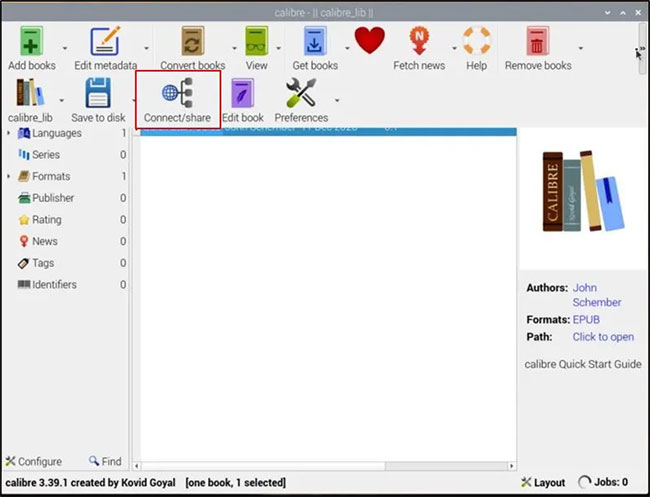
<p style="text-align: justify;">Sau khi hoàn tất quá trình thiết lập, chỉ cần chọn&nbsp;<strong>“Connect/share”</strong>&nbsp;từ menu của Calibre.</p>

<figure>
<div style="text-align: justify;"><img alt="Chọn “Connect/share”" data-i="0" data-src="https://st.quantrimang.com/photos/image/2020/12/22/cai-calibre-content-server-tren-pi-1.jpg" data-was-processed="true" height="497" src="https://st.quantrimang.com/photos/image/2020/12/22/cai-calibre-content-server-tren-pi-1.jpg" width="650" /></div>

<figcaption>
<div style="text-align: justify;">Chọn “Connect/share”</div>
</figcaption>
</figure>

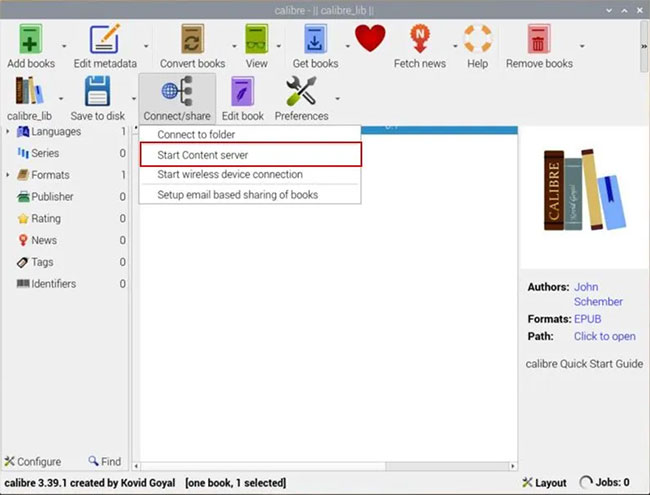
<p style="text-align: justify;">Tiếp theo, chọn&nbsp;<strong>Start Content server</strong>.</p>

<figure>
<div style="text-align: justify;"><img alt="Chọn Start Content server" data-i="1" data-src="https://st.quantrimang.com/photos/image/2020/12/22/cai-calibre-content-server-tren-pi-2.jpg" data-was-processed="true" height="495" src="https://st.quantrimang.com/photos/image/2020/12/22/cai-calibre-content-server-tren-pi-2.jpg" width="650" /></div>

<figcaption>
<div style="text-align: justify;">Chọn Start Content server</div>
</figcaption>
</figure>

<p style="text-align: justify;">Khi content server được khởi động, giờ đây, bạn có thể truy cập nội dung của mình từ các thiết bị trên mạng gia đình. Để truy cập thư viện nội dung trên thư viện nội bộ/gia đình, bạn cần biết&nbsp;địa chỉ IP nội bộ của Raspberry Pi.</p>

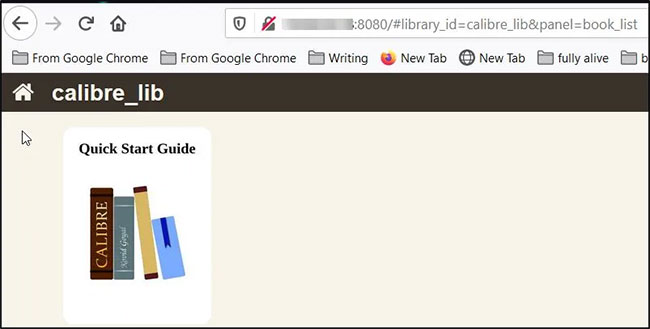
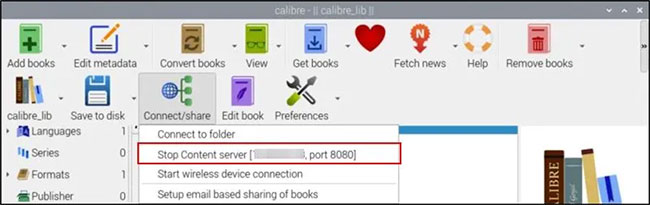
<p style="text-align: justify;">Bạn có thể dễ dàng tìm thấy điều này bằng cách chọn lại&nbsp;<strong>“Connect/share”</strong>&nbsp;từ menu của mình. Bạn sẽ thấy địa chỉ nội bộ của Raspberry Pi được hiển thị. Chỉ cần nhập thông tin này vào trình duyệt web của bất kỳ thiết bị nào được kết nối với mạng gia đình để truy cập content server. Hãy nhớ thêm số cổng của bạn. Định dạng chung để thực hiện việc này là:</p>

<pre id="pre1">
<code>IPAdress:8080</code></pre>

<figure>
<div style="text-align: justify;"><img alt="Truy cập content server" data-i="2" data-src="https://st.quantrimang.com/photos/image/2020/12/22/cai-calibre-content-server-tren-pi-3.jpg" data-was-processed="true" height="329" src="https://st.quantrimang.com/photos/image/2020/12/22/cai-calibre-content-server-tren-pi-3.jpg" width="650" /></div>

<figcaption>
<div style="text-align: justify;">Truy cập content server</div>
</figcaption>
</figure>

<p style="text-align: justify;">Bạn sẽ cần nhập địa chỉ IP, sau đó là số cổng, được hiển thị trong cùng khu vực với địa chỉ IP khi bạn chọn&nbsp;<strong>“Connect/share”.</strong></p>

<figure>
<div style="text-align: justify;"><img alt="Bạn sẽ cần nhập địa chỉ IP, sau đó là số cổng" data-i="3" data-src="https://st.quantrimang.com/photos/image/2020/12/22/cai-calibre-content-server-tren-pi-4.jpg" data-was-processed="true" height="205" src="https://st.quantrimang.com/photos/image/2020/12/22/cai-calibre-content-server-tren-pi-4.jpg" width="650" /></div>

<figcaption>
<div style="text-align: justify;">Bạn sẽ cần nhập địa chỉ IP, sau đó là số cổng</div>
</figcaption>
</figure>

<p style="text-align: justify;">Nếu muốn truy cập content server từ bên ngoài mạng gia đình, bạn sẽ phải đảm bảo rằng cổng đang sử dụng với Calibre được&nbsp;<a href="https://quantrimang.com/kien-thuc-co-ban-ve-mang-phan-2-router-35172" title="Router là gì? Router làm gì trên mạng?">router</a>&nbsp;chuyển tiếp. Ngoài ra, bạn sẽ phải tìm địa chỉ IP bên ngoài của Raspberry Pi. Bạn có thể dễ dàng thực hiện việc này bằng cách truy cập<strong>https://whatismyipaddress.com.</strong>&nbsp;Khi biết địa chỉ IP bên ngoài, bạn có thể truy cập content server của mình từ bất kỳ đâu khi kết nối với bất kỳ mạng nào bằng cách nhập như sau:</p>

<pre id="pre2">
<code>externalipaddress:8080</code></pre>
		</div>
				<div id="author">
						<p>
				<strong>Nguồn tin:</strong>
				Quantrimang.com
			</p>
		</div>
	</div>
	<div id="footer" class="clearfix">
		<div id="url">
			<strong>URL của bản tin này: </strong><a href="https://www.nguoicodonvn2008.info/vi/news/savefile/kien-thuc-may-tinh/cach-cai-dat-calibre-content-server-tren-raspberry-pi-3323.html" title="Cách cài đặt Calibre Content Server trên Raspberry Pi">https://www.nguoicodonvn2008.info/vi/news/savefile/kien-thuc-may-tinh/cach-cai-dat-calibre-content-server-tren-raspberry-pi-3323.html</a>

		</div>
		<div class="clear"></div>
		<div class="copyright">
			&copy; .&#x3A; Nguoicodonvn2008.info - Cõi lòng người cô đơn &#x3A;.
		</div>
		<div id="contact">
			<a href="mailto:admin@nguoicodonvn2008.info">admin@nguoicodonvn2008.info</a>
		</div>
	</div>
</div>
        <div id="timeoutsess" class="chromeframe">
            Bạn đã không sử dụng Site, <a onclick="timeoutsesscancel();" href="https://nguoicodonvn2008.info/#">Bấm vào đây để duy trì trạng thái đăng nhập</a>. Thời gian chờ: <span id="secField"> 60 </span> giây
        </div>
        <div id="openidResult" class="nv-alert" style="display:none"></div>
        <div id="openidBt" data-result="" data-redirect=""></div>
		</script>
		<div class="car-top">
  <span><img src="https://nguoicodonvn2008.info/themes/default/images/car.png" alt=""></span>
</div>
<script src="https://nguoicodonvn2008.info/assets/js/jquery/jquery.min.js"></script>
<script>var nv_base_siteurl="/",nv_lang_data="vi",nv_lang_interface="vi",nv_name_variable="nv",nv_fc_variable="op",nv_lang_variable="language",nv_module_name="news",nv_func_name="savefile",nv_is_user=0, nv_my_ofs=-4,nv_my_abbr="EDT",nv_cookie_prefix="nv4c_e856T",nv_check_pass_mstime=1738000,nv_area_admin=0,nv_safemode=0,theme_responsive=0,nv_recaptcha_ver=2,nv_recaptcha_sitekey="",nv_recaptcha_type="image",XSSsanitize=1;</script>
<script src="https://nguoicodonvn2008.info/assets/js/language/vi.js"></script>
<script src="https://nguoicodonvn2008.info/assets/js/DOMPurify/purify3.js"></script>
<script src="https://nguoicodonvn2008.info/assets/js/global.js"></script>
<script src="https://nguoicodonvn2008.info/assets/js/site.js"></script>
<script src="https://nguoicodonvn2008.info/themes/default/js/news.js"></script>
<script src="https://nguoicodonvn2008.info/themes/default/js/main.js"></script>
<script src="https://nguoicodonvn2008.info/themes/default/js/custom.js"></script>
<script type="application/ld+json">
        {
            "@context": "https://schema.org",
            "@type": "Organization",
            "url": "https://nguoicodonvn2008.info",
            "logo": "https://nguoicodonvn2008.info/uploads/angel.gif"
        }
        </script>
<script src="https://nguoicodonvn2008.info/themes/default/js/bootstrap.min.js"></script>
<script type="text/javascript">
var $scrolltop = $('.car-top');
$scrolltop.on('click', function () {
    $('html,body').animate({
        scrollTop: 0
    }, 800);
    $(this).addClass("car-run");
    setTimeout(function(){ $scrolltop.removeClass('car-run');}, 1000);
    return false;
});
$(window).on('scroll', function ()
{ 
    if($(window).scrollTop() >= 200)
    {
        $scrolltop.addClass("show");
        $scrolltop.addClass("car-down");
    }
    else
    {
       $scrolltop.removeClass("show");
       setTimeout(function(){ $scrolltop.removeClass('car-down');}, 300);
    }
});
</script>
</body>
</html>