<!DOCTYPE html>
    <html lang="vi" xmlns="http://www.w3.org/1999/xhtml" prefix="og: http://ogp.me/ns#">
    <head>
<title>Cách biến PC Windows 11 thành một bộ thu phát âm thanh Bluetooth</title>
<meta name="description" content="Cách biến PC Windows 11 thành một bộ thu phát âm thanh Bluetooth - Savefile - Tin Tức -...">
<meta name="author" content=".: Nguoicodonvn2008.info - Cõi lòng người cô đơn :.">
<meta name="copyright" content=".: Nguoicodonvn2008.info - Cõi lòng người cô đơn :. [admin@nguoicodonvn2008.info]">
<meta name="robots" content="index, archive, follow, noodp">
<meta name="googlebot" content="index,archive,follow,noodp">
<meta name="msnbot" content="all,index,follow">
<meta name="generator" content="NukeViet v4.5">
<meta http-equiv="Content-Type" content="text/html; charset=utf-8">
<meta property="og:title" content="Cách biến PC Windows 11 thành một bộ thu phát âm thanh Bluetooth">
<meta property="og:type" content="website">
<meta property="og:description" content="Savefile - Tin Tức - https&#x3A;&#x002F;&#x002F;www.nguoicodonvn2008.info&#x002F;vi&#x002F;news&#x002F;savefile&#x002F;kien-thuc-may-tinh&#x002F;cach-bien-pc-windows-11-thanh-mot-bo-thu-phat-am-thanh-bluetooth-10180.html">
<meta property="og:site_name" content=".&#x3A; Nguoicodonvn2008.info - Cõi lòng người cô đơn &#x3A;.">
<meta property="og:url" content="https://www.nguoicodonvn2008.info/vi/news/savefile/kien-thuc-may-tinh/cach-bien-pc-windows-11-thanh-mot-bo-thu-phat-am-thanh-bluetooth-10180.html">
<link rel="shortcut icon" href="https://nguoicodonvn2008.info/favicon.ico">
<link rel="canonical" href="https://www.nguoicodonvn2008.info/vi/news/savefile/kien-thuc-may-tinh/cach-bien-pc-windows-11-thanh-mot-bo-thu-phat-am-thanh-bluetooth-10180.html">
<link rel="alternate" href="https://nguoicodonvn2008.info/vi/news/rss/" title="Tin Tức" type="application/rss+xml">
<link rel="alternate" href="https://nguoicodonvn2008.info/vi/news/rss/karaoke-dual/" title="Tin Tức - Karaoke Dual" type="application/rss+xml">
<link rel="alternate" href="https://nguoicodonvn2008.info/vi/news/rss/nhac-tre/" title="Tin Tức - Nhạc trẻ" type="application/rss+xml">
<link rel="alternate" href="https://nguoicodonvn2008.info/vi/news/rss/tru-tinh/" title="Tin Tức - Trữ tình" type="application/rss+xml">
<link rel="alternate" href="https://nguoicodonvn2008.info/vi/news/rss/nuoc-ngoai/" title="Tin Tức - Nước ngoài" type="application/rss+xml">
<link rel="alternate" href="https://nguoicodonvn2008.info/vi/news/rss/remix/" title="Tin Tức - Remix" type="application/rss+xml">
<link rel="alternate" href="https://nguoicodonvn2008.info/vi/news/rss/tam-su-tinh-yeu/" title="Tin Tức - Tâm sự tình yêu" type="application/rss+xml">
<link rel="alternate" href="https://nguoicodonvn2008.info/vi/news/rss/tho-suu-tam/" title="Tin Tức - Thơ sưu tầm" type="application/rss+xml">
<link rel="alternate" href="https://nguoicodonvn2008.info/vi/news/rss/cuoc-song/" title="Tin Tức - Cuộc sống" type="application/rss+xml">
<link rel="alternate" href="https://nguoicodonvn2008.info/vi/news/rss/phan-mem/" title="Tin Tức - Phần mềm" type="application/rss+xml">
<link rel="alternate" href="https://nguoicodonvn2008.info/vi/news/rss/kien-thuc-may-tinh/" title="Tin Tức - Kiến thức máy tính" type="application/rss+xml">
<link rel="alternate" href="https://nguoicodonvn2008.info/vi/news/rss/hoc-tap/" title="Tin Tức - Học tập" type="application/rss+xml">
<link rel="alternate" href="https://nguoicodonvn2008.info/vi/news/rss/tai-lieu/" title="Tin Tức - Tài liệu" type="application/rss+xml">
<link rel="alternate" href="https://nguoicodonvn2008.info/vi/news/rss/de-thi/" title="Tin Tức - Đề thi" type="application/rss+xml">
<link rel="preload" as="style" href="https://nguoicodonvn2008.info/assets/css/font-awesome.min.css" type="text/css">
<link rel="preload" as="style" href="https://nguoicodonvn2008.info/themes/default/css/bootstrap.non-responsive.css" type="text/css">
<link rel="preload" as="style" href="https://nguoicodonvn2008.info/themes/default/css/style.css" type="text/css">
<link rel="preload" as="style" href="https://nguoicodonvn2008.info/themes/default/css/style.non-responsive.css" type="text/css">
<link rel="preload" as="style" href="https://nguoicodonvn2008.info/themes/default/css/news.css" type="text/css">
<link rel="preload" as="style" href="https://nguoicodonvn2008.info/themes/default/css/custom.css" type="text/css">
<link rel="preload" as="script" href="https://nguoicodonvn2008.info/assets/js/jquery/jquery.min.js" type="text/javascript">
<link rel="preload" as="script" href="https://nguoicodonvn2008.info/assets/js/language/vi.js" type="text/javascript">
<link rel="preload" as="script" href="https://nguoicodonvn2008.info/assets/js/DOMPurify/purify3.js" type="text/javascript">
<link rel="preload" as="script" href="https://nguoicodonvn2008.info/assets/js/global.js" type="text/javascript">
<link rel="preload" as="script" href="https://nguoicodonvn2008.info/assets/js/site.js" type="text/javascript">
<link rel="preload" as="script" href="https://nguoicodonvn2008.info/themes/default/js/news.js" type="text/javascript">
<link rel="preload" as="script" href="https://nguoicodonvn2008.info/themes/default/js/main.js" type="text/javascript">
<link rel="preload" as="script" href="https://nguoicodonvn2008.info/themes/default/js/custom.js" type="text/javascript">
<link rel="preload" as="script" href="https://nguoicodonvn2008.info/themes/default/js/bootstrap.min.js" type="text/javascript">
<link rel="stylesheet" href="https://nguoicodonvn2008.info/assets/css/font-awesome.min.css">
<link rel="stylesheet" href="https://nguoicodonvn2008.info/themes/default/css/bootstrap.non-responsive.css">
<link rel="stylesheet" href="https://nguoicodonvn2008.info/themes/default/css/style.css">
<link rel="stylesheet" href="https://nguoicodonvn2008.info/themes/default/css/style.non-responsive.css">
<link rel="StyleSheet" href="https://nguoicodonvn2008.info/themes/default/css/news.css">
<link rel="stylesheet" href="https://nguoicodonvn2008.info/themes/default/css/custom.css">
<style type="text/css">
	body{background: #fff;}
</style>
    </head>
    <body>
<div id="print">
	<div id="hd_print">
		<h2 class="pull-left">.&#x3A; Nguoicodonvn2008.info - Cõi lòng người cô đơn &#x3A;.</h2>
		<p class="pull-right"><a title=".&#x3A; Nguoicodonvn2008.info - Cõi lòng người cô đơn &#x3A;." href="https://nguoicodonvn2008.info/">https://nguoicodonvn2008.info</a></p>
	</div>
	<div class="clear"></div>
	<hr />
	<div id="content">
		<h1>Cách biến PC Windows 11 thành một bộ thu phát âm thanh Bluetooth</h1>
		<ul class="list-inline">
			<li>Thứ hai - 14/04/2025 23:41</li>
			<li class="hidden-print txtrequired"><em class="fa fa-print">&nbsp;</em><a title="In ra" href="javascript:;" onclick="window.print()">In ra</a></li>
			<li class="hidden-print txtrequired"><em class="fa fa-power-off">&nbsp;</em><a title="Đóng cửa sổ này" href="javascript:;" onclick="window.close()">Đóng cửa sổ này</a></li>
		</ul>
		<div class="clear"></div>
		<div id="hometext">
		</div>
				<div class="imghome">
			<img alt="Cách biến PC Windows 11 thành một bộ thu phát âm thanh Bluetooth" src="https://st.quantrimang.com/photos/image/2025/04/12/pc-windows-11-thanh-bo-thu-phat-am-thanh-bluetooth5.jpg" width="460" class="img-thumbnail" />
		</div>
		<div class="clear"></div>
		<div id="bodytext" class="clearfix">
			<div class="ckeditor-html5-audio" style="text-align: center;">
<audio controls="controls" controlslist="nodownload" src="https://st.quantrimang.com/photos/media/2025/04/14/208500-20254141145.mp3">&nbsp;</audio>
</div>

<p style="text-align: justify;">Bạn có biết bạn có thể dùng&nbsp;&nbsp;PC&nbsp;chạy&nbsp;&nbsp;Windows&nbsp;11 như một loa Bluetooth? Tính năng này cho phép phát nhạc từ điện thoại iPhone/Android hoặc thiết bị khác qua loa máy tính. Dưới đây là hướng dẫn chi tiết.</p>

<h2 style="text-align: justify;">Bước 1: Ghép nối thiết bị Bluetooth với PC</h2>

<p style="text-align: justify;"><strong>Trên thiết bị di động (iPhone/Android):</strong></p>

<ul>
	<li style="text-align: justify;">iPhone: Vào&nbsp;<strong>Cài đặt &gt; Bluetooth &gt;&nbsp;</strong>bật công tắc Bluetooth.</li>
	<li style="text-align: justify;">Android: Kéo thanh thông báo xuống 2 lần &gt; chạm vào biểu tượng Bluetooth.</li>
</ul>

<p style="text-align: justify;"><strong>Trên Windows 11:</strong></p>

<ol>
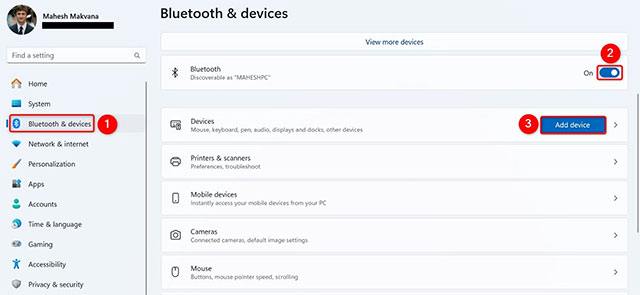
	<li style="text-align: justify;">Mở&nbsp;<strong>Settings&nbsp;</strong>(nhấn&nbsp;<strong>Windows + I</strong>) &gt; chọn<strong>&nbsp;Bluetooth &amp; devices</strong>&nbsp;ở thanh bên trái.</li>
	<li style="text-align: justify;">Bật Bluetooth nếu chưa kích hoạt &gt; nhấp&nbsp;<strong>Add device</strong>&nbsp;(bên cạnh mục&nbsp;<strong>Devices</strong>).<br />
	<img alt="" data-i="0" data-src="https://st.quantrimang.com/photos/image/2025/04/12/pc-windows-11-thanh-bo-thu-phat-am-thanh-bluetooth1.jpg" data-was-processed="true" height="295" src="https://st.quantrimang.com/photos/image/2025/04/12/pc-windows-11-thanh-bo-thu-phat-am-thanh-bluetooth1.jpg" width="640" /></li>
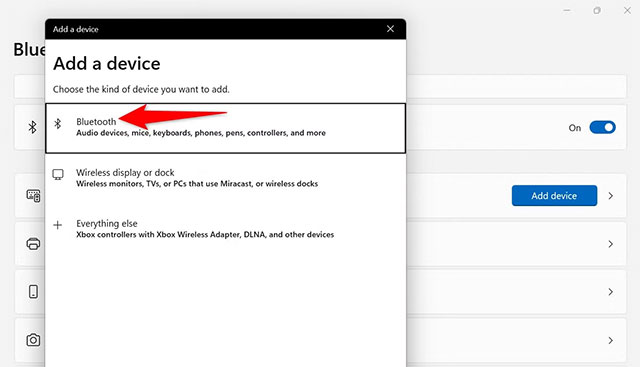
	<li style="text-align: justify;">Chọn&nbsp;<strong>Bluetooth&nbsp;</strong>&gt; đợi PC quét thiết bị &gt; chọn tên thiết bị của bạn từ danh sách.<br />
	<img alt="" data-i="1" data-src="https://st.quantrimang.com/photos/image/2025/04/12/pc-windows-11-thanh-bo-thu-phat-am-thanh-bluetooth2.jpg" data-was-processed="true" height="367" src="https://st.quantrimang.com/photos/image/2025/04/12/pc-windows-11-thanh-bo-thu-phat-am-thanh-bluetooth2.jpg" width="640" /></li>
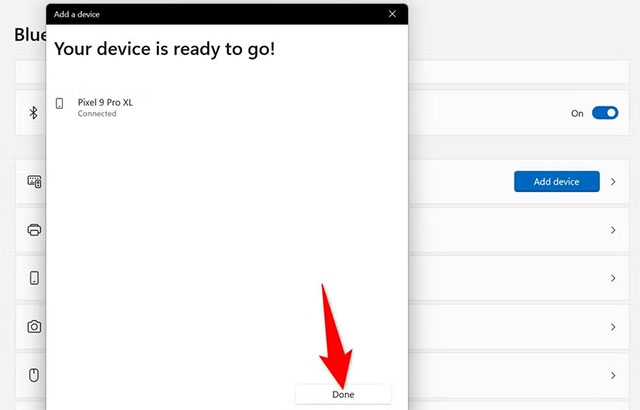
	<li style="text-align: justify;">Khi thông báo&nbsp;<strong>Your device is ready to go!</strong>&nbsp;xuất hiện, nhấn&nbsp;<strong>Done&nbsp;</strong>để hoàn tất.<br />
	<img alt="" data-i="2" data-src="https://st.quantrimang.com/photos/image/2025/04/12/pc-windows-11-thanh-bo-thu-phat-am-thanh-bluetooth3.jpg" data-was-processed="true" height="410" src="https://st.quantrimang.com/photos/image/2025/04/12/pc-windows-11-thanh-bo-thu-phat-am-thanh-bluetooth3.jpg" width="640" /></li>
</ol>

<h2 style="text-align: justify;">Bước 2: Cài đặt ứng dụng nhận âm thanh Bluetooth</h2>

<p style="text-align: justify;">Windows 11 không hỗ trợ sẵn tính năng này, nên bạn cần tải ứng dụng Bluetooth Audio Receiver từ Microsoft Store:</p>

<div style="text-align: justify;">&nbsp;</div>

<ol>
	<li style="text-align: justify;">Mở&nbsp;<strong>Microsoft Store</strong>&nbsp;(nhấn&nbsp;<strong>Windows + S</strong>&nbsp;&gt; gõ &quot;<strong>Microsoft Store</strong>&quot;).</li>
	<li style="text-align: justify;">Tìm kiếm&nbsp;<strong>Bluetooth Audio Receiver&nbsp;</strong>&gt; nhấn&nbsp;<strong>Get&nbsp;</strong>để tải và cài đặt.</li>
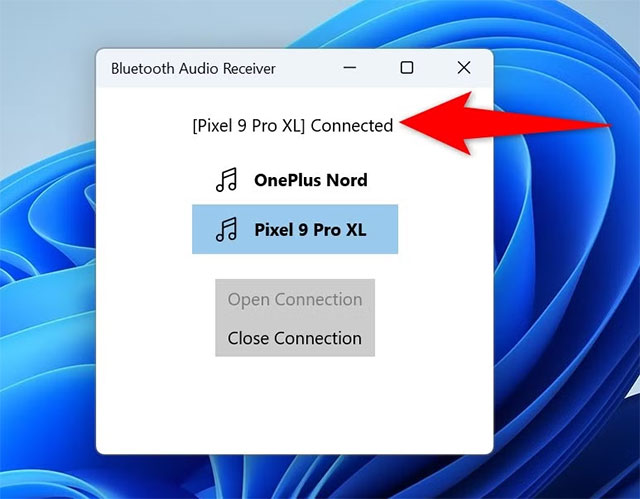
	<li style="text-align: justify;">Mở ứng dụng &gt; chọn thiết bị đã ghép nối ở Bước 1 &gt; nhấn&nbsp;<strong>Open Connection</strong>.<br />
	<img alt="" data-i="3" data-src="https://st.quantrimang.com/photos/image/2025/04/12/pc-windows-11-thanh-bo-thu-phat-am-thanh-bluetooth5.jpg" data-was-processed="true" height="499" src="https://st.quantrimang.com/photos/image/2025/04/12/pc-windows-11-thanh-bo-thu-phat-am-thanh-bluetooth5.jpg" width="640" /></li>
	<li style="text-align: justify;">Khi thấy thông báo &#91;<strong>Tên thiết bị</strong>&#93;&nbsp;<strong>Connected</strong>, PC đã sẵn sàng nhận âm thanh.</li>
</ol>

<h2 style="text-align: justify;">Cách sử dụng</h2>

<p style="text-align: justify;">Trên điện thoại: Mở ứng dụng nhạc (Spotify, YouTube, v.v.) và phát bài hát. Âm thanh sẽ phát qua loa PC.</p>

<ul>
	<li style="text-align: justify;"><strong>Điều chỉnh âm lượng</strong>: Dùng nút chỉnh âm lượng trên điện thoại hoặc biểu tượng loa ở khay hệ thống Windows.</li>
	<li style="text-align: justify;"><strong>Ngắt kết nối</strong>: Mở ứng dụng&nbsp;<strong>Bluetooth Audio Receiver&nbsp;</strong>&gt; nhấn&nbsp;<strong>Close Connection&nbsp;</strong>(không cần hủy ghép nối).</li>
</ul>

<h2 style="text-align: justify;">Xử lý sự cố thường gặp</h2>

<p style="text-align: justify;">Nếu bạn gặp sự cố khi cố gắng kết nối hoặc phát nhạc trên PC chạy Windows 11, hãy thử các mẹo khắc phục sự cố sau đây.</p>

<p style="text-align: justify;"><strong>PC không tìm thấy thiết bị:</strong></p>

<ul>
	<li style="text-align: justify;">Đảm bảo thiết bị đang ở chế độ khả dụng (discoverable).</li>
	<li style="text-align: justify;">Android: Vào&nbsp;<strong>Cài đặt</strong>&nbsp;&gt;<strong>&nbsp;Thiết bị đã kết nối&nbsp;</strong>&gt;<strong>&nbsp;Ghép nối thiết bị mới</strong>&nbsp;&gt; giữ màn hình này mở trong khi ghép nối.</li>
</ul>

<p style="text-align: justify;"><strong>Không có âm thanh trên PC:</strong></p>

<ul>
	<li style="text-align: justify;">Kiểm tra âm lượng PC chưa bị tắt.</li>
	<li style="text-align: justify;">Nếu dùng tai nghe: Nhấp chuột phải vào biểu tượng loa &gt; chọn&nbsp;<strong>Sound Settings</strong>&nbsp;&gt;&nbsp;<strong>Choose where to play sound&nbsp;</strong>&gt; chọn đúng thiết bị phát.</li>
</ul>

<p style="text-align: justify;"><strong>Âm thanh bị gián đoạn:</strong></p>

<ul>
	<li style="text-align: justify;">Đảm bảo khoảng cách giữa PC và thiết bị dưới 10m, không có vật cản.</li>
</ul>

<p style="text-align: justify;"><strong>Lưu ý:</strong>&nbsp;Ứng dụng Bluetooth Audio Receiver miễn phí nhưng có thể hiển thị quảng cáo. Ngoài ra, bạn có thể ghép nối nhiều thiết bị và chuyển đổi giữa chúng tùy ý.<br />
Chúc bạn thực hiện thành công!</p>
		</div>
				<div id="author">
						<p>
				<strong>Nguồn tin:</strong>
				Quantrimang.com:
			</p>
		</div>
	</div>
	<div id="footer" class="clearfix">
		<div id="url">
			<strong>URL của bản tin này: </strong><a href="https://www.nguoicodonvn2008.info/vi/news/savefile/kien-thuc-may-tinh/cach-bien-pc-windows-11-thanh-mot-bo-thu-phat-am-thanh-bluetooth-10180.html" title="Cách biến PC Windows 11 thành một bộ thu phát âm thanh Bluetooth">https://www.nguoicodonvn2008.info/vi/news/savefile/kien-thuc-may-tinh/cach-bien-pc-windows-11-thanh-mot-bo-thu-phat-am-thanh-bluetooth-10180.html</a>

		</div>
		<div class="clear"></div>
		<div class="copyright">
			&copy; .&#x3A; Nguoicodonvn2008.info - Cõi lòng người cô đơn &#x3A;.
		</div>
		<div id="contact">
			<a href="mailto:admin@nguoicodonvn2008.info">admin@nguoicodonvn2008.info</a>
		</div>
	</div>
</div>
        <div id="timeoutsess" class="chromeframe">
            Bạn đã không sử dụng Site, <a onclick="timeoutsesscancel();" href="https://nguoicodonvn2008.info/#">Bấm vào đây để duy trì trạng thái đăng nhập</a>. Thời gian chờ: <span id="secField"> 60 </span> giây
        </div>
        <div id="openidResult" class="nv-alert" style="display:none"></div>
        <div id="openidBt" data-result="" data-redirect=""></div>
		</script>
		<div class="car-top">
  <span><img src="https://nguoicodonvn2008.info/themes/default/images/car.png" alt=""></span>
</div>
<script src="https://nguoicodonvn2008.info/assets/js/jquery/jquery.min.js"></script>
<script>var nv_base_siteurl="/",nv_lang_data="vi",nv_lang_interface="vi",nv_name_variable="nv",nv_fc_variable="op",nv_lang_variable="language",nv_module_name="news",nv_func_name="savefile",nv_is_user=0, nv_my_ofs=-4,nv_my_abbr="EDT",nv_cookie_prefix="nv4c_e856T",nv_check_pass_mstime=1738000,nv_area_admin=0,nv_safemode=0,theme_responsive=0,nv_recaptcha_ver=2,nv_recaptcha_sitekey="",nv_recaptcha_type="image",XSSsanitize=1;</script>
<script src="https://nguoicodonvn2008.info/assets/js/language/vi.js"></script>
<script src="https://nguoicodonvn2008.info/assets/js/DOMPurify/purify3.js"></script>
<script src="https://nguoicodonvn2008.info/assets/js/global.js"></script>
<script src="https://nguoicodonvn2008.info/assets/js/site.js"></script>
<script src="https://nguoicodonvn2008.info/themes/default/js/news.js"></script>
<script src="https://nguoicodonvn2008.info/themes/default/js/main.js"></script>
<script src="https://nguoicodonvn2008.info/themes/default/js/custom.js"></script>
<script type="application/ld+json">
        {
            "@context": "https://schema.org",
            "@type": "Organization",
            "url": "https://nguoicodonvn2008.info",
            "logo": "https://nguoicodonvn2008.info/uploads/angel.gif"
        }
        </script>
<script src="https://nguoicodonvn2008.info/themes/default/js/bootstrap.min.js"></script>
<script type="text/javascript">
var $scrolltop = $('.car-top');
$scrolltop.on('click', function () {
    $('html,body').animate({
        scrollTop: 0
    }, 800);
    $(this).addClass("car-run");
    setTimeout(function(){ $scrolltop.removeClass('car-run');}, 1000);
    return false;
});
$(window).on('scroll', function ()
{ 
    if($(window).scrollTop() >= 200)
    {
        $scrolltop.addClass("show");
        $scrolltop.addClass("car-down");
    }
    else
    {
       $scrolltop.removeClass("show");
       setTimeout(function(){ $scrolltop.removeClass('car-down');}, 300);
    }
});
</script>
</body>
</html>