<!DOCTYPE html>
    <html lang="vi" xmlns="http://www.w3.org/1999/xhtml" prefix="og: http://ogp.me/ns#">
    <head>
<title>Cách biến iPhone thành chuột không dây bằng Remote Mouse</title>
<meta name="description" content="Cách biến iPhone thành chuột không dây bằng Remote Mouse - Savefile - Tin Tức -...">
<meta name="author" content=".: Nguoicodonvn2008.info - Cõi lòng người cô đơn :.">
<meta name="copyright" content=".: Nguoicodonvn2008.info - Cõi lòng người cô đơn :. [admin@nguoicodonvn2008.info]">
<meta name="robots" content="index, archive, follow, noodp">
<meta name="googlebot" content="index,archive,follow,noodp">
<meta name="msnbot" content="all,index,follow">
<meta name="generator" content="NukeViet v4.5">
<meta http-equiv="Content-Type" content="text/html; charset=utf-8">
<meta property="og:title" content="Cách biến iPhone thành chuột không dây bằng Remote Mouse">
<meta property="og:type" content="website">
<meta property="og:description" content="Savefile - Tin Tức - https&#x3A;&#x002F;&#x002F;www.nguoicodonvn2008.info&#x002F;vi&#x002F;news&#x002F;savefile&#x002F;kien-thuc-may-tinh&#x002F;cach-bien-iphone-thanh-chuot-khong-day-bang-remote-mouse-8960.html">
<meta property="og:site_name" content=".&#x3A; Nguoicodonvn2008.info - Cõi lòng người cô đơn &#x3A;.">
<meta property="og:url" content="https://www.nguoicodonvn2008.info/vi/news/savefile/kien-thuc-may-tinh/cach-bien-iphone-thanh-chuot-khong-day-bang-remote-mouse-8960.html">
<link rel="shortcut icon" href="https://nguoicodonvn2008.info/favicon.ico">
<link rel="canonical" href="https://www.nguoicodonvn2008.info/vi/news/savefile/kien-thuc-may-tinh/cach-bien-iphone-thanh-chuot-khong-day-bang-remote-mouse-8960.html">
<link rel="alternate" href="https://nguoicodonvn2008.info/vi/news/rss/" title="Tin Tức" type="application/rss+xml">
<link rel="alternate" href="https://nguoicodonvn2008.info/vi/news/rss/karaoke-dual/" title="Tin Tức - Karaoke Dual" type="application/rss+xml">
<link rel="alternate" href="https://nguoicodonvn2008.info/vi/news/rss/nhac-tre/" title="Tin Tức - Nhạc trẻ" type="application/rss+xml">
<link rel="alternate" href="https://nguoicodonvn2008.info/vi/news/rss/tru-tinh/" title="Tin Tức - Trữ tình" type="application/rss+xml">
<link rel="alternate" href="https://nguoicodonvn2008.info/vi/news/rss/nuoc-ngoai/" title="Tin Tức - Nước ngoài" type="application/rss+xml">
<link rel="alternate" href="https://nguoicodonvn2008.info/vi/news/rss/remix/" title="Tin Tức - Remix" type="application/rss+xml">
<link rel="alternate" href="https://nguoicodonvn2008.info/vi/news/rss/tam-su-tinh-yeu/" title="Tin Tức - Tâm sự tình yêu" type="application/rss+xml">
<link rel="alternate" href="https://nguoicodonvn2008.info/vi/news/rss/tho-suu-tam/" title="Tin Tức - Thơ sưu tầm" type="application/rss+xml">
<link rel="alternate" href="https://nguoicodonvn2008.info/vi/news/rss/cuoc-song/" title="Tin Tức - Cuộc sống" type="application/rss+xml">
<link rel="alternate" href="https://nguoicodonvn2008.info/vi/news/rss/phan-mem/" title="Tin Tức - Phần mềm" type="application/rss+xml">
<link rel="alternate" href="https://nguoicodonvn2008.info/vi/news/rss/kien-thuc-may-tinh/" title="Tin Tức - Kiến thức máy tính" type="application/rss+xml">
<link rel="alternate" href="https://nguoicodonvn2008.info/vi/news/rss/hoc-tap/" title="Tin Tức - Học tập" type="application/rss+xml">
<link rel="alternate" href="https://nguoicodonvn2008.info/vi/news/rss/tai-lieu/" title="Tin Tức - Tài liệu" type="application/rss+xml">
<link rel="alternate" href="https://nguoicodonvn2008.info/vi/news/rss/de-thi/" title="Tin Tức - Đề thi" type="application/rss+xml">
<link rel="preload" as="style" href="https://nguoicodonvn2008.info/assets/css/font-awesome.min.css" type="text/css">
<link rel="preload" as="style" href="https://nguoicodonvn2008.info/themes/default/css/bootstrap.non-responsive.css" type="text/css">
<link rel="preload" as="style" href="https://nguoicodonvn2008.info/themes/default/css/style.css" type="text/css">
<link rel="preload" as="style" href="https://nguoicodonvn2008.info/themes/default/css/style.non-responsive.css" type="text/css">
<link rel="preload" as="style" href="https://nguoicodonvn2008.info/themes/default/css/news.css" type="text/css">
<link rel="preload" as="style" href="https://nguoicodonvn2008.info/themes/default/css/custom.css" type="text/css">
<link rel="preload" as="script" href="https://nguoicodonvn2008.info/assets/js/jquery/jquery.min.js" type="text/javascript">
<link rel="preload" as="script" href="https://nguoicodonvn2008.info/assets/js/language/vi.js" type="text/javascript">
<link rel="preload" as="script" href="https://nguoicodonvn2008.info/assets/js/DOMPurify/purify3.js" type="text/javascript">
<link rel="preload" as="script" href="https://nguoicodonvn2008.info/assets/js/global.js" type="text/javascript">
<link rel="preload" as="script" href="https://nguoicodonvn2008.info/assets/js/site.js" type="text/javascript">
<link rel="preload" as="script" href="https://nguoicodonvn2008.info/themes/default/js/news.js" type="text/javascript">
<link rel="preload" as="script" href="https://nguoicodonvn2008.info/themes/default/js/main.js" type="text/javascript">
<link rel="preload" as="script" href="https://nguoicodonvn2008.info/themes/default/js/custom.js" type="text/javascript">
<link rel="preload" as="script" href="https://nguoicodonvn2008.info/themes/default/js/bootstrap.min.js" type="text/javascript">
<link rel="stylesheet" href="https://nguoicodonvn2008.info/assets/css/font-awesome.min.css">
<link rel="stylesheet" href="https://nguoicodonvn2008.info/themes/default/css/bootstrap.non-responsive.css">
<link rel="stylesheet" href="https://nguoicodonvn2008.info/themes/default/css/style.css">
<link rel="stylesheet" href="https://nguoicodonvn2008.info/themes/default/css/style.non-responsive.css">
<link rel="StyleSheet" href="https://nguoicodonvn2008.info/themes/default/css/news.css">
<link rel="stylesheet" href="https://nguoicodonvn2008.info/themes/default/css/custom.css">
<style type="text/css">
	body{background: #fff;}
</style>
    </head>
    <body>
<div id="print">
	<div id="hd_print">
		<h2 class="pull-left">.&#x3A; Nguoicodonvn2008.info - Cõi lòng người cô đơn &#x3A;.</h2>
		<p class="pull-right"><a title=".&#x3A; Nguoicodonvn2008.info - Cõi lòng người cô đơn &#x3A;." href="https://nguoicodonvn2008.info/">https://nguoicodonvn2008.info</a></p>
	</div>
	<div class="clear"></div>
	<hr />
	<div id="content">
		<h1>Cách biến iPhone thành chuột không dây bằng Remote Mouse</h1>
		<ul class="list-inline">
			<li>Thứ tư - 04/09/2024 23:10</li>
			<li class="hidden-print txtrequired"><em class="fa fa-print">&nbsp;</em><a title="In ra" href="javascript:;" onclick="window.print()">In ra</a></li>
			<li class="hidden-print txtrequired"><em class="fa fa-power-off">&nbsp;</em><a title="Đóng cửa sổ này" href="javascript:;" onclick="window.close()">Đóng cửa sổ này</a></li>
		</ul>
		<div class="clear"></div>
		<div id="hometext">
		</div>
				<div class="imghome">
			<img alt="Cách biến iPhone thành chuột không dây bằng Remote Mouse" src="https://st.quantrimang.com/photos/image/2024/09/04/bien-iphone-thanh-chuot-khong-day-bang-remote-mouse-8.jpg" width="460" class="img-thumbnail" />
		</div>
		<div class="clear"></div>
		<div id="bodytext" class="clearfix">
			<p style="text-align: justify;">Chuột không dây có thể đắt. Nếu cần một con chuột nhưng không muốn đầu tư, bạn có thể biến iPhone của mình thành chuột không dây cho bất kỳ máy tính nào trong vòng vài phút. Bài viết sau đây sẽ hướng dẫn bạn cách thiết lập.</p>

<h2 style="text-align: justify;">Bước 1: Thiết lập Remote Mouse trên iPhone</h2>

<p style="text-align: justify;">Cách dễ nhất để biến iPhone thành chuột không dây cho PC là cài đặt ứng dụng thực hiện việc đó thay bạn. Mặc dù có một số ứng dụng trên thị trường, nhưng Remote Mouse là một trong những ứng dụng tốt nhất mà bạn có thể sử dụng.</p>

<p style="text-align: justify;">Ngoài việc biến iPhone thành chuột không dây, nó còn biến iPhone thành trackpad. Điều này cho phép bạn sử dụng cử chỉ đa chạm (giống như cử chỉ trackpad trên máy Mac) để cuộn, zoom, v.v... Vì vậy, bạn nên sử dụng ứng dụng này nếu sở hữu máy Mac.</p>

<p style="text-align: justify;">Mặc dù các tính năng như trình phát media, điều khiển âm lượng từ xa và truy cập vào những phím chức năng và bàn phím số yêu cầu phải đăng ký, nhưng hầu hết các chức năng thiết yếu đều miễn phí và dễ thiết lập.</p>

<ul>
	<li style="text-align: justify;">Tải Remote Mouse cho iOS&nbsp;(Miễn phí, có đăng ký)</li>
</ul>

<div style="text-align: justify;"><span style="color:rgb(192, 57, 43);"><strong>https://apps.apple.com/us/app/remote-mouse/id385894596</strong></span><br />
&nbsp;</div>

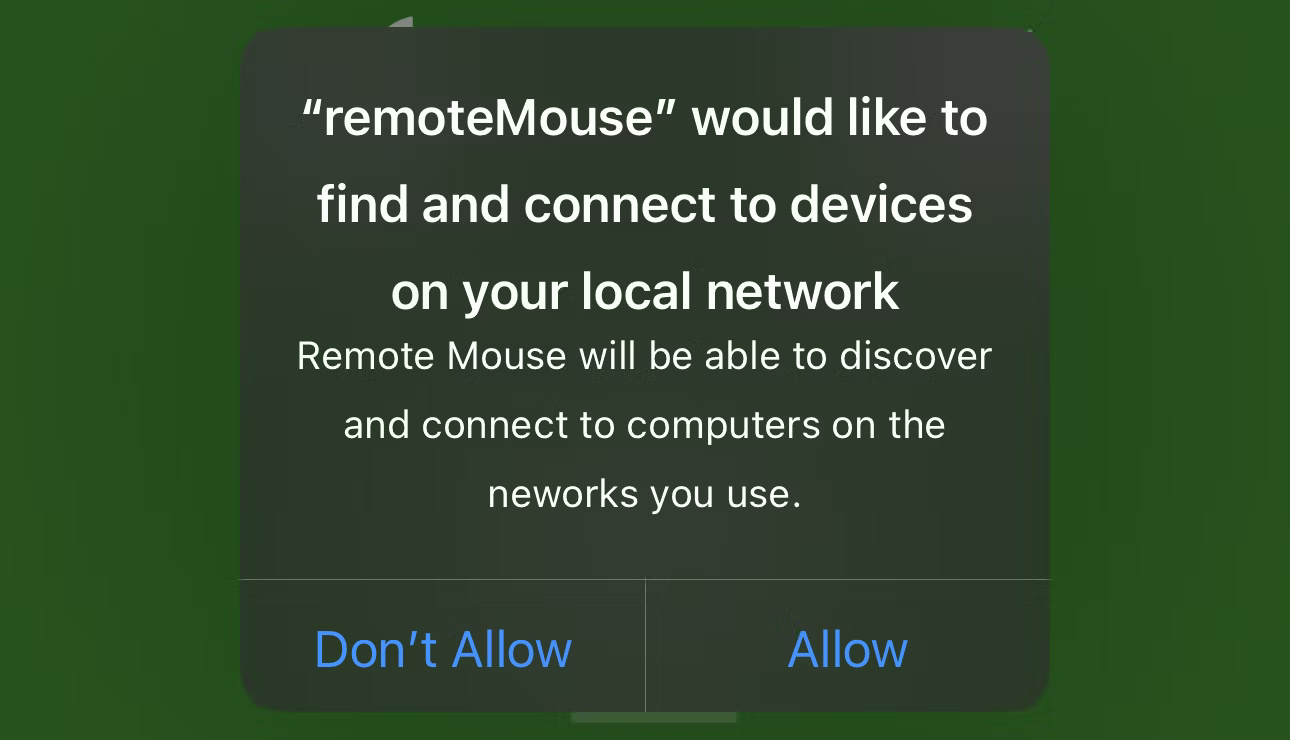
<p style="text-align: justify;">Sau khi cài đặt Remote Mouse, bạn cần làm theo một vài bước để ứng dụng hoạt động trên máy tính và iPhone của mình. Ngay sau khi cài đặt ứng dụng, một lời nhắc sẽ xuất hiện yêu cầu quyền truy cập để tìm và kết nối với các thiết bị trên mạng cục bộ. Nhấn&nbsp;<strong>Allow</strong>&nbsp;để cấp quyền truy cập cho ứng dụng.</p>

<figure>
<div style="text-align: justify;"><img alt="Lời nhắc Remote Mouse yêu cầu quyền truy cập để kết nối với các thiết bị" data-i="0" data-src="https://st.quantrimang.com/photos/image/2024/09/04/bien-iphone-thanh-chuot-khong-day-bang-remote-mouse-1.jpg" data-was-processed="true" height="740" src="https://st.quantrimang.com/photos/image/2024/09/04/bien-iphone-thanh-chuot-khong-day-bang-remote-mouse-1.jpg" width="1290" /></div>

<figcaption>
<div style="text-align: justify;">Lời nhắc Remote Mouse yêu cầu quyền truy cập để kết nối với các thiết bị</div>
</figcaption>
</figure>

<div style="text-align: justify;"><iframe allow="autoplay" allowtransparency="true" aria-label="Advertisement" data-google-container-id="a!2" data-google-query-id="CJ-G--vpqogDFbluDwIdt4su3Q" data-load-complete="true" frameborder="0" height="0" hspace="0" id="aswift_1" marginheight="0" marginwidth="0" name="aswift_1" sandbox="allow-scripts allow-same-origin allow-forms allow-presentation allow-popups" scrolling="no" tabindex="0" title="Advertisement" vspace="0" width="694"></iframe></div>

<p style="text-align: justify;">Sau đó, một lời nhắc khác sẽ xuất hiện, yêu cầu quyền truy cập để kết nối với máy tính qua Bluetooth. Nhấn&nbsp;<strong>Allow</strong>&nbsp;một lần nữa.</p>

<h2 style="text-align: justify;">Bước 2: Đồng bộ Remote Mouse với iPhone và máy tính</h2>

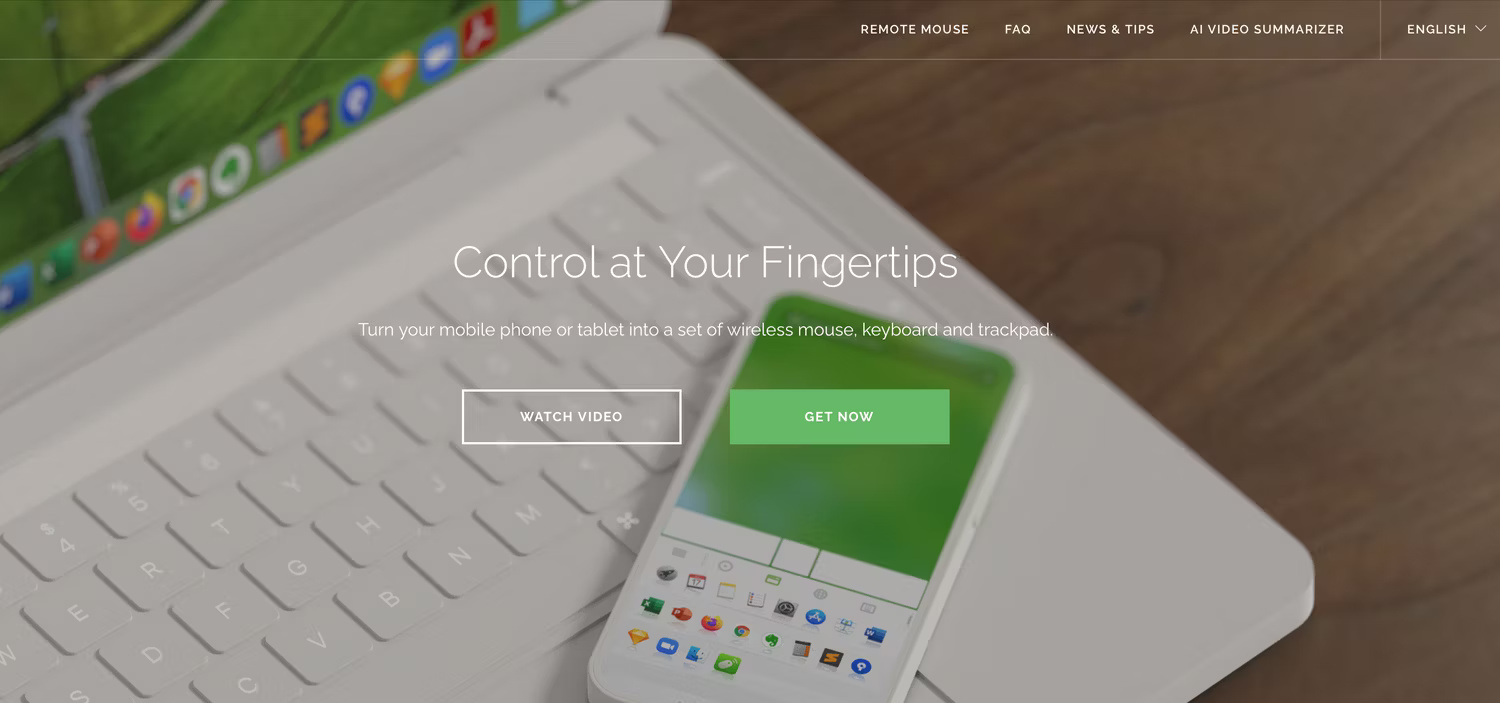
<p style="text-align: justify;">Tiếp theo, bạn cần tải máy chủ của ứng dụng xuống máy tính của mình. Để thực hiện việc đó, hãy truy cập trang web Remote Mouse, nhấp vào&nbsp;<strong>Get Now</strong>&nbsp;và chọn hệ điều hành của máy tính.</p>

<figure>
<div style="text-align: justify;"><img alt="Trang web Remote Mouse hiển thị nút Get Now" data-adbro-processed="true" data-i="1" data-src="https://st.quantrimang.com/photos/image/2024/09/04/bien-iphone-thanh-chuot-khong-day-bang-remote-mouse-2.jpg" data-was-processed="true" height="703" src="https://st.quantrimang.com/photos/image/2024/09/04/bien-iphone-thanh-chuot-khong-day-bang-remote-mouse-2.jpg" width="1500" /></div>

<figcaption>
<div style="text-align: justify;">Trang web Remote Mouse hiển thị nút Get Now</div>
</figcaption>
</figure>

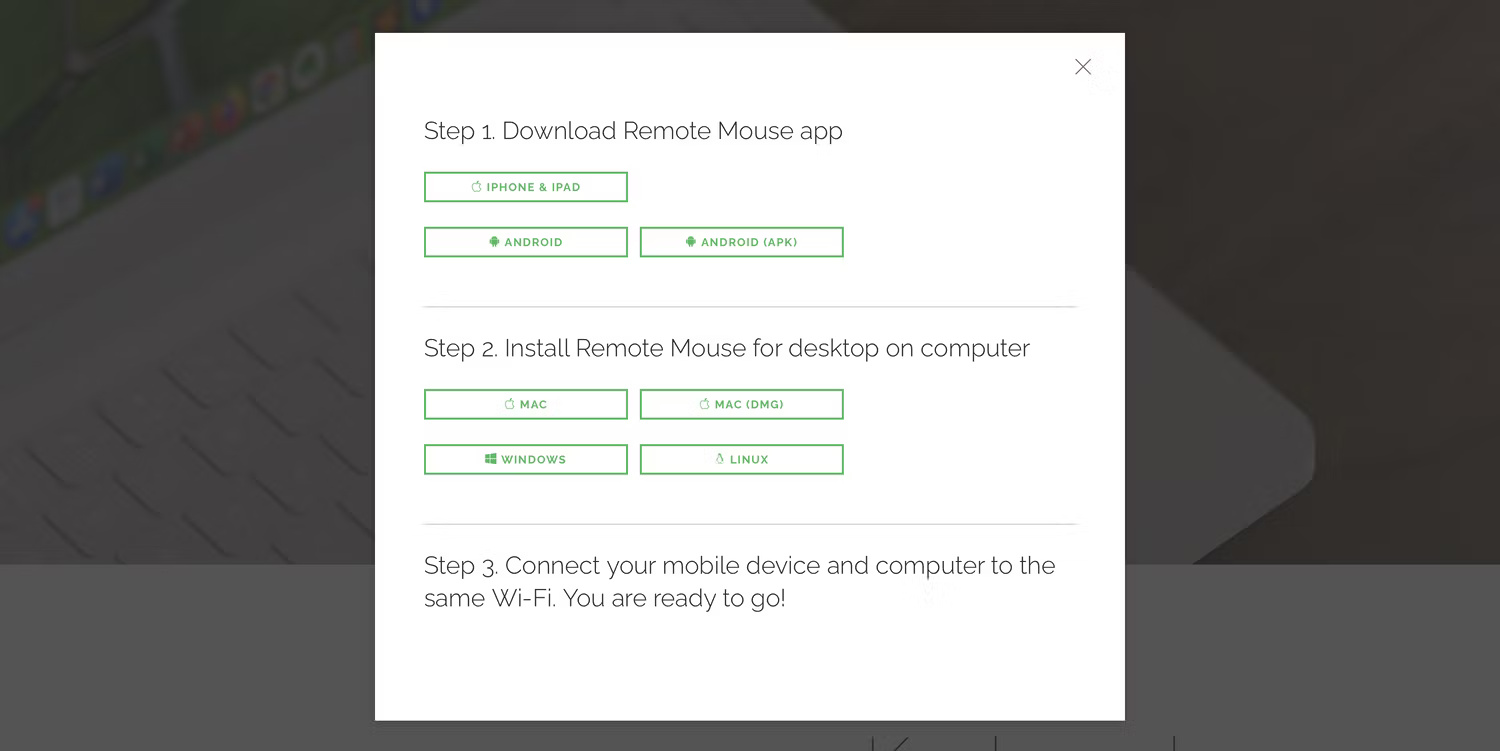
<p style="text-align: justify;">Tiếp theo, tải xuống file cài đặt. Người dùng Mac có thể cài đặt&nbsp;<a data-type="internal" href="https://quantrimang.com/cong-nghe/file-dmg-la-gi-156446" title="File DMG là gì?">file DMG</a>&nbsp;hoặc tải trực tiếp từ App Store. Người dùng Windows có thể tải&nbsp;<a data-type="internal" href="https://quantrimang.com/cong-nghe/file-exe-180741" title="File exe là file gì?">file EXE</a>, trong khi người dùng Linux có thể tải&nbsp;<a data-type="internal" href="https://quantrimang.com/cong-nghe/file-tar-la-gi-191633" title="File TAR là gì?">file TAR</a>. Nhấp đúp vào file đã tải xuống và chạy trình cài đặt để thiết lập máy chủ trên máy tính của bạn.</p>

<figure>
<div style="text-align: justify;"><img alt="Trang cài đặt Remote Mouse" data-i="2" data-src="https://st.quantrimang.com/photos/image/2024/09/04/bien-iphone-thanh-chuot-khong-day-bang-remote-mouse-3.jpg" data-was-processed="true" height="751" src="https://st.quantrimang.com/photos/image/2024/09/04/bien-iphone-thanh-chuot-khong-day-bang-remote-mouse-3.jpg" width="1500" /></div>

<figcaption>
<div style="text-align: justify;">Trang cài đặt Remote Mouse</div>
</figcaption>
</figure>

<div style="text-align: justify;">&nbsp;</div>

<p style="text-align: justify;">Sau khi bạn khởi chạy Remote Mouse, máy tính có thể nhắc bạn cấp quyền truy cập Bluetooth cho ứng dụng. Chỉ cần nhấp vào&nbsp;<strong>Allow</strong>.</p>

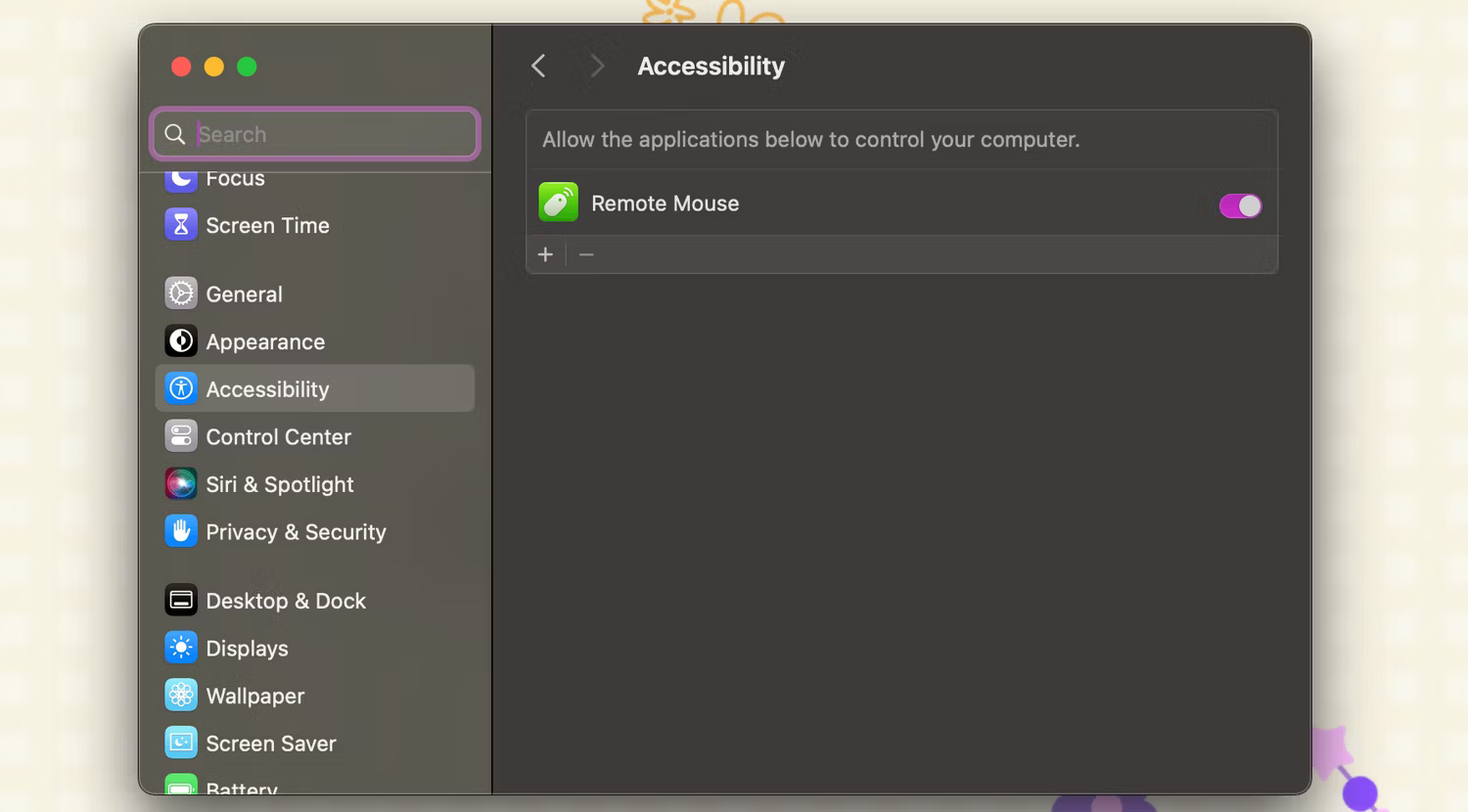
<p style="text-align: justify;">Nếu đang sử dụng máy Mac, bạn sẽ cần cấp lại quyền cho ứng dụng khi sử dụng lần đầu tiên. Để thực hiện việc này, hãy mở&nbsp;<strong>System Settings</strong>&nbsp;trên máy Mac và đi tới&nbsp;<strong>Privacy &amp; Security &gt; Accessibility</strong>. Sau đó, bật Remote Mouse và xác thực thay đổi bằng Touch ID hoặc mật khẩu máy Mac.</p>

<figure>
<div style="text-align: justify;"><img alt="Trang Accessibility trong System Settings với nút bật Remote Mouse" data-i="3" data-src="https://st.quantrimang.com/photos/image/2024/09/04/bien-iphone-thanh-chuot-khong-day-bang-remote-mouse-4.jpg" data-was-processed="true" height="830" src="https://st.quantrimang.com/photos/image/2024/09/04/bien-iphone-thanh-chuot-khong-day-bang-remote-mouse-4.jpg" width="1500" /></div>

<figcaption>
<div style="text-align: justify;">Trang Accessibility trong System Settings với nút bật Remote Mouse</div>
</figcaption>
</figure>

<p style="text-align: justify;">Bây giờ, bạn cần đảm bảo iPhone và máy tính của mình nằm trên cùng một mạng Wi-Fi hoặc bật Bluetooth trên cả hai thiết bị. Sau đó, bạn có thể mở ứng dụng trên iPhone và máy tính của mình.</p>

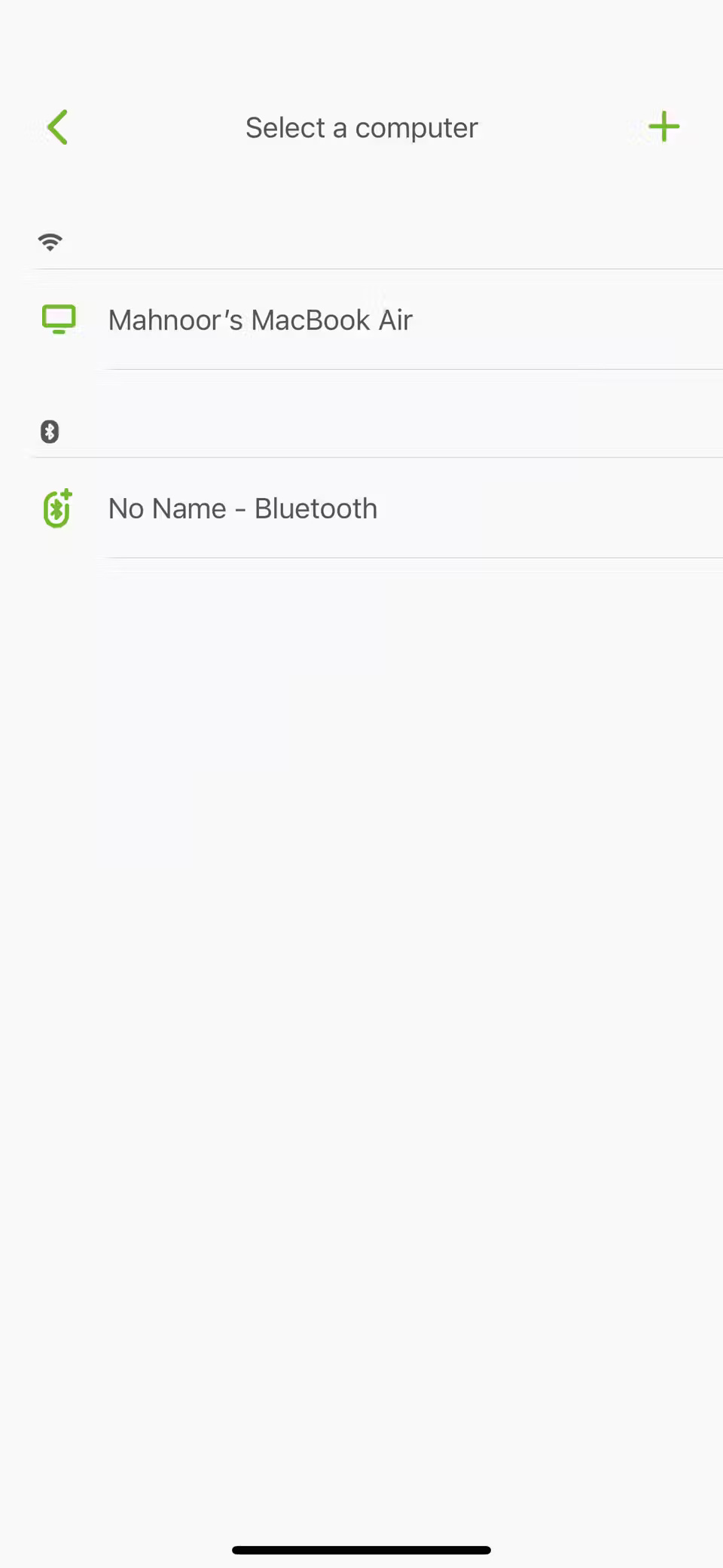
<p style="text-align: justify;">Bạn sẽ thấy máy tính của mình trong ứng dụng iPhone. Chọn máy tính mà bạn đã cài đặt máy chủ và bạn sẽ có thể sử dụng màn hình iPhone làm chuột ngay lập tức!</p>

<figure>
<div style="text-align: justify;"><img alt="" data-i="4" data-src="https://st.quantrimang.com/photos/image/2024/09/04/bien-iphone-thanh-chuot-khong-day-bang-remote-mouse-5.jpg" data-was-processed="true" height="2081" src="https://st.quantrimang.com/photos/image/2024/09/04/bien-iphone-thanh-chuot-khong-day-bang-remote-mouse-5.jpg" width="960" /></div>
</figure>

<figure>
<div style="text-align: justify;"><img alt="" data-i="5" data-src="https://st.quantrimang.com/photos/image/2024/09/04/bien-iphone-thanh-chuot-khong-day-bang-remote-mouse-6.jpg" data-was-processed="true" height="2081" src="https://st.quantrimang.com/photos/image/2024/09/04/bien-iphone-thanh-chuot-khong-day-bang-remote-mouse-6.jpg" width="960" /></div>
</figure>

<div style="text-align: justify;">&nbsp;</div>

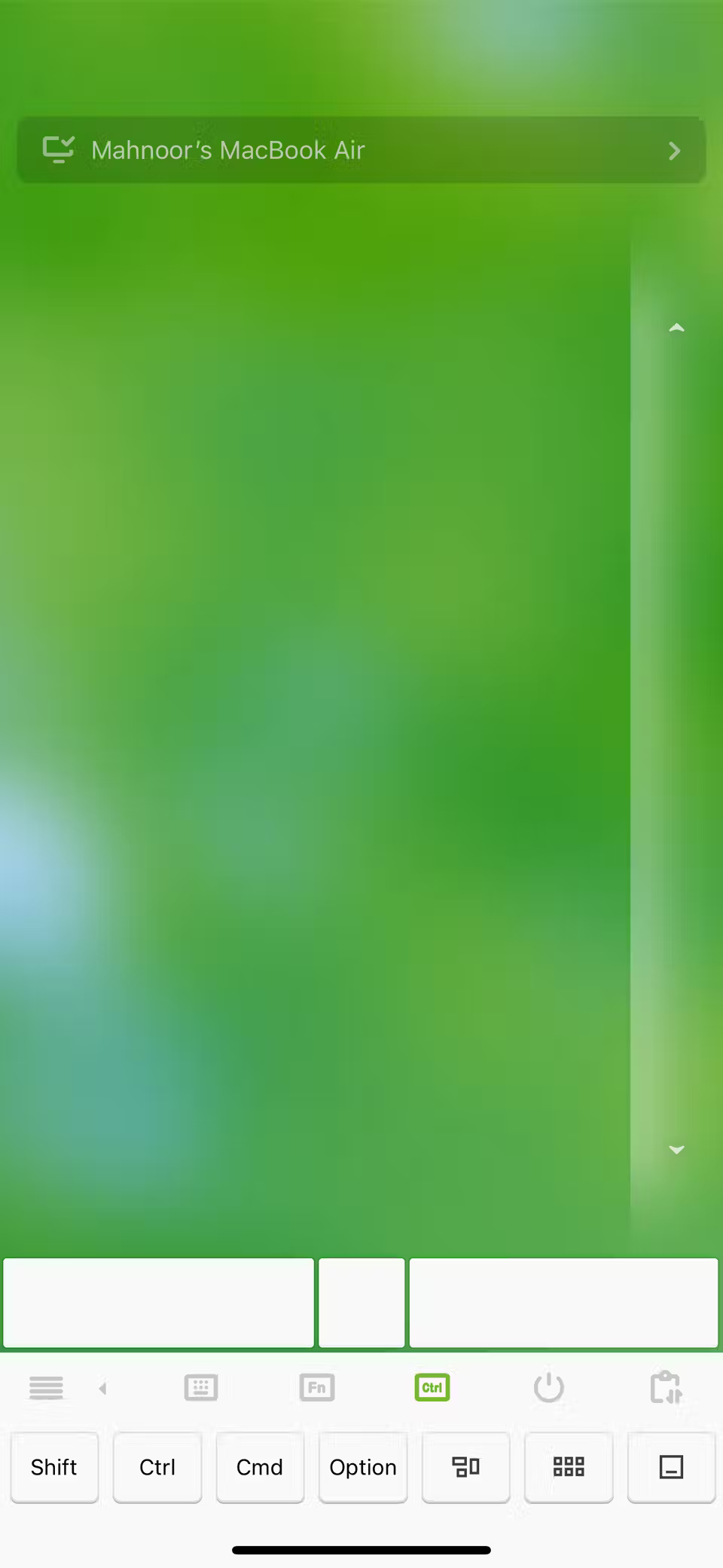
<p style="text-align: justify;">Các chức năng khá đơn giản và có thể quen thuộc với bạn. Bạn có thể chạm bằng hai ngón tay để nhấp chuột phải hoặc chạm bằng một ngón tay để nhấp chuột trái. Và nếu bạn muốn cuộn theo bất kỳ hướng nào (lên, xuống, trái hoặc phải), chỉ cần cuộn bằng hai ngón tay. Bạn có thể chọn và di chuyển các mục bằng cách kéo bằng ba ngón tay. Nếu đang sử dụng máy Mac, bạn cũng có thể chụm để thu nhỏ hoặc tách ngón tay để phóng to.</p>

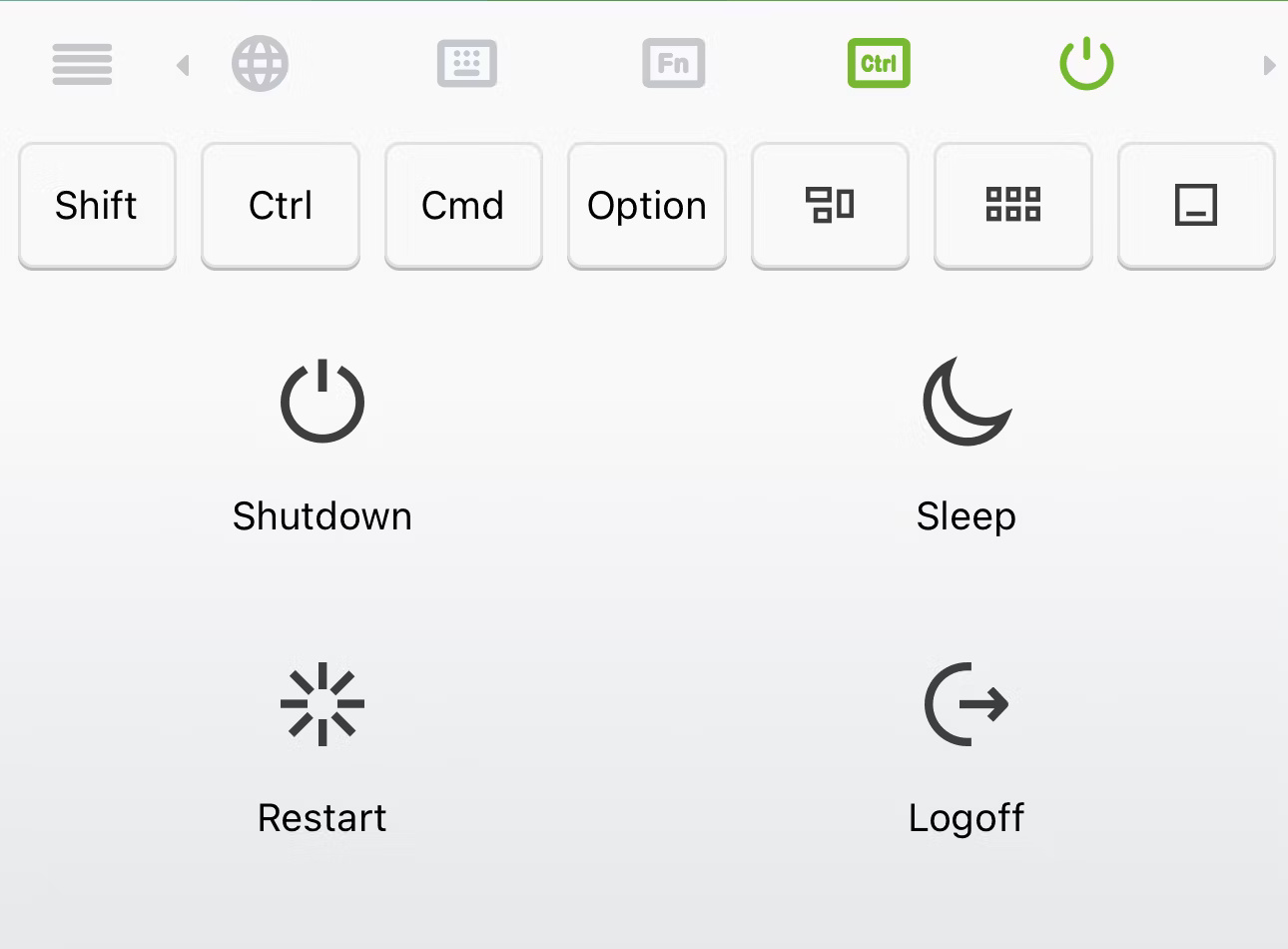
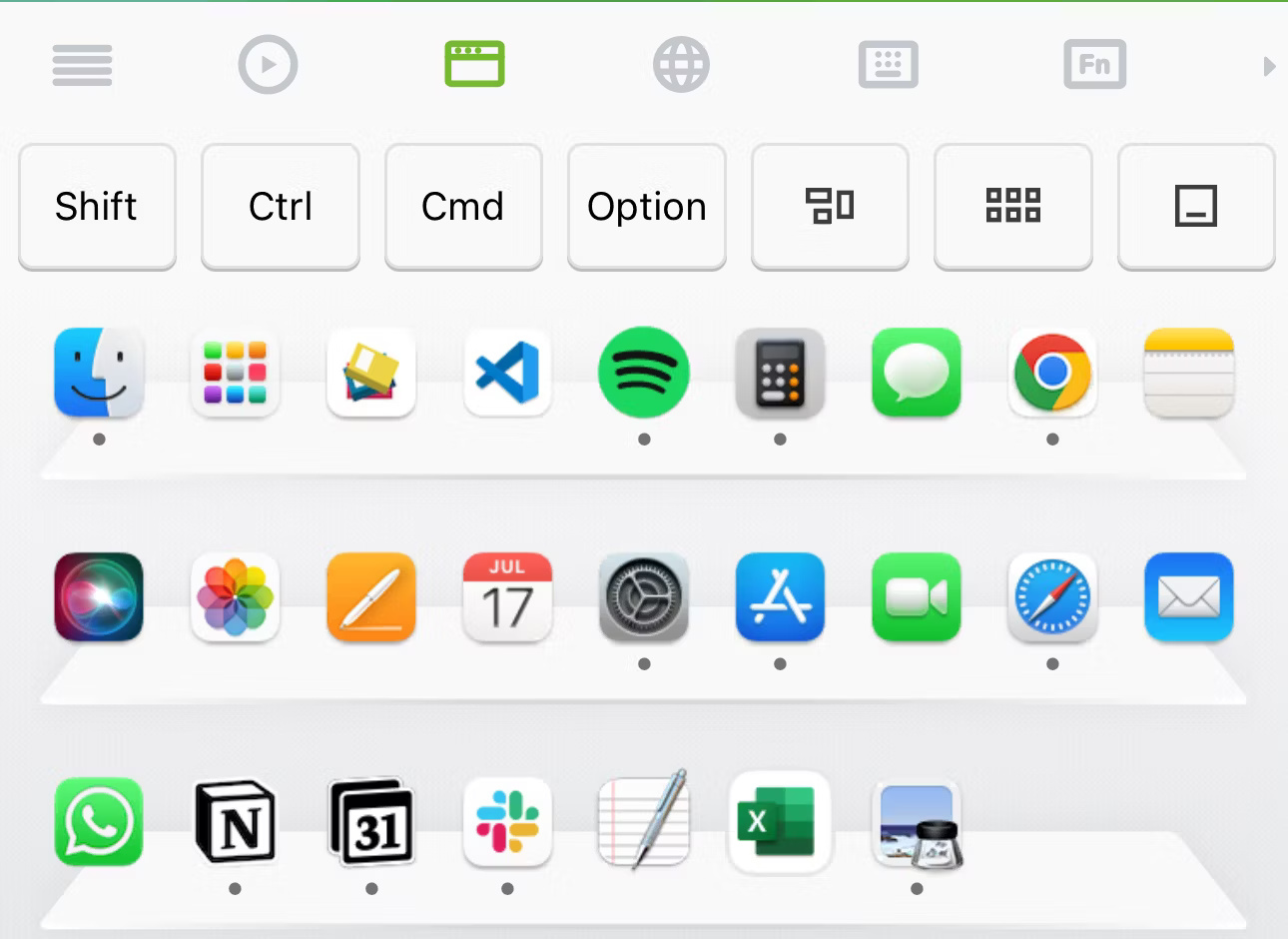
<p style="text-align: justify;">Một tính năng nổi bật khác là khả năng mở bất kỳ ứng dụng nào trên Dock của máy Mac bằng cách chạm vào iPhone. Nếu bạn muốn làm như vậy, hãy chạm vào biểu tượng App Switcher (biểu tượng thứ ba từ bên trái) để hiển thị tất cả các ứng dụng trên Dock. Chỉ cần chạm vào bất kỳ ứng dụng nào để khởi chạy ứng dụng đó trên máy Mac.</p>

<figure>
<div style="text-align: justify;"><img alt="Sử dụng Application Switcher trong ứng dụng Remote Mouse" data-i="6" data-src="https://st.quantrimang.com/photos/image/2024/09/04/bien-iphone-thanh-chuot-khong-day-bang-remote-mouse-7.jpg" data-was-processed="true" height="940" src="https://st.quantrimang.com/photos/image/2024/09/04/bien-iphone-thanh-chuot-khong-day-bang-remote-mouse-7.jpg" width="1290" /></div>

<figcaption>
<div style="text-align: justify;">Sử dụng Application Switcher trong ứng dụng Remote Mouse</div>
</figcaption>
</figure>

<p style="text-align: justify;">Bạn cũng có thể sử dụng ứng dụng Remote Mouse để tắt, khởi động lại, đăng xuất hoặc đưa máy tính Mac hoặc Windows vào chế độ ngủ. Chỉ cần cuộn qua các tùy chọn, nhấn vào biểu tượng Power Options và chọn hành động bạn muốn thực hiện.</p>

<figure>
<div style="text-align: justify;"><img alt="Power Options trong ứng dụng Remote Mouse" data-i="7" data-src="https://st.quantrimang.com/photos/image/2024/09/04/bien-iphone-thanh-chuot-khong-day-bang-remote-mouse-8.jpg" data-was-processed="true" height="950" src="https://st.quantrimang.com/photos/image/2024/09/04/bien-iphone-thanh-chuot-khong-day-bang-remote-mouse-8.jpg" width="1290" /></div>

<figcaption>
<div style="text-align: justify;">Power Options trong ứng dụng Remote Mouse</div>
</figcaption>
</figure>

<p style="text-align: justify;">Ứng dụng này cũng cung cấp các tính năng tùy chỉnh tuyệt vời. Ví dụ, nếu thấy tốc độ cuộn quá nhanh, bạn có thể nhanh chóng điều chỉnh tốc độ này từ cài đặt ứng dụng.</p>

<p style="text-align: justify;">Cuối cùng, khi bạn muốn ngừng sử dụng iPhone làm chuột, hãy đóng ứng dụng Remote Mouse trên cả iPhone và máy tính.</p>

<p style="text-align: justify;">Bạn sẽ cần đăng ký để truy cập một số tính năng, nhưng nếu chỉ muốn tìm một ứng dụng thực hiện những chức năng cơ bản, như sử dụng chuột để mở ứng dụng và thực hiện các tác vụ đơn giản, thì phiên bản miễn phí của Remote Mouse sẽ đủ tốt cho hầu hết mọi người.</p>

<div style="text-align: justify;">&nbsp;</div>
		</div>
				<div id="author">
						<p>
				<strong>Nguồn tin:</strong>
				Quantrimang.com:
			</p>
		</div>
	</div>
	<div id="footer" class="clearfix">
		<div id="url">
			<strong>URL của bản tin này: </strong><a href="https://www.nguoicodonvn2008.info/vi/news/savefile/kien-thuc-may-tinh/cach-bien-iphone-thanh-chuot-khong-day-bang-remote-mouse-8960.html" title="Cách biến iPhone thành chuột không dây bằng Remote Mouse">https://www.nguoicodonvn2008.info/vi/news/savefile/kien-thuc-may-tinh/cach-bien-iphone-thanh-chuot-khong-day-bang-remote-mouse-8960.html</a>

		</div>
		<div class="clear"></div>
		<div class="copyright">
			&copy; .&#x3A; Nguoicodonvn2008.info - Cõi lòng người cô đơn &#x3A;.
		</div>
		<div id="contact">
			<a href="mailto:admin@nguoicodonvn2008.info">admin@nguoicodonvn2008.info</a>
		</div>
	</div>
</div>
        <div id="timeoutsess" class="chromeframe">
            Bạn đã không sử dụng Site, <a onclick="timeoutsesscancel();" href="https://nguoicodonvn2008.info/#">Bấm vào đây để duy trì trạng thái đăng nhập</a>. Thời gian chờ: <span id="secField"> 60 </span> giây
        </div>
        <div id="openidResult" class="nv-alert" style="display:none"></div>
        <div id="openidBt" data-result="" data-redirect=""></div>
		</script>
		<div class="car-top">
  <span><img src="https://nguoicodonvn2008.info/themes/default/images/car.png" alt=""></span>
</div>
<script src="https://nguoicodonvn2008.info/assets/js/jquery/jquery.min.js"></script>
<script>var nv_base_siteurl="/",nv_lang_data="vi",nv_lang_interface="vi",nv_name_variable="nv",nv_fc_variable="op",nv_lang_variable="language",nv_module_name="news",nv_func_name="savefile",nv_is_user=0, nv_my_ofs=-4,nv_my_abbr="EDT",nv_cookie_prefix="nv4c_e856T",nv_check_pass_mstime=1738000,nv_area_admin=0,nv_safemode=0,theme_responsive=0,nv_recaptcha_ver=2,nv_recaptcha_sitekey="",nv_recaptcha_type="image",XSSsanitize=1;</script>
<script src="https://nguoicodonvn2008.info/assets/js/language/vi.js"></script>
<script src="https://nguoicodonvn2008.info/assets/js/DOMPurify/purify3.js"></script>
<script src="https://nguoicodonvn2008.info/assets/js/global.js"></script>
<script src="https://nguoicodonvn2008.info/assets/js/site.js"></script>
<script src="https://nguoicodonvn2008.info/themes/default/js/news.js"></script>
<script src="https://nguoicodonvn2008.info/themes/default/js/main.js"></script>
<script src="https://nguoicodonvn2008.info/themes/default/js/custom.js"></script>
<script type="application/ld+json">
        {
            "@context": "https://schema.org",
            "@type": "Organization",
            "url": "https://nguoicodonvn2008.info",
            "logo": "https://nguoicodonvn2008.info/uploads/angel.gif"
        }
        </script>
<script src="https://nguoicodonvn2008.info/themes/default/js/bootstrap.min.js"></script>
<script type="text/javascript">
var $scrolltop = $('.car-top');
$scrolltop.on('click', function () {
    $('html,body').animate({
        scrollTop: 0
    }, 800);
    $(this).addClass("car-run");
    setTimeout(function(){ $scrolltop.removeClass('car-run');}, 1000);
    return false;
});
$(window).on('scroll', function ()
{ 
    if($(window).scrollTop() >= 200)
    {
        $scrolltop.addClass("show");
        $scrolltop.addClass("car-down");
    }
    else
    {
       $scrolltop.removeClass("show");
       setTimeout(function(){ $scrolltop.removeClass('car-down');}, 300);
    }
});
</script>
</body>
</html>