<!DOCTYPE html>
    <html lang="vi" xmlns="http://www.w3.org/1999/xhtml" prefix="og: http://ogp.me/ns#">
    <head>
<title>Cách bật&#x002F;tắt tường lửa &#40;Firewall&#41; trên máy tính Windows</title>
<meta name="description" content="Cách bật&#x002F;tắt tường lửa &#40;Firewall&#41; trên máy tính Windows - Savefile - Tin Tức -...">
<meta name="author" content=".: Nguoicodonvn2008.info - Cõi lòng người cô đơn :.">
<meta name="copyright" content=".: Nguoicodonvn2008.info - Cõi lòng người cô đơn :. [admin@nguoicodonvn2008.info]">
<meta name="robots" content="index, archive, follow, noodp">
<meta name="googlebot" content="index,archive,follow,noodp">
<meta name="msnbot" content="all,index,follow">
<meta name="generator" content="NukeViet v4.5">
<meta http-equiv="Content-Type" content="text/html; charset=utf-8">
<meta property="og:title" content="Cách bật&#x002F;tắt tường lửa &#40;Firewall&#41; trên máy tính Windows">
<meta property="og:type" content="website">
<meta property="og:description" content="Savefile - Tin Tức - https&#x3A;&#x002F;&#x002F;www.nguoicodonvn2008.info&#x002F;vi&#x002F;news&#x002F;savefile&#x002F;kien-thuc-may-tinh&#x002F;cach-bat-tat-tuong-lua-firewall-tren-may-tinh-windows-8423.html">
<meta property="og:site_name" content=".&#x3A; Nguoicodonvn2008.info - Cõi lòng người cô đơn &#x3A;.">
<meta property="og:url" content="https://www.nguoicodonvn2008.info/vi/news/savefile/kien-thuc-may-tinh/cach-bat-tat-tuong-lua-firewall-tren-may-tinh-windows-8423.html">
<link rel="shortcut icon" href="https://nguoicodonvn2008.info/favicon.ico">
<link rel="canonical" href="https://www.nguoicodonvn2008.info/vi/news/savefile/kien-thuc-may-tinh/cach-bat-tat-tuong-lua-firewall-tren-may-tinh-windows-8423.html">
<link rel="alternate" href="https://nguoicodonvn2008.info/vi/news/rss/" title="Tin Tức" type="application/rss+xml">
<link rel="alternate" href="https://nguoicodonvn2008.info/vi/news/rss/karaoke-dual/" title="Tin Tức - Karaoke Dual" type="application/rss+xml">
<link rel="alternate" href="https://nguoicodonvn2008.info/vi/news/rss/nhac-tre/" title="Tin Tức - Nhạc trẻ" type="application/rss+xml">
<link rel="alternate" href="https://nguoicodonvn2008.info/vi/news/rss/tru-tinh/" title="Tin Tức - Trữ tình" type="application/rss+xml">
<link rel="alternate" href="https://nguoicodonvn2008.info/vi/news/rss/nuoc-ngoai/" title="Tin Tức - Nước ngoài" type="application/rss+xml">
<link rel="alternate" href="https://nguoicodonvn2008.info/vi/news/rss/remix/" title="Tin Tức - Remix" type="application/rss+xml">
<link rel="alternate" href="https://nguoicodonvn2008.info/vi/news/rss/tam-su-tinh-yeu/" title="Tin Tức - Tâm sự tình yêu" type="application/rss+xml">
<link rel="alternate" href="https://nguoicodonvn2008.info/vi/news/rss/tho-suu-tam/" title="Tin Tức - Thơ sưu tầm" type="application/rss+xml">
<link rel="alternate" href="https://nguoicodonvn2008.info/vi/news/rss/cuoc-song/" title="Tin Tức - Cuộc sống" type="application/rss+xml">
<link rel="alternate" href="https://nguoicodonvn2008.info/vi/news/rss/phan-mem/" title="Tin Tức - Phần mềm" type="application/rss+xml">
<link rel="alternate" href="https://nguoicodonvn2008.info/vi/news/rss/kien-thuc-may-tinh/" title="Tin Tức - Kiến thức máy tính" type="application/rss+xml">
<link rel="alternate" href="https://nguoicodonvn2008.info/vi/news/rss/hoc-tap/" title="Tin Tức - Học tập" type="application/rss+xml">
<link rel="alternate" href="https://nguoicodonvn2008.info/vi/news/rss/tai-lieu/" title="Tin Tức - Tài liệu" type="application/rss+xml">
<link rel="alternate" href="https://nguoicodonvn2008.info/vi/news/rss/de-thi/" title="Tin Tức - Đề thi" type="application/rss+xml">
<link rel="preload" as="style" href="https://nguoicodonvn2008.info/assets/css/font-awesome.min.css" type="text/css">
<link rel="preload" as="style" href="https://nguoicodonvn2008.info/themes/default/css/bootstrap.non-responsive.css" type="text/css">
<link rel="preload" as="style" href="https://nguoicodonvn2008.info/themes/default/css/style.css" type="text/css">
<link rel="preload" as="style" href="https://nguoicodonvn2008.info/themes/default/css/style.non-responsive.css" type="text/css">
<link rel="preload" as="style" href="https://nguoicodonvn2008.info/themes/default/css/news.css" type="text/css">
<link rel="preload" as="style" href="https://nguoicodonvn2008.info/themes/default/css/custom.css" type="text/css">
<link rel="preload" as="script" href="https://nguoicodonvn2008.info/assets/js/jquery/jquery.min.js" type="text/javascript">
<link rel="preload" as="script" href="https://nguoicodonvn2008.info/assets/js/language/vi.js" type="text/javascript">
<link rel="preload" as="script" href="https://nguoicodonvn2008.info/assets/js/DOMPurify/purify3.js" type="text/javascript">
<link rel="preload" as="script" href="https://nguoicodonvn2008.info/assets/js/global.js" type="text/javascript">
<link rel="preload" as="script" href="https://nguoicodonvn2008.info/assets/js/site.js" type="text/javascript">
<link rel="preload" as="script" href="https://nguoicodonvn2008.info/themes/default/js/news.js" type="text/javascript">
<link rel="preload" as="script" href="https://nguoicodonvn2008.info/themes/default/js/main.js" type="text/javascript">
<link rel="preload" as="script" href="https://nguoicodonvn2008.info/themes/default/js/custom.js" type="text/javascript">
<link rel="preload" as="script" href="https://nguoicodonvn2008.info/themes/default/js/bootstrap.min.js" type="text/javascript">
<link rel="stylesheet" href="https://nguoicodonvn2008.info/assets/css/font-awesome.min.css">
<link rel="stylesheet" href="https://nguoicodonvn2008.info/themes/default/css/bootstrap.non-responsive.css">
<link rel="stylesheet" href="https://nguoicodonvn2008.info/themes/default/css/style.css">
<link rel="stylesheet" href="https://nguoicodonvn2008.info/themes/default/css/style.non-responsive.css">
<link rel="StyleSheet" href="https://nguoicodonvn2008.info/themes/default/css/news.css">
<link rel="stylesheet" href="https://nguoicodonvn2008.info/themes/default/css/custom.css">
<style type="text/css">
	body{background: #fff;}
</style>
    </head>
    <body>
<div id="print">
	<div id="hd_print">
		<h2 class="pull-left">.&#x3A; Nguoicodonvn2008.info - Cõi lòng người cô đơn &#x3A;.</h2>
		<p class="pull-right"><a title=".&#x3A; Nguoicodonvn2008.info - Cõi lòng người cô đơn &#x3A;." href="https://nguoicodonvn2008.info/">https://nguoicodonvn2008.info</a></p>
	</div>
	<div class="clear"></div>
	<hr />
	<div id="content">
		<h1>Cách bật&#x002F;tắt tường lửa &#40;Firewall&#41; trên máy tính Windows</h1>
		<ul class="list-inline">
			<li>Thứ hai - 03/06/2024 00:06</li>
			<li class="hidden-print txtrequired"><em class="fa fa-print">&nbsp;</em><a title="In ra" href="javascript:;" onclick="window.print()">In ra</a></li>
			<li class="hidden-print txtrequired"><em class="fa fa-power-off">&nbsp;</em><a title="Đóng cửa sổ này" href="javascript:;" onclick="window.close()">Đóng cửa sổ này</a></li>
		</ul>
		<div class="clear"></div>
		<div id="hometext">
		</div>
				<div class="imghome">
			<img alt="Cách bật&#x002F;tắt tường lửa &#40;Firewall&#41; trên máy tính Windows" src="https://st.quantrimang.com/photos/image/2022/04/13/tat-tuong-lua-windows-3.png" width="460" class="img-thumbnail" />
		</div>
		<div class="clear"></div>
		<div id="bodytext" class="clearfix">
			<p align="justify"><strong>Firewall</strong>&nbsp;là một phần mềm dùng để lọc thông tin ra/vào máy tính hay hệ thống mạng của bạn. Tất cả những thông tin vào máy tính của bạn sẽ phải qua firewall, từ đây firewall sẽ kiểm tra thông tin rồi mới cho phép hoặc từ chối thông tin vào máy tính. Microsoft đã đưa những tính năng firewall vào những hệ điều hành của mình như Windows XP, Vista, Windows 7 và Windows 8.</p>

<h2>&nbsp;</h2>

<h2 align="justify" id="mcetoc_1fs05649034">1. Cách bật tường lửa trong Windows 10</h2>

<p>Để bật tường lửa hoặc tắt trên Windows, bạn cần phải đăng nhập vào máy tính với quyền Admin.</p>

<p><strong>Lưu ý:</strong>&nbsp;Windows Firewall được bật mặc định trong Windows 10. Bạn không nên tắt Windows Firewall trừ khi đã cài đặt và bật tường lửa của bên thứ ba. Tắt Windows Firewall có thể làm cho máy tính (và mạng, nếu có) dễ bị truy cập trái phép.</p>

<p><strong>1.1. Bật/tắt tường lửa trong Control Panel</strong></p>

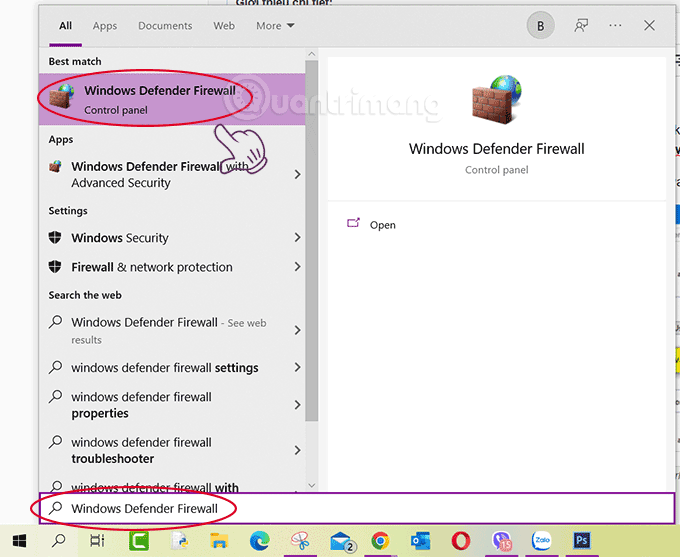
<p><strong>Bước 1:</strong>&nbsp;Nhập&nbsp;<strong>Windows Defender Firewall</strong>&nbsp;vào ô tìm kiếm &gt; nhấp vào kết quả hiện ra với dòng Control Panel bên dưới. Hoặc&nbsp;Mở&nbsp;<strong>Control Panel&nbsp;</strong>&gt;<strong>&nbsp;Windows Defender Firewall</strong></p>

<p><img alt="Tìm Windows Defender Firewall" data-i="0" data-src="https://st.quantrimang.com/photos/image/2022/04/13/tat-tuong-lua-windows-1.png" data-was-processed="true" height="350" src="https://st.quantrimang.com/photos/image/2022/04/13/tat-tuong-lua-windows-1.png" width="427" /></p>
&nbsp;

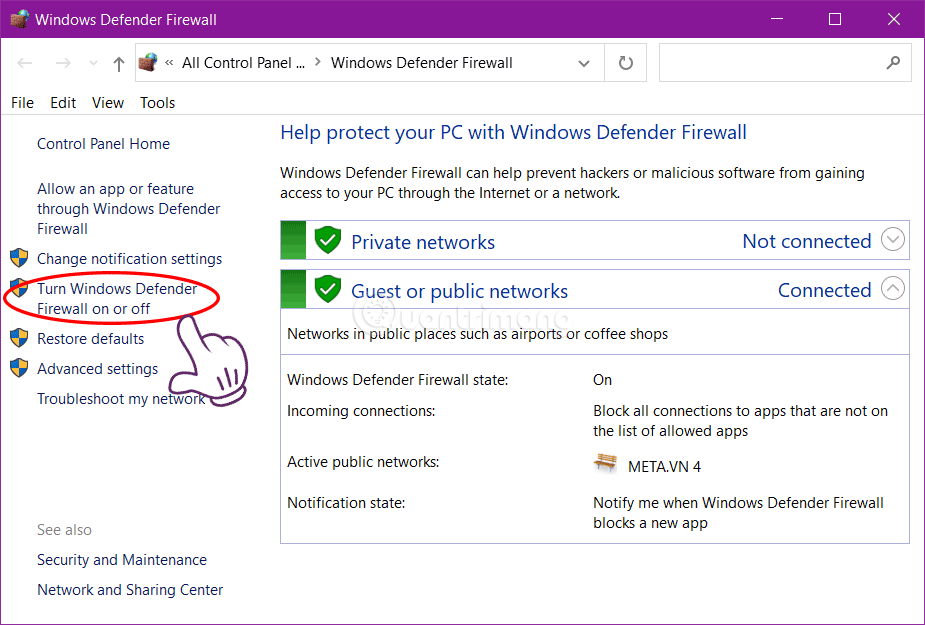
<p><strong>Bước 2:&nbsp;</strong>Nhấp vào&nbsp;<strong>Turn Windows Firewall on or off</strong>&nbsp;ở bảng bên trái:</p>

<p>&nbsp;</p>
<img alt="Chọn Turn Windows Firewall on or off" data-adbro-processed="true" data-i="1" data-src="https://st.quantrimang.com/photos/image/2022/04/13/tat-tuong-lua-windows-2.png" data-was-processed="true" height="625" src="https://st.quantrimang.com/photos/image/2022/04/13/tat-tuong-lua-windows-2.png" title="Chọn Turn Windows Firewall on or off" width="925" />
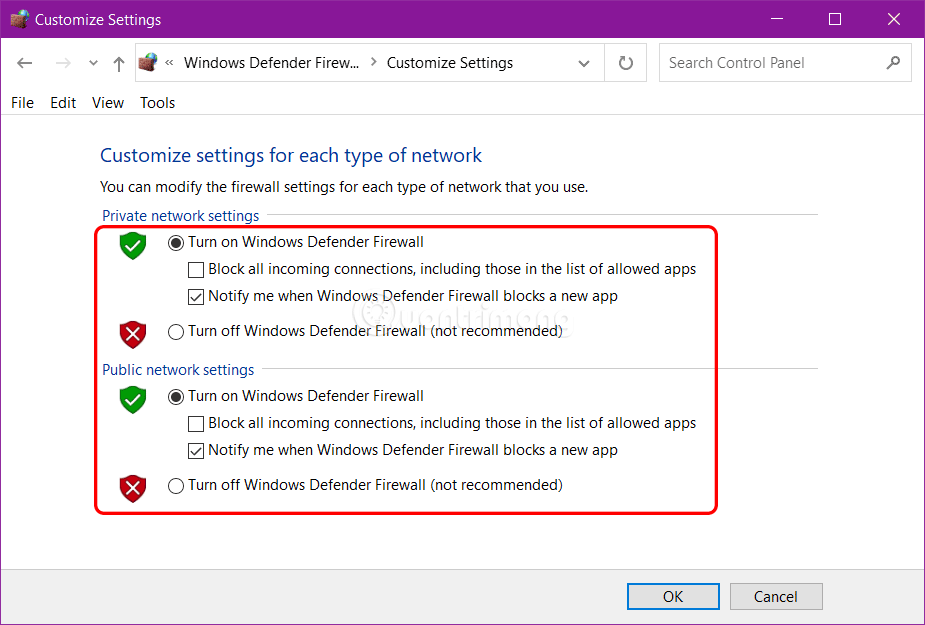
<p><strong>Bước 3:</strong>&nbsp;Tích vào tùy chọn<strong>&nbsp;Turn on Windows Defender Firewall</strong>&nbsp;để bật hoặc Turn off Windows Defender Firewall để tắt tường lửa cho mạng Private và Public tương ứng, rồi nhấn OK.</p>

<p><img alt="Các tùy chọn bật, tắt tường lửa trong Windows" data-i="2" data-src="https://st.quantrimang.com/photos/image/2022/04/13/tat-tuong-lua-windows-3.png" data-was-processed="true" height="625" src="https://st.quantrimang.com/photos/image/2022/04/13/tat-tuong-lua-windows-3.png" title="Các tùy chọn bật, tắt tường lửa trong Windows" width="925" /></p>
&nbsp;

<p><strong>1.2. Bật tường lửa trong Security and Maintenance</strong></p>

<ul>
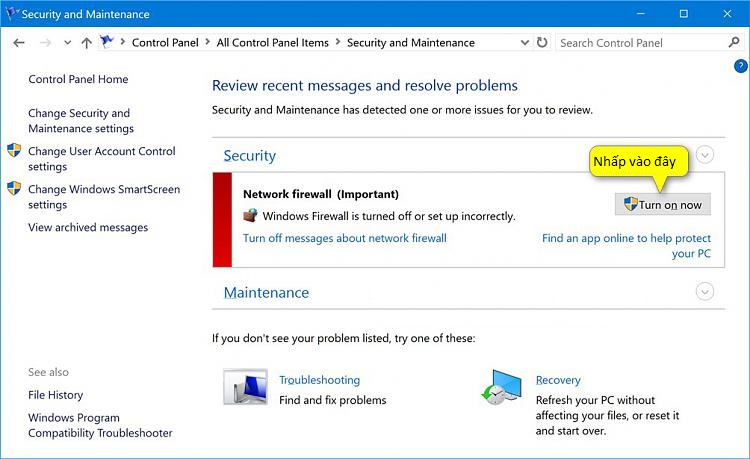
	<li>Mở&nbsp;<strong>Control Panel &gt; Security and Maintenance</strong></li>
	<li>Trong tab&nbsp;<strong>Security</strong>, mục<strong>&nbsp;Network firewall</strong>&nbsp;nhấp vào&nbsp;<strong>Turn on now</strong>.</li>
</ul>

<p><img alt="Chọn Turn on now để bật Firewall" data-i="3" data-src="https://st.quantrimang.com/photos/image/2017/06/09/Security-and-Maintenance.jpg" data-was-processed="true" height="398" src="https://st.quantrimang.com/photos/image/2017/06/09/Security-and-Maintenance.jpg" title="Chọn Turn on now để bật Firewall" width="650" /></p>

<p align="justify"><strong>1.3. Bật/tắt tường lửa trong Command Prompt:</strong></p>

<p align="justify">Bạn tham khảo hướng dẫn chi tiết trong bài:&nbsp;<a href="https://quantrimang.com/cong-nghe/huong-dan-kich-hoat--vo-hieu-hoa-windows-firewall-bang-command-prompt-124463" title="Hướng dẫn kích hoạt/vô hiệu hóa Windows Firewall bằng Command Prompt">Hướng dẫn kích hoạt/vô hiệu hóa Windows Firewall bằng Command Prompt</a></p>

<p align="justify"><strong>1.4. Bật/tắt tường lửa Windows 10 trong Windows Defender Security</strong></p>

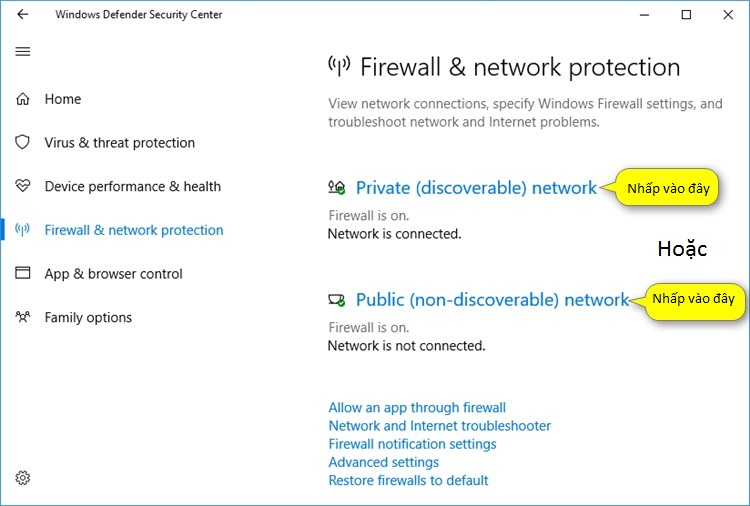
<p align="justify">Mở&nbsp;<strong>Windows Defender Security Center</strong>&nbsp;&gt;<strong>&nbsp;Firewall &amp; network protection</strong>&nbsp;&gt; nhấp vào&nbsp;<strong>Private (discoverable) network</strong>&nbsp;hoặc&nbsp;<strong>Public (non-discoverable) network</strong>, tùy xem bạn muốn tắt hoặc bật tường lửa của mạng nào, sau đó chỉ cần gạt sang On hoặc Off dưới mục Windows Firewall là được. Cẩn thận hơn bạn có thể chọn để chặn/bỏ chặn các kết nối đến trong mục&nbsp;<strong>Incoming connections</strong>.</p>

<p align="justify"><img alt="Bật/tắt Windows trong Windows Defender Security" data-i="4" data-src="https://st.quantrimang.com/photos/image/2017/06/09/Windows-Defender-Security-Center-bat-firewall.jpg" data-was-processed="true" height="439" src="https://st.quantrimang.com/photos/image/2017/06/09/Windows-Defender-Security-Center-bat-firewall.jpg" title="Bật/tắt Windows trong Windows Defender Security" width="650" /></p>

<p><strong>1.5. Bật tường lửa từ thông báo</strong></p>

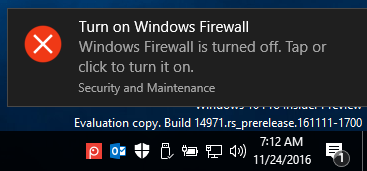
<p>Nhấp vào thông báo (nếu có) từ Windows Firewall để bật Windows Firewall cho tất cả các cấu hình mạng.</p>

<p><img alt="Thông báo bật tường lửa từ Windows" data-i="5" data-src="https://st.quantrimang.com/photos/image/2017/06/09/thong-bao-tuong-lua.png" data-was-processed="true" height="171" src="https://st.quantrimang.com/photos/image/2017/06/09/thong-bao-tuong-lua.png" title="Thông báo bật tường lửa từ Windows" width="367" /></p>

<h2 align="justify" id="mcetoc_1fs05649035">2. Bật/tắt firewall trong Windows 7</h2>

<p align="justify">Sau đây, chúng tôi sẽ hướng dẫn cấu hình firewall trong Windows 7:</p>

<p><strong>Bước 1:</strong></p>

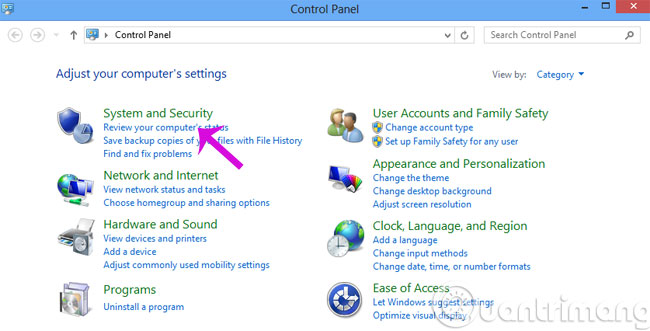
<p align="justify">Bạn phải đăng nhập máy tính với quyền administrative, truy cập theo đường dẫn&nbsp;<strong>Start</strong>&nbsp;&gt;&nbsp;<strong>Control Panel</strong>&nbsp;&gt;&nbsp;<strong>System and Security</strong>.</p>
<iframe allow="autoplay" allowtransparency="true" aria-label="Advertisement" data-google-container-id="a!4" data-google-query-id="CNqqzd7GvoYDFfvyFgUdAs4Cww" data-load-complete="true" frameborder="0" height="0" hspace="0" id="aswift_3" marginheight="0" marginwidth="0" name="aswift_3" sandbox="allow-scripts allow-same-origin allow-forms allow-presentation" scrolling="no" tabindex="0" title="Advertisement" vspace="0" width="694"></iframe>

<p align="justify"><img alt="System and Security" data-i="6" data-src="https://st.quantrimang.com/photos/image/2015/10/28/Firewall-system-security.jpg" data-was-processed="true" height="331" src="https://st.quantrimang.com/photos/image/2015/10/28/Firewall-system-security.jpg" title="System and Security" width="650" /></p>

<p><strong>Bước 2:</strong></p>

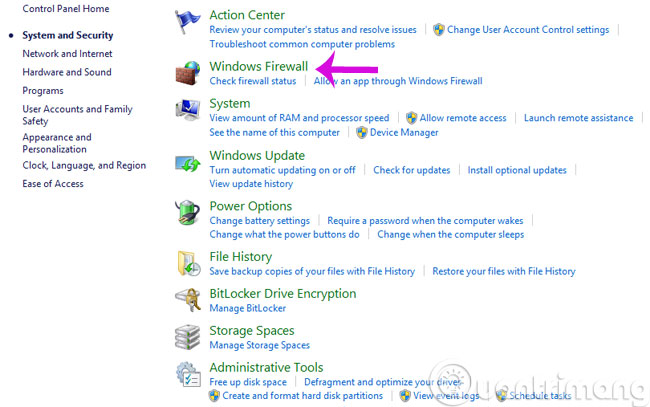
<p align="justify">Trong cửa sổ&nbsp;<strong>System and Security</strong>, bạn click vào&nbsp;<strong>Windows Firewall</strong>.</p>

<p align="justify"><img alt="Click Windows Firewall" data-i="7" data-src="https://st.quantrimang.com/photos/image/2015/10/28/Firewall-windows-firewall.jpg" data-was-processed="true" height="407" src="https://st.quantrimang.com/photos/image/2015/10/28/Firewall-windows-firewall.jpg" title="Click Windows Firewall" width="650" /></p>

<p><strong>Bước 3:</strong></p>

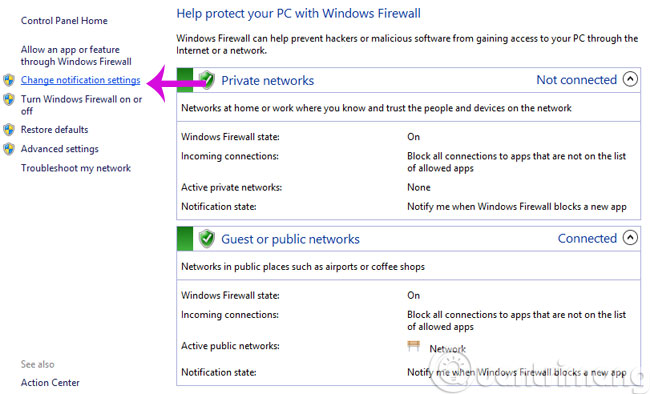
<p align="justify">Ở cột bên trái giao diện, bạn chọn&nbsp;<strong>Change notification settings</strong>&nbsp;để điều chỉnh cài đặt firewall.</p>

<p align="justify"><img alt="Change notifications settings" data-i="8" data-src="https://st.quantrimang.com/photos/image/2015/10/28/Firewall-change-notifications.jpg" data-was-processed="true" height="394" src="https://st.quantrimang.com/photos/image/2015/10/28/Firewall-change-notifications.jpg" title="Change notifications settings" width="650" /></p>

<p><strong>Bước 4:</strong></p>

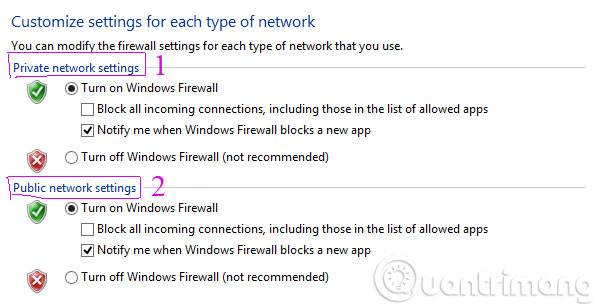
<p align="justify">Tại đây, bạn có thể tùy ý điều chỉnh bật hoặc tắt Firewall cho cả 2 chế độ&nbsp;<strong>Private</strong>&nbsp;và&nbsp;<strong>Public network</strong></p>

<p><strong><img alt="Thiết lập Firewall cho cả 2 chế độ Private và Public" data-i="9" data-src="https://st.quantrimang.com/photos/image/2015/10/28/Firewall-thiet-lap.jpg" data-was-processed="true" height="304" src="https://st.quantrimang.com/photos/image/2015/10/28/Firewall-thiet-lap.jpg" title="Thiết lập Firewall cho cả 2 chế độ Private và Public" width="594" />Bước 5:</strong></p>

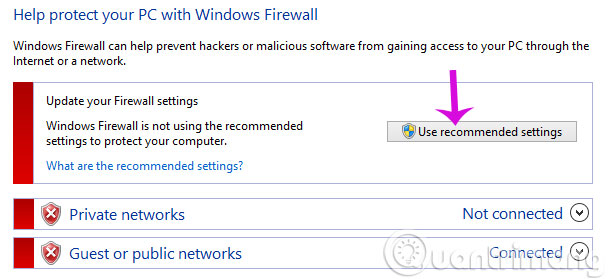
<p align="justify">Để cài đặt theo chế độ đề xuất của Windows, bạn có thể bấm&nbsp;<strong>Use recommended settings</strong>.</p>

<p align="justify"><img alt="Use recommended settings" data-i="10" data-src="https://st.quantrimang.com/photos/image/2015/10/28/Firewall-use-recommended.jpg" data-was-processed="true" height="279" src="https://st.quantrimang.com/photos/image/2015/10/28/Firewall-use-recommended.jpg" title="Use recommended settings" width="608" /></p>

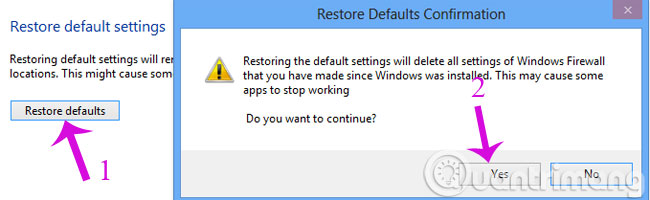
<p align="justify">Hoặc trở về mặc định ban đầu thì hãy chọn&nbsp;<strong>Restore default</strong>&nbsp;và click&nbsp;<strong>Yes</strong>&nbsp;khi có thông báo xác nhận</p>

<p align="justify"><img alt="Restore defaults" data-i="11" data-src="https://st.quantrimang.com/photos/image/2015/10/28/Firewall-restore-defaults.jpg" data-was-processed="true" height="200" src="https://st.quantrimang.com/photos/image/2015/10/28/Firewall-restore-defaults.jpg" title="Restore defaults" width="650" /></p>
&nbsp;

<p><strong>Bước 6:</strong></p>

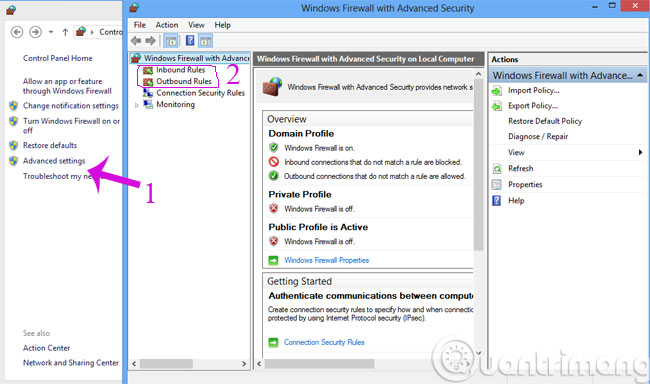
<p align="justify">Nếu là một chuyên gia, bạn có thể sử dụng&nbsp;<strong>Advance Setting</strong>&nbsp;để cấu hình firewall đối với luồng thông tin inbound và outbound tùy thuộc vào nhu cầu của mình.</p>

<p align="justify"><img alt="Advanced settings" data-i="12" data-src="https://st.quantrimang.com/photos/image/2015/10/28/Firewall-advanced-settings.jpg" data-was-processed="true" height="384" src="https://st.quantrimang.com/photos/image/2015/10/28/Firewall-advanced-settings.jpg" title="Advanced settings" width="650" /></p>

<p><strong>Bước 7:</strong></p>

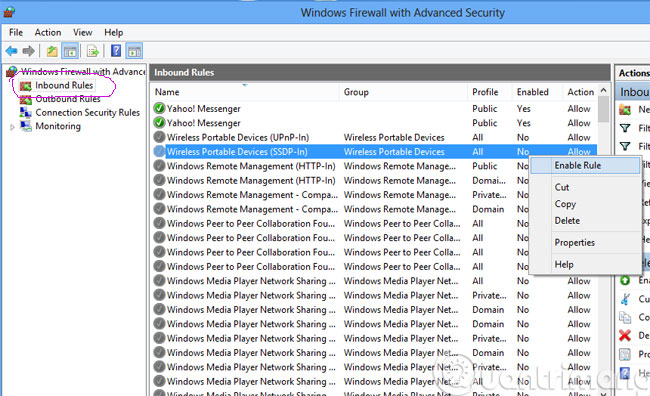
<p align="justify">Khi nhấn vào&nbsp;<strong>Inbound Rules</strong>&nbsp;ở bên trái, bạn sẽ thấy một danh sách&nbsp;<strong>Inbound Rules</strong>&nbsp;được hiển thị. Bạn có thể kích hoạt hoặc vô hiệu hóa kết nối nào bạn muốn bằng cách click chuột phải chọn&nbsp;<strong>Enable Rule</strong>/<strong>Disable Rule</strong></p>

<p align="justify"><img alt="Inbound Rules" data-i="13" data-src="https://st.quantrimang.com/photos/image/2015/10/28/Firewall-inbound-rules.jpg" data-was-processed="true" height="396" src="https://st.quantrimang.com/photos/image/2015/10/28/Firewall-inbound-rules.jpg" title="Inbound Rules" width="650" /></p>

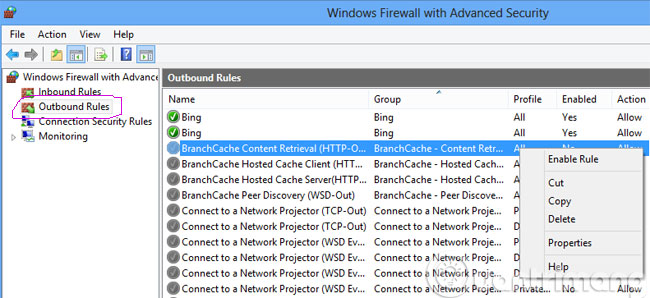
<p align="justify">Làm tương tự đối với&nbsp;<strong>Outbound Rules</strong>&nbsp;đối với các luồng thuông tin đi ra.</p>

<p align="justify"><img alt="Outbound Rules" data-i="14" data-src="https://st.quantrimang.com/photos/image/2015/10/28/Firewall-outbound-rules.jpg" data-was-processed="true" height="298" src="https://st.quantrimang.com/photos/image/2015/10/28/Firewall-outbound-rules.jpg" title="Outbound Rules" width="650" /></p>

<h2 align="justify" id="mcetoc_1fs0564903d">3. Bật/tắt tường lửa trong Windows 8/8.1</h2>

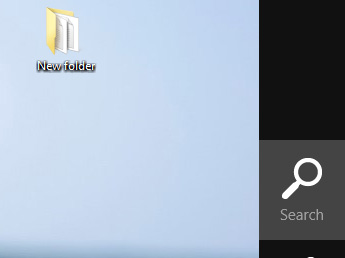
<p align="justify">Bạn nhấp chuột vào&nbsp;<strong>Control Panel</strong>&nbsp;trên màn hình, nếu không có thì di chuột vào góc trên bên phải, cho đến khi hiện biểu tượng kính lúp như hình:</p>

<p align="justify"><img alt="Biểu tượng tìm kiếm trên Windows 8" data-i="15" data-src="https://st.quantrimang.com/photos/image/2017/06/09/tim-kiem-windows-8.jpg" data-was-processed="true" height="258" src="https://st.quantrimang.com/photos/image/2017/06/09/tim-kiem-windows-8.jpg" title="Biểu tượng tìm kiếm trên Windows 8" width="345" /></p>

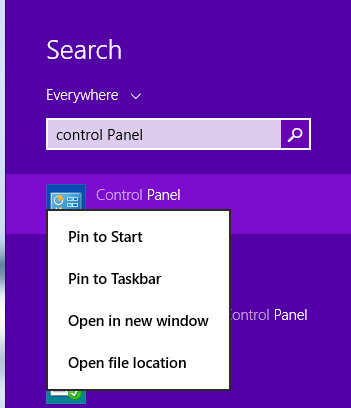
<p align="justify">Nhập Control Panel và nhấp vào biểu tượng hiện ra bên dưới để mở Control Panel, nếu muốn ghim vào Start menu hoặc Taskbar, bạn nhấp chuột phải vào biểu tượng Control Panel và chọn tùy chọn tương ứng.</p>

<p align="justify"><img alt="Mở Control Panel trên Windows 8/8.1" data-i="16" data-src="https://st.quantrimang.com/photos/image/2017/06/09/mo-control-pannel-windows-8.jpg" data-was-processed="true" height="408" src="https://st.quantrimang.com/photos/image/2017/06/09/mo-control-pannel-windows-8.jpg" title="Mở Control Panel trên Windows 8/8.1" width="351" /></p>

<p align="justify">Trong Control Panel bạn tìm đến và nhấp vào Windows Firewall, cửa sổ Windows Firewall hiện ra với các tùy chọn tương tự như trên Windows 7 (ảnh trong bước 3 bên trên), bạn có thể làm theo các hướng dẫn trong phần bật tắt tường lửa trên Windows 7 để bật tắt tường lửa trong Windows 8, cũng như thay đổi các cài đặt tường lửa liên quan.</p>

<p align="justify">Chúc các bạn thành công!</p>
&nbsp;
		</div>
				<div id="author">
						<p>
				<strong>Nguồn tin:</strong>
				Quantrimang.com:
			</p>
		</div>
	</div>
	<div id="footer" class="clearfix">
		<div id="url">
			<strong>URL của bản tin này: </strong><a href="https://www.nguoicodonvn2008.info/vi/news/savefile/kien-thuc-may-tinh/cach-bat-tat-tuong-lua-firewall-tren-may-tinh-windows-8423.html" title="Cách bật&#x002F;tắt tường lửa &#40;Firewall&#41; trên máy tính Windows">https://www.nguoicodonvn2008.info/vi/news/savefile/kien-thuc-may-tinh/cach-bat-tat-tuong-lua-firewall-tren-may-tinh-windows-8423.html</a>

		</div>
		<div class="clear"></div>
		<div class="copyright">
			&copy; .&#x3A; Nguoicodonvn2008.info - Cõi lòng người cô đơn &#x3A;.
		</div>
		<div id="contact">
			<a href="mailto:admin@nguoicodonvn2008.info">admin@nguoicodonvn2008.info</a>
		</div>
	</div>
</div>
        <div id="timeoutsess" class="chromeframe">
            Bạn đã không sử dụng Site, <a onclick="timeoutsesscancel();" href="https://nguoicodonvn2008.info/#">Bấm vào đây để duy trì trạng thái đăng nhập</a>. Thời gian chờ: <span id="secField"> 60 </span> giây
        </div>
        <div id="openidResult" class="nv-alert" style="display:none"></div>
        <div id="openidBt" data-result="" data-redirect=""></div>
		</script>
		<div class="car-top">
  <span><img src="https://nguoicodonvn2008.info/themes/default/images/car.png" alt=""></span>
</div>
<div id="run_cronjobs" style="visibility:hidden;display:none;"><img alt="cron" src="/index.php?second=cronjobs&amp;p=b3hBFgWg" width="1" height="1" /></div>
<script src="https://nguoicodonvn2008.info/assets/js/jquery/jquery.min.js"></script>
<script>var nv_base_siteurl="/",nv_lang_data="vi",nv_lang_interface="vi",nv_name_variable="nv",nv_fc_variable="op",nv_lang_variable="language",nv_module_name="news",nv_func_name="savefile",nv_is_user=0, nv_my_ofs=-4,nv_my_abbr="EDT",nv_cookie_prefix="nv4c_e856T",nv_check_pass_mstime=1738000,nv_area_admin=0,nv_safemode=0,theme_responsive=0,nv_recaptcha_ver=2,nv_recaptcha_sitekey="",nv_recaptcha_type="image",XSSsanitize=1;</script>
<script src="https://nguoicodonvn2008.info/assets/js/language/vi.js"></script>
<script src="https://nguoicodonvn2008.info/assets/js/DOMPurify/purify3.js"></script>
<script src="https://nguoicodonvn2008.info/assets/js/global.js"></script>
<script src="https://nguoicodonvn2008.info/assets/js/site.js"></script>
<script src="https://nguoicodonvn2008.info/themes/default/js/news.js"></script>
<script src="https://nguoicodonvn2008.info/themes/default/js/main.js"></script>
<script src="https://nguoicodonvn2008.info/themes/default/js/custom.js"></script>
<script type="application/ld+json">
        {
            "@context": "https://schema.org",
            "@type": "Organization",
            "url": "https://nguoicodonvn2008.info",
            "logo": "https://nguoicodonvn2008.info/uploads/angel.gif"
        }
        </script>
<script src="https://nguoicodonvn2008.info/themes/default/js/bootstrap.min.js"></script>
<script type="text/javascript">
var $scrolltop = $('.car-top');
$scrolltop.on('click', function () {
    $('html,body').animate({
        scrollTop: 0
    }, 800);
    $(this).addClass("car-run");
    setTimeout(function(){ $scrolltop.removeClass('car-run');}, 1000);
    return false;
});
$(window).on('scroll', function ()
{ 
    if($(window).scrollTop() >= 200)
    {
        $scrolltop.addClass("show");
        $scrolltop.addClass("car-down");
    }
    else
    {
       $scrolltop.removeClass("show");
       setTimeout(function(){ $scrolltop.removeClass('car-down');}, 300);
    }
});
</script>
</body>
</html>