<!DOCTYPE html>
    <html lang="vi" xmlns="http://www.w3.org/1999/xhtml" prefix="og: http://ogp.me/ns#">
    <head>
<title>Cách bật&#x002F;tắt Live Captions trên Windows 11</title>
<meta name="description" content="Cách bật&#x002F;tắt Live Captions trên Windows 11 - Savefile - Tin Tức -...">
<meta name="author" content=".: Nguoicodonvn2008.info - Cõi lòng người cô đơn :.">
<meta name="copyright" content=".: Nguoicodonvn2008.info - Cõi lòng người cô đơn :. [admin@nguoicodonvn2008.info]">
<meta name="robots" content="index, archive, follow, noodp">
<meta name="googlebot" content="index,archive,follow,noodp">
<meta name="msnbot" content="all,index,follow">
<meta name="generator" content="NukeViet v4.5">
<meta http-equiv="Content-Type" content="text/html; charset=utf-8">
<meta property="og:title" content="Cách bật&#x002F;tắt Live Captions trên Windows 11">
<meta property="og:type" content="website">
<meta property="og:description" content="Savefile - Tin Tức - https&#x3A;&#x002F;&#x002F;www.nguoicodonvn2008.info&#x002F;vi&#x002F;news&#x002F;savefile&#x002F;kien-thuc-may-tinh&#x002F;cach-bat-tat-live-captions-tren-windows-11-7407.html">
<meta property="og:site_name" content=".&#x3A; Nguoicodonvn2008.info - Cõi lòng người cô đơn &#x3A;.">
<meta property="og:url" content="https://www.nguoicodonvn2008.info/vi/news/savefile/kien-thuc-may-tinh/cach-bat-tat-live-captions-tren-windows-11-7407.html">
<link rel="shortcut icon" href="https://nguoicodonvn2008.info/favicon.ico">
<link rel="canonical" href="https://www.nguoicodonvn2008.info/vi/news/savefile/kien-thuc-may-tinh/cach-bat-tat-live-captions-tren-windows-11-7407.html">
<link rel="alternate" href="https://nguoicodonvn2008.info/vi/news/rss/" title="Tin Tức" type="application/rss+xml">
<link rel="alternate" href="https://nguoicodonvn2008.info/vi/news/rss/karaoke-dual/" title="Tin Tức - Karaoke Dual" type="application/rss+xml">
<link rel="alternate" href="https://nguoicodonvn2008.info/vi/news/rss/nhac-tre/" title="Tin Tức - Nhạc trẻ" type="application/rss+xml">
<link rel="alternate" href="https://nguoicodonvn2008.info/vi/news/rss/tru-tinh/" title="Tin Tức - Trữ tình" type="application/rss+xml">
<link rel="alternate" href="https://nguoicodonvn2008.info/vi/news/rss/nuoc-ngoai/" title="Tin Tức - Nước ngoài" type="application/rss+xml">
<link rel="alternate" href="https://nguoicodonvn2008.info/vi/news/rss/remix/" title="Tin Tức - Remix" type="application/rss+xml">
<link rel="alternate" href="https://nguoicodonvn2008.info/vi/news/rss/tam-su-tinh-yeu/" title="Tin Tức - Tâm sự tình yêu" type="application/rss+xml">
<link rel="alternate" href="https://nguoicodonvn2008.info/vi/news/rss/tho-suu-tam/" title="Tin Tức - Thơ sưu tầm" type="application/rss+xml">
<link rel="alternate" href="https://nguoicodonvn2008.info/vi/news/rss/cuoc-song/" title="Tin Tức - Cuộc sống" type="application/rss+xml">
<link rel="alternate" href="https://nguoicodonvn2008.info/vi/news/rss/phan-mem/" title="Tin Tức - Phần mềm" type="application/rss+xml">
<link rel="alternate" href="https://nguoicodonvn2008.info/vi/news/rss/kien-thuc-may-tinh/" title="Tin Tức - Kiến thức máy tính" type="application/rss+xml">
<link rel="alternate" href="https://nguoicodonvn2008.info/vi/news/rss/hoc-tap/" title="Tin Tức - Học tập" type="application/rss+xml">
<link rel="alternate" href="https://nguoicodonvn2008.info/vi/news/rss/tai-lieu/" title="Tin Tức - Tài liệu" type="application/rss+xml">
<link rel="alternate" href="https://nguoicodonvn2008.info/vi/news/rss/de-thi/" title="Tin Tức - Đề thi" type="application/rss+xml">
<link rel="preload" as="style" href="https://nguoicodonvn2008.info/assets/css/font-awesome.min.css" type="text/css">
<link rel="preload" as="style" href="https://nguoicodonvn2008.info/themes/default/css/bootstrap.non-responsive.css" type="text/css">
<link rel="preload" as="style" href="https://nguoicodonvn2008.info/themes/default/css/style.css" type="text/css">
<link rel="preload" as="style" href="https://nguoicodonvn2008.info/themes/default/css/style.non-responsive.css" type="text/css">
<link rel="preload" as="style" href="https://nguoicodonvn2008.info/themes/default/css/news.css" type="text/css">
<link rel="preload" as="style" href="https://nguoicodonvn2008.info/themes/default/css/custom.css" type="text/css">
<link rel="preload" as="script" href="https://nguoicodonvn2008.info/assets/js/jquery/jquery.min.js" type="text/javascript">
<link rel="preload" as="script" href="https://nguoicodonvn2008.info/assets/js/language/vi.js" type="text/javascript">
<link rel="preload" as="script" href="https://nguoicodonvn2008.info/assets/js/DOMPurify/purify3.js" type="text/javascript">
<link rel="preload" as="script" href="https://nguoicodonvn2008.info/assets/js/global.js" type="text/javascript">
<link rel="preload" as="script" href="https://nguoicodonvn2008.info/assets/js/site.js" type="text/javascript">
<link rel="preload" as="script" href="https://nguoicodonvn2008.info/themes/default/js/news.js" type="text/javascript">
<link rel="preload" as="script" href="https://nguoicodonvn2008.info/themes/default/js/main.js" type="text/javascript">
<link rel="preload" as="script" href="https://nguoicodonvn2008.info/themes/default/js/custom.js" type="text/javascript">
<link rel="preload" as="script" href="https://nguoicodonvn2008.info/themes/default/js/bootstrap.min.js" type="text/javascript">
<link rel="stylesheet" href="https://nguoicodonvn2008.info/assets/css/font-awesome.min.css">
<link rel="stylesheet" href="https://nguoicodonvn2008.info/themes/default/css/bootstrap.non-responsive.css">
<link rel="stylesheet" href="https://nguoicodonvn2008.info/themes/default/css/style.css">
<link rel="stylesheet" href="https://nguoicodonvn2008.info/themes/default/css/style.non-responsive.css">
<link rel="StyleSheet" href="https://nguoicodonvn2008.info/themes/default/css/news.css">
<link rel="stylesheet" href="https://nguoicodonvn2008.info/themes/default/css/custom.css">
<style type="text/css">
	body{background: #fff;}
</style>
    </head>
    <body>
<div id="print">
	<div id="hd_print">
		<h2 class="pull-left">.&#x3A; Nguoicodonvn2008.info - Cõi lòng người cô đơn &#x3A;.</h2>
		<p class="pull-right"><a title=".&#x3A; Nguoicodonvn2008.info - Cõi lòng người cô đơn &#x3A;." href="https://nguoicodonvn2008.info/">https://nguoicodonvn2008.info</a></p>
	</div>
	<div class="clear"></div>
	<hr />
	<div id="content">
		<h1>Cách bật&#x002F;tắt Live Captions trên Windows 11</h1>
		<ul class="list-inline">
			<li>Thứ ba - 15/08/2023 09:54</li>
			<li class="hidden-print txtrequired"><em class="fa fa-print">&nbsp;</em><a title="In ra" href="javascript:;" onclick="window.print()">In ra</a></li>
			<li class="hidden-print txtrequired"><em class="fa fa-power-off">&nbsp;</em><a title="Đóng cửa sổ này" href="javascript:;" onclick="window.close()">Đóng cửa sổ này</a></li>
		</ul>
		<div class="clear"></div>
		<div id="hometext">
		</div>
				<div class="imghome">
			<img alt="Cách bật&#x002F;tắt Live Captions trên Windows 11" src="https://st.quantrimang.com/photos/image/2023/08/14/bat-tat-live-captions-windows-11-4.jpg" width="460" class="img-thumbnail" />
		</div>
		<div class="clear"></div>
		<div id="bodytext" class="clearfix">
			<p style="text-align: justify;">Microsoft đã giới thiệu một tính năng mới có tên Live Captions bắt đầu với Windows 11 build 22557. Live Captions sẽ giúp mọi người, kể cả những người khiếm thính hoặc nghe kém, hiểu rõ hơn về âm thanh bằng cách xem phụ đề của nội dung được nói.</p>

<p style="text-align: justify;">Phụ đề được tạo tự động trên thiết bị từ mọi nội dung có âm thanh. Chú thích có thể được hiển thị ở trên cùng hoặc dưới cùng của màn hình hoặc trong một cửa sổ nổi. Cửa sổ chú thích có thể được thay đổi kích thước và hình thức chú thích có thể được cá nhân hóa bằng cách áp dụng hoặc tùy chỉnh kiểu. Âm thanh micro có thể được bao gồm, điều này có thể hữu ích trong các cuộc trò chuyện trực tiếp.</p>

<p style="text-align: justify;">Hướng dẫn này sẽ chỉ cho bạn cách bật hoặc tắt Live Captions cho tài khoản trong&nbsp;Windows 11.</p>

<h3 style="text-align: justify;">Phương pháp 1: Bật và tắt Live Captions bằng Phím tắt</h3>

<p style="text-align: justify;">Nhấn các phím&nbsp;<strong>Win + Ctrl + L&nbsp;</strong>để bật hoặc tắt Live Captions.</p>

<h3 style="text-align: justify;">Phương pháp 2: Bật và tắt Live Captions trong Quick Settings</h3>

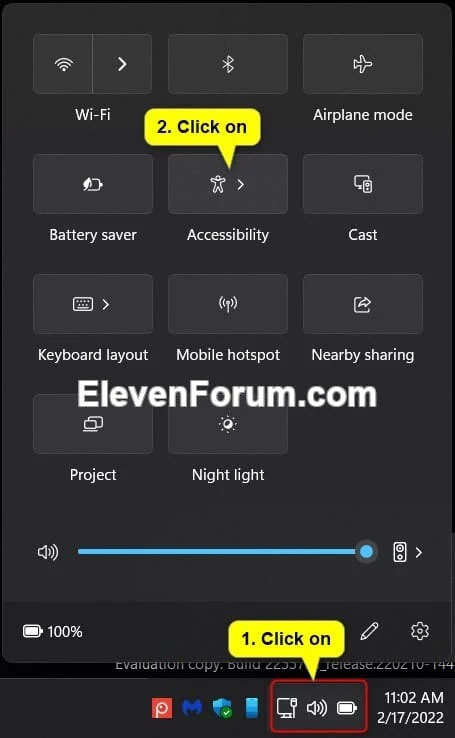
<p style="text-align: justify;">1. Mở Quick Settings (<strong>Win + A</strong>) và nhấn vào&nbsp;<strong>Accessibility.</strong></p>

<figure>
<div style="text-align: justify;"><img alt="Nhấn vào Accessibility trong Quick Settings" data-i="0" data-src="https://st.quantrimang.com/photos/image/2023/08/14/bat-tat-live-captions-windows-11-1.jpg" data-was-processed="true" height="738" src="https://st.quantrimang.com/photos/image/2023/08/14/bat-tat-live-captions-windows-11-1.jpg" width="455" /></div>

<figcaption>
<div style="text-align: justify;">Nhấn vào Accessibility trong Quick Settings</div>
</figcaption>
</figure>

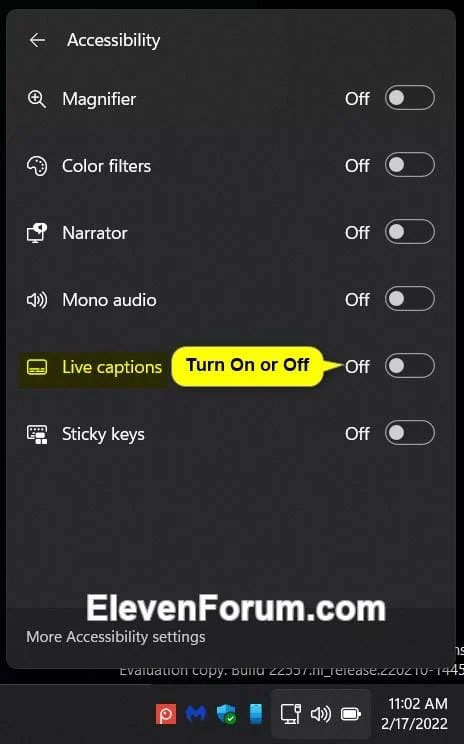
<p style="text-align: justify;">2. Bật hoặc tắt (mặc định) Live Captions cho nội dung bạn muốn.</p>

<figure>
<div style="text-align: justify;"><img alt="Bật hoặc tắt Live Captions" data-i="1" data-src="https://st.quantrimang.com/photos/image/2023/08/14/bat-tat-live-captions-windows-11-2.jpg" data-was-processed="true" height="744" src="https://st.quantrimang.com/photos/image/2023/08/14/bat-tat-live-captions-windows-11-2.jpg" width="464" /></div>

<figcaption>
<div style="text-align: justify;">Bật hoặc tắt Live Captions</div>
</figcaption>
</figure>

<h3 style="text-align: justify;">Phương pháp 3: Bật và tắt Live Captions trong Settings</h3>

<p style="text-align: justify;">1.&nbsp;<a data-type="internal" href="https://quantrimang.com/cong-nghe/6-cach-truy-cap-nhanh-settings-tren-windows-10-130106" title="Tổng hợp 12 cách truy cập nhanh ứng dụng Settings trên Windows 10">Mở Settings</a>.</p>

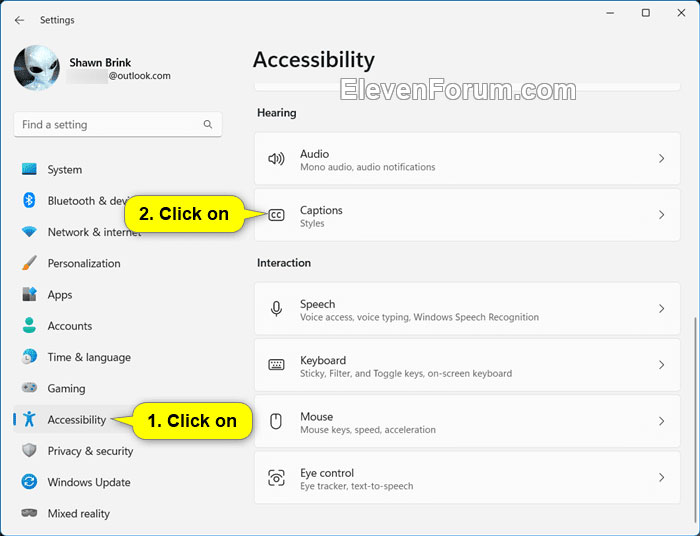
<p style="text-align: justify;">2. Nhấn vào&nbsp;<strong>Accessibility</strong>&nbsp;ở bên trái và nhấp vào&nbsp;<strong>Captions</strong>&nbsp;bên dưới&nbsp;<strong>Hearing</strong>&nbsp;ở bên phải.</p>

<figure>
<div style="text-align: justify;"><img alt="Mở cài đặt Captions" data-i="2" data-src="https://st.quantrimang.com/photos/image/2023/08/14/bat-tat-live-captions-windows-11-3.jpg" data-was-processed="true" height="536" src="https://st.quantrimang.com/photos/image/2023/08/14/bat-tat-live-captions-windows-11-3.jpg" width="700" /></div>

<figcaption>
<div style="text-align: justify;">Mở cài đặt Captions</div>
</figcaption>
</figure>

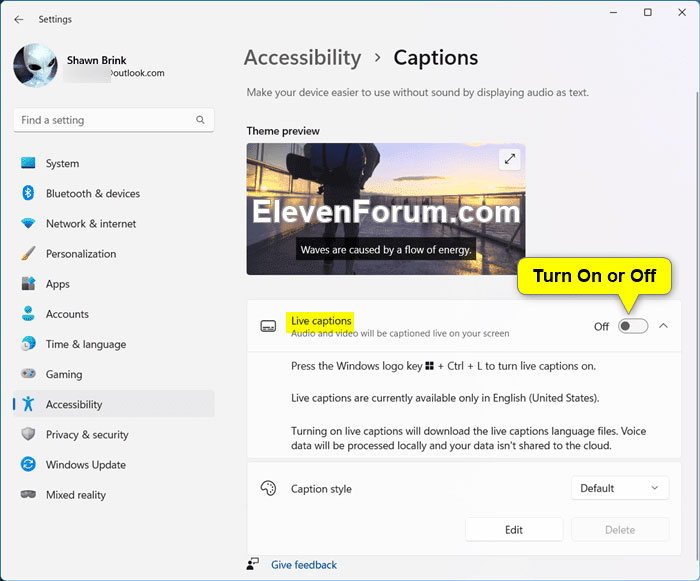
<p style="text-align: justify;">3. Bật hoặc tắt (mặc định) Live Captions cho nội dung bạn muốn.</p>

<figure>
<div style="text-align: justify;"><img alt="Bật hoặc tắt Live Captions" data-i="3" data-src="https://st.quantrimang.com/photos/image/2023/08/14/bat-tat-live-captions-windows-11-4.jpg" data-was-processed="true" height="581" src="https://st.quantrimang.com/photos/image/2023/08/14/bat-tat-live-captions-windows-11-4.jpg" width="700" /></div>

<figcaption>
<div style="text-align: justify;">Bật hoặc tắt Live Captions</div>
</figcaption>
</figure>

<p style="text-align: justify;">4. Bây giờ, bạn có thể đóng Settings nếu muốn.</p>

<h3 style="text-align: justify;">Phương pháp 4: Tắt Live Captions từ thanh Live Captions</h3>

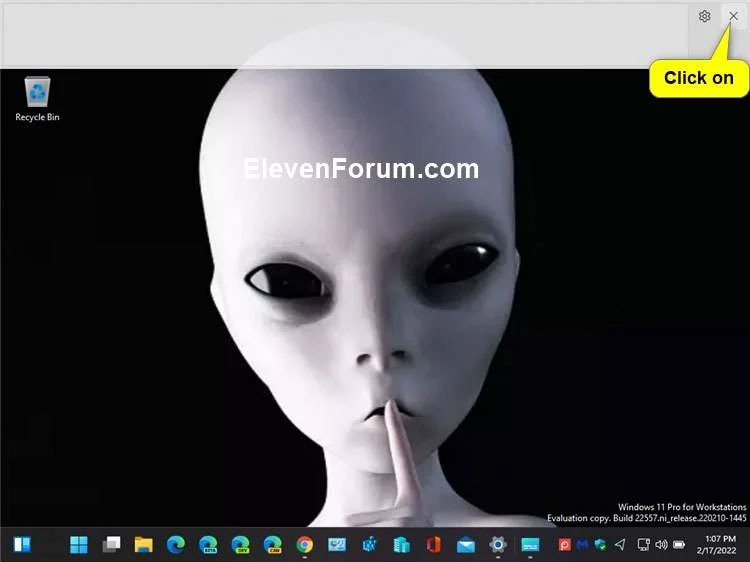
<p style="text-align: justify;">Đóng (X) thanh Live Captions.</p>

<figure>
<div style="text-align: justify;"><img alt="Đóng thanh Live Captions" data-i="4" data-src="https://st.quantrimang.com/photos/image/2023/08/14/bat-tat-live-captions-windows-11-5.jpg" data-was-processed="true" height="562" src="https://st.quantrimang.com/photos/image/2023/08/14/bat-tat-live-captions-windows-11-5.jpg" width="750" /></div>

<figcaption>
<div style="text-align: justify;">Đóng thanh Live Captions</div>
</figcaption>
</figure>

<h3 style="text-align: justify;">Phương pháp 5: Tắt Live Captions trong Task Manager</h3>

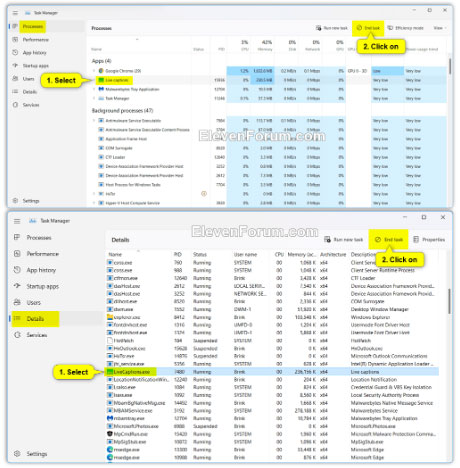
<p style="text-align: justify;">1.&nbsp;<a data-type="internal" href="https://quantrimang.com/cong-nghe/6-cach-don-gian-mo-task-manager-tren-windows-119941" title="11 cách mở Task Manager trên Windows đơn giản nhất">Mở Task Manager</a>&nbsp;(<strong>Ctrl + Shift + Esc</strong>).</p>

<p style="text-align: justify;">2. Mở trang&nbsp;<strong>Processes</strong>&nbsp;hoặc&nbsp;<strong>Details</strong>&nbsp;trong Task Manager.</p>

<p style="text-align: justify;">3. Chọn tiến trình&nbsp;<strong>Live captions</strong>&nbsp;(Processes) hoặc&nbsp;<strong>LiveCaptions.exe</strong>&nbsp;(Details) trong cột&nbsp;<strong>Name</strong>.</p>

<p style="text-align: justify;">4. Nhấp vào&nbsp;<strong>End task</strong>&nbsp;trên thanh công cụ.</p>

<figure>
<div style="text-align: justify;"><img alt="Nhấn vào End task để tắt Live Captions" data-i="5" data-src="https://st.quantrimang.com/photos/image/2023/08/14/bat-tat-live-captions-windows-11-6.jpg" data-was-processed="true" height="468" src="https://st.quantrimang.com/photos/image/2023/08/14/bat-tat-live-captions-windows-11-6.jpg" width="460" /></div>

<figcaption>
<div style="text-align: justify;">Nhấn vào End task để tắt Live Captions</div>
</figcaption>
</figure>

<div style="text-align: justify;">&nbsp;</div>
		</div>
				<div id="author">
						<p>
				<strong>Nguồn tin:</strong>
				Quantrimang.com
			</p>
		</div>
	</div>
	<div id="footer" class="clearfix">
		<div id="url">
			<strong>URL của bản tin này: </strong><a href="https://www.nguoicodonvn2008.info/vi/news/savefile/kien-thuc-may-tinh/cach-bat-tat-live-captions-tren-windows-11-7407.html" title="Cách bật&#x002F;tắt Live Captions trên Windows 11">https://www.nguoicodonvn2008.info/vi/news/savefile/kien-thuc-may-tinh/cach-bat-tat-live-captions-tren-windows-11-7407.html</a>

		</div>
		<div class="clear"></div>
		<div class="copyright">
			&copy; .&#x3A; Nguoicodonvn2008.info - Cõi lòng người cô đơn &#x3A;.
		</div>
		<div id="contact">
			<a href="mailto:admin@nguoicodonvn2008.info">admin@nguoicodonvn2008.info</a>
		</div>
	</div>
</div>
        <div id="timeoutsess" class="chromeframe">
            Bạn đã không sử dụng Site, <a onclick="timeoutsesscancel();" href="https://nguoicodonvn2008.info/#">Bấm vào đây để duy trì trạng thái đăng nhập</a>. Thời gian chờ: <span id="secField"> 60 </span> giây
        </div>
        <div id="openidResult" class="nv-alert" style="display:none"></div>
        <div id="openidBt" data-result="" data-redirect=""></div>
		</script>
		<div class="car-top">
  <span><img src="https://nguoicodonvn2008.info/themes/default/images/car.png" alt=""></span>
</div>
<div id="run_cronjobs" style="visibility:hidden;display:none;"><img alt="cron" src="/index.php?second=cronjobs&amp;p=v7L5F2ia" width="1" height="1" /></div>
<script src="https://nguoicodonvn2008.info/assets/js/jquery/jquery.min.js"></script>
<script>var nv_base_siteurl="/",nv_lang_data="vi",nv_lang_interface="vi",nv_name_variable="nv",nv_fc_variable="op",nv_lang_variable="language",nv_module_name="news",nv_func_name="savefile",nv_is_user=0, nv_my_ofs=-4,nv_my_abbr="EDT",nv_cookie_prefix="nv4c_e856T",nv_check_pass_mstime=1738000,nv_area_admin=0,nv_safemode=0,theme_responsive=0,nv_recaptcha_ver=2,nv_recaptcha_sitekey="",nv_recaptcha_type="image",XSSsanitize=1;</script>
<script src="https://nguoicodonvn2008.info/assets/js/language/vi.js"></script>
<script src="https://nguoicodonvn2008.info/assets/js/DOMPurify/purify3.js"></script>
<script src="https://nguoicodonvn2008.info/assets/js/global.js"></script>
<script src="https://nguoicodonvn2008.info/assets/js/site.js"></script>
<script src="https://nguoicodonvn2008.info/themes/default/js/news.js"></script>
<script src="https://nguoicodonvn2008.info/themes/default/js/main.js"></script>
<script src="https://nguoicodonvn2008.info/themes/default/js/custom.js"></script>
<script type="application/ld+json">
        {
            "@context": "https://schema.org",
            "@type": "Organization",
            "url": "https://nguoicodonvn2008.info",
            "logo": "https://nguoicodonvn2008.info/uploads/angel.gif"
        }
        </script>
<script src="https://nguoicodonvn2008.info/themes/default/js/bootstrap.min.js"></script>
<script type="text/javascript">
var $scrolltop = $('.car-top');
$scrolltop.on('click', function () {
    $('html,body').animate({
        scrollTop: 0
    }, 800);
    $(this).addClass("car-run");
    setTimeout(function(){ $scrolltop.removeClass('car-run');}, 1000);
    return false;
});
$(window).on('scroll', function ()
{ 
    if($(window).scrollTop() >= 200)
    {
        $scrolltop.addClass("show");
        $scrolltop.addClass("car-down");
    }
    else
    {
       $scrolltop.removeClass("show");
       setTimeout(function(){ $scrolltop.removeClass('car-down');}, 300);
    }
});
</script>
</body>
</html>