<!DOCTYPE html>
    <html lang="vi" xmlns="http://www.w3.org/1999/xhtml" prefix="og: http://ogp.me/ns#">
    <head>
<title>Cách bật RSAT cho Active Directory trong Windows 10</title>
<meta name="description" content="Cách bật RSAT cho Active Directory trong Windows 10 - Savefile - Tin Tức -...">
<meta name="author" content=".: Nguoicodonvn2008.info - Cõi lòng người cô đơn :.">
<meta name="copyright" content=".: Nguoicodonvn2008.info - Cõi lòng người cô đơn :. [admin@nguoicodonvn2008.info]">
<meta name="robots" content="index, archive, follow, noodp">
<meta name="googlebot" content="index,archive,follow,noodp">
<meta name="msnbot" content="all,index,follow">
<meta name="generator" content="NukeViet v4.5">
<meta http-equiv="Content-Type" content="text/html; charset=utf-8">
<meta property="og:title" content="Cách bật RSAT cho Active Directory trong Windows 10">
<meta property="og:type" content="website">
<meta property="og:description" content="Savefile - Tin Tức - https&#x3A;&#x002F;&#x002F;www.nguoicodonvn2008.info&#x002F;vi&#x002F;news&#x002F;savefile&#x002F;kien-thuc-may-tinh&#x002F;cach-bat-rsat-cho-active-directory-trong-windows-10-2427.html">
<meta property="og:site_name" content=".&#x3A; Nguoicodonvn2008.info - Cõi lòng người cô đơn &#x3A;.">
<meta property="og:url" content="https://www.nguoicodonvn2008.info/vi/news/savefile/kien-thuc-may-tinh/cach-bat-rsat-cho-active-directory-trong-windows-10-2427.html">
<link rel="shortcut icon" href="https://nguoicodonvn2008.info/favicon.ico">
<link rel="canonical" href="https://www.nguoicodonvn2008.info/vi/news/savefile/kien-thuc-may-tinh/cach-bat-rsat-cho-active-directory-trong-windows-10-2427.html">
<link rel="alternate" href="https://nguoicodonvn2008.info/vi/news/rss/" title="Tin Tức" type="application/rss+xml">
<link rel="alternate" href="https://nguoicodonvn2008.info/vi/news/rss/karaoke-dual/" title="Tin Tức - Karaoke Dual" type="application/rss+xml">
<link rel="alternate" href="https://nguoicodonvn2008.info/vi/news/rss/nhac-tre/" title="Tin Tức - Nhạc trẻ" type="application/rss+xml">
<link rel="alternate" href="https://nguoicodonvn2008.info/vi/news/rss/tru-tinh/" title="Tin Tức - Trữ tình" type="application/rss+xml">
<link rel="alternate" href="https://nguoicodonvn2008.info/vi/news/rss/nuoc-ngoai/" title="Tin Tức - Nước ngoài" type="application/rss+xml">
<link rel="alternate" href="https://nguoicodonvn2008.info/vi/news/rss/remix/" title="Tin Tức - Remix" type="application/rss+xml">
<link rel="alternate" href="https://nguoicodonvn2008.info/vi/news/rss/tam-su-tinh-yeu/" title="Tin Tức - Tâm sự tình yêu" type="application/rss+xml">
<link rel="alternate" href="https://nguoicodonvn2008.info/vi/news/rss/tho-suu-tam/" title="Tin Tức - Thơ sưu tầm" type="application/rss+xml">
<link rel="alternate" href="https://nguoicodonvn2008.info/vi/news/rss/cuoc-song/" title="Tin Tức - Cuộc sống" type="application/rss+xml">
<link rel="alternate" href="https://nguoicodonvn2008.info/vi/news/rss/phan-mem/" title="Tin Tức - Phần mềm" type="application/rss+xml">
<link rel="alternate" href="https://nguoicodonvn2008.info/vi/news/rss/kien-thuc-may-tinh/" title="Tin Tức - Kiến thức máy tính" type="application/rss+xml">
<link rel="alternate" href="https://nguoicodonvn2008.info/vi/news/rss/hoc-tap/" title="Tin Tức - Học tập" type="application/rss+xml">
<link rel="alternate" href="https://nguoicodonvn2008.info/vi/news/rss/tai-lieu/" title="Tin Tức - Tài liệu" type="application/rss+xml">
<link rel="alternate" href="https://nguoicodonvn2008.info/vi/news/rss/de-thi/" title="Tin Tức - Đề thi" type="application/rss+xml">
<link rel="preload" as="style" href="https://nguoicodonvn2008.info/assets/css/font-awesome.min.css" type="text/css">
<link rel="preload" as="style" href="https://nguoicodonvn2008.info/themes/default/css/bootstrap.non-responsive.css" type="text/css">
<link rel="preload" as="style" href="https://nguoicodonvn2008.info/themes/default/css/style.css" type="text/css">
<link rel="preload" as="style" href="https://nguoicodonvn2008.info/themes/default/css/style.non-responsive.css" type="text/css">
<link rel="preload" as="style" href="https://nguoicodonvn2008.info/themes/default/css/news.css" type="text/css">
<link rel="preload" as="style" href="https://nguoicodonvn2008.info/themes/default/css/custom.css" type="text/css">
<link rel="preload" as="script" href="https://nguoicodonvn2008.info/assets/js/jquery/jquery.min.js" type="text/javascript">
<link rel="preload" as="script" href="https://nguoicodonvn2008.info/assets/js/language/vi.js" type="text/javascript">
<link rel="preload" as="script" href="https://nguoicodonvn2008.info/assets/js/DOMPurify/purify3.js" type="text/javascript">
<link rel="preload" as="script" href="https://nguoicodonvn2008.info/assets/js/global.js" type="text/javascript">
<link rel="preload" as="script" href="https://nguoicodonvn2008.info/assets/js/site.js" type="text/javascript">
<link rel="preload" as="script" href="https://nguoicodonvn2008.info/themes/default/js/news.js" type="text/javascript">
<link rel="preload" as="script" href="https://nguoicodonvn2008.info/themes/default/js/main.js" type="text/javascript">
<link rel="preload" as="script" href="https://nguoicodonvn2008.info/themes/default/js/custom.js" type="text/javascript">
<link rel="preload" as="script" href="https://nguoicodonvn2008.info/themes/default/js/bootstrap.min.js" type="text/javascript">
<link rel="stylesheet" href="https://nguoicodonvn2008.info/assets/css/font-awesome.min.css">
<link rel="stylesheet" href="https://nguoicodonvn2008.info/themes/default/css/bootstrap.non-responsive.css">
<link rel="stylesheet" href="https://nguoicodonvn2008.info/themes/default/css/style.css">
<link rel="stylesheet" href="https://nguoicodonvn2008.info/themes/default/css/style.non-responsive.css">
<link rel="StyleSheet" href="https://nguoicodonvn2008.info/themes/default/css/news.css">
<link rel="stylesheet" href="https://nguoicodonvn2008.info/themes/default/css/custom.css">
<style type="text/css">
	body{background: #fff;}
</style>
    </head>
    <body>
<div id="print">
	<div id="hd_print">
		<h2 class="pull-left">.&#x3A; Nguoicodonvn2008.info - Cõi lòng người cô đơn &#x3A;.</h2>
		<p class="pull-right"><a title=".&#x3A; Nguoicodonvn2008.info - Cõi lòng người cô đơn &#x3A;." href="https://nguoicodonvn2008.info/">https://nguoicodonvn2008.info</a></p>
	</div>
	<div class="clear"></div>
	<hr />
	<div id="content">
		<h1>Cách bật RSAT cho Active Directory trong Windows 10</h1>
		<ul class="list-inline">
			<li>Thứ tư - 29/07/2020 00:49</li>
			<li class="hidden-print txtrequired"><em class="fa fa-print">&nbsp;</em><a title="In ra" href="javascript:;" onclick="window.print()">In ra</a></li>
			<li class="hidden-print txtrequired"><em class="fa fa-power-off">&nbsp;</em><a title="Đóng cửa sổ này" href="javascript:;" onclick="window.close()">Đóng cửa sổ này</a></li>
		</ul>
		<div class="clear"></div>
		<div id="hometext">
		</div>
				<div class="imghome">
			<img alt="Cách bật RSAT cho Active Directory trong Windows 10" src="https://st.quantrimang.com/photos/image/2020/07/28/bat-rsat-cho-active-directory-7.jpg" width="460" class="img-thumbnail" />
		</div>
		<div class="clear"></div>
		<div id="bodytext" class="clearfix">
			<p style="text-align: justify;">Hướng dẫn này giới thiệu 3 phương pháp để kích hoạt&nbsp;Active Directory&nbsp;trong Windows 10. Nói chính xác thì không phải là kích hoạt Active Directory trong Windows 10 vì bạn không thể cài đặt AD trong Windows 10. Bạn chỉ có thể bật RSAT cho Active Directory trong Windows 10 mà thôi.</p>

<h2 style="text-align: justify;">1. Cài đặt RSAT cho Active Directory trong Windows 10 với Manage Optional Features</h2>

<p style="text-align: justify;">Để kích hoạt Active Directory với phương thức này:</p>

<p style="text-align: justify;">Nhập&nbsp;<strong>Optional Features</strong>&nbsp;trong thanh tìm kiếm. Sau đó chọn&nbsp;<strong>Manage Optional Features.</strong></p>

<p style="text-align: justify;">Sau đó bấm&nbsp;<strong>Add features.</strong></p>

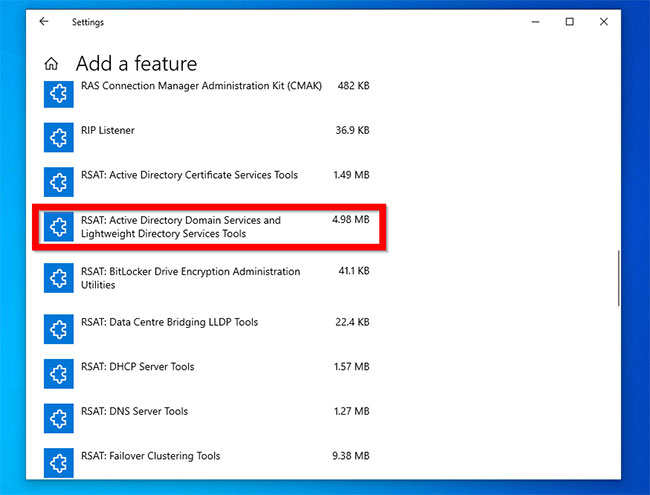
<p style="text-align: justify;">Di chuyển đến&nbsp;<strong>RSAT: Active Directory Domain Services and Lighweight Directory Services Tools</strong>. Sau đó bấm vào nó.</p>

<figure>
<div style="text-align: justify;"><img alt="Nhấp vào RSAT: Active Directory Domain Services and Lighweight Directory Services Tools" data-i="0" data-src="https://st.quantrimang.com/photos/image/2020/07/28/bat-rsat-cho-active-directory-1.jpg" data-was-processed="true" height="495" src="https://st.quantrimang.com/photos/image/2020/07/28/bat-rsat-cho-active-directory-1.jpg" width="650" /></div>

<figcaption>
<div style="text-align: justify;">Nhấp vào RSAT: Active Directory Domain Services and Lighweight Directory Services Tools</div>
</figcaption>
</figure>

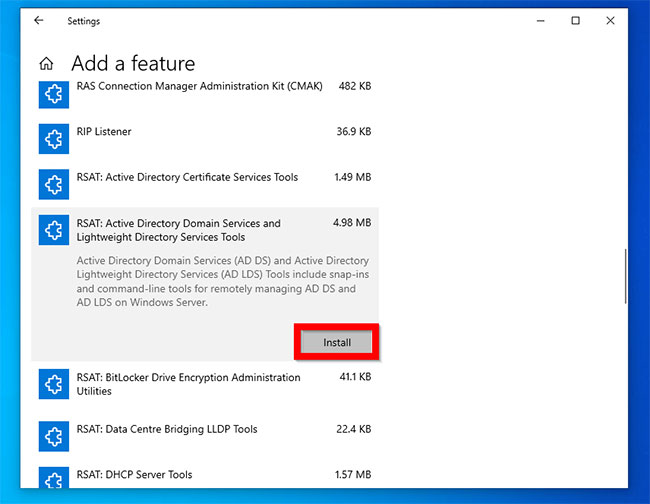
<p style="text-align: justify;">Nhấp vào&nbsp;<strong>Install.</strong></p>

<figure>
<div style="text-align: justify;"><img alt="Nhấp vào Install" data-i="1" data-src="https://st.quantrimang.com/photos/image/2020/07/28/bat-rsat-cho-active-directory-2.jpg" data-was-processed="true" height="504" src="https://st.quantrimang.com/photos/image/2020/07/28/bat-rsat-cho-active-directory-2.jpg" width="650" /></div>

<figcaption>
<div style="text-align: justify;">Nhấp vào Install</div>
</figcaption>
</figure>

<p style="text-align: justify;">Để xác nhận rằng tính năng đã được cài đặt, nhấp vào nút quay lại bên cạnh&nbsp;<strong>Settings.</strong></p>

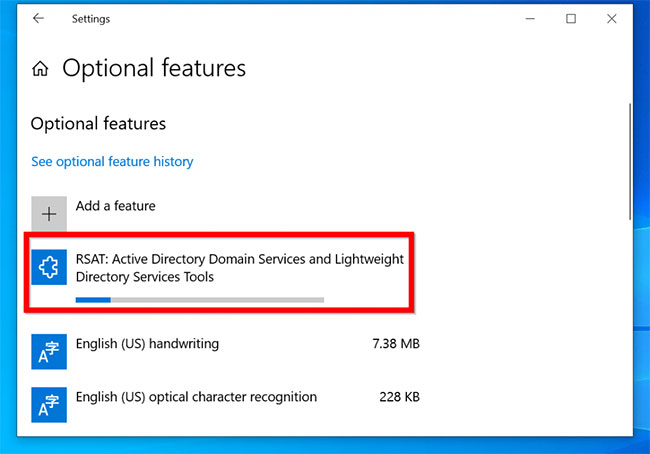
<p style="text-align: justify;">Sau đó bấm vào&nbsp;<strong>See optional feature history</strong>. Thanh tiến trình cài đặt tính năng sẽ được hiển thị.</p>

<figure>
<div style="text-align: justify;"><img alt="Thanh tiến trình cài đặt tính năng sẽ được hiển thị" data-i="2" data-src="https://st.quantrimang.com/photos/image/2020/07/28/bat-rsat-cho-active-directory-3.jpg" data-was-processed="true" height="454" src="https://st.quantrimang.com/photos/image/2020/07/28/bat-rsat-cho-active-directory-3.jpg" width="650" /></div>

<figcaption>
<div style="text-align: justify;">Thanh tiến trình cài đặt tính năng sẽ được hiển thị</div>
</figcaption>
</figure>

<p style="text-align: justify;">Khi cài đặt hoàn tất, cuộn xuống danh sách&nbsp;<strong>Optional features</strong>.&nbsp;<strong>RSAT: Active Directory Domain Services and Lighweight Directory Services Tools</strong>&nbsp;sẽ được liệt kê.</p>

<p style="text-align: justify;">Để xác nhận rằng tính năng này đã được cài đặt, hãy tìm kiếm Active Directory. Bạn sẽ tìm tất cả các công cụ AD.</p>

<div style="text-align: justify;">&nbsp;</div>

<h2 style="text-align: justify;">2. Cài đặt RSAT cho Active Directory trong Windows 10 với DISM</h2>

<p style="text-align: justify;">Một phương pháp khác để cài đặt Active Directory là sử dụng DISM Command.</p>

<p style="text-align: justify;">Dưới đây là các bước cần thực hiện:</p>

<p style="text-align: justify;">Mở Command Prompt với quyền admin.</p>

<p style="text-align: justify;">Sau đó, tại lời nhắc&nbsp;<strong>User Account Control</strong>, bấm&nbsp;<strong>Yes.</strong></p>

<p style="text-align: justify;">Cuối cùng, trong&nbsp;<strong>Command Prompt</strong>, gõ lệnh này, sau đó nhấn&nbsp;<code>Enter</code>.</p>

<pre id="pre0">
<code>DISM.exe /Online /Get-Capabilities | find &quot;Rsat.Active&quot;</code></pre>

<p style="text-align: justify;">Lệnh sẽ hiển thị tên tính năng RSAT cho Active Directory.</p>

<p style="text-align: justify;">Để cài đặt các công cụ Active Directory RSAT, gõ lệnh này, sau đó nhấn&nbsp;<code>Enter</code>.</p>

<pre id="pre1">
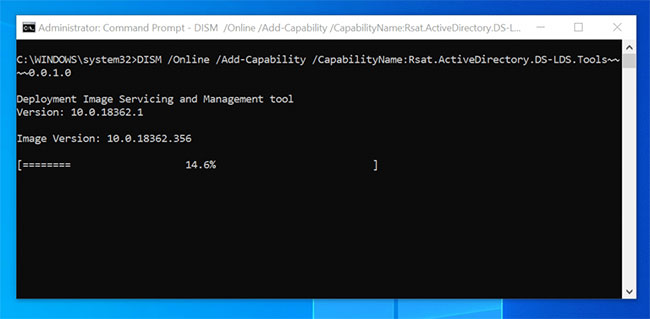
<code>DISM /Online /Add-Capability /CapabilityName:Rsat.ActiveDirectory.DS-LDS.Tools~~~~0.0.1.0</code></pre>

<p style="text-align: justify;">Sao chép tên tính năng từ lệnh&nbsp;<strong>/Get-Capabilities.</strong>&nbsp;Khi bạn nhấn&nbsp;<code>Enter</code>, quá trình cài đặt tính năng sẽ bắt đầu</p>

<p style="text-align: justify;">Nếu cài đặt dường như bị treo, hãy cứ kiên nhẫn chờ đợi. Cuối cùng nó sẽ tiến tới mức 100%.</p>

<figure>
<div style="text-align: justify;"><img alt="Cài đặt đang diễn ra" data-i="3" data-src="https://st.quantrimang.com/photos/image/2020/07/28/bat-rsat-cho-active-directory-4.jpg" data-was-processed="true" height="319" src="https://st.quantrimang.com/photos/image/2020/07/28/bat-rsat-cho-active-directory-4.jpg" width="650" /></div>

<figcaption>
<div style="text-align: justify;">Cài đặt đang diễn ra</div>
</figcaption>
</figure>

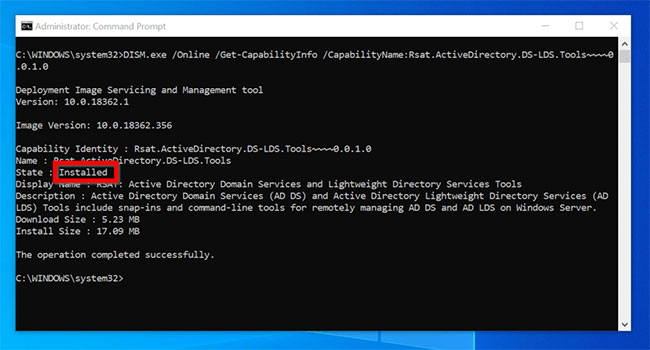
<p style="text-align: justify;">Khi quá trình cài đặt hoàn tất, bạn có thể xác nhận cài đặt bằng lệnh bên dưới:</p>

<pre id="pre2">
<code>DISM.exe /Online /Get-CapabilityInfo /CapabilityName:Rsat.ActiveDirectory.DS-LDS.Tools~~~~0.0.1.0</code></pre>

<p style="text-align: justify;">Đây là kết quả của lệnh.&nbsp;<strong>State</strong>&nbsp;(trạng thái) được hiển thị là&nbsp;<strong>Installed</strong>&nbsp;(đã cài đặt).</p>

<figure>
<div style="text-align: justify;"><img alt="State được hiển thị là Installed" data-i="4" data-src="https://st.quantrimang.com/photos/image/2020/07/28/bat-rsat-cho-active-directory-5.jpg" data-was-processed="true" height="350" src="https://st.quantrimang.com/photos/image/2020/07/28/bat-rsat-cho-active-directory-5.jpg" width="650" /></div>

<figcaption>
<div style="text-align: justify;">State được hiển thị là Installed</div>
</figcaption>
</figure>

<h2 style="text-align: justify;">3. Cài đặt RSAT cho Active Directory trong Windows 10 với PowerShell</h2>

<p style="text-align: justify;">Bạn cũng có thể bật RSAT cho Active Directory trong Windows 10 bằng&nbsp;PowerShell.</p>

<p style="text-align: justify;">Dưới đây là các bước cần thực hiện:</p>

<p style="text-align: justify;">Mở PowerShell với quyền admin.</p>

<p style="text-align: justify;">Tại dấu nhắc lệnh&nbsp;<strong>Powershell</strong>, gõ lệnh bên dưới, sau đó nhấn&nbsp;<code>Enter</code>.</p>

<pre id="pre3">
<code>Get-WindowsCapability -Online | Where-Object {$_.Name -like &quot;RSAT.Active*&quot;}</code></pre>

<p style="text-align: justify;">Lệnh sẽ hiển thị tên tính năng RSAT cho Active Directory.</p>

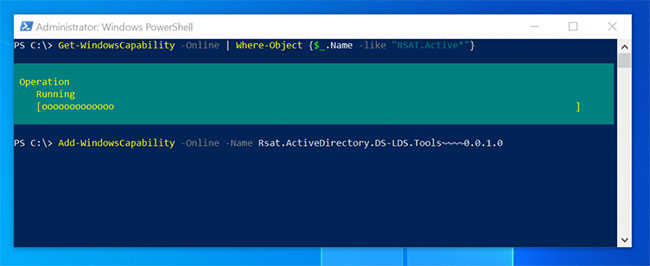
<p style="text-align: justify;">Để cài đặt tính năng với PowerShell, nhập lệnh này sau đó nhấn&nbsp;<code>Enter</code>. Sao chép tên của tính năng từ kết quả của lệnh trước đó.</p>

<pre id="pre4">
<code>Add-WindowsCapability -Online -Name Rsat.ActiveDirectory.DS-LDS.Tools~~~~0.0.1.0</code></pre>

<p style="text-align: justify;">PowerShell sẽ bắt đầu cài đặt tính năng, có thể mất một lúc để hoàn thành.</p>

<figure>
<div style="text-align: justify;"><img alt="PowerShell sẽ bắt đầu cài đặt tính năng" data-i="5" data-src="https://st.quantrimang.com/photos/image/2020/07/28/bat-rsat-cho-active-directory-6.jpg" data-was-processed="true" height="266" src="https://st.quantrimang.com/photos/image/2020/07/28/bat-rsat-cho-active-directory-6.jpg" width="650" /></div>

<figcaption>
<div style="text-align: justify;">PowerShell sẽ bắt đầu cài đặt tính năng</div>
</figcaption>
</figure>

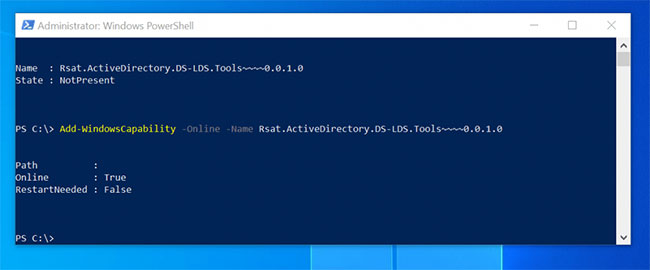
<p style="text-align: justify;">Khi cài đặt hoàn tất, một kết quả tương tự như kết quả bên dưới sẽ được trả về. Nếu bạn cần khởi động lại máy tính,&nbsp;<strong>RestartNeeded</strong>&nbsp;sẽ hiển thị&nbsp;<strong>True.</strong></p>

<figure>
<div style="text-align: justify;"><img alt="Nếu bạn cần khởi động lại máy tính, RestartNeeded sẽ hiển thị True" data-i="6" data-src="https://st.quantrimang.com/photos/image/2020/07/28/bat-rsat-cho-active-directory-7.jpg" data-was-processed="true" height="270" src="https://st.quantrimang.com/photos/image/2020/07/28/bat-rsat-cho-active-directory-7.jpg" width="650" /></div>

<figcaption>
<div style="text-align: justify;">Nếu bạn cần khởi động lại máy tính, RestartNeeded sẽ hiển thị True</div>
</figcaption>
</figure>

<p style="text-align: justify;">Cuối cùng, để xác nhận cài đặt thành công, hãy gõ lệnh này, sau đó nhấn&nbsp;<code>Enter</code>.</p>

<pre id="pre5">
<code>Get-WindowsCapability -Online | Where-Object {$_.Name -like &quot;RSAT.Active*&quot;}</code></pre>

<p style="text-align: justify;"><strong>State</strong>&nbsp;hiện thị trạng thái&nbsp;<strong>Installed.</strong></p>
		</div>
				<div id="author">
						<p>
				<strong>Nguồn tin:</strong>
				Quantrimang.com
			</p>
		</div>
	</div>
	<div id="footer" class="clearfix">
		<div id="url">
			<strong>URL của bản tin này: </strong><a href="https://www.nguoicodonvn2008.info/vi/news/savefile/kien-thuc-may-tinh/cach-bat-rsat-cho-active-directory-trong-windows-10-2427.html" title="Cách bật RSAT cho Active Directory trong Windows 10">https://www.nguoicodonvn2008.info/vi/news/savefile/kien-thuc-may-tinh/cach-bat-rsat-cho-active-directory-trong-windows-10-2427.html</a>

		</div>
		<div class="clear"></div>
		<div class="copyright">
			&copy; .&#x3A; Nguoicodonvn2008.info - Cõi lòng người cô đơn &#x3A;.
		</div>
		<div id="contact">
			<a href="mailto:admin@nguoicodonvn2008.info">admin@nguoicodonvn2008.info</a>
		</div>
	</div>
</div>
        <div id="timeoutsess" class="chromeframe">
            Bạn đã không sử dụng Site, <a onclick="timeoutsesscancel();" href="https://nguoicodonvn2008.info/#">Bấm vào đây để duy trì trạng thái đăng nhập</a>. Thời gian chờ: <span id="secField"> 60 </span> giây
        </div>
        <div id="openidResult" class="nv-alert" style="display:none"></div>
        <div id="openidBt" data-result="" data-redirect=""></div>
		</script>
		<div class="car-top">
  <span><img src="https://nguoicodonvn2008.info/themes/default/images/car.png" alt=""></span>
</div>
<script src="https://nguoicodonvn2008.info/assets/js/jquery/jquery.min.js"></script>
<script>var nv_base_siteurl="/",nv_lang_data="vi",nv_lang_interface="vi",nv_name_variable="nv",nv_fc_variable="op",nv_lang_variable="language",nv_module_name="news",nv_func_name="savefile",nv_is_user=0, nv_my_ofs=-4,nv_my_abbr="EDT",nv_cookie_prefix="nv4c_e856T",nv_check_pass_mstime=1738000,nv_area_admin=0,nv_safemode=0,theme_responsive=0,nv_recaptcha_ver=2,nv_recaptcha_sitekey="",nv_recaptcha_type="image",XSSsanitize=1;</script>
<script src="https://nguoicodonvn2008.info/assets/js/language/vi.js"></script>
<script src="https://nguoicodonvn2008.info/assets/js/DOMPurify/purify3.js"></script>
<script src="https://nguoicodonvn2008.info/assets/js/global.js"></script>
<script src="https://nguoicodonvn2008.info/assets/js/site.js"></script>
<script src="https://nguoicodonvn2008.info/themes/default/js/news.js"></script>
<script src="https://nguoicodonvn2008.info/themes/default/js/main.js"></script>
<script src="https://nguoicodonvn2008.info/themes/default/js/custom.js"></script>
<script type="application/ld+json">
        {
            "@context": "https://schema.org",
            "@type": "Organization",
            "url": "https://nguoicodonvn2008.info",
            "logo": "https://nguoicodonvn2008.info/uploads/angel.gif"
        }
        </script>
<script src="https://nguoicodonvn2008.info/themes/default/js/bootstrap.min.js"></script>
<script type="text/javascript">
var $scrolltop = $('.car-top');
$scrolltop.on('click', function () {
    $('html,body').animate({
        scrollTop: 0
    }, 800);
    $(this).addClass("car-run");
    setTimeout(function(){ $scrolltop.removeClass('car-run');}, 1000);
    return false;
});
$(window).on('scroll', function ()
{ 
    if($(window).scrollTop() >= 200)
    {
        $scrolltop.addClass("show");
        $scrolltop.addClass("car-down");
    }
    else
    {
       $scrolltop.removeClass("show");
       setTimeout(function(){ $scrolltop.removeClass('car-down');}, 300);
    }
});
</script>
</body>
</html>