<!DOCTYPE html>
    <html lang="vi" xmlns="http://www.w3.org/1999/xhtml" prefix="og: http://ogp.me/ns#">
    <head>
<title>Cách bật hoặc tắt Device Guard trên Windows 10</title>
<meta name="description" content="Cách bật hoặc tắt Device Guard trên Windows 10 - Savefile - Tin Tức -...">
<meta name="author" content=".: Nguoicodonvn2008.info - Cõi lòng người cô đơn :.">
<meta name="copyright" content=".: Nguoicodonvn2008.info - Cõi lòng người cô đơn :. [admin@nguoicodonvn2008.info]">
<meta name="robots" content="index, archive, follow, noodp">
<meta name="googlebot" content="index,archive,follow,noodp">
<meta name="msnbot" content="all,index,follow">
<meta name="generator" content="NukeViet v4.5">
<meta http-equiv="Content-Type" content="text/html; charset=utf-8">
<meta property="og:title" content="Cách bật hoặc tắt Device Guard trên Windows 10">
<meta property="og:type" content="website">
<meta property="og:description" content="Savefile - Tin Tức - https&#x3A;&#x002F;&#x002F;www.nguoicodonvn2008.info&#x002F;vi&#x002F;news&#x002F;savefile&#x002F;kien-thuc-may-tinh&#x002F;cach-bat-hoac-tat-device-guard-tren-windows-10-766.html">
<meta property="og:site_name" content=".&#x3A; Nguoicodonvn2008.info - Cõi lòng người cô đơn &#x3A;.">
<meta property="og:url" content="https://www.nguoicodonvn2008.info/vi/news/savefile/kien-thuc-may-tinh/cach-bat-hoac-tat-device-guard-tren-windows-10-766.html">
<link rel="shortcut icon" href="https://nguoicodonvn2008.info/favicon.ico">
<link rel="canonical" href="https://www.nguoicodonvn2008.info/vi/news/savefile/kien-thuc-may-tinh/cach-bat-hoac-tat-device-guard-tren-windows-10-766.html">
<link rel="alternate" href="https://nguoicodonvn2008.info/vi/news/rss/" title="Tin Tức" type="application/rss+xml">
<link rel="alternate" href="https://nguoicodonvn2008.info/vi/news/rss/karaoke-dual/" title="Tin Tức - Karaoke Dual" type="application/rss+xml">
<link rel="alternate" href="https://nguoicodonvn2008.info/vi/news/rss/nhac-tre/" title="Tin Tức - Nhạc trẻ" type="application/rss+xml">
<link rel="alternate" href="https://nguoicodonvn2008.info/vi/news/rss/tru-tinh/" title="Tin Tức - Trữ tình" type="application/rss+xml">
<link rel="alternate" href="https://nguoicodonvn2008.info/vi/news/rss/nuoc-ngoai/" title="Tin Tức - Nước ngoài" type="application/rss+xml">
<link rel="alternate" href="https://nguoicodonvn2008.info/vi/news/rss/remix/" title="Tin Tức - Remix" type="application/rss+xml">
<link rel="alternate" href="https://nguoicodonvn2008.info/vi/news/rss/tam-su-tinh-yeu/" title="Tin Tức - Tâm sự tình yêu" type="application/rss+xml">
<link rel="alternate" href="https://nguoicodonvn2008.info/vi/news/rss/tho-suu-tam/" title="Tin Tức - Thơ sưu tầm" type="application/rss+xml">
<link rel="alternate" href="https://nguoicodonvn2008.info/vi/news/rss/cuoc-song/" title="Tin Tức - Cuộc sống" type="application/rss+xml">
<link rel="alternate" href="https://nguoicodonvn2008.info/vi/news/rss/phan-mem/" title="Tin Tức - Phần mềm" type="application/rss+xml">
<link rel="alternate" href="https://nguoicodonvn2008.info/vi/news/rss/kien-thuc-may-tinh/" title="Tin Tức - Kiến thức máy tính" type="application/rss+xml">
<link rel="alternate" href="https://nguoicodonvn2008.info/vi/news/rss/hoc-tap/" title="Tin Tức - Học tập" type="application/rss+xml">
<link rel="alternate" href="https://nguoicodonvn2008.info/vi/news/rss/tai-lieu/" title="Tin Tức - Tài liệu" type="application/rss+xml">
<link rel="alternate" href="https://nguoicodonvn2008.info/vi/news/rss/de-thi/" title="Tin Tức - Đề thi" type="application/rss+xml">
<link rel="preload" as="style" href="https://nguoicodonvn2008.info/assets/css/font-awesome.min.css" type="text/css">
<link rel="preload" as="style" href="https://nguoicodonvn2008.info/themes/default/css/bootstrap.non-responsive.css" type="text/css">
<link rel="preload" as="style" href="https://nguoicodonvn2008.info/themes/default/css/style.css" type="text/css">
<link rel="preload" as="style" href="https://nguoicodonvn2008.info/themes/default/css/style.non-responsive.css" type="text/css">
<link rel="preload" as="style" href="https://nguoicodonvn2008.info/themes/default/css/news.css" type="text/css">
<link rel="preload" as="style" href="https://nguoicodonvn2008.info/themes/default/css/custom.css" type="text/css">
<link rel="preload" as="script" href="https://nguoicodonvn2008.info/assets/js/jquery/jquery.min.js" type="text/javascript">
<link rel="preload" as="script" href="https://nguoicodonvn2008.info/assets/js/language/vi.js" type="text/javascript">
<link rel="preload" as="script" href="https://nguoicodonvn2008.info/assets/js/DOMPurify/purify3.js" type="text/javascript">
<link rel="preload" as="script" href="https://nguoicodonvn2008.info/assets/js/global.js" type="text/javascript">
<link rel="preload" as="script" href="https://nguoicodonvn2008.info/assets/js/site.js" type="text/javascript">
<link rel="preload" as="script" href="https://nguoicodonvn2008.info/themes/default/js/news.js" type="text/javascript">
<link rel="preload" as="script" href="https://nguoicodonvn2008.info/themes/default/js/main.js" type="text/javascript">
<link rel="preload" as="script" href="https://nguoicodonvn2008.info/themes/default/js/custom.js" type="text/javascript">
<link rel="preload" as="script" href="https://nguoicodonvn2008.info/themes/default/js/bootstrap.min.js" type="text/javascript">
<link rel="stylesheet" href="https://nguoicodonvn2008.info/assets/css/font-awesome.min.css">
<link rel="stylesheet" href="https://nguoicodonvn2008.info/themes/default/css/bootstrap.non-responsive.css">
<link rel="stylesheet" href="https://nguoicodonvn2008.info/themes/default/css/style.css">
<link rel="stylesheet" href="https://nguoicodonvn2008.info/themes/default/css/style.non-responsive.css">
<link rel="StyleSheet" href="https://nguoicodonvn2008.info/themes/default/css/news.css">
<link rel="stylesheet" href="https://nguoicodonvn2008.info/themes/default/css/custom.css">
<style type="text/css">
	body{background: #fff;}
</style>
    </head>
    <body>
<div id="print">
	<div id="hd_print">
		<h2 class="pull-left">.&#x3A; Nguoicodonvn2008.info - Cõi lòng người cô đơn &#x3A;.</h2>
		<p class="pull-right"><a title=".&#x3A; Nguoicodonvn2008.info - Cõi lòng người cô đơn &#x3A;." href="https://nguoicodonvn2008.info/">https://nguoicodonvn2008.info</a></p>
	</div>
	<div class="clear"></div>
	<hr />
	<div id="content">
		<h1>Cách bật hoặc tắt Device Guard trên Windows 10</h1>
		<ul class="list-inline">
			<li>Thứ sáu - 16/08/2019 02:14</li>
			<li class="hidden-print txtrequired"><em class="fa fa-print">&nbsp;</em><a title="In ra" href="javascript:;" onclick="window.print()">In ra</a></li>
			<li class="hidden-print txtrequired"><em class="fa fa-power-off">&nbsp;</em><a title="Đóng cửa sổ này" href="javascript:;" onclick="window.close()">Đóng cửa sổ này</a></li>
		</ul>
		<div class="clear"></div>
		<div id="hometext">
		</div>
				<div class="imghome">
			<img alt="Cách bật hoặc tắt Device Guard trên Windows 10" src="https://st.quantrimang.com/photos/image/2019/08/15/bat-Device-Guard-3.png" width="460" class="img-thumbnail" />
		</div>
		<div class="clear"></div>
		<div id="bodytext" class="clearfix">
			<p style="text-align: justify;">Device Guard là sự kết hợp tính năng bảo mật phần mềm và phần cứng liên quan đến doanh nghiệp, khi được cấu hình cùng nhau sẽ khóa thiết bị để chỉ chạy các ứng dụng đáng tin cậy mà bạn xác định trong chính sách toàn vẹn mã. Nếu ứng dụng không tin cậy, nó sẽ không thể chạy. Với phần cứng đáp ứng yêu cầu cơ bản, điều đó có nghĩa là ngay cả khi kẻ tấn công có thể giành quyền kiểm soát nhân Windows, họ cũng không thể chạy mã thực thi độc hại. Với phần cứng thích hợp, Device Guard có thể sử dụng bảo mật dựa trên ảo hóa mới trong Windows 10 để cách ly dịch vụ Code Integrity khỏi nhân Microsoft Windows. Trong trường hợp này, dịch vụ Code Integrity chạy cùng nhân trong bộ chứa được bảo vệ bởi ảo hóa Windows.</p>

<p style="text-align: justify;">Hướng dẫn này sẽ chỉ cho bạn cách bật hoặc tắt bảo mật dựa trên ảo hóa Device Guard trên PC Windows 10 Enterprise và Windows 10 Education.</p>

<p style="text-align: justify;">&nbsp;</p>

<h2 style="text-align: justify;">Cách kích hoạt hoặc vô hiệu hóa Device Guard</h2>

<p style="text-align: justify;"><strong>Bước 1</strong>. Mở các Windows Features.</p>

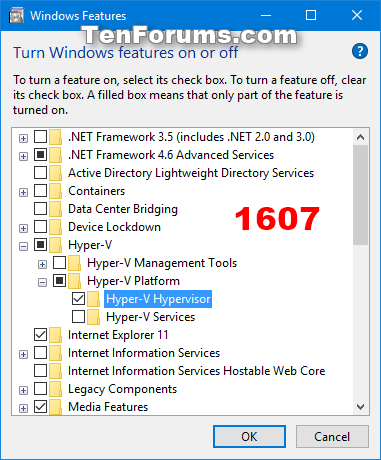
<p style="text-align: justify;">Trong Windows 10 Enterprise/Education phiên bản 1607 trở lên, chọn&nbsp;<strong>Hyper-V Hypervisor</strong>&nbsp;trong&nbsp;<strong>Hyper-V</strong>&nbsp;và click vào&nbsp;<strong>OK</strong>.</p>

<p style="text-align: justify;"><img alt="Chọn Hyper-V Hypervisor trong phiên bản 1607 trở lên" data-i="0" data-src="https://st.quantrimang.com/photos/image/2019/08/15/bat-Device-Guard-1.png" data-was-processed="true" height="460" src="https://st.quantrimang.com/photos/image/2019/08/15/bat-Device-Guard-1.png" width="381" /></p>

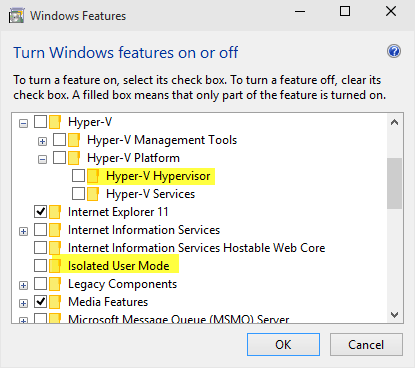
<p style="text-align: justify;">Trong các phiên bản Windows 10 Enterprise/Education trước phiên bản 1607, hãy chọn&nbsp;<strong>Hyper-V Hypervisor</strong>&nbsp;trong Hyper-V, chọn&nbsp;<strong>Isolated User&nbsp;Mode</strong>&nbsp;và click vào&nbsp;<strong>OK</strong>.</p>

<p style="text-align: justify;"><img alt="Chọn Isolated User Mode" data-i="1" data-src="https://st.quantrimang.com/photos/image/2019/08/15/bat-Device-Guard-2.png" data-was-processed="true" height="368" src="https://st.quantrimang.com/photos/image/2019/08/15/bat-Device-Guard-2.png" width="415" /></p>

<p style="text-align: justify;"><strong>Bước 2</strong>.&nbsp;Mở Local Group Policy Editor.</p>

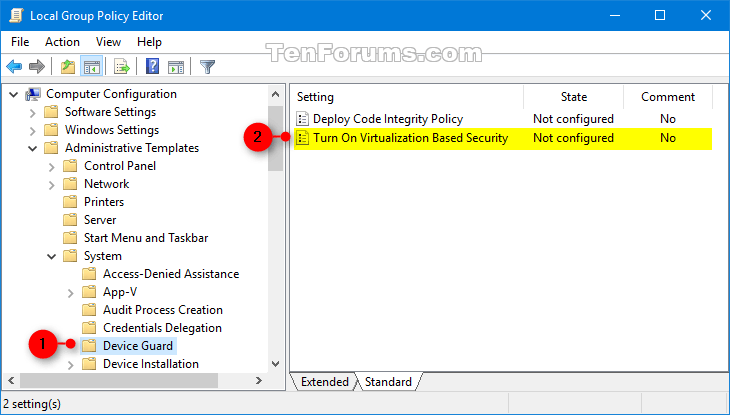
<p style="text-align: justify;"><strong>Bước 3</strong>. Điều hướng đến key sau ở khung bên trái của Local Group Policy Editor.</p>

<pre id="pre0">
<code>Computer Configuration\Administrative Templates\System\Device Guard</code></pre>

<p style="text-align: justify;"><img alt="Tìm key Device Guard" data-i="2" data-src="https://st.quantrimang.com/photos/image/2019/08/15/bat-Device-Guard-3.png" data-was-processed="true" height="364" src="https://st.quantrimang.com/photos/image/2019/08/15/bat-Device-Guard-3.png" width="640" /></p>

<p style="text-align: justify;"><strong>Bước 4</strong>. Trong khung bên phải của Device Guard trong Local Group Policy Editor, click đúp vào chính sách&nbsp;<strong>Turn On Virtualization Based Security</strong>&nbsp;để chỉnh sửa nó.</p>

<p style="text-align: justify;"><strong>Bước 5</strong>. Thực hiện theo Bước 6 (bật) hoặc Bước 7 (tắt).</p>

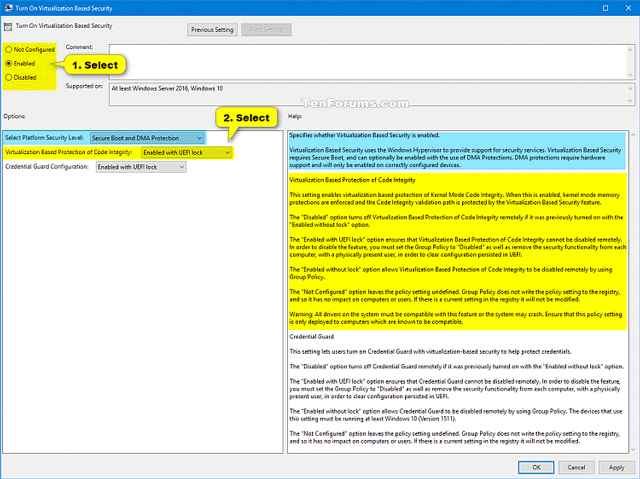
<p style="text-align: justify;"><strong>Bước 6</strong>. Để kích hoạt Device Guard</p>

<ul>
	<li style="text-align: justify;">Chọn&nbsp;<strong>Enabled</strong>.</li>
	<li style="text-align: justify;">Trong Options, chọn&nbsp;<strong>Secure Boot</strong>&nbsp;hoặc&nbsp;<strong>Secure Boot and DMA Protection</strong>&nbsp;trong menu thả xuống Select Platform Security Level.</li>
</ul>

<p style="text-align: justify;"><strong>Lưu ý:</strong>&nbsp;Tùy chọn&nbsp;<strong>Secure Boot (recommended)</strong>&nbsp;cung cấp khởi động an toàn với nhiều bảo vệ được hỗ trợ bởi phần cứng của máy tính cụ thể. Một máy tính với bộ quản lý bộ nhớ đầu vào/đầu ra (IOMMUs) sẽ có khởi động an toàn với bảo vệ DMA. Một máy tính không có IOMMUs sẽ chỉ kích hoạt khởi động an toàn.</p>

<div style="text-align: justify;">&nbsp;</div>

<p style="text-align: justify;"><strong>Secure Boot with DMA</strong>&nbsp;sẽ kích hoạt tính năng khởi động an toàn và VBS chỉ trên máy tính hỗ trợ DMA, tức là máy tính có IOMMUs. Với cài đặt này, bất kỳ máy tính nào không có IOMMU sẽ không có bảo vệ VBS (dựa trên phần cứng), mặc dù nó có thể kích hoạt các chính sách toàn vẹn mã.</p>

<ul>
	<li style="text-align: justify;">Trong Options, chọn&nbsp;<strong>Enabled with UEFI lock</strong>&nbsp;hoặc&nbsp;<strong>Enabled without lock</strong>&nbsp;trong menu thả xuống Virtualization Based Protection of Code Integrity.</li>
</ul>

<p style="text-align: justify;"><strong>Lưu ý:</strong>&nbsp;Tùy chọn&nbsp;<strong>Enabled with UEFI lock</strong>&nbsp;đảm bảo Virtualization Based Protection of Code Integrity không bị vô hiệu hóa từ xa. Để vô hiệu hóa tính năng này, bạn cần thiết lập Group Policy thành Disabled cũng như xóa chức năng bảo mật cho từng máy tính với người dùng hiện tại để xóa cấu hình trên UEFI.</p>

<p style="text-align: justify;">Tùy chọn&nbsp;<strong>Enabled without lock</strong>&nbsp;cho phép Virtualization Based Protection of Code Integrity bị vô hiệu hóa từ xa sử dụng Group Policy.</p>

<ul>
	<li style="text-align: justify;">Nếu muốn, bạn cũng có thể&nbsp;kích hoạt Credential Guard&nbsp;bằng cách chọn&nbsp;<strong>Enabled with UEFI lock</strong>&nbsp;hoặc&nbsp;<strong>Enabled without lock</strong>&nbsp;trong menu thả xuống Credential Guard Configuration.</li>
</ul>

<p style="text-align: justify;"><strong>Lưu ý:</strong>&nbsp;Tùy chọn&nbsp;<strong>Enabled with UEFI lock</strong>&nbsp;đảm bảo Credential Guard không bị vô hiệu hóa từ xa. Để tắt tính năng này, bạn phải thiết lập Group Policy thành Disabled cũng như xóa chức năng bảo mật trong mỗi máy tính với người dùng hiện tại để xóa cấu hình trong UEFI.</p>

<p style="text-align: justify;">Tùy chọn&nbsp;<strong>Enabled without lock</strong>&nbsp;cho phép Credential Guard bị tắt từ xa sử dụng Group Policy. Các thiết bị sử dụng cài đặt này cần chạy trên hệ điều hành từ Windows 10 (Phiên bản 1511) trở lên.&nbsp;</p>

<ul>
	<li style="text-align: justify;">Chuyển đến Bước 8.</li>
</ul>

<p style="text-align: justify;"><strong>Bước 7</strong>. Để vô hiệu hóa Device Guard</p>

<p style="text-align: justify;">Chọn&nbsp;<strong>Not Configured</strong>&nbsp;hoặc&nbsp;<strong>Disabled</strong>, click vào&nbsp;<strong>OK</strong>&nbsp;và chuyển đến Bước 8.</p>

<p style="text-align: justify;"><strong>Lưu ý</strong>: Not Configured là cài đặt mặc định.</p>

<p style="text-align: justify;"><img alt="Vô hiệu hóa Device Guard" data-i="3" data-src="https://st.quantrimang.com/photos/image/2019/08/15/bat-Device-Guard-4.png" data-was-processed="true" height="479" src="https://st.quantrimang.com/photos/image/2019/08/15/bat-Device-Guard-4.png" width="640" /></p>

<p style="text-align: justify;"><strong>Bước 8</strong>. Đóng Local Group Policy Editor.</p>

<p style="text-align: justify;"><strong>Bước 9</strong>.&nbsp;Khởi động lại máy tính&nbsp;để áp dụng thay đổi.</p>

<p style="text-align: justify;">Chúc các bạn thực hiện thành công!</p>
		</div>
				<div id="author">
						<p>
				<strong>Nguồn tin:</strong>
				Quantrimang.com
			</p>
		</div>
	</div>
	<div id="footer" class="clearfix">
		<div id="url">
			<strong>URL của bản tin này: </strong><a href="https://www.nguoicodonvn2008.info/vi/news/savefile/kien-thuc-may-tinh/cach-bat-hoac-tat-device-guard-tren-windows-10-766.html" title="Cách bật hoặc tắt Device Guard trên Windows 10">https://www.nguoicodonvn2008.info/vi/news/savefile/kien-thuc-may-tinh/cach-bat-hoac-tat-device-guard-tren-windows-10-766.html</a>

		</div>
		<div class="clear"></div>
		<div class="copyright">
			&copy; .&#x3A; Nguoicodonvn2008.info - Cõi lòng người cô đơn &#x3A;.
		</div>
		<div id="contact">
			<a href="mailto:admin@nguoicodonvn2008.info">admin@nguoicodonvn2008.info</a>
		</div>
	</div>
</div>
        <div id="timeoutsess" class="chromeframe">
            Bạn đã không sử dụng Site, <a onclick="timeoutsesscancel();" href="https://nguoicodonvn2008.info/#">Bấm vào đây để duy trì trạng thái đăng nhập</a>. Thời gian chờ: <span id="secField"> 60 </span> giây
        </div>
        <div id="openidResult" class="nv-alert" style="display:none"></div>
        <div id="openidBt" data-result="" data-redirect=""></div>
		</script>
		<div class="car-top">
  <span><img src="https://nguoicodonvn2008.info/themes/default/images/car.png" alt=""></span>
</div>
<script src="https://nguoicodonvn2008.info/assets/js/jquery/jquery.min.js"></script>
<script>var nv_base_siteurl="/",nv_lang_data="vi",nv_lang_interface="vi",nv_name_variable="nv",nv_fc_variable="op",nv_lang_variable="language",nv_module_name="news",nv_func_name="savefile",nv_is_user=0, nv_my_ofs=-4,nv_my_abbr="EDT",nv_cookie_prefix="nv4c_e856T",nv_check_pass_mstime=1738000,nv_area_admin=0,nv_safemode=0,theme_responsive=0,nv_recaptcha_ver=2,nv_recaptcha_sitekey="",nv_recaptcha_type="image",XSSsanitize=1;</script>
<script src="https://nguoicodonvn2008.info/assets/js/language/vi.js"></script>
<script src="https://nguoicodonvn2008.info/assets/js/DOMPurify/purify3.js"></script>
<script src="https://nguoicodonvn2008.info/assets/js/global.js"></script>
<script src="https://nguoicodonvn2008.info/assets/js/site.js"></script>
<script src="https://nguoicodonvn2008.info/themes/default/js/news.js"></script>
<script src="https://nguoicodonvn2008.info/themes/default/js/main.js"></script>
<script src="https://nguoicodonvn2008.info/themes/default/js/custom.js"></script>
<script type="application/ld+json">
        {
            "@context": "https://schema.org",
            "@type": "Organization",
            "url": "https://nguoicodonvn2008.info",
            "logo": "https://nguoicodonvn2008.info/uploads/angel.gif"
        }
        </script>
<script src="https://nguoicodonvn2008.info/themes/default/js/bootstrap.min.js"></script>
<script type="text/javascript">
var $scrolltop = $('.car-top');
$scrolltop.on('click', function () {
    $('html,body').animate({
        scrollTop: 0
    }, 800);
    $(this).addClass("car-run");
    setTimeout(function(){ $scrolltop.removeClass('car-run');}, 1000);
    return false;
});
$(window).on('scroll', function ()
{ 
    if($(window).scrollTop() >= 200)
    {
        $scrolltop.addClass("show");
        $scrolltop.addClass("car-down");
    }
    else
    {
       $scrolltop.removeClass("show");
       setTimeout(function(){ $scrolltop.removeClass('car-down');}, 300);
    }
});
</script>
</body>
</html>