<!DOCTYPE html>
    <html lang="vi" xmlns="http://www.w3.org/1999/xhtml" prefix="og: http://ogp.me/ns#">
    <head>
<title>Cách bật giao diện dạng thẻ trong File Explorer trên Windows 11</title>
<meta name="description" content="Cách bật giao diện dạng thẻ trong File Explorer trên Windows 11 - Savefile - Tin Tức -...">
<meta name="author" content=".: Nguoicodonvn2008.info - Cõi lòng người cô đơn :.">
<meta name="copyright" content=".: Nguoicodonvn2008.info - Cõi lòng người cô đơn :. [admin@nguoicodonvn2008.info]">
<meta name="robots" content="index, archive, follow, noodp">
<meta name="googlebot" content="index,archive,follow,noodp">
<meta name="msnbot" content="all,index,follow">
<meta name="generator" content="NukeViet v4.5">
<meta http-equiv="Content-Type" content="text/html; charset=utf-8">
<meta property="og:title" content="Cách bật giao diện dạng thẻ trong File Explorer trên Windows 11">
<meta property="og:type" content="website">
<meta property="og:description" content="Savefile - Tin Tức - https&#x3A;&#x002F;&#x002F;www.nguoicodonvn2008.info&#x002F;vi&#x002F;news&#x002F;savefile&#x002F;kien-thuc-may-tinh&#x002F;cach-bat-giao-dien-dang-the-trong-file-explorer-tren-windows-11-5268.html">
<meta property="og:site_name" content=".&#x3A; Nguoicodonvn2008.info - Cõi lòng người cô đơn &#x3A;.">
<meta property="og:url" content="https://www.nguoicodonvn2008.info/vi/news/savefile/kien-thuc-may-tinh/cach-bat-giao-dien-dang-the-trong-file-explorer-tren-windows-11-5268.html">
<link rel="shortcut icon" href="https://nguoicodonvn2008.info/favicon.ico">
<link rel="canonical" href="https://www.nguoicodonvn2008.info/vi/news/savefile/kien-thuc-may-tinh/cach-bat-giao-dien-dang-the-trong-file-explorer-tren-windows-11-5268.html">
<link rel="alternate" href="https://nguoicodonvn2008.info/vi/news/rss/" title="Tin Tức" type="application/rss+xml">
<link rel="alternate" href="https://nguoicodonvn2008.info/vi/news/rss/karaoke-dual/" title="Tin Tức - Karaoke Dual" type="application/rss+xml">
<link rel="alternate" href="https://nguoicodonvn2008.info/vi/news/rss/nhac-tre/" title="Tin Tức - Nhạc trẻ" type="application/rss+xml">
<link rel="alternate" href="https://nguoicodonvn2008.info/vi/news/rss/tru-tinh/" title="Tin Tức - Trữ tình" type="application/rss+xml">
<link rel="alternate" href="https://nguoicodonvn2008.info/vi/news/rss/nuoc-ngoai/" title="Tin Tức - Nước ngoài" type="application/rss+xml">
<link rel="alternate" href="https://nguoicodonvn2008.info/vi/news/rss/remix/" title="Tin Tức - Remix" type="application/rss+xml">
<link rel="alternate" href="https://nguoicodonvn2008.info/vi/news/rss/tam-su-tinh-yeu/" title="Tin Tức - Tâm sự tình yêu" type="application/rss+xml">
<link rel="alternate" href="https://nguoicodonvn2008.info/vi/news/rss/tho-suu-tam/" title="Tin Tức - Thơ sưu tầm" type="application/rss+xml">
<link rel="alternate" href="https://nguoicodonvn2008.info/vi/news/rss/cuoc-song/" title="Tin Tức - Cuộc sống" type="application/rss+xml">
<link rel="alternate" href="https://nguoicodonvn2008.info/vi/news/rss/phan-mem/" title="Tin Tức - Phần mềm" type="application/rss+xml">
<link rel="alternate" href="https://nguoicodonvn2008.info/vi/news/rss/kien-thuc-may-tinh/" title="Tin Tức - Kiến thức máy tính" type="application/rss+xml">
<link rel="alternate" href="https://nguoicodonvn2008.info/vi/news/rss/hoc-tap/" title="Tin Tức - Học tập" type="application/rss+xml">
<link rel="alternate" href="https://nguoicodonvn2008.info/vi/news/rss/tai-lieu/" title="Tin Tức - Tài liệu" type="application/rss+xml">
<link rel="alternate" href="https://nguoicodonvn2008.info/vi/news/rss/de-thi/" title="Tin Tức - Đề thi" type="application/rss+xml">
<link rel="preload" as="style" href="https://nguoicodonvn2008.info/assets/css/font-awesome.min.css" type="text/css">
<link rel="preload" as="style" href="https://nguoicodonvn2008.info/themes/default/css/bootstrap.non-responsive.css" type="text/css">
<link rel="preload" as="style" href="https://nguoicodonvn2008.info/themes/default/css/style.css" type="text/css">
<link rel="preload" as="style" href="https://nguoicodonvn2008.info/themes/default/css/style.non-responsive.css" type="text/css">
<link rel="preload" as="style" href="https://nguoicodonvn2008.info/themes/default/css/news.css" type="text/css">
<link rel="preload" as="style" href="https://nguoicodonvn2008.info/themes/default/css/custom.css" type="text/css">
<link rel="preload" as="script" href="https://nguoicodonvn2008.info/assets/js/jquery/jquery.min.js" type="text/javascript">
<link rel="preload" as="script" href="https://nguoicodonvn2008.info/assets/js/language/vi.js" type="text/javascript">
<link rel="preload" as="script" href="https://nguoicodonvn2008.info/assets/js/DOMPurify/purify3.js" type="text/javascript">
<link rel="preload" as="script" href="https://nguoicodonvn2008.info/assets/js/global.js" type="text/javascript">
<link rel="preload" as="script" href="https://nguoicodonvn2008.info/assets/js/site.js" type="text/javascript">
<link rel="preload" as="script" href="https://nguoicodonvn2008.info/themes/default/js/news.js" type="text/javascript">
<link rel="preload" as="script" href="https://nguoicodonvn2008.info/themes/default/js/main.js" type="text/javascript">
<link rel="preload" as="script" href="https://nguoicodonvn2008.info/themes/default/js/custom.js" type="text/javascript">
<link rel="preload" as="script" href="https://nguoicodonvn2008.info/themes/default/js/bootstrap.min.js" type="text/javascript">
<link rel="stylesheet" href="https://nguoicodonvn2008.info/assets/css/font-awesome.min.css">
<link rel="stylesheet" href="https://nguoicodonvn2008.info/themes/default/css/bootstrap.non-responsive.css">
<link rel="stylesheet" href="https://nguoicodonvn2008.info/themes/default/css/style.css">
<link rel="stylesheet" href="https://nguoicodonvn2008.info/themes/default/css/style.non-responsive.css">
<link rel="StyleSheet" href="https://nguoicodonvn2008.info/themes/default/css/news.css">
<link rel="stylesheet" href="https://nguoicodonvn2008.info/themes/default/css/custom.css">
<style type="text/css">
	body{background: #fff;}
</style>
    </head>
    <body>
<div id="print">
	<div id="hd_print">
		<h2 class="pull-left">.&#x3A; Nguoicodonvn2008.info - Cõi lòng người cô đơn &#x3A;.</h2>
		<p class="pull-right"><a title=".&#x3A; Nguoicodonvn2008.info - Cõi lòng người cô đơn &#x3A;." href="https://nguoicodonvn2008.info/">https://nguoicodonvn2008.info</a></p>
	</div>
	<div class="clear"></div>
	<hr />
	<div id="content">
		<h1>Cách bật giao diện dạng thẻ trong File Explorer trên Windows 11</h1>
		<ul class="list-inline">
			<li>Thứ sáu - 11/03/2022 23:26</li>
			<li class="hidden-print txtrequired"><em class="fa fa-print">&nbsp;</em><a title="In ra" href="javascript:;" onclick="window.print()">In ra</a></li>
			<li class="hidden-print txtrequired"><em class="fa fa-power-off">&nbsp;</em><a title="Đóng cửa sổ này" href="javascript:;" onclick="window.close()">Đóng cửa sổ này</a></li>
		</ul>
		<div class="clear"></div>
		<div id="hometext">
		</div>
				<div class="imghome">
			<img alt="Cách bật giao diện dạng thẻ trong File Explorer trên Windows 11" src="https://st.quantrimang.com/photos/image/2022/03/10/microsoft-them-giao-dien-dang-the-vao-file-explorer-tren-windows-11.jpg" width="460" class="img-thumbnail" />
		</div>
		<div class="clear"></div>
		<div id="bodytext" class="clearfix">
			<p style="text-align: justify;">Trong bản build thử nghiệm mới nhất, Microsoft đã cung cấp một loại cải tiến và sửa lỗi cho người dùng insider kiểm định. Một số thay đổi rất đáng hoan nghênh nhưng lại có có thay đổi nào mang tính đột phá.</p>

<p style="text-align: justify;">Tuy nhiên, những người đam mê mày mò Windows đã mau chóng phát hiện ra Microsoft đã che giấu một số thay đổi khá thú vị trong bản build 22572 của&nbsp;Windows 11.</p>

<p style="text-align: justify;">Người dùng Windows đã yêu cầu thêm tab (giao diện dạng thẻ) vào&nbsp;File Explorer&nbsp;từ rất lâu nhưng Microsoft không thực hiện. Tới năm 2017, cuối cùng Microsoft đã nhượng bộ và thêm giao diện thử (Windows Sets) vào các phiên bản thử nghiệm của Windows 10.</p>

<p style="text-align: justify;">Không may là sau các thử nghiệm ban đầu, Microsoft đã quyết định khai tử Sets và hệ điều hành này đã trải qua 5 năm tiếp theo mà không có tab trong File Explorer.</p>

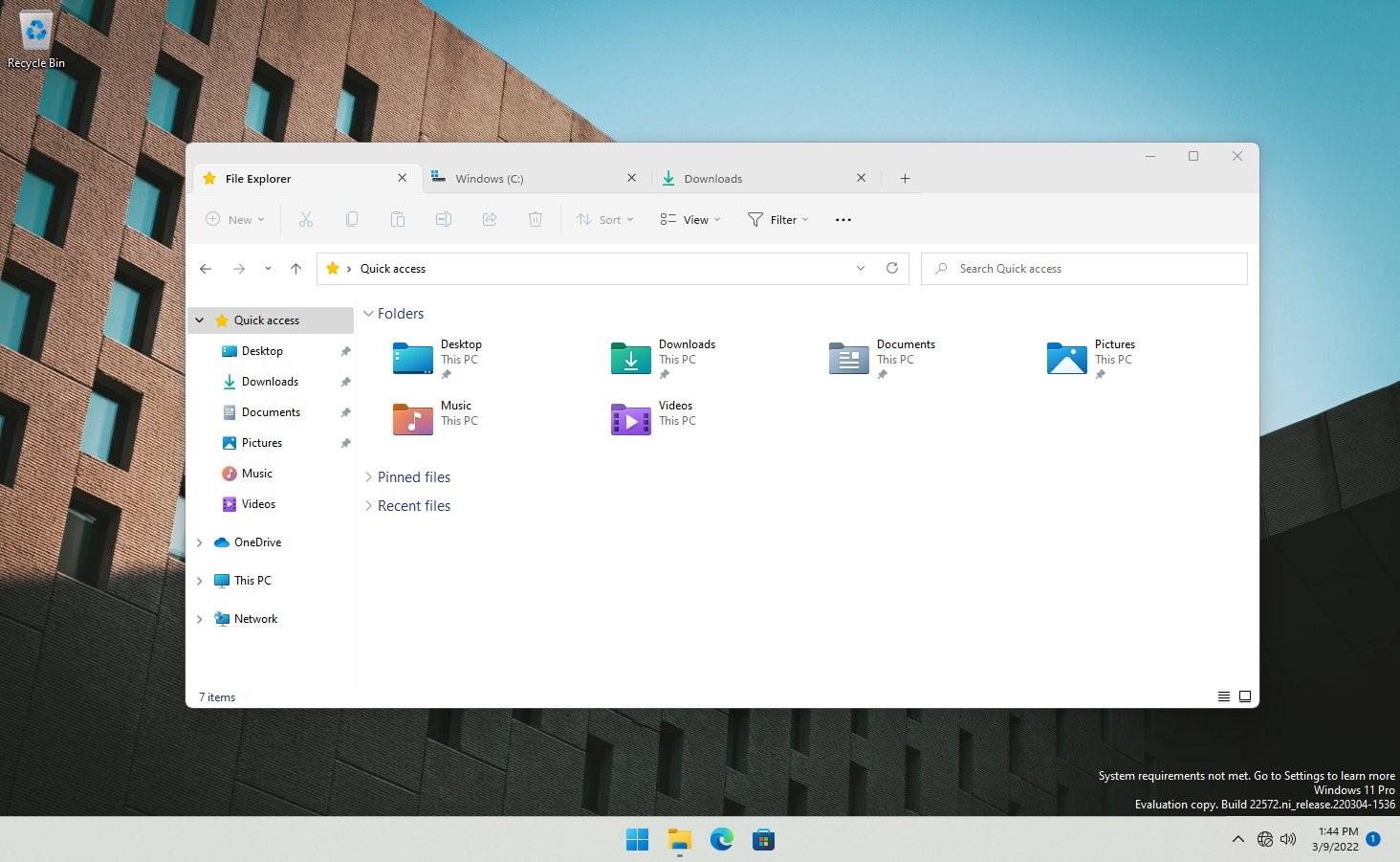
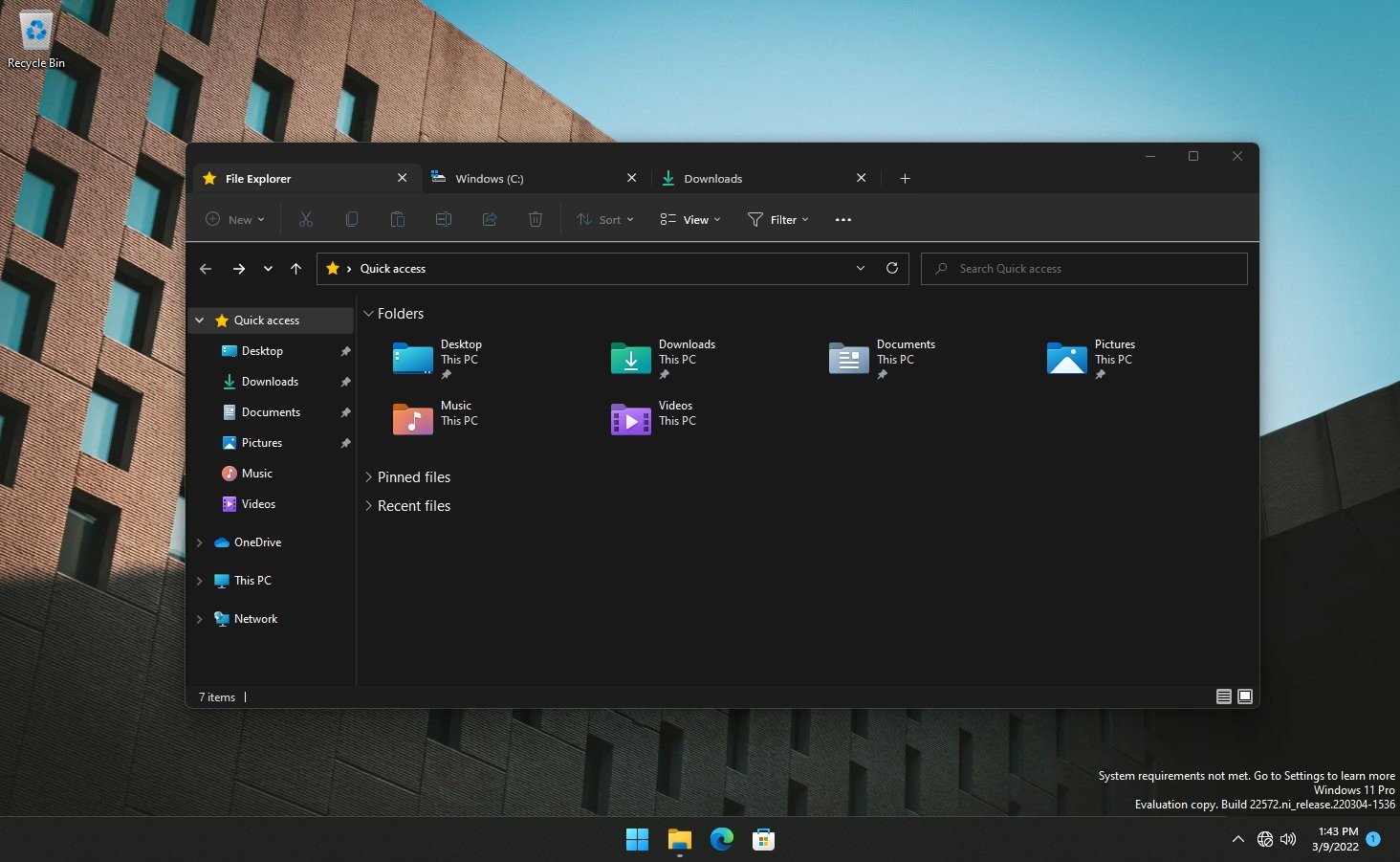
<p style="text-align: justify;">Giờ đây, có vẻ như Microsoft quyết định quay trở lại với ý tưởng đưa giao diện tab vào File Explorer. Mới đây, trên trang Twitter cá nhân, kỹ sư chuyên đảo ngược phần mềm Rafael Rivera đã tiết lộ rằng bạn đã có thể bật giao diện tab trong File Explorer trên Windows 11 bản thử nghiệm 22572.</p>

<p style="text-align: justify;"><img alt="Giao diện dạng thẻ trong Fire Explorer trên Windows 11" data-i="0" data-src="https://st.quantrimang.com/photos/image/2022/03/10/microsoft-them-giao-dien-dang-the-vao-file-explorer-tren-windows-11.jpg" data-was-processed="true" height="901" src="https://st.quantrimang.com/photos/image/2022/03/10/microsoft-them-giao-dien-dang-the-vao-file-explorer-tren-windows-11.jpg" width="1464" /></p>

<figure>
<div style="text-align: justify;"><img alt="Giao diện dạng thẻ trong Fire Explorer trên Windows 11" data-i="1" data-src="https://st.quantrimang.com/photos/image/2022/03/10/microsoft-them-giao-dien-dang-the-vao-file-explorer-tren-windows-11-1.jpg" data-was-processed="true" height="901" src="https://st.quantrimang.com/photos/image/2022/03/10/microsoft-them-giao-dien-dang-the-vao-file-explorer-tren-windows-11-1.jpg" width="1464" /></div>

<figcaption>
<div style="text-align: justify;">Giao diện dạng thẻ trong Fire Explorer trên Windows 11</div>
</figcaption>
</figure>

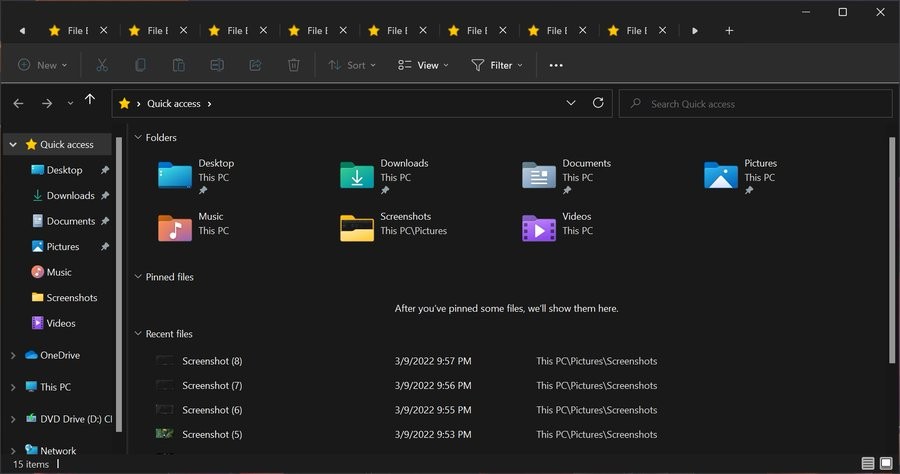
<p style="text-align: justify;">Mặc dù Microsoft vẫn chưa chính thức công bố giao diện tab trong File Explorer nhưng nhìn rất hứa hẹn. Nó hoạt động đúng như những gì mọi người mong đợi và thậm chí còn hỗ trợ chống tràn tab (File Explorer xuất hiện các nút bổ sung để cuộn tab khi bạn mở quá nhiều.</p>

<p style="text-align: justify;"><img alt="Giao diện dạng thẻ trong Fire Explorer trên Windows 11" data-i="2" data-src="https://st.quantrimang.com/photos/image/2022/03/10/microsoft-them-giao-dien-dang-the-vao-file-explorer-tren-windows-11-2.jpg" data-was-processed="true" height="474" src="https://st.quantrimang.com/photos/image/2022/03/10/microsoft-them-giao-dien-dang-the-vao-file-explorer-tren-windows-11-2.jpg" width="900" /></p>

<p style="text-align: justify;">Dẫu vậy, để mở giao diện tab cho File Explorer bạn sẽ phải kích hoạt tính năng ẩn của Windows 11, điều này có thể gây ra một số rắc rối. Nếu không nắm rõ về Windows thì tốt nhất bạn đừng nên mày mò để tránh phiền toái. Tốt nhất hãy chờ Microsoft chính thức tung ra hoặc tạm sử dụng các ứng dụng quản lý file như File hoặc Groupy.</p>

<h2 style="text-align: justify;">Cách bật giao diện dạng thẻ trong File Explorer</h2>

<p style="text-align: justify;">Đầu tiên thì bạn phải cài đặt Windows 11 Insider Preview sau đó cập nhật lên phiên bản mới nhất là build 22572. Tiếp theo bạn cần một công cụ hỗ trợ là ViveTool. Các bước thực hiện chi tiết như sau:</p>

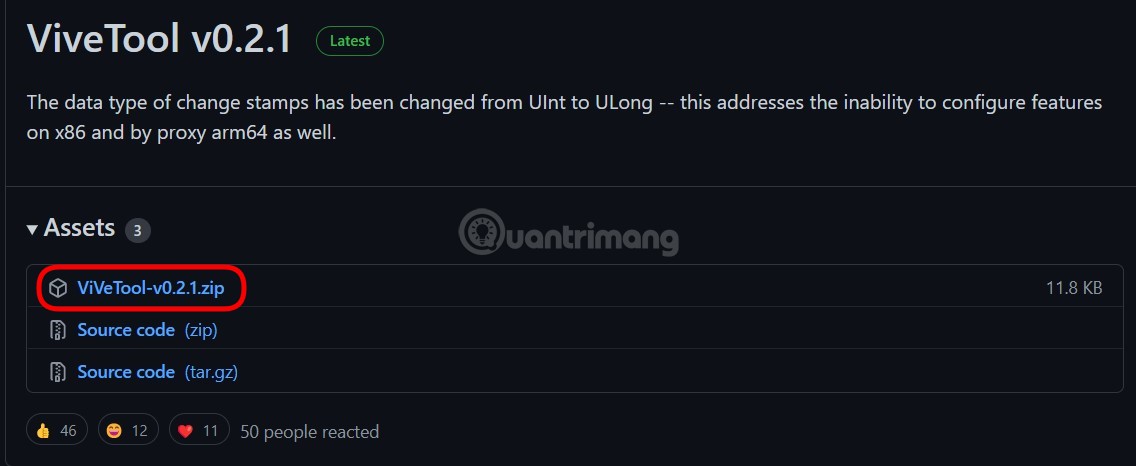
<p style="text-align: justify;"><strong>B1</strong>: Tải về công cụ&nbsp;<strong>ViveTool</strong>&nbsp;từ&nbsp;<strong>GitHub:&nbsp;<span style="color:rgb(192, 57, 43);">https://github.com/thebookisclosed/ViVe/releases</span></strong></p>

<p style="text-align: justify;"><strong><img alt="Tải ViveTool" data-i="3" data-src="https://st.quantrimang.com/photos/image/2022/03/12/microsoft-them-giao-dien-dang-the-vao-file-explorer-tren-windows-11-3.jpg" data-was-processed="true" height="466" src="https://st.quantrimang.com/photos/image/2022/03/12/microsoft-them-giao-dien-dang-the-vao-file-explorer-tren-windows-11-3.jpg" width="1136" /></strong></p>

<p style="text-align: justify;"><strong>B2</strong>: Giải nén tệp Zip của ViveTool ở thư mục dễ tìm kiếm.</p>

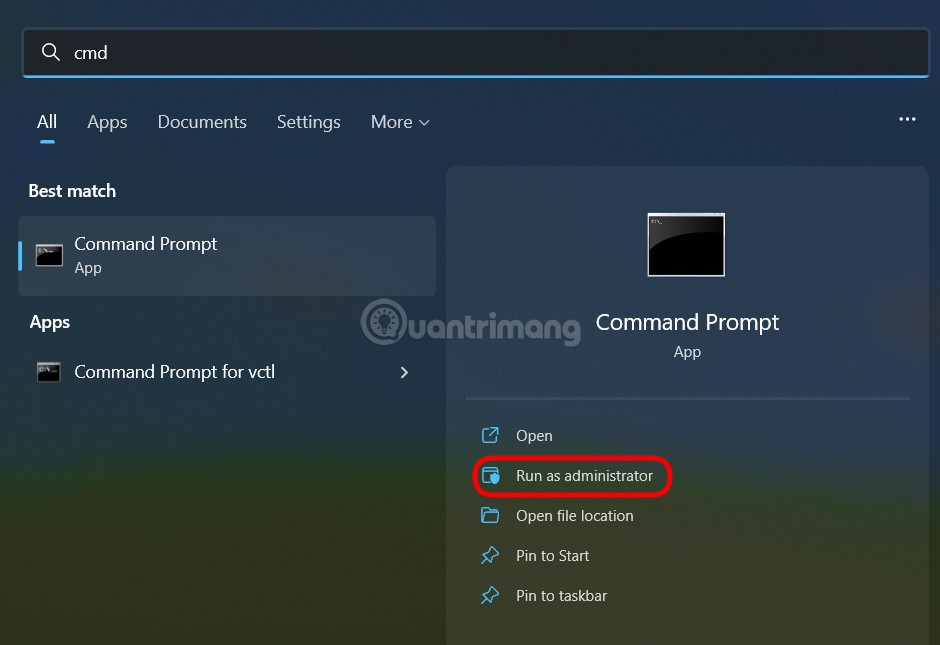
<p style="text-align: justify;"><strong>B3</strong>: Mở&nbsp;<strong>Command Prompt</strong>&nbsp;dưới quyền&nbsp;<strong>Admin.</strong></p>

<p style="text-align: justify;"><strong><img alt="Mở Command Prompt dưới quyền Admin" data-i="4" data-src="https://st.quantrimang.com/photos/image/2022/03/12/microsoft-them-giao-dien-dang-the-vao-file-explorer-tren-windows-11-4.jpg" data-was-processed="true" height="645" src="https://st.quantrimang.com/photos/image/2022/03/12/microsoft-them-giao-dien-dang-the-vao-file-explorer-tren-windows-11-4.jpg" width="940" /></strong></p>

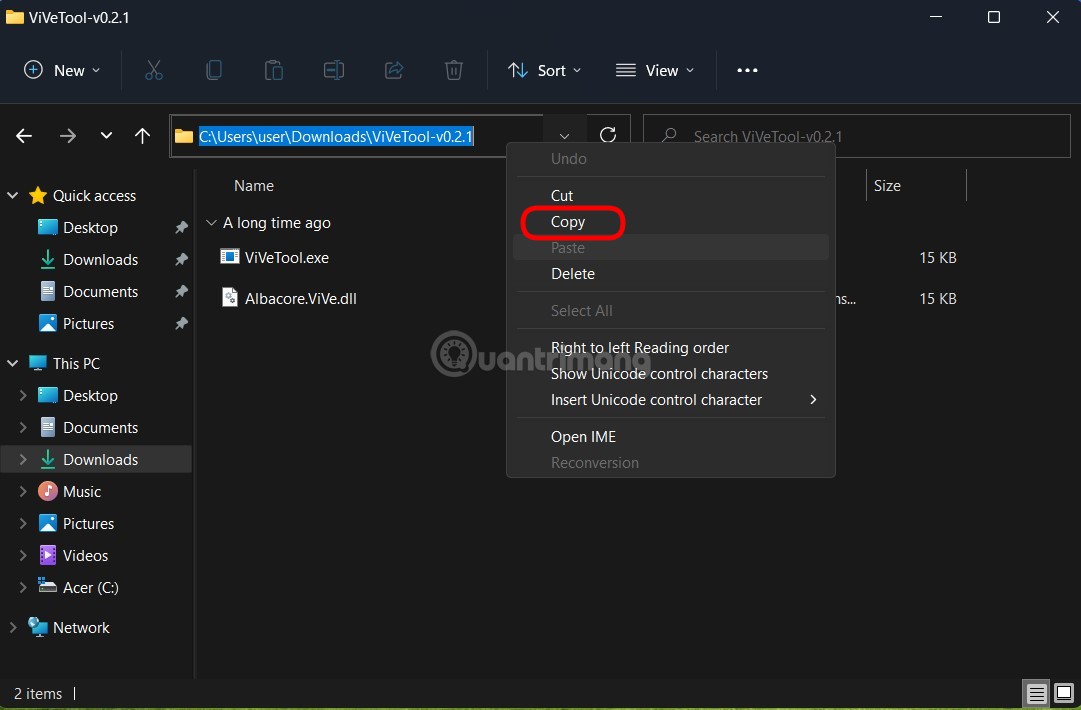
<p style="text-align: justify;"><strong>B4</strong>: Mở thư mục chứa ViveTool vừa giải nén và copy đường dẫn thư mục.</p>

<p style="text-align: justify;"><img alt="Copy đường dẫn thư mục ViveTool" data-i="5" data-src="https://st.quantrimang.com/photos/image/2022/03/12/microsoft-them-giao-dien-dang-the-vao-file-explorer-tren-windows-11-5.jpg" data-was-processed="true" height="710" src="https://st.quantrimang.com/photos/image/2022/03/12/microsoft-them-giao-dien-dang-the-vao-file-explorer-tren-windows-11-5.jpg" width="1081" /></p>

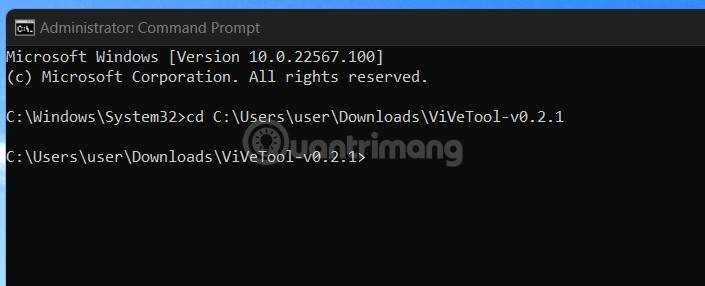
<p style="text-align: justify;"><strong>B5</strong>: Chuyển sang cửa sổ&nbsp;<strong>Command Prompt,</strong>&nbsp;nhập câu lệnh&nbsp;<strong>cd</strong>&nbsp;sau đó paste đường dẫn thư mục ViveTool mà bạn vừa copy rồi nhấn&nbsp;<strong>Enter.</strong></p>

<p style="text-align: justify;"><strong><img alt="cd tới thư mục chứa ViveTool" data-i="6" data-src="https://st.quantrimang.com/photos/image/2022/03/12/microsoft-them-giao-dien-dang-the-vao-file-explorer-tren-windows-11-6.jpg" data-was-processed="true" height="286" src="https://st.quantrimang.com/photos/image/2022/03/12/microsoft-them-giao-dien-dang-the-vao-file-explorer-tren-windows-11-6.jpg" width="705" /></strong></p>

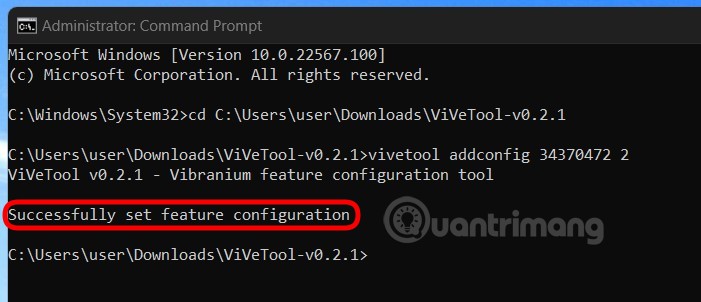
<p style="text-align: justify;"><strong>B6</strong>: Tiếp tục nhập câu lệnh&nbsp;<strong>vivetool addconfig 34370472 2&nbsp;</strong>rồi nhấn<strong>&nbsp;Enter</strong>. Trong đó, 34370472 là mã của tính năng ẩn cần kích hoạt còn 2 là bật tính năng, nếu muốn tắt bạn thay 2 bằng 1.</p>

<p style="text-align: justify;"><img alt="Nhập lệnh để kích hoạt tính năng" data-i="7" data-src="https://st.quantrimang.com/photos/image/2022/03/12/microsoft-them-giao-dien-dang-the-vao-file-explorer-tren-windows-11-7.jpg" data-was-processed="true" height="302" src="https://st.quantrimang.com/photos/image/2022/03/12/microsoft-them-giao-dien-dang-the-vao-file-explorer-tren-windows-11-7.jpg" width="701" /></p>

<p style="text-align: justify;"><strong>B7</strong>: Nếu thấy thông báo&nbsp;<strong>Successfully set feature configuration</strong>&nbsp;có nghĩa là tính năng đã được kích hoạt thành công.</p>

<p style="text-align: justify;"><strong>B8</strong>: Khởi động lại máy tính để bắt đầu dùng giao diện dạng thẻ trong File Explorer.</p>

<p style="text-align: justify;">Chúc các bạn thành công!</p>
		</div>
				<div id="author">
						<p>
				<strong>Nguồn tin:</strong>
				Quantrimang.com
			</p>
		</div>
	</div>
	<div id="footer" class="clearfix">
		<div id="url">
			<strong>URL của bản tin này: </strong><a href="https://www.nguoicodonvn2008.info/vi/news/savefile/kien-thuc-may-tinh/cach-bat-giao-dien-dang-the-trong-file-explorer-tren-windows-11-5268.html" title="Cách bật giao diện dạng thẻ trong File Explorer trên Windows 11">https://www.nguoicodonvn2008.info/vi/news/savefile/kien-thuc-may-tinh/cach-bat-giao-dien-dang-the-trong-file-explorer-tren-windows-11-5268.html</a>

		</div>
		<div class="clear"></div>
		<div class="copyright">
			&copy; .&#x3A; Nguoicodonvn2008.info - Cõi lòng người cô đơn &#x3A;.
		</div>
		<div id="contact">
			<a href="mailto:admin@nguoicodonvn2008.info">admin@nguoicodonvn2008.info</a>
		</div>
	</div>
</div>
        <div id="timeoutsess" class="chromeframe">
            Bạn đã không sử dụng Site, <a onclick="timeoutsesscancel();" href="https://nguoicodonvn2008.info/#">Bấm vào đây để duy trì trạng thái đăng nhập</a>. Thời gian chờ: <span id="secField"> 60 </span> giây
        </div>
        <div id="openidResult" class="nv-alert" style="display:none"></div>
        <div id="openidBt" data-result="" data-redirect=""></div>
		</script>
		<div class="car-top">
  <span><img src="https://nguoicodonvn2008.info/themes/default/images/car.png" alt=""></span>
</div>
<div id="run_cronjobs" style="visibility:hidden;display:none;"><img alt="cron" src="/index.php?second=cronjobs&amp;p=q09vdC5E" width="1" height="1" /></div>
<script src="https://nguoicodonvn2008.info/assets/js/jquery/jquery.min.js"></script>
<script>var nv_base_siteurl="/",nv_lang_data="vi",nv_lang_interface="vi",nv_name_variable="nv",nv_fc_variable="op",nv_lang_variable="language",nv_module_name="news",nv_func_name="savefile",nv_is_user=0, nv_my_ofs=-4,nv_my_abbr="EDT",nv_cookie_prefix="nv4c_e856T",nv_check_pass_mstime=1738000,nv_area_admin=0,nv_safemode=0,theme_responsive=0,nv_recaptcha_ver=2,nv_recaptcha_sitekey="",nv_recaptcha_type="image",XSSsanitize=1;</script>
<script src="https://nguoicodonvn2008.info/assets/js/language/vi.js"></script>
<script src="https://nguoicodonvn2008.info/assets/js/DOMPurify/purify3.js"></script>
<script src="https://nguoicodonvn2008.info/assets/js/global.js"></script>
<script src="https://nguoicodonvn2008.info/assets/js/site.js"></script>
<script src="https://nguoicodonvn2008.info/themes/default/js/news.js"></script>
<script src="https://nguoicodonvn2008.info/themes/default/js/main.js"></script>
<script src="https://nguoicodonvn2008.info/themes/default/js/custom.js"></script>
<script type="application/ld+json">
        {
            "@context": "https://schema.org",
            "@type": "Organization",
            "url": "https://nguoicodonvn2008.info",
            "logo": "https://nguoicodonvn2008.info/uploads/angel.gif"
        }
        </script>
<script src="https://nguoicodonvn2008.info/themes/default/js/bootstrap.min.js"></script>
<script type="text/javascript">
var $scrolltop = $('.car-top');
$scrolltop.on('click', function () {
    $('html,body').animate({
        scrollTop: 0
    }, 800);
    $(this).addClass("car-run");
    setTimeout(function(){ $scrolltop.removeClass('car-run');}, 1000);
    return false;
});
$(window).on('scroll', function ()
{ 
    if($(window).scrollTop() >= 200)
    {
        $scrolltop.addClass("show");
        $scrolltop.addClass("car-down");
    }
    else
    {
       $scrolltop.removeClass("show");
       setTimeout(function(){ $scrolltop.removeClass('car-down');}, 300);
    }
});
</script>
</body>
</html>